ManualGo.com
Renoir KC910I - Mobile Phone LG - Free user manual and instructions
Find the device manual for free Renoir KC910I LG in PDF.



Download the instructions for your Mobile Phone in PDF format for free! Find your manual Renoir KC910I - LG and take your electronic device back in hand. On this page are published all the documents necessary for the use of your device. Renoir KC910I by LG.
USER MANUAL Renoir KC910I LG
LG offers you a limited warranty that the enclosed phone and its enclosed accessories will be free from defects in material and workmanship according to the following terms and conditions:
1) The limited warranty for the product remains in effect for a period of 24 months from the
date of purchase of the product. The limited warranty for the batteries remains in effect for a period of 12 months from the date of purchase of the product. Accessories only have a 6 month warranty. (2) The limited warranty extends only to the original purchaser of the product and is not assignable or transferable to any subsequent purchaser/end user. (3) This warranty is good only to the original purchaser of the product during the warranty period, but limited to certain country if specifi ed. (4) The external housing and cosmetic parts shall be free of defects at the time of shipment and, therefore, shall not be covered under these limited warranty terms. (5) Upon request from LG, the consumer must provide information to reasonably prove the date of purchase. (6) The customer shall bear the cost of shipping the product to the Customer Service Department of LG. LG shall bear the cost of shipping the product back to the consumer after the completion of service under this limited warranty.
2. WHAT THIS WARRANTY DOES NOT COVER :
(1) Defects or damages resulting from use of the product in other than its normal and customary manner. (2) Defects or damages from abnormal use, abnormal conditions, improper storage, exposure to moisture or dampness, unauthorized modifi cations, unauthorized connections, unauthorized repair, misuse, neglect, abuse, accident, alteration, improper installation, or other acts which are not the fault of LG, including damage caused by shipping, blown fuses, spills of food or liquid.(3) Breakage or damage to antennas unless caused directly by defects in material or workmanship. (4) That the Customer Service Department at LG was not notifi ed by consumer of the alleged defect or malfunction of the product during the applicable limited warranty period. (5) Products which have had the serial number removed or made illegible. (6) This limited warranty is in lieu of all other warranties, express or implied either in fact or by operations of law, statutory or otherwise, including, but not limited to any implied warranty of marketability or fi tness for a particular use. (7) Damage resulting from use of non-LG approved accessories. (8) All plastic surfaces and all other externally exposed parts that are scratched or damaged due to normal customer use. (9) Products operated outside published maximum ratings. (10) Products used or obtained in a rental program. (11) Consumables (such as fuses).
TTC/MN) Les heures d’ouverture : du lundi au vendredi de 8h à 20h sauf jours fériés Avant d’envoyer votre téléphone en réparation, n’hésitez pas à consulter la rubrique FAQ sur notre site LG MOBILE, qui contient de nombreuses informations susceptibles de répondre à vos questions : www.fr.lgmobile.com Pour plus d’informations sur la marque : www.lge.com/frKC910i KC910i User Guide Some of the contents in this manual may differ from your phone depending on the software of the phone or your service provider.Congratulations on your purchase of the advanced and compact KC910i phone by LG, designed to operate with the latest digital mobile communication technology. Disposal of your old appliance 1 When this crossed-out wheeled bin symbol is attached to a product it means the product is covered by the European Directive 2002/96/EC. 2 All electrical and electronic products should be disposed of separately from the municipal waste stream via designated collection facilities appointed by the government or the local authorities. 3 The correct disposal of your old appliance will help prevent potential negative consequences for the environment and human health. 4 For more detailed information about disposal of your old appliance, please contact your city office, waste disposal service or the shop where you purchased the product.Set up Your home screen The basics Get creative Get organised The web Settings Accessories
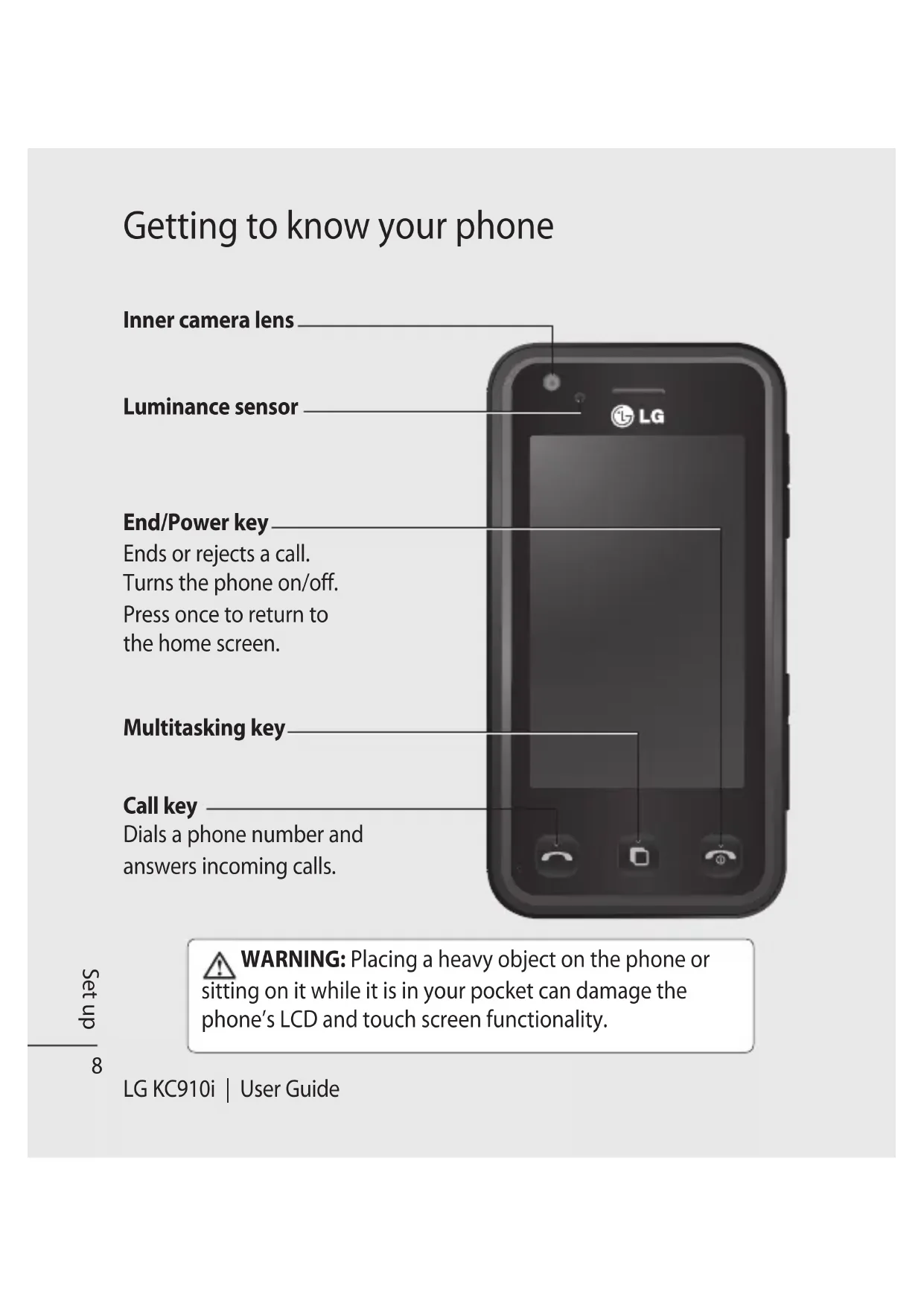
WARNING: Placing a heavy object on the phone or
sitting on it while it is in your pocket can damage the phone’s LCD and touch screen functionality. Set up Luminance sensor9
Set up Charger, Cable, Handsfree connector TIP: To connect the USB cable, wait until the phone has powered up and has registered to the network. Micro SD memory card socket Side keys
- When the screen is idle: volume of key tone.
- During a call: volume of the earpiece.
- When playing a BGM track: controls volume continuously. Lock/ Unlock key (image stabilization key in camera) Capture button10 LG KC910i | User Guide Set up Open view Battery cover Battery USIM Card Socket Flash Light sensor Camera lens11
Set up Installing the USIM and battery 1 Remove the battery cover Press and hold down the battery release button at the top of the phone and lift off the battery cover. 2 Remove the battery Hold the top edge of the battery and lift it from the battery compartment.
WARNING: Do not use your
ngernail when removing the battery.
WARNING: Do not remove
the battery when the phone is switched on, as this may damage the phone.12 LG KC910i | User Guide Set up Installing the USIM and battery 3 Install the USIM card Slide the USIM card into the USIM card holder. Make sure that the gold contact area on the card is facing downwards. To remove the USIM card, pull it gently in the opposite direction. 4 Install the battery Insert the top of the battery first into the top edge of the battery compartment. Ensure that the battery contacts align with the terminals on the phone. Press down the bottom of the battery until it clips into place.13
Set up 5 Charging your phone Slide back the cover of the charger socket on the side of your KC910i. Insert the charger and plug into a mains electricity socket. Your KC910i will need to be charged until a message reading “Battery full” appears on screen.14 LG KC910i | User Guide Set up Memory card Installing a memory card You can expand the memory space available on your phone using a memory card. NOTE: A memory card is an optional accessory. 1 Open the memory card cover. 2 Slide the memory card into the slot at the top, until it clicks into place. Make sure that the gold contact area is facing downwards. 3 Close the memory card cover. Formatting the memory card Your memory card may already be formatted. If your card isn’t formatted, you will need to format it before you can begin using it. 1 From the home screen select then touch Settings and choose Phone settings. 2 Touch Memory manager then chose External memory. 3 Touch Format and then confirm your choice. 4 Enter the password, if one is set, and your card will be formatted and ready to use. TIP! To change your default storage destination, open Memory manager from the Phone settings menu and select Primary storage settings.15
Set up NOTE: If your memory card has existing content on, it will automatically be filed in the correct folder, for example, videos will be stored in the My Videos folder. Transferring your contacts To transfer your contacts from your USIM to your phone: 1 From the Communicate tab, select Contacts and choose Contact settings. 2 Touch Copy. 3 Choose Handset to USIM and touch Done. 4 Choose Select all or choose names one by one and touch OK.16 LG KC910i | User Guide Set up Menu map Touch in the home screen to open a Top menu. From here you can access further menus: Communicate, Entertainment, Utilities and Settings. Settings Profiles Screen settings Phone settings Call settings Touch settings Connectivity Bluetooth Wi-Fi Entertainment Gallery My stuff Camera Video camera Muvee Studio Music FM radio Games & apps Communicate Dialling Speed dials Contacts Call history New message New Email Messaging Utilities Browser Organiser Alarms Memo Voice recorder Tools17
Your home screen Whenever your KC910i is not in use it will return to your home screen. From here you can access all menu options, make a quick call and view the status of your phone - as well as many other things. Touch screen tips The home screen is also a great place to get accustomed to the touch screen. To select an item, touch the icon accurately. Your KC910i will vibrate slightly when it recognises you’ve touched an option. To scroll through lists, touch the last item visible and slide your finger up the screen. The list will move up so more items are visible.
- There’s no need to press too hard, the touchscreen is sensitive enough to pick up on a light yet firm touch.
- Use the tip of your finger to touch the option you require. Be careful not to touch any other keys.
- When the screen light is off, press and hold the Unlock/Lock key on the left hand side to restore the home screen.
- Don’t cover the phone with a case or cover as the touch screen will not work with any material covering it.
- When you touch , the mobile widget shows up. You can drag and click what you need right away. Quick keys Your home screen18 LG KC910i | User Guide The quick keys The quick keys on your home screen provide easy, one-touch access to your most used functions. Touch to bring up the touch dialling pad to make a call. Input the number as you would using a normal key pad and touch Call or press the hard key. To initiate a video call with the number, press after inputting the number and choose Make Video call. See page 21 for details. Touch to open your contacts. To search for the number you want to call. Enter the name of the contact using the touchpad. You can also create new contacts and edit existing ones. See page 29 for details. Touch to access the Messaging options menu. From here you can create a new SMS. See page 34 for details. Touch to open the full Top menu which is separated into four sub-menus. Touch the vertical tabs to view further options. Your home screen Your home screen19
Your home screen The status bar The status bar uses various icons to indicate things like signal strength, new messages and battery life as well as telling you whether your Bluetooth or GPRS is active. Below is a table which explains the meaning of icons you’re likely to see in the status bar. Icon Description Multitasking Network signal strength (number of bars will vary) No network signal Remaining battery life Battery empty New text message New voice message Message inbox is full Message sending failed Icon Description An alarm is set Normal profile in use Outdoor profile in use Silent profile in use Headset profile in use Calls are diverted EDGE in use Roaming Flight mode is on Bluetooth is active Wifi on GPS on (Geo-tagging, Jogging buddy) BGM play BGM pause memory card20 LG KC910i | User Guide Your home screen Your home screen Changing your status from the status bar Touch the current status icon that represents your current setting in the status bar to open the Status Summary. It shows the current Time, Network, SVC ID, Battery, Handset memory, External Memory, Profile, MP3, Bluetooth and Wifi status. You can set Profile type, play/pause MP3 and activate/deactivate Bluetooth and Wifi. Using the Multitasking function Press the multitasking hard key to open the Multitasking menu. From here you can view all the applications you have running and access them with one touch. From any application, press the Multitasking key and select Home screen to return to the home screen without exiting or closing the application. When you have an application running in the background (e.g. a game or the FM radio), will appear in the status bar. When you press this key from the home screen, you can view a short cut menu to some commonly used functions, including New message and Alarms.21
Calls Making a call or video call 1 Touch to open the keypad. 2 Key in the number using the keypad. To delete a digit press the clear key. 3 Touch the hard key to initiate the call. 4 To end the call press the hard key. TIP! To enter + for making an international call, touch twice. TIP! Press the lock/unlock button on the right side of the handset to lock the touchscreen to prevent calls being made by mistake. TIP! To bring up the keypad during a call, touch the key. TIP! You can Make video call, Send message, Save number or Search contacts by tapping
Making a call from your contacts 1 From the home screen touch to open Contacts. 2 Touch Name and enter the first few letters of the contact you would like to call. 3 From the filtered list, touch the contact you’d like to call and select the number to use if you have more than one saved. 4 Touch Call. TIP! Press and you can choose from Add contact, Send message, Delete, Speed dials, My business card and Search by group. The basics22 LG KC910i | User Guide Calls TIP! You can search your contacts from the call screen. Touch and touch in right lower column of screen Scroll through your contacts or enter the rst few letters of a name to lter the list. Answering and rejecting a call When your phone rings press the hard key to answer the call. Tap to mute the ringing. This is great if you’ve forgotten to change your profile to Silent for a meeting. Press the hard key to reject an incoming call. The basics23
The basics In-call options TIP! To scroll through a list of options or your list of contacts, touch the last item visible and slide your nger up the screen. The list will move up so more items are visible. Speaker - Touch to turn on the speaker phone. Mute - Touch to turn off the microphone so the person you are talking to cannot hear you. Options - Choose from a list of further in-call options, including Create new memo and Go to messages, so you can check your messages and add contacts during a call. You can also end the call from here by touching End call. - Choose to search your contacts during a call. - Choose to add another person to the call. - Touch to open a numerical keypad for navigating menus with numbered options. For example, when dialling call centres or other automated telephone services.24 LG KC910i | User Guide The basics Calls Adjusting the call volume To adjust the volume during a call, use the up and down button on the right side of the phone. Speed dialling You can assign a frequently-called contact to a speed dial number. 1 From the home screen touch to open Contacts. 2 Touch and choose Speed dials. 3 Your voicemail is already set to speed dial 1. You cannot change this. Touch any other number to assign it a speed dial contact. 4 Your contacts will open. Select the contact you’d like to assign to that number by touching the phone number once. To call a speed dial number, touch from the home screen then press and hold the assigned number until the contact appears on screen. The call will initiate automatically, there’s no need to press Call
Making a second call 1 During your initial call, touch and select the number you want to call. 2 Dial the number or search your contacts (see Making a call on page 21 for details). 3 Press to connect the call. 4 Both calls will be displayed on the call screen. Your initial call will be locked and the caller put on hold. 5 To change between the calls, touch and choose Swap call or press the number of the held call. 6 To end one or both calls press and select End followed by All, Held or Active.25
The basics TIP! You can combine your calls by touching “Join icon” then Join. Check that your network provider supports conference calling. NOTE: You will be charged for each call you make. Turning off DTMF DTMF allows you to use numerical commands to navigate menus within automated calls. DTMF is switched on as default. To turn it off during a call (to make a note of a number for example) touch and select DTMF off. TIP! To scroll through a list of options, touch the last item visible and slide your nger up the screen. The list will move up so more items are visible. Viewing your call logs Touch and select Communicate and tap Call history. Choose to view: All calls - View a complete list of all dialled, received and missed calls. Dialled calls - View a list of all the numbers you have called. Received calls - View a list of all the numbers that have called you. Missed calls - View a list of all the calls you have missed. TIP! From any call log touch and Delete all to delete all the recorded items. TIP! Touch any single call log entry to view the date, time and duration of the call.26 LG KC910i | User Guide The basics Calls Using call divert 1 Touch , select Settings and choose Call settings. 2 Touch Call divert and choose Video calls and/or Voice calls. 3 Choose whether to divert all calls, when the line is busy, when there is no answer or when you are not reachable. 4 Input the number you’d like to divert to. 5 Touch Request to activate. NOTE: Charges are incurred for diverting calls. Please contact your network provider for details. TIP! To turn o all call diverts, choose Deactivate all from the Call divert menu. Using call barring 1 Touch , select Settings and choose Call settings. 2 Touch Call barring and choose Video calls and/or Voice calls. 3 Choose any or all of the five options: All outgoing Outgoing international Outgoing international calls except home country All incoming Incoming when abroad 4 Enter the call barring password. Please check with your network operator for this service. TIP! Select Fixed dial number to turn on and compile a list of numbers which can be called from your phone. You’ll need your PIN2 code from your operator. Only numbers included in the xed dial list can be called from your phone.27
The basics Changing the common call setting 1 Touch , select Settings and choose Call settings. 2 Touch Common settings. From here you can amend the settings for: Call reject - Slide the switch left to highlight the Reject list. You can touch the text box to choose from all calls, specific contacts or groups, or those from unregistered numbers (those not in your contacts). Touch Save to change the setting. Send my number - Choose whether your number will be displayed when you call someone. Auto redial - Slide the switch left for On or right for Off. Answer mode - Choose whether to answer the phone using the send key or any key. Minute minder - Slide the switch left to On to hear a tone every minute during a call. BT answer mode - Select Hands- free to be able to answer a call using a Bluetooth headset, or select Handset to press a key on the handset to answer a call. Save new number - Select Ye s to save a new number. TIP! To scroll through a list of options, touch the last item visible and slide your nger up the screen. The list will move up so more items are visible.28 LG KC910i | User Guide The basics Calls Changing your video call settings 1 Touch , select Settings and choose Video call settings. 2 Choose the settings for your video calling. Determine whether to Use private picture and select one, and/or switch on the mirror to see yourself on screen when making a video call.29
The basics Contacts Searching for a contact There are two ways to search for a contact: From the home screen 1 From the home screen touch to open Contacts. Touch Name and enter the name of the contact using the key pad. 2 Touch Call or the hard key to initiate the call. TIP! You can search by group by touching and selecting Search by group. This will bring up a list of all your groups. From the main menu 1 Touch , select Communicate. 2 Touch Contacts and Search. TIP! The alphabetical keypad is displayed once you tap Name. TIP! To scroll through your list of contacts, touch the last item visible and slide your nger up the screen. The list will move up so more items are visible. Adding a new contact 1 From the home screen touch then select Add contact. 2 Choose whether to save the contact to your Handset or USIM. 3 Enter the first and last name of your new contact. You do not have to enter both, but you must enter one or the other. 4 Enter up to five different numbers and assign a type for each. Choose from Mobile, Home, Office, Pager, Fax, VT and General. 5 Add an email addresses.30 LG KC910i | User Guide The basics Contacts 6 Assign the contact to one or more groups. Choose from No group, Family, Friends, Colleagues, School or VIP. 7 You can also add a Ringtone, Birthday, Anniversary, Homepage, Home address, Company name, Job title, Company address and a Memo. 8 Touch Save to save the contact. TIP! You can create customised groups for your contacts, see Creating a group on page 31. Contact options There are many things you can do when viewing a contact. Here’s how to access and use the options menu: 1 Open the contact you’d like to use. See Searching for a contact on page 29. 2 You can call or send a message directly from here. 3 Press to open the list of options. From here you can: Make a video call - Video call the contact. Edit - Change any of the contact’s details. Delete - Delete the contact. Touch Ye s if you are sure. Copy or Move to USIM/Handset - Choose to move or copy to the USIM card or handset (depending on where you originally saved the contact).31
The basics Send business card to via - Send the contact’s details to another person as a business card. Choose to send as a Text message, Multimedia message, Email or via Bluetooth. TIP! Message - Send a message to the contact. See page 34 for details on how to send messages. Creating a group 1 From the home screen touch and select the Communicate tab. Touch Contacts and select Groups. 2 Touch . 3 Select Add group. 4 Enter a name for your new group. 5 Touch Save. NOTE: If you delete a group, the contacts which were assigned to that group will not be lost. They will remain in your contacts. TIP! You can edit an existing group by highlighting it and touching . Choose to Add contacts, Rename the group, Delete a group, Add members or assign a Group ringtone. Changing your contact settings You can adapt your contact settings so that your Contacts suits your own preferences. TIP! To scroll through a list of options, touch the last item visible and slide your nger up the screen. The list will move up so more items are visible.32 LG KC910i | User Guide The basics Contacts 1 From the Communicate tab touch Contacts and select Contacts settings. 2 From here you can adjust the following settings: Contact list settings - Choose whether to view contacts saved to both your Handset & USIM, Handset only or USIM only. You can also choose to show the first name or last name of a contact first. You can display with quick command key among Make voice call, Make video call or Send a message. In contact list touch to call directly. You can change this setting.(Make voice call/ Make video call/ Send message/ Do not display) Synchronise contacts - Connect to your server to synchronise your contacts. See Synchronising your contacts on page 101. Copy - Copy your contacts from your USIM to your handset or from your handset to your USIM. Choose to do this one at a time, or all at once. If you select one at a time, you’ll need to select each contact to copy one by one. Move - This works in the same way as Copy, but the contact will only be saved to the location you’ve moved it to. So, if you move a contact from the USIM to the handset it will be deleted from the USIM memory. Send all contacts via Bluetooth - Send all of your contacts to another device using Bluetooth. You will be prompted to turn on Bluetooth if you select this option. Backup contacts - See Backing up and restoring your phone’s information on page 101.33
The basics Restore contacts - See Backing up and restoring your phone’s information on page 101. Clear contacts - Delete all your contacts. Touch Ye s if you are sure you want to wipe your contacts. Viewing information 1 From the Communicate tab touch Contacts and Information. 2 From here you can view your Service dial numbers, your Own number, your Memory info. (how much memory space you’ve got left) and My business card. TIP! If you’ve yet to add a business card for yourself, select My business card and enter all your details as you would for any contact. Touch Save to nish.34 LG KC910i | User Guide The basics Messaging Messaging Your KC910i combines SMS, MMS and email into one intuitive and easy to use menu. There are two ways to enter the messaging centre: 1 From the home screen, touch or touch , then select Communicate and choose New message. Sending a message 1 Touch then Create new message to open a blank message. 2 From here you can choose Message to send an SMS or MMS, or choose Email to send an email. See page 42 for details. 3 Touch Insert to add an image, video, sound, New slide, Subject or More (Business card, Calendar, Memo, Task or My business card). 5 Touch Recipient to enter the recipient’s number, or touch the search icon to open your contacts. You can add multiple contacts. When you are finished, touch Send.
WARNING: You will be
charged per 160 character text message for each person that you send the message to.
image, video or sound is added to an SMS it will be automatically convert to an MMS and you will be charged accordingly. TIP! Quick reply - Send a reply promptly to the selected message using a template.35
The basics Entering text There are five ways to enter text: Keypad, Keyboard, Handwriting- Screen, Handwriting-Box, Handwriting-Double Box. Tap the screen once, then the keyboard shows up. Touch to turn on T9 predictive text. You can change the writing languages. Tap to change between the numbers, symbols and texts keypads. Use to scroll through the different keyboard types in each text entry mode (for example, capitals or lowercase). To enter a space touch
T9 predictive In T9 mode you will see . T9 mode uses a built-in dictionary to recognise words you’re writing based on the key sequences you touch. Simply touch the number key associated with the letter you want to enter, and the dictionary will predict the word you want to use. For example, press 8, 3, 5, 3, 7, 4, 6, 6, 3 to write ‘telephone’. If the word you want doesn’t appear, touch Spell. If you touch Spell you can then enter the word using Abc manual mode and your word or name will be added to the dictionary. TIP! Simply touch each letter to write your message and press: to switch to upper case to add a space36 LG KC910i | User Guide The basics Messaging Abc manual In Abc mode you will see . In Abc mode you must touch the key repeatedly to enter a letter. For example, to write ‘hello’, touch 4 twice, 3 twice, 5 three times, 5 three times again, then 6 three times. Keyboard In Keyboard mode the screen flips to landscape and a full keyboard appears on screen. Simply touch each letter to write your message and press: to switch to upper case to add a space TIP! If you turn the phone to landscape in messaging mode, the phone will automatically bring up the keypad. TIP! Keyboard mode predicts and shows what it thinks you will type next. These words are predicted based on the sentences you have typed in so far. If you do not wish to use the suggested words, keep typing in new words. If you wish to use the suggested words, press the space bar to con rm them. Handwriting recognition In Handwriting mode you simply write on the screen and your KC910i will convert your handwriting into your message. Select Screen or Box depending on your preferred view. (Handwriting- Screen, Handwriting- Box, Handwriting-Double Box.) Handwriting-Screen enables you to input one letters continuously on the full screen.37
The basics Handwriting-Box enables you to input a letter at a time. There is a separate area to input symbols, numbers and letters. Handwriting-Double Box has two boxes to input letters alternately so you can input letters continuously.
nd it easier to use a stylus in this mode, please remember to press lightly to protect your screen from damage. Handwriting recognition translates stylus gestures into letters, numbers or other character, and displays these characters as text. Handwriting recognition is only active where text can be entered. Note: Most letters can be written using different stroke styles. See the tables below. The arrow selects whether the letter is upper or lower case, not the style of writing. Alphabet If you select capital letter mode (ABC), letters you type will be inserted as capital letters even if you write in small letters, and vice versa. Letter Strokes
Note: Start each stroke at the dot. Numbers Touch to switch from text entry to number entry. Number Strokes
The basics Accented letters Write the character as described above, then write the accent above the entered letter. Other such characters, for example, ö and ü, follow the same principle. grave acute circumflex tilde ring dieresis cedilla Setting up your email You can stay in touch on the move using email on your KC910i. It’s quick and simple to set up a POP3 or IMAP4 or Microsoft Exchange email account. TIP! To scroll through a list of options, touch the last item visible and slide your nger up the screen. The list will move up so more items are visible. 1 Touch from the home screen, and touch Messaging. 2 Select Message settings then Email. 3 Touch Add account. 4 You can now choose how your account works:40 LG KC910i | User Guide The basics Messaging POP3/IMAP4 email account Title - Enter a name for this account. My name - Enter your name. Username - Enter the account’s username. Password - Enter the account’s password. Email address - Enter the account email address. Reply email address - Enter the ‘reply to’ email address. Outgoing mail server - Enter the outgoing email server address Incoming mail server - Enter the incoming email server address Maximum receive size - Choose the size limit of your emails, the maximum is 2MB. Mailbox type - Enter the mailbox type, POP3 or IMAP4. Save to server - Choose whether to save your emails to the server. For IMAP4 accounts copies are always saved. Save sent mail into - Select whether to save sent emails (when the mailbox type is set to IMAP4). When the mailbox type is POP3, sent mails are always saved into handset. Retrieve only new - Choose whether to discard emails already downloaded previously. Access point - Choose your Internet access point.41
The basics Email to retrieve - Choose the way to download emails. Choose from Header only or All including body for POP3, header only, header + body, or all for IMAP4. Auto retrieve - Choose whether to retrieve your new emails automatically. Advanced settings - Choose whether to use the advanced settings. SMTP port number - Normally, this will be 25. SMTP TLS/SSL - Choose whether to use TLS/SSL for outgoing server. Incoming server port - Normally, this is 110 for POP3 accounts and 143 for IMAP4 accounts. Incoming TLS/SSL - Choose whether to use TLS/SSL for incoming server. SMTP authentication - Choose the security settings for the outgoing mail server SMTP Username - Enter the SMTP username. SMTP Password - Enter the SMTP password. APOP secure login - Choose to activate APOP secure login for a POP3 account. IMAP4 accounts are always set to off. Now your account is set up, it will appear in the list of accounts in your Email folder. TIP! During an active WiFi connection, emails are sent and received via WiFi. Microsoft Exchange will only work when WiFi is activated & connected.42 LG KC910i | User Guide The basics Messaging Retrieving your email You can automatically or manually check your account for new emails. See Change your email settings on page 43 to check automatically. To check manually: 1 Touch then Messaging. 2 Select Mailbox. 3 Touch the account you want to use then
4 Choose Retrieve/Message synchronisation and your KC910i will connect to your email account and retrieve your new messages. Sending an email using your new account 1 Touch in the Communicate menu to open a new blank message. 2 You can enter the recipient’s address and write your message. You can also attach images, videos, sounds or other file types. 3 Touch Send and your email will be sent. TIP! You can upload Word, Excel, PowerPoint and PDF documents to your KC910i so you can review them on the move.43
The basics Changing your email settings You can change your email settings according to your own preferences. TIP! To scroll through a list of options, touch the last item visible and slide your nger up the screen. The list will move up so more items are visible. 1 Touch from the home screen, and choose Messaging and Message settings. 2 Select Email. 3 You can adapt the following settings: Email accounts - Manage your email accounts. Allow reply Email - Choose to allow the sending of read confirmation messages. Request reply Email - Choose whether to request read confirmation messages. Retrieve interval - Choose how often your KC910i checks for new email messages. Retrieve amount - Choose the number of emails to be retrieved at one time. Include message original - Choose to include the original message in your reply. Include attachment - Choose to include the original attachment in any reply. Auto retrieval in Roaming - Choose whether to retrieve your messages automatically when abroad (roaming).44 LG KC910i | User Guide The basics New email notification - Choose whether to be alerted to new emails. Signature - Create an email signature and switch this feature on. Priority - Choose the priority level of your email messages. Mail sending size - Choose the size of email you send. Message folders You’ll recognise the folder structure used on your KC910i, which is fairly self-explanatory. Create new message - Open a new blank message. Inbox - All the messsages you receive are placed into your inbox From here you can view, delete and more, see Managing your messages below for details. Mailbox - All the emails you receive on your KC910i will be placed in your mailbox. Drafts - If you don’t have time to finish writing a message, you can save what you’ve done so far here. Outbox - This is a temporary storage folder while messages are being sent. Sent items - Messages you send are placed in this folder. My Folders - Create folders to store your messages. Templates - Use a list of commonly used text and multimedia message templates. Emoticons - Add and insert emoticons for your messages. Message settings - Change the settings for your text and multimedia messages. Messaging45
The basics Managing your messages You can use your Inbox to manage your messages. TIP! To scroll through a list of options, touch the last item visible and slide your nger up the screen. The list will move up so more items are visible. 1 Touch then Inbox. 2 Touch and then choose to: Delete - Delete marked messages. Create new message - Open a new blank message. Move to My folders - Move the marked messages to My folders. Search - Search the messages using a date and /or a phone number. Filter - View your message by type. This will group SMS separately from MMS. Delete all - Delete all of the messages. If you see the message No space for USIM messages you should delete some messages from your inbox. If you see the message No space for messages you can delete either messages or saved files to create space. Using templates Create templates for the SMS and MMS messages you send most frequently. You’ll find some templates already on your phone, you can edit these if you wish.46 LG KC910i | User Guide The basics 1 Touch then choose Templates. 2 Choose Text templates or Multimedia templates. You can then touch to Add template, Delete or Delete all templates. To edit a message just select it, make your changes and touch Save. Using emoticons Liven up your messages using emoticons. You’ll find some commonly used emoticons already on your phone. 1 Touch then choose Emoticons. 2 Touch Add new, or touch to, Delete or Delete all emoticons. Changing your text message settings Your KC910i message settings are pre-defined so that you can send messages immediately. These settings can be changed according to your preferences. TIP! To scroll through a list of options, touch the last item visible and slide your nger up the screen. The list will move up so more items are visible. Touch then choose Messaging settings and Text message. You can make changes to: Text message centre - Enter the details of your message centre. Delivery report - Slide the switch left to receive confirmation that your messages have been delivered. Messaging47
The basics Validity period - Choose how long your messages are stored at the message centre. Message types - Convert your text into Voice, Fax, X.400 or Email. Character encoding - Choose how your characters are encoded. This impacts the size of your messages and therefore data charges. Send long text as - Choose to send long messages as Multiple SMS or as MMS. Changing your multimedia message settings Your KC910i message settings are pre-defined so that you can send messages immediately. These settings can be changed according to your preferences. Touch then choose Message settings and Multimedia message. You can make changes to: Retrieval mode - Choose Home or Roaming network. If you then choose Manual you will receive only notifications of MMS and you can then decide whether to download them in full. Delivery report - Choose to allow and/or request a delivery report. Read reply - Choose to allow and/ or send a read reply. Priority - Choose the priority level of your MMS. Validity period - Choose how long your message is stored at the message centre. Slide duration - Choose how long your slides appear on screen. Delivery time - Choose how long before a message is delivered. Multi msg centre - Enter the details of your message centre.48 LG KC910i | User Guide The basics Changing your other settings Touch , choose Message settings then: Videomail - Touch Add new or to add a new Videomail service. Contact your network operator for more information on the service they provide. Voicemail - Touch Add new or to add a new Voicemail service. Contact your network operator for more information on the service they provide. Service message - Choose to receive or block service messages. You can also set your message security by creating trusted and untrusted lists of senders. Info. service - Choose your reception status, language and other settings. Messaging49
Camera Taking a quick photo 1 Press the key on the right side of the phone. 2 Holding the phone horizontally, point the lens towards the subject of the photo. 3 Slightly press the capture button , a focus box will appear in the centre of the viewfinder screen. 4 Position the phone so you can see the subject of your photo in the focus box. 5 When the focus box turns green, the camera has focused on your subject. 6 Press the capture button fully. TIP! Touch Shot You can take a photo by touching screen also. After selecting an object with touch, you can see the subject in the focus box. When the focus box turns green you can take a photo simply by removing their nger from the screen. TIP! Face Tracking Automatically detects and focuses on human faces to help you to take clearer pictures. Get creative50 LG KC910i | User Guide Get creative Camera After you’ve taken your photo Your captured photo will appear on screen. The name of the image runs along the bottom of the screen together with five icons down the right side. Touch here to return to viewfinder screen. Touch to delete the photo you have just taken and confirm by touching Yes . The viewfinder will reappear. Touch to take another photo straightaway. Your current photo will be saved. Touch to view a gallery of saved photos. Touch to send the photo as a Message, Email or Bluetooth. See page 34 for Sending a message, and page 113 for Sending and receiving your files using Bluetooth. Touch to set the picture you taken as Wallpaper. Touch to upload to your Blogger account. Touch to edit the picture you taken.51
Get creative Getting to know the viewfinder TIP! You can close all the shortcut options for a clearer view nder screen. Simply touch the centre of the view nder once. To recall the options touch the screen again. Flash - See Using the flash on page 52. Exposure - See Adjusting the Exposure on page 52. Zoom - Touch to zoom in or to zoom out. Alternatively you can use the side volume keys. Size Flash status Back - Touch here to return to the home screen. Camera mode
1. Camera mode is selected.
2. Touch to take picture
3. Drag down to swith to video camera
Video - Touch to switch to video camera Gallery Settings - Touch this icon to open the settings menu. See Using the advanced settings on page 54-55 for details. Macro - Switch on take close up shot.52 LG KC910i | User Guide Get creative Using the flash The flash is set to auto as default, but there are other options. 1 Select from the right side of the viewfinder to enter the flash sub-menu. 2 There are three flash options: Auto - Your camera will assess the lighting needed to take a good picture and use the flash as necessary. Red-eye reduction - The camera will flash twice in order to reduce red eye. Always off - The camera will never flash. This is useful if you want to save battery power. 3 When you touch the option you want to use the flash menu will automatically close, ready for you to take your picture. 4 The flash status icon in the viewfinder will change according to your new flash mode. Choosing a shot type 1 Touch and select Shot mode to open the available shot types. 2 Choose from seven options: Normal shot -This is the default shot type, the photo will be taken in the normal way, as outlined in Taking a quick photo on page
Smile shot - This shot type is great for taking a photo of people. Focus on the subject and press then the photo will be taken automatically when it smile. Beauty shot - This enables you to take a photo of person’s face clearly and brightly. Especially useful when you are close up. Art Shot - Choose different picture effects. (Warm, Original, Cold, Black & White) Camera53
Get creative Continuous shot - This enables you to take seven shots automatically in very quick succession. Panorama - This shot type is great for taking a photo of a large group of people or for capturing a panoramic view. See Taking a panoramic shot on page 54 for more details. Frame shot - Choose from one of the fun frames to transform your friend or just decorate their surroundings. Taking a continuous shot 1 Touch and select Shot mode to open the available shot types and select Continuous shot. 2 Position the subject in the viewfinder and press the capture button as you would to take a normal photo. 3 The camera will take seven shots in quick succession and display the first with seven thumbnails shown on the left side of the screen. 4 Once you have highlighted the image you want to keep, touch . You will be given a chance to save more than one of the images.54 LG KC910i | User Guide Get creative Camera Taking a panoramic shot Capture life as it appears using a panoramic shot. The camera will let you take three photos, all aligned, and combine them into one wide angle image. 1 Touch and select Shot mode to open the available shot types and select Panorama. 2 Take the first photo as normal. A ghosted version of the right side of the image will appear in the viewfinder. 3 When you take the second and third photo, line the ghost of the previous image up with the image in the viewfinder. 4 In the photo gallery, the photos will be saved as three separate images and one panoramic image. NOTE: Due to the image size the panoramic photo will appear slightly distorted in the Gallery view. Touch it twice to view it properly. Adjusting the exposure Exposure defines the difference between light and dark in an image. A low contrast image will appear foggy, whereas a high contrast image will appear much sharper. 1 Touch . 2 Slide the exposure indicator along the bar, towards for a lower exposure, hazier image or towords for a higher exposure, sharper image. Using the advanced settings From the viewfinder touch to open all the advanced settings options.55
Get creative Size - Change the size of the photo to save on memory space or take a picture preset to the correct size for contact. See Changing the image size on page 57. Scene mode - Set the camera to adjust to the environment. Choose from Auto, Portrait, Landscape, Night, Beach and Sport. Colour Effect - Choose a colour tone to apply to the photo you’re taking. See Choosing a colour effect on page 57. ISO - ISO determines the sensitivity of the camera’s light sensor. The higher the ISO, the more sensitive the camera will be. This is useful in darker conditions when the flash can’t be used. Choose an ISO value from Auto, ISO 1600, ISO 800, ISO 400, ISO 200, or ISO 100. White balance - Choose from Auto, Incandescent, Sunny, Flourescent or Cloudy. Self-timer - The self-timer allows you to set a delay after the capture button is pressed. Choose from Off, 3 seconds, 5 seconds or 10 seconds. Great for that group photo you want to be part of. Blink detection - This enables the camera to stop taking a photo when it detects the blink of an eye. Quality - Choose between Super fine, Fine and Normal. The finer the quality the sharper a photo will be, but the file size will increase as a result, which means you’ll be able to store fewer photos in your memory. Back light compensation - when you take a photo with a bright background, the subject is able to be dark. Choose this function ON to compensate this. The photo will be brighter.56 LG KC910i | User Guide Get creative Camera Focus - Select the way the camera will focus. Choose from Auto, Manual or Face tracking. Preview style - Choose the preview style. Geo-Tagging - Choose to switch on the EXIF information for the photo to write GPS information. Swap cam - For self portraits, switch to the LG KC910i’s inner camera. See Using the inner camera on page 58 for details. More.. Memory - Choose whether to save your photos to the Handset memory or to the External memory. Hide icons - Enables you to hide icons automatically or manually. Zoom - Choose zoom from 4X, 8X or 16X. Image stabilization - Enables you to take a photo without camera instability or shake. Show captured image - Select show the image or not after taking a photo. Shutter sound - Select one of the three shutter sounds or No sound. Grid screen - Choose from Off, Simple cross or Trisection. Reset settings - Reset all the camera settings. TIP! When you exit the camera all your settings will return to default, except image size and image quality. Any non-default settings you require will need to be reset, for example colour tone and ISO. Check them before you shoot your next photo.57
Get creative TIP! The settings menu is superimposed over the view nder, so when you change elements you’ll be able to see the image change. Changing the image size The more pixels, the larger the file size, which in turn means they take up more of your memory. If you want to fit more pictures on to your phone you can alter the pixel number to make the file size smaller. 1 From the viewfinder touch in the top left corner. 2 Select Size from the menu. 3 Select a pixel value from the six numerical options (8M: 3264 X 2448, 5M: 2592x1944, 3M: 2048x1536, 2M: 1600x1200, 1M: 1280x960, 640x480, 320x240) or choose the preset: Contacts - This sets the camera to take a photo the perfect size to be added to a phone contact. Choosing a colour effect 1 From the viewfinder touch in the top left corner. 2 Select Color Effect from the menu. 3 There are five colour tone options: Off, Black & White, Negative, Sepia or Posterize. 4 When you’ve made your selection the colour tone menu can be closed by selecting the
ready for you to take your picture. TIP! You can change a photo taken in colour to black and white or sepia after it’s taken, but you cannot change a picture taken in black and white or sepia back to colour.58 LG KC910i | User Guide Get creative Using the inner camera Your LG KC910i has a 640x480 inner camera, not just for video calling but for taking pictures too. 1 To switch to the inner camera touch then select inner Camera from the menu. 2 After a few seconds you’ll see yourself in the viewfinder. To capture the image press the capture button as normal. TIP! The inner camera has fewer settings as it has no ash or ISO. You can still alter the image size, scene mode, colour e ect, image quality, white balance and set the self-timer by touching in the same way as when using the main camera. 3 After you’ve taken the photo you’ll be offered all the same options available for an image taken with the main camera. 4 To return to the main camera touch and then select Outer Camera from the menu. Viewing your saved photos You can access your saved photo’s from within the camera mode. Simply touch and your gallery will appear on screen. Camera59
Get creative Shooting a quick video 1 Press and hold the camera key on the right side of the phone. 2 Alternatively, draw down in the view finder in camera mode to switch to video mode. 3 The video camera’s viewfinder will appear on screen. 4 Holding the phone horizontally, point the lens towards the subject of the video. 5 Press the capture button once or touch in the view finder to start recording. 6 will be red at the bottom of the viewfinder and a timer at the bottom showing the length of your video. 7 To pause the video touch and resume by selecting
8 Touch on the screen or press the capture button a second time to stop recording. Video camera60 LG KC910i | User Guide Get creative Video camera After you’ve shot your video A still image representing your captured video will appear on screen. The name of the video runs along the bottom of the screen together with six icons down the right side . Touch here to return to viewfinder screen. Touch to delete the video you have just made and confirm by touching Yes . The viewfinger will reappear. Touch to shoot another video straight away. Your current video will be saved. Touch to view a gallery of saved video and pictures. Touch to play the video. Touch to send the video as a Message, by Email or by Bluetooth. See page 34 for Sending messages, or page 113 for Sending and receiving your files using Bluetooth. Touch to upload to your Blogger account.61
Get creative Getting to know the viewfinder TIP! You can close all the shortcut options for a clearer view nder screen. Simply touch the centre of the view nder once. To recall the options touch the screen again. Zoom - Touch to zoom in or to zoom out. Alternatively you can use the side volume keys. Recording speed Image size Back - Touch here to return to the home screen. Camera - Touch to switch to camera Video camera mode
1. Video camera mode is selected.
2. Touch to start recording
3. Drag up to swith to camera
Gallery Recording time Settings - Touch this icon to open the settings menu. See Using the advanced settings on page 62-63 for details. Exposure - See Adjusting the Exposure on page 62.62 LG KC910i | User Guide Get creative Video camera Adjusting the Exposure Exposure defines the difference between light and dark in an image. A low contrast image will appear foggy, whereas a high contrast image will appear much sharper. 1 Touch . 2 Slide the exposure indicator along the bar, towards for a lower exposure, hazier image, or towards for a higher contrast, sharper image. Using the advanced settings From the viewfinder touch Settings to open all the advanced settings options. Video size - Change the size of the video to save on memory space. See Changing the video image size on page 64. Scene mode - Choose from Auto or Night. Colour Effect - Choose a colour tone to apply to the video you’re taking. See Choosing a colour tone on page 65.63
Get creative White balance - The white balance ensures that any white in your videos is realistic. In order for your camera to correctly adjust the white balance you may need to determine the light conditions. Choose from Auto, Incandescent, Sunny, Fluorescent or Cloudy. Quality - Choose between Super fine, Fine and Normal. The finer the quality the sharper a video will be. The file size will increase as a result, which means you’ll be able to store fewer videos in the phone’s memory. Duration - Set a duration limit for your video. Choose from Normal, or MMS to limit the size to be able to send the video as an MMS. TIP! If you choose MMS duration, try choosing a lower image quality to enable you to shoot a longer video. Swap cam - Switch to your LG KC910i’s inner camera to record a video of yourself. See Using the inner video camera on page 65 for details. More.. Memory - Choose whether to save your videos to the Handset memory or to the External memory. Voice - Choose Mute to record a video without sound. Hide icons - Enables you to hide icons automatically or manually. Zoom - Choose zoom from 4X, 8X or 16X. Reset settings - Reset all the video camera settings.64 LG KC910i | User Guide Get creative Video camera Changing the video image size The more pixels, the larger the file size, which in turn means they take up more memory. If you want to fit more videos on to your phone you can alter the pixel number to make the file size smaller. 1 From the viewfinder touch in the top left corner. 2 Select Video size from the menu. 3 Select a pixel value from the five options: 640x384(W) - The highest quality widescreen option. 400x240(W) - This is also widescreen, but of a lower resolution. 640x480 - Standard sized VGA. 320x240 - Smaller image size, therefore smaller file size. Great for saving on memory space. 176x144 - Smallest image size and therefore smallest file size. 4 Touch the back icon to return to the viewfinder.
editing software on your LG KC910i is compatible with all video types except 640X384 and 640x480. Don’t record in this format if you plan to edit your video. TIP! For video format conversion software, see the CD you received with your KC910i.65
Get creative Choosing a colour tone 1 From the viewfinder touch in the top left corner. 2 Select Color Effect from the menu. 3 There are five colour tone options, Off (colour), Black & White, Negative, Sepia, Posterize. 4 Touch the colour tone you’d like to use. TIP! You can change a video shot in colour to black and white or sepia after it’s taken, but you cannot change a video shot in black and white or sepia back to colour. Using the inner video camera Your LG KC910i has a 320x240 inner camera, not just for video calling but for recording videos too. 1 To switch to the inner camera touch then select Inner Camera from the Preview menu. 2 After a few seconds you’ll see yourself in the viewfinder. To start recording the image press the capture button as normal, press a second time to stop recording. 3 After you’ve shot the video you’ll be offered all the same options available for a video shot using the main camera. 4 To return to the main camera touch and then Outer Camera. TIP! You can still alter the video size, scene mode, colour e ect, white balance quality and duration by touching Settings in the same way as when using the main camera.66 LG KC910i | User Guide Get creative Video camera Watching your saved videos 1 In the viewfinder touch . 2 Your gallery will appear on screen. 3 Touch the video you want to view once to bring it to the front of the gallery. Touch ] for it to play. Watching your videos on your
Connect your KC910i to your TV using the TV output cable. NOTE: The TV output cable is available for purchase separately.
WARNING: All formats
except 320x240 and 176x144 are compatible with watching on TV.67
Get creative Viewing your photos and videos 1 Touch on your camera preview screen. 2 Your gallery will appear on screen. 3 Touch the video or photo to open it fully. Sort by Date TIP! Flick left or right to view other photos or videos. TIP! To delete a photo or video, open it and select
repeatedly. To zoom out press –. Use the thumbnail in the bottom right corner to move the focus area. Adjusting the volume when viewing a video To adjust the volume of the audio on a video whilst it is playing, touch the volume bar on the left side of the screen. Alternatively, use the volume keys on the side of the phone. Your photos and videos68 LG KC910i | User Guide Get creative Your photos and videos Capturing an image from a video 1 Select the video you would like to capture an image from. 2 Touch to pause the video on the frame you’d like to convert to an image select from the right side of the screen. 3 Select Save. 4 The image will appear on screen, with its assigned image name. 5 Touch the image then to return to the gallery. 6 The image will be saved in My folders and appear in the gallery. You need to exit the gallery and then re-open it for this to appear.
functions will not work properly if the multimedia le has not been recorded on the phone. Viewing your photos as a slide show Slideshow mode will show all the photos in your gallery one at a time as a slideshow. Videos can not be viewed as a slideshow. 1 Touch the photo you would like to begin the slideshow to open it. 2 Select . 3 The slideshow will begin.69
Get creative There are options within slideshows: Touch to skip photos. Touch to pause the slideshow on a particular photo. Touch again to resume playback. Touch to increase or decrease the speed of the slideshow. Setting a photo as wallpaper 1 Touch the photo you would like to set as wallpaper twice to open it. 2 Touch the screen to open the options menu. 3 Touch . 4 The screen will switch to portrait mode. You can zoom in and out on the picture and move the cropped section using a thumbnail at the bottom of the screen. 5 When you are happy with the picture touch
LG KC910i | User Guide Get creative Your photos and videos Editing your photos There are loads of great things you can do to your photos to change them, add to them or liven them up a little. 1 Open the photo you’d like to edit and touch to bring up the options. 2 Touch the icons to adapt your photo: Choose a rectangular or circular and move your finger across the screen to select the area. More details on Page 73. Draw something on your photo freehand. Select the thickness of the line from the four options and the colour you would like use. Put writing on the picture. See Adding text to a photo on page 71. Decorate your photo with stamps. Choose from the different stamps available and touch your photo wherever you’d like them to be. Erase the editing you have added to the picture. You can choose the size of eraser that you use. Touch to return to the gallery. Save the changes you have made to the photos. Select to save the changes over the Update, or as a New file. If you select New file enter a file name. Undo the last Effect or edit you made to the photo.71
Get creative Touch to open further effect options including Rotate. There are also more advanced editing options. See Morphing a photo, Adding a colour accent and Swapping the colours in a photo on page 73. See Adding an effect to a photo on page 72. It helps to adjust the picture taken using Auto color, brightness etc. Adding text to a photo 1 From the editing screen, touch
2 Select Signature to add unframed text or choose one of the speech bubble shapes. 3 Enter your text using the keypad and touch Done. 4 Move the text by touching it and sliding it to the place you’d like it to be.72 LG KC910i | User Guide Get creative Your photos and videos Adding an effect to a photo 1 From the editing screen, touch
2 Choose to apply any of the eighteen options to the photo Face beautify - Automatically detect a face in the image and brighten it up. Tunnel effect - Make your picture look like it has been taken using an old Lomo film camera! Colour negative - Colour negative effect. Black and white - Black and white colour effect. Sepia - Sepia effect. Blur - Apply a blurred effect. Sharpen - Move the marker along the bar to sharpen the focus of the photo. Select the OK icon to apply the changes or choose to cancel. Mosaic blur - Touch to apply a blurred pixelated effect to the photo. Oil painting - Oil painting effect. Sketch - Apply an effect to make the picture look like a sketch. Emboss - Emboss effect. Solarize - Change the effect of exposure to the light. Vivid - An effect of clearness and brilliance. Moonlight - Change the light to look like moonlight. Antique - An old photo effect. Glow - A light beam effect. Cartoon - A cartoon effect. Water color - Make the picture look like a water colour painting. 3 To undo an effect simply touch
TIP! You can add more than one e ect to a photo.73
Get creative Select area 1 From the editing screen touch
2 Choose the shape you would like to use to select the area in the picture. 3 Drag the box over the area you would like to select. 4 When you are happy with your selection, touch
TIP! Please note that rectangular selected area can be cropped and saved as a le, while circular selected area can be go further with lter menu only. Morphing a photo Morphing a photo is great for changing the facial expressions of friends, or just for distorting a photo for artistic effect. 1 From the editing screen touch
2 Choose Morphing and four crosses will appear on the photo. 3 Move the crosses around the photo so they are on the parts you’d like to morph. For example, if you are morphing a face, place a cross on the outside corner of each eye and one each side of the lips.74 LG KC910i | User Guide Get creative Your photos and videos 4 Select a face to represent how you’d like to morph the photo. 5 Select to save the changes. Adding a colour accent to a photo 1 From the editing screen, touch
2 Choose Colour accent. 3 Select part of the photo. A traced line will appear around everything in that area which is of the same or similar colour. For example, someone’s hair or jumper. 4 Alter the intensity of the accenting by touching and then sliding the marker up or down the intensity bar. 5 Touch OK. 6 All colour will be removed from the photo, apart from the section marked for colour accenting. 7 Select to save the changes. Swapping the colours in a photo 1 From the editing screen, touch
2 Choose Colour swapping. 3 Select part of the photo. A traced line will appear around everything in that area which is of the same or similar colour. For example, someone’s hair or jumper. 4 Touch and select a colour. 5 Press OK. 6 The part of the photo selected for colour accenting will change to the selected colour. 7 Select to save the changes.75
Get creative Editing your videos The editing features are available for all video types except 640X384 and 640x480. Don’t record in these formats if you plan to edit your video. Trimming the length of your video 1 Open the video you’d like to edit, select and touch the screen to bring up the options. 2 Select and choose Trim. 3 Touch and mark the new start and end points using
4 Touch to ensure you are happy with the new cut. 5 Touch or, alternatively, touch to return to the gallery and discard the changes. Merging two videos together 1 Open the video you’d like to edit, select and touch the screen to bring up the options. 2 Select and choose Video merge. 3 The My videos folder will open. Choose the video you would like to merge. 4 Touch and slide the photo to merge it to the end or the beginning of the video. 5 Touch to choose how the videos merge together: None, Fade out, Pan zoom, Oval, Uncover, Blind, Checker board, Dissolve, Split or Shape diamon. 6 Press followed by Ye s to save the new merged video. Choose to save over the original file or as a new file. 7 Repeat these steps to merge more videos.76 LG KC910i | User Guide Get creative Your photos and videos Merging a photo with a video 1 Open the video you’d like to edit, select and touch the screen to bring up the options. 2 Select and choose Image merge. 3 The My images folder will open. Choose the photo you would like to merge into your video and touch Select. 4 Touch and slide the photo to merge it to the end or the beginning of the video. 5 Touch to choose how the photo and video merge together: None, Fade out, Pan zoom, Oval, Uncover, Blind, Checker board, Dissolve, Split or Shape diamon. 6 Press Save followed by Ye s. Choose to save over the original file or as a new file. 7 Repeat these steps to merge more photos. Adding text to a video 1 Open the video you’d like to edit, select and touch the screen to bring up the options. 2 Select and choose Tex t overlay. 3 Enter your text using the keypad and select Save. 4 Touch and mark when you’d like the text to appear using
5 Touch the area of the screen you’d like the text to appear in. Select the area you want 6 Touch to mark when you’d like the text to disappear. 7 Touch to ensure you are happy with the text overlay.77
Get creative 8 Touch followed by Yes . Choose to save over the original file or as a new file. 9 Repeat these steps to add more text. Overlaying a photo 1 Open the video you’d like to edit, select and touch the screen to bring up the options. 2 Select and choose Image overlay. 3 The My images folder will open. Choose the photo you would like to overlay your video. 4 Touch and mark when you’d like the photo to appear using
5 Touch the area of the screen you’d like the photo to appear in. If the photo is too big it will overlay the whole screen, not just the area selected. 6 Touch to mark when you’d like the photo to disappear. 7 Touch to ensure you are happy with the photo overlay. 8 Touch followed by Yes . Choose to save over the original file or as a new file. 9 Repeat these steps to add more photos. Adding a voice recording 1 Open the video you’d like to edit, select and touch the screen to bring up the options. 2 Select and choose Voice recording. 3 The quality of the original audio will be affected by adding a voice recording. Touch Ye s to continue.78 LG KC910i | User Guide Get creative Your photos and videos 4 Touch to view your video. When you get to the part you’d like to record your voice over, press
5 Press to stop recording and playback. 6 Touch to ensure you are happy with the voice recording. 7 Touch followed by Ye s to save. Choose to save over the original file or as a new file. 8 Repeat these steps to add more voice recordings to the video. Adding a soundtrack to your video 1 Open the video you’d like to edit, select and touch the screen to bring up the options. 2 Select and choose Audio dubbing. 3 The My sounds folder will open. Choose the track you would like to add to your video. 4 The original audio of your video will be erased. Touch Yes to continue. 5 If the audio is shorter than the video choose whether to play Once or to Repeat it. 6 Choose to save over the original file or as a new file.79
Get creative Changing the speed of your video 1 Open the video you’d like to edit, select and touch the screen to bring up the options. 2 Select and choose Time scaling. 3 Select one of the four speed options: x4, x2, x1/4, x1/2. 4 Choose to save over the original file or as a new file. Adding a dimming effect 1 Open the video you’d like to edit, select and touch the screen to bring up the options. 2 Select and choose Dimming Effect. 3 Choose to save over the original file or as a new file. 4 Your video will now fade in at the start and fade out at the end.80 LG KC910i | User Guide Get creative Multimedia You can store any multimedia files into your phone’s memory so that you have easy access to all of your pictures, sounds, videos and games. You can also save your files to a memory card. The advantage of using a memory card is that you can free up space on your phone’s memory. To access the Multimedia menu, touch then Entertainment. Touch My stuff to open a list of folders storing all of your multimedia files. Pictures My images contains a list of pictures including default images pre-loaded onto your phone, images downloaded by you and images taken on your phone’s camera. My images options menu The options which are available to you in My images depend on what type of image you have selected. All of the options will be available for pictures you have taken on the phone’s camera, but only the Use as, Print, Sort by and Memory manager options are available for default images. TIP! When looking at a picture, turn the phone to landscape to bring up further options on the right side of the screen. Choose from send, upload, set as homescreen, edit and delete. Send - Send the image to a friend. Edit - Edit the image. Move - Move an image from the phone memory to a memory card or vice versa.81
Get creative Copy - Copy an image from the phone memory to a memory card or vice versa. Use as - Choose from Main screen theme, Contacts image, Incoming call, Outgoing call, Switch on or off image. Rename - Rename an image. Smart Light - Change the lighting of your picture to improve it automatically. Print - Print the selected image using a printer supported by Pictbridge or Bluetooth. Slide show - View your images as a slide show. File info. - View the file information. Sending a photo 1 Touch then Entertainment. 2 Touch My stuff then My images. 3 Select the picture you want to send, and touch Send. Choose from Message, Email, Bluetooth or Blog this. 4 If you choose Message or Email, your photo will be attached to a message and you can write and send the message as normal. If you choose Bluetooth, you will be prompted to turn Bluetooth on and your phone will search for a device to send the picture to. Using an image You can choose images to use as wallpapers and screensavers or even to identify a caller. 1 Touch then Entertainment. 2 Touch My stuff then My images. 3 Select an image and touch . 4 Touch Use as and choose from:82 LG KC910i | User Guide Get creative Multimedia Wallpaper - Set a wallpaper for the home screen. Contacts image - Allocate an image to a particular person in your contacts list so that the picture shows when they call you. Incoming call - Set an image to appear during incoming calls. Outgoing call - Set an image to appear during outgoing calls. Switch on - Set an image to appear when you switch the phone on. Switch off - Set an image to appear when you switch the phone off. Marking up your images A low- light photo can be adjusted without lowering the quality of the picture. 1 Touch then Entertainment. 2 Touch My stuff then My images. 3 Select an image and touch then touch Smart Light. 4 The light will automatically be changed, and you will have an option to save the new image. Printing an image 1 Touch then Entertainment. 2 Touch My stuff then My images. 3 Select an image and touch . 4 Touch Print then choose between Bluetooth and PictBridge. TIP! You can to print via bluetooth or by connecting to a PictBridge printer. Moving or copying an image You can move or copy an image between the phone memory and the memory card. You might want to do this to either free up some space in one of the memory banks or to safeguard your images from being lost.83
Get creative 1 Touch then Entertainment. 2 Touch My stuff then My images. 3 Select an image and touch . 4 Select Move or Copy. Creating a slide show If you want to look at all of the images on your phone, you can create a slide show to save you from having to open and close each individual image. 1 Touch then Entertainment. 2 Touch My stuff then My images. 3 Touch then Slide show. Checking your memory status You can check to see how much of your memory space you have used and how much you have left to use. 1 Touch then Entertainment. 2 Touch My stuff then My images. 3 Touch then Memory manager. 4 Choose Handset memory or External memory. NOTE: If you do not have a memory card inserted, you will not be able to select External memory. Sounds The My sounds folder contains the Downloaded sounds, Default sounds and Voice recordings. From here you can manage, send or set sounds as ringtones. Using a sound 1 Touch then Entertainment. 2 Touch My stuff then My sounds. 3 Select Default sounds or Voice recordings. 4 Select a sound and and it will begin to play. 5 Touch and select Use as. 6 Choose from Voice ringtone, Video ringtone, Message tone, Start-up or Shut down.84 LG KC910i | User Guide Get creative Multimedia Videos The My videos folder shows a list of downloaded videos and videos you have recorded on your phone. Watching a video 1 Touch then Entertainment. 2 Touch My stuff then My videos. 3 Select a video to play. TIP! KC910i supports both DivX & Xvid video format playback to ensure greater content availability. Refer to page 99 in detail. Using options while video is paused Touch while in pause mode and choose from: Capture - Capture the frozen frame as a picture. Send - Send the video in a message, email or via Bluetooth. Delete - Delete the video. Use as - Enables to set Voice ringtone or Video ringtone. (This can be limited by Video frame size.) Edit - You can edit the file name. File info. - View the Name, Size, Date, Time, Type, Duration, Dimension, Protection and Copyright details. NOTE: The TV output cable is available for purchase separately. Sending a video clip 1 Select a video and touch . 2 Touch Send and choose from Message, Email, Bluetooth or Yo u T u be . 3 If you choose Message or Email, your video clip will be attached to the message and you can write and send the message as normal. If you choose Bluetooth, you will be prompted to turn Bluetooth on and your phone will search for a device to send the video to.85
Get creative Games and Applications You can download new games and applications to your phone to keep you amused when you have time to spare. Downloading a game 1 Touch then Entertainment. 2 Touch Games & apps, then My games & apps and Games. 3 Select Download games. 4 You will connect to the web portal where you can find a games to download. TIP! To delete any le in My stu , touch then Delete. Playing a game 1 Touch then Entertainment. 2 Touch Games & apps, then My games & apps and Games. 3 Choose and touch a game to launch. Using the games options menu From the Games & apps folder, the following options are available: Create new folder – Create a folder within Games & apps. Sort by - Sort the games and applications by Date, Size or Name. Memory manager - View the memory status. File info. - View the game information.86 LG KC910i | User Guide Get creative Multimedia Flash contents The Flash contents folder contains all of your default and downloaded SWF files. Viewing an SWF/ SVG file 1 Touch then Entertainment. 2 Touch My stuff then Flash contents. 3 Select the file to view. Using options viewing the SWF/ SVG file Touch and choose from: Mute - Switch the sound off. Send - Send the file as a Message, Email or via Bluetooth. File info. - View the Name, Size, Date, Time, Type and Protection of the file. Documents From Documents in My stuff, you can view all of your document files. From here you can view Excel, Powerpoint, Word, Text and pdf files. Viewing a file 1 Touch then Entertainment. 2 Touch My stuff then Documents. 3 Select a document and touch View. Transferring a file to your phone Bluetooth is probably the easiest way to transfer a file from your computer to your phone. You can also use LG PC Suite via your sync cable, see page 100 for details. To transfer using Bluetooth:87
Get creative 1 Make sure your phone and computer have Bluetooth switched on and are visible to one another. 2 Use your computer to send the file via Bluetooth. 3 When the file is sent you will have to accept it on your phone by touching Yes . 4 The file should appear in your Documents or Others folder. Others The Others folder is used to store files which are not pictures, sounds, videos, games or applications. It is used in the same way as the Documents folder. You may find that when you transfer files from your computer to your phone that they appear in the Others folder rather than the Documents folder. If this happens you can move them. To move a file from Others to Documents: 1 Touch then Entertainment. 2 Touch My stuff then Others. 3 Select a file and touch . 4 Touch Move, then touch Move again. Creating a movie 1 Touch then Entertainment. 2 Touch Muvee Studio. 3 Touch to add an image. Touch the images you want to include then select Insert . 4 Touch the style tab across the top to choose a movie style. 5 Touch the sound tab at the bottom of the screen to change the sound, such as a voice recording.88 LG KC910i | User Guide Get creative Multimedia 6 Touch the Play button to see what you’ve created. 7 Touch then Play Order to change the order. 8 Touch then Save Location to choose where to save the movie, and touch Duration to choose between long and short. 9 To save your movie, press play and then touch the save icon in the top left corner. Music Your LG KC910i has a built-in music player so you can play all your favourite tracks. To access the music player, touch then Entertainment and Music. From here you can access a number of folders: Recently played - You can listen all of the songs you have played recently. All tracks - Contains all of the songs you have on your phone. Artists - Browse through your music collection by artist. Albums - Browse through your music collection by album. Genres - Browse through your music collection by genre. Playlists - Contains any playlists you have created. Shuffle tracks - You can listen to the music randomly.89
Get creative Transferring music onto your phone The easiest way to transfer music onto your phone is via Bluetooth or your sync cable. You can also use LG PC Suite, see page 96 for details. To transfer using Bluetooth: 1 Make sure both devices have Bluetooth switched on and are visible to one another. 2 Select the music file on the other device and choose to send it via Bluetooth. 3 When the file is sent you will have to accept it on your phone by touching Yes . 4 The file should appear in Music > All tracks. Playing a song 1 Touch then Entertainment. 2 Touch Music, then All tracks. 3 Select the song you want to play and touch Play. 4 Touch to pause the song. 5 Touch to skip to the next song. 6 Touch to skip to the previous song. 7 Touch to return to the Music menu.90 LG KC910i | User Guide Get creative Multimedia TIP! KC910i is the rst worldwide handset to apply Dolby Mobile for music, Providing trademark Dolby sound quality to your mobile phone. Using options while playing music Touch and choose from: Minimize - Make the music player screen disappear so that you can continue using your phone as normal. Go to my music - Return to the Music menu. Visualization - Select a visual effect. Add to playlist - Add the track to one of your playlists. Send - Send the song as a message or via Bluetooth. Delete - Delete the song. Use as - Use the song as one of Voice ringtone, Video ringtone, Message tone, Start-up or Shut down. File info. - View information including the Name, Size, Date, Time, Type, Duration, Protection and Copyright of the song. TIP! To change the volume while listening to music, touch
Creating a playlist You can create your own playlists by choosing a selection of songs from the All tracks folder. 1 Touch then Entertainment. 2 Touch Music, then Playlists. 3 Touch Add New playlist, enter the playlist name and touch Save. 4 The All tracks folder will show. Touch all of the songs that you would like to include in your playlist; a tick will show next to the track names. 5 Touch Done.91
Get creative To play a playlist, select it and touch Play. NOTE: To add a second playlist, touch then Add new playlist. Editing a playlist From time to time, you may want to add new songs or delete songs from a playlist. When you want to do this, you can edit the playlist. 1 Touch then Entertainment. 2 Touch Music, then Playlists. 3 Select the playlist. 4 Touch and select: Add new songs – To add more songs to the playlist. Mark the ones you want and touch Done. Send – Send a song as a message or via Bluetooth. Remove from list – Remove a song from the playlist. Touch Yes to confirm. Memory info. - View the memory status. Remove all - Remove all tracks from the playlist. Deleting a playlist 1 Touch then Entertainment. 2 Touch Music, then Playlists. 3 Touch then Delete or Delete all to delete all of the playlists.92 LG KC910i | User Guide Get creative Multimedia Using the radio Your LG KC910i has an FM radio feature so you can tune into your favourite stations to listen to on the move. NOTE: You will need to insert your headphones in order to listen to the radio. Insert them into the headphone socket (this is the same socket that you plug your charger into). Searching for stations You can tune radio stations into your phone by searching for them either manually or automatically. They will then be saved to specific channel numbers so you don’t have to keep re-tuning. You can save up to 50 channels in your phone. To auto tune: 1 Touch then Entertainment. 2 Touch FM radio then . 3 Touch Auto scan then Ye s. The stations found will automatically be allocated to channel numbers in your phone. NOTE: You can also manually tune into a station by using and displayed next to the radio frequency. Resetting channels 1 Touch then Entertainment. 2 Touch FM radio then . 3 Choose Reset to reset the current channel or choose Reset all to reset all of the channels. Each channel will return to the starting 87.5Mhz frequency.93
Get creative Listening to the radio 1 Touch then Entertainment. 2 Touch FM radio then touch the channel number of the station you would like to listen to. TIP! To improve the radio reception, extend the headset cord, which functions as the radio antenna.94 LG KC910i | User Guide Organiser Adding an event to your calendar 1 From the home screen select then touch Utilities and choose Organiser. Select Calendar. 2 Select the date you would like to add an event to. 3 Touch then Add event. 4 Touch Category then choose from Appointment, Anniversary or Birthday. Check the date and enter the time you would like your event to begin. 5 For appointments and anniversaries enter the time and date your event finishes in the lower two time and date boxes. 6 If you would like to add a subject or a note to your event, touch Note and type in your note. 7 Set Alarm and Repeat. 8 Select Save and your event will be saved in the calendar. A square colour cursor will mark the day that any events have been saved to and a bell will ring at the start time of your event, so that you can stay organised. TIP! You can set a holiday in your calendar. Touch each day you are on holiday one at time, then touch and select Set holiday. Each day will be shaded green. Changing your default calendar view 1 From the home screen select then touch Utilities and choose Organiser. Select Organiser settings. 2 Touch Calendar and choose either Month view or Week view. 3 Set week starts on. 4 Press Save to confirm your choice. Get organised95
Get organised Adding an item to your To do list 1 From the home screen select then touch Utilities and choose Organiser. 2 Select To do and touch Add to do. 3 Set the date for the task, add notes and select a priority level: High, Medium or Low. 4 Save your task by selecting Save. Sharing a To do task 1 From the home screen select , then Utilities and choose Organiser. Select To do. 2 Select the task you would like to share, then touch
3 Select Send. You can choose to share your to do item by Tex t message, Multimedia msg., Email or Bluetooth. TIP! You can back up and synchronise your calendar with your computer. See PC Sync on page 96. Using date finder Date finder is a handy tool to help you calculate what the date will be after a certain amount of days has passed. For example, 60 days from
10.10.07 will be 09.12.2007.
This is great for keeping tabs on deadlines. 1 From the home screen select then touch Utilities and choose Organiser. 2 Select Date finder. 3 In the From tab set your required date. 4 In the After tab set the number of days. 5 The Target date will be shown below.96 LG KC910i | User Guide Get organised Organiser Setting your alarm 1 From the home screen select then touch Utilities and choose Alarms. 2 Touch Add alarm. 3 Set the time you would like the alarm to sound and touch Save. 4 Choose whether you would like your alarm to repeat Daily, Mon - Fri, Mon - Sat, Sat - Sun, Except holiday or Choose weekday. The icons indicate the weekday you select. 5 Select Set alarm type to select a type for your alarm. 6 Touch Set alarm bell then select bell. To listen to sounds touch the sound, followed by
7 Add a memo for the alarm. 8 Finally you can set the snooze interval at 5, 10, 20, 30 minutes, 1hour or off. 9 Once you have set your alarm, touch Save. 10 To power off the alarm, you can choose snooze or stop. NOTE: You can set up to 5 alarms. TIP! Touch on/o icon on the right hand side of the alarm. Adding a memo 1 From the home screen select then touch Utilities and choose Memo. 2 Touch Add memo. 3 Type your memo, followed by Save. 4 Your memo will appear on screen next time you open the Memo application. TIP! You can edit an existing memo. Select the one you want to edit and type your changes.97
Get organised Voice recorder Use your voice recorder to record voice memos or other sounds. 1 Touch then Utilities. 2 Touch Voice recorder then and choose from: Duration – Set the recording duration. Choose from MMS msg. size, 1 min or No limit. Quality – Select the sound quality. Choose from Super Fine, Fine or Normal. Go to my sounds – Open the Voice recordings folder in My sounds. Recording a sound or voice 1 Touch then Utilities. 2 Touch Voice recorder. 3 Touch to begin recording. 4 Touch to end recording. 5 Touch to listen to your recording. Sending the voice recording 1 Once you have finished recording, touch
2 Touch Send and choose from Message, Email or Bluetooth. If you choose Message or Email, the recording will be added to the message and you can write and send it as normal. If you choose Bluetooth, you will be prompted to turn Bluetooth on. NOTE: After you have finished recording, touch and choose98 LG KC910i | User Guide Get organised Send, Files, Delete, Use as (to use the recording as your ringtone), Duration, Quality, or Go to my sounds. Using your calculator 1 From the home screen select , then touch Utilities and choose Tools. 2 Select Calculator. 3 Touch the numeric keys to input numbers. 4 For simple calculations, touch the function you require (+, –, x, ÷), followed by =. 5 For more complex calculations, touch and choose from sin, cos, tan, deg, sec, csc, cot, rad, log, ln or exp. Converting a unit 1 From the home screen select , then touch Utilities and choose Tools. 2 Select Converter. 3 Choose whether you would like to convert Currency, Surface, Length, Weight, Temperature, Volume or Velocity. 4 You can then select the unit, and enter the value you would like to convert from, followed by the unit you would like to convert to. 5 The corresponding value will appear on the screen. Using the stopwatch 1 From the home screen select , then touch Utilities and choose To ol s. 2 Select Stopwatch. 3 Touch Start to begin the timer. 4 Touch Lap if you want to record a lap time. 5 Touch Stop to end the timer. 6 Touch Resume to restart the stopwatch at the time you stopped it at, or touch Reset to begin the time again. Organiser99
Get organised Adding a city to your world time 1 From the home screen select then touch Utilities and choose Tools. 2 Select World clock. 3 Touch the icon, followed by Add city. Start typing the name of the city you require and it will show at the top of the screen. 4 Touch the city to select it, and it will be added to your World time list. Jogging Buddy Whether walking, running or jogging, KC910i provides up-to- the-second information including distance and time, and keeps an exercise log for you using advanced GPS technology. 1 From the home screen select then touch Utilities and choose Tools. 2 Select Jogging buddy. 3 Touch << >> to a set Distance or Time for your jog. 4 You can switch Regular beep on or off. 5 Once GPS is connected, the start button will light up. Touch to start. - Reset button - Start button - Pause button - Stop button Regular beep - The phone beeps at distance or time intervals to help you keep track without having to keep looking at the screen. Time Distance100 LG KC910i | User Guide Get organised PC Sync Always ask mode If you set the “Always ask mode” as default, the phone will always prompt you to select a type of USB connection mode each time you connect the phone to a PC via the data cable. If you disable the “Always ask mode”, the connection mode will be the one you have manually set in Menu - Settings - Phone settings - Connectivity - USB connection mode and one of the options Mass Storage or PC Suite or Music sync. You can synchronise your PC with your phone to make sure all your important details and dates match, but also to backup your files to put your mind at ease. Installing LG PC Suite on your computer 1 From the home screen press and choose Connectivity. 2 Choose USB connection mode Mass storage PC suite. Music sync - Music Sync mode. Ask always - Data Service mode. 3 Insert the supplied CD into your PC. Click on the LG PC Suite Installer which will appear on your screen. 4 Select the language you would like the installer to run in and click LG PC Suite icon. 5 Follow the instructions on the screen to complete the LG PC Suite Installer wizard. 6 Once installation is complete, the LG PC Suite icon will appear on your desktop. Connecting your phone and
1 Connect the USB cable to your phone and your PC. 2 Double click on the LG PC Suite icon on your desktop.101
Get organised 3 Click on Connection Wizard, then USB. 4 Click on Next, then Next again, then Finish. Your phone and PC are now connected. Backing up and restoring your phone’s information 1 Connect your phone to your PC as outlined above. 2 Click on the Backup icon, and select Backup or Restore. 3 Choose to back up Contents Data and/or Phonebook/ Schedule/Todo/Memo Data. Select the location you would like to backup information to, or restore information from. Click OK. 4 Your information will be backed up or restored. Viewing your phone files on your PC 1 Connect your phone to your PC as outlined above. 2 Click on the Contacts icon. 3 All of the documents, flash contents, images, sounds and videos you have saved onto your phone will be displayed on the screen in the LG Phone folder. TIP! Viewing the contents of your phone on your PC helps you to arrange les, organise documents and remove contents you no longer need. Synchronising your contacts 1 Connect your phone to your PC. 2 Click on the Contact icon. 3 Your PC will now import and display all contacts saved to your USIM card and handset.102 LG KC910i | User Guide Get organised PC Sync 4 Click on File and select Save. You can now select where you would like to save your contacts to. NOTE: To backup contacts saved to your USIM card, click on the SIM card folder on the left side of your PC screen. Right click on one of your contacts and choose Select all, then Copy or Move to phone memory. Right-click your contacts and select Copy to contact. Now click on the Handset folder on the left of your screen and all your numbers will be displayed. Synchronising your messages 1 Connect your phone to your PC. 2 Click on the Message icon. 3 All of your PC and phone messages will be displayed in folders on your screen. 4 Use the tool bar at the top of your screen to edit and rearrange messages. Using your phone as a mass storage device Your phone can only be used as a mass storage device if you have a memory card inserted. 1 Disconnect your phone from your PC. 2 From the home screen select , then touch Settings . 3 Select Connectivity, then USB connection mode. 4 Touch Mass storage. 5 Connect your phone to your PC. Your phone will read: Connecting as Mass Storage… followed by Connected as Mass Storage Mode. Do not disconnect during transfer.103
Get organised 6 A removable disk folder will open automatically on your computer, two if you have a memory card inserted, showing all the folders on your phone or memory card. NOTE: Your phone must be unplugged from your PC to initiate Mass Storage. NOTE: Mass storage backs up content saved on your memory card only, not your handset memory. To transfer the content of your handset memory (e.g. contacts) you’ll need to synchronise using PC Sync. DivX Converter Install the DivX converter which is supplied on the same CD as the PC Sync software. DivX will convert media files on your PC to a format that enables you to upload and view them on your phone. Once installed select DivX from the Program Files on your PC, then DivX converter followed by Converter. Use the arrows in the application to change the conversion format to Mobile. If you right click on the application box and select Preferences, you can change the location of where the converted files are saved. Drag and drop the files into the application for initial analysis. Then select Convert for the process to begin. When the process is finished a Conversion complete pop up will be displayed. The converted file can now be transferred to your phone, using the Mass Storage functionality (see page 102 for details) or Upload contents using the PC Sync software (see page 100 for details).104 LG KC910i | User Guide The web Browser Browser gives you a fast, full colour world of games, music, news, sport, entertainment and loads more, straight to your mobile phone. Wherever you are and whatever you’re into. Accessing the web 1 From the home screen select then touch Utilities and choose Browser. 2 To access the browser homepage directly, select Home. Alternately select Enter address and type in your desired URL, followed by Connect. NOTE: An additional cost is incurred when connecting to this service and downloading content. Check your data charges with your network provider. Adding and accessing your bookmarks For easy and fast access to your favourite websites, you can add bookmarks and save web pages. 1 From the home screen select , then touch Utilities and choose Browser. 2 Select Bookmarks. A list of your Bookmarks will appear on the screen. 3 To add a new bookmark, select and touch Add new. Enter a name for your bookmark followed by the URL. 4 Touch Save. Your Bookmark will now appear in the list of bookmarks. 5 To access the bookmark simply scroll to it and select to connect to the favorite link(bookmark). The web105
The web Using RSS reader RSS (Really Simple Syndication) is a family of web feed formats used to publish frequently updated content such as blog entries, news headlines or podcasts. A RSS document, which is called a feed, web feed, or channel, contains either a summary of content from an associated web site or the full text. RSS makes it possible for people to keep up with their favourite web sites in an automated manner that is easier than checking them manually. The user subscribes to a feed by entering the feed’s link into the reader or by clicking a RSS icon in a browser that initiates the subscription process. The reader checks the user’s subscribed feeds regularly for new content, downloading any updates that it finds. Saving a page 1 Access a webpage as described above. 2 Select Options and select Save this page. 3 Enter a name for the webpage so you can easily recognise it. 4 Touch Save. TIP! This menu will also allow you to edit titles of saved pages, protect or unprotect the screen memo, and delete saved pages.106 LG KC910i | User Guide The web The web Accessing a saved page 1 From the home screen select then touch Utilities and choose Browser. 2 Select Saved pages. 3 Select the page you would like to view and it will open. Viewing your browser history 1 From the home screen select then touch Utilities and choose Browser. Select History. 2 The web page you have accessed recently will be displayed. To access one of these pages, simply select the item required. Changing the web browser settings 1 From the home screen select then touch Utilities and choose Browser. Select Browser Settings. 2 You can choose to edit Profiles, Appearance settings, Cache, Cookies, security, or Reset Settings. 3 You can simply set these to on or off by touching the switch icon. Using your phone as a modem Your KC910i can double as a modem for your PC, giving you email and internet access even when you can’t connect using wires. You can use either the USB cable or Bluetooth.107
The web Using the USB cable: 1 Ensure you have the LG PC Suite installed on your PC. 2 Connect your KC910i and your PC using the USB cable and launch the LG PC Suite software. 3 Click Communication on your PC. Then click Settings and select Modem. 4 Choose LG Mobile USB Modem and select OK. It will now appear on screen. 5 Click Connect and your PC will connect through your KC910i. NOTE: For more information on synchronising using the LG PC Suite see page 100. Using Bluetooth: 1 Ensure Bluetooth is switched On and Visible for both your PC and KC910i. 2 Pair your PC and KC910i so that a passcode is required for connection. 3 Use the Connection wizard on your LG PC Suite to create an active Bluetooth connection. 4 Click Communication on your PC. Then click Setting. 5 Click Modem. 6 Choose Standard Modem over Bluetooth link and click OK. It will now appear on screen. 7 Click Connect and your PC will connect through your KC910i. NOTE: For more information on Bluetooth see page 114.108 LG KC910i | User Guide Within this folder you can adapt your settings to make your KC910i personal to you. NOTE: For information on call settings see page 27. Changing your screen settings 1 Touch then choose Settings. 2 Touch Screen settings and then choose from: Wallpaper - Choose the theme for your home screen. Dialling - Adjust the number size and colour. Font - Adjust the font size. Backlight - Choose how long the backlight remains on for. NOTE: The longer the backlight is on for, the more battery power is used and you may need to charge your phone more often. Brightness - Adjust the screen brightness. Theme - Quickly change the whole look of your screen. Greeting message - Choose on or off and fill in the greeting message. Choose an image for Incoming calls, Outgoing calls, Start-up and Shut-down. Reset main menu - To reset the main menu, touch Ye s. 3 Touch Save to save your settings. Personalising your profiles You can quickly change your profile on the home screen. Simply touch the status summary icon on the top and touch the profile tab. Using the settings menu you can personalise each profile setting. 1 Press and then choose Settings. 2 Touch Profiles and then choose the profile you want to edit. Settings Settings109
Settings 3 You can then change all of the sounds and alert options available in the list, including your Voice/ Video ringtone and Volume, Message alerts and more. Changing your phone settings Enjoy the freedom of adapting how your KC910i works to your own preferences. TIP! To scroll through a list of options, touch the last item visible and slide your nger up the screen. The list will move up so more items are visible. 1 Touch then choose Settings. 2 Touch Phone settings then choose from the list below. Date & Time - Adjust your date and time settings or choose to auto update the time when you travel or for daylight saving. Power save - Choose to switch the factory set power saving settings On, Off and Auto. Languages - Change the language of your KC910i’s display. Auto key lock - Lock the keypad automatically in home screen. Security - Adjust your security settings, including PIN codes and handset lock. Memory manager - See Using memory manager on page 108 for more information. Reset settings - Reset all the settings to their factory definitions. Information - View the technical information for your KC910i.110 LG KC910i | User Guide Settings Changing your touch settings Touch then Settings. Choose Touch settings. To reset the touchpad and make it easier to use, select Touchpad calibration and touch the crosses. Save the settings when you are happy with them. Select Touchscreen effect to reset touch Type, Tone, Tone Volume, Vibration and Vibration volume. Changing your connectivity settings Your connectivity settings have already been set up by your network operator, so you can enjoy your new phone from the off. If you want to change any settings, use this menu. Touch then Settings. Touch Connectivity. Network settings - Your KC910i connects automatically to your preferred network. To change these settings use this option. Internet profile - Set the profiles for connecting to the internet. Access point - Your network operator has already saved this information. You can add new access points using this menu. Packet Data Connection - You can set when needed or available. GPS type - Choose either Assited GPS or Stand alone. Settings111
Settings GPS GPS technology uses information from earth-orbiting satellites to nd locations. A receiver estimates the distance to GPS satellites based on the time it takes for signals to reach it, then uses that information to identify its location. It may take from a couple of seconds to several minutes. Assisted GPS(A-GPS ) on this mobile is used to retrieve location assistance data over packet data connection. The assistance data is retrieved from the Service server only when you needed. Take pictures of where you are and have the pictures tagged with information about your location.
Note : GPS service has an error tolerance and it is unable to work in buildings or underground. USB connection mode - Synchronise your KC910i using the LG PC Suite software to copy files from your phone. See page 96 for more information on synchronisation. If you use Music sync with Windows Media Player, select Music sync in this menu. Music sync is available for only music contents. If you want to synchronize with external memory, you can use ‘External memory’ as Primary storage. If you want to synchronise with internal memory, you can use ‘Internal memory’ as Primary storage. Server Synch - The Server sync function synchronises the data in a phone and the data on a server such as contact address information, schedule items, to do items and memo items via a wireless network.112 LG KC910i | User Guide Settings Settings Streaming settings - Your network operator has already saved this information. You may edit it if you’d like to make changes. TV out - Choose PAL or NTSC for connecting your KC910i to a TV. NOTE: The TV output cable is available for purchase separately. Java settings - Allows you to set Profiles. Divx VOD registration: This menu is for generating a DivX VOD registration code. Please visit www. divx.com/vod to register and for technical support. Using memory manager Your KC910i has three memories available: the phone, the USIM Card and an external memory card (you may need to purchase the memory card separately). You can use memory manager to determine how each memory is used and see how much space is available. Touch followed by Settings. Select Phone settings then Memory Manager. Handset common memory - View the memory available on your KC910i for Pictures, Sounds, Video, Flash, MMS, Email, Java applications and others. Handset reserved memory - View the memory available on your handset for SMS, Contacts, Calendar, To do list, Memo, Alarm, Call history, Bookmarks and Miscellaneous items. USIM memory - View the memory available on your USIM Card. External memory - View the memory available on your external memory card (you may need to purchase the memory card separately). Primary storage settings - Choose the location you prefer items to be saved to.113
Settings TIP! See page 14 for information on Installing a memory card. Using flight mode Turn on flight mode by selecting then Settings. Touch Profiles and choose Flight mode. Flight mode will not allow you to make calls, connect to the Internet, send messages or use Bluetooth. Sending and receiving your files using Bluetooth Bluetooth is a great way to send and receive files as no wires are needed and connection is quick and easy. You can also connect to a Bluetooth headset to make and receive calls. To send a file: 1 Open the file you want to send, typically this will be a photo, video or music file. 2 Touch and choose Send. Choose Bluetooth. 3 Touch Yes to turn Bluetooth on. 4 If you have already paired the Bluetooth device, your KC910i will not automatically search for other Bluetooth devices. If not, your KC910i will search for other Bluetooth enabled devices within range. 5 Choose the device you want to send the file to and touch Select. 6 Your file will be sent. TIP! Keep an eye on the progress bar to make sure your le is sent. To receive a file: 1 To receive files your Bluetooth must be both On and Visible. See Changing your Bluetooth settings below for more information. 2 A message will prompt you to accept the file from the sender. Touch Ye s to receive the file.114 LG KC910i | User Guide Settings 3 You will see where the file has been saved and you can choose to View the file or Use as wallpaper. Files will usually be saved to the appropriate folder in your My stuff. Changing your bluebooth settings: 1 Touch and choose Settings. 2 Choose Bluetooth then touch and choose Settings. Make your changes to: My device visibility - Choose to be Visible or Hidden or Visible for 1 min. My device name - Enter a name for your LG KC910i. Supported services - Choose how to use Bluetooth in association with different services. See Using your phone as a modem on page 106 or Using a Bluetooth headset on page 115. My address - Show your Bluetooth address. Pairing with another Bluetooth device By pairing your KC910i and another device, you can set up a passcode protected connection. This means your pairing is more secure. 1 Check your Bluetooth is On and Visible. You can change your visibility in the Settings menu. 2 Touch Search. 3 Your KC910i will search for devices. When the search is completed Refresh will appear on screen. 4 Choose the device you want to pair with and enter a passcode, then touch OK. 5 Your phone will then connect to the other device, on which you should enter the same passcode. 6 You passcode protected Bluetooth connection is now ready. Settings115
Settings Using a Bluetooth headset 1 Check your Bluetooth is On and Visible. 2 Follow the instructions that came with your headset to place your headset in pairing mode and pair your devices. 3 Touch Ask always or Allow without ask and touch Ye s to Connect now Your KC910i will automatically switch to Headset profile. TIP! See page 27 for details on BT answer mode so that you can control how you answer calls when your Bluetooth headset is connected.116 LG KC910i | User Guide Settings Wi-Fi Wireless Manager allows you to manage Wi-Fi Internet and Bluetooth connections on your device. It allows the phone to connect local wireless networks, or access the Internet wirelessly. Wi- Fi is faster and has a greater range than Bluetooth wireless technology. NOTE: KC910i supports WEP, WPA- PSK/2 encryption not EAP, WPS encryption. If your Wi-Fi service provider or network administrator sets the encryption for network security, you should fill in the key in the pop-up window. If the encryption is not set, this pop-up window is not shown. If you don’t know the key, you need to ask for it from your Wi-Fi service provider or network administrator.
1. How to set up Wi-Fi
Wi-Fi On AP (Access Point) Search Searches which AP is available to be connected. AP Connect Connects to the desired AP in the AP search list. If the AP is WEP or WPA- PSK/2 security type, enter the security key.
2. Wi-Fi network profile
support Wi-Fi profile support (how to connect to frequently used AP or Hidden AP) If the AP does not appear in the search list, it is possible to connect to it by saving it as a profile. By saving the frequently used AP as a profile, it is easier to enter the Security key when
Settings connecting to the AP that has the Security type. If the AP does not support the DHCP, it is possible to connect to the AP by using the static IP. Description of each field in the Wi-Fi profile. Network name: SSID (ID) Security type: WEP, WPA-PSK/2 support. Security key: saves the security key. IP/DNS setting: this allows you to set Automatic or Static depending on the DHCP support of the AP. If you set Static, enter the field value of the IP Address and DNS server to connect to the static IPwhen attempting to connect.
How to save the Wi-Fi profile Select Saved networks from the Options menu, then select Add networks and enter values into each field. It is possible to select and save the AP search list after selecting Wi-Fi On and then selecting Refresh (Searching AP). After connecting to the AP that has the Security type, the Y/N popup will enable you to save the profile.
3)118 LG KC910i | User Guide Settings Software Upgrade LG Mobile Phone Software Upgrade Program For more information on installing and using this program, please visit http://update.lgmobile.com. This feature allows you to upgrade your software to the latest version quickly and conveniently on the Internet without needing to visit our service centre. As the mobile phone software upgrade program requires the user’s full attention for the duration of the upgrade process, please be sure to check any instructions and notes that appear at each step before proceeding. Please note that removing the USB data communication cable or batteries during the upgrade may seriously damage your mobile phone. As the manufacturer takes no responsibility for loss of data during the upgrade process, you are advised to note down any important information in advance for safekeeping. Software Upgrade119
Accessories These accessories were supplied with KC910i. Charger Data cable and CD Connect and synchronise your KC910i and PC. Battery Stylus and carry strap User Guide Learn more about your KC910i. KC910i User Guide Stereo headset NOTE:
- Always use genuine LG accessories.
- Failure to do this may invalidate your warranty.
- Accessories may be different in different regions; please check with our regional service company or agent for further inquires. Accessories Accessories120 LG KC910i | User Guide Network service Technical data The wireless phone described in this guide is approved for use on the GSM and W-CDMA network. A number of features included in this guide are called Network Services. These are special services that you arrange through your wireless service provider. Before you can take advantage of any of these Network Services, you must subscribe to them through your service provider and obtain instructions for their use from your service provider. Divx VOD registration Generate a DivX VOD registration code. Please visit <www.divx.com/vod> for registration and technical support. General Product name : KC910i System : GSM / W-CDMA Ambient Temperatures Max : +55°C (discharging), +45°C (charging) Min : -10°C Network serviceDeclaration of Comformity Suppliers Details Name LG Electronics Inc Address LG Electronics Inc. LG Twin Towers 20, Yeouido-dong, Yeongdeungpo-gu, Seoul, Korea 150-721 Product Details Product Name GSM/ W-CDMA Terminal Equipment Model Name KC910i Trade Name
Applicable Standards Details R&TTE Directive 1999/5/EC EN 301 489-01 V1.6.1, EN 301 489-07 V1.3.1 EN 301 489-17 V1.2.1, EN 301 489-24 V1.3.1 EN 301 511 V9.0.2 EN 301 908-1 V3.2.1 EN 301 908-2 V3.2.1, EN 300 328 V1.7.1 EN 50360/EN 50361:2001 EN 60950-1 : 2001 Supplementary Information The conformity to above standards is verifi ed by the following Notifi ed Body(BABT) BABT, Balfour House, Churchfi eld Road, Walton-on-Thames, Surrey, KT12 2TD, United Kingdom Notifi ed Body Identifi cation Number : 0168 Declaration I hereby declare under our sole responsibility that the product mentioned above to which this declaration relates complies with the above mentioned standards and Directives European Standard Center LG Electronics Logistics and Services B.V. Veluwezoom 15, 1327 AE Almere, The Netherlands Tel : +31 - 36- 547 – 8940, Fax : +31 – 36 – 547 - 8794 e-mail : jacob @ lge.com Name Issued Date Seung Hyoun, Ji / Director 14.Jan. 2009 Signature of representative122 LG KC910i | User Guide Guidelines for safe and e cient use Please read these simple guidelines. Not following these guidelines may be dangerous or illegal. Exposure to radio frequency energy Radio wave exposure and Specific Absorption Rate (SAR) information This mobile phone model KC910i has been designed to comply with applicable safety requirements for exposure to radio waves. These requirements are based on scientific guidelines that include safety margins designed to assure the safety of all persons, regardless of age and health.
- The radio wave exposure guidelines employ a unit of measurement known as the Specific Absorption Rate, or SAR. Tests for SAR are conducted using standardised methods with the phone transmitting at its highest certified power level in all used frequency bands.
- While there may be differences between the SAR levels of various LG phone models, they are all designed to meet the relevant guidelines for exposure to radio waves.
- The SAR limit recommended by the International Commission on Non-Ionizing Radiation Protection (ICNIRP) is 2W/kg averaged over 10g of tissue.
- The highest SAR value for this model phone tested by DASY4 for use at the ear is 0.590 W/kg (10g) and when worn on the body is
- SAR data information for residents in countries/regions that have adopted the SAR limit recommended by the Institute of Electrical and Electronics Engineers (IEEE), which is 1.6 W/kg averaged over 1g of tissue. Guidelines123 Guidelines Product care and maintenance WARNING Only use batteries, chargers and accessories approved for use with this particular phone model. The use of any other types may invalidate any approval or warranty applying to the phone, and may be dangerous.
- Do not disassemble this unit. Take it to a qualified service technician when repair work is required.
- Keep away from electrical appliances such as TVs, radios, and personal computers.
- The unit should be kept away from heat sources such as radiators or cookers.
- Do not subject this unit to mechanical vibration or shock.
- Switch off the phone in any area where you are required by special regulations. For example, do not use your phone in hospitals as it may affect sensitive medical equipment.
- Do not handle the phone with wet hands while it is being charged. It may cause an electric shock and can seriously damage your phone.
- Do not to charge a handset near flammable material as the handset can become hot and create a fire hazard.
- Use a dry cloth to clean the exterior of the unit (do not use solvents such as benzene, thinner or alcohol).
- Do not charge the phone when it is on soft furnishings.
- The phone should be charged in a well ventilated area.124 LG KC910i | User Guide Guidelines
- Do not subject this unit to excessive smoke or dust.
- Do not keep the phone next to credit cards or transport tickets; it can affect the information on the magnetic strips.
- Do not tap the screen with a sharp object as it may damage the phone.
- Do not expose the phone to liquid or moisture.
- Use the accessories like earphones cautiously. Do not touch the antenna unnecessarily. Efficient phone operation Electronics devices All mobile phones may get interference, which could affect performance.
- Do not use your mobile phone near medical equipment without requesting permission. Avoid placing the phone over pacemakers, for example, in your breast pocket.
- Some hearing aids might be disturbed by mobile phones.
- Minor interference may affect TVs, radios, PCs, etc. Road safety Check the laws and regulations on the use of mobile phones in the area when you drive.
- Do not use a hand-held phone while driving.
- Give full attention to driving. Guidelines for safe and e cient use125 Guidelines
- Use a hands-free kit, if available.
- Pull off the road and park before making or answering a call if driving conditions so require.
- RF energy may affect some electronic systems in your vehicle such as car stereos and safety equipment.
- When your vehicle is equipped with an air bag, do not obstruct with installed or portable wireless equipment. It can cause the air bag to fail or cause serious injury due to improper performance.
- If you are listening to music whilst out and about, please ensure that the volume is at a reasonable level so that you are aware of your surroundings. This is particularly imperative when near roads. Avoid damage to your hearing Damage to your hearing can occur if you are exposed to loud sound for long periods of time. We therefore recommend that you do not turn on or off the handset close to your ear. We also recommend that music and call volumes are set to a reasonable level. Glass Parts Some parts of your mobile device are made of glass. This glass could break if your mobile device is dropped on a hard surface or receives a substantial impact. If the glass breaks, do not touch or attempt to remove. Stop using your mobile device until the glass is replaced by an authorized service provider.126 LG KC910i | User Guide Guidelines Blasting area Do not use the phone where blasting is in progress. Observe restrictions, and follow any regulations or rules. Potentially explosive atmospheres
- Do not use the phone at a refueling point.
- Do not use near fuel or chemicals.
- Do not transport or store flammable gas, liquid, or explosives in the same compartment of your vehicle as your mobile phone and accessories. In aircraft Wireless devices can cause interference in aircraft.
- Turn your mobile phone off before boarding any aircraft.
- Do not use it on the ground without permission from the crew. Children Keep the phone in a safe place out of the reach of small children. It includes small parts which may cause a choking hazard if detached. Emergency calls Emergency calls may not be available under all mobile networks. Therefore, you should never depend solely on the phone for emergency calls. Check with your local service provider. Battery information and care
- You do not need to completely discharge the battery before recharging. Unlike other battery systems, there is no memory effect that could compromise the battery’s performance.
- Use only LG batteries and chargers. LG chargers are designed to maximize the battery life. Guidelines for safe and e cient use127 Guidelines
- Do not disassemble or short-circuit the battery pack.
- Keep the metal contacts of the battery pack clean.
- Replace the battery when it no longer provides acceptable performance. The battery pack maybe recharged hundreds of times until it needs replacing.
- Recharge the battery if it has not been used for a long time to maximize usability.
- Do not expose the battery charger to direct sunlight or use it in high humidity, such as in the bathroom.
- Do not leave the battery in hot or cold places, this may deteriorate the battery performance.
- There is risk of explosion if the battery is replaced by an incorrect type.
- Dispose of used batteries according to the manufacturer’s instructions. Please recycle when possible. Do not dispose as household waste.
- If you need to replace the battery, take it to the nearest authorized LG Electronics service point or dealer for assistance.
- Always unplug the charger from the wall socket after the phone is fully charged to save unnecessary power consumption of the charger.128 LG KC910i | User Guide Trouble shooting Trouble Shooting This chapter lists some problems that you might encounter while using your phone. Some problems require that you call your service provider, but most of problems you encounter are easy to correct yourself. This chapter lists some problems that you might encounter while using your phone. Some problems require that you call your service provider, but most of problems you encounter are easy to correct yourself. Message Possible causes Possible Corrective measures SIM error There is no SIM card in the phone or you may have inserted it incorrectly. Make sure that the SIM card is correctly inserted. No connection to the network Signal weak Outside GSM network Move higher to a window or open space. Check service provider coverage map. Codes do not match When you want to change a security code you have to confirm the new code by entering it again. The two codes that you have entered do not match. Contact your Service Provider. Function cannot be set Not supported by Service Provider or registration required Contact your Service Provider. Calls not available Dialling error New SIM card inserted Charge limit reached New network not authorised. Check for new restrictions. Contact Service Provider or reset limit with PIN 2. Phone cannot be switched on On/Off key pressed too briefly Battery empty Battery contacts dirty Press On/Off key for at least two seconds. Charge battery. Check charging indicator in the display. Clean contacts.129 Trouble shooting Message Possible causes Possible Corrective measures Charging error Battery totally empty Temperature out of range Contact problem No mains voltage Charger defective Wrong charger Battery defective Charge battery. Make sure the ambient temperature is right, wait for a while, and then charge again. Check power supply and connection to the phone. Check the battery contacts, clean them if necessary. Plug in to a different socket or check voltage. If the charger does not warm up, replace it. Only use original LG accessories. Replace battery. Phone loses network Signal too weak Reconnection to another service provider is automatic. Number not permitted The Fixed dial number function is on. Check settings.LIMITED WARRANTY STATEMENT
1. WHAT THIS WARRANTY COVERS :
LG offers you a limited warranty that the enclosed phone and its enclosed accessories will be free from defects in material and workmanship according to the following terms and conditions:
1) The limited warranty for the product extends the warranty period beginning on the date of
purchase of the product. (2) The limited warranty applies for 1 year from the original date of purchase and extends only to the original purchaser of the product and is not assignable or transferable to any subsequent purchaser/end user. It shall neither exclude nor limit any mandatory statutory rights of the customer or any of the customer rights against the seller/dealer of the product. (3) This warranty is good only to the original purchaser during the warranty period, but limited to certain country if specifi ed. (4) The external housing and cosmetics parts shall be free of defects at the time of shipment and, therefore, shall not be covered under these limited warranty terms. (5) Upon request from LG. or their designated service agent the consumer must provide information to reasonably prove the date of purchase. (6) Unless other service arrangements have been specifi ed the customer shall bear the cost of shipping a defective product back to the Customer Service Department of LG. LG shall bear the cost of shipping the product back to the consumer after the completion of service under this limited warranty. (7) During the warranty period LG or its authorised service agent will repair or replace at LG’s sole discretion a defective product. A repaired or replaced product will not be given a prolonged or renewed warranty period.
2. WHAT THIS WARRANTY DOES NOT COVER :
(1) Defects OR Damages resulting from use of the product in other than its normal and customary manner. (2) Defects or damages from abnormal use, abnormal conditions, improper storage. exposure to moisture or dampness, unauthorised modifi cations, unauthorised connections, unauthorised repair, neglect, abuse, accident, alteration, improper installation, or other acts which are not the fault of LG, including damage caused by shipping, blown fuses, spills of food or liquid.(3) Breakage or damage to antennas unless caused directly by defects in material or workmanship. (4) A warranty repair if the Customer Service Department at LG or other agreed service agent was not notifi ed by the consumer of the alleged defect or malfunction of the product during the applicable limited warranty period. (5) Products which have had the serial number or IMEI number removed or made illegible. (6) This limited warranty is in lieu of all other warranties, express or implied either in fact or by operations of law, statutory or otherwise, including, but not limited to any implied warranty of marketability or fi tness for a particular use. (7) Damage resulting from use of non-LG approved accessories. (8) All plastic surfaces and all other externally exposed parts that are scratched or damaged due to normal customer use. (9) Products operated outside published maximum ratings. (10) Products used or obtained n a rental program. (11) Consumables (such as fuses). (12) Suspected defects caused by a failure of the cellular network.
No other express warranty is applicable to this product. The DURATION OF ANY IMPLIED WARRANTIES, INCLUDING THE IMPLIED WARRANTY OF MARKETABILITY, IL LIMITED TO THE DURATION OF THE EXPRESS WARRANTY HERIN. LG ELECTRONCS INC. SHALL NOT BE LIABLE FOR THE LOSS OF THE USE OF THE PRODUCT, INCOVINIENCE, LOO OR ANY OTHER DAMAGES, DIRECT OR CONSEQUENTIAL, ARISING OUT OF THE USE OF, OR INABILITY TO USE, THIS PRODUCT OR FOR ANY EXPRESS OR IMPLIED WARRANTY, INCLUDING THE IMPLIED MARKETABLITY APPLICABLE TO THIS PRODUCT. Some do not allow the exclusive of limitation of incidental or consequential damages or limitations on how long an implied warranty lasts; so these limitations or exclusions may not apply to you. This warranty gives you specifi c legal rights and you may also have other rights which vary from country to country.