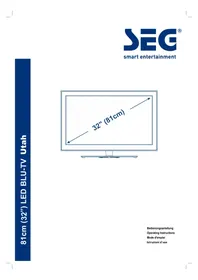
Utah - Television SEG - Free user manual and instructions
Find the device manual for free Utah SEG in PDF.



| Product Type | LED TV |
| Brand | SEG |
| Model | Utah |
| Screen Size | 32 inches (diagonal) |
| Resolution | 1920 x 1080 pixels (Full HD) |
| Reception | DVB-T, DVB-C, DVB-S2 |
| Connectivity | HDMI (x2), SCART, VGA, USB, AV, Digital Audio Output, Common Interface CI+ |
| Audio Power | 2 x 8 W |
| Power Supply | 100-240 V ~ 50/60 Hz |
| Power Consumption | Less than 65 W (standby < 0.5 W) |
| Weight | 8.1 kg |
| Dimensions (with stand) | Not specified in the manual |
| Main Features | Electronic Program Guide (EPG), Teletext, Hotel Mode, Parental Control, Timer, Subtitles, Audio Description, USB Multimedia Mode (photo, music, video, text) |
| Maintenance and Cleaning | Turn off and unplug before cleaning. Screen: soft cloth slightly damp (warm water + dish soap). Casing: dry, lint-free cloth. |
| Safety | Do not expose to rain or moisture. Do not block ventilation openings. Use on a stable surface. Do not open the casing (risk of electric shock). |
| Spare Parts and Repairability | Parts not available for the user. Contact a qualified technician for any repairs. Stand and foot supplied. |
| Warranty | 2 years (conditions according to manual) |
Frequently Asked Questions - Utah SEG
User questions about Utah SEG
0 question about this device. Answer the ones you know or ask your own.
Ask a new question about this device
Download the instructions for your Television in PDF format for free! Find your manual Utah - SEG and take your electronic device back in hand. On this page are published all the documents necessary for the use of your device. Utah by SEG.
USER MANUAL Utah SEG
Bedienungsanleitung
Operating Instructions
Mode d'emploi
Istruzioni d'uso
Inhalt
Einführung 2
ACHTUNG 2
natural_image
Cartoon illustration of a smiling computer monitor holding an open book (no text or symbols)natural_image
Cartoon illustration of a computer monitor with a smiling face and a money bag, no text or symbols presentnatural_image
Illustration of a smiling computer monitor with a person standing beside it (no text or symbols present)natural_image
Cartoon illustration of a computer monitor with a sad face and frowning expression, surrounded by clouds (no text or symbols)natural_image
Cartoon illustration of a computer monitor with a sad face and Chinese characters, accompanied by a distressed computer and printer (no text or symbols present)natural_image
Illustration of a smiling computer monitor and a worker holding a tool, no text or symbols presentENTSORGUNG
natural_image
Line drawing of a flat-screen monitor with a stand at the bottom (no text or symbols)Fernseher
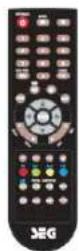
Fernbedienung
natural_image
Simple line drawing of a computer monitor with a diagonal line on the screen (no text or symbols)Benutzerhandbuch
natural_image
Line drawing of a flat-screen monitor with no text or symbols on the screen or sidenatural_image
Technical line drawing of a rectangular electronic device with mounting holes and a central knob (no text or symbols)natural_image
Technical line drawing of a rectangular electronic device with internal components and mounting holes (no text or symbols)natural_image
Technical line drawing of a device with four screws inserted into a housing (no text or symbols)service@schmid-electronics.de
service@schmid-electronics.de
Safety instructions ....4
Unit and Accessories 6
Getting Started....6
Front view....6
Side&Rear views 7
Using the remote control....8
Installing Batteries in the Remote Control 8
Battery replacement 8
Connection and setup 9
Cable Installation 9
Remote Control....10
Basic Operation....11
QUICK START GUIDE 11
Connection 11
Turning on and off the TV 11
Programme Selection 11
Volume adjustment 11
Changing the Input Source 11
Menu Operation....12
How to Navigate Menus ....12
Channel Menu 12
Picture Menu 15
Sound Menu....16
Time Menu 16
Option Menu 17
Lock Menu 17
Using Media mode 18
MHEG5 (Only available in UK) 19
Important Unique Buttons....20
PROGRAMME GUIDE (In DTV mode) 20
Channel List 20
Favorite List 20
Teletext....21
Troubleshooting Guide 22
Maintenance....23
TECHNICAL SPECIFICATIONS 23
ATTACHING THE STAND TO YOUR TV 24
Waste Electrical Recycling 24
Introduction
Thank you for purchasing this LED TV which has been designed and manufactured to give you many years of trouble free service.
You may already be familiar with using a similar product but please take time to read these instructions which have been written to ensure you get the very best from your purchase.
HDMI
HDMI (High Definition Multimedia Interface) is the next generation of digital interface. Unlike conventional connections, it transmits uncompressed digital and audio signals using a single cable. This TV supports high-definition video input via the HDMI socket on the back of the TV.
Safety is important
To ensure your safety and the safety of others, please read the safety precautions BEFORE you operate this product.
Disclaimer
The illustrations of the LED-TV, accessories and menus shown in this User's Manual may differ from the actual product.
WARNING
CAUTION: TO PREVENT ELECTRICAL SHOCK, DO NOT REMOVE ANY COVER SCREWS, NO USER SERVICEABLE PARTS INSIDE, REFER SERVICING TO QUALIFIED SERVICE PERSONNEL.

The lightning flash with arrowhead symbol, within an equilateral triangle, is intended to alert the user to the presence of uninsulated “dangerous voltage” within the products enclosure that may be of sufficient magnitude to constitute a risk of electric shock to persons.
The exclamation point within an equilateral triangle is intended to alert the user to the presence of important operating and maintenance (servicing).
CAUTION
DO not attempt to modify this product in any way without written authorization from supplier. Unauthorized modification could void the user's authority to operate this product.
It is not recommended to keep a certain still image displayed on the screen for a long time as well as displaying extremely bright images on screen.
WARNING
To Reduce The Risk Of Fire Or Electric Shock, Do Not Expose This Apparatus To Rain Or Moisture.
Don't use the apparatus in tropical climates.
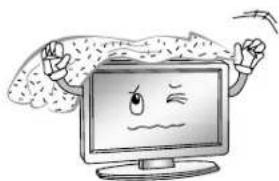
The ventilation should not be impeded by covering the ventilation openings with items, such as newspapers, tablecloths, curtains, etc.
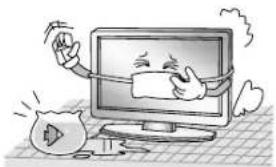
The Apparatus shall not be exposed to dripping or splashing and that no objects filled with liquids, such as vases, shall be placed on the apparatus.
Attention should be drawn to the environmental aspects of battery disposal. Don't throw used batteries in dustbin. Please contact your retailer in order to protect the environment.
Keep minimum distances (5cm) around the apparatus for sufficient ventilation; (Minimum distance around the apparatus for sufficient ventilation.)
No naked flame sources, such as lighted candles, should be placed on the apparatus.
To prevent the spread of fire, keep candles or other open flames away from this product at all times.
The device may be malfunction when under electrostatic discharge. It can be manually resumed by power off and power on again.
CAUTION
connecting the Power Cord
Most appliances recommend they be placed upon a dedicated circuit; that is, a single outlet circuit which powers only that appliance and has no additional outlets or branch circuits.
Do not overload wall outlets. Overloaded wall outlets, loose or damaged wall outlets, extension cords, frayed power cords, or damaged or cracked wire insulation are dangerous. Any of these conditions could result in electric shock or fire. Periodically examine the cord of your appliance, and its if appearance indicates damage or deterioration, unplug it, discontinue use of the appliance, and have the cord replaced with an exact replacement part by an authorized servicer. Protect the power cord from physical or mechanical abuse, such as being twisted, kinked, pinched, closed in a door, or walked upon. Pay particular attention to plugs, wall outlets, and the point where the cord exits the appliance.
The MAINS plug is used as the disconnect device, and the disconnect device shall remain readily operable.
Figures and illustrations in this User Manual are provided for reference only and may differ from actual product appearance. Product design and specifications may be changed without notice.
Safety instructions
IMPORTANT SAFETY INSTRUCTIONS
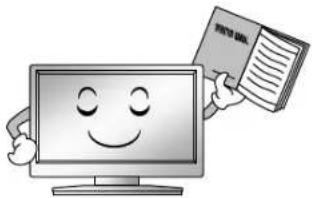
- Read these instructions.
- Keep these instructions.
- Heed all warnings.
- Follow all instructions.
natural_image
Cartoon illustration of a smiling computer monitor holding an open book (no text or symbols present)- Do not use this apparatus near water.
natural_image
Cartoon illustration of a computer monitor with a bandaged head and a money bag, no text or symbols present.- Clean only with a dry cloth.
natural_image
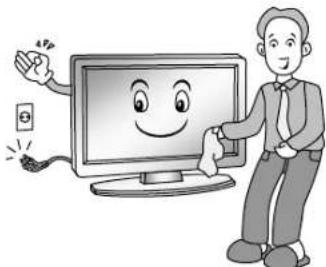
Illustration of a smiling computer monitor with a person standing beside it, no text or symbols present.- Do not block any of the ventilation openings. Install in accordance with the manufacturer's instructions.
natural_image
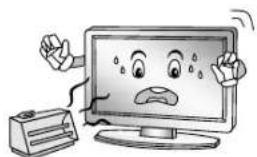
Cartoon illustration of a computer monitor with a sad face and frowning expression, surrounded by abstract clouds (no text or symbols)- Do not install near any heat source such as radiators, heat registers, stoves, or other apparatus (including amplifiers) that produce heat.
natural_image
Cartoon illustration of a computer monitor with a sad face and Chinese characters, accompanied by a computer mouse (no text or symbols present)-
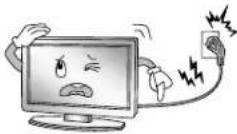
Do not defeat the safety purpose of the polarized or grounding type plug. A polarized plug has two blades with one wider than other. A grounding type plug has two blades and a third grounding prong. The wide blade or the third prong is provided for your safety. When the provided plug does not fit into your outlet, consult an electrician for replacement of the obsolete outlet.
-
Protect the power cord from being walked on or pinched particularly at plugs, convenience receptacles, and the point where they exit from the apparatus.
-
Only use the attachments/ accessories specified by the manufacturer.
-
Use only with a cart, stand, tripod, bracket, or table specified by the manufacturer, or sold with the apparatus. When a cart is used, use caution when moving the cart/ apparatus combination to avoid injury from tip-over.

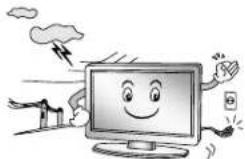
- Unplug this apparatus during lightning storms or when unused for long periods of time.
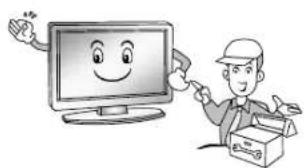
- Refer all servicing to qualified service personnel. Servicing is required when the apparatus has been damaged in any way, such as power supply cord or plug is damaged, liquid has been spilled or objects have fallen into the apparatus, the apparatus has been exposed to rain or moisture, does not operate normally, or has been dropped.
natural_image
Cartoon illustration of a smiling computer monitor and a worker holding a box (no text or symbols)ON DISPOSAL
-Do not dispose of this product with general household waste.
-Disposal of this product must be carried out in accordance to the regulations of your local authority.
NOTE
- If the TV feel cold to the touch, there may be a small "flicker" when it is turned on. This is normal, there is nothing wrong with TV.
- Despite the high quality controls this unit has to go through, there might be some minute dot effects which can appear faulty. Please note, this is no malfunction.
The following safety tips should safeguard users against careless use and the dangers connected with such use.
- Avoid touching the screen or holding your finger(s) against it for long periods of time. Doing so may produce some temporary distortion effect on the screen.
- Place the device on a stable, level surface. Otherwise it may fall or tip over and cause injury or material damage.
Environment
Old batteries do not belong in with the domestic waste!

Consumers are obliged by law to return any old batteries and rechargeable batteries to the corresponding local and/or public collection centres or to return them to the retail shops. This ensures that batteries will be disposed of respecting the environment.
Make sure to return any batteries and rechargeable batteries discharged.
Disposal of old electric and electronic devices:

The icon of a dashed-out waste bin means that a separate disposal of electric/electronic equipment is necessary.
According to the Legislation of the European Union, any electric and electronic devices may not be disposed of with domestic trash but must be returned to a special collection center enabled for the recycling of these devices. The local waste companies should have set up specific collecting centres for this purpose, allowing private consumers to return any old devices for free. Please contact your local authorities or the local waste company for the available disposal possibilities.
Please support us actively by protecting the environment and recycle this product accordingly by returning it to a specific collection centre. This will protect the environment, other people and yourself. Thank you very much!
Disposal of Packaging and Packaging Materials:
Packaging and any packaging materials do not belong in with the domestic waste! Your system consists of materials which can be recycled and reused if disassembled by a specialized company. Please observe the local regulations regarding the disposal of packaging materials.
Unit and Accessories
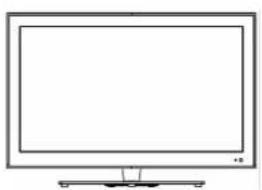
natural_image
Line drawing of a flat-screen monitor with a stand at the bottom (no text or symbols)TV set
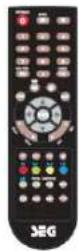
Remote Control
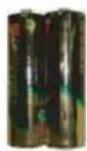
Batteries for Remote Control
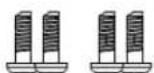
Screws (4 PCS)
natural_image
Simple line drawing of a computer monitor with a diagonal line on the screen (no text or symbols)User Guide
Packaging materials are no toys. Please keep away from children. Plastic bags can cause suffocation when pulled over the head.
This Television is designed to work with any DTT Antenna, Analog or Digital cable or a fixed Satellite Dish aligned.
Getting Started
Front view
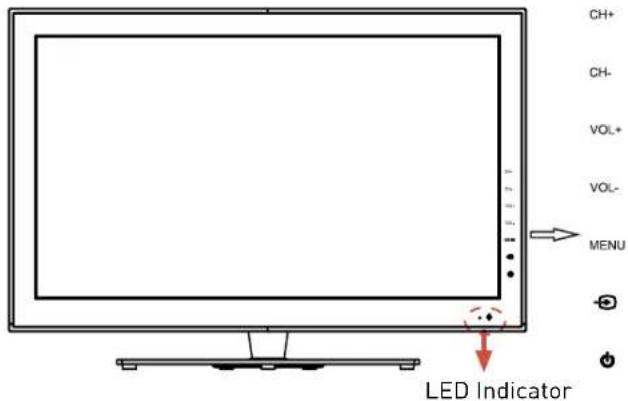
♀ Remote Control Window (keep clear)
Note about digital TV: Digital TV (DVB) is available only where digital terrestrial television (DVB-T) is broad-casted or where a compatible cable TV service (DVB-C) is provided. Please ask your dealer if you need further information about the local availability of these services. DVB-T is the standard for terrestrial digital TV and DVB-C designates the digital cable TV service. Despite this TV set conforms with all current DVB-T und DVB-C standards, we cannot guarantee compatibility with any future digital terrestrial DVB-T and DVB-C signals. Some cable TV providers charge additional fees and external hardware is required for their offer, and a subscription for the related services may be necessary. Some digital TV functions may be limited to specific regions and for DVB-C it is possible that the device will not perform as expected with certain providers. For more information, please do not hesitate to contact our Customer Service.
Side&Rear views
Using the remote control
When using the remote control, aim it at remote sensor on the television. If there is an object between the remote control and the remote sensor on the unit, the unit may no operate.
- Point the remote control at the REMOTE SENSOR located on the television.
When using this television in a very brightly lit area, the infrared REMOTE CONTROL SENSOR may not work properly. - The recommended effective distance for using the remote control is about 7 meters.
The batteries supplied with the product may have a shorter life expectancy due to storage conditions. Remove the batteries whenever you anticipate that the remote control will not be used for an extended period.
- The batteries (battery pack or batteries installed) shall not be exposed to excessive heat such as sunshine, fire or the like.
- Sunshine or other strong light sources may interfere with the signal from the remote control. In this situation turn the TV away from the light source.
CAUTION:
It may result in an explosion if batteries are replaced incorrectly.
- Only replace batteries with the same or equivalent type.
Installing Batteries in the Remote Control
- Open the cover at the back of the remote control.
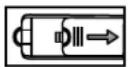
- Install two AAA size batteries. Make sure to match the "+" and "-" ends of the batteries with the diagram inside the compartment.
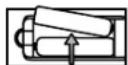
- Replace the cover
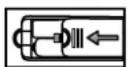
Battery replacement
You will need to install the supplied batteries into the remote control to make it operate following the instruction below.
When the batteries become weak, the operating distance of the remote control will be greatly reduced and you will need to replace the batteries.
Notes on Using Batteries:
The use of the wrong type of batteries may cause chemical leakage and/or explosion. Please note the following:
◆ Always ensure that the batteries are inserted with the + and - terminals in the correct direction as shown in the battery compartment.
- Different types of batteries have different characteristics. Do not mix different types.
Do not mix old and new batteries. Mixing old and new batteries will shorten battery life and/or cause chemical leakage.
◆ Replace batteries as soon as they do not work.
Chemicals which leak from batteries may cause skin irritation. If any chemical matter seeps out of the batteries, wipe it up immediately with a dry cloth.
Connection and setup
Cable Installation
Please read the relevant content in „Notice for Maintenance and Safety“ carefully before the installation and use.
- Take out the TV from the package and put it in a drafty and flat place.
NOTE:
When you plug or unplug the TV, computer or other equipments, you must make sure that the AC power has been already shut down; when unplugging the power cable or signal cable, please hold the plug (the insulated part), do not draw the body of the cable.
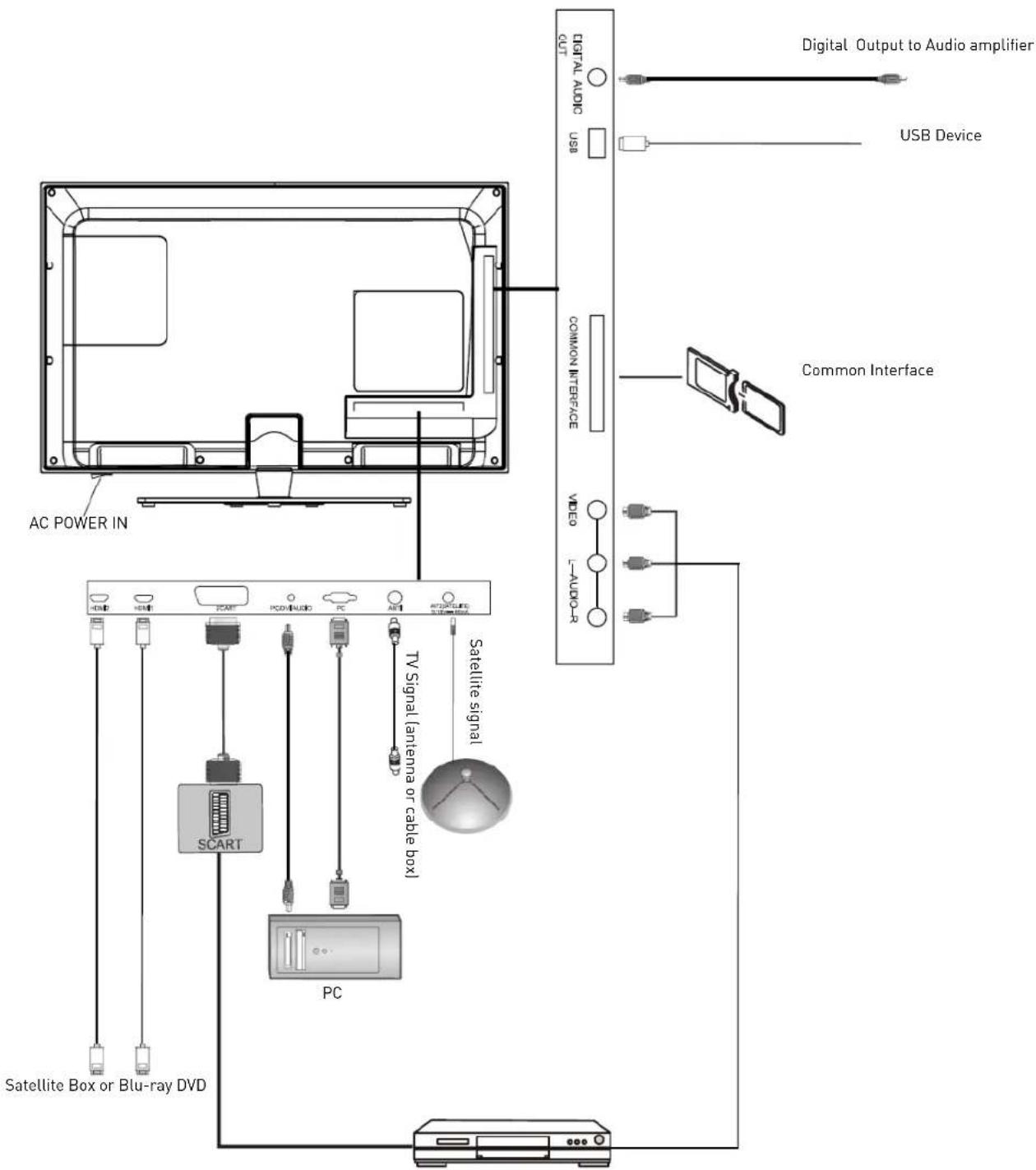
2. The RF output terminal can be connected with the ANT1 (RF) input port of the TV or the satellite antenna / LNB output terminal can be connected with the ANT2 (SATELLITE) input port of the TV.
3. The output AV terminal of DVD can be connected with the AV input port of the TV through AV cable.
4. Connect one end of the VGA cable with the VGA port on computer, connect the other end of the VGA cable with the VGA port on the TV, and tighten the bolts clockwise on the each end of VGA cable. An audio connection between PC and PC AUDIO Input must be given.
NOTE:
- While connecting the 15-pin VGA, please do not insert the plug overexertedly, for fear the pin might be broken.
- Connect one end of the HDMI cable with HDMI output port, connect the other end of the HDMI cable with the HDMI port on the TV.
NOTE:
- While connecting the HDMI, please aim at carefully, do not insert overexertedly, for fear the pin might be broken.
- Check and make sure that all AV cables are connected with the corresponding ports correctly.
- Connect SCART socket input or output from an external device to these jacks.
- Connect the coaxial, digital audio input of a compatible device (e.g. audio amplifier) with the DIGITAL AUDIO OUT of the TV.
- Connect the AC power cable with 100-240V\~ power supply.
NOTE:
The range of power input for the TV is 100-240V\~50/60Hz, do not connect the TV power input port with the AC power out of the above range.
◆ Please hold the insulated part of the plug when you are unplugging the power cable, do not touch directly the metallic part of the cable.
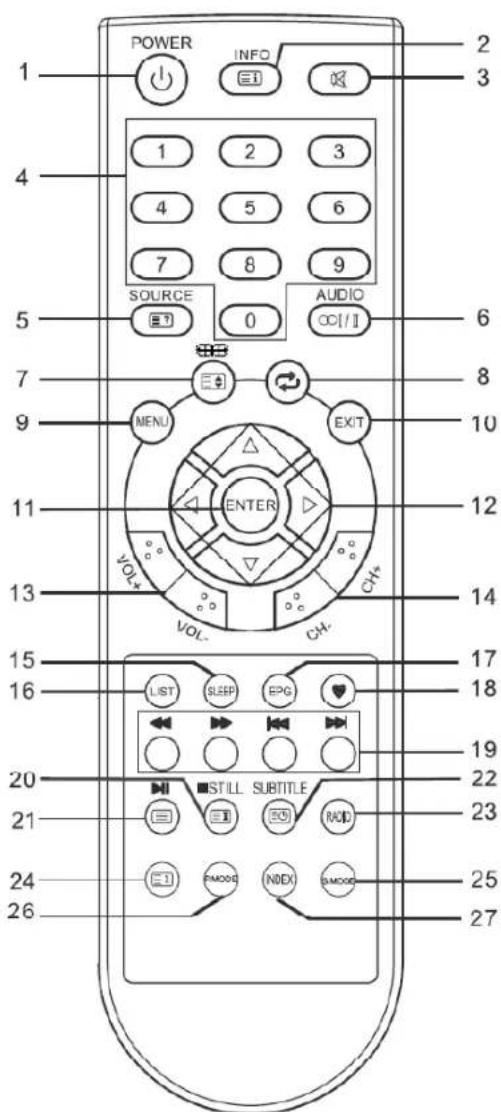
Remote Control
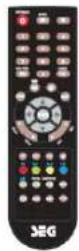
The buttons of the original remote control are as following:
-
Power, switch on or off TV set.
-
INFO: Press to display the current program information on the screen.
☐: Go to the index page.
-
☒: Press to mute or restore sound.
-
NUMBER BUTTONS: Choose channels or password importation.
-
SOURCE: Press to select signal source.
☐: Reveal the hidden information of some teletext pages.
-
AUDIO (☐I/II): The button can be used to switch between NICAM DUAL I/NICAM DUAL II/NICAM I+II/MONO and switch Audio language in DTV mode.
-
☐: Press to select different images sizes.
☐: Change size of teletext screen in display mode.
-
Return to last viewed program.
-
MENU: Press to enter the menu screen for various optional adjustable settings.
-
EXIT: Return the last layer OSD Menu or exit OSD Menu.
-
ENTER: Press to execute the selected item in the menu screen or enter the desired value in any input mode.
-
▲/▼/◄/►: To select the direction.
-
VOL+/VOL-: Press to adjust the volume level up or down.
-
CH+/CH-: Press to select channels in ascending or descending order.
-
SLEEP: Press to set the sleep timer. When the preset length of time has passed, the TV set enters standby mode.
-
LIST: Press to call up the channel list. Press again to exit it.
-
EPG: Electronic Program Guide, use in the DTV mode.
-
♥: Switch on/off the favorite programs list.
-
COLOR BUTTONS: Red/ green/ yellow/ blue key navigation link.
◀: Fast reverse (in Media mode).
▶: Fast forward (in Media mode).
◀: Previous (in Media mode).
▶: Next (in Media mode).
- STILL: Press to hold the picture.
☐: Hold the teletext page on display, press again to release.
: Stop (in Media mode).
- ☐: Enter the Teletext, press again for MIX mode, press this button again to exit.
▶: Play / Pause (in Media mode).
-
☐: Enter subtitle mode or subpage.
-
RADIO: Press to interchange Radio and DTV programs when there is Radio program (In DTV mode).
-
☒: Cancel the teletext but not to exit teletext, press again to exit.
-
S.MODE: Select the sound mode.
-
P.MODE: Select the picture mode.
-
INDEX: Change the list by TIMER or CHANNEL. (In PROGRAMME GUIDE menu)
NOTE:
All pictures in this manual are examples, only for reference, actual product may differ from the pictures.
◆ The buttons not mentioned here are not used.
Basic Operation
QUICK START GUIDE
Connection
- Connecting the mains and antenna.
- If TV has a power switch, turn it on firstly. Then press ⏻ Power button on the remote to turn on the TV.
- Initial Setup
When the TV is initially powered on (Or no preset channels), a sequence of on-screen prompts will assist in configuring basic settings.
1. Select a language
Press the ▲/▼/◄/► button, then press the ENTER button.
Select the desired OSD (On Screen Display) language.
2. Select the appropriate country
Press the ▲/▼/◄/► button to select the country.
Then press the ENTER button.
3. Select the picture mode.
Press the ▲/▼ button to select the picture mode.
4. Select an antenna source
Press the ▲/▼ button, then press the ENTER button.
When selecting Air
Press the ▲/▼/◄/► button to select the appropriate country and tune type, then press the ENTER button.
The TV starts Auto tuning.
When selecting Cable
A step appears allowing you to set parameters to the channels. For more information, refer to Channel (Auto Tuning).
Press the ▲/▼/◄/► button to select the appropriate country and tune type, then press the ENTER button.
The TV starts Auto tuning.
When selecting Satellite
Press the ▲/▼/◄/► button to select the appropriate country, then press the ENTER button.
A step appears allowing you to set parameters of the Satellite. For more information, refer to Channel (Auto Tuning).
When setting is completed, press the blue button to enter the Channel Tuning menu. Select the ENTER button to start Auto tuning.
Turning on and off the TV
- Turn on the TV
Connect the AC input cable then turn on the power switch of the TV. At this time the TV will enter standby mode.
Press the ⏻ button on remote control can turn on TV from standby mode.
- Turn off the TV
Press the ⏻ button on the remote control to enter standby mode.
Do not leave your set in standby mode for long periods of time. It is best to unplug the set from the mains and aerial.
- No signal
There is No Signal menu on screen when there is no input signal. In TV/DTV mode, if there is no signal in fifteen minutes, the TV will turn off automatically. In PC mode, the TV set will automatically turn off in five minutes if no input signal. When VGA cable is connected, the TV turns on automatically.
Programme Selection
- Using the CH+/CH- on the panel of TV or on the remote control.
Press CH+ to increase channel number.
Press CH - to decrease channel number.
• Using 0-9 digital buttons.
You can select the channel number by pressing 0 to 9. (In TV, DTV mode)
- Example
To select - channel (e.g. Channel 5): Press 5.
To select -- channel (e.g. Channel 20): Press 2 and 0 in a short time.
Volume adjustment
- Press the VOL+/- button to adjust the volume.
- If you want to switch the sound OFF, press the ⚙
- You can release mute by pressing the ⚙ or increase/decrease the volume.
Changing the Input Source
You can select the input source by pressing the SOURCE button on the remote control. Press the ▲/▼ button to cycle through the input source, and press the ENTER button to confirm your choice.
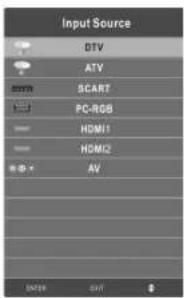
NOTE:
The picture is just for reference. Please operate with the OSD MENU of concrete TV and refer to the AV terminal board.
Menu Operation
How to Navigate Menus
Before using the TV follow the steps below to learn how to navigate the menu in order to select and adjust different functions. The access step may differ depending on the selected menu.
- Press the MENU button to display the main menu.
- Press the ◀/▶ button to cycle through the main menu.
- Press the ▲/▼ button to select the desired sub item.
- Press the ENTER button to access the submenu.
- Press the ▲/▼/◄/► button to select the desired value. The adjustment in the OSD may differ depending on the selected menu.
- Press the MENU button to return to the previous menu.
- Press the EXIT button exit from the menu.
NOTE:
- When an item in MENU is displayed gray, it means that the item is not available or cannot be adjusted.
- Buttons on the TV have the same function as corresponding buttons on the remote control. If your remote control is lost or couldn't work, you may use the buttons on the TV to select menus. This manual focuses on operation of the remote control.
- Some items in the menus may be hidden depending on modes or signal sources used.
Channel Menu
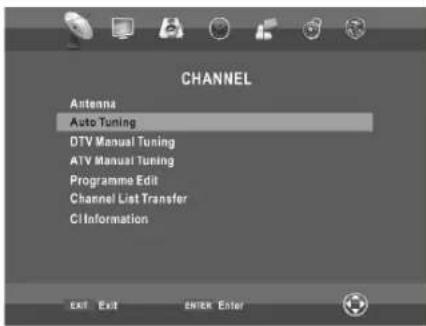
- Antenna
Via Input Source you can select the DTV source and you can then switch between DVB-C, DVB-S2 and DVB-T.
\* When TV signals is Air.
Auto tuning
Select the ENTER button to start Auto tuning.
- Select the country and tune type for channels.
- The TV will begin memorizing all of the available channels.
Once the progress bar is full, the found channels will be stored and the unit will proceed to the search for TV, DTV, Radio and Data.
If you press the MENU button in TV searching, the Auto tuning will skip to DTV searching as the suggestive picture shows.
DTV Manual Tuning
Manual store for digital channels.
Press the ◀/▶ button to select channel. Press the ENTER button to search.
When a channel is found, the searching process will stop, the channel will be saved with current channel number.
If the program is not your expected one, please press the ◀/▶ button to continue the searching. Press the EXIT button to exit.
* When TV signals is Cable.
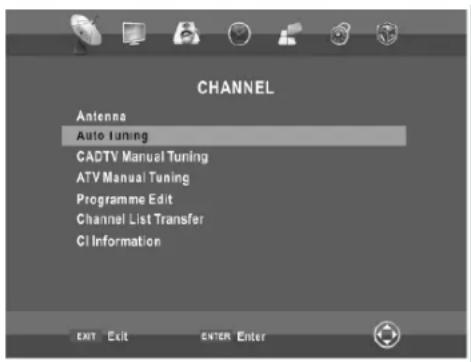
Auto tuning
Select the ENTER button to start Auto tuning.
- Adjust the Cable Scan Menu.
- Scan type: Scans for all active broadcast station channels and stores them in the TV.
If you select Quick Scan, you can set up the Frequency, Network ID and Symbol (Ks/s) manually by pressing the button on the remote control. Quick Scan can only search DVBC digital programmes, can not search for ATV programmes.
If you select Full Scan, the Auto Tuning will search through all or appointed frequencies to find available channels.
- Frequency: Enter a user-defined frequency. (Differs in each country)
- Network ID (Auto/Manual): Selects the Network ID setting mode among Auto or Manual. When Network is Manual, you can set up Network ID using the numeric buttons.
- Symbol (Ks/s): Selects the Symbol (ks/s) setting mode among Auto or Manual. When Symbol (ks/s) is Manual, you can set up Symbol (ks/s) using the numeric buttons.
When you are satisfied with your setting, press ENTER button.
-
Select the country and tune type for channels.
-
The TV will begin memorizing all of the available channels.
• CADTV Manual Tuning
Frequency, Symbol (ks/s), and QAM Type are needed in order to add a programme correctly in DVB cable mode. Please inquire of the cable service provider about the correct values.
- ATV Manual Tuning
Manual store for ATV channels.
Press the ▲/▼ button to select items. Press the ◀/► button to adjust it.
Press the red button to save it. Press the EXIT to exit.
Note:
For more information about the channel parameters (frequency, symbol rate and QAM type), please check with your cable TV provider.
* When TV signals is Satellite.
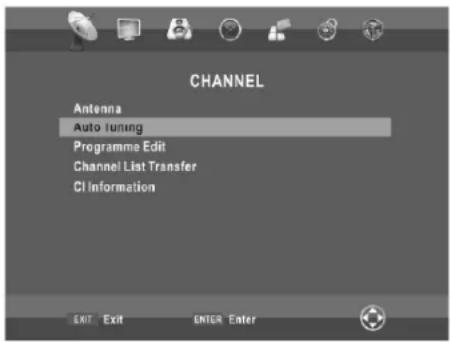
Auto tuning
Press the ENTER button.
Satellite Setup
■ Transponder: Press the INDEX button to switch between the satellite list and the corresponding transponder list.
■ ▲/▼: Press the ▲/▼ button to select the satellite/transponder from the list.
■ CH+/CH-: Press the CH+/CH- button to page up or down the satellite/transponder list.
■ Delete: Press the red button to delete the current satellite/transponder.
■ Edit: Press the green button to edit the current satellite/transponder.
■ Add: Press the yellow button to add a new satellite/transponder.
Press the ▶ button to configure the satellite.
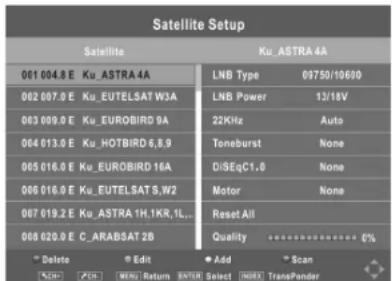
■ LNB TYPE: Select the LNB type.
■ LNB Power: Select the power supply type for the LNB.
■ 22KHz: 22KHz SWITCH. Select the 22KHz depending on the LNB type.
■ Toneburst: You can choose one of two satellites. Used to choose proper device.
■ DiSEqC1.0: You can choose one of four satellites. Used to choose proper device.
■ Motor: Sets the positioned type between DiSEqC1.2 and USALS.
When Motor is set to DiSEqC1.2 or USALS:
- Set Position: Press the ENTER button to set Position.
Move Auto: Rotates the antenna automatically.
Move Continue: Rotates the antenna until the rotation has been completed or stopped manually.
Move Step: Rotates the antenna in accordance with the step value. Enables the antenna make a finer adjustment.
Goto Position: Rotates the antenna to the stored satellite position.
Goto Reference: Drive antenna to zero position.
GotoX: Moves the antenna to the location specified by Set Location.
Store Position: Stores current position as the selected positioner limit.
- Set Limit: Press the red button to set Limits to the scope of satellite antenna rotation.
Move Continue: Rotates the antenna until the rotation has been completed or stopped manually.
Move Step. Rotates the antenna in accordance with the step value. Enables the antenna make a fine adjustment.
Set West Limit. Set the west limit value.
Set East Limit. Set the east limit value.
Goto Reference. Drive antenna to zero position.
Disable Limit. Delete Limit settings. Allows the antenna to rotate over the full arc. Cancel east limit and west limit.
When Motor is set to USALS:
-Set Location: Press the green button to set Location.
Location. Selects the Set Location mode.
Longitude Direction, Longitude Angle, Latitude Direction, Latitude Angle can be adjusted when the Location is set to Manual.
Longitude Direction: Sets the longitude direction for the location.
Longitude Angle: Sets the longitude angle for the location.
Latitude Direction: Sets the latitude direction for the location.
Latitude Angle. Sets the latitude angle for the location.
■ Reset All: Satellite list, transponder list and some settings will be reset to the default values. After reset all, you can reset the country while Auto Tuning.
■ Quality: Display the current status of broadcasting signal.
■ Scan: Press the blue button to enter the Channel Tuning menu.
Scan mode: Selects the scanning mode of the selected satellite.
Encrypted: Scan either free or all channels.
Service Type: Select the channel type to memorise.
When setting is completed, press the ENTER button. Channel Tuning is started.
- Programme Edit
Press the ▲/▼ button select items.
Press the red button to delete the channel.
Press the green button to rename the channel. (In TV mode)
Press the yellow button to move the channel. (Except DTV channels with LCN) - not supported in Germany.
Press the blue button to skip the channel.
Press the ♥ button to set the favorite channel.
The CH+/CH- button can be used to select the following or preceding page.
- Channel List Transfer
You can export all current channel information (including channel number, channel name, frequency, etc.) into the U disk, as the channel information backup for this unit.
The system will automatically create a data file to store the channel information has been exported.
If you can not restore the initial channel information after SORT, MOVE, DEL, SKIP, LOCK, etc. operations, you can import the channel information from the USB.
- CI Information (In DTV mode)
- USING YOUR COMMON INTERFACE SLOT
This TV set features a CI+ slot and supports the following digital standards: DVB-T, DVB-S(S2) and DVB-C.
- Common Interface
The Common Interface (CI+) slot is designed to accept the Conditional Access Module (CAM) and Smart Card in order to view the pay TV programmes and additional services. Contact your Pay Per View TV service provider to get more information about the modules and subscriptions.
NOTE:
Conditional Access Module and Smart Cards are sold separately.
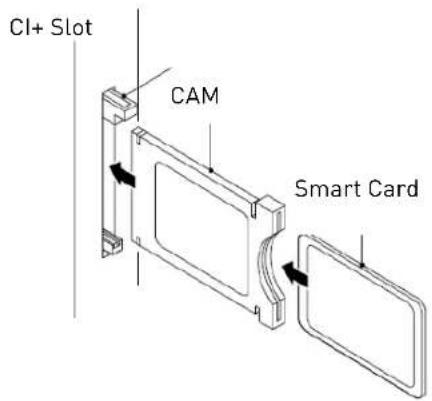
This function enables you to watch some encrypted services (pay services).
Please insert CI card into the PCMCIA slot according to the arrow on the CI card.
NOTE:
◆ The function can only be gotten when CI slot is available.
This OSD is only for illustration and the menu options and screen format will vary according to the Digital pay services provider.
It is possible for you to change CI (Common Interface) menu screen and service by consulting your dealer.
- Please do not insert or pull out the CI card when power on.
Do not insert or pull out the CI card frequently so as to avoid any damages of the TV and the CI card.
During initialization of the CI card, please don't operate the TV.
Picture Menu
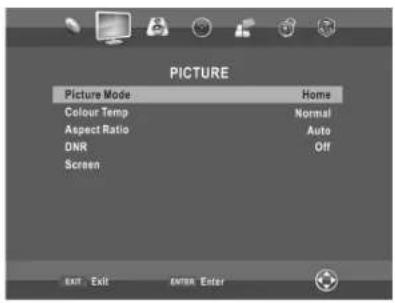
- Picture Mode
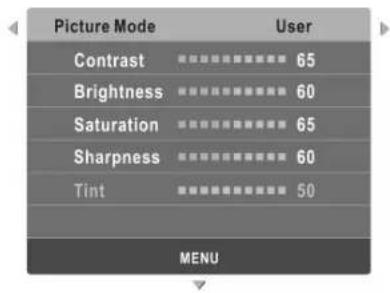
You can select the type of picture which best corresponds to your viewing requirements. Contrast, Brightness, Saturation, Sharpness and Tint (NTSC) can be adjusted when the picture mode is set to User.
The manufacture's recommendation mode is VIVID.
Contrast: To adjust the picture's contrast.
Brightness: To adjust the picture's brightness.
Saturation: Adjust the colour saturation of the picture.
Sharpness: Adjust the Sharpness level to improve detail in the picture.
Tint: Adjust the tint of the picture. (NTSC)
- Colour Temp
Select the colour temperature of the picture.
- Aspect Ratio
You can select the picture size which best corresponds to your viewing requirements.
• DNR
Reduces screen noise without compromising video quality.
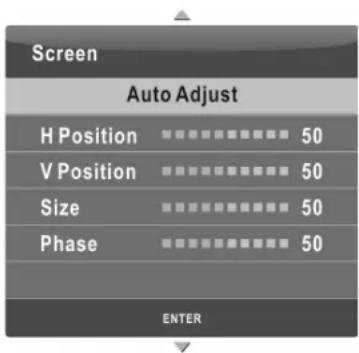
- Screen (In PC-RGB mode)
Auto Adjust: Adjust the image automatically.
H Position: Centre the image by moving it left or right.
V Position: Centre the image by moving it up or down.
Size: Adjust the screen size.
Phase: Adjust when characters have low contrast or when the image flickers.
Sound Menu
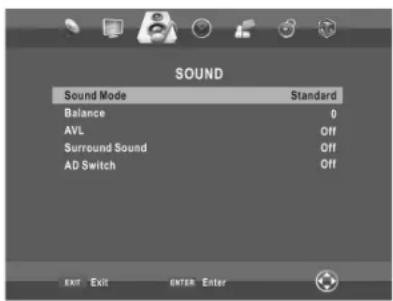
- Sound mode
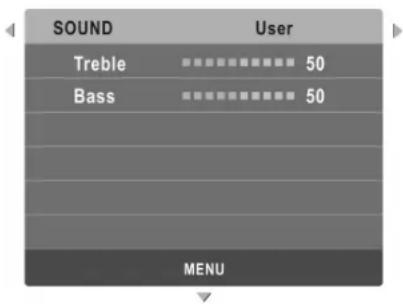
You can select a sound mode to suit your personal preferences. Treble and Bass can be adjusted when the sound mode is set to User.
Treble: Adjust the treble range.
Bass: Adjust the bass range.
• Balance
You can adjust the sound balance of the speakers to preferred levels.
• AVL (Auto Volume Level)
AVL automatically remains on the same level of volume if you change programmes. Because each broadcasting station has its own signal conditions, volume adjustment may be needed every time when the channel is changed. This feature allows users to enjoy stable volume levels by making automatic adjustments for each program.
- Surround Sound
You can select a desired Surround Sound mode.
- AD Switch (In DTV mode)
This is an auxiliary audio function that provides an additional audio track for visually challenged persons. This function handles the Audio Stream for the AD (Audio Description), when it is sent along with the Main audio from the broadcaster. Users can turn the Audio Description On or Off and control the volume.
Timer Menu
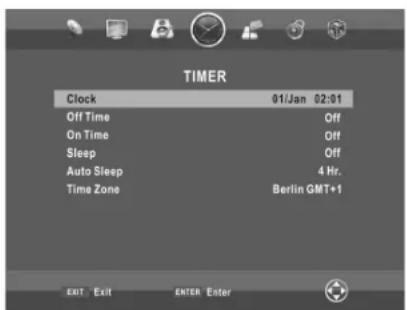
- Clock
You can display either the DTV Signal Stream Time or set the System Time.
- Off Time
Set the time for the TV to switch off.
- On Time
Set the time for your TV to turn on.
The TV must be in standby mode for the On Time to work.
- Sleep
Select the time to turn the TV to standby mode automatically.
- Auto Sleep
Select the Auto Sleep time you want.
The TV will enter into standby mode automatically when there is no any operation in set time (the set time is 4 hours when leave the factory).
- Time Zone
Select your time zone.
Option Menu
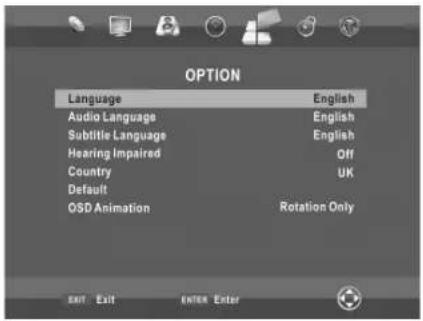
- Language
Select your preferred On Screen Display language.
- Audio Language
Select your preferred audio language. (Available for digital channels if multiple audio languages are broadcasted.)
- Subtitle Language
Select your preferred subtitle language or turn off subtitle. (Available for digital channels if multiple subtitle languages are broadcasted.)
- Hearing Impaired
When hearing Impaired is ON, the TV screen will give some information to the people whose hearing are impaired when Hearing Impaired is Off, the information will be hidden.
- Country
Display the current country.
- Default
Restore the system settings to the factory default.
- OSD Animation
Select style of displaying menus.
- Store Demo
Switch the Store Demo on or off.
Store Demo mode is the optimal setting for store environments. If a user modifies image quality data Store Demo mode initializes the product to the image quality set by us after a certain period of time.
• Health Remind
Switch the Health Remind on or off.
While Break Time is set to On, a prompt picture will remind you to have a break at intervals of two hours.
Lock Menu
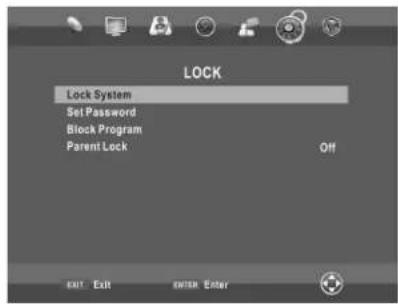
- Lock System
The feature can prevent unauthorized operating the TV set, unless entering 4-digit password. When Lock System is on and the system is locked, we must input the system password at Auto Tuning, Manual Tuning, Programme Edit or Default.
Press the right number buttons for the password.
The default password is 0000.
NOTE:
After a password correction has been confirmed, please remember it for entering into the Parent Guide menu, all functions can not be activated until the correct password is entered. If you forget, the super password of 1225 still valid.
- Set Password
You can set your private password. Press the number buttons on the remote control to set the new password. When the new password has been input twice, the setting is finished successfully. The TV will go back to previous menu.
• Block Program (In TV/DTV mode)
Press the green button LOCK to lock the available program you want. Press the green button again to unlock it.
- Parent Lock (In DTV mode)
This feature can prevent children watching adult's TV programmes, according to the rating limit set. This function appearance according the information from broadcasting station. Therefore if the signal has incorrect information, this function does not operate.
- Hotel Mode
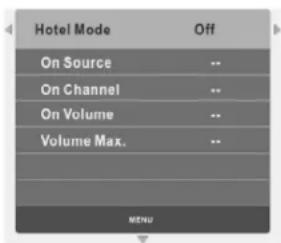
Hotel Mode
Set the Hotel Mode On/Off by pressing the ◀/▶ buttons. When it is On and switch off at the power supply, the hotel mode is enabled. The TV will automatically enter into hotel mode when turns on next time.
NOTE:
When Hotel Mode is On, the tuning and Programme Edit function is locked.
On Source
Set the default signal source by pressing the ◀/▶ buttons. (The default signal source will be displayed when the TV turns on.)
On Channel
Set the default channel by pressing the ◀/▶ buttons. (The default channel will be displayed when the TV turns on).
On Volume
Set the default volume by pressing the ◀/▶ buttons. (The default volume is the volume when the TV turns on. Remember the default volume should be less than the maximum volume).
Volume Max.
Set max volume by pressing the ◀/▶ buttons. When the max volume is lower than the default volume, the max volume is the priority.
Using Media mode
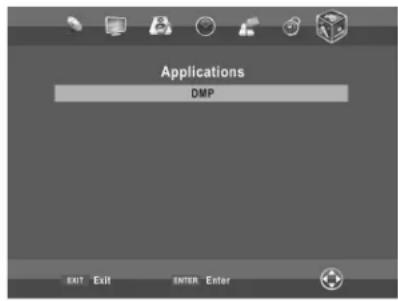
- To Access/Quit DMP mode
- Connect an USB device.
- Press MENU button to display the main menu. Press ◀/▶ button to select the Applications menu.
- Press the ENTER button to enter the DMP mode.
- Press EXIT button to exit.
NOTE:
◆ Special USB device may be not or well supported.
◆ USB max. Load: DC5V 500mA.
- The formats supported
The DMP function can support the USB device with USB memory.
It can play PHOTO, MUSIC, MOVIE or TEXT files.
Photo Format Support: JPEG, BMP, PNG.
Music Format Support: MP3, AAC, M4A.
Movie Format Support: AVI, VOB, DAT, MPEG-1 / MPEG-2 / MPEG-4, TS/TP.
Text Format Support: TXT.
NOTE:
- Special algorithm documents may not be or well be supported by the USB.
- The USB supports the format mentioned above, if the file format is not supported, change it to the given format.
- Main Operating Interface
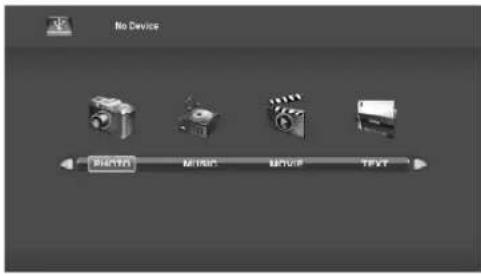
- Use the ◀/▶ button to select PHOTO, MUSIC, MOVIE or TEXT. Press ENTER button enter into sub-menu.
- Use the arrow buttons and ENTER button to enter the desired disk. Press ENTER to open the folder.
- Use the arrow buttons to highlight the file. Use the ENTER button to mark or unmark a file. Press ▶ button to play the selected files. If no file is marked, all the files in the folder will be played in sequence after you press ▶ button.
- Press the INFO button to display the menu screen in playing.
- Press the ■ to stop the playing files.
- Press the EXIT button to return to the previous menu screen.
- Basic operation
- ▶ Play/ Pause
Start playing the selected file of a folder or pause.
- □stop
Stop the playing files.
- ◀/▶ Fast Reverse/Fast Forward
You can press ◀◀/▶ to skip fast reverse or forward. - ◀◀/▶ Previous/Next
You can select the desired files manually in normal condition.
- Red button
Select a file you want to delete, press the red button to open corresponding menu, then press ENTER button to delete it.
- CH+/CH-
Page up or page down the files.
MHEG5 (Only available in UK)
MHEG5 (Multimedia and Hypermedia information coding Expert Group) is connecting the operation and function as media player. If you want to enter the MHEG5, subtitle must be set off.
Press red button or 📄 button to enter the MHEG5 menu. You can operate the TV with the suggestive information. Press EXIT button or 📄 button to exit the MHEG5 menu. Home Page:
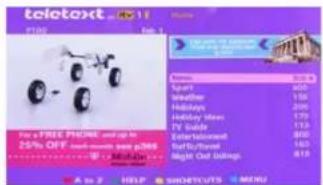
After entering the selected item, you can view the main menu as:
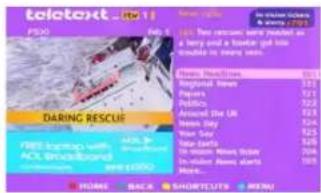
Select the main item you want, you can see more particular details.
Important Unique Buttons
PROGRAMME GUIDE (In DTV mode)
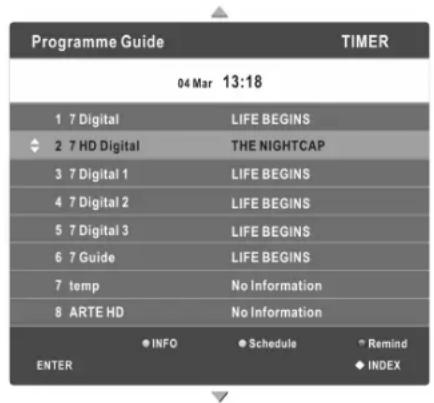
Press EPG button to display the PROGRAMME GUIDE menu. This function let you know the detailed information of the channel, indicating the time of the program playing. From the PROGRAMME GUIDE it is possible to check the program information for the next eight days (If the information is available from the broadcaster). Press EXIT button to exit.
Favorite List
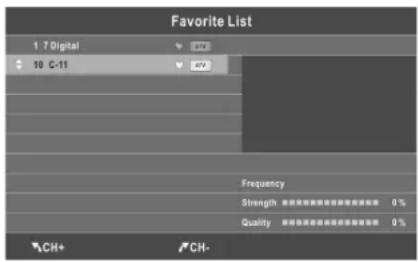
Press ♥ button to display the favorite list.
Press ▲/▼ to select the items, and the channels will be changed automatically.
Press CH+/CH- button to page up or down the Favorite list.
Press ♥ button to exit.
INFO: Press green button to see the detailed information of the current channel.
Schedule: Press yellow button to display the schedule list.
Remind: If you find the desired program which will be shown in the future. Press the blue button to book program.
INDEX: Change the list by TIMER or CHANNEL.
ENTER: Press to change channel.
Channel List
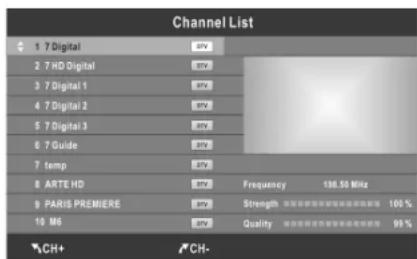
Press LIST button to display the Channel List.
Press ▲/▼ to select the items, and the channels will be changed automatically.
(Air, Cable).
Press CH+/CH- button to page up or down the Channel list.
Press LIST button to exit.
Teletext
Using the teletext feature
- Display teletext
- Select a TV station with a teletext signal.
- Press the ☐ button to enter teletext mode.
- Press the ☐ button 2nd to enter Mix mode, this function enables you to superimpose the teletext page over the TV program.
- Press the ☐ button 3rd return or exit to the normal TV/DTV mode.
- Page selection
- Enter the page number (three digits) using the number buttons. If you press a wrong number during input, you must complete the three digit number and then reenter the correct page number.
- The CH-/CH+ button can be used to select the preceding or following page.
- Hold
You can press the button to hold a page, and press it again to release the page.
- Index
Press the ☐ button to enter the main index page directly.
- Enlarging Text
When a page is displayed, you can double the size of the text to make it easier to read.
- Press the ⏻ button to enlarge the top half of the page.
- Press the button again to enlarge the bottom half of the page.
- Press the 📄 button once more to return to the normal display.
- Reveal mode
You can display concealed teletext information (e.g. Answer to puzzles or riddles etc.) by pressing button. Press button again to remove the information from the display.
- Subpage
Some teletext may contain several sub-pages which are automatically paged in a certain cycle by the TV station.
- Yon can enter into a certain sub page by pressing the Ⓞ button directly and select the page number with number buttons. Enter the sub page number (e.g. 0003) for the third sub page.
- Press the button again to exit the sub page mode.
- Press the ☐ button to return to the normal TV mode.
• Color buttons (Red, Green, Yellow and blue)
Press these buttons to access directly to the corresponding color pages displayed at the lower part of the teletext screen.
Troubleshooting Guide
Troubleshooting
Before contrast the service technician, perform the following simple checks. If any program still persists, unplug the TV and calling for serving.
| PROBLEM POSSIBLE SOLUTION | |
| No sound and picture | - Check whether the main plug has been connected to a wall let.- Check whether you have pressed the POWER button on the front of TV set.- Check the picture contrast and brightness settings. |
| Normal picture but no sound | - Check the volume.- Sound muted? Press the MUTE button.- Try another channel, the problem may be with the broadcast.- Are the audio cables installed properly? |
| The remote control does not work | - Check to see if there any object between the product and remote control Causing obstruction.- Are batteries installed with correct polarity (+ to +, - to -)?- Correct remote operating mode set: TV, VCR etc.?- Install new batteries |
| Power is suddenly turned off | - Is the sleep timer set?- Check the power control settings. Power interrupted.- No broadcast on station tuned with auto activated. |
| Picture appears slowly after switching on | - This is normal, the image is muted during the product startup process. Please contact your service center, if the picture has not appeared after five minutes. |
| No or poor color or poor picture | - Adjust the color in menu option.- Keep a sufficient distance between the product and the VCR.- Try another channel, the problem may be with the broadcast.- Are the VIDEO cables installed properly?- Activate the any function to restore the brightness of the picture. |
| Horizontal/vertical bars or picture shaking | - Check for local interference such as an electrical appliance or power tool. |
| Poor reception on some channels | - Station or cable product experiencing problems. Tune to another station.- Station signal is weak, reorient antenna to receive weaker station.- Check for sources of possible interference. |
| Lines or streaks in pictures | - Check the antenna (Change the direction of the antenna). |
| No output from one of the speakers - Adjust balance in menu option. | |
NOTE: There is a problem in VGA mode (Only VGA mode applied).
| PROBLEM POSSIBLE SOLUTION | |
| The signal is out of range. | - Adjust resolution, horizontal frequency, or vertical frequency.- Check it whether the signal cable is connected or loose.- Check the input source. |
| Vertical bar or stripe on back ground & HorizontalNoise & Incorrect position. | - Work the auto configure or adjust clock, phase, or H/V position. |
| Screen color is unstable or single color. | - Check the signal cable.- Reinstall the PC video card. |
If none of the suggestions seem to work, try switching your TV off and then on again. If this does not work contact our technical helpline.
NOTE: The TV must only be repaired by a qualified registered service person. Never attempt to remove the back cover as the TV has dangerous voltages inside that may cause fatality or fire.
Maintenance
Early malfunctions can be prevented. Careful and regular cleaning can extend the amount of time you will have your new TV. Be sure to turn the power off and unplug the power cord before you begin any cleaning.
Cleaning the screen
- Here's a great way to keep the dust off your screen for a while. Wet a soft cloth in a mixture of lukewarm water and a little fabric softener or dish washing detergent. Wring the cloth until it's almost dry, and then used it to wipe the screen.
- Make sure the excess water is off the screen, and then let it air-dry before you turn on your TV.
Cleaning the cabinet
To remove dirt or dust, wipe the cabinet with a soft, dry, lint-free cloth. Please be sure not to use a wet cloth.
Extended Absence
If you expect to leave your TV dormant for a long time (such as a vacation), it's a good idea to unplug the power cord to protect against possible damage from lightning or power surges.
Disposal of old electrical appliances

The European directive 2002/96/EC on Waste Electrical and Electronic Equipment (WEEE), requires that old household electrical appliances must not be disposed of in the normal unsorted municipal waste stream. Old appliances must be collected separately in order to optimize the recovery and recycling of the materials they contain, and reduce the impact on human health and the environment.
The crossed out "wheeled bin" symbol on the product reminds you of your obligation, that when you dispose of the appliance, it must be separately collected.
Consumers should contact their local authority or retailer for information concerning the correct disposal of their old appliance.
TECHNICAL SPECIFICATIONS
Specifications of the TV that you have just purchased may vary from the information in this table due to technical innovations.
TV Specifications
| TV System PAL/BG/DK/I | |
| Audio System BG/DK/I | |
| Screen size 32" (Diagonal) | |
| Resolution 1920 x 1080 Pixel (RGB) | |
| Aerial input 75 Ohm (unbalanced) | |
| Audio output power 2 x 8W | |
| Power requirements 100-240V ~ 50/60Hz | |
| Power consumption < 65W | |
| Standby power consumption < 0.5W | |
| Weight 8.1 kg | |
Remote control specifications
| Type Infrared | |
| Control distance 5m | |
| Control angle | 30 degrees (Horizontal) |
| Batteries | 2 x 1.5V, Size AAA |
| Dimensions | 181 x 50 x23mm |
| Weight | 72g (without batteries) |
ATTACHING THE STAND
TO YOUR TV
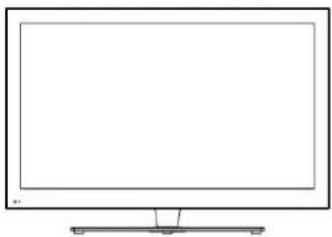
Follow the instructions below to attach the TV stand
natural_image
Line drawing of a flat-screen monitor with a blank screen and stand (no text or symbols)- Open the box and make sure all necessary parts are in the box. The package contains:
A - TV Unit
B - Base of Stand
C-Screws
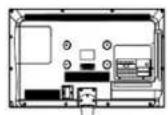
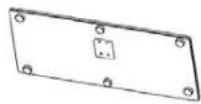

-
Cover an stable surface with a soft cloth. Place the TV Unit facedown on the cloth. Prepare to put the stand in.
-
Take off the screw from the TV stand socket.
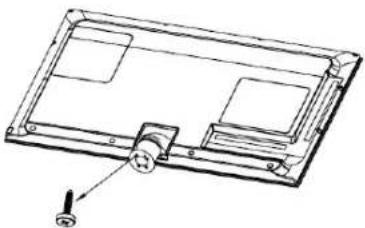
natural_image
Technical line drawing of a mechanical component with a knob and mounting bracket (no text or symbols)- Then fit the stand into the TV stand socket.
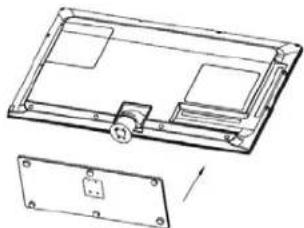
natural_image
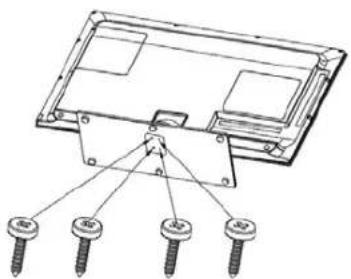
Technical line drawing of a rectangular electronic device with internal components and mounting holes (no text or symbols)- Keep the stand by four screws
natural_image
Technical line drawing of a device with four screws inserted at the base (no text or symbols)Four screws(4×20 BTHCH)
Waste Electrical Recycling
Correct disposal of Product
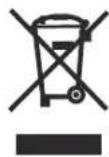
This sign indicates that this product may not be disposed of with your regular household waste. The recycling and separate collection of such products is your responsibility. Please drop off the above mentioned waste at a designated place for recycling waste electrical and electronic
equipment. If you do not know where to drop off your waste equipment for recycling, please contact your local city office or household waste collection service.
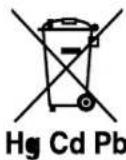
The crossed out wheeled dust bin symbol indicates that batteries and/or accumulators must be collected and disposed of separately from household waste.
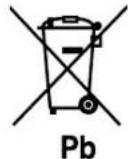
If the battery or accumulator contains more than the specified values of lead (Pb), mercury (Hg), and/or cadmium (Cd) defined in the Battery Directive (2006/66/EC), then the chemicals Hg Cd Pb symbols for lead(Pb), mercury (Hg) and/or cadmium (Cd) will appear below the crossed out wheeled dust bin symbol.
By participating in separate collection of batteries, you will help to assure the proper disposal of products and batteries thus help to prevent potential negative consequences for the environment and human health.
For more detailed information about the collection and recycling programmes available in your country, please contact your local city office or the shop where you purchased this product.

This appliance complies with European Safety and Electrical directives. It fulfils the following EU regulations:
EN55013:2001+A1:2003+A2:2006
EN55020: 2007
EN61000-3-2: 2006 EN61000-3-3:1995+A1:2001+A2:2005
EN55022:2006(CLASS-A)
EN55024:1998+A1:2001+A2:2003
Manufacturer:
D-66780 Rehlingen-Siersburg (Germany)
Fon: +49(0)6835 92350-0
Fax: +49(0)6835 92350-500
Table de Matières
Introduction ......2
natural_image
Cartoon illustration of a smiling computer monitor holding a book titled 'POSTS NET' (no text or symbols on the monitor or background)natural_image
Cartoon illustration of a computer monitor with a bandaged cable and a money bag, no text or symbols present.natural_image
Illustration of a smiling computer monitor with a hand pointing at it, accompanied by a person holding a plug (no text or symbols present)natural_image
Cartoon illustration of a computer monitor with a sad face and frowning expression, surrounded by abstract cloud-like shapes (no text or symbols)natural_image
Cartoon illustration of a computer monitor with a sad face and Chinese characters, accompanied by a computer monitor (no text or symbols present)natural_image
Cartoon illustration of a smiling computer monitor and a delivery worker holding a package (no text or symbols)MISE AU REBUT
natural_image
Line drawing of a flat-screen monitor with a stand at the bottom (no text or symbols)Téléviseur
Télécommande
natural_image
Simple line drawing of a computer monitor with a diagonal line on the screen (no text or symbols)Guide d'utilisation
Raccordement et installation
- Ratio aspect (Format)
Sources signal on (Source allumage)
Volume on (Volume allumage)
natural_image
Line drawing of a flat-screen monitor with a stand at the bottom (no text or symbols)natural_image
Technical line drawing of a rectangular electronic device with a knob and mounting bracket (no text or symbols)natural_image
Technical line drawing of a rectangular electronic device with internal components and a separate mounting bracket (no text or symbols)natural_image
Technical line drawing of a device with four screws inserted from a central mounting bracket (no text or symbols)Quatre vis (4×20 BTHCH)
natural_image
Cartoon illustration of a smiling computer monitor holding a book (no text or symbols present)natural_image
Cartoon illustration of a computer monitor with a bandaged cable and a frowning face, symbolizing online shopping or digital engagement (no text present)natural_image
Illustration of a smiling man presenting to a computer monitor with a cable (no text or symbols present)natural_image
Cartoon illustration of a computer monitor with a sad face and frowning expression, surrounded by clouds and a bird (no text or symbols)natural_image
Cartoon illustration of a computer monitor with a sad face and a distressed expression, accompanied by a computer monitor (no text or symbols present)natural_image
Cartoon illustration of a smiling computer character with arms and speech bubbles, surrounded by industrial equipment (no text or symbols)natural_image
Cartoon illustration of a smiling worker pointing at a computer monitor and a box (no text or symbols)SMALTIMENTO
natural_image
Line drawing of a flat-screen TV with a stand and label 'TV' below (no text or symbols on the screen itself)- Channel List Transfer
natural_image
Line drawing of a flat-screen monitor with a stand at the bottom (no text or symbols)natural_image
Technical line drawing of a mechanical component with a knob and mounting bracket (no text or symbols)natural_image
Technical line drawing of a rectangular electronic device with internal components and mounting holes (no text or symbols)natural_image
Technical line drawing of a device with four screws inserted into a housing (no text or symbols)Quattro viti (4×20 BTHCH)




- Inhalt
- ENTSORGUNG
- Introduction
- HDMI
- Safety is important
- Disclaimer
- WARNING
- CAUTION
- Safety instructions
- IMPORTANT SAFETY INSTRUCTIONS
- ON DISPOSAL
- NOTE
- Environment
- Old batteries do not belong in with the domestic waste!
- Disposal of old electric and electronic devices:
- Disposal of Packaging and Packaging Materials:
- Unit and Accessories
- Getting Started
- Using the remote control
- CAUTION:
- Installing Batteries in the Remote Control
- Battery replacement
- Notes on Using Batteries:
- Connection and setup
- Cable Installation
- NOTE:
- Remote Control
- Basic Operation
- QUICK START GUIDE
- Connection
- - Initial Setup
- Select a language
- Select the appropriate country
- Select the picture mode.
- Select an antenna source
- When selecting Cable
- When selecting Satellite
- Turning on and off the TV
- - Turn on the TV
- - Turn off the TV
- - No signal
- Programme Selection
- • Using 0-9 digital buttons.
- - Example
- Volume adjustment
- Changing the Input Source
- Menu Operation
- How to Navigate Menus
- Channel Menu
- - Antenna
- \* When TV signals is Air.
- Auto tuning
- DTV Manual Tuning
- • CADTV Manual Tuning
- - ATV Manual Tuning
- Satellite Setup
- When Motor is set to DiSEqC1.2 or USALS:
- When Motor is set to USALS:
- - Programme Edit
- - Channel List Transfer
- - CI Information (In DTV mode)
- - Picture Mode
- - Colour Temp
- - Aspect Ratio
- • DNR
- - Screen (In PC-RGB mode)
- - Sound mode
- • Balance
- • AVL (Auto Volume Level)
- - Surround Sound
- - AD Switch (In DTV mode)
- - Clock
- - Off Time
- - On Time
- - Sleep
- - Auto Sleep
- - Time Zone
- Option Menu
- Lock Menu
- - Hotel Mode
- Hotel Mode
- On Source
- On Channel
- On Volume
- Volume Max.
- Using Media mode
- - To Access/Quit DMP mode
- - The formats supported
- MHEG5 (Only available in UK)
- Important Unique Buttons
- PROGRAMME GUIDE (In DTV mode)
- Teletext
- - Display teletext
- - Page selection
- - Hold
- - Index
- - Enlarging Text
- - Reveal mode
- - Subpage
- • Color buttons (Red, Green, Yellow and blue)
- Troubleshooting Guide
- Troubleshooting
- Maintenance
- Cleaning the screen
- Cleaning the cabinet
- Extended Absence
- Disposal of old electrical appliances
- TECHNICAL SPECIFICATIONS
- ATTACHING THE STAND
- TO YOUR TV
- Waste Electrical Recycling
- Manufacturer:
- Table de Matières
- MISE AU REBUT
- Raccordement et installation
- - Ratio aspect (Format)
- Sources signal on (Source allumage)
- Volume on (Volume allumage)
- SMALTIMENTO
Brand : SEG
Model : Utah
Category : Television