Free Sound - Speaker ION - Free user manual and instructions
Find the device manual for free Free Sound ION in PDF.



| Product Type | Wireless speaker system with docking station |
| Brand | ION |
| Model | Free Sound |
| Base power supply | AC power adapter (9 V DC included) |
| Speaker power supply | Built-in rechargeable lithium battery (charges via base) |
| Charging time | 4 hours minimum for first use |
| Battery life | Not specified (estimated: several hours) |
| Wireless range | Approximately 30.5 m (100 ft) in open space |
| Main features | iPod/iPhone playback, auxiliary input (3.5 mm), RCA video output, remote control, detachable speakers |
| Inputs | iPod/iPhone docking station, auxiliary input (3.5 mm) |
| Outputs | RCA video (composite) |
| Controls | Volume rotary knob, play/pause buttons, next/previous track, infrared remote control |
| LED indicators | Charging LED (red/blue) and transmission LED (red) |
| Compatibility | iPod, iPhone, other audio sources via auxiliary input |
| Included parts | 2 speakers, base, remote control (CR2025 battery included), power cable, quick start guide |
| Care and cleaning | Clean with a soft, dry cloth. Do not use abrasive products. |
| Safety | Read safety instructions before use. Do not expose to moisture. |
| Spare parts and repairability | Contact ION customer service for any repairs or spare parts. |
| Dimensions (approx.) | Base: 25 x 15 x 10 cm; Speaker (unit): 15 x 15 x 20 cm |
| Weight (approx.) | Base: 1 kg; Speaker (unit): 0.5 kg |
Frequently Asked Questions - Free Sound ION
User questions about Free Sound ION
0 question about this device. Answer the ones you know or ask your own.
Ask a new question about this device
Download the instructions for your Speaker in PDF format for free! Find your manual Free Sound - ION and take your electronic device back in hand. On this page are published all the documents necessary for the use of your device. Free Sound by ION.
USER MANUAL Free Sound ION
Make sure that the items listed below are included in the box:
- FREESOUND
- Remote Control (includes button cell battery)
Power Adapter - Quickstart Guide
- Safety Instructions & Warranty Information Booklet
READ SAFETY INSTRUCTION BOOKLET BEFORE USING THE PRODUCT

THIS DEVICE COMPLIES WITH PART 15 OF THE FCC RULES. OPERATION IS SUBJECT TO THE FOLLOWING TWO CONDITIONS: (1) THIS DEVICE MAY NOT CAUSE HARMFUL INTERFERENCE, AND (2) THIS DEVICE MUST ACCEPT ANY INTERFERENCE RECEIVED, INCLUDING INTERFERENCE THAT MAY CAUSE UNDESIRED OPERATION.
CONTROLS
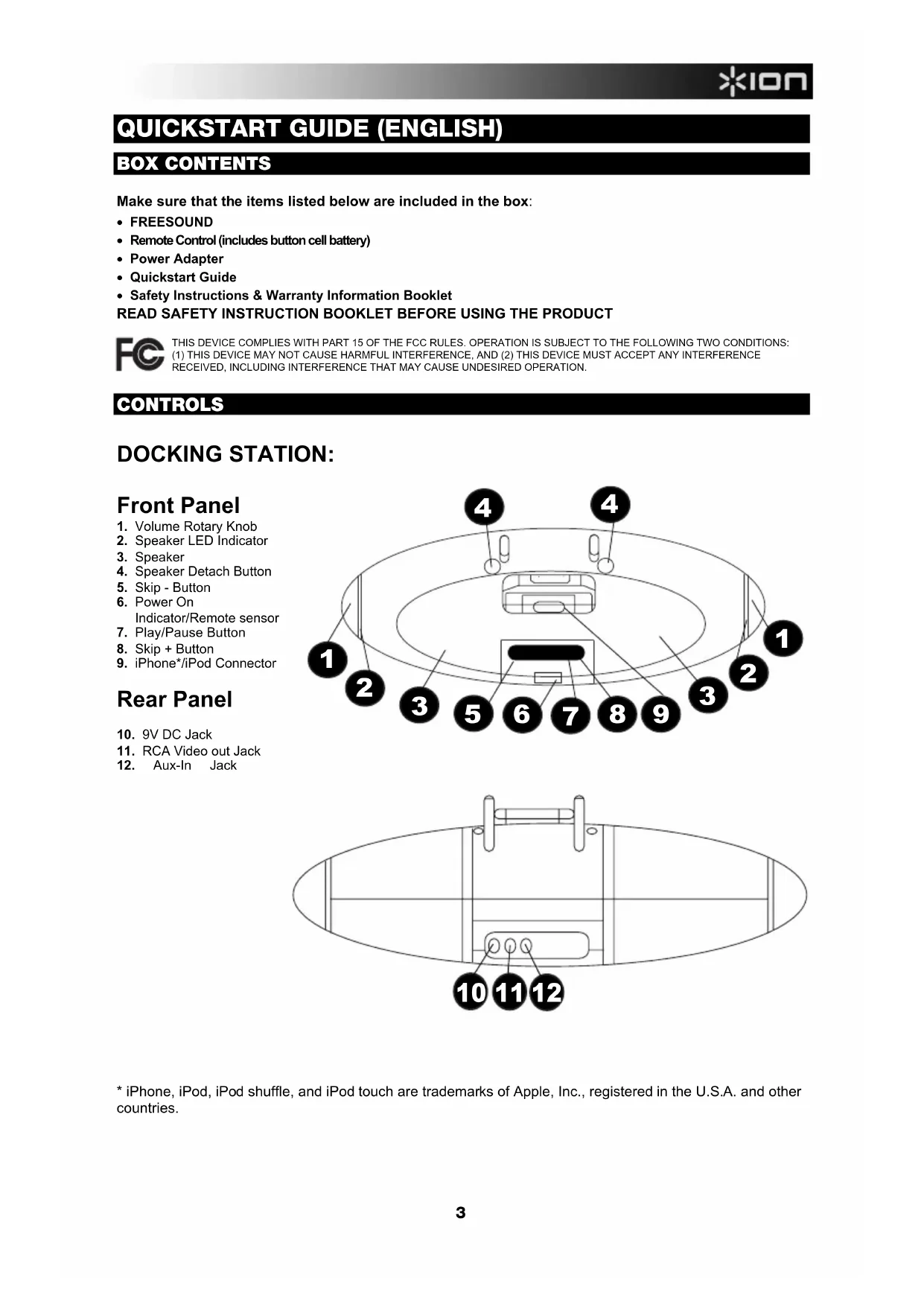
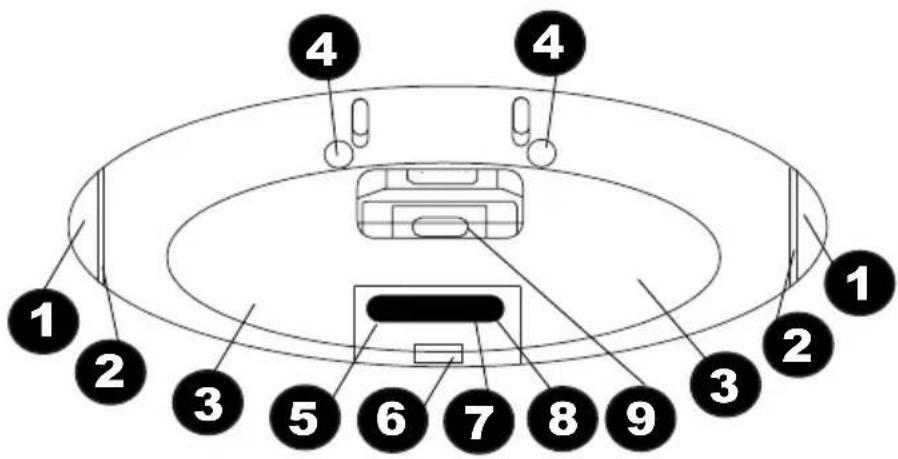
DOCKING STATION:
Front Panel
- Volume Rotary Knob
- Speaker LED Indicator
- Speaker
- Speaker Detach Button
- Skip - Button
- Power On
Indicator/Remote sensor
- Play/Pause Button
- Skip + Button
- iPhone*/iPod Connector
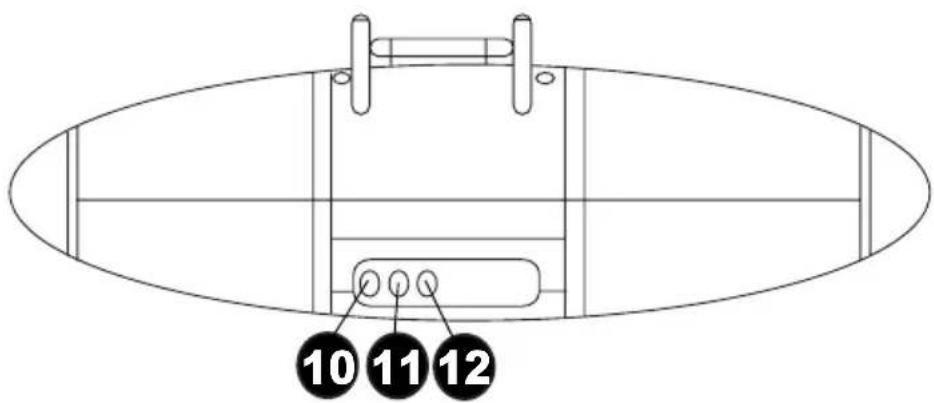
Rear Panel
- 9V DC Jack
- RCA Video out Jack
- Aux-In Jack
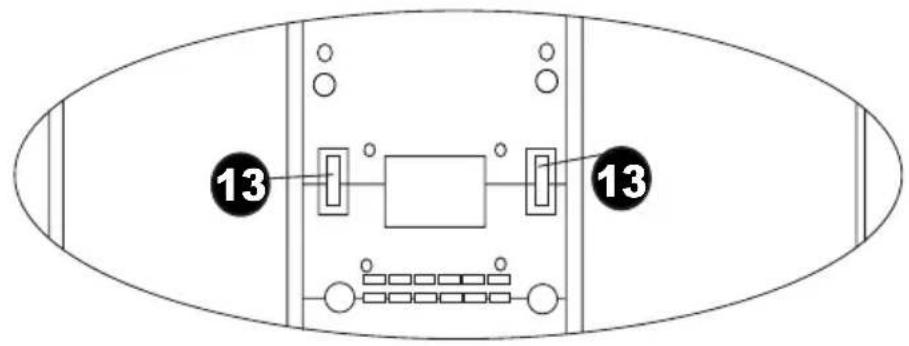
Bottom Panel
- Lock/Unlock
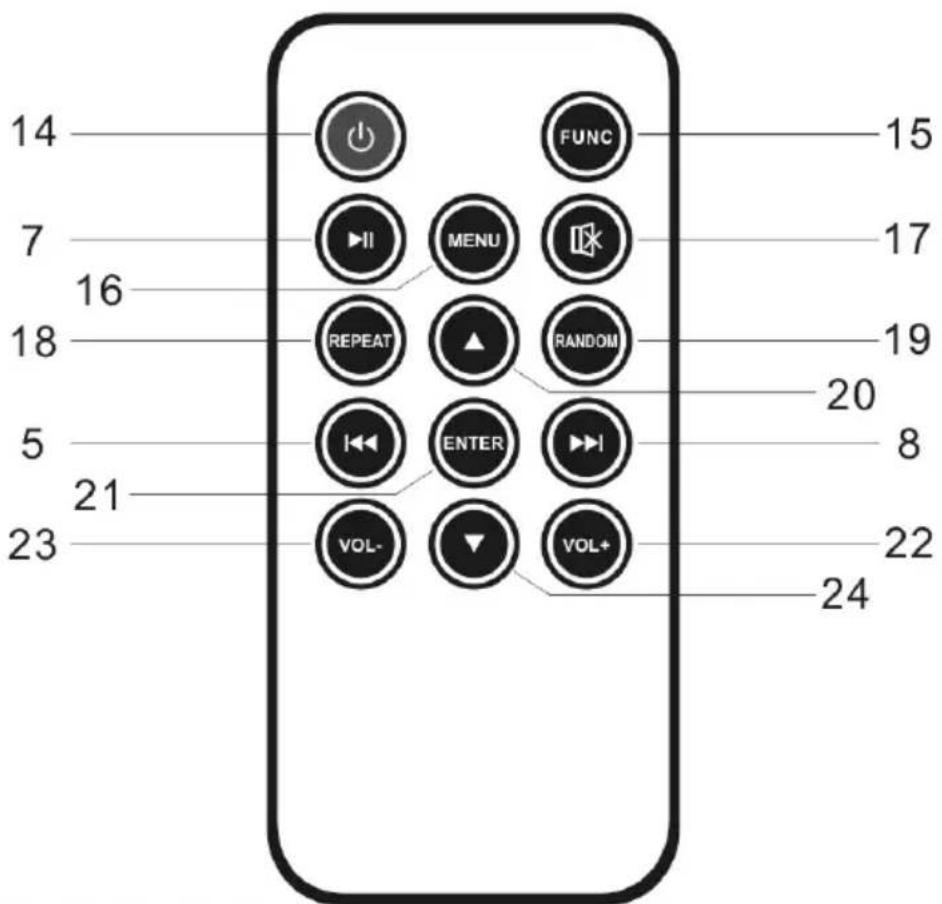
Remote Control
- Power On/Standby
- Function button
- Menu button
- Mute button
- Repeat button
- Random Track Button
- UP button
- Enter button
- VOL + Button
- VOL - Button
- Down button
POWER SOURCES
1. Main Base
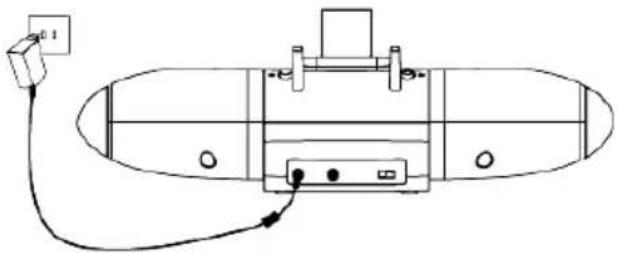
The main base is operated by AC power. Insert the AC adapter plug into the power jack at the rear side of the base.
2. Individual Speakers
Each speaker has 1 built-in rechargeable lithium battery for independent playback. Before using the speakers for the first time, charge each speaker for 4 hours. When the speaker is placed on the powered base (with the Power switch turned on), charging will start automatically. The charging LED indicator is red during charging and will turn blue when charging is completed. The speaker can be separated from the unit by shifting the Lock knob to the side. Then press the Open button to have the speaker separate from the unit.
3. Remote Control
To use the remote control, ensure the remote control battery CR2025 (included) is installed properly by taking the clear insulation paper out. (Once you stop using the remote control, insert the insulation paper again to preserve the battery life).
Note: Room lighting and battery life can affect the operating range of the remote control.
GENERAL OPERATION
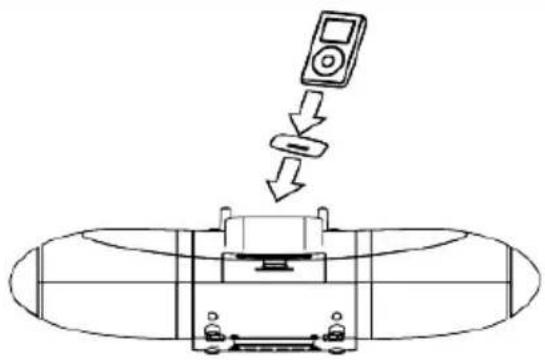
- Select a proper iPod docking adapter (enclosed with the purchase of an iPod) and place it into the FREESOUND base. Then dock your iPod gently.
- Switch on the speakers and begin to play your iPod. This needs to be done before step 3 in order for the speakers to sync with the dock.
- Plug the included power adapter plug into power jack at the rear side of the FREESOUND base. The unit should then automatically power on. Alternatively, use the remote control to power on the unit.
- Press "VOL +" or "VOL -" to choose a proper volume level. Take the speakers from room to room to test (Subject to its surroundings, the range is approximately 100 feet in an open area without any interference).
- If using an iPod shuffle or another audio source with a 3.5mm headphone output, connect it to the AUX line in jack on the rear of base. The transmitter LED indicator will turn red when the Aux input is being used. The LED indicator will turn red when an iPod is docked and transmitting a signal.
Note: The AUX In will not work when an iPod is docked.
CHARGING INDICATORS
- While the speaker is being charged and the volume rotary knob is not turned on, the speaker LED indicator will be solid red. Once fully charged, the LED will turn solid blue.
- When the speaker is charging and the volume rotary knob is turned on, the speaker LED indicator will flash purple. Once the unit has been fully charged, the LED will turn solid blue.
- When the speaker is separated from the FREESOUND dock and the volume rotary knob is being used, the LED indicator will be solid blue. If the LED is blank, the volume rotary knob will not produce any output of sound, indicating there is no more battery power.
- When connecting a device to the Aux-in, once the LED indicator turns red, the device can be used. When connecting an iPod/iPhone to the FREESOUND, once the LED indicator turns blue, the iPod/iPhone can be used.
OUTPUTTINGVIDEO FROM AN iPod/iPhone
- Connect FREESOUND to a television or other video display that has a composite video input.
- Securely dock your iPhone or iPod with video capability.
- Connect one end of an RCA cable (not included) to the rear RCA video jack on the FREESOUND base.
- Connect the other end of the RCA cable to the VIDEO IN of a television or video display.
- Select a movie from your iPod/iPhone menu.
- Make sure the iPod's TV Out menu is set to "ON".
- Switch back to the movie library and play the movie of your choice.
Note: Video will automatically output when using an iPod touch or iPhone.
TROUBLESHOOTING
Should you experience difficulties in the use of FREESOUND, please refer to the following chart.
| Symptom | Possible problem | |
| The base does not power on | AC adapter is not plugged into a wall outlet or the connector is not plugged into the DC jack on the back of the FREESOUND. | Plug the AC adapter into a wall outlet and plug the connector into the DC jack on the FREESOUND. |
| Wall outlet is not functioning. | Plug another device into the same outlet to confirm the outlet is working. | |
| Using no/incorrect iPod cradle. | Make sure the dock cradle is the proper fit for your iPod. | |
| iPod does not respond to the speaker system | iPod is not installed properly. | Remove your iPod from the dock and check for any obstruction on the connectors in the docking and on your iPod. Then reseat it in the dock. |
| Your iPod is locked up. | Make sure your iPod is working properly before docking into the unit. | |
| iPod does not charge | iPod is not docked properly. | Remove your iPod from the dock and check for any obstruction on the connectors in the docking and on your iPod. Then reseat it in the dock. |
| iPod battery has a problem. | Please make sure your iPod is working properly before docking into the unit. | |
| Speakers do not play the sound from docked device | Speakers are receiving a signal from other devices or another transmitter. | Place the unit in a location where there is less signal interference. |
| The transmitter was turned on before the speakers. | Turn the speakers on first and then turn on the transmitter. | |
| Sound is cut off or noisy | The unit is experiencing interference. | Do not turn on other wireless devices simultaneously. |
| Sound is distorted | Sound source is distorted. | If the source is an iPod, check the sound file on a computer to hear if it is also distorted. If you are using an external sound source like a digital audio player, try reducing the output volume on the device itself. Also try turning bass boost OFF or change the EQ setting. |
| Volume level is set too high. Decrease the volume from the source. | ||
GUIA DE INICIO RAPIDO
CONTENIDO DE LA CAJA
iPhone, iPod, iPod shuffle and iPod touch are the most popular devices for Apple's iPhone, iPad, and iPod touch.
Panneau inférieur
SOURCE D'ALIMENTATION
1. Base principale
RF Channel Transmission: 2.4GHZ
- Transmission Range: Approximately 100 feet in an open area without any interference.
www.ionaudio.com
- CONTROLS
- DOCKING STATION:
- Front Panel
- Rear Panel
- Bottom Panel
- Remote Control
- POWER SOURCES
- Main Base
- Individual Speakers
- Remote Control
- GENERAL OPERATION
- CHARGING INDICATORS
- OUTPUTTINGVIDEO FROM AN iPod/iPhone
- TROUBLESHOOTING
- GUIA DE INICIO RAPIDO
- CONTENIDO DE LA CAJA
- Panneau inférieur
- SOURCE D'ALIMENTATION
- Base principale
- www.ionaudio.com
Brand : ION
Model : Free Sound
Category : Speaker