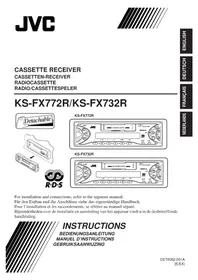
KSFX772R - Car stereo JVC - Free user manual and instructions
Find the device manual for free KSFX772R JVC in PDF.


User questions about KSFX772R JVC
0 question about this device. Answer the ones you know or ask your own.
Ask a new question about this device
Download the instructions for your Car stereo in PDF format for free! Find your manual KSFX772R - JVC and take your electronic device back in hand. On this page are published all the documents necessary for the use of your device. KSFX772R by JVC.
USER MANUAL KSFX772R JVC
natural_image
Technical line drawing of two electronic device modules with a close-up view showing internal components (no text or symbols)
KS-FX772R
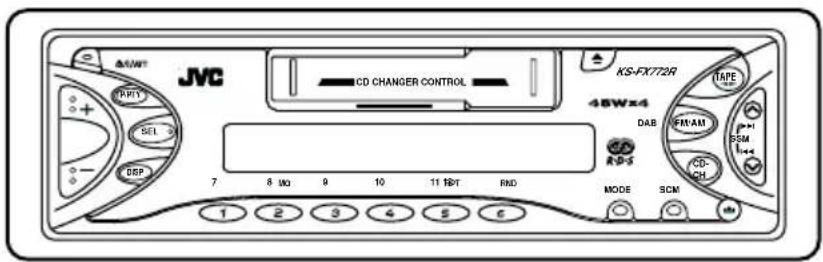
text_image
JMC CD CHANGER CONTROL KS-FXT72R TAPE 48Wx4 DAB FRAM DSM CD R-5 MODE SCM 1 2 3 4 5 6KS-FX732R
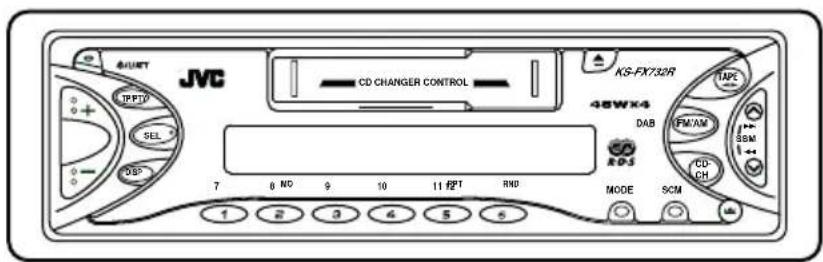
text_image
JVC CD CHANGER CONTROL KG-FX732R TAPC 48WX4 DAB FM/AM SBM CD CH MODE SCM 1 2 3 4 5 6For installation and connections, refer to the separate manual.
MANUEL D'INSTRUCTIONS
GEBRUIKSAANWIJZING
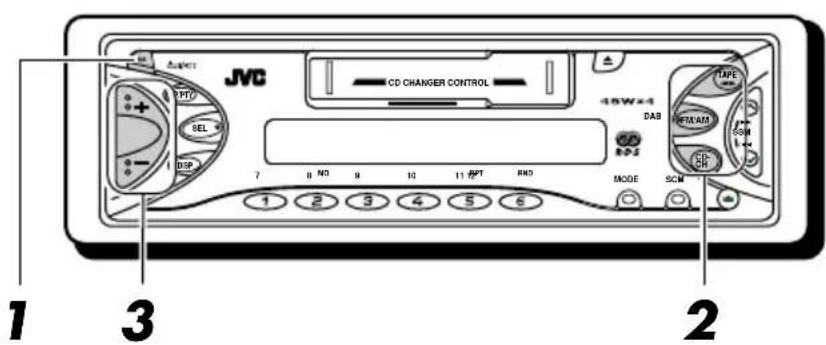
How to reset your unit
Press and hold both the SEL (select) and (statADdy/on/attenuator) buttons at the same time for several seconds.
This will reset the built-in microcomputer.
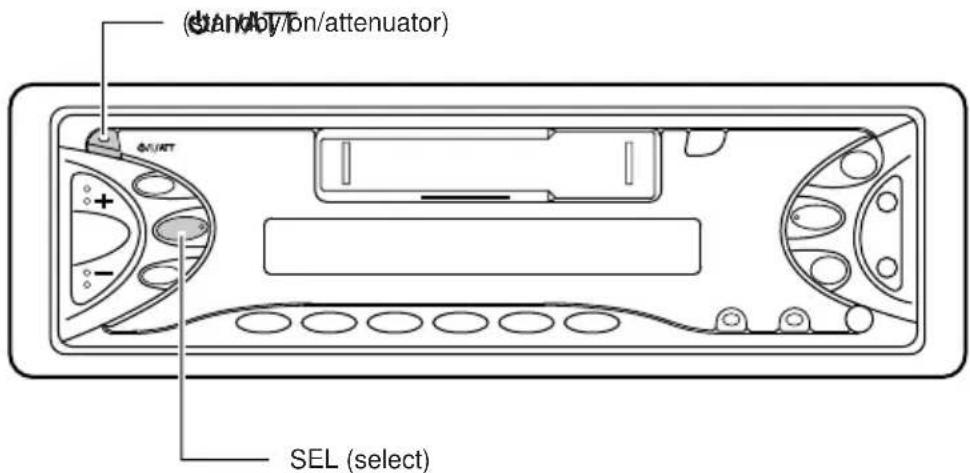
text_image
(Standby/ton/attenuator) SEL (select)Note:
Your preset adjustments - such as preset channels or sound adjustments - will also be erased.
How to use the number buttons:
If you press MODE, the unit goes into functions mode and the number buttons work as different function buttons.
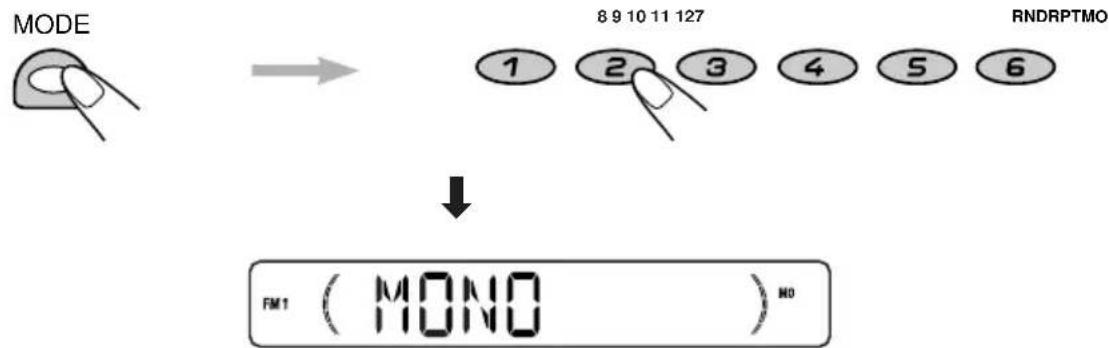
flowchart
graph TD
    A["MODE"] --> B["891011127"]
    B --> C["FM1 (MONO)"]
    C --> D["RNDRPTMO"]
To use these buttons as number buttons again after pressing MODE, wait for 5 seconds without pressing any number button until the functions mode is cleared.
- Pressing MODE again also clears the functions mode.
Thank you for purchasing a JVC product. Please read all instructions carefully before operation, to ensure your complete understanding and to obtain the best possible performance from the unit.
CONTENTS
How to reset your unit.... 2
How to use the number buttons.... 2
LOCATION OF THE BUTTONS ...... 4
Control panel 4
BASIC OPERATIONS .... 5
Turning on the power 5
RADIO BASIC OPERATIONS ...... 6
Listening to the radio 6
Storing stations in memory 8
Tuning in to a preset station 9
RDS OPERATIONS ...... 10
What you can do with RDS.... 10
Other convenient RDS functions and adjustments 14
TAPE OPERATIONS ...... 17
Listening to a cassette 17
Finding the beginning of a tune 18
Other convenient tape functions 18
SOUND ADJUSTMENTS ...... 20
Adjusting the sound 20
Using the sound control memory (SCM) ... 21
Storing your own sound adjustments ..... 22
OTHER MAIN FUNCTIONS ...... 23
Setting the clock 23
Selecting the color of the display window .. 24
Changing the general settings (PSM) ..... 24
Detaching the control panel.... 27
CD CHANGER OPERATIONS ...... 28
Playing CDs 28
Selecting CD playback modes.... 29
EXTERNAL COMPONENT OPERATIONS .. 30
Playing an external component 30
DAB TUNER OPERATIONS ...... 31
Tuning in to an ensemble and one of the services 31
Storing DAB services in memory 32
Tuning in to a preset DAB service 33
TROUBLESHOOTING 34
MAINTENANCE 36
SPECIFICATIONS 37
Note:
For security reasons, a numbered ID card is provided with this unit, and the same ID number is imprinted on the unit's chassis. Keep the card in a safe place, as it will help the authorities to identify your unit if stolen.
BEFORE USE
* For safety....
- Do not raise the volume level too much, as this will block outside sounds, making driving dangerous.
- Stop the car before performing any complicated operations.
* Temperature inside the car....
If you have parked the car for a long time in hot or cold weather, wait until the temperature in the car becomes normal before operating the unit.
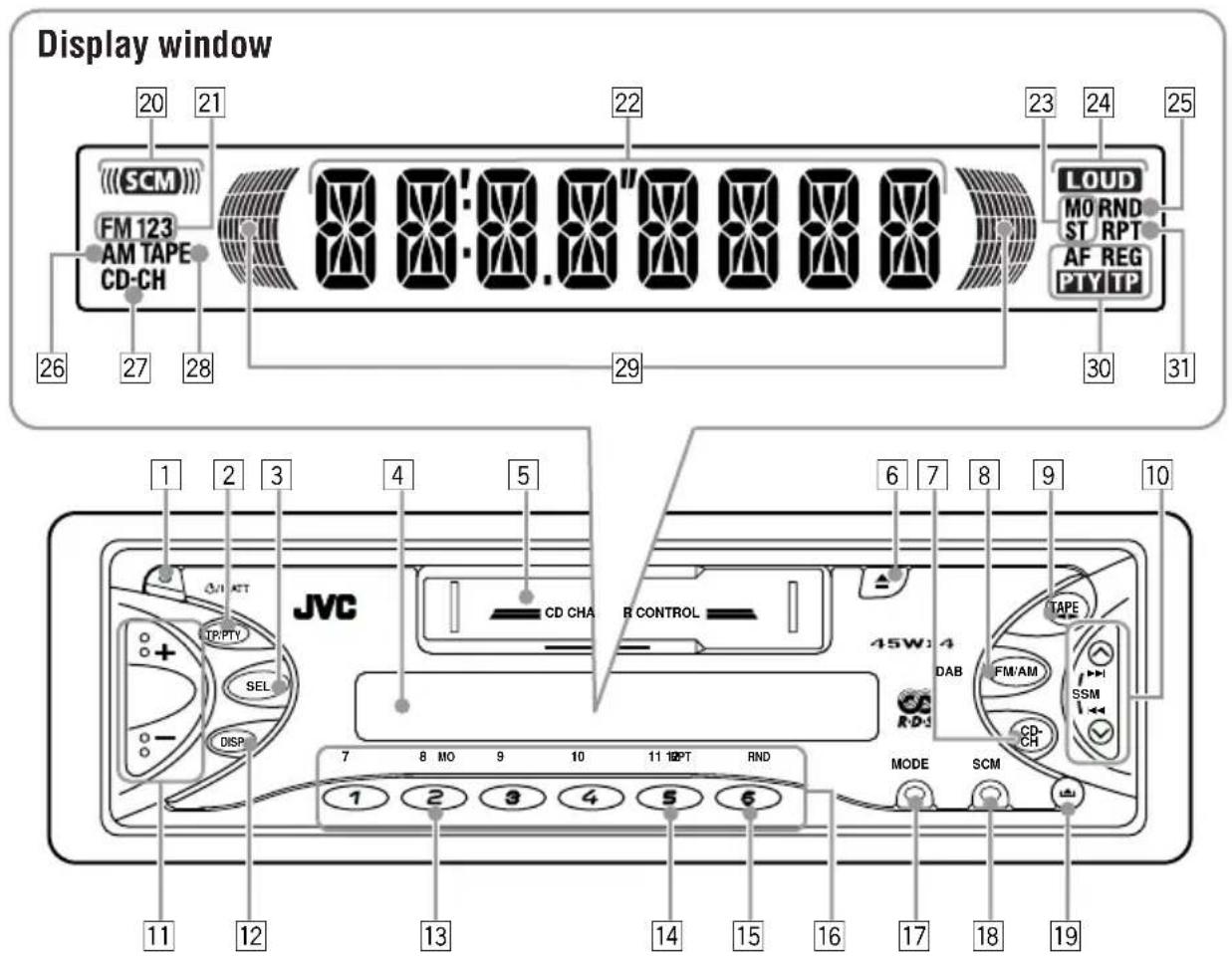
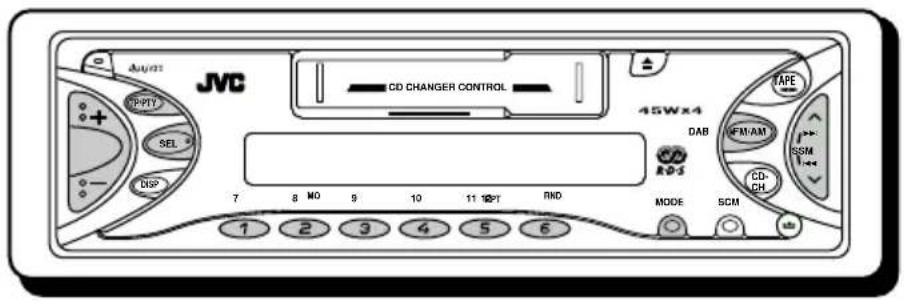
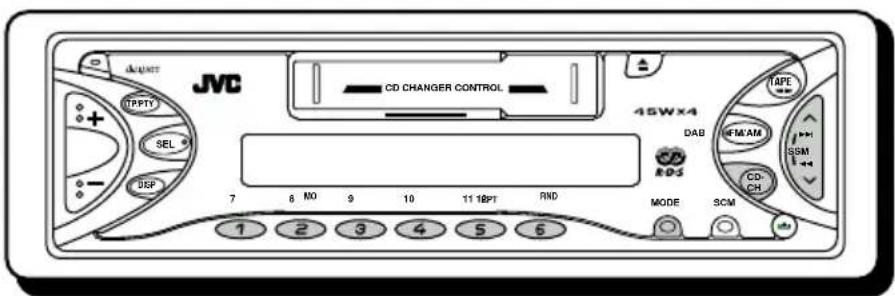
Control panel
text_image
Display window 20 21 (SCM) FM 123 AM TAPE CD-CH 26 27 28 22 23 24 25 LOUD MO RND ST RPT AF REG PTY TP 30 31 1 2 3 4 5 6 7 8 9 10 JVC CD CHA R CONTROL 45W:4 TAPE DAB FM/AM SSM CD-CH 1 2 3 4 5 6 MODE SCM 7 8 MO 9 10 11 OPT RND 11 12 13 14 15 16 17 18 191 (Stanaby/on/attenuator) button
2 TP (traffic programme)/ PTY (programme type) button
3 SEL (select) button
4 Display window
5 Cassette compartment
6 ▲ (eject) button
7 CD-CH (CD changer) button
8 FM/AM button
- Also functions as DAB button.
9 TAPE ◀ button
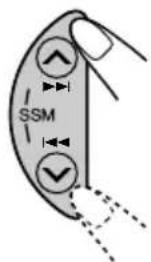
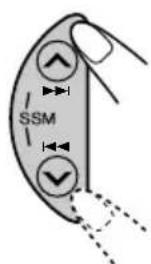
10 ▶ I/I◀◀ buttons
- Also function as SSM buttons when pressed together.
11 +/- buttons
12 DISP (display) button
13 MO (monaural) button
14 RPT (repeat) button
15 RND (random) button
16 Number buttons
17 MODE button
18 SCM (sound control memory) button
19 (control panel release) button
Display window
20 SCM (sound control memory) indicator
21 FM band indicator (FM1, FM2, FM3)
22 Main display
23 Tuner reception indicators
MO (monaural), ST (stereo)
24 LOUD (loudness) indicator
25 RND (random) indicator
26 AM band indicator
27 CD-CH (CD changer) indicator
28 TAPE indicator
29 Volume (or audio) level indicator
30 RDS indicators
AF, REG, PTY, TP
31 RPT (repeat) indicator
text_image
JVC CD CHANGER CONTROL 45Wx4 DAB TAPE REAM SCM 1 3 2 7 8 NO 9 10 11 RPT RHO MODE SCM 1 2 3 4 5 6Turning on the power
1 Turn on the power.
Note on One-Touch Operation:
When you select a source in step 2 below, the power automatically comes on. You do not have to press this button to turn on the power.
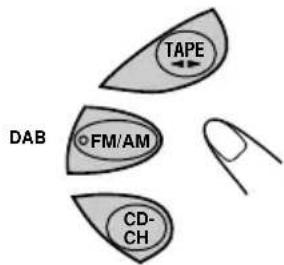
2 Select the source.
text_image
TAPE DAB ○FM/AM CD- CHTo operate the tuner (FM or AM), see pages 6 – 16.
To operate the tape, see pages 17 – 19.
To operate the CD changer, see pages 28 – 29.
To operate the external component, see page 30.
To operate the DAB tuner, see pages 31 - 33.
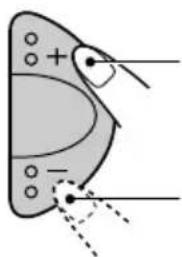
3 Adjust the volume.
natural_image
Diagram of a butterfly wing with marked points and dashed lines indicating measurement or alignment (no text or symbols)To increase the volume.
To decrease the volume.
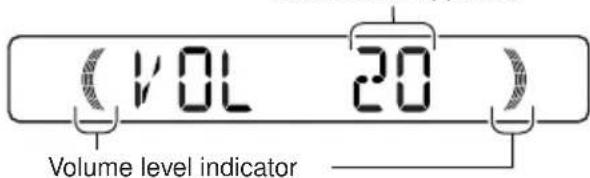
Volume level appears.
text_image
(VOL 20) Volume level indicator4 Adjust the sound as you want. (See pages 20 - 22.)
To drop the volume in a moment
Press briefly while listening to any source. "ATT" starts flashing on the display, and the volume level will drop in a moment.
To resume the previous volume level, press the button briefly again.
To turn off the power
Press and hold for more than one second.
Note:
When you use this unit for the first time, set the built-in clock correctly, see page 23.
text_image
JVC CD CHANGER CONTROL 45Wx4 DAB TAPE FM-AM SSM CD- CH 7 8 MO 9 10 11 PM RND MODE SCM 1 2 3 4 5 6Listening to the radio
You can use either automatic searching or manual searching to tune in to a particular station.
Searching a station automatically: Auto search
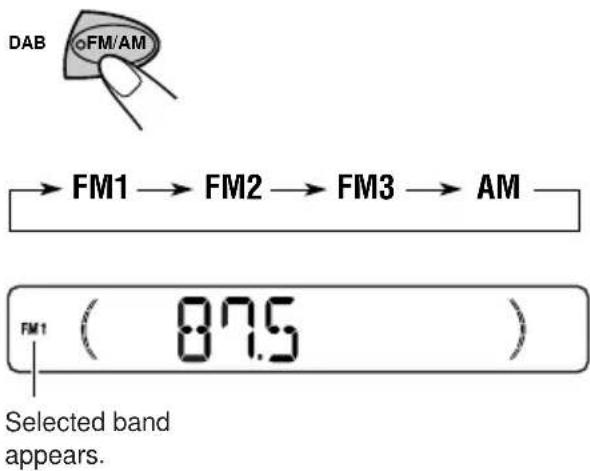
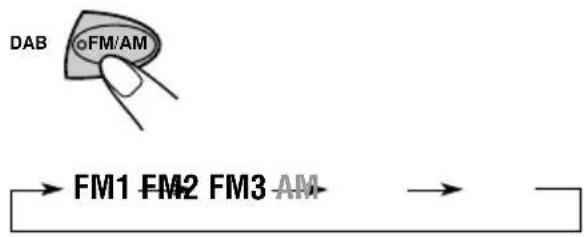
1 Select the band (FM1 - 3, AM).
text_image
DAB FM/AM → FM1 → FM2 → FM3 → AM FM1 ( 87.5 ) Selected band appears.Note:
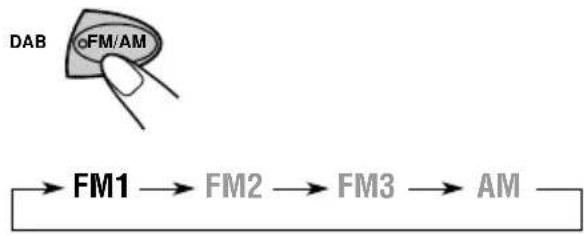
This receiver has three FM bands (FM1, FM2, FM3). You can use any one of them to listen to an FM broadcast.
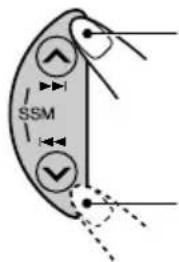
2 Start searching a station.
text_image
SSMTo search stations of higher frequencies.
To search stations of lower frequencies.
When a station is received, searching stops.
To stop searching before a station is received, press the same button you have pressed for searching.
Searching a station manually: Manual search
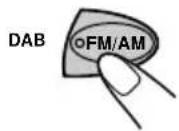
1 Select the band (FM1 - 3, AM).

flowchart
graph LR
    A["→ FM1 FM2 FM3 AM"] --> B["→"]
    B --> C[" "]
Note:
This receiver has three FM bands (FM1, FM2, FM3). You can use any one of them to listen to an FM broadcast.
2 Press and hold ▶▶ or ◀◀ until "M (manual)" starts flashing on the display.
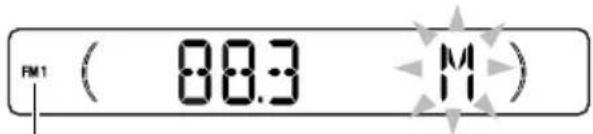
text_image
FM1 ( 88.3 M )Selected band appears.
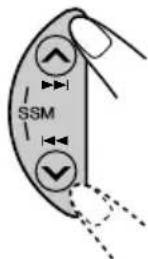
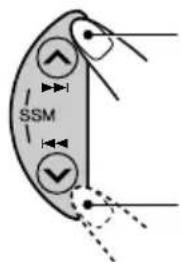
3 Tune in to a station you want while "M" is flashing.
text_image
SSMTo tune in to stations of higher frequencies.
To tune in to stations of lower frequencies.
- If you release your finger from the button, the manual mode will automatically turn off after 5 seconds.
- If you hold down the button, the frequency keeps changing (in 50 kHz intervals for FM and 9 kHz intervals for AM – MW/LW) until you release the button.
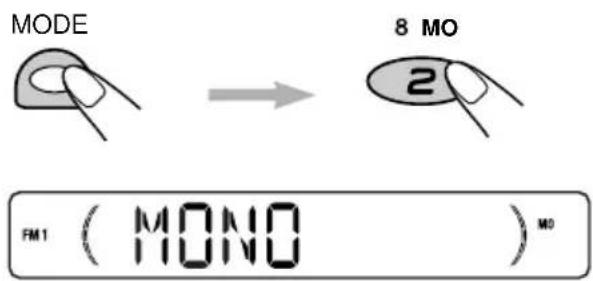
When an FM stereo broadcast is hard to receive:
1 Press MODE to enter the functions mode while listening to an FM stereo broadcast.
2 Press MO (monaural), while still in the functions mode, so that the MO indicator lights up on the display.
text_image
MODE 8 MO 2 FM1 ( MONO ) M0When the MO indicator is lit on the display, the sound you hear becomes monaural but the reception will be improved (the ST indicator goes off).
To restore the stereo effect, repeat steps 1 and 2 so that the MO (monaural) indicator goes off.
Storing stations in memory
You can use one of the following two methods to store broadcasting stations in memory.
• Automatic preset of FM stations: SSM (Strong-station Sequential Memory)
- Manual preset of both FM and AM stations
FM station automatic preset: SSM
You can preset 6 local FM stations in each FM band (FM1, FM2 and FM3).
1 Select the FM band (FM1 – 3) you want to store FM stations into.
flowchart
graph LR
    A["DAB"] --> B["FM/AM"]
    B --> C["FM1 FM2 FM3 AM"]
    C --> D["End"]
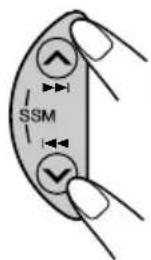
2 Press and hold both buttons for more than 2 seconds.

text_image
PM1 (……55M……)"SSM" appears, then disappears when automatic preset is over.
Local FM stations with the strongest signals are searched and stored automatically in the band number you have selected (FM1, FM2 or FM3). These stations are preset in the number buttons — No.1 (lowest frequency) to No.6 (highest frequency). When automatic preset is over, the station stored in number button 1 will be automatically tuned in.
Manual preset
You can preset up to 6 stations in each band (FM1, FM2, FM3 and AM) manually.
Ex.: Storing an FM station of 88.3 MHz into the preset number 1 of the FM1 band
1 Select the band (FM1 – 3, AM) you want to store stations into (in this example, FM1).
flowchart
graph LR
    A["DAB"] --> B["FM1"]
    B --> C["FM2"]
    C --> D["FM3"]
    D --> E["AM"]
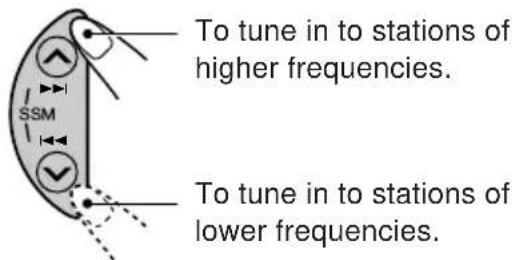
2 Tune in to a station (in this example, of 88.3 MHz).
text_image
To tune in to stations of higher frequencies. SSM To tune in to stations of lower frequencies.
text_image
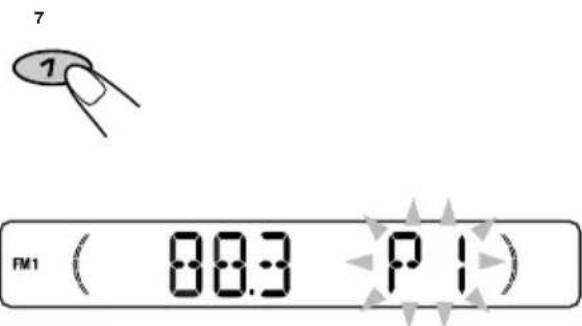
FM1 ( 88.3 )3 Press and hold the number button (in this example, 1) for more than 2 seconds.
text_image
7 1 FM1 ( 08:3 P1 )"P1" flashes for a few seconds.
4 Repeat the above procedure to store other stations into other preset numbers.
Notes:
- A previously preset station is erased when a new station is stored in the same preset number.
- Preset stations are erased when the power supply to the memory circuit is interrupted (for example, during battery replacement). If this occurs, preset the stations again.
Tuning in to a preset station
You can easily tune in to a preset station.
Remember that you must store stations first. If you have not stored them yet, see "Storing stations in memory" on pages 8 and 9.
1 Select the band (FM1 - 3, AM).
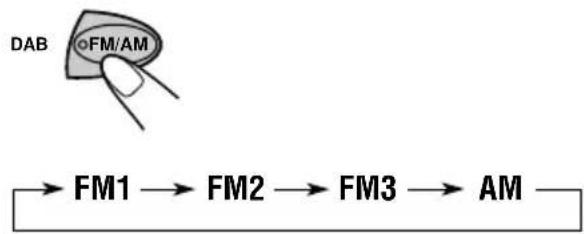
flowchart
graph LR
    A["DAB"] --> B["FM/AM"]
    B --> C["FM1"]
    C --> D["FM2"]
    D --> E["FM3"]
    E --> F["AM"]
2 Select the number (1 - 6) for the preset station you want.
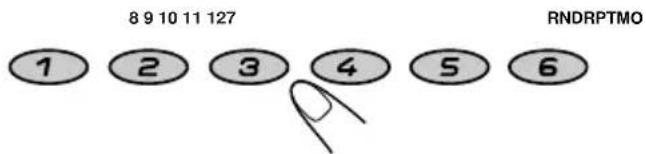
text_image
8 9 10 11 127 RNDRPTMO 1 2 3 4 5 6What you can do with RDS
RDS (Radio Data System) allows FM stations to send an additional signal along with their regular programme signals. For example, the stations send their station names, as well as information about what type of programme they broadcast, such as sports or music, etc.
Another advantage of RDS function is called "Enhanced Other Networks." By using the Enhanced Other Networks data sent from a station, you can tune in to a different station of a different network broadcasting your favourite programme or traffic announcement while listening to another programme or to another source such as tape.
By receiving the RDS data, this unit can do the following:
- Tracing the same programme automatically (Network-Tracking Reception)
- Standby Reception of TA (Traffic Announcement) or your favourite programme
• PTY (Programme Type) search - Programme search
• And some other functions
Tracing the same programme automatically (Network-Tracking Reception)
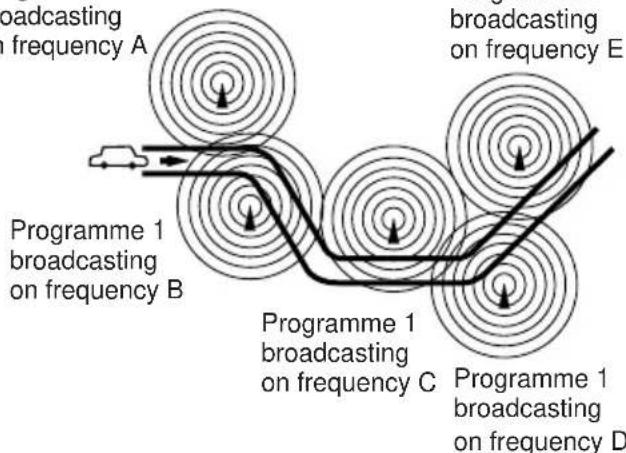
When driving in an area where FM reception is not good, the tuner built in this unit automatically tunes in to another RDS station, broadcasting the same programme with stronger signals. So, you can continue to listen to the same programme in its finest reception, no matter where you drive. (See illustration on page 11.)
Two types of the RDS data are used to make Network-Tracking Reception work correctly — PI (Programme Identification) and AF (Alternative Frequency).
Without receiving these data correctly from the RDS station you are listening to, Network-Tracking Reception will not operate.
To use Network-Tracking Reception
You can select the different modes of network-tracking reception to continue listening to the same programme in its finest reception.
When shipped from the factory, "AF" is selected.
- AF: Network-Tracking Reception is activated with Regionalization set to "off." With this setting, the unit switches to another station within the same network when the receiving signals from the current station become weak. (In this mode, the programme may differ from the one currently received.) The AF indicator lights up but the REG indicator does not.
- AF REG: Network-Tracking Reception is activated with Regionalization set to "on." With this setting, the unit switches to another station, within the same network, broadcasting the same programme when the receiving signals from the current station become weak. Both the AF indicator and the REG indicator light up.
- OFF: Network-Tracking Reception is deactivated. Neither the AF indicator nor the REG indicator lights up.
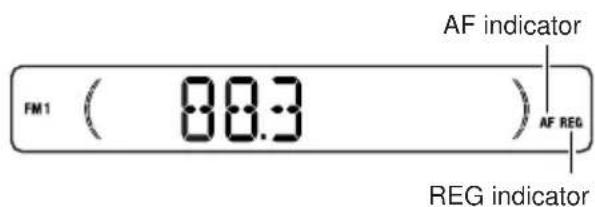
text_image
FM1 ( 08:3 ) AF REG AF indicator REG indicator1 Press and hold SEL (select) for more than 2 seconds so that one of the PSM items appears on the display. (PSM: see page 25.)
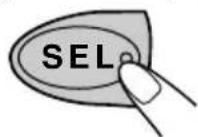
2 Select "AF REG (alternative frequency/Regionalization reception)" if not shown on the display.
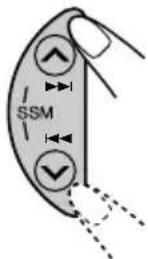
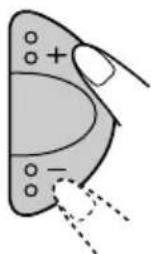
3 Select the desired mode – “AF,” “AF REG” or “OFF.”
4 Finish the setting.
The same programme can be received on different frequencies.
Programme 1 broadcasting on frequency A
flowchart
graph TD
    A["Programme 1 broadcasting on frequency A"] --> B["Programme 1 broadcasting on frequency B"]
    B --> C["Programme 1 broadcasting on frequency C"]
    C --> D["Programme 1 broadcasting on frequency D"]
    D --> E["Programming on frequency E"]
    style A fill:#f9f,stroke:#333
    style B fill:#ccf,stroke:#333
    style C fill:#cfc,stroke:#333
    style D fill:#fcc,stroke:#333
Programme 1 broadcasting on frequency E
Using TA Standby Reception
TA Standby Reception allows the unit to switch temporarily to Traffic Announcement (TA) from the current source (another FM station, tape or other connected components).
• TA Standby Reception will not work if you are listening to an AM station.
Press TP/PTY to activate TA Standby Reception.
■When the current source is FM, the TP indicator either lights up or flashes.
- If the TP indicator lights up, TA Standby Reception is activated. If a station starts broadcasting a traffic announcement, “TRAFFIC” appears on the display, and this unit automatically tunes in to the station. The volume changes to the preset TA volume level (see page 15) and the traffic announcement can be heard.
- If the TP indicator flashes, TA Standby Reception is not yet activated since the station being received does not provide the signals used for TA Standby Reception. To activate TA Standby Reception, you need to tune in to another station providing these signals.
Press ▶▶ or ◀◀ to search for such a station.
When a station providing these signals is tuned in, the TP indicator stops flashing and remains lit. Now TA Standby Reception is activated.
■When the current source is other than FM, the TP indicator lights up.
If a station starts broadcasting a traffic announcement, "TRAFFIC" appears on the display, and this unit automatically changes the source and tunes in to the station.
To deactivate the TA Standby Reception, press TP/PTY again.
Using PTY Standby Reception
PTY Standby Reception allows the unit to switch temporarily to your favourite programme (PTY: Programme Type) from the current source (another FM station, tape or other connected components).
- PTY Standby Reception will not work if you are listening to an AM station.
You can select your favourite programme type for PTY Standby Reception.
When shipped from the factory, PTY Standby Reception is turned off. ("OFF" is selected for PTY Standby Reception.)
1 Press and hold SEL (select) for more than 2 seconds so that one of the PSM items appears on the display. (PSM: see page 25.)
2 Select "PTY STBY (standby)" if not shown on the display.

3 Select one of the twenty-nine PTY codes. (See page 16.)
natural_image
Diagram of a hand holding a small object with labeled points and dashed lines indicating motion or force (no text or symbols present)Selected code name appears on the display and is stored into memory.
• To cancel the PTY Standby Reception, select "OFF."
4 Finish the setting.
■When the current source is FM, the PTY indicator either lights up or flashes.
- If the PTY indicator lights up, PTY Standby Reception is activated. If a station starts broadcasting the selected PTY programme, this unit automatically tunes in to the station.
- If the PTY indicator flashes, PTY Standby Reception is not yet activated since the station being received does not provide the signals used for PTY Standby Reception.
To activate PTY Standby Reception, you need to tune in to another station providing these signals.
Press ▶▶I or ◀◀◀ to search for such a station.
When a station providing these signals is tuned in, the PTY indicator stops flashing and remains lit. Now PTY Standby Reception is activated.
■When the current source is other than FM, the PTY indicator lights up.
If a station starts broadcasting the selected PTY programme, this unit automatically changes the source and tunes in to the station.
To deactivate the PTY Standby Reception, select "OFF" in step 3 on the left column. The PTY indicator disappears.
Searching your favorite programme
You can search any one of the PTY codes. In addition, you can store your 6 favorite programme types in the number buttons.
When shipped from the factory, the following 6 programme types have been stored in the number buttons (1 to 6).
To store your favorite programme types, see below.
To search your favorite programme type, see page 14.
| 1 | 2 | 3 |
| POP M | ROCK M EASY M | |
| 4 | 5 | 6 |
| CLASSICS | AFFAIRS | VARIED |
To store your favorite programme types
1 Press and hold TP/PTY for more than 2 seconds.


text_image
FM1 ( POP M )The last selected PTY code appears.
2 Select one of the twenty-nine PTY codes. (See page 16.)
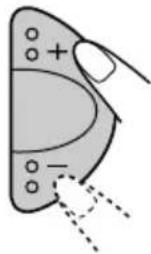
Selected code name appears on the display.
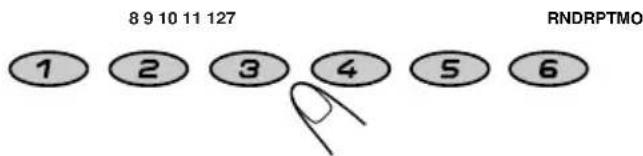
3 Press and hold the number button for more than 2 seconds to store the PTY code selected into the preset number you want.
text_image
8 9 10 11 127 RNDRPTMO 1 2 3 4 5 6"MEMORY" and the selected code name alternates on the display.
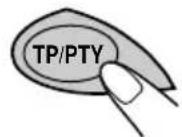
4 Press and hold TP/PTY for more than 2 seconds.
To search your favorite programme type
1 Press and hold TP/PTY for more than 2 seconds while listening to an FM station.


text_image
FM1 ( POP M )The last selected PTY code appears.
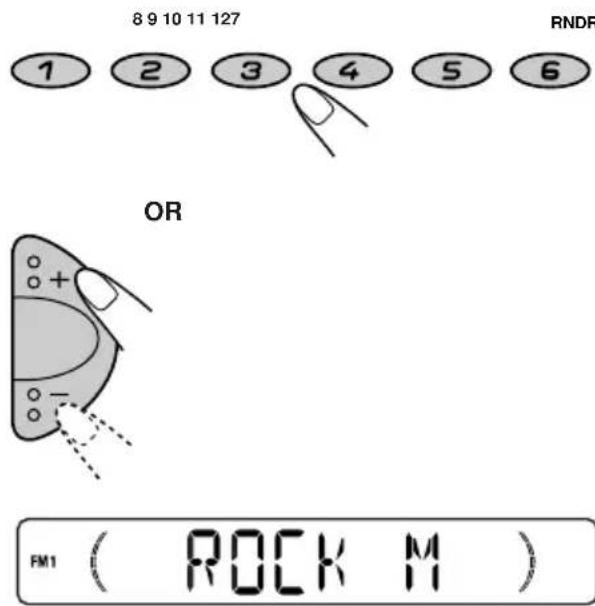
2 Select one of the PTY codes.
text_image
8 9 10 11 127 RNDR 1 2 3 4 5 6 OR FM1 ( ROCK M )Ex.: When "ROCK M" is selected
3 Press ▲▶ or ◀◀ to start PTY search for your favourite programme.
- If there is a station broadcasting a programme of the same PTY code as you selected, that station is tuned in.
- If there is no station broadcasting a programme of the same PTY code as you selected, the station will not change.
Note:
In some areas, the PTY search will not work correctly.
Other convenient RDS functions and adjustments
Automatic selection of the station when using the number buttons
Usually when you press the number button, the preset station is tuned in.
However, when the preset station is an RDS station, something different will happen. If the signals from that preset station are not sufficient for good reception, this unit, using the AF data, tunes in to another frequency broadcasting the same programme as the original preset station is broadcasting. (Programme search)
- The unit takes some time to tune in to another station using Programme search.
To activate programme search, follow the procedure below.
- See also "Changing the general settings (PSM)" on page 24.
1 Press and hold SEL (select) for more than 2 seconds so that one of the PSM items appears on the display.
2 Press ▲▶▶ or ◀◀ ▼ to select "P(Programme)-SEARCH."
3 Press + to select "ON."
Now programme search is activated.
4 Press SEL (select) to finish the setting.
To cancel programme search, repeat the same procedure and select "OFF" in step 3 by pressing -.
Changing the display mode while listening to an FM station
You can change the initial indication on the display to station name (PS NAME), station frequency (FREQ) or clock time (CLOCK) while listening to an FM RDS station.
- See also "Changing the general settings (PSM)" on page 24.
1 Press and hold SEL (select) for more than 2 seconds so that one of the PSM items appears on the display.
2 Press ▲▶▶ or ◀◀◀ √ to select "DISPMODE (display mode)."
3 Press + or - to set to the desired indication ("PS NAME," "FREQ" or "CLOCK").
4 Press SEL (select) to finish the setting.
Note:
By pressing DISP (display), you can change the display while listening to an FM RDS station.
Each time you press the button, the following information appears on the display:
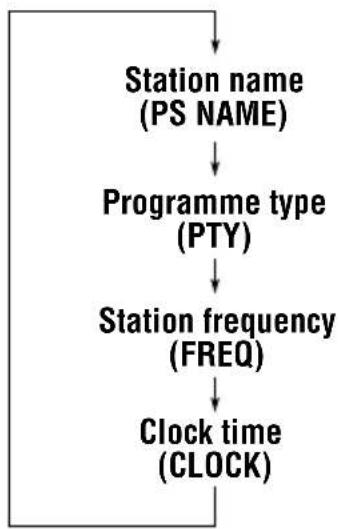
flowchart
graph TD
    A["Station name (PS NAME)"] --> B["Programme type (PTY)"]
    B --> C["Station frequency (FREQ)"]
    C --> D["Clock time (CLOCK)"]
- Then, the display goes back to the original indication in several seconds.
Setting the TA volume level
You can preset the volume level for TA Standby Reception. When a traffic programme is received, the volume level automatically changes to the preset level.
- See also "Changing the general settings (PSM)" on page 24.
1 Press and hold SEL (select) for more than 2 seconds so that one of the PSM items appears on the display.
2 Press ∧ ►►I or ◀◀◀ ▼ to select "TA VOL (volume)."
3 Press + or - to set to the desired volume. You can set it from "VOL 00" to "VOL 50."
4 Press SEL (select) to finish the setting.
Automatic clock adjustment
When shipped from the factory, the clock built in this unit is set to be readjusted automatically using the CT (Clock Time) data in the RDS signal. If you do not want to use automatic clock adjustment, follow the procedure below.
- See also "Changing the general settings (PSM)" on page 24.
1 Press and hold SEL (select) for more than 2 seconds so that one of the PSM items appears on the display.
2 Press ▲▶▶ or ◀◀◀ ▼ to select "AUTO ADJ (adjustment)."
3 Press – to select "OFF."
Now automatic clock adjustment is canceled.
4 Press SEL (select) to finish the setting.
To reactivate clock adjustment, repeat the same procedure and select "ON" in step 3 by pressing +.
Note:
You must stay tuned to the same station for more than 2 minutes after setting "AUTO ADJ" to "ON." Otherwise, the clock time will not be adjusted. (This is because the unit takes up to 2 minutes to capture the CT data in the RDS signal.)
PTY codes
NEWS: News
AFFAIRS: Topical programmes expanding on current news or affairs
INFO: Programmes which impart advice on a wide variety of topics
SPORT: Sport events
EDUCATE: Educational programmes
DRAMA: Radio plays
CULTURE: Programmes on national or regional culture
SCIENCE: Programmes on natural science and technology
VARIED: Other programmes like comedies or ceremonies
POP M: Pop music
ROCK M: Rock music
EASY M: Easy-listening music
LIGHT M: Light music
CLASSICS: Classical music
OTHER M: Other music
WEATHER: Weather information
FINANCE: Reports on commerce, trading, the Stock Market, etc.
CHILDREN: Entertainment programmes for children
SOCIAL: Programmes on social activities
RELIGION: Programmes dealing with any aspect of belief or faith, or the nature of existence or ethics
PHONE IN: Programmes where people can express their views either by phone or in a public forum
TRAVEL: Programmes about travel destinations, package tours, and travel ideas and opportunities
LEISURE: Programmes concerned with recreational activities such as gardening, cooking, fishing, etc.
JAZZ: Jazz music
COUNTRY: Country music
NATION M: Current popular music from another nation or region, in that country's language
OLDIES: Classic pop music
FOLK M: Folk music
DOCUMENT: Programmes dealing with factual matters, presented in an investigative style
text_image
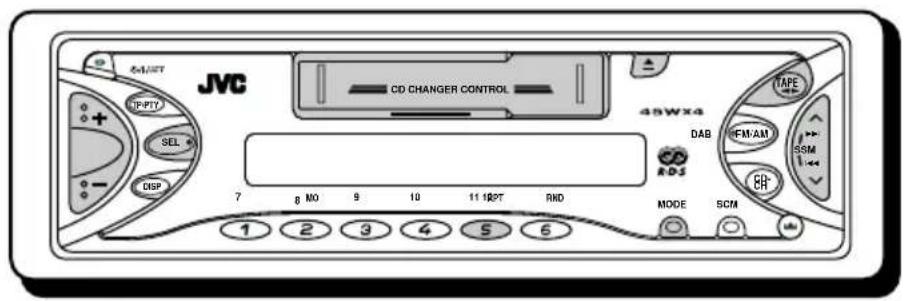
JVC CD CHANGER CONTROL 45WX4 TAPE DAB IFM:AM SSM ER R-DS MODE SCM 1 2 3 4 5 6 7 8 NO 9 10 11 RPT RMDListening to a cassette
You can play back type 1 (normal) tapes.
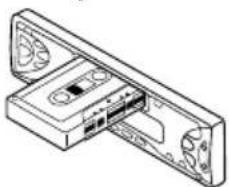
1 Insert a cassette into the cassette compartment.
natural_image
Isometric line drawing of a device with ports and a central internal component (no text or symbols)The unit turns on and tape play starts automatically. When one side of the tape reaches its end during play, the other side of the tape automatically starts playing. (Auto Reverse)
Note on One-Touch Operation:
When a cassette is already in the cassette compartment, select tape as the source by pressing TAPE ◀ to start tape play.
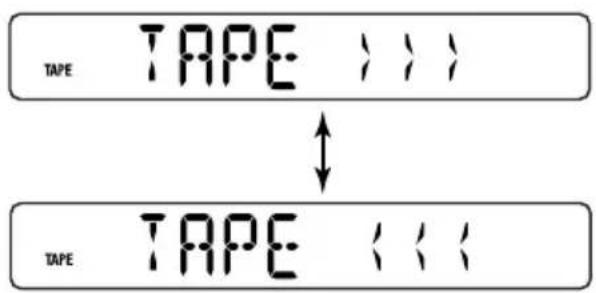
2 Select the tape direction.

Each time you press TAPE ◀▶, the tape direction changes to forward (i) and reverse (i) alternately.
text_image
TAPE TAPE TAPE TAPETo stop play and eject the cassette
Press ▲.
Tape play stops and the cassette automatically ejects from the cassette compartment. The source changes to the previously selected one.
If you change the source, tape play also stops (without ejecting the cassette this time).
- You can eject the cassette while the unit is turned off by pressing ▲.
To fast-forward or rewind a tape
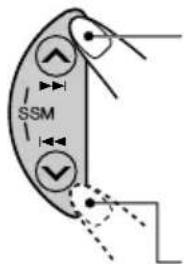
text_image
SSMPress ▲▶▶ for more than 1 second to fast-forward the tape. When the tape reaches its end, the tape is reversed and playback starts from the beginning of the other side.
Press ◀◀◀ ▼ for more than 1 second to rewind the tape. When the tape reaches its end, playback of the same side starts.
To stop fast forward or rewind at any position on the tape, press TAPE ◀.
Tape play starts from that position on the tape.
Notes:
- When one side of the tape reaches its end during play, the other side of the tape automatically starts playing. (Auto Reverse)
- When the tape reaches its end while fast-forwarding, the tape direction will be changed automatically.
Finding the beginning of a tune
Multi Music Scan allows you to automatically start playback from the beginning of a specified tune. You can specify up to 9 tunes ahead of or before the current tune.
During playback
Specify how many tunes ahead of or before the current tune the one you want is located.
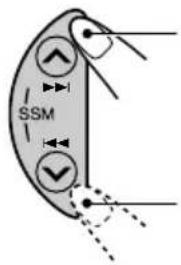
text_image
SSMPress ▲▶I to locate a tune ahead of the current tune on the cassette.
Press ◀◀◀ to locate a tune before the current tune on the cassette.
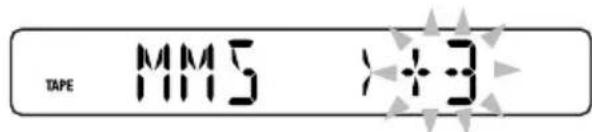
text_image
TAPE MM5 >÷3Each time you press the buttons, the number changes up to ±9 .
When the beginning of the specified tune is located, playback starts automatically.
Notes:
• While locating a specified tune:
- If the tape is rewound to its beginning, playback starts from the beginning of that side.
- If the tape is fast-forwarded to the end, it is reversed and played from the beginning of the other side.
- In the following cases, the Multi Music Scan function may not operate correctly:
- Tapes with tunes having long pianissimo passages (very quiet parts) or non-recorded portions between tunes.
– Tapes with short non-recorded sections.
- Tapes with high level of noise or humming between tunes.
– Tapes with tunes recorded at low recording levels.
Other convenient tape functions
Skipping the blank portions on the tape
You can skip blank portions between the tunes (Blank Skip).
When this function is on, the unit skips blank portions of 15 seconds or more, fast-forwards to the next tune, then starts playing it.
- See also "Changing the general settings (PSM)" on page 24.
1 Press and hold SEL (select) for more than 2 seconds so that one of the PSM items appears on the display. (PSM: see page 25.)
2 Press ▶▶ or ◀◀ to select "B. SKIP (blank skip)."
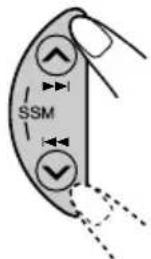
3 Press + to select "ON."
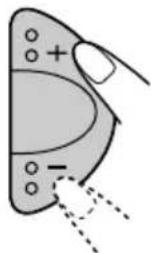
Now Blank Skip is activated.
4 Finish the setting.
To cancel Blank Skip, repeat the same procedure and select "OFF" in step 3 by pressing -.
Playing the current tune repeatedly
You can play the current tune repeatedly (Repeat Play).
1 Press MODE to enter the functions mode while playing a tune you want to hear over again on a cassette. This unit enters the functions mode.
2 Press RPT (repeat), while still in the functions mode, so that the RPT indicator lights up on the display.
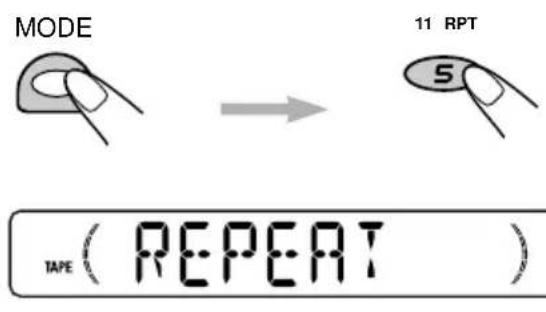
text_image
MODE 11 RPT 5 TAPE ( REPEAT )Lights up when Repeat Play is turned on.
When the tune has been played, the tape is automatically rewound to the beginning of that tune and the same tune will be played again.
To cancel Repeat Play, repeat steps 1 and 2 again so that the RPT indicator goes off.
Note:
In the following cases, Blank Skip and Repeat Play may not operate correctly:
- Tapes with tunes having long pianissimo passages (very quiet parts) or non-recorded portions during tunes.
– Tapes with short non-recorded sections.
– Tapes with high level noise or humming between tunes.
– Tapes with tunes recorded at low recording levels.
Prohibiting cassette ejection
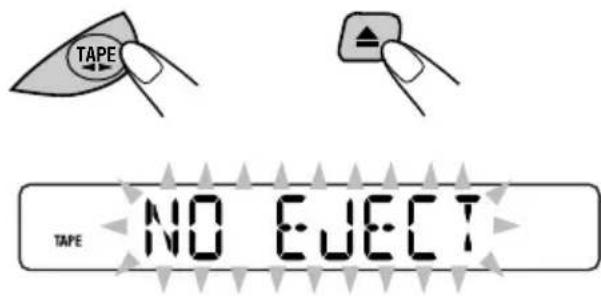
You can prohibit cassette ejection and "lock" a cassette in the cassette compartment. Press and hold TAPE ◀▶ and ▲ (eject) for more than 2 seconds.
text_image
TAPE NO EFFECT"NO EJECT" flashes on the display for about 5 seconds, and the cassette is "locked."
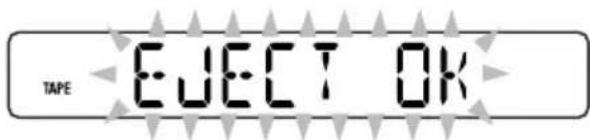
To cancel the prohibition and "unlock" the cassette, press and hold TAPE ◀▶ and ▲ (eject) for more than 2 seconds again.
text_image
TAPE EJECT OK"EJECT OK" flashes for about 5 seconds, and this time the cassette is "unlocked."
Note:
If you press ▲ while cassette ejection is prohibited, the cassette will not be ejected.
Adjusting the sound
You can adjust the sound characteristics to your preference.
1 Select the item you want to adjust.
Each time you press the button, the adjustable items change as follows:
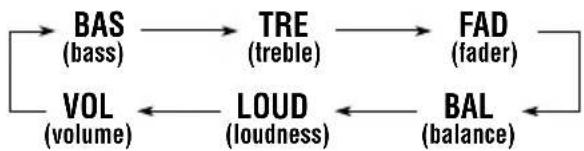
flowchart
graph LR
    A["BAS (bass)"] --> B["TRE (treble)"]
    B --> C["FAD (fader)"]
    C --> D["BAL (balance)"]
    D --> E["LOUD (loudness)"]
    E --> F["VOL (volume)"]
    F --> A
| Indication | To do: Range | |
| BAS Adjust | the bass. -06 (min.) | | +06 (max.) |
| TRE Adjust | the treble. -06 (min.) | | +06 (max.) |
| FAD* Adjust | the front R06 (Rear only) and rear speaker balance. F06 (Front only) | |
| BAL Adjust | the left L06 (Left only) and right speaker balance. R06 (Right only) | |
| LOUD Boost | low and high frequencies to produce a well-balanced sound at low volume level. | LOUD ON | LOUD OFF |
| VOL Adjust | the volume. 00 (min.) | | 50 (max.) |
* If you are using a two-speaker system, set the fader level to "00."
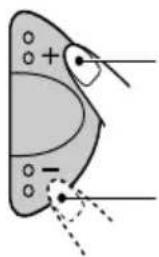
2 Adjust the level.
natural_image
Diagram of a biological or mechanical structure with labeled points and dashed lines indicating features (no readable text or symbols)To increase the level.
To decrease the level.

text_image
((TRE +06)Note:
Normally, the +/- buttons work as the volume control. So you do not have to select "VOL" to adjust the volume level.
Using the sound control memory (SCM)
You can select and store a preset sound adjustment suitable for each playback source (Advanced SCM).
Selecting and storing the sound modes
Once you select a sound mode, it is stored in memory. It will be recalled every time you select the same source and will be shown on the display. A sound mode can be stored for each of the following sources — FM1, FM2, FM3, AM, tape and external components.
- If you do not want to store the sound mode separately for each playback source, but want to use the same sound mode for all the sources, see "To cancel Advanced SCM – SCM LINK" on page 26.
Select the sound mode you want.

text_image
SCM FM1 BEATEx.: When you select "BEAT"
Each time you press the button, the sound mode changes as follows:

flowchart
graph LR
    A["→ SCM OFF"] --> B["BEAT"] --> C["SOFT"] --> D["POP"]
- When "SCM LINK" is set to "LINK ON," the selected sound mode can be stored in memory for the current source and the effect applies only to the current source.
- When "SCM LINK" is set to "LINK OFF," the selected sound mode effect applies to any source.
| Indication | For: Preset values | |||
| BAS TR | E LOUD | |||
| SCM OFF (Flat sound) | 0 | 00 ON | ||
| BEAT Rock | or +02 00 ONdisco music | |||
| SOFT Quiet | +01backgroundmusic | -03 | OFF | |
| POP | Light music | +04 | +01 | OFF |
Recalling the sound modes
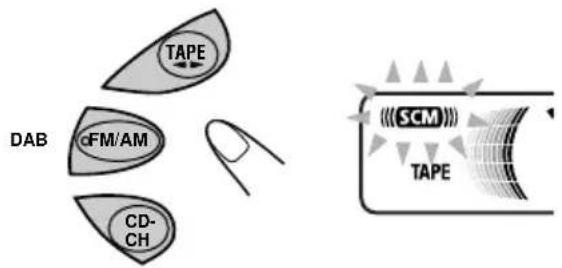
When "SCM LINK" is set to "LINK ON," select the source.
text_image
TAPE DAB cFM/AM CD- CH (SCM) TAPEEach time you change the playback source, the SCM indicator flashes on the display.
The sound mode stored in memory for the selected source (in this case, tape) is recalled.
Notes:
- You can adjust each sound mode to your preference, and store it in memory.
If you want to adjust and store your original sound mode, see "Storing your own sound adjustments" on page 22.
- To adjust the bass and treble reinforcement levels or to turn on/off the loudness function temporarily, see page 20. (Your adjustments will be canceled if another source is selected.)
Storing your own sound adjustments
You can adjust the sound modes (BEAT, SOFT, POP) to your preference and store your own adjustments in memory.
- There is a time limit in doing the following procedure. If the setting is canceled before you finish, start from step 1 again.
1 Call up the sound mode you want to adjust.
SCM
• See page 21 for details.

text_image
SCM FM1 SOFTEx.: When you select "SOFT"
2 Select "BAS (bass)," "TRE (treble)" or "LOUD (loudness)."

text_image
FM1 ((TRE ..03,3 Adjust the bass or treble level or turn the loudness function ON/OFF.
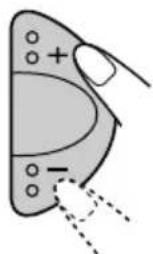
• See page 20 for details.

text_image
||SCN|| FM1 ((TRE +06)4 Repeat steps 2 and 3 to adjust the other items.
5 Press and hold SCM until the sound mode you have selected in step 1 flashes on the display.
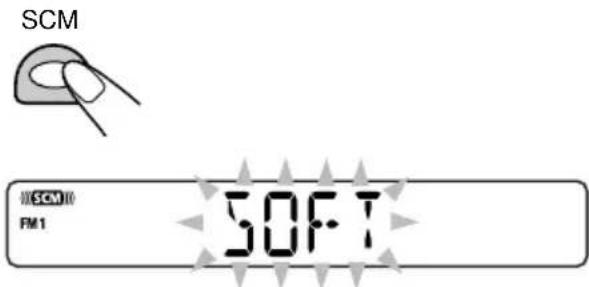
text_image
SCM SCM FM1 SOFTYour adjustment made for the selected sound mode is stored in memory.
6 Repeat the same procedure to store other sound modes.
To reset to the factory settings
Repeat the same procedure and reassign the preset values listed in the table on page 21.
Setting the clock
You can also set the clock system to either 24 hours or 12 hours.
1 Press and hold SEL (select) for more than 2 seconds so that one of the PSM items appears on the display. (See page 25.)
2 Set the hour.
1 Select "CLOCK H (hour)" if not shown on the display.
2Adjust the hour.
1
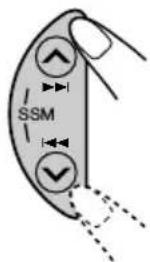
text_image
SSM2
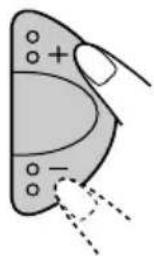
natural_image
Diagram of a hand holding a device with control points and dashed lines indicating movement or force (no text or symbols)3 Set the minute.
1 Select "CLOCK M (minute)."
2Adjust the minute.
1
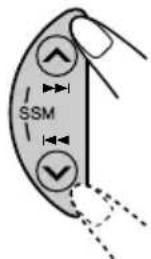
2
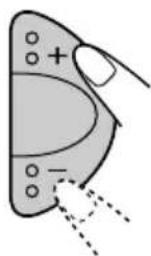
4 Set the clock system.
①Select "24H/12H."
2 Select "24H" or "12H."
1
text_image
SSM 2[Non-Text]
natural_image
Diagram of a hand holding a device with a curved panel and labeled points (no text or symbols present)5 Finish the setting.
To check the current clock time or change the display mode
Press DISP (display) repeatedly. Each time you press the button, the display mode changes as follows:
- During tuner operation: Clock Frequency
Notes:
- For the indication change during RDS operation, see page 15.
- For the indication change during DAB operation, see page 32.
• During tape operation:
Clock Play mode (tape direction)
- During external component operation: Clock ←→ LINE IN
- During CD changer operation: Clock → Elapsed playing time → Disc number
- During power off: The power turns on and the clock time is shown for 5 seconds, then the power turns off.
Selecting the color of the display window
This section is only for KS-FX772R.
You can select the color of the display window according to your preference.
When shipped from the factory, "ALL DEMO" is selected.
- ALL DEMO: The color changes every 30 seconds.
- SOURCE: The color changes according to the source you choose (FM/AM, TAPE, CD Changer or the external component).
- BLUE 1: Blue color 1.
- BLUE 2: Blue color 2.
• PURPLE 1: Purple color 1.
• PURPLE 2: Purple color 2. - RED 1: Red color 1.
- RED 2: Red color 2.
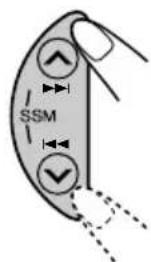
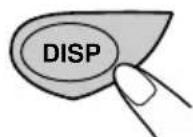
1 Press and hold DISP (display) for more than 2 seconds so that one of the colors listed above appears on the display.
2 Select the color you want.
text_image
SSM3 Finish the setting.
Changing the general settings (PSM)
You can change the items listed on the next page by using the PSM (Preferred Setting Mode) control.
Basic Procedure
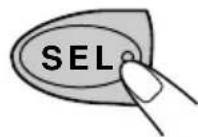
1 Press and hold SEL (select) for more than 2 seconds so that one of the PSM items appears on the display. (See page 25.)
2 Select the PSM item you want to adjust. (See page 25.)
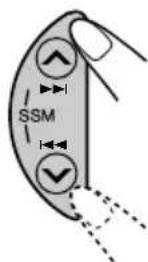
3 Adjust the PSM item selected.
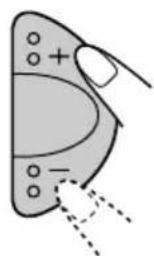
natural_image
Diagram of a hand holding a curved object with labeled points and dashed lines indicating motion or force (no text or symbols)4 Repeat steps 2 and 3 to adjust the other PSM items if necessary.
5 Finish the setting.
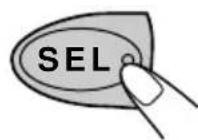
Preferred Setting Mode (PSM) items
1 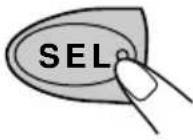 Hold. Hold. | 2 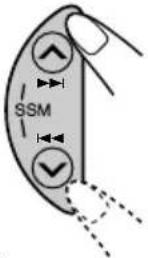 Select. Select. | 3 Set. 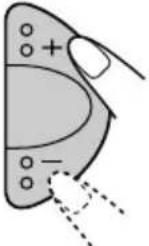 - + - + | Factory-preset settings | See page | |
| CLOCK H | Hour adjustment | Back | Advance | 230:00 | |
| CLOCK M | Minute adjustment | Back | Advance | ||
| SCM LINK | Sound control memory linkage | LINK OFF | LINK ON | LINK ON | 21, 26 |
| 24H/12H | 24/12-hour time display | 12H | 24H24H | 23 | |
| AUTO ADJ | Automatic clock setting | OFF | ON | ON | 15 |
| DISPMODE | Display mode | PS NAME ↔ FREQ ↑→ CLOCK ←↑ | PS NAME 15 | ||
| CH DISP | Changer display | DISCTIME | DISC 26 | ||
| AF REG | Alternative frequency/Regionalization reception | AF ↔ AF REG ↑→ OFF ←↑ | 10, 11A | ||
| PTY STBY | PTY standby | OFF → 29 programme types (see page 16) | OFF | 11, 12 | |
| TA VOL | Traffic announcement volume | VOL 00 – VOL 50 | 15VOL | ||
| P-SEARCH | Programme search | OFF ON | OFF | 14 | |
| LEVEL | Level display | AUDIO 1 ↔ AUDIO 2 ↑→ OFF ←↑ | AUDIO 2 26 | ||
| TEL | Telephone muting | OFF MUTING 1 ↑→ MUTING 2 ←↑ | 26OFF | ||
| B. SKIP | Blank skip | ONOFF | OFF 18 | ||
| EXT IN* | External component | LINE INCHANGE RANGER | 26, 30 | ||
- Press SEL (select) to finish the setting.
* Displayed only when one of the following sources is selected – FM, AM and Tape.
To cancel Advanced SCM – SCM LINK
You can cancel the Advanced SCM (Sound Control Memory), and unlink the sound modes and the playback sources.
When shipped from the factory, a different sound mode can be stored in memory for each source so that you can change the sound modes simply by changing the sources.
- LINK ON: Advanced SCM (different sound modes for different sources).
- LINK OFF: Conventional SCM (one sound mode for all sources).
To select the changer display – CH DISP
You can change the initial indication on the display either to disc number or to elapsed playing time, while using the CD changer.
When shipped from the factory, "DISC" is selected.
• DISC: Shows the disc number and track number.
• TIME: Shows the elapsed playing time.
To select the level meter – LEVEL
You can select the level display according to your preference.
When shipped from the factory, "AUDIO 2" is selected.
• AUDIO 1: Level meter illuminates.
• AUDIO 2: Alternates level meter and illumination display.
- OFF: Erases the audio level indicator.
To select the telephone muting – TEL
This mode is used when a cellular phone system is connected. Depending on the phone system used, select either "MUTING 1" or "MUTING 2," whichever mutes the sounds from this unit.
When shipped from the factory, this mode is deactivated.
- MUTING 1: Select this if this setting can mute the sounds.
- MUTING 2: Select this if this setting can mute the sounds.
• OFF: Cancels the telephone muting.
To select the external component to use - EXT IN
You can connect the external component to the CD changer jack on the rear using the Line Input Adaptor KS-U57 (not supplied).
To use the external component as the playback source through this unit, you need to select which component – CD changer or external component – to use.
When shipped from the factory, CD changer is selected as the external component.
• LINE IN: To use the external component other than CD changer.
- CHANGER: To use the CD changer.
Note:
For connecting the Line Input Adaptor KS-U57 and the external component, refer to the Installation/Connection Manual (separate volume).
Detaching the control panel
You can detach the contol panel when leaving the car.
When detaching or attaching the control panel, be careful not to damage the connectors on the back of the control panel and on the panel holder.
Detaching the control panel
Before detaching the control panel, be sure to turn off the power.
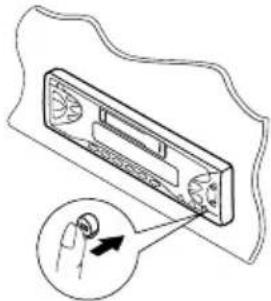
1 Unlock the control panel.
natural_image
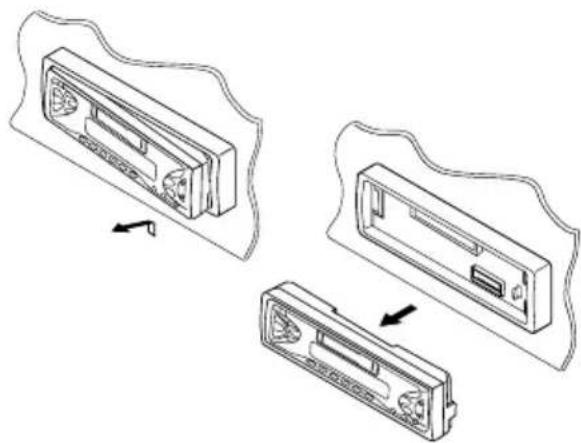
Diagram of a computer monitor with an inset showing a close-up of the screen (no text or symbols present)2 Lift and pull the control panel out of the unit.
natural_image
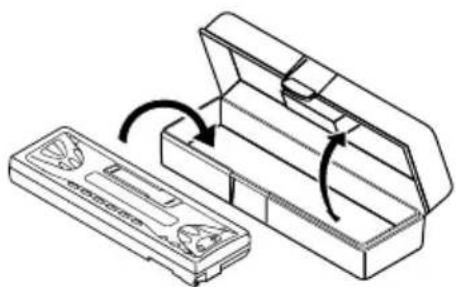
Diagram showing three views of a cassette tape device with arrows indicating assembly or transformation (no text or symbols present)3 Put the detached control panel into the provided case.
natural_image
Technical line drawing of a mechanical component with an open box and a side view showing internal structure (no text or symbols)Attaching the control panel
1 Insert the left side of the control panel into the groove on the panel holder.
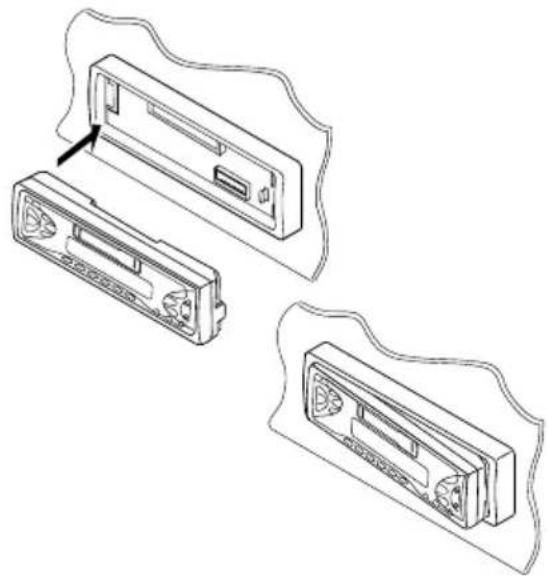
natural_image
Line drawing of three electronic device modules with ventilation vials and a label pointing to one (no text or symbols present)2 Press the right side of the control panel to fix it to the panel holder.
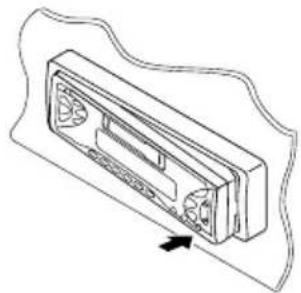
natural_image
Line drawing of a cassette tape device with an arrow indicating compression or dislocation (no text or symbols present)Note on cleaning the connectors:
If you frequently detach the control panel, the connectors will deteriorate.
To minimize this possibility, periodically wipe the connectors with a cotton swab or cloth moistened with alcohol, being careful not to damage the connectors.
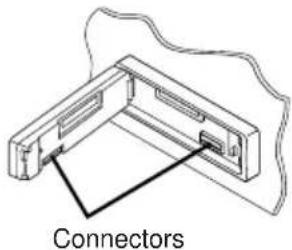
text_image
Connectors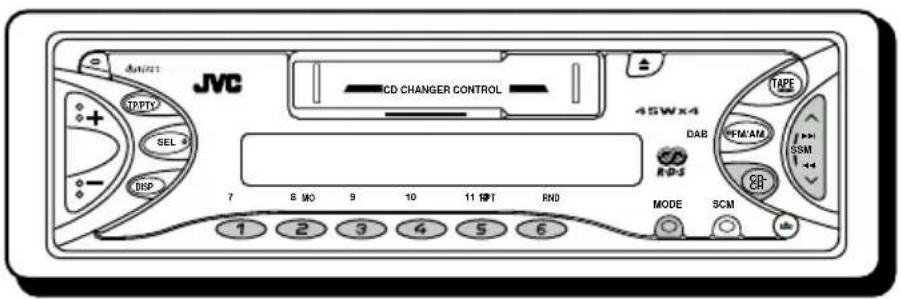
text_image
JVC CD CHANGER CONTROL 45Wx4 TAPE FM/AM SSM DAB RDS MODE SCM 1 2 3 4 5 6We recommend that you use one of the CH-X series with your unit.
If you have another CD automatic changer, consult your JVC IN-CAR ENTERTAINMENT dealer for connections.
- For example, if your CD automatic changer is one of the KD-MK series, you need a cord (KS-U15K) for connecting it to this unit.
Before operating your CD automatic changer:
- Refer also to the Instructions supplied with your CD changer.
- If no discs are in the magazine of the CD changer or the discs are inserted upside down, "NO DISC" will appear on the display. If this happens, remove the magazine and set the discs correctly.
- If "RESET 1" - "RESET 8" appears on the display, something is wrong with the connection between this unit and the CD changer. If this happens, check the connection and make sure the cords are connected firmly. Then, press the reset button of the CD changer.
Playing CDs
Select the CD automatic changer (CD-CH).
Playback starts from the first track of the first disc.
All tracks of all discs are played back.
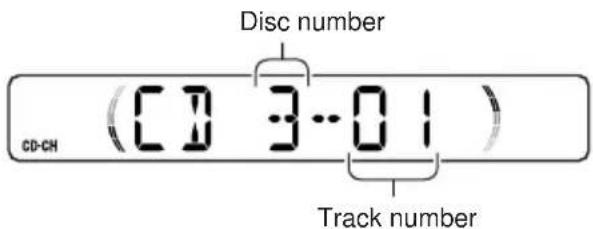
- The display shows the following information, depending on the "CH DISP (CD changer display)" setting (see page 25.)
- When "DISC" is selected
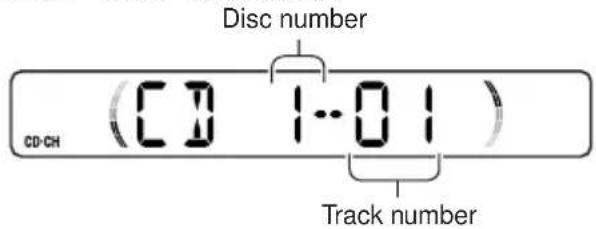
text_image
Disc number CD-CH (CD 1..01) Track number- When "TIME" is selected
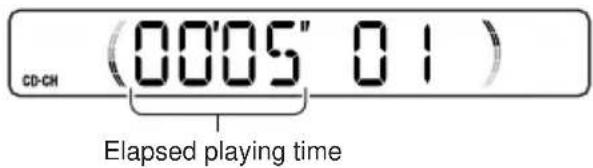
text_image
CD-CH (00'05" 01) Elapsed playing timeNote on One-Touch Operation:
When you press CD-CH, the power automatically turns on. You do not have to press ON/AT on the power.
To fast-forward or reverse the track
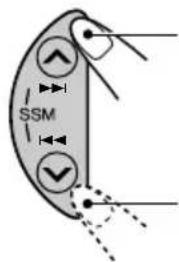
text_image
SSMPress and hold ▶▶, while playing a CD, to fast-forward the track.
Press and hold ◀◀◀ , while playing a CD, to reverse the track.
To go to the next track or the previous tracks

text_image
SSMPress ▶▶ briefly, while playing a CD, to go ahead to the beginning of the next track. Each time you press the button consecutively, the beginning of the next tracks is located and played back.
Press ◀◀◀ ▼briefly, while playing a CD, to go back to the beginning of the current track. Each time you press the button consecutively, the beginning of the previous tracks is located and played back.
To go to a particular disc directly
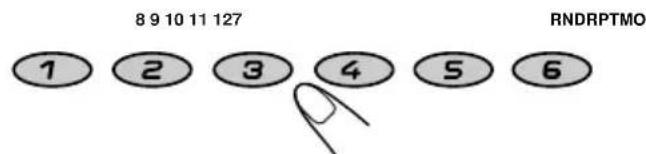
Press the number button corresponding to the disc number to start its playback (while the CD changer is playing).
text_image
8 9 10 11 127 RNDRPTMO 1 2 3 4 5 6• To select a disc number from 1 – 6: Press 1 (7) – 6 (12) briefly.
- To select a disc number from 7 – 12:
Press and hold 1 (7) – 6 (12) for more than 1 second.
text_image
Disc number CD-CH (CD 3-01) Track numberEx. When disc number 3 is selected
Selecting CD playback modes
To play back tracks at random (Random Play)
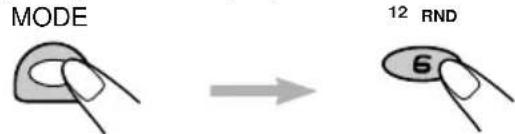
1 Press MODE to enter the functions mode while playing a CD. This unit enters the functions mode.
2 Press RND (random), while still in the functions mode, so that the RND indicator lights up on the display.
text_image
MODE 12 RND 6Then, each time you repeat steps 1 and 2, CD random play mode changes as follows:

flowchart
graph LR
    A["RND1"] --> B["RND2"]
    B --> C["Canceled"]
| Mode | RND Indicator | Plays at random |
| RND1 Lights (random1) | All tracks disc, then the | of the current tracks of the next disc, and so on. |
| RND2 Flashes (random2) | All tracks inserted in the | of all discs the magazine. |
To play back tracks repeatedly (Repeat Play)
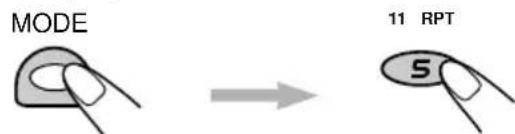
1 Press MODE to enter the functions mode while playing a CD. This unit enters the functions mode.
2 Press RPT (repeat), while still in the functions mode, so that the RPT indicator lights up on the display.
text_image
MODE 11 RPT 5Then, each time you repeat steps 1 and 2, CD repeat play mode changes as follows:

flowchart
graph LR
    A["RPT1"] --> B["RPT2"]
    B --> C["Canceled"]
| Mode | RPT Indicator | Plays repeatedly |
| RPT1 (repeat1) | Lights | The current track (or specified track). |
| RPT2 (repeat2) | Flashes | All tracks of the current disc (or specified disc). |
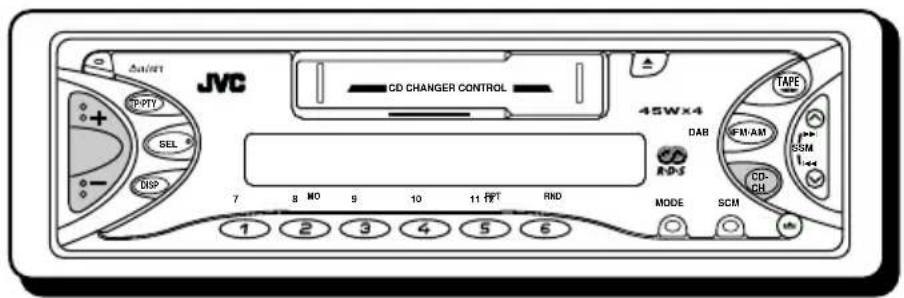
text_image
JVC CD CHANGER CONTROL 45Wx4 TAPE DAB FM-AM SSM CD- CH MODE SCM 1 2 3 4 5 6 7 8 NO 9 10 11存T RNDPlaying an external component
You can connect the external component to the CD changer jack on the rear using the Line Input Adaptor KS-U57 (not supplied).
Preparations:
- For connecting the Line Input Adaptor KS-U57 and the external component, refer to the Installation/Connection Manual (separate volume).
- Before operating the external component using the following procedure, select the external input correctly. (See “To select the external component to use – EXT IN” on page 26.)
1 Select the external component (CD-CH).
LINE IN
- If "LINE IN"* does not appear on the display, see page 26 and select the external input ("LINE IN").
* Displayed only when one of the following sources is selected — FM, AM and Tape.
Note on One-Touch Operation:
When you press CD-CH, the power automatically comes on. You do not have to press ⒽDIAHT on the power.
2 Turn on the connected component and start playing the source.
3 Adjust the volume.
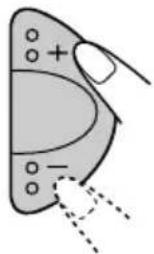
natural_image
Diagram of a hand holding a curved object with circular holes and dashed lines indicating motion or force (no text or symbols)4 Adjust the sound characteristics you want. (See pages 20 – 22.)
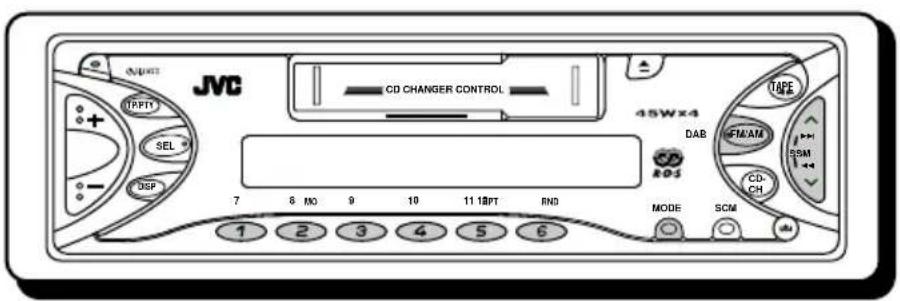
text_image
JVC CD CHANGER CONTROL 45Wx4 DAB Tape FM/AM SSM CD-CH MODE SCM 1 2 3 4 5 6 7 8 MO 9 10 11 EDT RNDWe recommend that you use DAB (Digital Audio Broadcasting) tuner KT-DB1500 with your unit. If you have another DAB tuner, consult your JVC IN-CAR ENTERTAINMENT dealer.
- Refer also to the Instructions supplied with your DAB tuner.
What is DAB system?
DAB is one of the digital radio broadcasting systems available today. It can deliver CD quality sound without any annoying interference and signal distortion. Furthermore, it can carry text, pictures and data.
In contrast to FM broadcast, where each programme is transmitted on its own frequency, DAB combines several programmes (called "services") to form one "ensemble."
With the DAB tuner connected with this unit, you can enjoy these DAB services.
Tuning in to an ensemble and one of the services
A typical ensemble has 6 or more programmes (services) broadcast at the same time. After tuning in to an ensemble, you can select a service you want to listen to.
Before you start....
Press DAB (FM/AM) briefly if tape, CD changer or external component is the current source.
1 Select the DAB tuner.
DAB
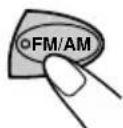
Each time you press and hold the button, the DAB tuner and the FM/AM tuner are alternately selected.
DAB ← FM/AM
2 Select the DAB band (DAB1, DAB2, or DAB3).
DAB
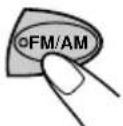
Each time you press the button, the DAB band changes as follows:
DAB1
DAB2
DAB3
Note:
This receiver has three DAB bands (DAB1, DAB2, DAB3). You can use any of them to tune in to an ensemble.
3 Start searching an ensemble.
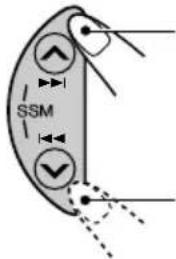
text_image
SSMPress ▶▶ to search ensembles of higher frequencies.
Press I◀◀ to search ensembles of lower frequencies.
When an ensemble is received, searching stops.
To stop searching before an ensemble is received, press the same button you have pressed for searching.
4 Select a service you want to listen to.
MODE
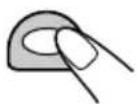
1 Press MODE to enter the functions mode while listening to the DAB tuner. This unit enters the functions mode.
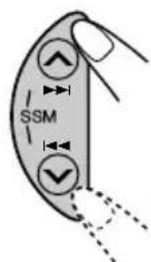
text_image
SSM2 Press ▲▶▶ or ◀◀◀ √, while still in the functions mode to select a service.
To change the display information while tuning in to an ensemble
Normally service name is shown on the display. If you want to change the display information, press DISP (display).
Each time you press the button, the following information appears on the display for a while.
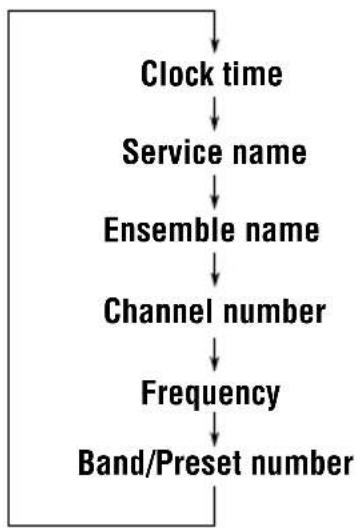
flowchart
graph TD
    A["Clock time"] --> B["Service name"]
    B --> C["Ensemble name"]
    C --> D["Channel number"]
    D --> E["Frequency"]
    E --> F["Band/Preset number"]
To tune in to a particular ensemble without searching:
1 Press and hold DAB (FM/AM) to select DAB tuner as the source.
2 Press DAB (FM/AM) repeatedly to select the DAB band (DAB1, DAB2 or DAB3).
3 Press and hold ▶▶▶ or ▶◀◀ for more than 1 second.
4 Press ▲▶▶ or ◀◀◀ ∨ repeatedly until the ensemble you want is reached.
- If you hold down the button, the frequency keeps changing until you release the button.
To restore the FM/AM tuner
Press and hold DAB (FM/AM) again.
Storing DAB services in memory
You can preset up to 6 DAB services in each DAB band (DAB1, DAB2 and DAB3) manually.
1 Select the DAB tuner.
Each time you press and hold the button, the DAB tuner and the FM/AM tuner are alternately selected.
DAB ← FM/AM
2 Select the DAB band (DAB1, DAB2 or DAB3) you want.
Each time you press the button, the DAB band changes as follows:
→ DAB1 → DAB2 DAB3
3 Tune in to an ensemble you want.
text_image
SSM4 Select a service you want to listen to.
MODE
1 Press MODE to enter the functions mode while listening to the DAB tuner. This unit enters the functions mode.
text_image
SSM2 Press ▲▶▶ or ◀◀◀ ∨, while still in the functions mode to select a service.
5 Press and hold the number button (in this example, 1) you want to store the selected service into for more than 2 seconds.

text_image
JAD P1Band/preset number and service name flash alternately for a while.


text_image
YES SR6 Repeat the above procedure to store other DAB services into other preset numbers.
Notes:
- A previously preset DAB service is erased when a new DAB service is stored in the same preset number.
- Preset DAB services are erased when the power supply to the memory circuit is interrupted (for example, during battery replacement). If this occurs, preset the DAB services again.
Tuning in to a preset DAB service
You can easily tune in to a preset DAB service. Remember that you must store services first. If you have not stored them yet, see pages 32 and 33.
1 Select the DAB tuner.
Each time you press and hold the button, the DAB tuner and the FM/AM tuner are alternately selected.
←→FM/AMDA
2 Select the DAB band (DAB1, DAB2 or DAB3) you want.
Each time you press the button, the DAB band changes as follows:

flowchart
graph LR
    A["DAB1"] --> B["DAB2"]
    B --> C["DAB3"]
3 Select the number (1 - 6) for the preset DAB service you want.
text_image
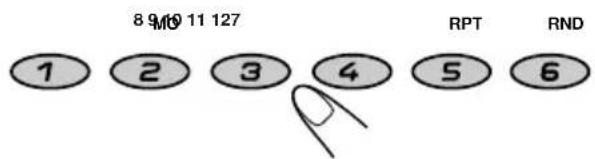
8 9 10 11 127 RPT RND 1 2 3 4 5 6What appears to be trouble is not always serious. Check the following points before calling a service center.
| Symptoms | Causes | Remedies |
| ·A cassette tape cannot be inserted. | You have tried to insert a cassette in the wrong way. | Insert the cassette with the exposed tape facing to the right. |
| ·A cassette tape cannot be ejected. | Cassette ejection is prohibited. | Press and hold TAPE ◀▶ and ▲ for more than two seconds. |
| ·Cassette tapes become hot. | This is not a malfunction. | —— |
| ·Tape sound is at very low level and sound quality is degraded. | The tape head is dirty. | Clean it with a head cleaning tape. |
| ·Sound is sometimes interrupted. | Connections are not good. | Check the cords and connections. |
| ·Sound cannot be heard from the speakers. | The volume is turned to the minimum level. | Adjust it to the optimum level. |
| Connections are incorrect. | Check the cords and connections. | |
| ·SSM (Strong-station Sequential Memory) automatic preset does not work. | Signals are too weak. | Store stations manually. |
| ·Static noise while listening to the radio. | The antenna is not connected firmly. | Connect the antenna firmly. |
| “NO DISC” appears on the display. | No CD is in the magazine. | Insert CDs into the magazine. |
| CDs are inserted incorrectly. | Insert them correctly. | |
| “NO MAG” appears on the display. | No magazine is loaded in the CD changer. | Insert the magazine. |
| “RESET 8” appears on the display. | This unit is not connected to a CD changer correctly. | Connect this unit and the CD changer correctly and press the reset button of the CD changer. |
| “RESET 1” - “RESET 7” appears on the display. | —— | Press the reset button of the CD changer. |
| This unit does not work at all.The CD changer does not work at all. | The built-in microcomputer may function incorrectly due to noise, etc. | Press and hold both the SEL (select) and OUTATS at the same time for several seconds. (The clock setting and preset stations stored in memory are erased.) (See page 2.) |
This unit requires very little attention, but you will be able to extend the life of the unit if you follow the instructions below.
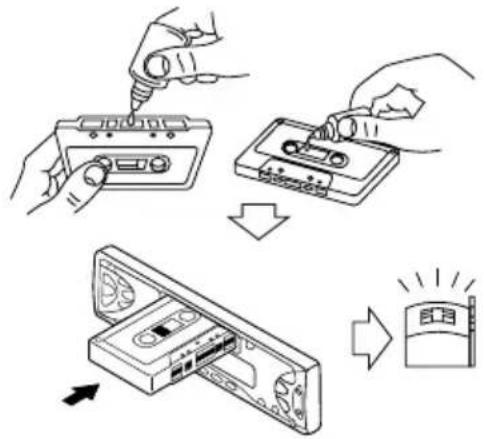
To clean the heads
text_image
Diagram illustrating the process of installing a cassette tape into a CD, with arrows indicating the step and brightness change.- Clean the heads after every 10 hours of use using a wet-type head cleaning tape (available at an audio store).
When the head becomes dirty, you may realize the following symptoms:
– Sound quality is reduced.
– Sound level decreases.
- Sound drops out.
- Do not play dirty or dusty tapes.
- Do not touch the highly-polished head with any metallic or magnetic tools.
To keep the tape clean
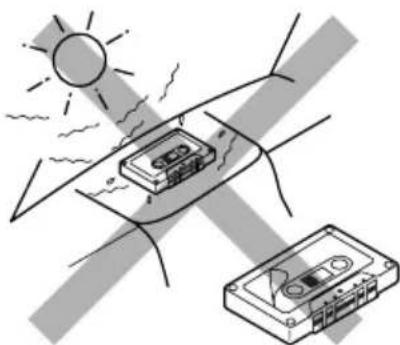
natural_image
Illustration of a sun shining on a device and a cassette tape, both under a shaded sky (no text or symbols)• Always store the cassettes to their storage cases after use.
- Do not store cassettes in the following places:
– Subject to direct sunlight
- With high humidity
- At extremely hot temperatures
CAUTION:
- Do not play the cassettes with peeling labels; otherwise, they can damage the unit.
- Tighten tapes to remove slack since loose tape may become entangled with the mechanism.
- Do not leave a cassette in the cassette compartment after use, as the tape may become slack.
The function below is also provided to ensure the longer life of this unit.
Ignition key-off release/Ignition key-on play
- Turning off the ignition key with a cassette in the compartment automatically releases the tape from the unit's tapehead.
- Turning on the ignition key with a cassette in the compartment starts playback automatically if you turned off the ignition during tape play.
AUDIO AMPLIFIER SECTION
Maximum Power Output:
Front: 45 W per channel
Rear: 45 W per channel
Continuous Power Output (RMS):
Front: 17 W per channel into 4 Ω, 40 Hz to 20 000 Hz at no more than 0.8% total harmonic distortion.
Rear: 17 W per channel into 4 Ω, 40 Hz to 20 000 Hz at no more than 0.8% total harmonic distortion.
Load Impedance: 4 Ω (4 Ω to 8 Ω allowance)
Tone Control Range:
Bass: ±10 dB at 100 Hz
Treble: ±10 dB at 10 kHz
Frequency Response: 40 Hz to 20000 Hz
Signal-to-Noise Ratio: 70 dB
Line-Out Level/Impedance:
2.0 V/20 kΩ load (250 nWb/m)
TUNER SECTION
Frequency Range:
FM: 87.5 MHz to 108.0 MHz
AM: (MW) 522 kHz to 1 620 kHz
(LW) 144 kHz to 279 kHz
[FM Tuner]
Usable Sensitivity: 11.3 dBf (1.0 ∝ V/75 Ω)
50 dB Quieting Sensitivity:
16.3 dBf (1.8 ∝ V/75 Ω)
Alternate Channel Selectivity (400 kHz):
65 dB
Frequency Response: 40 Hz to 15000 Hz
Stereo Separation: 30 dB
Capture Ratio: 1.5 dB
[MW Tuner]
Sensitivity: 20 ∝ V
Selectivity: 35 dB
[LW Tuner]
Sensitivity: 50 ∝ V
CASSETTE DECK SECTION
Wow & Flutter: 0.11% (WRMS)
Fast-Wind Time: 100 sec. (C-60)
Frequency Response: 30 Hz to 16 000 Hz
(Normal tape)
Signal-to-Noise Ratio: 56 dB
Stereo Separation: 40 dB
GENERAL
Power Requirement:
Operating Voltage: DC 14.4 V
(11 V to 16 V allowance)
Grounding System: Negative ground
Allowable Operating Temperature: 0°C to +40°C
Mass: 1.4 kg (excluding accessories)
Design and specifications subject to change without notice.
text_image
TAPE oFM/AM CD- DABnatural_image
Diagram of a butterfly wing with labeled parts and dashed lines indicating measurement or alignment (no text or symbols)flowchart
graph LR
    A["→ FM1 FM2 FM3 AM"] --> B["→"]

text_image
FM1 ( 87.5 )flowchart
graph TD
    A["DAB"] --> B["FM1 FM2 FM3 AM"]
    B --> C["→"]
text_image
RM1 ( 88.3 )natural_image
Isometric line drawing of a device rear panel with fan and internal components (no text or symbols)text_image
TAPE TAPE ... TAPE TAPE ...text_image
MODE 11 RPT 5 TAPE ( REPEAT ) RPTtext_image
TAPE EJECT OKnatural_image
Diagram of a biological cell or vesicle with labeled parts and directional arrows (no text or symbols)text_image
FXSCM10 FM1 ((TRE ...03,text_image
ON/SCM FM1 50FTnatural_image
Diagram of a hand holding a device with labeled points and dashed lines indicating motion or force (no text or symbols)natural_image
Diagram of a computer mouse with control pad and finger pointing to the screen (no text or symbols)natural_image
Simple line drawing of a computer mouse with no text or symbolsnatural_image
Diagram of a CD-ROM drive with a hand inserting a coin to the right panel (no text or symbols present)natural_image
Diagram showing three views of a CD drive with fan and buttons, no text or symbols presentnatural_image
Technical line drawing of a mechanical component with an open box and a side view showing internal structure (no text or symbols)natural_image
Technical line drawing of three electronic device modules with no visible text or symbolsnatural_image
Line drawing of a cassette tape device with fan blades and a black arrow indicating rotation (no text or symbols)text_image
Anschlüsse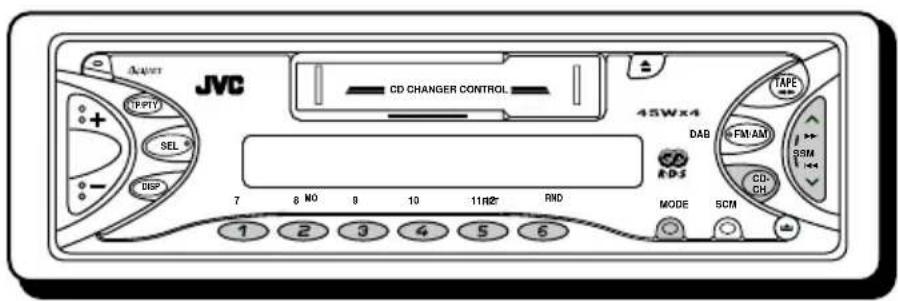
text_image
JVC CD CHANGER CONTROL 45Wx4 TAPE DAB FM:AM SSM CD:CH RDS MODE SCM 1 2 3 4 5 6 7 8 NO 9 10 11NO RNDnatural_image
Diagram of a hand holding a small object with plus and minus signs, no text or symbols present→ DAB1 → DAB2 → DAB3
text_image
Diagram illustrating the process of installing a device into a circuit board, with Chinese annotations.natural_image
Illustration of a sun shining on a device and a cassette tape, both under a shaded sky (no text or symbols)11,3 dBf (1,0 ∝ V/75 Ω)
12 Touche DISP (affichage)
13 Touche MO (monaural)
natural_image
Simple line drawing of a butterfly with internal structure and dotted lines indicating measurement or alignment points (no text or symbols)flowchart
graph LR
    A["→ FM1 FM2 FM3 AM"] --> B["→"]
natural_image
Simple line drawing of a computer mouse with no text or symbolsnatural_image
Isometric line drawing of a CD-ROM drive showing internal components (no text or labels)text_image
TAPE ( REPEAT ) RPTtext_image
TAPE EJECT OKnatural_image
Simple line drawing of a butterfly wing with marked points and lines (no text or symbols)text_image
SCM FM1 SOFTtext_image
SCM FM1 ((TRE ..03,natural_image
Diagram of a device component with an arrow indicating a finger pointing to it, no text or symbols present.natural_image
Technical line drawing of three views of a device casing with heat sinks, showing internal components and mounting points (no text or symbols)natural_image
Technical line drawing of a mechanical device with an open box and a smaller component, showing internal components and motion arrows (no text or symbols)natural_image
Line drawing of three electronic device modules with ventilation vials and a label pointing to one (no text or symbols present)natural_image
Line drawing of a cassette tape holder with an arrow indicating compression (no text or symbols)text_image
Diagram illustrating the process of installing a CD-ROM into a device, with Chinese annotations showing step-by-step assembly.natural_image
Illustration of a sun shining on a car with a cassette tape, no text or symbols presenttext_image
FM1 ( 87.5 )flowchart
graph LR
    A["→ FM1 FM2 FM3 AM"] --> B["→"]
    B --> C[" "]
Opmerking:
flowchart
graph TD
    A["DAB"] --> B["FM1 FM2 FM3 AM"]
    B --> C["→"]
flowchart
graph TD
    A["DAB"] --> B["FM1 FM2 FM3 AM"]
    B --> C["→"]
EDUCATE: Educatieve programma's
natural_image
Isometric line drawing of a CD-ROM drive with ventilation slots and an internal slot (no text or symbols)text_image
TAPE TAPE TAPE TAPEtext_image
TAPE ( REPEAT ) RPTtext_image
TAPE NO EJECT TAPEtext_image
TAPE EJECT OKnatural_image
Diagram of a biological cell or membrane structure with labeled points and directional arrows (no text or symbols)text_image
SCM FM1 SOFT2 Selecteer "BAS (bas)", "TRE (treble)" of "LOUD (loudness)".

text_image
MSCI FM1 ((TRE ..03,text_image
SCM FM1 SOFTnatural_image
Diagram of a hand holding a small object with plus and minus signs, no text or symbols present3 Stel de minuten in.
natural_image
Simple line drawing of a device with no text, numbers, or symbolsnatural_image
Diagram of a hand holding a device with labeled points and dashed lines indicating motion or alignment (no text or symbols)5 Voltooi de instelling.
natural_image
Diagram of a CD-ROM drive with a hand inserting a button to the left (no text or symbols present)natural_image
Technical line drawing of three views of a device casing with heat sinks, showing internal components and mounting brackets (no text or symbols)natural_image
Technical line drawing of a mechanical device with an open box and a side panel, showing rotational motion arrows (no text or symbols)natural_image
Technical line drawing of three views of a CD drive with fan modules (no text or symbols)natural_image
Line drawing of a cassette tape holder with a scroll wheel and label (no text or symbols)natural_image
Technical line drawing of a mechanical bracket or mounting bracket with no visible text or symbolsConnectors
text_image
JVC CD CHANGER CONTROL 45Wx4 DAB RDS MODE SCM 1 2 3 4 5 6 TPPTY SEL DSP TAPE IFM:AM SSM CD-CH 7 8 NO 9 10 11 RPT RND→ DAB1 → DAB2 → DAB3
text_image
Diagram illustrating the process of installing a cassette tape into a CD, with arrows indicating the step and direction of change.natural_image
Illustration of a sun bending over a car with a cassette tape, no text or symbols presentStereo-scheiding: 30 dB
Vangbereik: 1,5 dB
[MG-zenders]
Having TROUBLE with operation?
Please reset your unit
Refer to page of How to reset your unit
