MDRDS5100 - Earphones SONY - Free user manual and instructions
Find the device manual for free MDRDS5100 SONY in PDF.


| Product type | Infrared wireless headphone with digital sound processor |
| Brand | Sony |
| Model | MDR-DS5100 |
| Processor dimensions (W x H x D) | 85 x 190 x 180 mm |
| Processor weight | 1.0 kg |
| Headphone weight (with batteries) | 280 g |
| Processor power supply | 9 V DC via supplied AC adapter |
| Headphone power source | 2 R6 (AA) batteries or rechargeable Ni-Cd batteries |
| Battery life (Ni-Cd batteries) | Approx. 30 hours (charging: 6 hours) |
| Battery life (alkaline batteries) | Approx. 90 hours |
| Transmission range | Up to 10 meters |
| Frequency response (headphone) | 12 - 24,000 Hz |
| Harmonic distortion rate | Less than 1% (at 1 kHz) |
| Supported audio formats | Dolby Digital, Dolby Pro Logic, DTS, Virtual Dolby Digital, DTS Virtual 5.1 |
| Sound modes | Cinema, Music, Virtual Front, Virtual Surround, OFF |
| Audio inputs | 1 x digital optical, 1 x analog RCA (L/R) |
| Special functions | Auto power on/off, volume and balance adjustment, Mute function |
| Supplied accessories | AC adapter, battery charger, optical cable, stand, rechargeable battery |
| Maintenance | Soft cloth with mild detergent; avoid solvents |
| Safety | Do not expose to moisture, do not open, use at moderate volume |
| Replaceable parts | Ear pads, rechargeable batteries |
Frequently Asked Questions - MDRDS5100 SONY
User questions about MDRDS5100 SONY
0 question about this device. Answer the ones you know or ask your own.
Ask a new question about this device
Download the instructions for your Earphones in PDF format for free! Find your manual MDRDS5100 - SONY and take your electronic device back in hand. On this page are published all the documents necessary for the use of your device. MDRDS5100 by SONY.
USER MANUAL MDRDS5100 SONY
Digital Surround Headphone System
Operating Instructions ____ GB
Mode d'emploi FR
To avoid electrical shock, do not open the cabinet. Refer servicing to qualified personnel only.
WARNING
You are cautioned that any changes or modifications not expressly approved in this manual could void your authority to operate this equipment.
For the customers in the USA
Owner's Record
The model number is located on the back of the processor and on the headphone housing.
The serial number is located at the bottom of the processor and the inner side of the battery compartment. Record these numbers in the spaces provided below. Refer to them whenever you call upon your Sony dealer regarding this product.
Model No. MDR-DS5100
Processor DP-IF5100
Headphones MDR-IF5000
Serial No.
Processor
Headphones
NOTICE FOR THE CUSTOMERS IN THE U.S.A.
NOTE
This equipment has been tested and found to comply with the limits for a Class B digital device, pursuant to Part 15 of the FCC Rules. These limits are designed to provide reasonable protection against harmful interference in a residential installation. This equipment generates, uses, and can radiate radio frequency energy and, if not installed and used in accordance with the instructions, may cause harmful interference to radio communications. However, there is no guarantee that interference will not occur in a particular installation. If this equipment does cause harmful interference to radio or television reception, which can be determined by turning the equipment off and on, the user is encouraged to try to correct the interference by one or more of the following measures:
– Reorient or relocate the receiving antenna.
– Increase the separation between the equipment and receiver.
- Connect the equipment into an outlet on a circuit different from that to which the receiver is connected.
- Consult the dealer or an experienced radio/TV technician for help.
You are cautioned that any changes or modifications not expressly approved in this manual could void your authority to operate this equipment.
For the customers in the USA and Canada
RECYCLING NICKEL-CADMIUM BATTERIES
Nickel Cadmium batteries are recyclable. You can help preserve our environment by returning your unwanted batteries to your nearest point for collection, recycling or proper disposal.

Note: In some areas the disposal of nickel cadmium batteries in household or business trash may be prohibited.
RBRC (Rechargeable Battery Recycling Corporation) advises you about spent battery collection by the following phone number.
Call toll free number: 1-800-822-8837 (United States and Canada only)
Caution: Do not handle damaged or leaking nickel-cadmium batteries.
Table Of Contents
Location and Function of Parts... 5
Front Panel of the Digital Surround Processor.... 5
Rear Panel Parts Descriptions of the Digital Surround Processor ..... 6
Headphone Parts Descriptions ..... 7
Starting Operation 8
Checking the Products and Accessories 8
Charging the Batteries .... 10
Charging the batteries 10
Charging....11
Connecting the Headphone System 13
Setup 13
Connecting the digital surround processor with digital components ....14
Connecting the digital surround processor with analog components ....15
Plugging into the wall outlet...... 17
Inserting the batteries in the headphones 18
Listening to the Sound of the Connected Component ...... 20
Additional Headphones ...... 27
Troubleshooting...... 28
Precautions.... 30
Specifications 31
Main features
The MDR-DS5100 is a digital surround headphone system using infrared transmission. You can enjoy multichannel surround sound with headphones by simply connecting the digital surround processor to a DVD player with the supplied optical digital connecting cable.
- Compatible with Dolby* Digital (AC-3), Dolby Surround (Pro Logic) and DTS*.
• Virtual Dolby Digital and DTS Virtual 5.1 certified. - Signal processing by the Logic 3D processor creates surround sound for the headphones that simulates a movie theater.
- Cordless headphones using infrared transmission system resistant to external noise and interference.
- Wide infrared reception range of up to 10m .
- Self adjusting mechanism eliminating the need for headband adjustment.
- Auto Power On/Off Function to automatically turn on the headphones when they are put on and to turn them off when they are taken off.
- VOL control for adjusting both the right and left volume of the headphones.
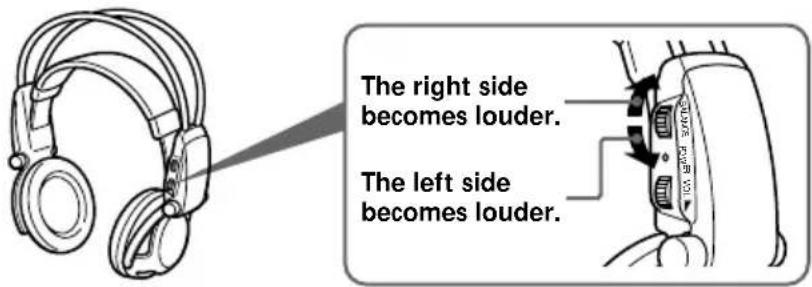
The left and right audio output level is adjustable using the BALANCE control. - Additional MDR-IF5000 headphones (sold separately) can be used at the same time so that more than one person can enjoy the surround sound experience.
- Equipped with a headphone jack to connect corded open-air headphones (The headphone jack is adjusted for the MDR-F1 corded full-open air type headphone (sold separately), so connecting the MDR-F1 allows you to enjoy high quality surround sound with the same surround effect as the supplied headphones MDR-IF5000.).
- Rechargeable Ni-Cd batteries (supplied and sold separately) or R6 (size AA) dry-cell batteries (sold separately) can be used to power the headphones.
* The digital surround processor for this system incorporates the Dolby Digital (AC-3) decoder and the DTS decoder.
Manufactured under license from Dolby Laboratories Licensing Corporation and Digital Theater Systems, Inc.
DOLBY, the double-D symbol ☐☐, "PRO LOGIC", "Dolby Digital (AC-3)", and "VIRTUAL DOLBY DIGITAL" are trademarks of Dolby Laboratories Licensing Corporation.
“DTS” and “DTS VIRTUAL 5.1” are trademarks of Digital Theater Systems, Inc.
CE mark
The CE mark is valid for products marketed in the European Union only.
Location and Function of Parts
Front Panel of the Digital Surround Processor
flowchart
graph TD
    A["1"] --> B["POWER"]
    B --> C["DIGITAL ANALOG INPUT"]
    C --> D["CINEMA MUSIC EFFECT"]
    D --> E["DECODE MODE"]
    E --> F["●DOLBY DIGITAL ●DOLBY SURROUND ●DTS"]
    F --> G["L C R"]
    G --> H["LS RS"]
    H --> I["VIRTUAL OUTPUT"]
    I --> J["PHONES LEVEL MIN RACK"]
    J --> K["4"]
    J --> L["5"]
    J --> M["6"]
    J --> N["7"]
    J --> O["8"]
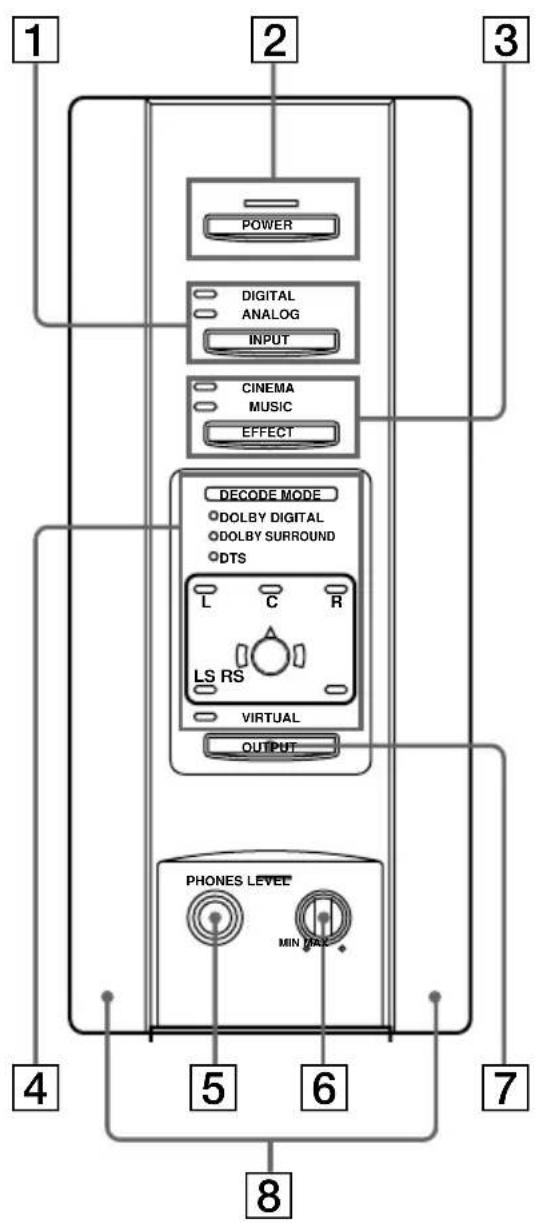
1 DIGITAL input indicator ANALOG input indicator INPUT button
Press to select the input source (DIGITAL/ANALOG).
2 POWER indicator
This indicator lights green when you turn on the digital surround processor.
POWER switch
Press to turn on and off the digital surround processor.
3 CINEMA indicator
MUSIC indicator
EFFECT button (see page 21 for details)
Press to select the sound field (CINEMA/MUSIC).
4 Decode mode display (see page 23 for details)
5 PHONES jack (see page 27 for details)
Connect your headphones to this jack. Connect the MDR-F1 headphone (sold separately) for optimum surround effect.
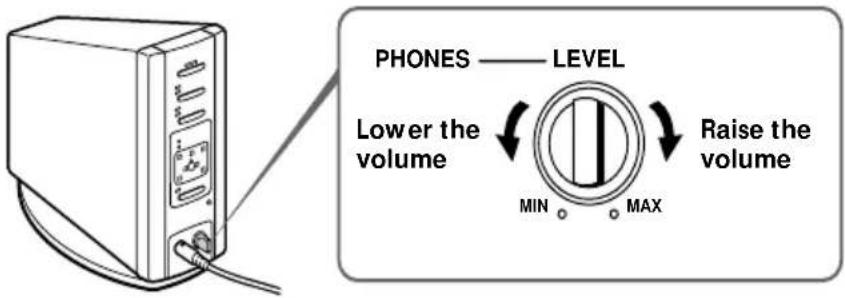
Turn to adjust the volume of the headphones (sold separately) connected to the PHONES jack.
7 OUTPUT button
Press to select the output mode (OFF/VIRTUAL FRONT/VIRTUAL SURROUND).
8 Infrared emitter
Set the emitter in a position so that there is a straight, unobstructed path to the sensor.
(Continued)
Rear Panel of the Digital Surround Processor
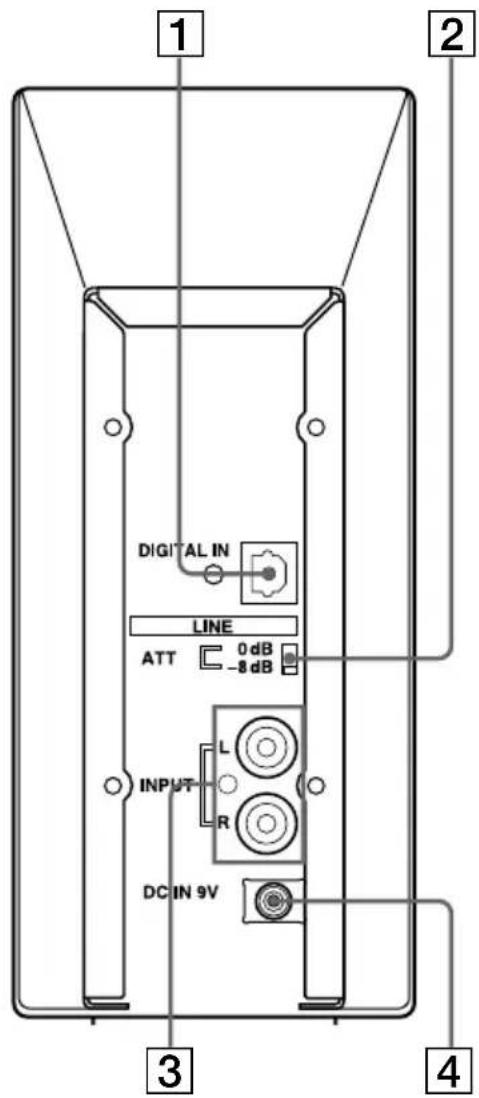
1 DIGITAL IN jack (see page 14 for details)
Connect a DVD player, LD player, or other digital component (sold separately) to this jack.
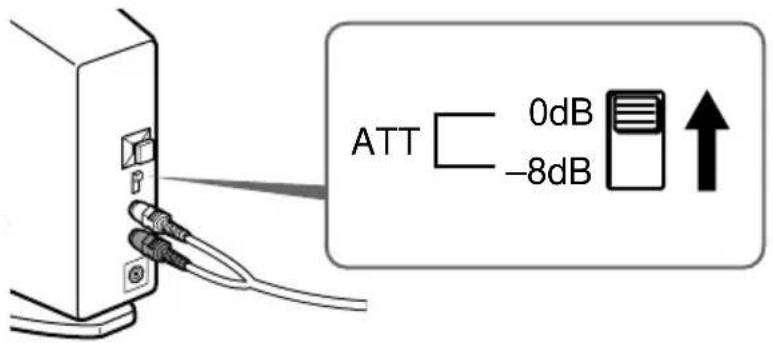
2 ATT (attenuator) switch
Set this switch to 0dB when the volume is too low at analog input. Normally, this switch should be set to -8dB.
3 LINE INPUT jack (see page 15 for details)
Connect the audio output jack on audio/video equipment (sold separately), such as a video cassette player or TV, to this jack.
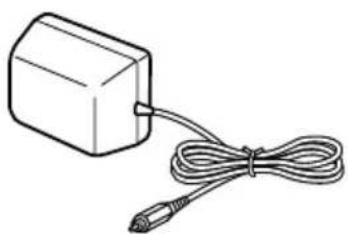
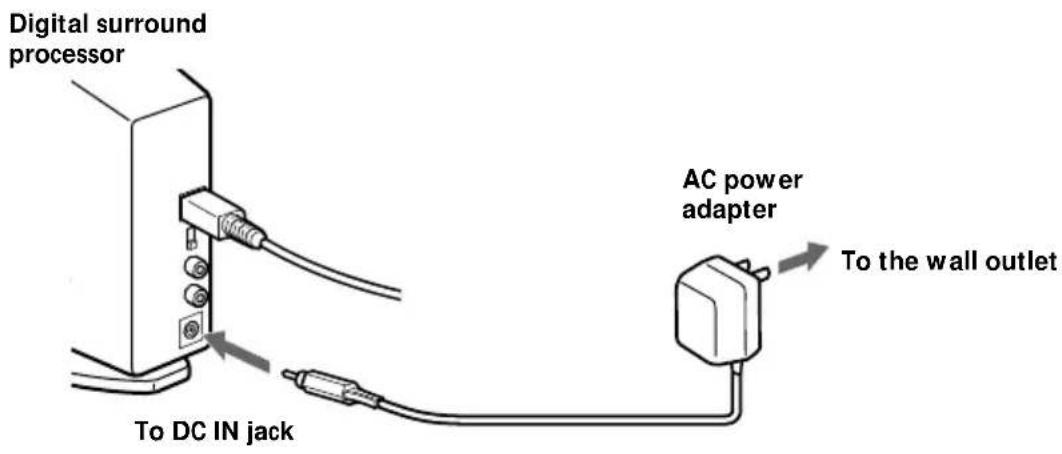
4 DC IN jack Connect the supplied AC power adapter to this jack. (Be sure to use the supplied AC power adapter. Using products with different plug polarity or other characteristics can cause a malfunction.)
Headphone Parts Descriptions
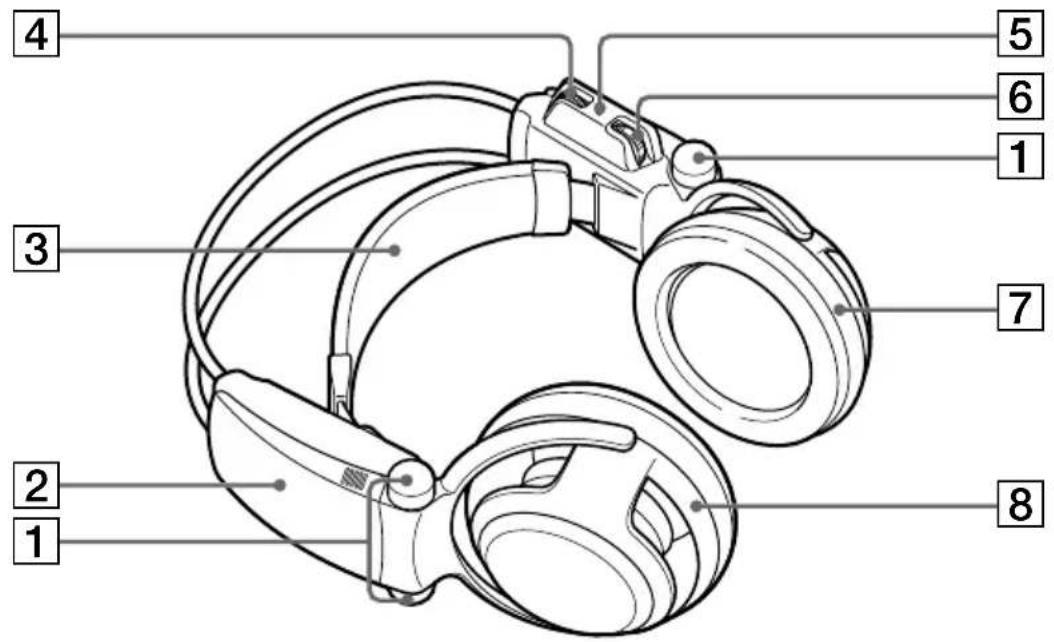
1 Infrared sensor
There are infrared sensors in four locations on both sides.
2 Battery case
Press and lift up the lid to open it. This battery case is for the supplied rechargeable batteries and R6 (size AA) batteries only.
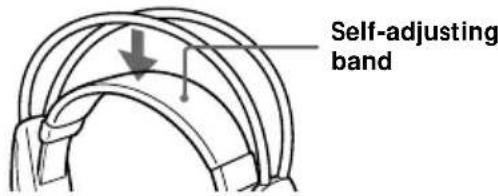
3 Self-adjusting band
The headphones automatically turn on when you put on the headphones.
4 BALANCE control
Use to adjust the left and right sound balance.
5 POWER indicator
This indicator lights red when you put on the headphones.
6 VOL control
Use to adjust the volume.
7 Driver (right)
To replace the ear pads, consult your nearest Sony dealer.
8 Driver (left)
Starting Operation
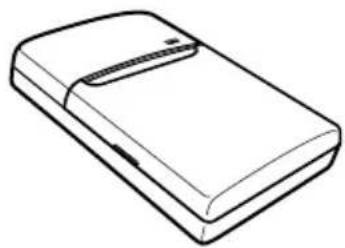
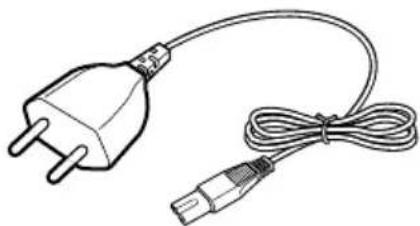
1 Checking the Products and Accessories
Before setting up the system, check that all of the components are included.
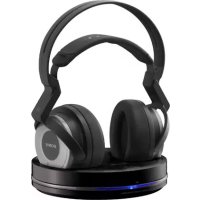
Cordless stereo headphones (1) Digital sensor (fund, digital sensor and processor, 1)
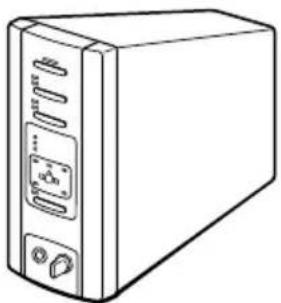
natural_image
Line drawing of a desktop computer tower case with ports and indicator lights (no text or symbols)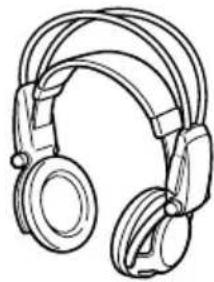
natural_image
Line drawing of a pair of hardcover headphones (no text or symbols)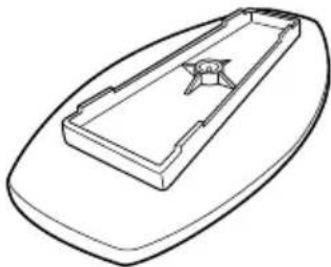
natural_image
Line drawing of a rectangular boat hull with a small triangular object on the side (no text or symbols)Battery charger (1) Charging plug (for battery charger, 1) (CEK and HK4 Versions* only)
Charging plug (for battery charger, 1) (CED and E13 Versions* only)
natural_image
Line drawing of a rectangular electronic device with a clip and handle (no text or symbols)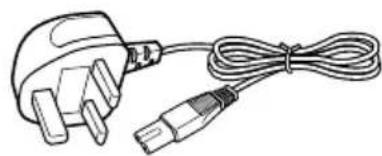
natural_image
Line drawing of a power plug connected to a cable with a USB port (no text or symbols)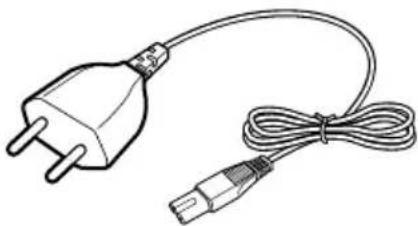
natural_image
Line drawing of a power plug connected to a cable with a connector (no text or symbols)AC power adapter (1) Rechargeable Ni-Cd batteries NC-AA (2)
Optical digital connecting cable (rectangular type rectangular type, 1)
natural_image
Simple line drawing of a rectangular device connected to a cable with a connector (no text or symbols)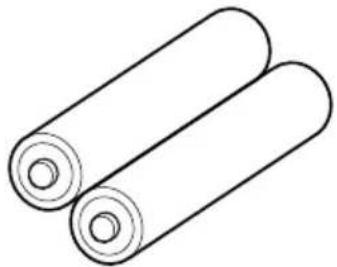
natural_image
Simple line drawing of two cylindrical objects with rounded ends and central holes (no text or symbols)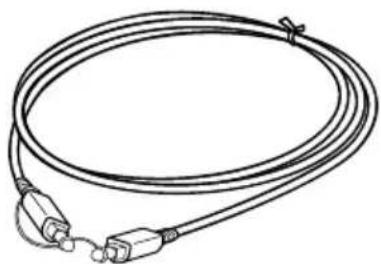
natural_image
Line drawing of a coiled cable with two connectors and a strap (no text or symbols)* The charging plug supplied with this system varies depending on the system version. To check the version, refer to the version code printed on the box.
2 Charging the Batteries (see page 10 for details)
3 Connecting the Headphone System (see page 13 for details)
4 Listening to the Sound of the Connected Component (see page 20 for details)
Charging the Batteries
Charging the batteries
The supplied rechargeable batteries should be recharged before using them for the first time.
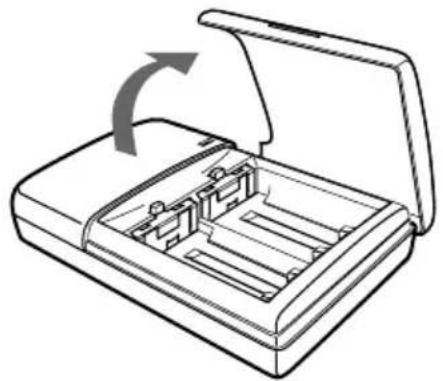
Be sure to use the supplied battery charger. Up to four batteries can be charged at once.
Inserting the batteries into the battery charger
①Open the lid.
②Insert the two supplied rechargeable Ni-Cd batteries NC-AA with the ⊕ and ⊖ ends in the correct direction.
natural_image
Line drawing of an open electronic device casing with internal compartments and a curved arrow indicating rotation (no text or symbols)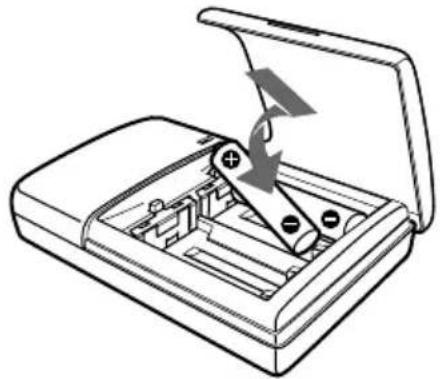
natural_image
Diagram of an open electronic device with a switch and battery, showing internal components without any text or symbols.Note
Press the rechargeable Ni-Cd batteries into the charger until they fit into place. After inserting the batteries, close the lid firmly. The batteries will not be charged unless the lid is closed.
Charging
(U2, CA2 and E92 Versions\* only)
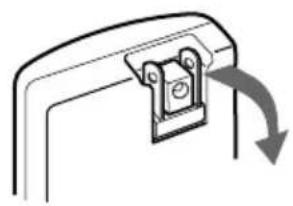
①Pull out the charging plug. ②Insert into the wall outlet.
natural_image
Simple line drawing of a mechanical component with an arrow indicating rotation or movement (no text or symbols)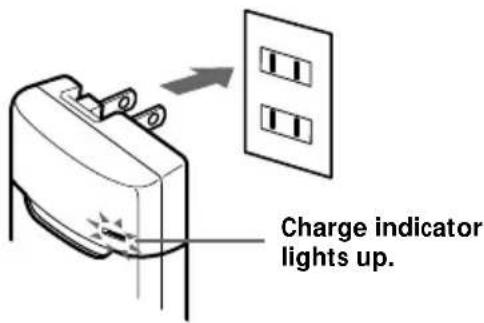
(CEK and HK4 Versions\* only)
① Attach the charging plug to the battery charger.
② Insert into the wall outlet.
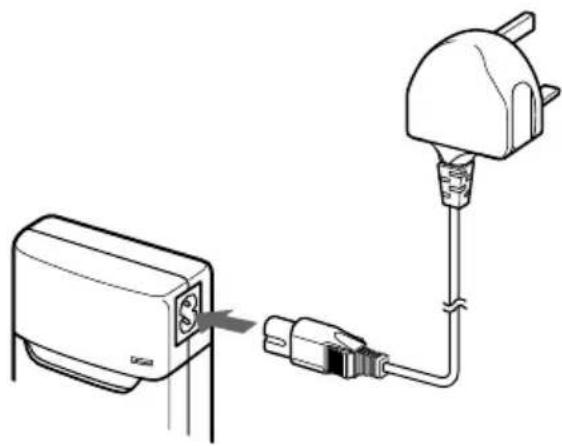
natural_image
Diagram showing connection between a device and a plug, with no visible text or symbols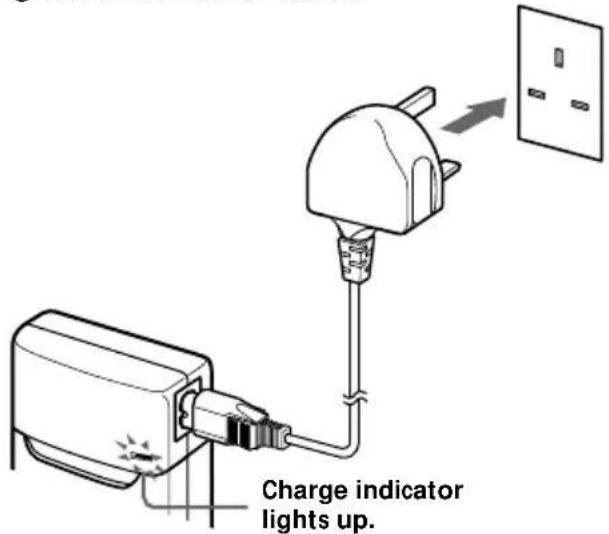
(CED and E13 Versions\* only)
① Attach the charging plug to the battery charger.
② Insert into the wall outlet.
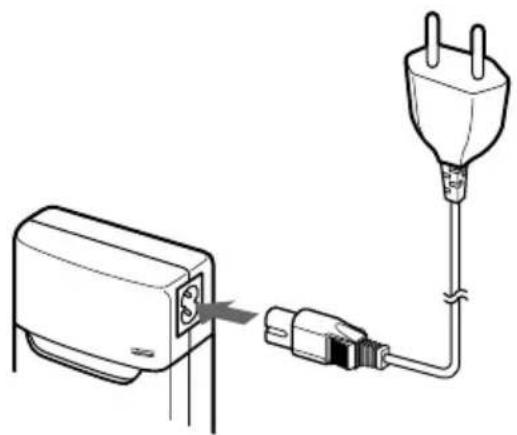
natural_image
Diagram showing a plug inserted into a power outlet connected to a cable (no text or symbols present)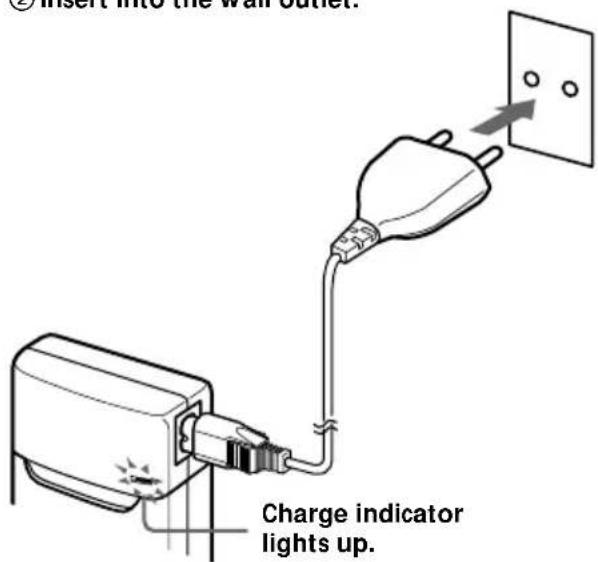
* The charging plug supplied with this system varies depending on the system version. To check the version, refer to the version code printed on the box.
(Continued)
When charging is finished
After the charging time has elapsed, unplug the charger from the outlet, and take out the rechargeable Ni-Cd batteries.
Standard charging times and usage times for the supplied rechargeable batteries
Charging time Usage time
Approx. 1 hour Approx. 6 hours
Approx. 6 hours* Approx. 30 hours
* Time to fully charge the battery when it is completely drained.
Notes
- The charging time for the batteries is the same regardless of the number of batteries.
- During charging, the charger and the batteries become slightly warm. This is not a malfunction.
- Be sure to unplug the charger when it is not being used.
- Do not use or leave the charger near heating components, hot areas exposed to direct sunlight, or damp areas.
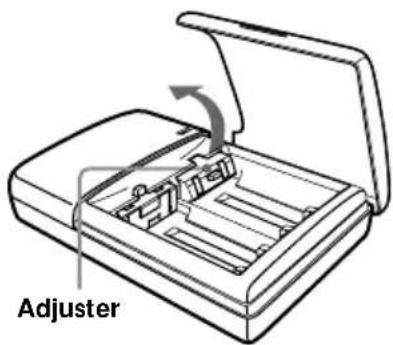
- The batteries will not be charged if the adjuster on the charger is pushed down. Set the adjuster back in the direction of the arrow shown in the illustration at the right before charging.
- The charging indicator may turn off sooner than usual when charging batteries that have not been completely discharged.
Connecting the Headphone System
Setup
You can place the digital surround processor in an upright position or on its side.
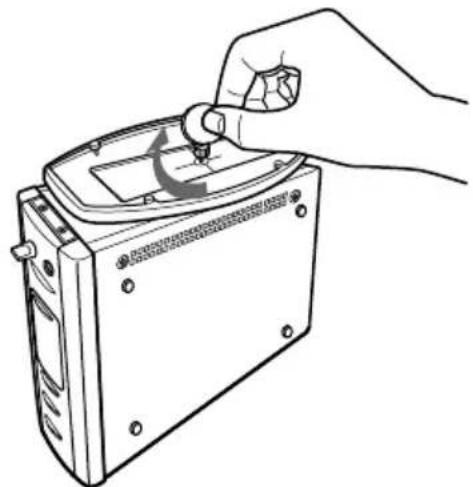
To use in an upright position:
Use a coin to attach the supplied stand to the bottom of the digital surround processor.
natural_image
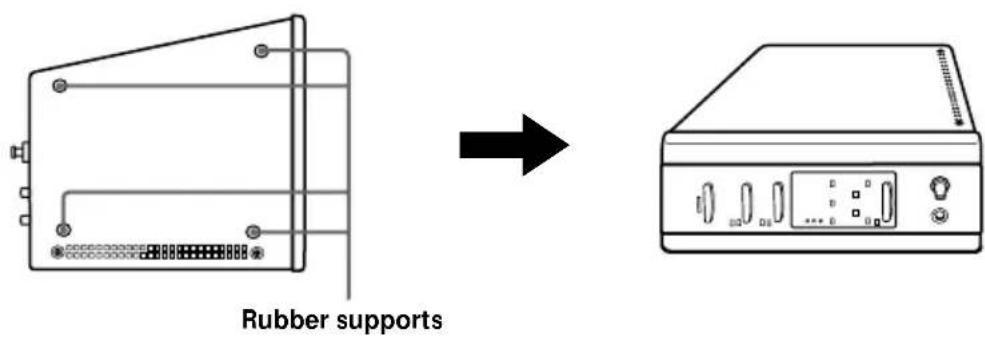
Line drawing of a hand using a handheld device to adjust or install a device (no text or symbols visible)To use on its side:
Place the digital surround processor so that the four rubber supports are on the bottom.
Notes
• Install the digital surround processor in a location where there are no obstructions between the processor and headphones when used.
- Do not install the digital surround processor in unstable locations, such as on top of the TV. If the processor falls down, it could cause an injury or be damaged.
- If the digital surround processor is placed in an upright position, always attach the stand for added safety.
- If the digital surround processor is placed on its side, the full infrared transmission range may not be obtained depending on installation conditions.
- If the digital surround processor is placed on its side, do not place the digital surround processor on the side not having the rubber supports.
(Continued)
Connecting the digital surround processor with digital components
Use the supplied optical digital connecting cable to connect the optical digital output jack on a DVD player (or LD player), digital satellite tuner, or other digital component to the DIGITAL IN jack of the digital surround processor.
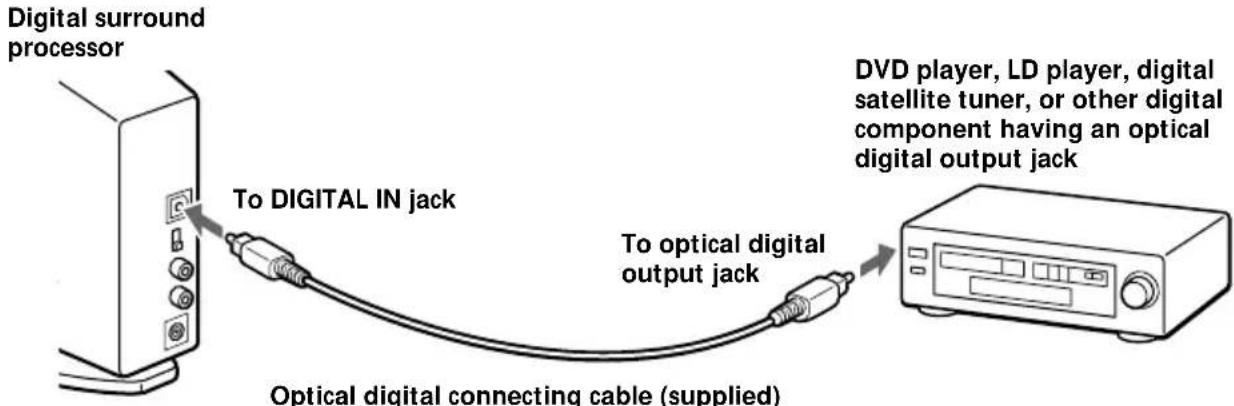
Take off the cap on the jack, match the orientation of the plug with the jack, and then insert until the plug fits into place.
Notes
- The optical digital connecting cable is an extremely high-precision device and is sensitive to jolts and external pressure. Therefore, be careful when inserting and removing the cable plug.
- This system is not provided with the AC-3 RF jacks, and so AC-3 RF signals from LD players cannot be directly input.
- The digital input for the digital surround processor does not support sampling frequencies of 96 kHz. Set the digital output setting for the DVD player at 48 kHz when using this system. Noise may be heard when a 96 kHz digital signal is input.
DTS
- A DTS-compatible DVD player is required for the playback of DVDs recorded in DTS audio. (For more details, see the instruction manual of the DVD player.)
- When playing back sources recorded in DTS audio, press the INPUT button on the processor to select "DIGITAL".
- When playing LDs and CDs recorded in DTS format, noise may occur at the start of playback or when fast forwarding. This is not a malfunction.
Connecting cables (sold separately)
Use the POC-5AB (mini-plug rectangular plug, sold separately) when connecting the digital output mini-jack on portable DVD players, portable CD players, or other digital components to the DIGITAL IN jack.
Optical digital selector (sold separately)
Use of the SB-D30 (Optical digital selector (3-line input, 2-line output), sold separately) is recommended when connecting more than one digital component.
Notes on optical digital connecting cable
- Do not drop objects on the optical digital connecting cable or expose the cable to shocks.
- Grasp the plug to connect or disconnect the cable.
- Be sure that the ends of the optical digital connecting cable are kept clean. Dust at the ends of the cable can degrade performance.
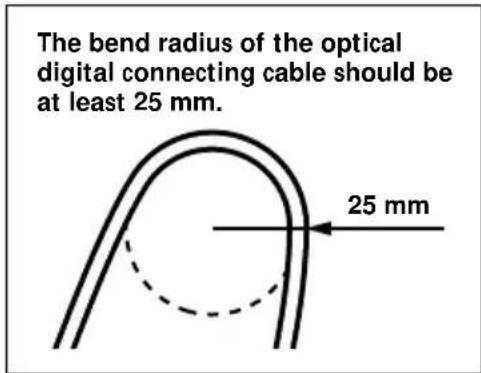
- When storing the system, attach the cap to the end of the plug and be careful not to fold or bend the optical digital connecting cable with a bend radius less than 25 mm.
Connecting the digital surround processor with analog components
Use an audio cord (sold separately) to connect to the audio output jacks on the VCR, TV, or other component to the LINE INPUT (L/R) jacks on the digital surround processor.

Connecting cables (sold separately)
Use the RK-G129 cable (stereo mini-plug pin plug x 2) when connecting the stereo mini-jack (line out jack or headphones jack) to the LINE INPUT jacks.
In this case, set the volume on the player at around 5 to 7. Noise can occur if the volume on the player is set to a low setting.
See page 31 for details about other connecting cables (sold separately).
(Continued)
Setting the input level
If the volume is low using analog input, set the ATT (attenuator) switch to "0dB".
Setting Connected components
0dB TV, portable components, and other components with a low output level
-8dB Other components (initial settings)
Notes
- Be sure to lower the volume before setting the ATT (attenuator) switch.
- If the audio input to LINE INPUT jacks is distorted, set the ATT (attenuator) switch to “-8dB”.
Plugging into the wall outlet
Notes
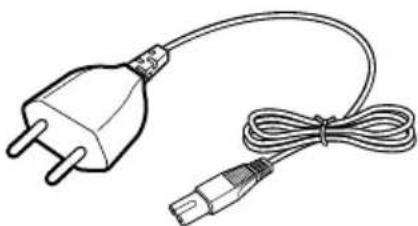
- Be sure to use the supplied AC power adapter. Using AC adapters with different plug polarity or other characteristics can cause product failure.
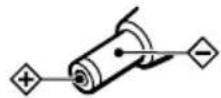
Unified polarity plug
- Be sure to always use the supplied AC power adapter. Even AC power adapters having the same voltage and plug polarity can break the product due to the current capacity or other factors.
(Continued)
Inserting the batteries in the headphones
As shown in the illustration below, insert two fully-charged (page 10) rechargeable Ni-Cd batteries with the ⊕ and ⊖ ends in the correction direction.
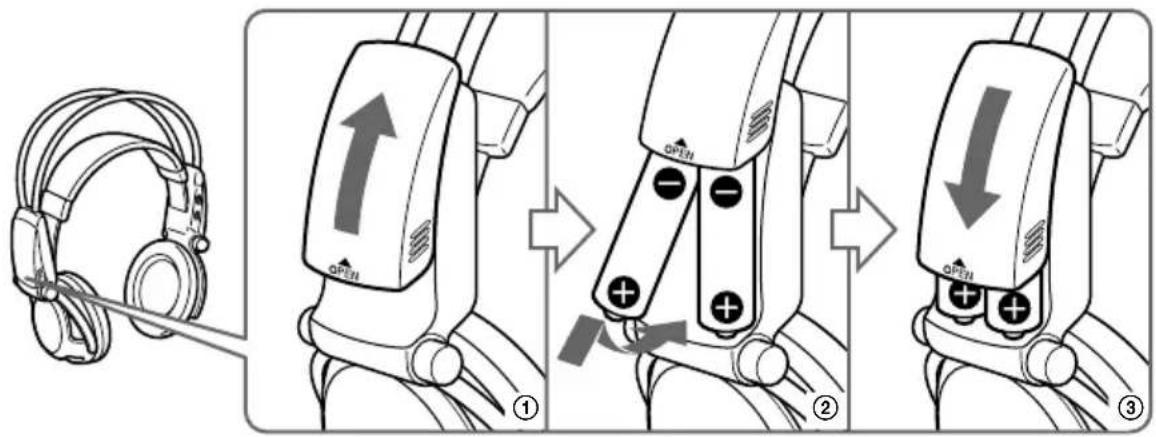
When using optional batteries
You can also use R6 (size AA) dry-cell batteries, Sony R6 (size AA) rechargeable Ni-Cd batteries (NC-AA, NC-AAS), and R6 (size AA) rechargeable nickel-hydrium batteries (NH-AA) with the headphones. Insert the batteries as shown above.
Usage times for dry-cell batteries
| Battery type Usage time |
| Sony Alkaline Battery LR6/AM3 (N) Approx. 90 hours |
| Sony Manganese Battery R6P/SUM-3 (NS) Approx. 45 hours |
Usage times and charging times for Sony rechargeable batteries (sold separately)
| Battery type Usage time Charging time* | |
| Sony R6 (size AA) Ni-Cd Battery NC-AA (700 mAh) | Approx. 30 hours Approx. 6 hours |
| Sony R6 (size AA) Ni-Cd Battery NC-AAS (1000 mAh) | Approx. 40 hours Approx. 9 hours |
| Sony R6 (size AA) Nickel-hydrium Battery NH-AA (1450 mAh) | Approx. 60 hours Approx. 10 hours |
* Time to fully charge the battery when it is completely drained.
When charging R03 (size AAA) batteries
The supplied battery charger can also charge Sony R03 (size AAA) Ni-Cd batteries (NC-AAA) and R03 (size AAA) nickel-hydrium batteries (NH-AAA).
When charging R03 (size AAA) batteries, push down the adjuster on the battery charger.
When charging R6 (size AA) batteries, flip up the adjuster.
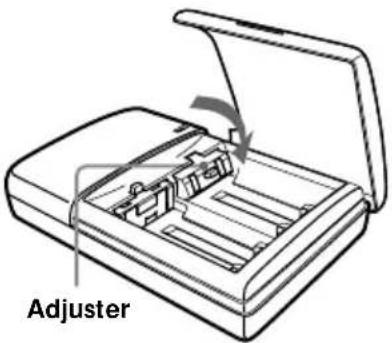
Charging times for R03 (size AAA) rechargeable batteries
| Battery type Charging time* | |
| Sony R03 (size AAA) Ni-Cd Battery NC-AAA (250 mAh) | Approx. 5 hours |
| Sony R03 (size AAA) Nickel-hydrium Battery NH-AAA (650 mAh) | Approx. 10 hours |
* Time to fully charge the battery when it is completely drained.
Notes
- The supplied battery charger can charge Sony R6 (size AA) Ni-Cd batteries (NC-AA, NC-AAS) and Sony R6 (size AA) nickel-hydrium batteries (NH-AA). Never attempt to charge other types of rechargeable batteries or dry-cell batteries.
- Do not use Sony R6 (size AA) Ni-Cd batteries, NC-AA (HJ).
- The Ni-Cd batteries should be replaced with new ones when they last only half the expected time when fully charged. Purchase either Sony R6 (size AA) Ni-Cd batteries (NC-AA, NC-AAS) or Sony R6 (size AA) nickel-hydrium batteries (NH-AA). You can order the batteries from the store where you made the purchase or at your nearest Sony dealer.
- Some battery types may not be available in certain areas.
Listening to the Sound of the Connected Component
Before starting operation, be sure to read “Connecting the Headphone System” and make the proper connections.
1 Turn on the component connected to the digital surround processor.
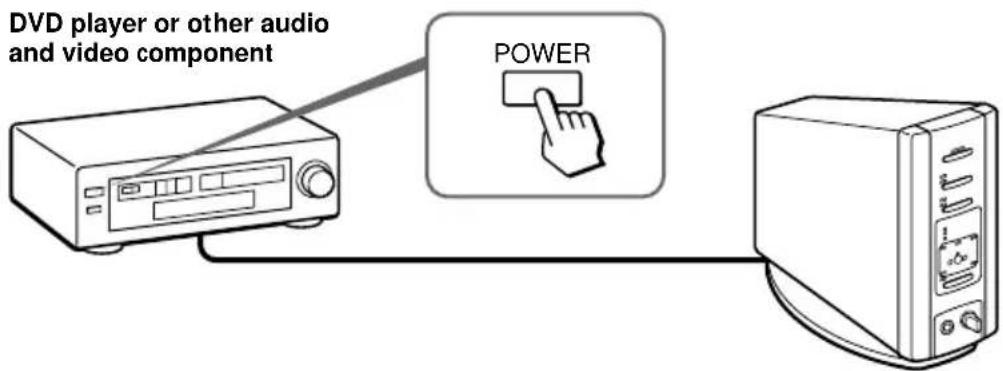
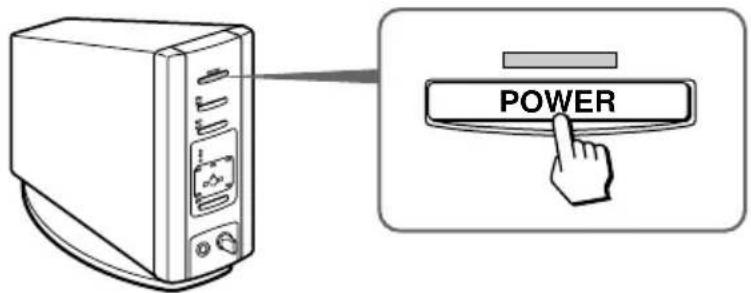
2 Press POWER to turn on the digital surround processor.
The POWER indicator lights green.
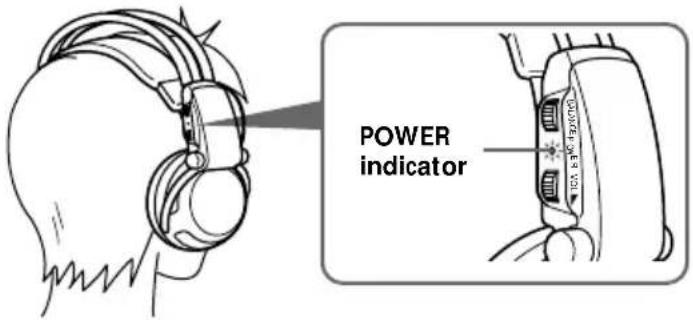
3 Put on the headphones.
The POWER indicator lights red, and the headphones automatically turn on.
4 Press INPUT to select the component you want to listen to.
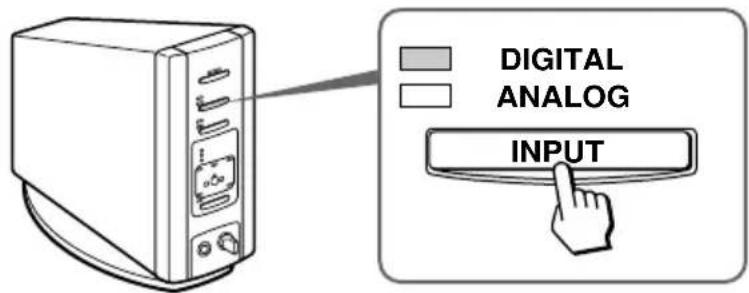
Indicator light Selected sound source
DIGITAL Sound of the component connected to DIGITAL IN jack
ANALOG Sound of the component connected to LINE INPUT jacks
Note
To listen to dual audio (MAIN/SUB) sound sources, connect to the LINE INPUT jacks, and then select the sound source you want to listen to on the player, TV, or other component.
5 Press OUTPUT to select the output mode (surround effect) (see page 22).
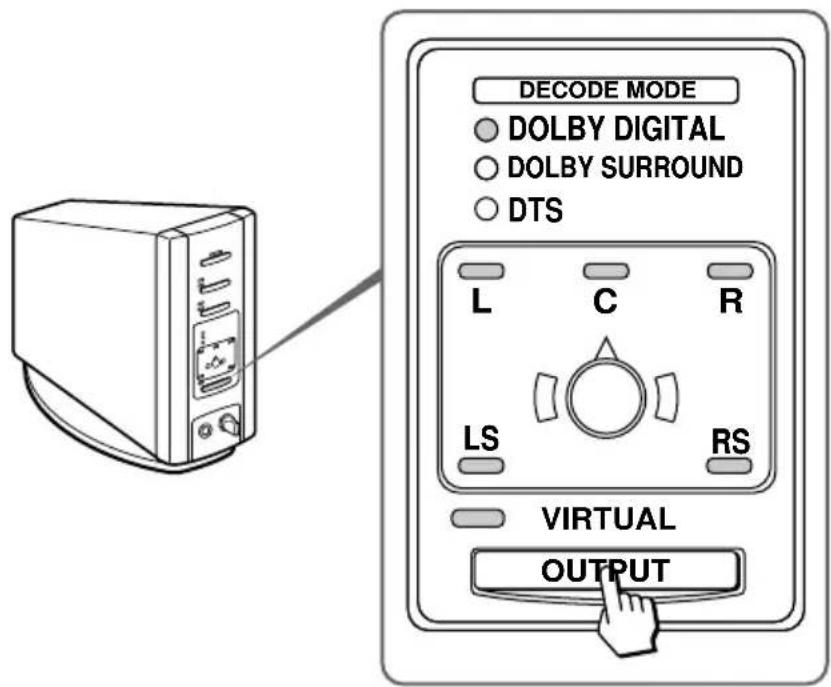
(Continued)
Indicator light Output mode (surround effect)
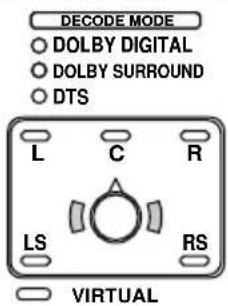
OFF Regular headphone playback.
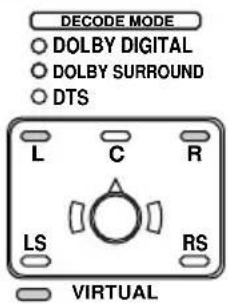
VIRTUAL FRONT Virtual effect where the sound seems to be coming from two speakers (right and left) located in front of you.
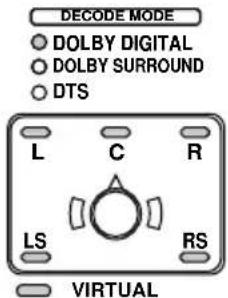
VIRTUAL SURROUND
Virtual surround effect where the sound seems to be coming from not only two front speakers (right and left), but also from one center speaker, two rear speakers (right and left), and a subwoofer (when DOLBY DIGITAL and DTS are lit). The digital surround processor automatically identifies and processes according to the format of the input audio signal. When DOLBY DIGITAL indicator is on: Audio recorded in Dolby Digital 5.1ch format is being processed. When DOLBY SURROUND indicator is on: Audio recorded in Dolby Surround (Pro Logic) format is being processed. When DTS indicator is on: Audio recorded in DTS 5.1ch format is being processed.
Notes
- The processor automatically recognizes the decode mode (DOLBY DIGITAL/DOLBY SURROUND/DTS), and the respective indicator light turns on. Select Dolby Digital or DTS audio for the audio output at the connected player.
- The decode mode becomes DOLBY SURROUND in the following cases.
- When the signal received by digital input is PCM
- During analog input
6 Press EFFECT to select the desired sound field.
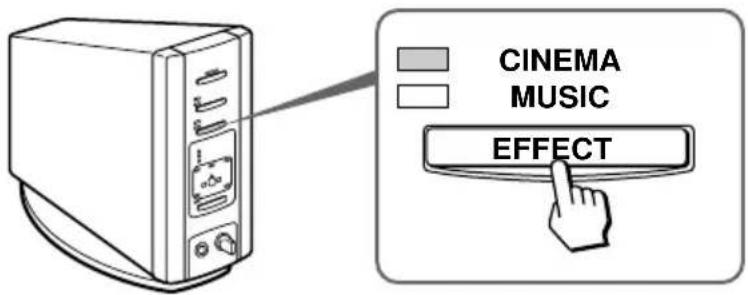
Indicator light Sound field and suitable sound source
CINEMA Mode which reproduces the sound field of a movie theater.
This mode is suitable for movie sound sources.
MUSIC Mode which reproduces the sound field of a listening room with
good acoustic environment.
This mode is suitable for music sources.
Note
If the output mode (sound effect) is set to "OFF" in step 5 on page 21, you cannot select a sound field even if you press EFFECT.
7 Adjust the volume.
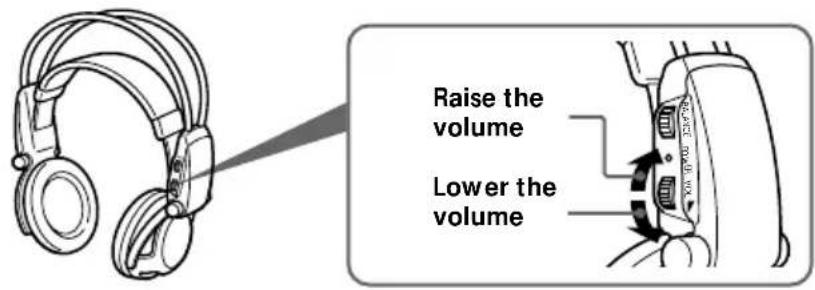
To adjust the volume of headphones (sold separately) connected to the PHONES jack
Turn PHONES—LEVEL to adjust the volume.
Note
When watching movies, be careful not to raise the volume too high in quiet scenes. You can hurt your ears when a loud scene is played.
(Continued)
The headphones automatically turn off when they are taken off — Auto Power On/Off Function
When not using the headphones, be sure that the self-adjusting band is no longer pulled up. The power stays on when the self-adjusting band is pulled up.
To check the remaining battery power
Pull up the self-adjusting band and check the POWER indicator. The batteries can be used when the POWER indicator lights red. Charge the batteries or use new dry-cell batteries if the POWER indicator is faint, the sound is distorted, or increased noise is heard.
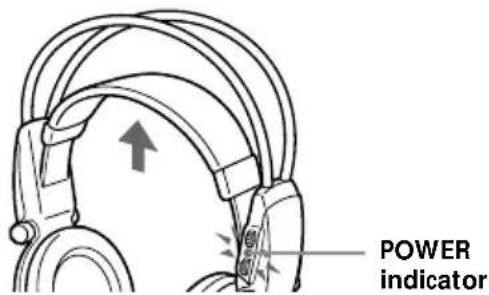
After using the headphone system
Turn off the digital surround processor first before turning off the component connected to the digital surround processor. If you turn off the connected component first, the infrared beam is cut off and noise may be emitted (this is not a malfunction). Do not hang the headphones on the digital surround processor or other components. The Auto Power On Function may be inadvertently activated, using up the batteries.
Transition time between modes
When pressing buttons on the digital surround processor to change to new modes, the transition time between modes may vary. This is due to differences in program transmission between modes.
Mute Function
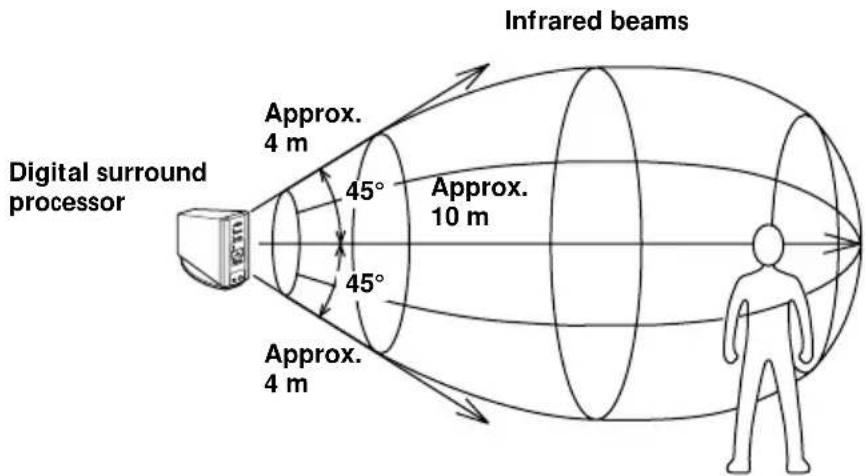
The Mute Function is automatically activated so that sound output from the headphones is cut off when the headphones are outside the infrared transmission area, or when the infrared beams are interrupted. The Mute Function is automatically cancelled when you get closer to the digital surround processor or there is no longer anything in the way of the infrared beams.
Infrared transmission area
The approximate infrared transmission area from the digital surround processor is shown in the illustration below.
Notes
- Because this system uses infrared beams, even if the headphones are within the transmission area shown above, electrical noise (hissing noises) may increase as the headphones get farther away from the digital surround processor. Also, if the infrared beams are blocked, the sound may be interrupted or noise may be heard. This is due to the infrared beam characteristics and is not a malfunction.
- Do not cover the infrared beam sensor with your hand or hair.
- As long as the headphones are in the transmission area shown in the illustration above, the headphones can have any orientation with respect to the digital surround processor (facing, turned 90^ , or turned 180^ ).
- The sound may differ depending on the digital surround processor position and conditions in the room. It is recommended that you place the digital surround processor in the location which produces the clearest sound.
- Mixed signals may result if the digital surround processor is used with other processors or transmitters.
(Continued)
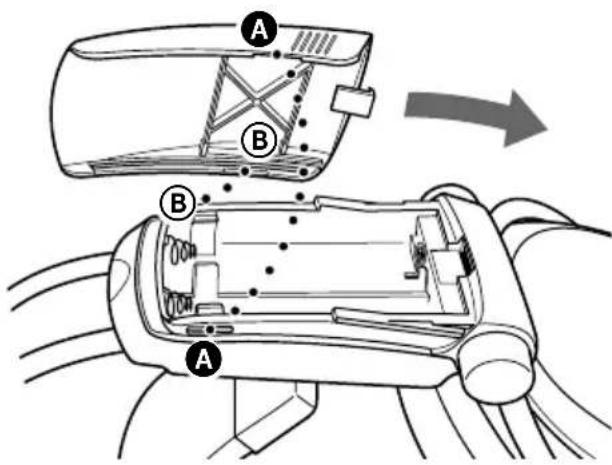
How to attach the battery cover when it has come off
As shown in the illustration, align Ⓐ with Ⓐ, and Ⓑ with Ⓑ, and then attach the cover in place.
If an audio signal is not input for 10 minutes
Emission of the infrared beams from the digital surround processor automatically stops when an audio signal is not input for 10 minutes. The infrared beams are automatically emitted when an audio signal is input again. The emission of the infrared beams may stop when an extremely low sound is emitted for about 10 minutes during analog input. If this happens, raise the volume of the connected audio and video component and lower the volume of the headphones.
Notes
- There may be differences in brightness of the infrared transmitter on the digital surround processor. However, this does not affect the transmission area.
- The headphones should be used within the infrared transmission area (see "Infrared transmission area" on page 25).
- Do not use the digital surround processor in areas exposed to direct sunlight or strong light. The sound may be interrupted.
• These open-air headphones are designed so that the sound also flows outside the headphones. Be careful not to turn up the volume too high that it bothers the people around you. - Use a suitable volume level so that you do not harm your hearing and to ensure that you can still hear surrounding sounds.
- The surround sound effect may not be obtained for sound sources which do not incorporate video, such as music CDs.
- This system simulates the HRTF* for an average person. However, the effect can differ from person to person since the HRTF can vary between individuals.
Additional Headphones
Headphones can be added to this system in one of two ways.
To enjoy surround sound using cordless headphones with more than one person
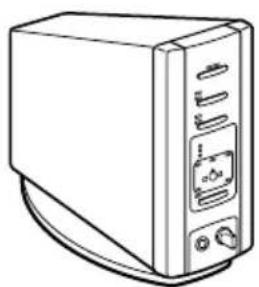
→By using additional MDR-IF5000 cordless infrared headphones (sold separately), more than one person can enjoy the surround sound experience at the same time. * There is no limit to the number of headphones that can be used within the infrared transmission area.
Digital surround
processor
natural_image
Line drawing of a desktop computer tower with ventilation slots and ports (no text or symbols)MDR-IF5000 (sold separately)
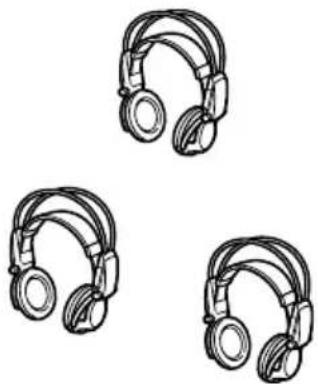
natural_image
Three identical line drawings of earbuds arranged in a triangular pattern (no text or symbols)To enjoy higher quality sound
→The PHONES jack is adjusted for the MDR-F1 corded full-open air type headphone (sold separately), so connecting the MDR-F1 allows you to enjoy high quality surround sound. You can also use any corded open-air headphones with this system.
To obtain sufficient surround sound effect, use of MDR-IF5000 cordless stereo headphones or MDR-F1 corded full-open type headphones is recommended.
Digital surround processor
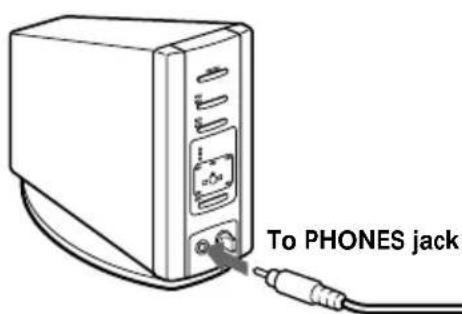
MDR-F1 corded full-open air type headphones (sold separately) or other corded open-air headphones
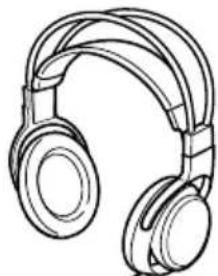
natural_image
Line drawing of a pair of hardcover headphones (no text or symbols)Notes
- When removing the headphones from the PHONES jack, always grip the plug. Never pull on the cord.
- The surround effect may not be obtained when using closed-type and in-ear headphones.
Troubleshooting
If you run into any problem using this headphone system, use the following checklist. Should any problem persist, consult your nearest Sony dealer.
Symptom Cause and remedy
| No sound(both channelsor one channel) | →Turn on the digital surround processor.→Check that the AV component and AC power adapter are connected to thedigital surround processor and that they are plugged into the power outlet.→Turn on the AV component connected to the digital surround processor, andstart the program (playback).→Use the INPUT button to check whether the AV component you want to listento is properly selected.→If the AV component headphone jack is connected to the digital surroundprocessor, raise the volume level on the connected AV component.→Raise the headphone volume.→Check the position of the BALANCE control on the headphones.→The Mute Function is on.• Check that there is nothing blocking the path from the digital surroundprocessor to the headphones.• Try to use the headphones as close as possible to the digital surroundprocessor.• Change the position or angle of the digital surround processor.→The POWER indicator on the headphones is faint or out. This indicates thatthe battery power is low. If you are using rechargeable batteries, recharge thebatteries. If you are using dry-cell batteries, replace with new ones. If theindicator is still out, consult your nearest Sony dealer.→You are trying to play a DTS audio track on a DVD player that does notsupport DTS.Either use a DVD player that supports DTS, or select a Dolby Digital or PCMaudio track. |
| Distorted sound | →Set the ATT (attenuator) switch on the digital surround processor to “-8dB”.→The POWER indicator on the headphones is faint or out. This indicates thatthe battery power is low. If you are using rechargeable batteries, recharge thebatteries. If you are using dry-cell batteries, replace with new ones. If theindicator is still out, consult your nearest Sony dealer.→If the AV component headphone jack is connected to the digital surroundprocessor, lower the volume level on the connected AV component.→When using DTS audio sources, set the processor output mode to VIRTUALSURROUND (page 23). |
Symptom Cause and remedy
| High noise level/ Low sound | →Use the headphones near the digital surround processor. The amount of noise increases as the headphones become farther from the digital surround processor. This is due to the characteristics of the infrared beams and is not a malfunction.→Check that there is nothing blocking the path from the digital surround processor to the headphones.→Check that your hand or hair is not covering the infrared sensor on the headphones.→If direct sunlight is entering the room from a window near the digital surround processor or headphones, close the curtain or blinds so that no direct sunlight is let in. Or, use in a location not exposed to direct sunlight.→Change the position or angle of the digital surround processor.→Set the ATT (attenuator) switch on the digital surround processor to “0dB”.→The POWER indicator on the headphones is faint or out. This indicates that the battery power is low. If you are using rechargeable batteries, recharge the batteries. If you are using dry-cell batteries, replace with new ones. If the indicator is still out, consult your nearest Sony dealer.→If the AV component headphone jack is connected to the digital surround processor, raise the volume level on the connected AV component. |
| The surround sound effect is not obtained | →Press the OUTPUT button to select VIRTUAL SURROUND mode (page 23).→The audio for the chapter being played is not a multichannel signal. The surround effect does not work for monaural and other sound sources which have not been processed for surround sound. |
| The DOLBY DIGITAL indicator does not turn on | →The audio digital output setting for the DVD player may be set to “PCM”. Refer to the instruction manual supplied with the DVD player, and change to the setting (such as “Dolby Digital/PCM” or “Dolby Digital”) for usage with components having built-in Dolby Digital (AC-3) decoders.→You are trying to play DVD software not compatible with Dolby Digital 5.1ch.→The audio for the chapter being played is not a multichannel signal. |
| DTS indicator light does not turn on | →The DTS digital output setting on the DVD player is set to OFF. Refer to the instruction manual supplied with the DVD player, and set the DTS digital output setting to ON.→You are trying to play DVD software that is not compatible with DTS format.→The audio for the chapter that you are playing back is not DTS.→The DVD player does not support DTS format. Use a DVD player that supports DTS. |
| The batteries cannot be charged | →Dry-cell batteries are being used. Insert the supplied or optional rechargeable batteries (page 10).→Rechargeable batteries other than supplied or optional batteries are being used. Insert the supplied or optional rechargeable batteries (page 10). |
Precautions
On safety
- Do not drop, hit, or otherwise expose the digital surround processor or headphones to strong shocks of any kind. This could damage the product.
- Do not disassemble or attempt to open any parts of the system.
On power sources and placement
- If you are not going to use the system for a long time, unplug the AC power adapter cord from the outlet. When removing the cord, grip the plug. Do not pull on the cord.
- Do not place the system at any of the following locations.
- Location exposed to direct sunlight, near a heater, or other extremely high-temperature location
- Dusty location
– On an unsteady or inclined surface - Location exposed to large amounts of vibrations
– Bathroom or other high-humidity locations
On headphones
To protect your ears
Listening to sounds at a high volume over long periods of time can harm your hearing. To protect your ears, do not listen with the volume raised too high.
Act considerably
When the volume is too high, the sound flows outside the headphones. Be careful not to raise the volume too high that it bothers the people around you.
There is a tendency to raise the volume when using in places with noise. However, the volume should be kept at a level where you can respond when called while listening to the headphones.
On ear pads
The ear pads may deteriorate over long periods of use and storage. To replace the ear pads, consult your nearest Sony dealer.
On cleaning
Use a soft cloth slightly moistened with mild detergent solution. Do not use solvents such as thinner, benzene or alcohol as these may damage the surface.
When the product breaks
- When the product breaks, or if a foreign object gets inside the unit, immediately turn off the power and consult your nearest Sony dealer.
- When taking the system to Sony dealer, be sure to take both the headphones and digital surround processor.
Specifications
Digital surround processor (DP-IF5100)
Decoder functions Dolby Digital 5.1ch
and 2ch
Dolby Pro Logic
DTS
Virtual sound function OFF
Virtual front
Virtual surround
Modulation System Frequency modulation
Carrier wave frequency Right channel 2.8 MHz
Left channel 2.3 MHz
Transmission distance Approx. 10 m to the
front
Transmission range 20 - 20,000 Hz
Distortion rate 1% or less (1 kHz)
Audio inputs Optical input
(rectangular-type) · 1
Analog input (pin jack
left/right) · 1
Power requirements DC 9 V (from the
supplied AC power
adapter)
Dimensions (w/h/d) Approx. 85 · 190 · 180
mm (3^3 / 8· 7^1 / 2· 7
^1/_8 inch)
Mass Approx. 1.0 kg
(1,000 g) (2 lb 30 oz)
Cordless stereo headphones
(M DR-IF5000)
Playback frequency range
12 - 24,000 Hz
Power requirements Rechargeable Ni-Cd
batteries (supplied) or
R6 (size AA) batteries
(dry-cell or
rechargeable, sold
separately)
Mass Approx. 280 g (10 oz)
(including the
supplied rechargeable
Ni-Cd batteries)
Supplied accessories
Stand for digital surround
processor (1)
AC power adapter (9 V) (1)
Rechargeable Ni-Cd
batteries (NC-AA) (2)
Battery charger (1)
Charging plug for battery
and E13 Versions* only)
Optical digital connecting
cable (rectangular plug ↔
rectangular plug, 1.5 m) (1)
Operating Instructions (1)
Product Information (1)
Recommended accessories
Connecting cables RK-C310, RK-C315,
RK-C320, RK-C330
(pin plug · 2 ↔ pin
plug · 2)
RK-G129 (stereo mini-
plug pin plug·2)
Optical digital selector SB-D30
Optical digital connecting cable
POC-5A, POC-10A,
POC-15A (optical
rectangular plug
optical rectangular
plug)
POC-5AB, POC-10AB,
POC-15AB (optical
rectangular plug
optical mini-plug)
Design and specifications are subject to change without notice.
* The charging plug supplied with this system varies depending on the system version. To check the version, refer to the version code printed on the box.
AVERTISSEMENT
natural_image
Line drawing of a desktop computer tower case with ports and indicator lights (no text or symbols)natural_image
Line drawing of a pair of earbuds (no text or symbols)natural_image
Line drawing of a rectangular tray or container with a small protrusion on the top surface (no text or symbols)natural_image
Line drawing of a rectangular electronic device with a clip, no text or symbols presentnatural_image
Line drawing of a power plug connected to a cable with two connectors (no text or symbols)Batteries Ni-Cd rechargeables NC-AA (2)
natural_image
Line drawing of a power plug connected to a cable (no text or symbols)natural_image
Simple line drawing of a rectangular device connected to a cable with a connector (no text or symbols)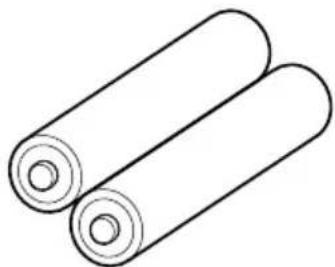
natural_image
Simple line drawing of two rolled cylindrical objects (no text or symbols)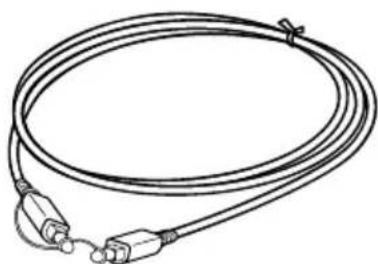
natural_image
Line drawing of a coiled cable with two connectors and a strap (no text or symbols)natural_image
Line drawing of an open electronic device with internal compartments and a curved arrow indicating rotation (no text or symbols)natural_image
Diagram of a battery pack with open lid and internal components, showing battery symbol and circuit connections (no text or labels)Remarque
natural_image
Simple line drawing of a mechanical component with a curved arrow indicating rotation (no text or symbols)natural_image
Diagram showing a device connected to a plug and cable, with no visible text or symbolsnatural_image
Diagram of a CIGM device connected to a plug with an outlet, showing wiring and cable (no text or symbols)natural_image
Line drawing of a hand using a tool to adjust or install a device (no text or symbols visible)natural_image
Diagram showing a device with ports and connectors before and after transformation (no text or symbols)Pieds en caoutchouc
Remarques
Charge de batteries R03 (format AAA)
natural_image
Line drawing of a desktop computer tower case with front panel and drive buttons (no text or symbols)Batteries Ni-Cd rechargeables (NC-AA) (2)
natural_image
Line drawing of a desktop computer tower case with ports and ventilation slots (no text or symbols)natural_image
Line drawing of a pair of earbuds (no text or symbols)natural_image
Line drawing of a rectangular tray or container with a small circular object on top (no text or symbols)natural_image
Line drawing of a rectangular electronic device with a handle and top panel (no text or symbols)natural_image
Line drawing of a power plug connected to a cable (no text or symbols)Pilas de níquel-cadmio NC-AA recargables (2)
natural_image
Line drawing of a power plug connected to a cable with a USB port (no text or symbols)natural_image
Simple line drawing of a rectangular device connected to a cable with a connector (no text or symbols)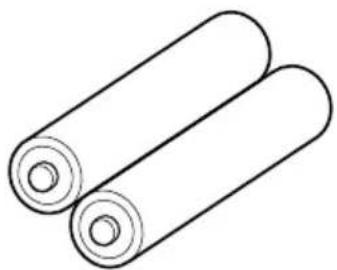
natural_image
Simple line drawing of two cylindrical objects with rounded ends, no text or symbols present.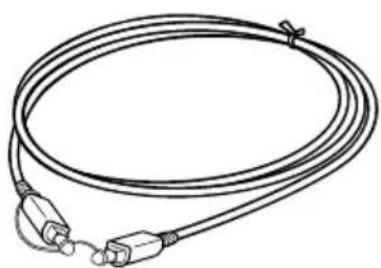
natural_image
Line drawing of a multi-core cable with two connectors and a strap (no text or symbols)natural_image
Line drawing of an open toolbox with a curved arrow indicating rotation (no text or symbols)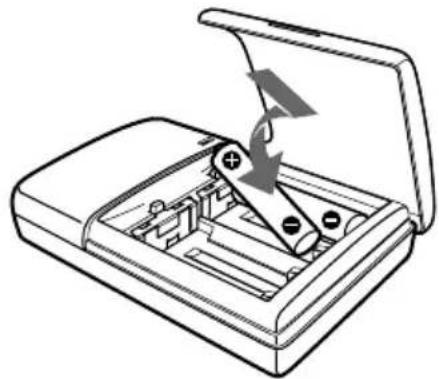
natural_image
Diagram of an open battery pack with a switch and battery, showing internal components (no text or symbols)Nota
natural_image
Simple line drawing of a mechanical component with an arrow indicating rotation or movement (no text or symbols)natural_image
Diagram showing a power plug connecting to an electrical outlet with a fuse (no text or symbols present)natural_image
Line drawing of a hand inserting a component into a device (no text or symbols)Notas
natural_image
Line drawing of a desktop computer tower with ventilation slots and ports (no text or symbols)natural_image
Three identical line drawings of a pair of headphones, no text or symbols present

- Digital Surround Headphone System
- WARNING
- For the customers in the USA
- Owner's Record
- NOTICE FOR THE CUSTOMERS IN THE U.S.A.
- NOTE
- For the customers in the USA and Canada
- RECYCLING NICKEL-CADMIUM BATTERIES
- Call toll free number: 1-800-822-8837 (United States and Canada only)
- Table Of Contents
- Location and Function of Parts... 5
- Starting Operation 8
- Charging the Batteries .... 10
- Connecting the Headphone System 13
- Listening to the Sound of the Connected Component ...... 20
- Troubleshooting...... 28
- Precautions.... 30
- Specifications 31
- Main features
- CE mark
- Location and Function of Parts
- Front Panel of the Digital Surround Processor
- Rear Panel of the Digital Surround Processor
- Headphone Parts Descriptions
- Starting Operation
- Checking the Products and Accessories
- Charging the Batteries
- Inserting the batteries into the battery charger
- Charging
- (U2, CA2 and E92 Versions\* only)
- (CEK and HK4 Versions\* only)
- (CED and E13 Versions\* only)
- When charging is finished
- Standard charging times and usage times for the supplied rechargeable batteries
- Charging time Usage time
- Notes
- Connecting the Headphone System
- Setup
- To use in an upright position:
- To use on its side:
- Connecting the digital surround processor with digital components
- DTS
- Connecting cables (sold separately)
- Optical digital selector (sold separately)
- Notes on optical digital connecting cable
- Connecting the digital surround processor with analog components
- Setting the input level
- Setting Connected components
- Plugging into the wall outlet
- Inserting the batteries in the headphones
- When using optional batteries
- When charging R03 (size AAA) batteries
- Listening to the Sound of the Connected Component
- Press INPUT to select the component you want to listen to.
- Indicator light Selected sound source
- Press OUTPUT to select the output mode (surround effect) (see page 22).
- Indicator light Output mode (surround effect)
- VIRTUAL SURROUND
- Press EFFECT to select the desired sound field.
- Indicator light Sound field and suitable sound source
- Adjust the volume.
- To adjust the volume of headphones (sold separately) connected to the PHONES jack
- The headphones automatically turn off when they are taken off — Auto Power On/Off Function
- To check the remaining battery power
- After using the headphone system
- Transition time between modes
- Mute Function
- Infrared transmission area
- How to attach the battery cover when it has come off
- If an audio signal is not input for 10 minutes
- Additional Headphones
- To enjoy surround sound using cordless headphones with more than one person
- To enjoy higher quality sound
- Troubleshooting
- Precautions
- On safety
- On power sources and placement
- On headphones
- To protect your ears
- Act considerably
- On ear pads
- On cleaning
- When the product breaks
- Specifications
- Digital surround processor (DP-IF5100)
- Cordless stereo headphones
- (M DR-IF5000)
- Supplied accessories
- Recommended accessories
- AVERTISSEMENT
- Remarque
- Remarques
- Charge de batteries R03 (format AAA)
- Nota
- Notas
Brand : SONY
Model : MDRDS5100
Category : Earphones