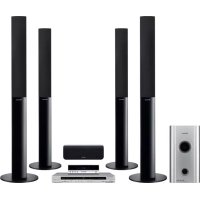
HTS560DV - Home theater audio system PIONEER - Free user manual and instructions
Find the device manual for free HTS560DV PIONEER in PDF.


| Brand | PIONEER |
| Model | HTS560DV |
| Product type | 5.1 channel home cinema audio system |
| Dimensions (front/surround speaker) | 260 mm (W) x 1096.5 mm (H) x 260 mm (D) |
| Weight (front/surround speaker) | 4.2 kg each |
| Power supply | 120 V, 60 Hz |
| Power consumption | 41 W (operation), 0.2 W (standby) |
| RMS output power | Front, center, surround: 100 W per channel (1 kHz, 10% THD, 4 Ω); Subwoofer: 100 W (100 Hz, 10% THD, 4 Ω) |
| FTC output power | Front, center, surround: 25 W per channel (200 Hz to 20 kHz, 1% THD, 4 Ω); Subwoofer: 30 W (45 Hz to 200 Hz, 1% THD, 4 Ω) |
| Nominal speaker impedance | 4 Ω |
| Frequency response (front/surround speakers) | 70 Hz to 20 kHz |
| Frequency response (subwoofer) | 25 Hz to 1.0 kHz |
| Main functions | Auto MCACC, Dolby Pro Logic II, DTS, Advanced Surround, Sound Retriever, Quiet/Midnight modes, bass/treble adjustment |
| Audio inputs | 1 digital coaxial input (DVD), 1 digital optical input, 2 analog audio inputs (AUX, DTV/PC/GAME) |
| Outputs | Control output jack (CONTROL OUT), composite video output |
| Tuner | FM/AM, 30 preset stations |
| Package contents | Subwoofer/receiver, DVD player, 5 speakers (front x2, surround x2, center x1), remote control, batteries, MCACC microphone, AM/FM antennas, cables, anti-slip pads, stands |
| Care and cleaning | Clean with a soft dry cloth. Do not use chemicals. |
| Safety | Do not expose to water, do not open the casing. Unplug before any intervention. Keep away from heat sources. |
| Repairability | Contains no user-serviceable parts. Refer servicing to qualified personnel. |
Frequently Asked Questions - HTS560DV PIONEER
User questions about HTS560DV PIONEER
0 question about this device. Answer the ones you know or ask your own.
Ask a new question about this device
Download the instructions for your Home theater audio system in PDF format for free! Find your manual HTS560DV - PIONEER and take your electronic device back in hand. On this page are published all the documents necessary for the use of your device. HTS560DV by PIONEER.
USER MANUAL HTS560DV PIONEER
Register Your Product at
www.pioneerelectronics.com (us)
www.pioneerelectronics.ca (Canada)
Operating Instructions
Mode d'emploi

The lightning flash with arrowhead, within an equilateral triangle, is intended to alert the user to the presence of uninsulated "dangerous voltage" within the product's enclosure that may be of sufficient magnitude to constitute a risk of electric shock to persons.
CAUTION
RISK OF ELECTRIC SHOCK DO NOT OPEN
CAUTION:
TO PREVENT THE RISK OF ELECTRIC SHOCK,DO NOT REMOVE COVER (OR BACK).NO USER-SERVICEABLE PARTS INSIDE.REFER SERVICING TO QUALIFIED SERVICE PERSONNEL.

The exclamation point within an equilateral triangle is intended to alert the user to the presence of important operating and maintenance (servicing) instructions in the literature accompanying the appliance.
D1-4-2-3 En

WARNING - TO PREVENT FIRE OR SHOCK HAZARD,DO NOT EXPOSE THIS APPLIANCE TO RAIN OR MOISTURE.
D1-4-2-1_En
AVERTISSEMENT
CAUTION: This product satisfies FCC regulations when shielded cables and connectors are used to connect the unit to other equipment. To prevent electromagnetic interference with electric appliances such as radios and televisions, use shielded cables and connectors for connections. D8-10-3
D8-10-3a_En
NOTE: This equipment has been tested and found to comply with the limits for a Class B digital device, pursuant to Part 15 of the FCC Rules. These limits are designed to provide reasonable protection against harmful interference in a residential installation. This equipment generates, uses, and can radiate radio frequency energy and, if not installed and used in accordance with the instructions, may cause harmful interference to radio communications. However, there is no guarantee that interference will not occur in a particular installation. If this equipment does cause harmful interference to radio or television reception, which can be determined by turning the equipment off and on, the user is encouraged to try to correct the interference by one or more of the following measures:
- Reorient or relocate the receiving antenna.
- Increase the separation between the equipment and receiver.
- Connect the equipment into an outlet on a circuit different from that to which the receiver is connected.
- Consult the dealer or an experienced radio/TV technician for help.
D8-10-1-2_En
Information to User
Alteration or modifications carried out without appropriate authorization may invalidate the user's right to operate the equipment. D8-10-2
IMPORTANT NOTICE - THE SERIAL NUMBER FOR THIS EQUIPMENT IS LOCATED IN THE REAR.
PLEASE WRITE THIS SERIAL NUMBER ON YOUR ENCLOSED WARRANTY CARD AND KEEP IN A SECURE AREA. THIS IS FOR YOUR SECURITY. D1-4-2-6
D1-4-2-6-1_EN
IMPORTANT SAFETY INSTRUCTIONS
READ INSTRUCTIONS All the safety and operating instructions should be read before the product is operated.
RETAIN INSTRUCTIONS The safety and operating instructions should be retained for future reference.
HEED WARNINGS All warnings on the product and in the operating instructions should be adhered to.
FOLLOW INSTRUCTIONS All operating and use instructions should be followed.
CLEANING The product should be cleaned only with a polishing cloth or a soft dry cloth. Never clean with furniture wax, benzine, insecticides or other volatile liquids since they may corrode the cabinet.
ATTACHMENTS - Do not use attachments not recommended by the product manufacturer as they may cause hazards.
WATER AND MOISTURE - Do not use this product near water for example, near a bathtub, wash bowl, kitchen sink or laundry tub; in a wet basement; or near a swimming pool; and the like.
ACCESSORIES Do not place this product on an unstable cart, stand, tripod, bracket, or table. The product may fall, causing serious injury to a child or adult and serious damage to the product. Use only with a cart, stand, tripod, bracket, or table recommended by the manufacturer, or sold with the product. Any mounting of the product should follow the manufacturer's instructions, and should use a mounting accessory recommended by the manufacturer.
CART A product and cart combination should be moved with care. Quick stops, excessive force, and uneven surfaces may cause the product and cart combination to overturn.

VENTILATION-Slots and openings in the cabinet are provided for ventilation and to ensure reliable operation of the product and to protect it from overheating, and these openings must not be blocked or covered. The openings should never be blocked by placing the product on a bed, sofa, rug, or other similar surface. This product should not be placed in a built-in installation such as a bookcase or rack unless proper ventilation is provided or the manufacturer's instructions have been adhered to.
POWER SOURCES This product should be operated only from the type of power source indicated on the marking label. If you are not sure of the type of power supply to your home, consult your product dealer or local power company.
LOCATION - The appliance should be installed in a stable location.
NONUSE PERIODS - The power cord of the appliance should be unplugged from the outlet when left un-used for a long period of time.
GROUNDING OR POLARIZATION
If this product is equipped with a polarized alternating current line plug (a plug having one blade wider than the other), it will fit into the outlet only one way. This is a safety feature. If you are unable to insert the plug fully into the outlet, try reversing the plug. If the plug should still fail to fit, contact your electrician to replace your obsolete outlet. Do not defeat the safety purpose of the polarized plug.
If this product is equipped with a three-wire grounding type plug, a plug having a third (grounding) pin, it will only fit into a grounding type power outlet. This is a safety feature. If you are unable to insert the plug into the outlet, contact your electrician to replace your obsolete outlet. Do not defeat the safety purpose of the grounding type plug.
POWER-CORD PROTECTION - Power-supply cords should be routed so that they are not likely to be walked on or pinched by items placed upon or against them, paying particular attention to cords at plugs, convenience receptacles, and the point where they exit from the product.
OUTDOOR ANTENNA GROUNDING If an outside antenna or cable system is connected to the product, be sure the antenna or cable system is grounded so as to provide some protection against voltage surges and built-up static charges. Article 810 of the National Electrical Code, ANSI/NFPA 70, provides information with regard to proper grounding of the mast and supporting structure, grounding of the lead-in wire to an antenna discharge unit, size of grounding conductors, location of antenna discharge unit, connection to grounding electrodes, and requirements for the grounding electrode. See Figure A.
LIGHTNING For added protection for this product during a lightning storm, or when it is left unattended and unused for long periods of time, unplig it from the wall outlet and disconnect the antenna or cable system. This will prevent damage to the product due to lightning and power-line surges.
POWER LINES An outside antenna system should not be located in the vicinity of overhead power lines or other electric light or power circuits, or where it can fall into such power lines or circuits. When installing an outside antenna system, extreme care should be taken to keep from touching such power lines or circuits as contact with them might be fatal.
OVERLOADING Do not overload wall outlets, extension cords, or integral convenience receptacles as this can result in a risk of fire or electric shock.
OBJECT AND LIQUID ENTRY—Never push objects of any kind into this product through openings as they may touch dangerous voltage points or short-out parts that could result in a fire or electric shock. Never spill liquid of any kind on the product.
SERVICING - Do not attempt to service this product yourself as opening or removing covers may expose you to dangerous voltage or other hazards. Refer all servicing to qualified service personnel.
DAMAGE REQUIRING SERVICE Unplug this product from the wall outlet and refer servicing to qualified service personnel under the following conditions:
- When the power-supply cord or plug is damaged.
If liquid has been spilled, or objects have fallen into the product.
If the product has been exposed to rain or water. - If the product does not operate normally by following the operating instructions. Adjust only those controls that are covered by the operating instructions as an improper adjustment of other controls may result in damage and will often require extensive work by a qualified technician to restore the product to its normal operation.
If the product has been dropped or damaged in any way. - When the product exhibits a distinct change in performance — this indicates a need for service.
REPLACEMENT PARTS - When replacement parts are required, be sure the service technician has used replacement parts specified by the manufacturer or have the same characteristics as the original part. Unauthorized substitutions may result in fire, electric shock, or other hazards.
SAFETY CHECK - Upon completion of any service or repairs to this product, ask the service technician to perform safety checks to determine that the product is in proper operating condition.
WALL OR CEILING MOUNTING - The product should not be mounted to a wall or ceiling.
HEAT The product should be situated away from heat sources such as radiators, heat registers, stoves, or other products (including amplifiers) that produce heat.
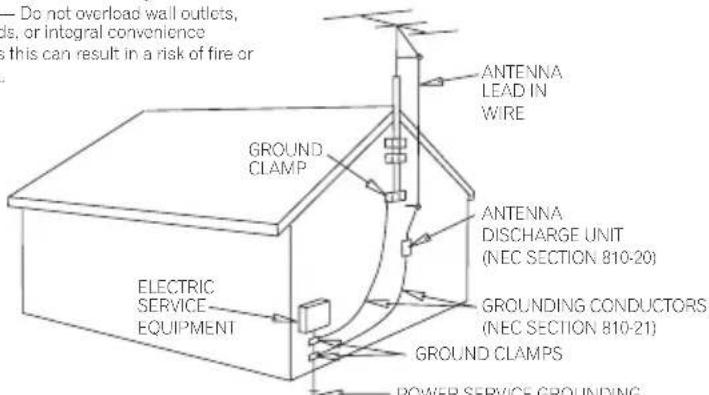
Fig. A
POWER SERVICE GROUNDING ELECTRODE SYSTEM (NEC ART 250, PART-H) NEC-NATIONAL ELECTRICAL CODE
D1-4-2-2_En
This product is for general household purposes. Any failure due to use for other than household purposes (such as long-term use for business purposes in a restaurant or use in a car or ship) and which requires repair will be charged for even during the warranty period.
This product contains mercury. Disposal of this material may be regulated due to environmental considerations. For disposal or recycling information, please contact your local authorities or the Electronics Industries Alliance: www.eiae.org. K057_En
POWER-CORD CAUTION
Handle the power cord by the plug. Do not pull out the plug by tugging the cord and never touch the power cord when your hands are wet as this could cause a short circuit or electric shock. Do not place the unit, a piece of furniture, etc., on the power cord, or pinch the cord. Never make a knot in the cord or tie it with other cords. The power cords should be routed such that they are not likely to be stepped on. A damaged power cord can cause a fire or give you an electrical shock. Check the power cord once in a while. When you find it damaged, ask your nearest PIONEER authorized service center or your dealer for a replacement.
For U.S. and Australia Model

C67-7-3_En
NOTE IMPORTANTE SUR LE CABLE D'ALIMENTATION
WARNING: Handling the cord on this product or cords associated with accessories sold with the product will expose you to chemicals listed on proposition 65 known to the State of California and other governmental entities to cause cancer and birth defect or other reproductive harm.
Wash hands after handling D36-P4_A_En
CAUTION - PREVENT ELECTRIC SHOCK DO NOT USE THIS (POLARIZED) PLUG WITH AN EXTENSION CORD. RECEPTACLE OR OTHER OUTLET UNLESS THE BLADES CAN BE FULLY INSERTED TO PREVENT BLADE EXPOSURE. ATTENTION - POUR PREVENIR LES CHOCS ELECTRIQUES NE PAS UTILISER CETTE FICHE POLARISEE AVEC UN PROLONGATEUR UNE PRISE DE COURANT OU UNE AUTRE SORTIE DE COURANT, SAUF SI LES LAMES PEUVENT ETRE INSEREES A FOND SANS EN LAISSER AUCUNE PARTIE A DECOUVERT. D2-4-4-1_EF
This Class B digital apparatus complies with Canadian ICES-003.
Selecting fine audio equipment such as the unit you've just purchased is only the start of your musical enjoyment. Now it's time to consider how you can maximize the fun and excitement your equipment offers. This manufacturer and the Electronic Industries Association's Consumer Electronics Group want you to get the most out of your equipment by playing it at a safe level. One that lets the sound come through loud and clear without annoying blaring or distortion-and, most importantly, without affecting your sensitive hearing.
Sound can be deceiving. Over time your hearing "comfort level" adapts to higher volumes of sound. So what sounds "normal" can actually be loud and harmful to your hearing. Guard against this by setting your equipment at a safe level BEFORE your hearing adapts.
To establish a safe level:
- Start your volume control at a low setting.
- Slowly increase the sound until you can hear it comfortably and clearly, and without distortion.
Once you have established a comfortable sound level:
- Set the dial and leave it there.
Taking a minute to do this now will help to prevent hearing damage or loss in the future. After all, we want you listening for a lifetime.
We Want You Listening For A Lifetime
Used wisely, your new sound equipment will provide a lifetime of fun and enjoyment. Since hearing damage from loud noise is often undetectable until it is too late, this manufacturer and the Electronic Industries Association's Consumer Electronics Group recommend you avoid prolonged exposure to excessive noise. This list of sound levels is included for your protection.
Decibel
Level Example
30 Quiet library, soft whispers
40 Living room, refrigerator, bedroom away from traffic
50 Light traffic, normal conversation, quiet office
60 Air conditioner at 20 feet, sewing machine
70 Vacuum cleaner, hair dryer, noisy restaurant
80 Average city traffic, garbage disposals, alarm clock at two feet.
THE FOLLOWING NOISES CAN BE DANGEROUS UNDER CONSTANT EXPOSURE
90 Subway, motorcycle, truck traffic, lawn mower
100 Garbage truck, chain saw, pneumatic drill
120 Rock band concert in front of speakers, thunderclap
140 Gunshot blast, jet plane
180 Rocket launching pad
Information courtesy of the Deafness Research Foundation.


S001_En
What's in the box
Please confirm that the following items are all supplied.
Receiver subwoofer (SX-SW560) box:
Remote control (page 15)
AA/R6 dry cell batteries (to confirm operation) x2 (page 16)
- Display unit (page 14)
Power cord (page 12)
AM loop antenna (page 11)
FM wire antenna (page 11)
- Display cable (page 10)
Coaxial cable (page 10)
- Microphone (for Auto MCACC setup) (page 20)
These operating instructions
Warranty card
Speakers (S-S7606) box:
- Speakers (front x2, surround x2, center x1) (page 12)
- Speaker cables x5 (page 11)
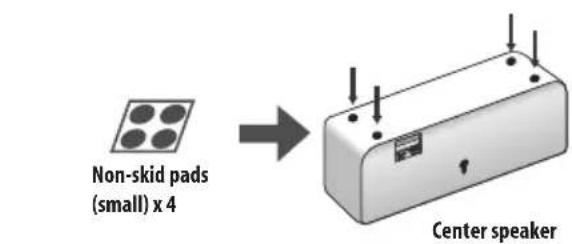
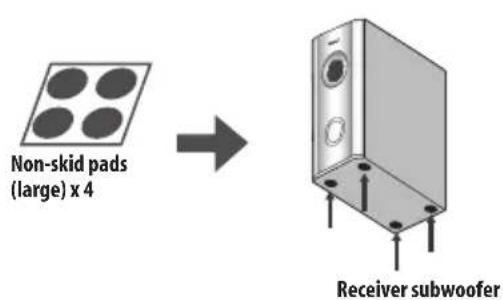
Non-skid pads (large) x4 (page 7)
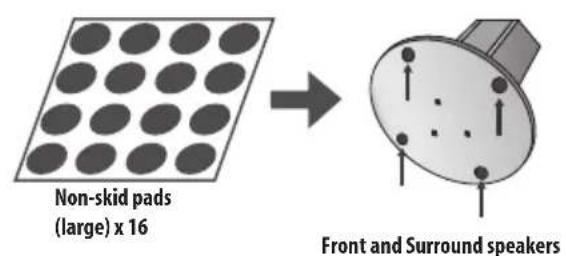
Non-skid pads (large) × 16 page 7
Non-skid pads (small) x4 (page 7) - Speaker stand bases × 4 (page 7)
- Screws (for bases) x 12 (page 7)
Thank you for buying this Pioneer product.
Please read through these operating instructions so that you will know how to operate your model properly. After you have finished reading the instructions, put them in a safe place for future reference.
Contents
What's in the box 5
01 Speaker Setup Guide
Safety precautions when setting up 7
Home theater sound setup. 7
Wall mounting the center speaker 9
Before mounting 9
Additional notes on speaker placement .9
02 Connecting up
Basic connections 10
Wall mounting the display unit. 13
Using this system for TV audio 13
03 Controls and displays
Display unit 14
Display 14
Remote control. 15
Using the remote control 16
Putting the batteries in the remote control. 16
04 Before you start
Switching on 18
Setting up. 18
Basic operation 19
Watching a DVD 19
Listening to a CD 19
Listening to the radio 19
05 Getting started
System demo setting 20
Using the Auto MCACC setup for optimal surround
sound 20
06 Listening to your system
Auto listening mode 22
Listening in surround sound. 22
Dolby Pro Logic II Music settings 22
Using Advanced Surround. 23
Listening in stereo 23
Using the Sound Retriever 23
Listening with Acoustic Calibration EQ. 23
Enhancing dialogue 24
Using Quiet and Midnight listening modes 24
Adjusting the bass and treble. 24
Boosting the bass level. 24
07 Listening to the radio
Listening to the radio 25
Improving poor FM reception 25
Improving poor AM sound 25
Memorizing stations. 25
Listening to station presets 26
Changing the frequency step 26
08 Surround sound settings
Using the Setup menu 27
Channel level setting 27
Speaker distance setting 27
Dynamic Range Control 28
Dual mono setting 28
Adjusting the channel levels using the test tone. 28
09 Other connections
Connecting auxiliary components 29
Connecting an analog audio component 29
Listening to an external audio source. 29
Connecting external antennas 29
Using this unit with a Pioneer plasma display .30
SR+ Setup for Pioneer plasma displays. 30
Using the SR+ mode with a Pioneer plasma display 31
About the control out jack 31
10 Additional information
Setting the sleep timer 32
Dimming the display 32
DTS CD setting 32
Resetting the system 32
Installation and maintenance 33
Hints on installation 33
Glossary 33
Setting up the remote to control your TV. 33
Using the TV remote control buttons 33
Preset code list 34
Troubleshooting 35
General 35
Tuner 36
Error Messages 36
Specifications. 37
Chapter 1
Speaker Setup Guide
Safety precautions when setting up
When assembling the speakers, lay them down flat on their side to avoid accidents or injury. Make sure to use a stable surface when assembling, setting up, and placing the speakers.
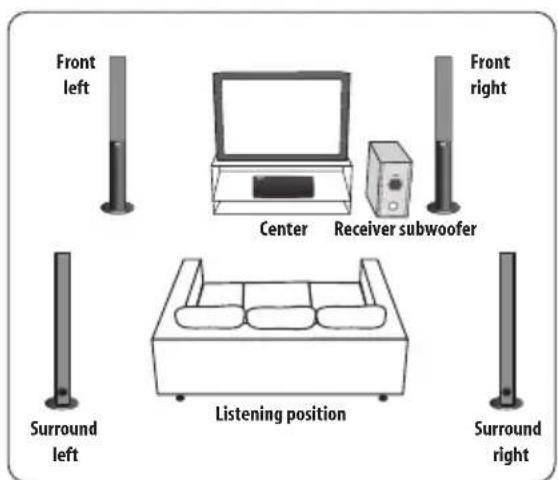
Home theater sound setup
- This is a standard multichannel surround sound speaker setup for optimal 5.1 channel home theater sound.
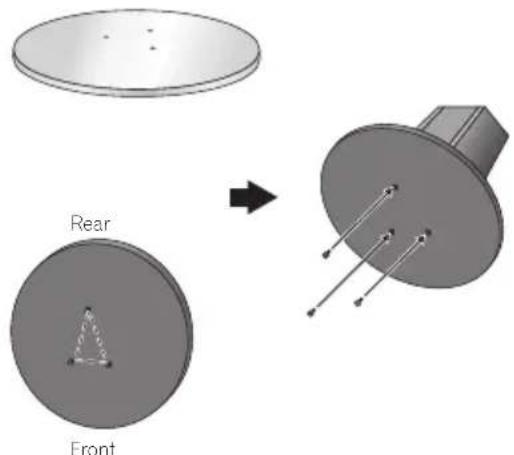
1 Attach the speaker stand bases to the stems using the screws provided.
Once you have aligned the stem and base, secure with the small screws at the points shown below. Note that the speaker should face in the direction of the base of the isosceles triangle (outlined below).
2 Attach the smaller non-skid pads to the base of the center speaker. The large non-skid pads are for the front and surround speakers, and the receiver subwoofer (as shown).
Use the adhesive side of the pads to attach them to the base (flat surface) of each speaker.
3 Secure each of the front and surround speakers using the metal catch provided.
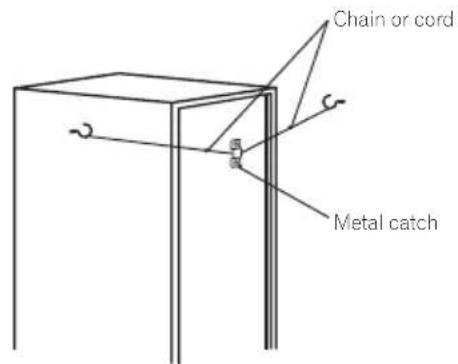
Screw two picture hooks or similar into the wall behind the speaker. Pass a chain or cord around the hooks and through the metal catch so that the speaker is stabilized (make sure to test that it supports the weight of the speaker).
After installing, make sure the speaker is securely fixed.

Caution
- The metal catch is not a mounting fixture, and the speaker should not be hung directly from the wall using this catch. Always use a chain or cord when stabilizing the speaker.
- Pioneer disclaims all responsibility for any losses or damage resulting from improper assembly, installation, insufficient strength of the installation materials, misuse, or natural disasters.
4 Connect the speaker system.
Refer to Connecting up to connect the speakers properly. After connecting everything, place the speakers as shown in the diagram above for optimal surround sound.
After placing the speakers, run the Auto MCACC setup (page 20) to complete your surround sound setup.
Wall mounting the center speaker
The center speaker has a mounting hole which can be used to mount the speaker on the wall.
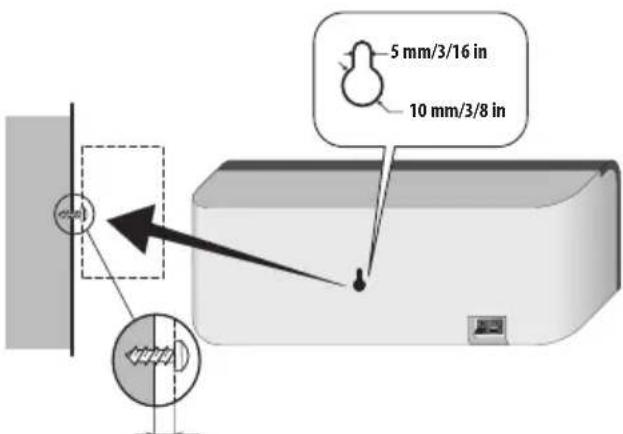
5 mm to 7 mm (3/16 in. to 1/4 in.)

Caution
If you are unsure of the qualities and strength of the wall, consult a professional for advice.
- Pioneer is not responsible for any accidents or damage that result from improper installation.
Before mounting
- Remember that the speaker system is heavy and that its weight could cause the screws to work loose, or the wall material to fail to support it, resulting in the speaker falling. Make sure that the wall you intend to mount the speakers on is strong enough to support them. Do not mount on plywood or soft surface walls.
- Mounting screws are not supplied. Use screws suitable for the wall material and support the weight of the speaker.
Additional notes on speaker placement
Install the main front left and right speakers at an equal distance from the TV.
- Install the center speaker above or below the TV so that the sound of the center channel is localized at the TV screen.
Precautions:
- When installing the center speaker on top of the TV, be sure to secure it with tape or some other suitable means. Otherwise, the speaker may fall from the TV due to external shocks such as earthquakes, endangering those nearby or damaging the speaker.
- The front (L/R), center and surround (L/R) speakers supplied with this system are magnetically shielded. However, depending on the installation location, color distortion may occur if the speaker is installed extremely close to the screen of a television set. If this happens, turn the power switch of the television set OFF, and turn it ON after 15 min to 30 min. If the problem persists, place the speaker system away from the television set.
- The receiver subwoofer is not magnetically shielded and so should not be placed near a TV or monitor. Magnetic storage media (such as floppy discs and tape or video cassettes) should also not be kept close to the receiver subwoofer.
- Do not attach the front, surround speakers and receiver subwoofer to the wall or ceiling. They may fall off and cause injury.
- For safety, make sure that there is no exposed bare speaker wire outside of the speaker terminals.
- Do not connect the supplied speakers with any other amplifier. This may result in malfunction or fire.
- Do not connect any speakers other than those supplied to this system.
Chapter 2
Connecting up
Basic connections

Important
- When connecting this system or changing connections, be sure to switch power off and disconnect the power cord from the wall socket.
After completing all connections, connect the power cord to the wall socket.
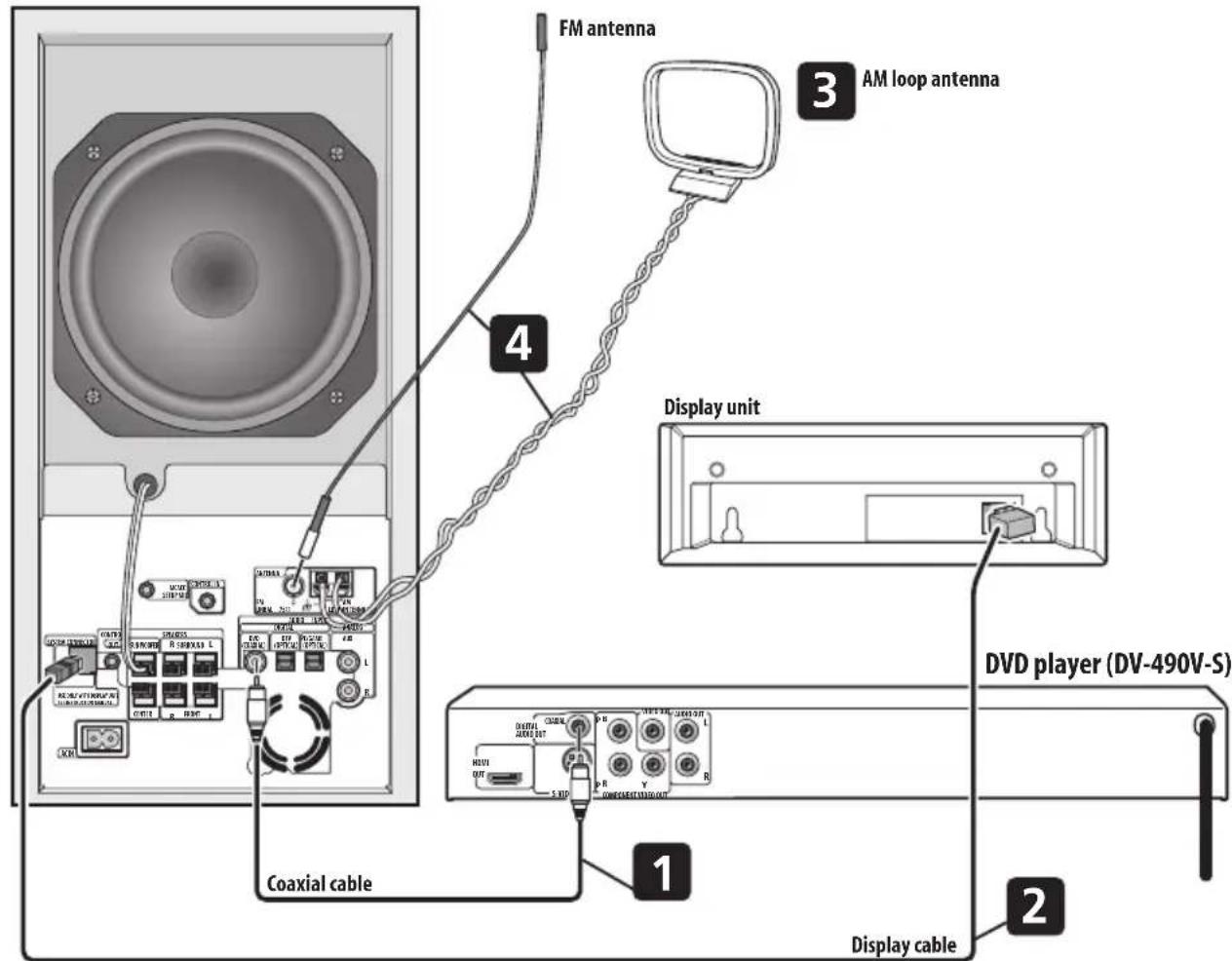
Receiver subwoofer
1 Connect the DVD player to the receiver subwoofer.
Plug the coaxial cable into the DVD DIGITAL AUDIO INPUT jack on the rear of the receiver subwoofer.
Plug the other end of the cable into the COAXIAL
DIGITAL AUDIO OUT jack on the rear of the DVD player.
2 Connect the display unit to the receiver subwoofer.
Plug the L-shaped end of the display cable into the connector on the rear of the display unit, then plug the other end of the display cable into SYSTEM
CONNECTOR jack on the receiver subwoofer.
3 Assemble the AM loop antenna.
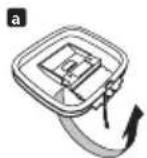
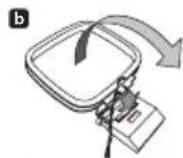
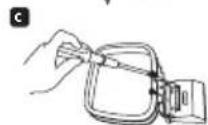
a. Bend the stand in the direction indicated by the arrow.
b. Clip the loop onto the stand.
c. If you want to fix to a wall or other surface, perform step b after first securing the stand with screws. It is recommended that you determine the reception strength before securing the stand with the screws.
4 Connect the AM and FM antennas 1.
a. Connect one wire of the AM loop antenna to each AM antenna terminal2.
For each terminal, press down on the tab to open; insert the wire, then release to secure.
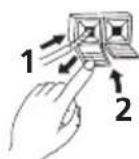
b. Push the FM antenna3 plug onto the center pin of the FM antenna socket.
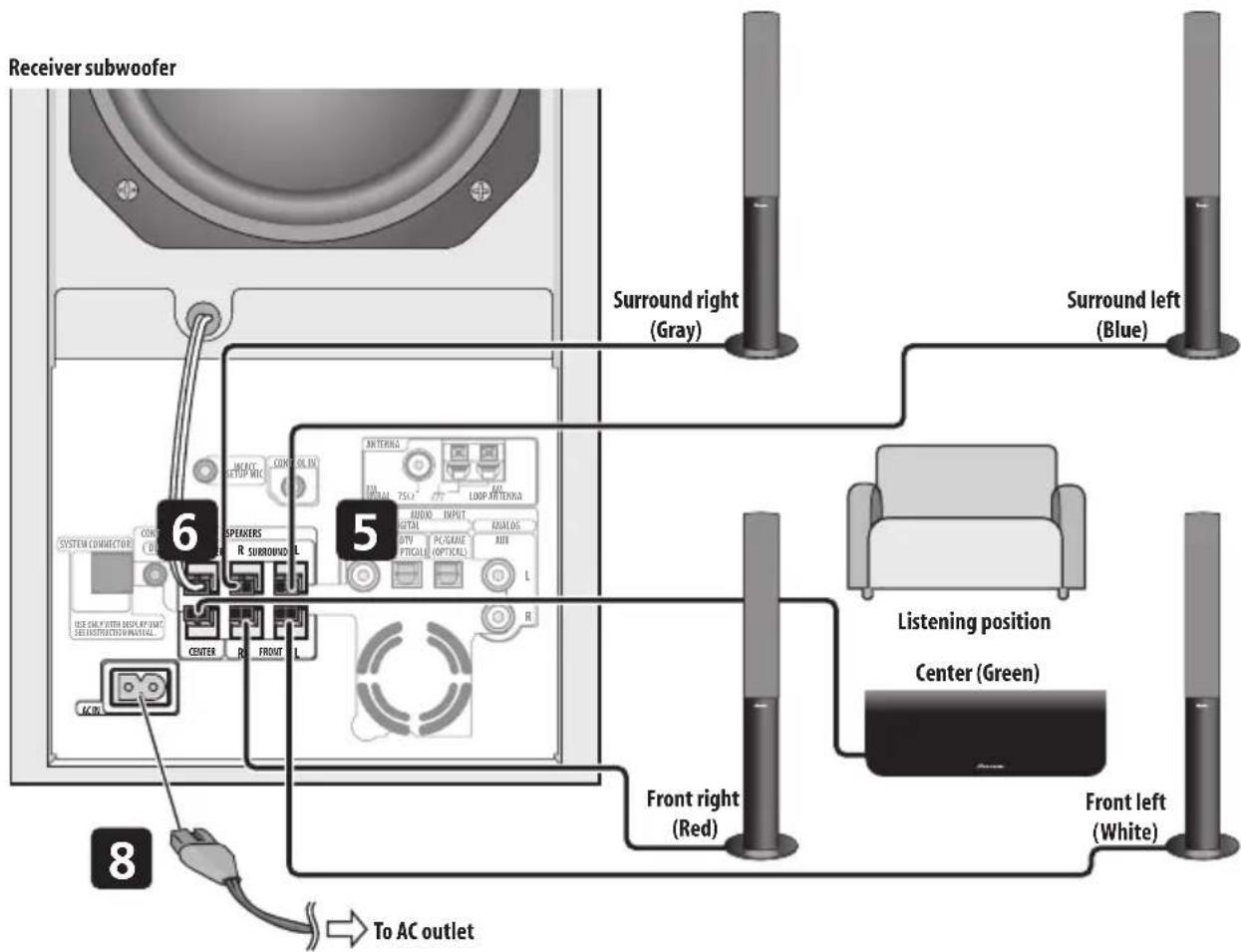
5 Connect each speaker.
Each speaker cable has a color-coded connector at one end and two wires at the other end.
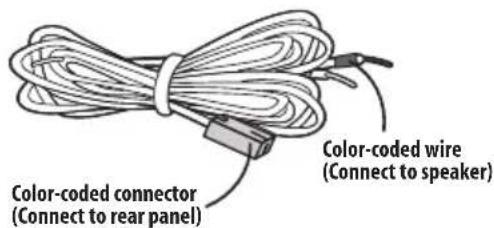
- Twist and pull off the protective shields on each wire.
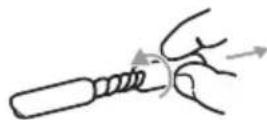
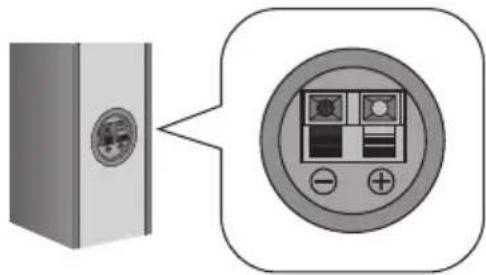
- Connect the wires to the speaker. Match the colored wired with the color-coded label (model label), then insert the colored wire into the red (+) side and the other wire into the black (-) side.
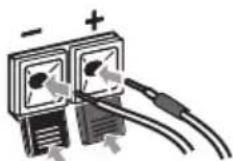
- Connect the other end to the color-coded speaker terminals on the rear of the receiver subwoofer. Make sure to insert completely.
The small lug at the wire-end of the speaker plug should face up or down depending on whether it's being plugged into one of the upper or lower speaker terminals. Please make sure to connect correctly.
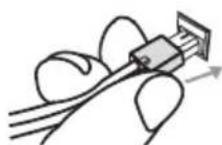
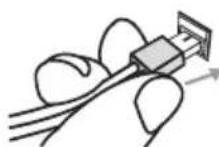
Upper terminal
Lower terminal
6 Connect the subwoofer cable.
- Just below the subwoofer speaker, to the left of center, you should see the subwoofer connecting cable. Plug this into the SUBWOOFER SPEAKER terminal.
Note
1- Keep antenna cables away from other cables, the display unit, receiver subwoofer and DVD player.
If reception with the supplied antenna is poor, see Improving poor FM reception and Improving poor AM sound on page 25 or Connecting external antennas on page 29.
2 - Don't let it come into contact with metal objects and avoid placing near computers, television sets or other electrical appliances.
The signal earth (12) is designed to reduce noise that occurs when an antenna is connected. It is not an electrical safety earth.
If radio reception is poor, you may be able improve it by re-inserting each antenna wire into the opposite terminal.
- For best reception, do not untwist the AM loop antenna wires or wrap them around the loop antenna.
3 To ensure optimum reception, make sure the FM antenna is fully extended and not coiled or hanging at the rear of the unit.

Caution
- These speaker terminals carry HAZARDOUS LIVE voltage. To prevent the risk of electric shock when connecting or disconnecting the speaker cables, disconnect the power cord before touching any uninsulated parts.
- Do not connect any speakers other than those supplied to this system.
- Do not connect the supplied speakers to any amplifier other than the one supplied with this system. Connection to any other amplifier may result in malfunction or fire.
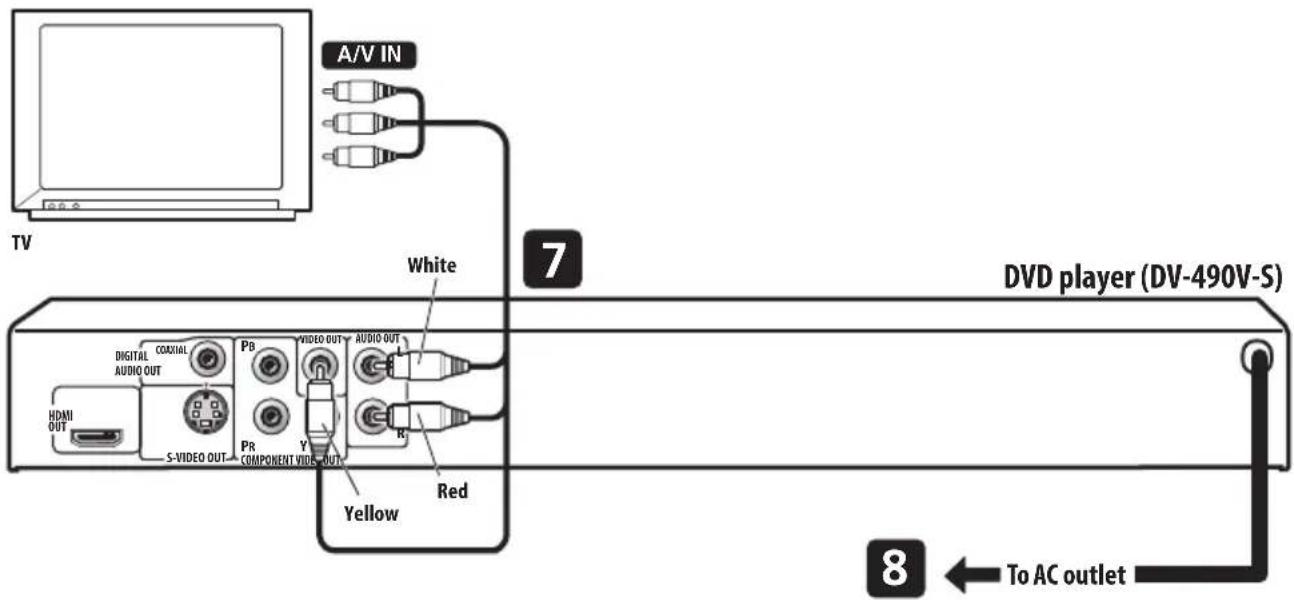
7 Connect the DVD player to your TV.
- Connect the VIDEO OUTPUT jack to a video input on your TV. Use the yellow jack of the supplied audio/video cable for the video connection.
- Connect the AUDIO OUTPUT jacks to the corresponding audio inputs on your TV. Use the red and white jacks of the supplied audio/video cable for the audio connection. Make sure you match the left and right outputs with their corresponding inputs for correct stereo sound.
8 Connect the power cords.
- Connect the power cords to AC inlets on the receiver subwoofer.
Connect the power cords of the receiver subwoofer and DVD player to a wall socket.

Note
- Do not use any power cord other than the one supplied with this system.
- Do not use the supplied power cord for any purpose other than connecting to this system.
Wall mounting the display unit
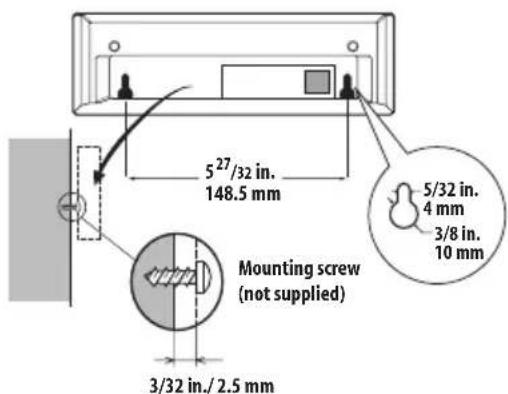
It is possible to mount the display unit on the wall.
Before mounting:
- Remember that the display unit is heavy and could cause the wood screws to work loose, or the wall material to fail to support it, resulting in the display falling. Make sure that the wall you intend to mount the display on is strong enough to support it. Do not mount on plywood or soft surface walls.
- Mounting screws are not supplied. Use screws that are suitable for the wall material and that will support the weight of the display.
P. Ioneer bears no responsibility for accidents resulting from faulty assembly or installation, insufficient mounting strength of walls or other building fixtures, misuse or natural disasters.
If you are unsure of the qualities and strength of the wall, consult a professional for advice.
Using this system for TV audio
If your TV has a stereo audio output you can connect it to this system and enjoy surround TV sound.
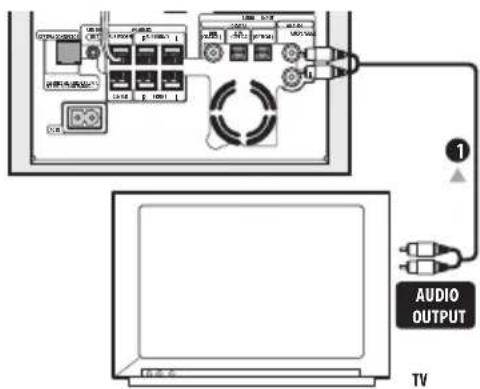
1 Connect the AUDIO OUTPUT jacks on your TV to the AUX AUDIO INPUT jacks on the receiver subwoofer.
Use the red/white stereo audio cable (not supplied) for this connection. Make sure you match the left and right outputs with their corresponding inputs for correct stereo sound.
- You can use the AUX input jacks for any analog source you want, such as a tape deck, etc.
Chapter 3
Controls and displays
Display unit
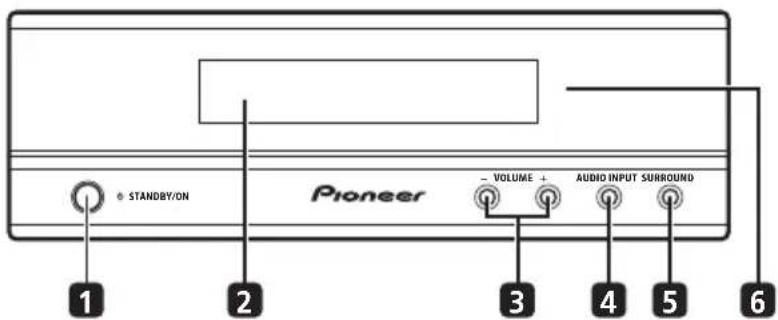
1 STANDBY/ON
Press to switch the system on/into standby.
2 Front panel display
See below for details.
3 VOLUME buttons
Use to adjust the volume.
4 AUDIO INPUT (page 29)
Press repeatedly to select one of the external audio inputs (DVD, DTV, PC/GAME or AUX).
5 SURROUND
Use to select a Surround mode (page 22).
6 IR remote sensor (page 16)
Display
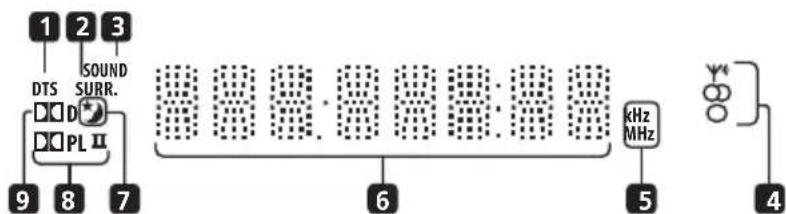
1 DTS
Lights during playback of a DTS source (page 22).
2 SURR.
Lights when one of the Advanced Surround listening modes is selected (page 22).
3 SOUND
Lights when Sound Retriever is active (page 22).
4 Tuner indicators
- Lights when a broadcast is being received.
- Lights when a stereo FM broadcast is being received in auto stereo mode.
- Lights when FM mono reception is selected.
5kHz/MHz
Indicates the frequency unit shown in the character display (kHz for AM, MHz for FM).
6 Character display
7
Lights when sleep timer is active (page 32).
8 DPLII
Lights during Dolby Pro Logic II decoding (page 22).
9 D D
Lights during playback of a Dolby Digital source (page 22).
Remote control
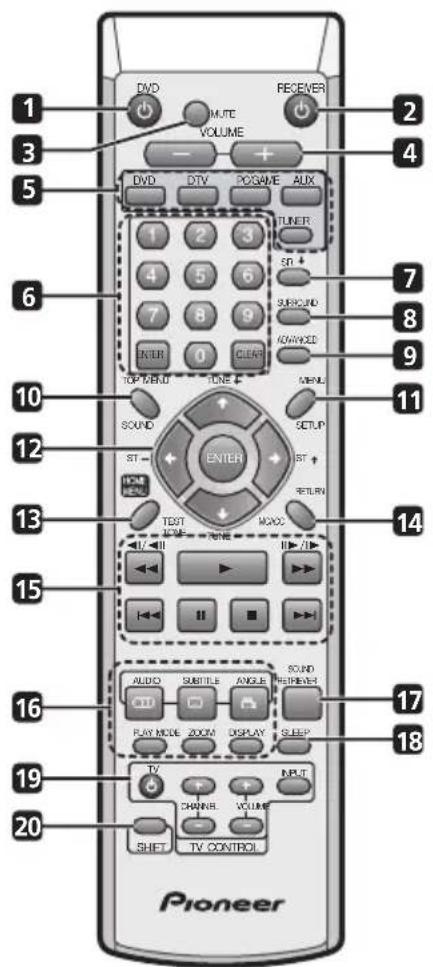
1 DVD
Press to switch the DVD player on or into standby.
2 RECEIVER
Press to switch the receiver subwoofer on or into standby.
3 MUTE
Press to mute all audio from the speakers. Press again to cancel and restore the sound.
4 VOLUME + / -
Use to adjust the volume.
5 Input select buttons
DVD
Press to select the DVD input.
DTV
Press to select the DTV input.
PC/GAME
Press to select the PC/game console (PC/GAME) input.
AUX (page 29)
Press to select the auxiliary (AUX) input.
TUNER (page 25)
Press to select the built-in radio tuner.
6 Numeric buttons, CLEAR and ENTER
Use the number buttons for track/chapter/title selection, and so on.
Use CLEAR to clear an entry and start again.
Use ENTER to confirm an entry.
7 SR+
Use to setup the SR+ features and to select the SR+ mode (page 31).
8 SURROUND
Use to select a Surround mode (page 22).
9 ADVANCED
Use to select a Pioneer original surround mode (page 23).
10 TOP MENU
Press to display the top menu if a DVD-Video disc is loaded.
+SHIFT: SOUND (page 24)
Press to access the sound menu, from which you can adjust bass and treble, etc.
11 MENU
Press to display the disc menu if a DVD-Video disc is loaded.
+SHIFT:SETUP
Use to access the menu system for surround sound setup, tuner settings and so on (page 20, 25, 26, 27, 32).
12 / / / (cursor buttons) and ENTER
Use to navigate all DVD player on-screen displays. Press ENTER to select the currently highlighted option.
Use together with the SHIFT button to navigate the receiver subwoofer menus.
13 HOME MENU
Press to display the Home Menu, from which you can navigate many functions of the system.
+SHIFT:TEST TONE
Use to output the test tone (for speaker setup) (page 28).
14 RETURN
Press to go back one level in the on-screen menu or display.
+SHIFT:MCACC
Starts the Auto MCACC setup (page 20).
15Playback controls
Press to start reverse or forward scanning. Press again to change the speed.

Press to skip to the previous or next title/chapter/ track/folder; or to display the previous or next menu page.

Press to start playback.

Press to pause playback.

Press to stop playback.
16 AUDIO
Changes the audio language or channel.
SUBTITLE
Displays/changes the subtitles included in multilingual DVD-Video discs.
ANGLE
Switches camera angles on discs with multi-angle scenes.
PLAY MODE
Press to display the Play Mode menu (for features such as search, repeat and program play).
ZOOM
Press to change the zoom level.
DISPLAY
Press to display/change the current disc information.
17 SOUND RETRIEVER
Press to restore CD quality sound to compressed stereo audio sources (page 23).
18 SLEEP
Press to set the sleep timer (page 32).
19 TV CONTROL (page 33)
After setting up, use these controls to control your TV.
20 SHIFT
Press to access functions on the remote printed in green.
Using the remote control
Please keep in mind the following when using the remote control:
Make sure that there are no obstacles between the remote and the remote sensor on the unit.
- Remote operation may become unreliable if strong sunlight or fluorescent light is shining on the unit's remote sensor.
- Remote controllers for different devices can interfere with each other. Avoid using remotes for other equipment located close to this unit.
- Replace the batteries when you notice a fall off in the operating range of the remote.
- Use within the operating range in front of the remote control sensor on the display unit, as shown.
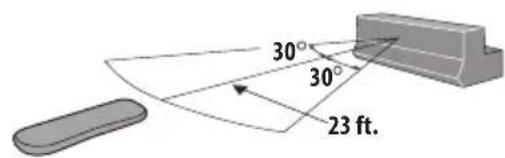
Putting the batteries in the remote control
1 Open the battery compartment cover on the back of the remote control.
2 Insert two AA/R6 batteries into the battery compartment following the indications ( ,) inside the compartment.
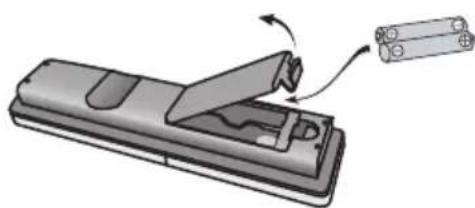
3 Close the cover.

Caution
Incorrect use of batteries can result in hazards such as leakage and bursting. Please observe the following:
- Don't mix new and old batteries together.
-
Don't use different kinds of battery together—although they may look similar, different batteries may have different voltages.
Make sure that the plus and minus ends of each battery match the indications in the battery compartment. -
Remove batteries from equipment that isn't going to be used for a month or more.
- When disposing of used batteries, please comply with governmental regulations or environmental public instruction's rules that apply in your country or area.

WARNING
- Do not use or store batteries in direct sunlight or other excessively hot place, such as inside a car or near a heater. This can cause batteries to leak, overheat, explode or catch fire. It can also reduce the life or performance of batteries.
Chapter 4
Before you start
Switching on
The DVD player and receiver subwoofer have separate power switches. The power switch for the receiver subwoofer is located on the display unit.
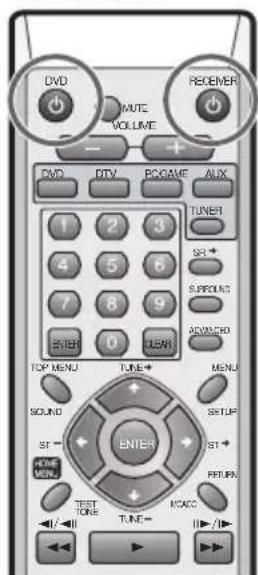
Remote control
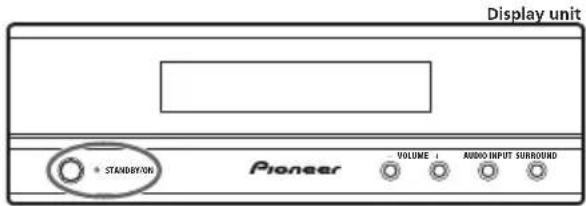

DVD Player
The table below shows what needs to be switched on for various system functions:
| Function | Display unit | DVD player |
| DVD playback On On | ||
| CD playback On On | ||
| Radio On Off | ||
Setting up
After connecting and installing the DVD player and receiver subwoofer, complete the steps below to set the system up for use.
DVD player
- Select the type of TV you have and the language of the player's on-screen displays.
Receiver subwoofer
- Switch off the display demo mode (page 20).
- Complete the Auto MCACC Setup to optimize the surround sound (page 20).
Basic operation
This manual is split into two parts, one covering using the receiver subwoofer, the other using the DVD player. Below are some common operations and where to find them explained in this manual.
Watching a DVD
Remember that when using the remote to control the DVD player, you should point the remote towards the DVD player rather than the display unit.
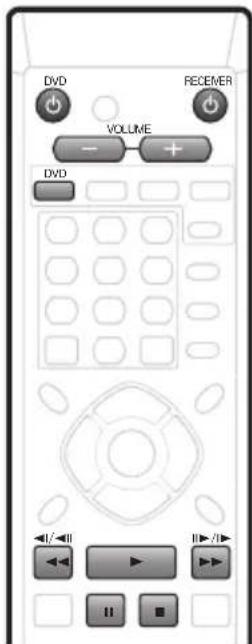
1 Switch on the display unit (receiver subwoofer).
2 Switch on the DVD player.
3 Switch on your TV.
Turn on your TV and make sure that it is set to the correct video input.
4 Press DVD.
5 Press OPEN/CLOSE on the DVD player to open the disc tray.
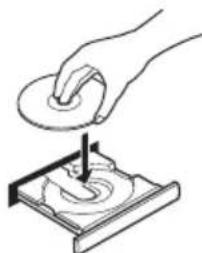
6 Load a disc.
Load a disc with the label side facing up, using the disc tray guide to align the disc (if you're loading a double-sided DVD disc, load it with the side you want to play face-down).
7 Press (play) to start playback.

Press to stop playback.
You can resume playback from the same point by pressing (Press again to cancel the resume function.)

Pauses playback, or restarts playback when paused.


Press to start scanning. Press repeatedly to increase the scanning speed.
8 Adjust the volume.
9 Adjust the sound using the surround effects
See Listening to your system on page 22 for details.
Listening to a CD
1 Switch on the display unit (receiver subwoofer).
2 Switch on the DVD player.
3 Press DVD.
4 Load a CD and start playback.
5 Adjust the volume.
6 Adjust the sound using the surround effects (page 22).
Listening to the radio
1 Switch on the display unit (receiver subwoofer).
2 Tune to a station (page 25).
3 Adjust the volume.
4 Adjust the sound using the surround effects (page 22).
Chapter 5 Getting started

Important
- Many of the buttons used extensively in this chapter are used in conjunction with the SHIFT button.
The cursor buttons ( / / / ) , ENTER, SETUP and MCACC should all be used with SHIFT in the following explanations.
System demo setting
Switches the automatic demo feature on or off (this starts when you plug in for the first time).
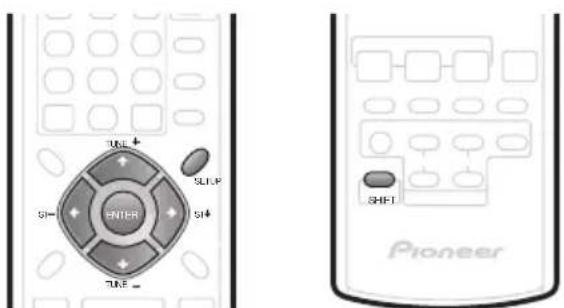
1 Switch the system into standby.
2 Press SHIFT+SETUP.
3 Use the SHIFT + / (cursor left/right) buttons to select DEMO from the menu, then press SHIFT+ENTER.
4 Use the SHIFT+↑/↓ (cursor up/down) buttons to select a setting, then press SHIFT+ENTER.
Select from:
- DEMO ON - Switches the demo display on.
- DEMO OFF - Switches the demo display off and the system into standby.
Using the Auto MCACC setup for optimal surround sound
The Multichannel Acoustic Calibration (MCACC) system measures the acoustic characteristics of your listening area, taking into account ambient noise, and testing for channel delay and channel level. After you have set up the microphone provided, the system uses the information from a series of test tones to optimize the speaker settings and equalization (Acoustic Calibration EQ) for your particular room.

Important
- The test tones used for Auto MCACC setup are loud; however, do not turn the volume down during setup as this may result in a sub-optimal setup.
Make sure the microphone and speakers are not moved during the MCACC setup.
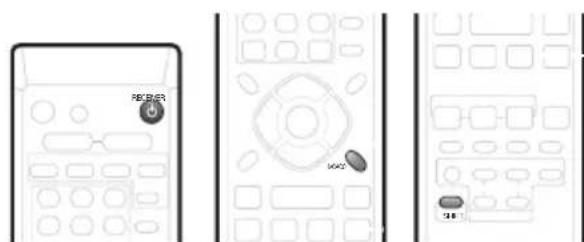
1 Connect the microphone to the MCACC SETUP MIC jack on the rear panel.
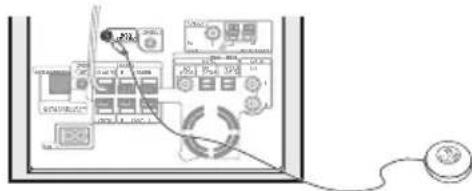
2 Place the microphone at your normal listening position.
Place the mic horizontally about ear level at your normal listening position using a table or chair.
Make sure there are no obstacles between the speakers and the microphone.

Note
You only need to use the Auto MCACC setup once (unless you change the placement of your speakers or your room layout).
3 If the receiver subwoofer is off, press
RECEIVER to turn the power on.
4 Press SHIFT+ MCACC.
Try to be as quiet as possible after pressing
SHIFT+MCACC. The volume increases automatically and the system outputs a series of test tones.
- To cancel Auto MCACC setup before it has finished, press SHIFT+MCACC. The unit will continue to use the previous settings.
- If the ambient noise level is too high, NOISY blinks in the display for five seconds. To exit and check the noise levels1, press SHIFT+MCACC, or to try again, press SHIFT+ENTER when RETRY shows in the display.
If you see an ERR MIC or ERR SP message in the display, there may be a problem with your mic or the speaker connections. To try again, press SHIFT+ENTER when you see RETRY2
When the MCACC setup is complete, the volume level returns to normal. COMPLETE shows in the display, and Acoustic Calibration EQ is activated.
Note
- If the room environment is not optimal for the Auto MCACC setup (too much ambient noise, echo off the walls, obstacles blocking the speakers from the microphone) the final settings may be incorrect. Check for household appliances (air conditioner, fridge, fan, etc.), that may be affecting the environment and switch them off if necessary.
- Some older TVs may interfere with the operation of the mic. If this seems to be happening, switch off the TV during Auto MCACC setup. 2 If this doesn't work, press SHIFT+MCACC, turn off the power, and check the problem indicated by the ERRmessage, then try the Auto MCACC setup again.
3 IfCOMPLETE doesn't appear, it is likely an error occurred during the setup. Please check all connections and try again.
4 See Listening with Acoustic Calibration EQ on page 23 to switch on/off Acoustic Calibration EQ.
Chapter 6
Listening to your system

Important
- Many of the buttons used extensively in this chapter are used in conjunction with the SHIFT button.
The cursor buttons ( / / / ) , ENTER and SOUND should all be used with SHIFT in the following explanations.
Auto listening mode
The Auto listening mode is the simplest way to listen to any source as it was mastered: the output from the speakers mirrors the channels in the source material.
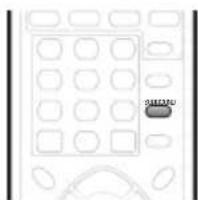
- Press SURROUND to select the AUTO listening mode.
If the source is Dolby Digital or DTS, the front panel DDD or DTS indicator lights.
- You can also use the SURROUND button on the display unit to change the listening mode.
Listening in surround sound
You can listen to stereo or multichannel sources in surround sound. Surround sound is generated from stereo sources using one of the Dolby Pro Logic decoding modes.
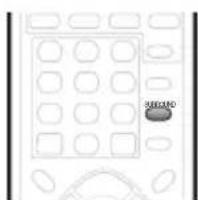
-
Press SURROUND repeatedly to select a listening mode.
-
You can also use the SURROUND button on the display unit to change the listening mode.
The choices that appear in the display will vary according to the type of source that's playing.
If the source is Dolby Digital or DTS, the front panel DDD or DTS indicator lights.
- AUTO - Auto listening mode (see above)
DOLBY PL (Dolby Pro Logic) - 4.1 channel surround sound for use with any two-channel source
MOVIE (Dolby Pro Logic II Movie) - 5.1 channel surround sound, especially suited to movie sources, for use with any two-channel source
MUSIC (Dolby Pro Logic II Music) - 5.1 channel surround sound, especially suited to music sources, for use with any two-channel source; see Dolby Pro Logic II Music settings below
STEREO - See Listening in stereo on page 23
Dolby Pro Logic II Music settings
When listening in Dolby Pro Logic II Music mode (see above), there are three settings you can adjust: Center Width, Dimension, and Panorama.
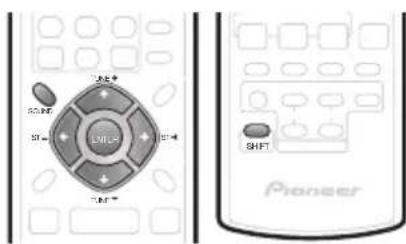
1 With Dolby Pro Logic II Music mode active, press SHIFT+SOUND.
2 Use SHIFT+ / (cursor left/right) to select C WIDTH, DIMEN. or PANorama then press SHIFT+ENTER.
-
CWIDTH (Center Width): Provides a better blend of the front speakers by spreading the center channel between the front right and left speakers, making it sound wider (higher settings) or narrower (lower settings)
-
DIMEN. (Dimension): Adjusts the depth of the surround sound balance from front to back, making the sound more distant (minus settings), or more forward (positive settings)
-
PANORAMA: Extends the front stereo image to include the surround speakers for a 'wraparound' effect.
3 Use SHIFT+↑/↓ (cursor up/down) to adjust the setting then press SHIFT+ENTER to confirm.
Using Advanced Surround
The Advanced Surround effects can be used with any multichannel or stereo source for a variety of additional surround sound effects.
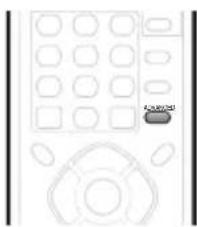
- Press ADVANCED to select an Advanced Surround mode.
Press repeatedly to select:
- ADVMOVIE - Suitable for movies
- ADVMUSIC - Suitable for music
EXPANDED - Wide sound field - TV SURR. - Surround sound for mono or stereo TV broadcasts
- SPORTS - Suitable for sports programming
- GAME - Suitable for TV game units
VIRTUAL - A virtual surround effect using just the subwoofer and front speakers. - 5 STEREO - Powerful surround sound for stereo music sources
Listening in stereo
You can listen to any source—stereo or multichannel—in stereo. When playing a multichannel source, all channels are downmixed to the front left/right speakers and the subwoofer.
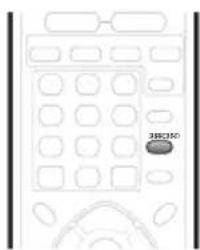
-
Press SURROUND repeatedly until STEREO shows in the display.
-
You can also use the SURROUND button on the display unit to change the listening mode.
Using the Sound Retriever
When audio data is removed during the MP3 or WMA compression process, sound quality often suffers from an uneven sound image. The Sound Retriever feature employs new DSP technology that helps bring CD quality sound back to compressed 2-channel audio by restoring sound pressure and smoothing jagged artifacts left over after compression.
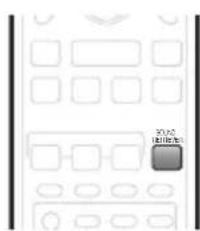
W hile listening to a stereo source, preSOUND RETRIEVER.
Press repeatedly to switch between:
- RTRV ON — Switches the Sound Retriever on.
- RTRV OFF — Switches the Sound Retriever off.
Listening with Acoustic Calibration EQ
You can listen to sources using the Acoustic Calibration EQ set in Using the Auto MCACC setup for optimal surround sound on page 20.
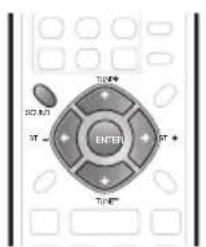
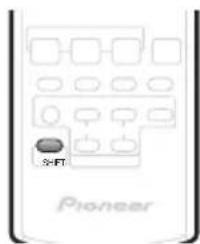
1 Press SHIFT+ SOUND.
2 Use the SHIFT+ ←/→ (cursor left/right) buttons to select MCACC EQ then press SHIFT+ENTER.
3 Use the SHIFT+ / (cursor up/down) buttons to switch EQ ON or EQ OFF then press SHIFT+ENTER to confirm.
- On the EQ OFF setting, equalization is set to off and speaker settings (channel delay and channel level) remains as it is set.
- Acoustic Calibration EQ is set to on automatically after Auto MCACC setup is used.
Enhancing dialogue
The Dialogue Enhancement feature is designed to make the dialogue stand out from other background sounds in a TV or movie sound track.
1 Press SHIFT+SOUND.
2 Use the SHIFT+ / (cursor left/right) buttons to select DIALOGUE then press SHIFT+ENTER.
3 Use the SHIFT+↑/↓ (cursor up/down) buttons to select the amount dialogue enhancement then press SHIFT+ENTER to confirm.
Select between OFF, MID or MAX.
Using Quiet and Midnight listening modes
The Quiet listening feature reduces excessive bass or treble in a sound source.
The Midnight listening feature allows you to hear effective surround sound of movies at low volume levels.
1 Press SHIFT+SOUND.
2 Use the SHIFT+←/→ (cursor left/right) buttons to select TONE then press SHIFT+ENTER.
3 Use the SHIFT+↑/↓ (cursor up/down) buttons to select QUIET or MIDNIGHT then press SHIFT+ENTER to confirm.
- To cancel the Quiet or Midnight listening modes, select BASS/TRE.
Adjusting the bass and treble
Use the bass and treble controls to adjust the overall tone.
1 Press SHIFT+SOUND.
2 Use the SHIFT+←/→ (cursor left/right) buttons to select TONE then press SHIFT+ENTER.
3 Use the SHIFT+↑/↓ (cursor up/down) buttons to select BASS/TRE then press SHIFT+ENTER.
- Selecting BASS/TRE cancels the Quiet and Midnight listening modes. These modes cannot be used at the same time.
4 Use the SHIFT + / (cursor left/right) buttons to select BASS or TREBLE; use the SHIFT + / (cursor up/down) buttons to adjust the sound then press SHIFT+ENTER to confirm.
Boosting the bass level
There are two bass modes you can use to enhance the bass in a source.
1 Press SHIFT+ SOUND.
2 Use the SHIFT+ / (cursor left/right) buttons to select BASSMODE then press SHIFT+ENTER.
3 Use the SHIFT+ / (cursor up/down) buttons to select the sound then press SHIFT+ENTER to confirm. Select between OFF, MUSICor CINEMA.
Chapter 7
Listening to the radio

Important
- Many of the buttons used extensively in this chapter are used in conjunction with the SHIFT button.
The cursor buttons ( / / / ) , ENTER, TUNE +/-, SETUP and number buttons should all be used with SHIFT in the following explanations.
Listening to the radio
The tuner can receive both FM and AM broadcasts, and lets you memorize your favorite stations so you don't have to manually tune in every time you want to listen.
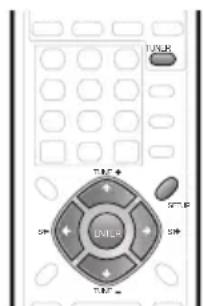
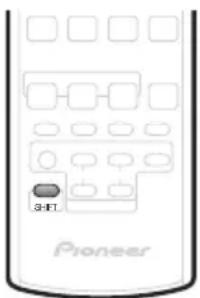
1 Press TUNER to switch to the tuner, then press repeatedly to select the FM or AM band.
The display shows the band and frequency.
2 Tune to a frequency.
There are three tuning modes—manual, auto, and high-speed:
- Manual tuning: Press SHIFT+TUNE +/- repeatedly to change the displayed frequency.
- Auto tuning: Press and hold SHIFT+TUNE +/- until the frequency display starts to move, then release. The tuner will stop on the next station it finds. Repeat to keep searching.
- High-speed tuning Press and hold SHIFT+TUNE +/- until the frequency display starts to move rapidly. Keep the button held down until you reach the frequency you want. If necessary, fine tune the frequency using the manual tuning method.
Improving poor FM reception
If you're listening to an FM station in stereo but the reception is weak, you can improve the sound quality by switching to mono.
1 Tune to an FM radio station then press SHIFT+SETUP.
2 Use the SHIFT + / (cursor left/right) buttons to choose FM MODE then press SHIFT+ENTER.
3 Use the SHIFT+↑/↓ (cursor up/down) buttons to select FM MONO then press SHIFT+ENTER.
The mono indicator (Oghts when the tuner is in mono reception mode.
Select FM AUTO above to switch back to auto-stereo mode (the stereo indicator (Oghts when receiving a stereo broadcast).
Improving poor AM sound
The simplest way to improve the sound quality of AM radio is to make sure that the TV in the room is switched off. Also try changing the position and direction of the AM loop antenna.
Changing the noise cut mode
If you find that the sound quality is bad even after trying the above, you may be able to improve it using a different noise cut mode. Just choose the one that sounds best.
1 Tune to an AM radio station then press SHIFT+SETUP.
2 Use the SHIFT + / (cursor left/right) buttons to choose NOISECUT then press SHIFT+ENTER.
3 Use the SHIFT+↑/↓ (cursor up/down) buttons to select a Noise cut mode (1, 2 or 3) then press SHIFT+ENTER.
Memorizing stations
You can save up to 30 station presets so that you always have easy access to your favorite stations without having to tune in manually each time.
1 Tune to an AM or FM radio station.
For the FM band, select mono or auto-stereo reception as necessary. This setting is saved along with the preset.
2 Press SHIFT+SETUP.
3 Use the SHIFT + / (cursor left/right) buttons to choose ST.MEM. then press SHIFT+ENTER.
4 Use the SHIFT+↑/↓ (cursor up/down) buttons to select the station preset you want then press SHIFT+ENTER.
Listening to station presets
1 Make sure the tuner function is selected.
2 Use the SHIFT+ ST +/- buttons to select a station preset.
- Alternatively, hold down SHIFT and use the number buttons to select a preset directly.
Changing the frequency step
If you find that you can't tune into stations successfully, the frequency step may not be suitable for your country/ region.
1 S witch the system into standby.
2 Press SHIFT+ SETUP.
3 Use the SHIFT+ / (cursor left/right) buttons to select 'AM 9K/10K', then press SHIFT+ENTER.
4 Use the SHIFT+ / (cursor up/down) buttons to select a setting then press SHIFT+ENTER to confirm.
AM 9K-9 kHz step for AM;
50 kHz step for FM
AM 10K-10 kHz step for AM;
100 kHz step for FM
Chapter 8
Surround sound settings

Important
- Many of the buttons used extensively in this chapter are used in conjunction with the SHIFT button.
The cursor buttons ( / / / ) , ENTER, SETUP and TEST TONE should all be used with SHIFT in the following explanations.
Using the Setup menu
From the Setup menu you can access all the surround sound settings of the system1, including channel levels, speaker distances, dynamic range adjustment and dual mono audio playback.
Use the following buttons to use the Setup menu.
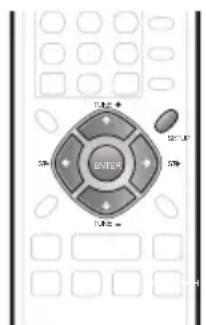
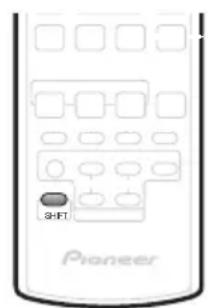
Channel level setting
The Auto MCACC feature (see page 20) should give you the best surround sound setup. However you may find that by further adjustment of the channel levels you can improve the surround sound in your listening room.
This method of setting the channel levels allows you to listen to a source and adjust the levels of each playback channel. Note that the channel level settings for stereo playback are independent of the settings for surround sound playback.
A further method of setting the channel levels is to use the test tone method. See Adjusting the channel levels using the test tone on page 28 for more on this.
1 Select stereo or multichannel playback for a source.
2 Press SHIFT+SETUP.
3 Use the SHIFT + / (cursor left/right) buttons to select CH LEVEL, then press SHIFT+ENTER.
4 Use SHIFT + (cursor left/right) to select a channel; SHIFT + / (cursor up/down) to adjust the level of that channel.
- You can adjust the level of each channel by ± 10 dB.
- If the system is in Stereo or Virtual mode, or a stereo source is playing in Auto mode, you will not be able to adjust the center or surround channels.
5 Press SHIFT+ENTER when you're finished.
- If you use the Auto MCACC feature again, it will overwrite the settings you have made here.
Speaker distance setting
The Auto MCACC feature (see page 20) should give you the best surround sound setup. However you may find that by further adjustment of the speaker distance settings you can improve the surround sound in your listening room.
Set the distance of each speaker from your normal listening position.
1 Press SHIFT+SETUP.
2 Use the SHIFT + / (cursor left/right) buttons to select DISTANCE, then press SHIFT+ENTER.
3 Use SHIFT+ / (cursor left/right) to select a speaker; SHIFT+ / (cursor up/down) to adjust the distance.
Adjust the following speakers:
L-Front left speaker
C Center speaker
R-Front right speaker
- SR - Surround right speaker
SL-Surround left speaker
- SW - Subwoofer
Each speaker can be adjusted from 1 FT to 30 FT.
4 Press SHIFT+ENTER when you're finished.
- If you use the Auto MCACC feature again, it will overwrite the settings you have made here.
Note
1 There are other settings you can adjust from the Setup menu; these are explained in Listening to the radio on page 25 and Additional information on page 32.
Dynamic Range Control
When watching Dolby Digital or DTS material at low volume, low level sounds—including some of the dialog—can be difficult to hear properly. Using one of the Dynamic Range Control (DRC) settings can help by bringing up the low level sounds, while controlling high level peaks.
Dynamic Range Control works only with Dolby Digital soundtracks and some DTS soundtracks.
1 Press SHIFT+ SETUP.
2 Use the SHIFT+ (cursor left/right) buttons to select DRC, then press SHIFT+ENTER.
3 Use SHIFT+ / (cursor up/down) to select a setting.
Select one of the following:
- DRC OFF (default) - No dynamic range adjustment (use when listening at higher volume)
- DRC MID - Mid setting
- DRC HIGH - Dynamic range is reduced (loud sounds are reduced in volume while quieter sounds are increased)
4 Press SHIFT+ ENTER to exit.
Dual mono setting
Specifies how dual mono encoded Dolby Digital or DTS soundtracks should be played. You can also use this setting to switch the audio channel on DVD-RW discs recorded with bilingual audio.
1 Press SHIFT+ SETUP.
2 Use the SHIFT+ (cursor left/right) buttons to select DUALMONO, then press SHIFT+ENTER.
3 Use SHIFT+ / (cursor up/down) to select a setting.
Select one of the following:
- CH1 MONO (default) - Only channel 1 is played
- CH2 MONO - Only channel 2 is played
- CH1/CH2 - Both channels are played through the front speakers
4 Press SHIFT+ ENTER to exit.
Adjusting the channel levels using the test tone
If you prefer, you can set the channel levels using a test tone as a reference, rather than playing a source (see Channel level setting on page 27). A test tone is played through each speaker in turn, allowing you to adjust the level as it plays.
Note that the channel level settings for stereo sources are independent of the settings for surround sound sources.
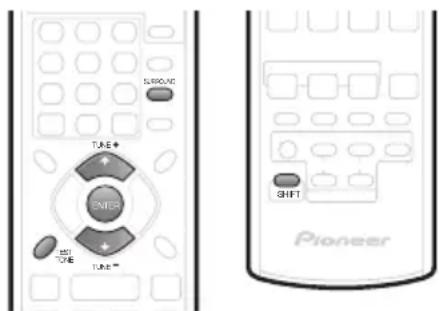
1 Press SURROUND to select the Auto listening mode.
- If you want to set the channel levels for stereo (two channel) playback, select the STEREO listening mode.
2 Press SHIFT+ TEST TONE.
The test tone is output from each speaker in turn.
3 W while a test tone is playing, use the SHIF (cursor up/down) buttons to adjust that channel level. The aim is to adjust the levels so that you hear the test tone at the same volume from each speaker. You can adjust the level of each channel by ± 10 dB.
- You can adjust the overall volume of test tone output using the VOLUME + / - buttons (this does not affect the channel level settings).
- If the system is in Stereo or Virtual mode, you will not be able to adjust the center or surround channels.
- Because of the ultra low frequencies the subwoofer produces, it may sound quieter than it really is. We suggest adjusting the subwoofer level while listening to a source. See the method described in Channel level setting on page 27.
4 W hen you're done, press SHIFENTER to exit test tone setup.
- If you use the Auto MCACC feature again, it will overwrite the settings you have made here.
Chapter 9 Other connections

Important
- When connecting this system or changing connections, be sure to switch power off and disconnect the power cord from the wall socket. After completing all connections, connect the power cord to the wall socket.
- Many of the buttons used extensively in this chapter are used in conjunction with the SHIFT button. The cursor buttons ( / / / ) , ENTER and SR+ should all be used with SHIFT in the following explanations.
Connecting auxiliary components
The receiver subwoofer has several digital inputs for digital playback components, such as CD and MD players.
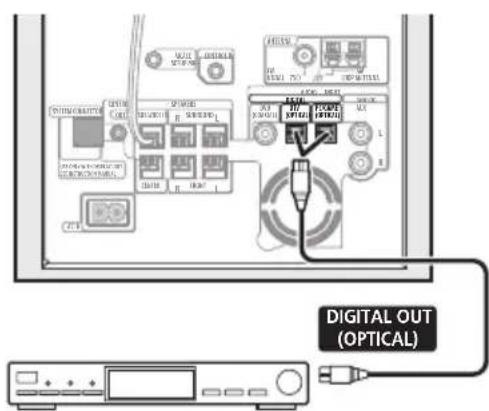
CD recorder, etc.
- Connect the digital optical output jack on your CD recorder, etc. to one of the DIGITAL optical input jacks on the receiver subwoofer.
Use a commercially available optical cable to make this connection.
Connecting an analog audio component
You can use the AUX input jacks to connect an analog audio component, such as a tape player. See Using this system for TV audio on page 13 for connection details (this explains connecting the audio output from your TV, but any analog audio component can be connected).
Listening to an external audio source
You can connect both analog and digital external audio sources to this system. Digital audio sources include digital satellite receivers, CD recorders, etc. Analog sources include your TV. See also Connecting auxiliary components above.
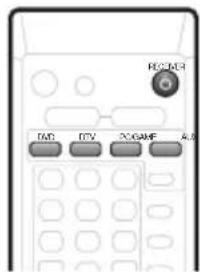
1 If the system isn't already on, press RECEIVER to switch on.
Also make sure that the external source (TV, satellite receiver, etc.) is switched on.
2 Select DVD, DTV, PC/GAME or AUX to select the source for playback.
These buttons correspond with the input jacks on the receiver subwoofer.
3 If necessary, start playback of the external source.
Connecting external antennas
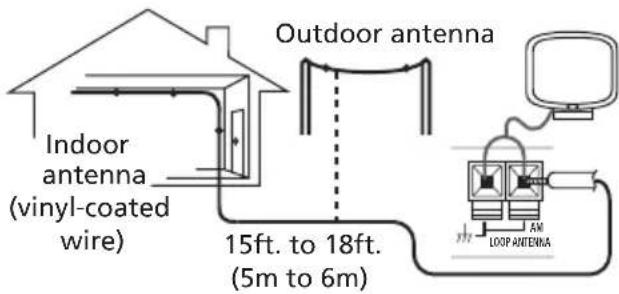
For an external AM antenna, use 5-6 meters of vinylinsulated wire and set up either indoors or outdoors. Leave the loop antenna connected.
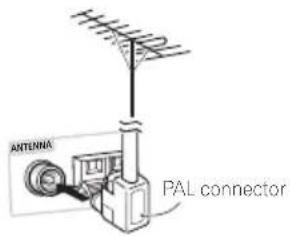
For an external FM antenna, Use a PAL connector to hook up an external FM antenna.
Using this unit with a Pioneer plasma display
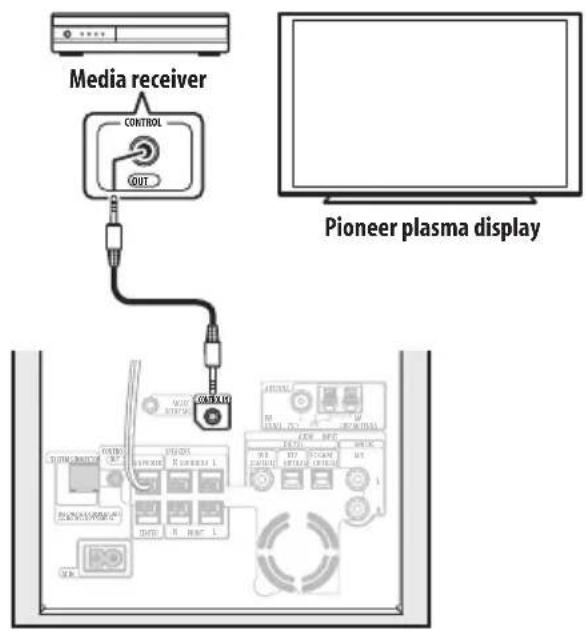
If you have a Pioneer plasma display, you can use an SR+ cable to connect it to this unit and take advantage of various convenient features, such as controlling this unit via the plasma display's remote sensor, automatic video input switching of the plasma display, display unit messages appearing on the plasma display screen, and automatic volume muting on the plasma display.

Important
-
With an SR+ cable connected, the remote must now be pointed towards your plasma display rather than the display unit of the receiver subwoofer in order to control the receiver subwoofer.
-
Use a 3-ringed miniplug SR+ cable to connect the CONTROL IN jack of this unit (through a media receiver, if applicable) to the CONTROL OUT jack of your plasma display.
Before you can use the extra SR+ features, you need to make a few settings in the unit—see SR+ Setup for Pioneer plasma displays below.
SR+ Setup for Pioneer plasma displays
Make the following settings if you have connected a Pioneer plasma display to this unit using an SR+ cable.
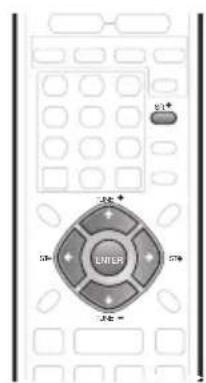
1 Press SHIFT+SR+.
2 Use the SHIFT+ (cursor left/right) buttons to choose SETUP, then press SHIFT+ENTER.
3 Use the SHIFT + / (cursor left/right) buttons to choose the setting you want to adjust.
The current setting is shown for each option as you cycle through the display. See below for a full list and description of each.
4 Use the SHIFT+↑/↓ (cursor up/down) buttons to adjust the setting.
5 Repeat steps 3 and 4 to make other settings.
6 When you're done, press SHIFT+ENTER to leave the SR+ setup menu.
Automatic plasma display volume muting
When Volume Control is switched on, the volume of the plasma display is automatically muted when the receiver subwoofer is switched on, or the receiver subwoofer's input function is changed to one that you would want to hear the sound from the receiver subwoofer rather than the plasma display (DVD, for example).
Note
This system is compatible with all Pioneer plasma displays from 2003 onward.
2 The 3-ringed SR + cable from Pioneer is commercially available under the part number ADE7095. Contact the Pioneer Customer Support division for more information on obtaining an SR+ cable.
3 You won't be able to use the remote sensor of this unit with the CONTROL IN jack of this unit connected to the CONTROL OUT jack of your plasma display. You can use the remote sensor of the plasma display (even in standby) as long as the power isn't switched off.
VOL.C ON- When this unit is switched on, or the input function is changed, the volume on the plasma display is muted so only sound from this unit is heard.
VOL.COMF - This unit does not control the volume of the plasma display
Automatic plasma display input switching
In order that the plasma display can switch automatically to the correct input when you switch the input function of the receiver subwoofer, you need to tell it how your system is connected.
For example, if you connected your DVD player to the DVD input on the receiver subwoofer, and to input 2 on your plasma display, select the DVD PDP2 setting here so that when you switch the input function of the receiver subwoofer to DVD to watch your DVD player, the plasma display will automatically switch to input 2.
For each receiver subwoofer input function (DVD, DTV, PC(PC/GAME), AUX) you can select:
- NONE - does not switch the plasma display input
- PDP1 to PDP5 - switches the plasma display input to one of the numbered inputs (1 to 5)
TVTN- switches the plasma display to its built-in TV tuner

Note
The number of video inputs available will depend on the plasma display you've connected.
- The PDP5 input may be called 'PC Input' (or similar) on your plasma display.
- The SR+ setting remains in effect even in standby.
- The SR+ setting does not affect the FM/AM tuning function.
Using the SR + mode with a Pioneer plasma display
1 Press SHIFT+SR+ on the remote.
2 Use SHIFT+ / (cursor left/right) to select SR+ ON then press SHIFT+ ENTER.
- The SR+ setting is maintained even after switching the receiver subwoofer into standby then back on. Automatic muting and input switching will be effective when the receiver subwoofer is switched on.
- If you disconnect the SR+ cable or switch the plasma display off while SR+ is on, the SR+ ON setting remains.
- To switch to SR + OFF , follow steps 1 and 2, selecting SR + OFF .

Note
- You can control this unit with the plasma display's remote sensor even in standby, but you can't control this unit with either this unit's remote sensor or the plasma display's remote sensor when the plasma display is switched off (AC off) and the SR + cable is connected to the CONTROL IN jack of this unit.
About the control out jack
Many Pioneer components have SR CONTROL jacks which can be used to link components together so that you can use just the remote sensor of one component. When you use a remote control, the control signal is passed along the chain to the appropriate component.
Note that if you use this feature, make sure that you also have at least one set of analog or coaxial digital audio jacks connected to another component for grounding purposes.
- Connect the CONTROL IN jack on another Pioneer component to the CONTROL OUT jack on the receiver subwoofer.
This will allow you to control the other component (such as a DVD recorder in a cabinet) by pointing its remote at the display unit supplied with this receiver subwoofer.
- You can also connect this receiver subwoofer to your plasma display as described above, in which case you should point the remote at the plasma display to control your DVD player, receiver subwoofer, and plasma display.
Use a cable with a mono mini-plug on each end for the connection.
Chapter 10
Additional information

Important
- Many of the buttons used extensively in this chapter are used in conjunction with the SHIFT button.
The cursor buttons ( / / / ) , ENTER and SETUP should all be used with SHIFT in the following explanations.
Setting the sleep timer
The sleep timer switches off the receiver subwoofer after a specified time so you can fall asleep without worrying about it.1
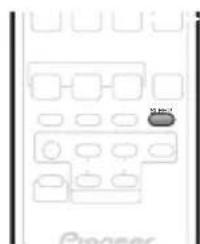
1 Press the SLEEP button to select an option.
Choose between the following options:
SLP ON - Switches off after about an hour
- SLP OFF - Cancels the sleep timer
After selecting SLP ON, you can press SLEEP again to check how much time is left. Each line indicates approximately 12 minutes (remaining):

Dimming the display
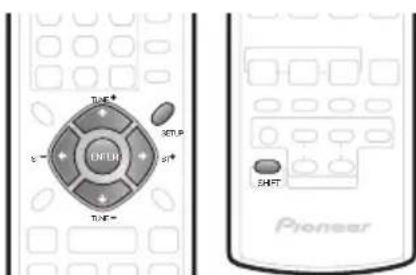
You can choose to dim the display if you find it too bright.
1 Press SHIFT+SETUP.
2 Use the SHIFT+←/→ (cursor left/right) buttons to select DIMMER then press SHIFT+ENTER.
3 Use the SHIFT+↑/↓ (cursor up/down) buttons to select LIGHT or DARK then press SHIFT+ENTER.
DTS CD setting
If you play a DTS-encoded CD, you will need to change this setting to hear the decoded signal.
1 Switch the system into standby.
2 Press SHIFT+SETUP.
3 Use the SHIFT+ / (cursor left/right) buttons to select CD TYPE from the menu, then press SHIFT+ENTER.
4 Use the SHIFT+↑/↓ (cursor up/down) buttons to select a setting, then press SHIFT+ENTER.
Select from:
- NORMAL - Use for playback of regular audio CDs. Some DTS-encoded CDs will output noise when played.
- DTS-CD - Use for playback of DTS-encoded CDs, but note that the beginning of regular CD tracks may be skipped.
Resetting the system
Use this procedure to reset all system settings to the factory default.
1 Switch the system on.
2 Press and hold SURROUND then press the STANDBY/ON button on the display unit.
The next time you switch on, all the system settings should be reset.

Note
The display dims when the sleep timer is set. The DVD player does not automatically switch off with the sleep timer.
2 The display dims when the sleep timer is set, regardless of this setting.
Installation and maintenance
Hints on installation
We want you to enjoy using this system for years to come, so please bear in mind the following points when choosing a location:
Do...
Use in a well-ventilated room.
Place on a solid, flat, level surface, such as a table, shelf or stereo rack.
Don't...
X Use in a place exposed to high temperatures or humidity, including near radiators and other heat-generating appliances.
Place on a window sill or other place where the system will be exposed to direct sunlight.
X Use in an excessively dusty or damp environment.
× Place directly on top of an amplifier, or other component in your stereo system that becomes hot in use.
X Use near a television or monitor as you may experience interference—especially if the television uses an indoor antenna.
X Use in a kitchen or other room where the system may be exposed to smoke or steam.
X Use on a thick rug or carpet, or cover with cloth—this may prevent proper cooling of the system unit.
× Place on an unstable surface, or one that is not large enough to support all four of the system unit's feet.
Glossary
Dolby Digital

A multi-channel audio encoding system developed by Dolby Laboratories that enables far more audio to be stored on a disc than PCM encoding.
Dolby Pro Logic II
A matrix decoding technology developed by Dolby Laboratories that expands any two-channel source audio, such as CDs and TV broadcasts, to a five-channel playback (left/center/right/left surround/right surround), resulting in a surround experience.

A multi-channel audio encoding system developed by Digital Theater Systems that enables far more audio to be stored on a disc than PCM encoding.
Manufactured under license from Dolby Laboratories.
"Dolby", "Pro Logic" and the double-D symbol are trademarks of Dolby Laboratories.
"DTS" and "DTS Digital Surround" are registered trademarks of Digital Theater Systems, Inc.
Setting up the remote to control your TV
You can use the supplied remote to control your TV. To be able to use this feature you first have to program the remote with a maker code from the table on the following page.
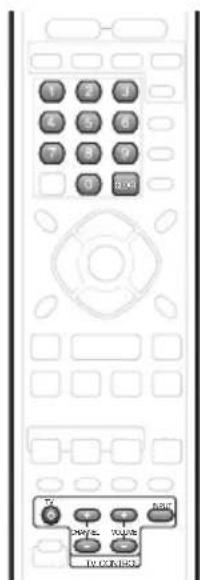
1 Switch on your TV.
2 Press and hold down the CLEAR button, then enter the maker code for your TV.
- If the maker's name of your TV doesn't appear in the table, you will not be able to use this remote to control your TV.
3 Point the remote towards your TV and press TV to check that the remote works with your TV.
If the remote is set up correctly, the TV should switch off. If it doesn't and there is another code given for your maker, repeat step 2 with a new code.
Using the TV remote control buttons
The table below shows how to use this remote control with your TV.
| Button | What it does |
| ○TV | Press to switch the TV on/off (standby) |
| INPUT | Press to change the TV's video input |
| TV VOLUME | Use to adjust the TV volume |
| TV CHANNEL | Use to change TV channels |
Preset code list
Please note that there are cases where only certain functions may be controllable after assigning the proper preset code, or the codes for the manufacturer in the list will not work for the model that you are using.
| Manufacturer Code(s) | Manufacturer Code(s) | Manufacturer Code(s) | Manufacturer Code(s) |
| ACURA 644 | FRONTECH 631, 642, 646 | MAGNAVOX 607, 610, 603, 612, | SALORA 631, 632, 642, 643 |
| ADMIRAL 631 | FRONTECH/PROTECH 632 | 629 | SAMBERS 649 |
| AIWA 660 | FUJITSU 648, 629 | MANESTH 639, 646 | SAMSUNG 607, 638, 644, 646 |
| AKAI 632, 635, 642 | FUNAI 640, 646, 658 | MARANTZ 607 | SANYO 635, 645, 648, 621, 614 |
| AKURA 641 | GBC 632, 642 | MARK 607 | SBR 607, 634 |
| ALBA 607, 639, 641, 644 | GE 601, 608, 607, 610, 617, 602, 628, | MATSUI 607, 639, 640, 642, 644, | SCHAUB LORENZ 642 |
| AMSTRAD 642, 644, 647 | 618 | 647, 648 | SCHNEIDER 607, 641, 647 |
| ANITECH 644 | GEC 607, 634, 648 | MCMICHIEL 634 | SEG 642, 646 |
| ASA 645 | GELOSO 632, 644 | MEDIATOR 607 | SEI 632, 640, 649 |
| ASUKA 641 | GENEXXA 631, 641 | MEMOREX 644 | SELECO 631, 642 |
| AUDIOGENIC 607, 636 | GOLDSTAR 610, 623, 621, 602, 607, | METZ 631 | SHARP 602, 619, 627 |
| BASIC LINE 641, 644 | 650 | MINERVA 631, 653 | SIAREM 632, 649 |
| BAUR 631, 607, 642 | GOODMANS 607, 639, 647, 648, 656 | MITSUBISHI 609, 610, 602, 621, | SIEMENS 631 |
| BEKO 638 | GORENJE 638 | 631 | SINUDYNE 632, 639, 640, 649 |
| BEON 607 | GPM 641 | MULTITECH 644, 649 | SKANTIC 643 |
| BLAUPUNKT 631 | GRAETZ 631, 642 | NEC 659 | SOLAVOX 631 |
| BLUE SKY 641 | GRANADA 607, 635, 642, 643, 648 | NECKERMANN 631, 607 | SONOKO 607, 644 |
| BLUE STAR 618 | GRADIENTE 630, 657 | NEI 607, 642 | SONOLOR 631, 635 |
| BPL 618 | GRANDIN618 | NIKKAI 605, 607, 641, 646, 648 | SONTEC 607 |
| BRANDT 636 | GRUNDIG631, 653 | NOBLIKO 649 | SONY 604 |
| BTC 641 | HANSEATIC 607, 642 | NOKIA 632, 642, 652 | SOUNDWAVE 607 |
| BUSH 607, 641, 642, 644, 647, 656 | HCM 618, 644 | NORDMENDE 632, 636, 651, 652 | STANDARD 641, 644 |
| CASCADE 644 | HINARI 607, 641, 644 | OCEANIC 631, 632, 642 | STERN 631 |
| CATHAY 607 | HISAWA 618 | ORION 632, 607, 639, 640 | SUSUMU 641 |
| CENTURION 607 | HITACHI 631, 633, 634, 636, 642, 643, | OSAKI 641, 646, 648 | SYSLINE 607 |
| CGB 642 | 654, 606, 610, 624, 625, 618 | OSO 641 | TANDY 631, 641, 648 |
| CIMLINE 644 | HUANYU 656 | OSUME 648 | TASHIKO 634 |
| CLARIVOX 607 | HYPSON 607, 618, 646 | OTTO VERSAND 631, 632, 607, | TATUNG 607, 648 |
| CLATRONIC 638 | ICE646, 647 | 642 | TEC 642 |
| CONDOR 638 | IMPERIAL 638, 642 | PALLADIUM 638 | TELEAVIA 636 |
| CONTEC 644 | INDIANA 607 | PANAMA 646 | TELEFUNKEN 636, 637, 652 |
| CROSLEY 632 | INGELEN 631 | PANASONIC 631, 607, 608,642, | TELETECH 644 |
| CROWN 638, 644 | INTERFUNK 631, 632, 607, 642 | 622 | TENSAI 640, 641 |
| CRYSTAL 642 | INTERVISION 646, 649 | PATHO CINEMA 642 | THOMSON 636, 651, 652, 663 |
| CYBERTRON 641 | ISUKAI 641 | PAUSA 644 | THORN 631, 607, 642, 645, 648 |
| DAEWOO 607, 644, 656 | ITC 642 | PHILCO 632, 642 | TOMASHI 618 |
| DAINICHI 641 | ITT 631, 632, 642 | PHILIPS 631, 607, 634, 656 | TOSHIBA 605, 602, 626, 621, 653 |
| DANSAI 607 | JEC 605 | PHOENIX 632 | TOWADA 642 |
| DAYTON 644 | JVC 613, 623 | PHONOLA 607 | ULTRAVOX 632, 642, 649 |
| DECCA 607, 648 | KAISUI 618, 641, 644 | PROFEX 642, 644 | UNIVERSUM 631, 607, 638, 642, 645, |
| DIXI 607, 644 | KAPSCH 631 | PROTECH 607, 642, 644, 646, 649 | 646, 654, 655 |
| DUMONT 653 | KENDO 642 | QUELE 631, 632, 607, 642, 645, | VESTEL 607 |
| ELIN 607 | KENNEDY 632, 642 | 653 | VICTOR 613 |
| ELITE 641 | KORPEL 607 | R-LINE 607 | VOXSON 631 |
| ELTA 644 | KOYODA 644 | RADIOLA 607 | WALTHAM 643 |
| EMERSON 642 | LEYCO 607, 640, 646, 648 | RADIOSHACK 610, 623, 621, 602 | WATSON 607 |
| ERRES 607 | LIESENK&TTER 607 | RBM 653 | WATT RADIO 632, 642, 649 |
| FERGUSON 607, 636, 651 | LOWE 607 | RCA 601, 610, 615, 616, 617, 618, | WHITE |
| FINLANDIA 635, 643, 655 | LUXOR 632, 642, 643 | 661, 662, 609 | WESTINGHOUSE 607 |
| FINLUX 632, 607, 645, 648, | M-ELECTRONIC 631, 644, 645, 654, | REDIFFUSION 632, 642 | YOKO 607, 642, 646 |
| 653, 654, 655 | 655, 656, 607, 636, 651 | REX 631, 646 | ZENITH 603, 620 |
| FIRSTLINE 640, 644 | MAGNADYNE 632, 649 | ROADSTAR 641, 644, 646 | PIONEER 600, 631, 632, 607, 636, 642, |
| FISHER 632, 635, 638, 645 | MAGNAFON 649 | SABA 631, 636, 642, 651 | 651 |
| FORMENTI 632, 607, 642 | SAISHO 639, 644, 646 |
Troubleshooting
Incorrect operations are often mistaken for trouble and malfunctions. If you think that there is something wrong with this component, check the points below. Sometimes the trouble may lie in another component. Investigate the other components and electrical appliances being used. If the trouble cannot be rectified even after exercising the checks listed below, ask your nearest Pioneer authorized service center or your dealer to carry out repair work.
- If the system does not operate normally due to external effects such as static electricity disconnect the plug from the outlet and insert again to return to normal operating conditions.
- For audio-related problems, please also check the settings of the audio playback device. See the operating instructions for the device for detailed information.
General
| Problem | Remedy |
| The power does not turn on, or switches off suddenly (an error message may be displayed at startup). | ·Leave the unit plugged in, wait for one minute, then switch back on. ·Make sure there are no loose strands of wire touching the unit. This could cause the system to shut off automatically. ·Check that the speakers are connected correctly. ·Make sure there is enough space for ventilation around the receiver subwoofer. ·Make sure the voltage of the mains power source is correct for the model. ·Try reducing the volume level. ·If the problem persists, take it to your nearest Pioneer authorized service center or your dealer for servicing. |
| No sound is output when an input function is selected. | ·If you're playing from the DVD player, make sure that the digital coaxial cable is connected properly. Also make sure that the DVD player's Digital Out and DTS Out settings are set to On, and that the MPEG Out setting is set to MPEG → PCM. ·If you're using the line input, make sure the component is connected correctly (see Connecting auxiliary components on page 29). ·Turn up the volume. ·Press MUTE on the remote control to turn muted off. |
| No sound from surround or center speakers. | ·Refer to Channel level setting on page 27 to check the speaker levels. ·Check that you haven't selected the AUTO, STEREO, or VIRTUAL mode (see Listening in surround sound on page 22). ·Connect the speakers properly (refer to Connecting up). ·If you're playing from the DVD player, check that the Dolby Digital Out setting is set to Dolby Digital. ·If the source is 96 kHz, this will be played in stereo. If you want to play it in surround sound, set the DVD player's 96 kHz PCM Out setting to 96 kHz → 48 kHz. |
| Can't operate using the remote control. | ·Replace the batteries (Putting the batteries in the remote control on page 16). ·Operate within 23 ft., 30° of the remote sensor (Using the remote control on page 16). ·Remove any obstacles or operate from another position. ·Avoid exposing the remote sensor on the front panel to direct light. ·For operating the DVD recorder or other Pioneer component connected to the CONTROL OUT jack of this receiver subwoofer, make sure that the control cable and coaxial cable or at least one set of analog audio cables are connected. (page 31) ·If the receiver subwoofer is connected to a Pioneer plasma display with an SR+ cable, check that the plasma display is switched on. Point the remote control at the plasma display in order to operate the receiver subwoofer. ·Check that nothing is mistakenly plugged into the CONTROL IN jack. |
Tuner
| Problem | Remedy |
| Considerable noise in radio broadcasts. | ·Connect the AM antenna (refer to the Connecting up) and adjust the direction and position for best reception. You may also connect an additional internal or external AM antenna (refer to Connecting external antennas on page 29). ·Fully extend the FM wire antenna, position for best reception, and secure to a wall. You may also connect an outdoor FM antenna (see Connecting external antennas on page 29). ·Turn off other equipment that may be causing the noise or move it further away. |
| Auto tuning does not pick up some stations. | ·The radio signal is weak. Auto tuning will only detect radio stations with a good signal. For more sensitive tuning, connect an outdoor antenna. |
Error Messages
| Message | Description |
| 2CH ONLY | ·An operation is prohibited because it is only applicable to 2 channel sources, while the current source is a multichannel source. |
| 96K | ·An operation is prohibited because the source is 96 kHz digital. |
| MUTING | ·An operation is prohibited because the sound is muted (press MUTE). |
| EXIT | ·Appears when a menu is automatically exited after a set period of inactivity. |
| NOISY | ·Background noise is too high to complete MCACC setup successfully. |
| ERR MIC | ·An error occurred during MCACC setup because the microphone is not connected or is not connected properly. |
| ERR SP | ·An error occurred during MCACC setup because the speakers are not connected or are not connected properly. |
| EEP ERROR | ·Contact your Pioneer authorized service center or your dealer for servicing. |
| NO SPTYP | ·Try switching the unit off then on again. If the error still appears, please contact a Pioneer authorized service center or your dealer. |
Specifications
SX-SW560 Audio Multi-channel Receiver Subwoofer
A amplifier section
RMS Power Output :
Front, Center, Surround 100 W per channel (1 kHz, 10% T.H.D., 4 Ω)
Subwoofer 100 W (100 Hz, 10 % T.H.D., 4 Ω)
FTC Power Output :
Front, Center, Surround 25 W per channel (200 Hz to 20 kHz 1% T.H.D., 4 Ω)
Subwoofer 30 W (45 Hz to 200 Hz, 1% T.H.D., 4Ω)
F M tuner section
Frequency range. 87.5 MHz to 108 MHz Antenna. 75Ω, unbalanced
A M tuner section
Frequency range. 530 kHz to 1700 kHz Antenna..... Loop antenna
- Subwoofer section
Enclosure. Bass-reflex floor type System. 16 cm 1-way system Speaker. 16 cm cone type Nominal impedance. 4 Frequency range. 25Hz to 1.0kHz Maximum Input Power. 100 W
• Miscellaneous
Power requirements.. AC 120 V/60 Hz
Power consumption .41 W
Power consumption in standby. .0.2 W
Dimensions...7-7/8 in. (W) x 14-3/4 in. (H) x 17-3/16 in. (D) 200mm W × 375 mm H × 437 mm D
Weight .19 lb 14 oz/9.0 kg
- Accessories
Remote control 1
Display unit 1
AA/R6 dry cell batteries (to confirm operation) 2
Coaxial cable. 1
Display cable. 1
AM loop antenna 1
FM wire antenna 1
Microphone (for Auto MCACC setup) 1
Power cord 1
Warranty card 1
These operating instructions
S-ST606 Speaker system
(Front speakers x2, surround speakers x2, center speaker x1)
- Front/surround speakers
Enclosure ..Closed-box floorstanding type (magnetically shielded)
System. 2-way system Speakers:
Woofer 7.7 cm cone typex2
Tweeter 2.6 cm semi-dome type
Nominal impedance. 4 Ω
Frequency range 70 Hz to 20 kHz
Maximum input power. 100 W
Dimensions.10-1/4 in. (W) x 43-3/16 in. (H) x 10-1/4 in. (D) 260 mm (W) x 1096.5 mm (H) x 260 mm (D)
Weight 9 lb 4 oz/4.2 kg
Center speaker
Enclosure Closed-box bookshelf type (magnetically shielded)
System. 7.7 cm 1-way system Speakers. 7.7 cm cone type
Nominal impedance. 4 Ω Frequency range . 75 Hz to 20 kHz
Maximum input power. 100 W Dimensions....10-5/8 in. (W) x 3-3/4 in. (H) x 3-9/16 in. (D) 270 mm (W) x 96 mm (H) x 90 mm (D
Weight 1 lb 12 oz/0.78 kg
- Accessories
Speaker cables 5
Non-skid pads (small) 4
Non-skid pads (large) 4
Non-skid pads (large) 16
Speaker stand bases. 4
Screws (for bases) 12

Note
- Specifications and design subject to possible modification without notice, due to improvements.
Avant I'installation 9
Dimensions. 200 mm (L) x 375 mm (H) x 437 mm (P)
Poids 9,0 kg
- Accessoires
Télécommande 1
Dimensions .270 mm (L) x 96 mm (H) x 90 mm (P)
Poids. 0,78 kg
- Accessoires
Should this product require service in the U.S.A, and you wish to locate the nearest Pioneer Authorized Independent Service Company, or if you wish to purchase replacement parts, operating instructions, service manuals, or accessories, please call the number shown below.
800-421-1404
Please do not ship your product to Pioneer without first calling the Customer Support Division at the above listed number for assistance.
Pioneer Electronics (USA) Inc. Customer Support Division PO.BOX 1760, Long Beach, CA 90801-1760,U.S.A.
For warranty information please see the Limited Warranty sheet included with your product.
Should this product require service in Canada, please contact a Pioneer Canadian Authorized Dealer to locate the nearest Pioneer Authorized Service Company in Canada. Alternatively, please contact the Customer Satisfaction Department at the following address:
Pioneer Electronics of Canada, Inc.
Customer Satisfaction Department
300 Allstate Parkway, Markham, Ontario L3R OP2
1(877)283-5901
For warranty information please see the Limited Warranty sheet included with your product.
Pioneer Electronices du Canada, Inc.
Service a la clientele
300, Allstate Parkway, Markham, Ontario L3R OP2
1(877)283-5901
Published by Pioneer Corporation. Copyright © 2006 Pioneer Corporation. All rights reserved.
PIONEER CORPORATION
4-1, Meguro 1-Chome, Meguro-ku, Tokyo 153-8654, Japan
PIONEER ELECTRONICS (USA) INC.
P.O. BOX 1540, Long Beach, California 90810-1540, U.S.A. TEL: (800) 421-1404
PIONEER ELECTRONICS OF CANADA, INC.
300 Allstate Parkway, Markham, Ontario L3R OP2, Canada TEL: 1-877-283-5901
PIONEER EUROPE NV
Haven 1087, Keetberglaan 1, B-9120 Melsele, Belgium TEL: 03/570.05.11
PIONEER ELECTRONICS ASIACENTRE PTE. LTD.
253 Alexandra Road, #04-01, Singapore 159936 TEL: 65-6472-7555
PIONEER ELECTRONICS AUSTRALIA PTY. LTD.
178-184 Boundary Road, Braeside, Victoria 3195, Australia, TEL: (03) 9586-6300
PIONEER ELECTRONICS DE MEXICO S.A. DE C.V.
Blvd. Manuel Avila Camacho 138 10 piso Col.Lomas de Chapultepec, Mexico,D.F. 11000 TEL: 55-9178-4270
K002_A_En
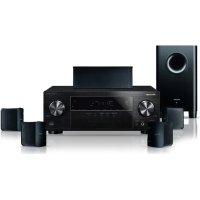
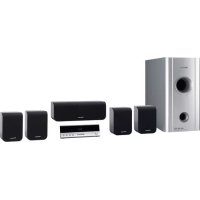
- CAUTION
- CAUTION:
- AVERTISSEMENT
- Information to User
- IMPORTANT SAFETY INSTRUCTIONS
- GROUNDING OR POLARIZATION
- POWER-CORD CAUTION
- NOTE IMPORTANTE SUR LE CABLE D'ALIMENTATION
- To establish a safe level:
- Once you have established a comfortable sound level:
- We Want You Listening For A Lifetime
- Decibel
- Level Example
- THE FOLLOWING NOISES CAN BE DANGEROUS UNDER CONSTANT EXPOSURE
- What's in the box
- Speakers (S-S7606) box:
- Thank you for buying this Pioneer product.
- Contents
- Speaker Setup Guide
- Connecting up
- Controls and displays
- Before you start
- Getting started
- Listening to your system
- Listening to the radio
- Surround sound settings
- Other connections
- Additional information
- Chapter 1
- Speaker Setup Guide
- Safety precautions when setting up
- Home theater sound setup
- Attach the speaker stand bases to the stems using the screws provided.
- Secure each of the front and surround speakers using the metal catch provided.
- Connect the speaker system.
- Wall mounting the center speaker
- Before mounting
- Additional notes on speaker placement
- Precautions:
- Chapter 2
- Connecting up
- Basic connections
- Important
- Connect the DVD player to the receiver subwoofer.
- Connect the display unit to the receiver subwoofer.
- Assemble the AM loop antenna.
- Connect the AM and FM antennas 1.
- Connect each speaker.
- Connect the subwoofer cable.
- Note
- Connect the DVD player to your TV.
- Connect the power cords.
- Wall mounting the display unit
- Using this system for TV audio
- Connect the AUDIO OUTPUT jacks on your TV to the AUX AUDIO INPUT jacks on the receiver subwoofer.
- Chapter 3
- Controls and displays
- Display unit
- STANDBY/ON
- Front panel display
- VOLUME buttons
- AUDIO INPUT (page 29)
- SURROUND
- Display
- DTS
- SURR.
- SOUND
- Tuner indicators
- 5kHz/MHz
- Character display
- 7
- DPLII
- D D
- Remote control
- DVD
- RECEIVER
- MUTE
- VOLUME + / -
- Input select buttons
- PC/GAME
- Numeric buttons, CLEAR and ENTER
- SR+
- SURROUND
- ADVANCED
- TOP MENU
- MENU
- / / ← / → (cursor buttons) and ENTER
- HOME MENU
- RETURN
- 15Playback controls
- AUDIO
- SUBTITLE
- ANGLE
- PLAY MODE
- ZOOM
- SOUND RETRIEVER
- SLEEP
- TV CONTROL (page 33)
- SHIFT
- Using the remote control
- Putting the batteries in the remote control
- Close the cover.
- WARNING
- Chapter 4
- Before you start
- Switching on
- Setting up
- DVD player
- Receiver subwoofer
- Basic operation
- Watching a DVD
- Load a disc.
- Press (play) to start playback.
- Adjust the volume.
- Listening to a CD
- Listening to the radio
- Chapter 5 Getting started
- System demo setting
- Using the Auto MCACC setup for optimal surround sound
- Chapter 6
- Listening to your system
- Auto listening mode
- Listening in surround sound
- Dolby Pro Logic II Music settings
- Using Advanced Surround
- Listening in stereo
- Using the Sound Retriever
- Listening with Acoustic Calibration EQ
- Enhancing dialogue
- Using Quiet and Midnight listening modes
- Adjusting the bass and treble
- Boosting the bass level
- Chapter 7
- Press TUNER to switch to the tuner, then press repeatedly to select the FM or AM band.
- Tune to a frequency.
- Improving poor FM reception
- Tune to an FM radio station then press SHIFT+SETUP.
- Use the SHIFT+↑/↓ (cursor up/down) buttons to select FM MONO then press SHIFT+ENTER.
- Improving poor AM sound
- Changing the noise cut mode
- Memorizing stations
- Tune to an AM or FM radio station.
- Press SHIFT+SETUP.
- Listening to station presets
- Changing the frequency step
- Chapter 8
- Surround sound settings
- Using the Setup menu
- Channel level setting
- Speaker distance setting
- Dynamic Range Control
- Dual mono setting
- Adjusting the channel levels using the test tone
- Chapter 9 Other connections
- Connecting auxiliary components
- Connecting an analog audio component
- Listening to an external audio source
- Connecting external antennas
- Using this unit with a Pioneer plasma display
- SR+ Setup for Pioneer plasma displays
- Automatic plasma display volume muting
- Automatic plasma display input switching
- Using the SR + mode with a Pioneer plasma display
- Press SHIFT+SR+ on the remote.
- Use SHIFT+ ← / → (cursor left/right) to select SR+ ON then press SHIFT+ ENTER.
- About the control out jack
- - Connect the CONTROL IN jack on another Pioneer component to the CONTROL OUT jack on the receiver subwoofer.
- Chapter 10
- Additional information
- Setting the sleep timer
- Press the SLEEP button to select an option.
- Dimming the display
- DTS CD setting
- Resetting the system
- Installation and maintenance
- Hints on installation
- Do...
- Don't...
- Glossary
- Dolby Digital
- Dolby Pro Logic II
- Setting up the remote to control your TV
- Switch on your TV.
- Using the TV remote control buttons
- Preset code list
- Troubleshooting
- Specifications
- SX-SW560 Audio Multi-channel Receiver Subwoofer
- A amplifier section
- F M tuner section
- A M tuner section
- - Subwoofer section
- • Miscellaneous
- - Accessories
- S-ST606 Speaker system
- - Front/surround speakers
- Center speaker
- PIONEER CORPORATION
- PIONEER ELECTRONICS (USA) INC.
- PIONEER ELECTRONICS OF CANADA, INC.
- PIONEER EUROPE NV
- PIONEER ELECTRONICS ASIACENTRE PTE. LTD.
- PIONEER ELECTRONICS AUSTRALIA PTY. LTD.
- PIONEER ELECTRONICS DE MEXICO S.A. DE C.V.
Brand : PIONEER
Model : HTS560DV
Category : Home theater audio system