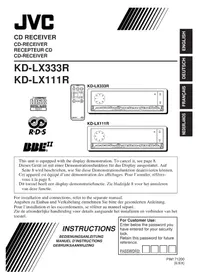
KDLX111R - Car stereo JVC - Free user manual and instructions
Find the device manual for free KDLX111R JVC in PDF.


User questions about KDLX111R JVC
0 question about this device. Answer the ones you know or ask your own.
Ask a new question about this device
Download the instructions for your Car stereo in PDF format for free! Find your manual KDLX111R - JVC and take your electronic device back in hand. On this page are published all the documents necessary for the use of your device. KDLX111R by JVC.
USER MANUAL KDLX111R JVC
This unit is equipped with the display demonstration. To cancel it, see page 8.
For installation and connections, refer to the separate manual.
Enter below the password you have entered for your security lock.
Retain this password for future reference.

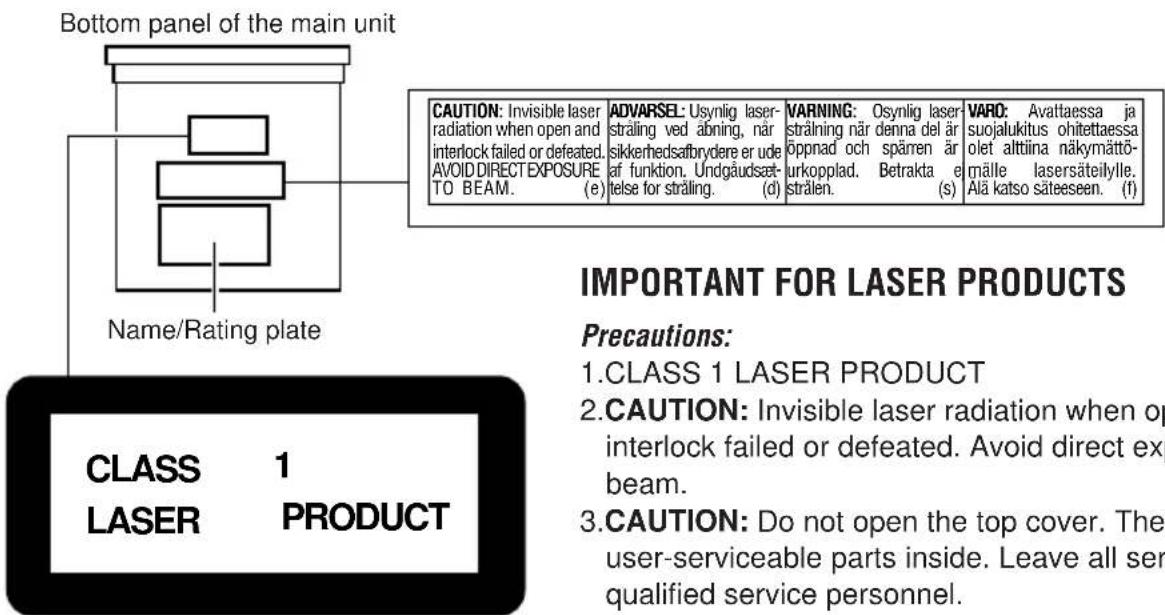
Position And Reproduction Of Labels
Caution:
This product contains a laser component of higher laser class than Class 1.
IMPORTANT FOR LASER PRODUCTS
Precautions:
1.CLASS 1 LASER PRODUCT
2. CAUTION: Invisible laser radiation when open and interlock failed or defeated. Avoid direct exposure to beam.
3.CAUTION: Do not open the top cover. There are no user-serviceable parts inside. Leave all servicing to qualified service personnel.
4.CAUTION: This CD player uses invisible laser radiation and is equipped with safety switches to prevent radiation emission when unloading CDs. It is dangerous to defeat the safety switches.
5. CAUTION: Use of controls, adjustments or performance of procedures other than those specified herein may result in hazardous radiation exposure.
How to reset your unit
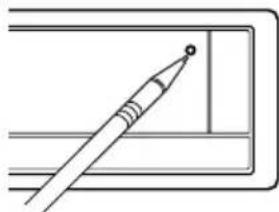
Press the reset button on the front panel using a ball-point pen or a similar tool.
This will reset the built-in microcomputer.
Note:
Your preset adjustments — such as preset channels or sound adjustments — will also be erased.
Note:
For security reasons, a numbered ID card is provided with this unit, and the same ID number is imprinted on the unit's chassis. Keep the card in a safe place, as it will help the authorities to identify your unit if stolen.
CAUTION on Volume Setting
CDs produce very little noise compared with other sources. If the volume level is adjusted for the tune, for example, the speakers may be damaged by the sudden increase in the output level. Therefore, lower the volume before playing a disc and adjust it as required during playback.
CONTENTS
How to reset your unit 2
LOCATION OF THE BUTTONS 4
Control panel 4
How to use the number buttons. 4
Preparing the remote controller 5
Remote controller 6
BASIC OPERATIONS 7
Turning on the power 7
Canceling the demonstration. 8
Setting the clock 8
RADIO BASIC OPERATIONS 9
Listening to the radio 9
Storing stations in memory 10
Tuning in to a preset station 11
RDS OPERATIONS 12
What you can do with RDS 12
Other convenient RDS functions and adjustments 16
CD OPERATIONS 19
Playing a CD 19
Locating a track or a particular portion on a CD 20
Selecting CD playback modes.. 20
Prohibiting CD ejection 21
Playing a CD Text 21
SOUND ADJUSTMENTS 22
Adjusting the sound 22
What is BBE? 22
Selecting preset sound modes (CEQ: custom equalizer) 23
Storing your own sound adjustments 24
OTHER MAIN FUNCTIONS 25
Changing the general settings (PSM) 25
Controlling the volume automatically (Audio Cruise) (only for KD-LX333R).... 29
Assigning names to the sources 30
Using the security lock. 32
CD CHANGER OPERATIONS 34
Playing CDs 34
Selecting CD playback modes.. 35
EXTERNAL COMPONENT OPERATIONS 37
Playing an external component 37
Using a subwoofer (only for KD-LX333R) 37
DAB TUNER OPERATIONS 38
Tuning in to an ensemble and one of the services 38
Storing DAB services in memory 39
Tuning in to a preset DAB service 40
What you can do more with DAB. 41
TROUBLESHOOTING 42
MAINTENANCE 44
Handling CDs 44
SPECIFICATIONS 45
BEFOREUSE
*For safety....
- Do not raise the volume level too much, as this will block outside sounds, making driving dangerous.
- Stop the car before performing any complicated operations.
* Temperature inside the car....
If you have parked the car for a long time in hot or cold weather, wait until the temperature in the car becomes normal before operating the unit.
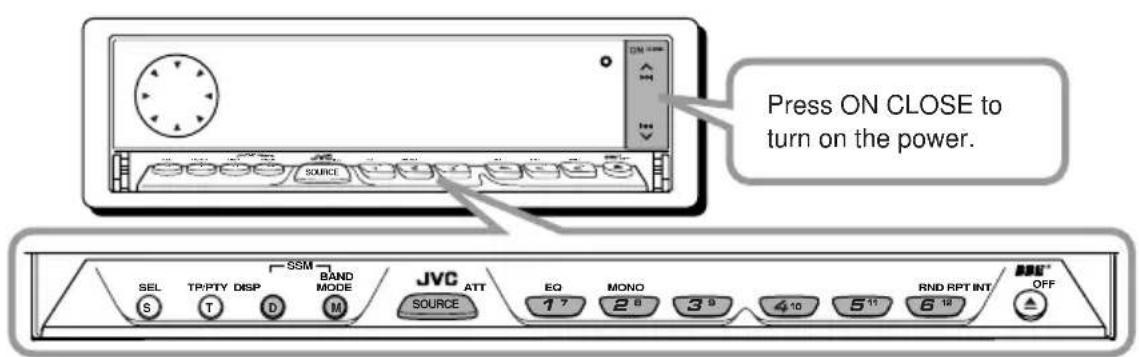
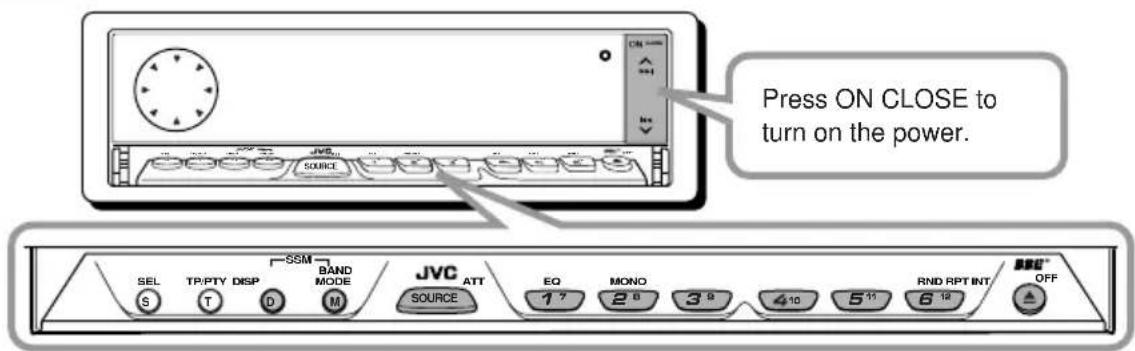
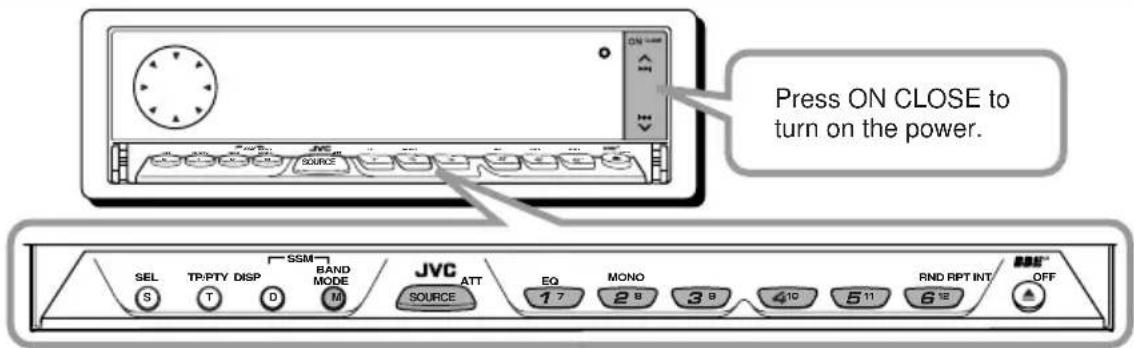
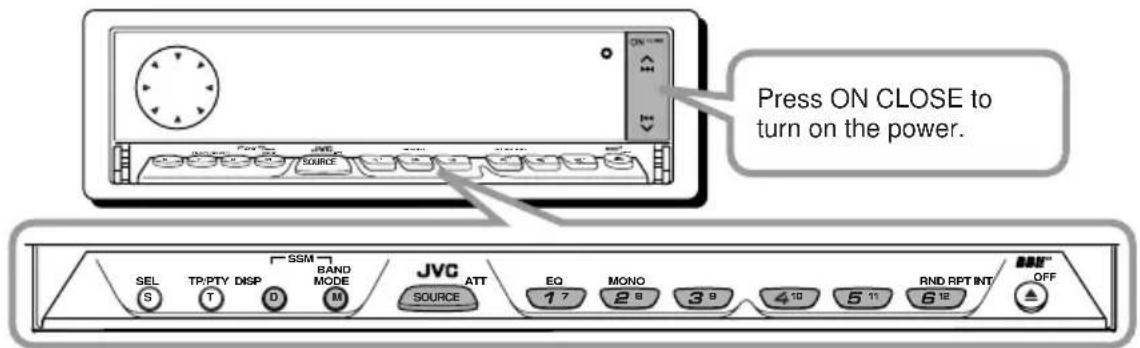
Control panel
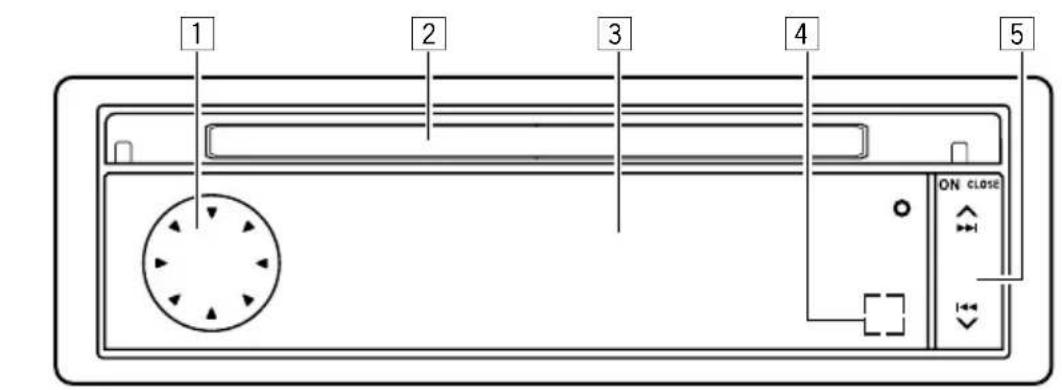

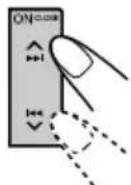
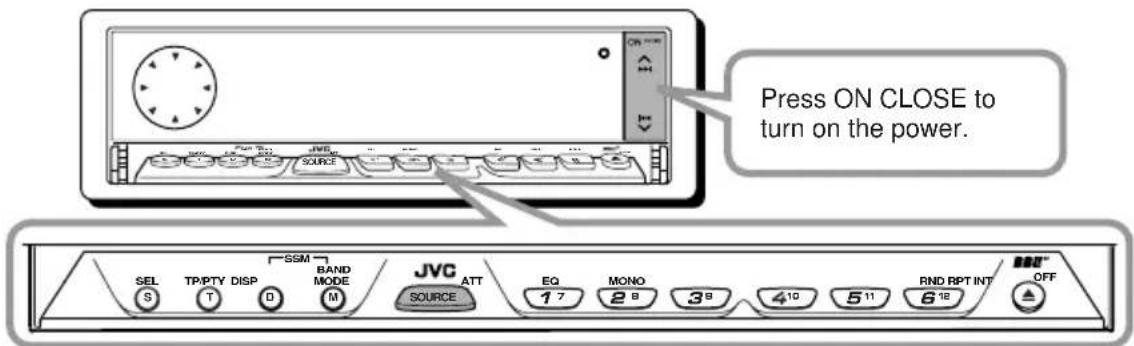
*The control panel slides out when you press ON CLOSE.
*When you press OFF ▲, the display panel moves down and the CD loading slot appears.
Control dial
CD loading slot
3Display panel
4 Remote sensor
5 1/√v buttons
- / also functions as ON or CLOSE button.
SEL(S)(select) button
7TP/PTY (T) (Traffic Programme/Programme Type) button
DISP (D) (display) button
- Also functions as SSM buttons when pressed together with the BAND MODE (M) button.
BAND MODE (M) button
- Also functions as SSM buttons when pressed together with the DISP (D) button.
10SOURCE ATT (attenuator) button
11EQ (equalization) button
12MONO (monaural) button
INT (intro scan) button
14RPT (repeat) button
15RND (random) button
16OFF (eject) button
17Number buttons
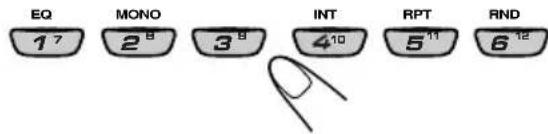
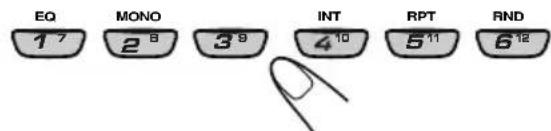
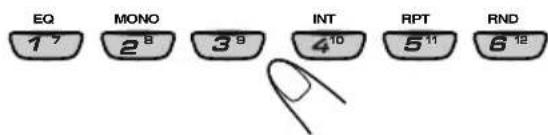
How to use the number buttons:
After pressing BAND MODE (M), the number buttons work as different function buttons (while "MODE" remains on the display).
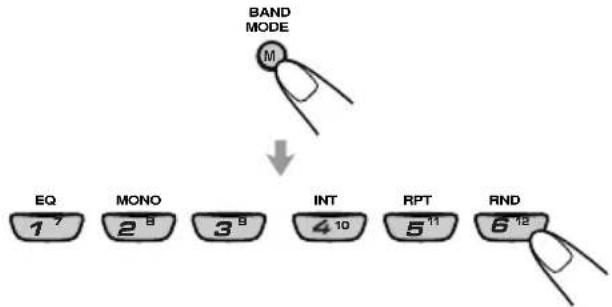
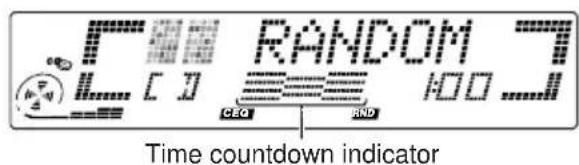
Ex.: When you press button 6 to enter the Random function mode.
To use these buttons as number buttons after pressing BAND MODE (M), wait for 5 seconds without pressing any number button so that "MODE" disappears from the display.
- Pressing BAND MODE (M) again also erases "MODE" from the display.
Preparing the remote controller
This section is only for KD-LX333R.
KD-LX111R can be remotely controlled with an optionally purchased remote controller. We recommend that you use remote controller RM-RK31 or RM-RK50 with your unit.
(Ex.: When you are using RM-RK31.)
Before using the remote controller:
- Aim the remote controller directly at the remote sensor on the main unit. Make sure there is no obstacle in between.
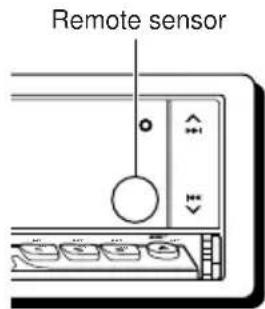
- Do not expose the remote sensor to strong light (direct sunlight or artificial lighting).
Installing the battery
When the controllable range or effectiveness of the remote controller decreases, replace the battery.
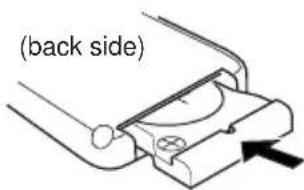
1. Remove the battery holder.
1) Push out the battery holder in the direction indicated by the arrow using a ball-point pen or a similar tool.
2) Remove the battery holder.

2. Place the battery.
Slide the battery into the holder with the + side facing upwards so that the battery is fixed in the holder.
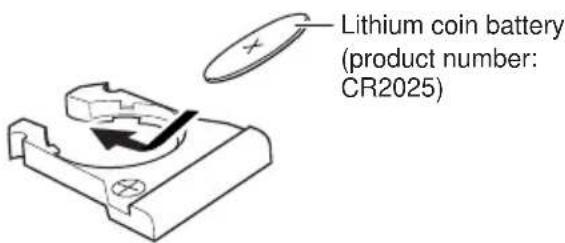
3. Return the battery holder.
Insert again the battery holder pushing it until you hear a clicking sound.
WARNING:
- Store the battery in a place where children cannot reach.
If a child accidentally swallows the battery, consult a doctor immediately.
- Do not recharge, short, disassemble or heat the battery or dispose of in a fire.
Doing any of these things may cause the battery to give off heat, crack or start a fire.
- Do not leave the battery with other metallic materials.
Doing this may cause the battery to give off heat, crack or start a fire.
-
When throwing away or saving battery, wrap it in tape and insulate; otherwise, it may cause the battery to give off heat, crack or start a fire.
-
Do not poke the battery with tweezers or similar tools.
Doing this may cause the battery to give off heat, crack or start a fire.
CAUTION:
Do not leave the remote controller in a place (such as dashboards) exposed to direct sunlight for a long time. Otherwise, it may be damaged.
Remote controller
RM-RK31
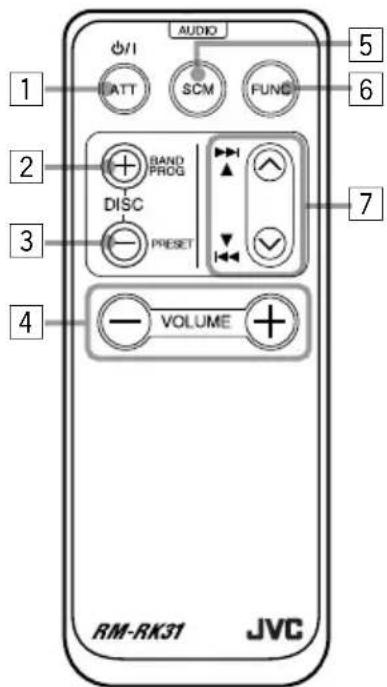
- Turns on the unit if pressed when the unit is turned off.
Turns off the unit if pressed and held until "SEE YOU" appears on the display. - Drops the volume level if pressed briefly, and "ATT" rotates on the display. Press again to resume the volume.
- Functions as the BAND button while listening to an FM broadcast (or the DAB tuner). Each time you press the button, the band changes.
- Functions as the DISC + button while listening to the CD changer. Each time you press the button, the disc number increases, and the selected disc starts playing.
-
Does not function as the PROG button.
-
Functions as the PRESET button while listening to the radio (or the DAB tuner). Each time you press the button, the preset station number increases, and the selected station is tuned in.
-
Functions as the DISC - button while listening to the CD changer.
Each time you press the button, the disc number decreases, and the selected disc starts playing.
4 Functions the same as the control dial on the main unit.
NOTE: This button does not function for the preferred setting mode adjustment.
5Selects the sound mode.
Each time you press SCM (Sound Control Memory), the CEQ (custom equalizer) mode changes.
6 Selects the source.
Each time you press FUNC (function), the source changes.
7- Searches stations while listening to the radio.
- Selects services while listening to the DAB tuner if pressed briefly.
- Searches ensembles while listening to the DAB tuner if pressed for more than 1 second.
- Fast-forwards or reverses the track if pressed and held while listening to a CD.
- Skips to the beginning of the next track or goes back to the beginning of the current (or previous) track if pressed briefly while listening to a CD.
Turning on the power
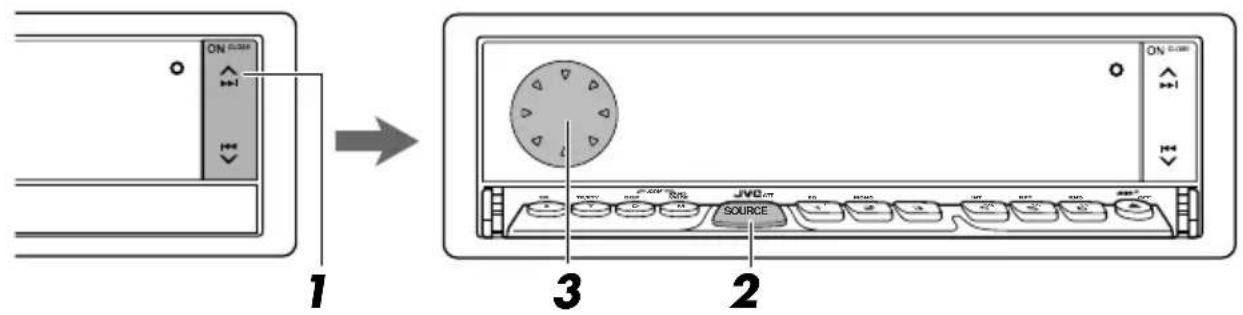
1 Turn on the power.
The display illuminates and the control panel and control dial come out.
2 Select the source.
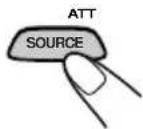
Each time you press the button, the source changes as follows:
For KD-LX333R:
→FM→DABtuner→CD*
CD changer External component
AM (back to the beginning)
For KD-LX111R:
FM DABtuner** CD*
CD changer** (or external component***) AM
(back to the beginning)
- If a CD is not in the loading slot, you cannot select CD as the source to play.
** Without connecting the CD changer and/or the DAB tuner, you cannot select it as the source to play.
**To select the external component, set the "EXT INPUT" setting to "LINE INPUT." (See page 28.)
To operate the tuner (FM or AM), see pages 9-11.
To operate the CD player, see pages 19-21.
To operate the CD changer, see pages 34-36.
To operate the external component, see page 37.
To operate the DAB tuner, see pages 38 - 41.
3 Adjust the volume.
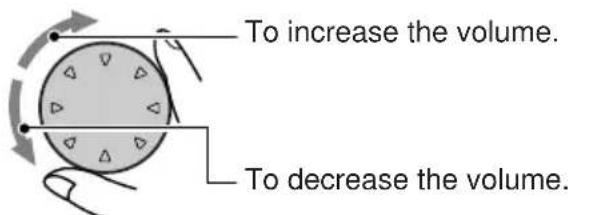
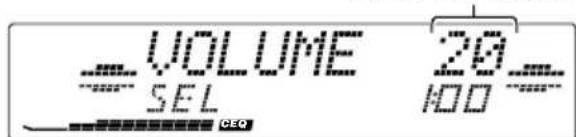
Volume level appears.
4 Adjust the sound as you want (see pages 22 - 24).
To drop the volume in a moment
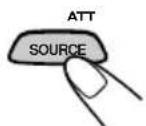
Press SOURCE ATT for more than 1 second while listening to any source. "ATT" rotates on the display, and the volume level will drop in a moment.
To resume the previous volume level, press the button for more than 1 second again.
To turn off the power
Press and hold OFF until "SEE YOU" appears on the display.
- If you turn off the power while listening to a CD, you can start CD playback from where you have stopped next time you turn on the power.
Note:
When you use this unit for the first time, set the built-in clock correctly, see page 8.
Note on display illustrations: Illustrations will differ from what appears if "CLOCK DISP" is set to "CLOCK OFF." See page 27.
Canceling the demonstration
When shipped from the factory, demonstration has been activated, and starts automatically when no operations are done for about 20 seconds.
It is recommended to cancel the demonstration before you use the unit for the first time.
To cancel the demonstration, follow the procedure below.
Press and hold SEL (S) for more than 2 seconds so that one of the PSM items appears on the display. (See pages 25 and 26.)
2 Select "DEMO MODE" if not shown on the display.
3 Select "DEMO OFF."
4 Finish the setting.
To activate the demonstration again, repeat the same procedure and select "DEMO ON" in step 3.
Setting the clock
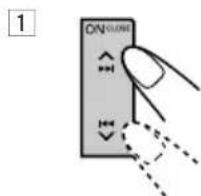
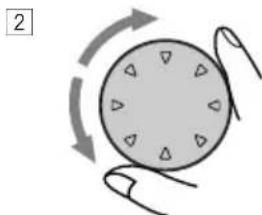
Press and hold SEL (S) for more than 2 seconds so that one of the PSM items appears on the display. (See pages 25 and 26.)
2 Set the hour.
1Select "CLOCK HOUR" if not shown on the display.
2Adjust the hour.
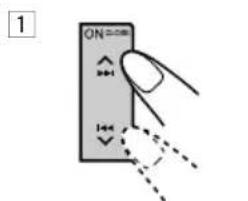
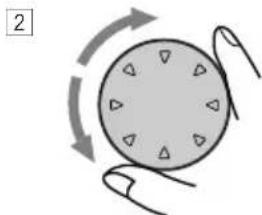
3 Set the minute.
1Select "CLOCK MIN (minute)."
2Adjust the minute.
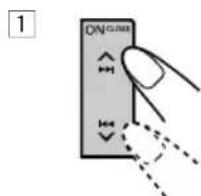
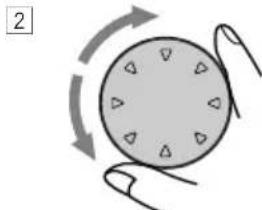
4 Set the clock system.
1Select "24H/12H."
Adjust "24HOUR" or "12HOUR."
5 Finish the setting.
To check the current clock time with "CLOCK DISP" set to "CLOCK OFF," press DISP (D). The clock time is shown for 5 seconds.
Listening to the radio
You can use either automatic searching or manual searching to tune in to a particular station.
Searching a station automatically: Auto search
1 Select the band.
1Press SOURCE ATT to select FM or AM as the source.
2If necessary, press and hold BAND MODE (M) to select the FM band number (FM1, FM2 or FM3).
Each time you press and hold the button, the FM band changes as follows:
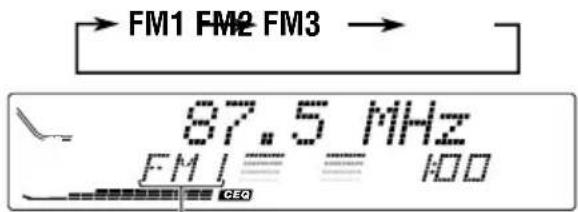
Selected band appears.
Note:
This receiver has three FM bands (FM1, FM2, FM3). You can use any one of them to listen to an FM broadcast.
2 Start searching a station.
Press to search stations of higher frequencies.
Press search stations of lower frequencies.
When a station is received, searching stops.
To stop searching before a station is received, press the same button you have pressed for searching.
Searching a station manually: Manual search
1 Select the band.
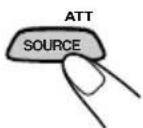
1Press SOURCE ATT to select FM or AM as the source.
2If necessary, press and hold BAND MODE (M) to select the FM band number (FM1, FM2 or FM3).
Each time you press and hold the button, the FM band changes as follows:

Note:
This receiver has three FM bands (FM1, FM2, FM3). You can use any one of them to listen to an FM broadcast.
2 Press and hold or until "M (manual)" starts flashing on the display.
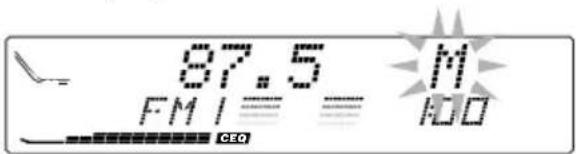
3 Tune in to a station you want while "M" is flashing.
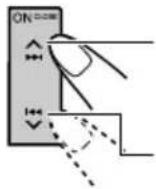
Press to tune in to stations of higher frequencies.
Press tune in to stations of lower frequencies.
-
If you release your finger from the button, the manual mode will automatically turn off after 5 seconds.
-
If you hold down the button, the frequency keeps changing (50 kHz intervals for FM and 9 kHz intervals for AM - MW/LW) until you release the button.
When an FM stereo broadcast is hard to receive:
1 Press BAND MODE (M) while listening to an FM stereo broadcast (the ST indicator lights up while receiving an FM stereo broadcast). "MODE" appears on the display, and the number buttons can work as different function buttons.
2 Press MONO, while "MODE" is still on the display, so that the MO indicator lights up on the display.
The sound you hear becomes monaural but the reception will be improved (the ST indicator goes off).
Each time you press the button, the MO indicator lights up and goes off alternately.
Storing stations in memory
You can use one of the following two methods to store broadcasting stations in memory.
Automatic preset of FM stations: SSM (Strongstation Sequential Memory)
- Manual preset of both FM and AM stations
FM station automatic preset: SSM
You can preset 6 local FM stations in each FM band (FM1, FM2 and FM3).
1 Select the FM band (FM1 - 3) you want to store FM stations into.
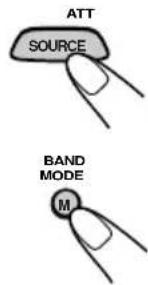
1Press SOURCE ATT to select FM as the source.
2If necessary, press and hold BAND MODE (M) to select the FM band number (FM1, FM2 or FM3).
Each time you press and hold the button, the FM band changes as follows:

2 Press and hold both buttons for more than 2 seconds.
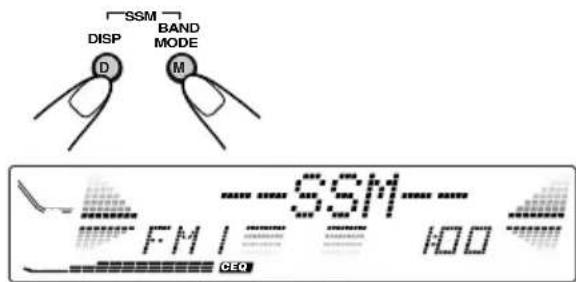
"SSM" appears, then disappears when automatic preset is over.
Local FM stations with the strongest signals are searched and stored automatically in the band number you have selected (FM1, FM2 or FM3). These stations are preset in the number buttons — No.1 (lowest frequency) to No.6 (highest frequency).
When automatic preset is over, the station stored in number button 1 will be automatically tuned in.
Manual preset
You can preset up to 6 stations in each band (FM1, FM2, FM3 and AM) manually.
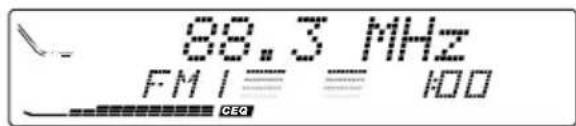
Ex.: Storing an FM station of 88.3 MHz into the preset number 1 of the FM1 band
1 Select the band (in this example, FM1).
1Press SOURCE ATT to select FM as the source.
2Press and hold BAND MODE (M) repeatedly to select the FM1 band.
2 Tune in to a station (in this example, of 88.3 MHz).
Press to tune in to stations of higher frequencies.
Press tune in to stations of lower frequencies.
3 Press and hold the number button (in this example, 1) for more than 2 seconds.
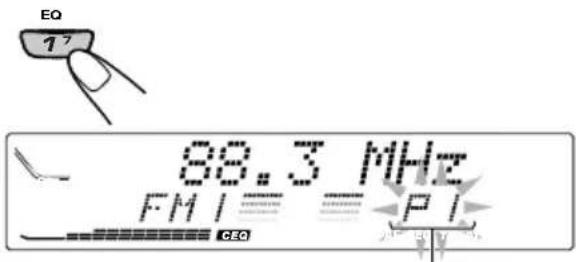
"PI" flashes for a few seconds.
4 Repeat the above procedure to store other stations into other preset numbers.
Notes:
- A previously preset station is erased when a new station is stored in the same preset number.
- Preset stations are erased when the power supply to the memory circuit is interrupted (for example, during battery replacement). If this occurs, preset the stations again.
Tuning in to a preset station
You can easily tune in to a preset station. Remember that you must store stations first. If you have not stored them yet, see "Storing stations in memory" on pages 10 and 11.
1 Select the band.
1Press SOURCE ATT to select FM or AM as the source.
2If necessary, press and hold BAND MODE (M) to select the FM band number (FM1, FM2 or FM3).
Each time you press and hold the button, the FM band changes as follows:

2 Select the number (1 - 6) for the preset station you want.
If the sound quality decreases and the stereo effect is lost while listening to an FM station
In some areas, adjacent stations may interfere with each other. If this interference occurs, this unit can automatically reduce this interference noise (the initial setting when shipped from the factory). However, in this case, the sound quality will be degraded and the stereo effect will be also lost.
If you do not want to degrade the sound quality and to lose the stereo effect, rather than to eliminate the interference noise, see "To change the FM tuner selectivity — IF FILTER" on page 28.
What you can do with RDS
RDS (Radio Data System) allows FM stations to send an additional signal along with their regular programme signals. For example, the stations send their station names, as well as information about what type of programme they broadcast, such as sports or music, etc.
Another advantage of RDS function is called "Enhanced Other Networks." By using the Enhanced Other Networks data sent from a station, you can tune in to a different station of a different network broadcasting your favourite programme or traffic announcement while listening to another programme or to another source such as CD.
By receiving the RDS data, this unit can do the following:
- Tracing the same programme automatically (Network-Tracking Reception)
- Standby Reception of TA (Traffic Announcement) or your favourite programme
- PTY (Programme Type) search
Programme search - And some other functions
Tracing the same programme automatically (Network-Tracking Reception)
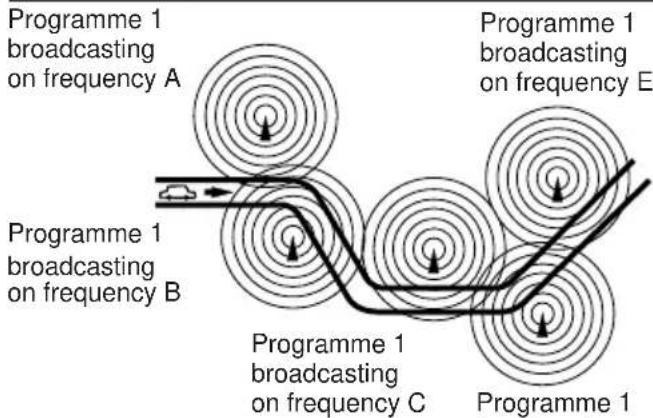
When driving in an area where FM reception is not good, the tuner built in this unit automatically tunes in to another RDS station, broadcasting the same programme with stronger signals. So, you can continue to listen to the same programme in its finest reception, no matter where you drive. (See the illustration on the next page.)
Two types of the RDS data are used to make Network-Tracking Reception work correctly - PI (Programme Identification) and AF (Alternative Frequency).
Without receiving these data correctly from the RDS station you are listening to, Network-Tracking Reception will not operate.
To use Network-Tracking Reception
You can select the different modes of network-tracking reception to continue listening to the same programme in its finest reception.
When shipped from the factory, "AF" is selected.
- AF: Network-Tracking Reception is activated with Regionalization set to "off."
With this setting, the unit switches to another station within the same network when the receiving signals from the current station become weak. (In this mode, the programme may differ from the one currently received.)
The AF indicator lights up but the REG indicator does not.
- AF REG: Network-Tracking Reception is activated with Regionalization set to "on."
With this setting, the unit switches to another station, within the same network, broadcasting the same programme when the receiving signals from the current station become weak.
Both the AF indicator and the REG indicator light up.
OFF: Network-Tracking Reception is deactivated.
Neither the AF indicator nor the REG indicator lights up.
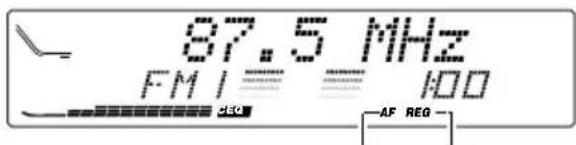
AF indicator REG indicator
Press and hold SEL (S) for more than 2 seconds so that one of the PSM items appears on the display. (See pages 25 and 26.)
2 Select "AF-REG (Alternative frequency/Regionalization reception)" if not shown on the display.
3 Select the desired mode – “AF,” “AF REG” or “OFF.”
4 Finish the setting.
Note:
If a DAB tuner is connected and Alternative Reception (for DAB services) is activated, Network-Tracking Reception is also activated automatically. On the other hand, Network-Tracking Reception cannot be deactivated without deactivating Alternative Reception. (See page 41.)
The same programme can be received on different frequencies.
Using TA Standby Reception
TA Standby Reception allows the unit to switch temporarily to Traffic Announcement (TA) from the current source (another FM station or CD and other connected components.)
- TA Standby Reception will not work if you are listening to an AM station.
Press TP/PTY (T) to activate TA Standby Reception.
■When the current source is FM, the TP indicator either lights up or flashes.
- If the TP indicator lights up, TA Standby Reception is activated. If a station starts broadcasting a traffic announcement, "TRAFFIC" appears on the display, and this unit automatically tunes in to the station. The volume changes to the preset TA volume level (see page 17) and the traffic announcement can be heard.
- If the TP indicator flashes, TA Standby Reception is not yet activated since the station being received does not provide the signals used for TA Standby Reception. To activate TA Standby Reception, you need to tune in to another station providing these signals. Press or to search for such a station. When a station providing these signals is tuned in, the TP indicator stops flashing and remains lit. Now TA Standby Reception is activated.
When the current source is other than FM, the TP indicator lights up. If a station starts broadcasting a traffic announcement, "TRAFFIC" appears on the display, and this unit automatically changes the source and tunes in to the station.
To deactivate the TA Standby Reception, press TP/PTY (T) again.
Using PTY Standby Reception
PTY Standby Reception allows the unit to switch temporarily to your favourite programme (PTY: Programme Type) from the current source (another FM station or CD).
- PTY Standby Reception will not work if you are listening to an AM station.
You can select your favourite programme type for PTY Standby Reception.
When shipped from the factory, PTY Standby Reception is turned off. ("OFF" is selected for PTY Standby Reception.)
Press and hold SEL (S) for more than 2 seconds so that one of the PSM items appears on the display. (See pages 25 and 26.)
2 Select "PTY STBY (standby)" if not shown on the display.

3 Select one of the twenty-nine PTY codes. (See page 18.)
Selected code name appears on the display and is stored into memory.
To cancel the PTY Standby Reception, select "OFF."
4 Finish the setting.
7 When the current source is FM, the PTY indicator either lights up or flashes.
If the PTY indicator lights up, PTY Standby Reception is activated. If a station starts broadcasting the selected PTY programme, this unit automatically tunes in to the station.
- If the PTY indicator flashes, PTY Standby Reception is not yet activated since the station being received does not provide the signals used for PTY Standby Reception. To activate PTY Standby Reception, you need to tune in to another station providing these signals. Press or 4 to search for such a station. When a station providing these signals is tuned in, the PTY indicator stops flashing and remains lit. Now PTY Standby Reception is activated.
7 When the current source is other than FM, the PTY indicator lights up. If a station starts broadcasting the selected PTY programme, this unit automatically changes the source and tunes in to the station.
To deactivate the PTY standby mode, select "OFF" in step 3 of the procedure on the left column. The PTY indicator disappears.
Searching your favorite programme
You can search any one of the PTY codes. In addition, you can store your 6 favorite programme types in the number buttons. When shipped from the factory, the following 6 programme types have been stored in the number buttons (1 to 6).
To store your favorite programme types, see below.
To search your favorite programme type, see page 16.
| 1 | 2 | 3 |
| POP M | ROCK M EASY M | |
| 4 | 5 | 6 |
| CLASSICS | AFFAIRS | VARIED |
To store your favorite programme types
Press and hold TP/PTY (T) for more than 2 seconds.
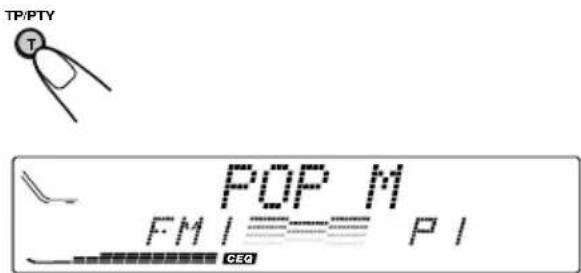
The last selected PTY code appears.
2 Select one of the twenty-nine PTY codes. (See page 18.)
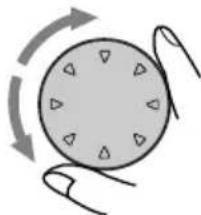
Selected code name appears on the display.
3 Press and hold the number button for more than 2 seconds to store the PTY code selected into the preset number you want.
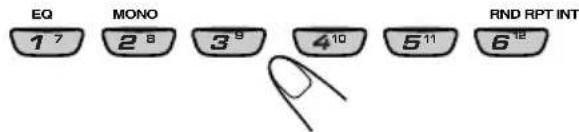
Preset number flashes for a few seconds.
4 Press and hold TP/PTY (T) for more than 2 seconds.
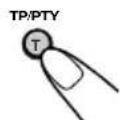
To search your favorite programme type
Press and hold TP/PTY (T) for more than 2 seconds while listening to an FM station.

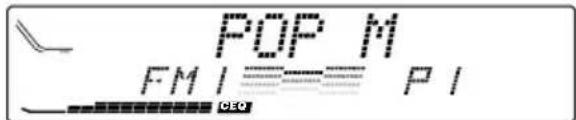
The last selected PTY code appears.
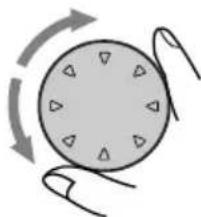
2 Select one of the PTY codes.
OR
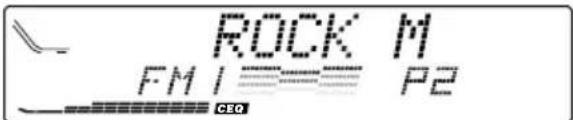
Ex.:When "ROCK M" is selected.
3 Press or to start PTY search for your favorite programme.
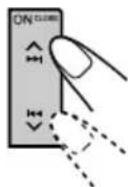
If there is a station broadcasting a programme of the same PTY code as you selected, that station is tuned in.
- If there is no station broadcasting a programme of the same PTY code as you selected, the station will not change.
Note:
In some areas, the PTY search will not work correctly.
Other convenient RDS functions and adjustments
Automatic selection of the station when using the number buttons
Usually when you press the number button, the preset station is tuned in.
However, when the preset station is an RDS station, something different will happen. If the signals from that preset station are not sufficient for good reception, this unit, using the AF data, tunes in to another frequency broadcasting the same programme as the original preset station is broadcasting. (Programme search)
- The unit takes some time to tune in to another station using Programme search.
To activate programme search, follow the procedure below.
See also "Changing the general settings (PSM)" on page 25.
1 Press and hold SEL (S) for more than 2 seconds so that one of the PSM items appears on the display.
2 Press or to select "P(Programme)-SEARCH."
3 Turn the control dial to select "SEARCH ON." Now programme search is activated.
4 Press SEL (S) to finish the setting.
To cancel programme search, repeat the same procedure and select "SEARCH OFF" in step 3.
Changing the display mode while listening to an FM station
You can change the initial indication on the display to either station name (PS NAME) or to station frequency (FREQUENCY), while listening to an FM RDS station.
See also "Changing the general settings (PSM)" on page 25.
1 Press and hold SEL (S) for more than 2 seconds so that one of the PSM items appears on the display.
2 Press or to select "TUNER DISP (display)."
3 Turn the control dial to set to the desired indication ("PS NAME" or "FREQUENCY").
4 Press SEL (S) to finish the setting.
Note:
By pressing DISP (D) you can change the display while listening to an FM RDS station. Each time you press the button, the following information appears on the display:
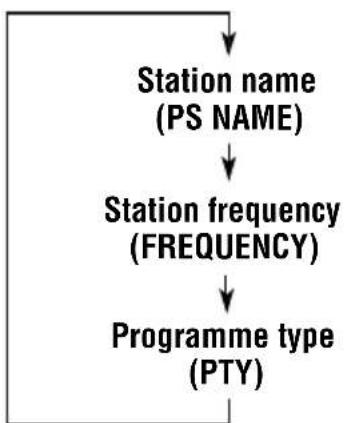
- Then, the display goes back to the original indication in several seconds.
Setting the TA volume level
You can preset the volume level for TA Standby Reception. When a traffic programme is received, the volume level automatically changes to the preset level.
See also "Changing the general settings (PSM)" on page 25.
1 Press and hold SEL (S) for more than 2 seconds so that one of the PSM items appears on the display.
2 Press or to select "TA VOL (volume)."
3 Turn the control dial to set to the desired volume. You can set it from "TA VOL 00" to "TA VOL 50."
4 Press SEL (S) to finish the setting.
Automatic clock adjustment
When shipped from the factory, the clock built in this unit is set to be readjusted automatically using the CT (Clock Time) data in the RDS signal.
If you do not want to use automatic clock adjustment, follow the procedure below.
See also "Changing the general settings (PSM)" on page 25.
1 Press and hold SEL (S) for more than 2 seconds so that one of the PSM items appears on the display.
2 Press or to select "AUTO ADJ (adjustment)."
3 Turn the control dial to select "ADJUST OFF." Now automatic clock adjustment is canceled.
4 Press SEL (S) to finish the setting.
To reactivate clock adjustment, repeat the same procedure and select "ADJUST ON" in step 3.
Note:
You must stay tuned to the same station for more than 2 minutes after setting "AUTO ADJ" to "ADJUST ON." Otherwise, the clock time will not be adjusted. (This is because the unit takes up to 2 minutes to capture the CT data in the RDS signal.)
PTY codes
NEWS: News
AFFAIRS: Topical programmes expanding on current news or affairs
INFO:Programmes which impart advice on a wide variety of topics
SPORT: Sport events
EDUCATE: Educational programmes
DRAMA: Radio plays
CULTURE: Programmes on national or regional culture
SCIENCE: Programmes on natural science and technology
VARIED: Other programmes like comedies or ceremonies
POP M: Pop music
ROCK M: Rock music
EASY M: Easy-listening music
LIGHT M: Light music
CLASSICS: Classical music
OTHER M: Other music
WEATHER: Weather information
FINANCE: Reports on commerce, trading, the Stock Market, etc.
CHILDREN: Entertainment programmes for children
SOCIAL: Programmes on social activities
RELIGION: Programmes dealing with any aspect of belief or faith, or the nature of existence or ethics
PHONE IN: Programmes where people can express their views either by phone or in a public forum
TRAVEL:Programmes about travel destinations, package tours, and travel ideas and opportunities
LEISURE: Programmes concerned with recreational activities such as gardening, cooking, fishing, etc.
JAZZ: Jazz music
COUNTRY: Country music
NATION M: Current popular music from another nation or region, in that country's language
OLDIES: Classic pop music
FOLK M: Folk music
DOCUMENT: Programmes dealing with factual matters, presented in an investigative style
Playing a CD
1 Open the loading slot.
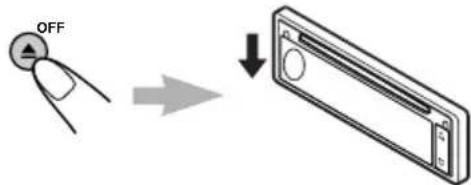
The display panel moves down, and the loading slot appears.
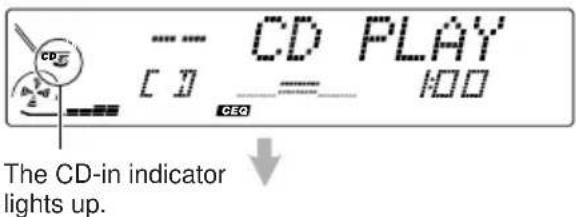
2 Insert a disc into the loading slot.
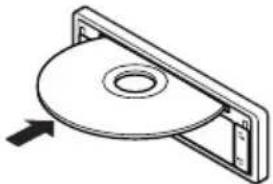
The unit draws in a CD, the display panel moves up, and CD play starts automatically.
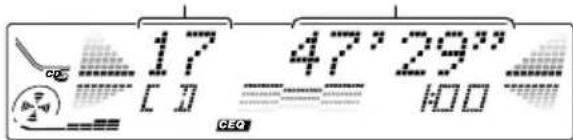
Total track number of the inserted disc
Total playing time of the inserted disc
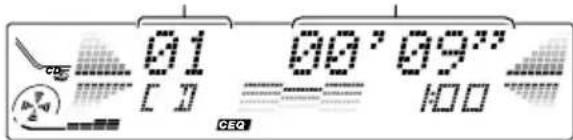
Current track
Elapsed playing time
Notes:
- When a CD is in the loading slot, selecting "CD" as the source by pressing SOURCE ATT to starts CD play.
- When a CD is inserted upside down, the CD automatically ejects.
- When you play a CD Text, the disc title and performer appear on the display. Then the current track title appears on the display, followed by the track number and elapsed playing time. See also "Playing a CD Text" (page 21) and "To select the scroll mode — SCROLL" (page 27). If a CD Text includes much text information, some may not appear on the display.
- If you change the source, CD play also stops (without ejecting the CD). Next time you select "CD" as the source, CD play will start from where you have stopped.
To stop play and eject the CD
Press OFF ▲ briefly.
CD play stops, the display panel moves down, then the CD automatically ejects from the loading slot.
To move up the display panel, press or no button is pressed, the display panel will move up in about 5 minutes.
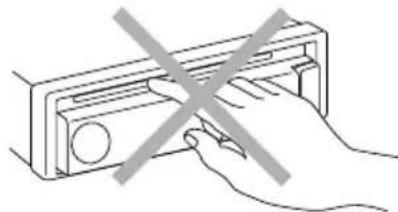
CAUTION: NEVER insert your finger between the display panel and the unit, as it may get caught in the unit.
Note:
If the ejected disc is not removed for about 15 seconds, the disc is automatically inserted again into the loading slot to protect it from dust. (CD play will not start this time.)
Locating a track or a particular portion on a CD
To fast-forward or reverse the track
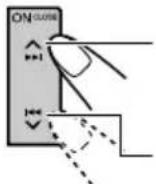
Press and hold , while playing a CD, to fast-forward the track.
Press and hold, while playing a CD, to reverse the track.
To go to the next tracks or the previous tracks
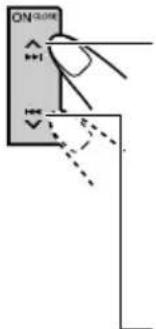
Press briefly, while playing a CD, to go ahead to the beginning of the next track. Each time you press the button consecutively, the beginning of the next tracks is located and played back.
Press Briefly, while playing a CD, to go back to the beginning of the current track. Each time you press the button consecutively, the beginning of the previous tracks is located and played back.
To go to a particular track directly
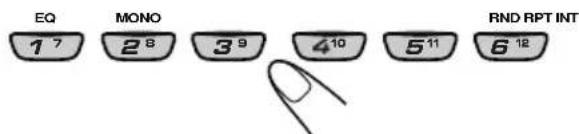
Press the number button corresponding to the track number to start its playback.
To select a track number from 1-6: Press 1 (7)-6 (12) briefly.
To select a track number from 7-12: Press and hold 1 (7)-6 (12) for more than 1 second.
Selecting CD playback modes
To play back tracks at random (Random Play)
You can play back all tracks on the CD at random.
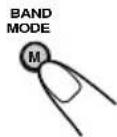
1Press BAND MODE (M) while playing a CD. "MODE" appears on the display, and the number buttons can work as different function buttons.
2Press RND (random), while "MODE" is still on the display, so that the RND indicator lights up on the display. Each time you press the button, CD random play mode turns on and off alternately.
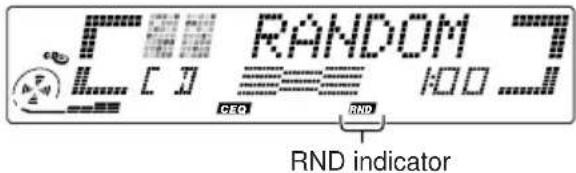
When the random mode is turned on, the RND indicator lights up on the display and a track randomly selected starts playing.
To play back tracks repeatedly (Repeat Play)
You can play back the current track repeatedly.
1Press BAND MODE (M) while playing a CD. "MODE" appears on the display, and the number buttons can work as different function buttons.
2 Press RPT (repeat), while "MODE" is still on the display, so that the RPT indicator lights up on the display. Each time you press the button, CD repeat play mode turns on and off alternately.
Track number of the currently playing track
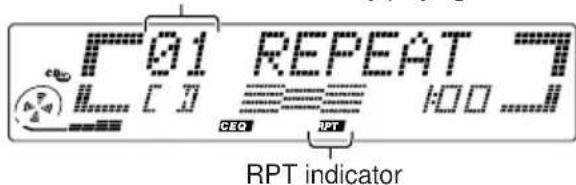
When the repeat mode is turned on, the RPT indicator lights up on the display.
To play back only intros (Intro Scan)
You can play back the first 15 seconds of each track sequentially.
1Press BAND MODE (M) while playing a CD. "MODE" appears on the display, and the number buttons can work as different function buttons.
2 Press INT (intro scan), while "MODE" is still on the display. Each time you press the button, CD intro scan mode turns on and off alternately.
Track number of the currently playing track
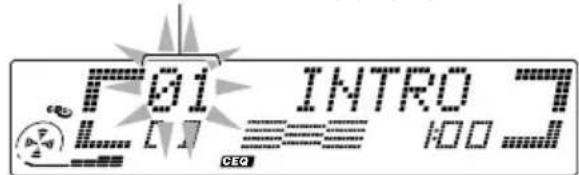
When the intro scan mode is turned on, "INTRO" appears on the display for 5 seconds and the track number flashes.
Prohibiting CD ejection
You can prohibit CD ejection and can lock a CD in the loading slot.
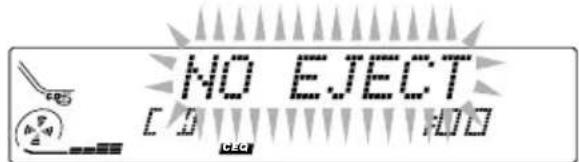
While pressing SOURCE ATT, press and hold OFF for more than 2 seconds. "NO EJECT" flashes on the display for about 5 seconds, and the CD is locked and cannot be ejected.
Note:
If you press OFF while CD ejection is prohibited, the control panel moves down, but the CD cannot be ejected. ("NO EJECT" appears on the display.) To move up the display panel, press or

To cancel the prohibition and unlock the CD, press and hold OFF for more than 2 seconds again, while pressing SOURCE ATT. "EJECT OK" flashes on the display for about 5 seconds, and the CD is unlocked.
Playing a CD Text
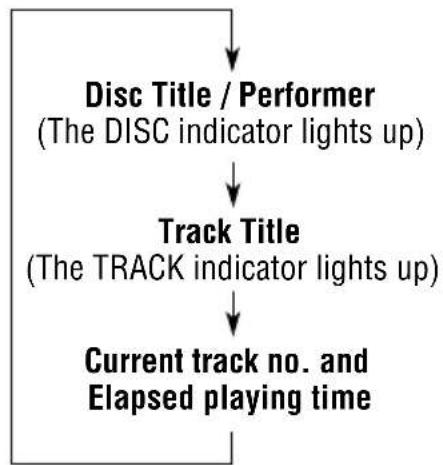
In a CD Text, some information about the disc (its disc title, performer and track title) is recorded. You can show these disc information on the display.
Select text display mode while playing a CD Text.
Each time you press the button, the display changes as follows:
Notes:
- The display shows up to 10 characters at one time and scrolls if there are more than 10 characters. See also "To select the scroll mode — SCROLL" on page 27.
- When you press DISP (D) while playing a conventional CD, "NO NAME" appears for the disc title/performer and the track title.
Adjusting the sound
You can adjust the sound characteristics to your preference.
1 Select the item you want to adjust.
Each time you press the button, the adjustable items change as follows:
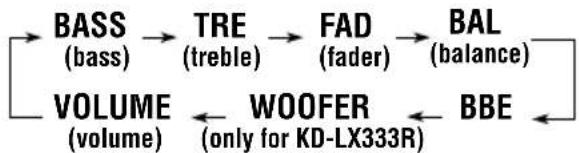
| Indication To do: Range | ||
| BASS Adjust | the bass. -06 (min.) | +06 (max.) |
| TRE Adjust the treble. -06 (min.) | +06 (max.) | |
| FAD* Adjust the front R06 (Rear only) and rear speaker balance. F06 (Front only) | ||
| BAL Adjust the left L06 (Left only) and right speaker balance. R06 (Right only) | ||
| BBE See "What is BBE 1, BBE 2, BBEII?" on the right column. | BBE 3, BBE OFF | |
| WOOFER (only for KD-LX333R) | Adjust the subwoofer output level. | 00 (min.) | 08 (max.) |
| VOLUME | Adjust the volume. | 00 (min.) | 50 (max.) |
- If you are using a two-speaker system, set the fader level to "00."
2 Adjust the level.
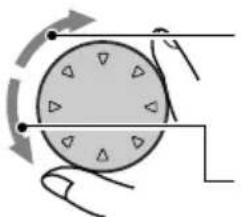
To increase the level.
To decrease the level.
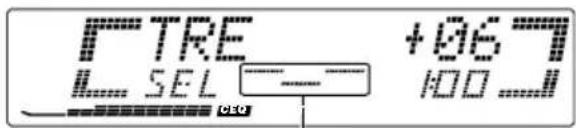
Equalization pattern changes as you adjust the bass or treble.
Note:
Normally the control dial works for volume adjustment. So you do not have to select "VOLUME" to adjust the volume level.
What is BBE?
The BBE ^II* function restores the brilliance and clarity of the original live sound in recording, broadcasts, etc.
When a speaker reproduces sound, it introduces frequency-dependent phase shifting, causing high-frequency sounds to take longer to reach the ear than low frequency sounds. The BEE function adjusts the phase relationship between the low, mid and high frequencies by adding a progressively longer delay time to the low and mid frequencies, so that all frequencies reach the listener's ears at the proper time.
In addition, the BBE function boosts low and high frequencies, which loudspeakers tend to be less efficient in reproducing, through dynamic, program-driven augmentation. When combined with the phase compensation feature, the resulting sound has a clearer, more finely detailed "live" presence.
As you turn the control dial, the BBE function changes as follows:
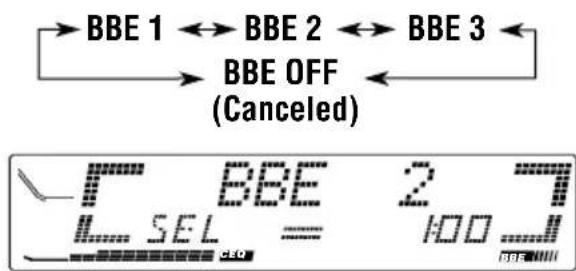
As the number gets higher, the BBE function becomes stronger.
When shipped from the factory, the BBE function is set to "BBE OFF."
- Under license from BBE Sound, Inc. DUE is a trademark of BBE Sound, Inc.
Selecting preset sound modes (CEQ: custom equalizer)
You can select a preset sound mode (CEQ: custom equalizer) suitable to the music genre.
1 Press BAND MODE (M) to make the number buttons work as different function buttons.
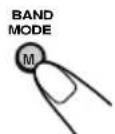
2 Activate custom equalizer (CEQ).

The last selected sound mode is recalled and applied to the current sound.
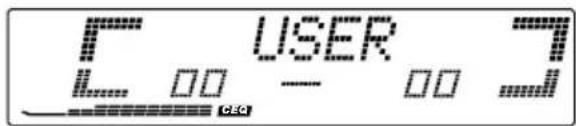
Ex.: If you have selected "USER" previously.
3 Select the sound mode you want.
Each time you press the button, the sound modes changes as follows:
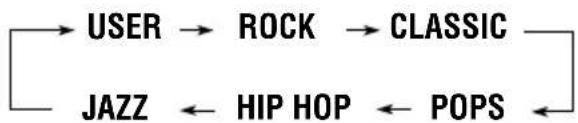
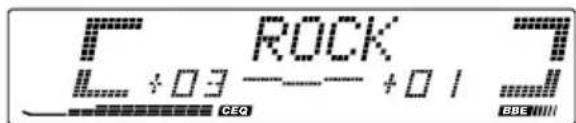
Ex.: If you select "ROCK."
| Indication | For: Preset values | |||
| BASS | TRE BBE | II | ||
| USER (Flat sound) 00 00 ROCK Roc | 00 BBE OFF | |||
| ROCK Roc k or +03 +01 disco music | BBE 2 | |||
| CLASSIC Classical +01 music | -02 BBE OFF | |||
| POPS Light music +04 +01 BBE OFF | ||||
| HIP HOP Funk or Rap music | +02 00 BBE 2 | |||
| JAZZ Jazz music | +02 +03 BBE OFF | |||
Notes:
- You can adjust each sound mode to your preference, and store it in memory. If you want to adjust and store your original sound mode, see "Storing your own sound adjustments" on page 24.
To adjust the bass and treble reinforcement levels on to turn on/off the BBE function temporarily, see page 22.
To store a sound mode separately for each playback source (CEQ Link)
You can select a sound mode and store it in memory. It will be recalled every time you select the same source and will be shown on the display.
A sound mode can be stored for each of the following sources — FM1, FM2, FM3, AM, CD and external components.
See also "Changing the general settings (PSM)" on page 25.
1 Press and hold SEL (S) for more than 2 seconds so that one of the PSM items appears on the display.
2 Press or to select "CEQ LINK" (Custom Equalization Link).
3 Turn the control dial to select "LINK ON."
4 Press SEL (S) to finish the setting.
To cancel CEQ Link, repeat the same procedure and select "LINK OFF" in step 3.
Note:
When you change the "CEQ LINK" setting, sound mode (CEQ) is automatically reset to "USER."
- When "CEQ LINK" is set to "LINK ON"
The selected sound mode can be stored in memory for the current source.
Each time you change to the same source, the same sound mode is also recalled and shown on the display. The CEQ indicator also flashes.
- When "CEQ LINK" is set to "LINK OFF"
The selected sound mode effect applies to any source.
Storing your own sound adjustments
You can adjust the sound modes to your preference and store your own adjustments in memory.
There is a time limit in doing the following procedure. If the setting is canceled before you finish, start from step 1 again.
1 Press BAND MODE (M) to make the number buttons work as different function buttons.
BAND MODE
2 Activate custom equalizer (CEQ).
The last selected sound mode is recalled and applied to the current sound.
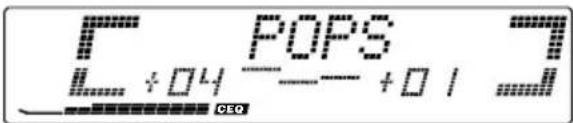
Ex.: If you have selected "POPS" previously.
3 Select the sound mode you want.
Each time you press the button, the sound modes changes as follows:

4 Select the items you want to adjust.
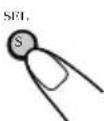
See page 22 for details.
5 Adjust the level.
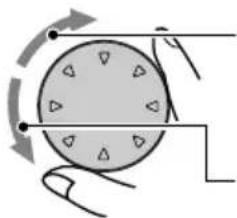
To increase the level.
To decrease the level.
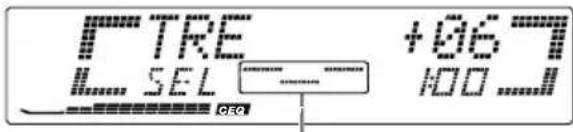
Equalization pattern changes as you adjust the bass or treble.
Ex.: When you adjust "TRE (treble)."
6 Repeat steps 4 and 5 to adjust the other items.
To adjust the BBE level, see page 22.
7 Repeat the same procedure to store other sound modes.
To reset to the factory settings, repeat the same procedure and reassign the preset values listed in the table on page 23.
Changing the general settings (PSM)
You can change the items listed on the next page by using the PSM (Preferred Setting Mode) control.
Basic Procedure
Press and hold SEL (S) for more than 2 seconds so that one of the PSM items appears on the display. (See below.)
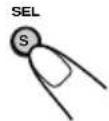
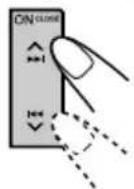
2 Select the PSM item you want to adjust. (See below.)
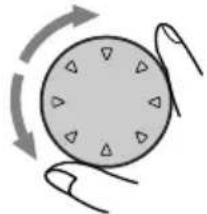
3 Adjust the PSM item selected above.
4 Repeat steps 2 and 3 to adjust the other PSM items if necessary.
5 Finish the setting.
Preferred Setting Mode (PSM) items
| 1 SEL 2 Select...Hold. | 3 Set... Counter-clockwise Clockwise | Factory-preset settings | See page | ||
| DEMO MODE Demo mode | DEMO ON 8D DEMO OFF DEMO ON | ||||
| CLOCK HOUR Hour adjustment | Back | Advance | 80:00 | ||
| CLOCK MIN Minute adjustment | Back | Advance | |||
| CEQ LINK Custom equalizer memory linkage | LINK OFF LINK ON LINK OFF 27 | ||||
| 24H/12H 24/12-hour time display | 24HOUR 824HOUR1 | ||||
| AUTO ADJ Automatic clock setting ADJUST OFF ADJUST ON | ADJUST ON 17 | ||||
| CLOCK DISP Clock display | CLOCK OFF | CLOCK ON | CLOCK ON 27 | ||
| TUNER DISP Tuner display FREQUENCY | PS NAME | PS NAME 17 | |||
| PTY STBY PTY standby | 29 programme types OFF → (See page 18.) ↑ | OFF | 14 | ||
| AF-REG Alternative frequency/Regionalization reception | AF ← AF REG ↑ OFF ← | AF | 13 | ||
Preferred Setting Mode (PSM) items
| Hold. Select... | 3 Set... Counter- clockwise Clockwise | Factory-preset settings | See page | |
| TA VOL Traffic announcement volume | TA VOL 00 - TA VOL 50 | TA VOL 20 | 17 | |
| P-SEARCH Programme search | SEARCH OFF | SEARCH ON SEARCH OFF 16 | ||
| DAB AF* Alternative frequency search | AF OFF AF | ON AF ON 41 | ||
| DAB VOL* DAB volume adjustment | DAB VOL -12 to 12 | DAB VOL 00 | 41 | |
| LEVEL Level display | 5 types (See page 27.) | NORMAL 27 | ||
| DIMMER Dimmer mode | AUTO | OFF | AUTO | 27 |
| ON | ||||
| CRUISE (only for KD-LX333R) | CRUISE 1 | CRUISE 2 | CRUISE OFF | 29 |
| CRUISE OFF | ||||
| +OR- SET** (only for KD-LX333R) | — | 800 rpm | 30 | |
| BOOST** Boost (only for KD-LX333R) | BOOST 01 - 15 | BOOST 05 | 29 | |
| TELEPHONE Telephone muting | MUTING 1 | MUTING 2 | MUTING OFF | 27 |
| MUTING OFF | ||||
| BEEP SW Key-touch tone | BEEP OFF | BEEP ON | BEEP ON | 27 |
| CONTRAST Display contrast | CONTRAST 1 - 10 | CONTRAST 5 | 27 | |
| SCROLL Scroll mode | ONCE | AUTO | ONCE | 27 |
| OFF | ||||
| WooferFreq Subwoofer (only for KD-LX333R) cutoff frequency | FREQ LOW | FREQ MID | FREQ MID | 28 |
| FREQ HIGH | ||||
| LINE ADJ Line input level (only for KD-LX333R) adjustment | LINE ADJ 00 - 05 | LINE ADJ 00 | 28 | |
| EXT INPUT External component (only for KD-LX111R) | CD CHANGER | LINE INPUT | CD CHANGER | 28 |
| FLAT PANEL Flat panel | FLAT OFF | FLAT ON | FLAT OFF | 28 |
| IF FILTER Intermediate frequency filter | WIDE | AUTO | AUTO | 28 |
4 Press SEL (S) to finish the setting.
- Displayed only when the DAB tuner is connected.
** When you select "CRUISE 1" or "CRUISE 2" for Audio Cruise Mode, you can adjust these items.
To set Custom Equalizer Link — CEQ LINK
A different sound mode (CEQ) can be stored in memory for each source so that you can change the sound modes simply by changing the sources. When shipped from the factory, this mode is deactivated.
LINK ON: Different sound modes for different sources.
LINK OFF: One sound mode for all sources.
To set the clock display — CLOCK DISP
You can set the clock to be shown on the display when the unit is turned on. When shipped from the factory, the clock is set to be shown on the display.
CLOCK ON: Clock display is turned on.
CLOCK OFF: Clock display is turned off.
To select the level meter - LEVEL
You can select the level meter display according to your preference. When shipped from the factory, "NORMAL" is selected.
- NORMAL: Normal audio level meter will be shown on both sides of the display.
- SIDE: Display illumination moves from inside to outside.
- FULL: Level meter is fully shown on the main display and display illumination starts.
- OFF: Level meter disappears but the center display illuminates.
- ALL OFF: Level meter and center display turns off.
To select the dimmer mode — DIMMER
When you turn on the car head lights, the display automatically dims (Auto Dimmer). When shipped from the factory, Auto Dimmer mode is activated.
- AUTO: Activates Auto Dimmer.
OFF: Cancels Auto Dimmer. - ON: Always dims the display.
Note on Auto Dimmer:
Auto Dimmer equipped with this unit may not work correctly on some vehicles, particularly on those having a control dial for dimming.
In this case, set the dimmer mode to "ON" or "OFF."
To select the telephone muting - TELEPHONE
This mode is used when a cellular phone system is connected. Depending on the phone system used, select either "MUTING 1" or "MUTING 2," whichever mutes the sounds from this unit. When shipped from the factory, this mode is deactivated.
- MUTING 1: Select this if this setting can mute the sounds.
- MUTING 2: Select this if this setting can mute the sounds.
- MUTING OFF: Cancels the telephone muting.
To turn on/off the key-touch tone BEEP SW
You can deactivate the key-touch tone if you do not want it to beep each time you press a button. When shipped from the factory, the key-touch tone is activated.
- BEEP ON: Activates the key-touch tone.
- BEEP OFF: Deactivates the key-touch tone.
To adjust the display contrast level — CONTRAST
You can adjust the display contrast level among "1" (dark) to "10" (bright). When shipped from the factory, the display contrast level is set at level "5."
To select the scroll mode — SCROLL
You can select the scroll mode for the disc information if it consists of more than 10 characters. When shipped from the factory, Auto Scroll mode is set to "ONCE."
- ONCE: Scrolls only once.
- AUTO: Repeats the scroll (in 5-second intervals).
- OFF: Cancels Auto Scroll.
Note:
Even if the scroll mode is set to "OFF," you can scroll the display by pressing DISP(D) for more than 1 second.
To select the subwoofer cutoff frequency — WooferFreq (only for KD-LX333R)
When a subwoofer is connected to this unit, select an appropriate cutoff frequency level for your subwoofer. When shipped from the factory, the subwoofer cutoff frequency is set to "FREQ MID."
- FREQ LOW: Frequencies higher than 50Hz are cut off to the subwoofer.
- FREQ MID: Frequencies higher than 80Hz are cut off to the subwoofer.
FREQ HIGH: Frequencies higher than 120Hz are cut off to the subwoofer.
To adjust the line input level — LINE ADJ (only for KD-LX333R)
Adjust the line input level properly when an external component is connected to the LINE INPUT plugs. When shipped from the factory, the line input level is set at level "00."
If the input level of the connected component is not high enough, increase the input level properly. Without adjusting the line input level, you may be surprised at a loud sound when you change from the external component to another source.
To select the external component to use EXT INPUT (only for KD-LX111R)
You can connect the external component to the CD changer jack on the rear using the Line Input Adaptor KS-U57 (not supplied).
To use the external component as the playback source through this unit, you need to select which component - CD changer or external component - to use. When shipped from the factory, CD changer is selected as the external component.
- LINE INPUT: To use the external component other than CD changer.
- CD CHANGER:To use the CD changer.
Note:
For connecting the Line Input Adaptor KS-U57 and the external component, refer to the Installation/ Connection Manual (separate volume).
To make the front panel look flat (hiding the control panel) — FLAT PANEL
When operating the receiver using the remote control, you can hide the control panel to make the front panel look flat. When shipped from the factory, "FLAT OFF" is selected.
- FLAT ON: The control panel will not come out when you turn on the unit. To use the control panel, press that the control panel comes out. If no operation is done for about 10 seconds, it automatically goes back into the receiver.
- FLAT OFF: You can use the control panel normally.
Note:
When "FLAT ON" is selected, you can eject a CD by holding
To change the FM tuner selectivity IF FILTER
In some areas, adjacent stations may interfere with each other. If this interference occurs, noise may be heard. This unit has been preset to automatically reduce this interference noise ("AUTO") when shipped from the factory.
- AUTO: When this type of interference occurs, this unit automatically increases the tune selectivity so that interference noise will be reduced. (But the stereo effect will also be lost.)
WIDE: Subject to the interference from adjacent stations, but sound quality will not be degraded and the stereo effect will not be lost.
Controlling the volume automatically (Audio Cruise)
This section is only for KD-LX333R.
You can select the proper cruise mode for your car.
This unit changes the volume level automatically (at 3 possible levels) based on the driving speed of your car by detecting the alternator's generating frequency (Audio Cruise). If you want to use this mode, follow the procedure below. When shipped from the factory, this mode is set to "CRUISE OFF."
CRUISE 1: Select this if your car is relatively quiet.
CRUISE 2: Select this if your car is relatively loud. The volume increase rate is twice as much as that of the CRUISE 1 setting.
CRUISE OFF: Cancels Audio Cruise.
Press and hold SEL (S) for more than 2 seconds so that one of the PSM items appears on the display. (See pages 25 and 26.)
2 Select "CRUISE" if not shown on the display.
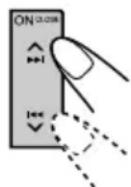
3 Select the desired setting.
As you turn the control dial, the Audio Cruise mode changes as follows:
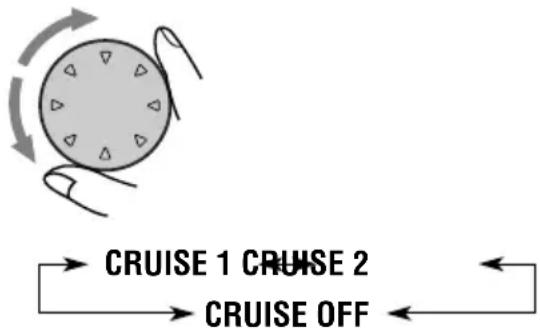
4 Finish the setting.
To adjust the volume increase rate
If you find Audio Cruise increases (or decreases) the volume either too much or too little as the driving speed changes, you can adjust the increase rate by changing the boost level. To change it, follow the procedure below.
See also "Changing the general settings (PSM)" on page 25.
1 Press and hold SEL (S) for more than 2 seconds so that one of the PSM items appears on the display.
2 Press or repeatedly until "CRUISE" appears on the display.
3 Turn the control dial to select either "CRUISE 1" or "CRUISE 2."
4 Press (or I V) to select "BOOST." The current boost level also appears on the display.
5 Turn the control dial to select the desired boost level (among 01 to 15).
6 Press SEL (S) to finish the setting.
If Audio Cruise does not function correctly You may need to store the idling speed into memory to make Audio Cruise function correctly
NOTICE that a number of factors, such as electric power steering, wipers, power windows, air conditioner, etc. do generate noises and, as a result, may cause Audio Cruise not to function correctly. If this is the main cause of malfunction, connect the memory backup lead (yellow lead) directly to the car battery to prevent these noises from affecting Audio Cruise.
1 Start the engine and let it warm up.
2 Press and hold SEL (S) for more than 2 seconds so that one of the PSM items appears on the display.
3 Press or repeatedly until "CRUISE" appears on the display.
4 Turn the control dial to select either "CRUISE 1" or "CRUISE 2."
5 Press (or to select +OR-SET .
6 Turn the control dial to select the desired idling speed.
7 Press SEL (S) to finish the setting.
When the setting is complete, the unit automatically checks to see if Audio Cruise functions correctly with this new idling setting. If it does not function correctly, Audio Cruise is canceled automatically and the idling setting becomes invalid.
- If this happens, see the NOTICE above.
Assigning names to the sources
You can assign names to CDs and the external component. After assigning a name, it will appear on the display when you select the source.
| Sources | num number of the characters |
| CDs* and Up to 32 characters (up CD changer* to 40 discs) | |
| External component | Up to 10 characters |
- You cannot assign a name to a CD Text.
1 Select a source you want to assign a name to.
2 Press and hold SEL (S) for more than 2 seconds while pressing DISP (D).
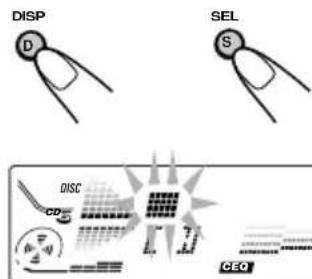
Ex.: When you select the CD as the source.
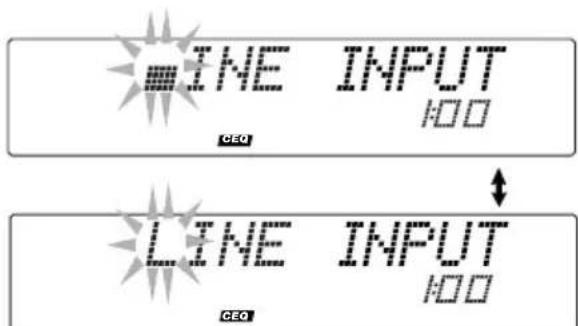
Ex.: When you select the external component as the source.
3 Select the character set you want while " 串串 " is flashing.
Each time you press the button, the character set changes as follows:

Numbers and symbols (B)
Available characters
Capital letters
| A | B | C | D | E | F | G | H | I | J |
| K | L | M | N | O | P | Q | R | S | T |
ENNNN
4 Select a character.
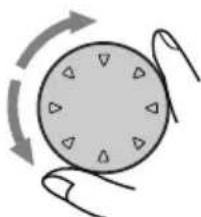
See right column for available characters.
Small letters
| a | b | c | d | e | f | g | h | i | j |
| k | l | m | n | o | p | q | r | s | t |
| u | v | w | x | y | z | space | |||
5 Move the cursor to the next (or previous) character position.
Numbers and symbols
| 0 | 1 | 2 | 3 | 4 | 5 | 6 | 7 | 8 | 9 |
| ! | " | # | $ | % | & | , | ( | ) | * |
| + | , | - | . | / | : | ; | < | = | > |
| ? | @ | _ | ` | space | |||||
6 Repeat steps 3 to 5 until you finish inputting the name.
7 Press the button while the last selected character is flashing.
The input name is stored in memory.
Notes:
-
When you try to assign a name to the 41st disc, "NAME FULL" appears on the display. (In this case, delete unwanted names before assignment.)
-
When the CD changer is connected, you can assign names to CDs in the CD changer. These names can also be shown on the display if you insert the CDs in this unit.
To erase the input characters
Insert spaces using the same procedure described above.
Using the security lock
You can prohibit the unauthorized use of this unit by the others.
To use the security lock, you need to set the password first. Once you set the password, the unit will ask you to enter the password when you turn on the unit for the first time after re-installation (or after recovering the car battery exhaustion).
CAUTION: Be careful not to forget the password you have entered; otherwise, you cannot use this unit. Keep the password in your mind and more importantly on paper or some other materials. You can write down your password in the spaces provided on the cover page.
Registering the password
You have to use 4 characters for your password. You can use the following characters: Capital letters (A-Z), small letters (a-z) and numbers (0-9).
Press and hold both buttons for more than 2 seconds.
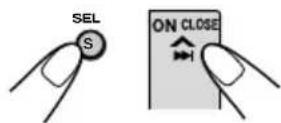
The unit enters password entry mode.
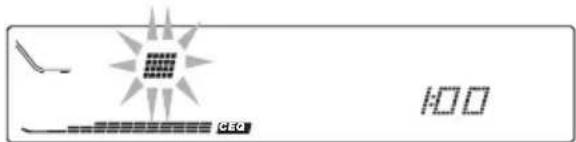
2 Select the character set you want to use.
Each time you press the button, the character set changes as follows:
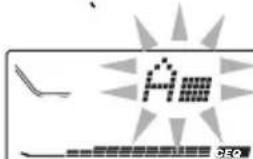
3 Select a letter.
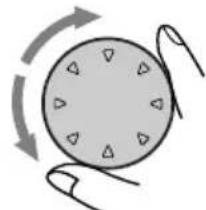
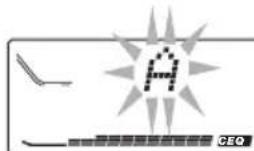
100
4 Move the character entry position to the next.
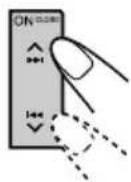
100
5 Repeat steps 2 to 4 until you enter all 4 characters.
6 Finish the setting.
The unit returns to the normal operation mode.
How to Use the Provided CODE Sticker
Attach the provided CODE sticker in a conspicuous position on your car to notify would-be unauthorized users that the security lock function is provided for this unit and, therefore, will foil their efforts.
A Small letter (3) Capital letter ()
Numbers and symbols (G)

When Security Lock works?
Once you register the password, "串串串串" appears on the display, and the unit will ask you to enter the password in the following cases:
- When you turn on the unit for the first time after re-installing the unit.
- When you turn on the unit for the first time after replacing the car battery.
To use this unit, you must enter the correct password by following the procedure below.
1 Press DISP (D) to select the character set you want.
2 Turn the control dial to enter a character.
3 Press or to move the character entry position.
4 Repeat steps 1 to 3 to enter the entire password (4 letters) correctly, then press SEL (S).
- If you enter the correct password, the security lock is canceled and you can use the unit normally.
- In the following cases, the security lock is not canceled ("NOT ACCEPT" appears on the display) then the unit turns off. (The unit will never turn on unless you press the reset button on the front panel. See page 2.)
If you enter an incorrect password then press SEL (S).
- If you cannot finish entering the correct password (each character within 30 seconds.)
If you enter an incorrect character while entering the password
Press move back the character entry position over the incorrect character, then repeat steps 1 and 2 to select the correct character.
To change the password
If you want to change the password after you have registered it, follow the procedure below.
1 Press SEL (S) and at the same time for more than 2 seconds.
"Jappeare: on the display.
2 Enter the current password correctly, then press SEL (S).
The unit enters password entry mode.
3 Enter a new password as you want, then press SEL (S).
The unit returns to the normal operation mode.
See page 32 for details on how to enter the password.
We recommend that you use one of the CH-X series with your unit.
If you have another CD automatic changer, consult your JVC IN-CAR ENTERTAINMENT dealer for connections.
- For example, if your CD automatic changer is one of the KD-MK series, you need a cord (KS-U15K) for connecting it to this unit.
Before operating your CD automatic changer:
Refer also to the Instructions supplied with your CD changer.
- If no discs are in the magazine of the CD changer or the discs are inserted upside down, "NO DISC" will appear on the display. If this happens, remove the magazine and set the discs correctly.
- If no magazine is loaded in the CD changer, "NO MAG" appears on the display. If this happens, insert the magazine in the CD changer.
- If "RESET 1" - "RESET 8" appears on the display, something is wrong with the connection between this unit and the CD changer. If this happens, check the connection, connect the connecting cord(s) firmly if necessary, then press the reset button of the CD changer.
Playing CDs
Select the CD automatic changer (CD-CH).
Each time you press the button, the source changes as described on page 7.
Playback starts from the first track of the first disc.
All tracks of all discs are played back.
Elapsed playing timeTrack numbe
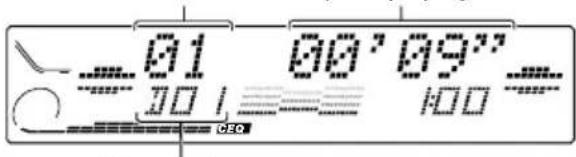
Disc number
To fast-forward or reverse the track
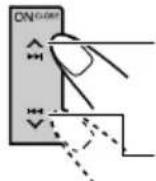
Press and hold, while playing a CD, to fast-forward the track.
Press and hold while playing a CD, to reverse the track.
To go to the next tracks or the previous tracks
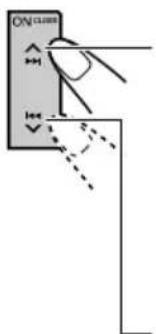
Press briefly, while playing a CD, to go ahead to the beginning of the next track. Each time you press the button consecutively, the beginning of the next tracks is located and played back.
Press -briefly, while playing a CD, to go back to the beginning of the current track. Each time you press the button consecutively, the beginning of the previous tracks is located and played back.
To go to a particular disc directly
Press the number button corresponding to the disc number to start its playback (while the CD changer is playing).
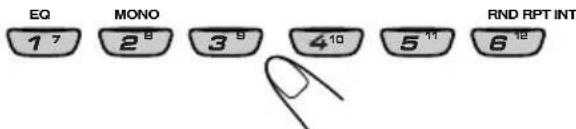
To select a disc number from 1-6: Press 1 (7)-6 (12) briefly.
To select a disc number from 7-12: Press and hold 1 (7)-6 (12) for more than 1 second.
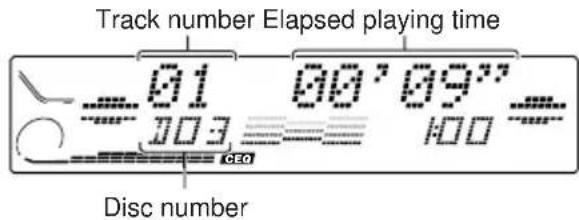
Ex.: When disc number 3 is selected.
To show the CD Text information
This is possible only when connecting a JVC CD automatic changer equipped with CD Text reading capability.
See "Playing a CD Text" on page 21.
Selecting CD playback modes
There is a time limit in doing the following procedure. If the setting is cancelled before you finish, start from step 1 again.
To play back tracks at random (Random Play)
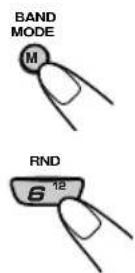
1 Press BAND MODE (M) while playing a CD. "MODE" appears on the display.
2 Press RND (random), while "MODE" is still on the display, so that the RND indicator lights up on the display. Each time you press the button, CD random play mode changes as follows:
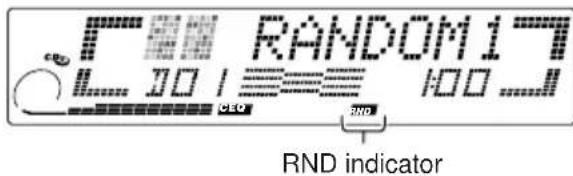

| Mode | RND Indicator | Plays at random |
| RANDOM1 | Lights. All tracks of the current disc, then the tracks of the next disc, and so on. | |
| RANDOM2 | Flashes. All tracks of all discs inserted in the magazine. |
To play back tracks repeatedly (Repeat Play)
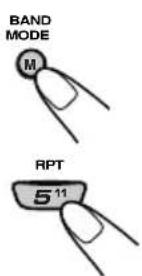
1Press BAND MODE (M) while playing a CD. "MODE" appears on the display.
2 Press RPT (repeat), while "MODE" is still on the display, so that the RPT indicator lights up on the display. Each time you press the button, CD repeat play mode changes as follows:
Track number of the currently playing track
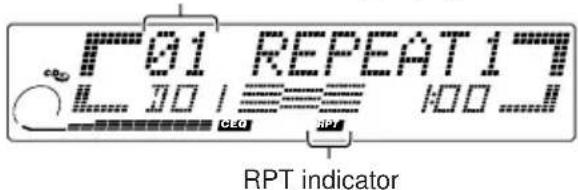

| Mode | RPT Indicator | Plays repeatedly |
| REPEAT1 | Lights. The current track (or specified track). | |
| REPEAT2 | Flashes. All tracks of the current disc (or specified disc). |
To play back only intros (Intro Scan)
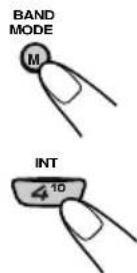
1Press BAND MODE (M) while playing a CD. "MODE" appears on the display.
2Press INT (intro scan), while "MODE" is still on the display. Each time you press the button, CD intro scan mode changes as follows:
Track number of the currently playing track
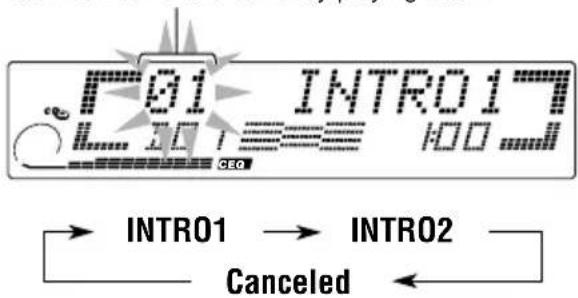
| Mode | Indication | Plays the beginnings (15 seconds) |
| INTRO1 | Track number Of all flashes. inserted | tracks on all discs. |
| INTRO2 | Disc number Of the first track flashes. on inserted disc. |
Playing an external component
When connecting an external component, you can select the component as the sound source.
Notes for KD-LX333R:
- For the external component connection, see the Installation/Connection Manual (separate volume).
- If the input level of the external component connected to the LINE INPUT plug is not high enough, increase the input level properly. Without adjusting the input level, you may be surprised at a loud sound when you change the source from the external component to another. (See "To adjust the line input level — LINE ADJ" on page 28.)
Notes for KD-LX111R:
- For connecting the external component, you need to use the Line Input Adaptor KS-U57 (not supplied). See the Installation/Connection Manual (separate volume).
Before operating the external component using the following procedure, select the external input correctly. (See "To select the external component to use -EXT INPUT" on page 28.)
Using a subwoofer
This section is only for KD-LX333R.
By connecting a subwoofer to the SUBWOOFER OUT plugs on the rear, you can enjoy enhanced bass sounds and a more realistic theater atmosphere in your car.
Refer also to the instructions supplied with your subwoofer.
When a subwoofer is connected to this unit, do the following as required.
To set the subwoofer cutoff frequency, see "To select the subwoofer cutoff frequency — WooferFreq" on page 28.
To adjust the subwoofer output volume, see "Adjusting the sound" on page 22.
1 Select the external component.
Each time you press the button, the source changes as described on page 7.
2 Operate the external component.
We recommend that you use DAB (Digital Audio Broadcasting) tuner KT-DB1500 with your unit. If you have another DAB tuner, consult your JVC IN-CAR ENTERTAINMENT dealer.
Refer also to the Instructions supplied with your DAB tuner.
What is DAB system?
DAB is one of the digital radio broadcasting systems available today. It can deliver CD quality sound without any annoying interference and signal distortion.
Furthermore, it can carry text, pictures and data.
In contrast to FM broadcast, where each programme is transmitted on its own frequency, DAB combines several programmes (called "services") to form one "ensemble." With the DAB tuner connected with this unit, you can enjoy these DAB services.
Tuning in to an ensemble and one of the services
A typical ensemble has 6 or more programmes (services) broadcast at the same time. After tuning in to an ensemble, you can select a service you want to listen to.
1 Select the DAB tuner (DAB1 - 3).
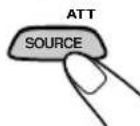
Each time you press the button, the source changes as described on page 7.
2 Select the DAB band (DAB1, DAB2 or DAB3).

Each time you press and hold the button, the DAB band changes as follows:

Note:
This receiver has three DAB bands (DABI, DAB2, DAB3). You can use any of them to tune into an ensemble.
3 Start searching an ensemble.
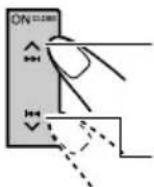
Press to search ensembles of higher frequencies.
Press search ensembles of lower frequencies.
When an ensemble is received, searching stops.
To stop searching before an ensemble is received, press the same button you have pressed for searching.
4 Select a service you want to listen to.
BAND MODE M
1Press BAND MODE (M). "MODE" appears on the display.
Press▶or▶to
select a service you want, while "MODE" is still on the display.
To change the display information while tuning into an ensemble
Normally service name is shown on the display. If you want to check the ensemble name or its frequency, press DISP (D).
Each time you press the button, the following information appears for a while on the display.
Service name
Ensemble name
Channel number
Frequency
To tune in a particular ensemble without searching:
1 Press SOURCE ATT to select DAB tuner as the source.
2 Press BAND MODE (M) repeatedly to select the DAB band (DAB1, DAB2 or DAB3).
3 Press and hold or for more than 1 second.
4 Press or repeatedly until the ensemble you want is reached.
- If you hold down the button, the ensemble keeps changing until you release the button.
Storing DAB services in memory
You can preset up to 6 DAB services in each DAB band (DAB1, DAB2 and DAB3) manually.
1 Select the DAB tuner (DAB1 - 3).
ATI SOURCE
1Press SOURCE ATT to select DAB tuner as the source.
BAND MODE M
2If necessary, press and hold BAND MODE (M) repeatedly to select the DAB band number (DAB1, DAB2 or DAB3).
Each time you press and hold the button, the DAB band changes as follows:
D1 (DAB1)
D2 (DAB2)
D3 (DAB3)
2 Tune in to an ensemble you want.
3 Select a service of the ensemble you want.
BAND MODE M
1Press BAND MODE (M). "MODE" appears on the display.
Press or to select a service you want, while "MODE" is still on the display.
4 Press and hold the number button (in this example, 1) you want to store the selected service into for more than 2 seconds.
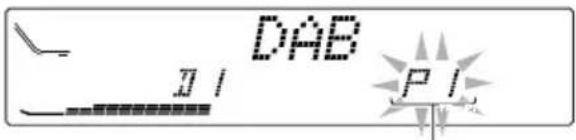
"PI" flashes for a few seconds.
5 Repeat the above procedure to store other DAB services into other preset numbers.
Notes:
- A previously preset DAB service is erased when a new DAB service is stored in the same preset number.
- Preset DAB services are erased when the power supply to the memory circuit is interrupted (for example, during battery replacement). If this occurs, preset the DAB services again.
Tuning in to a preset DAB service
You can easily tune in to a preset DAB service. Remember that you must store services first. If you have not stored them yet, see page 39.
1 Select the DAB tuner (DAB1 - 3).
1Press SOURCE ATT to select DAB tuner as the source.
2If necessary, press and hold BAND MODE (M) repeatedly to select the DAB band number (DAB1, DAB2 or DAB3).
Each time you press and hold the button, the DAB band changes as follows:

2 Select the number (1 - 6) for the preset DAB service you want.
What you can do more with DAB
Tracing the same program automatically (Alternative Reception)
You can keep listening to the same program.
- While receiving a DAB service:
When driving in an area where a service cannot be received, this unit automatically tunes in another ensemble or FM RDS station, broadcasting the same program. - While receiving an FM RDS station:
When driving in an area where a DAB service is broadcasting the same program as the FM RDS station is broadcasting, this unit automatically tunes in to the DAB service.
Note:
When reception switches between DAB and FM, the listening volume level may increase or decrease inconveniently. This change in the volume level results from unequal audio injection levels at broadcaster site, but not from the malfunction of this unit. To prevent this inconvenience, you can adjust the DAB volume level (see below).
To adjust the DAB volume level
You can adjust the input level of DAB tuner and store it in memory. By adjusting the input level properly to match it to the FM sound level, you will not need to adjust the volume level each time you change the source.
When shipped from the factory, DAB volume level is set at "00."
See also "Changing the general settings (PSM)" on page 25.
1 Press and hold SEL (S) for more than 2 seconds so that one of the PSM items appears on the display.
2 Press or to select "DAB VOL (volume)".
3 Turn the control dial to set to the desired volume. You can set it from -12 to 12
4 Press SEL (S) to finish the setting.
To use Alternative Reception
When shipped from the factory, Alternative Reception is activated.
See also "Changing the general settings (PSM)" on page 25.
1 Press and hold SEL (S) for more than 2 seconds so that one of the PSM items appears on the display.
2 Press or to select "DAB AF (alternative frequency)".
3 Turn the control dial to select the desired mode.
- AF ON: Traces the program among DAB services and FM RDS stations — Alternative Reception. The AF indicator lights up on the display (see page 12).
AF OFF: Deactivates Alternative Reception
Note:
When Alternative Reception (for DAB services) is activated, Network-Tracking Reception (for RDS stations: see page 12) is also activated automatically. On the other hand, Network-Tracking Reception cannot be deactivated without deactivating Alternative Reception.
4 Press SEL (S) to finish the setting.
What appears to be trouble is not always serious. Check the following points before calling a service centre.
| Symptoms | Causes | Remedies |
| • CD cannot be played back. | CD is inserted upside down. | Insert the CD correctly. |
| • CD sound is sometimes interrupted. | You are driving on rough roads. | Stop CD play while driving on rough roads. |
| CD is scratched. | Change the CD. | |
| Connections are incorrect. | Check the cords and connections. | |
| • CD-R/CD-RW cannot be played back. • Tracks on the CD-R/CD-RW cannot be skipped. | CD-R/CD-RW is not finalized. | • Insert a finalized CD-R/ CD-RW. • Finalize the CD-R/CD-RW with the component which you used for recording. |
| • “EJECT ERR” appears on the display and CD cannot be ejected. | The CD player may function incorrectly. | Press and hold I or more than 5 seconds. |
| • No message appears on the display but CD cannot be ejected. | While holding I, press the reset button. Release the reset button, then release I. (Be careful not to drop the CD when ejecting.) | |
| • Sound cannot be heard from the speakers. | The volume level is set to the minimum level. | Adjust it to the optimum level. |
| Connections are incorrect. | Check the cords and connections. | |
| • SSM (Strong-station Sequential Memory) automatic preset does not work. | Signals are too weak. | Store stations manually. |
| • Static noise while listening to the radio. | The antenna is not connected firmly. | Connect the antenna firmly. |
| ·“NO MAG” appears on the display. | No magazine is loaded in the CD changer. | Insert the magazine. |
| ·“NO DISC” appears on the display. | No CD is in the magazine. | Insert CD. |
| ·“RESET 8” appears on the display. | This unit is not connected to a CD changer correctly. | Connect this unit and the CD changer correctly and press the reset button of the CD changer. |
| ·“RESET 1”–“RESET 7” appears on the display. | Press the reset button of the CD changer. | |
| ·When “ERR 20” to “ERR 40” appears on the display. | There is something blocking the control cover movement. | Press the reset button on the front panel. (See page 2.)If the reset button does not works, check the Installation/Connection Manual (separate volume). (Ex.: You have used a longer screws than specified.) |
| ·“appears on the display. | Security lock is in use. | Enter the password. (See page 33.) |
| ·This unit does not work at all. ·The CD changer does not work at all. | The built-in microcomputer may function incorrectly due to noise, etc. | Press the reset button on the front panel. (See page 2.) |
Handling CDs
This unit has been designed to reproduce the CDs bearing the following marks.


You can play back your original CD-Rs (Recordable) and CD-RWs (Rewritable) on this receiver.
This unit is not compatible with MP3.
How to handle CDs
When removing a CD from its case, press down the center holder of the case and lift the CD out, holding it by the edges.
Center holder
Always hold the CD by the edges. Do not touch its recording surface.
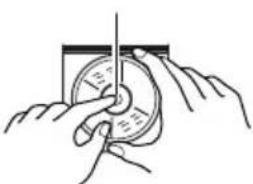
When storing a CD into its case, gently insert the CD around the center holder (with the printed surface facing up).
Make sure to store CDs into the cases after use.
To keep CDs clean
A dirty CD may not play correctly. If a CD does become dirty, wipe it with a soft cloth in a straight line from center to edge.
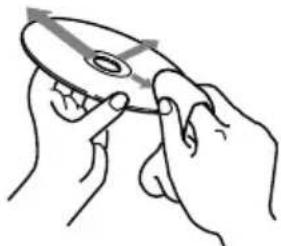
To play new CDs
New CDs may have some rough spots around the inner and outer edges. If such a CD is used, this unit may reject the CD. To remove these rough spots, rub the edges with a pencil or ball-point pen, etc
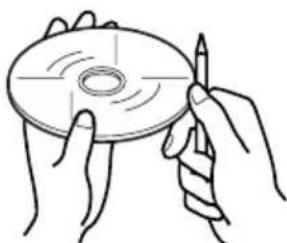
About mistracking:
Mistracking may result from driving on extremely rough roads. This does not damage the unit and the CD, but will be annoying.
We recommend that you stop CD play while driving on such rough roads.
Moisture condensation
Moisture may condense on the lens inside the CD player in the following cases:
After starting the heater in the car.
- If it becomes very humid inside the car.
Should this occur, the CD player may malfunction. In this case, eject the CD and leave the unit turned on for a few hours until the moisture evaporates.
When playing a CD-R or CD-RW
User-edited CD-Rs (Recordable) and CD-RWs (Rewritable) can be played back only if they are already "finalized."
- You can play back your original CD-Rs or CD-RWs recorded in music CD format. (However, they may not be played back depending on their characteristics or recording conditions.)
- Before playing back CD-Rs or CD-RWs, read their instructions or cautions carefully.
- Some CD-Rs or CD-RWs may not be played back on this unit because of their disc characteristics, damage or stain on them, or if the player's lens is dirty.
- CD-Rs or CD-RWs are susceptible to high temperatures or high humidity; so do not leave them inside your car.
- CD-RWs may require a longer readout time. (This is caused by the fact that the reflectance of CD-RWs is lower than for regular CDs.)
CAUTIONS:
- Do not insert 8 cm CDs (single CDs) into the loading slot. (Such CDs cannot be ejected.)
- Do not insert any CD of unusual shape - like a heart or flower; otherwise, it will cause a malfunction.
- Do not expose CDs to direct sunlight or any heat source or place them in a place subject to high temperature and humidity. Do not leave them in a car.
- Do not use any solvent (for example, conventional record cleaner, spray, thinner, benzine, etc.) to clean CDs.
AUDIO AMPLIFIER SECTION
Maximum Power Output:
Front: 50 W per channel
Rear: 50 W per channel
Continuous Power Output (RMS):
Front: 19 W per channel into 4 40Hz to 20000Hz at no more than 0.8% total harmonic distortion.
Rear: 19 W per channel into 4 40Hz to 20000Hz at no more than 0.8% total harmonic distortion
Load Impedance: 4 Ω (4 Ω to 8 Ω allowance)
Tone Control Range:
Bass: ±10 dB at 100 Hz
Treble: ±10 dB at 10 kHz
Frequency Response: 40 Hz to 20 000 Hz
Signal-to-Noise Ratio: 70 dB
Line-In Level/Impedance (only for KD-LX333R): 1.5 V/20 kΩ load
Line-Out Level/Impedance:
KD-LX333R: 4.0 V/20 kΩ load (full scale)
KD-LX111R: 2.0 V/20 kΩ load (full scale)
Output Impedance: 1k
TUNER SECTION
Frequency Range:
FM: 87.5 MHz to 108.0 MHz
AM: (MW) 522 kHz to 1620 kHz
(LW) 144 kHz to 279 kHz
[FM Tuner]
Usable Sensitivity: 11.3 dBf (1.0 V/75 Ω)
50 dB Quieting Sensitivity:
16.3 dBf (1.8 V/75 Ω)
Alternate Channel Selectivity (400 kHz): 65 dB
Frequency Response: 40 Hz to 15 000 Hz
Stereo Separation: 30 dB
Capture Ratio: 1.5 dB
[MW Tuner]
Sensitivity: 20 V
Selectivity: 35 dB
[LWTuner]
Sensitivity: 50~ V
CD PLAYER SECTION
Type: Compact disc player
Signal Detection System: Non-contact optical pickup (semiconductor laser)
Number of channels: 2 channels (stereo)
Frequency Response: 5 Hz to 20 000 Hz
Dynamic Range: 96 dB
Signal-to-Noise Ratio: 98 dB
Wow and Flutter: Less than measurable limit
GENERAL
Power Requirement:
Operating Voltage: DC 14.4 V
(11 V to 16 V allowance)
Grounding System: Negative ground
Allowable Operating Temperature:
0^ C to +40^ C
Dimensions (W·H·D):
Installation Size:
182 mm·52 mm·160 mm
Panel Size:
188 mm·58 mm·8 mm
Mass: 1.8kg (excluding accessories)
Design and specifications subject to change without notice.
10Taste SOURCE ATT (Attenuator)
Taste EQ (equalizer)
12Taste MONO (Monophon)
EMPLACEMENT DES TOUCHES 4
FONCTIONNEMENT RDS 12
11,3 dBf (1,0 V/75 Ω)
Tailled installation:
182 mm·52 mm·160 mm
Taille du panneau:
188 mm·58 mm·8 mm
Automatic clock adjustment
EDUCATE: Educatieve programma's
1 Open de laadopening.
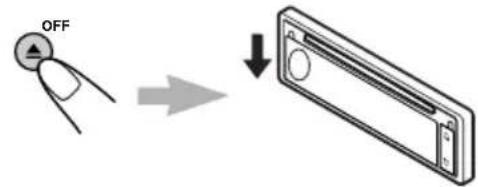
| A | B | C | D | E | F | G | H | I | J | |||||
| K | L | M | N | O | P | Q | R | S | ||||||
| U | V | W | X | Y | Z | spatie |
KD-LX111R:2,0V/20 kΩ belasting
(maximal vermogen)
11,3 dBf (1,0 V/75 Ω)
Stereo-scheiding: 30 dB
Vangbereik:1,5dB
[MG-zenders]
Having TROUBLE with operation?
Please reset your unit
Refer to page of How to reset your unit
