PDP506XDE - TV PIONEER - Free user manual and instructions
Find the device manual for free PDP506XDE PIONEER in PDF.



| Product type | Plasma display TV with separate media receiver |
| Brand | Pioneer |
| Model | PDP506XDE |
| Screen size | 50 inches (diagonal) |
| Display resolution | 1280 × 768 pixels |
| Plasma screen dimensions (W × H × D) | 1224 × 717 × 92 mm |
| Plasma screen weight | 31.8 kg |
| Media receiver dimensions (W × H × D) | 420 × 90 × 299 mm |
| Media receiver weight | 4.3 kg |
| Power supply | 220–240 V AC, 50/60 Hz; screen: 344 W (standby 0.4 W); receiver: 25 W (standby 0.7 W) |
| Audio amplifier | 13 W + 13 W (1 kHz, 10%, 8 Ω) |
| Integrated sound systems | SRS / FOCUS / TruBass |
| TV reception | Analog (PAL/SECAM/NTSC) and digital DVB-T (MPEG-2/4) |
| Input connectors | 3 × SCART (including 2 with AV link), 2 × HDMI, 1 × component YPbPr, 1 × S-Video, 1 × composite, 1 × PC (VGA), 1 × PCMCIA (Common Interface), 1 × analog antenna, 1 × digital antenna |
| Output connectors | Analog stereo audio (fixed), subwoofer output (variable), optical digital audio output, headphone jack (front) |
| Special features | Teletext, EPG (analog and digital), multi-screen (picture-in-picture), freeze image, Home Gallery (memory card), PureCinema, noise reduction, energy saving, child lock, timer |
| Safety | Mandatory grounding, ventilation required, automatic shutdown in case of overheating, surge protection |
| Maintenance and cleaning | Clean the screen and chassis with a soft, dry cloth; do not use chemicals or damp cloths |
| Spare parts and repairability | No user-serviceable parts; refer all repairs to qualified personnel |
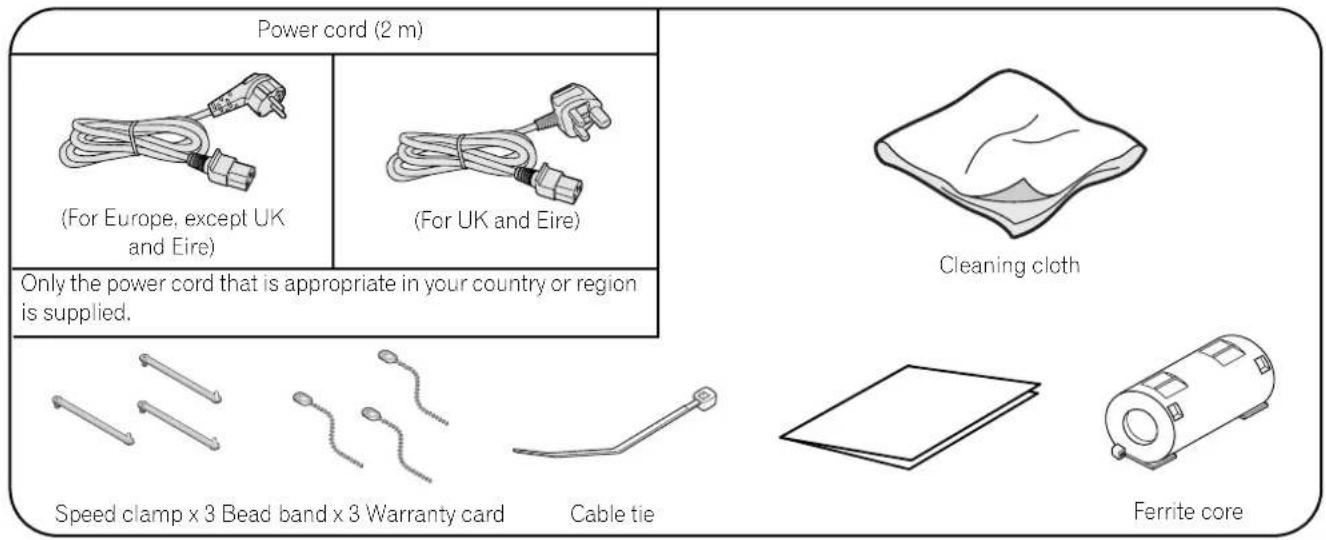
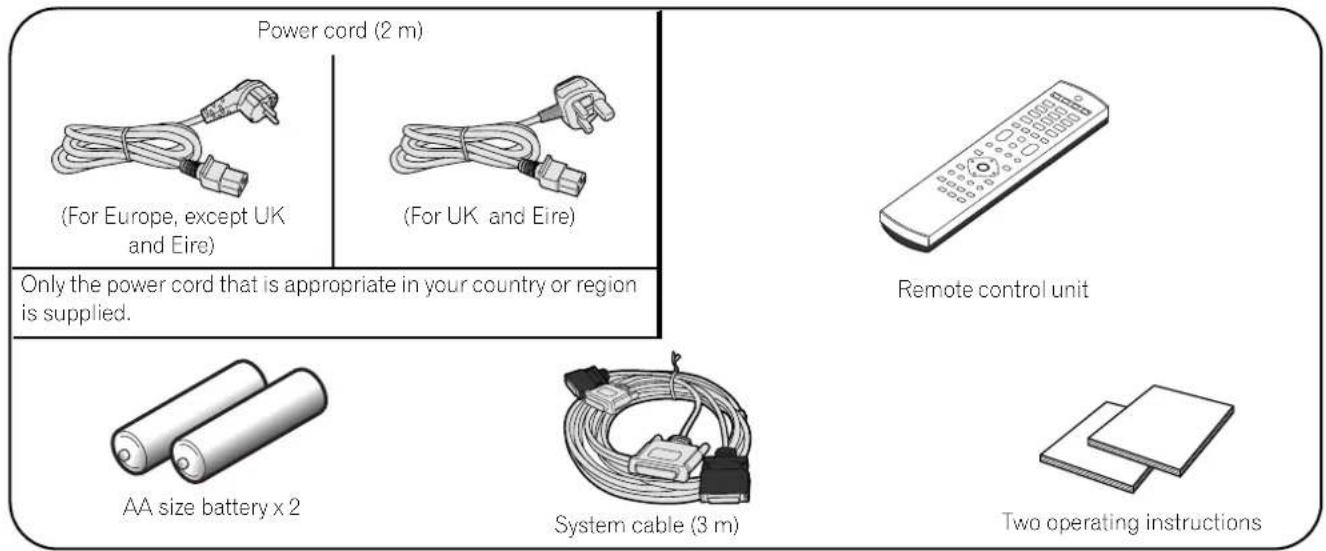
| Supplied accessories | 2 power cords (2 m), system cable (3 m), remote control, 2 AA batteries, cable ties, cleaning cloth, ferrite core |
Frequently Asked Questions - PDP506XDE PIONEER
User questions about PDP506XDE PIONEER
0 question about this device. Answer the ones you know or ask your own.
Ask a new question about this device
Download the instructions for your TV in PDF format for free! Find your manual PDP506XDE - PIONEER and take your electronic device back in hand. On this page are published all the documents necessary for the use of your device. PDP506XDE by PIONEER.
USER MANUAL PDP506XDE PIONEER
PLASMA DISPLAY SYSTEM SYSTEME D'ÉCRAN PLASMA PLASMA DISPLAY-SYSTEM
PDP-506XDE PDP-436XDE
Discover the benefits of registering your product online at www.pioneer.co.uk (or www.pioneer-eur.com).
Operating Instructions
Mode d'emploi
Bedienungsanleitung



Replacement and mounting of an AC plug on the power supply cord of this unit should be performed only by qualified service personnel.
IMPORTANT
FOR USE IN THE UNITED KINGDOM.
The wires in this mains lead are coloured in accordance with the following code:
Green and Yellow : Earth
Blue : Neutral
Brown : Live
If the plug provided is unsuitable for your socket outlets, the plug must be cut off and a suitable plug fitted.
The cut-off plug should be disposed of and must not be inserted into any 13 amp socket as this can result in electric shock. The plug or adaptor or the distribution panel should be provided with 13 A fuse. As the colours of the wires in the mains lead of this appliance may not correspond with coloured markings identifying the terminals in your plug, proceed as follows;
The wire which is coloured green and yellow must be connected to the terminal in the plug which is marked with the letter E or by the earth symbol ⊕, or coloured green or green and yellow.
The wire which is coloured blue must be connected to the terminal which is marked with the letter N or coloured black.
The wire which is coloured brown must be connected to the terminal which is marked with the letter L or coloured red.
NOTE
After replacing or changing a fuse, the fuse cover in the plug must be replaced with a fuse cover which
corresponds to the colour of the insert in the base of the plug or the word that is embossed on the base of the plug, and the appliance must not be used without a fuse cover. If lost replacement fuse covers can be obtained from your dealer.
Only 13 A fuses approved by B.S.I or A.S.T.A to B.S.1362 should be used.
P3-4-2-1-2-1_En
IMPORTANT
The lightning flash with arrowhead symbol, within an equilateral triangle, is intended to alert the user to the presence of uninsulated 'dangerous voltage' within the product's enclosure that may be of sufficient magnitude to constitute a risk of electric shock to persons.
CAUTION
RISK OF ELECTRIC SHOCK DO NOT OPEN
CAUTION:
TO PREVENT THE RISK OF ELECTRIC SHOCK, DO NOT REMOVE COVER (OR BACK). NO USER-SERVICEABLE PARTS INSIDE. REFER SERVICING TO QUALIFIED SERVICE PERSONNEL.

The exclamation point within an equilateral triangle is intended to alert the user to the presence of important operating and maintenance (servicing) instructions in the literature accompanying the appliance.
WARNING
This equipment is not waterproof. To prevent a fire or shock hazard, do not place any container filed with liquid near this equipment (such as a vase or flower pot) or expose it to dripping, splashing, rain or moisture.
D3-4-2-1-3_A_En
This product complies with the Low Voltage Directive (73/23/EEC, amended by 93/68/EEC), EMC Directives (89/336/EEC, amended by 92/31/EEC and 93/68/EEC).
WARNING
Before plugging in for the first time, read the following section carefully.
The voltage of the available power supply differs according to country or region. Be sure that the power supply voltage of the area where this unit will be used meets the required voltage (e.g., 230V or 120V) written on the rear panel.
D3-4-2-1-4_A_En
WARNING
This apparatus must be earthed.
WARNING
This product equipped with a three-wire grounding (earthed) plug - a plug that has a third (grounding) pin. This plug only fits a grounding-type power outlet. If you are unable to insert the plug into an outlet, contact a licensed electrician to replace the outlet with a properly grounded one. Do not defeat the safety purpose of the grounding plug. D3-4-2-1-6_A_En
The following symbols are found on labels attached to the product. They alert the operators and service personnel of this equipment to any potentially dangerous conditions.

WARNING
This symbol refers to a hazard or unsafe practice which can result in personal injury or property damage.

CAUTION
This symbol refers to a hazard or unsafe practice which can result in severe personal injury or death.
WARNING
To prevent a fire hazard, do not place any naked flame sources (such as a lighted candle) on the equipment.
D3-4-2-1-7a_A_En
VENTILATION CAUTION
When installing this unit, make sure to leave space around the unit for ventilation to improve heat radiation. For the minimum space required, see page 16.
WARNING
Slots and openings in the cabinet are provided for ventilation to ensure reliable operation of the product, and to protect it from overheating. To prevent fire hazard, the openings should never be blocked or covered with items (such as newspapers, table-cloths, curtains) or by operating the equipment on thick carpet or a bed.
CAUTION
The power switch does not completely separate the unit from the mains in off position. Therefore install the unit suitable places easy to disconnect the mains plug in case of the accident. The mains plug of unit should be unplugged from the wall socket when left unused for a long period of time.
STANDBY/ON Button
STANDBY: When placed into the standby mode, the main power flow is cut and the unit is no longer fully operational.
STANDBY/ON Indicator
The indicator is lit red when the unit is in the standby mode and is lit blue when it is in the power-on mode.
Contents
Thank you for buying this Pioneer product.
Please read through these operating instructions so you will know how to operate your model properly. After you have finished reading the instructions, put them away in a safe place for future reference. In some countries or regions, the shape of the power plug and power outlet may sometimes differ from that shown in the explanatory drawings. However the method of connecting and operating the unit is the same.
01 Important User Guidance Information
02 Safety Precautions
03 Supplied Accessories
Identifying the main units .....12
Plasma Display 12
Media Receiver ....12
04 Part Names
Plasma Display 13
Media Receiver ....14
Remote control unit ....15
05 Preparation
Installing the Plasma Display .....16
Installing the Media Receiver 16
Preventing the Plasma Display from Falling Over 17
Connecting the system cable 18
Connecting the power cord .....19
Routing cables 20
Connecting to an antenna 21
Preparing the remote control unit .....22 Inserting batteries .....22
Cautions regarding batteries .....22
Allowed operation range of the remote control unit ....22
Cautions regarding the remote control unit ....22
06 Watching TV
Turning on/off the power 23
Changing channels 24
Tuning to your favourite (analogue) channels 25
Changing the volume and sound 25
Use the multiscreen functions .....27 Splitting the screen .....27
Freezing images 28
07 Menu Setup
Using the menu 29
AV mode menus 29
PC mode menus 29
Menu operations 29
08 Basic Adjustment Settings
Setting up TV channels automatically .... 30
Using Auto Installation 30
Setting up analogue TV channels
manually 30
Using Manual Adjust 30
Reducing video noise 31
Setting Child Lock 31
Selecting a decoder input terminal ... 31
Labelling TV channels 32
Sorting preset TV channels 32
Clock setting 32
Language setting 32
AV Selection 33
Basic picture adjustments 33
Advanced picture adjustments 34
Using PureCinema 34
Using Colour Temp 34
Using CTI 34
Using Colour Management 35
Eliminating noise from images 35
Using the Dynamic Range Expander (DRE) functions 35
Using the 3DYC and I-P Mode ...... 36
Sound adjustments 36
FOCUS 36
Front Surround 37
Listening to audio from the sub
screen using headphones 37
Power Control 38
09 Enjoying DTV broadcasts
Watching DTV programmes 39
Changing channels 39
Viewing a channel banner 39
Viewing subtitles 39
Reconfiguring the DTV channel
settings 40
Reselecting a country 40
Replacing the existing channels ..... 40
Adding new channels 40
Checking signal strength 41
Contents
Switching on/off the power to the antenna 41
Restoring the system defaults ..... 41
Customizing channel related settings .... 42
Setting Channel Options 42
Activating the Favourites function ..... 42
Activating the Auto Skip 42
Setting the Child Lock 43
Sorting preset DTV channels 43
Selecting a digital audio format 43
Selecting languages for audio, subtitles, and teletext 44
Using Software Update 44
Using Auto Update 44
Setting Update Time 44
Starting Manual Update 44
Displaying technical information ..... 45
Using MHEG application (UK only) .... 45
Screen Saver 45
Common Interface 45
Inserting a CA Card 45
10 Using the Electronic Programme Guide (EPG)(for Analogue TV only)
Setting up for using the EPG 46
Updating EPG information automatically 46
Specifying an EPG information provider 46
Restricting the display of EPG information 46
Searching programmes 46
Viewing programme information ...... 47
Recording a programme using a recording equipment 47
Selecting a programme for immediate watching 47
11 Using the Electronic Programme Guide (EPG)(for DTV only)
EPG display format 48
Using the EPG 49
Presetting TV programmes using the EPG 50
Using auto channel select and standby recording 50
Setting the timer manually 51
Priority rules for overlapped presettings 51
Changing/cancelling TV programme presettings 52
Changing priorities for overlapped presettings .... 52
Using other useful EPG functions ..... 53
EPG Jump 53
EPG Search 53
12 Useful Adjustment Settings
Switching the vertical drive frequency (AV mode only) 54
Adjusting image positions (AV mode only) 54
Adjusting image positions and clock automatically (PC mode only) 54
Adjusting image positions and clock manually (PC mode only) 54
Selecting an input signal type 55
Colour system setting (AV mode only) ... 55
Selecting a screen size manually ..... 56
Selecting a screen size automatically .... 57 Selecting a screen size for received 4:3 aspect ratio signals .... 57
Changing the brightness at both sides of the screen (Side Mask) 57
Sleep Timer 58
Using a password (AV mode only) .... 58 Entering a password .... 58
Changing the password 58
Resetting the password function ..... 59
Disabling the password function ..... 59
13 Enjoying through External Equipment
Watching a decoder image .... 60
Connecting a decoder .... 60
Displaying a decoder image .... 60
Watching a VCR image .... 60 Connecting a VCR .... 60 Displaying a VCR image .... 60
Using HDMI Input 61 Connecting HDMI equipment 61
Using i/o Link.A 62
Watching a DVD image .... 63 Connecting a DVD player .... 63 Displaying a DVD image .... 63
Using the SCART output function ...... 63 Switching the SCART output ...... 64
Enjoying a game console or watching camcorder images 64
Contents
Connecting a game console or camcorder 64
Displaying an image from the game console or camcorder ....64
Watching an image from a personal computer 65
Connecting a personal computer .....65
Displaying an image from a personal computer ....65
Computer compatibility chart ......65
Enjoying through audio equipment in connection ....65
Connecting audio equipment 65
Connecting control cords ......66
About SR+ 66
Enjoying through memory cards (Home Gallery function) ......66
Readable memory cards ....66
Readable data files 66
Inserting a memory card 67
Removing a memory card 67
Starting the initial Home Gallery screen 67
Selecting a folder 67
Starting a thumbnail screen 68
Starting a standard single-image screen 68
Starting the Slide Show Setup screen 69
Starting the Slide Show screen ......69
Adjusting the picture quality 69
Controlling other equipment using the supplied remote control unit ....69
Manufacture codes 70
STB (set - top box) control buttons .....71
DVD/DVR control buttons 72
VCR control buttons 73
14 Using the Teletext Functions
What is Teletext? 74
Operating the Teletext basics .....74
Turning on and off Teletext 74
Selecting and operating Teletext pages 74
Displaying subpages 75
Displaying TOP Over View 75
Displaying subtitle pages 75
15 Appendix
Troubleshooting 76
Connecting pin assignments for SCART 77
Specifications 78
In order to obtain maximum enjoyment from this Pioneer PureVision PDP-506XDE/PDP-436XDE Plasma Display System, please first read this information carefully.
With the Pioneer PureVision PDP-506XDE/PDP-436XDE, you can be assured of a high quality Plasma Display System with long-life and high reliability. To achieve images of exceptional quality, this Pioneer Plasma Display System incorporates state-of-the-art design and construction, as well as very precise and highly advanced technology.
The Pioneer PureVision PDP-506XDE/PDP-436XDE incorporates the latest in colour filter technology – Direct Colour Filter. This improves the colour/picture reproduction of these models as compared to previous models. It also eliminates the need for a physical glass panel to be placed in front of the plasma panel, which furthers Pioneer's continued goal of reducing environmental waste in consumer electronics, now during the manufacturing process and in the future during the recycling process.
Over the course of its lifetime, the luminosity of the Pioneer PDP-506XDE/PDP-436XDE Plasma Display System will diminish very slowly, such as with all phosphor-based screens (for example, a traditional tube-type television). To enjoy beautiful and bright images on your Pioneer Plasma Display System for a long time, please carefully read and follow the usage guidances below:
Usage guidelines
All phosphor-based screens (including conventional tube-type televisions) can be affected by displaying static images for a prolonged period. Plasma Display System's are no exception to this rule. After-image and permanent effects on the screen can be avoided by taking some basic precautions. By following the recommendations listed below, you can ensure longer and satisfactory results from your plasma:
- Whenever possible, avoid frequently displaying the same image or virtually still moving pictures (e.g. closed-captioned images or video game images which have static portions).
- Do not display Teletext for a prolonged period of time.
- Avoid viewing the On Screen Display for extended periods, from a decoder, DVD player, VCR and all other components.
- Do not leave the same picture freeze-framed or paused continuously over a long period of time, when using the still picture mode from a TV, VCR, DVD player or any other component.
- Images which have both very bright areas and very dark areas side by side should not be displayed for a prolonged period of time.
- When playing a game, the "GAME" mode setting within "AV Selection" is strongly recommended. However, please limit its use to less than 2 hours at a time.
- After playing a game, or displaying a PC image or any still image, it is best to view a normal moving picture in the "WIDE" or "FULL" screen setting for more than 3 times the length of the previous still moving image.
- After using the Plasma Display System, always switch the display to "STANDBY" mode.
Installation guidelines
The Pioneer PureVision PDP-506XDE/PDP-436XDE Plasma Display System incorporates a very thin design. To ensure safety, please take the proper measures to mount or install the Plasma Display, in order to prevent the unit from tipping over in the event of vibration or accidental movement.
This product should be installed by using only parts and accessories designed by PIONEER. Use of accessories other than the PIONEER stand or installation bracket may result in instability, and could cause injury. For custom installation, please consult the dealer where the unit was purchased. To ensure correct installation, experienced and qualified experts must install the unit. PIONEER will not be held responsible for accident or damage caused by the use of parts and accessories manufactured by other companies.
To avoid malfunction and overheating, make sure that the vents on the main unit are not blocked when installing to ensure proper heat emission:
- Distance the unit slightly from other equipment, walls, etc. For the minimum space required around the unit, see page 16.
- Do not fit the unit inside narrow spaces where ventilation is poor.
- Do not cover with a cloth, etc.
- Clean the vents on the sides and rear of the unit to remove dust build-up, by using a vacuum cleaner set to its lowest suction setting.
- Do not place the product on a carpet or blanket.
- Do not leave the product tilted over except the case of vertical installation of the Media Receiver.
- Do not reverse the product.
Using the unit without proper ventilation may cause the internal temperature to rise, and could result in possible malfunction. When the surrounding or internal temperature exceeds a certain degree, the display will automatically power off in order to cool the internal electronics and prevent hazardous occurrences.
Any malfunction may occur due to: an inappropriate installation site, improper assembly, installation, mounting, or operation of this product, modifications made to the product. However, PIONEER cannot be held responsible for such accidents or malfunction.

NOTE
The following are typical effects and characteristics of a phosphor-based matrix display and as such, are not covered by the manufacturer's limited warranties:
- Permanent residual images upon the phosphors of the panel.
- The existence of a minute number of inactive light cells.
- Panel generated sounds, examples: Fan motor noise, and electrical circuit humming / glass panel buzzing

CAUTION
PIONEER bears no responsibility for any damage arising from incorrect use of the product by you or other people, malfunctions when in use, other product related problems, and use of the product except in cases where the company must be liable.
Plasma Display protection function
When still images (such as photos and computer images) stay on the screen for an extended period of time, the screen will be slightly dimmed. This is because the protection function of the Plasma Display automatically adjusts the brightness to protect the screen when detecting still images; so this does not designate malfunction. The screen is dimmed when a still image is detected for about three minutes.
Information of pixel defect
Plasma screens display information using pixels. Pioneer plasma display panels contain a very large number of pixels. (Depending on the panel size; over 2.3 million cells in case of a 43 inch display, over 2.9 million pixels in case of a 50 inch display, over 3.1 million cells in case of a 61 inch display). All Pioneer display panels are manufactured using a very high level of ultra-precision technology and undergo individual quality control.
In rare cases, some pixels can be permanently switched off, or on, resulting in either a black or coloured pixel permanently fixed on the screen.
This effect is common to all plasma displays because it is a consequence of the technology.
If the defective pixels are visible at a normal viewing distance of between 2.5 and 3.5 meters whilst viewing a normal broadcast (i.e. not a test card, still image or single colour display) please contact the supplying dealer.
If, however, they can only be seen close up or during single colour displays then this is considered normal for this technology.
Infrared rays
The Plasma Display releases infrared rays because of its characteristics. Depending on how the Plasma Display is in use, the remote controls of nearby equipment may be adversely affected or wireless headphones using infrared rays are interfered by noise. If this is the case, place that equipment at a location where its remote control sensor is not affected.
Radio interference
While this product meets the required specifications, it emits a small amount of noise. If you place such equipment as an AM radio, personal computer, and VCR close to this product, that equipment may be interfered. If this happens, place that equipment far enough from this product.
Plasma Display driving sound
The screen of the Plasma Display is composed of extremely fine pixels and these pixels emit light according to received video signals. This principle may make you hear buzz sound or electrical circuit hamming from the Plasma Display.
Also note that the rotation speed of the cooling fan motor increases when the ambient temperature of the Media Receiver becomes high. You may hear the sound of the fan motor at that time.
Do not attach such items as labels and tape to the product.
- This may result in the discolouration or scratch of the cabinet.
When not using the product for a long period of time
- If you do not use the product for a long period of time, the functions of the product may be adversely affected. Switch on and run the product occasionally.
Condensation
- Condensation may take place on the surface or inside of the product when the product is rapidly moved from a cold place to a warm place or just after a heater is switched on in winter morning, for example. When condensation takes place, do not switch on the product and wait until condensation disappears. Using the product with condensation may result in malfunction.
Cleaning the surface of the screen and the glossy surface of the front cabinet
- When cleaning the surface of the screen or the glossy surface of the front cabinet, gently wipe it with a dry soft cloth; the supplied cleaning cloth or other similar cloths (e.g., cotton and flannel). If you use a dusty or hard cloth or if you rub the screen hard, the surface of the product will be scratched.
- If you clean the surface of the screen with a wet cloth, water droplets on the surface may enter into the product, resulting in malfunction.
Cleaning the cabinet
- When cleaning the cabinet of this product, gently wipe it with a clean soft cloth (e.g., cotton and flannel). If you use a dusty or hard cloth or if you rub the cabinet hard, the surface of the cabinet will be scratched.
- The cabinet of this product is mostly composed of plastic. Do not use chemicals such as benzene or thinner to clean the cabinet. Using these chemicals may result in quality deterioration or coating removal.
- Do not expose the product to volatile gas or fluid such as pesticide. Do not make the product contact with rubber or vinyl products for a long period of time. The effect of plasticizer in the plastic may result in quality deterioration or coating removal.
- If you clean the surface of the cabinet with a wet cloth, water droplets on the surface may enter into the product, resulting in malfunction.
Handles at the rear of the Plasma Display
- Do not remove the handles from the rear of the Plasma Display.
- When moving the Plasma Display, ask another person for help and use the handles attached to the rear of the Plasma Display. Do not move the Plasma Display by holding only a single handle. Use the handles as shown.
- Do not use the handles to hang the product when installing or carrying the product, for example. Do not use the handles for the purpose of preventing the product from tilting over.

CAUTION
Panel sticking and after-image lag
- Displaying the same images such as still images for a long time may cause after-image lagging. This may occur in the following two cases.
1 After-image lagging due to remaining electrical load
When image patterns with very high peak luminance are displayed for more than 1 minute, after-image lagging may occur due to the remaining electric load. The after-images remaining on the screen will disappear when moving images are displayed. The time for the after-images to disappear depends on the luminance of the still images and the time they had been displayed.
2 After-image (lag image) due to burning
Avoid displaying the same image on the Plasma Display continuously over a long period of time. If the same image is displayed continuously for several hours, or for shorter periods of time over several days, a permanent after-image may remain on the screen due to burning of the fluorescent materials. Such images may become less noticeable if moving images are later displayed, but they will not disappear completely.
- The energy save function can be set to help prevent damage from screen burning (see page 38).

CAUTION
- The compatibility of this product with digital terrestrial services has been fixed - details described in the product specifications - at the time of its introduction.

If you want to dispose this product, do not mix it with general household waste. There is a separate collection system for used electronic products in accordance with legislation that requires proper treatment, recovery and recycling.
Private households in the 25 member states of the EU, in Switzerland and Norway may return their used electronic products free of charge to designated collection facilities or to a retailer (if you purchase a similar new one).
For countries not mentioned above, please contact your local authorities for the correct method of disposal.
By doing so you will ensure that your disposed product undergoes the necessary treatment, recovery and recycling and thus prevent potential negative effects on the environment and human health.
Electricity is used to perform many useful functions, but it can also cause personal injuries and property damage if improperly handled. This product has been engineered and manufactured with the highest priority on safety. However, improper use can result in electric shock and/or fire. In order to prevent potential danger, please observe the following instructions when installing, operating and cleaning the product. To ensure your safety and prolong the service life of your product, please read the following precautions carefully before using the product.
- Read instructions — All operating instructions must be read and understood before the product is operated.
- Keep this manual in a safe place — These safety and operating instructions must be kept in a safe place for future reference.
- Observe warnings — All warnings on the product and in the instructions must be observed closely.
- Follow instructions — All operating instructions must be followed.
- Cleaning — Unplug the power cord from the AC outlet before cleaning the product. To clean the product, use the supplied cleaning cloth or other soft clothes (e.g., cotton, flannel). Do not use liquid cleaners or aerosol cleaners.
- Attachments — Do not use attachments not recommended by the manufacturer. Use of inadequate attachments can result in accidents.
- Water and moisture — Do not use the product near water, such as bathtub, washbasin, kitchen sink and laundry tub, swimming pool and in a wet basement.
- Stand — Do not place the product on an unstable cart, stand, tripod or table. Placing the product on an unstable base can cause the product to fall, resulting in serious personal injuries as well as damage to the product. Use only a cart, stand, tripod, bracket or table recommended by the manufacturer or sold with the product. When mounting the product on a wall, be sure to follow the manufacturer's instructions. Use only the mounting hardware recommended by the manufacturer.
- When relocating the product placed on a cart, it must be moved with utmost care. Sudden stops, excessive force and uneven floor surface can cause the product to fall from the cart.

natural_image
Silhouette of a person climbing a ladder inside a circle (no text or symbols)- Ventilation — The vents and other openings in the cabinet are designed for ventilation. Do not cover or block these vents and openings since insufficient ventilation can cause overheating and/or shorten the life of the product. Do not place the product on a bed, sofa, rug or other similar surface, since they can block ventilation openings. This product is not designed for built-in installation; do not place the product in an enclosed place such as a bookcase or rack, unless proper ventilation is provided or the manufacturer's instructions are followed.
- Power source — This product must operate on a power source specified on the specification label. If you are not sure of the type of power supply used in your home, consult your dealer or local power company.
- Power cord protection — The power cords must be routed properly to prevent people from stepping on them or
objects from resting on them. Check the cords at the plugs and product.
- The plasma Display used in this product is made of glass. Therefore, it can break when the product is dropped or applied with impact. Be careful not to be injured by broken glass pieces in case the plasma Display breaks.
- Overloading — Do not overload AC outlets or extension cords. Overloading can cause fire or electric shock.
- Entering of objects and liquids — Never insert an object into the product through vents or openings. High voltage flows in the product, and inserting an object can cause electric shock and/or short internal parts. For the same reason, do not spill water or liquid on the product.
- Servicing — Do not attempt to service the product yourself. Removing covers can expose you to high voltage and other dangerous conditions. Request a qualified service person to perform servicing.
- Repair — If any of the following conditions occurs, unplug the power cord from the AC outlet, and request a qualified service person to perform repairs.
a. When the power cord or plug is damaged.
b. When a liquid was spilled on the product or when objects have fallen into the product.
c. When the product has been exposed to rain or water.
d. When the product does not operate properly as described in the operating instructions.
Do not touch the controls other than those described in the operating instructions. Improper adjustment of controls not described in the instructions can cause damage, which often requires extensive adjustment work by a qualified technician.
e. When the product has been dropped or damaged.
f. When the product displays an abnormal condition. Any noticeable abnormality in the product indicates that the product needs servicing.
- Replacement parts — In case the product needs replacement parts, make sure that the service person uses replacement parts specified by the manufacturer, or those with the same characteristics and performance as the original parts. Use of unauthorized parts can result in fire, electric shock and/or other danger.
- Safety checks — Upon completion of service or repair work, request the service technician to perform safety checks to ensure that the product is in proper operating condition.
- Wall or ceiling mounting — When mounting the product on a wall or ceiling, be sure to install the product according to the method recommended by the manufacturer.
- Heat sources — Keep the product away from heat sources such as radiators, heaters, stoves and other heat-generating products (including amplifiers).
- Unplug the power cord from the AC outlet before installing the speakers.
- Never expose the screen of the Plasma Display to a strong impact, for example, by hitting it. The screen may be broken, resulting in fire or personal injury.
- Do not expose the Plasma Display to direct sunlight for a long period of time. The optical characteristics of the front protection panel changes, resulting in discolouration or warp.
- The Plasma Display weighs about 31.8 kg (70.1 lbs.) for the PDP-506PE and about 25.8 kg (56.9 lbs.) for the PDP-436PE. Because it has small depth and is unstable, unpack, carry, and install the product with one more person at least and use the handles.
Installation Precautions
Observe the following precautions when installing with any items such as the optional stand.
When using the optional stand, brackets, or equivalent items
- Ask your dealer to perform the installation.
- Be sure to use the supplied bolts.
- For details, see the instruction manual that comes with the optional stand (or equivalent items).
When using other items
- Consult your dealer.
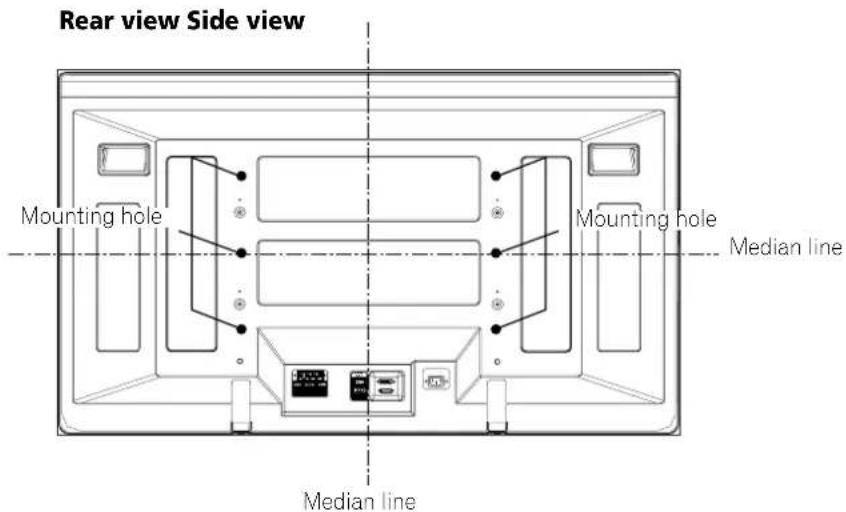
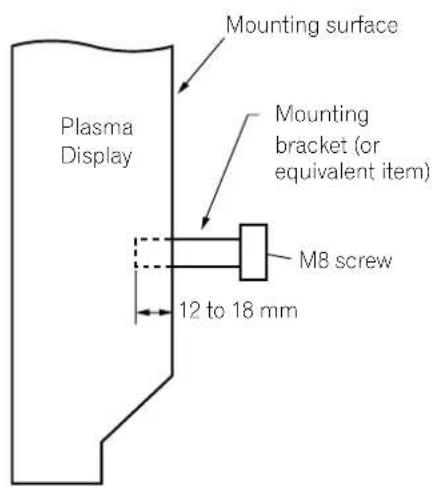
- The following six mounting holes can be used for the installation:

CAUTION
- Be sure to use four or more mounting holes symmetrical to the vertical and horizontal median lines.
- Use M8 screws, which go 12 to 18mm in depth from the mounting surface of the Plasma Display. See the side view above.
- Be careful not to block the ventilation opening at the rear of the Plasma Display.
- Be sure to install the Plasma Display on a flat surface because it contains glass.
- The screw holes other than the above are to be used only for the specified products. Never use them for mounting non-specified products.
- Do not mount or remove the Plasma Display to or from the stand, with speakers attached.

NOTE
- It is strongly recommended to use the optional PIONEER mounting products.
- PIONEER shall not be liable for any personal injury or product damage that results from the use of mounting items other than the optional PIONEER products.
Identifying the main units
Use the following table to check that you have received the correct Media Receiver and Plasma Display models.
| Model Name of the Entire Plasma Display System | Model Name of the Main Unit | |
| Media Receiver Plasma Display | ||
| PDP-506XDE | PDP-R06XE | PDP-506PE |
| PDP-436XDE PDP-436PE | ||
The speakers are available as options.
Plasma Display
Media Receiver

NOTE
- Always use the power cord supplied with the Plasma Display and the one supplied with the Media Receiver for each respective unit.
Plasma Display
Front view
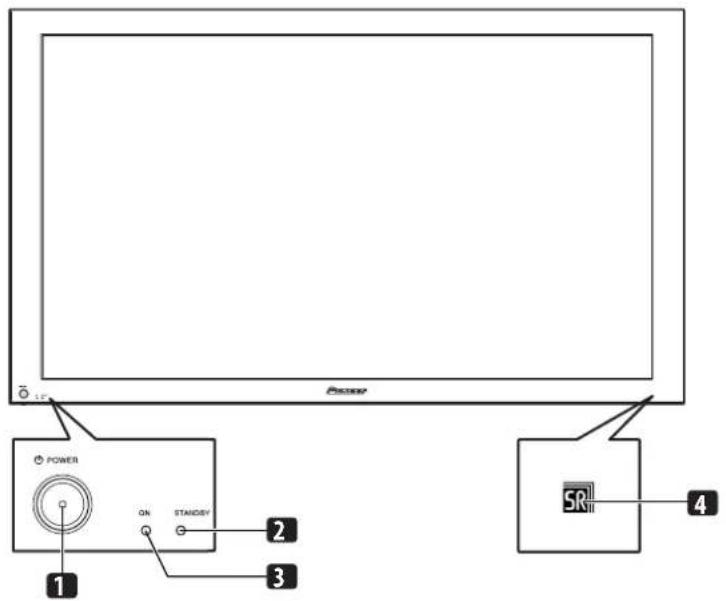
1 P O W buttonR
2 STANDBY indicator
3 POWER ON indicator
4 Remote control sensor
Rear view
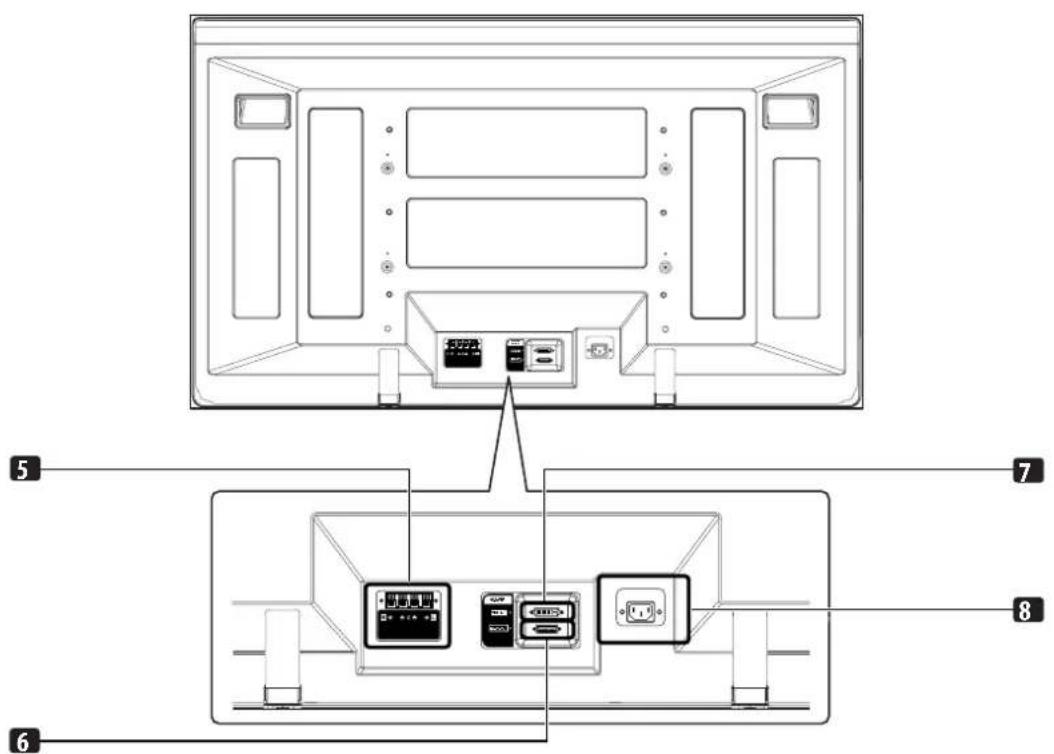
5 SPEAKER (right/left) terminals
6 SYSTEM CABLE terminal (BLACK)
7 SYSTEM CABLE terminal (WHITE)
8 AC IN terminal
Media Receiver
Front view
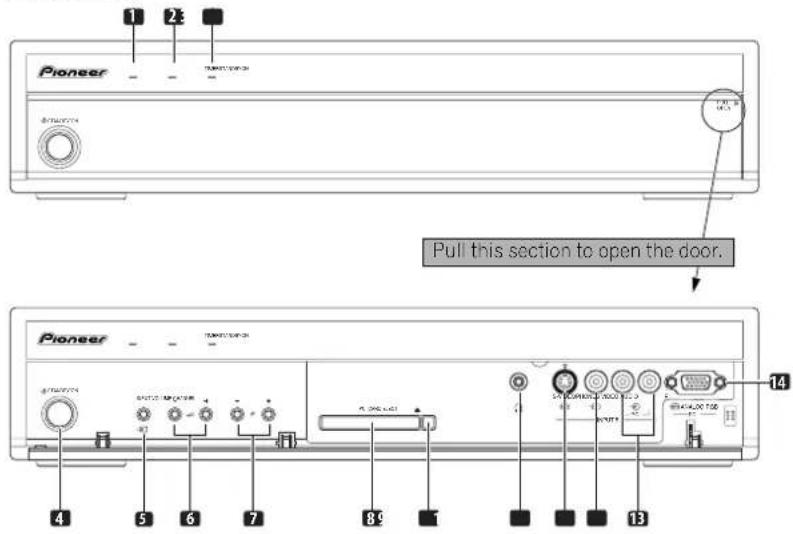
1 POWER ON indicator
2 STANDBY indicator
3 TIMER indicator
4 STANDBY/ON button
5 INPUT button
6 V O L U MuttEns + / -
7 CHANNEL +/- buttons
8 PC CARD slot
9 PC CARD EJECT button
10 PHONES output terminal
11 INPUT 5 terminal (S-VIDEO)
12 INPUT 5 terminal (VIDEO)
13 INPUT 5/PC INPUT terminals (AUDIO)
14 PC INPUT terminal (ANALOG RGB)
Rear view
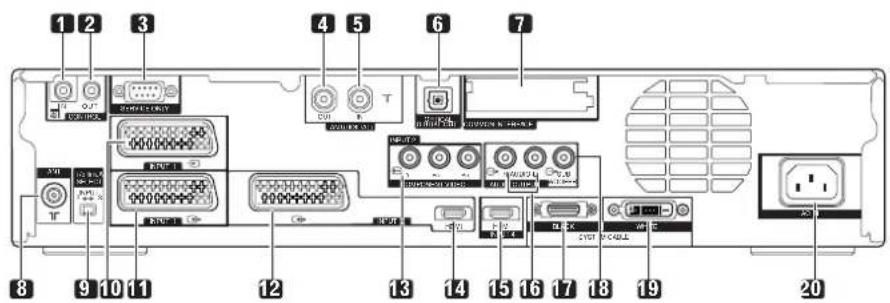
1 CONTROL IN terminal
2 CONTROL OUT terminal
3 RS-232C terminal (used for factory setup)
4 ANT OUT terminal (Antenna through out)
5 ANT IN terminal (Antenna in for DTV)
• Power can be supplied through this terminal
6 DIGITAL OUT terminal (OPTICAL)
7 COMMON INTERFACE slot
- For a CA Module with a smart card
8 ANT (Antenna) input terminal
9 i/o link.A SELECT switch
10 INPUT 1 terminal (SCART)
11 INPUT 2 terminal (SCART)
12 INPUT 3 terminal (SCART)
13 INPUT 2 terminal COMPONENT VIDEO: Y, P_B , P_R )
14 INPUT 3 terminal (HDMI)
15 INPUT 4 terminal (HDMI)
16 AUDIO OUTPUT terminals
17 SYSTEM CABLE terminal (BLACK)
18 SUB WOOFER OUTPUT terminal
19 SYSTEM CABLE terminal (WHITE)
20 AC IN terminal
Remote control unit
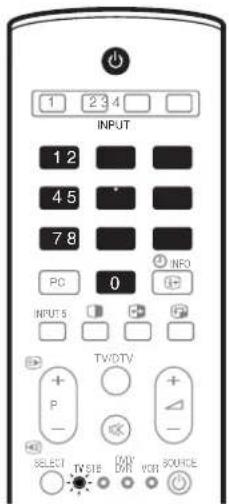
This section describes the functions of the buttons available when the TV mode has been selected using the SELECT button. For the buttons for controlling other equipment, see "Controlling other equipment using the supplied remote control unit" starting from page 69.
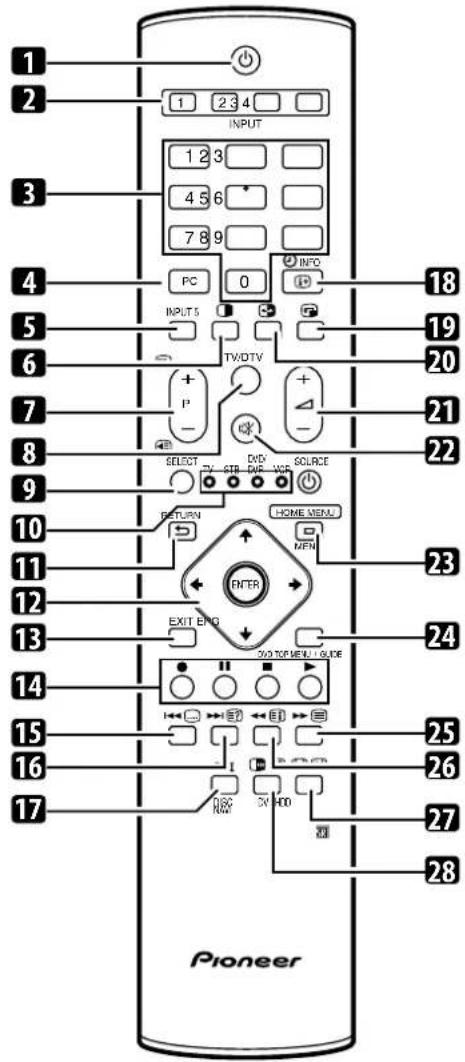
1 ⏻
Turns on the power to the Plasma Display or places it into the standby mode.
2 INPUT
Selects an input source of the Plasma Display. (INPUT 1, INPUT 2, INPUT 3, INPUT 4)
30-9
TV/External input mode: Selects a channel. TELETEXT mode: Selects a page.
4 PC
Selects the PC terminal as an input source.
5 INPUT 5
Selects INPUT 5 as the input source of the Plasma Display.
6
Switches the screen mode among 2-screen, picture-in-picture, and single-screen.
7 F
TV/External input mode: Selects a channel.
/
TELETEXT mode: Selects a page.
8 TV / D TV
Switches between the TV and DTV input modes.
9 SELECT
Switches the selection among TV, STB, DVD/DVR, and VCR, so that you can control other equipment in connection, using the supplied remote control unit.
10 TV, STB, DVD/DVR, VCR
These indicators show the current selection and status when you control other equipment in connection using the supplied remote control unit.
11 RETURN
Restores the previous menu screen.
12/↑

Selects a desired item on the setting screen.
ENTER
Executes a command.
13 EXIT
Returns to the normal screen in one step.
14 Colour (RED/GREEN/YELLOW/BLUE)
TELETEXT mode: Selects a page.
15 ....
TV/External input mode: Jumps to the Teletext subtitle page. DTV input mode: Turns subtitle on and off.
16 ≡?
TELETEXT mode: Displays hidden characters.
17 I-II
Sets the sound multiplex mode.
18 i+

TV/External input mode: Displays the channel information. DTV input mode: Displays the banner information.
19

Moves the location of the small screen when in the picture-in-picture mode.
20

Switches between the two screens when in the 2-screen or picture-in-picture mode.
21
22 咧

Mutes the sound.
23 HOME MENU
TV/External Input mode: Displays the Menu screen.
24 EPG
Display the Electronic Programme Guide.
25
Selects the TELETEXT mode.
(all TV image, all TEXT image, TV/TEXT image)
26 i
TELETEXT mode: Displays an Index page for the CEEFAX/FLOF format. Displays a TOP Over View page for the TOP format.
27
TV/External input mode: Selects the screen size.
三
TELETEXT mode: Switches Teletext images. (full/upper half/lower half)
28
TV/External input mode: Freezes a frame from a moving image. Press again to cancel the function.
三
TELETEXT mode: Stops updating Teletext pages. Press again to release the hold mode.

NOTE
- When using the remote control unit, point it at the Plasma Display.
Installing the Plasma Display
Location
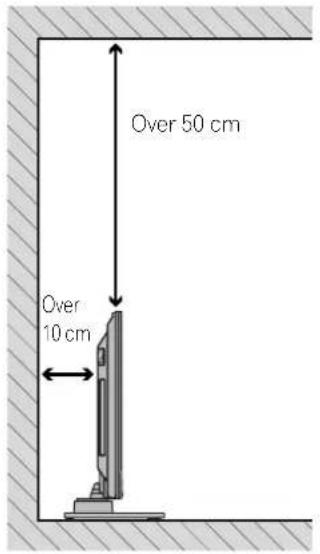
- Avoid direct sunlight. Maintain adequate ventilation.
- The length of the system cable used to connect the Plasma Display and the Media Receiver is about 3 m.
- Because the Plasma Display is heavy, be sure to have someone help you when moving it.

CAUTION
- If you place anything on the top of the Media Receiver it will not receive enough ventilation and will not operate properly.

NOTE
- Allow enough space around the upper and back parts when installing to ensure adequate ventilation of the rear of the unit.
Using the optional PIONEER stand
- For details on installation, refer to the instruction manual supplied with the stand.
Using the optional PIONEER speakers
- For details on installation, refer to the instruction manual supplied with the speaker.

CAUTION
Operating Environment
Operating environment temperature and humidity: +0°C to +40°C; less than 85% RH (cooling vents not blocked) Do not install this unit in a poorly ventilated area, or in locations exposed to high humidity or direct sunlight (or strong artificial light)
Installing the Media Receiver


CAUTION
- Do not place a VCR or any other device on the top of the Media Receiver.
- When installing, allow enough space on the sides and above the Media Receiver.
- Do not block the side ventilation opening or the rear exhaust opening of the Media Receiver.
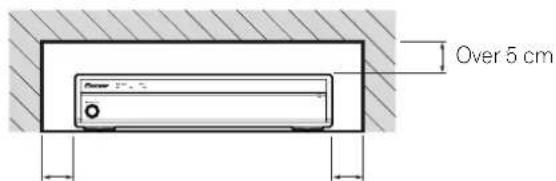
Over 5 cm Over 5 cm
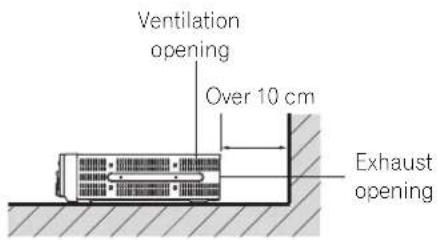

CAUTION
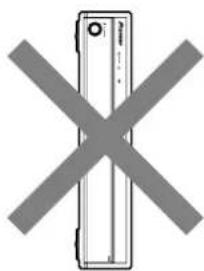
Placing the Media Receiver alone in the vertical position can result in product damage and malfunction.
natural_image
Simple line drawing of a smartphone with a cross symbol crossed out (no text or symbols present)Preventing the Plasma Display from Falling Over
After installing the stand, be sure to take special care to ensure that the Plasma Display will not fall over.
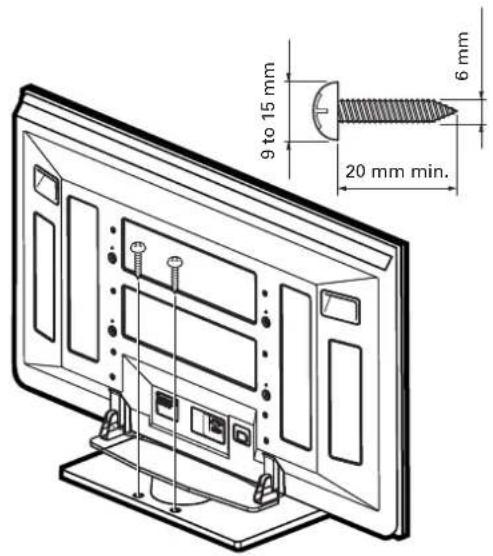
Stabilizing on a table or floor
Stabilize the Plasma Display as shown in the diagram using screws that are available on the market.

NOTE
To stabilize the Plasma Display on a table or on the floor, use screws that have a nominal diameter of 6 mm and that are at least 20 mm long.

CAUTION
A table or an area of the floor with adequate strength should always be used to support the Plasma Display. Failure to do so could result in personal injury and physical damage.
When installing the Plasma Display, please take the necessary safety measures to prevent it from falling or overturning in case of emergencies, such as earthquakes, or of accidents.
If you do not take these precautions, the Plasma Display could fall down and cause injury.
The screws, hooks, chains and other fittings that you use to secure the Plasma Display to prevent it from overturning will vary according to the composition and thickness of the surface to which it will be attached.
Select the appropriate screws, hooks, chains, and other fittings after first inspecting the surface carefully to determine its thickness and composition and after consulting a professional installer if necessary.
Using a wall for stabilization
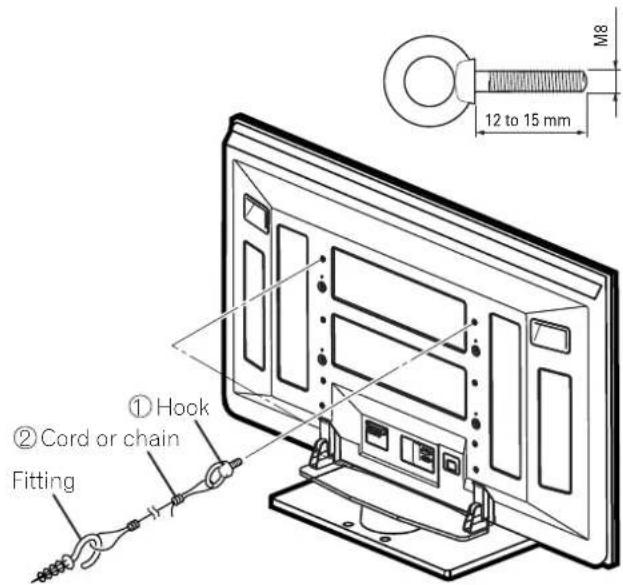
- Attach falling prevention bolts (hooks) to the Plasma Display.
- Use strong cords or chains to stabilize it appropriately and firmly to a wall, pillar, or other sturdy element.
- Perform this work in the same way on the left and right sides.

NOTE
Use hooks, ropes, chains, and fittings that are available on the market.
Recommended hook: Nominal diameter 8 mm Length 12 to 15 mm
Connecting the system cable
Connecting the system cable to the Plasma Display
Plasma Display (rear view)

For details on optional PIONEER speaker installation, refer to the instruction manual that came with the speaker.
Connecting the system cable to the Media Receiver
Media Receiver (rear view)

Connecting the power cord
Plasma Display (rear view)
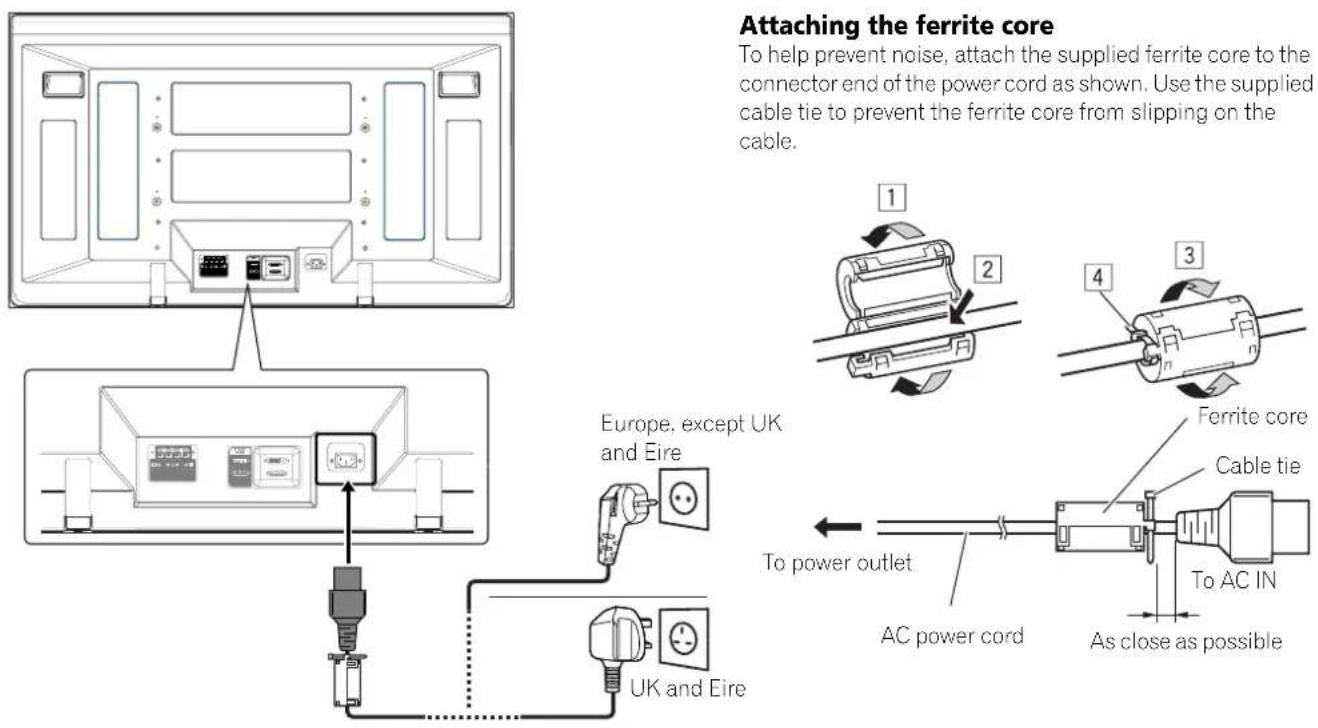
Media Receiver (rear view)
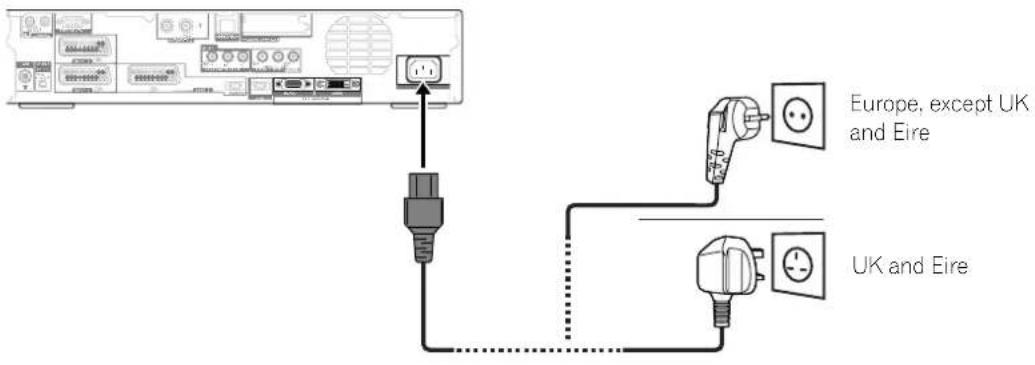

NOTE
- Disconnect the power cord from the power outlet, Plasma Display and Media Receiver when the system is not going to be used for a long period of time.
Routing cables
Speed clamps and bead bands are supplied for bunching cables. Once properly bunched, follow the steps below to route the cables.
When the speakers are installed on the sides (rear view)
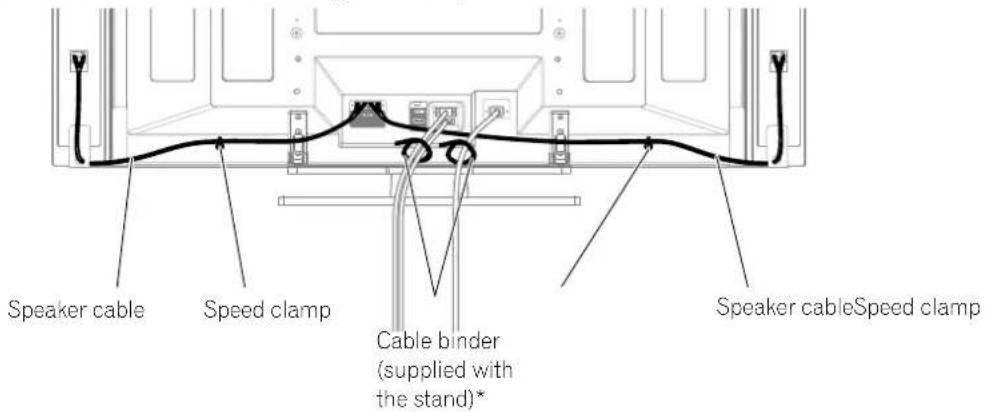
Attaching speed clamps to the main unit
Attach the speed clamps using the 2 holes marked with below, depending on your routing system.
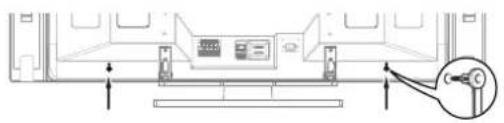
natural_image
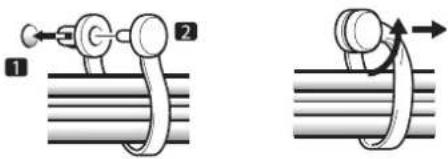
Technical line drawing of a mechanical component with no visible text or symbolsAttaching and removing speed clamps
Insert [1] into an appropriate hole on the rear of the Plasma Display and snap [2] into the back of [1] to lock the clamp. Speed clamps are designed to be difficult to undo once in place. Please attach them carefully. Use pliers to twist the clamp 90^ , pulling outward. The clamp may deteriorate over time and become damaged if removed.
When the speakers are installed at the bottom
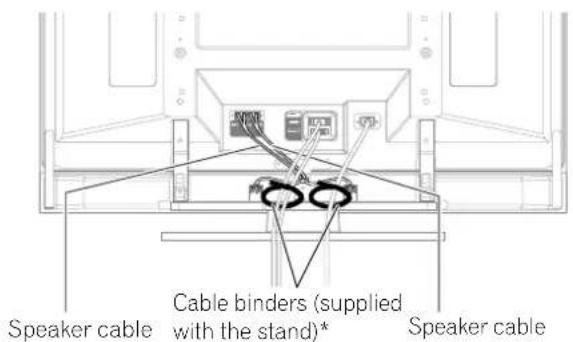

NOTE
- Use the supplied bead bands as necessary.
- For only the PDP-436PE 43" Plasma Display, you can install the speakers at its bottom.
* Cable binder
Using the cable binders supplied with the stand, put the speaker and system cables together so that the cables are invisible from the front. At that time be careful not to apply any force to the connection sections of the cables.
Connecting to an antenna
To enjoy a clearer picture, use an outdoor antenna. The following is a brief explanation of the types of connections that are used for a coaxial cable.
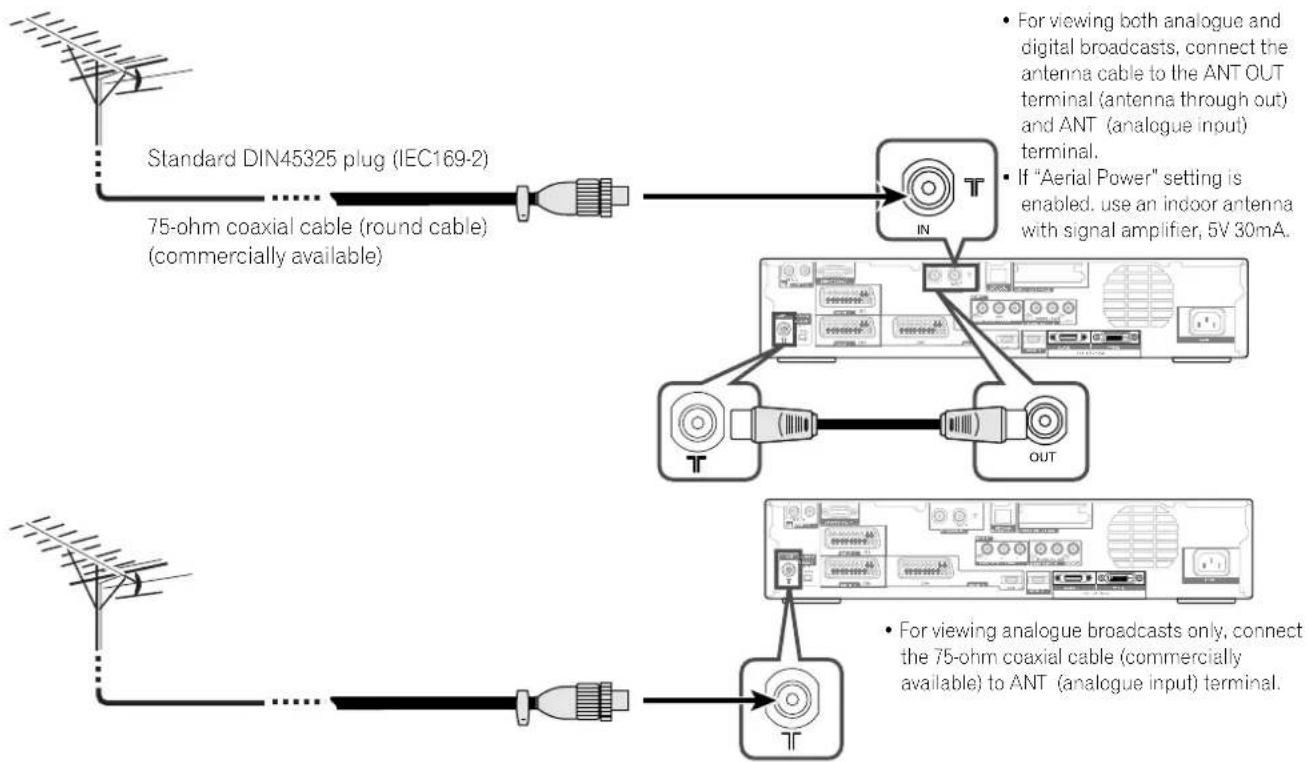
flowchart
graph TD
    A["Standard DIN45325 plug (IEC169-2)"] --> B["75-ohm coaxial cable (round cable) (commercially available)"]
    B --> C["Analog/Analog antenna setup with 'Aerial Power' setting is enabled. Use an indoor antenna with signal amplifier, 5V 30mA."]
    C --> D["Analog/Analog antenna setup with 'IN' and 'OUT' signals"]
    D --> E["Analog/Analog antenna setup with 'T' and 'T' signals"]
    E --> F["Analog/Analog antenna setup with 'T' and 'T' signals"]
    F --> G["Analog/Analog antenna setup with 'T' and 'T' signals"]
    style A fill:#f9f,stroke:#333
    style B fill:#ccf,stroke:#333
    style C fill:#cfc,stroke:#333
    style D fill:#fcc,stroke:#333
    style E fill:#cff,stroke:#333
    style F fill:#ffc,stroke:#333
    style G fill:#fcf,stroke:#333
Antenna cable (commercially available)

Preparing the remote control unit
Inserting batteries
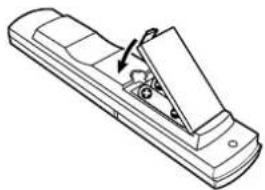
1 Open the battery cover.
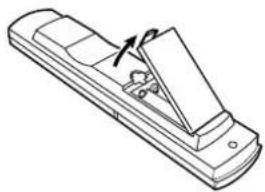
natural_image
Line drawing of a flatboard with an arrow indicating direction (no text or symbols)2 Load the supplied two AA size batteries while inserting their respective negative polarity (−) ends first.
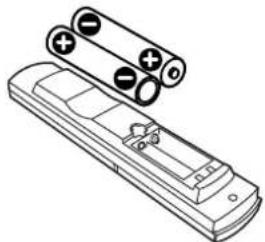
natural_image
Line drawing of a remote control box with battery plates and a switch (no text or symbols)- Place batteries with their terminals corresponding to the (+) and (−) indicators in the battery compartment.
3 Close the battery cover.
natural_image
Line drawing of a handheld device with a handle and internal components (no text or symbols)Cautions regarding batteries
Improper use of batteries can result in chemical leakage or explosion. Be sure to follow the instructions below.
- When you replace the batteries, use manganese or alkaline ones.
- Place the batteries with their terminals corresponding to the (+) and (−) indicators.
- Do not mix batteries of different types. Different types of batteries have different characteristics.
- Do not mix old and new batteries. Mixing old and new batteries can shorten the life of new batteries or cause chemical leakage in old batteries.
- Remove batteries as soon as they have worn out. Chemicals that leak from batteries can cause a rash. If you find any chemical leakage, wipe thoroughly with a cloth.
- The batteries supplied with this product may have a shorter life expectancy due to storage conditions.
- If you will not use the remote control unit for an extended period of time, remove the batteries from it.

CAUTION
- WHEN DISPOSING OF USED BATTERIES, PLEASE COMPLY WITH GOVERNMENTAL REGULATIONS OR ENVIRONMENTAL PUBLIC INSTRUCTION'S RULES THAT APPLY IN YOUR COUNTRY/AREA.
Allowed operation range of the remote control unit
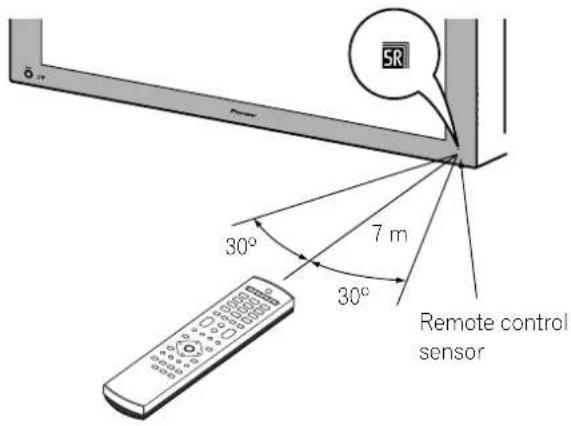
Operate the remote control unit while pointing it toward the remote control sensor (SR) located at the bottom right of the front panel of the Plasma Display. The distance from the remote control sensor must be within 7 m and the angle relative to the sensor must be within 30 degrees in the right, left, upward, or downward direction.
Cautions regarding the remote control unit
- Do not expose the remote control unit to shock. In addition, do not expose the remote control unit to liquids, and do not place in an area with high humidity.
- Do not install or place the remote control unit under direct sunlight. The heat may cause deformation of the unit.
- The remote control unit may not work properly if the remote control sensor of the Plasma Display is under direct sunlight or strong lighting. In such case, change the angle of the lighting or Plasma Display, or operate the remote control unit closer to the remote control sensor.
- When any obstacle exists between the remote control unit and the remote control sensor, the remote control unit may not function.
- As the batteries become empty, the remote control unit can function within a shorter distance from the remote control sensor. Replace the batteries with new ones early enough.
- The Plasma Display emits very weak infrared rays from its screen. If you place such equipment operated through infrared remote control as a VCR nearby, that equipment may not receive commands from its remote control unit properly or entirely. If this is the case, place that equipment at a location far enough from the Plasma Display.
- Depending on the installation environment, infrared rays from the Plasma Display may not allow this system to properly receive commands from the remote control unit or may shorten allowable distances between the remote control unit and the remote control sensor. The strength of infrared rays emitted from the screen differs, depending on images displayed on the screen.
Unless you set up TV channels that you can watch under the current conditions, you cannot tune in those channels. For the procedure, see "Setting up TV channels automatically" on page 30.
Turning on/off the power

NOTE
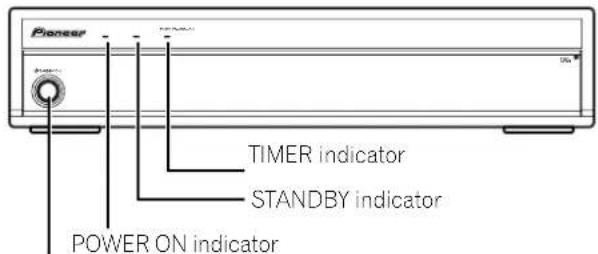
- When the Media Receiver is plugged into a power outlet, it is placed into the standby mode; the STANDBY indicator on its front panel should flash red. The Media Receiver stays in the standby mode unless it is unplugged from the power outlet.
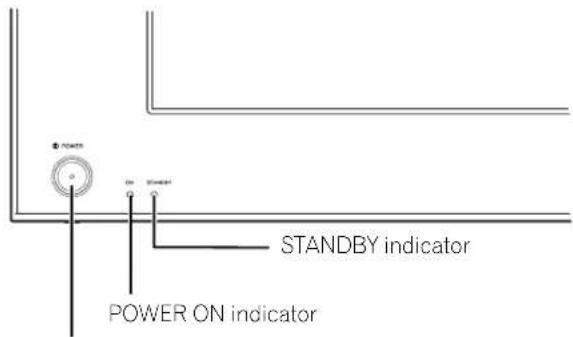
To turn on the system, press POWER on the Plasma Display.
- The POWER ON indicators on the Plasma Display and Media Receiver light up in blue.
To turn off the system, press ⏻ on the remote control unit or STANDBY/ON on the Media Receiver.
- The Plasma Display and Media Receiver are placed into the standby mode; their respective STANDBY indicators light up in red.
- You can then turn on the system again by pressing ⏻ or 0 to 9 on the remote control unit or STANDBY/ON on the Media Receiver. If you press 0 on the remote control unit, images come from the INPUT 1 source. If you press 1 to 9, TV images display.
You can also press POWER on the Plasma Display to turn off the system. However, you cannot then turn on the system again by pressing the buttons on the remote control unit and Media Receiver.

NOTE
- Before operating with the remote control unit, make sure to select the TV mode using its SELECT button. See "Controlling other equipment using the supplied remote control unit" on page 69.
- It is recommended not to unplug the Media Receiver from a power outlet when it is not in use. When in the standby mode, the Media Receiver automatically receives Electronic Programme Guide and DTV Auto Update signals.
- When the system is placed into the standby mode, the main power flow is cut and the system is no longer fully operational. A minute flow of power feeds the system to maintain operation readiness.
- If you are not going to use the Plasma Display System for a long period of time, be sure to remove the power cord from the power outlet.
Plasma Display/Media Receiver status indicators
The table below shows the operational status of the Plasma Display System. You can check the current status of the system with the indicators on the Plasma Display and Media Receiver.
Plasma Display
POWER button
Media Receiver
STANDBY/ON button
Indicator Status System Status
| Plasma Display | Media Receiver | |||
| POWER ON | STANDBY | POWER ON | STANDBY | |
| The power cords of both the Plasma Display and the Media Receiver have been disconnected. Or, the power cord of the Plasma Display has been connected but the POWER button of the Plasma Display is off. | ||||
| [T40K] |  | [DT7] |  | Power to the system is on. |
 |  | ● | [XDK] | The system is in the standby mode. |
| [580W] |  | ● |  | The power cord of the Media Receiver has been disconnected. |
 |  |  | ||
| ● | Flashing | Power to the Plasma Display is off. Or the power cord of the Plasma Display has been disconnected. | ||
For other than the above, see "Troubleshooting" on page 76.
Media Receiver (front view)
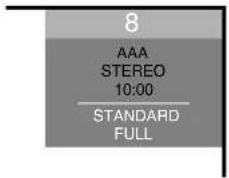
Channel display
Changing channels

NOTE
- Before operating with the remote control unit, make sure to select the TV mode using its SELECT button. See "Controlling other equipment using the supplied remote control unit" on page 69.
Switching between the TV and DTV modes
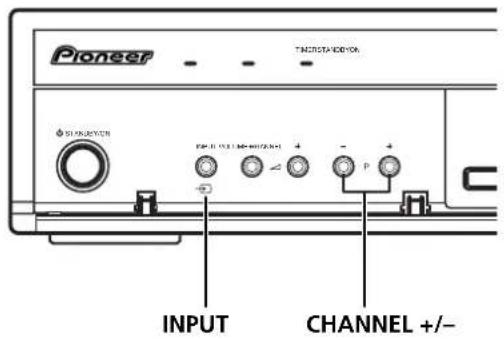
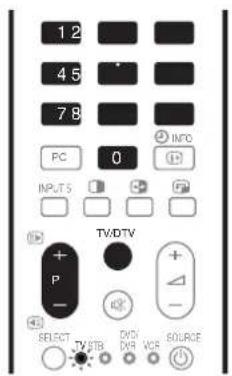
- Press INPUT on the Media Receiver or TV/DTV on the remote control unit to select the DTV or TV input mode.
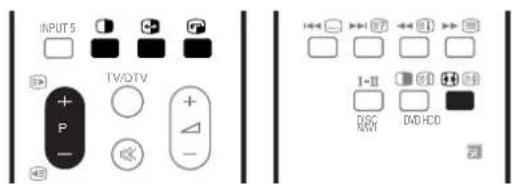
Using P +/P - on the remote control unit
- Press P + to increase the channel number.
- Press P-to decrease the channel number.
When viewing Teletext information:
- Press P + to increase the page number.
- Press P-to decrease the page number.
- For Teletext, see "Using the Teletext Functions" on pages 74 and 75.

NOTE
- CHANNEL +/- on the Media Receiver operates the same as P +/P -.
- P +/P – cannot pick up analogue channels that are set to skip. For Channel Skip for analogue channels, see steps 13 and 14 under "Using Manual Adjust" (page 30).
- When in the DTV mode, P +/P – also cannot pick up digital channels that are set to skip. For Channel Skip for digital channels, see "Setting Channel Options" (page 42).
- P +/P – cannot pick up analogue channels that are not registered as favourites. For analogue favourite channel registration, see steps 13 and 14 under "Using Manual Adjust" (page 30).
- When in the DTV mode, P +/P – also cannot pick up digital channels that are not registered as favourites. For digital favourite channel registration, see "Setting Channel Options" (page 42).
Using 0 - 9 on the remote control unit
Select channels directly by pressing buttons 0 to 9.
EXAMPLE
• To select channel 2 (1-digit channel), press 2.
• To select channel 12 (2-digit channel), press 1 then 2.
- While in DTV mode, to select channel 123 (3-digit channel), press 1, 2 then 3.
When viewing Teletext information:
View a page directly which is 3-digit page number from 100 to 899 by pressing buttons 0 to 9. See page 74.

NOTE
- In the standby mode, when you press 0, the power turns on and images come from the INPUT 1 source. Or, when you press any button from 1 to 9, TV images display.
Tuning to your favourite (analogue) channels
If you have registered your favourite (analogue) channels, selecting from the registered list may be the easiest way to tune to those channels.

NOTE
- You can register up to 16 analogue channels as your favourite channels. For the registration, see steps 13 and 14 under "Using Manual Adjust" (page 30).
1 While watching analogue broadcasts, press ENTER to call up the Favourite Channel List.
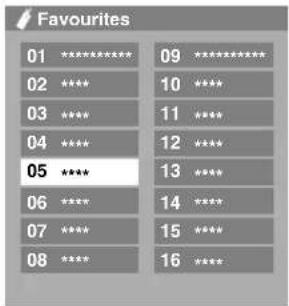
2 Select a favourite channel to tune in (/ʌ/ the ENTER).
- Press RETURN to exit the Favourite Channel List.
Changing the volume and sound

NOTE
- Before operating with the remote control unit, make sure to select the TV mode using its SELECT button. See "Controlling other equipment using the supplied remote control unit" on page 69.
Using + / - on the remote control unit
• To increase the volume, press ∠ +.
• To decrease the volume, press △ -

NOTE
• VOLUME +/- on the Media Receiver operates the same as ∠+/△-.
Using ☐ on the remote control unit
mutes the current sound output.
1 Press 咬.
- “呎” appears on the screen.
2 Press ✗ again to cancel the mute mode.
- Pressing + also cancels the mute mode.
Media Receiver (front view)
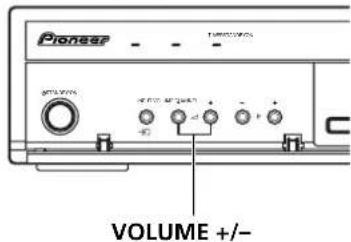
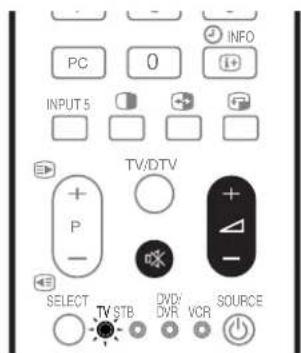
Volume adjustment

Muting

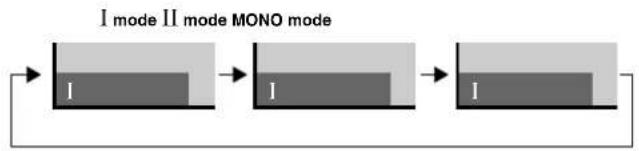
Using I-II on the remote control unit
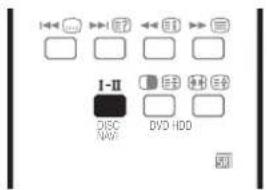
Each time you press I-Ⅱ, MTS toggles as shown below.
flowchart
graph LR
    A["Stage I"] --> B["Stage I"]
    B --> C["Stage I"]
| Setting | ||||
| MONOIII | ||||
| NICAMBroadcasts | Stereo | |||
| 1AAA NICAM STEREO 10:00 | 1AAA NICAM STEREO 10:00 | 1AAA MONO 10:00 | ||
| Bilingual | ||||
| 2BBB NICAM I 10:00 | 2BBB NICAM II 10:00 | 2BBB MONO 10:00 | ||
| Monaural | ||||
| A2 Broadcasts | Stereo | |||
| 4DDD STEREO 10:00 | 4DDD STEREO 10:00 | 4DDD MONO 10:00 | ||
| Bilingual | ||||
| 5EEE DUAL I 10:00 | 5EEE DUAL II 10:00 | 5EEE MONO 10:00 | ||
| Monaural | ||||
| DigitalBroadcasts | ||||

NOTE
- In each of the sound multiplex mode selected using the I-II button, the display changes depending on broadcasting signals being received.
- Once the MONO mode is selected, the Plasma Display System sound remains mono even if the system receives a stereo broadcast. You must switch the mode back to I or II mode if you want to hear stereo sound again.
- Selecting a sound multiplex mode while the input source is INPUT 1 to 5 does not change the type of sound. In this case, sound is determined by the video source.
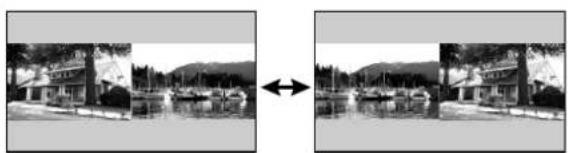
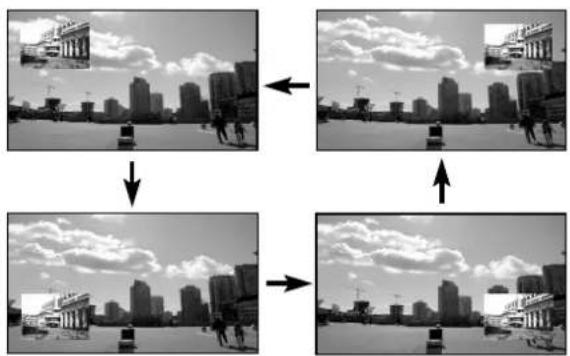
Use the multiscreen functions
Splitting the screen
Use the following procedure to select 2-screen or picture-in-picture mode.
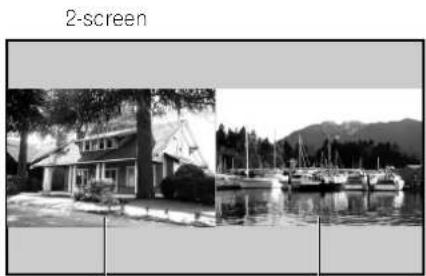
natural_image
Black-and-white photo collage showing a house and a sailboat on water, with no visible text or symbols.Main screen Sub screen
Picture-in-picture
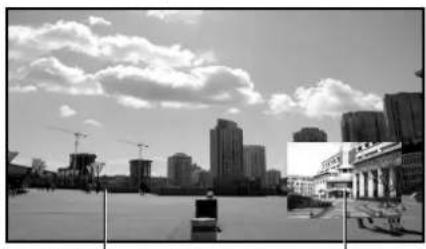
natural_image
Black-and-white cityscape with modern high-rise buildings under a cloudy sky, featuring construction cranes and a low-rise building in the foreground (no visible text or signage)Main screen Sub screen
1 Press ☐ to select the display mode.
• Each time you press ☐, the display mode is switched among 2-screen, picture-in-picture, and single-screen.
- In 2-screen or picture-in-picture mode, press 📋 to switch the position of the 2 screens shown. The left screen (in the 2-screen mode) or the larger screen (in the picture-in-picture mode) is the active screen which will be indicated by “♪”. The user is allowed to operate picture and sound.
natural_image
Black-and-white photo sequence showing a house on water with a double-headed arrow indicating transformation (no text or symbols)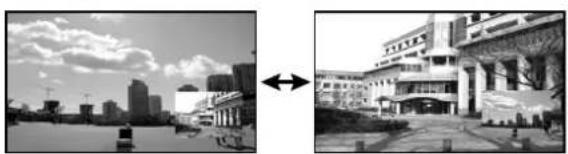
natural_image
Split black-and-white photo showing a city skyline on the left and a large building with columns on the right, both connected by an arrow (no text or symbols visible)- In 2-screen mode, press 🎨 to change the size of the left screen.
- In picture-in-picture mode, press remove the position of the small screen anti-clockwise.
natural_image
Four-panel black-and-white photo sequence showing city skyline changes under cloudy sky, with arrows indicating direction of change (no text or symbols)2 To select the desired input source, press the appropriate input source button.
- If watching TV programmes, press P+/P - to change the channel.
NOTE
- The multiscreen function cannot display images from the same input source at the same time. If you make such an attempt, a warning message appears.
-
The multiscreen function cannot display images from combinations of two external input sources (Input 1 to 5, PC). It can display images from the following combinations of input sources.
-
Analogue TV and digital TV
-
Analogue TV (or digital TV) and external source (Input 1 to 5, PC)
-
When you press HOME MENU the single-screen mode is restored and the corresponding menu is displayed.
- When in the 2-screen mode, images displayed on the right screen may look less fine, depending on the images.
- While in the 2-screen or picture-in-picture mode, the analogue favourite channel list is not available. While in the 2-screen or picture-in-picture mode, the digital channel list is not available.
- If you select 1920*1080P@24Hz for the main screen in the picture-in-picture mode, video images may not be displayed properly because of the system's capability.
- With headphones connected, you can listen to audio coming from the sub screen when in the 2-screen or picture-in-picture mode. For more information, see page 37.
- PAL 60 signals are not suited for image display on the Sub screen.
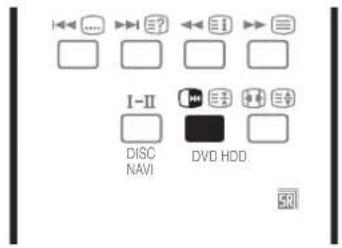
Freezing images
Use the following procedure to capture and freeze one frame from a moving image that you are watching.
1 Press
- A still image appears on the right screen while a moving image is shown on the left screen.
2 Press 📄 again to cancel the function.
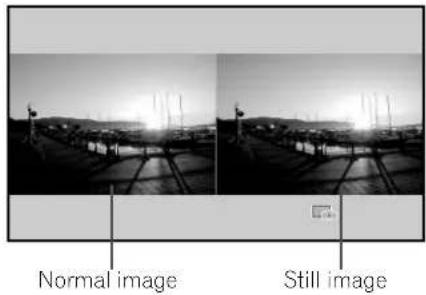

NOTE
- With the screen split, any image cannot be frozen.
- When this function is not available, a warning message appears.
- Before operating with the remote control unit, make sure to select the TV mode using its SELECT button. See "Controlling other equipment using the supplied remote control unit" on page 69.
Using the menu
AV mode menus
| Home Menu Item Page | ||
| Picture AV Selection 33 | ||
| Contrast 33 | ||
| Brightness 33 | ||
| Colour 33 | ||
| Tint 33 | ||
| Sharpness 33 | ||
| Pro Adjust 34 | ||
| Reset 34 | ||
| Sound | Treble | 36 |
| Bass | 36 | |
| Balance | 36 | |
| Reset 36 | ||
| FOCUS 36 | ||
| Front Surround | 37 | |
| Headphone Output | 37 | |
| Sub Volume | 37 | |
| Power Control | Energy Save | 38 |
| No Signal off | 38 | |
| No Operation off | 38 | |
| Sleep Timer | —— | 58 |
| Option | Position | 54 |
| Auto Size | 57 | |
| 4:3 Mode | 57 | |
| Side Mask 57 | ||
| HDMI Input | 61 | |
| Drive Mode | 54 | |
| Colour System | 55 | |
| Input Select | 55 | |
| Setup | Auto Installation | 30 |
| Analogue TV Setup | 30 - 32, 46 | |
| DTV Setup | 40 - 44, 51 | |
| SCART Output | 64 | |
| Password | 58, 59 | |
| Language | 30 | |
| Home Gallery | —— | 67 - 69 |
PC mode menus
| Home Menu Item Page | ||
| Picture AV Selection 33 | ||
| Contrast 33 | ||
| Brightness 33 | ||
| Red | 33 | |
| Green | 33 | |
| Blue | 33 | |
| Reset 34 | ||
| Sound | Treble | 36 |
| Bass | 36 | |
| Balance | 36 | |
| Reset 36 | ||
| FOCUS 36 | ||
| Front Surround | 37 | |
| Headphone Output | 37 | |
| Sub Volume | 37 | |
| Power Control | Energy Save | 38 |
| Power Management | 38 | |
| Sleep Timer | —— | 58 |
| Option | Auto Setup | 54 |
| Manual Setup | 54 | |
| Home Gallery | —— | 67 - 69 |
Menu operations
The following describes the typical procedure for setting up the menus. For the actual procedures, see the appropriate pages that describes individual functions.
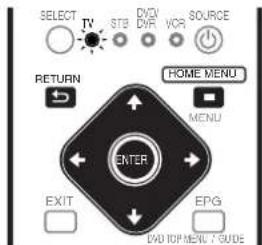
1 Press HOME MENU.
2 Press ↑/↓ to select a menu item, and then press ENTER.
3 Repeat step 2 until you access the desired submenu item.
- The number of menu layers differs depending on the menu items.
4 Press / ↕ select an option (or parameter), and then press ENTER.
- For some menu items, press / instead of /.
5 Press HOME MENU to exit the menu.
NOTE
- You can return to the upper menu levels by pressing RETURN.
- Before operating with the remote control unit, make sure to select the TV mode using its SELECT button. See "Controlling other equipment using the supplied remote control unit" on page 69.
Setting up TV channels automatically
This section describes how to automatically search for and set up TV channels.
Using Auto Installation
When the Plasma Display System is switched on for the first time after purchase, the initial auto installation is initiated. You can automatically set language, country and channels in successive operations.
1 Select "Language" (/)↑↓
2 Select a language (/)
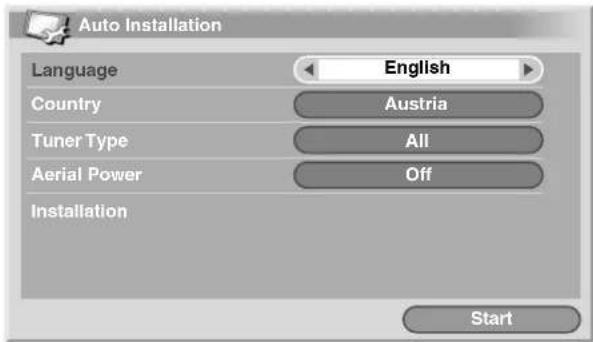
- You can select from among 14 languages; English, German, French, Italian, Spanish, Dutch, Swedish, Portuguese, Greek, Finnish, Russian, Turkish, Norwegian, and Danish.
3 Select "Country" (/)↑↓
4 Select the country (/)←→
5 Select "Tuner Type" (/)↑↓
6 Select a tuner type (/)←→
- You can select among 3 options; All, Digital, and Analogue.
7 Select "Aerial Power" (/)↑↓
- Only selectable when "Digital" or "All" is selected for "Tuner Type" in step 5. If not go to step 9.
8 Select "On" or "Off" (/)←→
9 Select "Start" (↑/↓ then ENTER).
• Auto Installation automatically starts.
• To quit Auto Installation in progress, press RETURN.

NOTE
- You can start Auto Installation from the Home menu after moving to another country, for example. Perform the following steps 1 to 3 before starting Auto Installation.
①Press HOME MENU.
② Select "Setup" (↑/↓ then ENTER).
③ Select "Auto Installation" (↑/↓ then ENTER).
- The password entry screen appears. Enter your 4-digit password using buttons 0 - 9.
- If no channel is found, check the antenna connections, and then retry Auto Installation.
Setting up analogue TV channels manually
This section describes how to set up analogue TV channels manually.
Using Manual Adjust
Use Manual Adjust to set up analogue TV channels manually.
1 Press HOME MENU.
2 Select "Setup" (↑/↓ then ENTER).
3 Select "Analogue TV Setup" (▲/▼ then ENTER).
- The password entry screen appears. Enter your 4-digit password using buttons 0 - 9. For the password, see "Using a password" on page 58.
4 Select "Manual Adjust" (↑/↓ then ENTER).
5 Select "Programme Entry" (/)↑↓
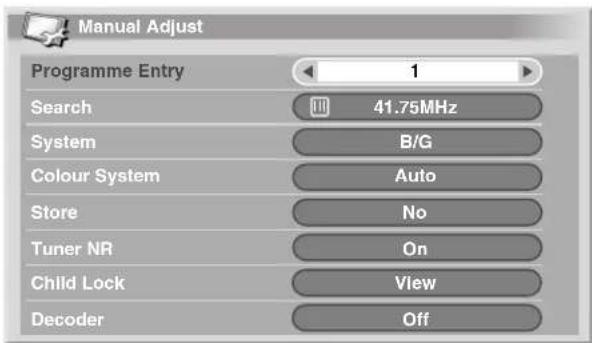
6 Select a programme number (/)
- You can select 1 through 99.
7 Select "Search" (/)↑↓
8 Enter a frequency using buttons 0 - 9 and ENTER.
- You can also press to enter a frequency.
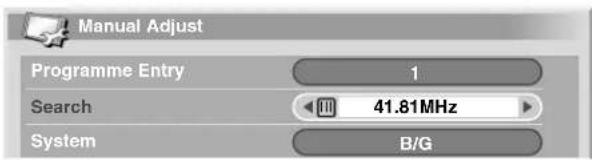
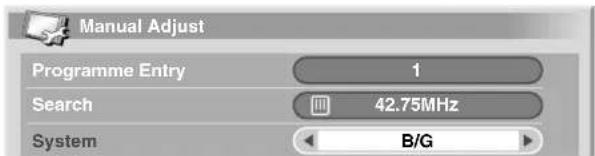
9 Select "System" (/)↑↓
10 Select a sound system (◀).→
- You can select from among "B/G", "D/K", "I", "L", and "L".
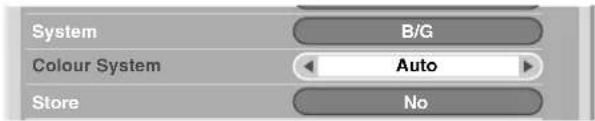
11 Select "Colour System" (▲).
12 Select a colour system (◀).
- You can select from among "Auto", "PAL", "SECAM", and "4.43NTSC".
14 Select "Yes", "Yes (Listed)", or "No" (◀).→
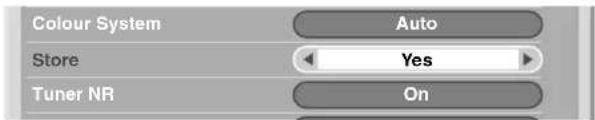
Item Description
| Yes | You can select the channel using P+/P-. |
| Yes (Listed) Select this option to register the channel as your favourite channel.You can select the channel using the Favourite Channel list and P+/P-. | |
| No | You cannot select the channel using P+/P-. |
• To set up for another channel, repeat steps 6 to 14.
15 Press HOME MENU to exit the menu.

NOTE
- The above procedure transfers and sets the selected channel information to the connected recording equipment such as a VCR or DVD recorder (DVR).
- Manual Adjust also allows you to make selections for "Tuner NR", "Child Lock", and "Decoder". See "Reducing video noise", "Setting Child Lock", and "Selecting a decoder input terminal".
Reducing video noise
For the individual channels, you can specify whether the Plasma Display System should reduce video noise depending on the levels of broadcasting signals.
1 Repeat steps 1 to 6 provided for "Using Manual Adjust".
• After selecting a channel (using Programme Entry), perform the following steps.
2 Select "Tuner NR" (/)↑↓
3 Select "On" or "Off" (/)
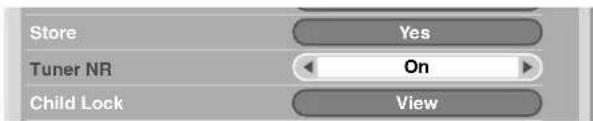
4 Press HOME MENU to exit the menu.
NOTE
• This function may not achieve a satisfactory result, depending on the conditions of broadcasting signals.
- When using a decoder with a decoder terminal selected, this function may fail to achieve a good result.
Setting Child Lock
Child Lock inhibits selected TV channels from being tuned and watched.
1 Repeat steps 1 to 6 provided for "Using Manual Adjust". After selecting a channel (using Programme Entry), perform the following steps.
2 Select "Child Lock" (/)↑↓
3 Select "Block" (/)
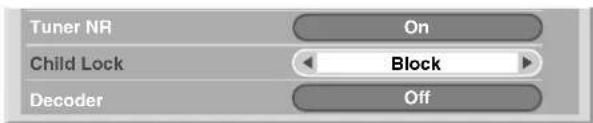
- The selection is switched between "View" and "Block".
4 Press HOME MENU to exit the menu.
Selecting a decoder input terminal
If you have connected a decoder, select a decoder input terminal (INPUT1).
1 Repeat steps 1 to 6 provided for "Using Manual Adjust". After selecting a channel (using Programme Entry), do the following steps.
2 Select "Decoder" (/)↑↓
3 Select "INPUT 1" (/)
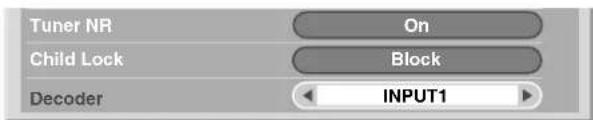
4 Press HOME MENU to exit the menu.
NOTE
- With "Off" (factory default) selected, you cannot watch any images from the decoder.
Labelling TV channels
You can name TV channels that you have set up, using up to five characters. This may help you easily identify the channels during selections.
1 Press HOME MENU
2 Select "Setup" (▲/▼ then ENTER).
3 Select "Analogue TV Setup" (▲/▼ then ENTER).
- The password entry screen appears. Enter your 4-digit password using buttons 0 - 9.
4 Select "Label" (↑/↓ then ENTER).
5 Select "Programme Entry" (/)↑↓
6 Select a programme number (/)←→
- You can select 1 through 99.
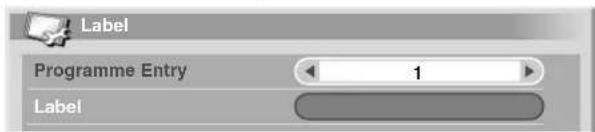
7 Select "Label" (↑/↓ then ENTER).
• The name entry screen appears.
8 Select the first character ( / , / then ENTER).
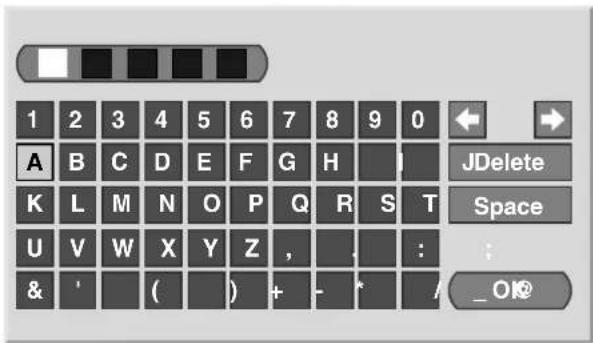
• The cursor moves to the second character.
9 Repeat step 8 to enter up to five characters.
- To correct entered characters, select [←] or [→] on the screen, and then press ENTER. The cursor moves to the preceding or subsequent character.
- To delete the current character, select [Delete] on the screen, and then press ENTER.
- To put a space for the current character, select [Space] on the screen, and then press ENTER.
10 To complete the name entry, press ↗o↓/ to select [OK] on the screen, and then press ENTER.
11 Press HOME MENU to exit the menu.

NOTE
- The above procedure transfers and sets the selected channel information to the connected recording equipment such as a VCR or DVD recorder (DVR).
Sorting preset TV channels
Use the following procedure to change the sequence of the preset TV programmes.
1 Press HOME MENU
2 Select "Setup" (↑/↓ then ENTER).
3 Select "Analogue TV Setup" (↑/↓ then ENTER).
- The password entry screen appears. Enter your 4-digit password using buttons 0 - 9.
4 Select "Sort" (↑/↓ then ENTER).
• The sort screen appears.
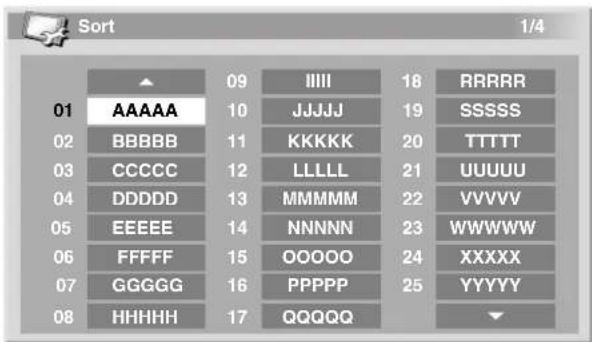
5 Select a channel to be shifted ( / , / then ENTER).
6 Select a new location ( / , / then ENTER).
- Sorting is executed.
7 Press HOME MENU to exit the menu.

NOTE
- To change a page on the Sort screen in step 6, select ▲/▼ on the screen with ↑/↓ to select a page, and then press ENTER.
- The above procedure transfers and sets only the shifted channel information to recording equipment such as a VCR or DVD recorder (DVR).
Clock setting
Use the following procedure to set the time correctly.
1 Press HOME MENU.
2 Select "Setup" (↑/↓ then ENTER).
3 Select "Analogue TV Setup" (▲/▼ then ENTER).
- The password entry screen appears. Enter your 4-digit password using buttons 0 - 9.
4 Select "Clock" (↑/↓ then ENTER).
5 Select a TV channel to be used for auto clock setting (◄/►).
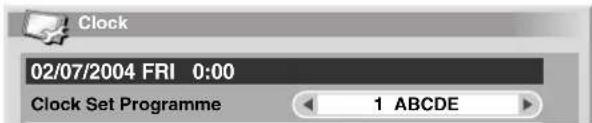
6 Press HOME MENU to exit the menu.

NOTE
- If the system fails to set the date and time through the selected TV channel, the "Time & Date" entry screen appears. Set the correct, current time.
- The system obtains and displays time by adding Universal Coordinated Time (UTC) and Local Time Offset (LTO) data received with broadcasting signals. If the system fails to display a correct time, check with your local broadcasting station.
Language setting
You can select the language to be used for on-screen display such as menus and instructions, from among 14 languages; English, German, French, Italian, Spanish, Dutch, Swedish, Portuguese, Greek, Finnish, Russian, Turkish, Norwegian, and Danish.
For the language to be used in the TELETEXT mode, you can select from among West Europe, East Europe, Greece/Turkey, Russia, and Arabia.
- Press HOME MENU.
2 Select "Setup" (▲/▼ then ENTER).
3 Select "Language" (▲/▼ then ENTER).
4 Select "Menu" (/)↑↓
5 Select a language (/)
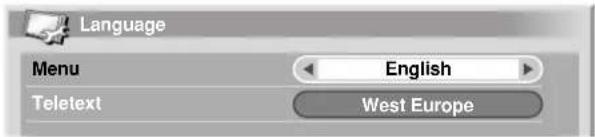
6 Select "Teletext" (/)↑↓
7 Select a language (/)
8 Press HOME MENU to exit the menu.
AV Selection
Select from the five viewing options, depending on the current environment (e.g., room brightness), the type of the current TV programme, or the type of images input from external equipment.
1 Press HOME MENU
2 Select "Picture" (↑/↓ then ENTER).
3 Select "AV Selection" (▲/▼ then ENTER).
4 Select the desired option ( / then ENTER).
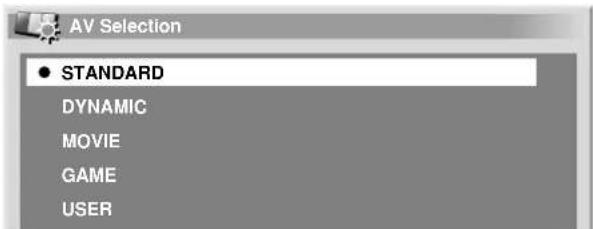
For AV source
| Item Description | |
| STANDARD | For a highly defined image in a normally bright roomThis selection is shared by an external input and TV input sources. |
| DYNAMIC For a very sharp image with the maximum contrastThis mode does not allow manual image quality adjustment.This selection is shared by an external input and TV input sources. | |
| MOVIE For a movie | This selection is shared by an external input and TV input sources. |
| GAME Lowers image brightness for easier viewingThis selection is shared by an external input and TV input sources. | |
| USER Allows the user to customize settings as desired. You can set the mode for each input source. | |
For PC source
| Item Description | |
| STANDARD(factory default) | For a highly defined image in a normally bright room |
| USER Allows the user to customize settings as desired. You can set the mode for each input source. | |
5 Press HOME MENU to exit the menu.
NOTE
- If you have selected "DYNAMIC", you cannot select "Contrast", "Brightness", "Colour", "Tint", "Sharpness", "Pro Adjust", and "Reset"; these menu items are dimmed.
Basic picture adjustments
Adjust the picture to your preference for the chosen AV Selection option (except DYNAMIC).
1 Press HOME MENU.
2 Select "Picture" (▲/↓ then ENTER).
3 Select an item to be adjusted (↑/↓ then ENTER).
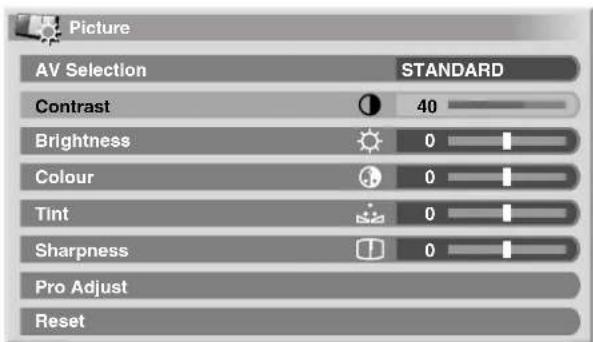
For PC source or Home Gallery, the following screen appears.
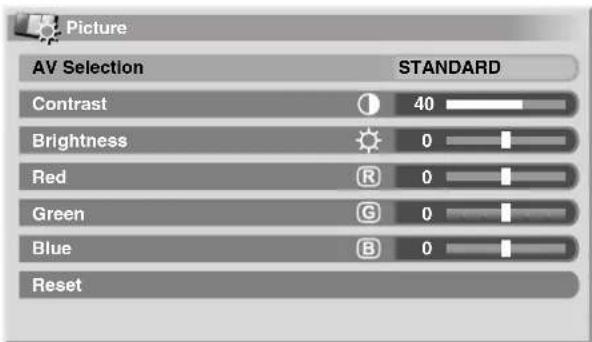
4 Select the desired level (/)←→

- When an adjustment screen is in display, you can also change the item to be adjusted, by pressing ↑. ↓
5 Press HOME MENU to exit the menu.
For AV source
| Item | ← button button | → |
| Contrast For less contrast For more contrast | ||
| Brightness | For less brightness | For more brightness |
| Colour | For less colour intensity | For more colour intensity |
| Tint | Skin tones become purplish | Skin tones become greenish |
| Sharpness | For less sharpness | For more sharpness |
For PC source
| Item | ← button button | → |
| Contrast For less contrast For more contrast | ||
| Brightness For less brightness For more brightness | ||
| Red For weaker red For stronger red | ||
| Green For weaker green For stronger green | ||
| Blue For weaker blue | For stronger blue | |

NOTE
- To perform advanced picture adjustments, select "Pro Adjust" in step 3 and then press ENTER. For the subsequent procedures, see "Advanced picture adjustments".
- To restore the factory defaults for all items, press to select "Reset" in step 3, and then press ENTER. A confirmation screen appears. Press to select "Yes", and then press ENTER.
Advanced picture adjustments
The Plasma Display System provides various advanced functions for optimising the picture quality. For details on these functions, see the tables.
Using PureCinema
1 Press HOME MENU.
2 Select "Picture" (▲/↓ then ENTER).
3 Select "Pro Adjust" (↑/↓ then ENTER).
4 Select "PureCinema" (▲/↓ then ENTER).
5 Select the desired parameter ( / then ENTER).
• For the selectable parameters, see the table.
PureCinema
Automatically detects a film-based source (originally encoded at 24 frames/second), analyses it, then recreates each still film frame for high-definition picture quality.
| Selections | Off Deactivates the PureCinema. | |
| Standard | Produces smooth and vivid moving images (film specific) by automatically detecting recorded image information when displaying DVD or high-definition images (e.g., movies) having 24 frames per second. | |
| ADV | Produces smooth and quality moving images (as shown on theatre screens) by converting to 72 Hz when displaying DVD images (e.g., movies) having 24 frames per second. | |

NOTE
- "Standard" is not selectable when 480p or 720p@60Hz signals are input.
- "ADV" is not selectable when PAL, SECAM, 576i, or 1080i@50Hz signals are input.
- Neither "Standard" nor "ADV" is selectable when 576p, 720p@50Hz, or 1080p@24Hz signals are input.
Using Colour Temp
1 Press HOME MENU.
2 Select "Picture" (▲/▼ then ENTER).
3 Select "Pro Adjust" (↑/↓ then ENTER).
4 Select "Colour Detail" (↑/↓ then ENTER).
5 Select "Colour Temp" (↑/↓ then ENTER).
6 Select the desired parameter (↑/↓ then ENTER).
- If you have selected a desired parameter in this step, skip steps 7 and 8.
- You may rather want to perform fine adjustment. To do this, select "Manual" first and then press and hold ENTER for more than three seconds. The manual adjustment screen appears. Then go to step 7.
Colour Temp
Adjusts the colour temperature, resulting in a better while balance.
| Selections | High | White with bluish tone |
| Mid-High | Intermediate tone between High and Mid | |
| Mid | Natural tone | |
| Mid-Low | Intermediate tone between Mid and Low | |
| Low | White with reddish tone | |
| Manual | Colour temperature adjusted to your preference |
7 Select an item to be adjusted ( / then ENTER).
8 Select the desired level (/)←→
| Item | ← button | →button | |
| R High | Fine adjustment for bright portions | For weaker red | For stronger red |
| G High | For weaker green | For stronger green | |
| B High | For weaker blue | For stronger blue | |
| R Low | Fine adjustment for dark portions | For weaker red | For stronger red |
| G Low | For weaker green | For stronger green | |
| B Low | For weaker blue | For stronger blue | |
- To perform adjustment for another item, press RETURN, and then repeat steps 7 and 8.
- You may press immediately change an item to be adjusted.
9 Press HOME MENU to exit the menu.
Using CTI
1 Press HOME MENU.
2 Select "Picture" (▲/▼ then ENTER).
3 Select "Pro Adjust" (▲/▼ then ENTER).
4 Select "Colour Detail" (▲/▼ then ENTER).
5 Select "CTI" (▲/▼ then ENTER).
6 Select the desired parameter ( / then ENTER).
CTI
Provides images with clearer colour contours. The CTI stands for Colour Transient Improvement.
Selections Off Deactivates the CTI.
On Activates the CTI.
7 Press HOME MENU to exit the menu.
Using Colour Management
1 Press HOME MENU.
2 Select "Picture" (↑/↓ then ENTER).
3 Select "Pro Adjust" (↑/↓ then ENTER).
4 Select "Colour Detail" (↑/↓ then ENTER).
5 Select "Colour Management" (↑/↓ then ENTER).
6 Select an item to be adjusted ( / then ENTER).
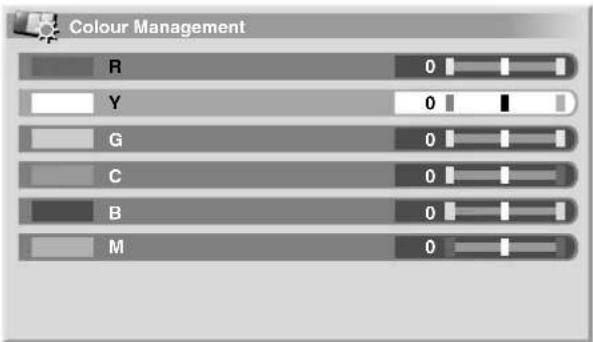
7 Select the desired level (/)
Item
← button button

R Closer to magenta Closer to yellow
Y Closer to red Closer to green
G Closer to yellow Closer to cyan
C Closer to green Closer to blue
B Closer to cyan Closer to magenta
M Closer to blue Closer to red
• To perform adjustment for another item, press RETURN, and then repeat steps 6 and 7.
- You may press to immediately change an item to be adjusted.
8 Press HOME MENU to exit the menu.
Eliminating noise from images
1 Press HOME MENU.
2 Select "Picture" (▲/▼ then ENTER).
3 Select "Pro Adjust" (↑/↓ then ENTER).
4 Select "NR" (↑/↓ then ENTER).
5 Select an item to be adjusted (↑/↓ then ENTER).
• You can select "DNR" or "MPEG NR".
6 Select the desired parameter ( / then ENTER).
DNR
Eliminates video noise for clean crisp images. The DNR stands for Digital Noise Reduction.
| Selections | Off Deactivates the DNR. | |
| High | Enhanced DNR | |
| Mid | Standard DNR | |
| Low | Moderate DNR | |
MPEG NR
Eliminates mosquito noise from video images when a digital TV channel is watched or a DVD is played, resulting in noise-free images.
Selections Off Deactivates the MPEG NR.
| High | Enhanced MPEG NR |
| Mid | Standard MPEG NR |
| Low | Moderate MPEG NR |
7 Press HOME MENU to exit the menu.
Using the Dynamic Range Expander (DRE) functions
1 Press HOME MENU.
2 Select "Picture" (▲/↓ then ENTER).
3 Select "Pro Adjust" (▲/▼ then ENTER).
4 Select "DRE" (▲/▼ then ENTER).
5 Select an item to be adjusted ( / then ENTER).
- You can select "Dynamic Contrast", "Black Level", "ACL" or "Gamma".
6 Select the desired parameter ( / then ENTER).
Dynamic Contrast
Emphasises the contrast on images so that the difference between brightness and darkness becomes more distinct.
| Selections | Off Deactivates the Dynamic Contrast. | |
| High | Enhanced Dynamic Contrast | |
| Mid | Standard Dynamic Contrast | |
| Low | Moderate Dynamic Contrast | |
Black Level
Emphasises dark portion on images so that the difference between brightness and darkness becomes more distinct.
Selections Off Deactivates the Black Lev On Activates the Black Level.
ACL
Performs such compensation that results in the optimum contrast characteristics for images.
Selections Off Deactivates the ACL.
On Activates the ACL.
Gamma
Adjusts the gamma characteristics (image gradation characteristics).
Selections 1 Selects gamma characteristics 1.
2 Selects gamma characteristics 2.
3 Selects gamma characteristics 3.
7 Press HOME MENU to exit the menu.
Using the 3DYC and I-P Mode
1 Press HOME MENU.
2 Select "Picture" (▲/▼ then ENTER).
3 Select "Pro Adjust" (↑/↓ then ENTER).
4 Select "Others" ( / then ENTER).
5 Select an item to be adjusted ( / then ENTER).
- You can select "3DYC" or "I-P Mode".
6 Select the desired parameter ( / then ENTER).
3DYC
Optimises characteristics for separating brightness signals and colour signals. This works for both video and still images.
Selections Off Deactivates the 3DYC.
High Enhanced 3DYC
Mid Standard 3DYC
Low Moderate 3DYC
I-P Mode
Perform optimum conversion from interlace signals to progressive signals. This works for both video and still images.
Selections 1 Optimum for video images
2 Standard setting
3 Optimum for still images
7 Press HOME MENU to exit the menu.

NOTE
- For the 3DYC, the individual parameters are selectable only when:
You have selected INPUT 1, 2, or 3 as the input source and "Video" as the input signal type (page 55); or
You have selected INPUT 5 as the input source without a S-Video cable in connection; or You have selected the analog tuner. - For the I-P Mode, the individual parameters are not selectable for the following input signals: 480p, 720p@60Hz, 576p, 720p@50Hz, 1080p@24Hz
Sound adjustments
You can adjust the sound quality to your preference with the following settings.
Adjust the sound to your preference for the chosen AV Selection option. See page 33.
1 Press HOME MENU.
2 Select "Sound" (↑/↓ then ENTER).
3 Select an item to be adjusted (/)↑↓
4 Select the desired level (/)←→
![Sound [STANDARD] Treble - + 2 + Bass 0 Balance 0 Reset FOCUS Off Front Surround Off Headphone Output Main Sub Volume 15](/content/2026/02/369450/images/01c90913e1382f239e272e1fb8a6c95eb47e305ef76d4fe7b4341890c05a6fbd.jpg)
Item
← button button
→
Treble For weaker treble For stronger treble
Bass For weaker bass For stronger bass
Balance Decreases audio from the right speaker.
Decreases audio from the left speaker.
5 Press HOME MENU to exit the menu.

NOTE
- To restore the factory defaults for all items, press Ato select "Reset" in step 3, and then press ENTER. A confirmation screen appears. Press Ato select "Yes", and then press ENTER.
- You cannot adjust the sound quality for listening with phones.
- If you perform sound adjustments with phones connected, the new settings will become effective for sound from the speakers after the phones are disconnected.
FOCUS
This shifts the sound coming direction (sound images) upward and produces clear sound contours.
1 Press HOME MENU.
2 Select "Sound" (↑/↓ then ENTER).
3 Select "FOCUS" (/)↑↓
4 Select the desired parameter (/)←→

Item Description
Off
Deactivates the FOCUS.
(factory default)
On Activates the FOCUS.
5 Press HOME MENU to exit the menu.

NOTE
• The effect of this function differs depending on signals.
- You cannot set up the sound field for listening with phones.
- If you set up the sound field with phones connected, the new setting will become effective for sound from the speakers after the phones are disconnected.
Front Surround
This provides three-dimensional sound effects and/or deep, rich bass.
1 Press HOME MENU.
2 Select "Sound" (↑/↓ then ENTER).
3 Select "Front Surround" (/)↑↓
4 Select the desired parameter (/)←→
Item Description
Off Deactivates both the SRS and TruBass.
SRS Reproduces highly effective three-dimensional sound.
TruBass
(factory default)
Provides deep, rich bass using a new technology.
TruBass + SRS Provides both TruBass and SRS effects.
5 Press HOME MENU to exit the menu.

NOTE
- SRS(SW) designates a status where the FOCUS is on and TruBass + SRS has been selected for Front Surround.
• SRS(0) trademark of SRS Labs, Inc. - WOW technology is incorporated under license from SRS Labs, Inc.
• The effect of this function differs depending on signals. - You cannot set up the sound field for listening with phones.
- If you set up the sound field with phones connected, the new setting will become effective for sound from the speakers after the phones are disconnected.
Listening to audio from the sub screen using headphones
With headphones connected, you can listen to audio coming from the sub screen when in the 2-screen or picture-in-picture mode; audio coming from the main screen is output from the speakers. To use this function, follow the procedure below.
1 Press HOME MENU.
2 Select "Sound" (▲/▼ then ENTER).
3 Select "Headphone Output" (/)↑↓
4 Select the desired parameter (/)←→
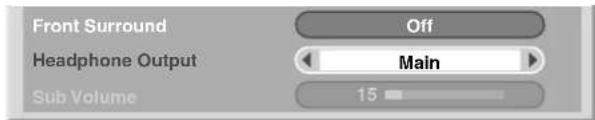
Item Description
Main Audio coming from the main screen is output from the PHONES output terminal.
Sub
When in the 2-screen or picture-in-picture mode, audio coming from the sub screen is output from the PHONES output terminal.
5 Select "Sub Volume" (/)↑↓
6 Select the desired volume level (/)
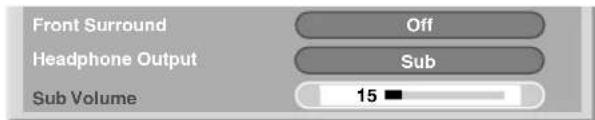
7 Press HOME MENU to exit the menu.

NOTE
- To adjust the volume for headphones after selecting "Sub", always use the menu item (shown in the procedure) no matter whether the screen is in the single, 2-screen, or picture-in-picture mode. When the screen is in the single mode with "Sub" selected, audio coming from the screen is output from speakers even with headphones connected.
- Audio from a connected subwoofer is muted when you have selected "Sub" for "Headphone Output" and connected headphones.
Power Control
Power Control provides convenient functions for power saving.
Energy Save
You may use one of the three Energy Save modes to save power consumption.
1 Press HOME MENU.
2 Select "Power Control" (↑/↓ then ENTER).
3 Select "Energy Save" (↑/↓ then ENTER).
4 Select "Save 1", "Save 2", or "Picture Off" (/ the ENTER).
Item Description
Standard Does not decrease the picture brightness.
| Save1 Slightly lowers power consumption while slightly suppressing the brightness drop level. |
Save2 Decreases the picture brightness and lowers power consumption.
| Picture Off Deactivates the screen to save power. To restore the screen display, press any button other than ∠+/△- and o#. This setting is not memorised by the system. |
5 Press HOME MENU to exit the menu.

NOTE
- You can also select this function using the Home menu when the input source is a PC.
No Signal off (AV mode only)
The system will be automatically placed into the standby mode if no signal is received for 15 minutes.
1 Press HOME MENU.
2 Select "Power Control" (↑/↓ then ENTER).
3 Select "No Signal off" ( / then ENTER).
4 Select "Enable" (▲/▼ then ENTER).
Item Description
| Disable(factory default) | Does not place the system into the standby mode. |
Enable Places the system into the standby mode if no signal is received for 15 minutes.
5 Press HOME MENU to exit the menu.

NOTE
- Five minutes before the system is placed into the standby mode, a message appears every minute.
- The system may not be placed into the standby mode when noise signals are present at the Media Receiver after a TV programme finishes.
No Operation off (AV mode only)
The system will be automatically placed into the standby mode when no operation is performed for three hours.
1 Press HOME MENU.
2 Select "Power Control" (↑/↓ then ENTER).
3 Select "No Operation off" (↑/↓ then ENTER).
4 Select "Enable" (↑/↓ then ENTER).
Item Description
| Disable(factory default) | Does not place the system into the standby mode. |
Enable Places the system into the standby mode if no operation is performed for three hours.
5 Press HOME MENU to exit the menu.

NOTE
- Five minutes before the system is placed into the standby mode, a message appears every minute.
Power Management (PC mode only)
The system will be automatically placed into the standby mode when no signal is received from the personal computer.
1 Press HOME MENU.
2 Select "Power Control" (▲/▼ then ENTER).
3 Select "Power Management" ( / then ENTER).
4 Select "Mode 1" or "Mode 2" (▲/↓ then ENTER).
Item Description
| Off (factory default) | No power management |
| Mode1 • Places the system into the standby modewhen no signal is received from the personalcomputer for eight minutes. |
- Even when you start using the computer and a signal is received again, the system stays off.
- The system is switched on again by pressing STANDBY/ON on the Media Receiver or TV ⏻ on the remote control unit.
Mode2
| • Places the system into the standby mode when no signal is received from the personal computer for eight seconds. |
- When you start using the computer and a signal is input again, the system is switched on.
- The system is switched on again by pressing STANDBY/ON on the Media Receiver or TV ⏻ on the remote control unit.
5 Press HOME MENU to exit the menu.
Watching DTV programmes
Digital TV (DTV) not only replaces the conventional analogue TV channels, but also provides more channels, clearer picture quality, and various types of useful information. It also provides various features, including subtitling and multiple audio tracks.

NOTE
- When executing Auto Installation (page 30), make sure to select "Digital" or "All" as the tuner type.
- Selecting the DTV mode when no channels yet searched will only display "DTV Setup" screen with only the item "Installation" selectable.
- While in the DTV mode, press ☑ to display the Teletext screen (except in UK).
Changing channels
1 Press TV/DTV to select the DTV mode.
2 Press ENTER to call up the Channel List screen.
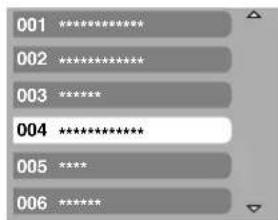
3 Select a channel ( / then ENTER).
- You can also select channels by pressing buttons 0 to 9 or P +/P - on the remote control unit.

NOTE
- While in DTV mode, press 001 to access channel 1 (1-digit channel) quickly. You can, however, select the channel 1 by pressing 01 or 1 but have to wait for 2 seconds since the last digit input. The same applies for 2-digit channels.
- P +/P – cannot pick up channels that are set to skip or not registered as favourites (with the Favourite function set to "On". For favourite channels, see page 25.).
- If the channel is locked, you must enter the correct password each time (see page 58).
- While receiving DTV radio channels, the screen saver automatically starts when no operation is done for 3 minutes.
Viewing a channel banner
A channel banner shows programme names, start/end time of programmes and other channel information.
1 Press TV/DTV to select the DTV mode.
2 Press i+
• A channel banner appears.
• To display information about other channels, press ←/→.
• To tune into the channel selected on the banner, press ENTER.
- The channel banner also displays icons for Favourites (✗), Subtitles (☐) and Teletext (☐) if they apply to the selected channel.
• To quit banner display, press EXIT.

3 To view more detailed programme information, press i+ again.
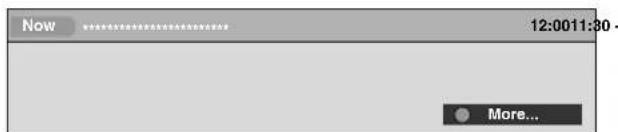
• To switch between Now and Next programme information, press ↑, ↓
- To display detailed information about other channels, press .
• To tune into the channel selected on the banner, press ENTER.
• To quit display of detailed information, press RETURN.
• To quit display of all the banners, press EXIT.
- If the banner contains further information, "More ..." is displayed. Press the BLUE button to view the entire information.
NOTE
- Banner information is updated every minute.
- Some programmes may not provide detailed programme information.
- Due to inaccurate information provided by the broadcaster, some icons may appear or be absent in error.
Viewing subtitles
When in the DTV mode, press 🔊 to turn subtitles on and off.
Subtitles On
NOTE
- When a programme is recorded with this function on, subtitles are also recorded.
Reconfiguring the DTV channel settings
This section describes how to reconfigure the DTV channel settings after setting up DTV channels using Auto Installation (page 30). You can select "DTV Setup" only when watching DTV channels.
Reselecting a country
1 Press HOME MENU.
2 Select "Setup" (↑/↓ then ENTER).
3 Select "DTV Setup" (↑/↓ then ENTER).
4 Select "Installation" (▲/↓ then ENTER).
- The password entry screen appears. Enter your 4-digit password using buttons 0 - 9.
5 Select "Country" (/)↑↓
6 Select a country (/)←→
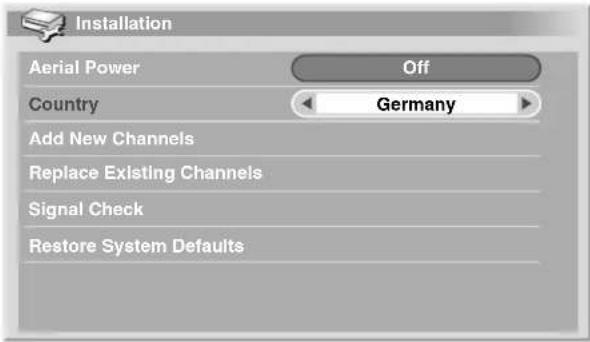

NOTE
- The password entry screen does not appear if you have disabled the password function. For details, see "Using a password (AV mode only)" on page 58.
- You can select "DTV Setup" only when watching DTV channels.
Replacing the existing channels
The following procedure discards the current DTV channel setups and searches for receivable channels to redo the channel setups.
1 Press HOME MENU.
2 Select "Setup" (▲/↓ then ENTER).
3 Select "DTV Setup" (↑/↓ then ENTER).
4 Select "Installation" (↑/↓ then ENTER).
- The password entry screen appears. Enter your 4-digit password using buttons 0 - 9.
5 Select "Replace Existing Channels" (↑/↓ then ENTER).
- The system first erases all channel information and then starts channel search.
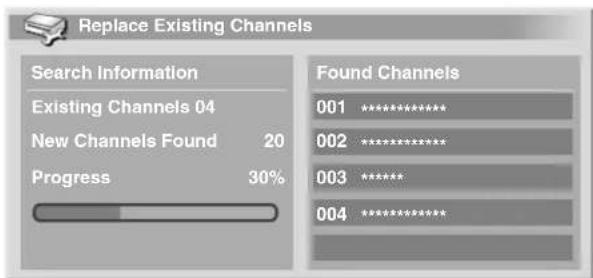
• To quit a channel search in progress, press HOME MENU.

NOTE
- To complete "Replace Existing Channels", there must be more than 1 hour at least left to the next preset recording or preset Auto Update time.
- The password entry screen does not appear if you have disabled the password function. For details, see "Using a password (AV mode only)" on page 58.
- You can select "DTV Setup" only when watching DTV channels.
Adding new channels
Use the following procedure to search and register new channels with the current DTV channel setups saved.
1 Press HOME MENU.
2 Select "Setup" (↑/↓ then ENTER).
3 Select "DTV Setup" (↑/↓ then ENTER).
4 Select "Installation" (↑/↓ then ENTER).
- The password entry screen appears. Enter your 4-digit password using buttons 0 - 9.
5 Select "Add New Channels" (↑/↓ then ENTER).
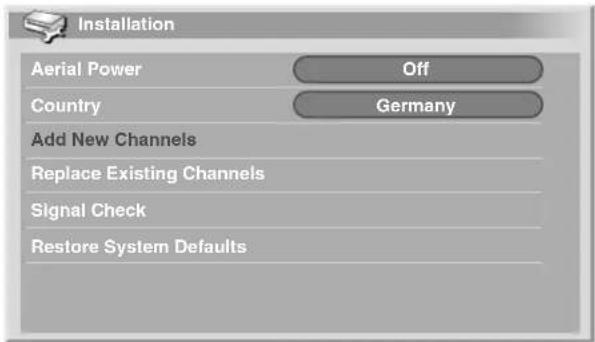
- Channel search automatically starts. If any new channel is found, it is automatically registered on the Media Receiver.
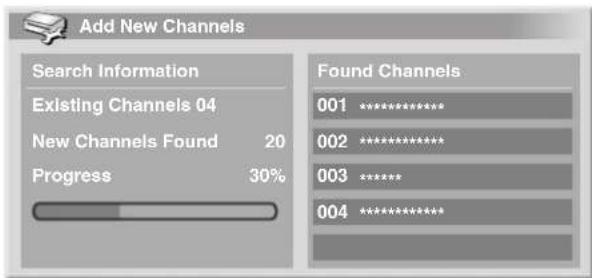
• To quit a channel search in progress, press HOME MENU.

NOTE
- The password entry screen does not appear if you have disabled the password function. For details, see "Using a password (AV mode only)" on page 58.
- You can select "DTV Setup" only when watching DTV channels.
Checking signal strength
You can check the signal strength and signal quality of each TV channel.
1 Repeat steps 1 to 4 provided for "Adding New Channels".
2 Select "Signal Check" (▲/▼ then ENTER).
3 Select "RF Channel" ( / then ENTER).
4 Select the channel to be checked (/ ← →
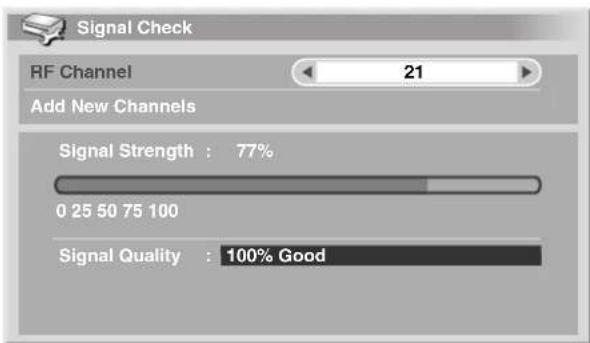
- Use "Add New Channels" function here to add channels within the selected RF channel (receiving frequency).

NOTE
- You can select "DTV Setup" only when watching DTV channels.
Switching on/off the power to the antenna
Use the following procedure to switch on or off the power to the antenna connected with the DTV antenna terminal.
1 Repeat steps 1 to 4 provided for "Adding New Channels".
2 Select "Aerial Power" (/)
3 Select "On" or "Off" (/)
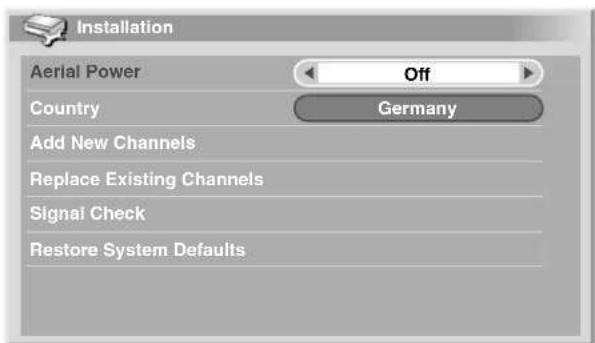

NOTE
- You can select "DTV Setup" only when watching DTV channels.
Restoring the system defaults
Use this function only when you wish to reset all the DTV settings to the factory defaults.
1 Press HOME MENU.
2 Select "Setup" (↑/↓ then ENTER).
3 Select "DTV Setup" (↑/↓ then ENTER).
4 Select "Installation" (▲/↓ then ENTER).
- The password entry screen appears. Enter your 4-digit password using buttons 0 - 9.
5 Select "Restore System Defaults" (↑/↓ then ENTER).
• A confirmation screen appears.
6 With "OK" pressed, the system restores the factory defaults. Then Auto Installation is initiated automatically.
NOTE
- The password entry screen does not appear if you have disabled the password function. For details, see "Using a password (AV mode only)" on page 58.
- You can select "DTV Setup" only when watching DTV channels.
Customizing channel related settings
This section describes how to customize various channel related settings. These settings include favourite channel registration, Channel Skip, and Channel Lock.
Setting Channel Options
Use the following procedure to select individual channels and switch on the Favourite, Channel Skip, or Channel Lock for the channels.
1 Press HOME MENU.
2 Select "Setup" (▲/↓ then ENTER).
3 Select "DTV Setup" (▲/▼ then ENTER).
4 Select "Channel Management" ( / then ENTER).
- The password entry screen appears. Enter your 4-digit password using buttons 0 - 9.
5 Select "Channel Options" (↑/↓ then ENTER).
- The Channel options screen with a list of registered channels appears.
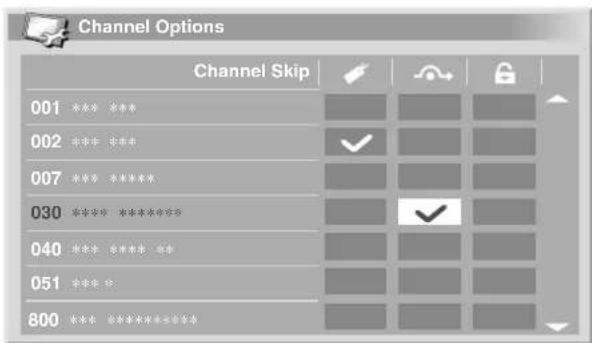
6 Select an individual channel ( /// then ENTER to select on/off).
- Select "On" for Favourites if you want the channel to be registered as your favourite (digital) channels. Selecting from the registered list may be the easiest way to tune to those channels.
- Select "On" for Channel Skip if you want the channel to be skipped when operating P +/P - on the remote control unit or CHANNEL +/- on the Media Receiver.
- Select "On" for Channel Lock if you want the channel not to be tuned without password entry.
7 After the setting is complete, make sure to complete the following steps.
- If you have registered any channel as your favourite one, see "Enabling Favourite Channels" and activate the Favourites function.
- If you have selected any channel for Channel Lock, set "Using a password (AV mode only) on page 58 and set an appropriate 4-digit password.

NOTE
- The password entry screen does not appear if you have disabled the password function. For details, see "Using a password (AV mode only)" on page 58.
- You can select "DTV Setup" only when watching DTV channels.
Activating the Favourites function
Make sure to activate this function after favourite channels are registered.
1 Repeat steps 1 to 4 provided for "Setting Channel Options".
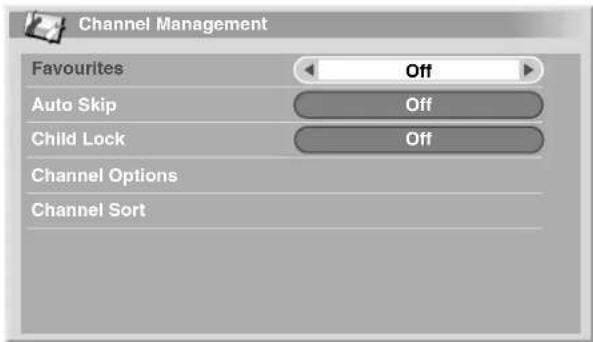
2 Select "Favourites" (/)↑↓
3 Select "On" (/)←→
- With favourite channels registered, you can select them using P+/P – on the remote control unit or CHANNEL +/- on the Media Receiver.

NOTE
- You can select "DTV Setup" only when watching DTV channels.
Activating the Auto Skip
This function lets you skip group of services, such as radio and text data services.
1 Repeat steps 1 to 4 provided for "Setting Channel Options".
2 Select "Auto Skip" (/)
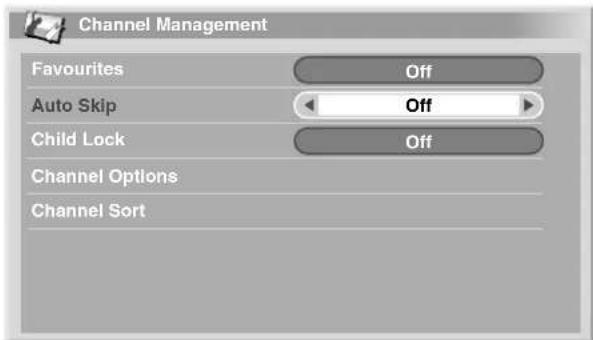
3 Select a channel to skip (/)
- You can select from among "Off", "Radio", "Data" or "Both".

NOTE
- "Auto Skip" function lets you skip "group" of services such as radio and text data. On the other hand, individual channel settings set to skip in "Channel Options" screen will not be affected by this setting.
- You can select "DTV Setup" only when watching DTV channels.
Setting the Child Lock
With this function, parents can prevent their children from watching age-restricted TV programmes. This function becomes effective depending on the country selected for channel setup. You can specify an age limit in the range from 4 and 18, so that the password has to be entered to watch TV programmes that matches the specified age limit.
1 Repeat steps 1 to 4 provided for "Setting Channel Options".
2 Select "Child Lock" (/)↑↓

3 Select an age limit (/)
- You can select 4 to 18, and "Off".
- With "Off" selected, password entry is not required no matter which age-restricted TV programme is selected.
Sorting preset DTV channels
Use the following procedure to change the sequence of the preset DTV channels.
1 Repeat steps 1 to 4 provided for "Setting Channel Options".
2 Select "Channel Sort" (↑/↓ then ENTER).
• The Sort screen appears.
3 Select a channel to be shifted ( /// then ENTER).
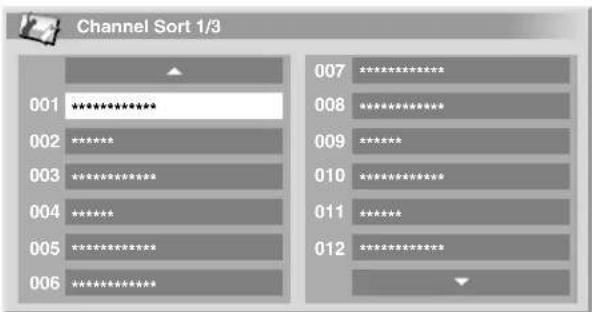
4 Select a new location ( /// then ENTER).
- Sorting is executed.
5 Press HOME MENU to exit the menu.
NOTE
- To change a page on the Sort screen in step 4, select ▲/▼ on the screen with ▲/▼ to select a page, and then press ENTER.
- You can select "DTV Setup" only when watching DTV channels.
Selecting a digital audio format
Use the following procedure to switch between the PCM and Dolby digital audio format.
1 Press HOME MENU.
2 Select "Setup" (▲/▼ then ENTER).
3 Select "DTV Setup" (▲/▼ then ENTER).
4 Select "User Preferences" (↑/↓ then ENTER).
5 Select "Digital Audio" (/)
6 Select "PCM" or "Dolby" (/)
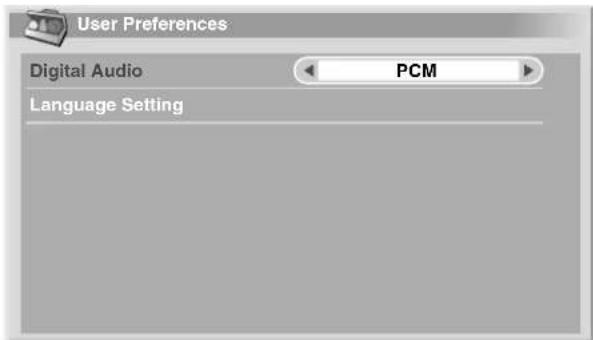
NOTE
- You can select "DTV Setup" only when watching DTV channels.
Selecting languages for audio, subtitles, and teletext
You may manually configure language settings for audio, subtitles, and teletext.
1 Repeat steps 1 to 4 provided for "Selecting a digital audio format".
2 Select "Language Setting" (▲/▼ then ENTER).
3 Select "Primary Audio", "Secondary Audio", "Primary Subtitle", "Secondary Subtitle" or "Teletext" (♠).
4 Select a language (/)←→

NOTE
- The Plasma Display System automatically selects the language based on the "Country" setting (page 30) when the selected language for audio, subtitle, or teletext is not available.
- You can select "DTV Setup" only when watching DTV channels.
Using Software Update
This function downloads and updates the system's software at the specified timing.
Using Auto Update
With this function on, the Plasma Display System checks if updated software is available and then downloads it (as necessary). After this, the system executes Add New Channels operation (page 40). This series of operations are automatically executed at the specified time.
1 Press HOME MENU.
2 Select "Setup" (▲/▼ then ENTER).
3 Select "DTV Setup" (▲/▼ then ENTER).
4 Select "Software Update" (↑/↓ then ENTER).
5 Select "Auto Update" (/)↑↓
6 Select "On" (/)←→
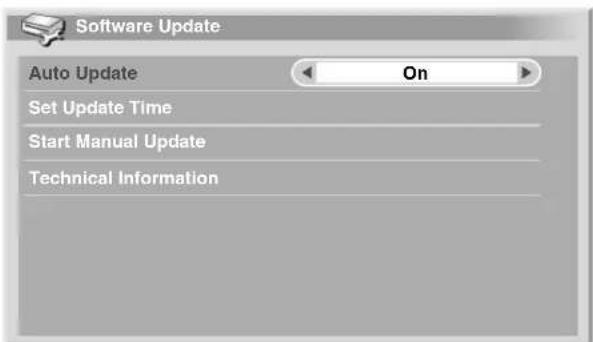

NOTE
- We recommend that you normally select "On".
- For Auto Update to start, there must be more than 1 hour left to the start of the next preset recording/watching.
- 60 seconds before the scheduled update, a message prompt appears asking if you want to carry out Auto Update or not. Auto Update automatically starts if "OK" is selected or no selection is made after 50 seconds.
• To quit an update in progress, press HOME MENU. - You can select "DTV Setup" only when watching DTV channels.
Setting Update Time
You can set the time your Plasma Display System performs Auto Update each day. To use this function, set "Auto Update" to "On" first.
1 Repeat steps 1 to 4 provided for "Using Auto Update".
2 Select "Set Update Time" (↑/↓ then ENTER).
3 Set a time for Auto Update (↑/↓/←/→ or 0 - 9).
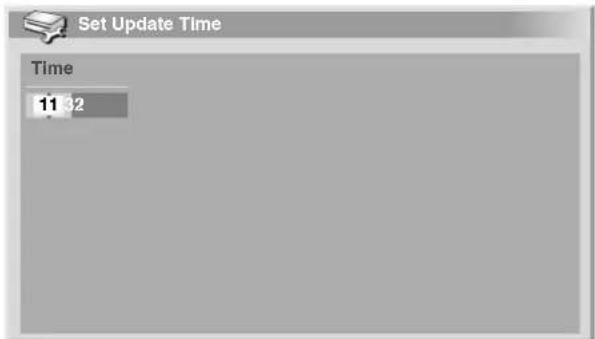
Starting Manual Update
This function allows you to manually execute Software Update. If less than 1 hour is left to the next scheduled Auto Update or programmed recording/watching, Manual Update cannot be executed.
1 Repeat steps 1 to 4 provided for "Using Auto Update".
2 Select "Start Manual Update" (↑/↓ then ENTER).

NOTE
- For Manual Update to start, there must be more than 1 hour left to the start of the next preset recording/watching.
- For Manual Update to start, there must be more than 1 hour left to the start of Auto Update.
- You can select "DTV Setup" only when watching DTV channels.
Displaying technical information
Use this function to check the hardware/software version number.
1 Repeat steps 1 to 4 provided for "Using Auto Update".
2 Select "Technical Information" ( / then ENTER).

NOTE
- You can select "DTV Setup" only when watching DTV channels.
Using MHEG application (UK only)
Some stations bring you programmes with the MHEG (Multimedia and Hypermedia Expert Group) application encoded, letting you experience DTV interactively.
When provided, the MHEG application will start when you press any of the colour buttons or ☐.

NOTE
- This function is not available when subtitle is activated (see page 39).
- You can select "DTV Setup" only when watching DTV channels.
Screen Saver
The screen saver automatically starts when no operation is performed for 3 minutes while receiving DTV radio channels.

NOTE
- While the screen saver is active, you can perform the following operations:
- Press TV/DTV to switch to analogue TV.
- Press any other button to switch to the normal radio channel screen.
- Programme Timer is active while the screen saver is displayed.
Common Interface
To receive scrambled DTV signals you will need a CA module and a smart card provided by the service provider.
Although CA module types may vary depending on the manufacturer, each one of the CA modules supports a certain kind of encryption system. Your Plasma Display supports CA modules which are made to work with the DVB standard. Contact a service provider for the right type of CA module.
Please note that a smart card may only be valid for a single service provider and due to this, a specific range of channels.

NOTE
- CA modules and smart cards are neither supplied nor optional accessories from PIONEER.
After inserting a card, leave it in the slot permanently. Do not remove it from the terminal unless asked to do so. For instance, your card has to be in the slot when your service provider wants to download new information to the smart card.
Inserting a CA Card
Common Interface card slot is located at the rear of the Media Receiver.
1 Hold the tab of the slot cover on the rear of the Media Receiver, and remove the cover while releasing the tab's latch.
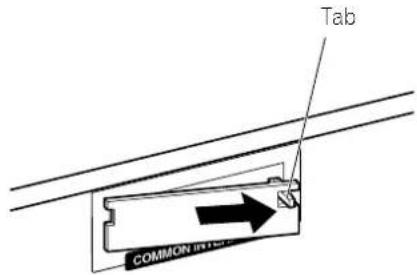
2 Insert the specified CA Module into the Common Interface slot as far as it will go.
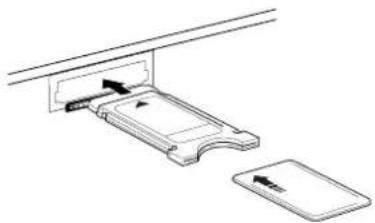
natural_image
Diagram of a device with two rectangular compartments and directional arrows indicating movement (no text or symbols)Using the Electronic Programme Guide (EPG)(for Analogue TV only)
Use the Electronic Programme Guide (EPG) to search desired TV programmes or view information about them. Using the timer, it also allows you to preset desired programmes for recording with a VCR.
For the EPG for the digital tuner, see "Using Electronic Programme Guide (EPG) (for DTV only)" on page 48.
Setting up for using the EPG
Updating EPG information automatically
Specify whether or not the system is to automatically acquire EPG information from a specified broadcasting station.
1 Press HOME MENU.
2 Select "Setup" (▲/↓ then ENTER).
3 Select "Analogue TV Setup" (▲/▼ then ENTER).
4 Select "EPG" (▲/▼ then ENTER).
5 Select "Data Auto Update" (/)↑↓
6 Select "Disable" or "Enable" (/)
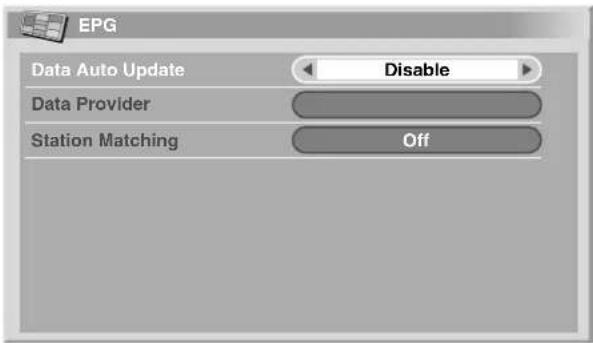
Item Description
| Disable (factory default) | Deactivates the EPG. |
| Enable | Automatically acquires EPG information at midnight and when watching a broadcasting station specified as an EPG information provider. |
7 Press HOME MENU to exit the menu.
Specifying an EPG information provider
Specify a broadcasting station to acquire EPG information.
1 Press HOME MENU.
2 Select "Setup" (↑/↓ then ENTER).
3 Select "Analogue TV Setup" (▲/▼ then ENTER).
4 Select "EPG" (↑/↓ then ENTER).
5 Select "Data Provider" (↑/↓ then ENTER).
6 Select the desired broadcasting station (/)←→
7 Press HOME MENU to exit the menu.
Restricting the display of EPG information
Use this function to display the EPG information about only TV programmes that can be actually received and watched.
1 Press HOME MENU.
2 Select "Setup" (↑/↓ then ENTER).
3 Select "Analogue TV Setup" (↑/↓ then ENTER).
4 Select "EPG" (↑/↓ then ENTER).
5 Select "Station Matching" (↑/↓ then ENTER).
6 Select "On" (/)←→
Item Description
| Off (factory default) | Displays all broadcasting stations' EPG information processed by the specified EPG information provider. |
| On Displays EPG information about TV programmes that can be actually received and watched. | |
7 Press HOME MENU to exit the menu.
Searching programmes
1 Press EPG.
2 Press the colour button to select a search parameter.
3 Perform selection for the parameter (/)
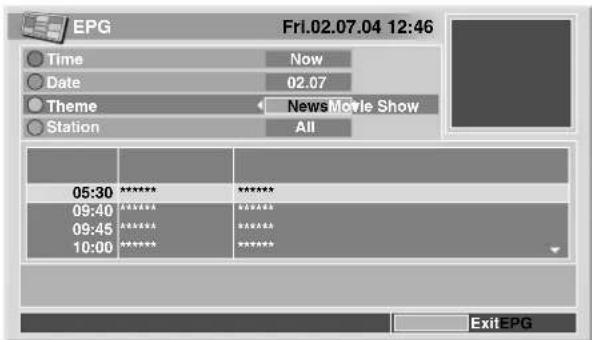
• A list of searched programmes appear.
4 Press EPG to exit the menu.

NOTE
- For "Time" or "Date", you cannot select a past time or date.
- Before displaying EPG information, tune to a TV channel and return the screen to the single-screen mode.
- While EPG information is in display, only the following buttons are functional:
$$ Ⓦ, \triangle + / \triangle -, \text { 叹 } \times \text { and I - II } $$
Icons displayed on the Programme List and Programme Information
Icon Meaning
| 4:3 | Aspect ratio 4:3 |
| 16:9 | Aspect ratio 16:9 |
| ○○ | Bilingual |
| ○○ | Stereo |
| ---- | Channel with subtitles |
Viewing programme information
1 Press EPG.
2 Select the desired programme ( / then ENTER).
• Information about the selected programme appears.
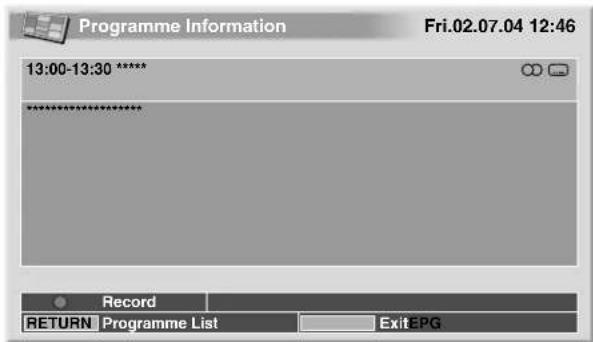
3 Scroll the information (/)↑↓
• To return to the programme list screen, press RETURN.
4 Press EPG to exit the menu.
Recording a programme using a recording equipment
When recording equipment (such as a VCR or DVD recorder) is in connection, you may use the Electronic Programme Guide to preset TV programmes for recording.
1 Press EPG.
2 Select the desired programme (↑/↓ then ENTER).

• Information about the selected programme appears.
3 Press the RED button.
4 Select "Rec Speed" (/)↑↓
5 Select "SP" (standard) or "LP" (extended) (/)
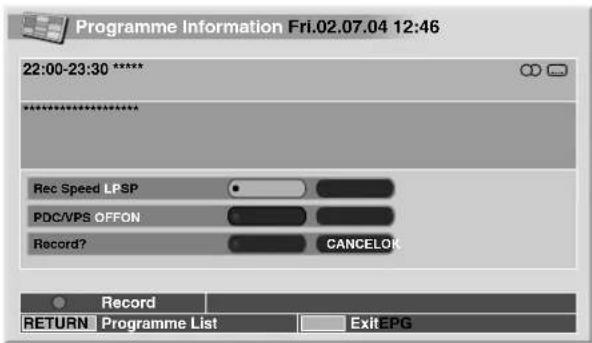
6 Select "PDC/VPS" (/)↑↓
7 Select "ON" or "OFF" (/)
8 Select "Record?" (/)↑↓
9 Select "OK" (←/→ then ENTER).
10 Press EPG to exit the menu.

NOTE
- Make sure to leave the VCR power on when presetting TV programmes for recording.
- You can return to the programme list screen by pressing RETURN.
- This function is available only when recording equipment has been connected to the INPUT 2 or 3 terminal with the i/o Link.A activated, using a SCART cable.
- For programmes preset (for recording) using the EPG, you can perform deletion or change only on the recording equipment (VCR or DVD recorder) which is a transfer destination.
Selecting a programme for immediate watching
Using the EPG, you can also select a TV programme currently on air to immediately start watching.
1 Press EPG.
2 Select the desired programme currently on air (/ ← ENTER).
• Information about the selected programme appears.
3 Press the GREEN button.
- The EPG menu is quitted and the selected TV programme is displayed using the entire screen.
EPG display format
The Electronic Programme Guide (EPG) shows the table of scheduled digital TV programmes and detailed information about individual programmes. It also allows you to easily select and tune to a desired programme.
The EPG Screen consists of the Programme Information, Channel List, and General Programme List. This section describes information to be displayed on the schedule and information windows.

NOTE
- For digital TV programmes that do not provide EPG information, you cannot view the corresponding EPG information.
- If the current time has not been correctly set, there may be TV programmes whose EPG information is not displayed.
General programme list
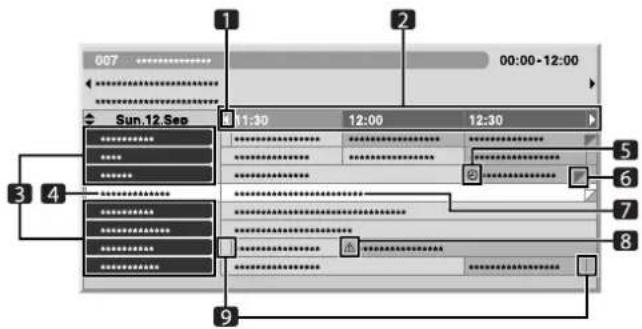
1 Appears when the schedule table can be scrolled forward or backward.
2 Time schedule
3 Channel list
4 Highlights the currently selected channel
5 Indicates the programme set for recording/watching
6 Appears when other programmes (often short ones) have been scheduled for the same period
7 Programme title
8 Indicates the programme set for recording/watching (but another programme is set for recording in the same period)
9 Time dividers
Programme information
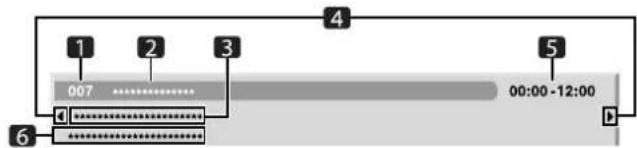
1 Channel number
2 Station name
3 Programme title
5 Programme schedule
6 Programme genre
4 Appear when other programmes have been scheduled for the same period.

NOTE
- The general programme list may show sections whose bottom right corners have been folded. This indicates that other programmes have been scheduled for that period. To view the title of such a programme and related information, highlight a folded section, and then press
Using the EPG
Use the following procedure to check the schedule of digital TV programmes, view information about desired programmes, and/or select programmes.
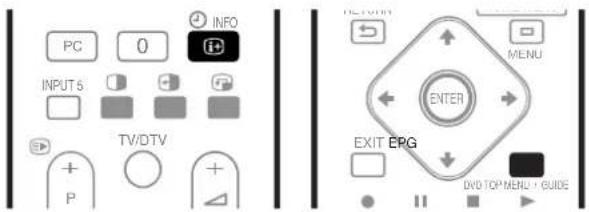
1 Press EPG.
• The EPG screen appears.
- The EPG screen updates automatically if the EPG data is acquired successfully. If not, the EPG screen shows a blank image.
2 Select a desired TV programme (/ ↗) ↘ ↔
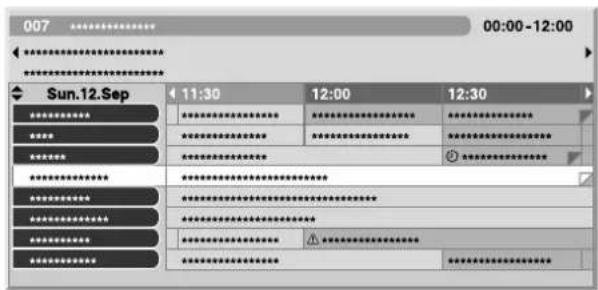
- Press P +/P - to skip to the next or previous channel list page.
• Information about the selected programme appears in the information window.
• To watch a programme currently on air, select the programme (then ENTER). - You can check information about programmes scheduled up to 1 week ahead, depending on conditions.
- Depending on conditions, it may take some time to acquire EPG data.
3 To view more information (not currently displayed) about the selected programme, press ⓘ.
• Detailed information appears in the schedule window.
- If the screen contains further information, "More ..." is displayed.
- To quit the display of detailed information, press i+ again (or RETURN).
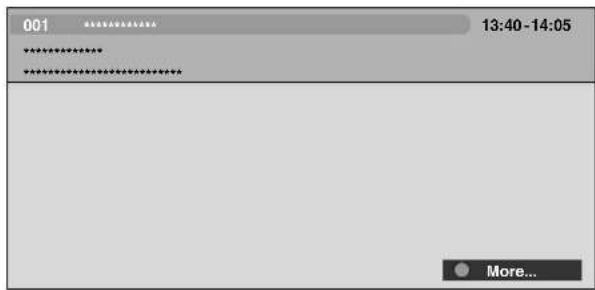
4 To quit the Programme Guide, press EPG again.

NOTE
- The general programme list does not show finished programmes.
- Before operating with the remote control unit, make sure to select the TV mode using its SELECT button. See "Controlling other equipment using the supplied remote control unit" on page 69.
Presetting TV programmes using the EPG
Using the EPG, you can easily preset digital TV programmes for watching (auto channel select) and recording later.
You must also adjust your recording equipment settings to record the programme. Refer to the operation manual provided with your recording equipment.
Using auto channel select and standby recording
With the power to the system left on, this function automatically selects a preset TV programme when its on-air time comes. That way you will not miss the start of an important TV programme because you were enjoying another TV programme.
Even if the system is in the standby mode when the preset TV programme's on-air time comes, the Media Receiver wakes up and outputs AV signals for recording.
1 Press EPG.
• The EPG screen appears.
2 Select a programme to be preset ( / , / then ENTER).
- Select a programme not yet started.
- A setup menu appears.
- Select a programme currently on-air (then ENTER): The EPG screen closes and a channel is tuned in.
- Select a programme currently on-air (then GREEN): The programme can be set for recording/watching the next time (or week) it is shown.
- Select a programme not yet started (then ENTER or GREEN): The programme can be set for recording/watching.
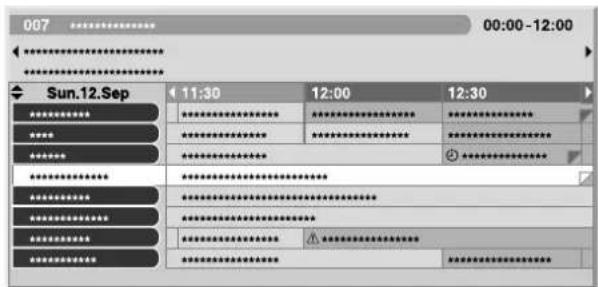
3 Select "Yes" in a confirmation dialogue box (/ the ENTER).
- The Programme Timer screen with a list of other preset programmes information appears.
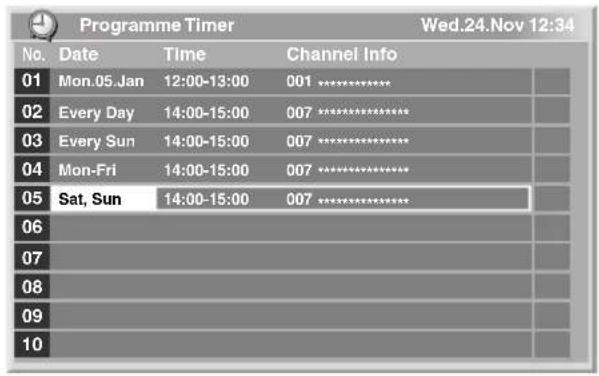
- You can modify the presettings here (▲, ↓ then ENTER).
- You can register the presettings here ( ◀r ENTER).
4 Press RETURN to return to the EPG screen.
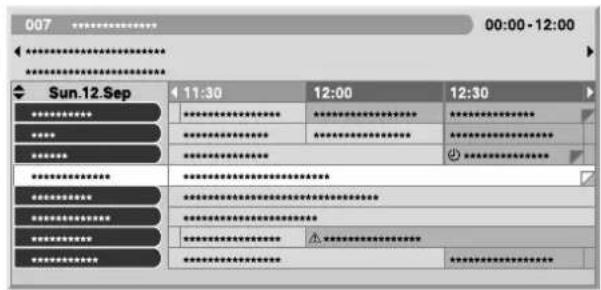
• The EPG screen updates with the new presettings.
- A red clock icon appears for the preset programme.
- A yellow triangle icon appears for overlapped presettings.
5 Press EPG to exit the EPG screen.
With the system switched on, a channel switch alarm message appears approximately 60 seconds before execution and the channel is switched a short time before the start of the programme.

NOTE
- Auto channel select is not executed when the system is in the standby mode.
- Even in the standby mode, preset programmes can be recorded as only the Media Receiver alone wakes up and outputs AV signals when the preset time comes.
- Finish presetting operations three minutes before the start of the programme.
- For priorities about overlapped presettings, see "Priority rules for overlapped presettings" on page 51.
- The TIMER indicator on the front of the Media Receiver lights up in orange when a programme is preset for recording/watching.
- Recording may fail because of watching restrictions imposed by the CA module.
Setting the timer manually
Using the menu, you can also preset digital TV programmes by specifying their scheduled date and time.
1 Press HOME MENU.
2 Select "Setup" (↑/↓ then ENTER).
3 Select "DTV Setup" (↑/↓ then ENTER).
4 Select "Programme Timer" (↑/↓ then ENTER).
• The schedule table appears.
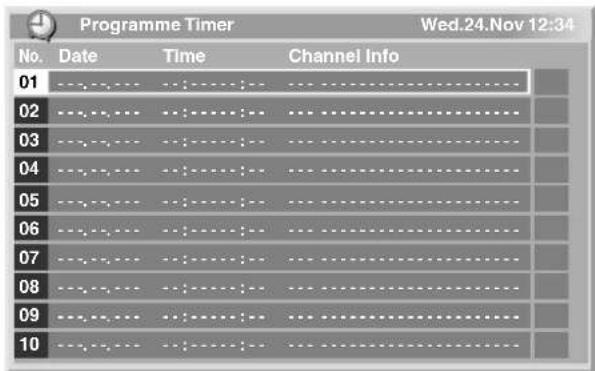
5 Select a programme number (/ ↑)
- You can select any desired programme number.
6 Specify a date ( / or 0 - 9, then ).
7 Specify the start hour/minute and end hour/minute
(↑/↓ o r 0-9, then ).
8 Specify a channel number ( / or 0 - 9, then ).
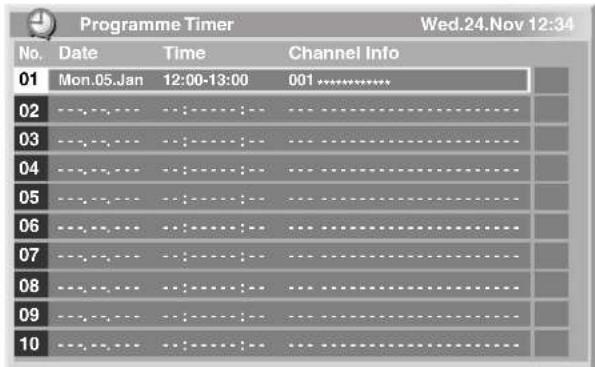
9 Register the preset settings after all items are set (ENTER).
- If a preset time is in the past or the channel is locked, an alert message appears.
- An yellow triangle icon indicates that the recording/watching may fail due to overlapped presettings.
- If presetting another programme, repeat steps 5 to 9.
- You can preset up to 10 programmes.
10 Press HOME MENU to exit the menu.
NOTE
- Preset recording/watching begins immediately when presetting operations are performed within three minutes of the start of the programme.
- Presettings made using the EPG are automatically shown in the scheduled table.
- Recording may fail because of watching restrictions imposed by the CA module.
Priority rules for overlapped presettings
When preset TV programmes are overlapped, the following two rules are used to determine higher priority. If more than one of the two rules are met, the rules are applied in the order 1 then 2.
Rule 1: If two presettings are overlapped, the presetting with the earlier start time is given a higher priority. If two presettings are sequential, the last portion of the first programme or the first portion of the second may not be recorded.
Rule 2: If presetings with the same start time are overlapped, the presetting with the bigger list number is given a higher priority.
Changing/cancelling TV programme presettings
Using the EPG
Use the following procedure to change or cancel programme presettings using the EPG.
1 Press EPG.
• The EPG screen appears.
2 Select the desired preset programme (/,♠/♦) then ENTER or GREEN).
- A dialogue box appears.
- If you select "Yes", go to step 3.
- To quit the operation, select "No".
3 Select the preset programme (← or ENTER).
4 Select a programme number to edit (/)↑↓
- You can delete the preset programme by pressing the RED button.
5 Edit the selected preset programme and update the setting (ENTER).
- The screen alerts you if the preset programme being edited has already started or finished.
6 When the setting is complete, press EPG to exit the EPG screen.

NOTE
- When you want to stop recording/watching in progress that was started by a programme presetting, for example, to change the channel, an alert message appears indicating that the presetting will be cancelled. In this case, you cannot cancel the programme presetting using the EPG.
Using the menu
Use the following procedure to change or cancel programme presettings using the menu.
1 Press HOME MENU.
2 Select "Setup" (↑/↓ then ENTER).
3 Select "DTV Setup" (▲/▼ then ENTER).
4 Select "Programme Timer" (↑/↓ then ENTER).
• The schedule table appears.
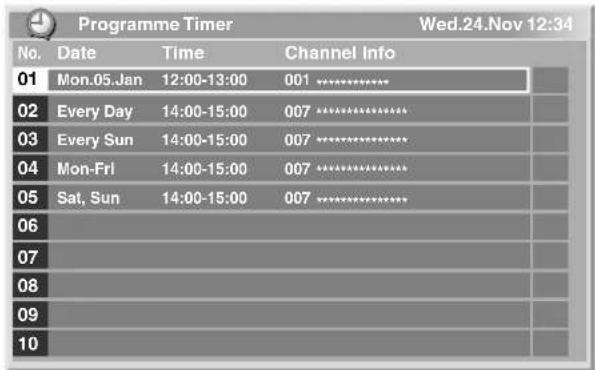
5 Select a programme number to be edited (/)↑↓
- Delete the programme presetting (RED).
- Startediting (ENTER).
6 Adjust the desired item (/ ↗) ↘ ↕ ↗
7 Press ENTER to complete the setting.
- The screen alerts you if the preset programme being edited has already started or finished.
8 Press HOME MENU to exit the menu.
Changing priorities for overlapped presettings
You can change the priority order for overlapped preset programmes to suit your preference.
1 Press HOME MENU.
2 Select "Setup" (↑/↓ then ENTER).
3 Select "DTV Setup" (▲/↓ then ENTER).
4 Select "Programme Timer" (↑/↓ then ENTER).
• The schedule table appears.
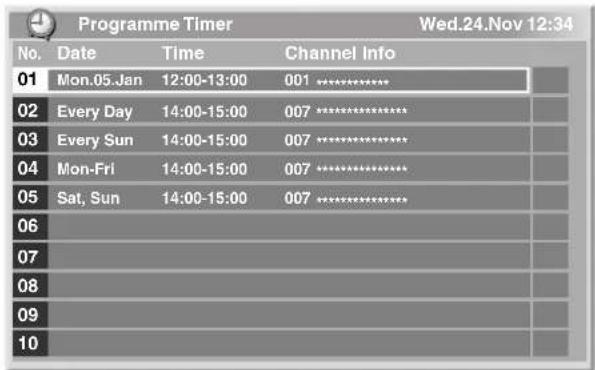
5 Select a programme to edit (↑/↓ then BLUE).
6 Select the position to move the selected programme (↑/↓).
7 Now move the programme to the selected position by pressing BLUE or ENTER.
Using other useful EPG functions
Below are some useful functions that guide you through the EPG screen and save your time.
EPG Jump
1 Press RED when the EPG screen (Programme List, Detailed information and Search Result) is displayed.
2 Select "Date" (/)↑↓
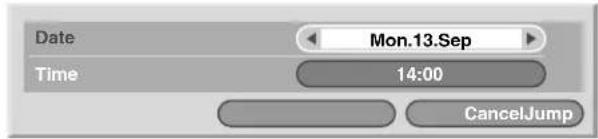
3 Select the day (within one week) to jump to (/)↑↓
4 Select "Time" (/)↑↓
5 Select the time of the day (0:00 a.m. to 23:00 p.m.) to jump to (←)→
6 Select "Jump" (↑/↓, ←/→ then ENTER).
- The Programme List of the specified day and time displays.
EPG Search
1 Press YELLOW when the EPG screen (Programme List, Detailed information and Search Result) is displayed.
2 Select "Date" (/)↑↓
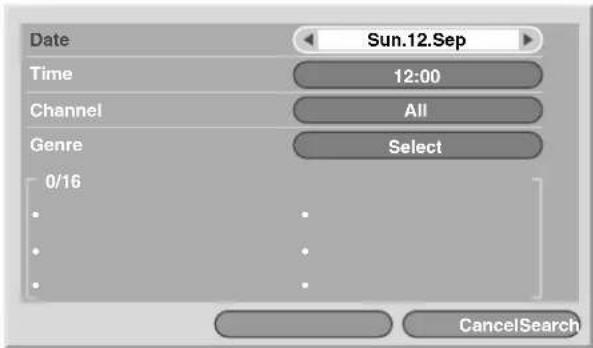
3 Select the day (within one week) to search (/)←→
4 Select "Time" (/)↑↓
5 Select the time of the day (0:00 a.m. to 23:00 p.m.) to search (←).→
6 Select "Channel" (/)↑↓
7 Select whether to search "All" or "Favourites" (/)
8 Select "Genre" (▲/▼ then ENTER).
9 Select the genre(s) to search (▲/↓, ←/→ then ENTER). Pressing ENTER again will delete the selected genre from the search list.
10 Select "OK" (↑/↓, ←/→ then ENTER).
11 Select "Search" ( / , / then ENTER).
• An EPG search with your customised settings starts.
Switching the vertical drive frequency (AV mode only)
You can switch the vertical drive frequency for screen display between 75 Hz and 100 Hz. Choose the drive frequency that better suits your broadcasting signals.
1 Press HOME MENU.
2 Select "Option" (↑/↓ then ENTER).
3 Select "Drive Mode" (▲/↓ then ENTER).
4 Select "75 Hz" or "100 Hz" (▲/▼ then ENTER).
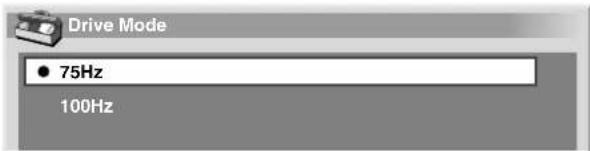
5 Press HOME MENU to exit the menu.

NOTE
- This setting can be made for each input source separately.
- This setting cannot be made when 480i, 480p, 1080i@60Hz, 720p@60Hz, or 1080p@24Hz signals are input.
- If you select "Auto" for "Side Mask" (page 57), the selection for "Drive Mode" becomes ineffective.
Adjusting image positions (AV mode only)
Adjust the horizontal and vertical positions of images on the Plasma Display.
1 Press HOME MENU.
2 Select "Option" (↑/↓ then ENTER).
3 Select "Position" ( / then ENTER).
4 Select "H/V Position Adjust" (↑/↓ then ENTER).
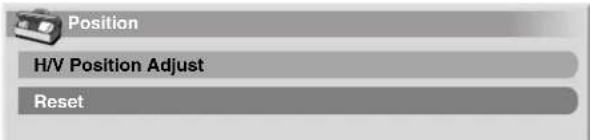
5 Adjust the vertical position (/) or the horizontal position (◀).
6 Press HOME MENU to exit the menu.

NOTE
- To restore the factory defaults for all items, press to select "Reset" in step 4, and then press ENTER. A confirmation screen appears. Press to select "Yes", and then press ENTER.
- Adjustments are stored separately according to input source.
Adjusting image positions and clock automatically (PC mode only)
Use Auto Setup to automatically adjust the positions and clock of images coming from a personal computer.
1 Press HOME MENU.
2 Select "Option" (↑/↓ then ENTER).
3 Select "Auto Setup" (↑/↓ then ENTER).
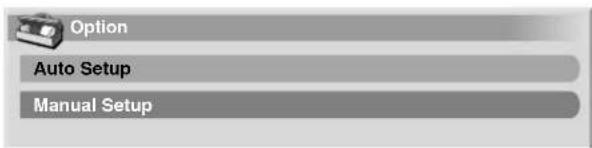
- Auto Setup starts.
4 Press HOME MENU to exit the menu.

NOTE
- When Auto Setup is finished, "Auto Setup completed." appears.
- Even when "Auto Setup completed" appears, Auto Setup may have failed, depending on conditions.
- Auto Setup may fail with a PC image composed of similar patterns or monochrome. If not successful, change the PC image and try again.
- Be sure to connect the computer to the Media Receiver and switch it on before starting Auto Setup.
Adjusting image positions and clock manually (PC mode only)
Usually you can easily adjust the positions and clock of images using Auto Setup. Use Manual Setup to optimise the positions and clock of images when necessary.
1 Press HOME MENU.
2 Select "Option" (▲/↓ then ENTER).
3 Select "Manual Setup" (↑/↓ then ENTER).
4 Select the item to be adjusted ( / then ENTER).
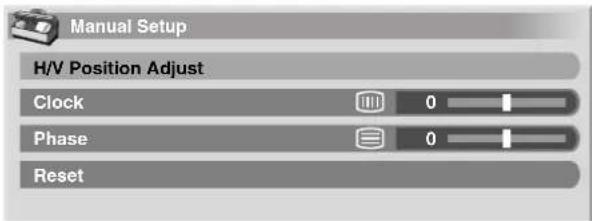
5 Perform adjustment (/ ◆ne/). ↑↓ With "Clock" or "Phase" selected, you can change the parameter using ↑↓
6 Press HOME MENU to exit the menu.

NOTE
- To restore the factory defaults for all the items, press A to select "Reset" in step 4, and then press ENTER. A confirmation screen appears. Press A to select "Yes", and then press ENTER.
Selecting an input signal type
After connecting to the INPUT 1, INPUT 2, or INPUT 3 terminal, specify the type of video signals to be received from the connected equipment. For the type of the signals, see the operation manual that came with the connected equipment.
Before starting the menu, press INPUT 1, INPUT 2, or INPUT 3 on the remote control unit or press INPUT on the Media Receiver to select an input source.
1 Press HOME MENU.
2 Select "Option" (↑/↓ then ENTER).
3 Select "Input Select" (↑/↓ then ENTER).
4 Select a signal type ( / then ENTER).
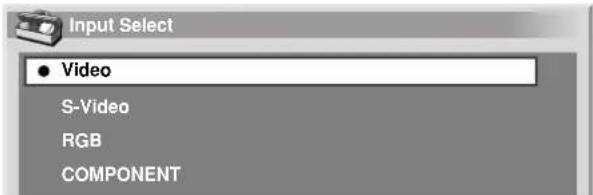
- For INPUT1, you can select Video or RGB.
- For INPUT2, you can select Video or S-Video or COMPONENT.
- For INPUT3, you can select Video, S-Video, or RGB.
5 Press HOME MENU to exit the menu.

NOTE
- If no image appears or images appear in inappropriate colours, specify another video signal type.
- For the signal types to be specified, check the operation manual that came with the connected equipment.
Colour system setting (AV mode only)
If an image does not appear clearly, select another colour system (e.g., PAL, NTSC).
1 Press HOME MENU.
2 Select "Option" (▲/▼ then ENTER).
3 Select "Colour System" (▲/▼ then ENTER).
4 Select a video signal system ( / then ENTER).
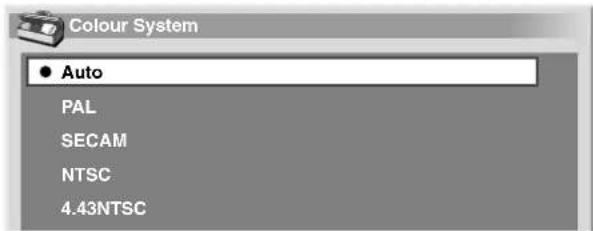
- You can select "Auto", "PAL", "SECAM", "NTSC", or "4.43NTSC".
- With "Auto" selected, input signals are automatically identified.
5 Press HOME MENU to exit the menu.

NOTE
• The factory default is "Auto".
- You need to perform colour system setting for each of INPUT 1, 2, 3, and 5.
- For the colour system setting, see steps 11 and 12 under "Using Manual Adjust" (page 30).
Selecting a screen size manually
Press 📋 to switch among the screen size options selectable for the type of video signals currently received.
• Each time you press 🎨, the selection is switched.
- The selectable screen sizes differ depending on the types of input signals.
AV mode
| Item Description | |
| 4:3 | For 4:3 “standard” pictures. A side mask appears on each side. |
| FULL 14:9 For 14:9 squeeze pictures. A thin side mask appears on each side. | |
| CINEMA 14:9 For 14:9 letterbox pictures. A thin side mask appears on each side, and you may also see bars on the top and bottom with some programmes. | |
| WIDE In this mode the picture is progressively stretched toward each side of the screen. | |
| FULL For 16:9 squeeze pictures. | |
| ZOOM For 16:9 letterbox pictures. Bars may appear on the top and bottom with some programmes. | |
| CINEMA For 14:9 letterbox pictures. Bars may appear on the top and bottom on some programmes. | |
PC mode except for XGA signals
| Item Description |
| 4:3 Fills the screen without altering the input signal aspect ratio. |
| FULL Full 16:9 screen display |
| Dot by Dot Matches input signal with same number of screen pixels. |
PC mode for XGA signals
| (Ex. 1024 x 768 input at PDP-506XDE) |
Item Description
| 4:3 Matches input signal with the same number of screen pixels.Optimised for 1024 x 768 display |
| FULL1 Full 16:9 screen displayOptimised for 1024 x 768 display |
| FULL2 For wide signal displayUse when displaying 1280 x 768 signal resolution. |

NOTE
- The specifications given for the PC mode is for the PDP-506XDE. For the PDP-436XDE, the number of panel pixels is different, and thus signal processing and actual viewing conditions will vary slightly.
- While watching High Definition TV broadcasting, pressing switches among FULL, WIDE, 4:3, and ZOOM.
AV mode
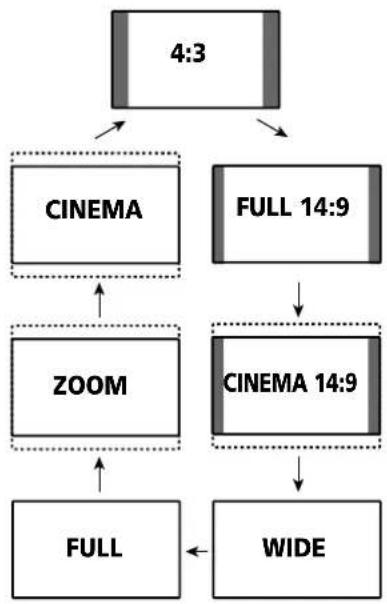
flowchart
graph TD
    A["4:3"] --> B["CINEMA"]
    A --> C["FULL 14:9"]
    B --> D["ZOOM"]
    C --> E["CINEMA 14:9"]
    D --> F["FULL"]
    E --> G["WIDE"]
    F --> H["..."]
    G --> I["..."]
PC mode except for XGA signals
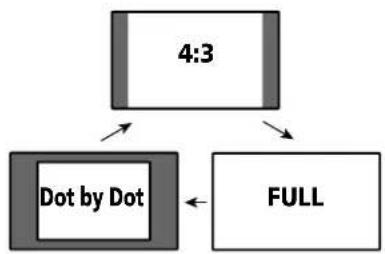
flowchart
graph TD
    A["4:3"] --> B["Dot by Dot"]
    A --> C["FULL"]
PC mode for XGA signals
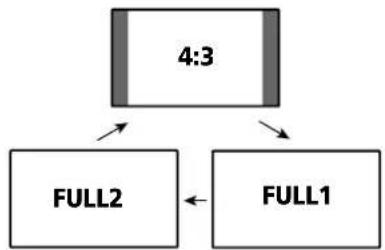
flowchart
graph TD
    A["4:3"] --> B["FULL2"]
    A --> C["FULL1"]
Selecting a screen size automatically
The Plasma Display automatically selects an appropriate screen size when the received video signals contain WSS (wide screen signaling) information or when video signals are received from a connected HDMI equipment (see page 61). To activate this function, use the following procedure.
1 Press HOME MENU.
2 Select "Option" (↑/↓ then ENTER).
3 Select "Auto Size" (▲/▼ then ENTER).
4 Select "On" (↑/↓ then ENTER).
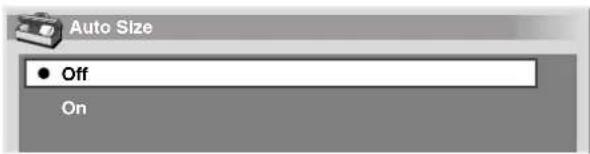
Item Description
Off
Deactivates the Auto Size function.
(factory default)
On Activates the Auto Size function.
5
Press HOME MENU to exit the menu.

NOTE
- Manually select an appropriate screen size if an image does not automatically switch to a correct screen format.
- When the video signal contains no aspect ratio information, the function will not work even with "On" selected.
Selecting a screen size for received 4:3 aspect ratio signals
Specify whether the Plasma Display should choose the 4:3 mode or WIDE mode when 4:3 aspect ratio signals are received with the Auto Size function activated.
1 Press HOME MENU.
2 Select "Option" ( / then ENTER).
3 Select "4:3 Mode" (↑/↓ then ENTER).
4 Select "WIDE" or "4:3" (↑/↓ then ENTER).
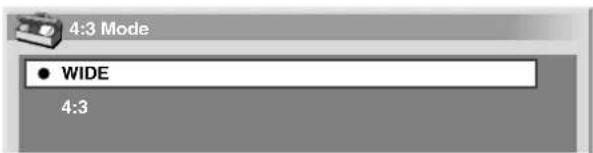
Item Description
WIDE (factory default) Wide image without side masks.
4:3 Keeps the 4:3 aspect ratio and presents side masks.
WIDE 4:3
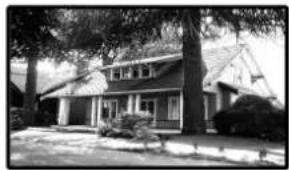
natural_image
Exterior view of a two-story house with trees and a small tree in front (no signage or text visible)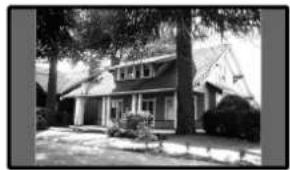
natural_image
Exterior view of a two-story house surrounded by trees and open ground (no signage or text visible)5 Press HOME MENU to exit the menu.
Changing the brightness at both sides of the screen (Side Mask)
With the 4:3, FULL 14:9, or CINEMA 14:9 screen size selected for the AV mode, you can change the brightness of the grey side masks that appear at both sides of the screen.
1 Press HOME MENU.
2 Select "Option" (▲/↓ then ENTER).
3 Select "Side Mask" (↑/↓ then ENTER).
4 Select the desired parameter ( / then ENTER).
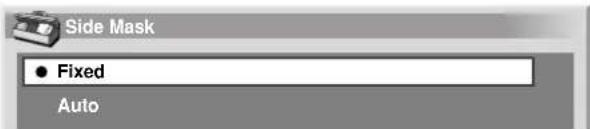
Item Description
Fixed (factory default) Always sets the same brightness for the grey side masks.
Auto Adjusts the brightness of the grey side masks according to the brightness of images.
5 Press HOME MENU to exit the menu.
NOTE
- If you select "AUTO", the selection for "Drive Mode" (page 54) becomes ineffective.
Sleep Timer
When the selected time elapses, the Sleep Timer automatically places the system into the standby mode.
1 Press HOME MENU.
2 Select "Sleep Timer" (▲/▼ then ENTER).
3 Select the desired time ( / then ENTER).
- You can select from among "Off" (cancel), "30 min", "60 min", "90 min", and "120 min".
4 Press HOME MENU to exit the menu.

NOTE
- Five minutes before the selected time elapses, the remaining time appears every minute.
- To check the remaining time, perform steps 1 and 2. After checking the time, press HOME MENU to restore the previous display.
Using a password (AV mode only)
The Plasma Display System provides the Child Lock and Channel Lock functions for preventing children from watching inappropriate programmes. You need to enter a password when watching programmes with "Block" specified. Before the system is shipped, "1234" is preset as the factory-default password. You can however, change the password as you want.
When using the Home menu you select "Auto Installation", "Analogue TV Setup", "DTV Setup", or "Password", a screen prompting password entry appears to prevent others from changing the programme settings at their choices.
Entering a password
If you select a channel blocked with Child Lock or Channel Lock or if password entry is requested when attempting to open the menu, enter a password correctly.
1 Enter a correct 4-digit password using buttons 0 - 9.


NOTE
- If you fail password entry three times, "Invalid password." appears, and the menu is closed. In order to display the password entry screen again to unlock the password, select the blocked channel or open the menu again.
- If the password entry screen disappears before entry, you may recall it by pressing ENTER.
Changing the password
Use the following procedure to change the password.
1 Press HOME MENU.
2 Select "Setup" (↑/↓ then ENTER).
3 Select "Password" (▲/↓ then ENTER).
- The password entry screen appears. Enter the current 4-digit password using buttons 0 - 9.
4 Select "Change Password" (↑/↓ then ENTER).
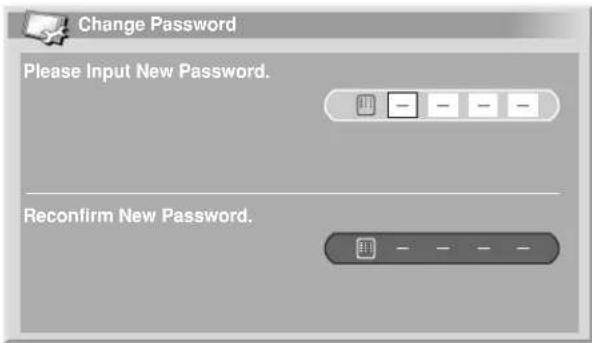
5 Enter a 4-digit password to be newly set, using buttons 0 - 9.
6 Enter the same password that you have entered in step 5.
- If an unmatching password is entered, the operation goes back to step 5 for reentry from the beginning.
- If you fail password change three times by entering unmatching passwords, the menu is closed.
7 Press HOME MENU to exit the menu.

NOTE
• Take a note of the newly set password and keep it handy.
Resetting the password function
1 Press HOME MENU.
2 Select "Setup" (↑/↓ then ENTER).
3 Select "Password" (↑/↓ then ENTER).
- The password entry screen appears. Enter your 4-digit password using buttons 0 - 9.
4 Select "Reset" (▲/▼ then ENTER).
5 Select "Yes" ( / then ENTER).
6 Press HOME MENU to exit the menu.

NOTE
- The above procedure will reset the password to the factory default (1234).
Disabling the password function
Use the following procedure if you want to deactivate the protection function that prompts password entry.
1 Press HOME MENU.
2 Select "Setup" (↑/↓ then ENTER).
3 Select "Password" (↑/↓ then ENTER).
- The password entry screen appears. Enter your 4-digit password using buttons 0 - 9.
4 Select "Password Setting" (↑/↓ then ENTER).
5 Select "Disable" (▲/▼ then ENTER).
6 Press HOME MENU to exit the menu.

NOTE
- The above procedure will reset the password to the factory default (1234).
• After disabling the password function, you cannot change the Child Lock settings. For the Child Lock, see page 43. - After disabling the password function, you cannot change or reset the password.
- When you enable the password function again after disabling it, the factory default password (1234) is restored.
We suggest you write down your password so you don't forget it.
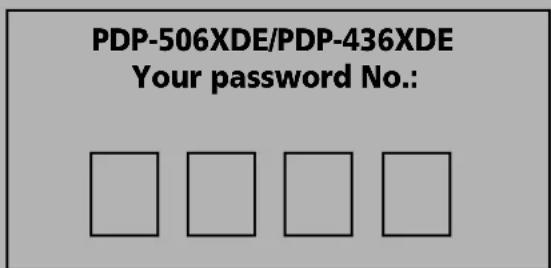
If you forget the password
When the message "Please Input Your Password" is displayed in step 3 under "Changing the password" (page 58), "Resetting the password function" (page 59), or "Disabling the password function" (page 59), press the ENTER button on the remote control unit and hold it down for 3 seconds or longer.
The password reverts to "1234".
You can connect many types of external equipment to your Plasma Display System, like a decoder, VCR, DVD player, personalcomputer, game console, and camcorder.
To view images coming from external equipment, select the input source using the INPUT buttons on the remote control (page 15) or the INPUT button on the Media Receiver.

CAUTION
• To protect all equipment, always unplug the Media Receiver from the power outlet before connecting to a decoder, VCR, DVD player, personal computer, game console, camcorder, or other external equipment.

NOTE
- Refer to the relevant operation manual (DVD player, personal computer, etc.) carefully before making connections.
Watching a decoder image
Connecting a decoder
Use the INPUT 1 terminal when connecting a decoder and other audiovisual equipment.
Media Receiver (rear view)
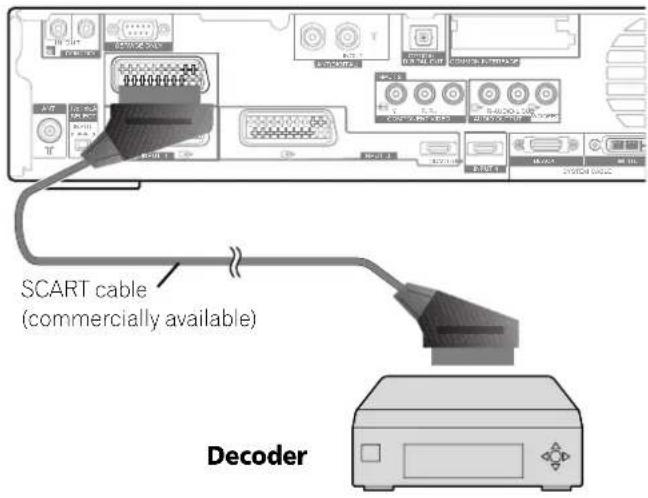
Displaying a decoder image
1 Press buttons 0 - 9 or P +/P - to select a programme specified for decoder setting (page 31).
2 Press INPUT 1 on the remote control unit or press INPUT on the Media Receiver to select INPUT1.

NOTE
- Be sure to use INPUT1 to connect a decoder.
- If decoder images do not come in clearly, you may need to change the input signal type setting using the menu. See page 55.
• Refer to your decoder operation manual for the signal type.
Watching a VCR image
Connecting a VCR
Use the INPUT 2 terminals when connecting a VCR and other audiovisual equipment.
If your VCR supports TV-VCR advanced "AV link" systems (page 62), you can connect the VCR to the INPUT 2 or 3 terminal on the Media Receiver using the fully-wired 21-pin SCART cable.
AV link advanced system
- Download tuning information directly from TV to VCR (Preset download).
- While watching TV, you can record a programme with a one-touch press of the VCR recording button. (WYSIWYR*) *Refer to your VCR operation manual as some VCRs have an exclusive key for WYSIWYR.
- When you press the play button on the VCR, the system automatically turns on from standby and displays a VCR image.

NOTE
- TV-VCR advanced "AV link" systems may not be compatible with some external sources.
Media Receiver(rear view)
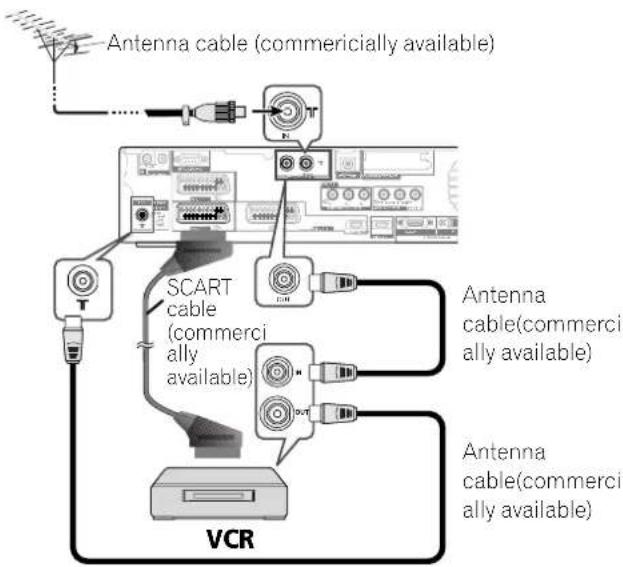
flowchart
graph TD
    A["Antenna cable (commercially available)"] --> B["SCART cable (commercially available)"]
    B --> C["VCR"]
    D["Antenna cable(commercially available)"] --> E["SCART cable (commercially available)"]
    E --> F["VCR"]
    G["Antenna cable(commercially available)"] --> H["SCART cable (commercially available)"]
    H --> I["VCR"]
Displaying a VCR image
To watch a VCR image, press INPUT 2 on the remote control unit or press INPUT on the Media Receiver to select INPUT2.

NOTE
- If VCR images do not come in clearly, you may need to change the input signal type setting using the menu. See page 55.
- Refer to your VCR operation manual for the signal type.
- The INPUT 2 terminals are checked for cable connections in the order where; 1) S-Video, 2) Video.
- Connect external equipment to only terminals that are to be actually used.
Using HDMI Input
This Plasma Display System is equipped with two HDMI terminals (INPUT 3 and 4) which accept digital video and audio signals. To use the HDMI terminal, activate the terminal and specify the types of video and audio signals to be received from the connected equipment. For the types of these signals, see the operation manual that came with the connected equipment.
Before starting the menu, press INPUT 3 or INPUT 4 on the remote control unit or press INPUT on the Media Receiver to select INPUT 3 or INPUT 4.
Input signal correlation table
| 1920*1080i@50Hz |
| 720*576p@50Hz |
| 1280*720p@50Hz |
| 720(1440)*576i@50Hz |
| 1920*1080i@59.94/60Hz |
| 720*480p@59.94/60Hz |
| 1280*720p@59.94/60Hz |
| 720(1440)*480i@59.94/60Hz |
| 1920*1080p@24Hz |
For audio, the system supports the following:
• Linear PCM (STEREO 2ch)
• Sampling frequency: 32 kHz, 44.1 kHz, 48 kHz

NOTE
• PC signals are out of correspondence.
Connecting HDMI equipment
When using the INPUT 3 HDMI terminal:
Media Receiver (rear view)
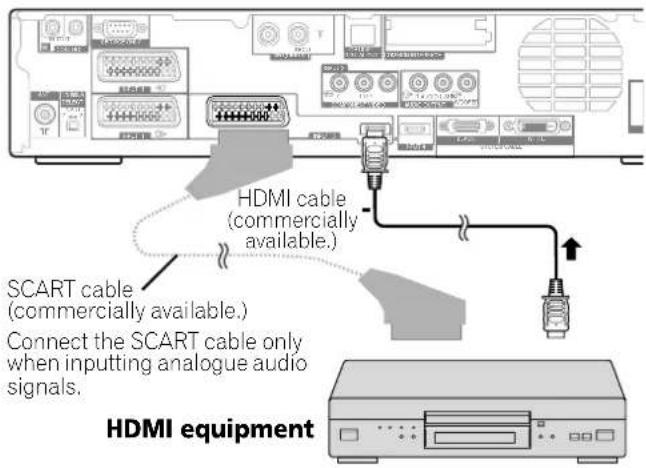
When using the INPUT 4 HDMI terminal:
Media Receiver (rear view)
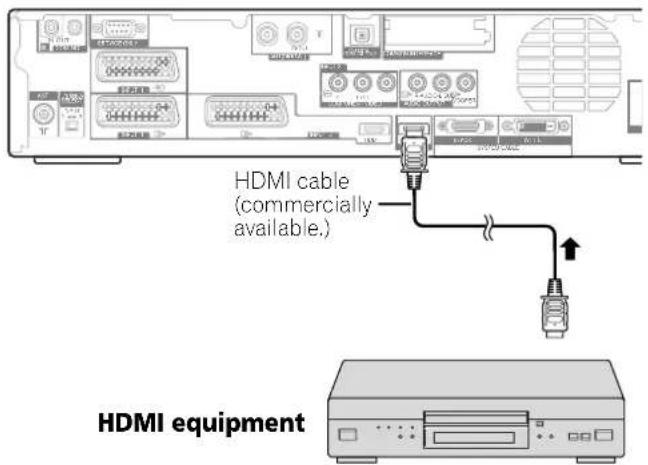
To activate the HDMI terminal:
When you use the INPUT 3 HDMI terminal, use the following procedure to activate the terminal.
1 Press HOME MENU.
2 Select "Option" (↑/↓ then ENTER).
3 Select "HDMI Input" (↑/↓ then ENTER).
4 Select "Setting" (↑/↓ then ENTER).
5 Select "Enable" (▲/↓ then ENTER).
Item Description
Disable (factory default) Deactivates the HDMI terminal.
Enable Activates the HDMI terminal.
6 Press HOME MENU to exit the menu.
NOTE
- You need not activate the INPUT 4 HDMI terminal; you cannot manually deactivate this terminal.
To specify the type of digital video signals:
1 Repeat steps 1 to 3 provided for "To activate the HDMI terminal."
2 Select "Video" (↑/↓ then ENTER).
3 Select the type of digital video signals ( / then ENTER).
- If you select "Auto", an attempt will be made to identify the type of digital video signals when digital video signals are received.
Item Description
Auto (factory default) Automatically identifies input digital video signals.
Colour-1 Digital Component Video signals (4:2:2) locked
Colour-2 Digital Component Video signals (4:4:4) locked
Colour-3 Digital RGB signals locked
4 Press HOME MENU to exit the menu.

NOTE
- If you select a parameter other than "Auto", make such a setting that results in natural colour.
- If no image appears, specify another digital video signal type.
- For the digital video signal types to be specified, check the operation manual that came with the connected equipment.
To specify the type of audio signals:
When you use the INPUT 3 HDMI terminal, use the following procedure to specify the type of audio signals.
1 Repeat steps 1 to 3 provided for "To activate the HDMI terminal."
2 Select "Audio" (↑/↓ then ENTER).
3 Select the type of audio signals ( / then ENTER).
- If you select "Auto", an attempt will be made to identify the type of audio signals when audio signals are received.
Item Description
Auto (factory default) Automatically identifies input audio signals.
Digital Accepts digital audio signals.
Analogue Accepts analogue audio signals.
4 Press HOME MENU to exit the menu.

NOTE
- The INPUT 4 HDMI terminal accepts only digital audio signals.
- If no sound is output, specify another audio signal type.
- For the audio signal types to be specified, check the operation manual that came with the connected equipment.
- Depending on the equipment to be connected, you also need to connect analogue audio cables.
Using i/o Link.A
The Plasma Display System incorporates three typical i/o Link.A functions for smooth connections between Media Receiver and other audiovisual equipment.
One Touch Play
While the Plasma Display System is in standby mode, it automatically turns on and plays back images from the audiovisual source (e.g. VCR, DVD).
WYSIWYR (What You See Is What You Record)
When the remote control unit of the connected VCR has the WYSIWYR button, you can automatically start recording by pressing the WYSIWYR button.
Preset Download
Automatically transfers channel preset information from the tuner on the Plasma Display System to the one on the connected audiovisual equipment (e.g. VCR) via the INPUT 2 or 3 terminal.

NOTE
- The i/o Link.A functions work only when the audiovisual equipment is connected to the INPUT 2 or 3 terminal on the Media Receiver with i/o Link.A via a fully wired 21-pin SCART.
- Either INPUT 2 or 3 is available for i/o Link.A, depending on the switch on the rear of the Media Receiver.
- Using this switch, select the input terminal to which recording equipment such as a VCR has been connected.
- Refer to operation manuals of each external equipment for the details.
- If a SCART cable has been connected to the INPUT 3 terminal with the i/o Link.A activated, input signals (other than Component) are automatically identified and displayed. If the i/o Link.A has been deactivated, Video is always selected for signals other than RGB because the system cannot identify among RGB, Y/C (S-Video), and CVBS (Video) signals; for example, receiving Y/C (S-Video) signals results in monochrome display.
Media Receiver (rear view)
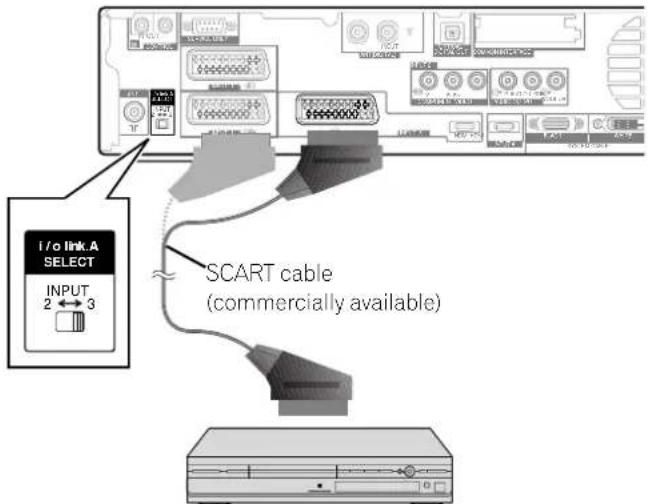
VCR or DVD Recorder (DVR)
Watching a DVD image
Connecting a DVD player
Use the INPUT 2 terminal when connecting to a DVD player and other audiovisual equipment.
Media Receiver (rear view)
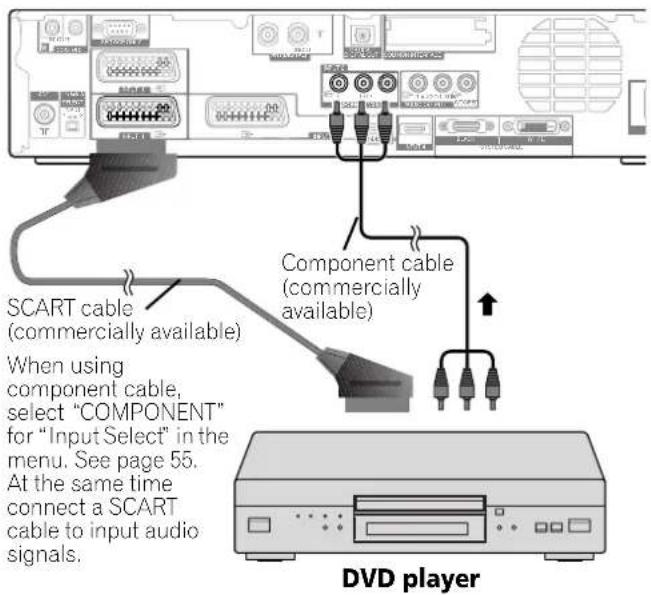
Displaying a DVD image
To watch a DVD image, press INPUT 2 on the remote control unit or press INPUT on the Media Receiver to select INPUT2.

NOTE
- If DVD images do not come in clearly, you may need to change the input signal type setting using the menu. See page 55.
- Refer to your DVD player operation manual for the signal type.
Using the SCART output function
This function allows you to record DTV programmes with a connected VCR or other recording equipment while enjoying watching the Plasma Display as usual. With this function, you can also easily enjoy timeshift playback when a DVD recorder (DVR) is in connection.
The following diagram assumes that you connect a Pioneer DVR-920H/DVR-930H to the Media Receiver so that you can enjoy timeshift playback with the recorder.
Media Receiver (rear view)
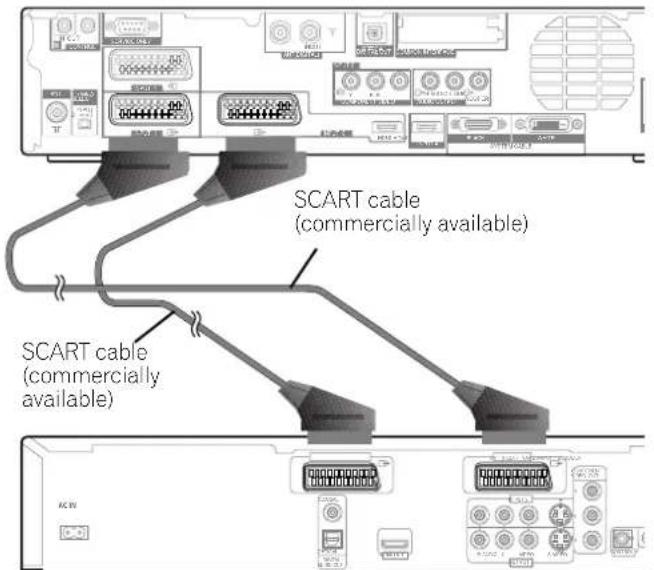
DVR-920H/930H
In addition to the above connections, you need to perform the following:
- See "Switching the SCART output" (page 64) and select "Fixed on DTV" for "SCART Output" in the Setup menu.
- On the DVD recorder (DVR), select the video/audio input source matching the external input terminal to which the Media Receiver has been connected. For this method, see the operation manual that came with the recorder.
- Select the input source on the Media Receiver depending on the terminal to which the output of the DVD recorder (DVR) has been connected; for the above connection example, select INPUT 2.
When you complete the above connections and setups, you can then enjoy timeshift playback with the DVD recorder (DVR). You can also select the 2-screen or picture-in-picture mode to watch images coming from the DTV input source and an external input source (INPUT 2 for the above connection example) to which the output of the recorder has been connected.

NOTE
- Some DVD recorders (DVRs) may not allow timeshift playback. Check the operation manual that came with your recorder.
- For details about connection and setting procedures, see the operation manual that came with your DVD recorder (DVR).
Switching the SCART output
Video and audio signals output from INPUT 2 and INPUT 3 sources are the same as those used for the current image display. You can however change the setting so that DTV signals are always output regardless of the current image display.
1 Press HOME MENU.
2 Select "Setup" (↑/↓ then ENTER).
3 Select "SCART Output" (▲/↓ then ENTER).
4 Select a desired parameter ( / then ENTER).
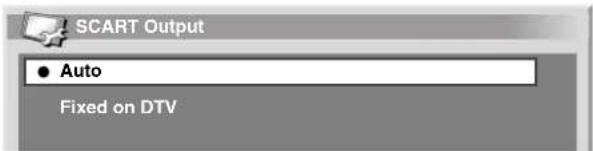
Item Description
Auto Outputs video and audio signals coming from the selected input source.
Fixed on DTV Always output DTV signals.
5 Press HOME MENU to exit the menu.

NOTE
- The following operations are given higher priority over the above setting:
- Presetting a DTV programme for recording
• Execution of WYSIWYR (page 62)
Enjoying a game console or watching camcorder images
Connecting a game console or camcorder
Use the INPUT 5 terminals to connect a game console, camcorder and other audiovisual equipment.
Media Receiver (front view)
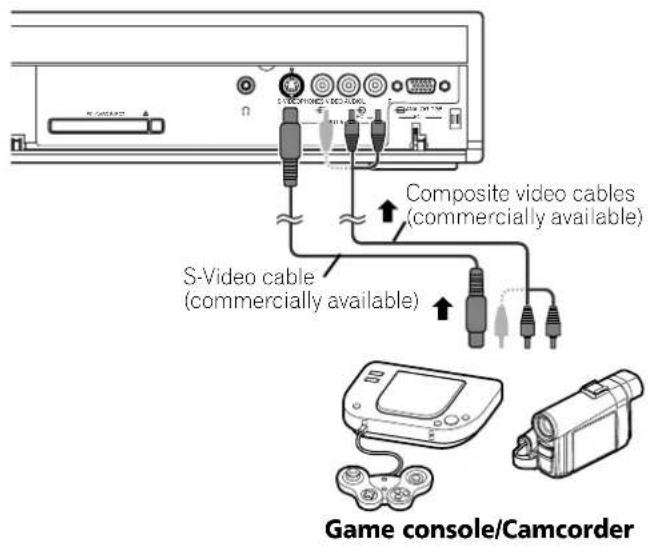
Displaying an image from the game console or camcorder
To watch an image coming from the game console or camcorder, press INPUT 5 on the remote control unit or press INPUT on the Media Receiver to select INPUT 5.

NOTE
- The INPUT 5 terminals are checked for cable connections in the order where; 1) S-Video, 2) Video.
- Connect external equipment to only terminals that are to be actually used.
- The INPUT 5 AUDIO terminals are shared between the INPUT 5 and PC input sources. When audio signals are input to these terminals, the same signal type is selected no matter whether you select INPUT 5 or PC.
Watching an image from a personal computer
Connecting a personal computer
Use the PC terminals to connect a personal computer.

NOTE
• The PC input terminals are DDC2B-compatible.
Media Receiver (front view)
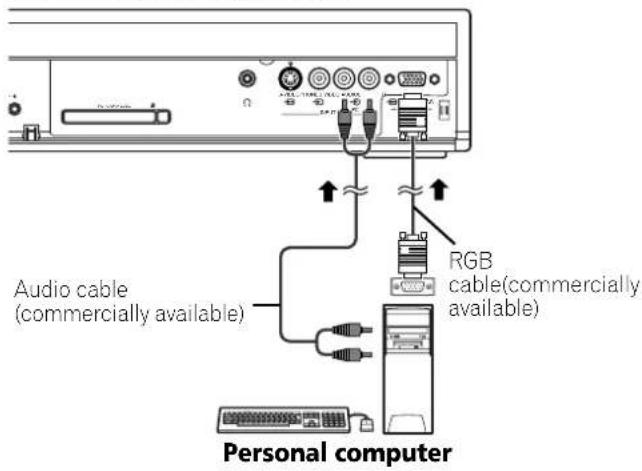
Displaying an image from a personal computer
To watch an image coming from the personal computer, press PC on the remote control unit or press INPUT on the Media Receiver to select "PC".
When connecting to a personal computer, the correct input signal type is automatically detected. If the personal computer image does not come in clearly, you may need to use Auto Setup menu. See page 54.

NOTE
- The PC terminals cannot be used for audiovisual equipment.
- The INPUT 5 AUDIO terminals are shared between the INPUT 5 and PC input sources. When audio signals are input to these terminals, the same signal type is selected no matter whether you select INPUT 5 or PC.
Computer compatibility chart
Resolution Frequency Remarks
| 720 x 400 70 Hz | |
| 640 x 480 60 Hz | |
| 72 Hz | |
| 75 Hz | |
| 800 x 600 56 Hz | |
| 60 Hz | |
| 72 Hz | |
| 75 Hz | |
| 1024 x 768 60 Hz | |
| 70 Hz | |
| 75 Hz | |
| 1280 x 768 56 Hz | |
| 60 Hz | |
| 70 Hz | |
Enjoying through audio equipment in connection
Connecting audio equipment
You can enjoy more powerful sound by connecting such audio equipment as an AV receiver or subwoofer.
Media Receiver (rear view)
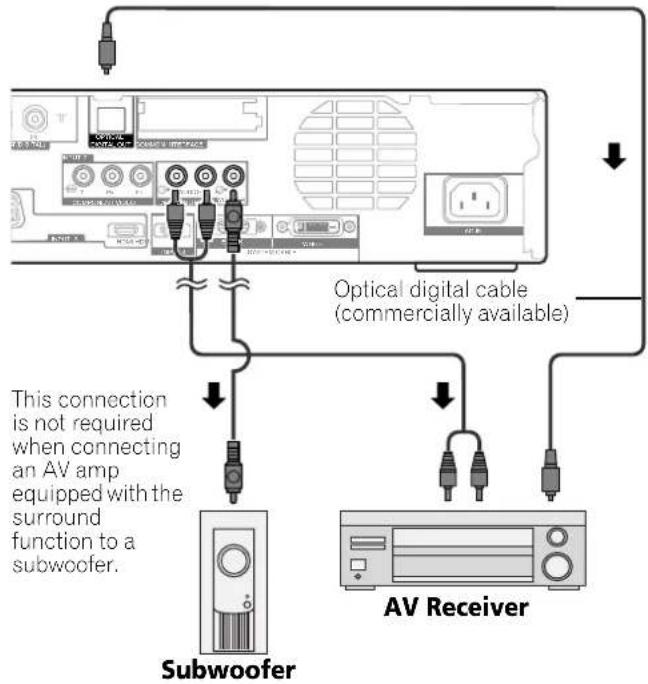

NOTE
- For details, refer to the operation manual for the audio equipment to be connected.
- Audio signals synchronizing with currently displayed images are always output to the AUDIO OUTPUT terminals.
- The audio accompanying images shown on the display is always output to the SUBWOOFER OUTPUT terminal.
- While in DTV mode, no signals are output if they are copy guarded.
- Audio from a connected subwoofer is muted when you have selected "Sub" for "Headphone Output" (page 37) and connected headphones.
Connecting control cords
Connect control cords between the Media Receiver and other PIONEER equipment having the SR logo. You can then operate the connected equipment by sending commands from its remote control unit to the remote control sensor on the Plasma Display.
After the CONTROL IN terminals have been connected, the remote control sensors on the connected equipment do not accept commands from the remote control units. Face the remote control units to the remote control sensor on the Plasma Display when operating the connected equipment.

NOTE
- Make sure that the power is turned off when making connections.
- Complete all component connections before making control cord connections.
About SR+
The CONTROL OUT terminal on the rear of the Media Receiver supports SR+ that allows linked operations with a PIONEER AV receiver. SR+ presents functions such as the input switch linkage operation function and the DSP surround mode display function. For more information, see the instruction manual that came with the PIONEER AV receiver supporting SR+.

NOTE
- While in connection through SR+, the volume on this system is temporarily minimised.
Media Receiver (rear view)
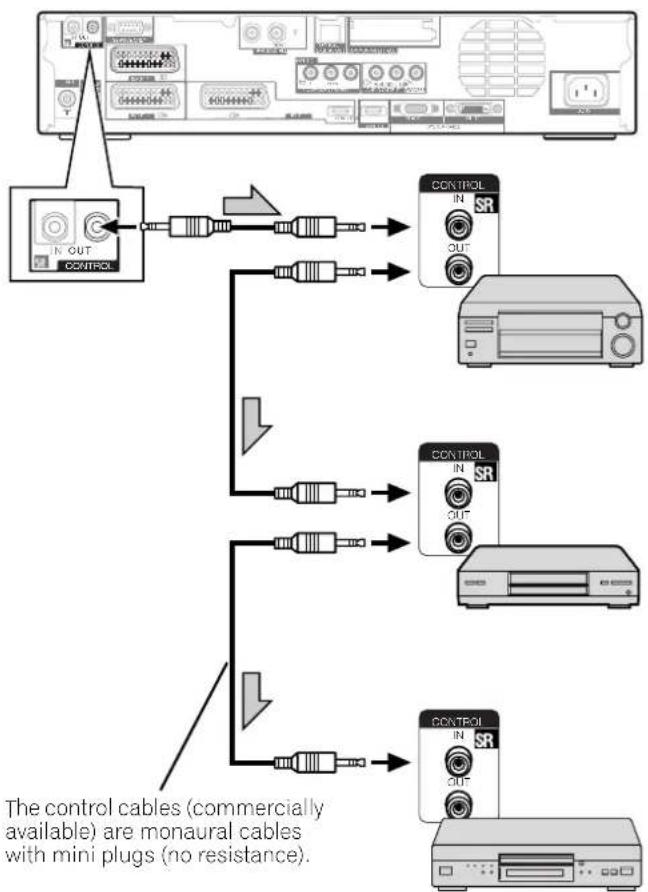
flowchart
graph TD
    A["The control cables (commercially available) are monaural cables with mini plugs (no resistance)."] --> B["Control Cable"]
    B --> C["Main Cable with Control"]
    B --> D["Main Cable with Resistor"]
    B --> E["Main Cable with Resistor"]
    B --> F["Main Cable with Resistor"]
    B --> G["Main Cable with Resistor"]
Enjoying through memory cards (Home Gallery function)
On this system, you can watch JPEG images that have been captured and stored in memory cards using a digital still camera.
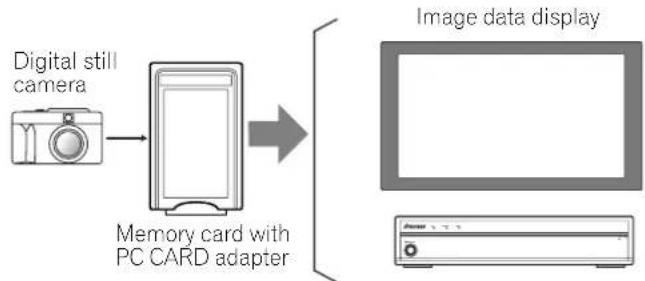
flowchart
graph LR
    A["Digital still camera"] --> B["Memory card with PC CARD adapter"]
    B --> C["Image data display"]
Readable memory cards
This system can read memory cards that conform to the PCMCIA Type II and whose formats are the FAT12, FAT16, FAT32, or VFAT.
Readable data files
This system can read only JPEG files that meet the following conditions:
• Extensions are JPG or JPEG.
• JPEG 4:2:2 and 4:2:0 format
- The image resolution must be less than 2400 pixels in the horizontal direction and 1800 pixels in the vertical direction.
- The image resolution must be higher than 160 pixels in the horizontal direction and 120 pixels in the vertical direction.

NOTE
- This system may not be able to display images, depending on the type of your PC CARD adapter or memory card.
- This system may not be able to display images modified or edited using a personal computer or other equipment.
Inserting a memory card
1 Open the front door on the Media Receiver.
2 Hold the memory card with its top side facing upward, and then insert it into the PC CARD slot.
- Insert the memory card as far as it goes.
- When you insert the memory card while the system is on, the initial Home Gallery screen appears.
Front of the Media Receiver (with the front door opened)
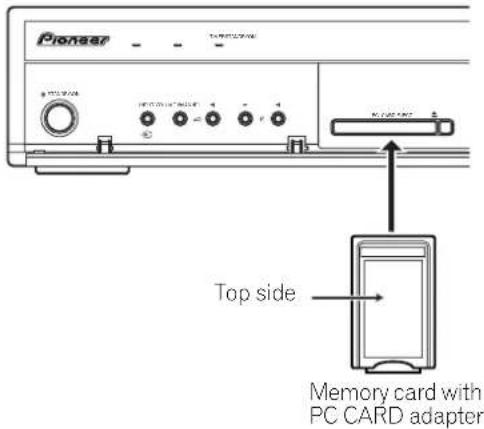
3 Close the front door on the Media Receiver.
Removing a memory card
To remove a memory card, quit the memory card screen, and then push the PC CARD eject button. The memory card is ejected.
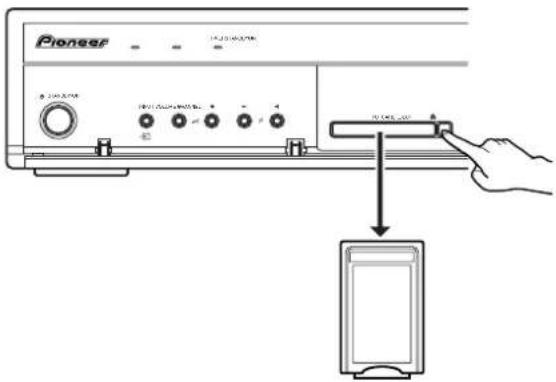

NOTE
- Be sure to quit the Home Gallery screen before removing the memory card. If you remove the memory card while the Home Gallery screen is in display, data in the memory card may be damaged.
- Do not insert or remove a memory card into/from the PC CARD slot immediately after the system is switched on or off. This may cause data in the memory card to be damaged.
Starting the initial Home Gallery screen
When you insert a memory card while the system is on, the following initial screen appears automatically.
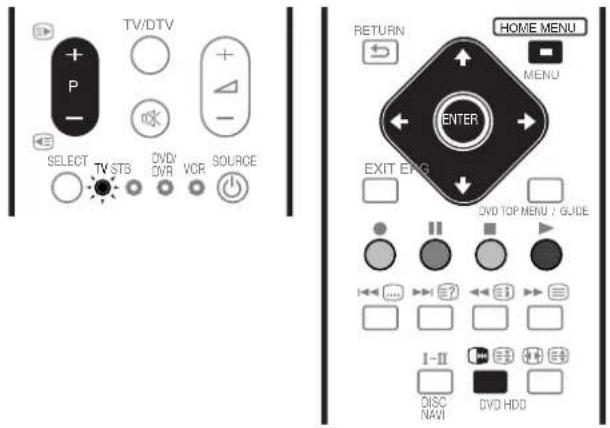
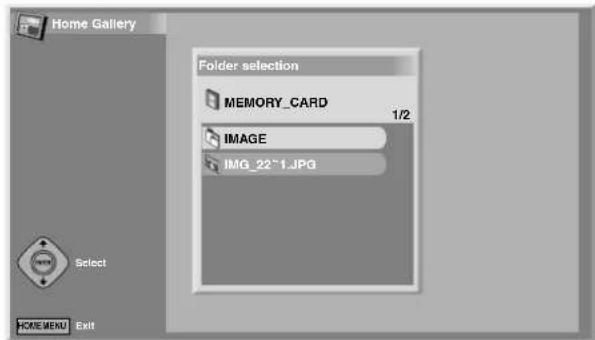
To start the initial Home Gallery screen from the Home menu:
If a memory card has been already inserted into the PC CARD slot, use the Home menu to start the initial Home Gallery screen.
1 Press HOME MENU.
2 Select "Home Gallery" (▲/▼ then ENTER).
- Before operating with the remote control unit, make sure to select the TV mode using its SELECT button. See "Controlling other equipment using the supplied remote control unit" on page 69.
Selecting a folder
The initial Home Gallery screen shows folders saved in the memory card. Different types of icons appear depending on the contents of folders.
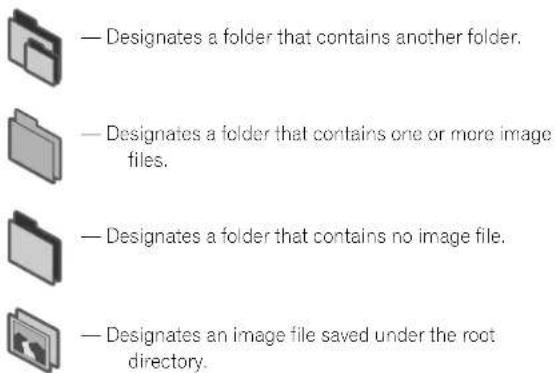
To select a desired folder, press / and then ENTER. Images in the selected folder are displayed in thumbnail format.
Starting a thumbnail screen
When a folder is selected on the initial Home Gallery screen, images in the folder are displayed in thumbnail format.
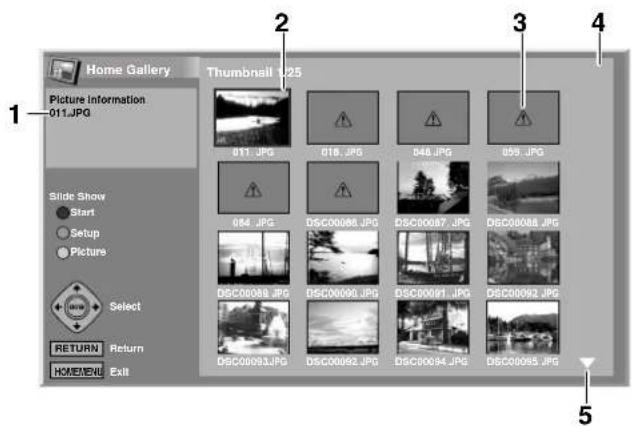
①File name
②Image selection cursor
③Appears for unreadable images.
④Total number of images in the folder
⑤Appears when the folder contains more than 16 images.
Press ↑↓ scroll the screen.
To highlight a desired image, press and / to move the cursor. Information about the highlighted image appears at the top left of the screen.
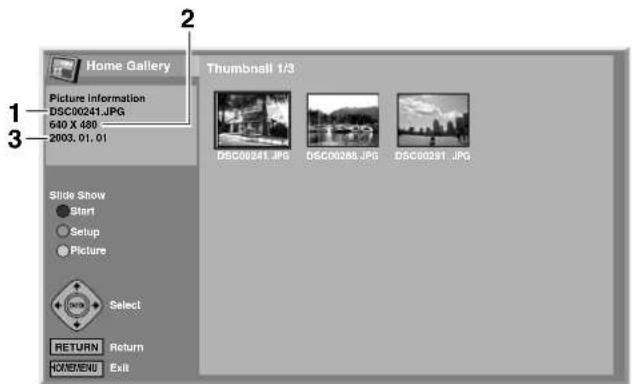
①File name
②Number of pixels (horizontal x vertical)
③Save date
Press HOME MENU to quit the Home Gallery function.
Starting a standard single-image screen
When the thumbnail screen is in display, press ♠ and / ← to highlight a desired image, and then press ENTER. The thumbnail screen is quitted and only the selected image is displayed.
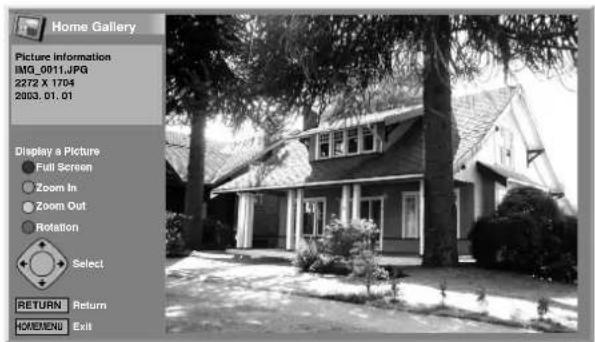
With the above screen displayed, you can use the following keys to perform various operations:
/ and / :
Scrolls the displayed image when the entire image is not displayed.
RED:
Displays the image using the full screen. To quit the full-screen display, press RETURN.
GREEN:
Enlarges the displayed image (if allowed by the image).
YELLOW:
Reduces the displayed image (if enlarged by pressing the GREEN button).
BLUE:
Rotates the displayed image clockwise. Each press rotates the image in the sequence; 90°, 180°, and then 270°.
HOME MENU:
Quits the Home Gallery function.

NOTE
- Be careful not to display the same image for an extended period of time. The image may be burnt into the screen, resulting in a residual image.
- Images smaller than 1024 x 768 pixels are displayed with blank surrounding.
- You may not be able to enlarge or reduce images because of their original sizes.
Starting the Slide Show Setup screen
When the thumbnail screen is in display, press GREEN to start the screen for setting up for Slide Show that sequentially changes images.
1 Select "Display Mode" (/)↑↓
2 Select "Normal" or "Full" (/)
- With "Full" selected, images are displayed using the full screen.
3 Select "Playback Order" (/)↑↓
4 Select "Name Order" or "Random" (/)
5 Select "Number Of Times Of Playback" (/)↑ ↓
6 Select "Single Time" or "Loop" (/)
- With "Loop" selected, Slide Show is repeated until RETURN is pressed.
7 Select "Playback Mode" (/)↑↓
8 Select "Auto" or "Manual" (/)
- With "Auto" selected, images are automatically changed at the specified intervals.
- With "Manual" selected, images are changed each time you press P +/P -.
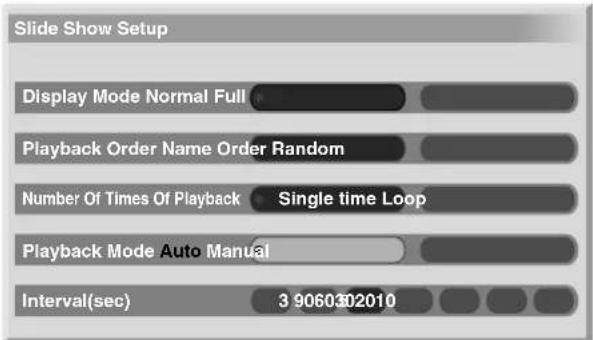
9 If you have selected "Auto" in step 8, press / to select "Interval(sec)", and then press to select the desired display duration for individual images.
- You can select from among 3 seconds, 5 seconds, 10 seconds, 20 seconds, 30 seconds, 60 seconds, and 90 seconds.
10 To start the Slide Show screen, press RED.
• To restore the thumbnail screen, press RETURN.
• To quit the Home Gallery function, press HOME MENU.
Starting the Slide Show screen
After setting up for Slide Show, you can start Slide Show to sequentially change images.
1 To start the Slide Show screen, press RED when the Slide Show Setup screen or a thumbnail screen is in display.
- With "Auto" selected for "Playback Mode", images are automatically changed at the specified intervals.
- With "Manual" selected for "Playback Mode", press P +/P - to change images.
- While images are automatically changed, you can stop and hold automatic image change for approximately 90 seconds by pressing 📂.
2 When quitting the Slide Show screen, press RETURN to restore the thumbnail screen or HOME MENU to quit the Home Gallery function.

NOTE
- With "Random" selected for "Playback Order" selected, you cannot press P – to manually change images.
Adjusting the picture quality
When a thumbnail screen is in display, press YELLOW. The same picture adjustment screen as the PC source is displayed. For the subsequent procedure, see page 33.
Controlling other equipment using the supplied remote control unit
Using the supplied remote control unit, you can control other equipment in connection: a set-top box (STB), DVD player, DVD recorder (DVR), or VCR.
Before using this function, you need to preset the supplied remote control unit with the manufacture code of the equipment to be controlled. When you then want to control the equipment, press SELECT on the remote control unit to select an appropriate mode depending on the equipment; the selection is switched among TV, STB, DVD/DVR, and VCR. The corresponding mode indicators on the remote control unit show the currently selected mode.
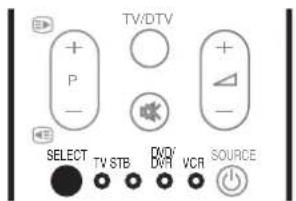
Presetting manufacture codes
1 Press SELECT on the remote control unit to select the STB, DVD/DVR, or VCR mode depending on the equipment.
2 After confirming that the indicator of the previously selected mode goes off, press and hold SELECT, and then press 1 on the remote control unit.
• The corresponding mode indicator flashes.
3 Press 0 - 9 to enter a 3-digit manufacture code.
• See the manufacture code list on page 70 to identify an appropriate code.
- The mode indicator lights up for approximately one second and then goes off; presetting the manufacture code is completed.
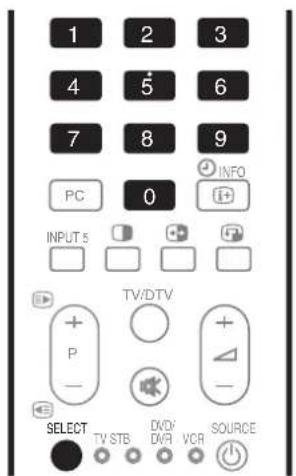

NOTE
- If you perform no operation for approximately one minute while a mode indicator is flashing, the code presetting procedure is quitted.
- If you enter a code not listed in the table, a mode indicator flashes quickly for approximately one second and then flashes as before.
- To quit the code presetting procedure halfway while a mode indicator is flashing, you may press SELECT on the remote control unit.
- The factory default manufacture codes for the STB, DVD/DVR, and VCR modes are "000", "100", and "500" respectively.
Manufacture codes

NOTE
- Some equipment listed in the table may not allow you to control with the supplied remote control unit partially or entirely.
STB
| 000 PIONEER 1 (factory default) |
| 001 PIONEER 2 |
| 002 CANAL SATELLITE |
| 003 HUMAX |
| 004 PACE 1 |
| 005 PACE 2 |
| 006 QUALI-TV |
| 007 SKY DIGITAL |
DVD
| 100 PIONEER 1 (factory default) |
| 101 PIONEER 2 |
| 102 AKAI |
| 103 DENON |
| 104 HITACHI |
| 105 JVC |
| 106 KENWOOD 1 |
| 107 KENWOOD 2 |
| 108 PANASONIC 1 |
| 109 PANASONIC 2 |
| 110 PHILIPS 1 |
| 111 PHILIPS 2 |
| 112 SAMSUNG |
| 113 SHARP |
| 114 SONY 1 |
| 115 SONY 2 |
| 116 SONY 3 |
| 117 THOMSON |
| 118 TOSHIBA |
| 119 YAMAHA |
DVR
| 200 PIONEER 1 |
| 201 PIONEER 2 |
| 202 PIONEER 3 |
DVR
| 203 PANASONIC |
| 204 PHILIPS 1 |
| 205 PHILIPS 2 |
| 206 SHARP |
| 207 SONY |
| 208 TOSHIBA |
VCR
| 500 PIONEER 1 (factory default) |
| 501 PIONEER 2 |
| 502 AIWA 1 |
| 503 AIWA 2 |
| 504 AKAI 1 |
| 505 AKAI 2 |
| 506 AKAI 3 |
| 507 DAEWOO |
| 508 GRUNDIG 1 |
| 509 GRUNDIG 2 |
| 510 GRUNDIG 3 |
| 511 GRUNDIG 4 |
| 512 HITACHI 1 |
| 513 HITACHI 2 |
| 514 HITACHI 3 |
| 515 JVC 1 |
| 516 JVC 2 |
| 517 JVC 3 |
| 518 JVC 4 |
| 519 JVC 5 |
| 520 LOEWE 1 |
| 521 LOEWE 2 |
| 522 MATSUI |
| 523 ORION |
| 524 PANASONIC 1 |
| 525 PANASONIC 2 |
| 526 PHILIPS 1 |
| 527 PHILIPS 2 |
| 528 PHILIPS 3 |
| 529 SANYO |
| 530 SAMSUNG 1 |
| 531 SAMSUNG 2 |
| 532 SAMSUNG 3 |
| 533 SAMSUNG 4 |
| 534 SHARP |
| 535 SONY 1 |
| 536 SONY 2 |
| 537 SONY 3 |
| 538 SONY 4 |
| 539 SONY 5 |
| 540 SONY 6 |
| 541 SONY 7 |
| 542 THOMSON |
| 543 TOSHIBA |
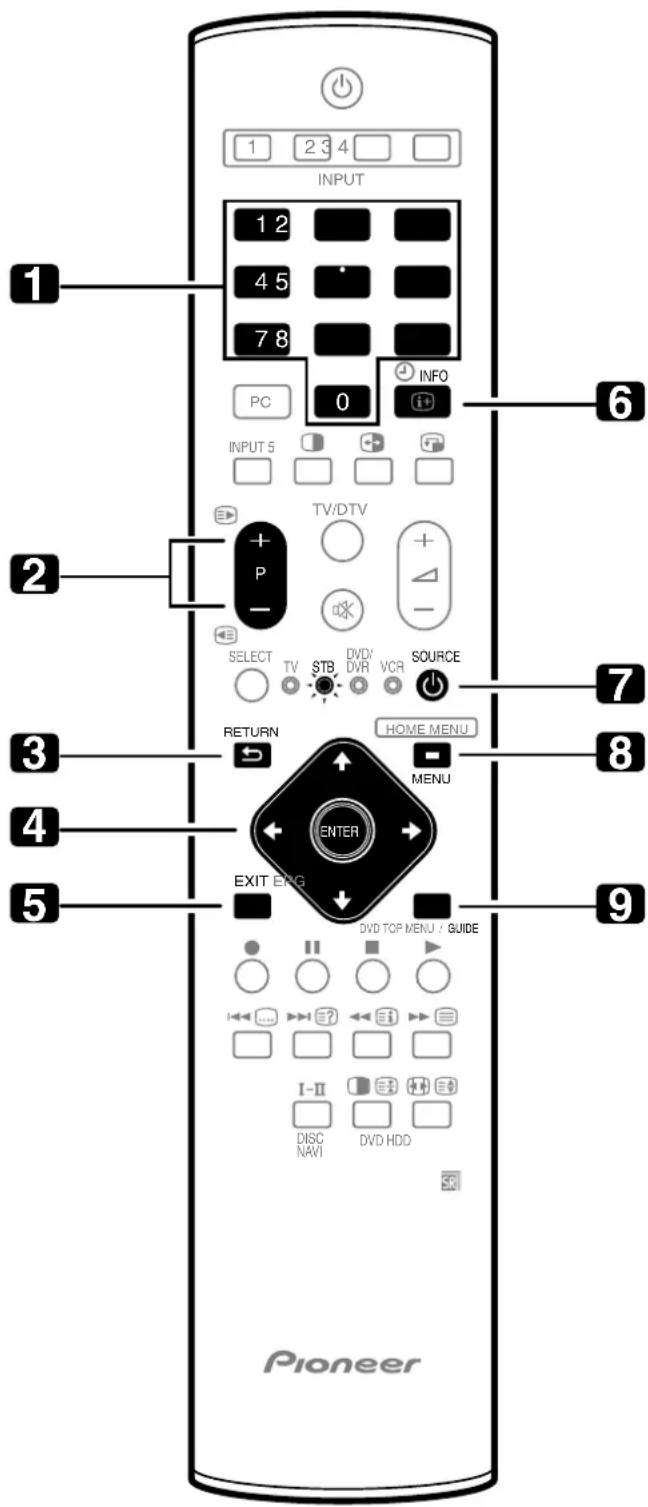
STB (set - top box) control buttons
When in the STB mode, the buttons on the remote control unit function as below.
10-9
Function as the numeric buttons.
2 P +/P -
Press to tune in a higher or lower channel.
3 RETURN
When the broadcasting menu screen is in display, press to restore the immediately previous screen.
4 ENTER
Press to activate the selected function.

Press to select items on the broadcasting menu screen or the broadcasting guide screen.
5 EXIT
Press to exit the broadcasting menu screen or the broadcasting guide screen.
6 INFO
Press to display information on the current broadcasting.
7 SOURCE ⏻
Turns the set-top box on and off.
8 MENU
Press to display the broadcasting menu screen.
9 GUIDE
Press to display the broadcasting guide screen.
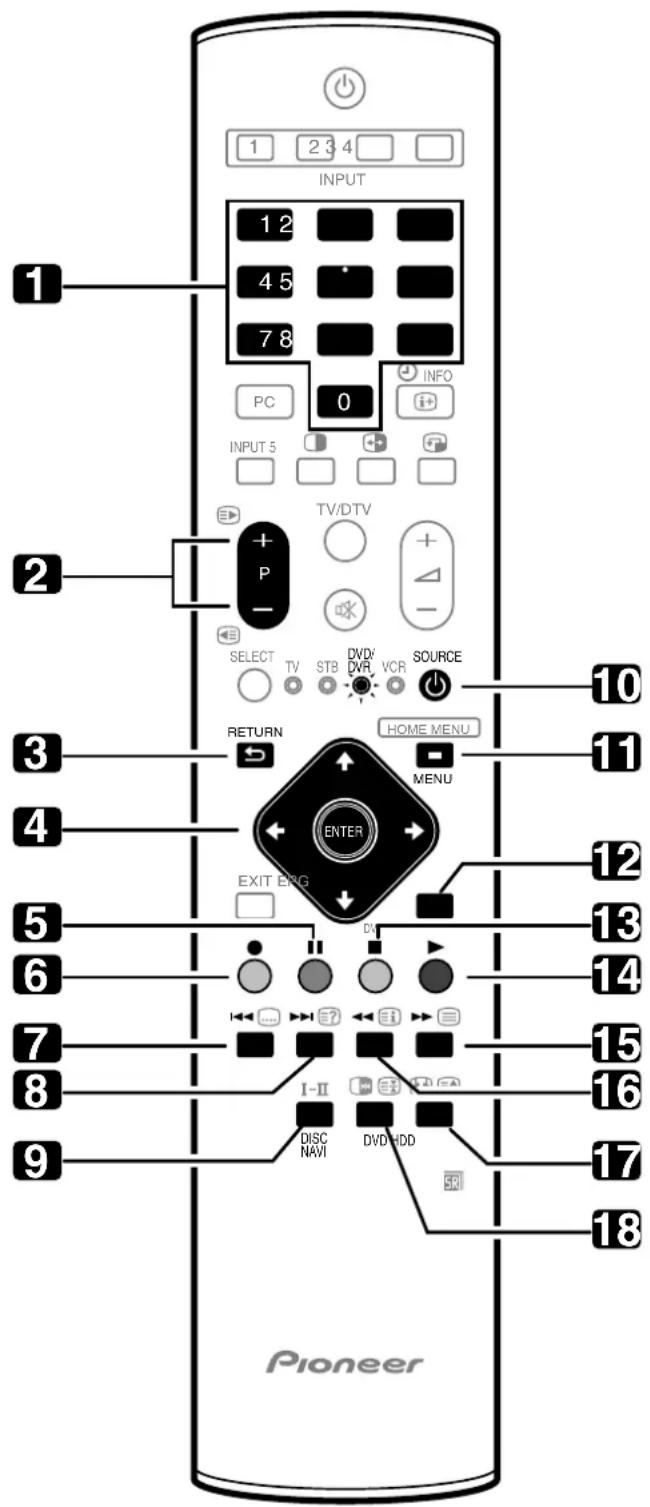
DVD/DVR control buttons
When in the DVD/DVR mode, the buttons on the remote control unit function as below.
10-9
Function as the numeric buttons.
2 P +/P - (DVD recorder only)
Press to change the channel of the tuner built in the DVD recorder (DVR).
3 RETURN
When the DVD menu is in display, press to restore the immediately previous screen.
4 ENTER
Press to activate the selected function.

Press to select items on the DVD MENU screen.
5 || (PAUSE/STILL)
Sets pauses and still pictures.
6 ●
(REC) (DVD recorder only)
Starts recording.
7
(CHAPTER SEARCH)
Each time you press, you move back to the start of the previous chapter.
8
(CHAPTER SEARCH)
Each time you press, you move ahead to the start of the next chapter.
9 DISC NAVI (DVD recorder only)
Press to display the Disc Navigator screen for browsing the contents of a disc.
10 SOURCE ⏻
Turns on and off the power of the DVD player or DVD recorder (DVR).
11 MENU
Press to display the DVD menu.
12 DVD TOP MENU
When this button is pressed, the DVD top menu will appear.
13 ■ (STOP)
Press to stop playback or recording. With some DVD players or DVD recorders (DVRs), pressing the button twice may open the disc tray.
14 ▶ (PLAY)
Starts playback.
15 ▶ (SCAN)
Press for fast forward.
16 ◀ (SCAN)
Press to go backward.
17 HDD (DVD recorder only)
Press to select the hard disk (HDD) for playback or recording.
18 DVD (DVD recorder only)
Press to select the DVD for playback or recording.
6, 13 REC STOP (DVD recorder only)
Press and hold ●, and then press ■ to stop recording. This operation is true of only Pioneer and Sony DVD recorders (DVRs).

NOTE
- The DVD player or DVD recorder (DVR) cannot be selected at the same time.
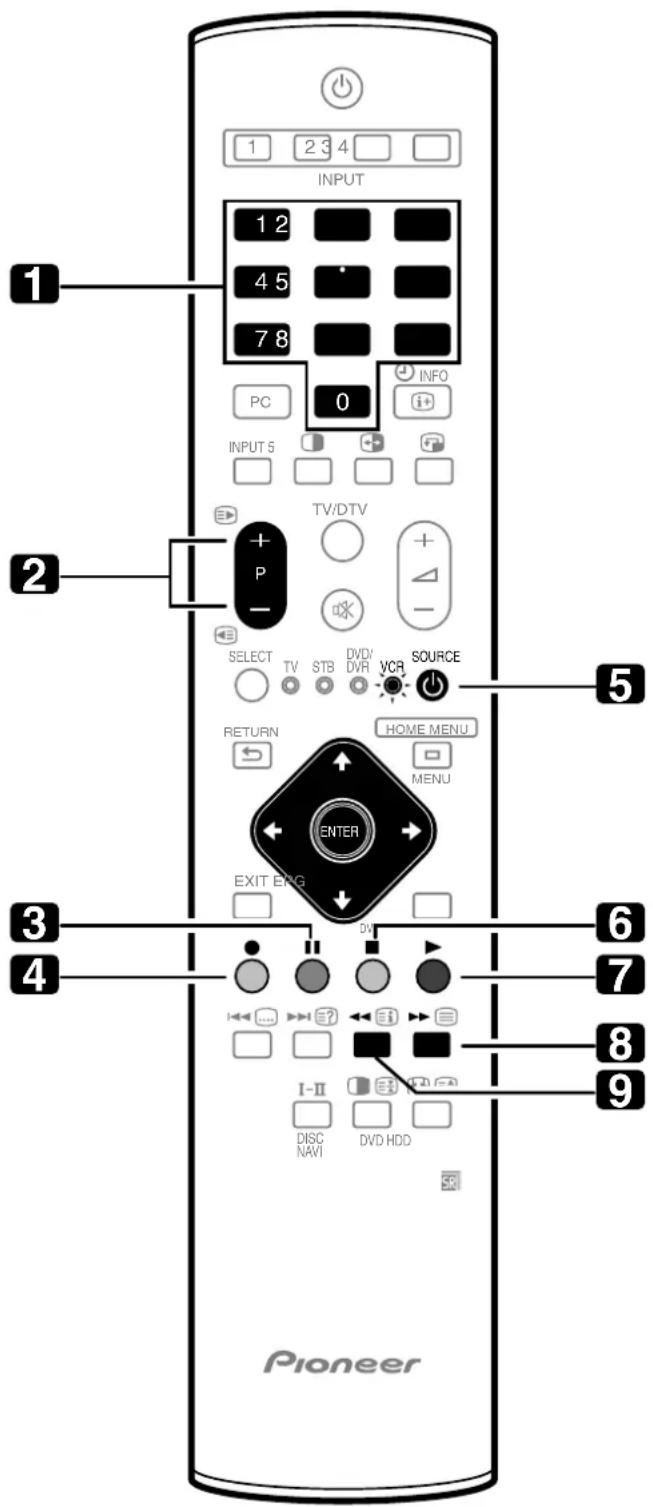
VCR control buttons
When in the VCR mode, the buttons on the remote control unit function as below.
10-9
Function as the numeric buttons.
2 P +/P -
Press to select channels of the TV tuner on the VCR.
3 || (PAUSE/STILL)
Sets pauses and still pictures.
4 ● (REC)
Starts recording.
5 SOURCE ⏻
Turns the power of the VCR on and off.
6 ■ (STOP)
Stops tape transport.
7 ▶ (PLAY)
Starts playback.
8 ▶▶ (FF)
Rapidly advances the tape and allows picture search.
9 (REW)
Rewinds the tape and allows picture search.
What is Teletext?
Teletext broadcasts pages of information and entertainment to specially equipped television sets. Your Plasma Display System receives Teletext signals broadcast by TV networks, and decodes them into graphical format for viewing. News, weather and sports information, stock exchange prices and programme previews are among many services available.
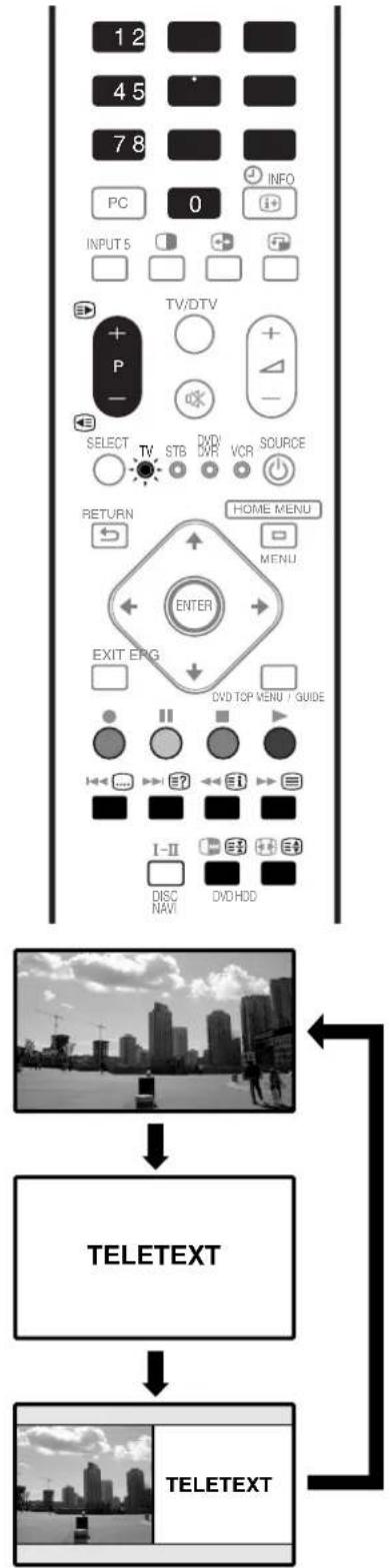
flowchart
graph TD
    A["PC INPUTS"] --> B["TV/DTV"]
    B --> C["SELECT TV, STB, DVD VCR SOURCE"]
    C --> D["HOME MENU"]
    D --> E["ENTER"]
    E --> F["DVD TOP MENU / GUIDE"]
    F --> G["I-II DISC NAVI"]
    F --> H["DVD HDD"]
    I["TELETEXT"] --> J["TELETEXT"]
    J --> K["Output"]
Operating the Teletext basics

NOTE
- Before operating with the remote control unit, make sure to select the TV mode using its SELECT button. See "Controlling other equipment using the supplied remote control unit" on page 69.
Turning on and off Teletext
1 Select a TV channel or external input source providing a Teletext programme.
2 Press ☐ to display the Teletext (full screen).
3 Press ☑ again to display the Teletext on the right screen and normal image on the left screen.
• Each time you press ☐, the screen switches as shown to the left.
- If you select a programme with no Teletext signal, "Cannot display Teletext." appears.
Selecting and operating Teletext pages
Use the following remote control buttons to select and operate Teletext pages.
Colour (RED/GREEN/YELLOW/BLUE):
You can select a group or block of pages displayed in the coloured brackets at the bottom of the screen by pressing the corresponding colour (RED/GREEN/YELLOW/BLUE) on the remote control unit.
0 - 9:
Directly select any page from 100 to 899 by using 0 - 9.
/ :
Selects the next or previous page.
三
Each time you press ⚡, the teletext image switches as shown below.
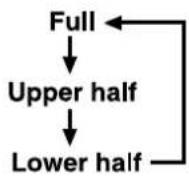
三?:
To display hidden information such as an answer to a quiz, press ☑?
- Press ≡ again to hide the information.
三
To stop updating Teletext pages, press
Press again to release the hold mode.
i:
Displays an Index page for the CEEFAX/FLOF format. Displays a TOP Over View page for the TOP format.

NOTE
- Before displaying the Teletext, return the screen to the single-screen mode.
Displaying subpages
You can display several subpages as they are transmitted.
Subpage screen
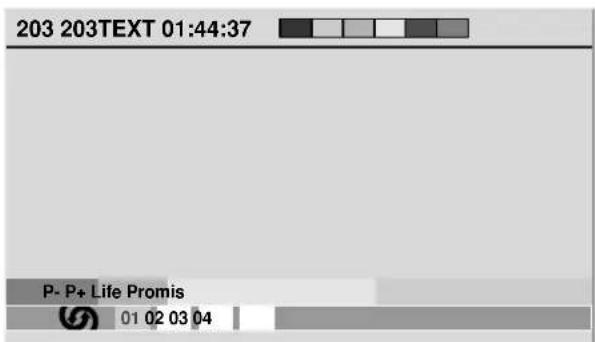
1 Press ☐ to display Teletext.
- If you open a page containing subpages, the subpages are automatically displayed in sequence.
2 To quit automatic subpage change, press / .
- You can then manually change subpages by pressing

NOTE
- Pressing ▶/◀ causes the page to be changed and the subpage screen to disappear.
- Pressing stops automatic subpage change and performs its respective button function.
Displaying TOP Over View
When receiving TOP Teletext, you can read a TOP text overview.
TOP Over View screen
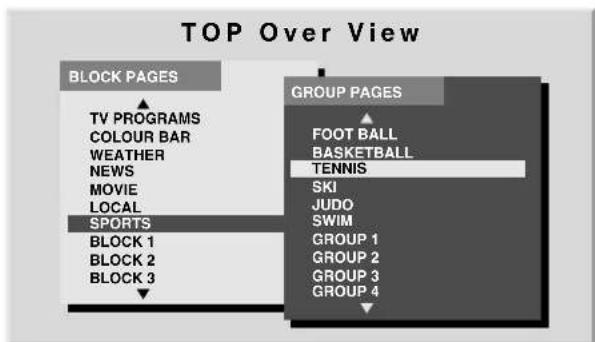
1 Press ☐ to display Teletext.
2 While receiving TOP Teletext, press ☐ to display TOP Over View.
3 Press / ♠n♦/ to select the desired block or group pages, and then press ENTER.
NOTE
- When the TOP Over View screen is in display, no other buttons are available than + / -, I - II, ☑, and ⏻.
Displaying subtitle pages
You can display several subtitles as they are transmitted.
1 Press 🔊 to display the subtitle.
- Subtitle is updated by the information sent by the broadcasting station.
2 Press 📄 again to access next available subtitle screen.
Troubleshooting
| Problem Possible Solution | |
| No power.The system cannot be switched on. | Make sure that the Plasma Display and the Media Receiver are connected correctly. (See page 18.)Is the power cord disconnected? (See page 19.)Has the main power been turned on? (See pages 23 and 24.)Check if you pressed buttons 0-9 on the remote control unit. (See page 23.)If the indicator on the system lights up red, press 0-9. |
| Blue and red rectangles appear on the screen alternately. | Check if the system cable has been disconnected or almost disconnected. (See page 18.) |
| The system cannot be operated. | External influences such as lightning, static electricity, etc., may cause improper operation.In this case, operate the system after first turning off the power of the Plasma Display and the Media Receiver, or unplugging the power cord and re-plugging it in after 1 or 2 minutes. |
| Remote control unit does not operate. | Is the TV indicator on the remote control unit lighted? Press SELECT on the remote control unit to select the TV mode.Are batteries inserted with polarity (+,-) aligned? (See page 22.)Are batteries worn out? Replace with new batteries. (See page 22.)Operate the remote control unit while pointing it toward the remote control sensor on the Plasma Display. (See page 22.)Are you using it under strong or fluorescent lighting?Is a fluorescent light illuminated to remote control sensor? |
| No image and audio is presented. | Check if the input source for video or PC has been unintentionally selected although you want to watch a TV channel. (See page 24.)Check if you have selected a channel blocked with Child Lock. (See page 31.)Enter a password to temporarily cancel Child Lock. (See page 58.)Check the cable connection with the antenna. (See page 21.)Check the cable connection with the other equipment. (See pages 60 to 66.) |
| No picture.Is connection to other components correct? (See pages 60 to 66.)Is a non-compatible PC signal being input? (See page 65.)Is the Input Select setting correct? (See page 55.) | |
| Audio is output but no image is presented. | Check if you have selected "Picture Off" for Energy Save. With this option selected, the screen is deactivated: only sound is output. To restore the screen display, press any button other than △+/△− or △.(See page 38.) |
| Images are presented but no audio is output. | Check if you have selected the minimum volume. (See page 25.)Check if you have muted sound. (See page 25.)Check if phones are still in connection with the PHONES output terminal. (See page 14.)When using INPUT 5 or PC as the input source, check that the audio terminal is also in connection. (See page 65.) |
| Sound is reversed between the right and left.Sound is output from only a single speaker. | Check if the speaker cable connections have been reversed between the right and left or if the speaker cable from either speaker has been disconnected. (See pages 13 and 20.)Has the balance been correctly adjusted? (See page 36.) |
| Picture is cut off.Is the image position correct? (See page 54.)Has the correct screen size been selected? (See pages 56 and 57.) | |
| Strange colour, light colour, dark or colour misalignment. | Adjust the picture tone. (See pages 33 to 36.)Is the room too bright? The picture may look dark in a room that is too bright.Check the colour system setting. (See pages 31 and 55.) |
| Power is suddenly turned off. | The system's internal temperature has increased. Remove any objects blocking vent or clean. (See page 16.)Check the power control setting. (See page 38.)Check the sleep timer setting. (See page 58.) |
| Panel sounds/noises | Panel generated sounds,examples:Fan motor noise,Electrical Circuit Humming /Glass Panel buzzing are normal operation of a phosphor-based matrix display. |
If the following error codes appear on the screen, check the corresponding items in the table.
| Code Message Check | ||
| SD04 | Powering off. Internal temperature too high.Check temperature around PDP. | Check if the ambient temperature of the Plasma Display is high. |
| SD05 | Powering off. Internal protection circuits activated,Is there a short in speaker cable? | Check the speaker cable connections between the Plasma Display and the speakers. |
| SD11 | Powering off. Internal temperature too high.Check if the ambient temperature of the Media Receiver is high. | Check the temperature around media receiver. |
Signal names for 15-pin mini D-sub connector
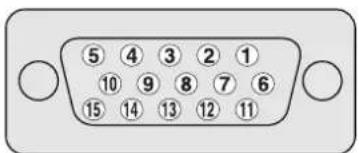
(Front view)
| Pin No. | Signal name | Pin No. | Signal name |
| 1 | R | 9 | +5V |
| 2 | G | 10 | GND (ground) |
| 3 | B | 11 | Not connected |
| 4 | Not connected | 12 | SDA |
| 5 | Not connected | 13 | HD |
| 6 | GND (ground) | 14 | VD |
| 7 | GND (ground) | 15 | SCL |
| 8 | GND (ground) |
Connecting pin assignments for SCART
Various audio and video devices may be connected via the SCART terminals.
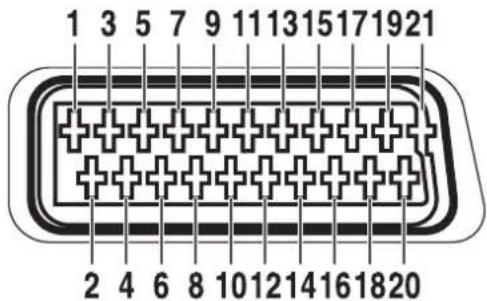
SCART (INPUT 1)
- Audio right output 8. Audio-video control 15. Red input
- Audio right input 9. Earth for green 16. Red/Green/Blue control
- Audio left output 10. Not used 17. Earth for video
- Common earth for audio 11. Green input 18. Earth for Red/Green/Blue control
- Earth for blue 12. Not used 19. Video output
- Audio left input 13. Earth for red 20. Video input
- Blue input 14. Not used 21. Plug shield
SCART (INPUT 2)
-
Audio right output
-
Audio-video control
-
Chroma S-Video input
-
Audio right input
-
Earth
-
Not used
-
Audio left output 10. AV link control
-
Common earth for audio 11. Not used
-
Earth
-
Not used
-
Video output
-
Audio left input
-
Earth
-
Video input/S-Video input
-
Not used
-
Not used
-
Plug shield
SCART (INPUT 3)
-
Audio right output
-
Audio-video control
-
Red input/Chroma S-Video input
-
Audio right input
-
Earth
-
Red/Green/Blue control
-
Audio left output
-
AV link control
-
Earth for video
-
Common earth for audio
-
Green input
-
Earth
-
Earth
-
Not used
-
Video output
-
Audio left input
-
Earth
-
Video input/S-Video input
-
Blue input
-
Not used
-
Plug shield
Specifications
| Item | 50" Plasma Display, Model: PDP-506PE | 43" Plasma Display, Model: PDP-436PE |
| Number of Pixels 1280 x 768 pixels 1024 x 768 pixels | ||
| Audio Amplifier | 13 W + 13 W (1 kHz, 10 %, 8 Ω) | 13 W + 13 W (1 kHz, 10 %, 8 Ω) |
| Surround System SRS/FOCUS/TruBass SRS/FOCUS/TruBass | ||
| Power Requirement 220-240 V AC, 50/60 Hz, 344 W (0.4 W Standby) 220-240 V AC, 50/60 Hz, 292 W (0.4 W Standby) | ||
| Dimensions 1224 (W) x 717 (H) x 92 (D) mm 1076 (W) x 632 (H) x 92 (D) mm | ||
| Weight | 31.8 kg (70.1 lbs.) | 25.8 kg (56.9 lbs.) |
| Item | Media Receiver, Model: PDP-R06XE | ||
| Colour System | Analogue | PAL/SECAM/NTSC 3.58/NTSC 4.43/PAL 60 | |
| Digital | PAL/SECAM | ||
| TV Function (Analogue) | Receiving System | B/G, D/K, I, L/L' | |
| Tuner | VHF/UHF | E2-E69ch, F2-F10ch, I21-I69ch, IR A-IR Jch | |
| CATV | Hyper-band, S1-S41ch | ||
| Auto Channel Preset | 99 ch, Auto Preset, Auto Label, Auto Sort | ||
| STEREO | NICAM/A2 | ||
| TV Function (Digital) | Receiving System | DVB-T (2K/8K COFDM) | |
| Tuner | VHF/UHF V | HF Band III (170 to 230 MHz) and UHF Band IV, V (470 to 862 MHz) | |
| Auto Channel Preset | 999 ch, Auto Preset, Auto Label, Auto Sort | ||
| STEREO | MPEG layer I/II, Dolby Digital | ||
| Terminals | Rear | INPUT 1 | SCART (AV in, RGB in, TV out) |
| INPUT 2 | SCART (AV in/out, S-VIDEO in, AV Ink *) Component Video | ||
| INPUT 3 | SCART (AV in/out, S-VIDEO in, RGB in, AV Ink *1), HDMI in*2 | ||
| INPUT 4 | HDMI in*2 | ||
| Antenna | 75 Ω Din Type for VHF/UHF in (Analogue) | ||
| 75 Ω Din Type for VHF/UHF in (Digital) | |||
| 75 Ω Din Type for VHF/UHF out (Digital) | |||
| Front | INPUT 5 | S-VIDEO, AV in (Audio input is shared with PC INPUT) | |
| PC | Analogue RGB in | ||
| PC CARD | PCMCIA Type II | ||
| AUDIO OUTPUT Terminal | (Rear) | AUDIO out (Fixed) | |
| SUB WOOFER OUTPUT Terminal | (Rear) | Variable | |
| PHONES OUTPUT Terminal | (Front) | 16-32 Ω recommended | |
| DIGITAL OUT Terminal | Digital audio output (Optical) | ||
| COMMON INTERFACE | (Rear) | CA Module | |
| Power Requirement | 220-240 V AC, 50/60 Hz, 25 W(0.7 W Standby: Aerial Power Off) | ||
| Dimensions | 420 (W) x 90 (H) x 299 (D) mm | ||
| Weight | 4.3 kg | ||
*1 Switchable
*2 This conforms to HDMI1.1 and HDCP1.1.
HDMI (High Definition Multimedia Interface) is a digital interface that handles both video and audio using a single cable. HDCP (High-bandwidth Digital Content Protection) is a technology used to protect copyrighted digital contents that use the Digital Visual Interface (DVI).
- Design and specifications are subject to change without notice.
Appendix
Trademarks
- FOCUS, WOW, SRS and (●) ^® symbol are trademarks of SRS Labs, Inc.
- FOCUS and SRS technologies are incorporated under license from SRS Labs, Inc.
- This product includes FontAvenue® fonts licensed by NEC Corporation. FontAvenue is a registered trademark of NEC Corporation.
- DDC is a registered trademark of Video Electronics Standards Association.
- HDMI, the HDMI logo and High-Definition Multimedia Interface are trademarks or registered trademarks of HDMI Licensing LLC.
- Manufactured under license from Dolby Laboratories. "Dolby" and the double-D symbol are trademarks of Dolby Laboratories.
- The names of companies or institutions are trademarks or registered trademarks of the respective companies or institutions.
Published by Pioneer Corporation.
Copyright © 2005 Pioneer Corporation.
All rights reserved.
IMPORTANT
Précautions relatives aux piles .....22
natural_image
Silhouette of a person climbing a ladder inside a circular frame (no text or symbols)1 ⏻
10 TV. STB. DVD/DVR. VCR
natural_image
Technical line drawing of a mechanical assembly with mounting brackets and a magnified inset showing a circular component (no text or symbols)natural_image
Line drawing of a remote control unit with battery plates (no text or symbols)Précautions relatives aux piles
Page affichée
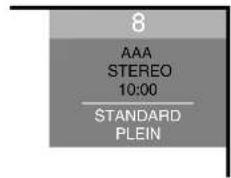
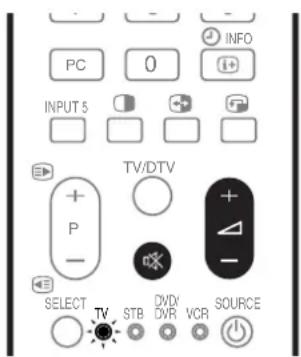
natural_image
Black-and-white photo collage showing a house and a sailboat on water with mountains in the background (no text or symbols)natural_image
Black-and-white cityscape with modern high-rise buildings, construction cranes, and a plaza with low-rise buildings under a cloudy sky (no visible text or signage)natural_image
Black-and-white photo collage showing four different urban and institutional scenes with buildings and water features (no visible text or symbols)natural_image
Four-panel black-and-white photo sequence showing city skyline transformations with arrows indicating direction (no text or symbols)
REMARQUE
Arrêt Deactivates both the SRS and TruBass.
natural_image
Diagram of a device with two compartments and directional arrows indicating movement (no text or symbols)4 Select a programme number to edit (/)
Use the following procedure to change or cancel programme presettings using the menu.
natural_image
Exterior view of a two-story house with trees and a tree in the foreground (no signage or text visible)4:3
natural_image
Exterior view of a two-story house with trees and a parked chair (no signage or text visible)
REMARQUE
| 200 PIONEER 1 |
| 201 PIONEER 2 |
| 202 PIONEER 3 |
DVR
| 203 PANASONIC |
| 204 PHILIPS 1 |
| 205 PHILIPS 2 |
| 206 SHARP |
| 207 SONY |
| 208 TOSHIBA |
VCR
| 500 PIONEER 1 (fabrique par défaut) |
| 501 PIONEER 2 |
| 502 AIWA 1 |
| 503 AIWA 2 |
| 504 AKAI 1 |
| 505 AKAI 2 |
| 506 AKAI 3 |
| 507 DAEWOO |
| 508 GRUNDIG 1 |
| 509 GRUNDIG 2 |
| 510 GRUNDIG 3 |
| 511 GRUNDIG 4 |
| 512 HITACHI 1 |
| 513 HITACHI 2 |
| 514 HITACHI 3 |
| 515 JVC 1 |
| 516 JVC 2 |
| 517 JVC 3 |
| 518 JVC 4 |
| 519 JVC 5 |
| 520 LOEWE 1 |
| 521 LOEWE 2 |
| 522 MATSUI |
| 523 ORION |
| 524 PANASONIC 1 |
| 525 PANASONIC 2 |
| 526 PHILIPS 1 |
| 527 PHILIPS 2 |
| 528 PHILIPS 3 |
| 529 SANYO |
| 530 SAMSUNG 1 |
| 531 SAMSUNG 2 |
| 532 SAMSUNG 3 |
| 533 SAMSUNG 4 |
| 534 SHARP |
| 535 SONY 1 |
| 536 SONY 2 |
| 537 SONY 3 |
| 538 SONY 4 |
| 539 SONY 5 |
| 540 SONY 6 |
| 541 SONY 7 |
| 542 THOMSON |
| 543 TOSHIBA |
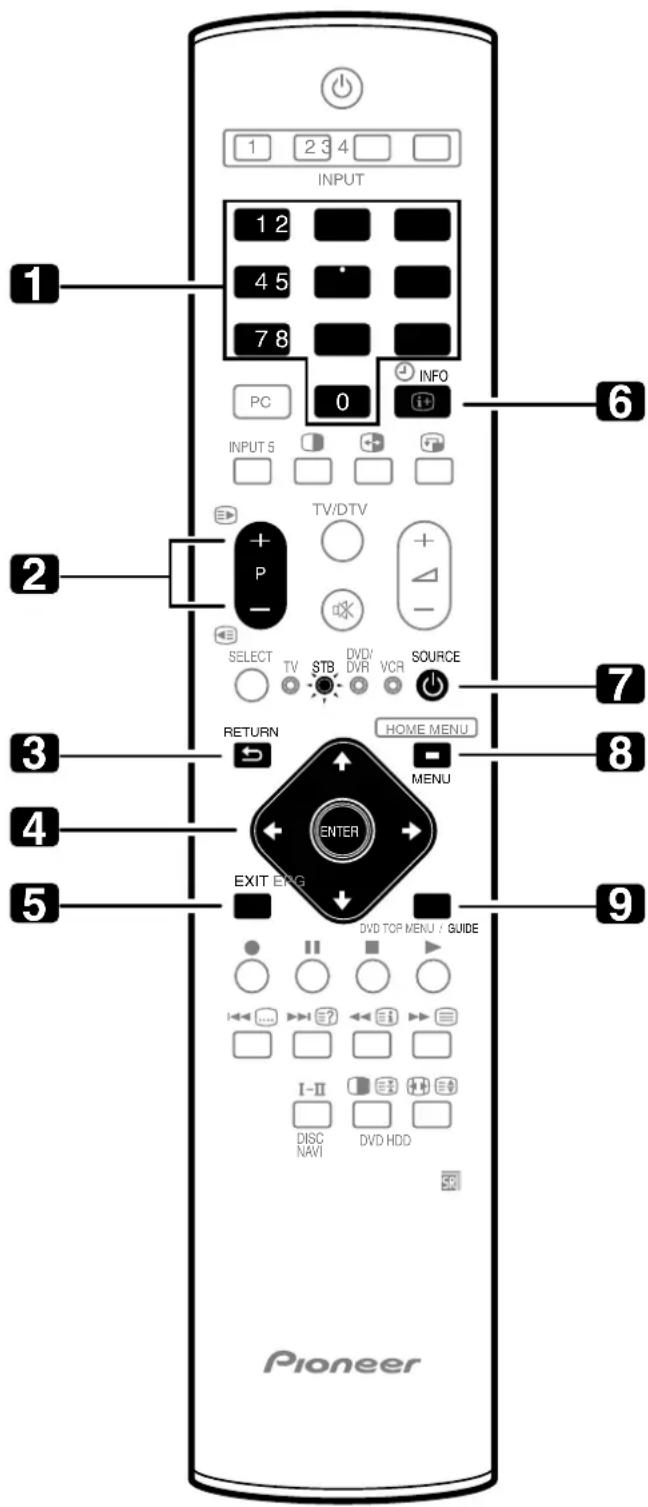
Touches de commande de terminal (STB)
Publication de Pioneer Corporation.
© 2005 Pioneer Corporation.
natural_image
Silhouette of a person climbing a ladder inside a circle (no text or symbols)10 TV. STB. DVD/DVR. VCR
natural_image
Simple line drawing of a smartphone with a cross symbol crossed out (no text or labels)natural_image
Technical line drawing of a mechanical assembly with no visible text or symbolsnatural_image
Line drawing of a mechanical device with a folded paper or sheet, showing a handle and base plate (no text or symbols)natural_image
Line drawing of a remote control box with battery plates and a handle (no text or symbols)natural_image
Line drawing of a handheld device with an arrow indicating rotation or movement (no text or symbols)Media-Receiver (vorderseite)
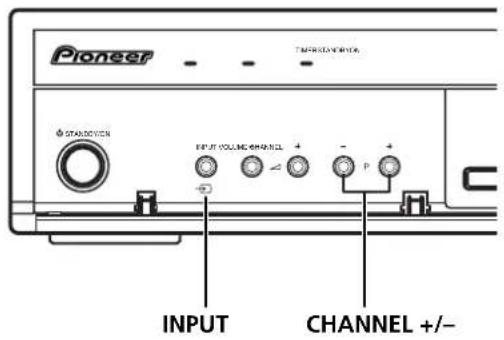
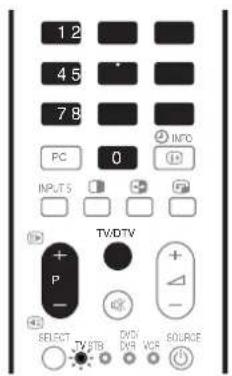
Kanalanzeige
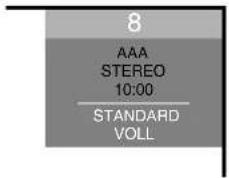
Kanalwechsel

ZUR BEACHTUNG
Media-Receiver (vorderseite)
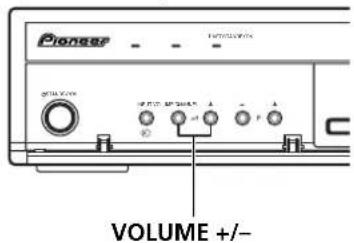
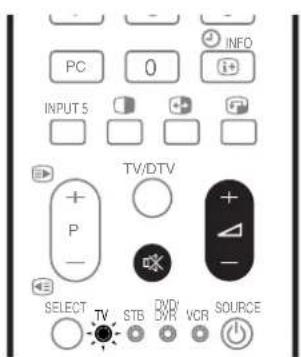
natural_image
Black-and-white photo collage showing a lakeside house and a sailboat on water with mountains in the background (no visible text or symbols)natural_image
Black-and-white cityscape with modern high-rise buildings, construction cranes, and a large building under cloudy sky (no visible text or signage)natural_image
Black-and-white photo collage showing four scenes: old buildings, waterfront, modern architecture, and a city skyline (no visible text or symbols)natural_image
Four-panel black-and-white photo sequence showing city skyline changes under cloudy sky, with arrows indicating direction of change (no text or symbols)natural_image
Diagram of a device with two components, one showing an arrow and the other a rectangular block (no text or symbols)Viewing programme information
1 Drücken Sie EPG.
natural_image
Exterior view of a two-story house with trees and a large tree in the foreground (no signage or text visible)4:3
natural_image
Exterior view of a two-story house surrounded by trees and a paved area (no signage or text visible)
ZUR BEACHTUNG
Published by Pioneer Corporation.
Copyright © 2005 Pioneer Corporation.
All rights reserved.
PIONEER CORPORATION
4-1, Meguro 1-Chome, Meguro-ku, Tokyo 153-8654, Japan
PIONEER ELECTRONICS (USA) INC.
P.O. BOX 1540, Long Beach, California 90810-1540, U.S.A. TEL: (800) 421-1404
PIONEER ELECTRONICS OF CANADA, INC.
300 Allstate Parkway, Markham, Ontario L3R OP2, Canada TEL: 1-877-283-5901
PIONEER EUROPE NV
Haven 1087, Keetberglaan 1, B-9120 Melsele, Belgium TEL: 03/570.05.11
PIONEER ELECTRONICS ASIACENTRE PTE. LTD.
253 Alexandra Road, #04-01, Singapore 159936 TEL: 65-6472-7555
PIONEER ELECTRONICS AUSTRALIA PTY. LTD.
178-184 Boundary Road, Braeside, Victoria 3195, Australia, TEL: (03) 9586-6300
PIONEER ELECTRONICS DE MEXICO S.A. DE C.V.
Blvd.Manuel Avila Camacho 138 10 piso Col.Lomas de Chapultepec, Mexico,D.F. 11000 TEL: 55-9178-4270

- PLASMA DISPLAY SYSTEM SYSTEME D'ÉCRAN PLASMA PLASMA DISPLAY-SYSTEM
- PDP-506XDE PDP-436XDE
- IMPORTANT
- FOR USE IN THE UNITED KINGDOM.
- NOTE
- CAUTION
- RISK OF ELECTRIC SHOCK DO NOT OPEN
- WARNING
- VENTILATION CAUTION
- STANDBY/ON Button
- STANDBY/ON Indicator
- Contents
- Thank you for buying this Pioneer product.
- Important User Guidance Information
- Safety Precautions
- Supplied Accessories
- Part Names
- Preparation
- Watching TV
- Menu Setup
- Basic Adjustment Settings
- Enjoying DTV broadcasts
- Using the Electronic Programme Guide (EPG)(for Analogue TV only)
- Using the Electronic Programme Guide (EPG)(for DTV only)
- Useful Adjustment Settings
- Enjoying through External Equipment
- Using the Teletext Functions
- Appendix
- Usage guidelines
- Installation guidelines
- Plasma Display protection function
- Information of pixel defect
- Infrared rays
- Radio interference
- Plasma Display driving sound
- Do not attach such items as labels and tape to the product.
- When not using the product for a long period of time
- Condensation
- Cleaning the surface of the screen and the glossy surface of the front cabinet
- Cleaning the cabinet
- Handles at the rear of the Plasma Display
- Panel sticking and after-image lag
- After-image lagging due to remaining electrical load
- After-image (lag image) due to burning
- Installation Precautions
- When using the optional stand, brackets, or equivalent items
- When using other items
- Identifying the main units
- Plasma Display
- Media Receiver
- Remote control unit
- Location
- Using the optional PIONEER stand
- Using the optional PIONEER speakers
- Operating Environment
- Preventing the Plasma Display from Falling Over
- Stabilizing on a table or floor
- Using a wall for stabilization
- Connecting the system cable
- Connecting the power cord
- Routing cables
- Attaching speed clamps to the main unit
- Attaching and removing speed clamps
- Connecting to an antenna
- Preparing the remote control unit
- Inserting batteries
- Cautions regarding batteries
- Allowed operation range of the remote control unit
- Cautions regarding the remote control unit
- Turning on/off the power
- Plasma Display/Media Receiver status indicators
- Changing channels
- Switching between the TV and DTV modes
- Using P +/P - on the remote control unit
- Using 0 - 9 on the remote control unit
- EXAMPLE
- Tuning to your favourite (analogue) channels
- Changing the volume and sound
- Using + / - on the remote control unit
- Using ☐ on the remote control unit
- Use the multiscreen functions
- Splitting the screen
- Press ☐ to select the display mode.
- To select the desired input source, press the appropriate input source button.
- Freezing images
- Press
- Press 📄 again to cancel the function.
- Using the menu
- Menu operations
- Setting up TV channels automatically
- Using Auto Installation
- Setting up analogue TV channels manually
- Using Manual Adjust
- Reducing video noise
- Setting Child Lock
- Selecting a decoder input terminal
- Labelling TV channels
- Sorting preset TV channels
- Clock setting
- Language setting
- AV Selection
- Basic picture adjustments
- Advanced picture adjustments
- Using PureCinema
- Using Colour Temp
- Using CTI
- CTI
- Using Colour Management
- Item
- ← button button
- Eliminating noise from images
- DNR
- MPEG NR
- Using the Dynamic Range Expander (DRE) functions
- Dynamic Contrast
- Black Level
- ACL
- Gamma
- Using the 3DYC and I-P Mode
- 3DYC
- I-P Mode
- Sound adjustments
- FOCUS
- Item Description
- Front Surround
- Listening to audio from the sub screen using headphones
- Power Control
- Energy Save
- No Signal off (AV mode only)
- No Operation off (AV mode only)
- Power Management (PC mode only)
- Watching DTV programmes
- Viewing a channel banner
- Viewing subtitles
- Reconfiguring the DTV channel settings
- Reselecting a country
- Replacing the existing channels
- Adding new channels
- Checking signal strength
- Switching on/off the power to the antenna
- Restoring the system defaults
- Customizing channel related settings
- Setting Channel Options
- Press HOME MENU.
- Activating the Favourites function
- Activating the Auto Skip
- Setting the Child Lock
- Sorting preset DTV channels
- Selecting a digital audio format
- Selecting languages for audio, subtitles, and teletext
- Using Software Update
- Using Auto Update
- Setting Update Time
- Starting Manual Update
- Displaying technical information
- Using MHEG application (UK only)
- Screen Saver
- Common Interface
- Inserting a CA Card
- Using the Electronic Programme Guide (EPG)(for Analogue TV only)
- Setting up for using the EPG
- Updating EPG information automatically
- Specifying an EPG information provider
- Restricting the display of EPG information
- Searching programmes
- Icons displayed on the Programme List and Programme Information
- Viewing programme information
- Recording a programme using a recording equipment
- Selecting a programme for immediate watching
- EPG display format
- Using the EPG
- Press EPG.
- Select a desired TV programme (/ ↗) ↘ ↔
- To quit the Programme Guide, press EPG again.
- Presetting TV programmes using the EPG
- Using auto channel select and standby recording
- Select a programme to be preset ( / , ←/→ then ENTER).
- Press EPG to exit the EPG screen.
- Setting the timer manually
- Priority rules for overlapped presettings
- Changing/cancelling TV programme presettings
- Changing priorities for overlapped presettings
- Using other useful EPG functions
- EPG Jump
- EPG Search
- Switching the vertical drive frequency (AV mode only)
- Adjusting image positions (AV mode only)
- Adjusting image positions and clock automatically (PC mode only)
- Adjusting image positions and clock manually (PC mode only)
- Selecting an input signal type
- Colour system setting (AV mode only)
- Selecting a screen size manually
- Selecting a screen size automatically
- Selecting a screen size for received 4:3 aspect ratio signals
- Changing the brightness at both sides of the screen (Side Mask)
- Sleep Timer
- Using a password (AV mode only)
- Entering a password
- Changing the password
- Resetting the password function
- Disabling the password function
- If you forget the password
- Watching a decoder image
- Connecting a decoder
- Displaying a decoder image
- Watching a VCR image
- Connecting a VCR
- AV link advanced system
- Displaying a VCR image
- Using HDMI Input
- Connecting HDMI equipment
- To activate the HDMI terminal:
- To specify the type of digital video signals:
- To specify the type of audio signals:
- Using i/o Link.A
- One Touch Play
- WYSIWYR (What You See Is What You Record)
- Preset Download
- Watching a DVD image
- Connecting a DVD player
- Displaying a DVD image
- Using the SCART output function
- Switching the SCART output
- Enjoying a game console or watching camcorder images
- Connecting a game console or camcorder
- Displaying an image from the game console or camcorder
- Watching an image from a personal computer
- Connecting a personal computer
- Displaying an image from a personal computer
- Enjoying through audio equipment in connection
- Connecting audio equipment
- Connecting control cords
- About SR+
- Enjoying through memory cards (Home Gallery function)
- Readable memory cards
- Readable data files
- Inserting a memory card
- Removing a memory card
- Starting the initial Home Gallery screen
- To start the initial Home Gallery screen from the Home menu:
- Selecting a folder
- Starting a thumbnail screen
- Starting a standard single-image screen
- RED:
- GREEN:
- YELLOW:
- BLUE:
- HOME MENU:
- Starting the Slide Show Setup screen
- Starting the Slide Show screen
- Adjusting the picture quality
- Controlling other equipment using the supplied remote control unit
- Presetting manufacture codes
- Manufacture codes
- STB (set - top box) control buttons
- 10-9
- P +/P -
- RETURN
- ENTER
- EXIT
- INFO
- SOURCE ⏻
- MENU
- GUIDE
- DVD/DVR control buttons
- P +/P - (DVD recorder only)
- || (PAUSE/STILL)
- ●
- 7
- 8
- DISC NAVI (DVD recorder only)
- SOURCE ⏻
- MENU
- DVD TOP MENU
- ■ (STOP)
- ▶ (PLAY)
- ▶ (SCAN)
- ◀ (SCAN)
- HDD (DVD recorder only)
- DVD (DVD recorder only)
- 6, 13 REC STOP (DVD recorder only)
- VCR control buttons
- What is Teletext?
- Operating the Teletext basics
- Turning on and off Teletext
- Selecting and operating Teletext pages
- Colour (RED/GREEN/YELLOW/BLUE):
- Displaying subpages
- Displaying TOP Over View
- Displaying subtitle pages
- Connecting pin assignments for SCART
- SCART (INPUT 1)
- SCART (INPUT 2)
- SCART (INPUT 3)
- Appendix
- Trademarks
- Précautions relatives aux piles
- REMARQUE
- Touches de commande de terminal (STB)
- Kanalwechsel
- ZUR BEACHTUNG
- PIONEER CORPORATION
Brand : PIONEER
Model : PDP506XDE
Category : TV