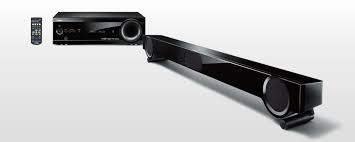
YHT-S401 - Soundbar YAMAHA - Free user manual and instructions
Find the device manual for free YHT-S401 YAMAHA in PDF.



| Product type | Home Cinema Pack (Soundbar + Built-in Subwoofer) |
| Brand | YAMAHA |
| Model | YHT-S401 |
| Number of channels | 2.1 (expandable to 5.1 with optional surround speakers) |
| Surround technology | AIR SURROUND XTREME (virtual 7.1 surround sound) |
| Audio functions | Clear Voice, UniVolume, Enhancer (compressed audio enhancement), Extended stereo mode |
| HDMI connectivity | 3 inputs, 1 output with ARC |
| Audio connectivity | Digital optical, coaxial, analog (RCA), USB, FM, headphone |
| Compatibility | HDMI-CEC (HDMI control), ARC |
| USB playback support | MP3, WMA (USB flash drive, portable audio player, iPod/iPhone via digital connection) |
| Tuner | FM (40 presets) |
| Power supply | Mains (specified voltage, see label) |
| Standby power consumption | Very low (for infrared reception) |
| Remote control | Yes, with supplied AAA batteries |
| Supplied accessories | Speaker cable (3 m), FM antenna, IR receiver for TV remote, mounting template, batteries, user manual |
| Maintenance and cleaning | Use a soft, dry cloth. Do not use chemical solvents. |
| Safety | Do not expose to water or moisture. Do not open the casing. Unplug during storms or prolonged non-use. |
| Spare parts and repairability | Contact an authorized Yamaha service center for repairs. Do not attempt to repair yourself. |
| General information | Manual available in several languages. Weight and dimensions not specified in the manual. |
Frequently Asked Questions - YHT-S401 YAMAHA
User questions about YHT-S401 YAMAHA
0 question about this device. Answer the ones you know or ask your own.
Ask a new question about this device
Download the instructions for your Soundbar in PDF format for free! Find your manual YHT-S401 - YAMAHA and take your electronic device back in hand. On this page are published all the documents necessary for the use of your device. YHT-S401 by YAMAHA.
USER MANUAL YHT-S401 YAMAHA
(Subwoofer Integrated Receiver + Speaker)
Caution: Read this before operating your unit.
1 To assure the finest performance, please read this manual carefully. Keep it in a safe place for future reference.
2 Install this unit in a well ventilated, cool, dry, clean place away from direct sunlight, heat sources, vibration, dust, moisture, and/or cold. For proper ventilation, allow the following minimum clearances. Top: 5 cm Rear: 5 cm Sides: 5 cm
3 Locate this unit away from other electrical appliances, motors, or transformers to avoid humming sounds.
4 Do not expose this unit to sudden temperature changes from cold to hot, and do not locate this unit in an environment with high humidity (i.e. a room with a humidifier) to prevent condensation inside this unit, which may cause an electrical shock, fire, damage to this unit, and/or personal injury.
5 Avoid installing this unit where foreign objects may fall onto this unit and/or this unit may be exposed to liquid dripping or splashing. On the top of this unit, do not place:
- Other components, as they may cause damage and/or discoloration on the surface of this unit.
- Burning objects (i.e. candles), as they may cause fire, damage to this unit, and/or personal injury.
- Containers with liquid in them, as they may fall and liquid may cause electrical shock to the user and/or damage to this unit.
6 Do not cover this unit with a newspaper, tablecloth, curtain, etc. in order not to obstruct heat radiation. If the temperature inside this unit rises, it may cause fire, damage to this unit, and/or personal injury.
7 Do not plug in this unit to a wall outlet until all connections are complete.
8 Do not operate this unit upside-down. It may overheat, possibly causing damage.
9 Do not use force on switches, knobs and/or cords.
10 When disconnecting the power cable from the wall outlet, grasp the plug; do not pull the cable.
11 Do not clean this unit with chemical solvents; this might damage the finish. Use a clean, dry cloth.
12 Only voltage specified on this unit must be used. Using this unit with a higher voltage than specified is dangerous and may cause fire, damage to this unit, and/or personal injury. Yamaha will not be held responsible for any damage resulting from use of this unit with a voltage other than specified.
13 To prevent damage by lightning, keep the power cable and outdoor antennas disconnected from a wall outlet or the unit during a lightning storm.
14 Do not attempt to modify or fix this unit. Contact qualified Yamaha service personnel when any service is needed. The cabinet should never be opened for any reasons.
15 When not planning to use this unit for long periods of time (i.e. vacation), disconnect the AC power plug from the wall outlet.
16 Be sure to read the "Troubleshooting" section in the owner's manual on common operating errors before concluding that this unit is faulty.
17 Before moving this unit, press to set this unit in standby mode, and disconnect the power supply cable from the wall outlet.
18 Condensation will form when the surrounding temperature changes suddenly. Disconnect the power supply cable from the outlet, then leave the unit alone.
19 Install this unit near the wall outlet and where the AC power plug can be reached easily.
20 The batteries shall not be exposed to excessive heat such as sunshine, fire or like.
21 Secure placement or installation is the owner's responsibility. Yamaha shall not be liable for any accident caused by improper placement or installation of speakers.
22 Never put a hand or a foreign object into the port located on the front side of this unit. When moving this unit, do not hold the port as it might cause personal injury and/or damage to this unit.
23 Never place a fragile object near the port of this unit. If the object falls or drops by the air pressure, it may cause damage to the unit and/or personal injury.
WARNING
TO REDUCE THE RISK OF FIRE OR ELECTRIC SHOCK, DO NOT EXPOSE THIS UNIT TO RAIN OR MOISTURE.
As long as this unit is connected to the AC wall outlet, it is not disconnected from the AC power source even if you turn off this unit by . In this state, this unit is designed to consume a very small quantity of power.
Special Instructions for U.K. Model
IMPORTANT
THE WIRES IN THE MAINS LEAD ARE COLOURED IN ACCORDANCE WITH THE FOLLOWING CODE:
Blue: NEUTRAL
Brown: LIVE
As the colours of the wires in the mains lead of this apparatus may not correspond with the coloured markings identifying the terminals in your plug, proceed as follows:
The wire which is coloured BLUE must be connected to the terminal which is marked with the letter N or coloured BLACK. The wire which is coloured BROWN must be connected to the terminal which is marked with the letter L or coloured RED.
Making sure that neither core is connected to the earth terminal of the three pin plug.
For U.K. customers
If the socket outlets in the home are not suitable for the plug supplied with this appliance, it should be cut off and an appropriate 3 pin plug fitted. For details, refer to the instructions described below.
Note
The plug severed from the mains lead must be destroyed, as a plug with bared flexible cord is hazardous if engaged in a live socket outlet.
Contents
INTRODUCTION
Getting started 2
Supplied parts 2
Remote control preparation 2
Controls and functions 3
PREPARATION
Placing 6
Operation by the TV remote control is difficult (with the speaker beneath/under TV). 6
Attaching the speaker to a wall 7
Connection 8
Connecting speakers 8
Connecting a TV and BD player. 9
BASIC OPERATION
Basic playback operation. 10
Listening with headphones 10
Enjoying sound modes 11
Playback in surround sound 11
Playback in stereo sound. 11
Clear voice 11
Compressed Music Enhancer 12
UniVolume. 12
Volume balance adjustment 12
Listening to FM broadcasts. 13
Basic tuning operation 13
Editing the preset FM station. 13
Playing back iPod/iPhone and USB device.....16
Playing back. 16
Repeat/shuffle playback 17
Displaying music information 17
Firmware update 17
USEFUL OPERATION
Setup menu. 18
Setup menu list. 18
Basic procedure. 18
Adjusting the volume balance of each channel 19
Adjusting high/low frequency sound (tone control) 19
Configuring the HDMI settings 19
Changing the brightness of the front panel display 19
Using other speakers. 20
Dynamic range control. 21
Setting the matrix decode 21
Settings for each input source (Option menu) ....22
Adjusting input level of each jack (VOLUME TRIM) 22
Adjusting the audio delay (AUDIO DELAY) 22
Assigning the audio input to optical/coaxial digital input (AUDIO ASSIGN). 22
Operating the unit by TV's remote control 23
What is the HDMI control function? 23
Setting the HDMI control function 23
Registering HDMI components to TV 24
Changing the connection method and connected components 24
ADDITIONAL INFORMATION
Troubleshooting 25
Glossary 29
Specifications. 31
Available signal information 32
Notes on remote controls and batteries. 33
What you can do with the unit
- Enjoy high quality surround sound (AIR SURROUND XTREME) 11
- Enjoy clear dialogue and narration (Clear voice) 11
- Operate the unit by TV's remote control (HDMI control function) 23
- Play back iPod/iPhone in high quality sound (Digital Connection for iPod/iPhone). 16
- Expand the unit to 5.1 channel using speakers of your choice. 20
About this manual
- In this manual, operations that can be performed using either the front panel buttons or the remote control are explained using the remote control.
- indicates a tip for your operation. Notes contain important information about safety and operating instructions.
- This manual is produced prior to production. Design and specifications are subject to change in part as a result of improvements, etc. In case of differences between the manual and the product, the product has priority.
Getting started
Supplied parts
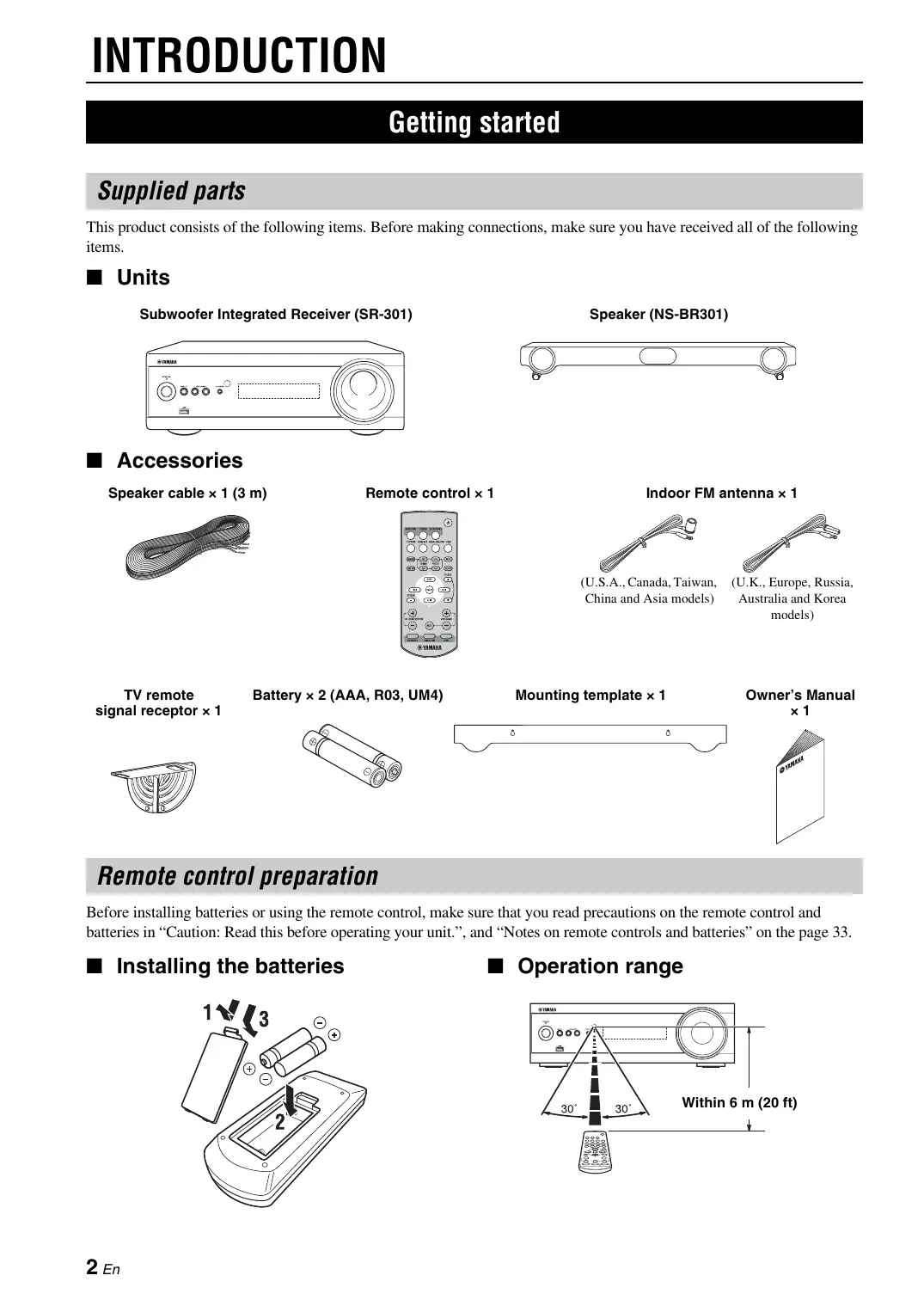
This product consists of the following items. Before making connections, make sure you have received all of the following items.
Units
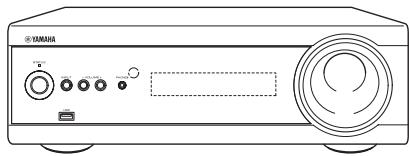
Subwoofer Integrated Receiver (SR-301)

Speaker (NS-BR301)
■ Accessories
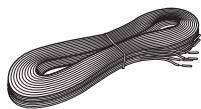
Speaker cable × 1 (3 m)
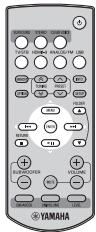
Remote control × 1
Indoor FM antenna × 1
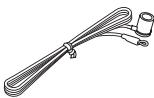
(U.S.A., Canada, Taiwan, China and Asia models)
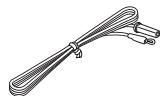
(U.K., Europe, Russia, Australia and Korea models)
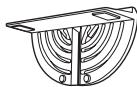
TV remote signal receptor × 1
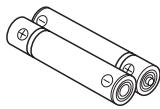
Battery × 2 (AAA, R03, UM4)

Mounting template × 1

Owner's Manual × 1
Remote control preparation
Before installing batteries or using the remote control, make sure that you read precautions on the remote control and batteries in "Caution: Read this before operating your unit.", and "Notes on remote controls and batteries" on the page 33.
■ Installing the batteries
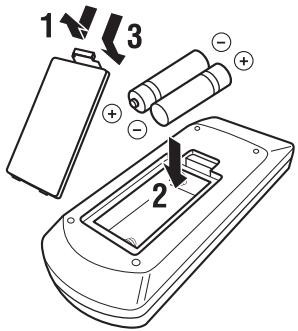
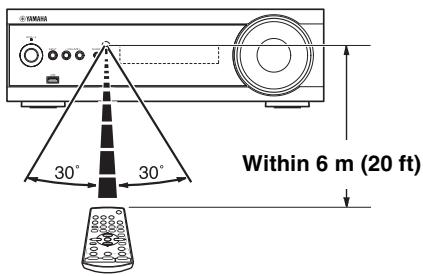
Operation range
Controls and functions
■ Front panel of the subwoofer integrated receiver
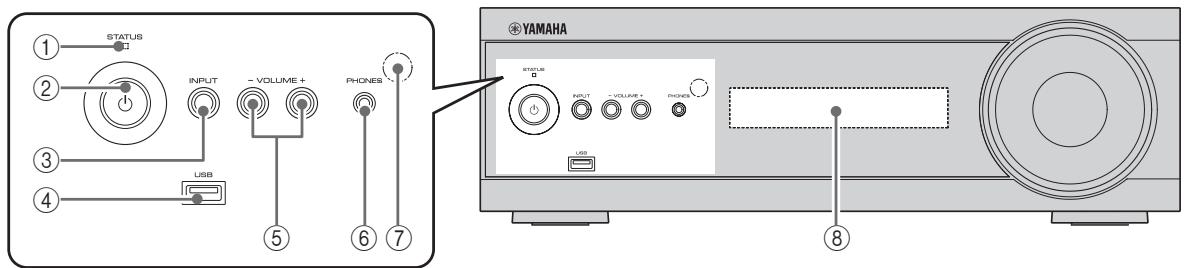
① STATUS indicator
Lights up to show the system condition. (P. 10)
② (Power)
Turns on the unit, or sets it to standby mode.
$$ (\mathfrak {P}. 1 0) \tag {P.10} $$
Note
A small amount of electricity is consumed to receive the infrared signal from the remote control even when the unit is in standby mode.
③ INPUT
Selects an input source you want to listen to.
$$ (\mathfrak {P}. 1 0) \tag {P.10} $$
④ USB port
For connecting a USB device. (P. 16)
⑤ VOLUME -/+
Controls the volume of the unit. (P. 10)
⑥ PHONES jack
For connecting headphones. (P. 10)
⑦ Remote control sensor
Receives infrared signals from the remote control.
$$ (\mathfrak {P}, 2, 5) \tag {P.2.5} $$
⑧ Front panel display
Shows information about the operational status of the unit. (P. 4)
Rear panel of the subwoofer integrated receiver
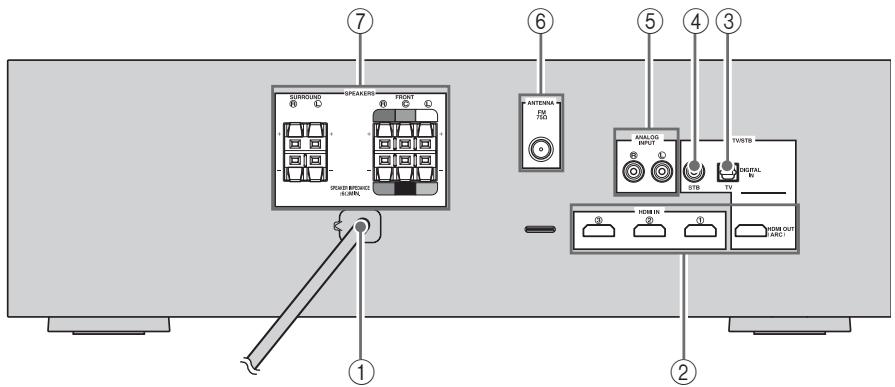
① Power Cable
For connecting an AC wall outlet. (P.8)
② HDMI IN ① - ③/HDMI OUT (ARC) jack
HDMI IN ① - ③ for connecting HDMI compatible external components. (P.9)
HDMI OUT for connecting an HDMI compatible TV. (P.9)
③ DIGITAL IN (TV) jack
For connecting optical digital cable to the TV. (P.9)
④ DIGITAL IN (STB) jack
For connecting digital audio pin cable to the STB.
$$ (\mathbb {1} \overline {{\mathfrak {P}}}) \quad \text {P . 9}) $$
⑤ ANALOG INPUT jack
For connecting analog audio cable to external components. (P.9)
(6) ANTENNA terminal
For connecting supplied FM antenna. (P.9)
⑦ SPEAKERS terminal
For connecting speakers. (P. 8)
■ Front panel display of the subwoofer integrated receiver

① HDMI indicator
Lights up during normal communication when HDMI is selected as an input source.
② Tuner indicators
TUNED indicator
Lights up when the unit is receiving a station.
(P.13)
STEREO indicator
Lights up when the unit is receiving a strong signal from an FM stereo broadcast station in automatic tuning mode. (P. 13)
AUTOindicator
Flashes when the unit is tuning or presetting station automatically. (P. 13)
MEMORY indicator
Flashes when the unit is storing a station.
(P.13,14)
EMPTY indicator
Lights up when the storing preset number is empty.
(P.14)
PS/PTY/RT/CT indicator (Europe and Russia models only)
Lights up according to the available Radio Data
System information. (P. 15)
③ Decoder indicators
The respective indicator lights up when any of the decoders of the unit is activated.
④ Clear voice indicator
Lights up when Clear voice mode is selected.
(P.11)
⑤ VOLUME indicator
- Indicates the current volume level.
- Flashes while the mute function is activated.
(P.10)
^6 Multi information display
Shows the selected input source, current sound mode and other information.
⑦ ENHANCER indicator
Lights up when compressed music enhancer function is activated. (P. 12)
(8) UNIVOLUME indicator
Lights up when UniVolume mode is selected.
(P. 12)
Remote control
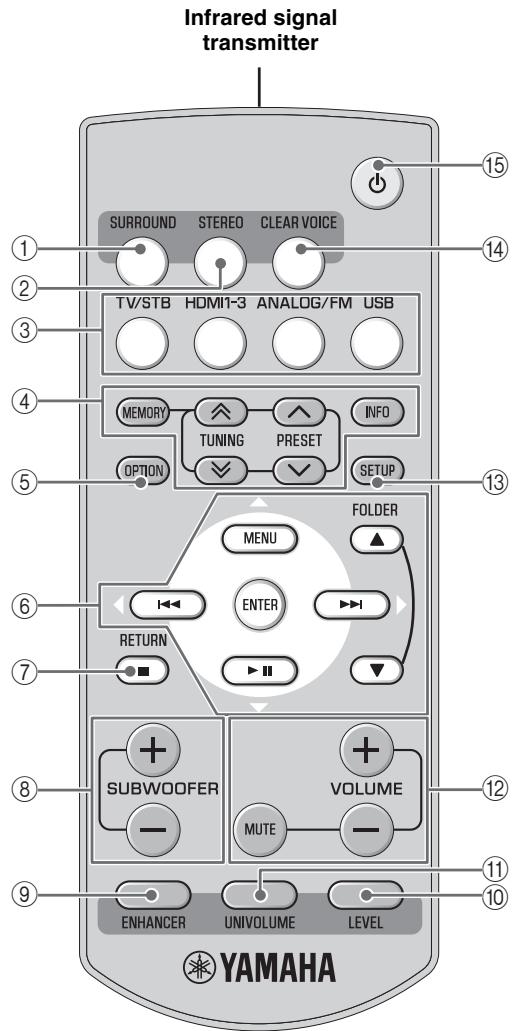
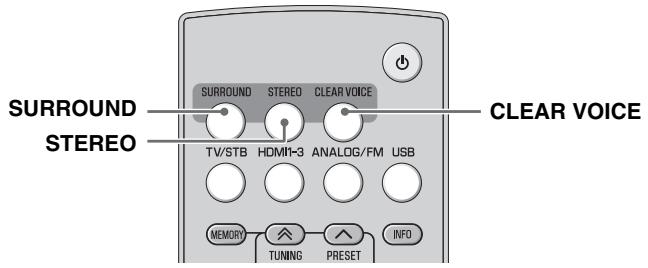
① SURROUND
Selects the surround mode. (P. 11)
② STEREO
Turns extended stereo mode on and off alternately. (P. 11)
③ Input buttons
Select the input source you want to listen to.
(P.10)
Press the respective input button repeatedly to select the input source.
TV/STB: TV, STB
HDMI1-3: HDMI1, HDMI2, HDMI3
ANALOG/FM: ANALOG, FM
USB: USB
(4) MEMORY, TUNING 公 / 公 , PRESET 公 / 公 , INFO
Control an FM tuner. (P. 13)
(5) OPTION
Enters option menu for each input. (P. 13, 16, 22)
(6) (MENU), (I ), (I ), (I ), ENTER
- Change setting.
Control iPod/iPhone and USB device such as USB flash memory, portable music player. (P. 16)
/ : Scroll screen of iPod/iPhone, or skip folder of USB device. (P. 16)
⑦ RETURN
- Cancels preset registration. (P. 13)
- Returns to previous menu in option menu. (P. 22)
- Stops playback of USB device such as USB flash memory or portable music player. (P. 16)
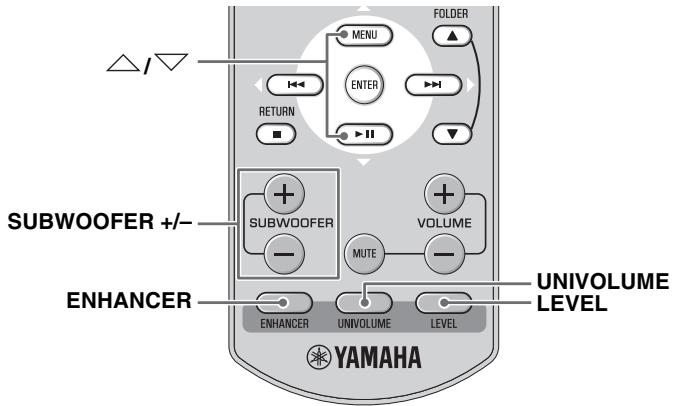
SUBWOOFER +/-
Adjust volume balance of subwoofer. (P. 10, 19)
ENHANCER
Turns Compressed Music Enhancer mode on and off. (P. 12)
10 LEVEL
Adjusts output level of speakers. (P. 12)
11 UNIVOLUME
Turns UniVolume mode on and off. (P. 11)
⑫ VOLUME +/-, MUTE
Control volume of the unit. (P. 10)
13 SETUP
Enters the setup menu. (P. 18)
14 CLEAR VOICE
Turns Clear voice mode on and off. (P. 11)
(5) (Power)
Turns on the unit, or sets it to standby mode.
(P.10)
Placing
To enjoy quality sound thoroughly, place this unit in the appropriate positions, and install the components properly. The following illustrations are the setting images of this unit.
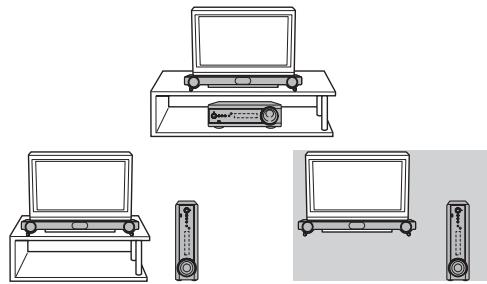
Notes
- Do not place this unit on/under any other components such as BD player in a pile. The vibration of this unit may cause system failure, etc. in other components.
- Keep enough ventilation space on the side, rear, and bottom side (that attached legs) of this unit. Do not place this unit on a thick carpet etc.
- Low frequency sound produced by the subwoofer integrated receiver may be heard differently depending on the listening position and subwoofer location. To enjoy desired sounds, try changing the location of the subwoofer integrated receiver.
- Depending on your installation environment, connections to external components can be done before installing this unit. We recommend that you temporarily place and arrange all components in order to decide which procedure is best done first.
- When you clean this unit, use a clean, dry and soft cloth (such as a cloth for glasses).
- Do not press the speaker grille when moving it.
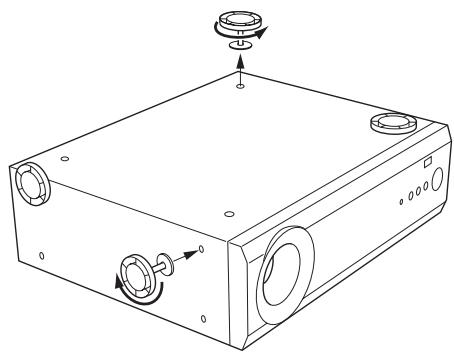
When placing the subwoofer integrated receiver in an upright position
Remove the stands and spacers on the bottom of the subwoofer integrated receiver and attach them to the side, as illustrated below.
Operation by the TV remote control is difficult (with the speaker beneath/under TV)
TV remote control operation may be difficult if the speaker hides the sensor of your TV when beneath or under the TV. Try the solutions below and see whether this solves the problem.
See the manual of your TV about where the sensor of your TV remote control is.
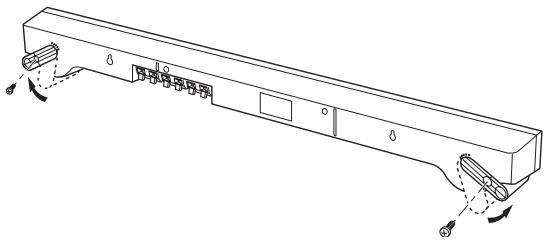
① Adjust the height of the speaker by using the stands.
Remove the screws that secure the stands of the speaker, and move the stands to adjust the height. Secure the stands by the same screws, as illustrated below.
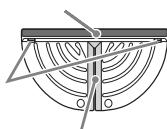
Signal receiver
1
Remove the two
transparent seals
② Use the TV remote signal receptor
The TV remote signal receptor (supplied) receives the signal of the TV remote control, and transmits to the TV remote control sensor. Place the TV remote signal receptor as shown below.
Signal emitter
3
Attach the signal receptor to the top of speaker
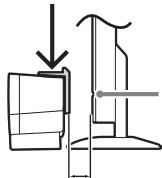
TV remote control sensor
Approx. 10mm (3/8 in)
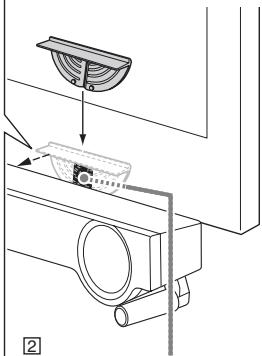
Position the signal emitter to face the center of TV remote control sensor.

- Aim the TV remote control toward the top of TV remote signal receptor.
- You can operate the TV remote control by using the TV remote signal receptor even if the unit is in standby mode.
- Some TV remote controls may not work.
- You can attach the TV remote signal receptor in an area where there are projections, such as the rear of speaker stand, etc.
- Clean the attachment area on the speaker, using a soft, dry cloth, such as one for cleaning glasses.
- Clean the signal receiver and signal emitter of the TV remote signal receptor, using a soft, dry cloth, such as one for cleaning glasses.
Attaching the speaker to a wall
Installing the speaker using the keyholes
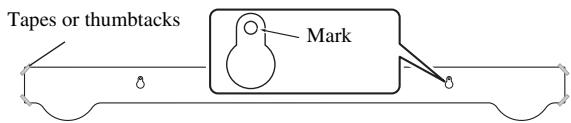
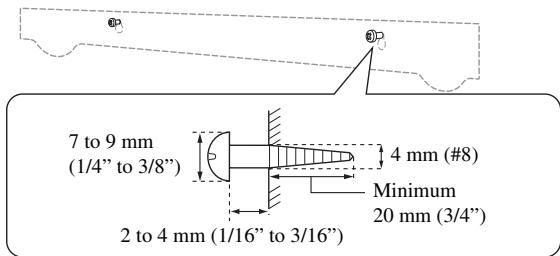
You can attach the speaker to a wall using commercially available screws (#8, Diameter: 4 mm (3/16)).
When installing the speaker on a wall, all installation work must be performed by a qualified contractor or dealer. The customer must never attempt to perform this installation work. Improper or inadequate installation could cause the speaker to fall, resulting in personal injury.
1 Attach the supplied mounting template on a wall and mark the holes of the mounting template.
2 Remove the mounting template and then install screws (not supplied) at the marks.
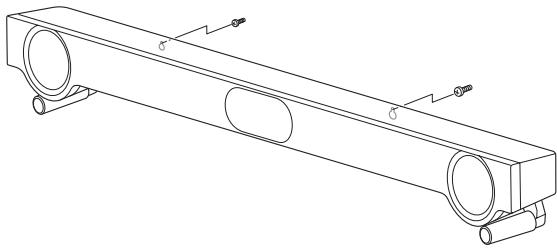
3 Hang the speaker on the screws using the keyholes on the back of the speaker.
Installing the speaker using the screw holes
You can also use the screw holes on the rear of the speaker for installing the speaker using a commercially available rack etc.
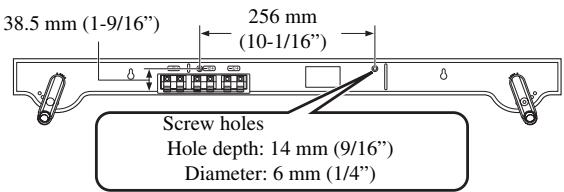
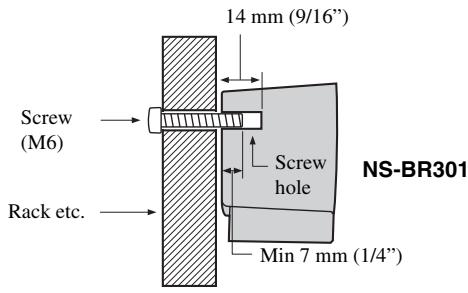
Notes
- Attach the speaker to a rack or wall. Do not attach the speaker to a wall that is made of weak materials such as plaster or veneered woods. Doing so may cause the speaker to fall.
- Use commercially available screws that can support the weight of the installation.
- Make sure you use specified screws to attach the speaker. Using clamps other than specified screws, such as short screws, nails, or two-sided tape, may cause the speaker to fall.
- When connecting the speaker, fix the speaker cables in place where they will not become loose. If your foot or hand accidentally gets caught on a loose speaker cable, the speaker may fall.
- After attaching the speaker, check that the speaker is fixed securely. Yamaha will bear no responsibility for any accidents caused by improper installations.
Connection
- Do not connect the power cable until all connections are completed.
- Do not use excessive force when inserting the cable plug. Doing so may damage the cable plug and/or terminal.
Connecting speakers
Follow the procedure below to connect the subwoofer integrated receiver and speakers.
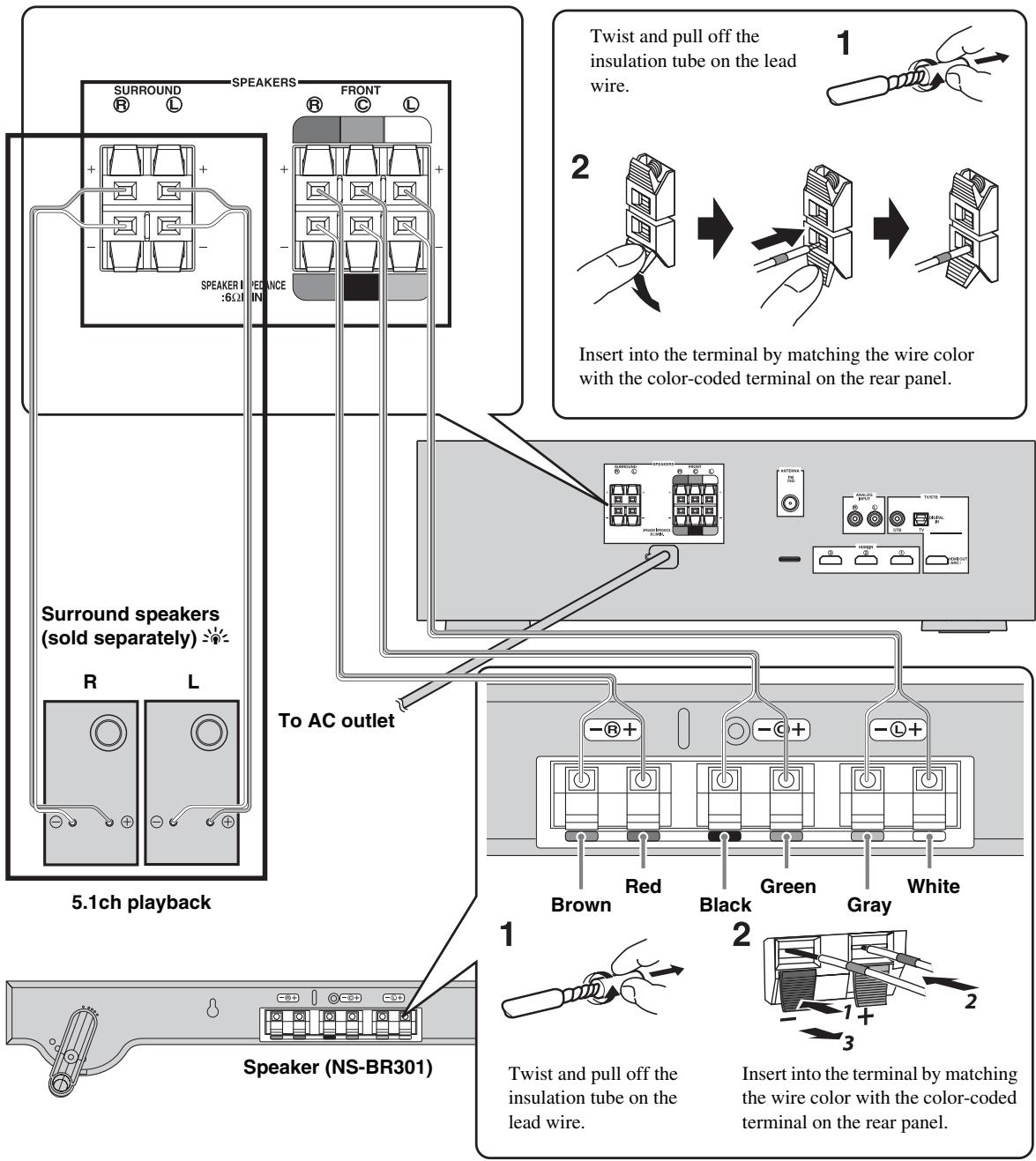
- Additional surround speakers (commercially available) are required for 5.1ch playback.
Refer to "Using other speakers" (P. 20) when using additional speakers.
Connecting a TV and BD player
Follow the steps below for cable connection according to the components you use.
1 HDMI cable (sold separately)
3 Optical cable (sold separately)*1
2 HDMI cable (sold separately)
4 Indoor FM antenna (supplied)
中
If the radio wave reception is weak in your area or you want to improve the radio wave reception, we recommend that you use an outdoor antenna. For details, consult your nearest authorized Yamaha dealer or Service Center.
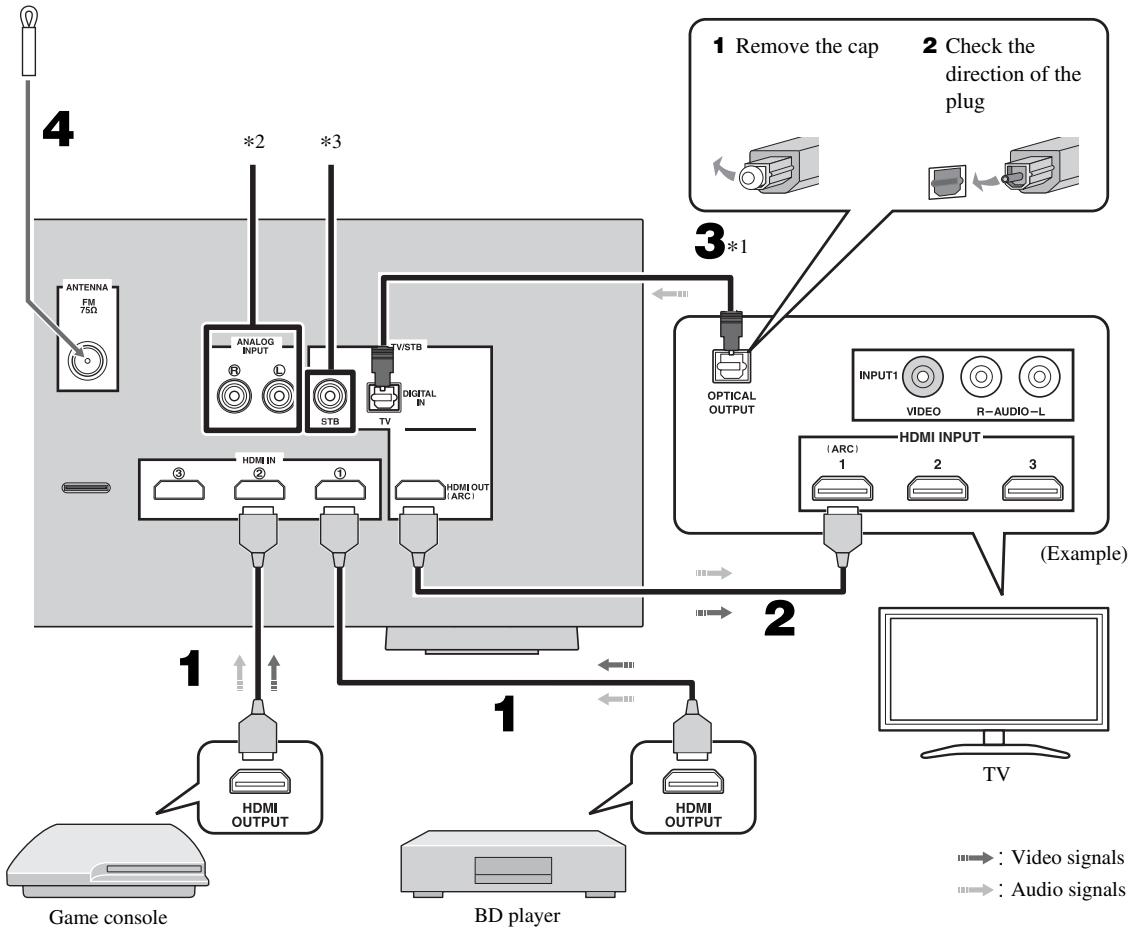
*1
For HDMI control function, an optical cable is not required if the TV's "ARC" terminal is used "2". Audio return channel (ARC) carries digital audio signal (from the TV) to this unit via an HDMI cable. Activate the HDMI control function of this unit to enable ARC function. (P. 19)
*2
Connect analog pin cables (sold separately) to the analog audio output jacks of an external device, such as a VTR, to play back analog audio sound.
*3
Connect a digital audio pin cable (sold separately) to the coaxial digital output jack of a satellite/cable TV tuner to play back digital sound.
Basic playback operation
Once you have finished all cable connections and remote control operation, follow the procedure below to start basic playback operation.
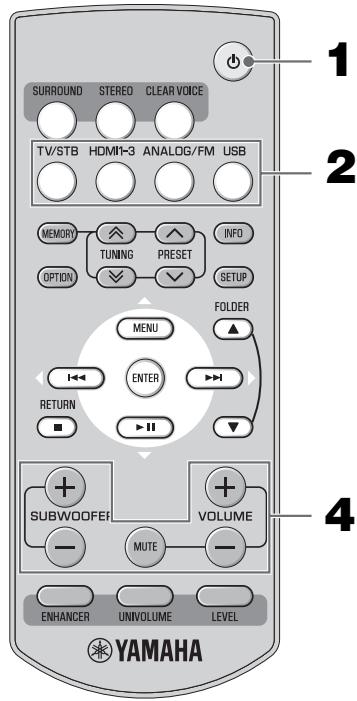
You can operate the unit by the TV's remote control when the HDMI control function is available. See the page 23 for details.
1 Press (Power).
This unit is turned on and the STATUS indicator lights green.
The input source and surround mode appear in the front panel display.
#
This unit has the auto-sleep function, which will automatically switch the unit to turn off if the unit is left turned on for 12 hours without any operation being performed.
2 Press one of the input buttons to select an input source.
After the input source name has been displayed in the front panel display for three seconds, the front panel display returns to its normal display. (Input source name: surround/stereo mode).
3 Start playback on the selected external component.
For information on the external component, refer to the instruction manual for the product.
4 Press VOLUME + / - to adjust the volume level.
Press SUBWOOFER + / - to adjust the subwoofer level.
#
- To turn off the volume temporarily, press MUTE. While the mute function is activated, the VOLUME indicator flashes. To resume the volume, press MUTE again or press VOLUME +/- .
- When audio is output from both TV speaker and this unit, mute the TV sound.
- The subwoofer volume can be adjusted separately from the volume.
- You can also adjust the subwoofer volume listening to test tone. (P. 19)
- Lowering the subwoofer volume is recommended at night.
Note
When sound of HDMI is output from the TV, the volume level does not change if you press VOLUME + / - or MUTE of the remote control.
5 Select surround mode or stereo mode and set your sound preferences. (P. 11)
Press (Power) again to set the unit to standby mode.
When the HDMI control function is set to on or the battery of iPod/iPhone is charged, the STATUS indicator lights red. When the HDMI control function is set to off, the STATUS indicator turns off. (P.3)
Listening with headphones
Insert a headphone plug to the PHONES jack (P.3) of this unit.
- The headphone volume, tone control can be set separately with speaker setting.
- You can enjoy surround and stereo sound using a headphone same as the speaker. (P. 11)
Enjoying sound modes
Playback in surround sound
You can enjoy a realistic sound effect.
Press SURROUND to set surround mode.
Press SURROUND repeatedly until desired mode appears in the front panel display.
Surround mode descriptions in following order
| Display | Effect |
| MOVIE | This mode is useful when you enjoy movie contents on media. |
| MUSIC | This mode is useful when you listen to music contents on media. |
| SPORTS | This mode is useful when you enjoy sports programs. |
| GAME | This mode is useful when you enjoy video games. |
| TV PROGRAM (TV PROG) | This mode is useful when you enjoy a general TV program. |
| STANDARD*1 | Play back without sound effect. |
*1 This mode is available only during playback with surround speakers connected. (F P. 20)

- The unit automatically memorizes the settings assigned to each input source.
- The unit creates high quality 7.1 channel surround playback by employing AIR SURROUND XTREME technology in the absence of surround speakers.
- Depending on settings you choose, the unit may not decode DTS-HD Master Audio sound or DTS-HD High Resolution Audio sound. In such cases, only the DTS is decoded.
Playback in stereo sound
An extended sound is achieved for a 2 channel source such as a CD player.
Press STEREO to enter extended stereo mode.
Each time you press STEREO, the function is turned on (EXTENDED STEREO) and off (STEREO) alternately.
"STEREO": Reproduces the sound without any effect. "EXTENDED STEREO": Reproduces a wider stereo image.

- The default setting is "EXTENDED STEREO".
- The unit memorizes the settings assigned to each input source.
Clear voice
This function makes dialogue in movies, TV dramas or play-by-play broadcasting clear to listen to.
Press CLEAR VOICE to turn the function on/off.
When Clear voice is activated, "●" (Clear voice) indicator is displayed.

The unit memorizes the setting assigned to each input source.
Compressed Music Enhancer
Play back digitally compressed format such as MP3 and WMA emphasizing bass and treble extended dynamically.
Press ENHANCER to turn the function on/off.
When Compressed Music Enhancer is activated, ENHANCER indicator is displayed.

The unit memorizes the settings assigned to each input source.
UniVolume
While watching the TV, compensate the excessive volume differences to make it easier to hear during the following cases.
- When switching the channel
- When a TV program changed to commercial
- When one program is finished and another program started
Press UNIVOLUME to turn the function on/off.
When UniVolume is activated, UNIVOLUME indicator is displayed.

The unit memorizes the settings assigned to each input source.
Volume balance adjustment
You can adjust the volume balance of the virtual speakers and subwoofer during playback.
1 Press LEVEL repeatedly to select adjustable channels from the followings.
Available options
| FRONT L, FRONT R | Front speaker (left/right) |
| CENTER | Center speaker |
| SURROUND L, SURROUND R | Virtual surround speaker, and surround speakers (left/right) |
| SUBWOOFER | Subwoofer |
2 Press / to adjust the volume level while the channel you selected is displayed.
Adjustable range: -6 to +6 (Default setting: 0)

The subwoofer volume is adjustable by pressing SUBWOOFER +/-.
Notes
- You cannot adjust the volume balance when using the headphone.
- This setting of each channel is available for all input source.
Basic tuning operation
ANALOG/FM
Press repeatedly to set the input to FM.
MEMORY
Stores preset stations manually.
TUNING 公 / 公
Press to change the frequency by 1 step, or press and hold to search stations automatically.
OPTION
Enters the option menu when the input is set to FM.
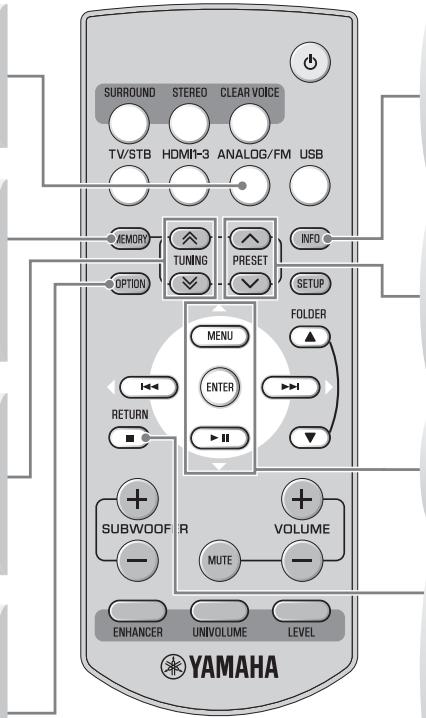
INFO
Selects the information displayed in the front panel display.
PRESET /
Select the preset FM stations.
Cursor in the option menu
RETURN
Returns to the previous menu or cancels the operation.
Editing the preset FM station
Automatic preset
You can store up to 40 FM stations (01 to 40).
1 Press ANALOG/FM repeatedly to select FM input.
2 Press OPTION to enter the option menu. "1.VOLUME TRIM" appears firstly in the front panel display.
3 Press / to select "2.AUTO PRESET" and press ENTER.
中
Press PRESET / repeatedly to select a preset number to which the first station will be stored.
After approximately 5 seconds, automatic presetting starts from the lowest frequency and proceeds through higher frequencies. When the frequency is stored, the TUNED indicator lights up.
When automatic preset tuning is completed, the front panel display shows message "Preset Complete" for three seconds firstly and returns to the option menu secondly.

Press RETURN while searching automatically, automatic preset is stopped.
Notes
- Any stored station data existing under a preset number is cleared when you store a new station under the same preset number.
- If the number of received stations does not reach 40, automatic preset tuning automatically stops after searching for all the available stations.
- Only the station with strong signals can be stored. If the desired station is not stored, or a station is not stored to the desired preset number, preset the station manually. (P. 14)
Manual station preset
Use this feature to preset your desired station manually.
1 Tune into a radio station you want to preset.
2 Press MEMORY.
"MANUAL PRESET" appears in the front panel display, followed soon by the preset number to which the station will be registered.
By pressing down MEMORY for more than 2 seconds, the station is registered to the lowest empty preset number or a preset number one higher than the last preset number.
3 Press PRESET / to select the preset number (01 to 40) to which the station will be registered.
When you select a preset number to which no station is registered, EMPTY indicator appears on the display. When you select a registered preset number, a registered frequency is displayed on the right of the preset number.
To cancel registration, press RETURN on the remote control or leave the tuner without any operations for about 30 seconds.
4 Press MEMORY again to register.
Clearing the preset station
1 Press OPTION to enter the option menu.
2 Display "3.CLEAR PRESET" using / and press ENTER.
Preset number and the frequency appears in the front panel display.
You can cancel the operation and return to the option menu by pressing RETURN on the remote control.
3 Select the preset number of the registered station you want to clear using / and press ENTER.
The preset station registered to the selected preset number is cleared. To clear the registration of multiple preset numbers, repeat the above steps. To end the operation, press OPTION.
Using the monaural reception mode
When the signal of the desired FM station is too weak, set the reception mode to "MONO" to increase signal quality.
1 Press OPTION to enter the option menu.
2 Display "4.STEREO/MONO" by using and press ENTER.
3 Select "MONO" to set the reception mode to monaural by using / .
Switching the information display
Each time you press INFO, the information display changes as follows:
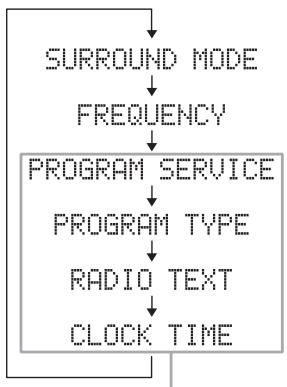
Europe and Russia models only
Information type
- SURROUND MODE
Displays the surround mode or stereo mode.
FREQUENCY
Displays the frequency and preset number.
PROGRAM SERVICE (PS)
Displays the currently received Radio Data System program.
PROGRAM TYPE (PTY)
Displays the type of the currently received Radio Data System program.
- RADIO TEXT (RT)
Displays the information of the currently received Radio Data System program.
- CLOCK TIME (CT)
Displays the current time.
Using the TP (traffic program) data service (Europe and Russia models only)
Use this feature to receive the TP (traffic program) data service of the Radio Data System station network.
1 Press OPTION to enter the option menu.
2 Press / to select "5.TRAFFIC PROG" and press ENTER.
The search starts automatically. The AUTO indicator and "TP" in the multi information display flash during the search. When a traffic program is received, "TP" and frequency remain displayed, and the search finishes.
If the unit fails to receive a traffic program, "TP" and the frequency turn off, and "TP Not Found" appears in the front panel display.
#
- Press RETURN to cancel a search.
- If no operation is performed for 30 seconds during search, the option menu closes and the search is cancelled.
Playing back iPod/iPhone and USB device
Connect a USB device, such as iPod/iPhone, USB flash memory or portable music player, to play back audio files.
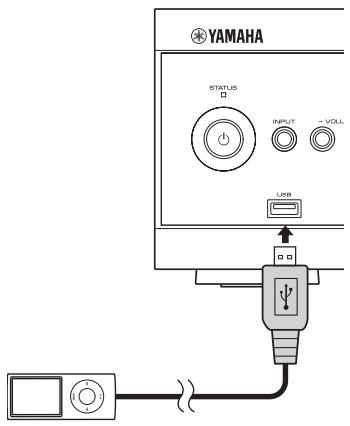
Battery charge feature
The battery of a connected device can be charged when the unit is on. An iPod/iPhone connected to the unit keeps on being charged even if the unit is set to standby mode.
Supported iPod/iPhone
iPod classic
iPod nano (3rd Generation to 6th Generation)
iPod touch
iPhone
iPhone 3G
iPhone 3GS
iPhone 4

- Some features may not be available depending on the model or the software version of your iPod/iPhone.
- For a complete list of status messages that appear in the front panel display, see the "Messages for iPod/iPhone and USB device" section in "Troubleshooting" (P. 27).
- Be sure to set the volume to minimum before removing your iPod/iPhone.
Supported USB devices
A USB flash memory and USB portable music player formatted in FAT format and supporting for USB Mass Storage Class
Note
Some USB devices may not be supported, even in the above.
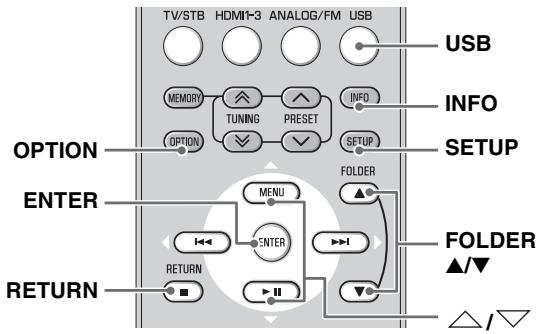
Playing back
1 Press USB to select USB input.
2 Play back the iPod/iPhone or USB device.
| iPod/iPhone | USB device |
| ►II: play/pause ►: skip forward (press and hold: fast-forward) ►: skip backward (press and hold: fast-rewind) ▲/▼: scroll the screen | ►II: play/pause*1 ►: skip forward (press and hold: fast-forward) ►: skip backward (press and hold: fast-rewind) RETURN: stop FOLDER▲/▼: skip the folder*2 |
1 Resumes playing the music last played back (resume playback)
2 The folder name appears in the front panel display for three seconds when skipped.

The unit automatically plays back the iPod/iPhone or USB device in the following cases.
- When setting the input to USB, while the unit is on and an iPod/ iPhone or USB device is connected.
- When the input setting is USB at the time the unit is turned on with an iPod/iPhone or USB device.
- When a playing iPod/iPhone is connected to the unit that is turned on. (The input setting is automatically set to USB.)
Repeat/shuffle playback
1 Press OPTION to enter the option menu.
2 Press / to select "2.REPEAT" and press ENTER.
3 Press / to select the available option and press ENTER. Available options (Default setting: OFF)
| iPod/iPhone | USB device | |
| OFF | Cancels repeat playback | Cancels repeat playback |
| ONE | Repeats playing back a music singly | Repeats playing back a music singly |
| ALL | Plays back all the music repeatedly in your iPod/ iPhone | Plays back all the music repeatedly in your USB device |
| FOLDER | Plays back all the music repeatedly in the folder saved in your USB device | |
| RANDOM | Plays back all the music at random in the folder saved in your USB device |
Shuffle playback of iPod/iPhone
1 Press OPTION to enter the option menu.
2 Press / to select "3.SHUFFLE" and press ENTER.
3 Press / to select the parameter and press ENTER.
Available options (Default setting: OFF)
OFF: Cancelshuffle playback
SONGS: Plays back music in random order.
ALBUMS: Plays back albums in random order.
Displaying music information
You can display information on the music currently playing back.
Press INFO.
Press INFO repeatedly to switch the information (displayed for three seconds) in the order below.
iPod/iPhone: SONG (music name) PLAY TIME (playback time) ARTIST (artist name) ALBUM (album name) SONG (music name) USB device: FILE (file name) PLAY TIME (playback time) SONG (music name) ARTIST (artist name) ALBUM (album name) FILE (file name)
Notes
- If the information cannot be displayed entirely in the front panel display, it is scrolled once.
- There are some characters that cannot be displayed in the front panel display of this unit.
Firmware update
You can update the firmware of this unit.
1 Copy the firmware data into USB flash memory. Then connect the USB flash memory to the USB port on the front panel of this unit.
Make sure that you copy the firmware file into the root directory of the USB flash memory. Refer to the documentation associated with the firmware file.
2 Press SETUP.
3 Press / to select "6:FIRMWARE" and press ENTER.
4 Press / to select "6-2:USB UPDATE" and press ENTER.
The update starts.
中
- Press / to select "6-1:VERSION" and you can see the version of this unit firmware displayed in the front panel display.
- See the "Messages for firmware update" section in "Troubleshooting" (P. 28) about the messages for firmware update that appear in the front panel display.
Setup menu
Setup menu list
| Menu | Sub menu | Features | Page |
| 1:SP LEVEL | 1-1:FRONT L | Adjusting the volume balance with test tone | P. 19 |
| 1-2:FRONT R | |||
| 1-3:CENTER | |||
| 1-4:SURROUND L | |||
| 1-5:SURROUND R | |||
| 1-6:SUBWOOFER | |||
| 2:TONE CONTROL | 2-1:BASS | Adjusting high/low frequency sound (tone control) | P. 19 |
| 2-2:TREBLE | |||
| 3:HDMI SETUP | 3-1:CONTROL | Configuring the HDMI settings | P. 19 |
| 3-2:AUDIO | |||
| 4:DISPLAY MODE | Changing the brightness of the front panel display | P. 19 | |
| 5:SP SETUP | 5-1:SP CHANNEL | Selecting the number of channel | P. 20 |
| 5-2:SP TYPE | Changing the setting of the speaker type | ||
| 5-3:SP DISTANCE | Setting the distance between the speakers | ||
| 5-4:CROSSOVER | Cutting the crossover register | ||
| 6:FIRMWARE | 6-1:VERSION | Displaying the firmware version of this unit | P. 17 |
| 6-2:USB UPDATE | Updating the firmware of this unit | ||
| 7:D.RANGE | Adjusting the dynamic range | P. 21 | |
| 8:MATRIX DECODE | 8-1:DECODE MODE | Selecting the decoder | P. 21 |
| 8-2:C.VIEW | Adjusting the center image |
Basic procedure
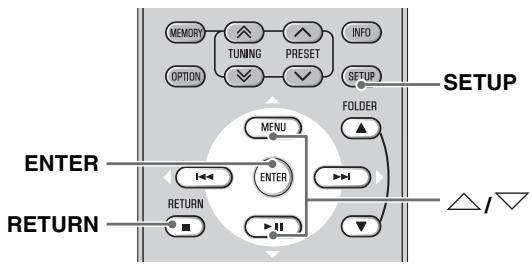
You can change various settings of this unit using the setup menu.
1 Press SETUP to enter the setup menu.
"1:SP LEVEL" is displayed in the front panel display.
2 Press / to select menu and press ENTER.
Repeat this procedure until desired menu/sub menu is displayed.
3 Press / to adjust the value of each menu.
Press and hold / to change the setting value faster.
4 Press SETUP again to exit the setup menu.
- Press RETURN or to return to the previous menu.
- Press to enter the next menu.
Note
If you do not operate within 30 seconds after entering the setup menu, the unit automatically exits the setup menu.
Adjusting the volume balance of each channel
Menu: 1:SP LEVEL
Adjust the volume balance between the channels with test tones output from each channel.
Sub menu:
"1-1:FRONT L" "1-2:FRONT R": Adjusts the output level of the front speaker (left/right) channels.
"1-3:CENTER": Adjusts the output level of the center speaker channel.
"1-4:SURROUND L" "1-5:SURROUND R": Adjusts the output level of the virtual surround/surround speaker (left/right) channels.
"1-6:SUBWOOFER": Adjusts the output level of the subwoofer channel.
Adjustable range: -6 to +6 (Default setting: 0)

- You can also adjust the volume balance while playing the input device. (P. 12)
- As you complete each channel setting, press LEVEL to move to the next channel for adjustment.
Adjusting high/low frequency sound (tone control)
Menu: 2:TONE CONTROL
You can adjust the balance of the high frequency range (Treble) and low frequency range (Bass) of sounds output from the front speakers to obtain desired tone. When headphones are connected, adjusts the balance of the high-frequency range and low-frequency range of sounds output from headphones.
Sub menu
"2-1:BASS": Adjusts the balance of the low frequency range (Bass) of sounds output from the speaker.
"2-2:TREBLE": Adjusts the balance of the high frequency range (Treble) of sounds output from the speaker.
Adjustable range: -6 to +6 (Default setting: 0)
Configuring the HDMI settings
Menu: 3:HDMI SETUP
You can configure the settings related to HDMI signals and HDMI control function.
Switching HDMI control function on/off
Sub menu: 3-1:CONTROL
You can set whether to use the HDMI control function. For details, see "Operating the unit by TV's remote control" (P. 23).
Available options: OFF, ON (Default setting: OFF)
"OFF": Deactivates the HDMI control function. The standby power consumption of this unit decreases.
"ON": Activates the HDMI control function.

To activate the ARC function, set "3-1:CONTROL" to "ON".
Setting the audio output
Sub menu: 3-2:AUDIO
You can select a component to play back HDMI audio signals. This setting is effective when "3-1:CONTROL" is set to "OFF".
Available options:AMP,TV(Default setting: AMP)
"AMP": Outputs HDMI sound signals from the speakers connected to this unit.
"TV": Outputs HDMI sound signals from the speakers of a TV connected to this unit.
Changing the brightness of the front panel display
You can change the brightness of the front panel display. You can also turn off the front panel display to view a movie in a darker environment.
The brightness of the front panel changes as follows.
Menu: 4:DISPLAY MODE
Adjustable range (Default setting: "DIMMER 0")
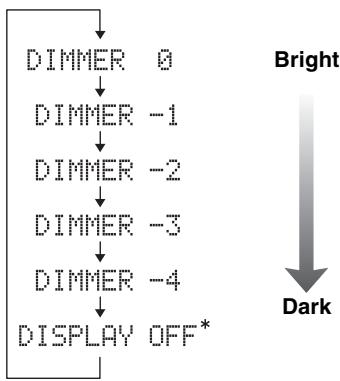
- Selecting DISPLAY OFF turns off the front panel display after exiting the setup menu.
Notes
- The front panel display lights up momentarily when any operation is performed with DISPLAY OFF mode selected.
- Only the STATUS indicator remains lit in DISPLAY OFF mode.
Using other speakers
Menu: 5:SP SETUP
You can set the speaker type if you want to add or change speakers. When you connect only the supplied speaker, you do not have to change the setting.
Selecting the number of channels and the front speaker type
Sub menu: 5-1:SP CHANNEL
You can select the number of output speakers.
Sub menu: 5-2:SP TYPE
You can select the type of front speakers.
"BAR": When you use the unit, either on its own or in addition to other commercially available speakers
"BOOK SHELF": This setting is not used for this system
"OTHER": When you connect commercially available speakers instead of the unit
Supplied speaker: Commercially available speakers:
| 5-1:SP CHANNEL 5-2:SP TYPE | 2CH | 3CH (Default setting) | 4CH | 5CH |
| BAR (Default setting) | *3 | |||
| BOOK SHELF | *1 | *1 | *1,3 | *1,3 |
| OTHER | *1,2 | *1,2 | *1,2,3 | *1,2,3 |
1: “5-3:SP DISTANCE” setting available 2: “5-4:CROSSOVER” setting available
*3: “8:MATRIX DECODE” settings available
Setting the distance between the speakers
Sub menu: 5-3:SP DISTANCE
Select a parameter suited for the distance between the front left and right speakers, to obtain the most suitable surround effect.
Available options (Default setting: NORMAL)
"WIDE": When the distance between the front speakers is over 150cm (59-1/16).
"NORMAL": When the distance between the front speakers is from 80cm (31-1/2") to 150cm (59-1/16").
"NARROW": When the distance between the front speakers is within 80~cm (31-1/2").
Notes
- When the surround mode is off, this setting cannot be made.
- This setting can be made only when "2CH" or "3CH" is selected in "5-1:SP CHANNEL".
Cutting the crossover register
Sub menu: 5-4:CROSSOVER
You can set the cutoff frequency output from the built-in subwoofer of this unit according to the specification of the connected speakers.
Available options (Default setting: 150Hz)
80Hz, 100Hz, 120Hz, 150Hz, 200Hz
Dynamic range control
Menu: 7:D.RANGE
You can adjust the dynamic range compression. Dynamic range is the difference between the smallest sound that can be heard above the noise of the equipment and the biggest sound that can be heard without distortion.
Available options: AUTO/MIN, STANDARD, MAX (Default setting: MAX)
"AUTO/MIN":
(MIN) Adjust the dynamic range for low volume or a quiet environment, such as at night, for playing back bitstream signals except for Dolby TrueHD signals.
(AUTO) Adjust the dynamic range based on information from the input signal when playing back Dolby TrueHD signal.
"STANDARD": The dynamic range recommended for regular home use.
"MAX": Outputs sound without adjusting the dynamic range of the input signals.
Setting the matrix decode
Menu: 8:MATRIX DECODE
The matrix decode function expands 2ch stereo sound to surround sound.
Selecting the decoder
Sub menu: 8-1:DECODE MODE
This sub menu is selectable only when "STANDARD" is selected for the surround mode.
Available options (Default setting: DOLBY PLII) DOLBY PLII, Neo:6 Cinema, Neo:6 Music
Adjusting the center image
Sub menu: 8-2:C.JPG
Adjusts the front left and right channel output relative to the center channel to make the center channel more or less dominant as necessary. This is adjustable only when
"Neo:6 Music" is selected in "8-1:DECODE MODE".
Adjustable range (Default setting: 0.3)
0.0 to 1.0
Settings for each input source (Option menu)
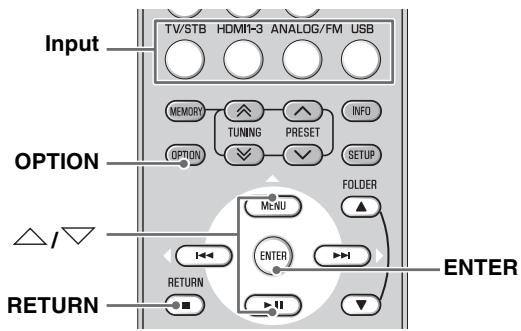
1 Press input button to select the desired input to change the setting.
2 Press OPTION to enter option menu.
The option menu is displayed in the front panel display.
Option menu items
The following menu items are provided for each input.
| Input | Menu item | ||
| TV/STB/ANALOG | 1.VOLUME TRIM | 2.AUDIO DELAY | 3.AUDIO ASSIGN |
| HDMI1-3 | |||
| FM | 2.AUTO PRESET3.CLEAR PRESET4.STEREO/MONO5.TRAFFIC PROG*1 | ||
| USB | 2.REPEAT3.SHUFFLE*2 | ||
1 See the page 13 for details.
2 See the page 17 for details.
3 Press / to select the menu and press ENTER.
4 Press / to change the setting value and press ENTER.
5 Press OPTION to exit the option menu.
Press RETURN to return to the previous menu.
The option menu items are listed below. These settings are applied to the currently selected input source.
Adjusting input level of each jack (VOLUME TRIM)
Menu: 1.VOLUME TRIM
Adjust the input level for each jack to compensate for variations in volume between different input devices.
Adjustable range: -6 to +6 (Default setting: 0)
Adjusting the audio delay (AUDIO DELAY)
Menu: 2.AUDIO DELAY
Flat panel display TV images sometimes lag behind the sound. You can use this function to delay the sound output to synchronize it with the video image.
Adjustable range: 0ms to 500ms, AUTO (Default setting: "AUTO")
"AUTO": If you operate HDMI connection to a TV with the function to automatically adjusting the audio delay, you can adjust the delay time automatically.
Assigning the audio input to optical/coaxial digital input (AUDIO ASSIGN)
Menu: 3.AUDIO ASSIGN
If a component's HDMI jack does not carry audio signal, select HDMI input and use the optical/coaxial input jack connection for audio.
Available options (Default setting: HDMI)
"HDMI": Selects HDMI audio signal
"OPTICAL": Selects the audio signal from optical input jack
"COAXIAL": Selects the audio signal from coaxial input jack
Operating the unit by TV's remote control
What is the HDMI control function?
You can use the TV remote control to operate this unit if your TV supports the HDMI control function (ex. REGZA Link) and is connected to this unit's HDMI OUT (ARC) jack. *1
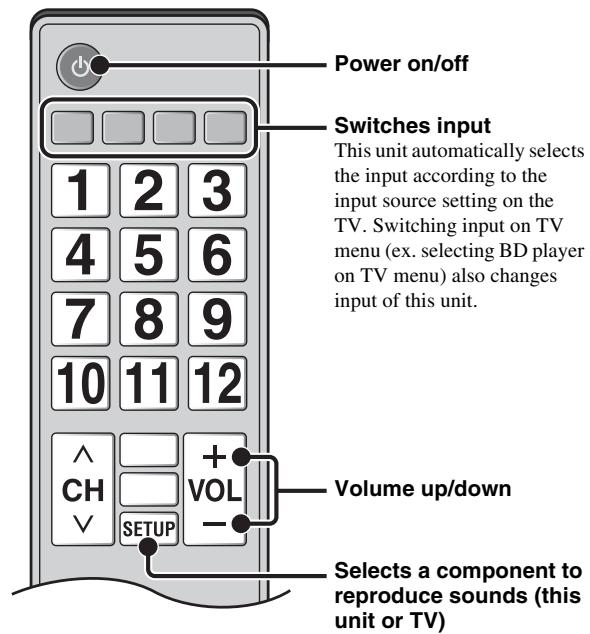
Remote control of TV (Example)
*1
- Some TV supports switching the UniVolume function on/off except the above.
- Even if your TV supports the HDMI control function, some functions may not be available. For details, refer to the manual supplied with your TV.
- If you use HDMI to connect this unit to a device such as a BD player that supports HDMI control, you can control that device using the HDMI control function.
- We suggest that you use products (TV, BD/DVD player, etc.) from the same manufacturer.
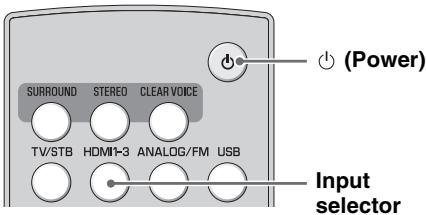
Setting the HDMI control function
1 Turn on all components connected to this unit with HDMI.
2 Check all components connected with HDMI and enable the HDMI control function on each component.
For this unit, set "3-1:CONTROL" in the setup menu "3:HDMI SETUP" to "ON" (P. 19). *2
For external components, refer to the manual supplied with each component. *3
3 Turn off the TV and then turn on it again.
2
- The default setting is "OFF".
When "3-1:CONTROL" in the "3:HDMI SETUP" is set to "ON" in setup menu,
- Even you press (Power) button, the power does not completely turned off and the signal outputs from the HDMI IN jack to HDMI OUT (ARC) jack.
- Before turning off the unit, select desired input sources connected to HDMI IN (① to ③) jack.
- According to the TV, the TV operation such as changing the channel may change the setting of surround modes of this unit.
*3
The example of TV settings
- From a setup menu on your TV, select "Link setting" "HDMI control setting" (example), then set a setting such as "HDMI control function" to "ON" (example).
- Setting such as "Speaker priority" should be set to "AV amplifier".
Registering HDMI components to TV*4
1 Select this unit as the input source of the TV.
2 Turn on the HDMI control function supported component (example: BD player) connected to this unit.
3 Select the input source of this unit to BD player and check whether the image in the player is correctly displayed or not.
When connecting BD player with HDMI ① jack, press input selector button repeatedly to select "HDMI 1".
4 Check if the HDMI control function works (turn on this unit or adjust the volume level using the remote control of the TV).
*4
For some HDMI components, you only need to set the HDMI control function. Registering HDMI components to TV is not required in this case.
If the HDMI control function is not working
Check the following:
- The TV is connected to the HDMI OUT (ARC) jack of this unit.
- "3-1:CONTROL" in the "3:HDMI SETUP" is set to "ON" in setup menu. (P. 19)
- The HDMI control function is enabled on the TV. (Also check the relative settings such as power interlock function or speaker priority.)
The HDMI control function is not working even checking the above,
- Turn off this unit and the TV, and then turn them back on again.
- Disconnect the AC power supply cable of the unit and external components connected to the unit with HDMI.
Plug them in again after about 30 seconds.
After selecting HDMI 1, HDMI 2 or HDMI 3, change the input of TV and the one of this unit to the same input.
Changing the connection method and connected components
When the connected components and jacks are changed, reset this unit with following procedures.
1 Turn off the HDMI control function of the TV and player, turn off all connected devices, and change the connections.
2 Perform the step 1 to 3 of "Setting the HDMI control function".
Troubleshooting
Refer to the chart below should this unit not function properly.
If the problem you are experiencing is not listed below, or if the instruction below does not help, set this unit to the standby mode, disconnect the AC power supply cable, and contact the nearest authorized Yamaha dealer or service center.
Check the below first.
1 The AC power supply cable of this unit, TV and external components (such as BD player) are firmly connected to the AC wall outlet.
2 The power supply of this unit, TV and the external components (such as BD player) are turned on.
3 All cables are firmly connected to their respective jacks on each component.
| Problem | Cause | Solution | See page |
| Power turns on but immediately shuts off. | The power cable may be connected improperly. | Make sure the power cable is plugged into the outlet firmly. | 8 |
| A speaker cable may be shorted. | Make sure all speaker cables are connected properly. | 8 | |
| This unit may have received a strong electrical shock, such as from a lightening bolt or excessive static electricity. | Set this unit to standby mode, and then disconnect the power cable. Wait for about 30 seconds, connect the power cable, and then turn the unit on again. | 10 | |
| The speakers make no sound. | The volume may be set to minimum level. | Adjust the volume level. | 10, 19 |
| The mute function may be activated. | Cancel the mute function. | 10 | |
| The input source or input setting may be incorrect. | Select the correct input source or input setting. | 10 | |
| The cables may be connected improperly. | Make sure all cables are connected properly. | 8 | |
| “3-2:AUDIO” in the setup menu “3:HDMI SETUP” is set to “TV”. | Set “3-2:AUDIO” in the setup menu “3:HDMI SETUP” to “AMP”. | 19 | |
| “3-1:CONTROL” in the setup menu “3:HDMI SETUP” is set to “OFF” in setup menu. | When connecting ARC (Audio Return Channel) supported TV and this unit using HDMI cable only, set “3-1:CONTROL” in the “3:HDMI SETUP” to “ON”. | 19 | |
| Connect coaxial digital input jack and TV’s audio output jack using a digital audio pin cable. | 9 | ||
| The headphone is connected. | |||
| Sound is too low on one side. | The cables may be connected improperly. | Make sure all cables are connected properly. | 8 |
| Speaker channels other than the front ones make no sound. | You may be listening to stereo sounds without surround mode. | Press the SURROUND button to play back in sound mode. | 11 |
| “I:SP LEVEL” in the setup menu “1-4:SURROUND L”/“1-5:SURROUND R” is set to minimum level. | Adjust “1:SP LEVEL” in the setup menu “1-4:SURROUND L”/“1-5:SURROUND R”. | 19 | |
| “5-1:SP CHANNEL” is set to “2CH” or “3CH” in setup menu. | Set “5-1:SP CHANNEL” to “4CH” or “5CH”. | 20 | |
| The subwoofer makes no sound. | The volume of the subwoofer channel may be set to minimum level. | Adjust the volume level of the subwoofer. | 5, 19 |
| The source does not contain low-frequency signals. |
Troubleshooting
| Problem | Cause | Solution | See page |
| The volume level decreases without any operation. | The volume level is automatically set to 70 the next time you turn on the unit to protect the speakers. | ||
| Sound is poor (noisy). | A speaker cable may be shorted. | Make sure all cables are connected properly. | 8 |
| This unit does not operate properly. | This unit may receive a strong electrical shock, such as from a lightening bolt or excessive static electricity, or drop in power supply. | Set this unit to standby mode, and then disconnect the power cable. Wait for about 30 seconds, connect the power cable, and then turn on this unit. | 10 |
| A digital or high-frequency equipment produces noises. | The unit may be placed close to digital equipment or high-frequency equipment. | Place this unit farther away from such equipment. | — |
| The unit settings change automatically. | When “3-1:CONTROL” in the setup menu “3:HDMI SETUP” is set to “ON”, operations of the TV (for example, changing channels, etc.) may change the unit settings, such as the surround mode. | Set “3-1:CONTROL” in the setup menu “3:HDMI SETUP” to “OFF” or set the unit again by using its remote control. | 19 |
| The remote control does not operate the unit. | The unit may be outside the remote control operation range. | For information on the remote control operation range, refer to “Remote control preparation”. | 2 |
| The remote control sensor of this unit may be exposed to direct sunlight or lighting. | Change the lighting. | — | |
| The batteries may be worn out. | Replace the batteries. | 2 | |
| The TV remote control does not work even when the remote signal receptor is attached to the top of the speaker. | The position of TV remote signal receptor is not appropriate. | Move the TV remote signal receptor to right/left so as to place its center to the front of TV remote control sensor. | 6 |
| Place the TV remote signal receptor approximately 10 mm away from TV. | 6 | ||
| The TV remote signal receptor is facing an incompatible sensor, such as a sensor for detecting the brightness of the room. | Place the TV remote signal receptor after confirming the position of remote control sensor by referring to the manual of your TV. | 6 |
HDMI
| Problem | Cause | Solution | See page |
| “AUTO” set in the option menu “2.AUDIO DELAY” does not operate. | The TV does not support automatically adjusting the audio delay. | Adjust the delay time manually (0 to 500 ms). | 22 |
| The HDMI control function does not operate properly. | The number of the connected HDMI components is over the limit. | Disconnect some of the HDMI components. | — |
| Add the connection of HDMI components | Set “3-1:CONTROL” in the “3:HDMI SETUP” to “ON” again. | 19 | |
| No picture or sound | The connected HDMI component does not support high-bandwidth digital copyright protection (HDCP). | Connect the HDMI component that supports HDCP. | — |
FM
| Problem | Cause | Solution | See page |
| FM stereo reception is noisy. | The characteristics of FM stereo broadcasts may cause this problem when the transmitter is too far away, or if the antenna quality is poor. | Check the antenna connections. | 9 |
| Try using a high-quality directional FM antenna. | — | ||
| Set the reception mode to “MONO”. | 14 | ||
| There is distortion, and clear reception cannot be obtained, even with a good FM antenna. | There is multi-path interference. | Adjust the antenna position to eliminate multi-path interference. | — |
| The desired station cannot be tuned into with the automatic tuning method. | The signal is too weak. | Use a high-quality directional FM antenna. | — |
| Set the reception mode to “MONO” and press TUNING /× to change frequency by 1 step. | 13, 14 |
Messages for iPod/iPhone and USB device
Note
Confirm the connection of your device if any malfunctions except the following message in the front panel display occurred. (P. 16)
| Status message | Cause | Solution | See page |
| Unknown iPod | The iPod/iPhone or USB device being used is not supported by this unit. | Connect a supported iPod/iPhone or USB device to this unit. | 16 |
| No Device | An iPod/iPhone or USB device is not connected to this unit. | Connect an iPod/iPhone or USB device in which playback enabled music files are saved. | — |
| Loading... | The iPod/iPhone or USB device is in data processing. | The message disappears when data processing finishes. | — |
| No Content | There is no music file to enable playback. | Connect an iPod/iPhone or USB device in which playback enabled music files are saved. | — |
| The music file cannot be read. | See whether the music file can be played back by another device such as a PC. | — | |
| Unable to Play | The format of the selected music file is not supported. | Save the music file in a supported format. | — |
| The selected music file is broken. | Select another music file. | — | |
| Connect Error | The iPod/iPhone or USB device has a problem with communication. | Set this unit to the standby mode and reconnect the iPod/iPhone or USB device again. | — |
| Root | Stops and returns to the root directory. | The message disappears when playback starts. | — |
| Disconnected | An iPod/iPhone or USB device has been removed from the USB port of this unit. | The message disappears after 3 seconds. | 16 |
Messages for firmware update
| Status message | Cause | Solution | See page |
| Connect USB! | An USB flash memory is not connected. | Connect the USB flash memory to this unit. | 17 |
| No Firmware! | There is no file for firmware in the USB flash memory connected to this unit. | Copy the firmware update file to the root directory of the USB flash memory. | — |
| There is a fault with the file in the USB flash memory. | Turn the unit to the standby mode and reconnect the USB flash memory again. | — | |
| Connect Error | The USB flash memory connected to this unit has a problem with communication because the selected file in it is broken. | Copy the firmware update file to the USB flash memory again. | — |
| Update... 30% | Displays the process of updating. | ||
| Update Error | Error occurs while updating and the firmware update is not completed. | Update firmware again. | 17 |
| Update Success | The firmware update is finished properly. | ||
| Plaese... | Indicates to turn the unit to standby mode. Displays alternately “Update Success” or “Update Error”. | Turn the unit to standby mode. | — |
| Power Off! | Indicates to turn the unit to standby mode. Displays alternately “Update Success” or “Update Error”. | Turn the unit to standby mode. | — |
- Resetting this unit
When the unit freezes, the problem may solve by resetting the unit.
To reset the unit, press (Power) button of this unit for more than 10 seconds.
Glossary
AIR SURROUND XTREME
This unit employs new technologies and algorithms that make it possible to achieve 7-channel surround sound with only front speakers, and without using wall reflections.
Ordinarily, two front speakers, a center speaker, two surround speakers, two surround back speakers, and a subwoofer are necessary for enjoying 7.1 channel surround sound.
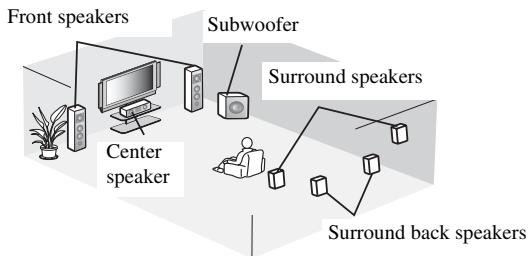
Typical 7.1 channel speaker unit
Virtual 7.1 channel
The AIR SURROUND XTREME technology, using only front speakers and subwoofer, enables you to enjoy a realistic 7.1 channel sound by simulating sound from virtual speakers at center, surround, and surround backs.
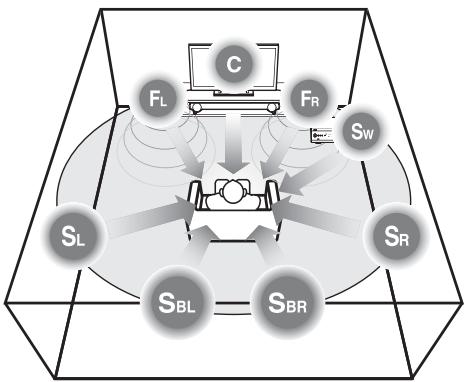
The sound image of the unit
The unit creates the virtual 7.1 channel surround sound with the subwoofer integrated receiver and the speaker.
C: Center speaker
FR, FL: Front speakers
SW: Subwoofer
SR, SL: Surround virtual speakers
SBR, SBL: Surround back virtual speakers
Sampling frequency
The number of sampling (process for digitalizing analog signals) per second. In principle, the higher the sampling rate, the wider the frequency range that can be played back, and the higher the quantized bit rate, the finer the sound that can be reproduced.
Dolby Digital
Digital surround sound system which is developed by Dolby Laboratories provides completely independent multi-channel audio. With 3 front channels (left, center, and right) and 2 surround stereo channels, Dolby Digital provides five full-range audio channels. With an additional channel especially for bass effects (called LFE, or low frequency effect), the system has a total of 5.1 channels (LFE is counted as 0.1 channel). By using 2 channel stereo for the surround speakers, more accurate moving sound effects and surround sound environment are possible than with Dolby Surround.
Dolby Digital Plus
Dolby Digital Plus is an advanced audio technology developed for high-definition programming and media including HD broadcasts, and Blu-ray Disc. Selected as an optional audio standard for Blu-ray Disc, this technology delivers multichannel sound with discrete channel output. Supporting bitrates up to 6.0 Mbps, Dolby Digital Plus can carry up to 7.1 discreet audio channels simultaneously. Supported by HDMI and designed for the optical disc players and AV receivers/amplifiers of the future, Dolby Digital Plus also remains fully compatible with the existing multichannel audio systems that incorporate Dolby Digital.
Dolby Pro Logic II
It is an improved matrix decoding technology that provides better spatiality and directionality on Dolby Surround programmed material; provides a convincing three-dimensional sound field on conventional stereo music recordings; and is ideally suited to bring the surround experience to automotive sound. While conventional surround programming is fully compatible with Dolby Pro Logic II decoders, soundtracks will be able to be encoded specifically to take full advantage of Pro Logic II playback, including separate left and right surround channels.
Dolby TrueHD
Dolby TrueHD is an advanced lossless audio technology developed for high-definition disc-based media including Blu-ray Disc. Selected as an optional audio standard for Blu-ray Disc, this technology delivers sound that is bit-for-bit identical to the studio master, offering a high-definition home theater experience. Supporting bitrates up to 18.0 Mbps, Dolby TrueHD can carry up to 8 discrete channels of 24-bit/96 kHz audio simultaneously. Dolby TrueHD also remains fully compatible with the existing multichannel audio systems and retains the metadata capability of Dolby Digital, allowing dialog normalization and dynamic range control.
Deep Color
Deep Color refers to the use of various color depths in displays, up from the 24-bit depths in previous versions of the HDMI specification. This extra bit depth allows HDTVs and other displays go from millions of colors to billions of colors and eliminate on-screen color banding for smooth tonal transitions and subtle gradations between colors. The increased contrast ratio can represent many times more shades of gray between black and white. Also Deep Color increases the number of available colors within the boundaries defined by the RGB or YCbCr color space.
DTS
Digital surround sound system developed by DTS, Inc., which provides 5.1 channel audio. With an abundance of audio data, it is able to provide authentic-sounding effects.
DTS-HD High Resolution Audio
DTS-HD High Resolution Audio is a high resolution audio technology developed for high-definition disc-based media including Blu-ray Disc. Selected as an optional audio standard for Blu-ray Disc, this technology delivers sound that is virtually indistinguishable from the original, offering a high-definition home theater experience. Supporting bitrates up to 6.0 Mbps for Blu-ray Disc, DTS-HD High Resolution Audio can carry up to 7.1 discrete channels of 24-bit/96 kHz audio simultaneously.
DTS-HD Master Audio
The lossless high quality audio format created for next generation optical disc such as Blu-lay Disc. It is selected as an audio standard for Blu-ray Disc. Supporting bitrates up to 24.5 Mbps for Blu-ray Disc, DTS-HD High Master Audio can carry up to 7.1 discrete channels of 24-bit/96 kHz audio simultaneously.
DTS Neo:6
Neo:6 decodes the conventional 2-channel sources for 6-channel playback by the specific decoder. It enables playback with the full-range channels with higher separation just like digital discrete signal playback. Two modes are available: Music mode for playing music sources and Cinema mode for movies.
HDMI
HDMI (High-Definition Multimedia Interface) is the first industry supported, uncompressed, all-digital audio/video interface. When used in combination with HDCP (High-bandwidth Digital Content Protection), HDMI provides a secure audio/video interface that meets the security requirements of content providers and system operators.
MP3
One of the audio compression methods used by MPEG. It employs the irreversible compression method, which achieves a high compression rate by thinning out the data of hardly audible part to the human ears. It is said to be capable of compressing the data quantity by about 1/11 (128 kbps) while maintaining a similar audio quality to music CD.
MPEG-4 AAC
An MPEG-4 audio standard. As it allows compression of data at a bit rate lower than that of MPEG-2 AAC, it is used among others for mobile telephones, portable audio players and other low-capacity devices requiring high sound quality. In addition to the above types of devices, MPEG-4 AAC is also used to distribute contents on the Internet, and as such is supported by computers, media servers and many other devices.
PCM (Pulse Code Modulation)
A signal that is changed to digital format without compression. A CD is recorded with 16-bit sound at 44.1 kHz, while DVD recording is anywhere from 16 bits at 48 kHz to 24 bits at 192 kHz, which makes it a higher quality sound than CD.
WMA
An audio compression method developed by Microsoft Corporation. It employs the irreversible compression method, which achieves a high compression rate by thinning out the data of hardly audible part to the human ears. It is said to be capable of compressing the data quantity by about 1/22 (64 kbps) while maintaining a similar audio quality to music CD.
x.v.Color
A color space standard supported by HDMI. It is a more extensive color space than sRGB, and allows the expression of colors that could not be expressed before. While remaining compatible with the color gamut of sRGB standards, "x.v.Color" expands the color space and can thus produce more vivid, natural images. It is particularly effective for still pictures and computer graphics.
Specifications
SR-301
AUDIO SECTION
- Minimum RMS Output Power
- Front Left and Right (1 kHz, 1% THD, 6 Ω) .45 W+45 W
- Center (1 kHz, 1% THD, 6 Ω) .45 W
- Surround Left and Right (1 kHz, 1% THD, 6 Ω) .45 W+45 W
- Subwoofer (100 Hz, 1% THD, 3 Ω) .90 W
- Maximum Power
- Front Left and Right (1 kHz, 10% THD, 6 Ω) .50 W+50 W
- Center (1 kHz, 10% THD, 6 Ω) .50 W
- Surround Left and Right (1 kHz, 10% THD, 6 Ω) .50 W+50 W
- Subwoofer (100 Hz, 10% THD, 3 Ω) .100 W
FM SECTION
- Tuning Range [U.S.A. and Canada models] 87.5 to 107.9 MHz [Other models] 87.50 to 108.00 MHz
- Frequency Step [U.S.A. and Canada models] 200 kHz [Other models] 50 kHz Antenna Input (unbalanced) 75 Ω
SUBWOOFER SECTION
- Type............ Bass reflex type Non-magnetic shielding type
- Driver............ 13 cm (5-1/4 in) cone
- Frequency Response............ 35 Hz to 150 Hz
- Impedance............ 3 Ω

This system employs new technologies and algorithms that make it possible to achieve 7-channel surround sound with only front speakers, and without using wall reflections.
DOLBY
TRUEHD
Manufactured under license from Dolby Laboratories. Dolby, Pro Logic and the double-D symbol are trademarks of Dolby Laboratories.
dtts-HD
Manufactured under license under U.S. Patent Nos: 5,956,674; 5,974,380; 6,226,616; 6,487,535; 7,212,872; 7,333,929; 7,392,195; 7,272,567 & other U.S. and worldwide patents issued & pending. DTS-HD, the Symbol, & DTS-HD and the Symbol together are registered trademarks of DTS, Inc. Product includes software. © DTS, Inc. All Rights Reserved.
GENERAL
- Power Supply [U.S.A. and Canada models]. AC120 V, 60 Hz [Europe, U.K., Korea and Asia models] AC220-240 V, 50/60 Hz [Taiwan model] AC110V, 60/50Hz
- Power Consumption 40 W
- Standby Power Consumption When HDMI control is on [U.S.A. and Canada models] less than 5 W [Europe, U.K., Korea and Asia models] less than 5 W [Taiwan model] less than 5 W When HDMI control is off [U.S.A. and Canada models] less than 0.5 W [Europe, U.K., Korea and Asia models] less than 0.5 W [Taiwan model] less than 0.5 W
- Dimensions (W × H × D) Horizontal 435 × 135 × 361 mm (17-1/8 × 5-3/8 × 14-1/4 in) Upright 145.5 × 443.5 × 361 mm (5-3/4 × 17-1/2 × 14-1/4 in)
Weight. 7.9 kg (17.4 lbs.)
NS-BR301
- Type............Acoustic suspension type Non-magnetic shielding type
- Driver (Full range)
Left and Right .5.5 cm (2 in) cone × 2 Center 4× 10cm (1 - 1 / 2× 4 in) cone × 1
Frequency Response. 150 Hz to 20 kHz
Impedance 6Ω - Dimensions (W × H × D) 800 × 97*1 × 79.5 mm (31-1/2 × 3-7/8 × 3-1/8 in)
*1 Adjustable in 4 steps: 84 mm to 100 mm (from 3-3/8 in to 3-7/8 in)
Without stands. 800× 79× 70mm (31 - 1 / 2× 3 - 1 / 8× 2 - 3 / 4 in)
Weight. 1.5 kg (3.3 lbs.)
- Specifications are subject to change without notice.
iPod, iPhone
"Made for iPod," and "Made for iPhone" mean that an electronic accessory has been designed to connect specifically to iPod, or iPhone, respectively, and has been certified by the developer to meet Apple performance standards.
Apple is not responsible for the operation of this device or its compliance with safety and regulatory standards..
iPhone, iPod, iPod classic, iPod nano, iPod touch and iTunes are trademarks of Apple Inc., registered in the U.S. and other countries.
HOMI
"HDMI," the "HDMI" logo and "High-Definition Multimedia Interface" are trademarks, or registered trademarks of HDMI Licensing LLC.
x.v.Color
"x.v.Color" is a trademark of Sony Corporation.
UnivVolume
"UniVolume" is a trademark of Yamaha Corporation.
Available signal information
HDMI signal compatibility
Receivable audio signals
| Audio signal types | Audio signal formats | Compatible media |
| 2ch Linear PCM | 2ch, 32-192 kHz, 16/20/24 bit | CD, DVD-Video, DVD-Audio, etc. |
| Multi-ch Linear PCM | 8ch, 32-192 kHz, 16/20/24 bit | DVD-Audio, Blu-ray disc, HD DVD, etc. |
| Bitstream | DTS-HD Master Audio, DTS-HD High Resolution Audio, DTS, Dolby TrueHD, Dolby Digital Plus, Dolby Digital | DVD-Video, Blu-ray disc etc. |
中
- Refer to the supplied instruction manuals of the input source component, and set the component appropriately.
- When CPPM copy-protected DVD-Audio is played back, video and audio signals may not be output depending on the type of the DVD player.
- This unit is not compatible with HDCP-incompatible HDMI or DVI components. Refer to the supplied instruction manuals of HDMI or DVI components for HDCP compatibility.
- To decode audio bitstream signals on this unit, set the input source component appropriately so that the component outputs the bitstream audio signals directly (does not decode the bitstream signals on the component). Refer to the supplied instruction manuals for details.
Receivable video signals
- This unit is compatible with the video signals of the following resolutions:
480i/60 Hz
576i/50 Hz
480p / 60Hz
576p / 50Hz
720p / 60Hz 50Hz
1080i/60 Hz, 50 Hz
1080p/60 Hz, 50 Hz, 24 Hz
-DeepColor - x.v.Color
3D video signal
#
The compatible video signal is changed depending on the connected TV.
Digital audio signal (optical/coaxial)
| Audio signal types | Audio signal formats | Compatible media |
| 2ch Linear PCM | 2ch, 32-96 kHz, 16/20/24 bit | CD, DVD-Video, DVD-Audio, etc. |
| Bitstream | Dolby Digital, Dolby Digital EX, DTS, DTS-ES | DVD-Video, etc. |
- iPod/iPhone/USB device
Available sound data compression format
WAV (8kHz to 48kHz, 16bit)
- MP3 (8kHz to 48kHz, 5kbps to 320kbps)
WMA (8kHz to 48kHz, 5kbps to 384kbps)
- MPEG4-AAC (8kHz to 48kHz, 8kbps to 320kbps)
Notes on remote controls and batteries
-
Be careful not to spill liquid on the remote control.
-
Be careful not to drop the remote control.
-
Do not leave the remote control in a place that is: - hot or humid, such as near a heater or in a bathroom
extremely cold
- dusty
- If the effective operation distance of the remote control decreases considerably, replace the batteries with two new ones as soon as possible.
- Do not use an old battery together with new one.
- Do not use different types of batteries (for example, alkaline and manganese) together. Their performance will vary, even if they are similar in shape.
- If the batteries run out, immediately remove them from the remote control to prevent an explosion or acid leak.
- Dispose of batteries according to regional regulations.
- If a battery starts leaking, dispose of it immediately. Be careful not to let leaking battery acid come into contact with your skin or clothing. Before inserting new batteries, wipe the compartment clean.
- Keep batteries away from children. If a battery is accidentally swallowed, contact your doctor immediately.
- When not planning to use the remote control for long periods of time, remove the batteries from the remote control.
- Do not charge or disassemble the supplied batteries.
Information for Users on Collection and Disposal of Old Equipment and Used Batteries
These symbols on the products, packaging, and/or accompanying documents mean that used electrical and electronic products and batteries should not be mixed with general household waste.
For proper treatment, recovery and recycling of old products and used batteries, please take them to applicable collection points, in accordance with your national legislation and the Directives 2002/96/EC and 2006/66/EC.
By disposing of these products and batteries correctly, you will help to save valuable resources and prevent any potential negative effects on human health and the environment which could otherwise arise from inappropriate waste handling.
For more information about collection and recycling of old products and batteries, please contact your local municipality, your waste disposal service or the point of sale where you purchased the items.
[Information on Disposal in other Countries outside the European Union]
These symbols are only valid in the European Union. If you wish to discard these items, please contact your local authorities or dealer and ask for the correct method of disposal.
Note for the battery symbol (bottom two symbol examples):
This symbol might be used in combination with a chemical symbol. In this case it complies with the requirement set by the Directive for the chemical involved.
ANALOG/FM: ANALOG, FM
USB: USB
(4) MEMORY, TUNING 公 / 公 , PRESET 公 / 公 , INFO
Pour commander un tuner FM. (P. 13)
(5) OPTION

- Caution: Read this before operating your unit.
- WARNING
- Special Instructions for U.K. Model
- IMPORTANT
- For U.K. customers
- Note
- Contents
- INTRODUCTION
- PREPARATION
- BASIC OPERATION
- USEFUL OPERATION
- ADDITIONAL INFORMATION
- What you can do with the unit
- About this manual
- Getting started
- Supplied parts
- Units
- ■ Accessories
- Remote control preparation
- ■ Installing the batteries
- Operation range
- Controls and functions
- ■ Front panel of the subwoofer integrated receiver
- ① STATUS indicator
- ② (Power)
- ③ INPUT
- ④ USB port
- ⑤ VOLUME -/+
- ⑥ PHONES jack
- ⑦ Remote control sensor
- ⑧ Front panel display
- Rear panel of the subwoofer integrated receiver
- ① Power Cable
- ② HDMI IN ① - ③/HDMI OUT (ARC) jack
- ③ DIGITAL IN (TV) jack
- ④ DIGITAL IN (STB) jack
- ⑤ ANALOG INPUT jack
- ANTENNA terminal
- ⑦ SPEAKERS terminal
- ■ Front panel display of the subwoofer integrated receiver
- ① HDMI indicator
- ② Tuner indicators
- TUNED indicator
- STEREO indicator
- AUTOindicator
- MEMORY indicator
- EMPTY indicator
- PS/PTY/RT/CT indicator (Europe and Russia models only)
- ③ Decoder indicators
- ④ Clear voice indicator
- ⑤ VOLUME indicator
- Multi information display
- ⑦ ENHANCER indicator
- UNIVOLUME indicator
- Remote control
- ① SURROUND
- ② STEREO
- ③ Input buttons
- MEMORY, TUNING 公 / 公 , PRESET 公 / 公 , INFO
- OPTION
- (MENU), (I ), (I ), (I ), ENTER
- ⑦ RETURN
- SUBWOOFER +/-
- ENHANCER
- LEVEL
- UNIVOLUME
- ⑫ VOLUME +/-, MUTE
- SETUP
- CLEAR VOICE
- (Power)
- Placing
- Notes
- When placing the subwoofer integrated receiver in an upright position
- Operation by the TV remote control is difficult (with the speaker beneath/under TV)
- Attaching the speaker to a wall
- Installing the speaker using the keyholes
- Installing the speaker using the screw holes
- Connection
- Connecting speakers
- Connecting a TV and BD player
- 中
- *1
- *2
- *3
- Basic playback operation
- Press (Power).
- #
- Press one of the input buttons to select an input source.
- Start playback on the selected external component.
- Press VOLUME + / - to adjust the volume level.
- Press SUBWOOFER + / - to adjust the subwoofer level.
- Select surround mode or stereo mode and set your sound preferences. (P. 11)
- Press (Power) again to set the unit to standby mode.
- Listening with headphones
- Enjoying sound modes
- Playback in surround sound
- Press SURROUND to set surround mode.
- Playback in stereo sound
- Press STEREO to enter extended stereo mode.
- Clear voice
- Press CLEAR VOICE to turn the function on/off.
- Compressed Music Enhancer
- Press ENHANCER to turn the function on/off.
- UniVolume
- Press UNIVOLUME to turn the function on/off.
- Volume balance adjustment
- Press LEVEL repeatedly to select adjustable channels from the followings.
- Press / to adjust the volume level while the channel you selected is displayed.
- Adjustable range: -6 to +6 (Default setting: 0)
- Basic tuning operation
- ANALOG/FM
- MEMORY
- TUNING 公 / 公
- OPTION
- INFO
- PRESET /
- Cursor in the option menu
- RETURN
- Editing the preset FM station
- Automatic preset
- Manual station preset
- Switching the information display
- Information type
- Using the TP (traffic program) data service (Europe and Russia models only)
- Press OPTION to enter the option menu.
- Press / to select "5.TRAFFIC PROG" and press ENTER.
- Playing back iPod/iPhone and USB device
- Battery charge feature
- Supported iPod/iPhone
- Supported USB devices
- Playing back
- Press USB to select USB input.
- Play back the iPod/iPhone or USB device.
- Repeat/shuffle playback
- Shuffle playback of iPod/iPhone
- Displaying music information
- Press INFO.
- Firmware update
- Setup menu
- Setup menu list
- Basic procedure
- Adjusting the volume balance of each channel
- Menu: 1:SP LEVEL
- Sub menu:
- Adjusting high/low frequency sound (tone control)
- Menu: 2:TONE CONTROL
- Sub menu
- Configuring the HDMI settings
- Menu: 3:HDMI SETUP
- Switching HDMI control function on/off
- Sub menu: 3-1:CONTROL
- Available options: OFF, ON (Default setting: OFF)
- Setting the audio output
- Sub menu: 3-2:AUDIO
- Available options:AMP,TV(Default setting: AMP)
- Changing the brightness of the front panel display
- Menu: 4:DISPLAY MODE
- Adjustable range (Default setting: "DIMMER 0")
- Using other speakers
- Menu: 5:SP SETUP
- Selecting the number of channels and the front speaker type
- Sub menu: 5-2:SP TYPE
- Setting the distance between the speakers
- Sub menu: 5-3:SP DISTANCE
- Available options (Default setting: NORMAL)
- Cutting the crossover register
- Sub menu: 5-4:CROSSOVER
- Dynamic range control
- Menu: 7:D.RANGE
- Available options: AUTO/MIN, STANDARD, MAX (Default setting: MAX)
- Setting the matrix decode
- Menu: 8:MATRIX DECODE
- Selecting the decoder
- Sub menu: 8-1:DECODE MODE
- Available options (Default setting: DOLBY PLII) DOLBY PLII, Neo:6 Cinema, Neo:6 Music
- Adjusting the center image
- Sub menu: 8-2:C.JPG
- Settings for each input source (Option menu)
- Option menu items
- Adjusting input level of each jack (VOLUME TRIM)
- Menu: 1.VOLUME TRIM
- Adjusting the audio delay (AUDIO DELAY)
- Menu: 2.AUDIO DELAY
- Adjustable range: 0ms to 500ms, AUTO (Default setting: "AUTO")
- Assigning the audio input to optical/coaxial digital input (AUDIO ASSIGN)
- Menu: 3.AUDIO ASSIGN
- Available options (Default setting: HDMI)
- Operating the unit by TV's remote control
- What is the HDMI control function?
- Setting the HDMI control function
- 2
- The example of TV settings
- Registering HDMI components to TV*4
- If the HDMI control function is not working
- Changing the connection method and connected components
- Troubleshooting
- Messages for iPod/iPhone and USB device
- - Resetting this unit
- Glossary
- AIR SURROUND XTREME
- Virtual 7.1 channel
- Sampling frequency
- Dolby Digital
- Dolby Digital Plus
- Dolby Pro Logic II
- Dolby TrueHD
- Deep Color
- DTS
- DTS-HD High Resolution Audio
- DTS-HD Master Audio
- DTS Neo:6
- HDMI
- MP3
- MPEG-4 AAC
- PCM (Pulse Code Modulation)
- WMA
- x.v.Color
- Specifications
- SR-301
- AUDIO SECTION
- FM SECTION
- SUBWOOFER SECTION
- DOLBY
- TRUEHD
- dtts-HD
- GENERAL
- NS-BR301
- iPod, iPhone
- HOMI
- UnivVolume
- Available signal information
- HDMI signal compatibility
- Receivable video signals
- Digital audio signal (optical/coaxial)
- - iPod/iPhone/USB device
- Available sound data compression format
- Notes on remote controls and batteries
- Information for Users on Collection and Disposal of Old Equipment and Used Batteries
- [Information on Disposal in other Countries outside the European Union]
- Note for the battery symbol (bottom two symbol examples):
Brand : YAMAHA
Model : YHT-S401
Category : Soundbar