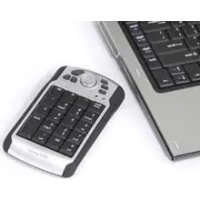
AKP03CA - Keyboard TARGUS - Free user manual and instructions
Find the device manual for free AKP03CA TARGUS in PDF.


| Product Type | Bluetooth Numeric Keypad with Multimedia Controls |
| Brand and Model | Targus AKP03CA |
| Connectivity | Bluetooth Class II, range up to 10 meters |
| Power Supply | 2 AA batteries (alkaline or NiMH) |
| System Compatibility | Windows 2000, XP, Vista |
| Required Hardware | Laptop or desktop PC with Bluetooth |
| Main Functions | Numeric keys (0-9, 00, comma) and multimedia control keys (play/pause, stop, mute, volume, previous/next track, fast forward, rewind, launches default player) |
| Navigation Keys (NumLock off) | Emulation of navigation keys (End, Home, Page Up/Down, arrow keys, Insert) |
| Numeric Keypad | Standard layout with Del, 0-9, 00, etc. |
| LED Indicator | Green LED above Num Lock key |
| Dimensions (approx.) | Approximately 100 x 140 x 20 mm |
| Weight (approx.) | Approximately 120 g (with batteries) |
| On/Off Switch | Switch on the side of the keypad |
| Cleaning and Maintenance | Disconnect the device, remove batteries, clean with a soft cloth slightly dampened with water, without abrasive solvents |
| Safety | Complies with FCC Part 15 (Class B) |
| Warranty | 1 year against material and manufacturing defects |
Frequently Asked Questions - AKP03CA TARGUS
User questions about AKP03CA TARGUS
0 question about this device. Answer the ones you know or ask your own.
Ask a new question about this device
Download the instructions for your Keyboard in PDF format for free! Find your manual AKP03CA - TARGUS and take your electronic device back in hand. On this page are published all the documents necessary for the use of your device. AKP03CA by TARGUS.
USER MANUAL AKP03CA TARGUS
Bluetooth® Numeric Keypad with PC Multimedia Control......2
Français
Congratulations on your purchase of the Targus Bluetooth Numeric Keypad with PC Multimedia Control. This keypad has a set of built-in media keys for easy wireless multimedia control. Its 33 feet / 10 meter operating range of Class II Bluetooth allows seamless connection, and is perfect for remote controlling your favorite media player.
Contents
- User Guide
- Bluetooth Media Keypad
- 2 x AA Batteries
System Requirements
Operating System
- Windows® 2000 / XP
- Windows Vista™
Hardware
- Bluetooth-enabled notebook or desktop PC
Installing the Battery
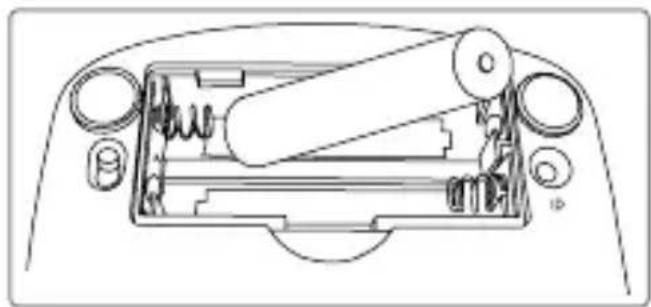
Keypad - back view
1 Remove the battery cover from the back of the keypad.
2 Insert the supplied battery, making sure that the positive (+) and negative (-) ends match the polarity indicators inside the battery housing.

NOTE: WHEN REPLACING THE BATTERY, YOU MAY USE ALKALINE OR OTHER HEAVY-DUTY NIMH BATTERY.
AVOID MIXING NEW AND USED BATTERIES IN A DEVICE.
3 Slide the battery cover back into position until it "clicks" firmly into place.
Turning the Keypad On and Off
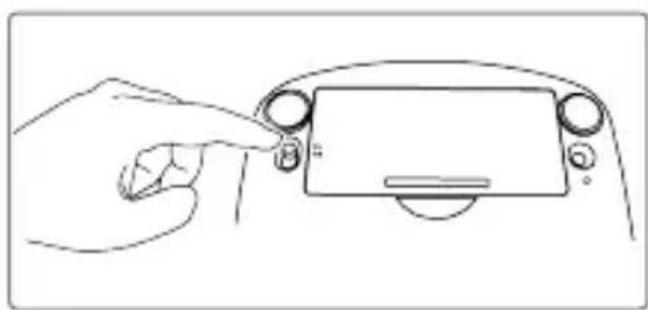
- To power on the device, use the on/off switch located on the back of the keypad.
- To power off the device, use the on/off switch located on the back of the keypad. This feature should be used when traveling to prevent power loss.
Using the Keypad Definition of the Keys:
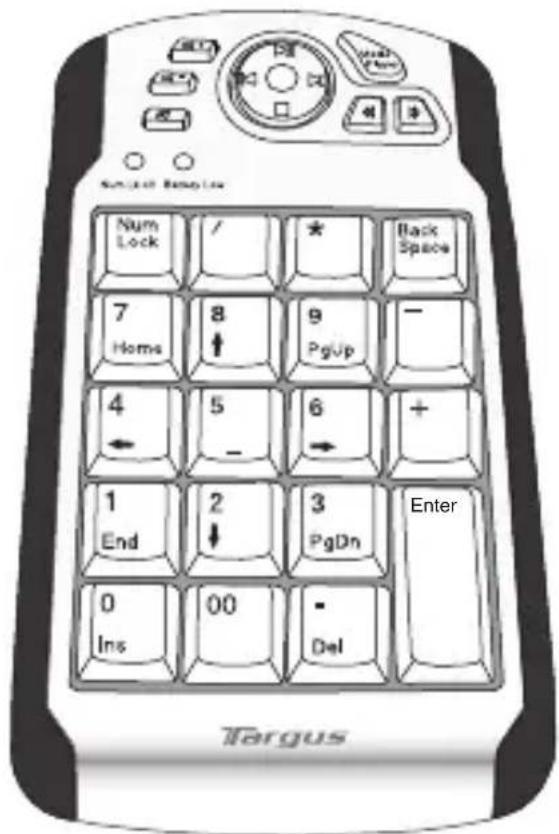
| Keys | Function | How to operate |
| II | Play, Pause | Press to start or pause playing. |
| ■ | STOP | Press to stop playing. |
| MUTE | MUTE | Press this key to mute volume. |
| Decrease Volume | Press this key to turn down volume. | |
| Increase Volume | Press this key to turn up volume. | |
| Return to previous track | Press this key to return to previous track. | |
| Skip to next track | Press this key to skip to next track. | |
| Fast forward | Press this key to speed forward play. | |
| Reverse | Press this key to speed backward play. | |
| Launch default media player | Press this key to launch the default media player. The default player can be set in the “Set Program Access and Defaults” under the start menu or control panel. | |

NOTE: THE MULTITMEDIA KEYS ARE COMPATIBLE TO MEDIA PLAYERS COMPATIBLE TO MICROSOFT'S API. PLEASE REFER TO YOUR SOFTWARE VENDOR FOR YOUR MEDIA PLAYER'S COMPATIBILITY.
Definition of the Keys:
| . Del | NumLock on - inserts a decimal point NumLock off - deletes a number |
| 0 Ins | NumLock on - enters "0" on the display NumLock off - emulates the Insert key |
| 00 , | NumLock on - enters "00" NumLock off - inserts a comma (, ) |
| 1 End | NumLock on - enters "1" on the display NumLock off - emulates the End key |
| 2 ↓ | NumLock on - enters "2" on the display NumLock off - moves the cursor down one line of text |
| 3 PgDn | NumLock on - enters "3" on the display NumLock off - emulates the Page Down key |
| 4 ← | NumLock on - enters "4" on the display NumLock off - moves one character to the left of the cursor position |
| 5 | NumLock on - enters "5" on the display NumLock off - No function |
| 6 → | NumLock on - enters "6" on the display NumLock off - moves one character to the right of the cursor position |
| 7 Home | NumLock on - enters "7" on the display NumLock off - emulates the Home key |
| 8 ↑ | NumLock on - enters "8" on the display NumLock off - moves the cursor up one line of text |
| 9 PgUp | NumLock on - enters "9" on the display NumLock off - emulates the Page Up key |
Establishing a Communications Link Initial Configuration
Before you can begin using Bluetooth connectivity on your computer and other Bluetooth devices, you must set up your Bluetooth connection correctly. The Targus Bluetooth Media Keypad is designed to work with the three major software stack (protocol) standards: WIDCOMM, Toshiba and Microsoft. Please check your computer's documentation to see which software stack your computer has. Please contact your system vendor if your system does not support one of the following Bluetooth software standards.
Connecting with Bluetooth Software: WIDCOMM or Microsoft (XP & Vista)
- Go to the Bluetooth Places icon located on your desktop or in the system tray and double click, then click Add a Bluetooth Device.
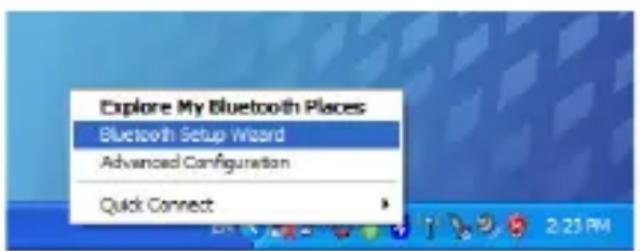
(Windows XP)
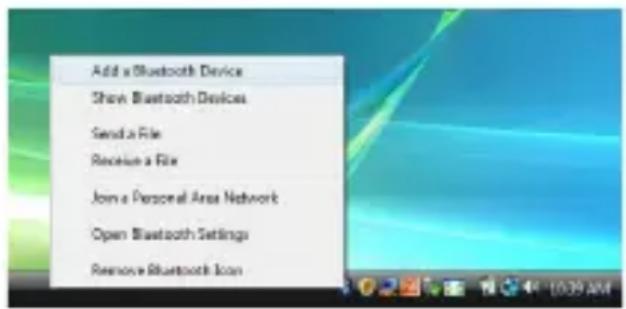
(Windows Vista)
- The Bluetooth Wizard screen will prompt. Please follow the on-screen instructions.
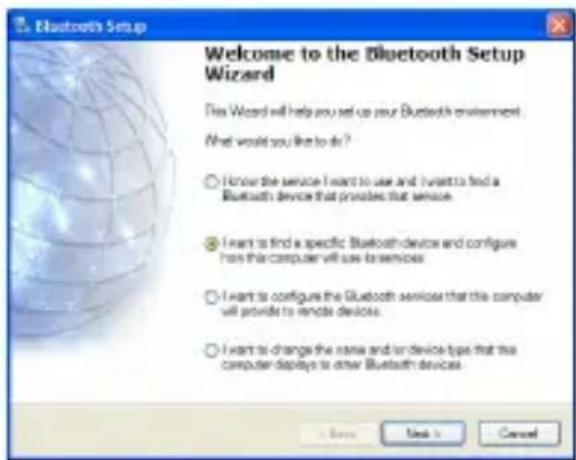
(Windows XP)
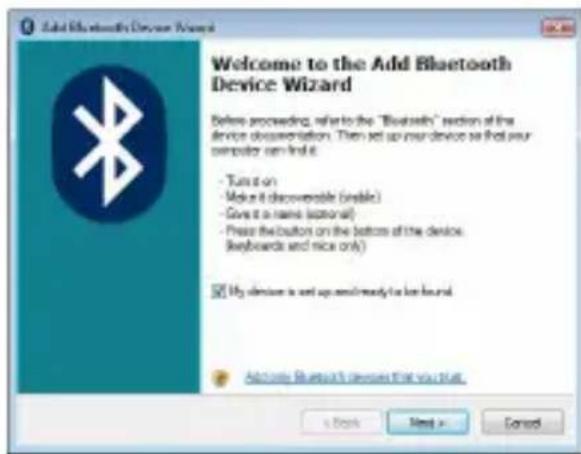
(Windows Vista)
- Please turn on the keypad and press the connection ID button located at the bottom of the keypad until the LED above the "Num Lock" blinks green light (discoverable mode). Click Next to continue pairing and the computer will search for the keypad.
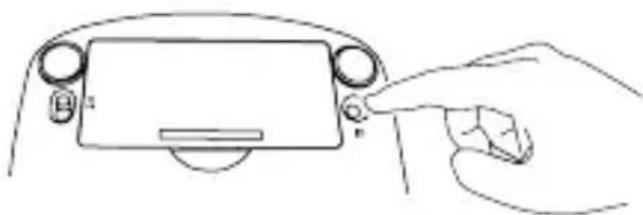
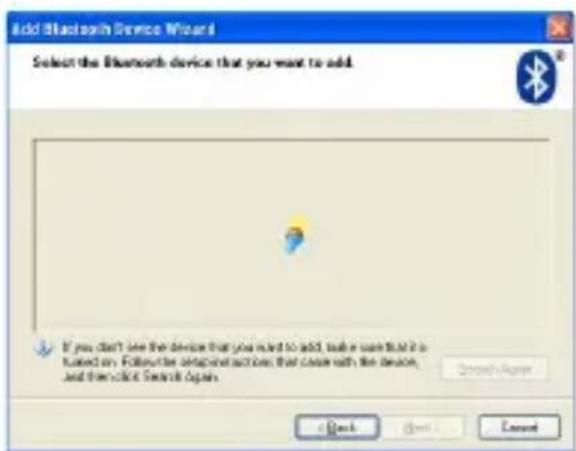
(Windows XP)
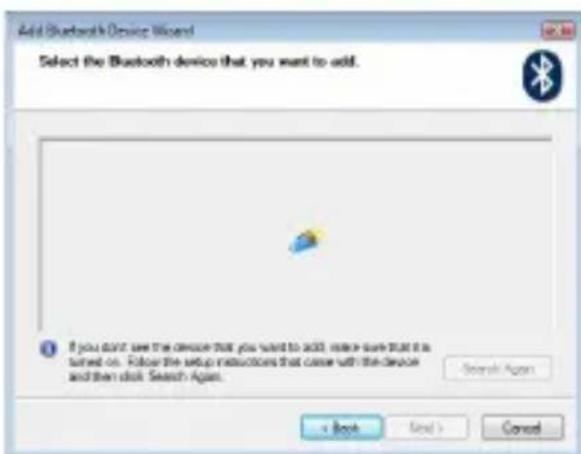
(Windows Vista)
- The confirmation window will appear after the computer finishes detecting the Bluetooth devices. Select the Targus Keypad and click Next to continue. (There may be one or more different Bluetooth devices detected.) If the keypad is not detected, please make sure the power is on and in discoverable mode. Press Search Again to re-pair the device.
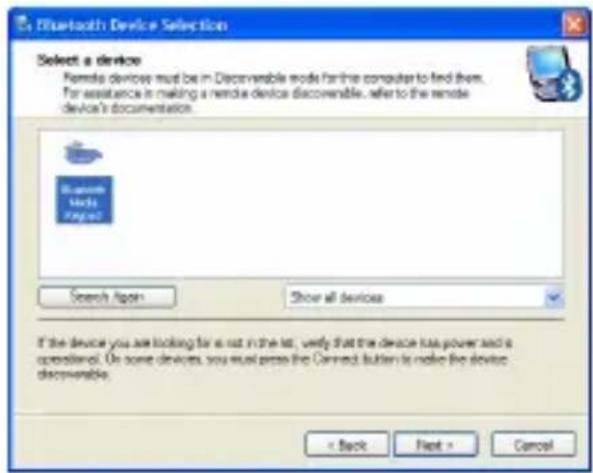
(Windows XP)
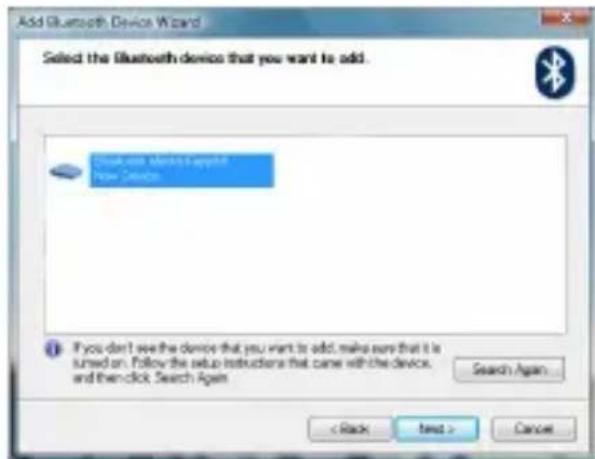
(Windows Vista)
- A passkey is required to pair the Bluetooth keypad. Please follow the on-screen instructions to finish installing the device.
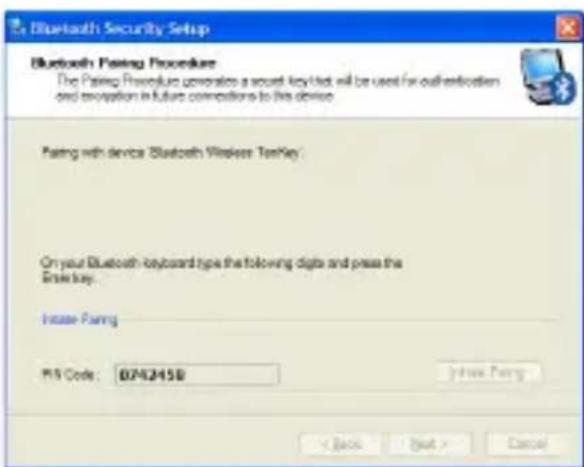
(Windows XP)
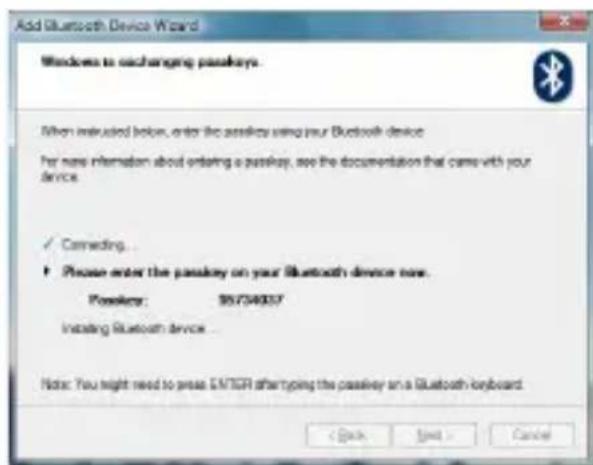
(Windows Vista)
- After the pairing keys are entered correctly, the computer will complete the installation. Please wait until the setup is finished.
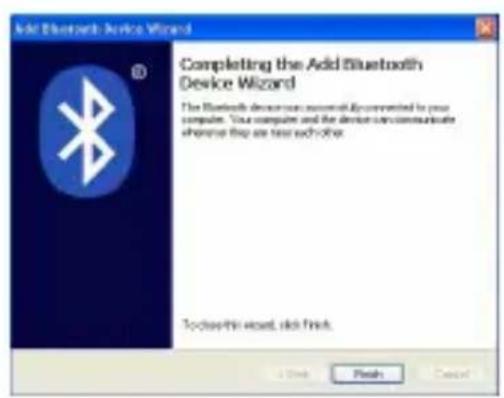
(Windows XP)
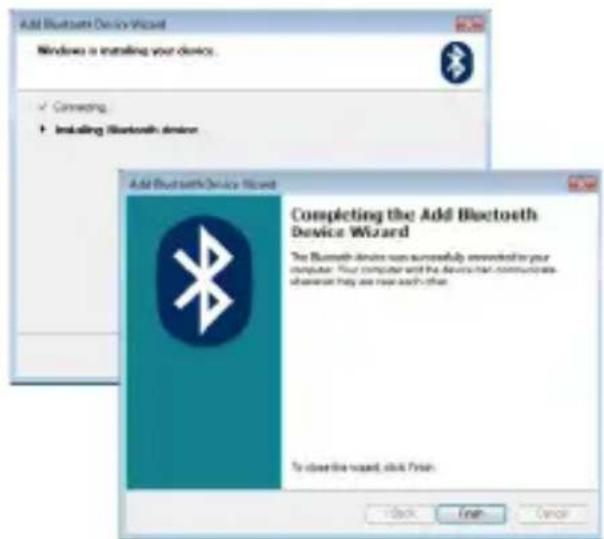
(Windows Vista)
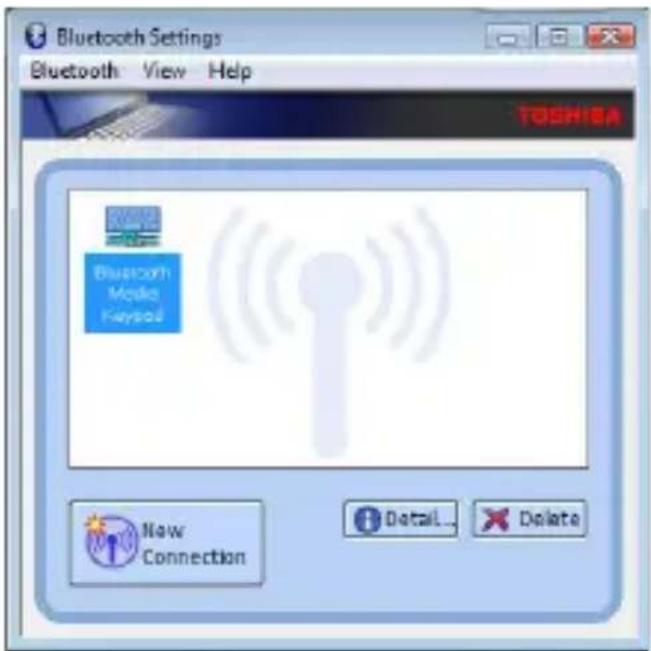
Connecting with Bluetooth Software: TOSHIBA
- Double click on the Bluetooth Manager icon in the system tray, and then click "Add New Connection."
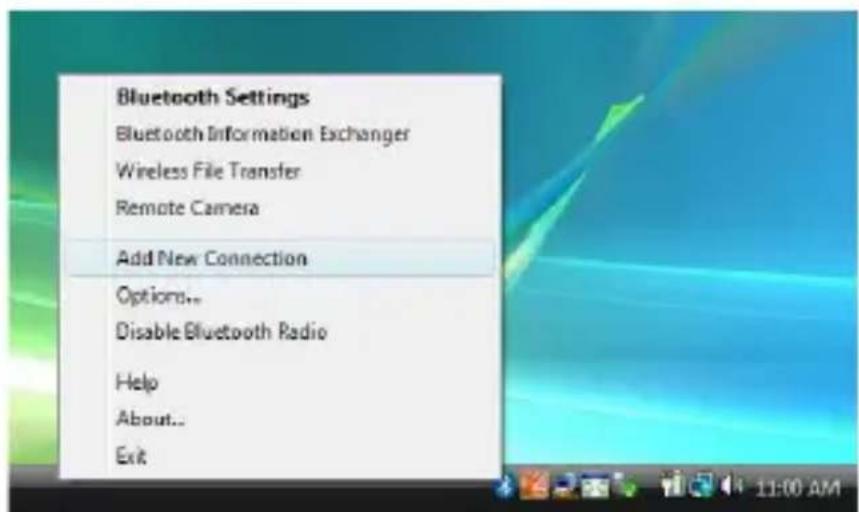
- Please turn on the keypad and press the connection ID button located at the bottom of the keypad until the LED above the "Num Lock" blinks green light (discoverable mode). Click Next to continue pairing and the computer will search for the keypad.
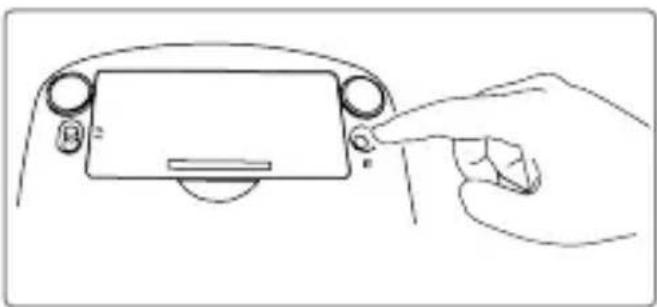
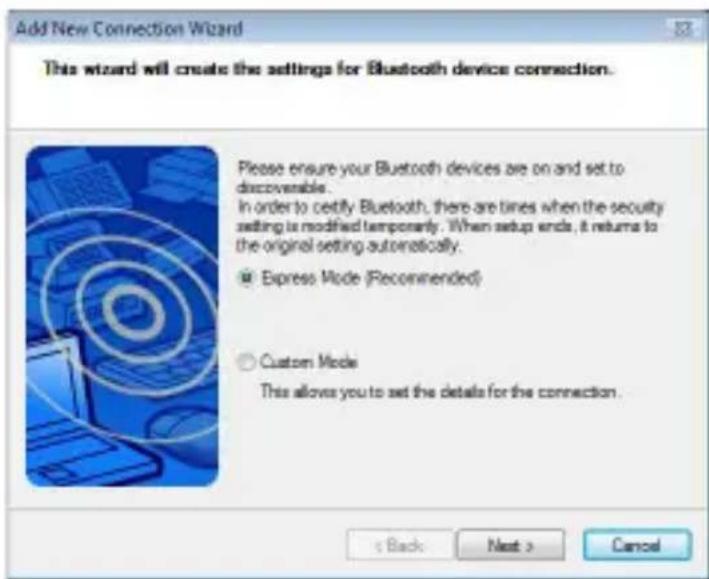
- The computer will now search for the Bluetooth keypad and other Bluetooth devices. Please wait until the search is completed. Choose the device you wish to connect. There may be more than one Bluetooth device detected. Select Targus Bluetooth keypad and click Next to continue. If the keypad is not detected, please make sure the keypad is in discoverable mode and click Refresh.
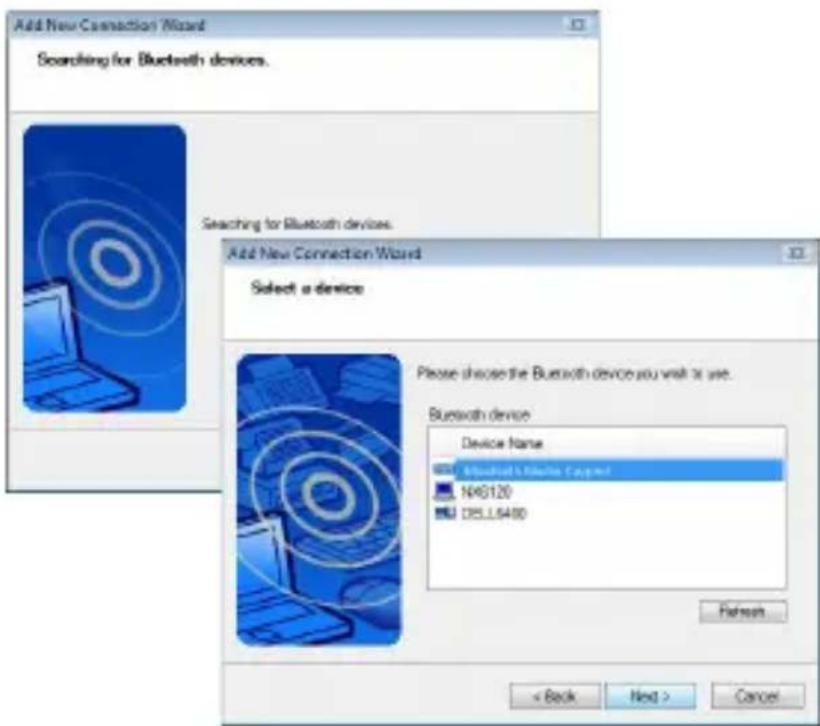
- The computer will begin connecting with the keypad.
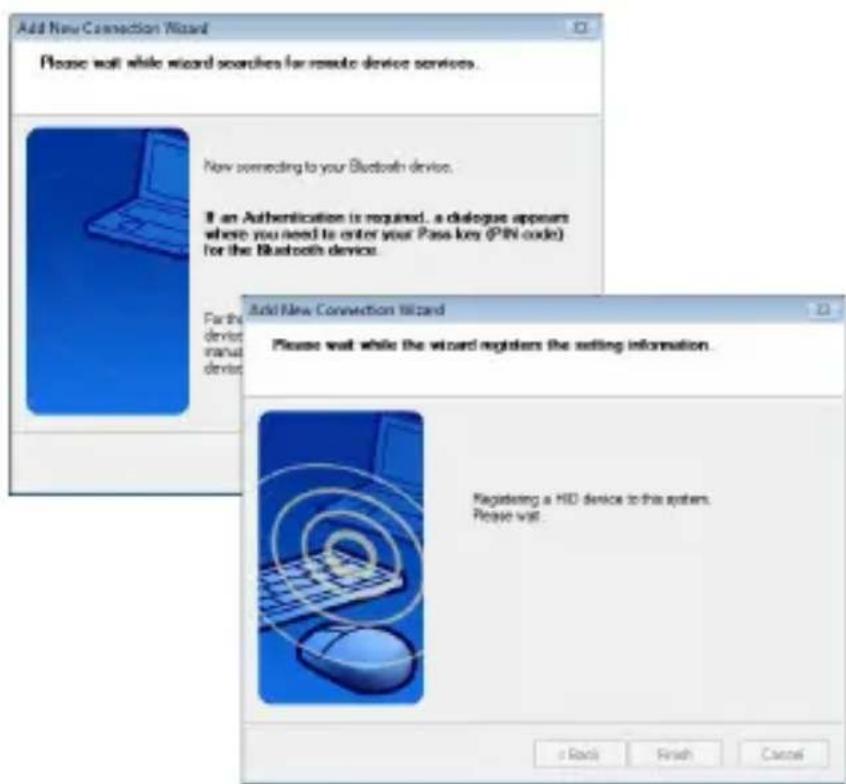
- An authentication is required for pairing the device, and a dialogue will appear. Please correctly enter the passkey using the remote keypad to continue setting up the device.
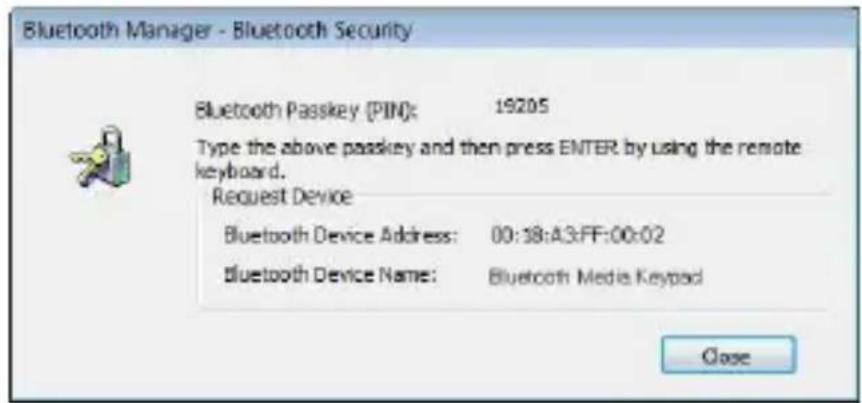
- The connection is established and setup is complete. The keypad is ready to use. If the connection is not successful, please click Back and search the device again. You may want to continue to add other Bluetooth devices or close the window.
Troubleshooting
What do I do if the keypad does not work?
- Make sure that the polarity of the battery is correct. The positive (+) and negative (-) ends must match the positive (+) and negative (-) connections in the battery housing.
- Make sure you have established a communications link. See "Establishing a Communications Link."
What do I do if the response time of the keypad is slow or it intermittently stops working?
- Increase the distance between the receiver and the base units of other wireless devices.
- Replace the battery.
Technical Support
For technical questions, please visit:
Internet: www.targus.com/support.asp
Email: info.cn@targus.com
Product Registration
Targus recommends that you register your Targus accessory shortly after purchasing it. To register your Targus accessory, go to: www.targus.com/registration.asp
You will need to provide your full name, email address, phone number, and company information (if applicable).
Warranty
Targus warrants this product to be free from defects in materials and workmanship for one year. If your Targus accessory is found to be defective within that time, we will promptly repair or replace it. This warranty does not cover accidental damage, wear and tear, or consequential or incidental loss. Under no conditions is Targus liable for loss of, or damage to a computer; nor loss of, or damage to, programs, records, or data; nor any consequential or incidental damages, even if Targus has been informed of their possibility. This warranty does not affect your statutory rights.
Regulatory Compliance
This device complies with Part 15 of the FCC Rules. Operation is subject to the following two conditions: (1) This device may not cause harmful interference, and (2) This device must accept any interference received, including interference that may cause undesired operation.
FCC Statement
Tested to Comply
This equipment has been tested and found to comply with the limits of a Class B digital device, pursuant to Part 15 of the FCC Rules. These limits are designed to provide reasonable protection against harmful interference in a residential installation. This equipment generates, uses, and can radiate radio frequency energy and if not installed and used in accordance with the instructions, may cause harmful interference to radio communications. However, there is no guarantee that interference will not occur in a particular installation.
If this equipment does cause harmful interference to radio or television reception, which can be determined by turning the equipment off and on, the user is encouraged to try to correct the interference by one or more of the following measures:
- Reorient or relocate the receiving antenna;
- Increase the separation between the equipment and receiver;
- Connect the equipment into an outlet on a circuit different from that to which the receiver is connected;
- Consult the dealer or an experienced radio/TV technician for help.
Changes or modifications not authorized by the party responsible for compliance could void the user's authority to operate this product
WIDCOMM and the WIDCOMM logo are trademarks of WIDCOMM, Inc. Bluetooth and the Bluetooth logo are trademarks owned by Bluetooth SIG, Inc., U.S.A. and licensed to WIDCOMM, Inc..
Microsoft, Windows, Windows Vista and Outlook are registered trademarks of Microsoft Corporation. All other trademarks and registered trademarks are the property of their respective owners.
Features and specifications subject to change without notice. All trademarks and registered trademarks are the property of their respective owners.
CLAVIER NUMÉRIQUE
BLUETOOTH®
AVEC CONTROL
MULTIMÉDIA PC
Introduction

- Français
- Contents
- System Requirements
- Hardware
- Installing the Battery
- Turning the Keypad On and Off
- Using the Keypad Definition of the Keys:
- Establishing a Communications Link Initial Configuration
- Connecting with Bluetooth Software: WIDCOMM or Microsoft (XP & Vista)
- Connecting with Bluetooth Software: TOSHIBA
- Troubleshooting
- Technical Support
- Product Registration
- Warranty
- Regulatory Compliance
- FCC Statement
- Tested to Comply
- CLAVIER NUMÉRIQUE
- BLUETOOTH®
- AVEC CONTROL
- MULTIMÉDIA PC
- Introduction
Brand : TARGUS
Model : AKP03CA
Category : Keyboard