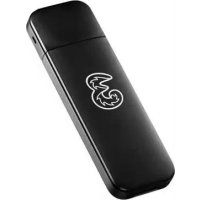
MF730m - Router ZTE - Free user manual and instructions
Find the device manual for free MF730m ZTE in PDF.



| Product Type | USB Router (multimode modem) |
| Brand | ZTE |
| Model | MF730m |
| Supported Networks | HSPA+, HSUPA, HSDPA, WCDMA, EDGE, GPRS, GSM |
| Connection Interface | USB |
| Main Functions | 3G/2G modem, SMS services, microSD card slot, SIM/USIM card slot |
| Power Supply | Via computer USB port |
| Operating Temperature | -10°C to +55°C |
| Operating Humidity | 5% to 95% |
| Maintenance and Cleaning | Keep dry, avoid condensation, do not use in case of thermal shock |
| Safety | Do not use within 20 cm of medical devices; turn off in airplanes, hospitals, and gas stations; do not touch the internal antenna |
| Spare Parts and Repairability | Use only original accessories; entrust any repairs to a qualified technician |
| Limited Warranty | Warranty does not cover normal wear, misuse, unauthorized modifications, natural disasters |
Frequently Asked Questions - MF730m ZTE
User questions about MF730m ZTE
0 question about this device. Answer the ones you know or ask your own.
Ask a new question about this device
Download the instructions for your Router in PDF format for free! Find your manual MF730m - ZTE and take your electronic device back in hand. On this page are published all the documents necessary for the use of your device. MF730m by ZTE.
USER MANUAL MF730m ZTE
Copyright © 2013 ZTE CORPORATION.
All rights reserved.
No part of this publication may be excerpted, reproduced, translated or utilized in any form or by any means, electronic or mechanical, including photocopying and microfilm, without the prior written permission of ZTE Corporation.
The manual is published by ZTE Corporation. We reserve the right to make modifications on print errors or update specifications without prior notice.
Version No.: 1.0
Edition Time: 2013, 07
Quick Guide
Introduction
The ZTE MF730M USB modem is a multi-mode USB modem, working in HSPA+/HSUPA/HSDPA/WCDMA/EDGE/GPRS/GSM networks. With USB interface connecting to a laptop or a desktop PC, it integrates the functionality of a modem and a mobile phone (SMS), and combines mobile communication with Internet perfectly. It supports data and SMS services through the mobile phone network, enabling you to communicate anytime and anywhere.
Getting to know your device
The following figure shows the appearance of the MF730M. It is only for your reference. The actual product may be different.
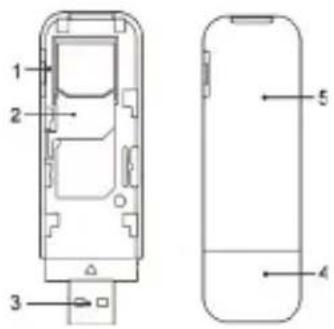
- microSD card slot
- SIM/USIM card slot
- USB Connector
- Modem Cap
- Front Cover
NOTE:
The microSD Logo ( micro) is a trademark of SD-3C, LLC.
Indicator
| Indicator Status Description | |
| Red Turn on but not register. | |
| Green Bright Register to 2G/3G network. | |
| Green Twinkling Connect to 2G/3G network. |
Hardware Installation
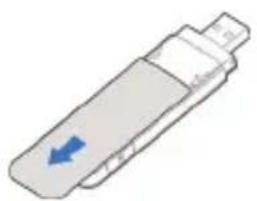
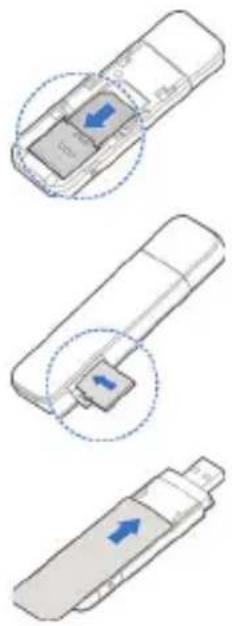
- Open the front cover to remove it from the modem.
NOTE:
Do not open the front cover rudely to avoid the damage of the front cover.
natural_image
Illustration of a pen-like device with a blue arrow pointing to its left side (no text or symbols)-
Insert the SIM card into the SIM card slot.
-
Insert the microSD card into the microSD card slot.
NOTE:
This modem only supports microSD card.
- Replace the front cover and click it into place.
natural_image
Three-step diagram showing a mobile phone with a scroll, highlighting the scroll area (no text or symbols present)- Connect the Modem to your laptop or desktop PC. Plug the USB connector into your computer's USB port and make sure that it is tightly inserted.
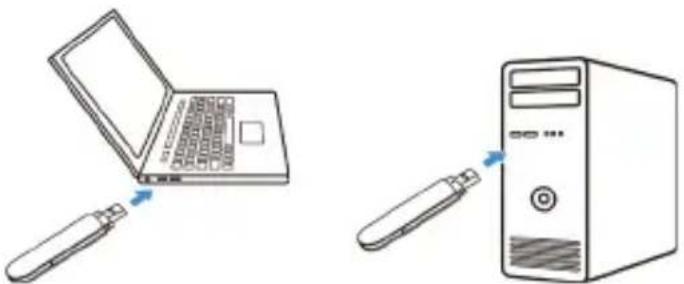
The OS will automatically recognize the new hardware, and then start the installation wizard.
Warning and Notice
To the Owner
- Some electronic devices are susceptible to electromagnetic interference sent by modem if inadequately shielded, such as the electronic system of vehicles. Please consult the manufacturer of the device before using the modem if necessary.
- Operating the modem may interfere with medical devices like hearing aids and pacemakers. Please always keep them more than 20 centimeters away from such medical devices when they are turned on. Turn the modem off if necessary. Consult a physician or the manufacturer of the medical device before using the modem.
- Be aware of the usage limitation when using a modem at places such as oil warehouses or chemical factories, where there are explosive gases or explosive products being processed. Turn off your modem if required.
- The use of electronic transmitting devices is forbidden in aircrafts, at petrol stations and in hospitals. Please observe and obey all warning signs and switch off your modem in these conditions.
- Do not touch the inner antenna area if not necessary. Otherwise it will affect your modem's performance.
- Store the modem out of the reach of little children. The modem may cause injury if used as a toy.
- Do not touch the metallic parts of the modem so as to avoid a burn, when the modem is working.
Use Your USB Modem
- Please use original accessories or accessories that are authorized. Using any unauthorized accessories may affect your modem's performance, and violate related national regulations about telecom terminals.
- Avoid using the modem near or inside metallic structures or establishments that can emit electromagnetic waves. Otherwise it may influence signal reception.
-
The modem is not waterproof. Please keep it dry and store in a shady and cool place.
-
Do not use the modem immediately after a sudden temperature change. In such case, it will produce dew inside and outside the modem, so don't use it until it becomes dry.
- Handle the modem carefully. Do not drop, bend or strike it. Otherwise the modem will be damaged.
- No dismantling by non-professionals and only qualified technicians can undertake repair work.
- Operating temperature range of -10^ +55^ and humidity range of 5% 95% are recommended.
Limited Warranty
- This warranty does not apply to defects or errors in the Product caused by:
i. Reasonable abrasion.
ii. End User's failure to follow ZTE's installation, operation or maintenance instructions or procedures.
iii. End User's mishandling, misuse, negligence, or improper installation, disassembly, storage, servicing or operation of the Product.
iv. Modifications or repairs not made by ZTE or a ZTE-certified individual.
v. Power failures, surges, fire, flood, accidents, actions of third parties or other events outside ZTE's reasonable control.
vi. Usage of third-party products, or usage in conjunction with third-party products provided that such defects are due to the combined usage.
vii. Any other cause beyond the range of normal usage intended for the Product.
End User shall have no right to reject or return the Product, or receive a refund for the Product from ZTE under the above-mentioned situations.
- This warranty is End User's sole remedy and ZTE's sole liability for defective or nonconforming items, and is in lieu of all other warranties, expressed, implied or statutory, including but not limited to the implied warranties of merchantability and fitness for a particular purpose, unless otherwise required under the mandatory provisions of the law.
Limitation of Liability
ZTE shall not be liable for any loss of profits or indirect, special, incidental or consequential damages resulting from or arising out of or in connection with using of this product, whether or not ZTE had been advised, knew or should have known of the possibility of such damages, including, but not limited to lost profits, interruption of business, cost of capital, cost of substitute facilities or product, or any downtime cost.
How to Get Help
You can get Help by:
- Clicking Help on the software.
- Sending E-mail to mobile@zte.com.cn
- Visiting http://www.ztedevice.com
- Calling Service Hotline: +86–755–26779999
Troubleshooting
| Problem Suggested | Solution |
| Can not establish the USB connection between your device and PC. | You need to install the software. Run the installation program in path of My Computer > ZTEMODEM.If the driver of your device is abnormal, please reinstall the software. You need to uninstall the software first. |
| The client connected to the device can not access the Internet. | Make sure your SIM card is available.Change the location to find a place with good signal.Check network settings.Contact with your service provider and confirm your APN settings. |
| Can not visit the webGUI configuration page. | Enter the correct address. The default address is http://192.168.0.1 or http://m.home.Only use one network adapter in your PC.Do not use any proxy server. |
| Can not connect to the network automatically in Windows 8 operating system. | Click theicon on the task bar of the screen when you insert the device to the PC, and then tick theConnect automatically checkbox in theNetworks, then clickConnect. |
ZTE CORPORATION
NO. 55, Hi-tech Road South, ShenZhen, P.R.China
Postcode: 518057
Tel: +86-755-26779999
URL: http://www.ztedevice.com
Copyright © 2013 ZTE CORPORATION.
NR. 55, Hi-tech Road South, ShenZhen, P.R.China
natural_image
Illustration of a pen-like device with a blue arrow pointing to it (no text or symbols)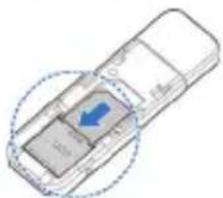
natural_image
Diagram of a mobile phone with a blue arrow pointing to the screen area (no text or symbols present)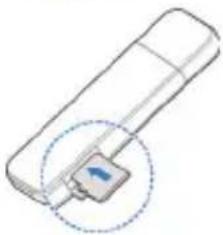
natural_image
Diagram of a cylindrical device with a highlighted component and arrow, no text or symbols presentnatural_image
Illustration of a USB flash drive with a blue arrow indicating direction (no text or symbols)natural_image
Illustration showing a laptop being inserted into a desktop computer tower (no text or symbols present)Copyright © 2013 ZTE CORPORATION.
natural_image
Illustration of a pen-like device with a blue arrow pointing to its left side (no text or symbols)natural_image
Three-step diagram showing a mobile phone with a scroll, highlighting the scroll area (no text or symbols present)Copyright © 2013 ZTE CORPORATION.
natural_image
Illustration of a pen-like device with a blue arrow pointing to its left side (no text or symbols)natural_image
Three-step diagram showing a remote control device with blue directional arrows indicating movement (no text or symbols present)NO. 55, Hi-tech Road South, ShenZhen, P.R.China
Postcode: 518057
Tel: +86-755-26779999
URL: http://www.ztedevice.com
e-mail: mobile@zte.com.cn
C € 0700
Brand : ZTE
Model : MF730m
Category : Router