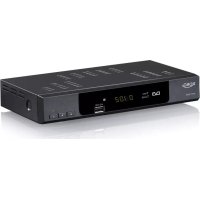
HRT 5000 - Digital decoder XORO - Free user manual and instructions
Find the device manual for free HRT 5000 XORO in PDF.



| Product type | DVB-T digital decoder |
| Brand | Xoro |
| Model | HRT 5000 |
| Power supply | AC 220-240 V, 50/60 Hz |
| Power consumption | Not specified (estimated 15 W) |
| Reception | DVB-T (MPEG-2), dual tuner |
| Frequency range | VHF: 174-230 MHz (channels 5-12), UHF: 470-862 MHz (channels 21-69) |
| Bandwidth | 7 or 8 MHz |
| Video format | PAL 720×576, NTSC 720×480 |
| Audio decoding | MPEG-1/2, stereo, left, right |
| USB port | 1 × USB 2.0 (front panel) |
| Main features | DVB-T reception, USB recording, Time Shift, multimedia playback (MPEG, MP3, JPEG, BMP), EPG, teletext, parental control |
| Connections | Antenna input (75 Ω), 2 × SCART (TV/VCR), coaxial digital audio output |
| Number of programs | Up to 600 stored channels |
| Recording scheduling | 8 possible schedules |
| Operating temperature | 0-40 °C |
| Humidity | Up to 90% |
| Maintenance and cleaning | Unplug before cleaning; use a dry cloth; do not use liquids |
| Safety | Do not open the device; unplug during storms; do not expose to moisture |
| Spare parts and repairability | Repair by qualified technician only; use original parts |
| General information | 120-page user manual available in several languages |
Frequently Asked Questions - HRT 5000 XORO
User questions about HRT 5000 XORO
0 question about this device. Answer the ones you know or ask your own.
Ask a new question about this device
Download the instructions for your Digital decoder in PDF format for free! Find your manual HRT 5000 - XORO and take your electronic device back in hand. On this page are published all the documents necessary for the use of your device. HRT 5000 by XORO.
USER MANUAL HRT 5000 XORO
Free-to-Air DVB-T Receiver with Tφin Tuner, Uββ, PVR Ready, Time-shift & Media-PLayer
HRT 5000
BEDIENUNGSANLEITUNG
OPERATION MANUAL
MODE D'EMPLOI
Inhaltsangabe
Please select operation
Stop recording: TV.18 The Record
Ignore it, continue recording
Please select operation:
Stop recording. TV.19 ARD-Buffet
Switch skip channel. Are you sure?
Yes
No
Delete Channel.Are you sure?
Yes
No
Suchen
Programm Suche (Channel Scan)
Please select operation
Safely remove USB storage device
Cancel
WARNING: Format will delete ALL data in this disk. Continue?
Yes
No
Hinweis:
Wellenform: COFDM (Code Orthogonal Frequency Division Multiplexing)
Demodulation: QPSK, QAM16, QAM64
Transmission Modus: 2K, 8K
Guard interval: 1/4, 1/8, 1/16, 1/32
Code rate: 1/2, 2/3, 3/4, 5/6, 7/8
Video, Audio decoding
Bitrate: 15 Mbit/s Max.
Teletext: Support DVB-ETS300472
Audio Sampling: 32,44.1,48 KHz
| Safety information | 4 | |
| Recycling Information | 8 | |
| Accessories / Features | 9 |
Control Element
| Front | Panel | 10 |
| Rear | Panel | 10 |
Remote Control
| Insert battery and operation | 11 |
| Buttons | 12 |
Connection
| TV / Aerial | 13 | ||
| External audio decoder or amplifier | 14 | ||
| Second SCART Port | 14 | ||
| USB Port | 15 | ||
Operation
| First time installation | 16 |
| Important functions | 16 |
| EPG | 1 | 8 |
| Teleotext | 1 | 9 |
Recorder
| R e | c | or | d | i | n | g |
| Time-Shift | 21 | |||||
| Programming | by | EPG | 22 | |||
| Timer | Programming | 23 |
| Playback a recorded file | 23 |
Media-Player
| Pictures | 24 |
| Movies | 24 |
| M | u | s | ic | 2 | 4 |
Settings
| Main | Menu | 25 |
| Channel | 26 | |
| Installation | 28 | |
| System | 30 | |
| Tools | 34 | |
| Media+ | 35 |
| Troubleshooting | 38 |
| Specification | 3 9 |
SAFETY INFORMATION
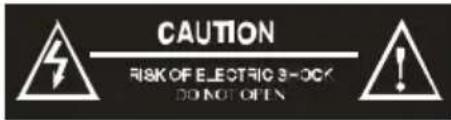

The lightning flash with an arrowhead symbol within an equilateral triangle is intended to alert the user of the presence of uninsulated "dangerous voltage" within the product's enclosure that may be of sufficient magnitude to constitute a risk of electric shock to persons.
The exclamation point within an equilateral triangle is intended to alert the user of the presence of important operating and maintenance (servicing) instructions in the literature accompanying the appliance.
THIS DEVICE COMPLIES WITH PART 15 OF THE FCC RULES. OPERATION IS SUBJECT TO THE FOLLOWING TWO CONDITIONS: (1) THIS DEVICE MAY NOT CAUSE HARMFUL INTERFERENCE, AND (2) THIS DEVICE MUST ACCEPT ANY INTERFERENCE RECEIVED. INCLUDING INTERFERENCE THAT MAY CAUSE UNDESIRED OPERATION.
User Manual
- All the safety and operating instructions should be read before the product is operated.
- Retain Instructions - The safety and operating instructions should be retained for future reference.
- All warnings on the product and in the operating instructions should be adhered to.
- All operating and use instructions should be followed.
Antenna
The device can be connected to an antenna.
- Unplug the power cord cable from the mains outlet before connecting or disconnecting the DVB-T to/from the antenna, otherwise both might be damaged.
- If an outside antenna or cable system is connected to the product, be sure the antenna or cable system is grounded so as to provide some protection against voltage surges and built-up static charges.
However, this is no guarantee that these problems can never occur. If these problems occur to you, please try the following:
- Position or align the receiving antenna is different.
- Increase the separation between the equipment and faulty equipment.
Plug the power cord of the DVB-T receiver in a different outlet than the faulty device. - Please contact the dealer or a radio / TV technician.
If you see by the information Signal strength and Signal quality some low values, you can try to find another antenna position to increase the reception quality. Visible indicators for a worst reception of the DVB-T signals is for example the a freeze picture or the message "No Signal".
The reception quality depends for example on the kind of the antenna. Three different kind of antenna are available, the passive and active indoor aerial and the roof antenna. Realign your indoor aerial in this way, that you get the best reception as possible. Helpfully it to know in which direction are the public antenna power and than you can adjust the antenna to this direction.
If a passive indoor aerial can not receive the DVB-T signal strong enough, please try an active indoor aerial. The best reception results are by the roof antenna possible.
Power Supply
- Never touch the plug with wet hands.
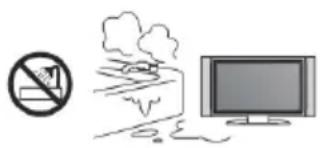
- Do not stand vases etc. on the appliance. Water could seep into the appliance.
- Keep the appliance away from rain and any moisture.
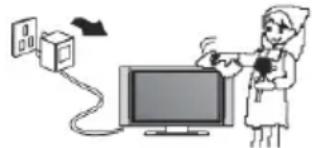
- If you want to pull the plug out of the plug socket, always pull directly on the plug. Never pull on the cable as it could tear.
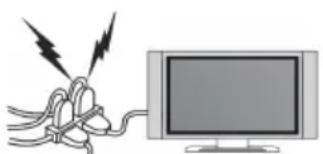
- Make sure that the power cable is not bent, caught or run over and that it does not come into contact with heat sources.
- Make sure that the power cable is not wound around the device while in operation.
- Never place the machine on the power cable while it is being operated.
- Only use extension cables that are designed for the power consumption level of the machine.
- Only operate the machine if the electrical voltage stated on the type plate beneath the machine agrees with the voltage on your plug socket. The wrong voltage can destroy the machine.
- Do not open the appliance.
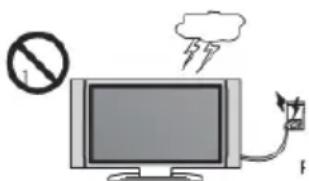
- Pull out the mains plug if the appliance is not to be used over a longer period of time.
- Take care that nobody can trip over the power supply cable.
USB port
- Due to legal requirements of CE-conformity, the customer is asked to only connect USB-Sticks to the USB port.
- The USB port can be supported up to 16 GB flash memory size. In order to the many different USB-Sticks and the build-in electronics components a support of all USB-Sticks can not guaranteed.
- Please format the USB-Sticks only with FAT 32 file system. Other file systems are not supported and can not recognize by the USB port.
- Save all data's from the USB memory before you connect to the device.
SAFETY INFORMATION
Position
- Do not connect accessories on the player which are not defined by the manufacture.
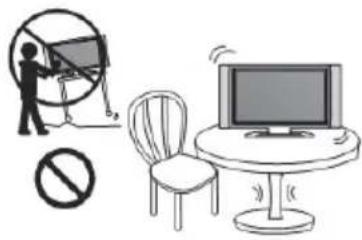
- Do not place this product on an unstable cart, stand, tripod, bracket, or table. The product may fall, causing serious injury to a child or adult, and serious damage to the product. Use only with a cart, stand, tripod, bracket, or table recommended by the manufacturer, or sold with the product. Any mounting of the product should follow the manufacturer's instructions, and should use a mounting accessory recommended by the manufacturer.
- A product and cart combination should be moved with care. Quick stops, excessive force, and uneven surfaces may cause the product and cart combination to overturn.
- The device is able to show a still image on the TV screen or monitor over an unlimited period of time. This can cause damage to the screen. It is therefore advisable to activate the screen saver. Or switch the player off, if the device is not in use.
- Do not uses the device permanent in the 4:3 mode. This can cause damage to the TV screen.
- Do not increase the volume when the player is just playing very quiet sections. This cold damage the speaker if very loud passages starts all of a sudden after the quiet section.
- Switch the player off by the Off/On switch if it is not going to used for a longer period of time.
- Disconnect the main plug during thunderstorms.
- Slots and openings in the cabinet are provided for ventilation and to ensure reliable operation of the product and to protect it from overheating, and these openings must not be blocked or covered.
- The openings should never be blocked by placing the product on a bed, sofa, rug, or other similar surface.
- This product should not be placed in a built-in installation such as a bookcase or rack unless proper ventilation is provided or the manufacturer's instructions have been adhered to.
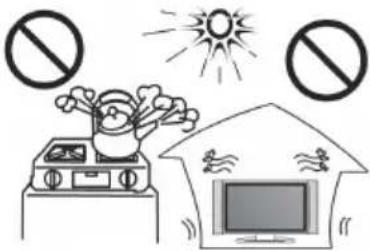
- Protect the device against weather influences, moistures and high temperature.
- Never spill liquid of any kind on the product.
- Do not expose the device and the remote control to direct sunlight.
Operation
- Receiving analogue or digital TV broadcast.
- Record DVB-T broadcast on USB storage.
- Using Time Shift function with connected USB storage.
- Playback of recorded files and MPEG-1/2 files from USB storage
- No other operation are allowed.
Defect
Servicing - Do not attempt to service this product yourself as opening or removing covers may expose you to dangerous voltage or other hazards. Refer all servicing to qualified service personnel.
2. Damage Requiring Service - Unplug this product from the wall outlet and refer servicing to qualified service personnel under the following conditions:
a. When the power-supply cord or plug is damaged.
b. If liquid has been spilled, or objects have fallen into the product.
c. If the product has been exposed to rain or water.
d. If the product does not operate normally by following the operating instructions. Adjust only those controls that are covered by the operating instructions as an improper adjustment of other controls may result in damage and will often require extensive work by a qualified technician to restore the product to its normal operation.
e. If the product has been dropped or damaged in any way.
- When the product exhibits a distinct change in performance this indicates a need for service.
- When replacement parts are required, be sure the service technician has used replacement parts specified by the manufacturer or have the same characteristics as the original part. Unauthorized substitutions may result in fire, electric shock, or other hazards.
- Nicotine can damage the electronic components. In case of service regarding too much nicotine, than the warranty/guarantee expired.
- Please read in the section Troubleshooting our service address and phone number.
However, this is no guarantee that these problems can never occur. If these problems occur to you, please try the following:
- Position or align the receiving antenna is different.
- Increase the separation between the equipment and faulty equipment.
Plug the power cord of the DVB-T receiver in a different outlet than the faulty device. - Please contact the dealer or a radio / TV technician.
Recycling Information
Recycling of electronic devices
This product is designed and manufactured with high quality materials and components which can be recycled and reused.
This symbol means that electrical and electronic equipment, at their end-of-life, should be disposed of separately from your household waste.
Please, dispose of this equipment at your local community waste collection/recycling centre. In the European Union there are separate collection systems for used electrical and electronic product. Please, help us to conserve the environment we live in!
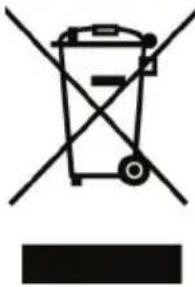
Recycling of paper and carton
The material recycling symbol on the carton and user manual denotes that they are recyclable. Dispose them not with the normal household waste.

Recycling of plastic parts
The material recycling symbol on the plastic parts denotes that they are recyclable. Dispose them not with the normal household waste.

Green Dot
- The batteries can be returned free of charge after use in the shop or in their immediate vicinity.
- The consumer is legally obliged to return of used batteries.
- The icons on batteries are with one of the two following characters, consisting of a strikethrough trashcan and the chemical symbol of heavy metals decisive for classification as contaminant-laden.
- Both symbols have the same meaning.
- Batteries that contain pollutants are characterised by chemical symbols: Pb = battery contains lead, Cd = battery containing cadmium, Hg = battery contains mercury.
Every consumer is legally obliged to make these batteries with a collection of his church or in the trade so that they can be conveyed to an environmentally sound disposal. We discard used batteries for you free of charge and environmentally. Simply return them to us.
ACCESSIONS
Package Contents
When opening the package of this DVB-t receiver please make sure that the following accessories are included:
HRT 5000
Remote control
- User manual
International warranty card
Notes:
If any item should be damaged or missing, please contact your dealer without delay.
- Keep the packaging materials, you may need them to transport your player in the future.
- Always transport or send the player in its original packing.
- Do not change or modify any components of the device or accessories.
Features
DVB-T Receiver for digital free-to-air TV
- Twin Tuner - Record one and watch another TV channel
- MPEG-2 / DVB-T compatible
- Bandwidth 7 MHz or 8 MHz optional
- Electronic Program Guide (EPG) and Videotext
- USB port on the front side
PVR Ready, records DVB-T broadcast on USB-Sticks
- Time-Shift function by using USB storage
- Playback of Video files (MPEG-2, MPEG-1), Audio files (MP3, WMA) and Picture files (JPEG, BMP) from USB Sticks
8 Timer programming
Electricity interruption memory, automatic resumption
- Auto scan/ Channel Scan
TV SCART interface
VCR SCART Interface for Output and Input
Digital audio COAXIAL output
- User-friendly graphical interface
CONTROL ELEMENTS
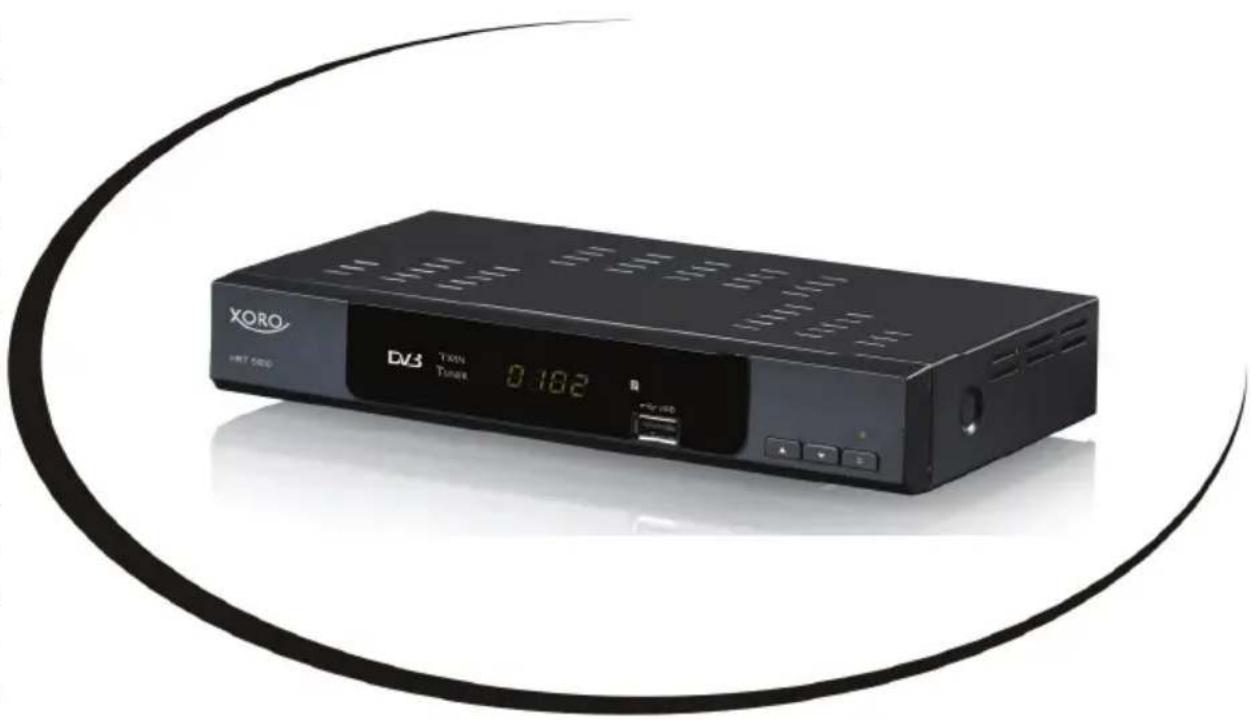
Front Panel
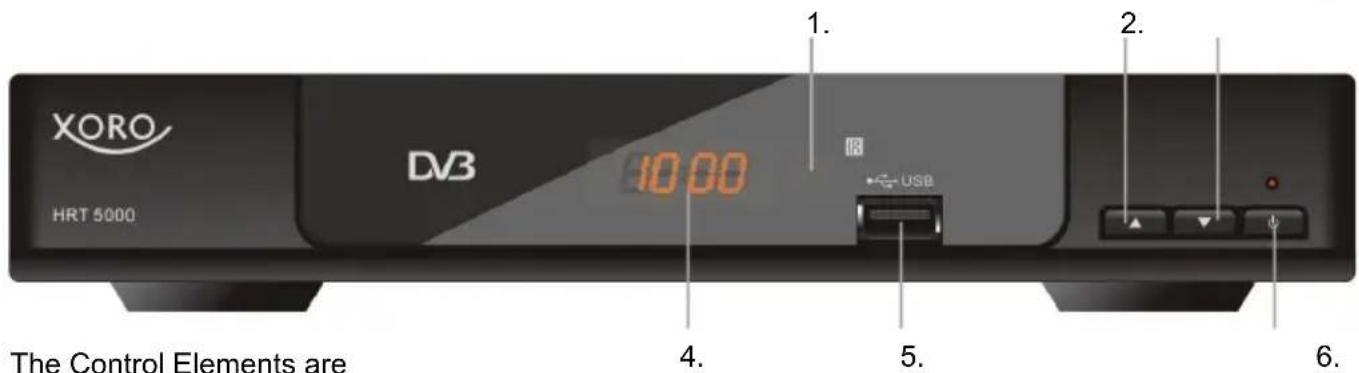
The Control Elements are
- Remote Control Sensor
- Channel Up button
- Channel Down button
- LED display
- USB 2.0 High Speed port
- Power button for Stand-By mode
Note:
The unit is automatically ready to work as soon as the power supply is applied.
Rear Panel
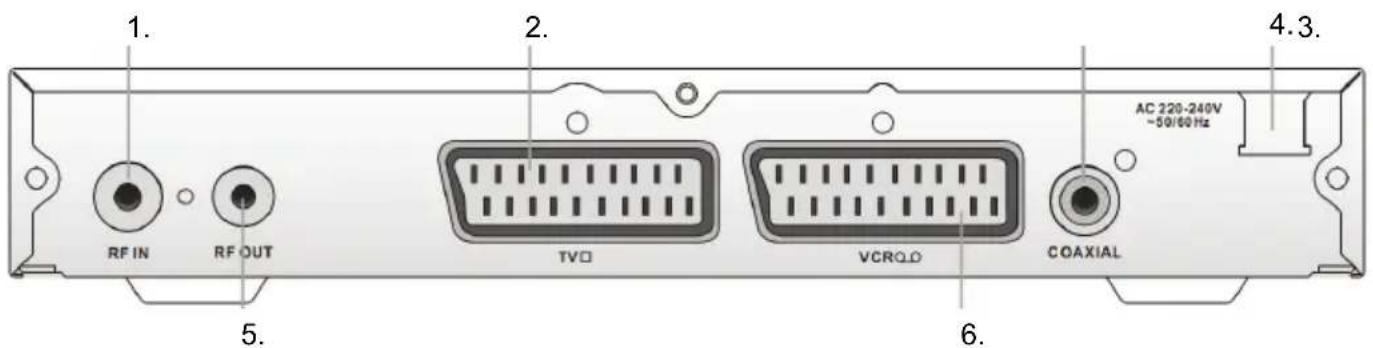
Description of the elements:
- Aerial input jack (75Ω). It supports active antenna with 5 V DC output.
- SCART jack (TV)
- Digital audio coaxial output jack
- AC power cord
- Antenna Loop Out jack
- SCART VCR jack (output and input)
Note:
Please unplug the power cord and keep it orderly when the unit shall not be used for a long time in case that the power cord may get scratched and thus lead to electric leak and shock.
Remote Control
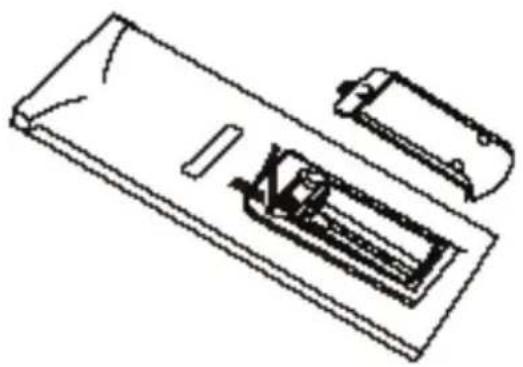
Insert batteries and operationradius
- Insert the battery into the receptacle and insert the receptacle into the remote.
- For the best results, aim the remote towards at the player, screweiving window. Stay within 5 meter and angles of 60 degrees or less.
- Under normal use the battery will last for one year.
- Remove battery during storage or when you are not using the DVD player for a long time.
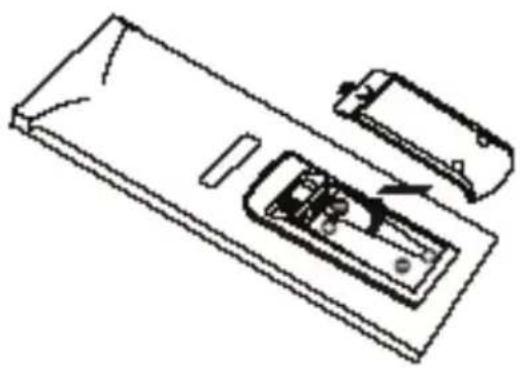
Notes:
- Weak batteries can leak and several damage by the remote control.
- Leaking out battery acid can damage your health.
- Remove the battery from the battery compartment as soon as it is exhausted or if the remote control is not going to be used for a longer period of time.
- Wipe up leaked out battery acid with a cloth.
- In case of skin contact immediately wash the affected area.
- Seek medical advice if battery acid has been swallowed. In case of contact with your eyes wash out the eyes and seek medical advice.
Remote Control

Buttons of the remote control
- STANDBY button
- Information button (INFO)
- Play/Pause button
- EPG button
- Videotext (TTX) button
- Stop button
- Menu button
- Navigation Cross with Up/CH+, Down/ CH-, Left/VOL- and Right/VOL+
- Confirmation (OK) button
- Record button
- Numeric Buttons (0 - 9)
- TV / Radio (TV/RADIO) button
- RECALL button
- DTV/VCR button
- Slow Motion button (|>
- Mute button
- File button
- Fast Rewind button (<<) & Fast Forward button (>>)
- Exit button
- Time Shift button
- PAGE Up button (PAGE +) & Page Down button (PAGE-)
- Audio button
- Subtitle button
- Search button (GOTO)
- Favorite Button (FAV)
- Colored buttons (Red, Green, Blue, Yellow)
Note:
The same buttons on the remote control and the front panel have the same functions; either alternative shall work.
Connection
To TV Set and Aerial
Basic connection:
Ensure that the power switches of this unit and other equipment to be connected, are turned off before commencing connection
- Read attentively the instructions before connecting other equipments
- Ensure that you observe the color-coding when connecting audio and video cords
- Please connect the unit with TV by only one kind of video output format, and setup a suitable output mode (including signal mode and signal code type), otherwise there will be image distortion.
REMARKS:
User can choose any proper connection format according to the jacks of the TV set.
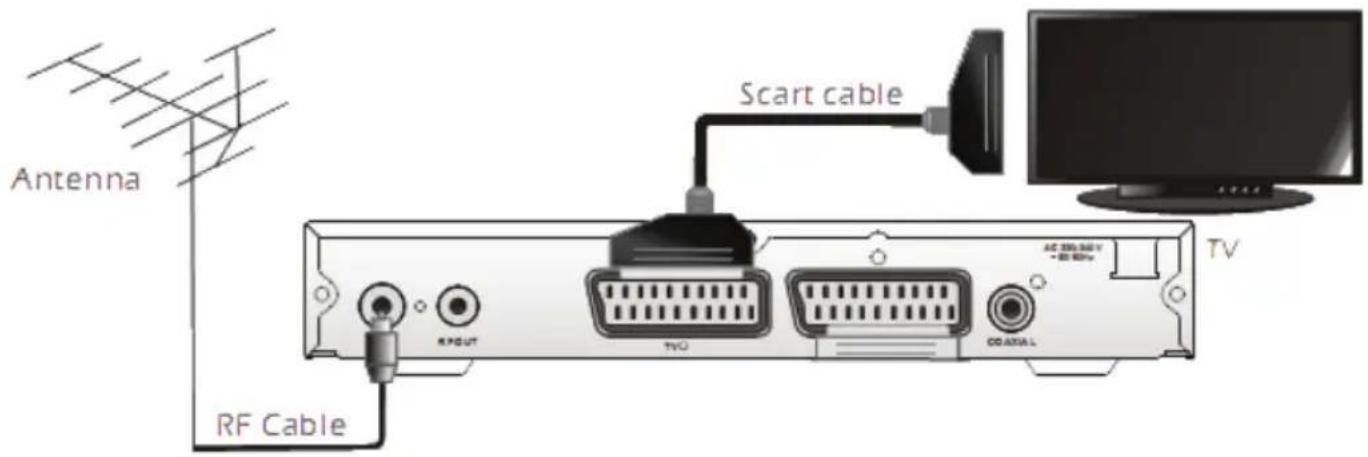
CONNECTING TO TV SET AND AERIAL
- Connect the Aerial to the antenna Input
- Connect the SCART cable to the TV set
- Connect the SCART cable to SCART TV port of the DVB-T receiver
- Plug the AC power cord cable to the wall outlet
- Switch on the TV set and the DVB-T receiver
- Select the SCART input by the TV set
- Change if necessary the TV output settings by the DVB-T receiver. Choose the video output to RGB and pay attention to the aspect ratio.
Notes:
- By using the loop through connector you can connect for example a second HRT 5000.
You can plug passive or active indoor antenna to the DVB-T receiver.
The best reception condition you can get by using a Aerial antenna.
Connection
To external decoder or amplifier
Connect the Coaxial cable for transmission of digital Audio signals to your playback device or your amplifier. Enjoy the more realistic sound by connecting an amplifier and speaker system.
- Switch off the device and unplug the power connection n of the DVB-T receiver and amplifier.
- Insert the audio plug into the socket on the right-hand side of the device.
- Plug the Audio jack into the corresponding socket on your playback device or your amplifier.
- Install a video connection to a TV set.
- Switch on the DVB-T receiver and the amplifier. Select the audio input by the amplifier.
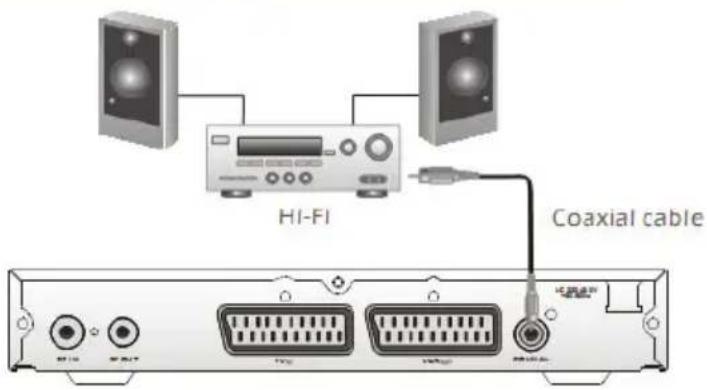
Note:
- The cable is not part of the accessories.
- Some of the broadcast's offers digital audio (AC3), but not all.
The different audio track during DVB-T broadcast you can switch by using the AUDIO button on the remote control.
Second SCART port (VCR)
Second SCART output
You can also use the second SCART output to record the broadcast on a VCR. Connect to the VCR with a SCART cable to the VCR output of the HRT 5000.
For more information, see the instructions for operating the VCR.
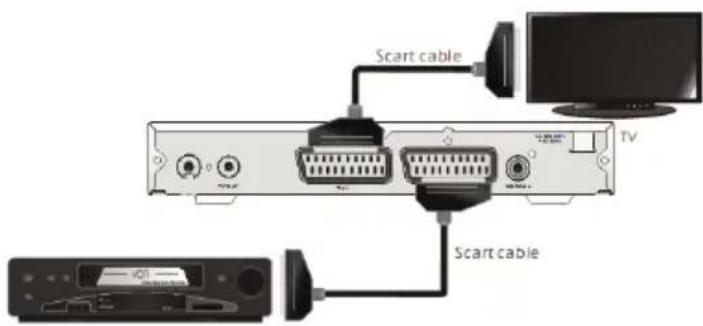
SCART Input
You can use the second SCART port as an input to transmit the video and audio signals to a TV. Connect a VCR or DVD player with a SCART cable to the VCR SCART connector of HRT 5000.
To activate the input press the DTV/VCR button. To switch off the SCART input function, press the DTV/VCR button again.
Notes:
- If the SCART input is active, the HRT 5000 no function than transmit the signals.
- Stop the SCART input by pressing the DTV/VCR button.
Connection
USB port
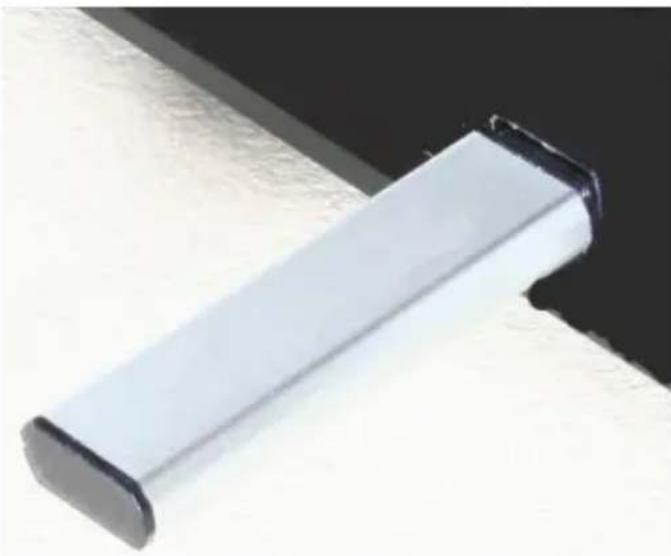
Connect the USB flash drive carefully on to the USB port. In general the label should show the USB stick to the top.
Remove the USB stick only when you are back in Live DVB-T program, otherwise the drive could be damaged.
Notes:
- Due to legal requirements of CE-conformity, the customer is asked to only connect USB-Sticks to the USB port.
- The USB port can be supported up to 16 GB flash memory size. In order to the many different USB-Sticks and the build-in electronics components a support of all USB-Sticks can not guaranteed.
- Please format the USB-Sticks only with FAT 32 file system. Other file systems are not supported and can not recognize by the USB port.
- Save all data's from the USB memory before you connect to the device.
First Time Installation
Fast installation operation
Connect this unit and other equipments related according to "EASY INSTALL":
- Turn on the unit, then the Welcome window is popped:
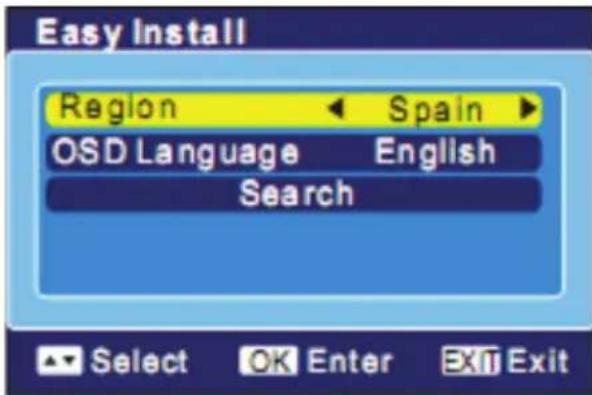
A. Get to the setup menu with / button, and select the proper setting parameters with / button: Region (Default setting is France), and OSD Language (English is default).
B. Once the setting is over, move to SEARCH with / button, then press OK button to enter Auto Scan menu and press it again to start auto scan.
C. Exit the Main Menu when auto scan is finished,
then press OK to pop up Channel List, where you can choose a preferred channel with / button before pressing OK to start viewing it.
- If no Welcome menu appears when the unit is turned on:
A. Press MENU button, then enter Tools menu by pressing / button to Load Factory Default. (You have to perform this operation when the unit is used for the first time or the software has been upgraded).
B. Press EXIT to quit Tools menu and get to Installation menu with / button, then choose Auto Scan and get to Search menu with OK, and press OK again to start auto scan.
C. After scan, exit the Main Menu, and press OK to display Channel List where you can choose a channel with / button and press OK to view it.
Important Functions
Channel List
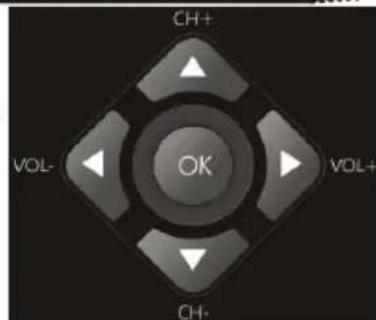
Press the OK button on the remote control and you gets the provided and receives TV broadcast stations. By using the / buttons you can select the TV station, which you like. To browse more quickly through the list, you can uses the PAGE+ and PAGE- buttons. To disappear thee channel list, press the EXIT button.
Change TV channel
To change to TV channel you can press the CH- or CH+ button.
Select TV Channel
You have also quick access to the different TV channels by using the numeric buttons.
Last TV channel
Press the RECALL button to go back to the last TV channel.
Change the Volume
By pressing the VOL- or VOL+ buttons you can adjust the volume of the speaker.
Subtitle
Press SUBTITLE button to turn on or off the subtitle on the screen. This function can be activated, if the service is provide by the TV channel and program.
Operation
Important Functions
Language or another Audio
Press AUDIO button to change the audio language or the audio track output. After pressing the AUDIO button a popup window appears on the screen, where you can select the preferred audio language or sound mode by using the / buttons. Confirm the selection by pressing the OK button.
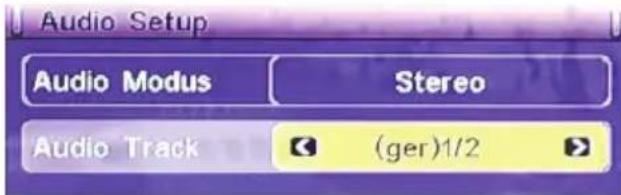
Audio Mode:
Select the audio out put (Left, Right, Stereo)
Audio Track:
Select the language or another audio track.
Note:
Some broadcaster supports different languages or sound modes.
Information
Press INFO button to view the information of the current channel. Press again the INFO button, than you can get additional information about the channel, signal and more.

Mute
Press the MUTE button on the remote control and you can switch off the sound. To activate the silence, press the MUTE button again.
TV/Radio
Press TV/RADIO button to switch between TV and Radio station.
Favourite list
If you had defined some TV or Radio into a favourite list, than you have a quick access to the favourite list by pressing the FAV button.
Red, Green, Yellow and Blue
These buttons are used by Videotext for quick access to previous watched videotext pages and for function operation according the actual navigation guide.
Pause Live Picture
Press the PLAY/PAUSE (>||) button on the remote control to freeze the picture. During freezing them you can hear the sound of the TV program. Press the PLAY/PAUSE (>||) button on the remote control again to continue the Live picture.
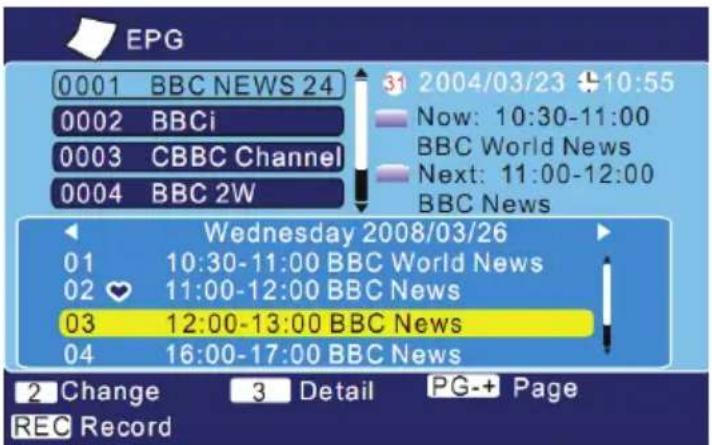
Press EPG button to show the EPG information. The EPG window is organized in different sections:
Top left:
TV Channel list
Top Right:
Date and Time. Additional the actual TV program title and the next TV program title.
Middle:
EPG overview of the TV channel (7-days EPG)
Bottom Side:
Navigation help information
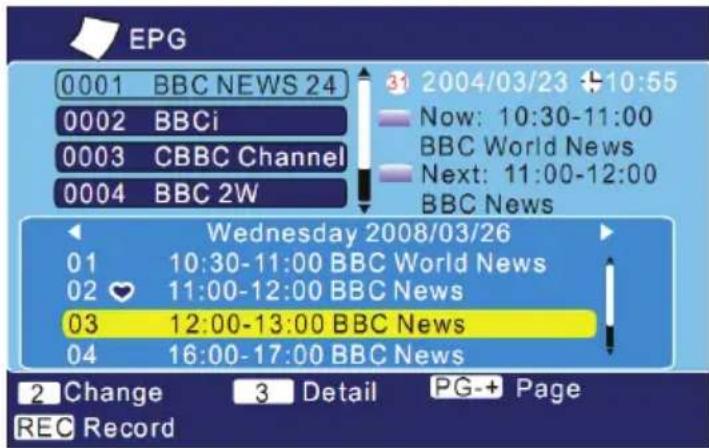
The cursor starts by the channel list. You can navigate with the / buttons to the next TV channel. If you change to the next channel, the EPG list will be updated automatically.
Button 2:
Here you can change between the TV channel list and the EPG overview.
Button 3:
If you marked a TV program, than you display the detailed EPG information.
REC button:
If you press the REC button on the marked TV program, than this TV program will be insert into the booking list. When you had insert a SD card into the SD Card Reader, than the booked TV program can be recorded.
/ buttons:
Changes between one TV channel to another or change from one TV program to another.
PAGE+ and PAGE- button:
With these buttons you can scroll in the TV list or in the TV program list.
In the EPG overview you can scroll from the current day to the next day. Each pressing of the button the device scrolls one day more.
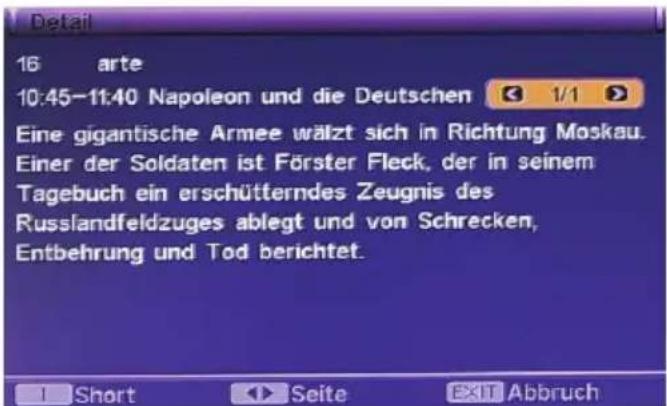
The detailed view of the EPG information (with the 3 button enabled) shows an altered appearance of the EPG window.
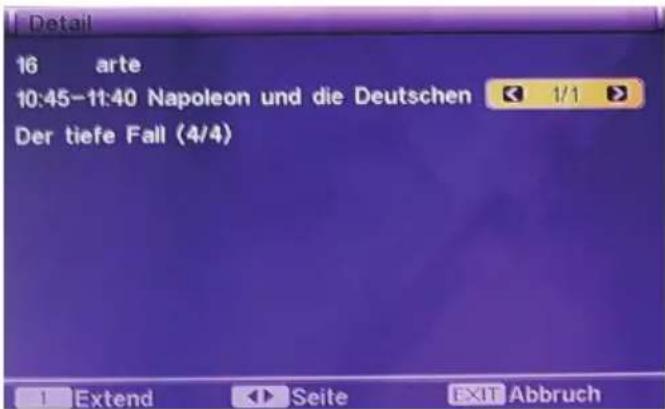
This displays the program title. Detailed information of the TV broadcast is displayed with the 1 button. The following figure shows the expanded view.
Note:
Sometimes it may happen that in the detailed EPG information to the message "No Information" or "No Description" will appear. Often, however, more information is available, to press the 1 button and other contents are displayed.
Press EXIT button to close the different windows. Press more than one times the EXIT button and the EPG will be close completely.
Teletext
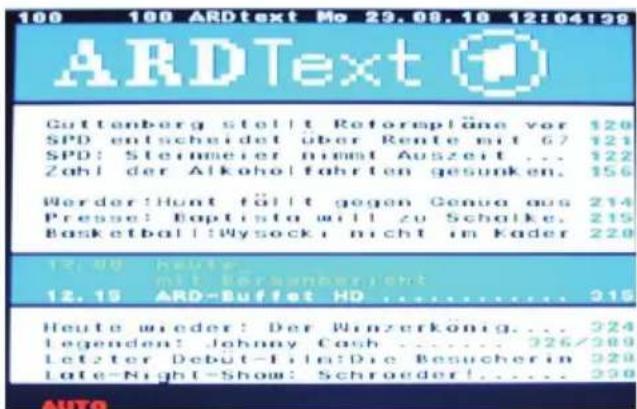
Press TTX button to view the videotext information of the current TV program.
Navigation help
- TTX button starts and ends the Videotext window
- Insert the page number by the numeric buttons (0 to 9)
- To browse 100 pages please uses the PAGE+ or PAGE- buttons
- The colored buttons allow to jump back of some visit pages
- EXIT button closes the Videotext window
Recorder
With the HRT 5000 you have the opportunity watch one broadcast and record another one or record two different broadcast's through the Twin Tuner technology at the same time. The recording is saved on a USB Stick (PVR Ready).
The procedure is:
- Choose a TV channel and TV program
- Connect USB storage (USB stick) to the USB interface.
Notes:
- When the recording starts, it then appears right above the TV in the TV REC indication (see illustration).
- All recordings are stored on the USB storage (USB stick) in a directory "ALIDVR.
- The recordings have file extensions TS or MPG.
Single Recording
After a USB memory is connected, press during the live image the RECORD button. The recording starts.
Recording and a watch another TV channel
After a USB memory is connected press during the live image the RECORD button. The recording starts. If you want to watch another TV channel, press the CH+/CH- button to switch the current channel. Also you can also press the OK button and open the channel list. Select from the list a TV station and start it with the OK button.
Two recordings at the same time
After a USB memory is connected press during the live image the RECORD button. The recording starts. If you want to watch another TV channel, press the CH+/CH- button to switch the current channel. Also you can also press the OK button and open the channel list. Select from the list a TV station and start it with the OK button. Press the RECORD button to start the recording of the second channel.
Stop Recording
Would you stop a recording, you can press the STOP button. A selection box appears on the screen. Press the OK button and the recording is finished.
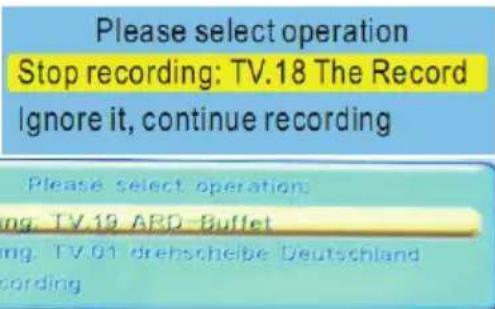
If two recordings at once active, appear both in the selection window. Use the / key a recording and press the OK button to stop the recording.
Recorder
Time Shift
In order to use the Time Shift function, you must first connect a USB memory to the HRT 5000 You may to change the size of the Time Shift Buffer in the DVR settings. The Time Shift function has important properties:
- Time shifting
- Time shift while recording
- Saving Time Shift's
Press during the live image the TIMESHIFT button on the remote control. The live picture pause and the other program is stored on the USB memory.
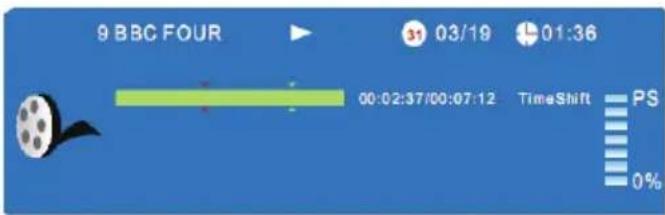
You can continue after you pause the show:
- PLAY/PAUSE button to playback the Time Shift
-
I<< button to use fast forward or fast rewind
Quitting Time-Shift
Press EXIT button (or CH + / CH - ) to stop the Time Shift function. You will now be asked whether you want to end the function. Press the OK button on the Yes box and the Time-Shift is stopped.
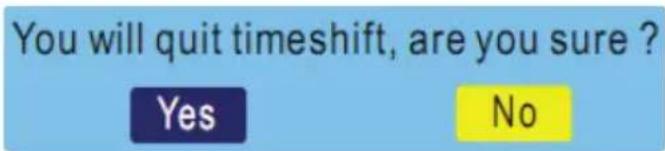
Time Shift permanently store
Press during the Time Shift function, the RECORD button and then it is saved after a security query. Confirm the safety query with the OK button.
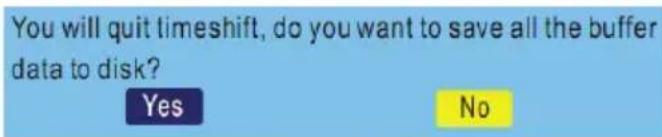
Time shift while recording
After a USB memory is connected, press during the live image the RECORD button. The recording starts. Go switch to the CH-/CH+ keys to change the channel which you want. Also you can also press the OK button to appear the channel list. Select from the list a TV station and start it with the OK button. Press the TIMESHIFT button and then you can use this function.
Note:
Before you stop recording, you must first turn off the Time Shift function.
You can schedule recordings on different ways. Either you use the EPG function or lead to program manually.
The scheduled recordings start out well from the stand-by mode. Thus the HRT 5000 after the capture goes into standby mode, you should still check an option to realize them. Press the MENU button and go to Media+. Select the submenu there in the setting DVR setting. Find the option Standby mode and make sure that this enabled (On).
The programming from EPG
The timer can be programmed directly from the EPG message out. Press the EPG button and select in the EPG window TV station andTV program.
Then press the RECORD button and the Timer Programming opens with the data information from EPG.
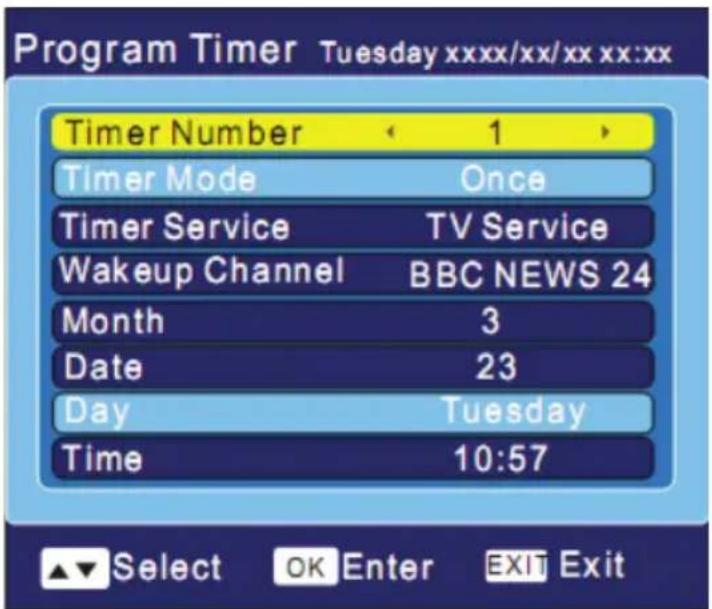
Here you can execute a manually programming.
- Timer Number - There are 8 timers that can be set.
- Timer Mode - Off, Once, Daily, Weekly, Monthly.
- Timer Service - It allows you to choose either TV or Radio services.
- Wakeup Channel - You can choose a channel to set for wakeup.
- Month - Month can be set in Once mode.
- Date - It can be set in either Once or Monthly mode.
Day - It can be set in Weekly mode. - Time - It is used to set start time for a particular show.
Recorder
Program a recording
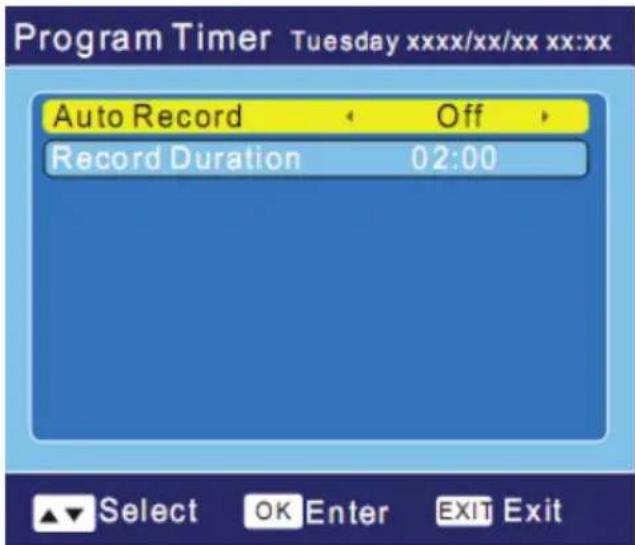
Please navigate with the button down to display the last two option of the Program Timer. The additional options are:
- Auto Record - Switch On or Off the recording
- Record Duration - Here you can insert the duration time of the TV program.
Note:
To record a content with the Program Timer you need to activate the Auto Record option and insert the Record Duration time.
Manually programming of the Recording
You can program the recording as well manually. Therefore, please press the MENU button and navigate the System Setup setting. There you can find the Program Timer.
For details please refer the previous page or the page 32 in this user manual.
Playing recorded program
You can play the selected program in the recorded list. Press the FILE button on the remote control to enter the Recorded List.
The selected file will be playback in the preview window.
To playback one recorded content:
OK Starts the playback
STOP/EXIT Stops the playback
<< Fast Rewind with the speeds of x2, x4, x8, x16 and x32
Fast Forward with the speeds of x2, x4, x8, x16 and x32
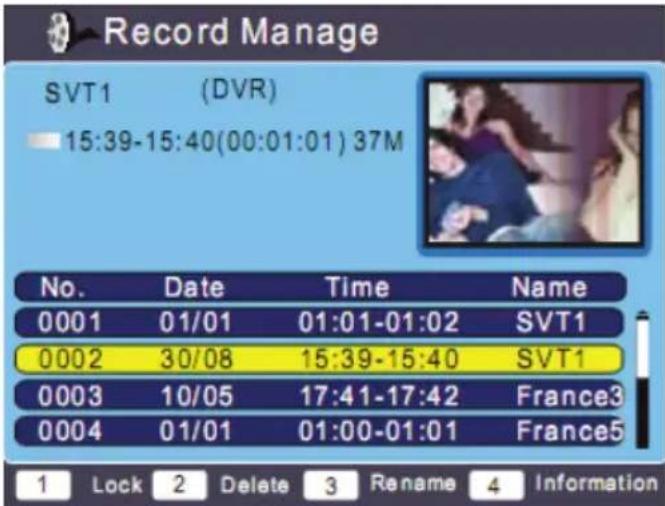
The manager also contains options to block individual files, read, delete and rename, and the EPG information of the recording. With the keys 1-4, the operations are run.
Note:
Please remove all other options page 35.
Media-Player
With the media player you can playback images, music and movies from USB storage.
You can sort the file list of the media player with various filters. With the RIGHT and LEFT arrow keys to navigate the file list) to the filter options (bottom row of the image.
When you click the Setup option in the bottom row, then you have access to the playback function. Here you can define the duration, the slideshow and transition effects.

General button for playback
OK Starts the playback of the file
EXIT Ends the playback
GREEN Next file
RED Previous file
PAUSE Pause of the playback
BLUE Repetition mode
Playback of pictures
The supporting formats for playback of photos are JPEG and BMP formats. Select a picture and press the OK button. Playback starts. You will have a number of additional buttons available for operation.
RIGHT Rotation of the picture clockwise
LEFT Rotates the picture against clockwise
OK Starts the zoom mode with x2, x4, x8 and x16. By zooming you can move the picture with the arrow buttons
Playback of Videos
The media player only supports playback of MPEG files. Please note that Media Player no AC-3 (DD / DTS etc.) Assisted in the play. The video files should only MPEG-2 audio (MPA, MP2) included. Dedicated buttons for video playback are:
<</RED Fast rewind with x2, x4, x8, x16 and x32 times
/GREEN Fast forward with x2, x4, x8, x16 and x32 times
STOP Stops the playback and returns to the time index 0:00:00 hour
RIGHT Jumps 10 seconds forward (if information is active) and press OK to execute
LEFT Jumps 10 seconds backward (if information is active) and press OK to execute
Playback of Music
The media player only supports playback of MP3 files. Apart from the fast coil forward or backward, there is no further specific navigation aids.
<< Fast Rewind
Fast Forward
Settings
Main Menu
Press MENU key to brows the Main Menu which includes 4 submenu items on the screen:
- Channel
- Installation
- Setup
- Tools
Media+
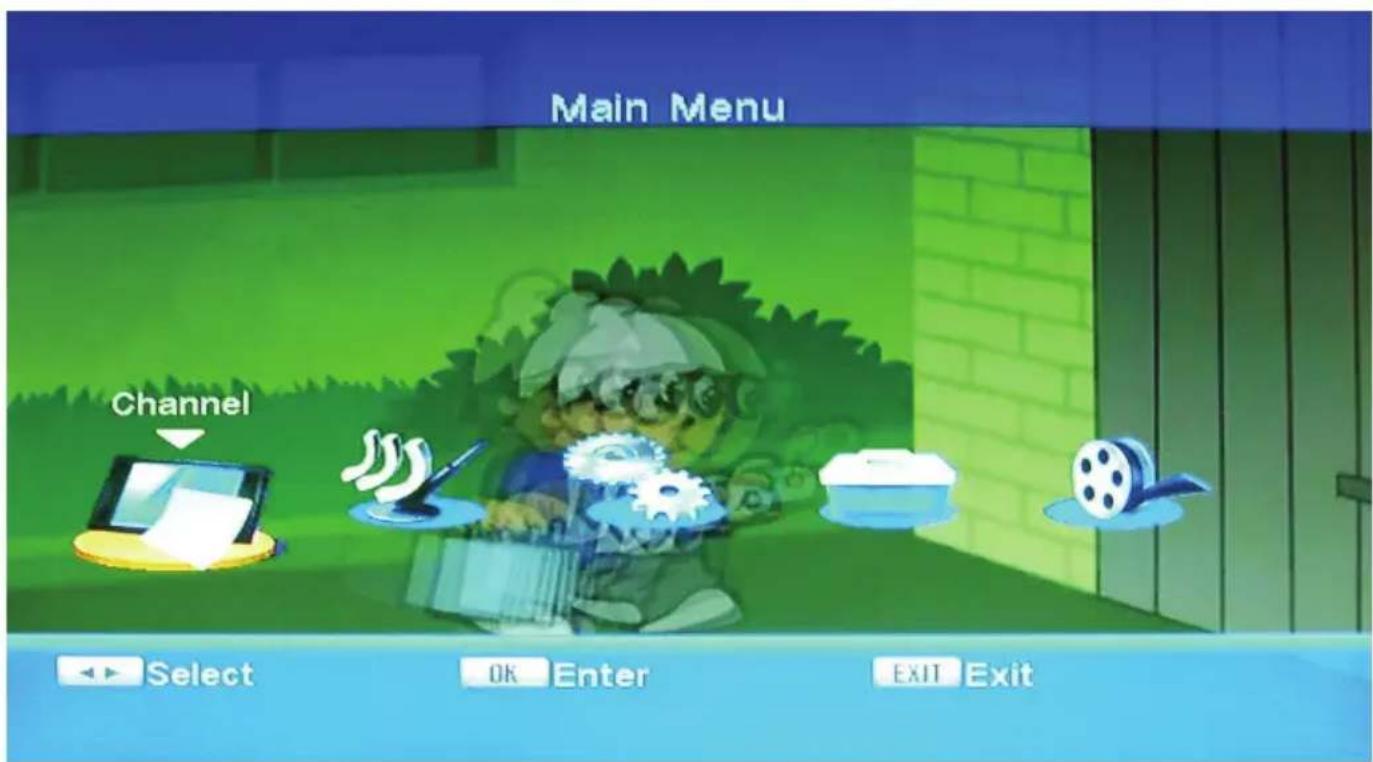
Press / buttons to select a menu item, then OK button to confirm it, or press / button to choose a functional option, then press EXIT to return to the upper-level menu.
Note:
- The four direction buttons ( / / ) , OK and EXIT button usually have the same functions in menus at all levels.
- Certain menu option should be operated according to the navigation hints displayed on the screen.
- Color buttons refer to different function operations in different menu.
Settings
Channel
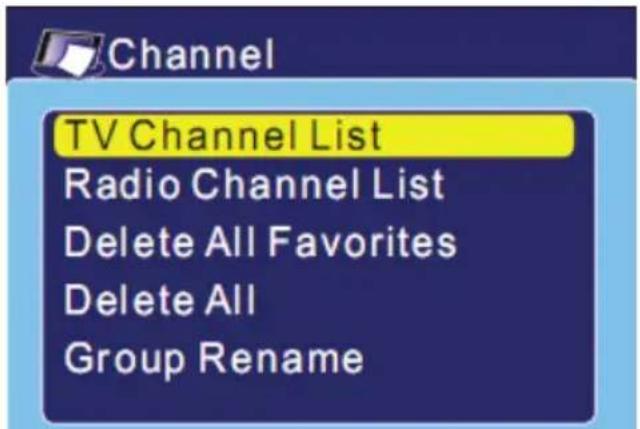
At Channel option press OK, then the submenu containing 6 options shall be displayed on the screen:
TV Channel List
Radio Channel List
- Delete All Favorites
- Delete All
- Group rename
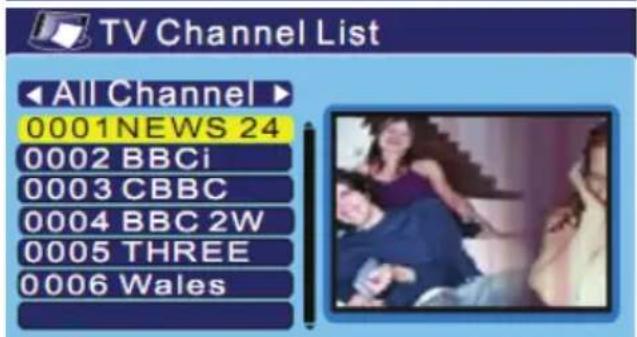
TV Channel List
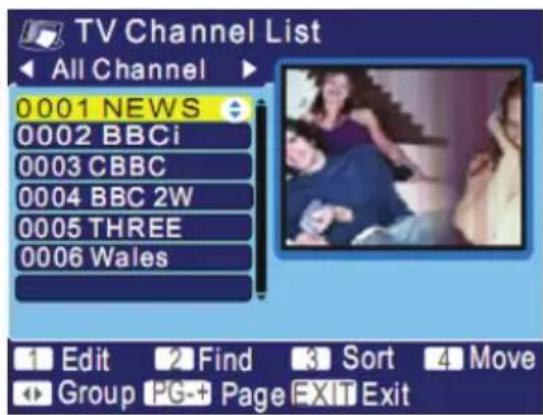
Use / button to choose a channel, and press OK to confirm.
Use / button to shift favorite channels (Note: Only when favorite channels have been set).
Numeric 1 (Edit) button: Use this button to edit the channels, such as Favor, Lock and Skip etc.
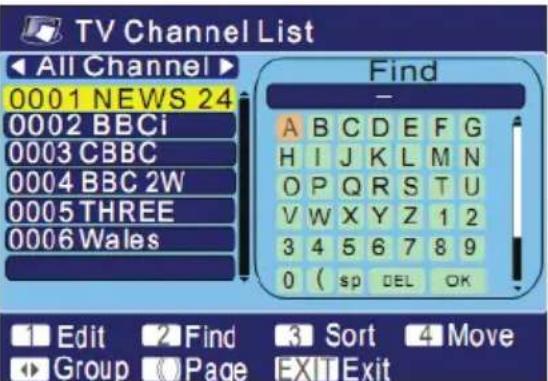
Numeric 2 (Find) button: Used to search for a particular channel by inputting the channel name or number.
Numeric 3 (Sort) button : sort the channel orders in five ways: Default, Name (A-Z), Name (Z-A), FTA and Lock.
Numeric 4 (Move) button : Used to move a channel to an expected place with / button, then press OK to confirm.
- Press PAGE+PAGE- to turn over the page down or up and browse the list. There are not less than 600 channels stored.
- MENU or EXIT button: Used to quit current interface.
Edit Channel
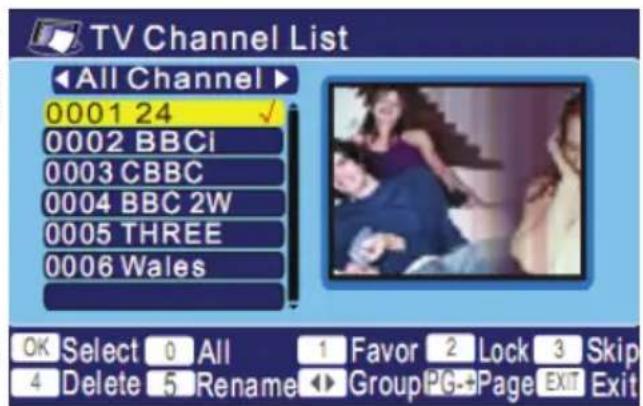
When press OK button or Numeric 1 (Edit) button after accessing one channel, the following operating interface will appear. Please follow the relevant instruction for the operation:
- OK (Select) button: use this button to choose the channels to be edited one by one.
- (All) button: Choose all the channels to be edited at one time.
- (FAV) button: Set the chosen channels as your Favorites which can be sorted into 8 groups.
- 2—(Lock) button: Lock or unlock a channel (program).



Settings
Channel
- 3—(Skip) button: Set one channel to be skipped over when look through the list by pressing / button.
- 4—(Delete) button: Delete the chosen program (Channel).
- 5—(Rename): Rename the chosen program (Channel).
- / (Group) button: These two buttons function only when Favorite channels are already set, and used to shift from one Favorite group to another.
PAGE+/ PAGE- button: Used to turn over the page down or up and browse the list. There are no less than 600 channels stored. - MENU or EXIT button: Press either button to quit current interface.
Switch skip channel. Are you sure?
Yes
No
Delete Channel.Are you sure?
Yes
No
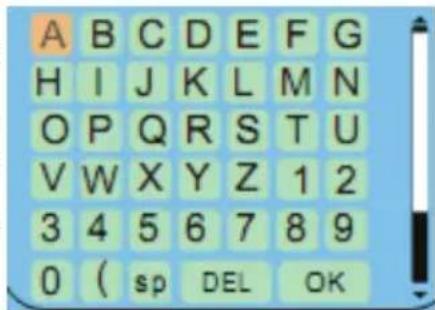
Search
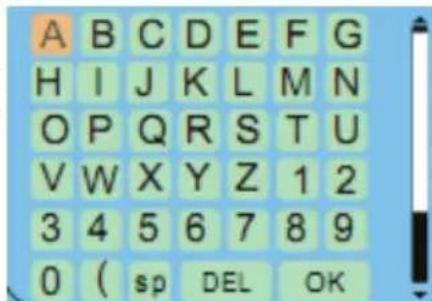
With the key 2, you can search for particular TV station name.
Enter the name or some of the characters on the OSD keypad.
Sort
You can sort the channel list in certain aspects. Press the button 3 The options for sorting are:
Name (A to Z)
Name (Z to A)
Free (FTA)
Lock (LOCK)
Default
Sort
Default
Name(A-Z)
Name(Z-A)
FTA
Lock
Move
Navigate using the / buttons to TV stations and activate it with the OK button. With the key 4 you can move the TV channels to individual places and sort. Go with the / keys to the position of the transmitter and confirm the prompt by pressing the OK button.
Channel
Radio Channel List
Refer to the operation of TV Channel List for more information.
Delete All Favorites
Press OK to get to this setup option, then delete all favorite TV channels and radio channels that have been edited following the navigation guidance on the screen.
Delete All
Press OK to get to this setting, where all stored TV and radio channels can be deleted following on the screen.
Installation
Move to Installation and press OK, then a submenu shall be popped up which includes three options:
- Auto Scan
- Channel Scan
- Tuner Setting
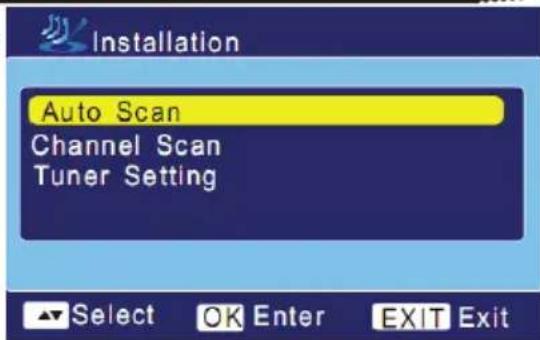
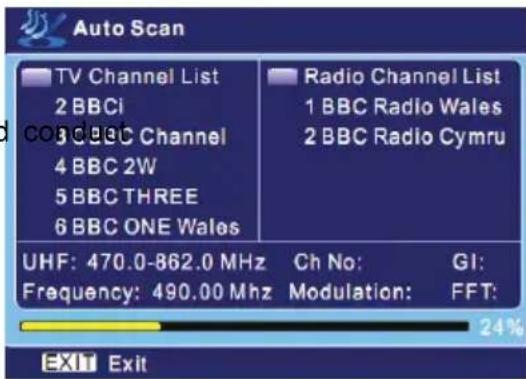
Auto Scan
- Scan Mode: Free (scan all free channels), All (scan all channels including free and paid ones);
- Search: Press OK to display Scan box and auto scan, or press MENU or EXIT to quit.
The scan box indicates the scan process by percentage of completion. On the top there is details about Scan Band, Frequency, Demodulation mode, Channel No, Transmission mode and Guard Interval etc..
Below are the scanned TV channels and radio channels displayed in two columns.
Installation
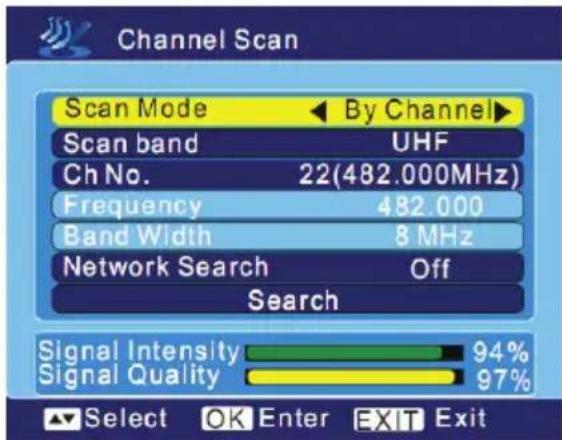
Channel Scan
- Scan Mode: By Channel and By Frequency. Either alternative shall be fine for scan.
- Scan Band: VHF/ UHF available.
- Ch No.: Channel 5~12 (VHF), and Channel 21~69 (UHF)
- Frequency: 174~230 MHz (VHF), 470~862 MHz (UHF) are available. (The frequency system can be set automatically according to different regions, and the actual frequency point should be referred to the practice).
- Band Width: There are three options: 6 MHz, 7 MHz, and 8 MHz.

Search
Move the cursor here and press OK, then a information box shall appear indicating the scanning process. Pressing EXIT button allows you to cancel scan and quit current interface.
The scan process box shows the progress of scan by percentage of completion. On the top there is detail about Scan Band, Frequency, Demodulation modes, Channel No, Transmission mode and Guard Interval etc.. Below are the scanned TV channel list and radio channel list displayed in two columns.
Notes:
- Only when Scan Mode is set to "By Channel", can Scan Band and Ch No be ready for setup.
- Only when Scan Mode is set to "By Frequency", can Frequency and Band Width be set.
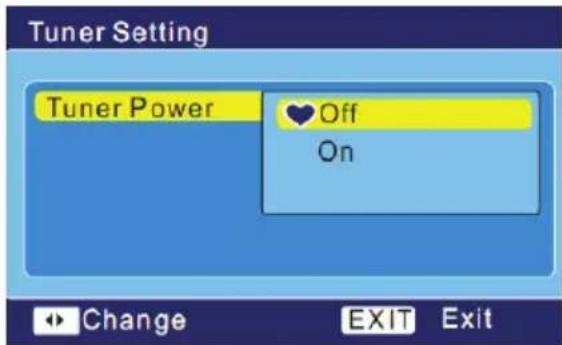
Tuner Setting
Tuner power: On / Off
Note:
Alternative "On " indicates enablement of active antenna (5V DC); and 'Off' does not.
Settings
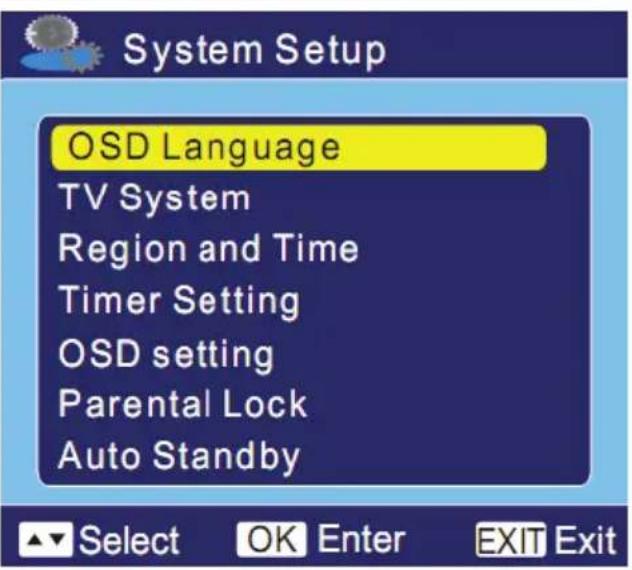
System Setup
When the cursor is at Setup, press OK to display its submenu containing 7 options:
- OSD Language
TV System
Region and Time
Timer Setting - OSD Setting
- Parental Lock
- Auto Stand-By
OSD Language
Get to OSD Language and press OK to start this setup.
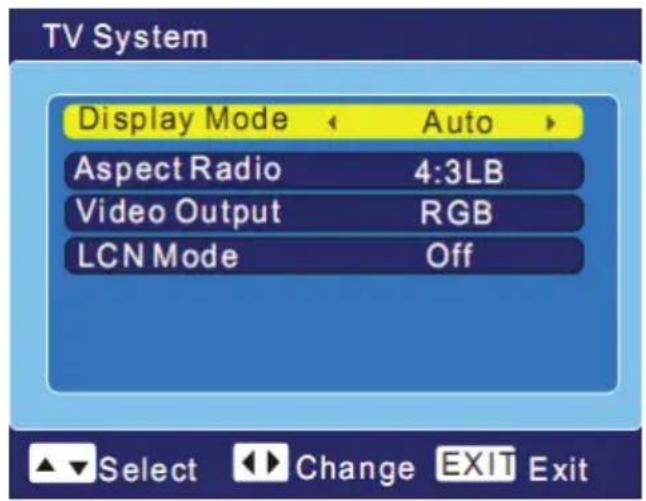
TV System
This settings offer four options.
Display Mode
- Auto
- PAL
- NTSC
Aspect Ratio
- 4:3 LB (Letter Box)
- 4:3 PS (Pan Scan)
- 16:9
- Auto
Video Output
- CVBS
- RGB
LCN mode
-
On
-
Off
If LCN mode is chosen ON, the system shall automatically list the channels in a natural order according to the program stream; if Off is the alternative, the system shall list the channels in a routine order.
System Setup
Region and Time
Here you can adjust Time and so on.
Region
France, Germany, Greek, Iran, Italy, Poland, Portugal, Russia, Spain, Sweden, United Kingdom, Vietnam, Argentina, Australia, Denmark, and Finland.
GMT Usage
- User Define
- By Region
- Off
GMT Offset
Within the range of GMT+12:00~GMT-11:30.
Region and time
Region
GMT Usage By Region
GMT Offset GMT+01:00
Date 2004/03/23
Time 10:56
Summer Time Off
Time Display Off

Select
OK Enter EXIT Exit
Date
Press OK to start the setup, then use / button to move the cursor and the number buttons to enter the date value.
Once the setup is done press OK to confirm, the setup gets effective.
Time
Press OK to start the setup, then use / button to move the cursor and the number buttons to enter the time value.
Once the setup is finished, press OK to confirm.
Summer Time
With this setting you can activate the summer time or switch them off. If you uses the time decoding from the DVB stream (GMT Usage by Region), than you do need to change the setting (Off).
Time Display
On/ Off.
Notes:
- Only when the option GMT Usage is set to "User Define", can GMT Offset be available to set;
- Only when the option GMT Usage is set to "Off", can Date and Time be set.
System Setup
OSD Setting
Here you can select to display subtitles and the style of OSD.
Subtitle Display
Standard, Teletext or Off
OSD transparency
Off, 10% 20% 30% 40% and 50%
Load Factory OSD Setting
Press OK to load the default OSD settings.
OSD Setting
Subtitle Display
OSD Transparency
Off
10%
Load Default OSD Setting

Select

Change

Exit
Timer Setting
The timer settings include the Program Timer and the Sleep Timer.
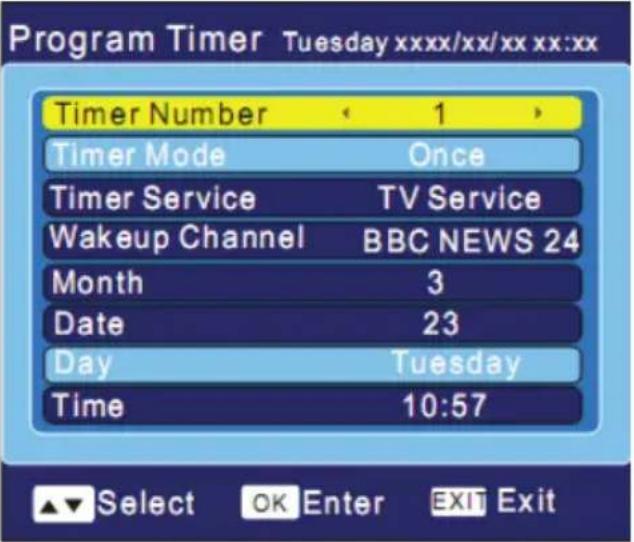
Program timer
Here you can execute a manually programming.
- Timer Number - There are 8 timers that can be set.
- Timer Mode - Off, Once, Daily, Weekly, Monthly.
- Timer Service - It allows you to choose either TV or Radio services.
- Wakeup Channel - You can choose a channel to set for wakeup.
Month - Month can be set in Once mode. - Date - It can be set in either Once or Monthly mode.
Day - It can be set in Weekly mode. - Time - It is used to set start time for a particular show.
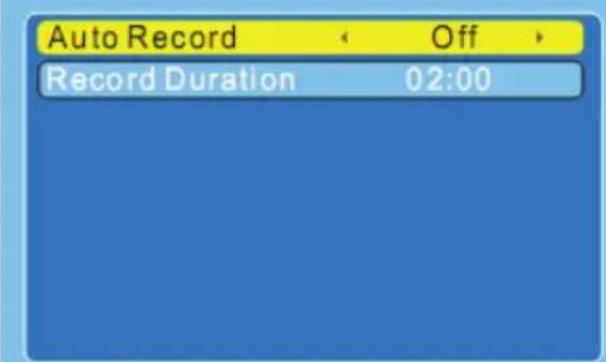
Please navigate with the button down to display the last two option of the Program Timer. The additional options are:
- Auto Record - Switch On or Off the recording
- Record Duration - Here you can insert the duration time of the TV program.
Note:
To record a content with the Program Timer you need to activate the Auto Record option and insert the Record Duration time.
Program Timer Tuesday xxx/xx xx:xx

Select

Enter

Exit
System Setup
Sleep Timer
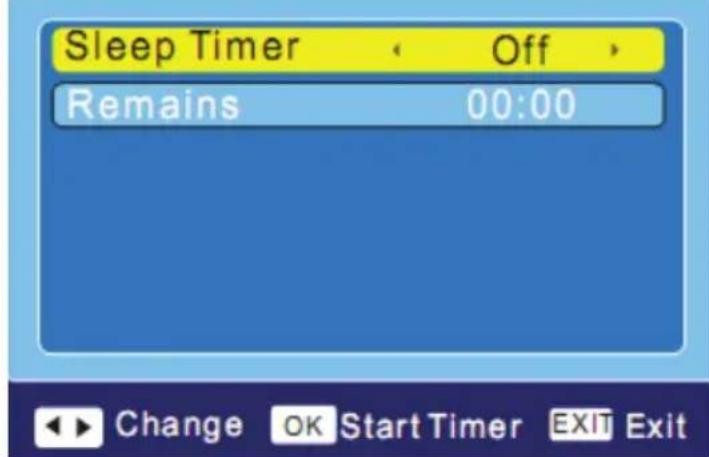
Here you can program the Sleep Timer.
Sleep Timer
Off, 10 Min, 30 Min, 60 Min, 90 Min and 120 Min. Press OK to confirm the setup.
Remains
Refers to the remains of the set time.
Sleep Timer
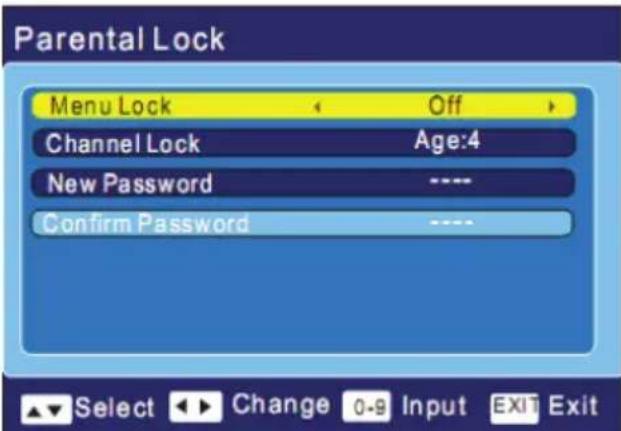
Parental Lock
Enter the default password preset at the factory: The password is 0 0 0 0.
- Menu Lock: On/Off. Once it is set to On, you will have to enter the password before you conduct Auto Scan or Channel Scan.
- Channel Lock: On/Off.
- Once it is enabled, you will have to enter the right password to access the locked channels.
New Password: Press OK and enter the new password with numeric buttons. - Confirm Password: Use numeric buttons to enter the new password before pressing OK to confirm (following the actual guidance on the screen).
Auto Stand-By
With this setting you can define whether the device automatically shuts off after 3 hours when given via the remote control or the front buttons are no orders.
ON Activates the option
OFF No automatic standby
Auto Standby

Settings
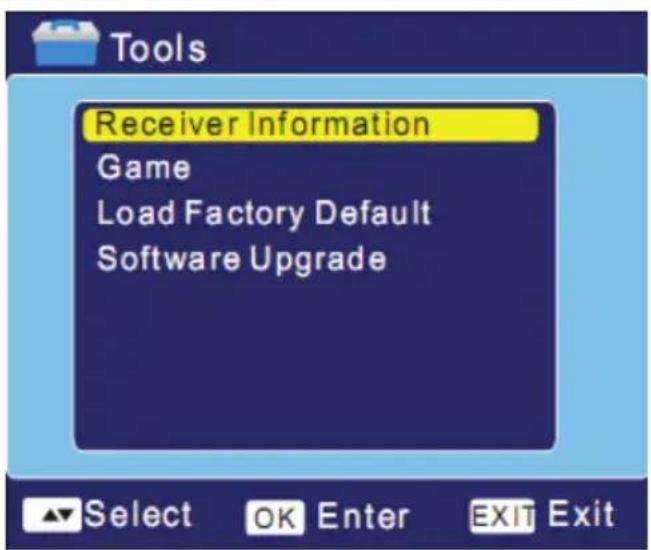
Tools
Move here and press OK, then a submenu will be brought up including three options:
- Receiver Information
Game - Load Factory Default
- Software upgrade
Receiver Information
Move the cursor here and press OK to display the relevant information of current channel.
Game
Tetris: Press OK to get into Tetris game.
- Snake: Press OK to get into Snake game.
Othello: Press OK to get into Othello game.
Note:
Regarding the rules of games, refer to the hints displayed on the screen.
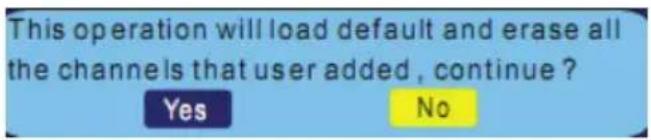
Load Factory Default
Press OK to load Factory Default settings following the screen guidance by choosing Yes and pressing OK again to confirm.
When this unit is used for the first time or has just been upgraded, be sure to perform this setting operation.
Note:
The initial password preset at the factory is "0 0 0 0".
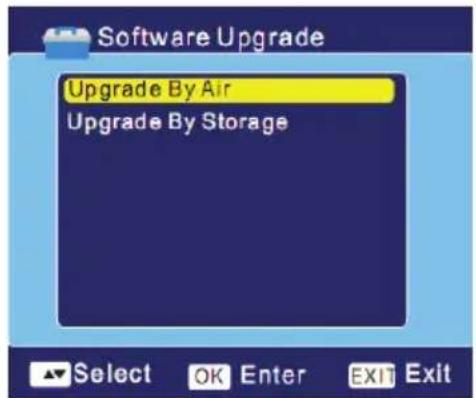
Software Upgrade
This setting can import an upgrade.
- Select Upgrade from memory
- Enter the password 0 0 0 0. The submenu opens.
Settings
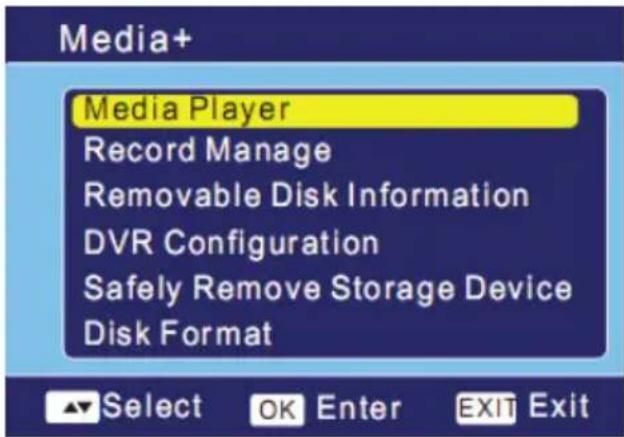
Media+
The menu Media+ includes six submenu's.
Media-Player
- Record Manage
Disc Information
- PVR Configuration
- Safety Remove
- Disc Format
Media-Player
With the media player you can play back images, music and movies from SD card.
You can sort the file list of the media player with various filters. With the RIGHT and LEFT arrow keys to navigate the file list) to the filter options (bottom row of the image).
When you click the Setup option in the bottom row, then you have access to the playback function. Here you can define the duration, the slideshow and transition effects.
Record Manage
The PVR administration allows access to the recordings you made with the HSD 7560. All recordings are listed there. The selected host is displayed in the preview window.
The playback functions are:
OK Starts the playback
EXIT Ends the playback
/<< Fast forward or rewind. The speeds
change by every pressing to x2, x4, x8, x16 and x24 times
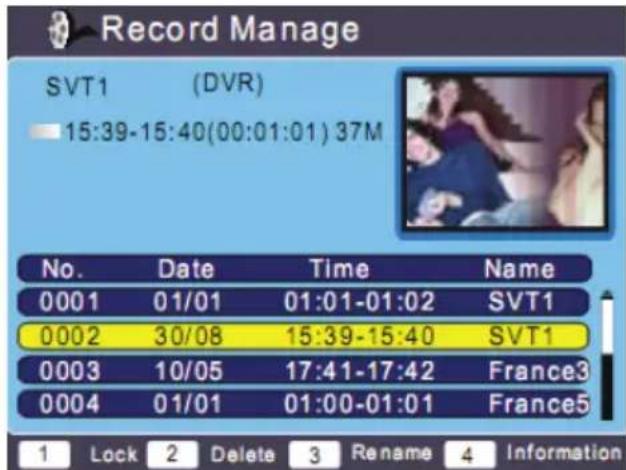
The PVR management still contains the options to lock
individual files to delete, rename,and EPG information of the recording.With the keys 1 to 4 carry out the operations are:
- Lock
- Delete a recording
- Rename
- Information
Delete
Once the file is highlighted, press the OK button and confirm the security prompt. Thereafter, the recording will be deleted.
Media+
Rename
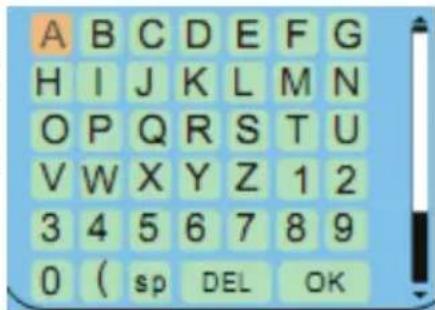
If you want to rename a recording, then press 3. After an on-screen keyboard appears. With the on-screen keyboard you can perform the operation. To navigate with the on-screen keyboard use the arrow keys and the OK button.
Information
Press the button 4 and than the recorded EPG information appears on the screen, if available.
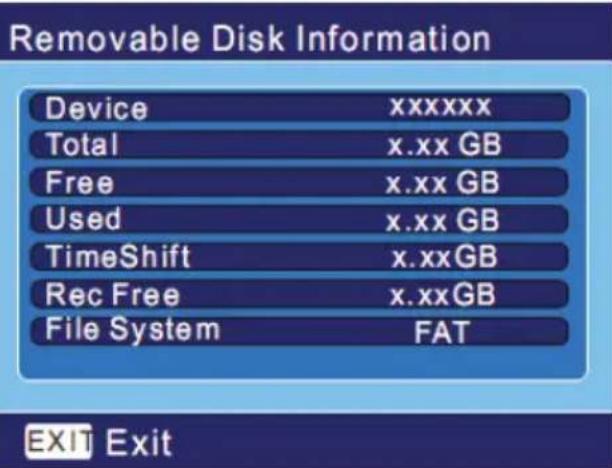
Disc Information
Here you can gets an overview about the connected SD card.
DVR Configuration
The option includes the submenu's of:
- Preferred Storage
- Time-Shift Time
- Record Type
- Standby Mode
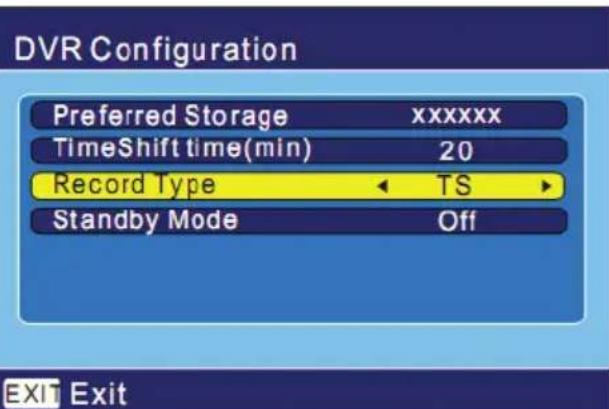
Time-Shift Time
Here the size of the time shifts is defined in minutes.
When switched on have this option, you time-shift is available. The start is then time-shift through the PAUSE button during the live image.
Record Type
Here you can switch between the transport stream (TS), or select program stream (PS). The essential difference is that is stored within the transport stream, the EPG information.
Stand-By Mode
This function determines whether the device switches to the programmed recording in standby mode or not.
Safety remove
With this option, the SD memory card can be safely removed. Run this option, and then the card is disconnected from the system. You can then remove the memory card from the SD card reader.
Please select operation Safely remove USB storage device -Cancel
Disc Format
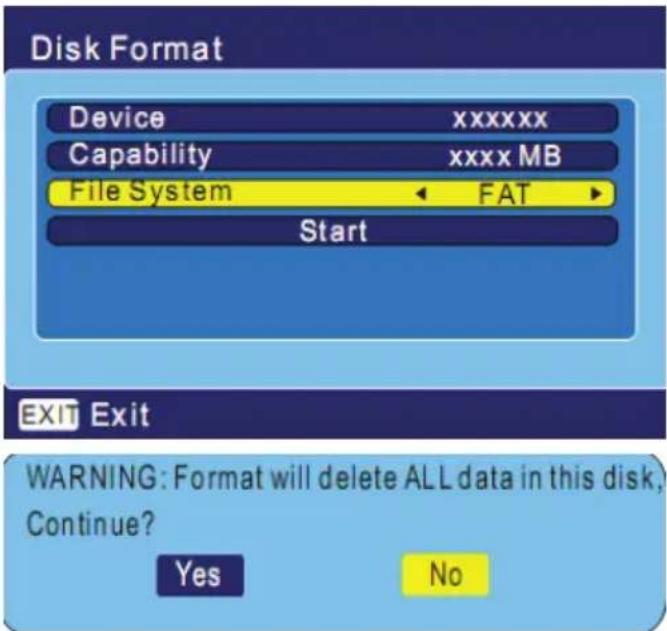
With this option, you have the ability to format the USB memory.
Select the file system (use FAT file system).
Navigate to the Start field and press the OK button. After you confirm the security prompt to format the storage.
Note:
All files are deleted when formatting the memory. If necessary, before saving the memory.
Check the following guide for the possible cause of a problem before contacting service.
Technical Support of Xoro/MAS:
| Symptom | Correction |
| No DVB-T reception / serious distortion by mosaics or artefacts/ freeze pictures | • Switch the player into the DVB-T mode. • No DVB-T reception in your region. • Realign the antenna. Please pay attention to the direction of the antenna tower. • Please use an active indoor aerial or a roof antenna. • Retry the Auto Scan. |
| No power | • Plug the power cord into the outlet tightly and turn on the power. |
| Can not scan programs | • Adjust the antenna • Refer settings for searching |
| No picture / no coloured pictures | • Control the connection to the TV set. • Control the video output mode in the setup. |
| Remote control does not work | • Change the batteries. • Operate within normal range (max. 5 meters, 30 °) • The sensor is pointed to by bright light. |
| No sound | • Cancel Mute • Increase volume • Pay attention to connection to TV set or amplifier. • Cancel Sleep timer |
| Audio / Subtitle without function or can no choose | • Change audio track (press AUDIO button) • Change subtitle track (press SUBTITLE button) • Other audio track is not supported • Subtitles are not supported |
Specification
High Frequency Tuner
Input Frequency Range
VHF: 174—230 MHz (Channel 5—12)
UHF: 470—862 MHz (Channel 21—69)
Bandwidth: 7 or 8MHz
Input Signal Level: -75 --15 dBm
RF Input Connector: IEC169-2 type, F type
Input impedance: 75Ω
Demodulation Mode
Waveform: COFDM (Code Orthogonal Frequency Division Multiplexing)
Demodulation: QPSK, QAM16, QAM64
Transmission Mode: 2K, 8K
Guard interval: 1/4, 1/8, 1/16, 1/32
Code rate: 1/2, 2/3, 3/4, 5/6, 7/8
Video, Audio decoding
Video decoding : ISO/IEC13818-2 MPEG2 (MP@ML) Compatible
Video resolution: PAL 720 × 576
NTSC 720× 480
Video input code rate: 15Mbit/s Max.
Videotext: Support DVB-ETS300472
Audio decoding: ISO 11172-3
Audio Track: Stereo, Left, Right
Audio Sample rate: 32, 44.1, 48 KHz
General
Input Power: AC 220—240 Volt, 50/60 Hz
Power consumption: < 8 Watt
Stand-By: <2 Watt
Unit size (packed): 235 × 125 × 40 ~mm
Net Weight: 0.61 Kg including remote control
Connectors: 2x SCART (TV & VCR), Coaxial, USB 2.0 High Speed, Antenna (In & Out)
Ambient condition
Temperature: 0-40° Celsius
Humidity: 90%
Note:
Weight and dimensions are not absolutely exact values. Specifications are subject to change (by manufacturer) without notice.
Table des Matieres
Touches PAGE+ and PAGE-:
Switch skip channel. Are you sure?
Yes
No
Delete Channel.Are you sure?
Yes
No
Rechner
This operation will load default and erase all the channels that user added, continue?
Yes
No
Note:
Please select operation
Safely remove USB storage device
Cancel
Formatage du disque
WARNING: Format will delete ALL data in this disk, Continue?
Yes
No
Note:
Formed'onde: COFDM (Code Orthogonal Frequency Division Multiplexing)
Démodulation: QPSK, QAM16, QAM64
Mode de transmission: 2K, 8K
Intervalle de Garde: 1/4, 1/8, 1/16, 1/32
Taux de code: 1/2, 2/3, 3/4, 5/6, 7/8
Consommation: < 8 Watts
Veille: 2 Watts
Dimensions: 235 × 125 × 40 ~mm
Poids net: 0.61 Kg, telecommande incluse
Connectique: 2x Peritel (TV & VCR), Coaxial, USB 2.0 High Speed,
Antenne (In & Out)
FREE TO CHOOSE INNOVATIONS

XORO by MAS Elektronik AG
Pollhornbogen 19
21107 Hamburg
Deutschland
Tel: +49(040) 77 11 09 17
Fax: +49(040) 76 73 35 15
xoro@mas.de
www.xoro.de



- Inhaltsangabe
- Suchen
- Programm Suche (Channel Scan)
- Video, Audio decoding
- SAFETY INFORMATION
- User Manual
- Antenna
- Power Supply
- USB port
- Position
- Operation
- Defect
- Recycling Information
- Recycling of electronic devices
- Recycling of paper and carton
- Recycling of plastic parts
- Green Dot
- ACCESSIONS
- Package Contents
- Notes:
- Features
- CONTROL ELEMENTS
- Front Panel
- Rear Panel
- Remote Control
- Insert batteries and operationradius
- Buttons of the remote control
- Note:
- Connection
- To TV Set and Aerial
- Basic connection:
- REMARKS:
- CONNECTING TO TV SET AND AERIAL
- To external decoder or amplifier
- Second SCART port (VCR)
- Second SCART output
- SCART Input
- First Time Installation
- Fast installation operation
- Important Functions
- Channel List
- Change TV channel
- Select TV Channel
- Last TV channel
- Change the Volume
- Subtitle
- Language or another Audio
- Information
- Mute
- TV/Radio
- Favourite list
- Red, Green, Yellow and Blue
- Pause Live Picture
- Teletext
- Navigation help
- Recorder
- Single Recording
- Recording and a watch another TV channel
- Two recordings at the same time
- Stop Recording
- Time Shift
- Quitting Time-Shift
- Time Shift permanently store
- Time shift while recording
- The programming from EPG
- Program a recording
- Manually programming of the Recording
- Playing recorded program
- Media-Player
- General button for playback
- Playback of pictures
- Playback of Videos
- Playback of Music
- Settings
- Main Menu
- Channel
- TV Channel List
- Edit Channel
- Search
- Sort
- Move
- Radio Channel List
- Delete All Favorites
- Delete All
- Installation
- Auto Scan
- Channel Scan
- Tuner Setting
- System Setup
- OSD Language
- TV System
- Display Mode
- Aspect Ratio
- Video Output
- LCN mode
- Region and Time
- Region
- GMT Usage
- GMT Offset
- Date
- Time
- Summer Time
- Time Display
- OSD Setting
- Subtitle Display
- OSD transparency
- Load Factory OSD Setting
- Timer Setting
- Program timer
- Program Timer Tuesday xxx/xx xx:xx
- Sleep Timer
- Remains
- Parental Lock
- Auto Stand-By
- Auto Standby
- Tools
- Receiver Information
- Game
- Load Factory Default
- Software Upgrade
- Media+
- Record Manage
- Delete
- Rename
- Disc Information
- DVR Configuration
- Time-Shift Time
- Record Type
- Stand-By Mode
- Safety remove
- Disc Format
- Specification
- High Frequency Tuner
- Demodulation Mode
- General
- Ambient condition
- Table des Matieres
- Rechner
- Please select operation
- Safely remove USB storage device
- Cancel
- Formatage du disque
- XORO by MAS Elektronik AG
Brand : XORO
Model : HRT 5000
Category : Digital decoder