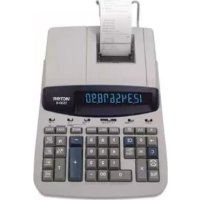
15306 - Calculator Victor Technology - Free user manual and instructions
Find the device manual for free 15306 Victor Technology in PDF.


| Product Type | Electronic printing desktop calculator |
| Display Capacity | 10 digits (model 15306) |
| Decimal System | Floating (F), Fixed (0, 1, 2, 3, 4, 6), Add mode (+) |
| Main Functions | 4 operations, chain calculation, memory, grand total, constants, time calculation, financial calculations, tax, cost/sell/margin |
| Printer | Character wheel |
| Power Supply | 11 watts |
| Ink Ribbon | Victor #7010 twin spool or #7011 cartridge |
| Paper Width | 57.5 mm (2 1/4") |
| Display | VFD (vacuum fluorescent display) 10 digits |
| Operating Temperature | 0°C to 40°C |
| Warranty | 3 years parts and labor (repair at authorized center) |
| Reset | RESET button under battery compartment |
| Maintenance and Cleaning | Clean with a soft, dry cloth. Do not use liquids. |
| Safety | Use in a dry environment, avoid shocks and humidity. |
| Spare Parts | Victor #7010 ink ribbon or #7011 cartridge available. |
Frequently Asked Questions - 15306 Victor Technology
User questions about 15306 Victor Technology
0 question about this device. Answer the ones you know or ask your own.
Ask a new question about this device
Download the instructions for your Calculator in PDF format for free! Find your manual 15306 - Victor Technology and take your electronic device back in hand. On this page are published all the documents necessary for the use of your device. 15306 by Victor Technology.
USER MANUAL 15306 Victor Technology
Congratulations on your choice of a Victor electronic calculator. Careful design, quality materials, painstaking workmanship, and advanced research and production facilities have given you a calculator that, with proper care, will provide years of trouble-free service. To assure future optimum performance, ask your Victor representative about low-cost protection offered by Victor's Extended Guarantee Protection Program. (To order see enclosed form on Page 68)
This operating manual describes the features and operation of the Victor 1530-6, 1560-6 and 1570-6 electronic calculators. Where applicable, differences among the three calculators are clearly noted in the manual. Each model is a commercial-grade calculator with 10, 12 or 14-digit capacity and two-color ribbon printing.
Model 1530-6 is a print/display calculator, 10-digit, with one independent memory
Model 1560-6 is a print/display calculator, 12-digit, with one independent memory
Model 1570-6 is a print/display calculator, 14-digits, with two independent memories
Each calculator also features the four basic arithmetic operations, financial, amortization, present value/future value, days between days, time calculations, grand total, percentage and percentage-of-change, cost, sell, margin, change sign, sigma, item count with averaging, non-add/date functions, programmable tax rate key, backspace, units/price mode calculations, square root function, time and date functions with battery back-up.
TABLE OF CONTENTS
| Operations and General Maintenance 3 | |||
| Replacing the Ribbon/Cartridge 4 | |||
| Paper Feed 5 | |||
| Battery Replacement 5 | |||
| Keyboard Diagrams 6 | |||
| Keyboard Layout 7 | |||
| Slide Switch Features 8 | |||
| Key Features 10 | |||
| Troubleshooting 14 | |||
| Application Examples 39 | |||
| Setting the Date and Time 65,66 | |||
| Warranty 67 | |||
| Extended Warranty 68 |
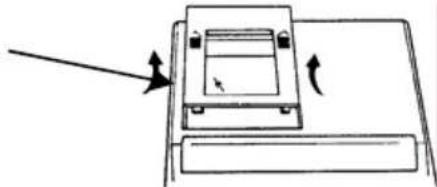
BEFORE TURNING ON - Please remove the shipping-cushion placed on the ribbon and check the rating label on the bottom to see if the rated voltage corresponds to the local voltage before plugging in the AC cord.
Note: Ribbon cushion is located under printer cover.
natural_image
Simple line drawing of a mechanical device with an arrow indicating direction (no text or symbols)ACTIVATE BACKUP BATTERY
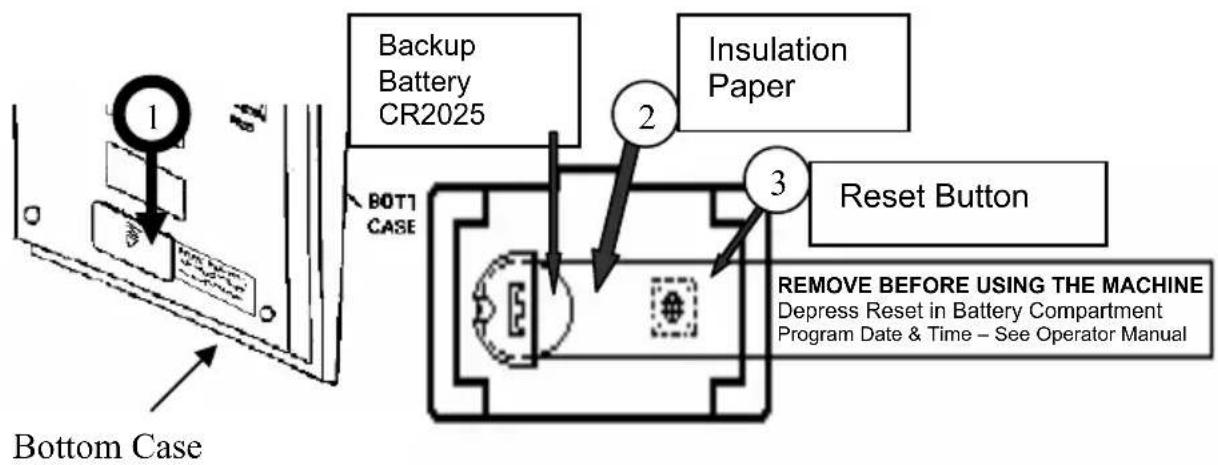
Before start using the calculator, please remove the insulation paper below the backup battery.
- Turn the AC power switch OFF and remove the battery compartment cover located on the bottom case.
- Remove the insulation paper located below the backup battery.
- PRESS THE RESET SWITCH.
- Replace the battery compartment cover.
- Turn ON the AC power switch.
- Program the date and time according to the instruction manual.
text_image
1 2 3 Backup Battery CR2025 Insulation Paper BOT1 CASE Reset Button REMOVE BEFORE USING THE MACHINE Depress Reset in Battery Compartment Program Date & Time – See Operator Manual Bottom CaseGENERAL MAINTENANCE
- Do not place the machine in hot, dusty or damp locations.
- To clean the housing use a silicon-treated cloth. Do not use water or detergents.
- Do not place anything on the housing, particularly on the head of the printer mechanism:
- Turn off the power switch before removing the plug from AC wall outlet.
- Turn the power switch off while not in use.
REPLACING THE RIBBON
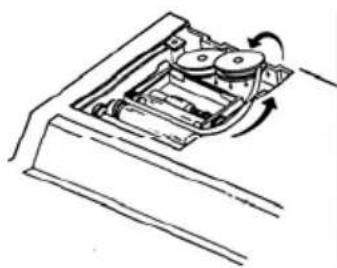
Your calculator is shipped with a 2-color ribbon already in place. You do not need to install or change it before you begin using the calculator. When you have been using your calculator for some time, however, the print will gradually become faint, indicating that you should change the ribbon. To change the ribbon, follow these steps.
-
Remove paper roll, tearing paper at rear of calculator. Use the Paper Advance (↑) key to feed the remaining paper tape through the printer. Then remove the printer cover.
-
Remove the old ribbon by pulling upward.
-
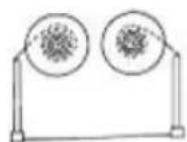
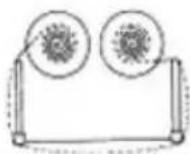
Install the ribbon spool with the black edge up. Roll from the outside of the full spool and place the first spool on the spindle not engaged by the lever. Thread the new ribbon along the outside of the guides and in front of the print wheels. Switch the lever to the other side and replace the second spool.
-
Rotate the spools to take up any slack. Replace the printer cover and the paper tape. (Replace with Victor Ribbon #7010)
natural_image
Mechanical assembly diagram showing a rotating component with no visible text or symbolsCorrect Direction Incorrect Direction
REPLACING WITH CARTRIDGE RIBBON
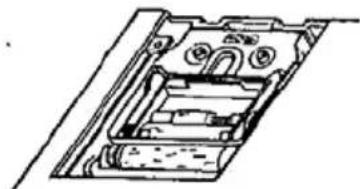
You have the option to use a cartridge ribbon in this model.
natural_image
Technical line drawing of a mechanical assembly with no visible text or symbols-
Remove paper roll, tearing paper at rear of calculator. Use the Paper Advance ( ) key to feed the remaining paper tape through the printer. Then remove the printer cover.
-
Remove the old ribbon/cartridge by pulling upward
-
Install the new cartridge by pressing it down with the VICTOR logo facing up, as shown.
-
Replace the printer cover and the paper tape. (Replace with VICTOR cartridge #7011)
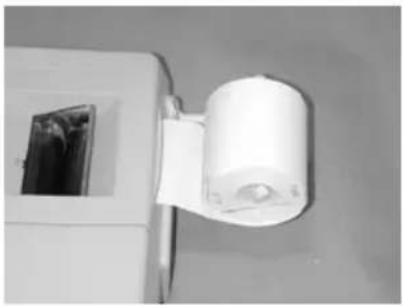
HOW TO FEED THE PAPER TAPE
- Put the new paper roll on the paper arm.
- Insert the paper into the slot as indicated.
- Depress the paper feed key.
- Suitable paper roll:
Width: max. 58mm (2.25")
Diameter: max. 50mm (1.97")
Paper: Normal paper
(45kg/1000
natural_image
Close-up of a white cylindrical device mounted on a wall, with a black plastic component visible nearby (no text or symbols)sheets/788
x
1091
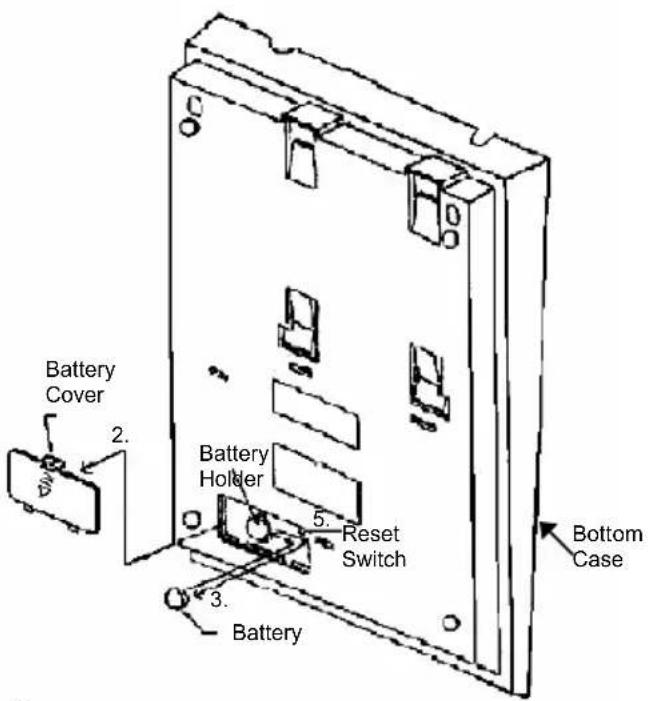
BATTERY REPLACEMENT
- Turn the AC power switch off
- Remove - the battery compartment cover located on the calculator bottom case.
- Remove the old battery and install a new CR2025 or equivalent.
- Turn on the AC power switch
- PRESS THE RESET BUTTON
- Replace the battery compartment cover.
- Reprogram the date and time. (See page 64 & 65)
text_image
Battery Cover 2. Battery Holder 5. Reset Switch 3. Battery Bottom CaseCAUTION
Danger of explosion if battery is incorrectly replaced. Only replace with the same or equivalent type recommended by the manufacturer. Dispose of used batteries according to the manufacturers' instructions.
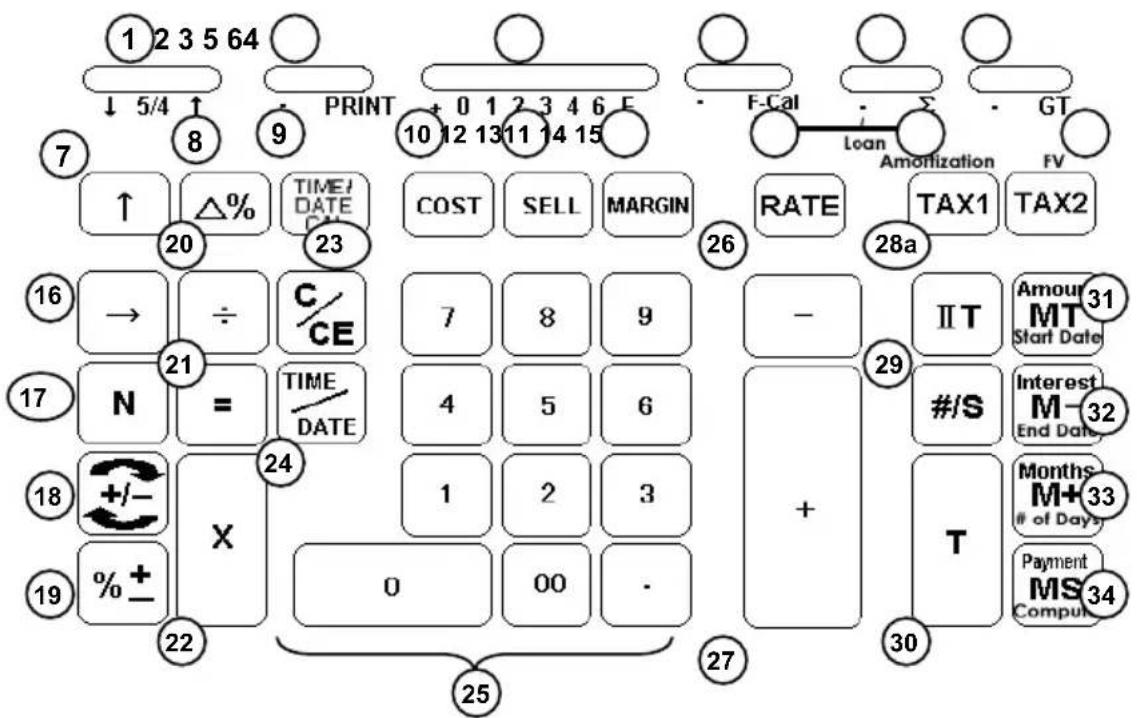
Model 1570-6 Keyboard Layout
flowchart
graph TD
    A["1 2 3 5 64"] --> B["PRINT"]
    B --> C["+ 0 1 2 3 4 6 E"]
    C --> D["10 12 13 11 14 15"]
    D --> E["Loan"]
    E --> F["Amortization"]
    F --> G["FV"]
    H["7"] --> I["↑"]
    I --> J["△%"]
    J --> K["TIME/DATE"]
    K --> L["COST"]
    L --> M["SELL"]
    M --> N["MARGIN"]
    N --> O["RATE"]
    O --> P["TAX1"]
    P --> Q["TAX2"]
    R["16"] --> S["→"]
    S --> T["÷"]
    T --> U["C/CE"]
    U --> V["7"]
    V --> W["8"]
    W --> X["9"]
    X --> Y["-"]
    Y --> Z["29"]
    Z --> AA["IIT"]
    AA --> AB["Amour MT Start Date"]
    AC["17"] --> AD["N = TIME/DATE"]
    AD --> AE["4"]
    AE --> AF["5"]
    AF --> AG["6"]
    AG --> AH["+"]
    AH --> AI["#/S"]
    AI --> AJ["Interest M-End Date"]
    AK["18"] --> AL["+/-"]
    AL --> AM["X"]
    AM --> AN["1"]
    AN --> AO["2"]
    AO --> AP["3"]
    AP --> AQ["T Months M+# of Days"]
    AR["19"] --> AS["% + -"]
    AS --> AT["0"]
    AT --> AU["00"]
    AU --> AV["-"]
    AV --> AW["30"]
    AW --> AX["Payment MS Comput"]
    AY["20"] --> AZ["23"]
    AZ --> BA["24"]
    BA --> BB["25"]
    BB --> BC["26"]
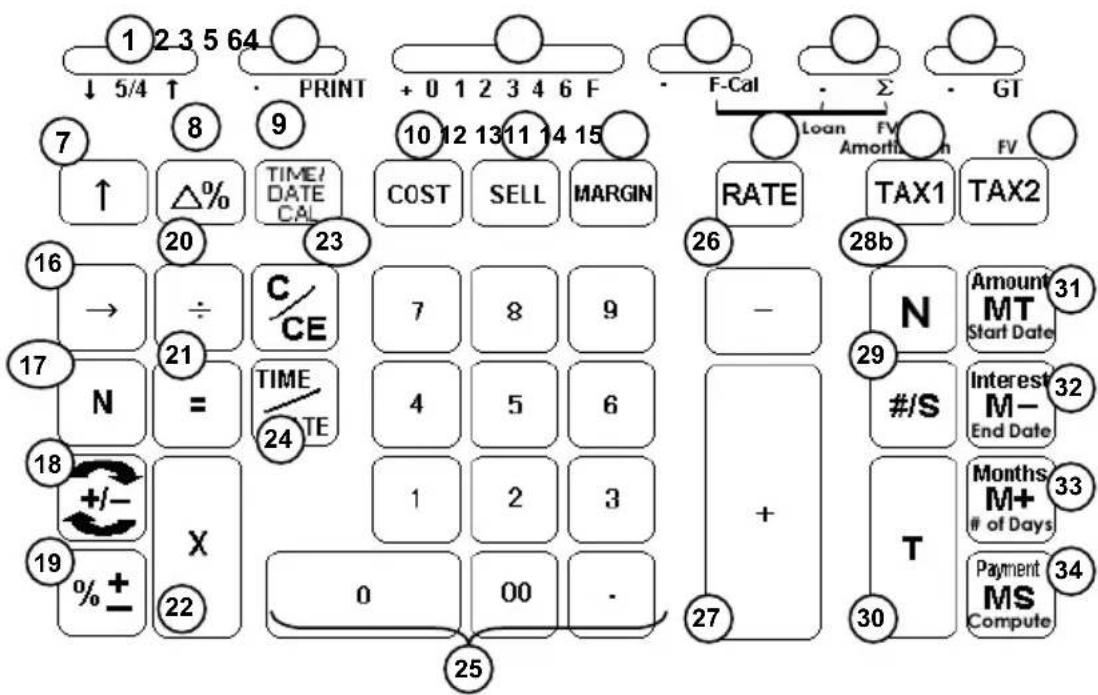
Model 1560-6 and 1530-6 Keyboard Layout
flowchart
graph TD
    A["1 2 3 5 64"] --> B["PRINT"]
    B --> C["+ 0 1 2 3 4 6 F"]
    C --> D["F-Cal"]
    D --> E["Loan"]
    E --> F["TAX1"]
    F --> G["TAX2"]
    G --> H["N"]
    H --> I["#/S"]
    I --> J["T"]
    J --> K["Months M+ # of Days"]
    K --> L["Payment MS Compute"]
    L --> M["T"]
    M --> N["27"]
    N --> O["0"]
    O --> P["-"]
    P --> Q["25"]
    Q --> R["X"]
    R --> S["22"]
    S --> T["24"]
    T --> U["TIME/CE"]
    U --> V["21"]
    V --> W["÷"]
    W --> X["20"]
    X --> Y["↑"]
    Y --> Z["△%"]
    Z --> AA["9"]
    AA --> AB["10 12 13 14 15"]
    AB --> AC["COST"]
    AC --> AD["SELL"]
    AD --> AE["MARGIN"]
    AE --> AF["RATE"]
    AF --> AG["26"]
    AG --> AH["28b"]
    AH --> AI["N"]
    AI --> AJ["Amount MT Start Date"]
    AJ --> AK["31"]
    AK --> AL["N/S"]
    AL --> AM["#/S"]
    AM --> AN["Interest M-End Date"]
    AN --> AO["32"]
    AO --> AP["Months M+ # of Days"]
    AP --> AQ["33"]
    AQ --> AR["T"]
KEYBOARD LAYOUT
| 1. Rounding Selector 19. Percentage | |
| 2. Print Switch 20. Division | |
| 3. Decimal Selector 21. Equal | |
| 4. Financial Calculation Switch | 22. Multiplication |
| 5. Sigma/Loan and FV Switch 23a. | Clear / Clear Entry |
| 6. Grand Total Switch 24. Time / Date Display | |
| 7. Paper Feed 25. Numeric Key Pad | |
| 8. Delta Percentage 26. Subtraction | |
| 9. Time/Date Calculation 27. Addition | |
| 10. Cost | 28a. Memory II Selector |
| 11. Sell | 28b. Item Count |
| 12. Margin 29. Subtotal / Date | |
| 13. Tax Rate Preset 30. Total | |
| 14. Tax 1/Amortization | 31. Memory Total / Amount/Start Date |
| 15. Tax 2/Future Value | 32. Memory Subtraction / Interest/End Date |
| 16. Back Space | 33. Memory Addition / Months/# of Days |
| 17a. Item Count | 34. Memory Subtotal / Payment/Compute |
| 18. Sign Change |
This section describes the mode switches, data entry keys, and operating keys provided on your calculator. The following terms are used in discussing your calculator's operation:
- The accumulator is the area of the calculator's logic that stores a running total of the results of addition and subtraction operations. It is the “adding machine” portion of the calculator.
- The calculating register is the area of the calculator's logic where the intermediate and final results of multiplication, division and percentage calculations are stored. The contents of the calculating register do not affect the accumulator.
- The keyboard register is the area of the calculators logic that stores the value that will immediately be used in the next calculation.
- The item count register is the area of the calculator's logic that counts your entries into the accumulator. Each positive entry is counted as one item. Each Negative entry is subtracted resulting in a net item count. It is also net or gross programmable.
- The memory register is the area of the calculator's logic that accumulates amounts you add to or subtract from the memory. Because the memory register is
independent of the accumulator and the calculating register, it retains its value until you clear it with the Memory Total (MT) key.
SLIDE SWITCH FEATURES
This section illustrates and describes the mode switches you can use to control your calculator's operation.
1. ↓ 5/4 ↑ Decimal Rounding Selector
↓ This causes automatic round down (truncation).
5/4 This setting causes automatic round off. If the last digit of the result that will be printed or printed/displayed upon rounding is followed by a value of 0 to 4, the digit is unchanged. If the last digit of the result that will be printed or printed/displayed upon rounding is followed by a value of 5 to 9, the digit is rounded up.
↑ This setting causes automatic round up
2. • PRINT Printer Select Switch
- (Non-print) Printer is activated only when feed key or non-add/date key is pressed.
PRINT Printer is activated as long as calculator is turned on.
3. + 0 1 2 3 4 6 F Decimal Point Selector
+ Monetary Add Mode: At this setting, amounts entered are assumed to be monetary. The calculator automatically supplies a decimal point to the left of the last two digits entered. Use this setting to add, subtract, multiply and divide decimals.
Units/price mode operation:
Multiplication: The first factor will be entered as a whole number and the second factor will have a decimal point supplied to the left of the last two digits.
Division: The first factor will have a decimal point supplied to the left of the last two digits and the second factor will be entered as a whole number.
0,1,2,3,4,6 Fixed decimal point mode; these settings specify the number of digits to the right of the decimal point that are shown in the result.
F Floating decimal point mode; this setting specifies that all digits of the result are shown, up to a maximum of 10 on model 1530-6, and 12 on model 1560-6 and 14 on model 1570-6. If the result exceeds these capacities, excess digits to the right of the decimal point are dropped. No rounding takes place.
4. F-Cal Financial Calculation Switch
• Without Financial Calculation
F-Cal Tax 1 key change to Amortization key
Tax 2 Key change to FV key
Memory Total key change to Amount key
Memory Minus key change to Interest key
Memory Plus key change to Months key
Memory Subtotal key change to Payment key
Note: Cost-Sell-Margin is disabled when in this mode.
5. • /Loan FV Sigma/Loan and Futre Value Switch
F-Cal=Off • work as Sigma off
Σ work as Sigma on
F-Cal = ON • work as Loan
∑ work as FV
_(Sigma On) When the Sigma switch is in the “ ” position, the results of multiplication or division calculations completed by the = or % key are automatically added to the accumulator.
ma Off) (Sig When the Sigma switch is in this position, the results of these calculations are not added to the accumulator. The sum of these accumulations is displayed by depressing the Subtotal key and are displayed and cleared by depressing the Total key.
Loan Basic Financial Calculation
FV Calculation for Future Value
6. • GT Grand Total Switch
• Calculation without Grand Total
GT 1570-6: Any total taken with T key is automatically accumulated to Grand Total memory. The accumulated grand total can be recalled by pressing the IIT key then the T key.
1560-6 & 1530-6: Any total taken with T key is automatically accumulated to memory. The accumulated grand total can be recalled by pressing the MT key.
NOTE: For model 1560-6 and 1530-6, when F-Cal switch is ON, Grand Total is inaccessible because MT is Amount Key.
7. [↑] Paper Feed Key
Advance the paper roll.
8. [Δ%] Delta Percentage
Automatically compares any two amounts and then calculates and prints the difference and percent of change.
9. [TIME/DATE CAL] Time/DATE Calculation Key
Pressing this key once will set the calculator to Time Mode. +, -, S and T will be calculated and displayed in Time Mode (hours, minutes). A second depression will set the calculator and display to Date Mode
(MM-DD-YYYY). In Date mode, MT key changes to Start Date key, M-key changes to End Date key, M+ key changes to Number of Days key and MS key changes to Compute key.
10. [COST] Cost Key
Used to enter the Cost factor in a Gross Profit Margin calculation.
11. [SELL] Sell Key
Used to enter the Selling price in a Gross Profit Margin calculation.
12. [MARGIN] Margin Key
Used to enter the desired Margin in a Gross Profit Margin calculation.
13. [RATE] TAX Rate Preset Key
Used to enter TAX rate.
14. [TAX 1/Amortication] Tax 1/Amoritization Key (dual operation)
Tax 1: Calculate an amount of tax with tax rate preset by RATE key. Use + key for calculating an amount including VAT, and – key for calculating an amount excluding VAT.
Amortization: Prints the amortization schedule for a period, selected range of periods or the complete term of the loan.
15. [TAX 2/FV] Tax 2/Future Value Key (dual operation)
Tax 2: Calculate an amount of tax with tax rate preset by RATE key. Use + key for calculating an amount including VAT, and – key for calculating an amount excluding VAT.
FV: If this key is pressed after 10-key input, it means enter the value as FV. If Amount, Interest, Months and Payment are entered in prior, or modification is done on any of the three as above in prior, user can calculate/recalculate the FV by pressing this key.
16. [→] Right Shift Key
Deletes right most character of a live entry.
17a. [N] Item Count Key
Model 1570-6
Calculations with item count and/or averaging. Also used to set the N count to Gross or Net.
18. [+/-] Sign Change Key
Reverse the sign on the display.
19. [% +] Percent Key
Completes percent calculation when Multiple or Division key is used.
20. [÷] Division Key
The Division key performs division, automatic constant division and intermediate sequential operations. It establishes the next amount as a constant divisor. The ÷ key also causes the calculator to divide when
you depress the =, %, M+, M-, X or ÷ key. Each divisor entry is retained as a constant (except M+ and M- entries) until you depress the X, ÷ or Clear.
21. [=] Equal Key
To get the result in multiplication or division.
22. [X] Multiplication Key
The multiplication key performs multiplication, automatic constant multiplication and intermediate sequential operations. It establishes the amount entered or the pervious printed or printed/displayed amount as a constant multiplicand. The X key also causes the calculator to multiply when you depress the =, %, M+, M-, X or ÷ key. Each multiplicand entry is retained as a constant (except M+ and M- entries) until you depress the X, ÷, or Clear.
23a. [C/CE] Clear / Clear Entry Key
Model 1570-6
Clears a live entry by pressing this key once. Press twice to clear the accumulator or pending calculation. Does not clear the Memory or Grand total.
23b. [CE] Clear Entry
Model 1560-6 & 1530-6
Clears a live entry.
24. [TIME/DATE] Time and Date Display Key
Used to display or program the date and time. Depressing this key once will cause the date to display, a second depression will display the time. Holding the key down for three seconds will cause the date or time to flash, this is the program mode.
25. [0]-[9], [00] & [•] Numeric Keys
The calculator uses the conventional 10-key indexing keyboard, and includes the double zero key and decimal point key. Whole numbers are entered exactly as they are written.
26. [-] Minus Key
Subtracts an amount from the accumulator. To subtract the same amount more than one time (repeat subtraction), enter that amount once and depress the Minus key as many times as necessary. If this key is depressed immediately after [%] key, it works as percent minus key.
27. [+] Plus Key
Adds an amount to the accumulator. To add the same amount more than one time (repeat addition), enter that amount once and depress the Plus key as many times as necessary. If this key is depressed immediately after [%] key, it works as percent plus key.
28a. [IIT] Memory II Selector Key
Model 1570-6
Calculation on memory II by press Memory II key follow by plus, minus, subtotal or total key.
28b. [N] Item Count Key
Model 1560-6 & 1530-6
Calculations with item count and/or averaging. Also used to set the N count to Gross or Net.
29. [# / S] Date / Subtotal Key
# : It will print live entry as an identifier as an invoice number with “#” mark.
S : It prints but does not clear the accumulator.
30. [T] Total Key
Prints and clears the accumulator. When this key is pressed with the "GT" switch is on, the result is accumulated automatically in the memory register.
31. [MT / Amount/Start Date] Memory Total Key / Amount Start Date (Dual Operation)
MT: Prints and clears the memory.
Amount: When you are in Financial Mode and this key is used to enter the principal amount of the loan.
However, if Interest, Month, and Payment have previously been entered this key will produce the principal amount.
Start Date: Used to enter start date. Entry must follow format (MM-DD-YYY)
32. [M-/Interest/End Date] Memory Minus Key / Interest / End Date (Dual Operation)
M-: Subtracts an amount from memory. If there is a live calculation pending, the Memory Minus key will complete the calculation and subtract the amount from Memory.
Interest: This key will enter the 10-key input value as Loan Interest. Loan Interest must be entered in order to do any financial calculation. Therefore, this key will only be able to use for recall Loan Interest, or enter the 10-key value.
End Date: Used to enter end date. Entry must follow (MM-DD-YYYY)
33. [M+ / Months/ # of Days] Memory Plus Key / Months/# of days (Dual Operation)
M+: Adds an amount to memory. If there is a live calculation pending, the Memory plus key will complete the calculation and accumulate the result to Memory.
Months: If this key is pressed after 10-key input, it is means enter the value as Number of Months to settle the Loan. If Amount, Interest, and Payment are entered in prior, or modification is done on any of the three as above in prior, user can calculate / recalculate the Number of Months
# of Days: Used to calculate two different dates. If days is not change sign that is calculate future date. If days is change sign that is calculate past date.
34. [MS / Payment/Compute] Memory Subtotal Key / Payment/Compute (Dual Operation)
MS: Prints but do not clear the memory.
Payment: If this key is pressed after 10-key input, it is means enter the value as Payment. If Amount, Interest, and Months are entered in prior, or modification is done on any of the three as above in prior, user can calculate / recalculate the Payment by press this key.
Compute: Calculate days between dates, future date and past date
35. [÷], [=] R Square Root
By depressing the ÷ and then the = key the square root result will be achieved.
Troubleshooting
Many problems such as no power, no key response tec. Can be resolved using the RESET button. Please follow these instructions:
- Machine must be plugged in and ON, and in the PRINT mode.
- Turn machine over so you can see the battery compartment.
- Open the battery compartment and locate the RESET button located next to the silver battery.
- Depress the RESET button; you will hear the machine cycle. If you do not hear the machine recycle, push the button a 2^nd time.
- Replaced the battery compartment cover and turn the machine right side up.
- Test the machine.
If this procedure has not successfully resolved your problem please call 800-628-2420 for further assistance.
French:
Application Examples
English – Spanish – French
- Backspace – Retroceso – Rappel Arrière
| Rounding5/4 | PrintP | Decimal4 . | F-Cal. | Σ. | GT |
| ProblemProblemaProblème | EnterAprieteAppuyer Sur | Afficher | DisplayDesplegadoBande | ||
| 5.4321 + 2.34567 = ? | 5.43212.345767 | [+] [→] [+] [T] | 5.43212.3457.777777.7778 | 5.4321 +2.34567 +7.7778 T | |
- Rounding for Addition/Subtraction – Redondeo para Adicion/Sustraccion- Arrondi pour l'addition/soustraction
| Rounding↓ | PrintP | Decimal0 | F-Cal. | Σ. | GT. | |
| Problem ProblemaProblème | EnterAprieteAppuyer Sur | Afficher | DisplayDesplegadoBande | |||
| 3.4 + 2.1 = ? | 3.42.1 | [+] [+] [T] | 3.45.55. | 3.4+2.1+5.T | ||
| Rounding5/4 | PrintP | Decimal0 . | F-Cal. | Σ. | GT | |
| 3.4 + 2.1 = ? | 3.42.1 | [+] [+] [T] | 3.45.56. | 3.4+2.1+6.T | ||
- Addition & Subtraction – Adicion Y Sustraccion – Addition et Soustraction
| Rounding5/4 | PrintP | DecimalF | F-Cal. | Σ. | GT. |
| ProblemProblemaProblème | EnterAprieteAppuyer Sur | Afficher | DisplayDesplegadoBande | ||
| 2 + 3.1415926 - 6=? | 2 | [+] | 2. | 2. + | |
| 3.1415926 | [+] | 5.1415926 | 3.1415926 + | ||
| 6 | [-] | -0.8584074 | 6. - | ||
| [T] | -0.8584074 | 0.8584074 -T | |||
- Addition/Subtraction in Add Mode – Adicion/Sustraccion en modo para Anadir– Addition/soustraction en mode monétaire
| Rounding5/4 | PrintP | Decimal+ | F-Cal. | Σ. | GT. |
| ProblemProblemaProblème | EnterAprieteAppuyer Sur | Afficher | DisplayDesplegadoBande | ||
| 1.23 - 4.56 + 7.89 = ? | 123 | [+] | 1.23 | ||
| 456 | [-] | - 3.33 | 1.23 + | ||
| [#/S] | - 3.33 | 4.56 - | |||
| 789 | [+] | 4.56 | |||
| [T] | 4.56 | 3.33 -S | |||
| 7.89 + | |||||
| 4.56 T | |||||
5. Item Count Presetting – Preestableciendo el contador de partidas – Programmation du compteur d'articles
| Rounding 54 | PrintP | Decimal+ | F-Cal. | . | GT. |
The Item Count is Programmable for Gross Count or Net Count Contador de Partidos es programmable para Contador bruto ó contador neto.
Gross Item Count: All entries both Positive (+) and Negative (-) increment the counter positively.
Example: 10 + 2 + 3 - 5 = 10 Item count is 4
Net Item Count: Plus entries increment the counter, minus entries decrement the counter.
Example: 10 + 2 + 3 - 5 = 10 Item count is 2
| Problem ProblemaProblème | Enter Apriete | Display | Desplegado | Afficher | |
| Appuyer Sur | |||||
| Setting Item | [C/CE] | ||||
| Estableciendo el articulo | (Press & Hold 3 sec) | [N] | (Blinking) | 000. | |
| (Presione y aguante por 3 seg) | (Parpadeando) | ||||
| Gross Item Count | [+] | 000. | |||
| [C/CE] | 0. | ||||
| Setting Item | (Press & Hold 3 sec) | [N] | (Blinking) | 000. | |
| Estableciendo el articulo | (Presione y aguante por 3 seg) | (Parpadeando) | |||
| Net Item Count | [-] | 000. | |||
| Contador de Partidas Neto | |||||
- (A) Addition/Subtraction with Item Count in Gross Setting Adicion/Sustraccion con Contador de Partidas en Modo Bruto Addition/soustraction avec compteur brut d'item
| Rounding5/4 | PrintP | Decimal+ | F-Cal. | Σ. | GT. |
| ProblemProblemaProblème | EnterAprieteAppuyer Sur | Afficher | DisplayDesplegadoBande | ||
| 11.32 + 7.98-33.33=? | 1132 | [+] | 11.32 | ||
| 798 | [+] | 19.30 | 11.32 + | ||
| [N] | ^0002 . | 7.98 + | |||
| [#/S] | 19.30 | 002 | |||
| 3333 | [-] | -14.03 | 19.30 S | ||
| [N] | ^0003 . | ||||
| [T] | -14.03 | 33.33 - | |||
| [C/CE] | 0. | 003 | |||
| 14.03 -T | |||||
| 0. C | |||||
- Division – División – Division
| Rounding↓ | PrintP | Decimal3 | F-Cal. | Σ. | GT. | |
| Problem ProblemaProblème | EnterApriete | DisplayDesplegado | PaperPapel | |||
| Appuyer Sur | Afficher | Bande | ||||
| 178 ÷ 6 =? | 178 | 178. | 178.000 ÷ | |||
| 6 | 178.000 | 6.000 = | ||||
| 6. | 29.666 * | |||||
| [=] | ||||||
| 5/4 P | Rounding2 | Decimal | F-Cal | Σ | GT |
| Problem ProblemaProblème | Enter Apriete | Display Desplegado | Paper Papel | Bande |
| Appuyer Sur | Afficher | |||
| 755 ÷ 4 = 188.75 | 755 | 755. | 755.00 ÷ | |
| 409 ÷ 4 = 102.25 | [÷] | 755.00 | ||
| 32 ÷ 4 = 8.00 | 4 | 4. | 4.00 = | |
| [=] | 188.75 | 188.75 * | ||
| 409 | 409. | |||
| [=] | 102.25 | 409.00 = | ||
| 32 | 32. | 102.25 * | ||
| [=] | 8.00 | |||
| 32.00 = | ||||
| 8.00 * | ||||
17. Tax Rate Presetting
| Rounding | Decimal | F-Cal | GT | ||
| P | 2 | . | . | . |
| Problem ProblemaProblème | Enter Apriete Appuyer Sur | Display Desplegado Afficher | Paper Papel | Bande |
| Preset TAX 1 = 7.5% | [C/CE] [C] | 0. or | 0. C | |
| Press & Hold 3 sec (Presione y aguante por 3 seg) | [RATE] Blinking Parpadeando | 0. | ...1... | |
| 7.50 % | ||||
| 7.5 [TAX 1] | 7.50 | 0. C | ||
| Preset TAX 2 = 18.6% | [C/CE] or [C] | 0. | ||
| Press & Hold 3 sec (Presione y aguante por 3 seg) | [RATE] Blinking Parpadeando | 0. | ...2... | |
| 18.60 % | ||||
| 18.6 [TAX 2] | 18.60 |
18. Tax Calculation
NOTE: TAX calculation is fixed to 2 decimal points and the result will be rounded up.
22. Percent Change and Amount of Difference
| 5/4 P | Rounding2 | Decimal | F-Cal | GT |
| Problem ProblemaProblème | Enter Apriete | Display Desplegado | Paper Papel | Bande |
| Appuyer Sur | Afficher | |||
| Last Year's Expense | 125,000 | 125000 | 125,000. | 125,000.00 Δ |
| This Year's Expense | 175,000 | [Δ%] | 125,000.00 | |
| Next Year's Expense | 210,000 | 175000 | 175,000. | 175,000.00 = 50,000.00 Δ* |
| Percent of Change | ? | [=] | 40.00 | |
| Amount of Difference | ? | 40.00 Δ% | ||
| 210000 | 210,000. | |||
| Gastos del ano anterior | 125,000 | [=] | 68.00 | 210,000.00 = 85,000.00 Δ* |
| Gastos del presente ano | 175,000 | |||
| Gastos del año siguiente | 210,000 | 68.00 Δ% | ||
| Cambio del porcentaje | ? | |||
| Cantidad de diferencia | ? | |||
| Depense de l'annee dernière | 125,000 | |||
| Depense de cette annee | 175,000 | |||
| Next Year's Expense | $210,000 | |||
| Pour cent de changement | ? | |||
| Montant de la Difference | ? |
- Gross profit Margin Calculation COST-SELL-MARGIN Càlculo del margen de beneficios gruesos COSTO-VENTA-MARGEN Calcul de marge bénéficiaire brute MARGE-COUT-VENTE
| 5/4 | Rounding P | Print 0 | Decimal . | F-Cal . | Σ . | GT | |
| Problem ProblemaProblème | Enter Apriete | Display Appuyer Sur | Paper Desplegado Afficher | Papel | Bande | ||
| Cost = 100, Margin = 20%, Sell = ? | 100 [COST] | 100. | 100. C | ||||
| Cost = 100, Sell = 125, Margin =? | 20 [MARGIN] | 125. | 20. M% | ||||
| Sell = 125, Margin = 20%, Cost =? | 25. Δ* | ||||||
| Costo=100,Margen 20%, Venta=? | 100 [COST] | 100. | 125. S | ||||
| Costo=100,Venta=125,Margen=? | 125 [SELL] | 20. | 100. C | ||||
| Venta=125,Margen=20%,Costo=? | 125. S | ||||||
| Cout = 100,Marge = 20%, Vente=? | 125 [SELL] | 125. | 25. Δ* | ||||
| Cout =100, Vente=125, Marge =? | 20 [MARGIN] | 100. | 20. M% | ||||
| Vente =125, Marge=20%, Cout =? | 125. S | ||||||
| 20. M% | |||||||
| 25. Δ* | |||||||
| 100. C | |||||||
- Square Root – You can use the ÷ and = keys to calculate square root Càlculo de la raiz cuadrada – Para calcular la raiz cuadrada puede utilizar las teclas ÷ y = Racine carreé – Vous pouvez utiliser les touches ÷ et = pour calculer la racine carrée.
| Rounding5/4 | PrintP | Decimal2 | F-Cal. | Σ. | GT. | |
| ProblemProblemaProblème | EnterApriete | DisplayDesplegado | PaperPapel | |||
| Appuyer Sur | Afficher | Bande | ||||
| 58 = 7.62 | 58 | 58. | 58.00 ÷ | |||
| [÷] | 58.00 | 58.00 R | ||||
| [=] | 7.62 | 7.62 * | ||||
- Payroll – Nomina – Paye
| Rounding5/4 | PrintP | Decimal2 | F-Cal. | GT. | ||
| Problem: | Given Find | |||||
| 5.75 | Hourly Rate | Regular Pay | 218.50 | |||
| 38 | Hours Worked | Total Deductions | 44.12 | |||
| 7.15% | FICA | Net Pay | 174.38 | |||
| 23.75 | Withholding | |||||
| 4.75 | Insurance | |||||
| Problema: | Determinado | Buscar | ||||
| 5.75 | Sueldo por horas | Paga Regular | 218.50 | |||
| 38 | Horas trabajadas | Deducciones totales | 44.12 | |||
| 7.15% | FICA(contribucion) | Pago Neto | 174.38 | |||
| 23.75 | Retencion | |||||
| 4.75 | Seguro | |||||
| Problème | Donne Trouver | |||||
| 5.75 | Taxu horaire | Paye Reguliere | 218.50 | |||
| 38 | Heures de travail | Total Deductions | 44.12 | |||
| 7.15% | Assurance Sociale | Salaire net | 174.38 | |||
| 23.75 | Retenue | |||||
| 4.75 | Assurance | |||||
| Problem ProblemaProblème | Apriete | Enter Appuyer Sur | Display Desplegado | Afficher | Paper Bande | |
| See Above 5.75Miraar arriba Voir ci-dessus | [X]38 | 5.755.75 | 5.75 X38.00 =218.50 M+ | |||
| 38. | ||||||
| [M+] | I | 218.50 | ||||
| [X] | I | 218.50 | ||||
| 7.15 | I | 7.15 | 218.50 X | |||
| [%±] | I | 15.62 | 7.15 % | |||
| 23.75 | I | 23.75 | 15.62 + | |||
| [+] | I | 39.37 | ||||
| 4.75 | I | 4.75 | 23.75 + | |||
| [+] | I | 44.12 | 4.75 + | |||
| [T] | I | 44.12 | 44.12 T | |||
| [M-] | I | 44.12 | ||||
| [MT] | 174.38 | 44.12 M-174.38 MT |
- Memory Calculation Cálculo De la Memoria Calcul De Mémoire
| 5/4 | RoundingP | PrintF | Decimal. | F-Cal. | Σ. | GT |
| Problem ProblemaProblème | Apriete | Enter Appuyer Sur | Display Desplegado | Papel Afficher | Paper Bande | ||
| 100 + 200 =? | [C/CE] | 0. | 0. C | ||||
| 900 - 500 = ? | 100 [+] | 100. | |||||
| 20 x 7 = ? | 200 | [+] | 300. | 100. + | |||
| 12 x 5 = ? | [T] | 300. | 200. + | ||||
| Total ? | [M+] | I | 300. | 300. T | |||
| 900 | [+] | I | 900. | ||||
| 500 | [-] | I | 400. | 300. M+ | |||
| [T] | I | 400. | 900. + | ||||
| [M+] | I | 400. | 500. - | ||||
| 20 | [X] | I | 20. | 400. T | |||
| 7 | [=] | I | 140. | ||||
| [M+] | I | 140. | 400. M+ | ||||
| 12 | [X] | I | 12. | 20. X | |||
| 5 | [M+] | I | 60. | 7. = | |||
| [MS] | I | 900. | 140. * | ||||
| [MT] | 900. | ||||||
| 140. M+ | |||||||
| 12. X | |||||||
| 5. = | |||||||
| 60. M+ | |||||||
| 900. MS | |||||||
| 900. MT | |||||||
30. Using IIT Key and Units Price Mode for Model 1570-6
| 5/4 P | Rounding+ | Decimal | F-Cal | GT |
| Problem ProblemaProblème | Enter Apriete | Display Desplegado | Paper Papel | Bande | |
| Appuyer Sur | Afficher | ||||
| 456 - 123 + 2 X 3 = [T] | 0.00 | [II T] | 0. | 0.00 ^M_II T | |
| 456 | 456. | ||||
| [II T] | 456. | 4.56 ^M_II + | |||
| [+] | II | 4.56 | |||
| 123 | II 123. | 1.23 ^M_II - | |||
| [II T] | II | 123. | |||
| [-] | II | 1.23 | 3.33 ^M_II S | ||
| [II T] | II | 1.23 | |||
| [#/S] | II | 3.33 | 2.00 X | ||
| 2 | II | 2. | 0.03 = | ||
| [X] | II | 2.00 | 0.06 * | ||
| 3 | II | 3. | |||
| [=] | II | 0.06 | 0.06 ^M_II + | ||
| [II T] | II | 0.06 | |||
| [+] | II | 0.06 | 3.39 ^M_II T | ||
| [II T] | II | 0.06 | |||
| [T] | 3.39 | ||||
31. Time Calculation-The "Time/Date Cal" key is used to enter and exit the time and date calculation mode.
| 5/4 P | Rounding2 | Decimal | F-Cal | GT |
The following time calculation example shows addition and subtraction of hours and minutes.
Note: When multiplying and dividing hours and minutes, the minutes are automatically converted to a decimal (a percentage of 60 minutes). After each function, depressing the plus (+) key converts the answer back to hours and minutes.
To exit time calculation functions, depress the "Time/Date Cal" button again.
The following time calculation example shows multiplication and division of hours and minutes.
Note: When multiplying and dividing hours and minutes, the minutes are automatically converted to a decimal (a percentage of 60 minutes). After each function, depressing the plus (+) key converts the answer back to hours and minutes.
To exit time calculation functions, depress the "Time/Date Cal" button again.
- Date Calculation - The TIME/DATE CAL key is used to enter and exit the time and date calculation mode.
$$ \frac{5 / 4}{P}\frac{\text{Rounding}}{2}\frac{\text{Print}}{.}\frac{\text{Decimal}}{.}\frac{F - \text{Cal}}{.}\frac{\sum}{.}\frac{\text{GT}}{.} $$
To activate date function depress the [TIME/DATE CAL] key twice.
In date mode: [MT] key changed to [Start Date] key [M-] key changed to [End Date] key [M+] key changed to [# of Days] key [MS] key changed to [Compute] key
Example: Compute the number of days between 25-May-2005 and 30-May-2005
| Problem ProblemaProblème | EnterApriete | DisplayDesplegado | PaperPapel | PaperBande |
| [TIME/DATE CAL] [TIME/DATE CAL] 00-00-0000 | 00 00 C05-25-2005 | |||
| 05252005 | [START | DATE] | 00 00 0000 C05-30-2005 | |
| 05302005 | [END | DATE] | 05 25 200505 30 2005 | |
| [COMPUTE] | 5. | ......5. | ||
| Example: Determine the date 4 days hence 25-May-2005 | ||||
| 05252005 | [START | DATE] | 05 25-26520055. | |
| [# OF DAYS] | 0 | |||
| 5 | [COMPUTE] | 05-30-2005 | ......05 30 2005 | |
| Example: Determine the date 4 days prior 30-May-2005 | ||||
| 05252005 | [START | DATE] | 05-25-200505 30 20055- | |
| [# OF DAYS] | 0 | |||
| 5 | [+/-] | -5 | ......05 25 2005 | |
| [COMPUTE] | 05-25-2005 | ......0. C | ||
| [TIME/DATE CAL] | 0 | |||
| Note: Date range 1-1-1900 → 12-31-2999 | ||||
| 05252005 | [START | DATE] |
| [# OF DAYS] | 0 | |
| 5 | [COMPUTE] | 05-30-2005 |
33. Financial Calculation
Cálculo Financiero
Calcul Financier
| 5/4 | RoundingP | Print2 | DecimalF-Cal | F-CalLoan | Loan/FV• . | GT |
| Problem ProblemaProblème | Enter Apriete | Display Desplegado | Paper Papel | Bande | ||
| Appuyer Sur | Afficher | |||||
| Loan Amount, Cantidad Del Préstamo, Quantité De Prêt | $100,000 | 100000 | [Amount] | 100,000.00 | 100,000.00 Δ | |
| Interest, Interés, Intérêt | 6.5% | 6.5 | [Interest] | 6.50 | 6.50 % | |
| Months, Meses, Mois | 180 | 180 | [Months] | 180.00 | 180.00 M | |
| Payment, Pago, Paiement | ? | [Payment] | 871.11 | 871.11 C* | ||
| Payment changed to 600 months | ? | 600 | [Payment] | 600.00 | 600.00 C | |
| Pago cambiante a 600 meses | ? | [Months] | 432.00 | 432.00 M* | ||
| Paiement changé en 600 mois | ? | ...... | ||||
Note: Cost-Sell-Margin is disabled when in this mode.
Nota: Costo-Venta-Margen es desabilidad cuando esta en este modo.
Note: Lors de ce mode, les touches coûtant-vendant-marge sont désactivées.
34. Amortization Amortissement Amortización
| Rounding5/4 | PrintP | Decimal2 | F-CalF-Cal | Loan/FVLoan | GT• . |
| Loan Amount 100,000 100000[Amount] 100,000.00 | |
| Payment871.11 871.11 [Payment] 871.11 | |
| Months 180 180 [Months] 180. | |
| Interest ? [Interest] 6.50 |
Enter
Apriete
Appuyer Sur Afficher
Paper
Papel
Bande
| 100,000.00 871.11 C180. M............6.50%............ |
| (continue print until 180 months) | #1871.11 C329.44 Δ-541.67 G%541.67 G*99,670.56 Δ*......#2871.11 C331.23 Δ-539.88 G%1,081.55 G*99,339.33 Δ*...... | |
| (months) | ||
| (Payment Amount) | 871.1 C866.42 Δ-4.69 G%56,799.00 G*0.80 Δ*...... | |
| (Principle Applied) | ||
| (Interest Paid) | ||
| (New Balance) | (Accumulated Interest Paid) | |
To stop the printing of the Amortization Schedule, press [C/CE] key.
User can select a month or range of months for printing an amortization schedule.
For example, if you wish to print the schedule for month 3, enter 3 then the press Amortization key.
Example : If you wish to print the schedule between months 12 and 24, enter 12.24 the press the [Amortization] key.
| ProblemProblemaProblème | EnterAprieteAppuyer Sur12.24 [amortization] | DisplayDesplegadoAfficher0. | PaperPapelBande |
| #12871.11 C349.61 Δ-521.50 G%6,380.07 G*95,926.75 Δ*......#13871.11 C351.51 Δ-519.60 G%6,899.67G*95,575.24 Δ*......(Print schedule for months 12 through and including 24) |
35. Future Value
Valor Futuro
Valeur capitalisée
| 5/4 | Rounding P | Print 2 | Decimal F-Cal | F-Cal FV | Loan/FV . | GT |
| Problem ProblemaProblème | Enter Apriete Appuyer Sur | Display Desplegado Afficher | Paper Papel Bande | |||
| Deposit Amount | 10,000.00 | 10000 [Amount] | 10,000.00 | 10,000.00 Δ | ||
| Payment | 100.00 | 100 [Payment] | 100.00 | 100.00 C | ||
| Months | 48 | 48 [Months] | 48. | 48. M | ||
| Interest | 3.5% | 3.5 [Interest] | 3.50 | 3.5% | ||
| Future Value | ? | [FV] 16,644.60 | 16,644.60 Δ+ | |||
| ...... | ||||||
| ...... | ||||||
| FV Changed to Payment | $100000.00 ? | 100000 [FV] [Payment] | 100,000.00 1,720.37 | 100,000.00 Δ+ ...... 1,720.37 C* ...... | ||
NOTE : All financial items will be clear once user changes financial mode switch or by pressing the [C/CE] key.
Set Slide Switches as Example Below:
Rounding Print Decimal F-Cal GT
5/4 P
EXAMPLE: Set DATE to September 14, 2005 (09-14-05)
EJEMPLO: Ajuste FECHA a 14 Septiembre, 2005 (14-09-05)
- Depress the C or C/CE key. Your display with show 0. and the tape will read 0.C.
- Depress the TIME/DATE key and hold until the display is flashing.
- Enter the month, in our example, 09. Your display will show 9.
- Enter the day, in our example, 14. Your display will show 914.
- Enter the year, in our example 2005, as 05. Your display will show 91405.
- Tap the TIME/DATE key to set the DATE. Your display will now show 09-14-2005.
- To PRINT the DATE, depress the (#/S) key, your tape will show # 9.14.2005.
Spanish:
Set Slide Switches as Example Below:
- Depress the C or C/CE key. Your display with show 0. and the tape will read 0.C.
- Depress the TIME/DATE key and hold until the display is flashing.
- Tap the TIME/DATE key to go to Time Mode.
- Enter the hour, in our example 16 in military time. Your display will show 16.
- Enter the minutes, in our example 37. Your display will show 1637.
- Tap the TIME/DATE key to set the TIME. Your display will now show P 04-37-00 and the seconds will begin counting.
- To PRINT the TIME, depress the (#/S) key, your tape will show #04•37.
Spanish:
NOTE: On the PRINT on the paper tape, the dot in front (#0705) means PM, there will be no dot printed for AM.
Your new VICTOR electronic calculator is guaranteed to the original purchaser for three (3) years for all parts and labor, providing repair work is performed at an authorized VICTOR Regional Service Center and the unit is sent prepaid. Warranty repair requires a copy of the original purchase invoice or receipt to be packed with the machine. The address and phone number of our National Service Depot is below.
Any warranty, statutory or otherwise, does not include service and/or replacement or repair of parts when damage or defect is a result of accident, abuse, or the elements.
GARANTIE
780 West Belden Avenue
Addison, IL 60101 USA
Telephone: 800-628-2420
Fax: 630-268-8450
http://www.victortech.com
VICTOR®
REGISTER ON LINE AT www.victortech.com
Or
FILL OUT THIS FORM AND MAIL TO THE ADDRESS ON BACK
Date Purchased: Model No. Serial No.
User's Name:
Company Name (if applicable):
Address:
City: ____ State: ____ Zip: ____
Purchased From:
Address:
City: ____ State: ____ Zip: ____
******************************************************************************************
X
VICTOR EXTENDED PROTECTION PROGRAM
ONLY \$25.00
Act now and extend your VICTOR warranty for another full year! Covers all parts and labor.
Name: ____ Date: ____
Address:
City: ____ State: ____ Zip: ____
To receive repair coverage on your VICTOR calculator for one full year from expiration of VICTOR'S 3 year warranty, enclose this form and proof of purchase (invoice) showing your name, complete address, model and serial number along with your check or money order for \$25.00 payable to: Victor Technology, Attn: Extended Warranty Dept., 780 West Belden, Addison, IL 60101.
VICTOR will acknowledge receipt, send you an authorized coverage agreement, and provide the address of the authorized VICTOR Regional Service Center nearest you.
Repair necessitated by accident or abuse is excluded.
If repairs are needed during the coverage period, ship your VICTOR calculator to the nearest authorized VICTOR Regional Service Center, freight PREPAID. It will be promptly repaired and returned to you freight prepaid.
Retain packing box and materials. Offer void 30 days after Purchase.
Place
Stamp
Here
Victor Technology
780
West
Belden
Avenue
Addison,
IL
60101
Type: Desktop Adding Machine/Calculator, Electronic Print /VFD
Basic Operations: Addition/subtraction and multiplication/division
Capacity: Input and result 14 Digits for 1570-6
Input and result 12 digits for 1560-6
Input and result 10 digits for 1530-6
Functions: 4 rules, successive calculation, memory calculation, grand total calculation, constant calculations, time calculation, financial calculation, tax calculation, cost, sell and margin calculation.
Printer: Character wheel selection type.
Power Consumption: 11 Watts
Paper Width: 2-1/4", 57.5 ± 0.5mm
Anchura de Papel: 57.5 = 0.5mm
Dimensions: 12-1/2" L x 8-1/2" W x 2-5/8" H
Dimensiones: 31.75 cm L x 21.59 cm A x 6.35 cm A
Dimensions: 31.75cm L x 21.59cm l x 6.35 cm H
Weight: 4.1 lbs, 1.86kg
Peso: 1.86kg
Poids: 1.86kg
This information is furnished to comply with FCC requirements
This equipment generates and uses radio frequency energy and if not installed and used properly, that is, in accordance with the manufacturer's instructions, may cause interference to radio and television reception. It has been type tested and found to comply with the limits for a Class B computing device in accordance with the specifications in Subpart j of Part 15 of FCC Rules, which are designed to provide reasonable protection against such interference in a residential installation. However, there is not guarantee that interference will not occur in a particular installation. If this equipment does cause interference to radio or television reception, which can be determined by turning the equipment off and on, the user is encouraged to try to correct the interference by one or more of the following measures:
- Reorient the receiving antenna.
- Relocate the computing device with respect to the receiver.
- Move the computing device away from the receiver.
- Plug the computing device into a different outlet so that the computing device and receiver are on different branch circuits.
If necessary, the user should consult the dealer or experienced radio/television technician for additional suggestions. The user may find the folwing booklet prepared by the Federal Communications Commission helpful:
How to Identify and Resolve Radio-TV Interference Problems
This booklet is available from the U.S. Government Printing office, Washington, DC 20402, Stock No. 004-000-00345-4.
To assure future optimum performance use genuine VICTOR replacement ribbons. Contact you local VICTOR dealer or call our Customer Service Department at 800-628-2420 to place an order.
Corporate Office
And
National Service Office
VICTOR TECHNOLOGY
780 W. Belden Avenue
Addison, IL 60101
Phone: 630-268-8400
Fax: 630-268-8450
www.victortech.com