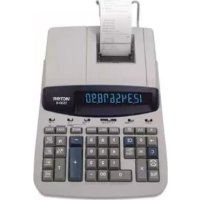
900 - Calculator Victor Technology - Free user manual and instructions
Find the device manual for free 900 Victor Technology in PDF.


| Product Type | Desktop Calculator |
| Brand | Victor Technology |
| Model | 900 |
| Display | 12-digit LCD |
| Power Source | Solar and LR44 battery |
| Battery Life | Approximately 2 years with normal use |
| Dimensions (W x D x H) | 4.72 x 3.15 x 0.59 inches |
| Weight | 2.47 oz (70 g) |
| Material | Plastic casing |
| Color | Black |
| Basic Functions | Addition, subtraction, multiplication, division, square root, percentage |
| Memory Functions | M+, M-, MR, MC |
| Tax Calculation | VAT and tax rate setting |
| Auto Power Off | Yes, after approximately 7 minutes of inactivity |
| Key Rollover | Yes, supports rapid entry |
| Warranty | 1 year limited warranty |
| Cleaning | Wipe with a soft, dry cloth. Do not use liquids or solvents. |
| Safety Precautions | Keep away from water, heat sources, and direct sunlight. |
| Spare Parts Availability | Battery (LR44) available at electronics retailers. |
| Repairability | Battery replacement only; other repairs by authorized service center. |
Frequently Asked Questions - 900 Victor Technology
It contains detailed operating instructions and troubleshooting tips.
User questions about 900 Victor Technology
0 question about this device. Answer the ones you know or ask your own.
Ask a new question about this device
Download the instructions for your Calculator in PDF format for free! Find your manual 900 - Victor Technology and take your electronic device back in hand. On this page are published all the documents necessary for the use of your device. 900 by Victor Technology.
USER MANUAL 900 Victor Technology
Lesson 1: Learning the Victor 900 Calculator
Overview
Familiarize
students with the calculator.
Teacher Materials “Learning the Victor 900 Calculator” transparency, red transparency markers.
Student Materials Pencil, red crayons, "Victor 900 Calculator" worksheet, calculator
Key Introduced ON/AC
Teaching Notes Distribute the calculators.
Use the transparency to discuss the keys and display
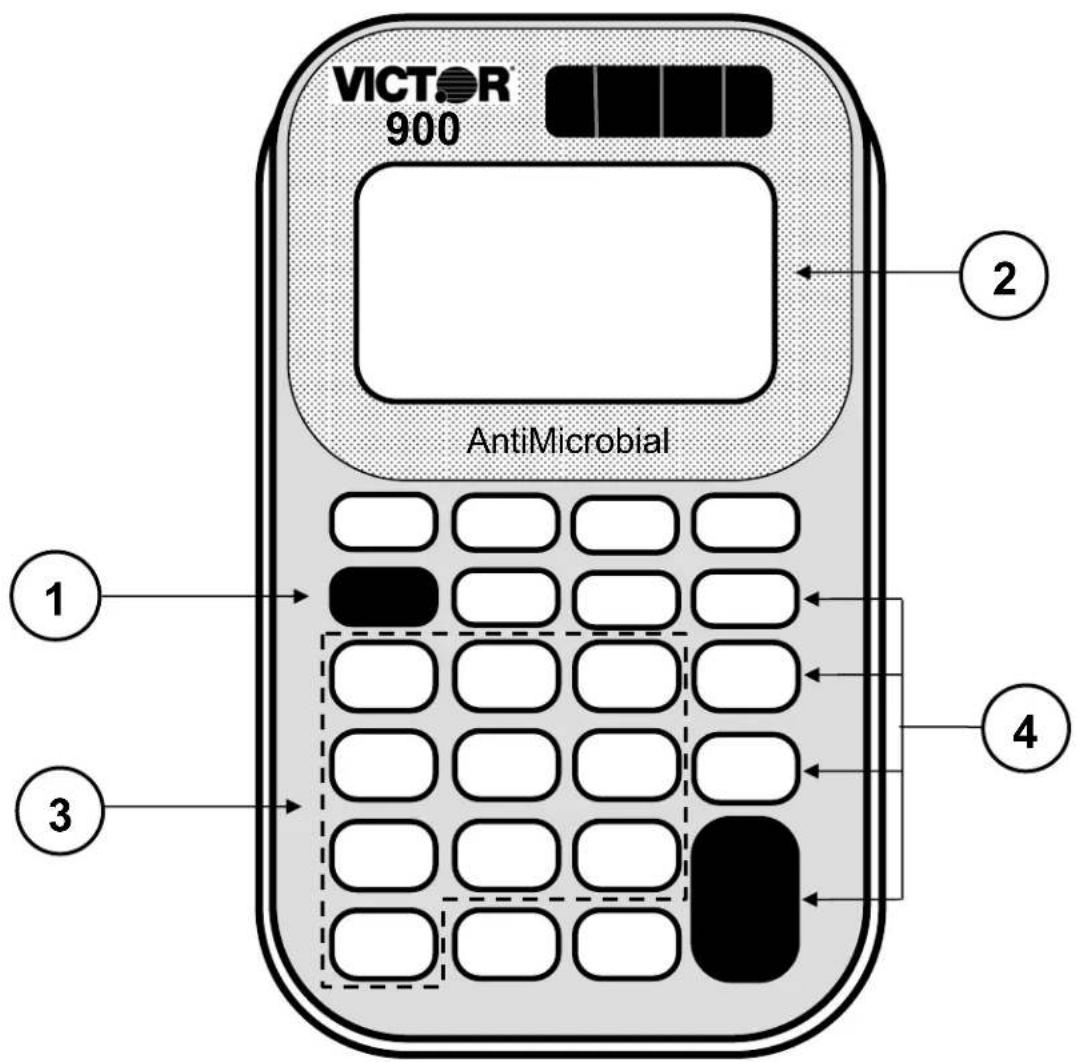
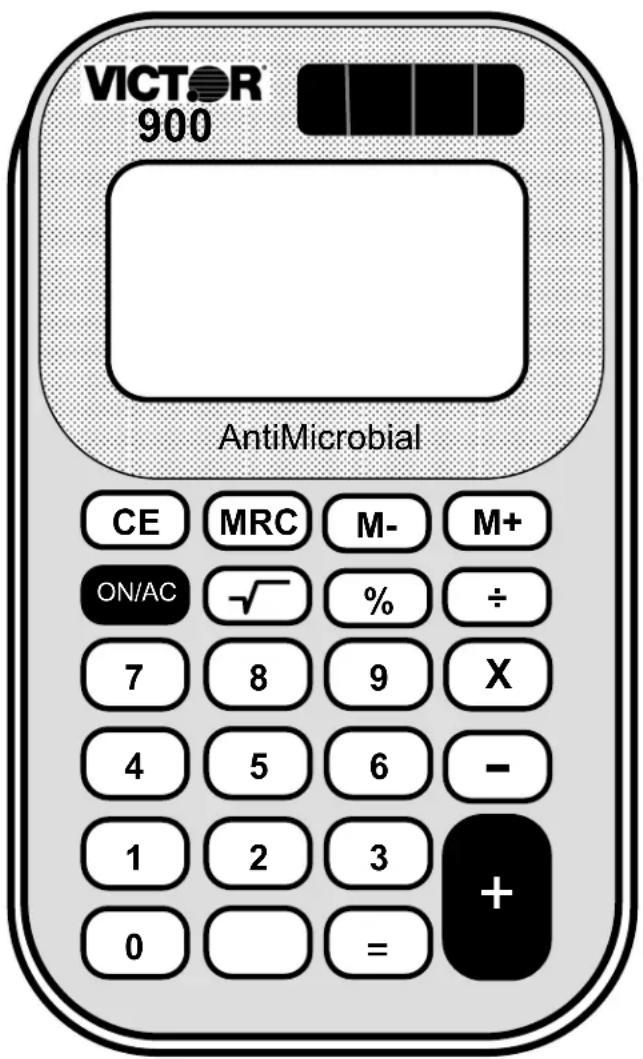
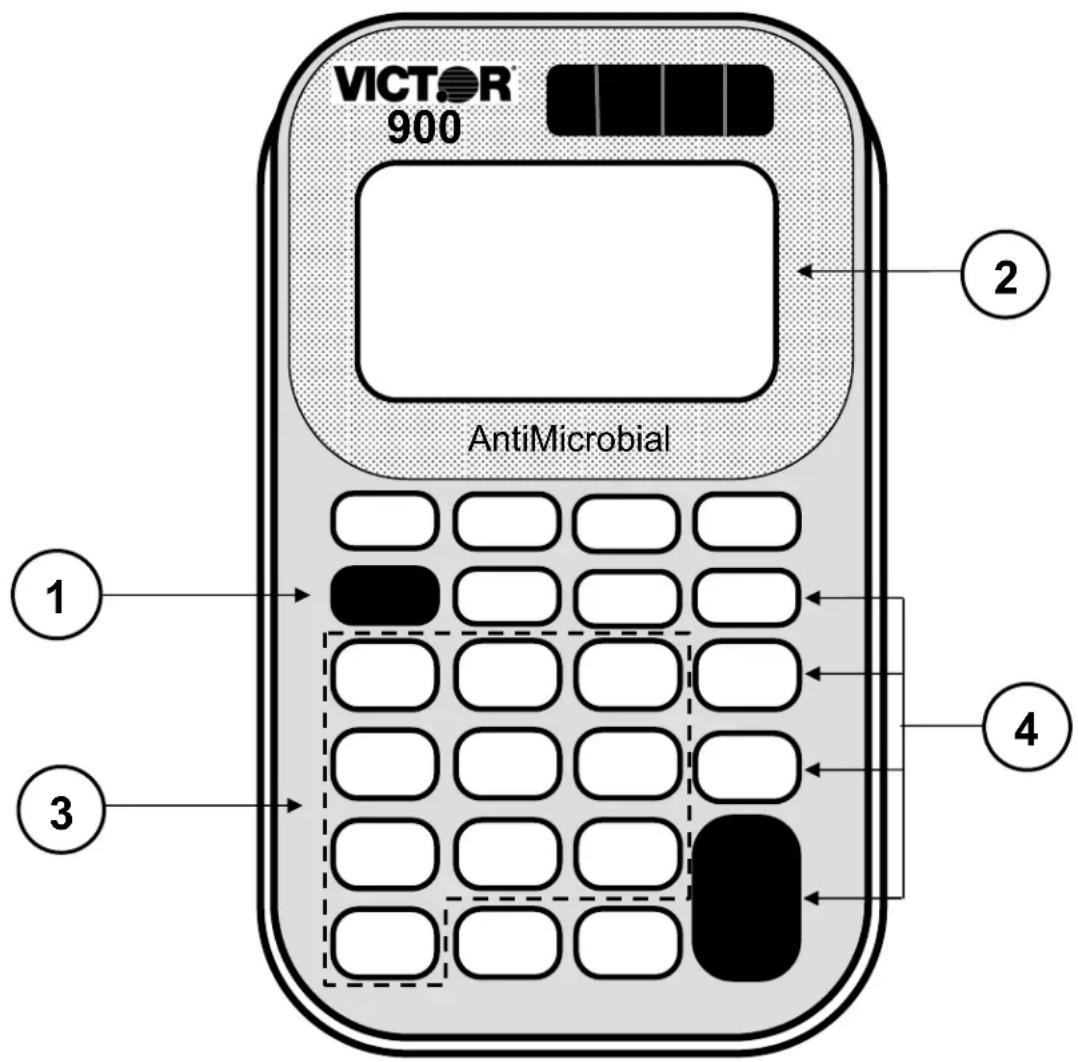
of the Victor 900. Ask students to follow along on their worksheet. The ON/AC key (1) turns the calculator on and clears the display. Write "ON/AC" on the appropriate key and ask the students to do the same. Press the ON/AC key to turn the calculator on.
Show the students the location of the display (2). Ask
what is showing in the display. Write a zero and a decimal point in the display. Ask the students to do the same.
Ask students to write the numbers on the number
keys (3) as you do the same. Press a number key to show how the number shows on the display.
Ask students to write the math operations (÷, X, -, +)
on the math operation keys (4).
TRANSPARENCY
Learning the Victor 900 Calculator
text_image
VICTOR 900 AntiMicrobial ① ② ③ ④Victor 900 Calculator
text_image
VICTOR 900 AntiMicrobial CE MRC M- M+ ON/AC -√ % ÷ 7 8 9 X 4 5 6 - 1 2 3 + 0 = +STUDENT WORKSHEET
Learning the Victor 900 Calculator
text_image
VICTOR 900 AntiMicrobial ① ② ③ ④TEACHER'S GUIDE
Lesson 2: Using the Victor 900 Calculator
Overview Use the calculator to enter and view numbers.
Teacher Materials "Victor 900 Calculator" transparency.
Student Materials Calculator, "Calculator Battle" worksheet, "Calculator Battle Score Sheet", pencil.
Keys Used
1 - 9, ON/AC
Teaching Notes Distribute the calculators.
Ask the students to press the ON/AC key.
Ask the students to press the "1" and "9" keys to enter the number "19". Ask "How do you clear the number 19 from the display"? Answer: press the ON/AC key
To play “Calculator Battle”, pair up the students. Explain the following game rules:
➢ Cut out the Calculator Battle cards (one set for each pair of students).
- Mix the cards and place face down in one pile.
➢ Student A draws a card and enters the number on their calculator.
➢ Student B draws a card and enters the number on their calculator.
The students compare the displays. The student with the largest number scores a hit and enters "1" on the score sheet.
Both students press the ON/AC key.
The game continues until all cards are gone. The player with the most hits wins.
STUDENT WORKSHEET
Calculator Battle
 |  |  |
 |  |  |
 |  |  |
STUDENT WORKSHEET
Calculator Battle Score Sheet
| *▼◆**■▼☆☆○※ | *▼◆**■▼+☆○※ |
| ★※▲ | ★※▲ |
TEACHER'S GUIDE
Lesson 3: Addition
Overview Use the calculator to add numbers.
Teacher Materials “Addition” and “Correcting Wrong Entries” transparencies.
Student Materials Pencil, Calculator, and "Calculator Connections" worksheet.
Keys Introduced +, CE
Teaching Notes
Display the “Addition” transparency. Ask the students to press the buttons as illustrated.
Display the "Correcting Wrong Entries" transparency. Ask the students to press the buttons as illustrated.
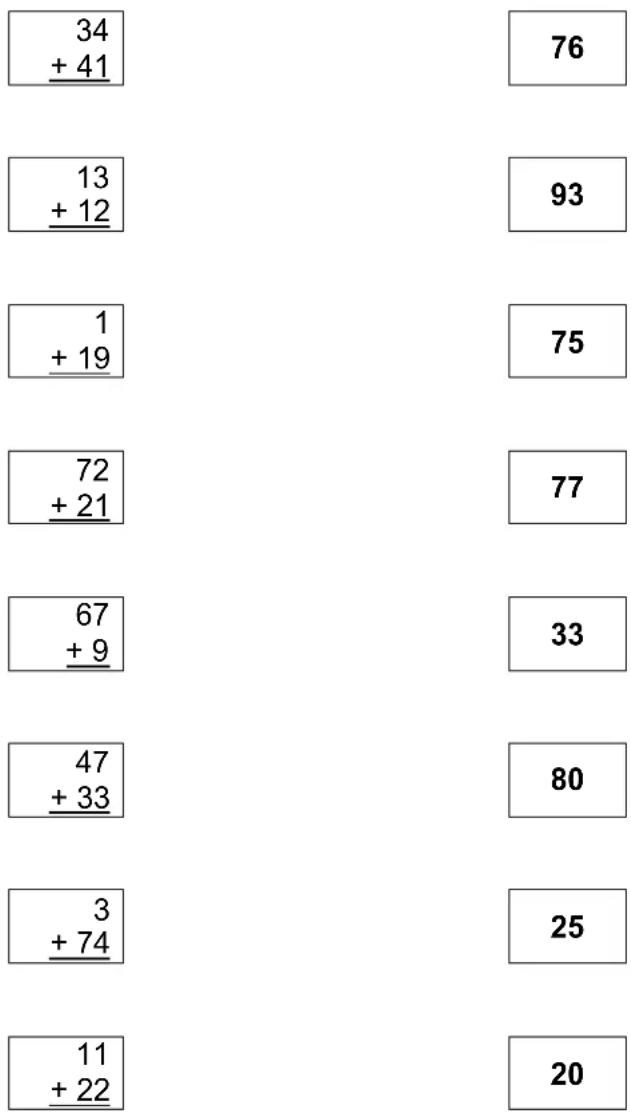
The “Calculator Connections” worksheet provides additional practice. Ask students to solve each addition problem with the calculator and connect the box with the correct answer by drawing a line.
TRANSPARENCY
Addition
$$ 1 + 2 = ? $$
$$ 1 + 3 + 5 = ? $$
Press these buttons:
ON/AC
1 +
2
=
The calculator shows:
0.
1.
2.
3.
ON/AC
1 +
3
+
5
=
0.
1.
3.
4.
5.
9.
TRANSPARENCY
Correcting Wrong Entries
$$ 6 + 3 = ? $$
Press these buttons:
ON/AC
6 +
2
CE
3
=
The calculator shows:
0.
6.
2.
0.
3.
9.
Calculator Connections
Add the numbers in the boxes on the left side of the page. Draw a line to the box on the right side with the correct answer.
text_image
34 + 41 76 13 + 12 93 1 + 19 75 72 + 21 77 67 + 9 33 47 + 33 80 3 + 74 25 11 + 22 20TEACHER'S GUIDE
Lesson 4: Subtraction
Overview Use the calculator to subtract numbers.
Teacher Materials "Subtraction" transparency.
Student Materials Pencil, Calculator, and "Calculator Connections II", and "Big Number Math" worksheets.
Keys Introduced - (minus key)
Teaching Notes Display the "Subtraction" transparency.
The "Calculator Connections" worksheet provides
additional practice. Ask students to solve each subtraction problem with the calculator and connect the box with the correct answer by drawing a line.
TRANSPARENCY
Subtraction
$$ 9 - 5 = ? $$
$$ 8 - 1 - 2 = ? $$
Press these buttons:
ON/C
9 -
5
=
The calculator shows:
0.
9.
5.
4.
ON/C
8 -
1
-
2
=
0.
8.
1.
7.
2.
5.
Calculator Connections II
Subtract the numbers in the boxes on the left side of the page. Draw a line to the box on the right side with the correct answer.
| 186 -22 | 121 |
| 54 -51 | 88 |
| 99 -11 | 164 |
| 222 -11 | 211 |
| 677 -556 | 3 |
| 69 -42 | 27 |
| 32 -18 | 26 |
| 55 -29 | 14 |
STUDENT WORKSHEET
Big Number Math
Use your calculator to subtract the big numbers in the boxes and write down the answers. Circle the biggest answer.
| 72,456 | 98,744 |
| -51,432 | -10,221 |
| 189,456 |
| -10,432 |
| 5,687 | 984,300 |
| -3,216 | -213,498 |
| 676,345 |
| -99,999 |
| 780,780 | 54,893 |
| -175,175 | -55,221 |
TEACHER'S GUIDE
Lesson 5: Repetitive Subtraction and Addition
Overview Use the calculator to subtract or add repetitive numbers using the constant function.
Teacher Materials “Repetitive Subtraction and Addition” and “Fastest Fingers” transparencies.
Student Materials Pencil, Calculator, and "Constant Calculations" worksheet.
Keys Introduced Constant function using the = Key. □
Teaching Notes Ask your students to enter 10 on the calculator and add 10 to the total every time you snap your fingers. Snap your fingers 4 times and compare the answers from several students (the answer should be 50).
Tell the students how the calculator stores the last command and number entered. This is called the constant function. The constant function helps reduce mistakes and save time when you must subtract, add, divide, or multiply the same number many times.
Ask your students to again enter 10 on the calculator and add 10 every time you snap your fingers. Snap your fingers 4 times and compare the answers.
Note: The constant is removed from memory when the ON/AC button is pushed.
Use the “Fastest Fingers” transparency to play a fun game that reinforces the constant function.
Use the “Constant Calculations” worksheet for practice.
TRANSPARENCY
Repetitive Subtraction and Addition
$$ 1 5 - 3 - 3 - 3 = ? $$
$$ 6 + 2 + 2 + 2 = ? $$
Press these buttons:
ON/AC
15 -
3 =
=
=
The calculator shows:
0.
15.
12.
9.
6.
ON/AC
6 +
2 =
=
=
0.
6.
8.
10.
12.
TRANSPARENCY
Fast Fingers
Enter 500 + 5 = on your calculator. When the teacher says “Go” add one to your calculator as many times as you can until the teacher says “stop”.
The student with the largest number has the fastest fingers.

natural_image
Pixelated hand cursor icon pointing upward (no text or symbols)Winning total: ____
Name of Student with the Fastest Fingers
STUDENT WORKSHEET
Constant Calculations
Use the = key to work these constant calculations.
- 94 - 6 - 6 - 6 = ____
- 945 + 12 + 12 + 12 = ____
- 543 - 10 - 10 - 10 - 10 = ____
- 345 + 22 + 22 + 22 + 22 = ____
- 27 - 3 - 3 - 3 - 3 - 3 = ____
- 45 + 5 + 5 + 5 + 5 + 5 = ____
- 1000 - 100 - 100 - 100 - 100 = ____
- 2000 + 50 + 50 + 50 + 50 + 50 = ____
- 948 - 8 - 8 - 8 - 8 - 8 = ____
- 604 + 4 + 4 + 4 + 4 + 4 + 4 = ____
- 9987 - 3 - 3 - 3 - 3 - 3 = ____
- 100 + 9 + 9 + 9 + 9 + 9 + 9 = ____
TEACHER'S GUIDE
Lesson 6: Multiplication
Overview Use the calculator to multiply numbers.
Teacher Materials “Multiplication” and “Multiplication Mountain Answer Key”, “Multiplying Multiple Numbers”, and “Repetitive Multiplication” transparencies.
Student Materials Pencil, Calculator, and "Multiplication Mountain", "Multiplication Calculator Battle", and "Calculator Connections III" worksheet.
Keys Introduced X
Teaching Notes Display the "Multiplication" transparency. Ask the students to follow along with you as you discuss the exercise.
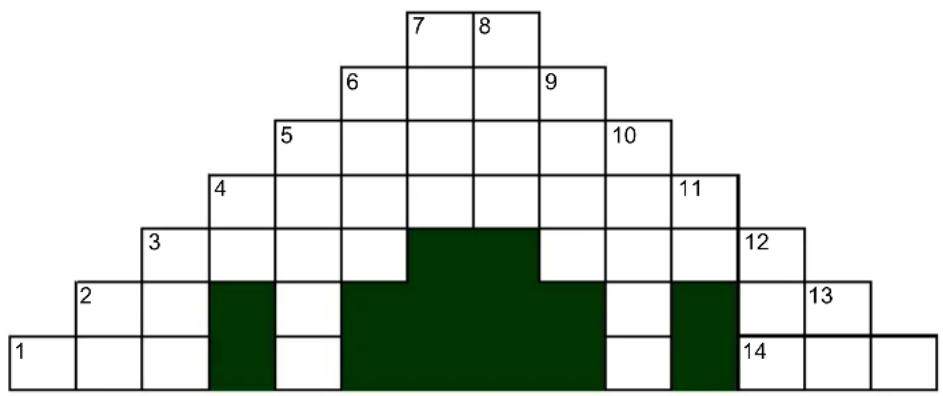
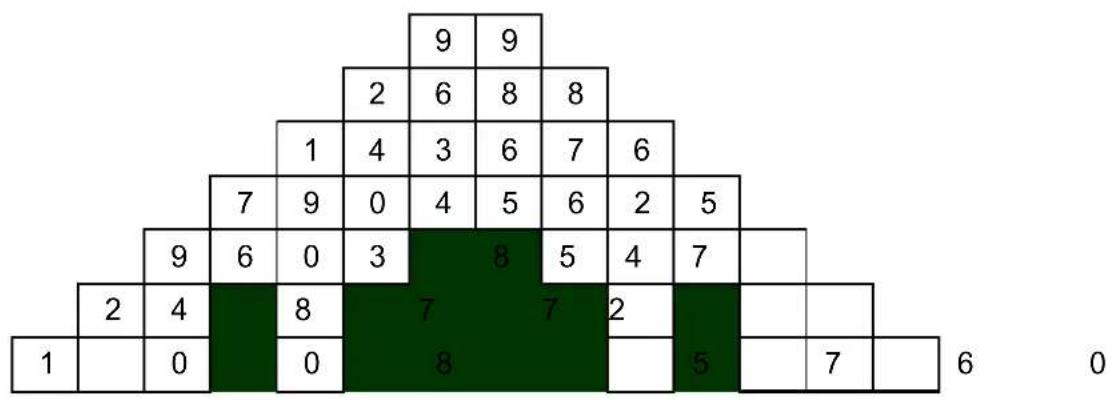
The “Multiplication Mountain” worksheet provides additional practice. Ask students to solve each multiplication problem with the calculator and fill in the illustration.
To play “Multiplication Calculator Battle”, pair up the students. Explain the following game rules:
➢ Cut out the Multiplication Calculator Battle cards (one set for each pair of students).
- Mix the cards and place face down in one pile.
➢ Student A draws two cards and multiplies the numbers on their calculator.
➢ Student B draws two cards and multiplies the numbers on their calculator.
The students compare the displays. The student with the largest number scores a hit and enters "1" on the score sheet.
Both students press the ON/AC key.
The game continues until all cards are gone. The player with the most hits wins.
To extend the game, mix the cards and start again
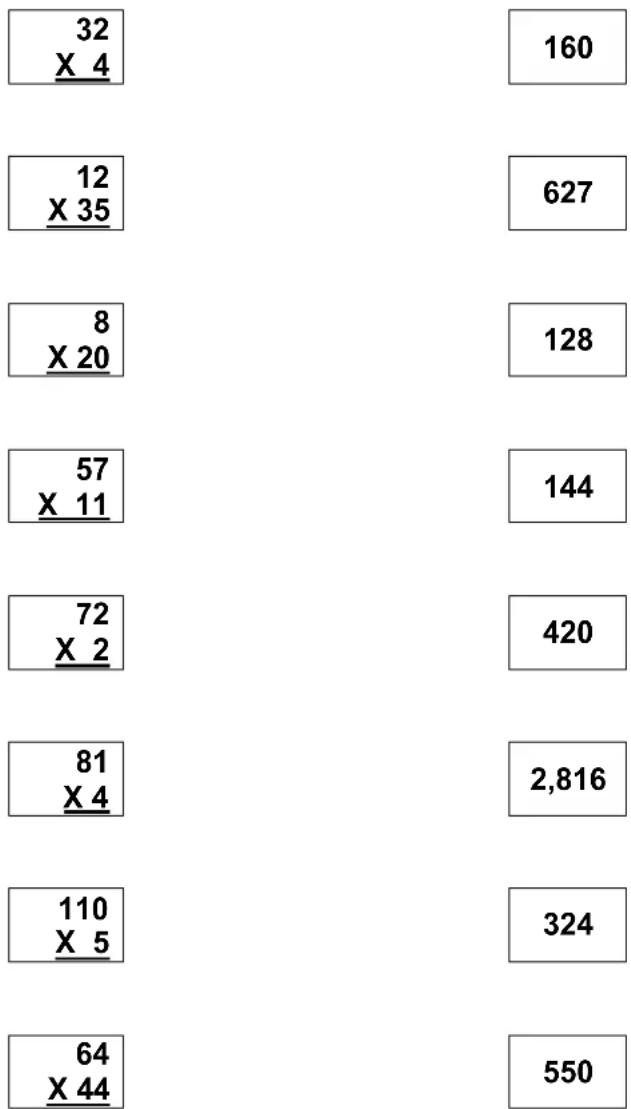
The “Calculator Connections III” worksheet provides additional practice. Ask students to solve each multiplication problem with the calculator and connect the box with the correct answer by drawing a line.
Multiplication
$$ 6 \times 8 = ? $$
$$ 4 3 \times 5 = ? $$
Press these buttons:
| ON/AC |
| 6 | X |
| 8 |
| = |
The calculator shows:
0.
6.
8.
48.
| ON/AC |
| 43 | X |
| 5 |
| = |
0.
43.
5.
215.
STUDENT WORKSHEET
Multiplication Mountain
other
| Row | Column1 | Column2 | Column3 | Column4 | Column5 | Column6 | Column7 | Column8 | |---|---|---|---|---|---|---|---|---| | 1 | 0 | 0 | 0 | 0 | 0 | 0 | 0 | 0 | | 2 | 0 | 1 | 0 | 0 | 0 | 0 | 0 | 0 | | 3 | 0 | 0 | 1 | 0 | 0 | 0 | 0 | 0 | | 4 | 0 | 0 | 0 | 1 | 0 | 0 | 0 | 0 | | 5 | 0 | 0 | 0 | 0 | 1 | 0 | 0 | 0 | | 6 | 0 | 0 | 0 | 0 | 0 | 1 | 0 | 0 | | 7 | 0 | 0 | 0 | 0 | 0 | 0 | 1 | 0 | | 8 | 0 | 0 | 0 | 0 | 0 | 0 | 1 | 0 | | 9 | 0 | 0 | 0 | 0 | 0 | 1 | 0 | 0 | | 10 | 0 | 0 | 0 | 0 | 0 | 0 | 1 | 0 | | 11 | 0 | 0 | 0 | 0 | 0 | 0 | 1 | 0 | | 12 | 0 | 0 | 0 | 0 | 0 | 0 | 1 | 0 | | 13 | 1 | 0 | 0 | 0 | 0 | 0 | 1 | 0 | | 14 | 1 | 0 | 0 | 0 | 0 | 0 | 1 | 1 | The image displays a pyramid-like structure with alternating dark green and light green segments. The numbers inside each segment are explicitly labeled on the left side.Across Down
1 10 × 10 = ____ 2 5 × 4 = ____
26×4= 347×20=
3 3 X 3,201 = ____ 4 19 X 4 = ____
4 25 X 3,161,825 = ____ 5 16 X 1,193 = ____
5 156 X 921 = ____ 6 27 X 89 = ____
6 48 X 56 = ____ 7 2 X 4,817 = ____
7 11 X 9 = ____ 8 1,973 X 5 = ____
14 19 X 40 = ____ 932 X 274 = ____
10 2,503 X 25 = ____
11 27 X 2 = ____
12 11 1 X 7 = ____
13 13 X 2 = ____
TRANSPARENCY
Multiplication Mountain
Answer Key
heatmap
| Row | Column 1 | Column 2 | Column 3 | Column 4 | Column 5 | Column 6 | Column 7 | Column 8 | Column 9 | |---|---|---|---|---|---|---|---|---|---| | 1 | 0 | 0 | 0 | 8 | 0 | 0 | 0 | 0 | 0 | | 2 | 4 | 8 | 7 | 7 | 2 | 0 | 0 | 0 | 0 | | 3 | 0 | 0 | 0 | 8 | 0 | 0 | 0 | 0 | 0 | | 4 | 0 | 0 | 0 | 0 | 0 | 0 | 0 | 0 | 0 | | 5 | 0 | 0 | 0 | 0 | 0 | 0 | 0 | 0 | 0 | | 6 | 0 | 0 | 0 | 0 | 0 | 0 | 0 | 0 | 0 | | 7 | 0 | 0 | 0 | 0 | 0 | 0 | 0 | 0 | 0 | | 8 | 0 | 0 | 0 | 0 | 0 | 0 | 0 | 0 | 0 | | 9 | 0 | 0 | 0 | 0 | 0 | 0 | 0 | 0 | 9 | | ... (bottom row) | ... (bottom row) | ... (bottom row) | ... (bottom row) | ... (bottom row) | ... (bottom row) | ... (bottom row) | ... (bottom row) | ... (bottom row) | ... (bottom row) | | ... (top row) | ... (top row) | ... (top row) | ... (top row) | ... (top row) | ... (top row) | ... (top row) | ... (top row) | ... (top row) | ... (top row) | | ... (right column) | ... (right column) | ... (right column) | ... (right column) | ... (right column) | ... (right column) | ... (right column) | ... (right column) | ... (right column) | ... (right column) | | ... (left column) = [interpolated values] ; the bottom row contains all values from '1' to '6'; the top row contains all values from '1' to '6'; the bottom row contains all values from '1' to '6'; the right column contains all values from '1' to '6'; the bottom row contains all values from '1' to '6'; the left column contains all values from '1' to '6'; the right column contains all values from '1' to '6'; the bottom row contains all values from '1' to '6'; the bottom row contains all values from '1' to '6'; the bottom row contains all values from '1' to '6'; the bottom row contains all values from '1' to '6'; the bottom row contains all values from '1' to '6'; the bottom row contains all values from '1' to '6'; the bottom row contains all values from '1' to '6'; the bottom row contains the same value of '1' to '6'; the bottom row contains all values from '1' to '6'; the bottom row contains all values from '1' to '6'; the bottom row contains all values from '1' to '6'; the bottom row contains all values from '1' to '6'; the bottom row contains all values from '1' to '6'; the bottom row contains all values from '1' to '6'; the bottom row contains all values from '2' to '6'; the bottom row contains all values from '2' to '6'; the bottom row contains all values from '2' to '6'; the bottom row contains all values from '2' to '6'; the bottom row contains all values from '2' to '6'; the bottom row contains all values from '2' to '6'; the bottom row contains all values from '2' to '6'; the bottom row contains all values from '2' and '3'; the bottom row contains all values from '2' and '4'; the bottom row contains all values from '2' and '5'; the bottom row contains all values from '2' and '6'; the bottom row contains all values from '2' and '7'; the bottom row contains all values from '2' and '8'; the bottom row contains all values from '2' and '7'; the bottom row contains all values from '2' and '8'; the bottom row contains all values from '2' and '9'; the bottom row contains all values from '2' and '8'; the bottom row contains all values from '2' and '9'; the bottom row contains all values from '2' and '8'; the bottom row contains all values from '2' and '9'; the bottom row contains all values from '2' and '8'; the bottom row contains all values from '2' and '9'; the bottom row contains all values from '2' and '8'; and the bottom row contains all values from '2' and '9'; the bottom row contains all values from '2' and '8'; the bottom row contains all values from '2' and '9'; the bottom row contains all values from '2' and '8'; the bottom row contains all values from '2' and '9'; the bottom row contains all values from '2' and '8'; the bottom row contains all values from '2' and '9'; the top row contains all values from '2' and '3'; the top row contains all values from '2' and '4'; the top row contains all values from '2' and '5'; the top row contains all values from '2' and '6'; the top row contains all values from '2' and '7'; the top row contains all values from '2' and '8'; the top row contains all values from '2' and '9'; the top row contains all values from '2' and '8'; the top row contains all values from '2' and '9'; the top row contains all values from '2' and '8'; the top row contains all values from '2' and '9'; the top row contains all values from '2' and '8'; the top row contains all values from '2' and '9'; the top row contains all values from '2' and '8'; and the top row contains all values from '2' and '9'; the top row contains all values from '2' and '8'; the top row contains all values from '2' and '9'; the top row contains all values from '2' and '8'; the top row contains all values from '2' and '9'; the top row contains all values from '2' and '8'; and the top row contains all values from '2' and '9';Multiplying Multiple Numbers
6×8×2=?
Press these buttons:
ON/AC
6 X
8
X
2
=
The calculator shows:
0.
6.
8.
48.
2.
96.
TRANSPARENCY
Repetitive Multiplication
$$ 4 \times 2 = ? $$
$$ 4 \times 4 = ? $$
$$ 4 \times 6 = ? $$
$$ 4 \times 8 = ? $$
Press these buttons:
ON/AC
4 X
2
=
4
=
6
=
8
=
The calculator shows:
0.
4.
2.
8.
4.
16.
6.
24.
8.
32.
Multiplication Calculator Battle
 |  |  |
 |  |  |
 |  |  |
 |  |  |
Multiplication Calculator Battle Score Sheet
| *▼◆※※■▼ ☆☆○※↑ | *▼◆※※■▼ + ☆○○※↑ |
| ★※▼▲ | ★※▼▲ |
Calculator Connections III
Multiply the numbers in the boxes on the left side of the page. Draw a line to the box on the right side with the correct answer.
other
| Category | Value | |---|---| | 32 X 4 | 160 | | 12 X 35 | 627 | | 8 X 20 | 128 | | 57 X 11 | 144 | | 72 X 2 | 420 | | 81 X 4 | 2,816 | | 110 X 5 | 324 | | 64 X 44 | 550 |TEACHER'S GUIDE
Lesson 7: Division
Overview Use the calculator to divide numbers.
Teacher Materials “Two Methods for Writing Division Problems”, “Division”, and “Repetitive Division” transparencies.
Student Materials Pencil, Calculator, and "Calculator Connections IV" worksheet.
Keys Introduced ÷
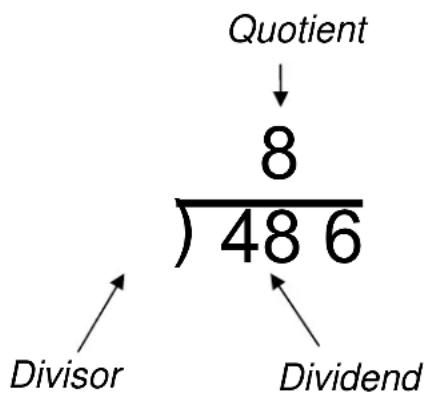
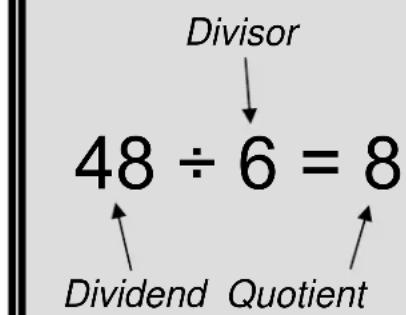
Teaching Notes Display the transparencies. Ask the students to follow along with you as you discuss the exercise.
The “Calculator Connections IV” worksheet provides additional practice. Ask students to solve each division problem with the calculator and connect the box with the correct answer by drawing a line.
TRANSPARENCY
Two Methods for Writing Division Problems
Hand Written Method
text_image
Quotient 8 48 6 Divisor DividendCalculator Method
text_image
Divisor 48 ÷ 6 = 8 Dividend QuotientTRANSPARENCY
Division
$$ 4 8 \div 6 = ? $$
$$ 8 1 \div 3 = ? $$
Press these buttons:
ON/AC
48 ÷
6
=
The calculator shows:
0.
48.
6.
8.
ON/AC
81 ÷
3
=
0.
81.
3.
27.
TRANSPARENCY
Repetitive Division
$$ 1 0 0 \div 4 = ? $$
$$ 4 0 \div 4 = ? $$
$$ 8 8 \div 4 = ? $$
$$ 5 2 \div 4 = ? $$
Press these buttons:
ON/AC
100 ÷
4
=
40
=
88
=
52
=
The calculator shows:
0.
100.
4.
25.
40.
10.
88.
22.
52.
13.
Calculator Connections IV
Divide the numbers in the boxes on the left side of the page. Draw a line to the box on the right side with the correct answer.
| 125 ÷ 25 | 100 |
| 49 ÷ 7 | 6 |
| 1000 ÷10 | 5 |
| 66 ÷ 11 | 7 |
| 72 ÷ 2 | 36 |
| 888 ÷ 4 | 110 |
| 550 ÷ 5 | 222 |
| 147 ÷ 21 | 7 |
TEACHER'S GUIDE
Lesson 8: Division with Remainders
Overview Use the calculator to divide numbers with remainders.
Teacher Materials “Two Methods for Writing Division with Remainders”, “Division with Remainders”, “Repetitive Division with Remainders”, and “Calculating the Remainder”, transparencies.
Student Materials Pencil, Calculator, and "Calculator Connections V" worksheet.
Keys Introduced ÷
Teaching Notes Display the transparencies. Ask the students to follow along with you as you discuss the exercise.
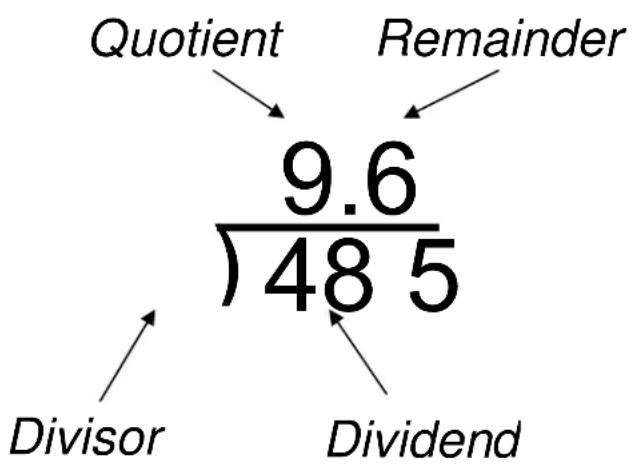
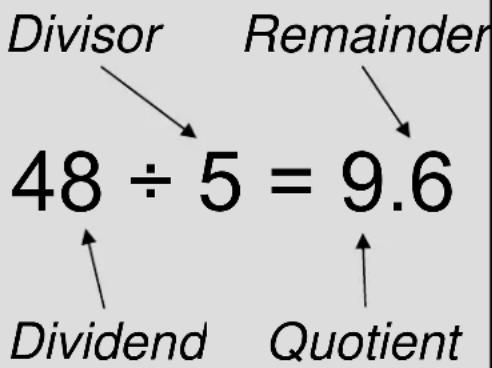
Inform the students how the calculator displays the
"remainder" as digits to the right of the decimal point. Use the "Calculating the Remainder" transparency to show how to determine the remainder. To find the remainder, multiply the number to the left of the decimal point by the divisor. Then subtract the result from the dividend to get the remainder.
The "Calculator Connections V" worksheet provides
additional practice. Ask students to solve each division problem with the calculator and connect the box with the correct answer by drawing a line.
TRANSPARENCY
Two Methods for Writing Division with Remainder Problems
Hand Written
flowchart
graph TD
    A["Quotient"] --> B["9.6 / (485)"]
    C["Remainder"] --> B
    D["Divisor"] --> B
    E["Dividend"] --> B
Calculator Method
text_image
Divisor Remainder 48 ÷ 5 = 9.6 Dividend QuotientTRANSPARENCY
Division with Remainders
$$ 4 8 \div 5 = ? $$
$$ 7 4 \div 6 = ? $$
Press these buttons:
| ON/AC |
| 48 | ÷ |
| 5 |
| = |
The calculator shows:
0.
48.
5.
9.6
| ON/AC |
| 74 | ÷ |
| 6 |
| = |
0.
74.
6.
12.3333333
TRANSPARENCY
Repetitive Division with Remainders
$$ 1 0 0 \div 6 = ? $$
$$ 4 0 \div 6 = ? $$
$$ 8 8 \div 6 = ? $$
$$ 5 2 \div 6 = ? $$
Press these buttons:
Calculating the Remainder
$$ 7 6 \div 8 = ? $$
Press these buttons:
ON/AC
76 ÷
8
=
The calculator shows:
0.
76.
8.
9.5
9 X
8
=
9
8.
72
76 -
72
=
76.
55.
4.
The remainder is 4.
STUDENT WORKSHEET
Calculator Connections V
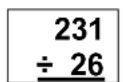
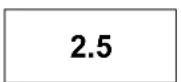
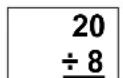
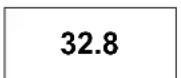
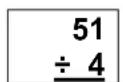
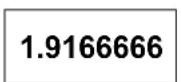
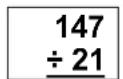
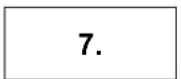
Divide the numbers in the boxes on the left side of the page. Draw a line to the box on the right side with the correct answer.
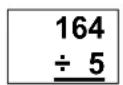
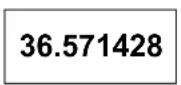
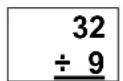
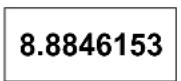
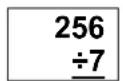
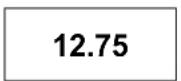
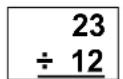
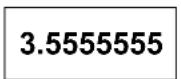
TEACHER'S GUIDE
Lesson 9: Decimals
Overview Use the calculator to add and subtract numbers with decimals.
Teacher Materials "Decimals" transparency
Student Materials Pencil, Calculator, "Calculator Connections VI" worksheet, "Estimation Exploration" worksheet, and "I Love Decimals" worksheet.
Keys Introduced

Teaching Notes The “Calculator Connections VI” worksheet provides additional practice. Ask students to solve each math problem with the calculator and connect the box with the correct answer by drawing a line.
The “Estimation Exploration” worksheet, is an additional way to have a fun time with decimals. It shows the difference between estimated and exact answers. It is another way to improve skills and learn more about decimals and using the calculator.
Decimals
$$ 2. 5 + 5. 3 = ? $$
$$ 7. 4 - 6. 1 = ? $$
Press these buttons:
| ON/AC |
| 2.5 | + |
| 5.3 |
| = |
The calculator shows:
0.
2.5
5.3
7.8
| ON/AC |
| 7.4 | - |
| 6.1 |
| = |
0.
7.4.
6.1
1.3
Calculator Connections VI
Add the Decimals in the boxes on the left side of the page. Draw a line to the box on the right side with the correct answer.
$$ \boxed { \begin{array}{c} 1 6. 4 \ + 5. 3 \end{array} } $$
$$ 1. 5 $$
$$ \begin{array}{c} 3. 2 \ - 1. 7 \end{array} $$
$$ 3. 5 $$
$$ \boxed { \begin{array}{c} 2. 5 \ + 7. 1 \end{array} } $$
$$ \boxed {2 1. 7} $$
$$ \begin{array}{r} 2. 3 \ + \quad 1. 2 \ \hline \end{array} $$
$$ 2 0. 5 $$
$$ \begin{array}{c} \framebox {2 3. 1} \ - 2. 6 \end{array} $$
$$ 1 3. 8 $$
$$ \boxed { \begin{array}{c} 9. 7 \ + 4. 1 \end{array} } $$
$$ 1 2. 5 $$
$$ \begin{array}{c} \framebox {5. 1} \ - 1. 4 \end{array} $$
$$ \boxed {9. 6} $$
$$ \boxed { \begin{array}{c} 1 4. 7 \ - 2. 2 \end{array} } $$
$$ \boxed {3. 7} $$
STUDENT WORKSHEET
I Love Decimals
Estimate the answer for the math problems then use your calculator to check the answers. Write your estimates in the left arc of the hearts and the calculator answers in the right arcs.
Example:
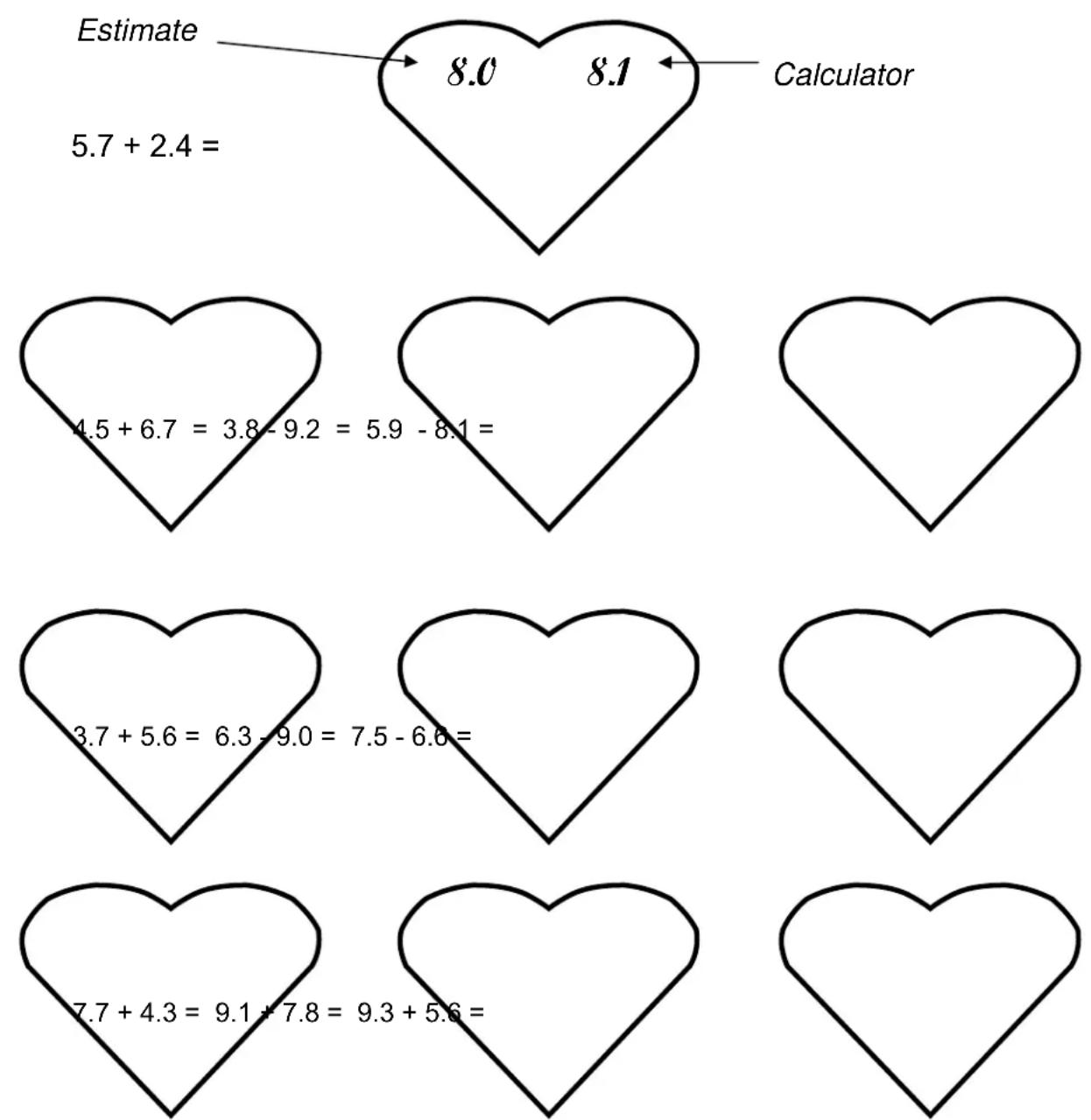
other
| Heart Shape | Estimated Value | Calculator Value | |-------------|-----------------|------------------| | Left Heart | 8.0 | 8.1 | | Right Heart | 5.7 + 2.4 | 8.1 | | Left Heart | 4.5 + 6.7 | 8.1 | | Left Heart | 3.8 - 9.2 | 8.1 | | Left Heart | 5.9 - 8.1 | 8.1 | | Left Heart | 3.7 + 5.6 | 8.1 | | Left Heart | 6.3 - 9.0 | 8.1 | | Left Heart | 7.5 - 6.6 | 8.1 | | Left Heart | 7.7 + 4.3 | 8.1 | | Left Heart | 9.1 + 7.8 | 8.1 | | Left Heart | 9.3 + 5.6 | 8.1 |TEACHER'S GUIDE
Lesson 10: Memory
Overview Use the calculator to add and subtract numbers and store the numbers in the calculator's memory
Teacher Materials “Calculator Memory”, “Adding Products with Memory”, and “Find the Total Cost Using Memory”, transparencies.
Student Materials Pencil, Calculator, and "Million Memory Magic" worksheet.
Keys Introduced
MRC M+ M-
Teaching Notes Talk to the students about memory, and how it works on a calculator. The memory icon will appear on the calculator screen when a number has been stored. To view the stored number, press the MRC button once. MRC stands for “Memory Recall & Clear”. If the MRC key is pressed twice, the memory is cleared.
M+ Adds the displayed number to the memory of the calculator
M- Subtracts the displayed number from the memory of the calculator
MRC Displays the number from the memory onto the screen of the calculator
MRC MRC Clears the memory
The Million Memory Magic worksheet is for students to practice using the memory function of the calculator. It is to be done individually to test the skills learned in the lesson. Understanding this worksheet will show fulfillment and accomplishment with this lesson.
You should ask students to press the MRC key twice before the exercise ... to make sure everyone starts with a clear memory.
TRANSPARENCY
Calculator Memory
M+
Adds the displayed number to the memory of the calculator
M-
Subtracts the displayed number from the memory of the calculator
MRC
Recalls and displays the number in memory
MRC
MRC
Clears the memory
TRANSPARENCY
Adding Products with Memory
What is the total of the three equations below?
$$ 2 \times . 8 6 = ? $$
$$ 3 \times 1. 4 9 = ? $$
$$ 4 \times . 5 2 = ? $$
Press these buttons:
ON/AC MRC MRC
ON/AC
The calculator shows:
0.
2 x . 99 =
1.98
M+
MEMORY 1.98
3 x 1 . 49 =
MEMORY 4.47
M+
MEMORY 4.47.
4 x . 52 =
MEMORY 2.08
M+
MEMORY 2.08
MRC
MEMORY 8.53
TRANSPARENCY
Find the Total Cost Using Memory
3 \$5 Items
6 \$2
\$13 Discount = ?
Press these buttons:
ON/AC MRC MRC
ON/AC
The calculator shows:
0.
3 x 5 =
15.
M+
MEMORY 15
6 x 2 =
MEMORY 12
M+
MEMORY 12
MRC
MEMORY 27
- 13 =
MEMORY 14
Million Memory Magic
Use the Memory function to quickly divide 1,000,000 by 1 through 10. Enter 1,000,000 into memory. Use the MRC key to recall the 1,000,000 value instead of re-entering 1,000,000 for each equation.
$$ \boxed {1, 0 0 0, 0 0 0 \div 1 =} $$
$$ \boxed {1, 0 0 0, 0 0 0 \div 2 =} $$
$$ \boxed {1, 0 0 0, 0 0 0 \div 3 =} $$
$$ \boxed {1, 0 0 0, 0 0 0 \div 4 =} $$
$$ \boxed {1, 0 0 0, 0 0 0 \div 5 =} $$
$$ \boxed {1, 0 0 0, 0 0 0 \div 6 =} $$
$$ \boxed {1, 0 0 0, 0 0 0 \div 7 =} $$
$$ \boxed {1, 0 0 0, 0 0 0 \div 8 =} $$
$$ \boxed {1, 0 0 0, 0 0 0 \div 9 =} $$
$$ \boxed {1, 0 0 0, 0 0 0 \div 1 0 =} $$
TEACHER'S
Lesson 11: Percents
Overview Use the calculator for situations involving sales taxes, discounts, or other percent problems.
Teacher Materials “Percents” and “More Percents” transparencies.
Student Materials Pencil, Calculator, and "Would You Like To Own an Amusement Park?" worksheet.
Keys Introduced %
Teaching Notes Remember the % key acts like the = key so = does not need to be pressed at any point when doing percents
For the game where the students have to make up an
Amusement Park and have to figure out what the discounted price with tax will be, is a way for the students to look at a real life situation. They use their new knowledge of percents to figure out the discounts that they one day might be using and then they will know how much money they are saving.
Percents
3.70 - 12% discount = ? \7.50 + 6% sales tax = ?
Press these buttons:
| ON/AC | ON/AC |
| 3.70 | - |
| 12 | % |
The calculator shows:
0.
3.70
3.256
| 7.50 | + |
| 6 | % |
7.50
7.95
TRANSPARENCY
More Percents
4.90 - 15% discount = ? \\8.20 + 7% sales tax
Press these buttons:
| ON/AC | ON/AC |
| 4.90 | - |
| 15 | % |
The calculator shows:
0.
4.90
4.165
| 8.20 | + |
| 7 | % |
8.20
8.774
STUDENT WORKSHEET
Would you like to own an Amusement Park? Decide what rides to offer and set the ticket price for each ride. Offer a 10% discount. Use 5% for the Tax rate and calculate the final price.
's Park
| Name of Ride | Twister | |||
| Original Cost of Ride | 10.00 | |||
| % discount | 10% | |||
| Sale Price | 9.00 | |||
| Sales Tax % | 5% | |||
| Final Cost | $9.45 |
TEACHER'S
Lesson 12: Interest
Overview Use the \% key to determine interest amounts for a loan.
Teacher Materials “Simple Interest” and “Total with Interest” transparencies.
Student Materials Pencil, Calculator, and "Interesting Ride" worksheet.
Keys Introduced %
Teaching Notes Remember the % key acts like the = key so = does not need to be pressed at any point when doing percents
The worksheet “Interesting Ride” is fun and interesting to students. Word problems that portray real life situations can better focus the mind and show how interest will one day affect the student.
TRANSF
Simple Interest
\$750.00 at 13% =? \$299.00 at 3% =?
Press these buttons:
| ON/AC | ON/AC |
| 750 | x |
| 13 | % |
The calculator shows:
0.
750.
97.5
| 299 | x |
| 3 | % |
299.
8.97
TRANSPARENCY
Total with Interest
$$ \$ 490 + 15\% = ? $$
Press these buttons:
| ON/AC | ON/AC |
| 490 | + |
| 15 | % |
The calculator shows:
0.
490.
563.5
| 820 | + |
| 7 | % |
820.
877.4
INTERESTing Ride
Hop aboard and get ready for the INTERESTing ride!!
Below are a few problems that are fun. Come along and enjoy the ride.
😊 Mr. Bob has a piggy bank that has \$300.00 in it. The piggy pays Mr. Bob 3% per year. How much interest will piggy pay Mr. Bob in the first year?
Mrs. Bob has a jar full of \$3,500.00 all in pennies that is 350,000 pennies. Every year the jar pays Mrs. Bob 9% interest. How much money will the jar pay Mrs. Bob at the end of the year?
😊 Mr. and Mrs. Bob have a bank account for Little Bob their son. At the start of the year, they put a deposit of \$2,500.00. The bank pays a yearly interest of 6%. How much will Mr. and Mrs. Bob have at the end of the year?
😊 Sam, Little Bob’s friend asks Little Bob for \$50 to buy ice cream for a month. Little Bob is smart and gives Sam the money with a fee of 2% interest. How much money total will Sam have to pay Little Bob at the end of the month?
😊 Mr. Smith works with Mr. Bob, and they both need lunch, but Mr. Bob does not have money with him. Mr. Smith pays \$15 for Mr. Bob’s lunch and says to pay him back in 4 days with 2% interest for everyday until he pays. How much money will Mr. Bob have to pay Mr. Smith total in 4 days?
TEACHER'S GUIDE
Lesson 13: Square Roots and Squares
Overview Use the calculator to determine the square and square root of numbers.
Teacher Materials “Why Call it the “Square”, “Square Roots”, and “Squares” transparencies.
Student Materials Crayons, Calculator, and "Square Grid" worksheet.
Keys Introduced √
Teaching Notes Remember to explain that Square roots and Squares are inverses of each other.
Write
the
following
$$ 1 0 \times 1 0 = 1 0 0 $$
Show how 100 is the square of 10. Explain that 10 is the square root of 100.
Provide copies of the "Square Grid" worksheet to students. Ask the students to draw colored boxes representing the Square of 1, 2, and 4.
STUDENT WORKSHEET
Why Call it the “Square”?
When small squares are used to make a larger square you can see why we use the term “Square”.
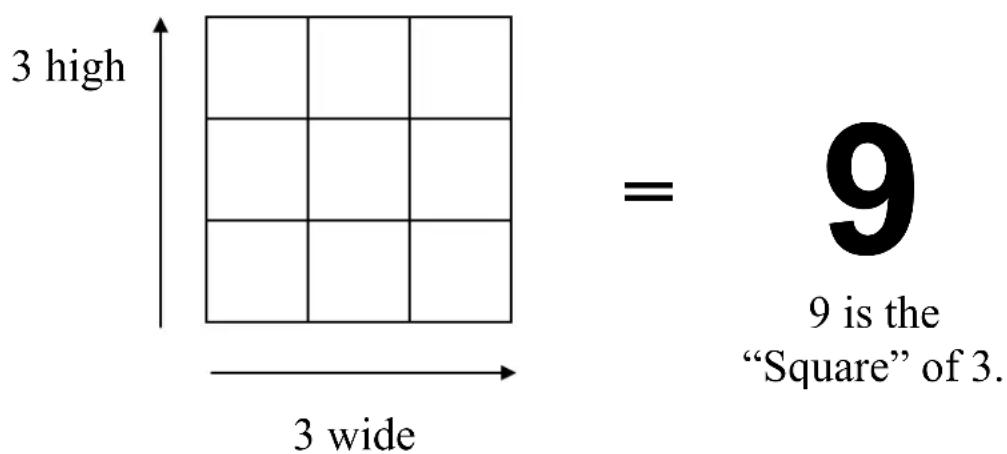
text_image
3 high 3 wide = 9 9 is the "Square" of 3.3 is the “Square Root” of 9.
TRANSF
Square Roots
$$ \surd 1 2 1 = ? $$
$$ \surd 2 2 5 = ? $$
$$ \surd 3 6 = ? $$
Press these buttons:
ON/AC ON/AC
121 √
225 √
36 √
The calculator shows:
0.
11.
15.
6.
TRANSPARENCY
Squares
$$ 1 2 ^ {2} = ? $$
$$ 4 ^ {2} = ? $$
Press these buttons:

12 x 12
The calculator shows:
0.
144.
4 x 4
16.
STUDENT WORKSHEET
Square Grid