E.ziclean Vac100 - Vacuum Cleaner E.zicom - Free user manual and instructions
Find the device manual for free E.ziclean Vac100 E.zicom in PDF.


| Product Type | Autonomous robot vacuum |
| Brand | E.zicom |
| Model | E.ziclean Vac100 |
| Dimensions (diameter × height) | Approximately 320 mm × 85 mm |
| Weight | Approximately 2.5 kg |
| Power Supply | Integrated rechargeable battery, AC adapter |
| Battery Life | Approximately 60 min (DOCKING mode), up to 30 min in AUTO mode |
| Charging Time | Approximately 3 hours (10-12 h for first charge) |
| Cleaning Modes | Auto (3 sub-modes), Spot (spiral, zigzag, walls), Docking (60 min) |
| Special Features | UV sterilizing lamp, automatic dust detection, virtual barrier, mopping function |
| Compatible Floor Types | Hardwood, linoleum, carpet, tile, low-pile rugs |
| Control | Infrared remote control and buttons on the device |
| Display | LCD screen on the robot and on the charging dock |
| Dustbin Capacity | Approximately 300 ml (estimate) |
| Filtration | Removable and washable filter (replacement kit included) |
| Maintenance | Empty the bin, clean the filters, brushes, and sensors |
| Included Accessories | Charging dock, remote control, virtual barrier, filter kit, replacement side brush, cleaning tool, 2 washable cloths |
| Safety | Infrared sensors, obstacle detection, automatic stop when lifted, overheat protection |
| Warranty | 1 year (excluding consumables) |
| Usage | Indoor only |
Frequently Asked Questions - E.ziclean Vac100 E.zicom
User questions about E.ziclean Vac100 E.zicom
0 question about this device. Answer the ones you know or ask your own.
Ask a new question about this device
Download the instructions for your Vacuum Cleaner in PDF format for free! Find your manual E.ziclean Vac100 - E.zicom and take your electronic device back in hand. On this page are published all the documents necessary for the use of your device. E.ziclean Vac100 by E.zicom.
USER MANUAL E.ziclean Vac100 E.zicom
E.ziclean vac100 by E.zicom
E.ziclean vac100 by E.zicom
natural_image
3D rendering of a red robotic vacuum cleaner with a small inset showing its mounting bracket (no text or symbols visible)E.ziclean vac100 by E.zicom
E.ziclean vac100 by E.zicom
- Foire Aux Questions....12
1. Introduction
E.ziclean vac100 by E.zicom
E.ziclean vac100 by E.zicom
E.ziclean vac100 by E.zicom
E.ziclean vac100 by E.zicom

E.ziclean vac100 by E.zicom
E.ziclean vac100 by E.zicom
E.ziclean vac100 by E.zicom
E.ziclean vac100 by E.zicom
natural_image
Diagram showing two circular mechanical components with internal gear-like structures, one being cut and the other extended (no text or symbols)E.ziclean vac100 by E.zicom
natural_image
Line drawing of a mechanical device with a hand adjusting a button (no text or symbols)E.ziclean vac100 by E.zicom
E.ziclean vac100 by E.zicom
E.ziclean vac100 by E.zicom
natural_image
Technical diagram showing a mechanical assembly with stairs and a rotating wheel (no text or symbols)E.ziclean vac100 by E.zicom
E.ziclean vac100 by E.zicom
natural_image
Three technical illustrations of mechanical components: a knob, a housing, and a cube (no text or symbols)E.ziclean vac100 by E.zicom
natural_image
Illustration of hands performing a medical or surgical procedure on a device (no text or symbols visible)E.ziclean vac100 by E.zicom
natural_image
Three circular mechanical components with internal components, one being cut and the other assembled (no text or symbols visible)E.ziclean vac100 by E.zicom
E.ziclean vac100 by E.zicom
E.ziclean vac100 by E.zicom
E.ziclean vac100 by E.zicom
E.ziclean vac100 by E.zicom
E.ziclean vac100 by E.zicom
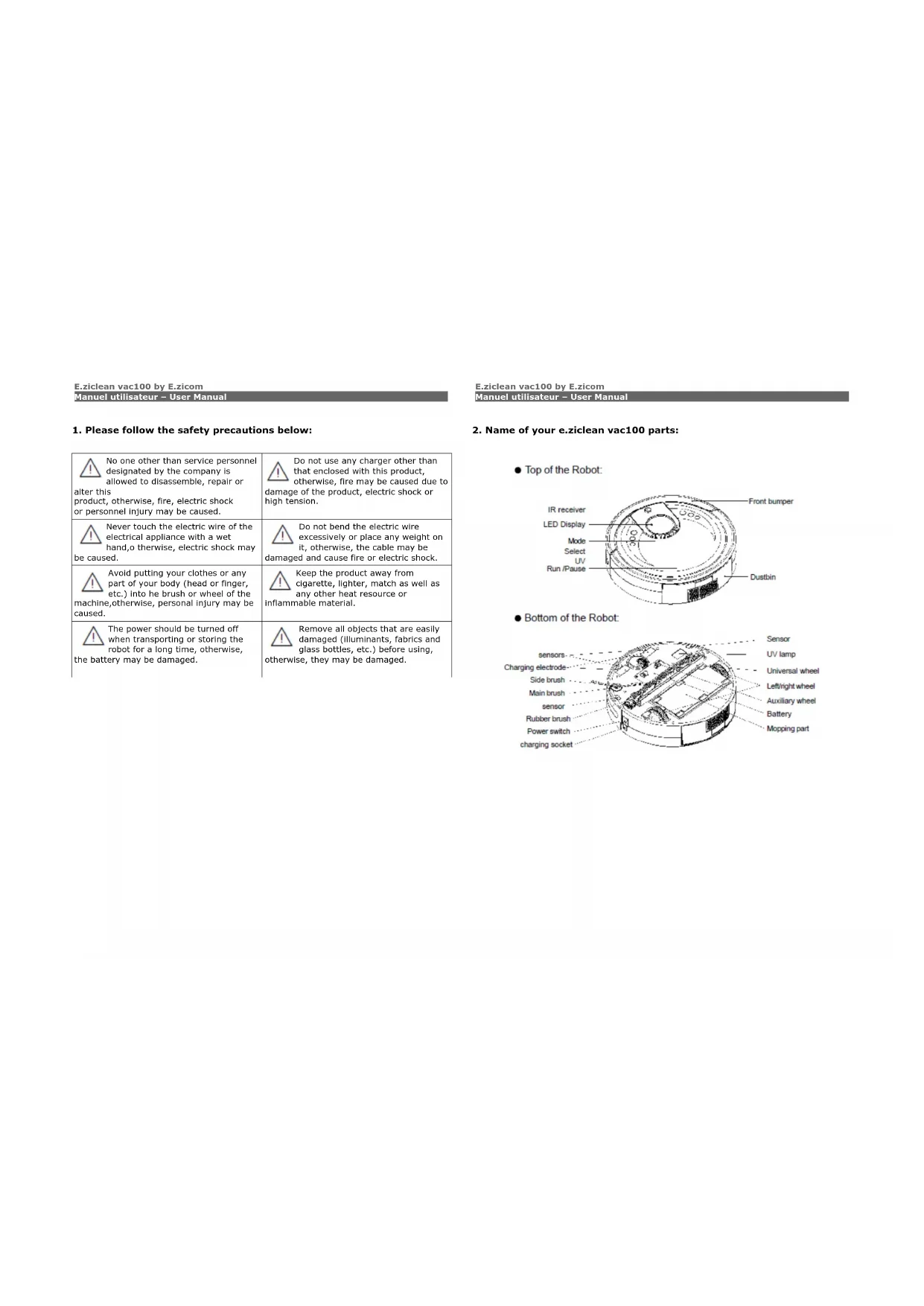
1. Please follow the safety precautions below:
| No one other than service personnel designated by the company is allowed to disassemble, repair or alter this product, otherwise, fire, electric shock or personnel injury may be caused. | Do not use any charger other than that enclosed with this product, otherwise, fire may be caused due to damage of the product, electric shock or high tension. | ||
| Never touch the electric wire of the electrical appliance with a wet hand,o therwise, electric shock may be caused. | Do not bend the electric wire excessively or place any weight on it, otherwise, the cable may be damaged and cause fire or electric shock. | ||
| Avoid putting your clothes or any part of your body (head or finger, etc.) into he brush or wheel of the machine,otherwise, personal injury may be caused. | Keep the product away from cigarette, lighter, match as well as any other heat resource or inflammable material. | ||
| The power should be turned off when transporting or storing the robot for a long time, otherwise, the battery may be damaged. | Remove all objects that are easily damaged (illuminants, fabrics and glass bottles, etc.) before using, otherwise, they may be damaged. |
2. Name of your e.ziclean vac100 parts:
● Top of the Robot:
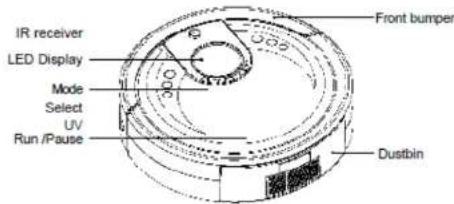
● Bottom of the Robot:

E.ziclean vac100 by E.zicom
E.ziclean vac100 by E.zicom
2. Name of your e.ziclean vac100 parts: 3. Cleaning preparation
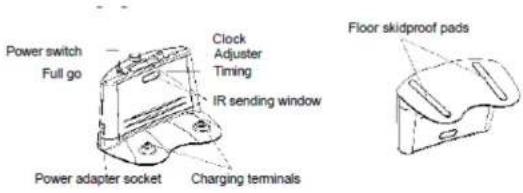
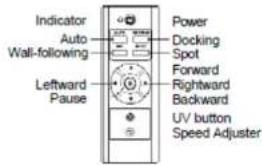
- Remote Controller
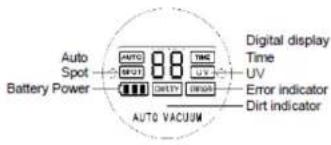
- LED Display
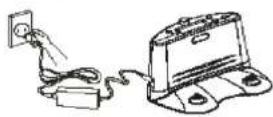
Installation of the Charging Dock station
- Place the charging dock station on level ground with the back against the wall.
- Make sure that no obstacle and uneven ground in the area within 3 meters in front of the base and 0.5m respectively on the left and right of it.
- Ensure that IR sending window on the base is clean without dust or something else covered, otherwise, the function of self-charging will be influenced
- Connect the output plug of the adapter to the Power socket of the Dock Station.
- Tidy up the electric wire along the wall to avoid obstructing the operation of the Robot.

4. Installation and disassembly of the mopping parts
- Attach the enclosed mopping rag to the mopping holder
- Align the protruding fastener at end of the holder to the sunken positions on the inner sides of the 2 wheels and press them down. Then both ends of holder will be locked
- After installing the mopping rag, mopping can be done while sweeping and vacuuming, the cleaning effect will be better
• After using, just pull the holder out - It's recommended to wash and twist dry the mopping cloth before using the mopping function
E.ziclean vac100 by E.zicom
E.ziclean vac100 by E.zicom
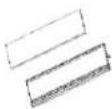
Figure 1
Fix the mopping rag on the holder
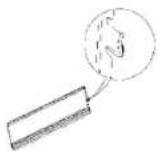
Figure 2
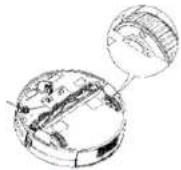
Figure 3
Figure 4

The mopping part is mainly designed to cooperate with Robot adjunctively to fulfill cleaning floors, you can disable this function. For the case non-use this part for a long time, please remove the mopping holder and store it with the mopping rag in dry environment.
natural_image
Technical line drawing of a mechanical component with concentric rings and a central hub (no text or symbols)6. Charging
Manual charging
-
You can directly charge the cleaner with its power adapter or with the charging dock station.
-
When charging directly via the power adaptor, please connect the output plug of the adapter with the charging socket on the robot. (See figure 1)
-
When charging with the charging dock station, please first connect the adapter to it, and then place the cleaner tightly against the dock station to ensure a nicer contact between the charging electrode of the cleaner and the charging terminal on the dock station. (See figure 2)
-
During the charging process, the display will show the charging status, and the battery level bars will turn red from the 1st bar to the 3rd bar in order repeatedly. (See figure 3)
-
Upon completion of the charging, the display will show 3 fully red bars. (See figure 4)
5. Turning On/Off your e.ziclean®
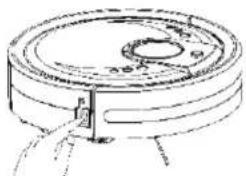
- Press the power switch when the cleaner is turned off (see the figure below), the display will be on and the screen will flash for 3 seconds along with a startup sound, and the robot is then turned into the standby status.
- In the standby status of the robot, the current working mode will be displayed (default show as "AUTO 1 UV" and the battery level on the screen).
- Turn off the power in the standby status, the display will be shut.
- In the power-off status of the cleaner, the remote controller cannot work.
E.ziclean vac100 by E.zicom
Figure 2

Figure 4

- Take out the battery before disposing of the robot.
- Always remember to cut off the power before removing the battery.
- Recycle or dispose of the battery properly.
- To avoid explosion, never throw it into fire!
E.ziclean vac100 by E.zicom
-
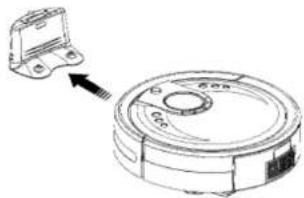
The cleaner will automatically start to search the charging dock station for recharge when the battery level is lower than 15% during cleaning process.
-
When press the DOCKING button on the cover of the robot or the remote controller, the function of self-charging will also be enabled.
-
During the above "DOCKING" mode, press any other button on cleaner or remote controller, the cleaner will stop searching and enter the standby status. The directional buttons on the remote controller can also be used to support the searching function.
natural_image
Diagram of a robotic vacuum cleaner with a small inset showing the component (no text or symbols present)

The cleaner can find the charging dock station when it reaches the area about 3 meters in front of the base within the 90° fan-shaped region.
7. Functions of the buttons on the cover
- In the standby status, press the mode button "to choose AUTO, SPOT, DOCKING in turn, and corresponding indicator will be on accordingly.
- AUTO: Auto cleaning status, in this status, press the select button "to switch between 1, 2 and 3 secondary modes, the display will show corresponding digit.
Modes:
1 - The cleaner will work until the battery is used out and then search the charging dock station automatically for recharge.
2 - The cleaning work will last for 30 minutes.
3 - The cleaning work will last for 15 minutes.
E.ziclean vac100 by E.zicom
E.ziclean vac100 by E.zicom
- SPOT: Spot cleaning, in this status, press the selection button "P" to switch between 1, 2 and 3 secondary modes, the display will show corresponding digit .
Modes:
1 - Cleaning along the spiral route (working for 1-4 minutes).
2 - Cleaning along the zigzag route (working for 1-4 minutes).
3 - Cleaning follow the walls (working for 10 minutes).
-
DOCKING: self-charging mode, in this mode, it can automatically search the charging dock station.
-
Select button "I" this enables you to select 1, 2, 3 secondary modes orderly in the primary models of AUTO/SPOT.
-
UV button " this allows you to turn on or off the UV lamp during the cleaning process, press once to turn on and press again to turn off. (The UV lamp is on when turn on the cleaner)
-
Run button "▶" when the SPOT/AUTO/DOCKING mode is selected, press this button to start the particular mode.

The UV lamp is applied for sterilization, please do not look straightly at it.
8. Charging status
- When the cleaner is being charged manually, it will not work when you press any button unless your pull out the plug of power adapter.
- A full charging time is about 3 hours. For the first 3 times of charging of a new cleaner, please ensure it to be charged for more than 12 hours each time, please try to use out the battery power before charging (ensure a 12-hour charging before you use the robot for the first time).
- If you press the AUTO button on the remote controller while the cleaner is being charged on the charging dock station, the robot will draw back from the dock station and turn around to walk 1m ahead, and then it will enter the AUTO mode for working.
9. How to use the charging dock station
1. Time setting :
In normal operation status, press the clock button "to enter the time setting status; press once to switch between settings of minutes and hours, the current value of the selected item being set will flash, by using this button, you can set the standard time. Press the adjusting button "+" to adjust minutes, and hours. After time setting finished, then press the full-go button "To save the setting values. If no button were pressed within 30 seconds, the base will quit the setting status without save the values.
2. Timing clean setting :
In normal operation status, press the timing button "A" to enter the timing clean setting status; press once to switch between settings of minutes and hours, the current value of the selected item being set will flash. By using this button, you can set the standard time. Press the adjusting button "+" to adjuster minutes, and hours. After timing clean setting finished. Then press the full-go button
“2” to save the setting values, if no button were pressed within 30 seconds, the base will quit the setting status without save the values.
3. Auto clean setting :
In normal working status of the charging base, press the full-go button "Z" to enable the full-go function (when the battery is recharged fully, the robot will automatically start the cleaning work). Press this button again, this function will be disabled.
E.ziclean vac100 by E.zicom
E.ziclean vac100 by E.zicom
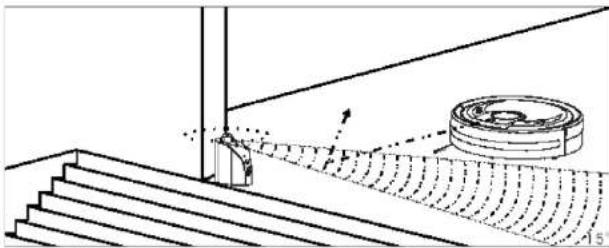
The virtual wall is an accessory, it sends some special IR signals to form a blocked area to prevent the cleaner from entering unnecessary areas, it is so named "virtual wall" because this function acts like a wall.
- Before using the virtual wall, install the batteries as shown in figure 3, open the bottom cover of the virtual wall, install 2 pcs A batteries (pay attention to the correct polarity). After the installation, close the bottom cover and tighten the screws.
- Select the distance selector of the virtual wall according to the actual requirements; pull the shift switch to the top position to select the low level (0-4m), to the middle to select the medium level (4-7m) and to the bottom to select the high level( above 7m); The lower level, the lower power consumption and the longer working time of batteries, therefore, you should try to select a lower level whenever possible.
- Press the power button on the virtual wall. The indicator will flash. When the voltage is normal, the indicator will twinkle at each longer interval, if the batteries are in low power, the indicator will flash faster, indicating that the batteries should be replaced. To avoid wrong startup, you should press and hold the switch for a comparatively longer time (about 3\~5 seconds) when turning on the power.
- The virtual wall takes effect with IR signals, therefore, its functional range is a sector of about 15^ , when the power is turned on, you should place it at the entrance of the area that you don't want the cleaner to clean. The cleaner won't enter such area then.
- The virtual wall uses 2pcs A (1.5V) batteries, when batteries' power is short, you should replace them. Continue to use the batteries with extremely short power may corrode the virtual wall.
E.ziclean vac100 by E.zicom
Figure 2
Figure 3
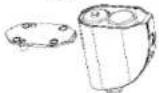
Figure 4

-
You need to use a screwdriver to open the bottom cover of the virtual wall (see Figure 3)
-
Please refer to figure 4 for the installation of batteries to avoid wrong polarity that may damage the virtual wall.

- Take out the battery before disposing of the cleaner.
- Always remember to cut off the power before removing the battery.
- Recycle or dispose of the battery properly.
- To avoid explosion, never throw it into fire!
E.ziclean vac100 by E.zicom
11. How to use the virtual wall
-
The virtual wall should generally be placed at the doorway of the room you planned to clean.
-
You can also place the virtual wall in any proper place to prevent the cleaner entering the blocked area.
-
Ensure no obstacle is placed in front of the virtual wall when you plan to block a particular area.
natural_image
Technical diagram showing a mechanical setup with stairs, a pulley, and a circular component (no text or symbols)12. Cleaning your e.ziclean vac100 auto vacuum robot
a. How to clean the dustbin:
- Press the button on the dustbin by hand. (See figure 1)
- The dustbin will be ejected. (See figure 2)
- Then you can take it out easily. (See figure 3)
- Just push it by force to install the dustbin.
E.ziclean vac100 by E.zicom
Ensure the dustbin be fixed tightly after cleaning machine
First, open the dustproof clapboard and dump the dust and debris collected. (See Figure 1). Then clean it with cleaning brush (See Figure 2)
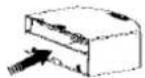
Figure 1
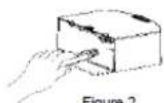
Figure 2

Rinse by water is prohibited!
b. How to replace and clean the filter:
- Hold the middle part of the filter bracket located on the suction inlet by hand (See figure 1) and thendraw horizontally (See figure 2).
- Take out the scouring pad (See figure 3) and the filter sponge (See figure 3) in order.
- Put a finger into the bottom of the suction outlet and draw it out (See figure 4).
- Take out the filter sponge inside the outlet window (See figure 5).
- The scouring pad and the filter sponge can be cleaned in water and then reinstalled after drying. It's recommend to generally clean them.
E.ziclean vac100 by E.zicom
- Suction Inlet: Install the filter sponge and the scouring pad onto the filter mesh bracket orderly, and then install them into the dustbin.
- Suction outlet: First install the filter sponge in the outlet window, and then insert the top end of the outlet window into the dustbin, and then press the fastener at the lower end to fix it.
c. Side brush:
- Nip the tow fasteners of the side brush with one hand (see Figure 1) and pull the side brush upward with the other hand to take out the side brush.
- Installation: Align the side brush with the 2 fasteners and press it down to fasten the side brush (See Figure 2)
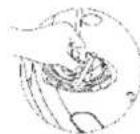
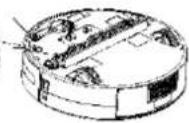
Figure 1
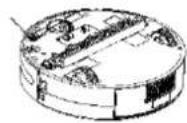
Figure 2
d. Main bush:
- How to remove the main brush
- Hold the brush and push it slightly leftward. (See Figure 1)
- Then take out the brush. (See Figure 2)
E.ziclean vac100 by E.zicom
-How to clean center Brush
For a better cleaning effect, please regularly clean out the hair, yarn and large debris en-winded or adhered on the main brush and the dust on the suction inlet.
- Directly use the cleaning brush to clean paper scraps or minute particles.
- En-winded hair, yarn or similar objects should be cut by scissors or pulled out by hand while carefully rotating the main brush.
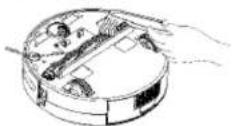
e. Cleaning Sensors
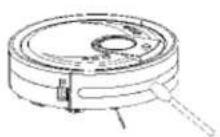
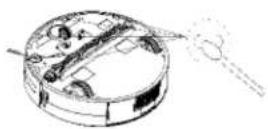
- The sensors should be cleaned by cotton swab or soft cloth.
- The wall-following sensors are installed in the front of bumper of the cleaner, the ground detection sensors are installed at the front bottom of the cleaner (see the figure below)
E.ziclean vac100 by E.zicom
13. Trouble shooting
Below Inspections by yourself to this product before you request a repair.
A. The Robot Stops while Working
-
Check if the selected cleaning time is over.
-
Check if there's any error information on the LED display and refer to the following explanations to solve it.
B. The Cleaner Fail to Work or the Cleaning Ability is Weakened
-
Check the battery status.
-
Check whether the dustbin, the filter and the inlet of suction are cleaned; whether the side brush is working.
-
Check whether the cleaner is turned on.
C. The Remote Controller Can not Work
01. Check the battery status of the controller.
02. Check the battery status of the cleaner.
03. Wipe the IR sensor or the beam sensor of the controller by clean and dry cloth.
04. Keep proper distance between the cleaner and the controller, and then operate the controller directly facing the IR receiver on the cover of robot
To ensure a more effective cleaning of this robot, please clean the sensors regularly.
D. The Robot Fails to fulfill self-Charging
01. Check whether the power supply is normally connected with the adapter and charging dock station.
02. Check the battery power, if it's too low, please manually charge it with the adapter.
E. Increased Noise when Cleaning
01. Clean the dust box and the filter.
02. Check whether the brushes are too dirty.
E.ziclean vac100 by E.zicom
E.ziclean vac100 by E.zicom
If the LED screen on cleaner has the error information above, please see the solution as follows:
| N° D'ERREUR SIGNIFICATION SOLUTIONS | ||
| 0 Foreign body in the left wheel, excessive load | Check the left wheel and remove the foreign body | |
| 1 Foreign body in the right wheel, excessive load | heck the right wheel and remove the foreign body | |
| 2 Excessive load on the main brush Check the main brush and remove any foreign body. This robot is not recommended to be used on a long wool carpet | ||
| 3 Excessive load on the suction fan Clean the filters | ||
| 4 Too high temperature of the battery Pause the operation of the robot and let it resume once battery cooler | ||
| 5 Left wheel failure or blockage Check the wheel and remove any foreign body | ||
| 6 Right wheel failure or blockage Check the wheel and remove any foreign body | ||
| 7 Front wheel blocked Check the front wheel status | ||
| 8 Left wheel being lifted Check the wheel and remove any obstacle | ||
| A Right wheel being lifted Check the wheel and remove any obstacle | ||
| E F 10 11 12 13 14 15 16 | Cleaner being blocked on the stairs or being lifted unexpectedly | Check the cleaner status and clean its sensors |
| 17 18 19 Front bumper blocked Check the front bumper | ||
| 5 1D 1E | Too high temperature of the brushes of wheels engines | Check the wheels for any foreign body and check the main brush for any yarn |

- Introduction
- Please follow the safety precautions below:
- Name of your e.ziclean vac100 parts:
- Name of your e.ziclean vac100 parts: 3. Cleaning preparation
- Installation of the Charging Dock station
- Installation and disassembly of the mopping parts
- Charging
- Manual charging
- Turning On/Off your e.ziclean®
- Functions of the buttons on the cover
- Modes:
- Charging status
- How to use the charging dock station
- Time setting :
- Timing clean setting :
- Auto clean setting :
- How to use the virtual wall
- Cleaning your e.ziclean vac100 auto vacuum robot
- b. How to replace and clean the filter:
- c. Side brush:
- d. Main bush:
- e. Cleaning Sensors
- Trouble shooting
- To ensure a more effective cleaning of this robot, please clean the sensors regularly.
Brand : E.zicom
Model : E.ziclean Vac100
Category : Vacuum Cleaner