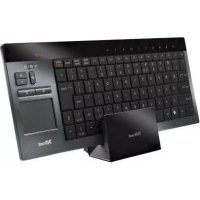
Thinity 16817 - Keyboard TRUST - Free user manual and instructions
Find the device manual for free Thinity 16817 TRUST in PDF.



| Brand | Trust |
| Model | Thinity 16817 |
| Product type | Wireless keyboard with touchpad |
| Connectivity | Wireless USB (receiver) |
| Power source | Built-in rechargeable battery |
| Charging time | 7 hours |
| Charging indicator | Red light (charging) / green (full) |
| Touchpad | Yes, with multi-touch gestures (1, 2, 3 fingers) |
| Multimedia keys | Play/Pause, Stop, Previous, Next, Volume +/-, Mute |
| Shortcuts | Browser, Email, Media player (via Fn key) |
| Compatibility | Windows (XP/Vista/7), PlayStation 3, Xbox |
| Sleep mode | Automatic after 5 minutes of inactivity |
| LED indicators | Transmission, battery, shortcuts LEDs |
| Package contents | Keyboard, USB receiver, charging cradle, power adapter, PS3 stickers (optional) |
| Maintenance | Clean with a soft, dry cloth |
| Safety | Do not expose to water or humidity |
Frequently Asked Questions - Thinity 16817 TRUST
User questions about Thinity 16817 TRUST
0 question about this device. Answer the ones you know or ask your own.
Ask a new question about this device
Download the instructions for your Keyboard in PDF format for free! Find your manual Thinity 16817 - TRUST and take your electronic device back in hand. On this page are published all the documents necessary for the use of your device. Thinity 16817 by TRUST.
USER MANUAL Thinity 16817 TRUST
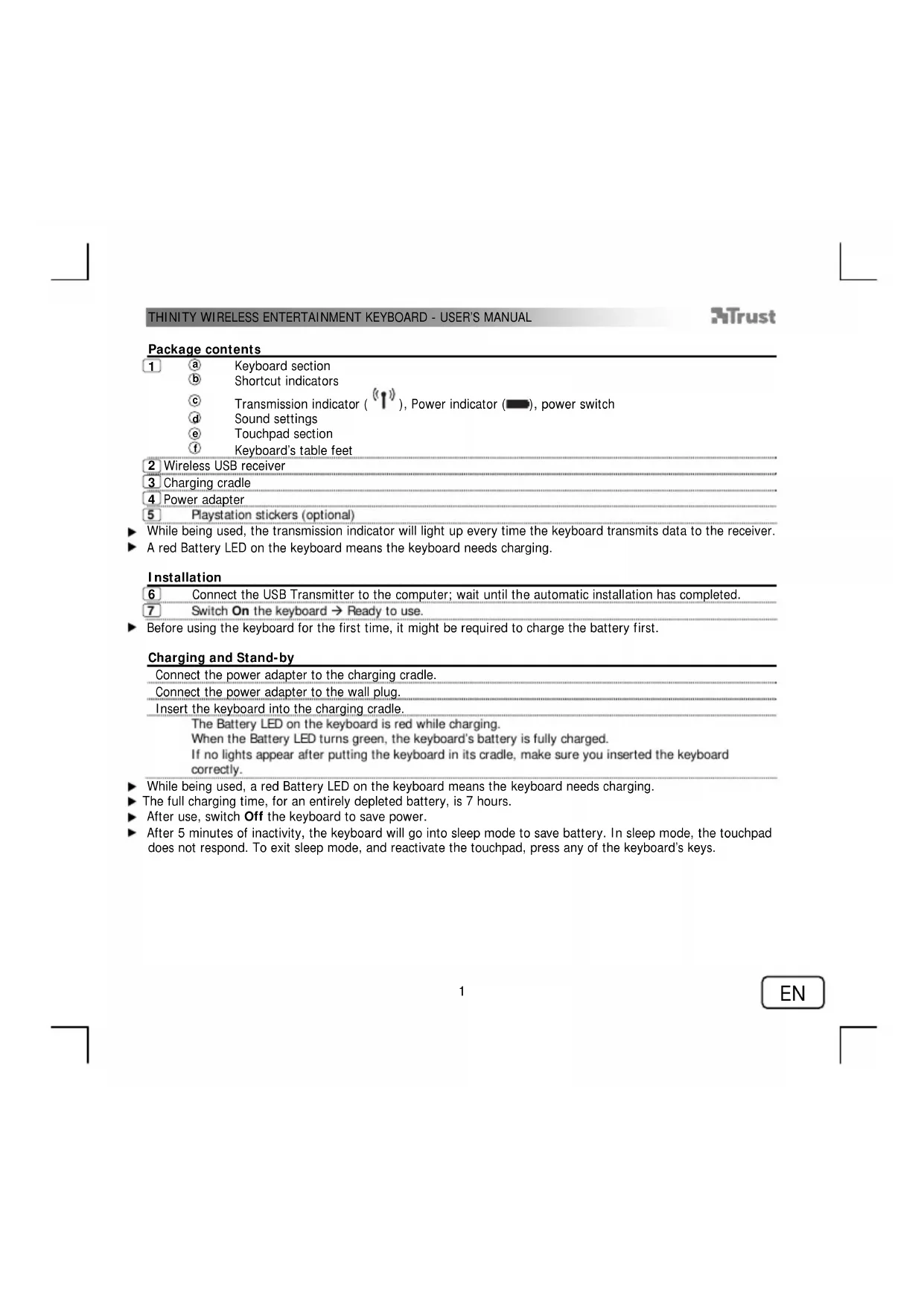
1 a Keyboard section b Shortcut indicators c Transmission indicator ( )Power indicator () power switch d Sound settings e Touchpad section f Keyboard's table feet
2 Wireless USB receiver
3Charging cradle
4 Power adapter
5 Playstation stickers (optional)
While being used, the transmission indicator will light up every time the keyboard transmits data to the receiver.
A red Battery LED on the keyboard means the keyboard needs charging.
Installation
6 Connect the USB Transmitter to the computer; wait until the automatic installation has completed.
7 Switch On the keyboard Ready to use.
Before using the keyboard for the first time, it might be required to charge the battery first.
Charging and Stand-by
Connect the power adapter to the charging cradle.
Connect the power adapter to the wall plug.
Insert the keyboard into the charging cradle. The Battery LED on the keyboard is red while charging. When the Battery LED turns green, the keyboard's battery is fully charged. If no lights appear after putting the keyboard in its cradle, make sure you inserted the keyboard correctly.
While being used, a red Battery LED on the keyboard means the keyboard needs charging.
The full charging time, for an entirely depleted battery, is 7 hours.
After use, switch Off the keyboard to save power.
After 5 minutes of inactivity, the keyboard will go into sleep mode to save battery. In sleep mode, the touchpad does not respond. To exit sleep mode, and reactivate the touchpad, press any of the keyboard's keys.
Using the keyboard
The keyboard country layout settings in Windows should match the keyboard layout of your Trust keyboard. The layout of the Trust keyboard is specified by a sticker on the Box.
To set the keyboard layout in Windows: Go to: Start Control Panel (classic view) Regional and Language Options Languages (Vista & 7: "Keyboards and Languages") Details (Vista & 7: "Change Keyboards")
The Alt Gr key gives access to special characters like the Euro sign.
Shortcuts
Your Thentity keyboard has shortcuts keys to help you launch your favourite programs and help you navigate through your operating system. The launch keys will start the default internet browser, E-mail program and media player, if such programs are available on your PC.
8 Activate the shortcuts by pressing the Fn key.
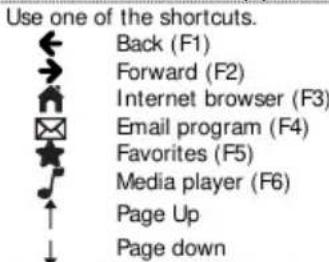
Configure default programs:
XP: Start Control Panel Add/Remove Programs Set Program Access and Defaults. Vista: Start Control Panel Default Programs Set programs access and computer defaults Custom 7: Start Default Programs Set your default programs
Aft er 10 seconds of inactivity, the keyboard will revert to normal mode, and the Fn will need to be pressed again to use the shortcuts
Using the touchpad
9 Moving one finger on the touchpad's surface allows you to move the mouse cursor.
Tapping the touchpad's surface with one finger is a single (left button) mouse click.
10 Vertically moving two fingers on the touchpad's surface allows you to scroll up and down.
Tapping the touchpad's surface with two fingers is a middle (scroll-wheel or third button) mouse click.
11 Tapping the touchpad's surface with three fingers is a right button mouse click.
The mouse-click buttons (O and O) can also be used to perform clicks.
THINITY ENTERTAINMENT KEYBOARD - USER'S MANUAL
Trust
Using Thinity with a media player
Your Thentity keyboard has multimedia shortcuts keys to help you control your favorite multimedia player.
8 Activate the shortcuts by pressing the Fn key.
Use one of the shortcuts.
Play/Pause(F7)
Stop (F8)
Previous (F9)
Next (F10)
The volume settings allow you to turn the volume up or down, and to mute all sounds.
Volume up
Volume down
Mute
The multimedia keys are designed for Media Center and Windows Media Player. However, the keys may also work with other media player software.
Using Thinity with a Playstation 3
Connect the USB Transmitter to the Playstation.
Switch On the keyboard Ready to use.
Use one of the shortcuts.

Esc
F1
F2
Enter
Using Thinity with a XBox
Connect the USB Transmitter to the XBox.
Switch On the keyboard Ready to use.
EN
THINITY WIRELESS ENTERTAINMENT KEYBOARD - GEBRAUCHSANLEITUNG
Trust
Lieferumfang
1 a Tastaturbereich
Anvendelsen at touchpad
Using Thinity with a Playstation 3
Tilslut USB-transmitteren til Playstation.
H3non3BaHe Ha Thinity c Playstation 3
| Сбъркete USB рedingавател кьм Playstation. |
| Великий Кльаватураета → Готовост за мени/orын. |
| Иллалайные сддп on Кразковite мени. |
| Esc |
| F1 |
| F2 |
| Enter |
H3noJ3BaHe Ha Thinity c XBox
CbIeKETe USB npedaataa KIM XBox. BkIOHcTe knaBnATpyr FOToBHOCT 3a HmOlaBaHe.
BG
THINITY WIRELESS ENTERTAINMENT KEYBOARD - PYKOBODCTBO IIOJ63OBATEJI
Trust
CopeKmoe ynaKOBKn
1 a CeKunna KnaBnW
b Hnukatopby 6bctporo doctyna
HINDAKATOPCBRAH(),HNDAKATOP3APJAD,BBKIOUATEJIbNITAHM
d Khonkn ynpabBnchHn 3BykOM
CekuncaehcnpHoro nHaHweta
HOKKN KnaBnAtpyu
2 BecnpoBAnHou USB-npneMHnK
3 POnCTaBkDnIaPdKn
4 Anantep DHTAH
5 HakLei Ky Playstation (dononHntenbHO)
PINHIOBHOHNKBAHATyPb HNNDKATOP C8BN 6YETAROpTaKaKdpa3, KORDa KNABHATypa nepeAdet hBaHBe HA pRnEMNHK.
Korda ropnt KpaHbI INHdkaTOp 3apraJa 6aTapeN,KnabMaTypa Tpe6yet 3apAekn.
YcTaHOBka
6 NIOKIOHHTb USB-npHemHnK KOMMbTOpepy; DOxKaTbC3aBepueHHA BTOMaTHHeckO yCTaHOBKn.
7 BkHouHTb KnaBnATpy MOKHO N0lb3OBaTbCra.
Ipeep npBbIM nCnObn3oBaHnEM KnaBnAtpybl MoKcT noHaonobntbc 3apAka 6aTapei.
3apraKa npeKMM OXnDaHn
IodKIOHHTb aanTep nTTaHn K NOCTaBKe IJIa 3apdKn.
POnKIOUHTb aanTep nHTAHnK HAcTeHHo P03eTke.
YcTaHOBnTb KnaBnAtpy Ha nOCTaBky.
INHnKaTOp 3apra 6aTape BO BpeM 3apRkN 6ydt Ropetb KpaChbIM LBeTOM.
Korda HdkaTOp 3apra Tropn 3enehBcETOM,6atape KnaBAtypbNoHocTbO 3apkeHa.
EcmHnHKaTOO He 3aopaeTcnoCne YCTAHOBKN KnaBnATyDn HA NOCTABKY, y6eHTbcY, yTO
KNAHAty npabnBHO yCTaHOBHeHa.
ECINPnIHCIOB3OABNNKIAIBNATyPb3AraOpaTeCkPAChNmHnDnKaTOp3aPaTaEKnABNAtypaTpe6yET 3aepnK
Bpema3apraDnIpaonHocTbOpa3pXeHHo6atapencoCTabTReT7acOB.
EcnKnabHnataHe HcnoNb3yeTcH,Heo6xOaHMO OTKIOuA Tb NHTaHne 4JEA KOHOOMN 3apra.
Yepe3 5 MmHyT 6e3dEChTBnKlAbaNAtyPe npexoDHT pexM OxuaHnI Ira 3KOHOOMn 3apra 6aTapei. B
peKIMe OXnidaHnceHCOPHy nnaHcT He paearpyET Ha npNKoCHOBChn. TTo6bl BbInn H3 peKIMa OxndaHn
N BKNIOHTb CeHCOPHbI NnAHHet, HaxKaTb IIO6yIO KnaBnUy KnaBnAtypbl.
RU
THINITY WIRELESS ENTERTAINMENT KEYBOARD -PyKOBODCTBO IIOJIb3OBATEJIA
Trust
McnoIb3OBAHHe KnaBnATypbl
Hactpokn kappkndk knaibatpyd nI onpegehenonhtcpbbl oenepaonohn ciefte Wndms doxkhcb coobanada cpackndaikn knabiatpyr Tsup. Packndaek knaibatpyd Tsup yzakaah h aaknekekoepokbo
Hactopka packnaikn knaBAtpyb b onepaunnoHH CNTeMe Windows: nepeHTH: PyCK PAnenb npabneHn (knaccHeckn Bn) 3bkn peHOnaHbIhBe CTaNapTe 3bkn (Windows Vista n Windows 7: 3bkn n knaBAtpy) Detann (Windows Vista n Windows 7: N3mEnHTN, knaBnTpy)
KnaBnua Alt Gr no3BOnrER BBOHnTB CneuHaNbHbE cMNBOnb, TaKe KaK 3nK EBpo.
BbICTpbHIOCTyn
KNaBAtyPra ThInity HmeeT KAnBnHb 6bCTPO DoDyNA DnaaNyCa 36paHHbN npOrpamM nypnPaNEH NoepaHOHNCHcEMo. KHKnK 3anyCKa NO yMOuHaHHO ktpbAoi Be6-06o3peBaTeB, KIneHT 3eKTP NoHT mHeMaHneep, EcnT KaTne IpoPMAHbY cTaTHOBHeB b OhepaHOHH ChTEMe.
8 KnaBnH 6bIcTpRo DOCTyNa MoXHO NcNoIb3ObaTb, Haxab KnaBnHy Fn.
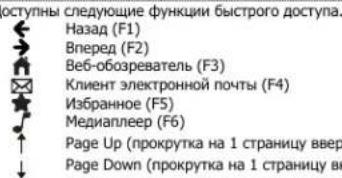
I3MeHeHne npoPpAMM no yMoJUaHHIO:
OC Windows XP:Pyck PAnenbynpaaennna Do6aBnty/Ydaanlt nporpammmu Bu6op nporpamno ymOAMHIO.
OC Windows Vista:Pyck PanHeB ynpaBENHe PnorpramMb no ymOnuHnIO NaCTpoKa doCTyMa K nporpamMn u mOnuHnD Dpyroe
7: Nyck → Pporpammbn no ymonuahnho → 3aahnene nporpaamno ymonuahnhio
Hepce 10 e3 KNDbEeCTBnK NkAaBtpy BepeTcK HOpNAbHOmy pexmyn paobTo, nI dRnHCNOHOBAHNA KNaBnHb6tPoro DoctyNaEO6HDoMBydEet eue PaahKahtBuKnABHbU Fn
NcnoB30BaHHe cHcOpHOro nHaHweta
9 Dnirra naIbueM no NOBepxHOCTc CEHCOPHOr nnaHHeTa MoXHO NpeMeuTa b KypocMbUH.
KacAHne ceHCOPHOro nlaHWeTa ODNHM NaIbueM - 3TO OINH UeYOK NBOI KHONK MbluN.
10 BeptnkaHoe dnnne Hene DpyMa nnaaam no noBepxHcTn cncCpHOr nnaHeta TaBOJnre npokpyHBt CtpanHy BBePx N BH3. Kaahme cncOpHoro nlaHeta DeMy nnaaAM -3To qNvOcK cpHe (TpBeBKn KONKNn KOJecn npokpyTK) KHONK Mblm.
11 KacaHne cncopnor nnaHweta TpeMa nlaqamn -3to uenok npaBOK KHONK MBIHN.
A
RU
THINITY WIRELESS ENTERTAINMENT KEYBOARD - PYKOBODCTBO IIOJ63OBATEJI
Trust
McnoB3OBaHHe Thinity c Mednaneepom
KnaBnAtpya Thiny mMeT MybTMmEHHbIe KnaBnH 6bCTporo Doctyna dny ynpabHeHn MednAnneepom.
8] Knabniu 6bictporo doctyno moxho nCIOIb3OBaTb, Haxab KnaBnuy Fn.
DcTynHn cnnyuune yHKnn 6bICTpO AOCTyna.
- Installation
- Charging and Stand-by
- Using the keyboard
- Shortcuts
- Using the touchpad
- Using Thinity with a media player
- Using Thinity with a Playstation 3
- Using Thinity with a XBox
- THINITY WIRELESS ENTERTAINMENT KEYBOARD - GEBRAUCHSANLEITUNG
- Trust
- Lieferumfang
- Anvendelsen at touchpad
- H3non3BaHe Ha Thinity c Playstation 3
- H3noJ3BaHe Ha Thinity c XBox
- THINITY WIRELESS ENTERTAINMENT KEYBOARD - PYKOBODCTBO IIOJ63OBATEJI
- CopeKmoe ynaKOBKn
- YcTaHOBka
- 3apraKa npeKMM OXnDaHn
- THINITY WIRELESS ENTERTAINMENT KEYBOARD -PyKOBODCTBO IIOJIb3OBATEJIA
- McnoIb3OBAHHe KnaBnATypbl
- BbICTpbHIOCTyn
- NcnoB30BaHHe cHcOpHOro nHaHweta
- McnoB3OBaHHe Thinity c Mednaneepom
Brand : TRUST
Model : Thinity 16817
Category : Keyboard