iRadio 310 - Radio Noxon - Free user manual and instructions
Find the device manual for free iRadio 310 Noxon in PDF.


| Brand | Noxon |
| Model | iRadio 310 |
| Product type | Internet Radio |
| Power supply | 12 V DC, 1500 mA (mains cable included) |
| Display | Yes |
| Remote control | Yes (with battery) |
| Speakers | Integrated stereo speakers |
| Connectivity | Wi-Fi (WLAN) and Ethernet (RJ45) |
| Headphone jack | 3.5 mm jack |
| Line output | 3.5 mm jack (LINE OUT) |
| Preset stations | 5 direct keys |
| Functions | Internet Radio, UPnP, Alarm, Sleep mode |
| Menu languages | DE, EN, ES, FR, IT, NL |
| Firmware update | Possible via Internet |
| Safety | Indoor use only, avoid water and heat sources |
| Cleaning | With a dry, lint-free cloth (no chemicals) |
| Box contents | Device, power cable, remote control with battery, quick start guide |
| Environment | Do not dispose of with household waste – batteries separately |
| Technical support | Hotline: +33 (0)811 62 01 31 |
Frequently Asked Questions - iRadio 310 Noxon
User questions about iRadio 310 Noxon
0 question about this device. Answer the ones you know or ask your own.
Ask a new question about this device
Download the instructions for your Radio in PDF format for free! Find your manual iRadio 310 - Noxon and take your electronic device back in hand. On this page are published all the documents necessary for the use of your device. iRadio 310 by Noxon.
USER MANUAL iRadio 310 Noxon
- Read through the operating manual carefully and keep it in a safe place.
- Observe all warnings and follow the instructions to avoid damage.
• Use this device indoors only. - Place the device on a level, dry surface to prevent fire and electrical shock hazards as well as possible damage to the player itself.
- Do not use the device close to water or other liquids.
- Keep the device away from direct sunlight, radiators, open flames and other sources of heat.
- Only use the accompanying power supply cable. If you are not going to use the device for an extended period, disconnect it from the power supply. To avoid short-circuits, never pull on the cable itself. In addition, be sure to unplug the device from the AC outlet in the event of a thunderstorm.
- If the device has been exposed to extreme differences in temperature, allow it to adjust to the room temperature for one hour before plugging it in. Condensation may have formed inside the device, which impairs its functionality.
- Use a dry or slightly moistened, lint-free cloth to clean the NOXON. Do not use cleaning products as they may damage the finish of the unit.
- To put it simply, just use the device sensibly. The warranty does not cover deliberate damage to the device, of course. Thank you.
Environment
- The product contains batteries that are subject to European Directive EC and must not be disposed of in the normal household waste.
- This product fulfils EC Directive EC and must not be disposed of in th normal household waste.
- Please obtain information on correct disposal from your local authorities – this will help protect the environment!
Scope of delivery
Start by making sure that the contents of the package are complete. The NOXON package should contain at least the following items:
- NOXON iRadio 310
• Power supply cable
• Remote control with battery inserted
• Quick Start Guide (DE, EN, FR, IT, ES, NL)
Quick Start Guide for pros
This Quick Start Guide shows you how to get started using your NOXON device. You will find detailed descriptions and special configurations in the advanced manual, which you can download from our website (www.noxonradio.com).
Pretest
Like any network device, your NOXON needs to be connected to your network before you can get started.
What do you need?
• A fast Internet connection (for example, DSL, ideally with a flat rate).
- A router for Internet access; for wireless operation, what is called a WLAN (Wireless LAN) router
• A network cable, if you do not want a wireless Internet connection for your device
• For WLAN integration: your network key (WEP, WPA or WPA2)
This key, just like any key, protects your network from unauthorised access and was generated when your network was set up. To allow NOXON access to a key-protected network, you will need to enter the network key into NOXON in a later step. If your network does not have a key, the NOXON can connect to the Internet without a network key.
Note: If you are not sure whether you are using a key of this type in your network, just give it a try without entering anything! If this does not work, repeat the setup process from the beginning. However, you will need to know your network key at this point. Please ask the person who set up your network for assistance.
Overview
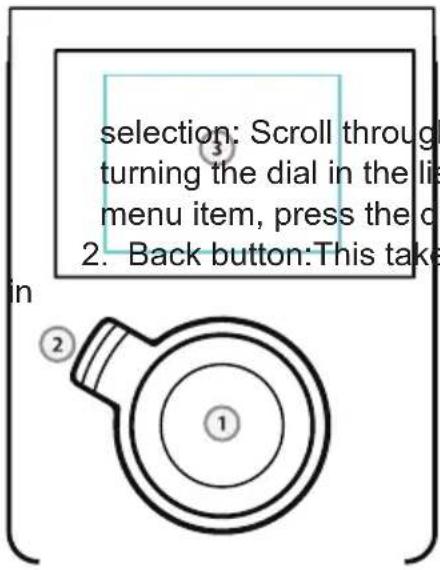
- Navigation dial with push function for
gh the menu by list view. To select a dial once.
- Back button: This takes you one step back
the selection.
- Display
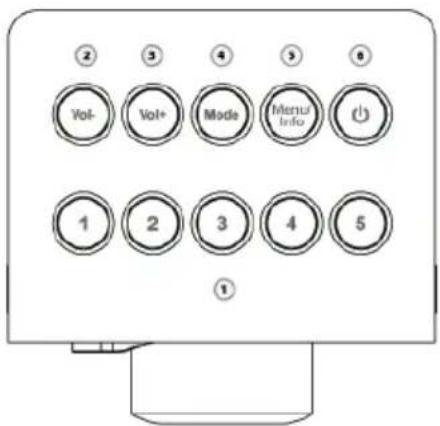
- Prest stations 1 - 5
- Volume minus
- Volume plus
- Mode – change between internet radio on and musicplayer.
- Menu/Info – receive more information about the program
- Standby On/Of
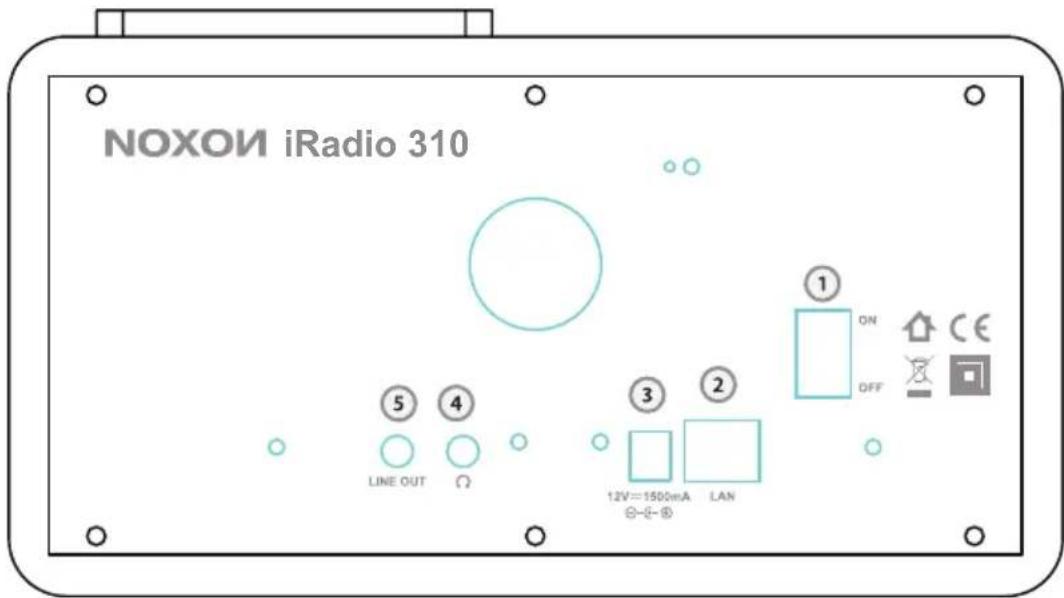
- Power switch Power on/off the internet radio
- LAN port Ethernet connection
- DC IN Power supply
- Earphone jack 3.5mm jack for headphone or earphone
- Line Out 3.5mm jack for speaker connection
Remote Controller
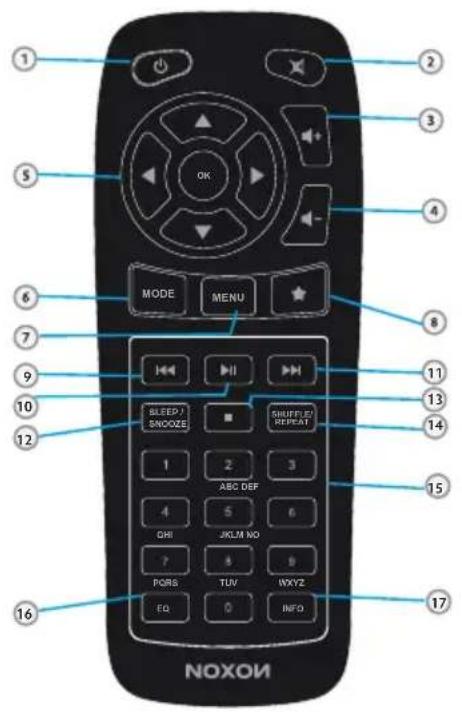
-
Standby On/Off
-
Mute / Sound off
- Volume lauder
- Volume quieter
- Navigation enter with (ok)
- Mode
- Menu
- Preset stations 1-10
- Skip Back
- Playback / Pause
- Skip Forward
- Sleep / Snooze
- Stopp
- Shuffle / Repeat
- Numeric keypad / preset stations
- Equalizer (EQ)
- Information
Setup
Once your iRadio has been activated initially, follow these steps to link it to your network for the first time:
You are greeted by the setup wizard, which asks politely if you want to start it up.
NOXON iRadio 310
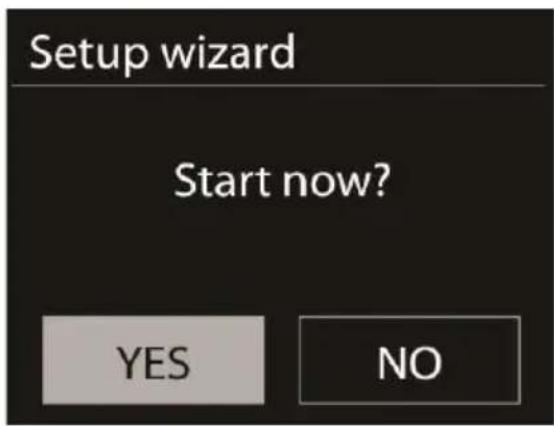
Use the navigation dial to select a language for the menu and confirm – as in all other menus – the selection by pressing the navigation dial.
Then, enter the time format (12/24-hour).
However, we recommend that you set the date and time immediately (Day, Month, Year, Time), as well as the WLAN region you are located in.
Once you have done so, all that remains to be done is to connect to the network. Don't worry, even this should not be complicated – the network wizard will give you all the help you need.
We'll explain the ins and outs of this in the detailed manual later on. For now, we offer just a brief overview (after all, you are still in the „Overview“ chapter), as we do not want to bore anybody.
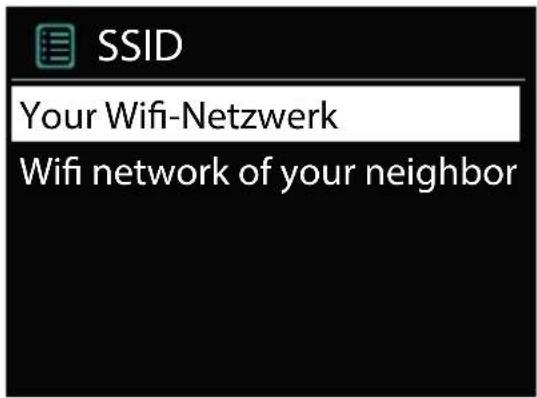
The setup wizard gives you the ability to choose between the cable connection and the wireless WLAN port. If you prefer the cable version, select [Wired].
The setup wizard connects to your router automatically and that's it – you're in! However, if the iRadio is integrated via WLAN, please select your WLAN network on the display. After selecting the desired network, you then have to enter the password to connect to the WLAN.
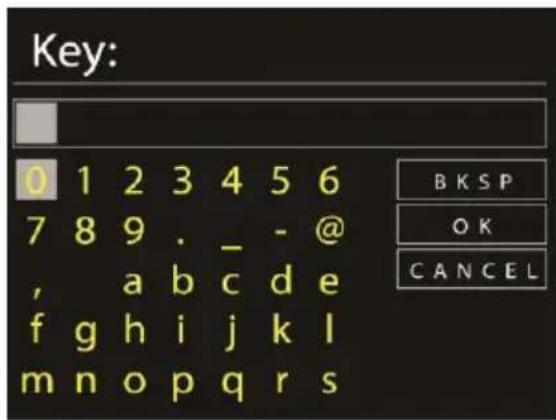
Navigate through the selection in the usual way using the navigation dial, push function and Back button.
When you have finished entering the key, confirm with OK. You likewise reach this field via the navigation dial.
There, you're finished already! Just press the navigation dial again to go to the main menu – and use your NOXON iRadio to plunge into the wonderful world of Internet radio.
Note: We recommend checking the device's firmware from time to time to ensure that you have the latest version and to update it if necessary – only in this way can you access the latest functions of your device. We'll explain how to do so later on in this manual. Listen and enjoy
After you have set the device up successfully, the (almost) infinite variety of Internet radio is at your fingertips.
Listen and enjoy
After you have set the device up successfully, the (almost) infinite variety of Internet radio is at your fingertips.
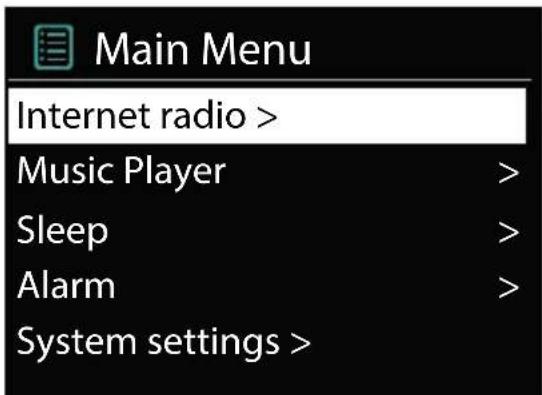
From the main menu, select „Internet Radio“ and confirm the selection.
NOXON iRadio 310
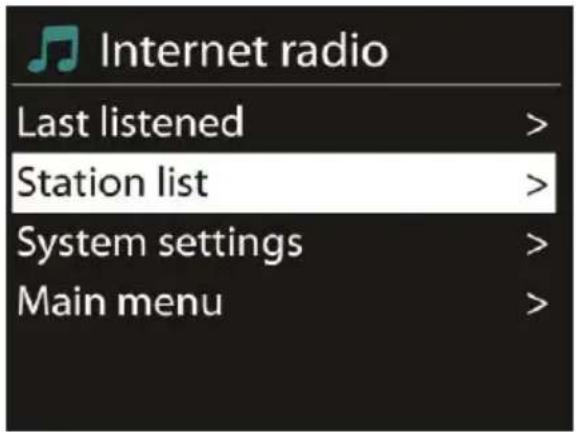
In the submenu that follows, navigate to the station of your choice according to your personal taste.
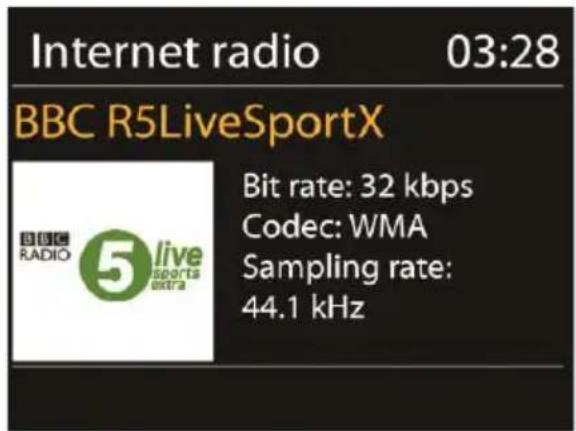
To accommodate the large number of stations available from around the world, our database is conveniently sorted into countries, genres, popular stations etc. and is updated on an ongoing basis.
To adjust the volume during playback, use the button on vol+ and vol- on the radio + or the keys on the remote control.
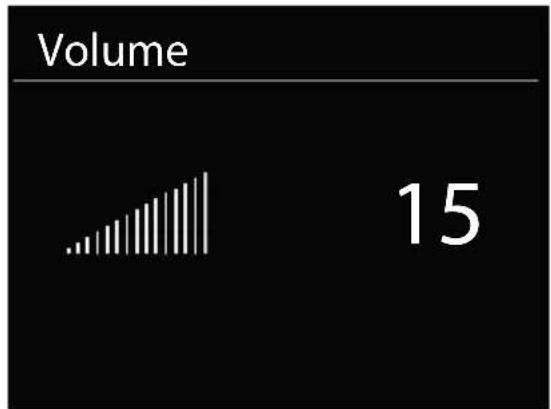
bar
Volume | Category | Volume | |---|---| | Bar Chart | 15 |Have fun with your new NOXON iRadio!
Here's how to reach NOXON:
http://www.noxonradio.de/en/support
Support-Hotline: 02157 - 817914
NOTE: The structure and function of the software can be changed with a firmware update!
NOXON
NOTE: The structure and function of the software can be changed with a firmware update!
NOXON
Deutsch
English
sie
ItalianoFran
joue
NederlandsES