RK9100xR - Keyboard Rosewill - Free user manual and instructions
Find the device manual for free RK9100xR Rosewill in PDF.


| Product type | Mechanical gaming keyboard |
| Brand | Rosewill |
| Model | RK9100xR |
| Switch type | Cherry MX (mechanical) |
| Backlighting | Adjustable LED (4 levels + breathing mode) |
| Multimedia keys | Yes (Fn+F1-F6) |
| Programmable profiles | 5 profiles (Fn+F7-F11) |
| Game mode | Yes (disables Windows key) |
| Connectivity | USB 1.1/2.0/3.0 |
| Audio jacks | Mic input (pink) and headphone output (green) |
| Compatibility | Windows XP/Vista/7/8 |
| Wrist rest | Included (removable) |
| Included accessories | 8 gaming keys, keycap puller, installation disc, quick start guide |
| Power | Via USB port (5V) |
| Maintenance and cleaning | Clean with a soft, dry cloth; avoid liquids |
| Safety | Do not expose to moisture; use on a flat, stable surface |
| Spare parts and repairability | Not available; contact Rosewill support |
| Customization software | Included on disc (installation required) |
| Dimensions | Approximately 45 x 20 x 3 cm (estimated) |
Frequently Asked Questions - RK9100xR Rosewill
User questions about RK9100xR Rosewill
0 question about this device. Answer the ones you know or ask your own.
Ask a new question about this device
Download the instructions for your Keyboard in PDF format for free! Find your manual RK9100xR - Rosewill and take your electronic device back in hand. On this page are published all the documents necessary for the use of your device. RK9100xR by Rosewill.
USER MANUAL RK9100xR Rosewill
Mechanical Gaming Keyboard
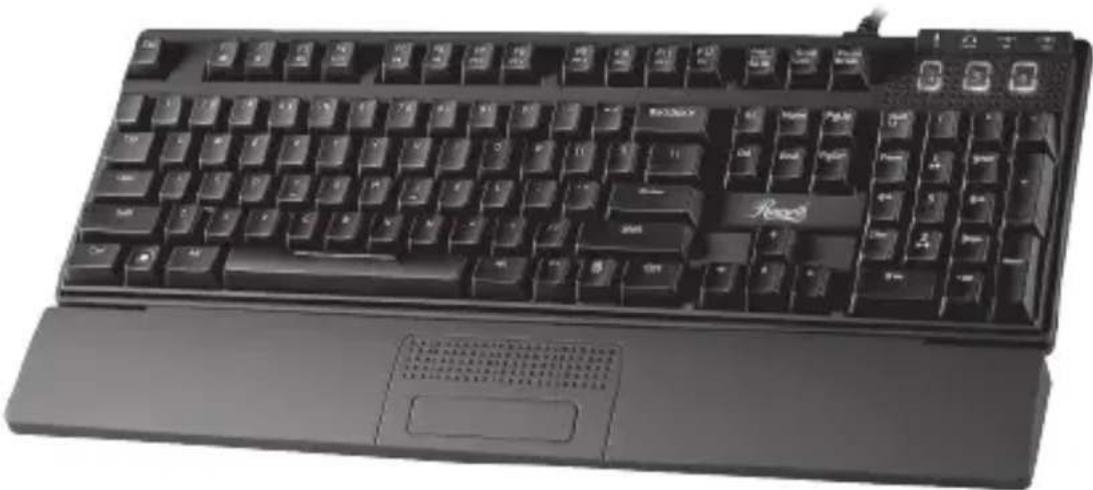
User's Manual
RK-9100x Series
English
Thank you for purchasing the RK-9100x series mechanical keyboard – a gaming keyboard designed to meet the needs of gamers everywhere. Featuring Cherry MX switches where every key process is optimized to improve your experience.
Package Contents
• RK-9100x Mechanical Keyboard
- Wrist rest
- Quick Guide
- Installation Disk
• Key Puller
• 8 Gaming keys (AWSD and arrow keys)
Compatibility
USB 1.1/2.0/3.0 compatible with Windows XP/Vista/7/8
Hardware Installation
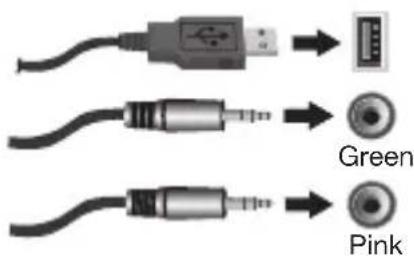
- Plug the keyboard connectors into your computer's USB, Audio (green), and Mic (pink) ports.
-
Windows will automatically install the necessary driver for the keyboard and you should be able to use it instantly.
-
Please refer to the below diagram when connecting a Mic and/or audio device such as headphones or speakers. Connect any audio device such as headphone or speakers into the Audio jack displaying the
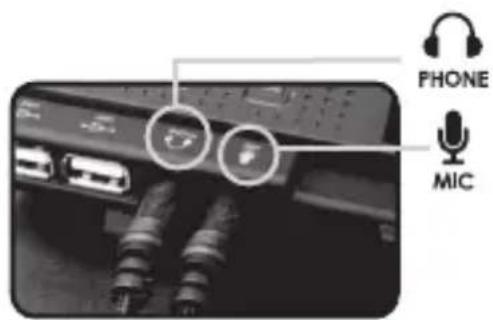

icon. Connect any microphone into the jack displaying icon.
NOTE: The USB ports on the keyboard will not provide enough power to support an external enclosure.
Compound key Functions :
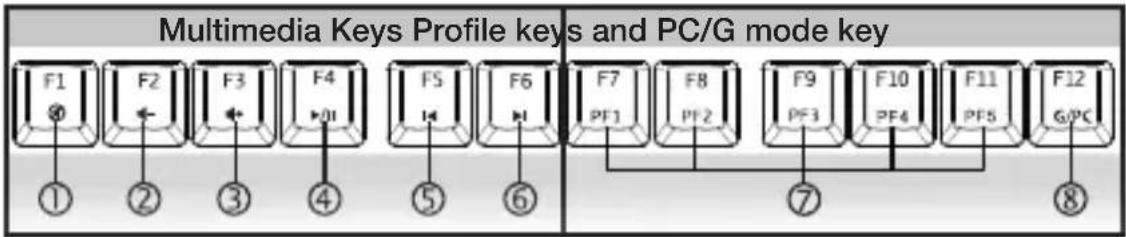
Multimedia Keys
Press Fn + F1-F6 to activate
Fn + F1 : Mute
Fn + F2 : Vol -
Fn + F3 : Vol +
Fn + F4 : Play/Pause
Fn + F5 : Previous Track
Fn + F6 : Next Track
Profile Quick Switch keys
Press Fn + F7 - F11
Fn + F7 : Profile1
Fn + F8 : Profile2
Fn + F9 : Profile3
Fn + F10 : Profile4
Fn + F11 : Profile5
Gaming Mode
Press Fn + F12 to enable or disable Gaming mode
Gaming mode enables the use of custom macros and disables the Windows key from activating.
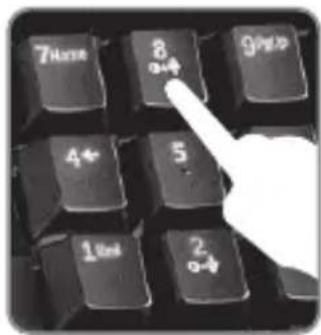
Backlight Illumination Control
Decrease brightness - Press Fn + 2 (on the numpad)
Increase brightness - Press Fn + 8 (on the numpad)
Level 0 - Off
Level 1 - Low
Level 2 - Medium brightness
Level 3 - Max brightness
Level 4 – Breathing Mode (fade in and out)
Wrist Rest Installation
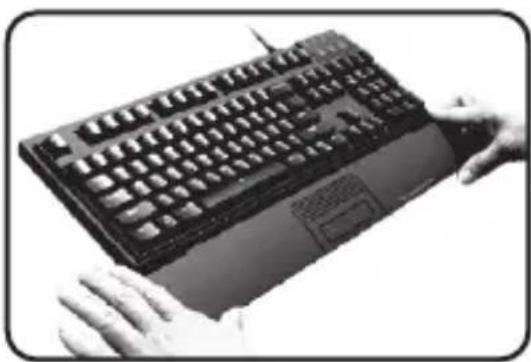
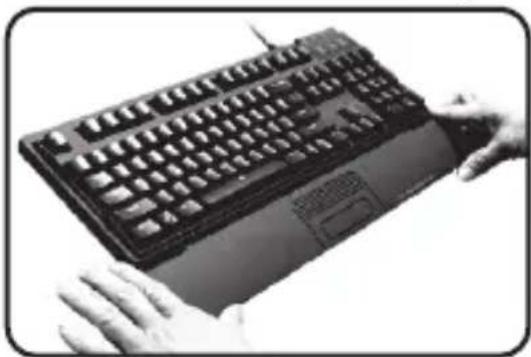
Insert the wrist rest under the keyboard and align the wrist rest with the keyboard
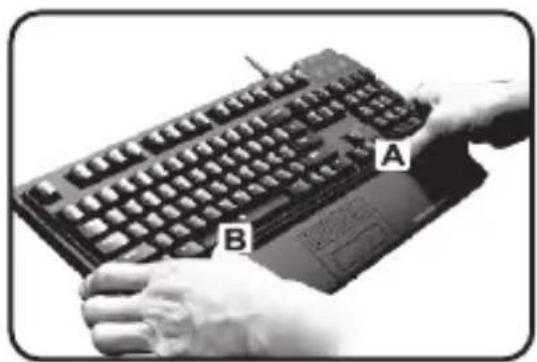
Use both thumbs and push on Position A and B highlighted to snap the wrist rest into place.
Keyboard Customization Software Installation
- Ensure the keyboard is connected and working on your selected computer.
- Insert the Installation Disk into the computer's CD/DVD drive.
- Double click on the Setup.exe file to begin installation.
- Follow the setup instructions to complete the software installation.
- Once software installation is complete, restart your system.
Software User Guide
- Upon computer startup, there should be a G icon in your system tray. (lower right corner)
- Double click on the G icon to open the application.
- On the upper right hand corner, click on the button
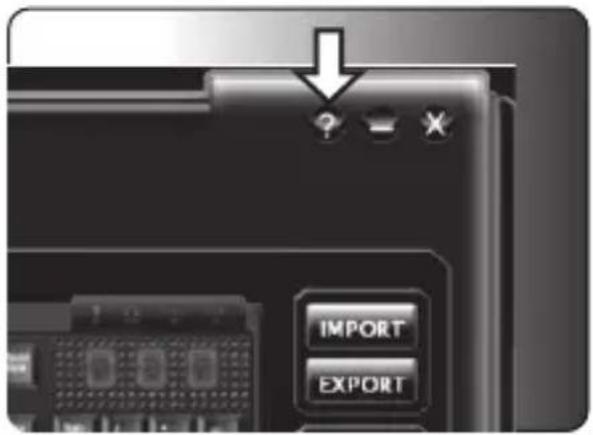
- Please follow the on screen Software user guide to customize your RK-9100x keyboard.

Français
Installation du Repose-poignet
Deutsch
Hardwareinstallation
Stecken Sie die
Español

Rosewill Technical Support information
1-800-575-9885 Monday - Friday 8AM - 5PM PST
techsupport@rosewill.com
Thank you for purchasing a quality Rosewill Product.
Please register your product at : www.rosewill.com
for complete warranty information and future support for your product.


- USER'S MANUAL
- ENGLISH
- PACKAGE CONTENTS
- COMPATIBILITY
- HARDWARE INSTALLATION
- COMPOUND KEY FUNCTIONS
- MULTIMEDIA KEYS
- PROFILE QUICK SWITCH KEYS
- GAMING MODE
- BACKLIGHT ILLUMINATION CONTROL
- WRIST REST INSTALLATION
- KEYBOARD CUSTOMIZATION SOFTWARE INSTALLATION
- SOFTWARE USER GUIDE
- FRANÇAIS
- INSTALLATION DU REPOSE-POIGNET
- DEUTSCH
- HARDWAREINSTALLATION
- ESPAÑOL
- ROSEWILL TECHNICAL SUPPORT INFORMATION
Brand : Rosewill
Model : RK9100xR
Category : Keyboard