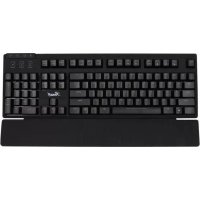
RK-6000 - Keyboard Rosewill - Free user manual and instructions
Find the device manual for free RK-6000 Rosewill in PDF.


| Product Type | Wired Keyboard |
| Brand | Rosewill |
| Model | RK-6000 |
| Dimensions (L x W x H) | 17.5 x 5.0 x 0.75 inches (445 x 127 x 19 mm) |
| Weight | 2.4 lbs (1.1 kg) |
| Interface | USB Type-A |
| Cable Length | 5 ft (1.5 m) |
| Switch Type | Membrane |
| Backlight | None |
| Multimedia Keys | Yes, dedicated multimedia keys |
| Compatibility | Windows, macOS, Linux |
| Power Consumption | 5V, 100 mA (via USB) |
| Operating Force | 60 g |
| Key Life | 10 million keystrokes |
| Materials | Plastic frame, ABS keycaps |
| Cleaning Instructions | Unplug keyboard, wipe with damp cloth. Do not immerse. |
| Safety Warnings | Avoid liquids, do not disassemble, use with dry hands. |
| Spare Parts | Not replaceable; consider keyboard replacement if damaged. |
| Repairability | Low. No user-serviceable parts. |
| Included Accessories | Keyboard, user manual |
| Certifications | FCC, CE, RoHS |
Frequently Asked Questions - RK-6000 Rosewill
User questions about RK-6000 Rosewill
0 question about this device. Answer the ones you know or ask your own.
Ask a new question about this device
Download the instructions for your Keyboard in PDF format for free! Find your manual RK-6000 - Rosewill and take your electronic device back in hand. On this page are published all the documents necessary for the use of your device. RK-6000 by Rosewill.
USER MANUAL RK-6000 Rosewill
Custom Personal Quick Switch....5
Custom Personal Quick Switch Key Combination....6
Media Player 6
PROFILE SELECTION 7
Reset All....7
Linked Application 8
KEY ASSIGNMENTS....9
Single Key 9
Macro 10
Macro Functions....10
Macro Limitation....12
Mouse Button....12
Pre-Programmed Funtions....13
Internet Hotkeys....13
Office Hotkeys....13
Media Hotkeys 13
Additional Command....14
Profile Switch 14
Launch Program....14
Reset Key to Default 15
Disable Button.... 15
Config....15
Exit 15
PACKAGE CONTENTS
- Mechanical Keyboard
- User Manual
- Installation CD
SYSTEM REQUIREMENTS
• PC with available USB port
- Windows® 8, Windows® 7, Windows® Vista, Windows® XP
FEATURES
- APC White switch
- Programmable Keys via software interface
WARRANTY
- Please register your keyboard at Rosewill.com
- This keyboard comes with a 1 year limited warranty.
TECHNICAL SUPPORT
- Please contact our Customer Service about any issues related to this keyboard.
• 1-800-575-9885 or via email at techsupport@rosewill.com
HARDWARE AND SOFTWARE INSTALLATION
- Connect the keyboard USB connectors to a PC and observe for the [Hardware found] notification
- Place the enclosed CD driver into CD/DVD-ROM and follow the steps on screen to complete software installation and restart the computer
- Activate the keyboard application Interface (GUI) by double clicking on the keyboard application icon within the System Tray (default lower right corner) after rebooting

- When keyboard USB is unplugged from the PC, the keyboard application interface icon will also disappear at the same time.
- If a reminder of software installation compatibility shows up, please click "Continue" to move on to next stage.
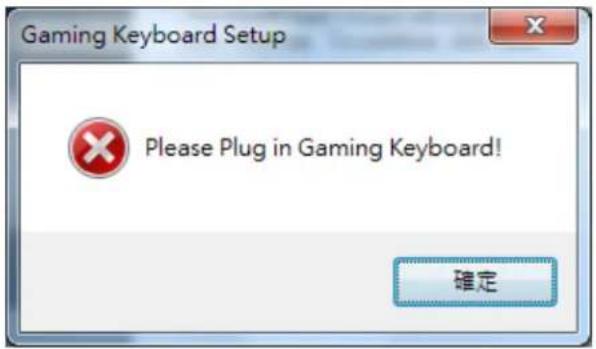
※Please make sure the keyboard is connected to PC before software installation else you will not be able to proceed with setup.
text_image
Gaming Keyboard Setup Please Plug in Gaming Keyboard! 確定※Please do not connect keyboard to any other USB ports after installation of drivers and application. If connecting to any other USB ports, re-installation of software may be needed.
SOFTWARE INSTALLATION VERIFICATION
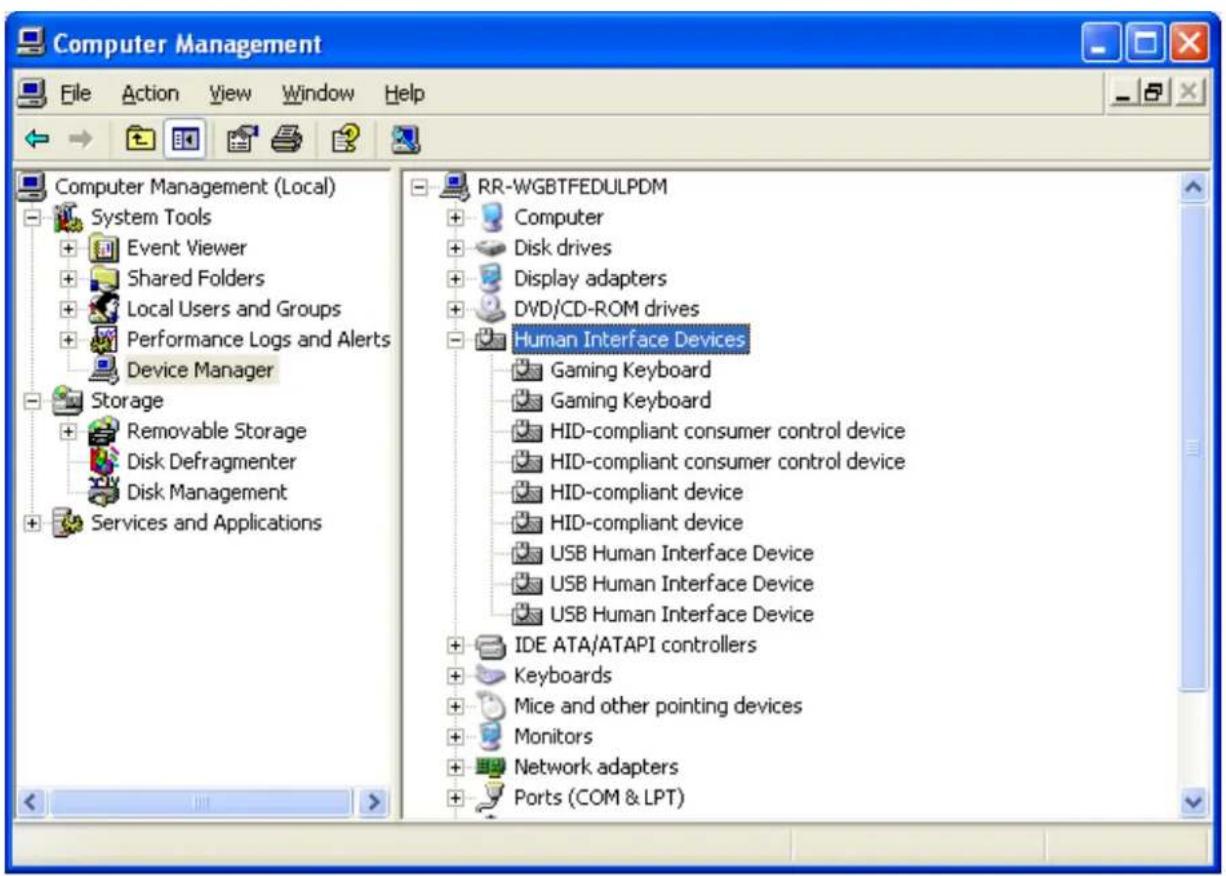
- To verify installation is complete, use Device Manager
- Please right click the "My Computer" icon then left click on "Manage". Left click on Device Manager. Expand the Human Interface Devices category.
- Verify and ensure "Gaming Keyboard" appears on the list.
text_image
Computer Management File Action View Window Help Computer Management (Local) System Tools Event Viewer Shared Folders Local Users and Groups Performance Logs and Alerts Device Manager Storage Removable Storage Disk Defragmenter Disk Management Services and Applications RR-WGBTFEDULPDM Computer Disk drives Display adapters DVD/CD-ROM drives Human Interface Devices Gaming Keyboard Gaming Keyboard HID-compliant consumer control device HID-compliant consumer control device HID-compliant device HID-compliant device USB Human Interface Device USB Human Interface Device USB Human Interface Device IDE ATA/ATAPI controllers Keyboards Mice and other pointing devices Monitors Network adapters Ports (COM & LPT)KEYBOARD CUSTOMIZATION
APPLICATION USER INTERFACE (UI) OVERVIEW
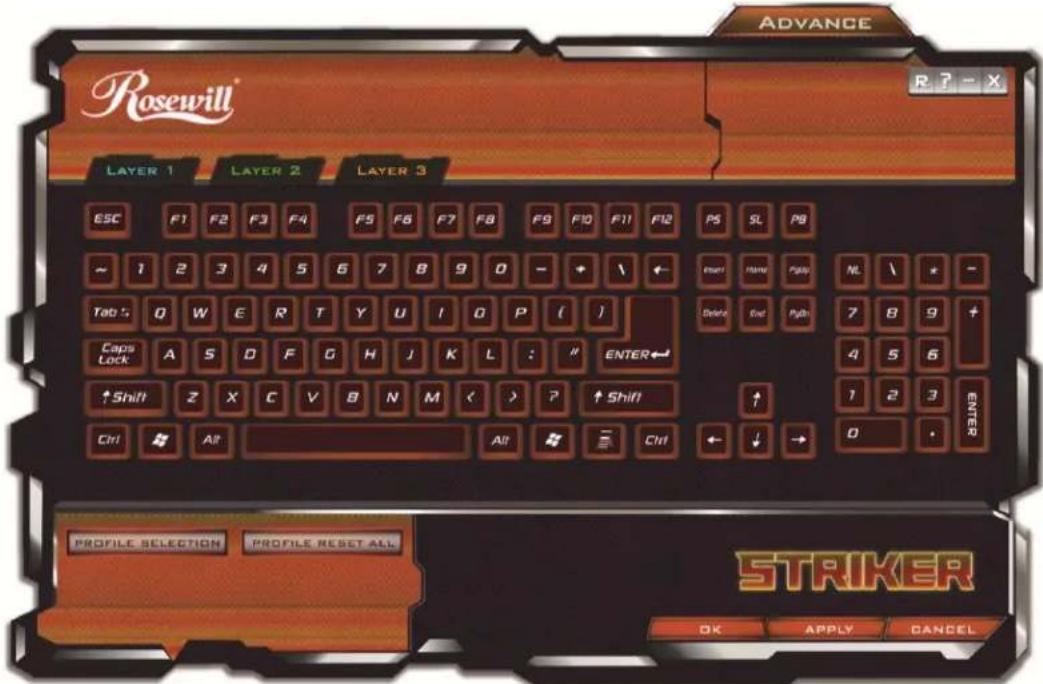
The picture below shows the main interface that allows you to customize key functions.
text_image
ROSEWILL® R ? - X LAYER 1 LAYER 2 LAYER 3 ESC F1 F2 F3 F4 F5 F6 F7 F8 F9 F10 F11 F12 PS SL PB ~ 1 2 3 4 5 6 7 8 9 0 - + \ ← Start Name Right NL \ * - Tab : Q W E R T Y U I O P ( ) Caps Lock A S D F G H J K L : " ENTER←" Delete End Right 7 B 9 + ↑ Shift Z X C V B N M < > ? ↑ Shift ↑ 4 5 6 Ctrl All All Ctrl ← ↓ → 0 * PROFILE SELECTION PROFILE RESET ALL STRIKER OK APPLY CANCELUI CONFIGURATION GUIDE
UI main interface includes up to 10 profiles.
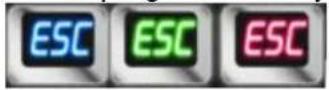
Each Profile contains 3 Layers. Each Layer is classified by colors.
| Layer 1 | Layer 2 | Layer 3 |
| BLUE | GREEN | RED |

text_image
LAYER 1 LAYER 2 LAYER 3The keys on the UI will be highlighted when the mouse cursor is hovering above it.
| Layer 1 | Layer 2 | Layer 3 |
 |  |  |
 |  |  |
After a key has successfully been configured, the key will be surrounded by a silver frame to distinguish it from a non-programmed key
Clicking on the “?” icon will open the manual

Clicking the "Reset Layer" icon will reset the current Layer to default settings. A dialogue window will pop up to confirm you wish to proceed. Click OK to confirm or Cancel to undo change.
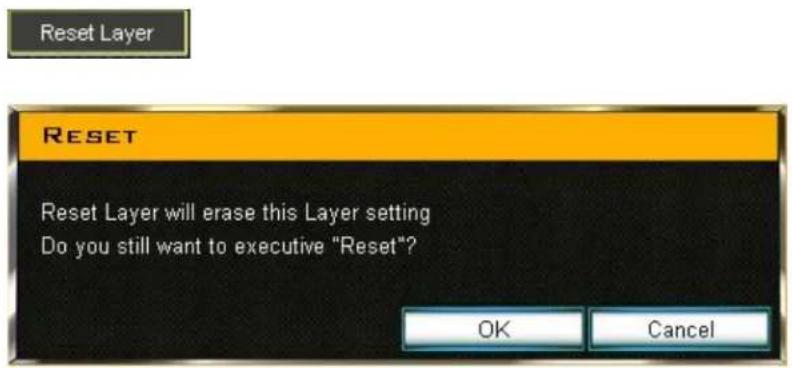
text_image
Reset Reset Layer will erase this Layer setting Do you still want to executive "Reset"? OK CancelADVANCED
Clicking on the "Advanced" icon will bring up the below window.
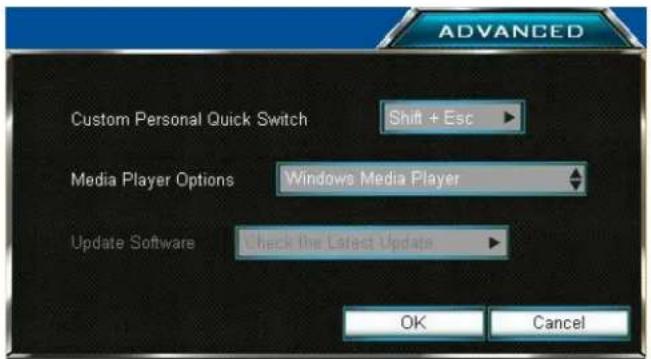
text_image
ADVANCED Custom Personal Quick Switch Shift + Esc Media Player Options Windows Media Player Update Software Check the Latest Update OK CancelCustom Personal Quick Switch
A quick switch between PC mode (all keys will default to normal functions) and gaming mode (last used customized settings).
By default, toggling Quick Switch is performed by pressing Shift + ESC
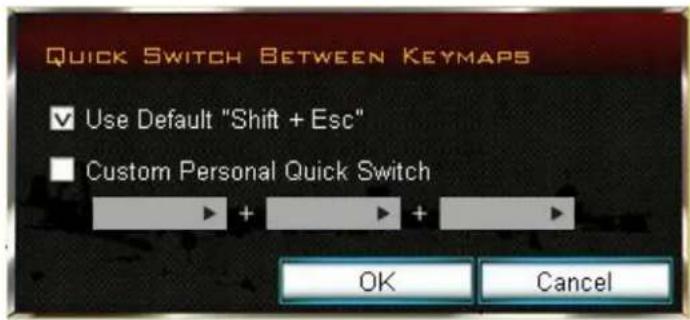
However, if you prefer a different key combination to enable Quick Switch, click on the Custom Personal Quick Switch field to bring up the below pop up window.
Customize Personal Quick Switch Key Combination
Users can choose to use Shift, Ctrl, Alt or any alphabet keys to customize personal quick switch. To avoid key conflict, please be sure to use key combinations that are not already in use within Windows or your selected application. Click "OK" save changes or click "Cancel" to undo the changes.
text_image
QUICK SWITCH BETWEEN KEYMAPS ✓ Use Default "Shift + Esc" ■ Custom Personal Quick Switch OK CancelMedia Player
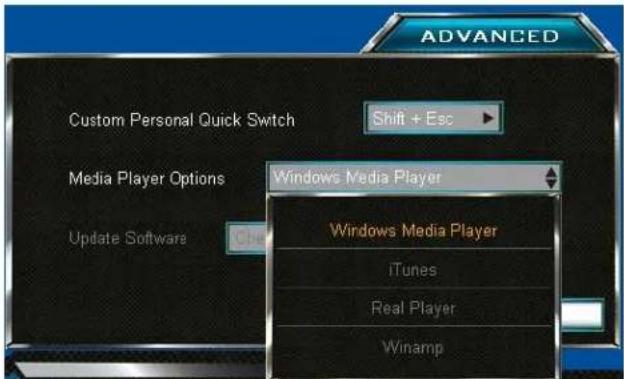
By default, Windows Media Player will open if a key is programmed to open a media player. The default program can be changed by clicking on the field to drop down the list. Select your preferred media player. If the media player listed on the drop down is greyed out, that means the media player has not been installed on the system to use. Additional media players cannot be added to the list.
- Windows Media Player
- iTunes
- Real Player
- Winamp
text_image
ADVANCED Custom Personal Quick Switch Shift + Esc Media Player Options Windows Media Player Update Software Windows Media Player iTunes Real Player Winamp※Update software — ( Not activated yet)
PROFILE SELECTION

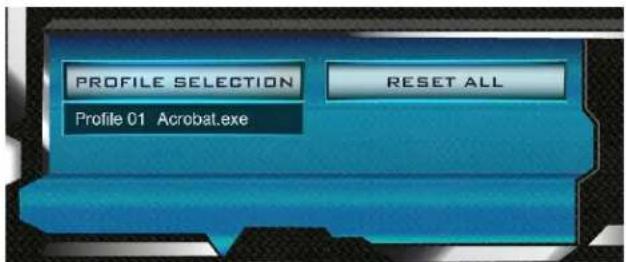
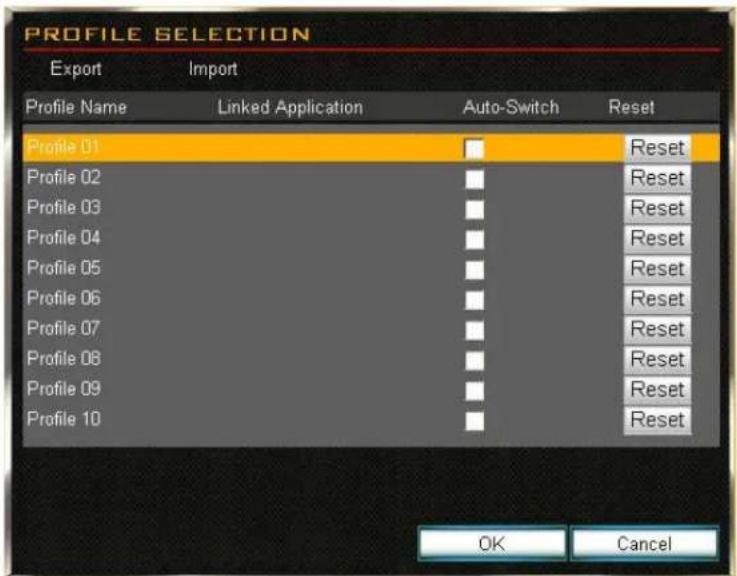
To modify current settings, please click "PROFILE SELECTION" to activate panel and choose profile from list. After modification complete, please click "OK" or "Apply" to execute. Otherwise, please click "Cancel" to undo the changes. Profiles can be Imported or Exported.
text_image
PROFILE SELECTION RESET ALL Profile 01 Acrobat.exeRESET ALL
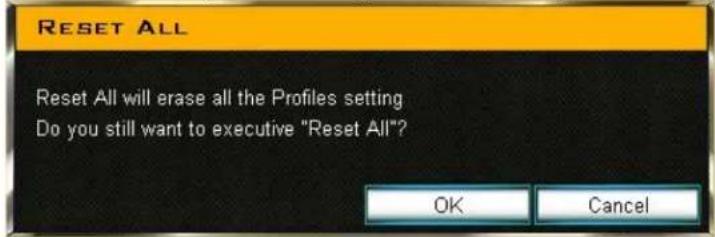
Clicking on Reset All will change all profiles back to default settings.
The following window will pop-up. Click OK to proceed or Cancel to undo changes. Please be sure to export and backup your saved profiles before proceeding.
text_image
RESET ALL Reset All will erase all the Profiles setting Do you still want to executive "Reset All"? OK CancelLinked Application
text_image
PROFILE SELECTION Export Import Profile Name Linked Application Auto-Switch Reset Profile 01 Reset Profile 02 Reset Profile 03 Reset Profile 04 Reset Profile 05 Reset Profile 06 Reset Profile 07 Reset Profile 08 Reset Profile 09 Reset Profile 10 Reset OK Cancel- Allows you to execute profiles or activate "Auto Switch".
Linking an Application
- Double left click on the blank space within the Linked Application column associated to the Profile you wish to edit to open up the window to choose your selected application to link.
- Browse to your selected application folder and select the application executable (.exe) file.
※Users have to link a file to Linked Application to perform Auto-Switch.
Auto-Switch
- By enabling auto-switch on the linked application, when the program is executed, the keyboard profile will automatically switch to the profile linked to that application.
- Check the Auto-switch check box to enable auto-switching.
Reset
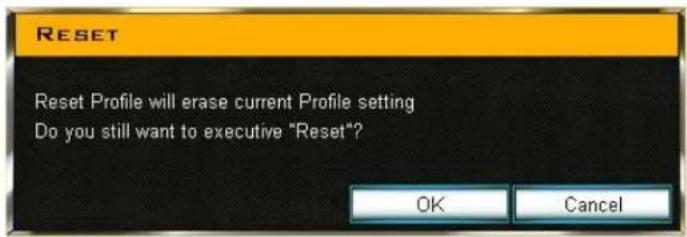
Clicking on the reset button will only reset that particular profile back to default settings. You will be prompted to proceed. Click OK to confirm or Cancel to undo changes.
Reset
Dialogue window as below,
text_image
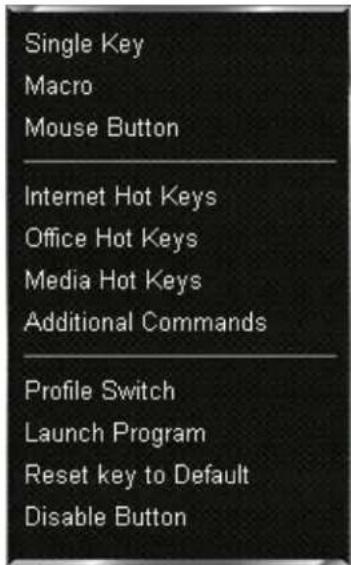
RESET Reset Profile will erase current Profile setting Do you still want to executive "Reset"? OK CancelKEY ASSIGNMENTS
text_image
Single Key Macro Mouse Button Internet Hot Keys Office Hot Keys Media Hot Keys Additional Commands Profile Switch Launch Program Reset key to Default Disable ButtonSingle Key
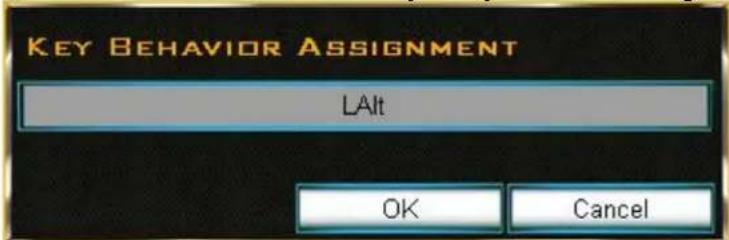
This will allow users to swap the input of a single key when pressed. One key press = one key output. You will receive an error if you try to have a single key press have multiple outputs similar to below.
text_image
KEY BEHAVIOR ASSIGNMENT LAIt OK Cancel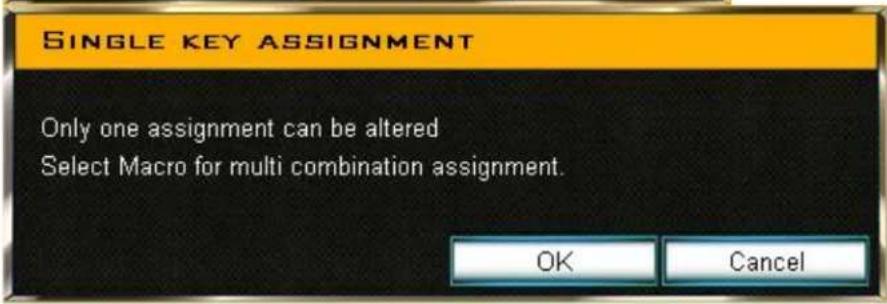
text_image
SINGLE KEY ASSIGNMENT Only one assignment can be altered Select Macro for multi combination assignment. OK CancelMacro
This allows users to set up a single key press to output a sequence of keys and/or mouse buttons.
Macro Functions
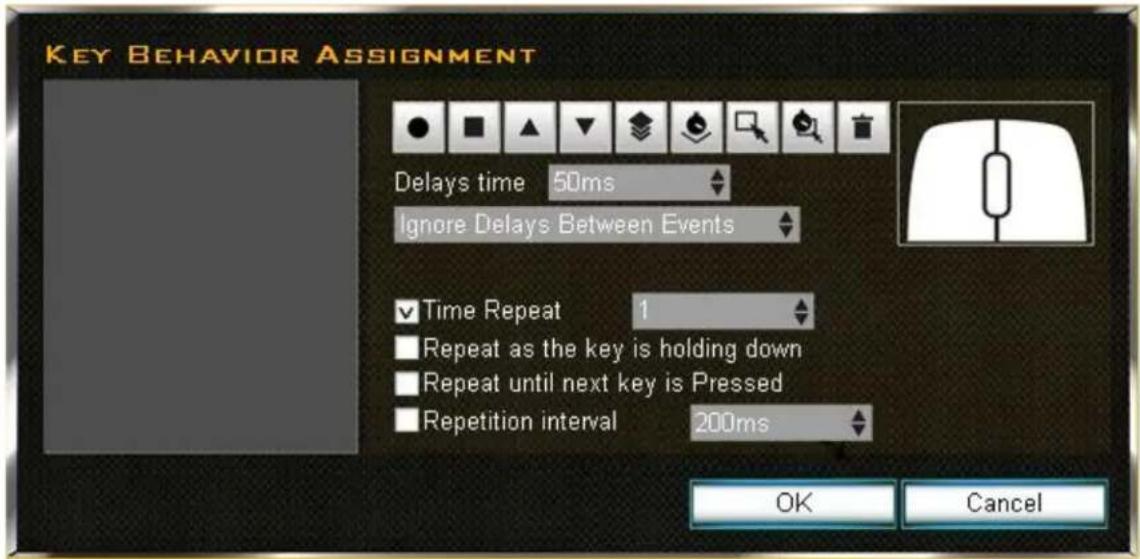
Macros have Behavior Assignments to give users more control as to how the input will be processed. The below window will pop up when assigning a key to use a macro.
text_image
KEY BEHAVIOR ASSIGNMENT Delays time 50ms Ignore Delays Between Events ✓ Time Repeat 1 ■ Repeat as the key is holding down ■ Repeat until next key is Pressed ■ Repetition interval 200ms OK Cancel
Record
Begin recording of key inputs for the Macro.

Stop
Stop recording of the Macro

Move Up
Left click button to "move up" any event. After first clicking on the key event to highlight it, clicking on the Move Up arrow will allow you to move up any event to the preferred location in the sequence list.

Move Down
Left click button to "move down" any event. After first clicking on the key event to highlight it, clicking on the Move Down arrow will allow you to move down any event to the preferred location in the sequence list.

Copy
Copy one segment of Macro. Select the key event(s) to highlight them and press the Copy button to duplicate the command(s).

Add Delays
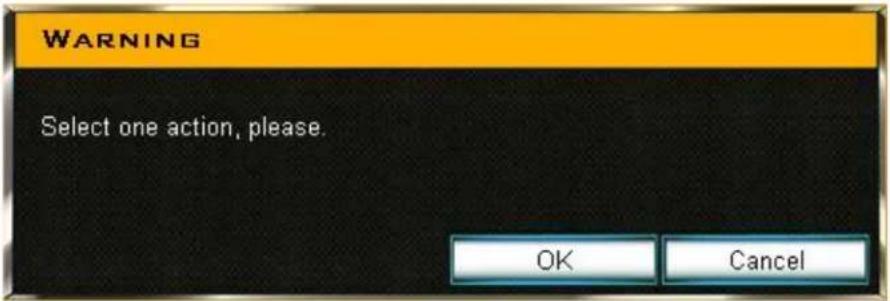
This allows users to add delays in the event sequence list manually. Simply choose one event's delays One at a time then choose delay time and click the "add" button.
text_image
WARNING Select one action, please. OK Cancel
Select All
Select all events in the sequence list.

Select All Delays
Select all delays from sequence list.

Delete :
Delete an event in the sequence list.
Delays time
Allows users to add delays time in the Macro
Ignored Delays Between Events
System will not record the time difference between the actual time of "click" and "release" key press in the progress of recording a Macro.
Record with Auto Delay
System will record the actual time difference between the time of "click" and "release" key presses.
Time Repeat
The number of times you wish for the macro to repeat. Default is 1.
Repeat as key is holding down
The Macro will continue to repeat for as long as the key is pressed and held down.
Repeat until next key is Pressed
The Macro will repeat until another key is pressed
Repetition interval
This will allow you to set a delay before a Macro command is repeated.
Programming mouse clicks (Left, Middle, and Right Click) into a Macro
natural_image
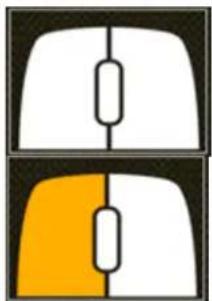
Two computer mouse icons, one white and one orange, with no text or symbolsUsers can set up mouse button clicks through the sketch map display. Left click on the corresponding mouse button you wish to press. When pressed the mouse display will be highlighted to input a "press". Left click on the highlighted mouse button again to unhighlight it to command a "release" of the key. "Press" and "Release" for a mouse button is a two-step action.
Macro Limitation
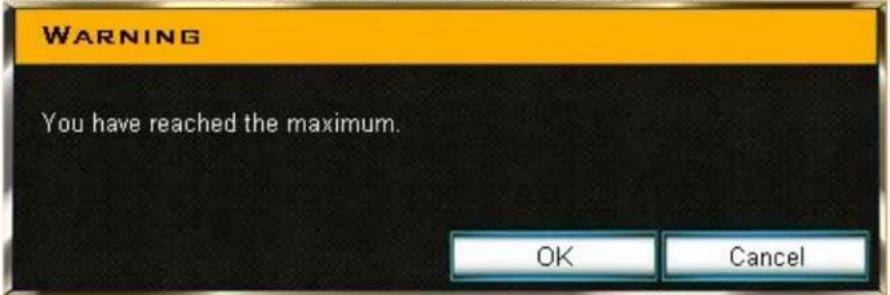
In the progress of setting a Macro, there is a maximum of 128 combined "press" and "release" commands. A warning window will pop up if the limit is reached.
text_image
WARNING You have reached the maximum. OK CancelClick [OK/Cancel] to complete Macro setting
Mouse Button
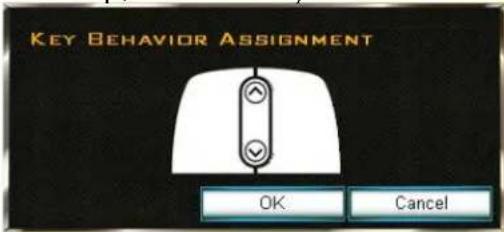
This allows users to transform a keyboard key to enable a function of a mouse click. (Left, Middle, Right, Scroll up, Scroll down)
text_image
KEY BEHAVIOR ASSIGNMENT OK Cancel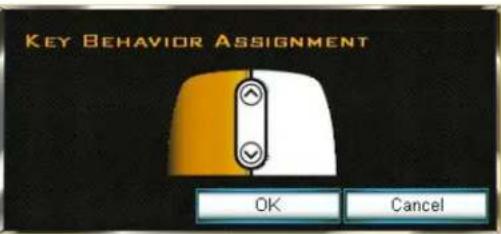
text_image
KEY BEHAVIOR ASSIGNMENT OK CancelPre-Programmed Functions
Internet HotKeys :
Program a key to use a variety of Internet Browser operations.
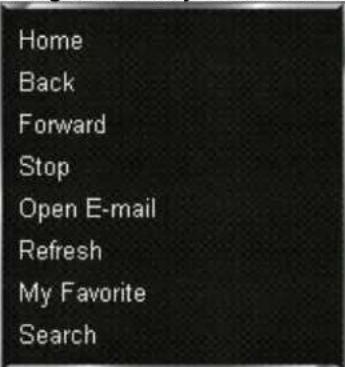
text_image
Home Back Forward Stop Open E-mail Refresh My Favorite SearchOffice HotKeys:
Program a key to use a variety of Microsoft Office basic commands.
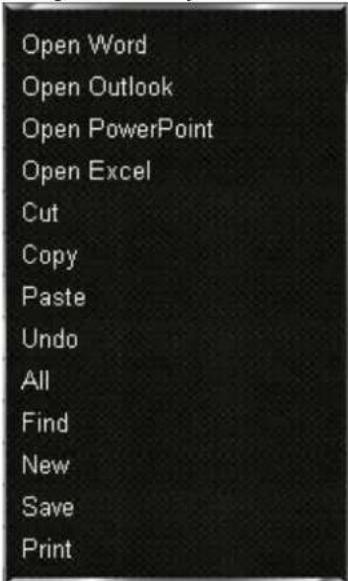
text_image
Open Word Open Outlook Open PowerPoint Open Excel Cut Copy Paste Undo All Find New Save PrintMedia HotKeys :
Program a key to use a variety of basic Media Player commands.
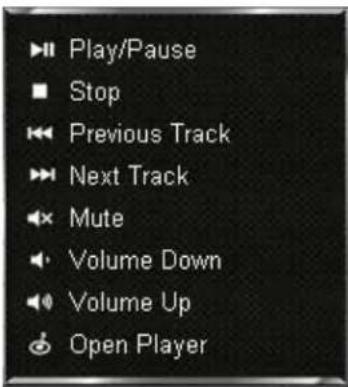
text_image
Play/Pause Stop Previous Track Next Track Mute Volume Down Volume Up Open PlayerAdditional command :
Program a key to use a variety of additional Windows operating system commands.
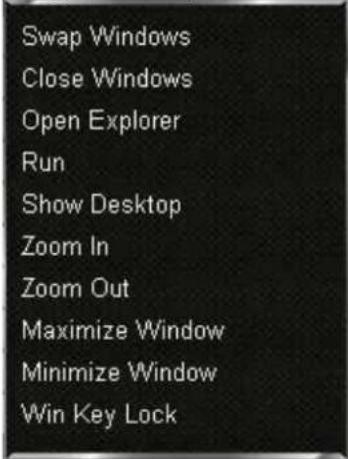
text_image
Swap Windows Close Windows Open Explorer Run Show Desktop Zoom In Zoom Out Maximize Window Minimize Window Win Key LockProfile Switch
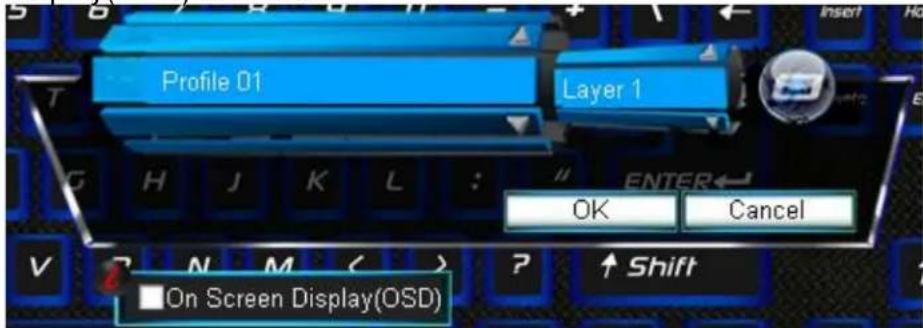
This allows users to switch to a designated Profile and Layer. Choose the Profile and Layer of choice using the Up or Down Arrows within the corresponding field. You can also choose to display the Profile and Layer on the screen when the Profile Switch command is activated by checking the On Screen Display(OSD) checkbox.
text_image
Profile 01 Layer 1 OK Cancel On Screen Display(OSD)Launch Program
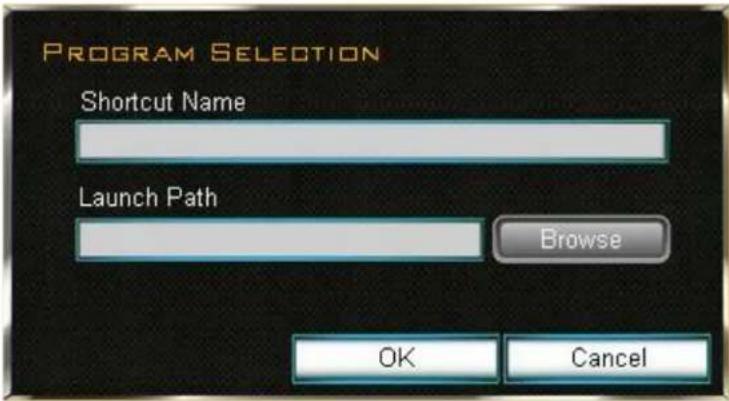
This allows you to predefine a key to launch an application of your choice. Type a description in the Shortcut Name field associated to the application and click on the Browse button to find the executable (.exe) file for the application.
text_image
PROGRAM SELECTION Shortcut Name Launch Path Browse OK CancelReset Key to Default:
This will allow you to reset the key to default settings.
Disable Button :
This will allows you to disable a specific key from functioning entirely.
Config
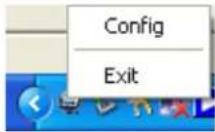
Right clicking on the keyboard application icon within the System Tray (default lower right corner) will bring up a menu. Left clicking on Config will open the software interface.
Exit
Clicking on Exit will exit the keyboard application entirely. Restart your PC for the keyboard application to be enabled again.
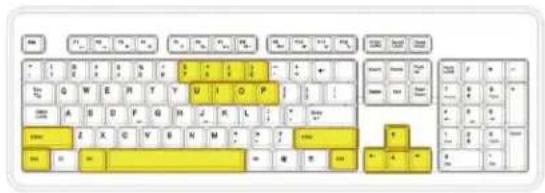
Anti Key Combination
text_image
Screenshot of a standard computer keyboard layout showing white and yellow keys with standard alphanumeric codes.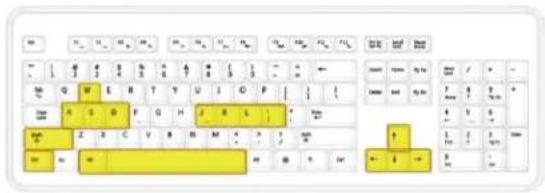
text_image
Screenshot of a standard keyboard layout with yellow and black keys, showing function keys and keyboard shortcuts.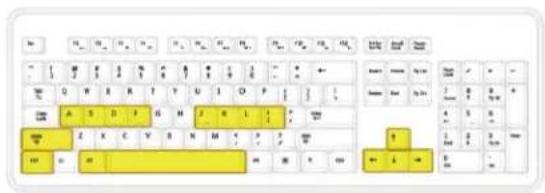
text_image
Screenshot of a standard computer keyboard layout showing letter keys and highlighted keys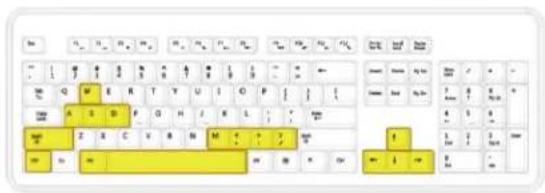
text_image
Screenshot of a standard computer keyboard with yellow and black keys, highlighting key function keys like 'A', 'B', 'C', and 'D'.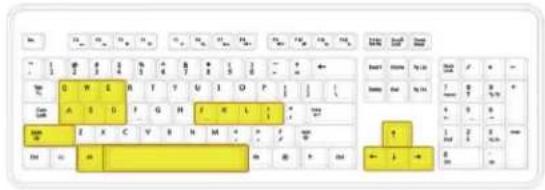
text_image
Screenshot of a standard computer keyboard layout with yellow and black keys, showing function keys and keyboard shortcuts.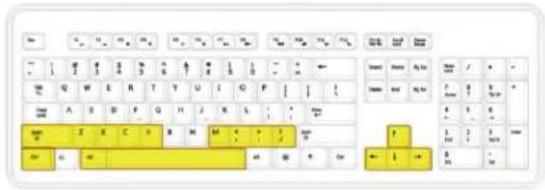
text_image
Screenshot of a standard keyboard layout with yellow keys and alphanumeric labels, likely for digital logic or keyboard design.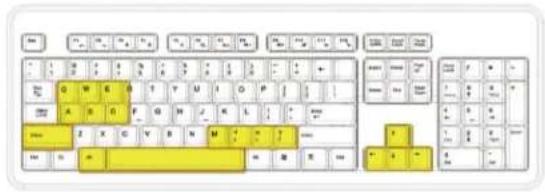
text_image
Screenshot of a classic computer keyboard layout with yellow keys and standard alphanumeric labels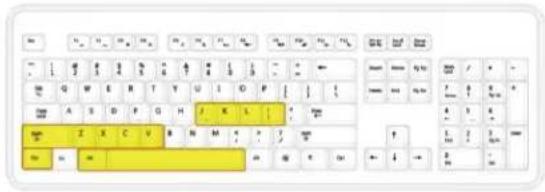
text_image
Screenshot of a standard keyboard layout with yellow and black keys, highlighting specific letter positions.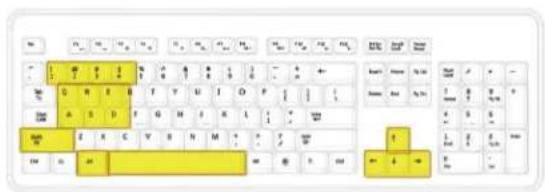
text_image
Cropped image of a standard computer keyboard layout showing yellow keyframe and black/white keys with alphanumeric labels.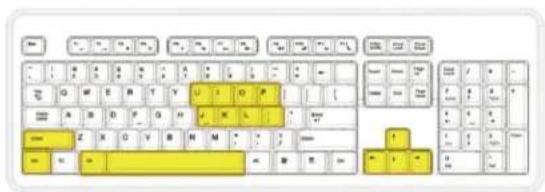
text_image
Cropped image of a standard computer keyboard with yellow and black keys, showing various function keys like U, V, P, Q, R, S, T, W.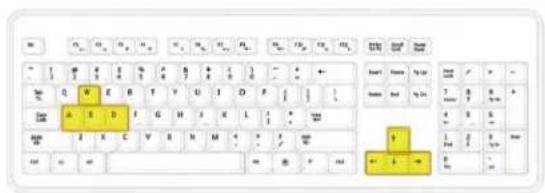
text_image
Screenshot of a standard computer keyboard with highlighted keys and function keys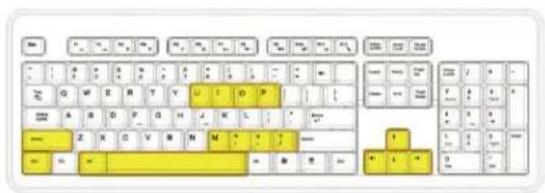
text_image
Screenshot of a standard computer keyboard layout showing yellow and white key keys with standard alphanumeric labels.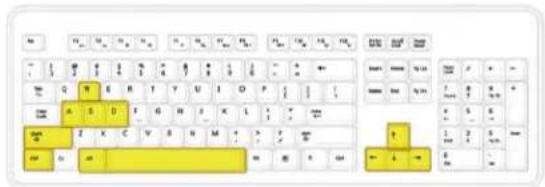
text_image
Screenshot of a keyboard layout with yellow and black keys, showing various function keys and keyboard shortcuts.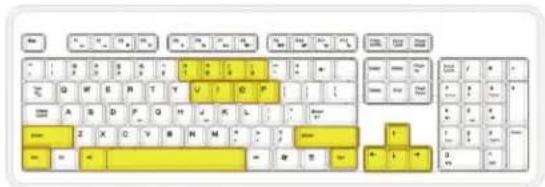
text_image
Cropped image of a standard keyboard layout showing yellow and white keys with standard alphanumeric codes.Thank you for purchasing a quality Rosewill Product.
Please register your product at : www.rosewill.com for complete warranty information and future support for your product.