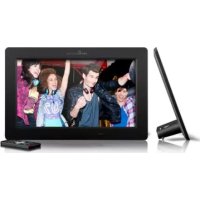
Photo Frame M10 - Digital photo frame ENERGY SISTEM - Free user manual and instructions
Find the device manual for free Photo Frame M10 ENERGY SISTEM in PDF.



| Product type | Digital photo frame |
| Brand | Energy Sistem |
| Model | Photo Frame M10 (mIO Panoramic) |
| Screen size | 10.1 inches LED |
| Screen resolution | 1024 × 600 pixels |
| Photo formats | JPEG, BMP (up to 8176 × 8176 pixels) |
| Audio formats | MP3, WMA, WAV |
| Video formats | MPEG-1/2/4, AVI (DivX, Xvid), M-JPEG |
| Internal memory | Not specified (storage on card or USB key) |
| Compatible memory cards | MMC, SDHC, SDXC up to 64 GB |
| USB HOST port | Yes, for USB key up to 64 GB |
| Power supply | AC/DC power adapter (Europlug), input 100-240 V, output 5 V / 1.5 A |
| Built-in speaker | Yes, 1 W |
| Remote control | Yes, slim format, CR2025 button cell battery |
| Main functions | Slideshow with 6 intervals, background music, calendar, clock, alarm, image rotation, zoom (6 levels), adjustable brightness/contrast/saturation, scheduled sleep mode |
| Menu languages | French, English, German, Spanish, Italian, Portuguese, Czech |
| Dimensions (approx.) | ~260 × 170 × 25 mm |
| Weight (approx.) | ~500 g |
| Maintenance | Soft dry cloth, do not use abrasive cleaners. Clean when unplugged. |
| Safety | Do not expose to shocks, dust, direct sunlight, humidity, extreme temperatures. Do not disassemble. |
| Warranty | 36 months (remote control battery: 12 months) |
| Repairability | Repair only by qualified Energy Sistem personnel |
Frequently Asked Questions - Photo Frame M10 ENERGY SISTEM
User questions about Photo Frame M10 ENERGY SISTEM
0 question about this device. Answer the ones you know or ask your own.
Ask a new question about this device
Download the instructions for your Digital photo frame in PDF format for free! Find your manual Photo Frame M10 - ENERGY SISTEM and take your electronic device back in hand. On this page are published all the documents necessary for the use of your device. Photo Frame M10 by ENERGY SISTEM.
USER MANUAL Photo Frame M10 ENERGY SISTEM
technology with heart
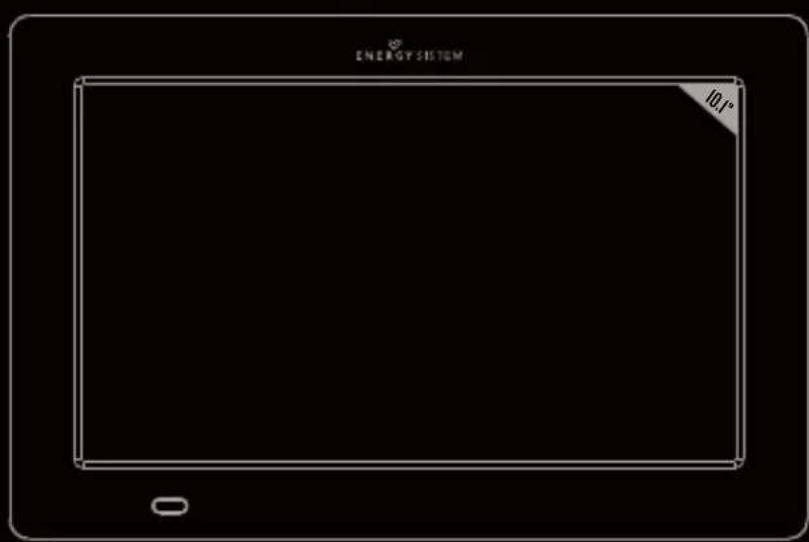
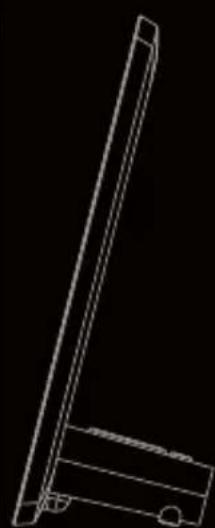
Energy Sistem™ thanks you for buying your new digital photo frame Energy Photo Frame mIO. We wish you enjoy using it.
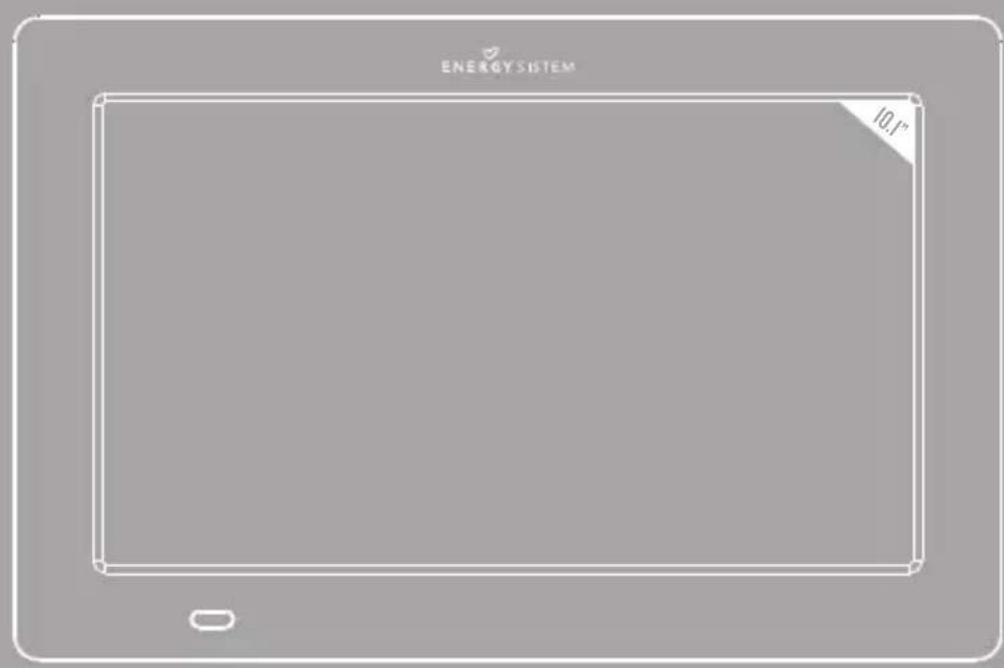
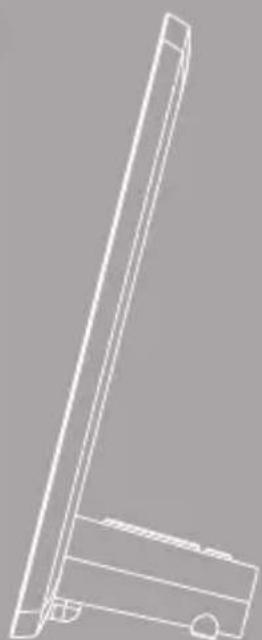
It is a multimedia photo frame with ultra slim design and 10,1" high resolution LED screen for exceptional picture quality. You can enjoy and share your photos, music and video from a pendrive USB or memory cards.
We recommend that you fully read this user manual in order to enjoy the product in a safe way and with the best results.
CARE AND MAINTENANCE
Do not expose your Energy Photo Frame to collisions, violent shakes, dust, direct sun light, moisture or extreme temperatures.
Do not use abrasive or corrosive cleansers.
- Keep the device clean and dust free with a soft and dry cloth. We recommend you to use the provided cleaning cloth.
- Clean the unit while it is turned off and unplugged from electric power.
- Do not disassemble the device. Any repairs must be performed by the qualified Energy Sistem Soyntec's personnel.
MAIN FEATURES
"Panoramic 10.1" high resolution LED backlight screen.
1024x600 pixels resolution, 200cd / m2, 450:1.
Reproduce JPEG / BMP pictures of the majority of the digital cameras with maximum resolution 8176 x 8176 pixels.
Plays audio with MP3, WMA and WAV files.
Plays video with MPEG/2/4, AVI (Divx and Xvid) and M-JPEG files.
Compatible with memory cards: MMC / SDHC / SDXC (up to 64 Gb).
- USB Host connector to load multimedia files from your USB flash drive (up to 64 Gb).
Built-in speaker IW.
Selection of pictures by miniatures on screen and starting Slide Show from the selected picture.
Several time intervals for the Slide Show (5/15/30 sec., 1/5/15 min.).
4 modes for music playing and 3 modes for pictures and videos playing.
II different transition effects for the Slide Show.
Functions of calendar with photo Slide Show, clock and alarm.
Auto ON/OFF function for energy saving.
Automatic image fit.
Brightness, contrast and hue adjustments.
- Allows 90° , 180° and 270° picture rotation.
6 levels of zoom available.
File browser function.
Information of each file is shown.
Slim remote control featuring all the frame functions.
OSD languages: Spanish, English, French, Italian, German, Portuguese, Czech.
AC/DC power adapter (Europlug). Input 100-240V; Output 5V/1.5A; 50/60Hz.
PRODUCT CONTENT
Energy Sistem™ Photo Frame mIO Panoramic.
User manual.
Remote control.
AC/DC power adapter (Europlug).
GENERAL OVERVIEW
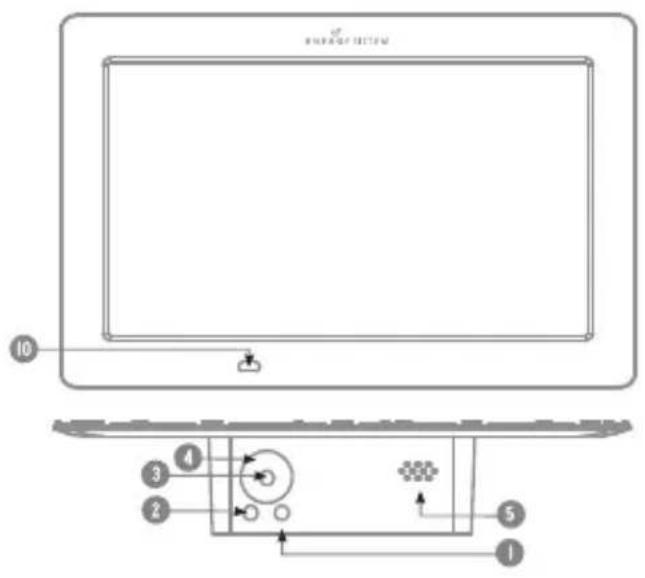
- RETURN: Returns to the previous screen (menu).
- ON/OFF: Turns on-off the digital photo frame.
- PLAY/PAUSE:Executes the option currently selected in the menu / Changes the display mode / Reproduces, pause or resume the files of audio and video / Enters the current folder.
-
UP / DOWN: Shows previous or next image / Moves the current view when applying zoom to an image / Modifies value in the setting options menu / Moves in the current menu.
-
Built-in speaker
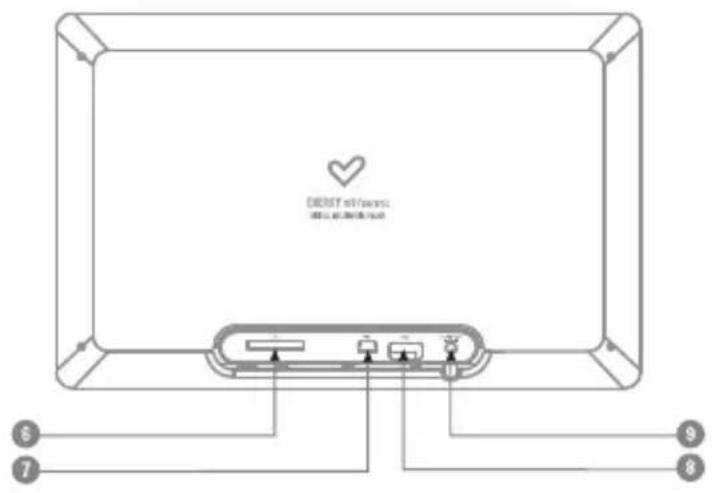
- SDHC / SDXC / MMC memory card slot.
- Mini USB Host
- USB Host: Reproduces multimedia files from a pendrive.
- AC/DC power adapter.
- IR sensor.
REMOTE CONTROL
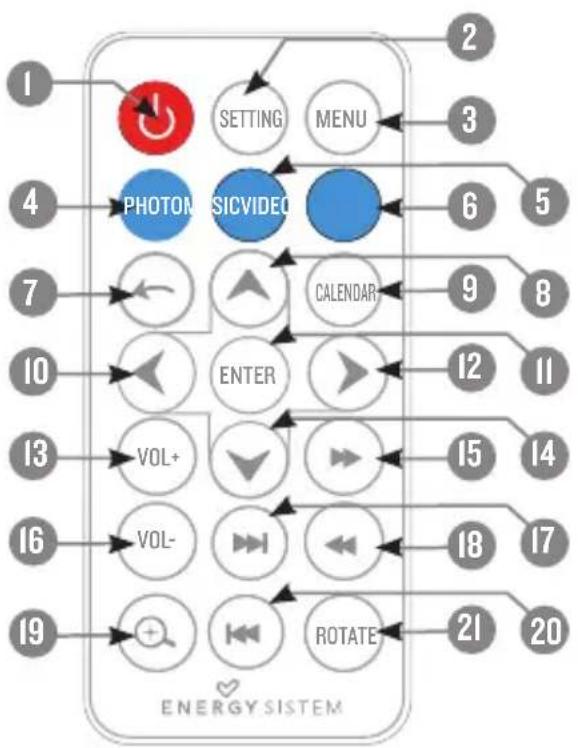
- ON/OFF: turn on/off the digital photo frame.
- SETTING: Access to the settings menu.
- MENU: Access to the main menu from everywhere.
- PHOTO: Access to the Picture player.
- MUSIC: Access to the Music player.
6.VIDEO: Access to the Video player. - RETURN: Returns to the previous menu.
- UP: Goes up one position in the current menu / Moves the current view up when applying zoom to an image.
9.CALENDAR: Access to the calendar option / Changes between different calendar options. - LEFT: Reduces values on settings menu / Moves the current view left when applying zoom to an image.
II. ENTER: Accepts one option in the menu / Enters into a folder / Changes the view mode / Play or pause. - RIGHT: Increases values on settings menu / Moves the current view right when applying
zoom to an image.
- VOL+: Volume up.
- DOWN: Goes down one position in the current menu / Moves the current view down when applying zoom to an image.
- FAST FORWARD: Makes a video or a song play faster.
- VOL -: Volume down.
- NEXT: Shows the following picture or track.
- REWIND: Moves the current video or song move to an early position.
- ZOOM: Performs a zoom to the current image (up to 6 zoom levels are available).
- PREVIOUS: Shows the previous picture or track.
- ROTATE: Rotates the current image 90° , 180° o 270° .
MAIN MENU
PHOTO.

MUSIC.

VIDEO.

CALENDAR.

EXPLORER.

SETTINGS.
POWER SOURCE
Your Energy™ Photo Frame mIO Panoramic is powered through the AC/DC 5V/1,5A adapter. Please firstly connect the photo frame with the power adapter then connect the power adapter with electrical outlet.
The remote control is powered by a CR2025 3V lithium battery that you can easily replace when depleted by releasing the battery compartment in the back of the remote control.
IMPORTANT: In case you will not use the digital frame for a few days, we recommend unplugging the power electricity adapter from the socket.
SWITCHING ON / OFF
To power on your Energy™ Photo Frame mIO Panoramic just plug in the provided power adapter to a 100-240V AC source.
To turn off your photo frame, simply press the ON/OFF button on the back side of the frame or press the ON/OFF button from remote control.
IMAGE DISPLAY (PHOTO)

You can use 4 display modes: "Slideshow", "Slideshow + Music", "Browse mode" and "Thumbnail".
SLIDESHOW
This is the display mode by default (it is automatically activated when inserting a SD card or a pendrive containing pictures) playing the pictures in full screen mode. You can also start the Slide show by pressing the ENTER button from the THUMBMAIL list.
SLIDESHOW + MUSIC
From the "Photo setup" menu, you can select playing or not the music when pictures are being reproduced, choosing "Enable" or "Disable" in the "Music" option.
BROWSE MODE
To change the display mode to "BROWSE MODE", you can press the ENTER button and you can manually move to the next pictures, using the UP and DOWN buttons. In this display mode, you
can rotate and make zoom on the currently selected photo with the "RORATE" and "ZOOM" buttons.
Important: Do not leave the same image still for more than one day because you risk damaging the LED screen. We recommend changing the image at least once or twice a day, or even better use slideshow mode with a high elapse time.
THUMBMAIL
The digital photo frame shows the miniatures of pictures loaded from the memory device currently connected to the frame. You can see the folder content by pressing the UP and DOWN buttons.
ZOOM
Press the ZOOM button to enlarge the current picture (BROWSE MODE). The digital photo frame allows up to 6 zoom levels to let you see any detail of the picture. Pressing UP, DOWN, LEFT and RIGHT buttons will show different areas of the current picture in order to select the one we are interested in.
ROTATION
Pressing the ROTATE button on the remote control will rotate the picture 90° , 180° and 270° clockwise (BROWSE MODE). This change will only affect the current picture and the next pictures shown will have the normal orientation.
MUSIC

You can access directly to this function from the main menu of your Energy™ Photo Frame mIO Panoramic, by selecting the "MUSIC" icon or pressing the "MUSIC" button in the remote control. The Photo Frame will show an audio files list loaded from the memory device (SD card or pendrive). Pressing the PREVIOUS / NEXT buttons for selecting file or folder and pressing the ENTER button to play or pause the music.
VIDEO

You can access directly to this function from the main menu of your Energy™ Photo Frame m10 Panoramic, by selecting the "VIDEO" icon or pressing the "VIDEO" button in the remote
control. The Photo Frame will show a video files list loaded from the memory device (SD card or pendrive). Pressing the PREVIOUS / NEXT buttons for selecting file or folder and pressing the ENTER button to play or pause the video.
CALENDAR

You can access this function from the main menu of your Energy™ Photo Frame mIO Panoramic, selecting the "CALENDAR" icon or by pressing the CALENDAR button in your remote control. You can choose between monthly calendar, one day calendar and analog clock by pressing the ENTER button several times. When showing the monthly or the daily calendars, a slideshow of pictures loaded from the memory device will be shown.
FILE EXPLORER

You can access to this function from the main menu of your Energy™ Photo Frame mIO Panoramic, by selecting the "FILE EXPLORER". With this function you can explore the folders and the multimedia files stored in the memory device (e.g., pendrive or memory card) and to
play the selected ones.
COPY OR DELETE A FILE
To modify the system settings just select the " SETTINGS" option from the main menu, by using the PREVIOUS / NEXT buttons and the PLAY/PAUSE button.
SETTINGS

To modify the system settings just select the " SETTINGS" option from the main menu, by using the PREVIOUS / NEXT buttons and the PLAY/PAUSE button.
When entering this function, the current month calendar will be shown on the screen with the current time indication, along with a slideshow using the pictures loaded from the memory.
PHOTO SETUP
Display mode: Slideshow, Thumbnail and Browse mode.
Music (background): Enable or disable, it allows you to choose if music is played at the same time than pictures or not.
Display ratio:
- Fit to screen: The image is shown in the screen respecting the original proportions.
- Crop to fit: The image is cut in top and bottom sides to fit the (full) screen, without modifying the original appearance.
-
Full screen: The image expands horizontally to fit the (full) screen.
-
Slideshow time: from this option it is possible to choose the time each picture will be shown in the slideshow mode before changing to the next picture. You can choose 5/15/30 seconds or 1/5/15 minutes.
Slideshow repeat: You can select between "Repeat" and "Once" for repeat the slideshow as you desire.
Slideshow effect: This option allows choosing the type of effect desired during the transition between pictures when the slideshow mode is activated. There are 10 available effects and it is possible to alternate between all of them by choosing the "Random" option.
CALENDAR SETUP
Set Date: Allows updating the date used by the system.
Clock mode: Allows setting the time format between 12 hours and 24 hours.
Set Time: Allows updating the clock time used by the system.
Alarm Set: Allows setting ON/OFF the alarm.
Alarm Time: Allows choosing the Time for the alarm
Alarm Tone: Allows choosing the melody reproduced when the alarm is activated.
- Alarm Frequency: Allows choosing the alarm frequency between 4 modes: Once, Every day, Mon. to Fri. and Weekend.
VIDEO SETUP
Display mode: Allows choosing between 2 modes to play video:
Normal: The image is displayed in the screen respecting the original proportions.
Full screen: The image expands horizontally to fit the (full) screen.
- Play mode: Allows selecting the mode (order) of reproduction among options of "Repeat",
"Random" and "Once".
MUSIC SETUP
- Play mode: Allows selecting the mode (order) of reproduction among options of "Repeat one", "Repeat", "Random" and "Once".
Show spectrum: Allows enabling or disabling the demonstration of spectrum during playback
SYSTEM SETUP
- Language: Shows the available languages for the different menus and information, and allows choosing the one we prefer.
Brightness: Allows modifying the value of display brightness.
Contrast: Allows modifying the value of display contrast.
Saturation: Allows modifying the value of display saturation.
Power ON: Allows enabling or disabling the automatic turning ON of digital photo frame.
Auto Boot Time: Allows choosing the Time for Auto-ON.
Power OFF: Allows enabling or disabling the automatic turning OFF of digital photo frame.
Auto Shut Time: Allows choosing the Time for Auto-OFF.
Auto-Power Frequency: Allows adjusting what frequency (days of the week) the AutoON/OFF is activated with.
Volume: Allows setting the volume by default.
Default: Allows resetting the digital photo frame to the default values.
Version: Shows the current version of firmware.
- System upgrade: Allows update the operating system of digital photo frame from a compatible file loaded from an SD card or pendrive.
USB HOST
Your Energy Photo Frame mIO, as well as showing your favorite pictures stored in SDHC/SD/MMC/MS memory cards, can also load and display pictures from USB memory devices such as pen drives. Just plug in the pen drive to the USB HOST input located on the back side of the digital photo frame, the system will detect the compatible files stored in the USB memory device.
IMPORTANT: do not remove the memory device when they are in use to avoid any possible data loss.
TROUBLE SHOOTINGS
Why can't the digital photo frame display my.JPG files?
Many digital cameras and image edition software add hidden data to the .JPG files. These data can prevent your digital photo frame from loading the images. Try to eliminate them by saving the file using a different name.
The memory card I am using is not recognized.
Make sure the memory card is fully inserted in the right direction. Also be reminded that the photo frame is compatible with SDHC/MMC/MS memory cards only.
WARRANTY
Energy Sistem Soyntec SA is liable for any lack of conformity which exists at the time the goods were purchased during a period of 36 months. Batteries are excluded from the 36-month warranty, having a warranty period of 12 months.
This warranty covers any defects in workmanship or materials. This warranty doesn't cover any failure of the product due to accidents, misuse or alteration made by an unauthorized person.
The special 36-months warranty is valid for the European Union. For other countries, please refer to your specific legislation or your local distributor.
WARRANTY PROCEDURE
- Visit the Support section at http://support.energysystem.com and select your product to view the FAQ (Frequently Asked Questions), user manuals, drivers and updates available. The solution to your problem is very likely to have been already published there.
You can check the availability of the user manual in your language at http://www.energysistem.com/en-en/support/manuals - Alternatively, you may prefer to contact the distributor from which you purchased the product, presenting the purchase receipt or invoice.
Specifications are subject to change without notice.
Trademarks. All companies, brands and product names are trademarks or registered trademarks of their respective companies.
© 2014 por Energy Sistem Soyntec S.A. All rights reserved.
CE
DECLARATION OF CONFORMITY
Manufacturer Name: Energy Sistem Soyntec S.A. 01/01/2014
Address: Pol. Ind. Finestrat, C./.Calpe, I - 03509, Finestrat, Alicante (Spain)
Tel: 902388388
Fax: 902119034
NIF: A53107488
We declare under our own exclusive responsibility that the product:
Energy Sistem™ Digital Frame Energy Photo Frame mIO Panoramic
Manufacturing country: China
Is in compliance with the essential norms and standards of the Directive 2004/108/EC of the European Parliament and of the Council of December 15th 2004.

This symbol on the product or the instructions means that your electrical and electronic equipment should be disposed at the end of life separately from your household waste.
For more information, please contact the local authority or dealer where you purchased the product.
CONDITIONS DE GARANTIE
DECLARATION OF CONFORMITY
- CARE AND MAINTENANCE
- MAIN FEATURES
- PRODUCT CONTENT
- GENERAL OVERVIEW
- MAIN MENU
- POWER SOURCE
- SWITCHING ON / OFF
- IMAGE DISPLAY (PHOTO)
- SLIDESHOW
- SLIDESHOW + MUSIC
- BROWSE MODE
- THUMBMAIL
- ZOOM
- ROTATION
- MUSIC
- VIDEO
- CALENDAR
- FILE EXPLORER
- COPY OR DELETE A FILE
- SETTINGS
- PHOTO SETUP
- CALENDAR SETUP
- VIDEO SETUP
- MUSIC SETUP
- SYSTEM SETUP
- USB HOST
- TROUBLE SHOOTINGS
- THE MEMORY CARD I AM USING IS NOT RECOGNIZED
- WARRANTY
- WARRANTY PROCEDURE
- CE
- DECLARATION OF CONFORMITY
- MANUFACTURING COUNTRY: CHINA
- CONDITIONS DE GARANTIE
Brand : ENERGY SISTEM
Model : Photo Frame M10
Category : Digital photo frame