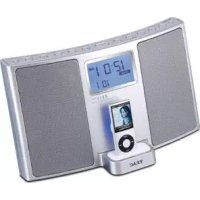
SRLX5IS - Mp3 player TEAC - Free user manual and instructions
Find the device manual for free SRLX5IS TEAC in PDF.



| Product Type | MP3 player with iPod dock, FM/AM tuner, stereo speakers |
| Dimensions (W × H × D) | 320 × 179 × 171 mm |
| Weight | 2.15 kg |
| Power Supply | 120 V AC, 60 Hz, 23 W (AC adapter included) |
| Output Power | 4 W + 4 W |
| Speakers | 2 × 65 mm, 4 ohms impedance |
| FM Range | 87.50 MHz to 108.00 MHz |
| AM Range | 520 kHz to 1,710 kHz |
| Main Features | iPod playback, FM/AM radio with presets, dual alarm, sleep timer, bass correction (DBSS), S-Video/Composite video output |
| Connectivity | iPod dock, auxiliary input (AUX IN, mini-jack), headphone output (PHONES), video output (S-Video/Composite), AM loop antenna, FM wire antenna |
| Supplied Accessories | Remote control (RC-1199), CR2032 batteries (×2), AM loop antenna, dock adapter kit, mini-jack stereo cable, AC adapter, manual, warranty card |
| Maintenance and Cleaning | Soft, clean cloth; do not use chemical solvents |
| Safety | Do not expose to water or moisture; leave ventilation space; unplug if not used for extended periods |
| Spare Parts and Repairability | Contact your dealer or TEAC technical service; do not open the casing |
Frequently Asked Questions - SRLX5IS TEAC
User questions about SRLX5IS TEAC
0 question about this device. Answer the ones you know or ask your own.
Ask a new question about this device
Download the instructions for your Mp3 player in PDF format for free! Find your manual SRLX5IS - TEAC and take your electronic device back in hand. On this page are published all the documents necessary for the use of your device. SRLX5IS by TEAC.
USER MANUAL SRLX5IS TEAC
The lightning flash with arrowhead symbol, within an equilateral triangle, is intended to alert the user to the presence of uninsulated "dangerous voltage" within the product's enclosure that may be of sufficient magnitude to constitute a risk of electric shock to persons.
The exclamation point within an equilateral triangle is intended to alert the user to the presence of important operating and maintenance (servicing) instructions in the literature accompanying the appliance.
IMPORTANT SAFETY INSTRUCTIONS
1) Read these instructions.
2) Keep these instructions.
3) Heed all warnings.
4) Follow all instructions.
5) Do not use this apparatus near water.
6) Clean only with dry cloth.
7) Do not block any ventilation openings. Install in accordance with the manufacturer's instructions.
8) Do not install near any heat sources such as radiators, heat registers, stoves, or other apparatus (including amplifiers) that produce heat.
9) Do not defeat the safety purpose of the polarized or grounding-type plug. A polarized plug has two blades with one wider than the other. A grounding type plug has two blades and a third grounding prong. The wide blade or the third prong are provided for your safety. If the provided plug does not fit into your outlet, consult an electrician for replacement of the obsolete outlet.
10) Protect the power cord from being walked on or pinched particularly at plugs, convenience receptacles, and the point where they exit from the apparatus.
11) Only use attachments/accessories specified by the manufacturer.
12) Use only with the cart, stand, tripod, bracket, or table specified by the manufacturer, or sold with the apparatus.

When a cart is used, use caution when moving the cart/apparatus combination to avoid injury from tip-over.
13) Unplug this apparatus during lightning storms or when unused for long periods of time.
14) Refer all servicing to qualified service personnel. Servicing is required when the apparatus has been damaged in any way, such as power-supply cord or plug is damaged, liquid has been spilled or objects have fallen into the apparatus, the apparatus has been exposed to rain or moisture, does not operate normally, or has been dropped.
- Do not expose this apparatus to dripps or splashes.
- Do not place any objects filled with liquids, such as vases, on the apparatus.
- Do not install this apparatus in a confined space such as a book case or similar unit.
The apparatus draws nominal non-operating power from the AC outlet with its STANDBY/ON switch in the standby position.
The apparatus should be located close enough to the AC outlet so that you can easily grasp the power cord plug at any time.
The main plug is used as the disconnect device, the disconnect device shall remain readily operable.
An apparatus with Class I construction shall be connected to an AC outlet with a protective grounding connection.
- Batteries (battery pack or batteries installed) shall not be exposed to excessive heat such as sunshine, fire or the like.
- Excessive sound pressure from earphones and headphones can cause hearing loss.
CAUTION
DO NOT REMOVE THE EXTERNAL CASES OR CABINETS TO EXPOSE THE ELECTRONICS. NO USER SERVICEABLE PARTS ARE WITHIN!
- IF YOU ARE EXPERIENCING PROBLEMS WITH THIS PRODUCT, CONTACT TEAC FOR A SERVICE REFERRAL. DO NOT USE THE PRODUCT UNTIL IT HAS BEEN REPAIRED.
"Made for iPod" means that an electronic accessory has been designed to connect specifically to iPod and has been certified by the developer to meet Apple performance standards.
Apple is not responsible for the operation of this device or its compliance with safety and regulatory standards.
iPod is a trademark of Apple, Inc., registered in the U.S. and other countries.
WARNING: TO PREVENT FIRE OR SHOCK HAZARD, DO NOT EXPOSE THIS APPLIANCE TO RAIN OR MOISTURE.
For U.S.A.
This equipment has been tested and found to comply with the limits for a Class B digital device, pursuant to Part 15 of the FCC Rules. These limits are designed to provide reasonable protection against harmful interference in a residential installation. This equipment generates, uses, and can radiate radio frequency energy and, if not installed and used in accordance with the instructions, may cause harmful interference to radio communications. However, there is no guarantee that interference will not occur in a particular installation. If this equipment does cause harmful interference to radio or television reception, which can be determined by turning the equipment off and on, the user is encouraged to try to correct the interference by one or more of the following measures:
- Reorient or relocate the equipment and/or the receiving antenna.
- Increase the separation between the equipment and receiver.
- Connect the equipment into an outlet on a circuit different from that to which the receiver is connected.
- Consult the dealer or an experienced radio/TV technician for help.
CAUTION
Changes or modifications to this equipments not expressly approved by TEAC CORPORATION for compliance will void the user's warranty.
Contents
Thank you for choosing TEAC. Read this manual carefully to get the best performance from this unit.
Before Using the Unit 4
Remote Control Unit. 5
Display. 5
Unit Functions. 6
Connections 8
Getting Started. 10
Setting the Clock 11
Basic Operation. 12
Listening to iPod 14
Operating iPod 15
Listening to an External Source 17
Listening to the Radio 18
Preset Tuning 19
Timer 20
Troubleshooting 22
Specifications 23
Before Using the Unit
Read this before attempting any operations.
- As the unit may become warm during operation, always leave sufficient space around the unit for ventilation.
- The voltage supplied to the unit should match the voltage as printed on the rear panel. If you are in any doubt regarding this matter, consult an electrician.
- Choose the installation location of your unit carefully. Avoid placing it in direct sunlight or close to a source of heat. Also avoid locations subject to vibrations and excessive dust, heat, cold or moisture.
- Do not place the unit on an amplifier/receiver.
- Do not open the cabinet as this might result in damage to the circuitry or electrical shock. If a foreign object should get into the unit, contact your dealer or service company.
- When removing the power plug from the wall outlet, always pull directly on the plug, never yank the cord.
- Do not attempt to clean the unit with chemical solvents as this might damage the finish. Use a clean, dry cloth.
- Keep this manual in a safe place for future reference.
Remote Control Unit
The provided Remote Control Unit allows the unit to be operated from a distance. When operating the remote control unit, point it towards the remote sensor on the front panel of the unit.
Even if the remote control unit is operated within the effective range, remote control operation may be impossible if there are any obstacles between the unit and the remote control.
- If the remote control unit is operated near other products which generate infrared rays, or if other remote control devices using infrared rays are used near the unit, it may operate incorrectly. Conversely, the other products may also operate incorrectly.
Battery Installation
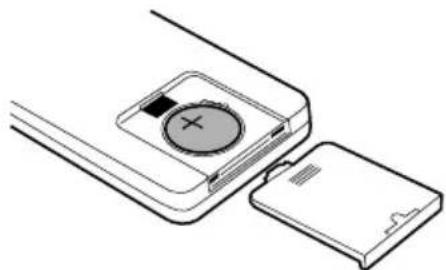
- Remove the battery compartment cover.
- Put in the lithium battery (CR2032, 3V).
- Close the cover.
Battery Replacement
If the distance required between the remote control unit and main unit decreases, the battery is exhausted. In this case, replace the battery with a new one.
Precautions concerning batteries
Do not heat or disassemble batteries and never dispose of old batteries by throwing them in a fire.
Display
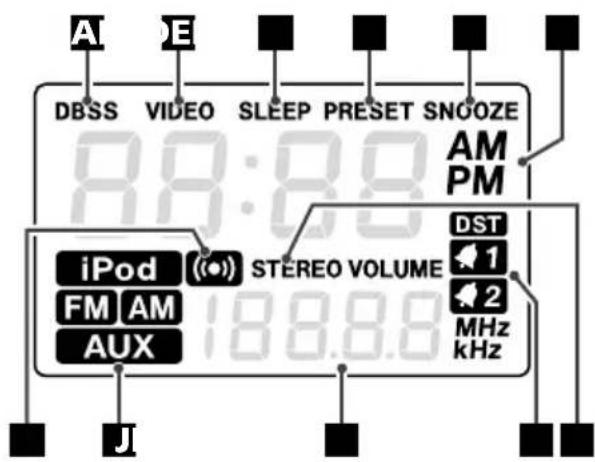
A Lights when the DBSS HI/LO button on the remote control is pressed.
B Lights when video output is on.
Lights when the sleep function is active.
D Lights in preset tuning mode.
E Lights when the snooze function is active.
F Shows the digital clock, sleep time or preset channels or current DBSS level.
Lights when an FM stereo broadcast is tuned.
Lights when the timer is on.
1 Shows frequency, volume, date, etc.
When the unit is on, one of these indicators lights to show the current source.
Lights for an option (buzzer) in the timer source selection.
Unit Functions
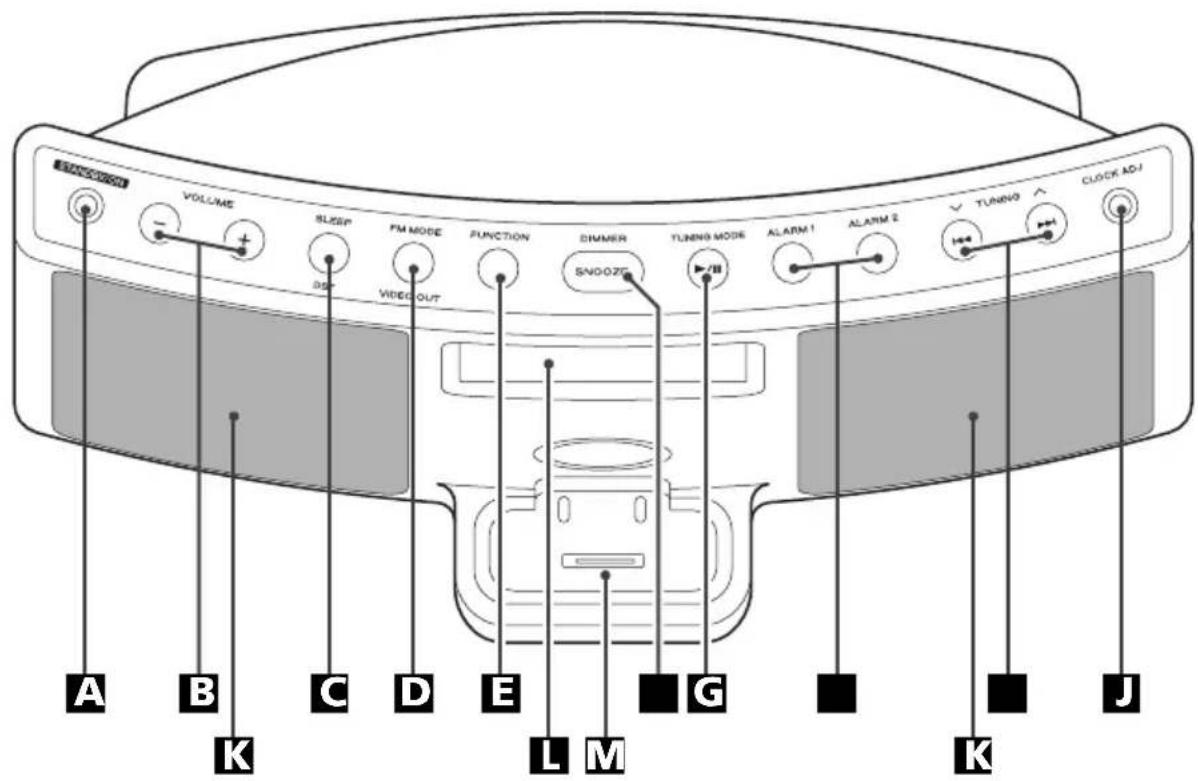
A STANDBY/ON
Use this button to turn the unit on or standby.
B VOLUME
Press these buttons to adjust the volume level.
C SLEEP
Use this button to set sleep timer.
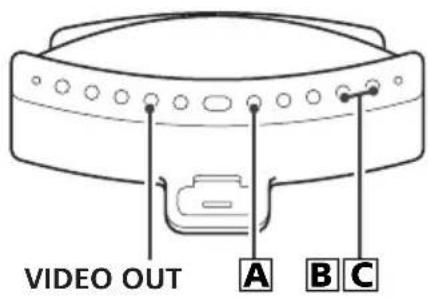
FM MODE/VIDEO OUT
In FM TUNER mode, use this button to select stereo or monaural.
In iPod mode, use this button to turn on or off video output to a connected TV set.
FUNCTION
Use these buttons to select the source you want to listen to.
DIMMER/SNOOZE
Use this button to dim the display.
After the TIMER ON time is reached, use this button to turn the unit off for 10 minutes.
TUNING MODE/Play/Pause (▶/II)
In TUNER mode, use this button to select preset tuning.
When you select preset tuning, PRESET indicator appears on the display.
In iPod mode, use this button to start or pause playback of iPod.
ALARM1,ALARM2
Hold down these buttons for more than 2 seconds to enter the timer setting mode.
Also these buttons are used to turn on or off the timer function.
TUNING ( / ) /Skip (I△/▶
In TUNER mode, use these buttons to tune in stations.
In iPod mode, use these buttons to skip tracks. Hold down this button to search for a part of a track.
CLOCK ADJ
Hold down this button for more than 3 seconds to enter clock setting mode.
Speakers (Stereo)
Display
M Dock connector
Before use, insert an appropriate Dock adapter in the Dock (see the separate sheet).
Insert an iPod mobile digital device into this dock.
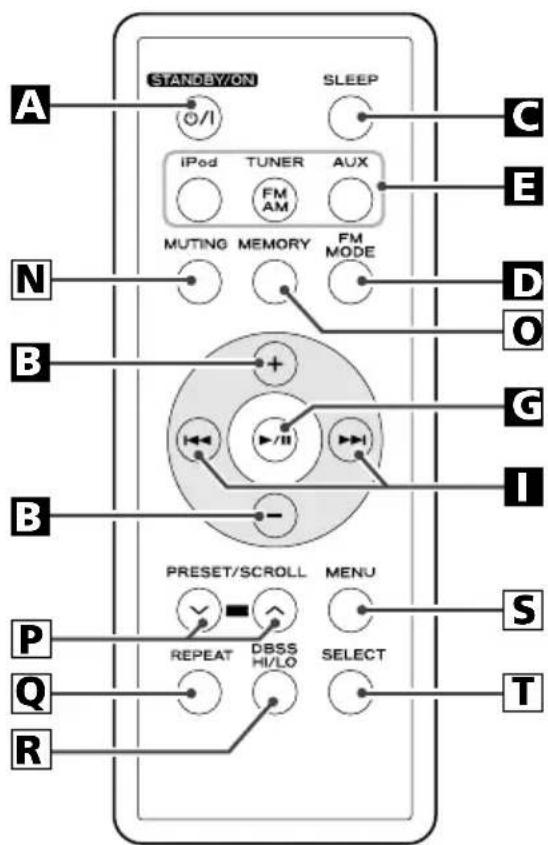
MUTING
Use this button to mute the sound.
0 MEMORY
In TUNER mode, use this button to preset stations.
P PRESET/SCROLL ( /)
In TUNER mode, use these buttons to select a preset station.
In iPod mode, use these buttons to scroll up and down the menu.
Q REPEAT
Use this button to set the repeat function.
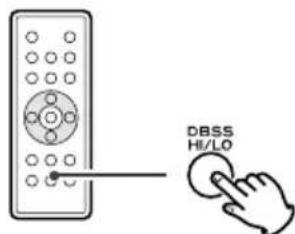
DBSS HI/LO
Use this button to switch between bass function high and low.
S MENU
Use this button to go back to the previous menu.
SELECT
Use this button to confirm selection in menus.
Note:
To simplify explanations, instructions in this manual refer to the names of the buttons and controls on the front panel only. Associated controls on the remote control will also operate similarly.
Connections
CAUTION:
- Switch off the power before making connections.
- Read the instructions of each component you intend to use with this unit.
- Be sure to insert each plug securely. To prevent hum and noise, do not bundle the connection cords.
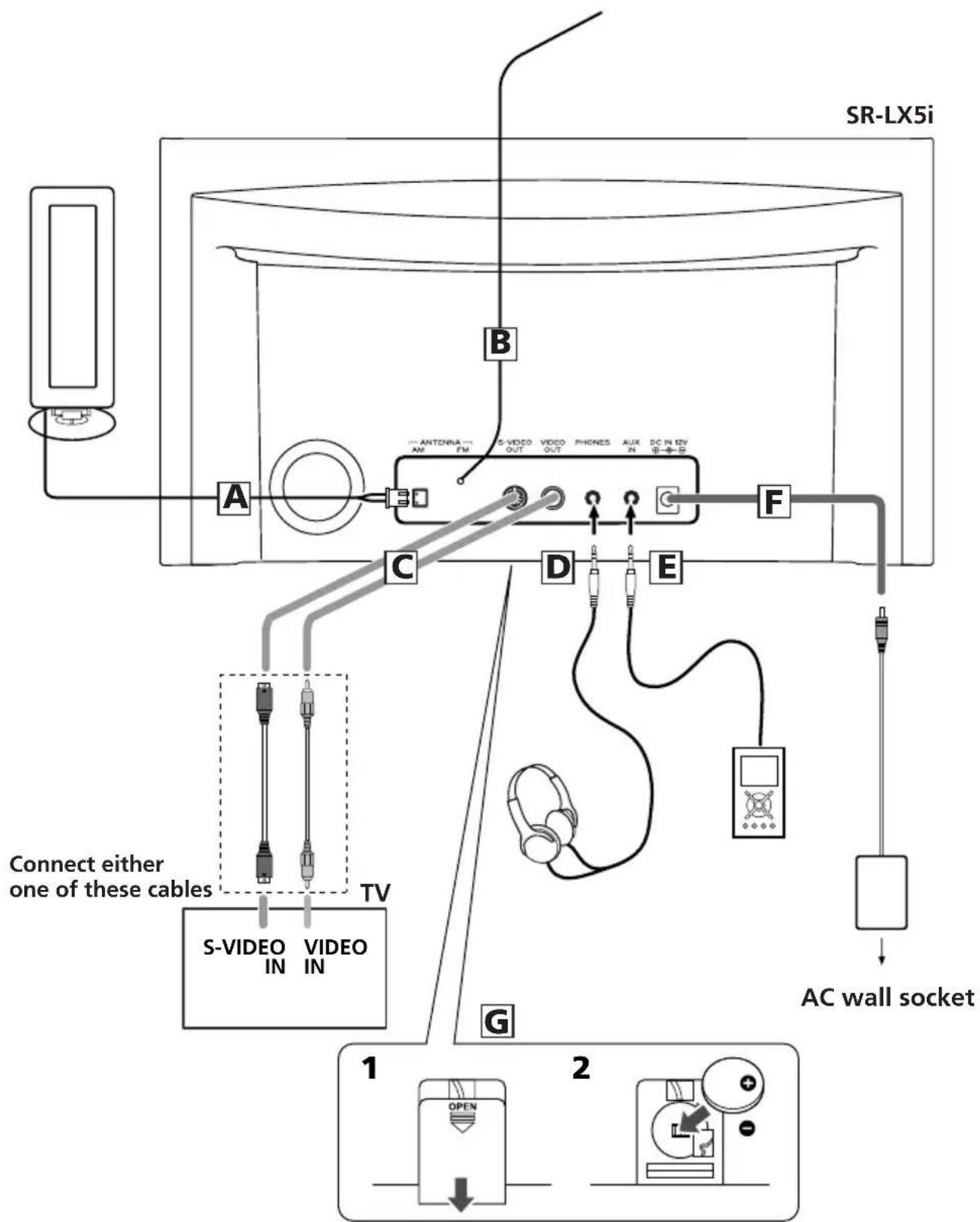
A AM loop antenna
Connect the supplied AM loop antenna to the AM ANTENNA terminal.
Place the antenna on a shelf or hang it on a window frame, etc., in the direction which gives the best reception.
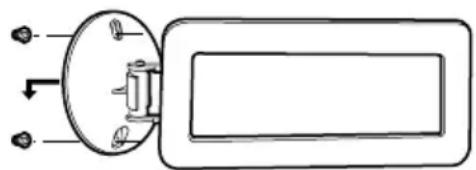
If you want, you can hook the AM antenna on a wall as shown below:
B FM antenna
While in FM mode, tune in an FM station and extend the lead to find the best position for the reception. This antenna may need to be repositioned if you move your unit to a new location.
You can enjoy videos or slideshow reproduced by your iPod through your TV screen.
Connect this jack to S-VIDEO IN/VIDEO IN of your TV set using a commercially available S-Video or composite video cable.
D PHONES
For private listening, insert the headphones plug into this jack, and adjust the volume using the VOLUME button.
E AUX IN
You can connect a portable audio player to this jack.
See page 17 for details.
F DC IN jack
Connect the provided AC adapter to this jack. Then connect the AC adapter's plug to the AC wall socket.
- Do not use any AC adapters other than the one included with this unit to avoid fire, electric shock, etc. Be sure to connect the adapter to an AC outlet that supplies the correct voltage.
G Battery compartment
The battery supplies a backup power to the built-in clock and memory, when the unit is momentarily disconnected from the AC outlet.
Battery installation
1.Remove the battery compartment cover.
2.Insert a CR2032 lithium-ion battery with it's positive face facing outer side.
3.Close the cover.
Battery replacement
If the clock comes to indicate the wrong time, replace the battery with a new one.
The life of a battery is about 16 hours in total.
Precautions concerning button-shaped battery
- Be sure to insert the battery with correct positive "+" and negative "-" polarities.
- Do not heat or disassemble battery and never dispose of old battery by throwing them in a fire.
The SR-LX5i comes mounted with an adapter "60GB (color) + Photo 40/60GB". To play your iPod through the SR-LX5i, you have first to check if the factory mounted adapter fits your model of iPod. If it does not, you have to replace it with a correct one, as explained below.
1. Remove the adapter from the Dock of the SR-LX5i.
Hold the left and right sides of the adapter and gently pull it up.
2. Choose the Dock adapter that fits your iPod mobile digital device.
- Use a commercially available adapter to play iPod with dock connector.
3. Insert the adapter into the Dock of the SR-LX5i.
Fit the front edge of the adapter into the Dock, and then press the back edge of the adapter onto the Dock until a slight "click" is heard indicating the adapter is inserted correctly.
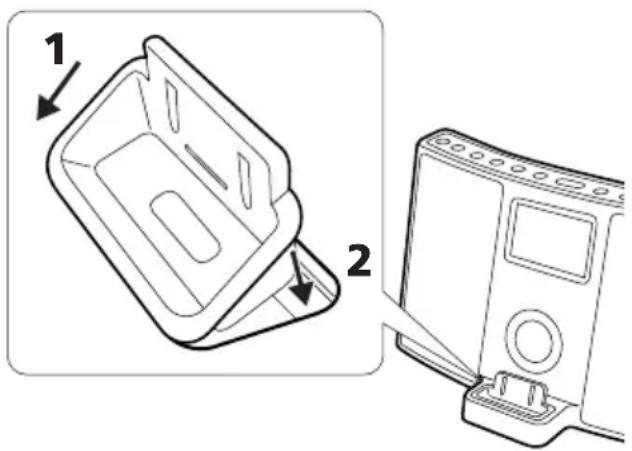
- When you need to remove the adapter, hold the left and right sides of the adapter and gently pull it up.
Docking an iPod to this system
iPod video output
Make the following settings on your iPod's menu to output video to a TV via this system's dock.
In the [Video] menu, select [Video Settings]. Set [TV OUT] to [On] or [Ask].
If you have set [TV OUT] to [Ask], your iPod prompts you each time you play a video to specify whether to output it to a TV.
Note:
If you output video to a TV from your iPod, the video is not displayed on the iPod's screen.
iPod touch does not contain this menu. You will have to specify whether to a output video to a TV each time you play it.
Using the alarm on your iPod touch
If you specify [Slide to power off] on your iPod touch, you cannot use the alarm even if the iPod touch is docked to this system.
To use the alarm on your iPod touch, do not select [Slide to power off]. (The screen can be turned off without any problem.)
If Video is displayed on your iPod touch's screen, you cannot use the alarm even if the iPod touch is docked to this system.
To use the alarm on your iPod touch, select any item other than Video.
Compatible iPod Software
In case your iPod will not work with the SR-LX5i or with the remote control unit, software update may solve the problem.
Visit the Apple website and download the latest iPod Software.
http://www.apple.com/ipod/download/
Setting the Clock
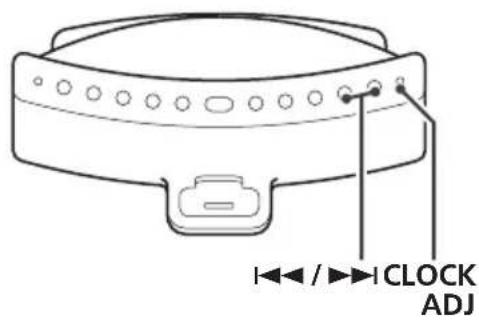
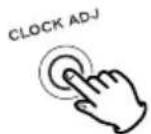
Press and hold the CLOCK ADJ button for more than 3 seconds and release it.
"12 HR" or "24 HR" blinks on the display. If you want to change the hour mode, press the 1 or > button.
- When no button is pressed for 8 seconds, the timer setting mode will be cancelled.
Press the CLOCK ADJ button again.
The "hour" value blinks.

Press the Skip button (I / ) to set the current hour, and then press the CLOCK ADJ button.
- Hold down the Skip button (I or to adjust the clock continuously.
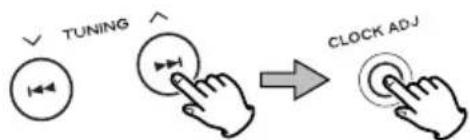
4 Press the Skip buttons (I / I ) to set the current minute, and then press the CLOCK ADJ button.
The clock starts from 00 second.
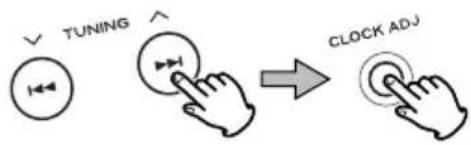
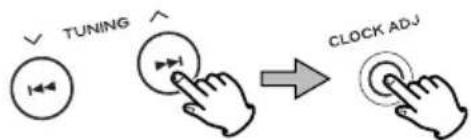
Press the Skip buttons (1 / 1) to select Year, and then press the CLOCK ADJ button.
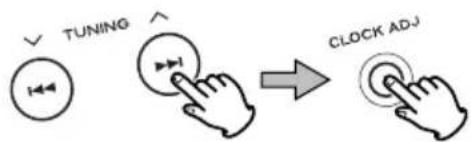
6 Press the Skip buttons (I< / ) to select Date, and then press the CLOCK ADJ button.
To set daylight saving time
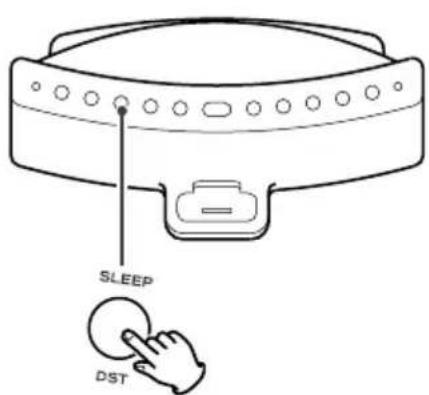
Press and hold the SLEEP/DST button until the DST indicator (DST) pears on the display.
To cancel, do the same operation again.
Basic Operation
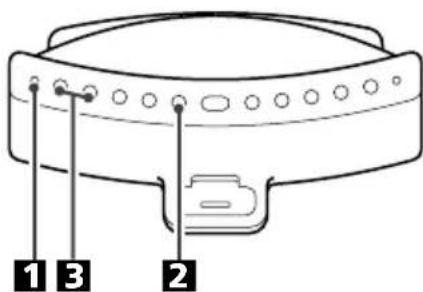
Press the STANDBY/ON switch to turn the unit on.
The unit turns on with the source that was last selected. If the iPod that is in playback mode is inserted into the Dock, the SR-LX5i will automatically turn on and start playback of the iPod.
- You can also use the FUNCTION button or Play/Pause button (▶/III) to turn the unit on.
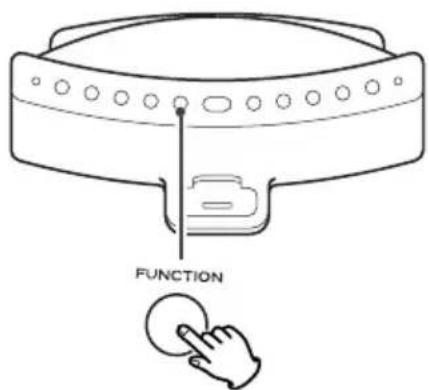
Press the FUNCTION button to select a source.
- To listen to an external source connected to the AUX IN jack, select AUX.
- If you select "iPod" when no iPod is docked, the iPod indicator on the display blinks.
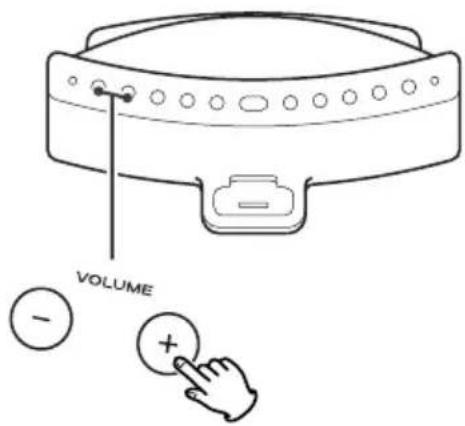
Play the source, and adjust the volume using the VOLUME buttons (- / + )
The volume is adjustable from MIN (00) to MAX (40). Hold down the VOLUME - or + buttons to turn down or up the volume continuously.
Dimmer
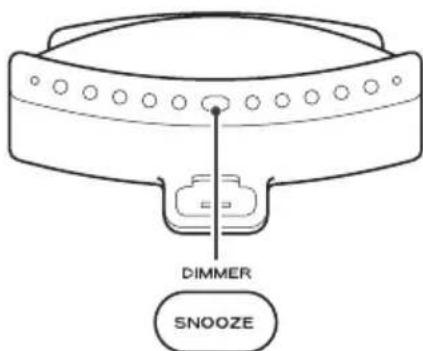
You can change the front panel's display brightness. Use the DIMMER button to change the brightness between three levels.
If this button is pressed in standby mode, the display is brightened for about 5 seconds.
This function will be canceled when the STANDBY/ON switch is pressed.
Muting
To mute the sound temporarily, press the MUTING button. Press the MUTING button again to restore the sound.
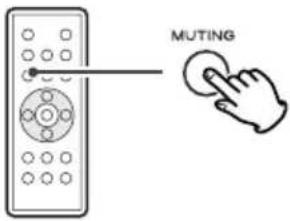
- If you change the volume or source during the muting, the muting will be canceled.
Headphones
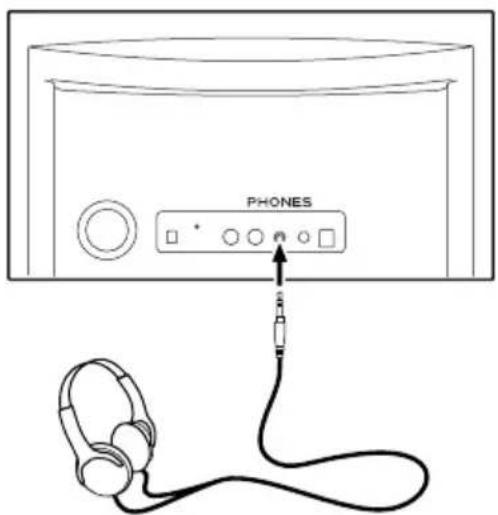
Insert the headphones plug into the PHONES jack, and adjust the volume.
CAUTION
Always lower the volume level prior to plugging in your headphones. TO AVOID DAMAGING YOUR HEARING - Do not place your headphones on your head until after you have plugged them in.
Sleep Timer
You can set a sleep timer so the unit turns itself off after a specified time.
Press the SLEEP button repeatedly until desired time appears on the display.
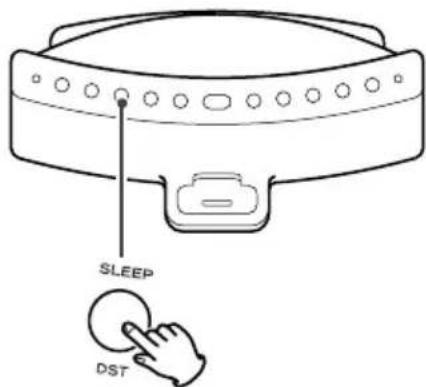
SLEEP 90, 60 or 30:
The power will be switched to standby 90, 60 or 30 minutes later.
OFF:
The sleep timer is off.
- If you want to check the remaining time, press the SLEEP button once. The remaining time will be displayed for a few seconds.
Bass control
To switch the bass boost function between high and low, press the DBSS HI/LO button to display the current DBSS level. Then press the button again to switch between "DBSS HI" (high) and "DBSS LO" (low).
Listening to iPod
Insert the iPod into the Dock of the SR-LX5i.
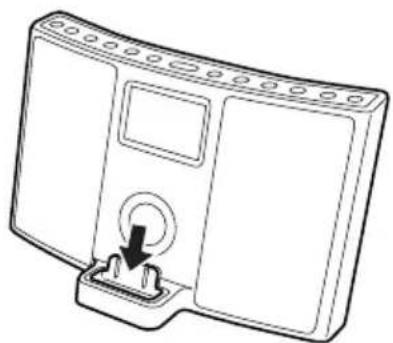
Then push the Play/Pause button ( /III) on the iPod or the SR-LX5i. The SR-LX5i will automatically turn on and start playback from the iPod's music list.
Make sure to use an appropriate Dock adapter (see the separate sheet).
- If you remove the iPod during playback, the SR-LX5i automatically turns standby.
The battery of the iPod is recharged to the full whenever the iPod is docked and the SR-LX5i is connected to the AC power supply.
- When headphones are plugged into the iPod, sound comes from both the speakers of the SR-LX5i and the headphones.
To select iPod mode
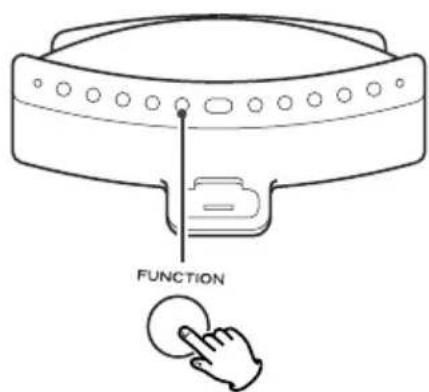
Select "iPod" using the FUNCTION button or the "iPod" button of the remote control unit. If an iPod is already docked, playback will start.
When no iPod is docked, the iPod indicator on the display blinks.
- You can also use the Play/Pause button (▶/III) to select "iPod".
Operating iPod 1
A To suspend playback temporarily (pause mode)
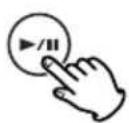
Press the Play/Pause button ( / ) during playback. Playback stops at the current position. To resume playback, press the Play/Pause button ( / ) again.
Search for a part of a track
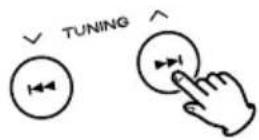
During playback, hold down the Skip button (or) for more than 2 seconds and release it when the part you want to listen to is found.
To skip to the next or a previous track
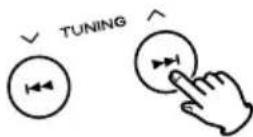
During playback, repeatedly press the Skip button (or) until the desired track is found. The selected track will be played from the beginning.
- When the button is pressed during playback, the track being played will be played from the beginning. To return to the beginning of the previous track, press the button twice.
To view videos on a connected TV set
Make the S-video/video connection to a TV set (see page 8) and the setting on your iPod (see page 10) beforehand.
Press the VIDEO OUT button to turn on the VIDEO indicator on the display and play the iPod's video source.
Note:
Regardless of these requirements, no video is output if using an iPod which does not support video output.
Operating iPod 2
To go back to the previous menu
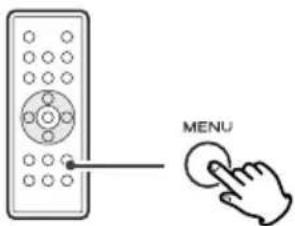
Press the MENU button. This button works with the same functions as its iPod counterpart.
Select the menu item
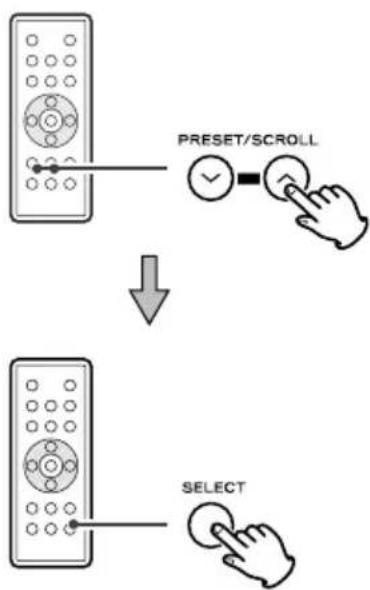
Press the PRESET/SCROLL buttons ( /) to scroll to the menu item you want. And then press the SELECT button.
To activate the repeat mode
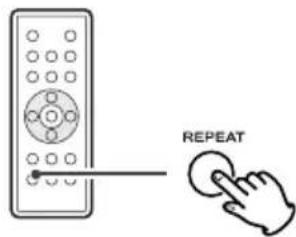
During playback, press the REPEAT button to change the repeat mode.
Each time the REPEAT button is pressed, the REPEAT setting of iPod is changed as follows:
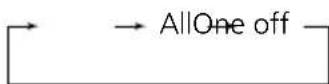
If the iPod is set to repeat one song, the repeat Once icon ( appears in the iPod's display.
If the iPod is set to repeat all songs, the repeat icon ( appears in the iPod's display.
Listening to an External Source
1 Connect the PHONES jack (audio output jack) of a portable audio player to the AUX IN jack of the SR-LX5i using the supplied stereo mini plug cable.
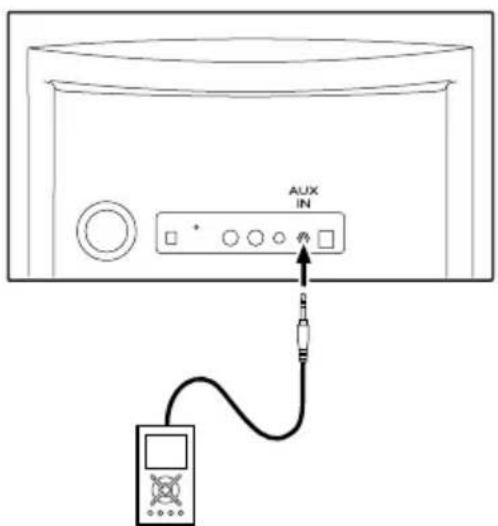
You can use this way of connection to listen to an iPod that has no Dock connector or that has, but an appropriate Dock adapter is not available.
2 Select "AUX" using the FUNCTION button.
3 Play the source, and adjust the volume of both the SR-LX5i and the audio player.
When using the PHONES jack of your mini player, you must adjust the volume of the mini-player or you may hear no sound from your SR-LX5i.
- Turning the volume of the mini player up too high may cause the sound from your SR-LX5i to be distorted. If this is the case, reduce the volume of the mini player until the distortion stops and then adjust the volume level of the SR-LX5i to a comfortable listening level.
Listening to the Radio
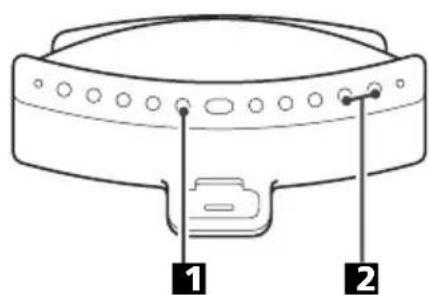
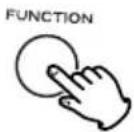
1 Select "FM" or "AM" using the FUNCTION button.
2 Select the station you want to listen to (auto selection).
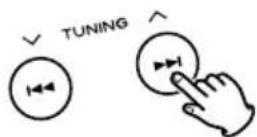
Hold down the Skip button (I or >I) for more than 2 seconds and release it when the frequency display begins to change.
When a station is tuned in, the tuning process will stop automatically.
- To stop the auto selection, press the Skip button.
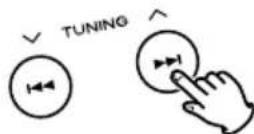
Selecting stations which cannot be tuned automatically (manual selection)
When the Skip button (or) is pressed momentarily the frequency changes by a fixed step.
Press the Skip button repeatedly until the station you want to listen to is found.
If the reception is poor
For the best reception, rotate the FM or the AM antenna until you get stations clearly.
FM MODE button
Pressing this button alternates between Stereo mode and Mono mode.
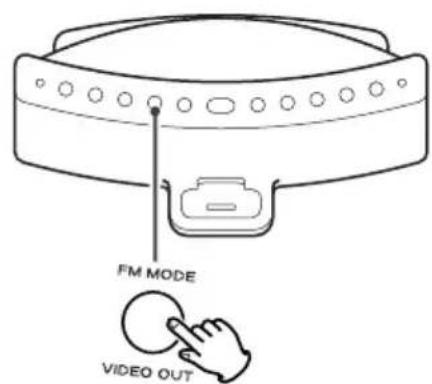
Stereo
FM stereo broadcasts are received in stereo and the "STEREO" indicator lights in the display.
If the sound is distorted and the "STEREO" indicator flashes, the signal is not strong enough for good stereo reception. In this case, change to MONO mode.
Mono
To compensate for weak FM stereo reception, select this mode. Reception will now be forced monaural, reducing unwanted noise.
Preset Tuning
You can program 10 FM & 10 AM channel presets.
Tune in a station you want to listen to (see page 18).
Press the MEMORY button.
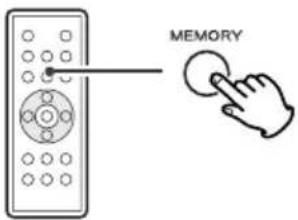
3 Within 10 seconds, select a preset channel to store the station using the PRESET/SCROLL (√/∧) button.
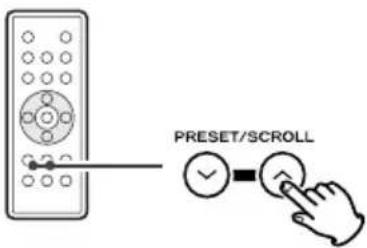
4 Within 10 seconds, press the MEMORY button.
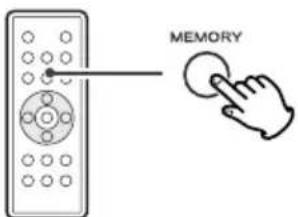
To store more stations, repeat steps 1. 4.
How to select a preset station
Press the TUNING MODE button to display the "PRESET" indicator in the display.
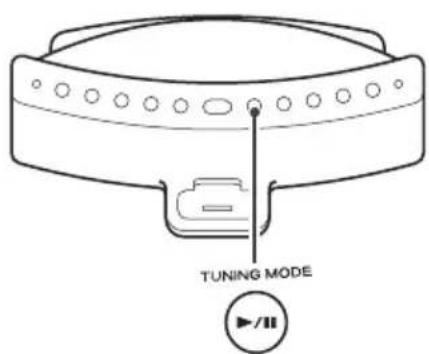
While "PRESET" displays in the display, the SR-LX5i is in the preset tuning mode.
To select FM or AM, press the TUNER (FM/AM) button.
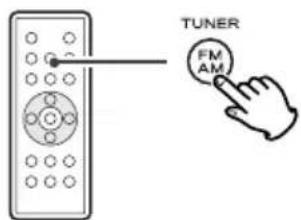
Press the PRESET/SCROLL ( /) button repeatedly until the desired preset station is found.
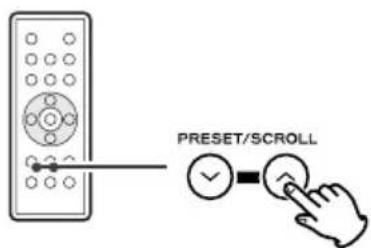
- You can also use the Skip button (I or to select a preset station.
- To cancel the preset tuning mode, press the TUNING MODE button again and the "PRESET" indicator goes out.
Timer
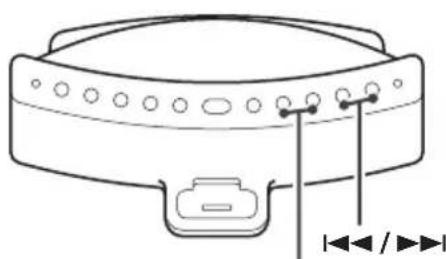
ALARM 1, ALARM 2
The unit can be programmed to turn on at a specified time. The unit will Standby after 120 minutes of reaching the specified time.
The unit can be set two different timer setting separately.
- Adjust the clock before setting the timer (see page 11).
Setting the timer
Press and hold the ALARM 1 or ALARM 2 button for more than 2 seconds.
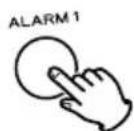
The clock and the Timer indicator (01 42) blinks on the display.
- If no button is pressed for about 8 seconds, the timer setting mode will be canceled.
Press the Skip buttons (or) to set the hour, and then press the ALARM 1 or ALARM 2 button.
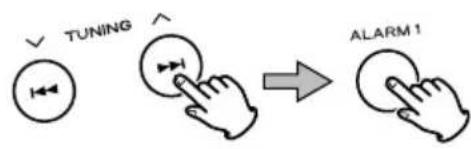
Press the Skip buttons (or) to set the minute, and then press the ALARM 1 or ALARM 2 button.
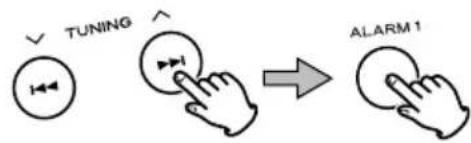
4 Select a source using the Skip buttons (1 / 1) , and then press the ALARM 1 or ALARM 2 button.
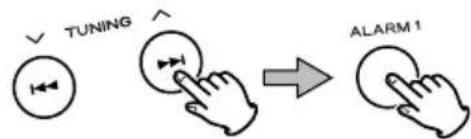
To use buzzer, select "
Set the volume using the Skip buttons (1 / 1) , and then press the ALARM 1 or ALARM 2 button.
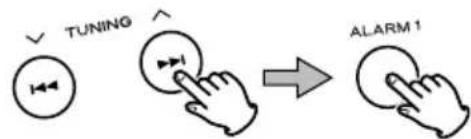
The volume for timer operation is adjustable from 5 to 40. Setting the timer is now completed.
ALARM 1, ALARM 2
To turn on the timer
After setting the timer, press the ALARM 1 or ALARM 2 button to turn the timer on.
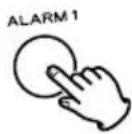
The Timer indicator (01) appears on the display.
Prepare the source.
When the source is set to "iPod", insert an iPod.
When the source is set to "FM" or "AM", tune in a station.
When the source is set to "AUX", start playback on an audio device connected to the AUX IN jack.
-Playback volume will gradually increase up to your set volume when the unit is turned on by timer.
- If the source is set to "iPod" but no iPod is set, the buzzer will sound.
- When the source is set to "FM" or "AM" and the unit turns on, it will tune in to the station you selected last time.
- To turn off the buzzer, press the ALARM 1 or ALARM 2 button.
To turn off the timer
When you don't use the timer, press the ALARM 1 or ALARM 2 button to turn it off.
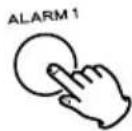
The Timer indicator (4) disappears from the display.
Press the ALARM 1 or ALARM 2 button again to turn it on.
How to use the snooze function
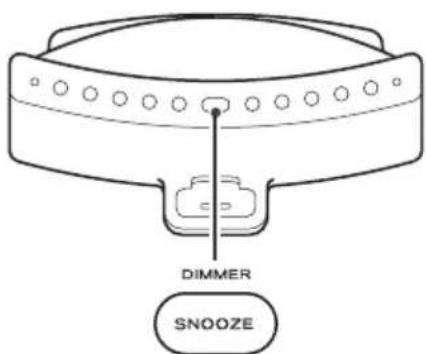
After the ON time is reached, press the SNOOZE button and the unit will turn off for 10 minutes then turn on again.
You can use this function repeatedly for up to 2 hours.
- During timer playback and snoozing, all the function cannot work except the following buttons:
SNOOZE, STANDBY/ON
Troubleshooting
If you have problems with your system, look through this chart and see if you can solve the problem yourself before calling your dealer or TEAC service center.
General
No power.
Check the connection to the AC power supply. Check and make sure the AC source is not a switched outlet and that, if it is, the switch is turned on. Make sure there is power to the AC outlet by plugging another item such as a lamp or fan into the outlet.
No sound from speakers.
Select the source by pressing the FUNCTION button.
Adjust the volume.
Pull out the headphone's plug from the PHONES jack.
If the VOLUME indicator is blinking on the display, press the MUTING button.
The sound is noisy.
The unit is too close to a TV or similar appliances. Install the unit apart from them, or turn them off.
Remote control doesn't work.
Press the STANDBY/ON switch to turn the unit on.
If the battery is exhausted, replace it with a new one.
Use remote control unit within the range (5m) and point at the remote sensor on the front panel.
Clear obstacles between the remote control unit and the main unit.
If a strong light is near the unit, turn it off.
iPod Player
Cannot insert the iPod.
Check the dock adapter.
Remove dust or obstacles from the Dock connector of the SR-LX5i and the iPod, and insert the iPod again.
Will not play.
Remove the iPod from the dock, wait a few seconds, and insert it again.
To view video on a connected TV set, press the VIDEO OUT button to turn on the VIDEO indicator.
Software update may solve the problem. Visit the Apple website and download the latest iPod Software.
Cannot operate the iPod.
Set off the HOLD switch of the iPod.
Tuner
Cannot listen to any station, or signal is too weak.
Tune in the station properly.
Rotate the FM or the AM antenna until you get stations clearly.
Connect the supplied AM loop antenna.
If normal operation cannot be recovered, unplug the power cord from the outlet and plug it again.
Maintenance
If the surface of the unit gets dirty, wipe with a soft cloth or use a diluted mild liquid soap. Be sure to remove any excess liquid completely. Do not use thinner, benzine or alcohol as they may damage the surface of the unit. Allow the surface of the unit to dry completely before using.
Specifications
TUNER Section
Frequency Range . FM: 87.5 MHz to 108.0 MHz
AM: 520 kHz to 1,710 kHz
SPEAKER SYSTEM Section
Type 65 mm x 2
Impedance 4 ohms
GENERAL
Total Output Power. 4 W + 4 W
Power Requirement AC 120 V, 60 Hz
Power Consumption 23 W
Dimension (W× H× D) 320x179x171mm
(125/8" x 7 1/16" x 6 3/4")
Weight (Net) 2.15 kg (4 3/4 lb)
Standard Accessories
Remote Control Unit (RC-1199) x 1
Battery for Remote Control Unit and Memory Backup (CR2032) x 2
AM loop antenna x 1
Dock adapter set x 1
- Design and specifications are subject to change without notice.
Weight and dimensions are approximate. - Illustrations may differ slightly from production models.
Sommaire
http://www.apple.com/ipod/download/
FM: 87,5 MHz-108,0 MHz
AM: 520 kHz-1.710 kHz
This appliance has a serial number located on the rear panel. Please record the model number and serial number and retain them for your records.
Model number Serial number

- IMPORTANT SAFETY INSTRUCTIONS
- CAUTION
- For U.S.A.
- Contents
- Before Using the Unit
- Remote Control Unit
- Battery Installation
- Battery Replacement
- Precautions concerning batteries
- Display
- Unit Functions
- A STANDBY/ON
- B VOLUME
- C SLEEP
- FM MODE/VIDEO OUT
- FUNCTION
- DIMMER/SNOOZE
- TUNING MODE/Play/Pause (▶/II)
- ALARM1,ALARM2
- TUNING ( / ) /Skip (I△/▶
- CLOCK ADJ
- Speakers (Stereo)
- M Dock connector
- MUTING
- MEMORY
- P PRESET/SCROLL ( /)
- Q REPEAT
- DBSS HI/LO
- S MENU
- SELECT
- Note:
- Connections
- CAUTION:
- A AM loop antenna
- B FM antenna
- D PHONES
- E AUX IN
- F DC IN jack
- G Battery compartment
- Precautions concerning button-shaped battery
- Remove the adapter from the Dock of the SR-LX5i.
- Choose the Dock adapter that fits your iPod mobile digital device.
- Insert the adapter into the Dock of the SR-LX5i.
- Docking an iPod to this system
- iPod video output
- Using the alarm on your iPod touch
- Compatible iPod Software
- Setting the Clock
- Basic Operation
- Press the STANDBY/ON switch to turn the unit on.
- Press the FUNCTION button to select a source.
- Play the source, and adjust the volume using the VOLUME buttons (- / + )
- Dimmer
- Headphones
- Sleep Timer
- SLEEP 90, 60 or 30:
- OFF:
- Bass control
- Listening to iPod
- To select iPod mode
- Operating iPod 1
- A To suspend playback temporarily (pause mode)
- Search for a part of a track
- To skip to the next or a previous track
- To view videos on a connected TV set
- Operating iPod 2
- To go back to the previous menu
- Select the menu item
- To activate the repeat mode
- Listening to an External Source
- Listening to the Radio
- Selecting stations which cannot be tuned automatically (manual selection)
- If the reception is poor
- FM MODE button
- Stereo
- Mono
- Preset Tuning
- How to select a preset station
- Timer
- Setting the timer
- To turn on the timer
- To turn off the timer
- How to use the snooze function
- Troubleshooting
- General
- No power.
- No sound from speakers.
- The sound is noisy.
- Remote control doesn't work.
- iPod Player
- Cannot insert the iPod.
- Will not play.
- Cannot operate the iPod.
- Tuner
- Cannot listen to any station, or signal is too weak.
- If normal operation cannot be recovered, unplug the power cord from the outlet and plug it again.
- Maintenance
- Specifications
- TUNER Section
- SPEAKER SYSTEM Section
- Standard Accessories
- Sommaire
Brand : TEAC
Model : SRLX5IS
Category : Mp3 player