7008 - Mp3 player ENERGY SISTEM - Free user manual and instructions
Find the device manual for free 7008 ENERGY SISTEM in PDF.


| Product Type | MP5 multimedia player with DVB-T tuner and TV output |
| Screen | 3.5" QVGA TFT LCD, 262,000 colors |
| Audio formats | MP3, WMA, WAV |
| Video formats | AVI (DivX/Xvid), FLV, RM, RMVB |
| Image formats | JPG, BMP, GIF |
| E-book formats | TXT |
| Internal memory | Capacity not specified (expandable via SD-HC card) |
| Memory expansion | SD-HC card (not included) |
| Connectivity | USB 2.0 Hi-Speed, 3.5mm headphone output, TV output (3 RCA), external antenna |
| Power supply | Rechargeable Li-Ion battery (3-5 h charge), AC/DC 5V adapter included |
| Battery life | Varies by usage (configurable power saving) |
| Equalizer | 8 modes (Normal, PlayFX, Rock, Pop, Classic, Bass, Jazz, Custom) |
| Main functions | Audio/video player, DVB-T tuner, digital radio receiver, photo viewer, e-book, file browser, favorites, A-B repeat |
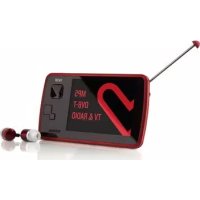
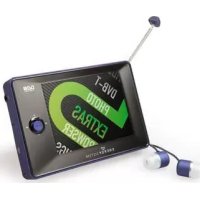
| Included accessories | Neodymium magnet in-ear headphones, magnetic external antenna, AC/DC adapter, coaxial cable adapter, TV output cable, USB cable, carrying case, CD with Energy Movier software and drivers |
| Care and cleaning | Clean with a soft, dry cloth; do not use abrasive products; avoid shocks, dust, humidity, extreme temperatures and direct sunlight |
| Safety | Do not disassemble the device; any repairs must be carried out by qualified personnel; do not expose to moisture |
| Spare parts and repairability | Not specified; technical support via support@energysistem.fr; 36-month warranty |
| General information | Brand: Energy Sistem; Model: 7008; Manufactured for Energy Sistem Soyntec |
Frequently Asked Questions - 7008 ENERGY SISTEM
User questions about 7008 ENERGY SISTEM
0 question about this device. Answer the ones you know or ask your own.
Ask a new question about this device
Download the instructions for your Mp3 player in PDF format for free! Find your manual 7008 - ENERGY SISTEM and take your electronic device back in hand. On this page are published all the documents necessary for the use of your device. 7008 by ENERGY SISTEM.
USER MANUAL 7008 ENERGY SISTEM
the heart of your music

text_image
D37 ENERGY SISTEM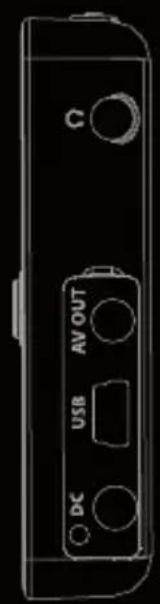
text_image
DC USB AV OUTMP5 DVB-T PLAYER
ENERGY
70 Series
Energy Sistem® MP5 Player Energy™ 70 Series.
Energy Sistem® MP5 DVB-T / TDT Energy™ 70 Series.
Energy Sistem thanks you for buying your new MP5 Energy™. We wish you enjoy using it.
This compact multimedia player with DBV-T tuner, HDP technology (3,5" TFT LCD display with 262.000 colours, high fidelity processor and built-in speaker) and SD-HC memory expansion slot allows you to enjoy videos, music, TV and pictures anytime anywhere.
We recommend that you fully read this user manual in order to enjoy the product in a safe way and with the best results.
CARE AND MAINTENANCE
Do not expose your MP5 Energy™ to shakes, dust, direct sun light, moisture or extreme temperatures.
- Do not use abrasive or corrosive cleansers.
- Keep the device clean and dust free with a soft and dry cloth.
▶ Recharge the battery when the low battery icon appears on screen.
Do not disassemble the device. Any repairs must be performed by qualified Energy Sistem Soyntec's personnel.
MAIN FEATURES
Multimedia player with DVB-T tuner and TV-OUT.
HDP: 3,5" TFT QVGA display with 262.000 colours, built-in speaker and high fidelity processor.
MP5: Plays AVI videos (Divx/Xvid)/FLV/RM/RMVB without transcoding. Includes ENERGY
▶ MOVIER software for transcoding special formats/codecs and Internet videos downloading, compatible with Youtube, Google Video, Dailymotion and Metacafe.
▶ Plays MP3 / WMA / WAV music.
▶ Displays JPG / BMP / GIF pictures.
▶ SD-HC expansion slot.
▶ High-fidelity in-ear earphones with neodymium magnets.
▶ Li-Ion rechargeable battery.
Smart song browsing through categories and favourites.
▶ Folder navigation.
▶ Artists and lyrics on screen (Id3-Tag and LRC).
▶ Upgradeable firmware.
▶ No drivers needed (except for Windows 98).
▶ 8 equalization modes, including the new Microsoft™ PlayFX.
5 different playback modes, including sequential, random, repeat mode, and more.
PRODUCT CONTENT
Energy Sistem® MP5 Player Energy™ 70 Series.
▶ High-fidelity in-ear neodymium earphones.
▶ Additional external antenna with magnetized base.
▶ AC/DC power adaptor (Europlug).
▶ Coaxial antenna adapter.
▶ TV OUT cable (3 RCA outputs).
▶ User manual.
▶ Software and drivers CD.
▶ 2.0 USB cable for data transfer.
Carrying case.
GENERAL OVERVIEW
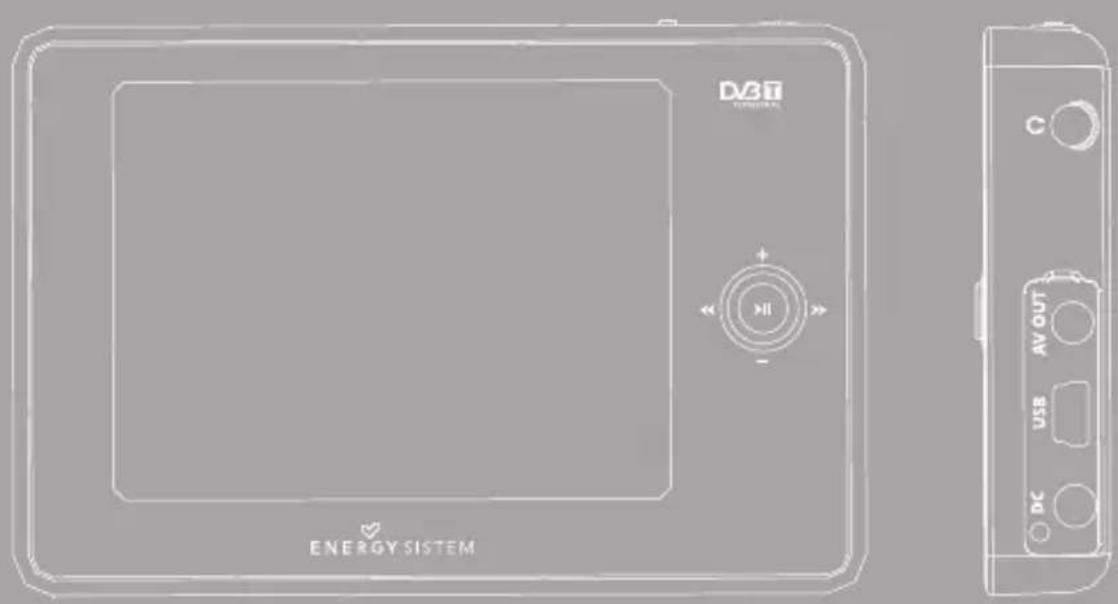
- Power on-off switch / Key lock.
- MENU: Main menu / Previous menu / Show submenus.
- Earphones output.
- TV-Out.
- USB 2.0 Hi-Speed connector for data transfer.
- AC/DC connector.
- SD-HC expansion slot.
- Connector for the external antenna and coaxial cable adaptor.
- Internal antenna.
- Reset.
II. Multidirectional joystick.
VOLUME+: Rise volume / A-B repetition.
VOLUME-: Lower Volume.
NEXT: Next element / Fast forward / Delete / Favorites.
PREVIOUS: Previous element / Fast backwards.
PLAY: Playback / Select / Pause / Record.

text_image
10 1 2 9 8 ENERGY SISTEM D23B ENERGY SISTEM 11 3 4 5 6 SINAMIC 7BATTERY POWER
Your MP5 Energy™ has an integrated rechargeable Li-Ion battery. It comes fully charged from factory, but it is recommended to perform a full recharge before the first use.
Recharge the battery connecting the player to an electric power source with the bundled AC/DC power adaptor.
Charging time is between 3-5 hours, depending if the player is powered off or working. To keep the battery in good conditions, we recommend not using the player while charging, with the power switch in "OFF" position and not leaving it charging for more than 8 hours.
Your MP5 Energy™ uses three systems for battery saving:
- It can power off the LCD display after some seconds of inactivity browsing the menu SETTINGS -> Display Setting -> Backlight.
- Choose the auto shutdown time with the menu SETTINGS -> Auto Shut Time.
- Finally you can set an idle shutdown in case the player is unused for some minutes. To set it go to SETTINGS -> Inactive shut time.
In order to maximize the battery's lifespan, it is recommended not to disable completely these power saving features.
SWITCHING ON / OFF
To power on your MP5 Energy ^™ , place the switch in the “ON” position for 2 seconds.
Note: When powering on, the device performs a memory check. The power on time depends on the amount of occupied memory.
Place the switch in the "ON" position for 3 seconds again to power off the device. At that moment, the device will save your settings.
Note: If you power off the device directly with the switch button, your last changes in the settings will be lost, and it will not remember the last song played.
Go to SETTINGS -> "System information" to know the amount of free memory in the player's memory.
Your MP5 Energy™ allows you to enjoy MP3 / WMA / WAV codified music due to its high fidelity sound processor. To enter into the play mode for MP3/WMA/WAV files, press the PLAY button over the MUSIC option. Take a look to the different options available for you to easily select your music (press PLAY to start the selected file playback):
"Current Play / Resume Play": Shows the music player screen.
Note: To learn more about the player, take a look to the “Music player interface” section of the manual.
"All Music": With this option you will see, sorted alphabetically by file name, all the songs you have stored in your MP5 Energy™.
"Artist", "Album" and "Genre": They show listings of your favorite music sorted by artist, album or genre respectively.
Note: In order for the music files to be displayed in these listings, their artist, album and genre information must be stored into the file (information known as ID3-Tag). You can find freeware utilities to create or modify ID3-Tags like MP3Tag or ID3 Renamer.
"Favorites": With this option you can listen to your favorite music that you already marked as favorite. To add a song to your "Favorite" list, simply press the NEXT button while on top of a file or folder. Make a selection using PLAY. Inside the "Favorite" folder if you press NEXT a new menu will pop up allowing you to erase one or all the favorite marked songs. Again, make a selection using PLAY.
Note: Erasing an element from Favorites you only eliminate what marks it as favorite, the file will stay in memory.
"Dir List": With this option you can explore the file tree in the memory of the MP5 Energy™ just as it would be displayed in your computer. Use this option to access the songs of your SD-HC card.
"Medialib Update": Use this option whenever you store or delete songs so the artist, album and genre listings are recreated accurately.
"Playback Resume": Use this option to resume the playback of the last songs you left unfinished.
Note: When the player is unplugged from the PC via the safe USB device removal, the MP5 Energy ^™ will run an automatic Update and enter battery charge mode.
▶You can pause the playback by pressing PLAY. Briefly press the PREVIOUS/NEXT button to skip to the previous/next track. You can fast forward or rewind the song by holding the PREVIOUS/NEXT button.
Use the VOLUME +/- with single presses to increase or lower the volume. To use the A-B repetition, hold the VOLUME + button to mark the beginning (A), hold it again to mark the end (B) when the song reaches your desired point, and finally hold it once again to exit the A-B repetition.
Access the submenu holding the MENU button on the music player interface and the available options will appear. With the “Display” option you can choose to show the song lyrics.
Note: The song lyrics are a text files named exactly after the music file with the LRC extension. If some of your music files do not have the LRC file, the lyrics will not be shown, but you can listen to the music without problem.
To exit the current playback to the previous menu press MENU. Press MENU again if you want to go back to the main menu.
MUSIC PLAYER SETTINGS
You can choose the equalization mode that fits your preferences. To do so, on the music player interface hold MENU and choose "EQ Mode", and after that choose one of the 8 available modes: "Normal", "MSEQ", "Rock", "Pop", "Classic", "Bass", "Jazz" or "User EQ". With the "MSEQ" or the "User EQ" entries you can personalize the PlayFX and User EQ equalization modes respectively.
The playing order of the tracks depends on the selected mode. By default, the mode is set to "Normal". You can change to a different mode holding MENU, selecting PLAY MODE and choosing "Normal" (sequential order) or "Shuffle" (random).
You can also set the repeat mode selecting REPEAT MODE at the submenu and choosing your preferred mode: "Once" (plays the current file and stops), "Repeat I" (repeat current track), "Folder Once" (plays files inside the current folder and stops), "Folder Repeat" (repeats the files inside the current folder), "All Once" (plays all the files once), "All Repeat" (plays all the files continuously) and "Intro" (plays the first 10 seconds and skips to the next file).
BROWSER: FOLDER NAVIGATION
This handy function allows you to directly choose the music / video / image / e-Book folder or file that you want to play, previously sorted with your PC. You can browse through folders while on MUSIC / VIDEO / PHOTO / E-BOOK mode.
Keep in mind that while you browse the folders on one given section, only the files associated to that section will be displayed (music files in MUSIC, image files in PHOTO, etc...). If you want to see all files present in memory, choose BROWSER at the main menu.
With VOLUME +/- buttons you can select the previous/next folder or file. With the PLAY button you will enter the selected folder. You can go back to the previous folder pressing PLAY on the “..” icon or pressing the MENU button.
Press PLAY over a file to start a playback. If you want to delete a file select it, press NEXT and then select "YES" with the PLAY button. To cancel the deletion, move to the right with NEXT and select "NO" instead.
VIDEO PLAYER
- You can enjoy your favourite videos and movies anytime anywhere, on its big 3,5" screen or on any TV set with its HQ TV-Out.
You can play AVI(Divx/Xvid) / FLV / RM / RMVB videos directly without conversion. On some exceptional occasions (like uncommon codecs or bitrates), to ensure a correct visualization and compatibility, you can play AVI / WMV / MPG / VOB / ASF videos previously converted to AVI format (XVID with MP2 audio) with Energy Movier software, included in the CD of your MP5. Check the user manual section "ENERGY MOVIER: CONVERTING AVI VIDEOS".
To play videos, select the VIDEO option from the main menu. You will access the files explorer (check the "BROWSER: FOLDER NAVIGATION" section). Choose the video that you want with the VOLUME+/- buttons and press PLAY to start playing it.
Press PLAY to pause the playback. To get the volume up/down use the VOLUME+/- button. Press PREVIOUS/NEXT button to skip to the previous/next video. You can fast forward or rewind the video by holding the PREVIOUS/NEXT button.
Hold the MENU button to access the video options submenu and select one with the PLAY button:
“Jump to minute”: This option allows you to access a specific point of the video.
"Mode": Select this option to switch between full screen and normal. This option will only affect videos that accept aspect ratio change.
"TV-Out switch": This will activate the TV out connector and display the image on a TV set.
To access again the files explorer, press the MENU button.
To exit this mode and get back to the main menu, press again the MENU button.
TV-OUT MODE
Before you activate the TV-OUT mode, the bundled cable must be connected to your TV through the audio (red and white) and video (yellow) RCA connectors, and also to your MP5 "TVOUT" connector with the Jack connector.
Alternatively to the video options activation mode, you can activate the TV-OUT mode via SETTINGS -> TV switch, or even holding the PLAY button for a few seconds. To show the image again on the player's screen hold PLAY a few seconds.
ENERGY MOVIER: INSTALLATION
With Energy Movier software tool you can easily convert your AVI / WMV / MPG / VOB / ASF videos to the AVI format (XVID with MP2 audio) so they occupy less memory and to ensure compatibility with the majority of formats/codecs.
To install Energy Movier follow these steps:
- Insert the drivers CD in your CD/DVD reader unit of your PC.
Note: We save the latest available version of the software in the CD when the unit leaves the factory. However, if you have an internet connection, we recommend you to always download the latest version from our website www.energysistem.com.
-
Once you see the Energy Sistem menu, select "Install Energy Movier". If you have autorun disabled, you can run the installation file "setup.exe" from the folder "Energy Movier".
-
On the installation screen, select "OK" and click on the icon to begin the installation. Follow the steps by pressing "Continue".
Note: Depending on the codecs you have installed in your computer, you might get a message of the program trying to overwrite some of them. In that case, we recommend that you keep your existing files by pressing "Yes".
- Once the installation is complete, you can run the application from Start -> "All programs" -> "Energy Sistem" -> "Energy Movier". The first run of Energy Movier will bring you to the configuration options screen, where you can select the language of the software, your Energy™ player model, the video properties, etc... If you want to change some of this parameters later on, just click on "Options".
ENERGY MOVIER: CREATING AVI VIDEOS
For converting an AVI / WMV / MPG / VOB / ASF video follow these steps:
Note: If you want to convert special video formats like MPEG4 / DivX / XviD / etc. make sure that you have the appropriate “codecs” installed. You can install “codec” packages like “K-Lite Standard Pack”. It is also recommended that the files to be converted are in the installation folder.
- Execute "Energy Movier" from the "Start" menu.
- If it's the first time you run the program, the options window will automatically pop up so you can select your MP5 Energy™ model. Optionally you can modify the quality and the image format you want for your videos.
- Choose a file to be converted with the "Select file" button.
- You can specify a name for the new file in the "Name of the converted video" section. If you don't write anything, the original file's name will be used. Optionally you can select the folder where your video is to be stored by clicking on the button "Select another folder".
Note: If your Energy™ MP5 is connected to your computer, you can select a folder of the built-in memory so the new video stores directly into it, but make sure first that it has enough free memory.
- Click on the "Add" button so the conversion job adds to the list of pending tasks.
Note: You can add many conversion tasks so the videos batch convert without having you staring your computer. If you want to, you can erase a queued job by
selecting the line with your mouse and pressing "Delete line".
- Repeat steps 3 to 5 for each one of the videos you would like to convert.
- Once you have queued all the videos you want to convert, press "Convert now" to begin the process.
- On the "Process Info" column you can check the current file conversion, along with its current size. When the process is finished, the "Process Info" column turns green colour. Wait for all the tasks to complete and click the "Close" button to exit the program.
Note: We recommend not using the PC while Energy Movier is converting due to the high consumption of resources that could lead to other applications not responding.
- Connect your MP5 Energy™ to the computer (check out the "PC Connection" section) and copy the new AVI file(s) inside your desired folder, unless you selected your MP5 as the target folder destination for direct recording.

text_image
Energy Move - 160 I want to convert... • A file that I already have • A video from a website File to convert: • Energy Move - The level of your move are Name of the converted file: • Energy Move - The level of your move are Target folder for the converted file: • Program For Energy Move Select file Options Source File Share Target folder New file Process Info • 2.000000000000000000000000000000000000000000000000000000000000000000000000000000000000 Current now CloseENERGY MOVIER: INTERNET VIDEOS DOWNLOAD
On top of the possibility of converting videos you already have in your PC, you can also download and convert your favourite videos from the most popular Video Websites to enjoy them with your MP5 Energy™ anytime anywhere.
Note: On printing date of this manual, Energy Movier is compatible with Youtube, Google Video, Metacafe and Dailymotion; check the updated compatibility list at www.energysistem.com/videosweb
To download and convert the videos, follow these easy steps:
- Run "Energy Movier" from the "Start" menu.
- If this is the first run of the program, the options window will open automatically so you can select your MP5 Energy™ model. Optionally you can modify the quality and the aspect ratio you want for your videos.
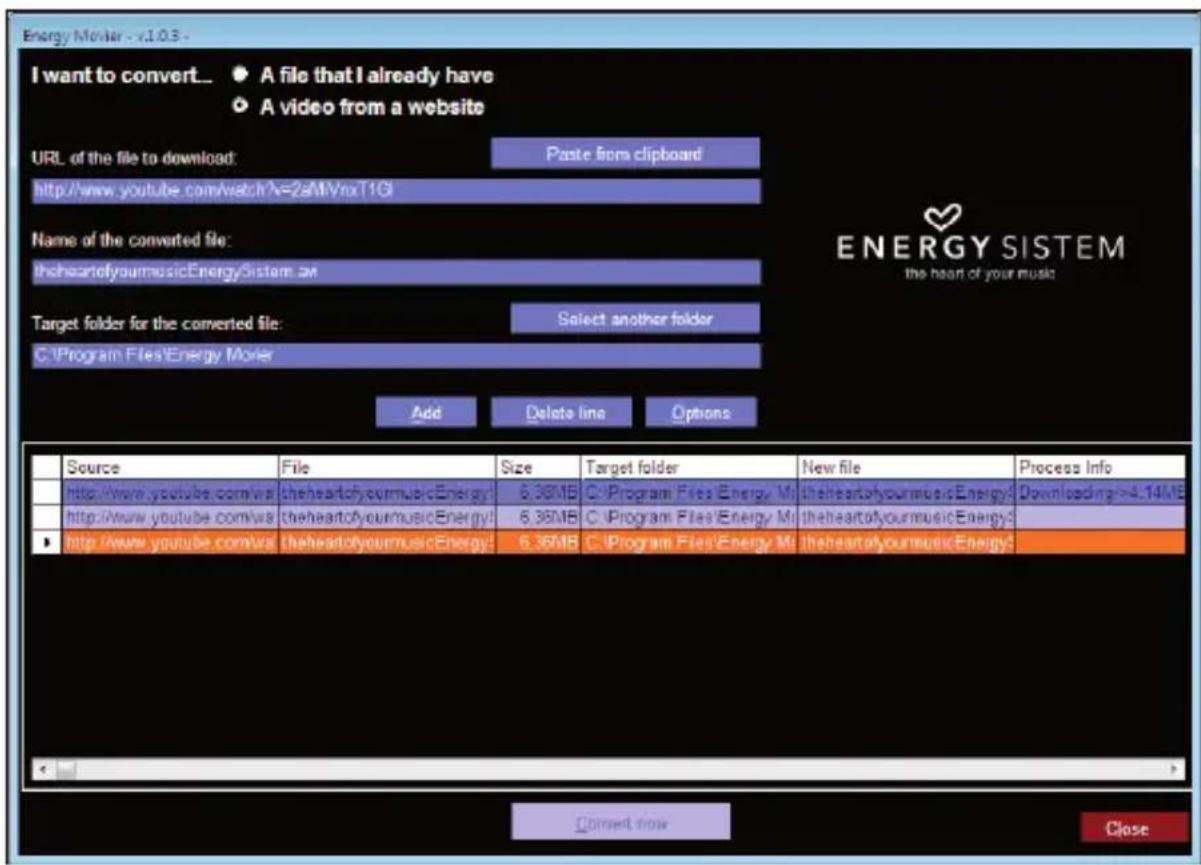
- Choose "A video from a website" in the "I want to convert...." section.
- Your next step is to provide the link to the video you want to download. Usually the right link is shown in the "Address" field of your web browser while you are seeing the video. Copy this address from your browser and paste it in the field "URL of the file to download" by pressing the button "Paste from clipboard" in Energy Movier.
-
In the field "Name of the converted file" you can specify a name for the new file. If you don't write anything, the original internet name will be used.
-
Optionally you can select the folder where the new video will be stored. To do so, click on the "Select another folder" button.
Note: If you have your MP5 Energy™ connected to the PC, you can select a folder from it so the new video stores directly on the unit, but make sure there is enough free space.
- Click on the "Add" button to add the download and conversion job to the task list. If you receive an error message and your internet connection is fully functional, probably the link is from an unsupported page, or the video has some copyright or access restriction. (i.e. for mature only).
Note: You can add several download and conversion jobs so they batch process automatically without you staring at the computer. If you want to, you can delete a queued job selecting it with your mouse and pressing the “Delete line” button.
-
Repeat steps 4 to 7 for each of the videos you want to download and convert.
-
Once you have queued all the videos you want to download and convert, press "Convert now" to begin the process.
-
On the “Process Info” column you can check the current file download and conversion, along with its current size. When the process is finished, the “Process Info” column turns green colour. Wait for all the tasks to complete and click the “Close” button to exit the program. NOTE: We recommend not using the PC while Energy Movier is converting due to the high consumption of resources that could lead to other applications not responding.
II. Connect your MP5 Energy™ to the computer (check out the "PC Connection" section) and copy the new AVI file(s) inside your desired folder, unless you selected your MP5 as the target folder destination for direct recording.
text_image
Energy Monitor - v1.0.3 - I want to convert... ● A file that I already have ○ A video from a website URL of the file to download: Paste from clipboard http://www.youtube.com/watch.N=2aMMvxt1G Name of the converted file: theheartofyourmusicEnergySistem.ac Target folder for the converted file: Select another folder C:\Program Files\Energy Monitor Add Delete line Options ENERGY SISTEM the heart of your music Source File Size Target folder New file Process Info http://www.youtube.com/wa.theheartofyourmusicEnergy: 6.36MB C:\Program Files\Energy_Mi theheartofyourmusicEnergy4 Downloading >4.14MB http://www.youtube.com/wa.theheartofyourmusicEnergy: 6.36MB C:\Program Files\Energy_Mi theheartofyourmusicEnergy3 http://www.youtube.com/wa.theheartofyourmusicEnergy: 6.36MB C:\Program Files\Energy_Mi theheartofyourmusicEnergy2 Connect now CloseDVB-T
Your MP5 Energy™ 70 Series brings portable entertainment one step beyond, adding a DVB-T decoder to the usual multimedia capabilities present in all Energy™ MP5 players. This way you will enjoy your favourite TV broadcasts wherever you are, whenever you like. To begin, select DVB-T at the main menu.
Browse the different options with VOLUME +/- and select with PLAY:
▶ Video broadcast: Select this entry and you will see the list of TV channels currently stored in memory.
Audio broadcast / Others: Select this option to access the digital radio stations, as well as the special channels of configuration and test.
Note: The special channels are usually inaccessible.
▶ EPG Information: The Electronic Program Guide contains information regarding the show currently broadcasted, the next one and their duration, for each of the channels.
Note: Not every channel broadcasts the EPG information, or maintains it updated.
Auto Scan: The player will move along the frequency range searching for audio and video broadcasts, storing them in memory. Keep in mind each new scan will delete the saved channels.
▶ Manual Scan: With this selection you can scan only one channel among all available for DVB-T broadcast. Keep in mind each new scan will delete the saved channels.
Area Setting: Select here the digital broadcast region where you are located.
We recommend to use whenever possible the bundled external antenna as well as the built-in antenna to maximize the quality and reception of the signal. The base of the external
antenna is magnetized for easy attachment to metallic surfaces. Additionally a coaxial TV cable adaptor is provided for a complete signal reception.
Note: The external antenna and the coaxial adaptor are connected to the player with a small pressure, not twisting. Only one of both can be connected at the same time.
To exit from a broadcast to the DVB-T options press the MENU button. To go to the main menu, press again the MENU button
E-BOOK
View and enjoy your electronic books (e-book in TXT format) anywhere with the high resolution TFT LCD screen of your MP5 Energy™. To view your e-books, select the E-BOOK option at the main menu. You will access directly to the files explorer (check the “BROWSER: FOLDER NAVIGATION” section), choose the book that you want with VOLUME +/- button and press PLAY to start reading it.
Press the VOLUME +/- button to move one line up or down, and press PREVIOUS/ NEXT button to skip to the previous/next page. Hold MENU to access the options submenu. With “Flip Time” option you activate/deactivate the automatic flip of pages selecting the time between pages. Use the different bookmarks submenus (Save, Load and Del) to manage your bookmarks. Press the PLAY button to confirm your selections.
To exit the e-book mode, press MENU on the reading screen.
VIEWING PICTURES
View and enjoy your JPG / BMP / GIF pictures and photos with the high resolution TFT LCD screen of your MP5 Energy™.
To view your images, select the PHOTO option from the main menu. You will access directly to the files explorer (check the "BROWSER: FOLDER NAVIGATION" section), choose the picture that you want with the central joystick and press PLAY to start viewing it. While viewing a picture, hold the MENU button to show the options submenu and use the different visualization options, including the slideshow presentation, rotation and zoom.
Press PREVIOUS/NEXT to browse to the previous/next image. To return to the explorer or the main menu, just single press MENU.
PC CONNECTION
In order to enjoy the multimedia capabilities of your MP5 Energy™, you have to first copy your favourite files from your PC to its internal memory, or use a SD-HC memory expansion card.
Note: Turn off your MP5 Energy™ each time you insert/extract your SD-HC card to avoid accidental data losses.
Connect your MP5 Energy™ to the computer using the USB 2.0 cable included. The device will be detected automatically without installing any driver (except Windows 98, in which case you have to install the W98 driver from the “Firmware” folder inside your MP5 built-in memory). Once detected, you can read/write to the device’s memory just as if you where using a regular disk drive.
IMPORTANT: To avoid any data loss, always perform a safe USB device extraction before disconnecting the USB cable from the device of the PC. In Windows XP, for example, you can find the safe extraction icon in the task bar, next to the system clock.
FIRMWARE REINSTALLATION
Your MP5 Energy™ has an installed operating system, usually called firmware, that sometimes needs to be reinstalled. The process is easy, but has to be performed carefully, and only when it is really necessary. If you see that the player halts, reboots randomly, or you have problems to access the memory content from your computer, those are signs that the firmware might be damaged you should reinstall the latest version available.
IMPORTANT: First of all, make a backup of the files inside the your MP5 Energy™ that you want to keep and disconnect the device from your PC, since during the firmware reinstallation the memory will be formatted and erased. It is also very important to make sure that your computer is virus-free and has no halt/lock problems. Follow these steps to reinstall the firmware:
-
Insert the bundled Driver CD in a CD/DVD drive of your computer and the CD MENU will automatically appear. Select "Download Energy 70 Series Firmware" to access our website (you can access manually from a web browser from www.energysistem.com).
-
Select your model from the products section and download the last version of the firmware from the download zone.
Note: Make sure the firmware you are downloading is specific for your model. Otherwise you will severely damage the unit. Uncompress the file in your computer.
- Open the "Readme" file and follow the instructions.
- Unplug the USB cable, turn on the unit and wait for the main menu (it may take up to a few minutes).
- Connect again the unit to the computer with the USB 2.0 cable.
- Go to "My PC" and double click on the drive that represents your MP5 internal memory.
- You can again transfer data to your MP5 Energy™ and enjoy it right away.
TROUBLESHOOTING
- Why can't I play some MP3 files?
The MP3 file has to be compressed along some standards like MPEG1/MPEG2/MPEG 2.5 layer 3. Otherwise, the file must be converted using a software application.
- My player doesn't power on and/or my computer doesn't detect it. What can I do?
Probably there is a problem with the firmware. Check the user manual section "FIRMWARE REINSTALLATION".
- Why can't I play some WMA files?
Make sure that you are not coding the WMA files with DRM.
- Why can't I see the image, video or text files while using the music browser?
You will only see the files in memory associated to the browsing you are doing (music files for Music, image files for Photo, etc...) To view all the files in memory at once, choose the “Browser” option in the main menu.
- Why can't I display my .jpg files?
Many digital cameras and image edition software add hidden data to the .jpg files. This data can prevent your MP5 from loading the images. Try to eliminate them by saving the file with another name.
- When I turn off the MP5 with the Reset switch, the brightness or the song I was listening to is not stored. What gives?
For the MP5 to successfully store the state, you have to switch it off with the ON/OFF switch. - What's the video format of my MP5 Energy™?
Your MP5 Energy™ plays many video formats without recoding, and AVI files compressed with XVID (MP2 audio). Convert your videos using Energy Movier to ensure compatibility.
Have any other question? Check the product F.A.Q. section at
www.energysistem.com
Technical support email addres:support@energysistem.co.uk
WARRANTY
Energy Sistem Soyntec S.A. warrants its products to be free from defects in materials and workmanship at the time of purchase.
The warranty period is 36 months from the date of purchase for MP3/MP4/MP5 Players.
WARRANTY PROCEDURE
- Visit the Support section at http://support.energysistem.com and select your product to view the FAQ (Frequently Asked Questions). The solution to your problem is very likely to have been already published there. You will also be able to download user manuals, user guides, drivers and updates.
- If you cannot find an appropriate solution in the Support section, you may send us your enquiry or warranty service request by email: support@energysistem.co.uk
- Alternatively, you may prefer to contact the distributor from which you purchased the product, presenting the purchase receipt or invoice."
Specifications are subject to change without notice.
© 2009 / 2010 by Energy Sistem®. All rights reserved.
Trademarks.
All company, brand and product names are trademarks or registered trademarks of their respective companies.
Energy Sistem® MP5 Player Energy™ 70 Séries.
CONDITIONS DE GARANTIE
natural_image
Simple heart-shaped outline on black background (no text or symbols)www.energysistem.com