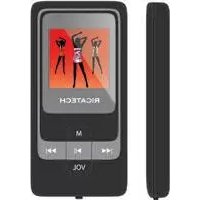
RC850 - Mp3 player Ricatech - Free user manual and instructions
Find the device manual for free RC850 Ricatech in PDF.



| Product type | MP3 player |
| Brand | Ricatech |
| Model | RC850 |
| Memory capacity | 1 GB / 2 GB / 4 GB / 8 GB |
| Supported audio formats | MP3, WMA, APE |
| Recording formats | MP3, WMA, ADPCM |
| Screen | LCD 128×128 pixels |
| Dimensions | 87 × 42 × 9 mm |
| Weight | 27 g |
| Battery | Rechargeable lithium-ion, 15 h battery life (MP3 playback) |
| Power supply | 5 V DC via USB port |
| PC connection | USB 2.0, MSC mode |
| Headphone output | 5 mWrms (L) + 5 mWrms (R) on 32 Ohms |
| Signal-to-noise ratio | ≥ 85 dB |
| Distortion | < 0.1% |
| Operating temperature | -10 °C to 40 °C |
| Main functions | Music, Video, Voice Recorder, Photo, E-Book, Game, System Settings |
| Interface languages | French, English, Arabic, Chinese, etc. (24 languages) |
| Included accessories | Earphones, USB cable, driver CD |
| Care and cleaning | Clean with a soft, dry cloth |
| Customer support | Email: ricatech/support@ssb-repair.com, Tel: +32 3 3265694 |
Frequently Asked Questions - RC850 Ricatech
User questions about RC850 Ricatech
0 question about this device. Answer the ones you know or ask your own.
Ask a new question about this device
Download the instructions for your Mp3 player in PDF format for free! Find your manual RC850 - Ricatech and take your electronic device back in hand. On this page are published all the documents necessary for the use of your device. RC850 by Ricatech.
USER MANUAL RC850 Ricatech
Portable Media Player
Quick Presentation. 4
Operating Instructions 8
Music mode 8
Video mode 10
Record mode 10
Photo mode 11
E-Book mode 12
File mode 12
Game mode. 13
Systemsetup. 13/14
Technical Specifications 15
Customer Support. 16
Please read this manual carefully before using this device and keep it for future reference. This manual is intended to help you benefit fully from the MP4's exceptional functions and make its use even more enjoyable.
This manual contains important safety instructions and information concerning the device's proper use. Make sure to carefully read all the instructions to avoid accident.
We hereby reject any and all liability for errors, omissions or updates in this document. In addition, we reject all liability for any loss of data stored on the device.
Windows Media Player and Windows are trademarks of Microsoft Corporation. Other trademarks and trade names mentioned in this manual are the property of their respective owners.
QUICK PRESENTATION
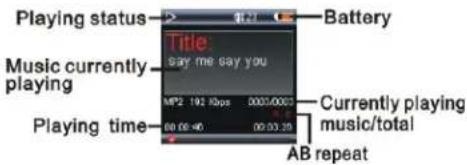
Presentation of the LCD interface
Music mode:
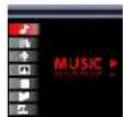
MUSIC
E-BOOK
VIDEO
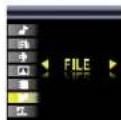
FILE
RECORD
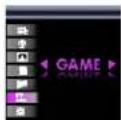
GAME
PHOTO
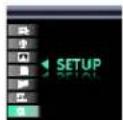
SETUP
On/Off:
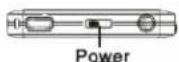
To turn on the player: push the power button to on, the player comes on.
make sure that the power is on:
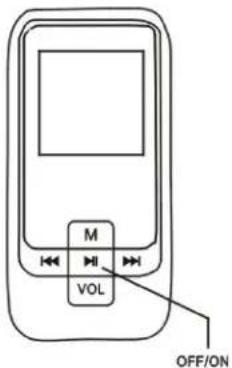
To turn off the player: Press and hold the OFF/ON button for more than 2 seconds, until the player turns off.
Then press and hold the OFF/ON button until the player comes on and switches to "active" mode/off.
Accessories included:

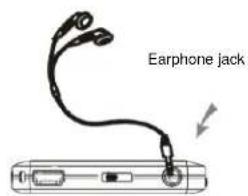
Earphones

Driver CD

USB cable

QUICK START GUIDER
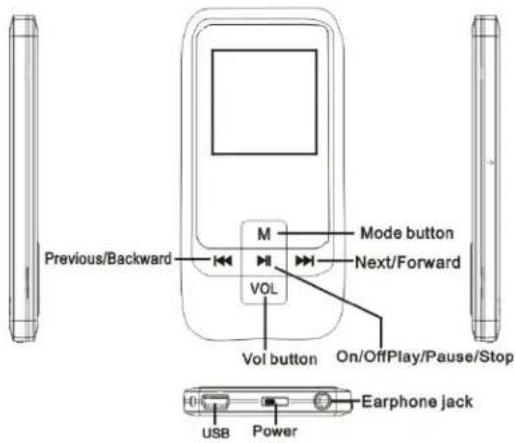
Buttons:
Connections:
Connecting to a PC: Connect the USB cable to the PC as shown in the illustration below.
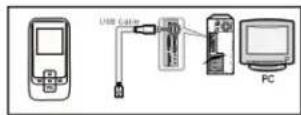
Once the device is connected to the PC, the LCD screen displays the following image.
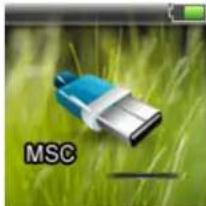
mode
Standard MSC connection
OPERATING INSTRUCTIONS
Music mode
-
Turn on the player
-
Press MENU to enter the Music mode.
-
Press to start playing music files.
-
During playback:
4.1 Press the buttons to select the previous/next music file.
4.2 Press and hold the buttons for fast backward/fast forward.
4.3 Press the button to momentarily pause playback; press and hold this button to stop playback completely.
4.4 Press and hold the VOL button then press the button to
lower/raise the volume.
- Playback menu setup:
5.1 In playback mode, press the MENU button to enter the playback submenu.
5.2 Press the buttons to select an option in the menu.
5.3 Press MENU to confirm your selection.
5.4 Press button return to the previous interface.
In stop or playback mode, press and hold the MENU button to return to the main menu.
- Music file playback menu options:
Repeat
Equalizer
Play Ra
File Browse
6.1 Playback submenu parameters:
No repeat, repeat one, repeat all, random all, dir normal, dir all repeat, dir random all.
6.2 6 equalizer settings: Normal, Rock, Jazz, Classic, Pop, and Bass.
6.3Playback rate:1.00X,1.14X,1.33X,0.67X,0.80X
6.3.1 Press the buttons to select the speed.
6.3.2 Press MENU button to confirm.
6.4 File Browse
The user can save files in a pre-existing folder. To do this, the folder must first be created using a PC.
Music mode:
6.4.1 Press the MENU button to enter the submenu, then use the buttons to select the files.
6.4.2 Press the MENU button again to enter the root
directory.
6.4.3 Use the K buttons to make your selection.
6.4.4 Press MENU button to confirm.
- A-B repeat mode
In playback mode:
7.1 Press the VOL button to confirm the starting point (A).
7.2 Press the VOL again to confirm the stopping point (B). The player will now begin repeating the sequence between points A and B.
7.3 Press the VOL button again to return to normal playback mode.
Modification of synchro lyrics:
- Open WordPad to modify the music lyrics that are displayed in synchro.
Description of the lyrics text format (MM:SS)...
(modification of lines).
- Save the file, which bears the same name as the song with
the ".LRC" extension, after having modified it.
- Copy the file to your MP3 player: the song lyrics will be displayed during playback.
Video mode
-
Turn on the player
-
Use the buttons to select the Video mode.
-
Press the MENU button to start video playback.
4.Use the 工 buttons to select a file.
-
Press b playing.
-
In playing mode
6.1 Press the buttons to select the previous/next music file.
6.2 Press and hold the buttons for fast
backward/fast forward.
6.3 Press the button to momentarily pause playback;
6.4 Press the Vol button then press the buttons to
lower/raise the volume
6.5 Press and hold Vol button to enter submenu: Repeat Mode: No repeat, repeat one, repeat all, random all, dir normal, dir all repeat, dir random all. Press MENU button to affirm and exit.
6.6 Press button return to the previous interface.
- Press and hold the MENU button to exit the Video mode.
Record mode
- Turn on the player
- Use the 卡 buttons to select the Record mode.
-
Press MENU to enter the Record playback mode.
-
Press button to Playing.
-
Press and hold the M button to exit the Voice record mode.
7. In playback mode:
7.1. Use the buttons to select the previous/next recording.
7.2. Press and hold the buttons to play the voice recording
at twice the normal playback rate or in reverse.
7.3. Press the button to momentarily pause playback; press and
hold this button to stop playback completely
7.4. Press and hold the Vol buttons then press the button to lower/raise the volume
-
Voice recording playback submenu options: Equalizer: Normal, Rock, Jazz, Classic, Pop, and Bass. Repeat mode: (see the music file playback mode) Playing Rate: (see the music file playback mode) Files: (see the music file playback mode)
-
A-B repeat mode: (see the music A-B repeat mode)
Photo mode
-
Turn on the player
-
Use the 卡 buttons or press MENU to select "Photo",
-
Use the buttons to select the previous/next photo, then
press to display the photo.
- Press and hold the MENU button to exit the Photo mode.
E-Book mode
-
Turn on the player
-
Use the 卡 buttons to select the file.
-
Press MENU to enter the E-Book mode:
-
Use the buttons to select a file.
-
Press h playing
-
In playing mode:
6.1 Press the buttons to select the previous/next page.
6.2 Press and hold the buttons for fast
backward/fast forward.
6.3 Press the button to momentarily pause playback;
6.4 Press the Vol button then press the buttons to
lower/raise
- Press and hold the MENU button to exit the Video mode.
File mode
-
Turn on the player
-
Use the buttons to select the File mode
-
Press the MENU button to enter the File mode.
4.Use the buttons to select a file.
- Press Vol enter the submenu:
Delete: Yes, No.
Press button to affirm.
- Press the MENU button to exit the FILE mode.
Game mode
- Turn on the player
- Use the buttons to select the Game mode.
- Press MENU to enter the submenu:
- Press and hold the MENU button to exit the file Game
mode.
System setup
- Turn on the player
2.Use the 工 buttons to select the system setup
mode. - Press MENU to enter the system setup menu.
- Press to select a file, Press MENU to affirm.
- press button to return last interface.
- Press and hold MENU to enter the system setup menu.
System setup options:
Power
Language
Display setting
Record setting
System Tools
- Energy saving mode
Press MENU to activate. You can use the
buttons to select between Auto Off and Always On.
The function is active only when the device is not
playing music files. (auto off/always on in playback)
- Language selection:
Arabic, Chi (simp), Chi (Trad), Czech, Danish, Dutch, English, Finnish,
French, German, Greek, Hebtew, Hungarian, Italian, Japanese, Korean, Norwegian, Polish, Portuguese, Russian, Spanish, Swedish, Thai, Turkish, Ukrainian.
- Display setting:
4.1. Brightness regulate: sets screen brightness:Low, Medium, High
Maximum.
4.2. Black Screen Mode: defines the time after which the screen goes
black (15 seconds -1munite/close).
- Record mode:
Record Quality : Long Time, Normal Quality, High
Quality
Record Format: ADPCM, MP3, WMA
VAD: Off
AGC: Off, On
- System tools:
Delete
Format: Quick: (yes/on), Complete: (yes/on).
Reset: yes, on
System Info
Technical specifications:
| Designation Value | ||
| Memory capacity 1GB/2 | GB / 4GB/8GB | |
| Max. recording duration 8hours (for 128 Mb of flash memory) | ||
| Battery life In MP3 playback mode: 15 hours | ||
| Compatible file formats | Music formats MP3, WMA,APE | |
| Voice recording format | WAV,WMA,MP3 | |
| Video format MTV | ||
| Headphone output power (L) 5 mWrms + (R) 5 mWrms (32 Ohms) | ||
| USB port Recognised as a USB2.0 Ultra (HS) storage device with flash memory | ||
| LCD display 128*128/TFT | ||
| Overall dimensions 87*42 | 9 | |
| Weight | ||
| Memory type FLASH | ||
| Operating temperature -10 °C – 40 °C | ||
| Signal to noise ratio | ≥85 dB | |
| Output distortion | <0.1% | |
| Output bandwidth | 20Hz – 20kHz | |
| Rating voltage | DC 5V —— | |
| Rating current | 250mA | |
| Battery voltage | 3.7V | |
| Earphone Maximum output voltage | ≤150mV | |
CUSTOMER SUPPORT
You can contact the Ricatech customer service when you have a question or a problem with your Ricatech product. You can contact us by telephone and email.
For customer support by email, please sent a email to ricatech/support@ssb-repair.com. Please make sure that you mention the model number and serial number of the product, mention your name & address and describe your question clearly.
Telephone
For customer support by telephone, please dial +32 3 3265694. One of our service staff will be ready to serve you.
For full procedure please visit the website of Ricatech at: www.ricatech.com
RICATECH
GEBRAUCHSANLEITUNG
RICATECH RC850
Tragbarer Mediaplayer
SCHNELLPRÄSENTATION
37
38
Verbindungen: 39
Verbindungen: 40
TEXVIKEC PPOSIaIaPaeC:
EeyIHHPETHsH NEAATQN
Av exete aotipies n avituetwicete eva tpoBmae to Ricatech npoiovac, Tapaakaloume eTIKOIVWvnte me to tmuEgutnptns TEaTuV ts Ricatech. Mtopeite va eTIKOIVWvnaete maqI paq mepaw nAektpovikou Taxuopoeiou.
Tia Tny UTOOATnpiN TEaIw me-mail, Tnapakaloue OTeAte eva nVpu naektpovikou taUbpouelou oTo ricatech/support @ SSB-repair.com. Napakaloue BepaiWtheta 6TI exTE avappei Tov apiHmuo mvtelau kai Tov oepiaK aipoiK aipoiK Tou TTPOIOVTOs, To ovua KAI TNI dIEuUVOn aoc KAI TEPiYpAte ME aqPVEIA TNY epWTOnn aoc.
InAeepwo
TtNv UTOOtnpiN Tw VTEaWupeoW nAeovu, TpaKaIoue KaTe TO +32 3
- 'Eva tou TPOoWtIKO uTnpeiaac ac 0a eivai Etoio va oac p e t i.
Tia TepiiooTepec PAnpoopoeic oxetik a Ta Tpoiovra Ricatech, Tpaakaw EIOKEeTE TIV www.ricatech.com.


Brand : Ricatech
Model : RC850
Category : Mp3 player