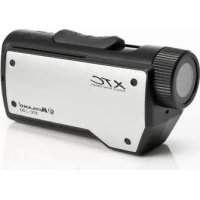
XTC205VP2 - Camcorder MIDLAND - Free user manual and instructions
Find the device manual for free XTC205VP2 MIDLAND in PDF.



| Product Type | Action Camcorder |
| Brand | Midland |
| Model | XTC205VP2 |
| HD Video Resolution | 1280 x 720 pixels (30 frames/second) |
| SD Video Resolution | 640 x 480 pixels (60 frames/second) |
| Lens Angle | 140 degrees |
| Recording Format | MPEG-4 (mp4) |
| Battery | Rechargeable lithium-ion, battery life up to 2 hours |
| Power Supply | Internal rechargeable battery via USB |
| Storage | Micro SD card (not included), up to 32 GB |
| Connectivity | USB 2.0, plug-and-play (PC/Mac) |
| Compatible Operating Systems | Windows XP/Vista/7, Mac OS X 10.4+ |
| Mount | Dual mount system: adhesive for helmet, strap, bicycle handlebar, tripod (1/4-20 nut) |
| Dimensions (approx.) | 70 x 40 x 30 mm |
| Weight (approx.) | 80 g (with battery) |
| Maintenance | Clean the lens with a soft cloth. Keep away from moisture and extreme temperatures. |
| Safety | Compliant with FCC Part 15. Do not expose to water (water resistant, not waterproof). |
| Spare Parts and Repairability | Accessories available: USB cable, mounts, battery. Repair by technical support ($40 fee out of warranty). |
| Warranty | 1 year for camera, 90 days for accessories |
Frequently Asked Questions - XTC205VP2 MIDLAND
User questions about XTC205VP2 MIDLAND
0 question about this device. Answer the ones you know or ask your own.
Ask a new question about this device
Download the instructions for your Camcorder in PDF format for free! Find your manual XTC205VP2 - MIDLAND and take your electronic device back in hand. On this page are published all the documents necessary for the use of your device. XTC205VP2 by MIDLAND.
USER MANUAL XTC205VP2 MIDLAND
Kansas City, MO. 64120
Tel. +1 816 241 8500

MIDLAND
Mount it, Wear it, Catch the Action
Quick Start Guide....2
Welcome to XTC Action Camera Experience....2
What's in the Box 2
XTC-200 Features and Controls 2
Getting to Know the XTC-200....3
Battery 3
Micro SD Card....3
Recording 3
Camera Mounting and Aiming....4
Reformatting the Micro SD card....4
Compatible Systems....5
Downloading Videos ....5
Minimum System Requirements 5
Tips and Tricks 6
Service and Support....7
FCC Information....7
Limited Warranty 7
Accessories 24
Accessories Order Form....25
Other Midland Products....26
Quick Start Guide
- Open battery door and install battery. Replace battery cover.
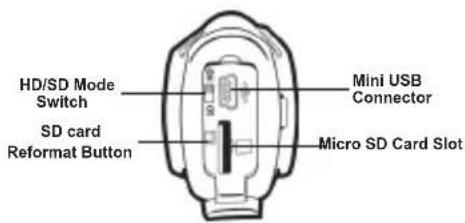
- Open and fold down back rubber cover. Insert micro SD card observing proper direction. Close cover.
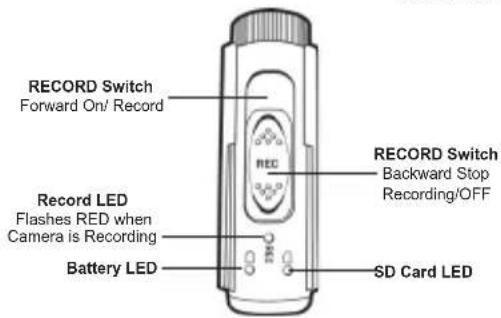
- Move RECORD switch forward, recording will start in 8 seconds.
- To stop recording, slide switch back to the off position.
- Plug in camera to computer and download video.
Welcome to the XTC Action Camera Experience
Thank you for your purchase of the XTC-200 Action Camera. As someone who seeks adventure, we are proud to offer you the ultimate tool in capturing and recording your adventures. With easy to use one switch operation, 140 degree angle lens and 2 hour battery life you never miss a minute of the action. Once captured, simply connect to your computer and upload the videos to share with friends. It is that simple. Enjoy!
What's in the Box
natural_image
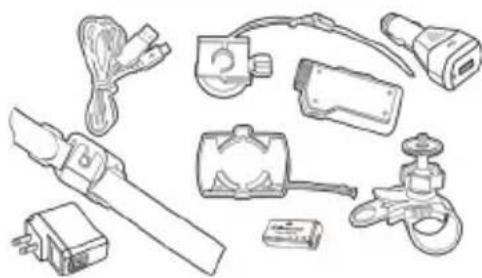
Line drawings of various electrical components including a power plug, fuse, socket, and bulb (no text or labels)XTC-200 Package Includes:
- Midland XTC-200 Camera
- USB Cable
- Lithium-Ion Battery Pack
- Goggle Mount
- Helmet Strap Mount
- Helmet Adhesive Mount (includes 2 3M adhesive pads)
- Bicycle Handlebar Mount
- USB DC adapter
- USB AC adapter
XTC-200 Features and Controls
SD Features: HD Features:
- 30 frames per second
- 140 degree angle lens
- 16:9 aspect ratio
- 1280 x 720 resolution
-
Records as mp4
-
60 frames per second
- 140 degree angle lens
- 4:3 aspect ratio
- 640 x 480 resolution
- Records as mp4
Getting to Know the XTC-200
Battery
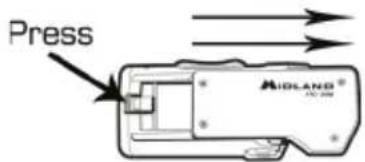
- To insert the battery, push down the battery door latch on the right side of the camera. Door will release. Push forward to remove.
- Install Lithium-Ion battery.
- Return battery door and click into place.
| Battery Status Indicator | Meaning |
| Solid Green Indicates full battery life | |
| Blinking Green Battery is charging | |
| Solid Red | Indicates half battery life |
| Blinking Red* | Indicates low battery life |
| No Light | Battery is dead |
*Note: When the red battery LED begins blinking, be prepared to charge the battery because the camera will stop recording at this point.
Micro SD Card
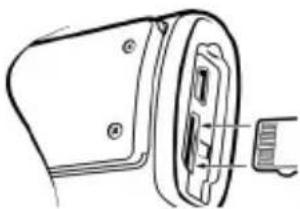
- Open and fold down the back rubber cover.
- Insert Micro SD card into slot observing proper direction (shown below).
- Return rubber flap into place.
natural_image
Technical line drawing of a mechanical component with a clamped insert (no text or symbols)Getting to Know the XTC-200
Recording
- Move the RECORD switch forward. This turns the camera on.
- The battery indicator will light from red to green. The SD card indicator will light green. The record indicator will begin flashing red after 8 seconds. This indicates the camera is capturing video.
- To stop recording, move the RECORD switch back to the off position.
Note: The camera will continue recording for 3 seconds after toggling the switch to the off position.
| SD card LED Status | Meaning |
| Green 100% | - 33% available. |
| Orange 33% | - 20% available. |
| Red | 20% available or no Micro SD card installed. |
| Flashing Red | Cannot read the card. |
| Flashing Green | Indicates card has been reformatted. |
| Memory Size | HD Record Time SD | Record Time |
| 512 MB 6.5 Minutes | 9.5 Minutes | |
| 1 GB 13 Minutes | 19 Minutes | |
| 2 GB 26 Minutes | 38 Minutes | |
| 4 GB 52 Minutes | 76 Minutes | |
| 8 GB 104 Minutes | 152 Minutes | |
| 16 GB 208 Minutes | 304 Minutes | |
| 32 GB 416 Minutes | 608 Minutes |
Note: The camera automatically splits the video into 2 GB segments.
Camera Mounting and Aiming
Mount on Dual Track System
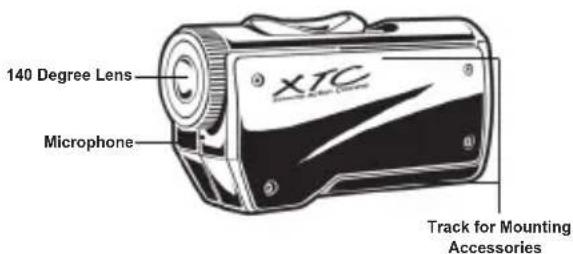
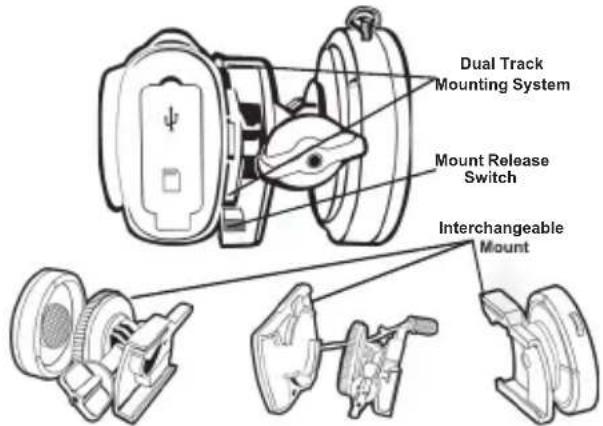
The XTC-200 was innovatively designed with an identical dual track mount system on either side of the camera. This allows you to mount it on both sides of a helmet with ease. In addition, the main mount piece is interchangeable and can be moved from the helmet mount to the goggle mount. This eliminates the hassle of having to remount the camera every time.
To mount the camera on the main mount piece, slide the camera onto the dual track system with the two notches on the mount facing towards the back of the camera.
To detach the camera from the main mount, hold the camera with the lens facing away from you. Press down the mount release switch and pull the mount towards yourself.
Aiming the Camera when mounted with the dual track mount:
When mounting the camera on a helmet, you must do the following:
- Consider what you would like to shoot and mount the camera accordingly- left side, right side or top.
- Find a flat surface and ensure the area is clean of dirt and debris. Remove the cover of the adhesive pad and adhere to the helmet.
- Once attached, adjust the camera to be sure you are not filming the sky or the ground.
Camera Mounting and Aiming
Mount using the Thread Mount
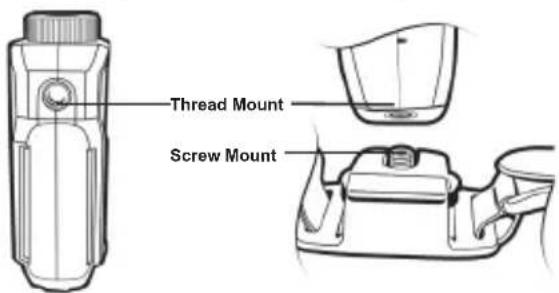
On the bottom of the XTC-200 is a standard thread mount that allows the camera to be mounted to a tripod or other fixture with a 1/4-20 (1/4" diameter, 20 threads per inch) 5/16 deep thread. The vented helmet strap mount is a screw type mount. To affix the camera, insert the screw on the mount into the camera thread and rotate the camera clockwise to tighten down onto the screw.
Over tightening may cause damage to the mount and/or camera
Aiming the Camera when mounted with the thread mount:
When mounting the camera on the handlebars of a bike or with the vented helmet strap mount follow these steps:
-
Consider what you would like to shoot and mount accordingly.
-
Ensure once attached that the camera is aimed straight and not towards the ground or at the sky.
Reformatting the Micro SD card
Ensure battery is fully charged before formatting
The micro SD card can be reformatted while in the camera. This allows you to delete all the videos at one time. Follow these steps: 1. Move the RECORD switch to the record position.
-
When the battery indicator turns green, press and hold the micro SD card reformat button.
-
Keep the micro SD card reformat button down until the record indicator turns off and the SD card indicator begins blinking green.
-
Move the RECORD switch to the off position.
Note: The camera cannot reformat the Micro SD card if the low battery light is on.
Compatible Systems
The XTC-200 can be used on both a PC or MAC. Below are the compatible operating systems:
Windows XP SP2
Windows Vista
Windows 7
Macintosh OSX 10.4 and higher
For Windows we recommend Windows Media Player 10 or higher.
For Macintosh we recommend Quick Time 6.5 or higher.
Downloading Videos
There is no need to install any software with the XTC-200. It is a plug and play device. With this, follow the below instructions depending upon whether you have a PC or a MAC.
Downloading Videos on a PC with a WINDOWS Operating System
- Connect the camera to the USB port using the included cable.
- Turn the camera on by moving the RECORD switch to the record position.
- The device should automatically install.
- Operating system
a. Windows XP
i. Open "My Computer". The camera will be listed under devices with removable storage.
b. Windows Vista
i. Open "Computer". The camera will be listed under devices with removable storage.
c. Windows 7
i. Open "Computer". The camera will be listed under devices with removable storage.
- Click on the device.
- Open DCIM Folder.
- Open 100COACH folder.
- Your videos will be in this folder.
Downloading Videos
Downloading Video on a MAC
- Connect the camera to the USB port using the included cable.
- Turn the camera on by moving the RECORD switch to the record position.
- MAC will automatically recognize the camera external hard drive.
- Click on the icon on the desktop.
- Open DCIM Folder.
- Open 100COACH folder.
- Your videos will be in this folder.
- Drag video files to your hard drive or double click to view.
Minimum System Requirements
| SD video HD video | |
| Processor 2.8 | GHz or faster 3.0 GHz or faster |
| Ram 512 MB | or greater 1 GB or greater |
| Video Card 64 | MB or greater 128 MB or greater |
Video playback requires H.264 codec. To obtain more information go to http://www.midlandradio.com/
Tips and Tricks
| Problem Solution | ____ |
| Batteries | |
| Camera not turning on Make | sure battery is fully charged. |
| Recording | |
| Camera not recording | Make sure the switch is pushed all the way forward. If the record LED does not come on, turn off the device and reinstall the battery.Verify available memory. |
| Micro SD card | |
| Micro SD card not reading | Ensure the Micro SD card is inserted properly.Plug camera into the computer to verify it has available storage.Attempt formatting process. |
| Video Playback | |
| Slow or choppy video | Verify the camera is plugged into a USB 2.0 device.Remove other unused USB devices.Transfer video to computer before viewing.Verify computer meets minimum requirements.Verify proper codec is installed. |
Tips and Tricks
| Problem Solution | ____ |
| Video Downloading | |
| Slow data transfer | Verify the camera is plugged into a USB 2.0 device. If registering as 1.1, unplug and the re-plug the device.Remove other unused USB devices. |
| Computer does not recognize camera | Ensure record switch is in the record position while connected to computer.Ensure the Micro SD card is inserted properly.Micro SD card may be corrupted.Attempt formatting process. |
| File won't transfer off memory card | In the run command type:chkdsk volume:ifthen press enter |
| Sound | |
| Excessive Wind Noise | Place piece of tape over microphone hole.Try using the submersible case |
Service and Technical Support
*If you have a problem which you believe requires service, please call first and speak with a service technician. Many problems can be remedied over the phone without returning the unit for service.
For Technical Support Contact:
Midland Radio Corporation
5900 Parretta Drive
Kansas City, Missouri 64120
Phone: (816) 241-8500
Fax: (816) 241-5713
E-mail: mail@midlandradio.com
Web site: www.midlandradio.com
If after talking with technical support you still feel your unit needs to be returned for service, follow the below instructions:
-
Pack the unit in its original box and packing. Then pack the original box in a suitable shipping carton. Caution: Improper packing may result in damage during shipment.
-
Include the following:
a. Full description of any problems
b. Daytime telephone number, name & address
-
For warranty service include a photocopy of the bill of sale from an authorized dealer or other proof of purchase showing the date of sale.
-
You do not need to return accessory items (USB Cable,
Various Mounts, Batteries and Owners Guide) unless they might be directly related to the problem.
- A flat rate of \$40.00 will apply to repairs not covered by warranty or units that are over one year old. Send only cashier's check, money order, Master Card or Visa card number.
FCC Information
This device complies with part 15 of the FCC Rules. Operation is subject to the following two conditions: (1) This device may not cause harmful interference, and (2) this device must accept any interference received, including interference that may cause undesired operation.
Warning: Changes or modifications to this unit not expressly approved by party responsible for compliance could void the user's authority to operate the equipment. Note: This equipment has been tested and found to comply with the limits for a Class B digital device, pursuant to Part 15 of the FCC Rules. These limits are designed to provide reasonable protection against harmful interference in a residential installation. This equipment generates, uses and can radiate radio frequency energy and if not installed and used in accordance with instructions, it may cause harmful interference to radio communications. There is no guarantee that interference will not occur in a particular installation. If this equipment does cause harmful interference to radio or television reception, which can be determined by turning the equipment off and on, the user is encouraged to try to correct the interference by one or more of the following measures:
Reorient or relocate the receiving antenna. Increase separation between equipment and receiver.
Connect the equipment into an outlet on a circuit different from that to which the receiver is connected.
Consult the dealer or an experienced radio/TV technician for help
Limited Warranty
Midland Radio Corporation will repair or replace, at its option without charge, any Midland XTC-200 action camera which fails due to a defect in material or workmanship within ONE Year following the initial consumer purchase. This warranty does not apply to accidents of any kind, exposure to pressure, extreme temperatures, and submersion water damage as this product is water resistant but not waterproof, battery leak or abuse. Accessories have a 90 day warranty from date of purchase, including any mounts and cables. This warranty does not include the cost of labor for removal or re-installation of the product in a vehicle or other mounting. This warranty gives you specific legal rights, and you may also have other rights, which vary from state to state.
Note : The above warranty applies only to merchandise purchased in the United States of America or any of the territories or possessions thereof, or from a U.S. Military exchange.
INDEX
natural_image
Line drawing of various electrical components including a power tool, wires, and switches (no text or labels)Contenu de la Boîte
natural_image
Technical line drawing of a device component with a connector and handle (no text or symbols)Kansas City, Missouri 64120
Téléphone: (816) 241-8500
Fax: (816) 241-5713
Courriel: mail@midlandradio.com
Site Web: www.midlandradio.com
natural_image
Line drawing of various electronic components including a power tool, capacitors, and sensors (no text or labels)natural_image
Technical line drawing of a mechanical component with a clamped insert (no text or symbols)Kansas City, Missouri 64120
Accessories can be purchased at www.midlandradio.com or fill in the form on the following page and mail it to our address.
XTA101

Windshield Suction Cup Mount
- Durable suction cup sticks to anything and stays in place. - \$29.99
XTA102

Handlebar Mount
- Durable strap mount fits all sizes of handlebars. - \$19.99
XTA103

Standard Mount
• Heavy duty adhesive mount for helmets. • \$19.99
XTA104
Vented Helmet Strap Mount
• Velcro strap mounts on vented helmets. • \$14.99
XTA105
Goggle Mount
- Mounts on the strap of goggles. - \$19.99
XTA106
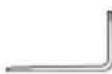
Tree Mount
- Mount can be screwed into a tree at many different angles. - \$19.99
XTA107

Visor Mount
- Clips onto the bill of a hat. - \$19.99
XTA108
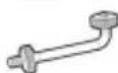
Bow Mount
- Screws into the stabilizer on a bow. - \$19.99
XTA301
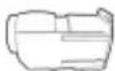
Submersible Case
- Watertight case allows for under water use of the camera.
- Has double track mount system so camera can still be used with accessories.
• \$29.99
BATT9L
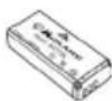
XTC-200 Battery
- 900mA Lithium-Ion Battery pack. - \$29.99
Accessories Value Packs
XTAVP1
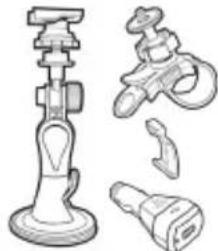
natural_image
Technical line drawings of mechanical components (no text or symbols)Includes:
• Window Suction cup Mount
- Handlebar Mount
- DC Adapter
- Threaded to Slide Adapter
• \$59.99
XTAVP3
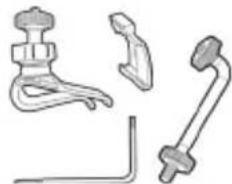
natural_image
Illustration of four different mechanical or electrical components (no text or symbols)Includes:
- Visor Mount
- Bow Mount
- Tree Mount
• Threaded to Slide Adapter
• \$49.99
XTAVP2
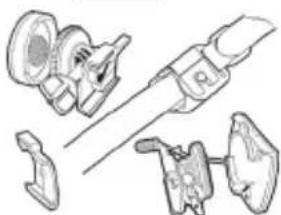
natural_image
Technical line drawing of mechanical components including gears, clamps, and a tool (no text or symbols)Includes:
• Goggle Mount
- Helmet Mount
- Strap Mount
• Threaded to Slide Adapter
• \$49.99
XTAVP4
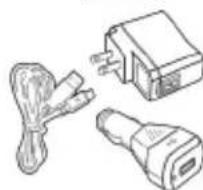
Includes:
- USB cable
• DC adapter (Car Charger)
• AC adapter (Wall Charger)
• \$49.99
Accessories Order Form
Please send Money Order or fill in the Visa/Master Card information and mail to the address below. Please DO NOT send cash or checks. Make Money Order to Midland Radio Corporation.
Name: ____
Address:
City: State: Zip Code:_
Telephone: Email:
Credit Card# ____ Type: ____ Exp: ____
| QTY ITEM PRICE | TOTAL | ||
| XTA101 29.99 | |||
| XTA10219.99 | |||
| XTA103 19.99 | |||
| XTA10414.99 | |||
| XTA105 19.99 | |||
| XTA10619.99 | |||
| XTA107 19.99 | |||
| XTA10819.99 | |||
| XTA301 29.99 | |||
| XTAVP159.99 | |||
| XTAVP2 49.99 | |||
| XTAVP349.99 | |||
| XTAVP4 49.99 | |||
| BATT9L29.99 |
Mail To:
Midland Radio Corporation
Consumer Dept.
5900 Parretta Drive
Kansas City, MO 64120
Or Call 816.241.8500
To order online go to
www.midlandradio.com
Sub-total
Tax (MO, CO, IL, FL Only)
S&H \$14.95
(Applies to Domestic US only. For Hawaii, Alaska, and Puerto Rico S&H will be \38.25 for 1 lb. and \64.25 for 2 lb. or more).
Total \$

MIDLAND®
natural_image
Product photo of a walkie-talkie with various handheld devices and accessories (no visible text or labels)GMRS RADIOS
WEATHER RADIOS
Bluetooth

MOTORCYCLE
COMMUNICATION SYSTEM
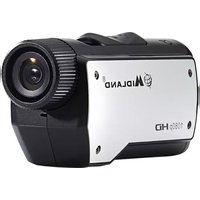
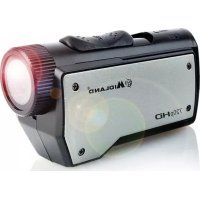
EXTREME ACTION
CAMERA
MARINE RADIOS
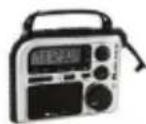
EMERGENCY CRANK RADIOS
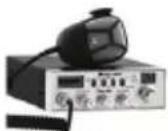
CITIZEN BAND RADIOS
CHECK OUT THE OTHER GREAT MIDLAND PRODUCTS AT www.midlandradio.com
MIDLAND RADIO CORPORATION
5900 Parretta Drive
Kansas City, MO 64120
Call 816.241.8500
visit us at http://www.midlandradio.com

- Quick Start Guide
- Welcome to the XTC Action Camera Experience
- XTC-200 Package Includes:
- XTC-200 Features and Controls
- SD Features: HD Features:
- Getting to Know the XTC-200
- Battery
- Micro SD Card
- Recording
- Camera Mounting and Aiming
- Mount on Dual Track System
- Aiming the Camera when mounted with the dual track mount:
- Mount using the Thread Mount
- Aiming the Camera when mounted with the thread mount:
- Reformatting the Micro SD card
- Ensure battery is fully charged before formatting
- Compatible Systems
- Downloading Videos
- Service and Technical Support
- FCC Information
- Limited Warranty
- INDEX
- Contenu de la Boîte
- XTA101
- Windshield Suction Cup Mount
- XTA102
- Handlebar Mount
- XTA103
- Standard Mount
- XTA104
- Vented Helmet Strap Mount
- XTA105
- Goggle Mount
- XTA106
- Tree Mount
- XTA107
- Visor Mount
- XTA108
- Bow Mount
- XTA301
- Submersible Case
- BATT9L
- XTC-200 Battery
- Accessories Value Packs
- XTAVP1
- Includes:
- XTAVP3
- XTAVP2
- XTAVP4
- Accessories Order Form
- MIDLAND®
- MIDLAND RADIO CORPORATION
Brand : MIDLAND
Model : XTC205VP2
Category : Camcorder