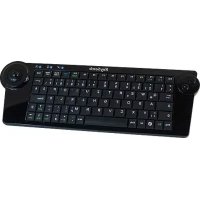
KSK3200 RF - Keyboard KeySonic - Free user manual and instructions
Find the device manual for free KSK3200 RF KeySonic in PDF.



| Product type | Wireless keyboard with integrated optical trackball |
| Transmission technology | 2.4 GHz radio frequency, range up to 7 m around the computer |
| Number of keys | 80 keys |
| Key technology | X-Type membrane technology, silent typing with tactile feedback |
| Key lifespan | Approximately 5 million keystrokes per key |
| Actuation travel | 2.0 ± 0.2 mm |
| Actuation force | 60 ± 10 g |
| Trackball | Optical 12 mm with two mouse buttons (left/right) |
| Trackball resolution | 400, 600, or 800 dpi (configurable by long press on both buttons) |
| Keyboard power supply | 2 AAA 1.5 V batteries or 2 AAA NiMH rechargeable batteries |
| Receiver power supply | 5 V DC via USB port (USB cable supplied) |
| Power consumption (keyboard) | 14 mA in use, 0.1 mA in standby (after 1 min), 20 µA in sleep (after 40-50 min) |
| Power consumption (receiver) | 100 mA max |
| Interface | USB 1.1 (receiver and charging cable) |
| System compatibility | Windows 98SE / ME / 2000 / XP / Vista / 7 |
| Certifications | CE, FCC, WEEE/RoHS |
| Color | Black (matte and glossy) |
| Operating temperature | 0°C to +40°C |
| Storage temperature | -20°C to +65°C |
| Relative humidity | 10% to 85% RH (operation and storage) |
| Package contents | Keyboard, USB receiver, 1 set of AAA batteries, USB charging cable, user manual |
| Maintenance | Dust with a brush, compressed air, or vacuum cleaner with brush; clean with a slightly damp cloth. Do not use solvents or harsh cleaners. |
| Battery recycling | Recycle used batteries according to regulations; do not dispose of with household waste. |
Frequently Asked Questions - KSK3200 RF KeySonic
User questions about KSK3200 RF KeySonic
0 question about this device. Answer the ones you know or ask your own.
Ask a new question about this device
Download the instructions for your Keyboard in PDF format for free! Find your manual KSK3200 RF - KeySonic and take your electronic device back in hand. On this page are published all the documents necessary for the use of your device. KSK3200 RF by KeySonic.
USER MANUAL KSK3200 RF KeySonic
MaxPoint LEADING IN PERIPHERALS
CE
Declaration of Conformity
We, MaxPoint Handelsgesellschaft mbH, declare under our sole responsibility, that the product
Type:
Wireless Keyboard (2.4 GHz)
Mark:
EAR888-62976468
Brand Name:
KeySonic
Model Name:
KSK-3200 RF
is herewith confirmed to comply with the requirements set out in the EMC Directives of 2004/108/EC and R&TTE Directive 1999/5/EC of 9. March 1999.
This declaration is based on the full compliance of the product with the following European specifications/standards:
EN 301 489-1 V1.6.1 (2005-09)
EN-301 489-3 V1.4.1 (2002-08)
EN 300 440-2 V1.2.1 (2008-11)
EN 60950-1:2006)
Ahrensburg,5.Mai 2009
Place and Date

MaxPoint Handelsges. mbH
Kurt-Fischer-Str.50-22820 Ahrensburg
Tel: +49-0)4102/468-800 Fax: +49-0)4102/468-501
华
Signature of responsible Person
Maashtop Handelsgesellschaft mbH - Kurl-Fischer-Strasse 50 - 22626 Anshenburg - Germany - Tel.: +48 (0)4102 / 468-800 - Fax: +49 (0)1432 / 4685-800 GenBank Accession Number:AB3739000000000000000000000000000000000000000000000000000000000000000000000000000000000
Federal Communications Commission (FCC) Notice
This device complies with Part 15 of the FCC rules. Operation is subject to the following two conditions
(1) This device may not cause harmful interference, and
(2) This device must accept any interference received, including interference that may cause undesired operation. This equipment has been tested and found to comply with the limits of a Class B digital device, pursuant to Part 15 of the FCC Rules. These limits are designed to provide reasonable protection against harmful interference in a residential installation. This equipment generates, uses and can radiate radio frequency energy and, if not installed and used in accordance with the instructions, may cause harmful interference to radio communications. However, there is no guarantee that interference will not occur in particular installations if this equipment does cause harmful interference to radio or television reception, which can be determined by turning the equipment off and on, the user is encouraged to try to correct the interference by one or more of the following measures:
- Reorient / Relocate the receiving antenna.
- Increase the distance between the mouse and Receiver.
- Connect the equipment into an outlet on a circuit different from that the Receiver is connected.
CAUTION:
Change or modifications not expressly approved by the manufacturer responsible for compliance could void the user's authority to operate the equipment.
KeySonic™
... touch the difference
KSK-3200 RF

Bedienungsanleitung

Operation Manual

2.2 Installation des USB-Receivers
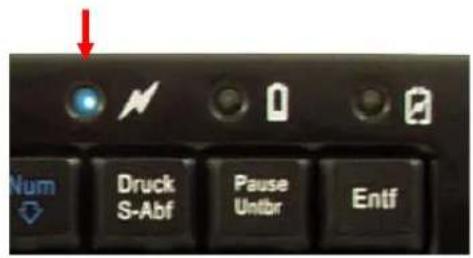
- Pairing/ Transmitting-LED
- Wireless super-mini keyboard with built-in trackball
- Far-ranging and reliable radio-frequency transmission at 2.4 GHz up to approx. 7m (23 ft) away from the PC
- Built-in 12 mm optical trackball with mouse function and two mouse buttons
- Modern and compact design combining glossy and matt material
Full functionality of a full-size layout keyboard due to built-in numeric keypad and 12 function keys - Extremely silent stroke and tactile feedback due to high-quality X-Type membrane technology
- Status-LEDs for Pairing/ Transmitting, Charging and Battery low
- Plug & Play installation, no special driver necessary
Available in various country layouts - Appealing retail packaging
- Optimal for Digital Living-Rooms (HTPC), mobile use as well as for training, conference & presentation facilities etc.
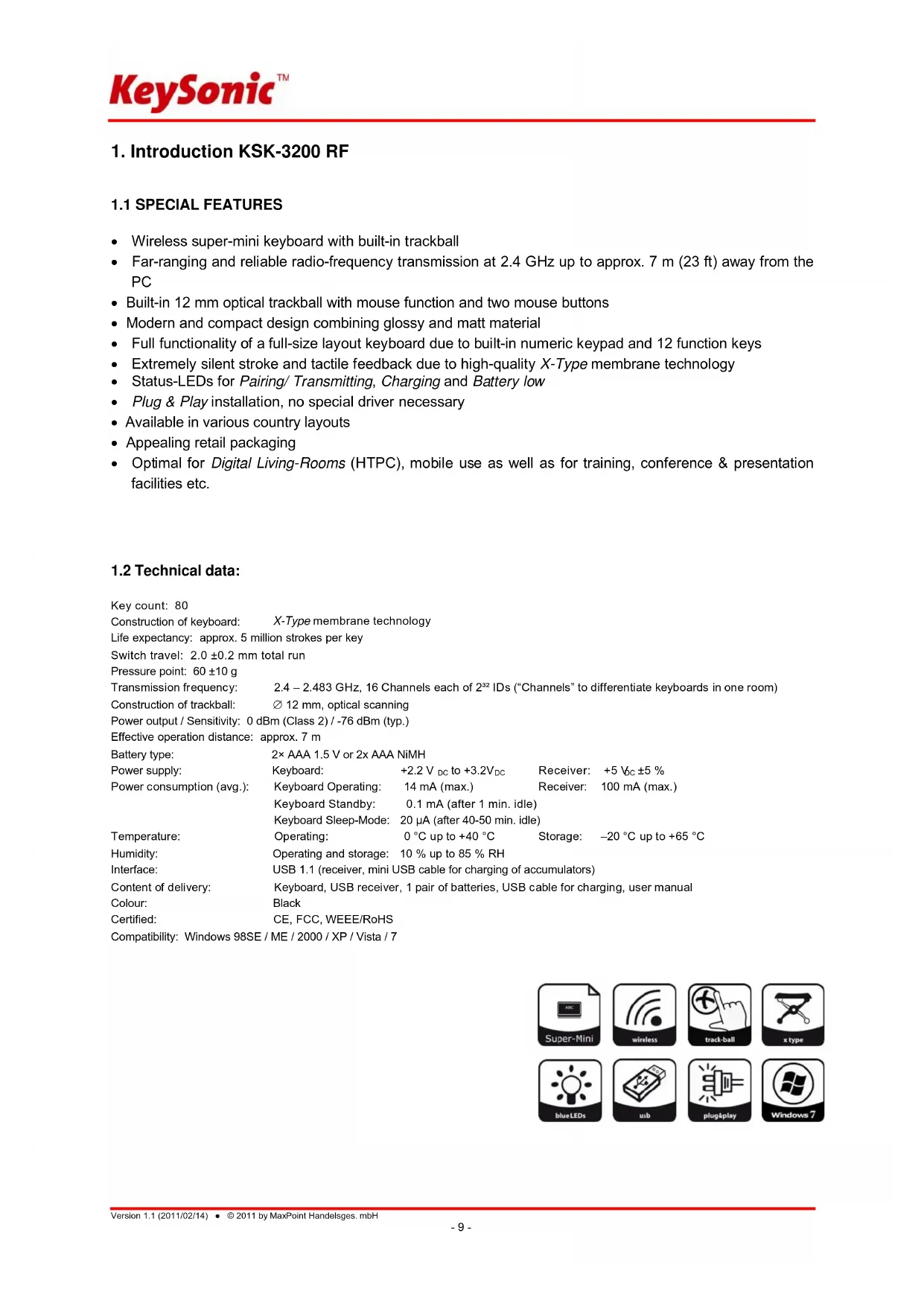
1.2 Technical data:
Key count: 80
Construction of keyboard: X-Type membrane technology
Life expectancy: approx. 5 million strokes per key
Switch travel: 2.0 ± 0.2 ~mm total run
Pressure point: 60 ± 10g
Transmission frequency: 2.4 - 2.483 GHz, 16 Channels each of 2^32 IDs ("Channels" to differentiate keyboards in one room)
Construction of trackball: 12 mm, optical scanning
Power output / Sensitivity: 0 dBm (Class 2) / -76 dBm (typ.)
Effective operation distance: approx. 7 m
Battery type: 2× AAA 1.5 V or 2× AAA NiMH
Power supply: Keyboard: +2.2 V DC to +3.2V DC Receiver: +5 Vc ±5 %
Power consumption (avg.): Keyboard Operating: 14 mA (max.) Receiver: 100 mA (max.)
Keyboard Standby: 0.1 mA (after 1 min. idle)
Keyboard Sleep-Mode: 20 A (after 40-50 min. idle)
Temperature: Operating: 0^ up to +40^ Storage: -20^ up to +65^
Humidity: Operating and storage: 10% up to 85% RH
Interface: USB 1.1 (receiver, mini USB cable for charging of accumulators)
Content of delivery: Keyboard, USB receiver, 1 pair of batteries, USB cable for charging, user manual
Colour: Black
Certified: CE, FCC, WEEE/RoHS
Compatibility: Windows 98SE / ME / 2000 / XP / Vista / 7




2. Installation
2.1 System Requirements
This keyboard requires a PC with USB connection and one of the following operating systems:
Windows 98SE / ME / 2000 / XP / Vista / 7
For the installation of the keyboard under the mentioned above operating systems you need NO special driver!
2.2 Installation of the USB receiver
In order to install your keyboard, please perform the following steps:
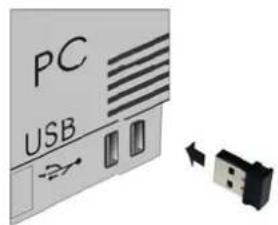
- Connect the included USB receiver (dongle receiver) to a free USB port on your computer.
Advise:
Please ensure, that the USB receiver has a minimal distance of 20~cm to metallic dividing walls, other computer cases, monitors, ZIP drives, loudspeakers and switching power supplies.
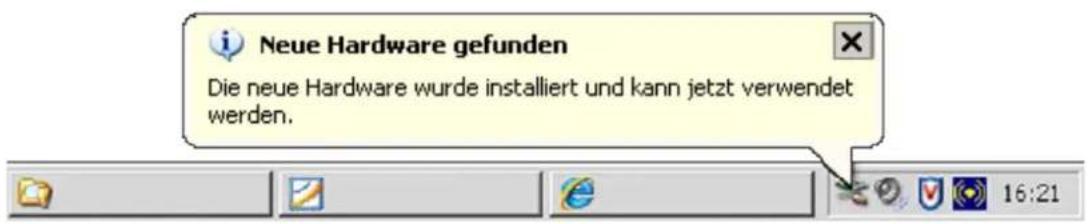
- All mentioned above state-of-the-art operating systems with Plug & Play support will recognize your keyboard automatically and load the required drivers. During the phase of installation your operating system informs you via changing Pop-up information windows on the task-bar about the current status of installation. Please be patient, until the system informs you finally about the successful installation. The USB receiver is now ready for operation.
- Older operating systems not always support automatic recognition of USB devices. If you have attached your USB receiver and exactly this error occurs on your system, you have the following alternatives to solve the problem:
- Perform an update of your operating system and return to Step 2.2
- In some cases the installation CD of your operating system is necessary according to the instructions on your screen. In this circumstance please follow these instructions*.
- Check whether your BIOS system supports USB keyboards*. Some main board manufacturers offer BIOS up-dates for download over the Internet
- Ensure in your system settings, that the used USB connection was not deactivated in your operating system*.
-
Should your system-updates keep out of success, it is recommendable to test the keyboard with another PC with the same operating system to rule out a hardware damage of the USB receiver.
-
Refer to the documentation of your PC for details.
2.3 Installation of the keyboard
The KSK-3200 RF can be used as a wireless keyboard with RF technology, either with batteries or with rechargeable batteries. With the enclosed USB cable, the rechargeable batteries can be recharged. It is not recommended to connect the USB cable to the keyboard while it operates with non-chargeable batteries, although there is a protection mechanism for charging non-chargeable batteries.
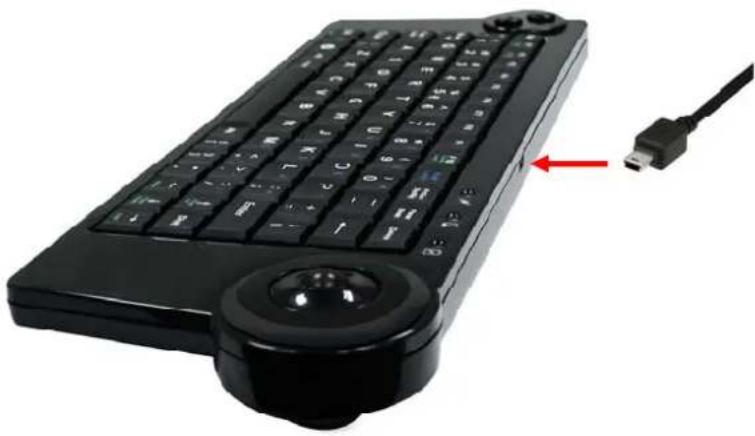
Recommended requirement for a wireless operation is the successful installation of the USB receiver under point 2.2.
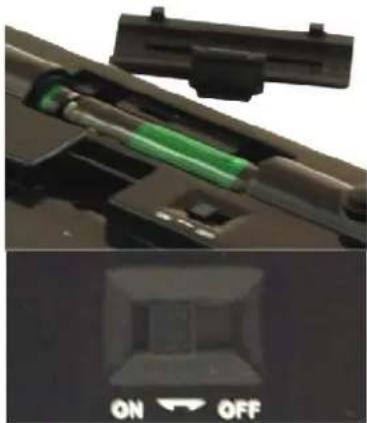
- If you haven't done yet, remove the covering of the battery case on the bottom of your keyboard. Install either the two included batteries of type AAA 1.5 V or two rechargeable batteries of type AAA NiMH considering the right polarity in the battery case (see picture).
- Switch the I/O sliding switch to ON position!
Advice:
The USB receiver and the keyboard are factory-made already synchronised on the same channel. Normally you have not to make a new-synchronisation (as described under point 2.4). The keyboard is immediately functioning.
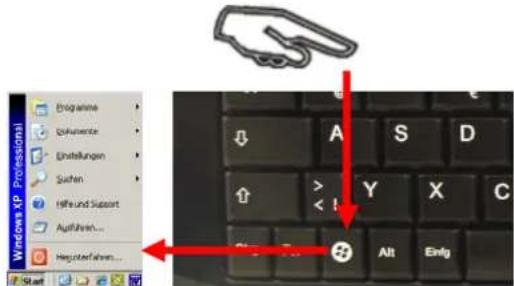
- Now you can check the functionality by pressing any key of your keyboard. If you press the Windows key, there has to open for instance the Windows Pop-up menu down left on your screen. If so, your wireless keyboard is working correctly now. If not, please synchronise the USB receiver and the keyboard again like described under point 2.4.
Advise:
Should the functionality be influenced by other users applying their wireless keyboard close-by, make a new-synchronisation as described under point 2.4.
2.4 New-synchronisation of the radio channel
The KSK-3200 RF is equipped with the newest radio technology allowing in the easiest manner to make a new-synchronisation.
-
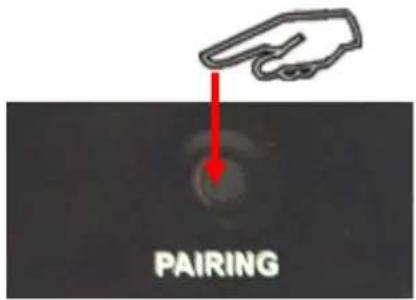
In contrast to conventional or older wireless keyboards on the market here is to press the PAIRING key on the back side only 1 time, whereby the new synchronisation signal is transmitted to the USB receiver. Place the keyboard for pairing in a short distance of approx. 30cm from the USB receiver.
-
A successful synchronisation is signalised by 3 times flashing of the PAIRING-LED (left LED on front side of the keyboard). The keyboard is now re-synchronised.
- Check now the functionality of the keyboard like described under point 2.3.
Advise:
One further benefit of this newest radio technology is the provision of a large number of possible, independent from each other „radio channels" (16 channels *2¹⁶ Bit = 1.048.576 possible contacts or even IDs) to ensure a trouble-free and secured operation of several wireless keyboards in one room respectively in a transmitting/receiving radius of approx. 10 m.
In implausible case the keyboard does not work even after new-synchronisation, you have the following options to solve this problem:
- Repeat the procedure as described above. In very rare cases it is necessary to repeat this routine several times until the right „radio channel“ is found.
- In case your USB receiver is attached to an USB hub, you should install it directly on the USB connector of your notebook or desktop.
- During the procedure of synchronisation the keyboard should be located close to the USB receiver to make sure, that the immediate environment has no influence on the radio transmission (for instance reduction/interferences due to metal cases, other sources of interferences etc.).
- Ensure that you use only batteries with full loading capacity. In case of doubt change the old batteries before next synchronisation against new ones as a precaution.
3. How to use the keyboard
After successful launch enjoy now during the operation a free and independent choice of location up to approx. 7 m distance to the PC. More or less range can be caused, like mentioned above, by metallic dividing walls, other computer cases, monitors, ZIP drives, loudspeakers, switching power supplies etc., but also by different loading capacity of the batteries. The status LEDs on front side of the keyboard give you information about the current operating condition.
3.1 Meaning of status LEDs

- Pairing/ Transmitting-LED
indicates that the keyboard and the USB receiver are in Pairing-Mode, that means during manual initiation of the new-synchronisation routine to one shared „radio channel" (ID). It goes out after successful synchronisation.
It also flashes during key actuation respectively Track ball operation and indicates that all input information have been sent out successfully per radio transmission from the keyboard.
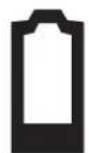
Battery Low-LED
indicates that the load condition of the batteries is below 2.2 Volt. It is always on until a new battery was inserted or the battery was used up completely. Besides it stays on when the keyboard is not in Sleep-Modus (idle state).

Recharging-LED
flashes when the batteries are recharged and lights on permanently when the batteries have reached full charge.
3.2 Special operation modes of the keyboard
- Sleep-Mode
When 40-50 minutes happens no input in your keyboard respectively trackball, the keyboard turns automatically into Sleep-Mode (idle state) to save battery capacity.
- Wake up-Mode
For activating the keyboard from Sleep-Mode press any key on your keypad including the mouse buttons (but not the trackball).
3.3 Optical trackball
As a mouse alternative the keyboard is equipped with an optical trackball inclusive two mouse function keys allowing comfortable and ergonomic handling of the PC, for instance from a sofa. Thereby the handling of the Track Ball is as simple as brilliant.
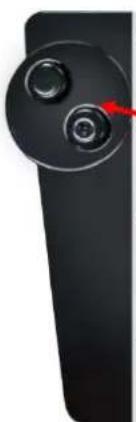
- Move with the right thumb softly the ball of the trackball to move the cursor on the screen.
- With the mouse function keys click and double click functions, absolutely identically as with a mouse, can be explained.
- In order to "drag", to draw or to mark, you must keep the left key with the left thumb pressed to carry out the function then with the right thumb on the trackball.
- In order to increase or decrease the speed of the Mouse-pointer movements, change the settings of the mouse options in your system control under Windows.
- Using notebooks with already integrated touchpad you have to deactivate these intern control devices in case of error messages or malfunctions.
- The trackball resolution can be adjusted in the sequences of 400, 600 or 800 dpi after each time of pressing left + right mouse buttons at the same time longer than 5 seconds.
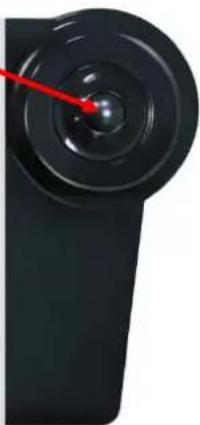
Should the precision of the cursor decrease after several months of usage, the following things could be responsible for that:
- Please check the installed batteries for their state. In the case of doubt exchange them for new.
Advise: A too low battery capacity might be responsible for the fact that the operation distance to the radio remote control of the PC is impaired respectively signs are let out sporadically when writing. - For cleaning DO NOT use sharp or pointed objects respectively liquid detergents, solvents or gasoline!
3.4 Keys with double functions
The layout of the keyboard is a special space-saving layout with the same virtual numeric keypad also used in notebook keyboards.
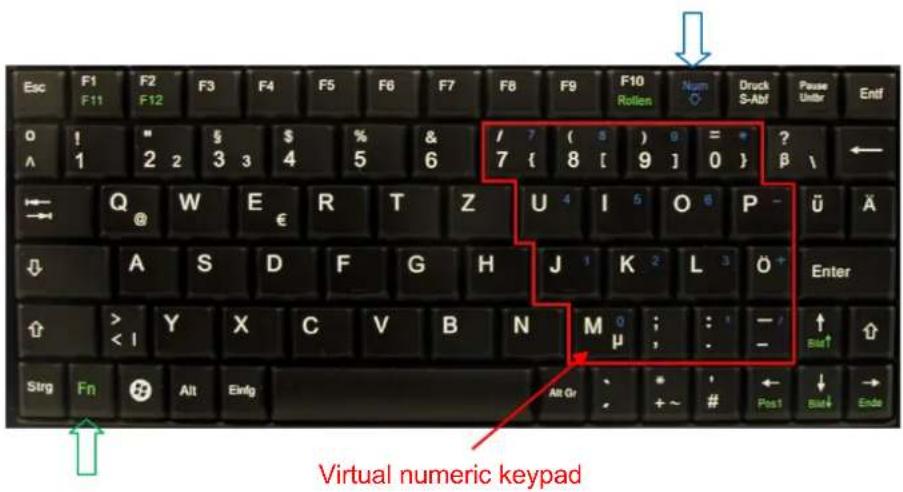
- Press the NumLk key in the top key row in order to switch the virtual numeric keypad function on (keys get the blue imprinted signification: Numeric keypad locked)
- During active Num Lock function, you may keep the Fn key pressed, in order to temporarily de-activate the virtual numeric keypad. This is particularly convenient to quickly enter letters apart from numbers.
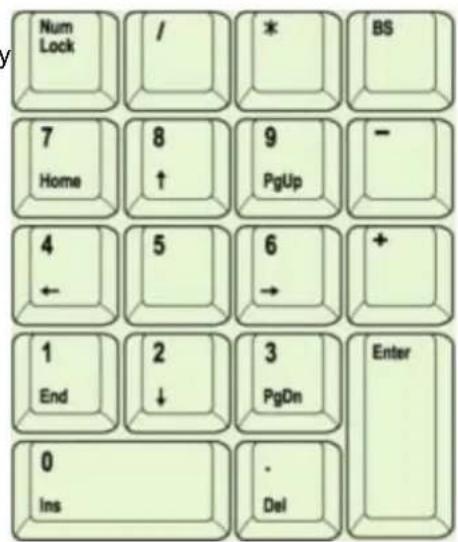
- Without the NumLk key having been pressed, the Fn key kept pressed will control the integrated position keys in the same way as an external keypad (please refer to the picture).
Home
( PgUp )
End
( (PgDn)
Note:
When starting the PC should be noted, that in the BIOS or in operating system is set, whether the Num Lock function also will be booted up automatically in activated or deactivated status. This can so influence the input of a possible password when starting the operating system. So if your system reports after input an incorrect password, perhaps only the Num Lock function is active.
4. How to clean the keyboard
- Remove dust with a brush, with soft compressed air, or with a vacuum cleaner with brush head nozzle.
- Remove fine dirt with a not-too-damp cloth.
DO NOT use any aggressive detergents, solvents or gasoline in order to clean the keyboard.
Information on disposal of old batteries (Battery Regulation)
The new Regulation obliges battery manufacturers and importers to take back, sort and dispose all old batteries. The consumer is obliged to give back used batteries in retail stores or in municipal collection points. The disposal in municipal waste is explicitly prohibited according to Battery Regulation. You can send batteries purchased from us after consumption to the following address via sufficient stamped mail:
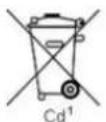
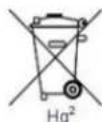
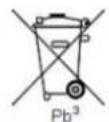
MaxPoint Handelsgesellschaft mbH, Kurt-Fischer-Strasse 50, D-22926 Ahrensburg Batteries, which contain pollutants, are marked with the symbol of a crossed-out dustbin, similar to the symbol in the illustration. The chemical description of the pollutant is situated below the symbol of the dustbin. "Cd" stands for Cadmium, "Pb" for Lead, "Hg" for Mercury.
Manufacturer's Disclaimer Statement
The information in this document is subject to change without notice and does not represent a commitment on the part of the vendor. No warranty or representation, either expressed or implied, is made with respect to the quality, accuracy or fitness for any particular purpose of this document. The manufacturer reserves the right to make changes to the content of this document and/or the products associated with it at any time without obligation to notify any person or organization of such changes. In no event will the manufacturer be liable for direct, indirect, special, incidental or consequential damages arising out of the use or inability to use this product or documentation, even if advised of the possibility of such damages. This document contains materials protected by copyright. All rights are reserved. No part of this manual may be reproduced or transmitted in any form, by any means or for any purpose without expressed written consent of its authors. Product names appearing in this document are mentioned for identification purchases only. All trademarks, product names or brand names appearing in this document are registered property of their respective owner.
1. Introduction KSK-3200 RF
Distance effective: env. 7 m
Type de pile: 2 × AAA 1.5 V or 2x AAA NiMH