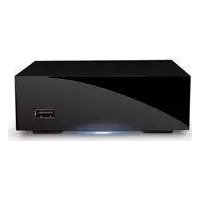
LaPlug - Media player LACIE - Free user manual and instructions
Find the device manual for free LaPlug LACIE in PDF.


| Product Type | Network Media Player |
| Brand | LaCie |
| Model | LaPlug |
| Connectivity | Ethernet RJ-45 |
| Power Supply | External AC adapter |
| Indicators | Blue and red LED (steady, blinking) |
| Main Functions | Network file sharing, USB device access, dashboard administration, remote access |
| Management Software | LaCie Network Assistant |
| Dashboard | LaCie Dashboard (web access) |
| Compatibility | Windows, Mac OS |
| Default Credentials | Username: admin / Password: admin |
| Firmware Update | Via USB flash drive or external hard drive |
| Maintenance and Cleaning | Clean with a soft, dry cloth. Do not use abrasive products. |
| Security | Change the default password to secure access |
| Spare Parts and Repairability | Not applicable (device not user-serviceable) |
| General Information | Allows sharing USB devices (hard drives, flash drives) on the local network. |
Frequently Asked Questions - LaPlug LACIE
User questions about LaPlug LACIE
0 question about this device. Answer the ones you know or ask your own.
Ask a new question about this device
Download the instructions for your Media player in PDF format for free! Find your manual LaPlug - LACIE and take your electronic device back in hand. On this page are published all the documents necessary for the use of your device. LaPlug by LACIE.
USER MANUAL LaPlug LACIE
Gigabit Ethernet | Wi-Fi b/g/n
Box Content

LaPlug External Power Supply Ethernet Cable
Quick Install Guide
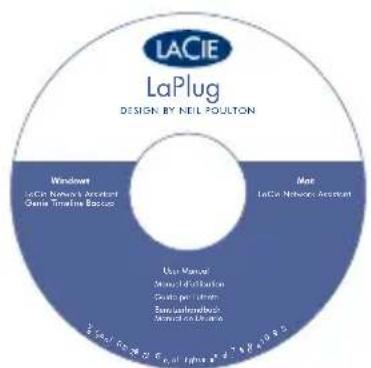
CD-ROM with software utilities including LaCie Network Assistant, LaCie Backup Software, and User Manual
Protect your investment - register for free technical support: www.lacie.com/register
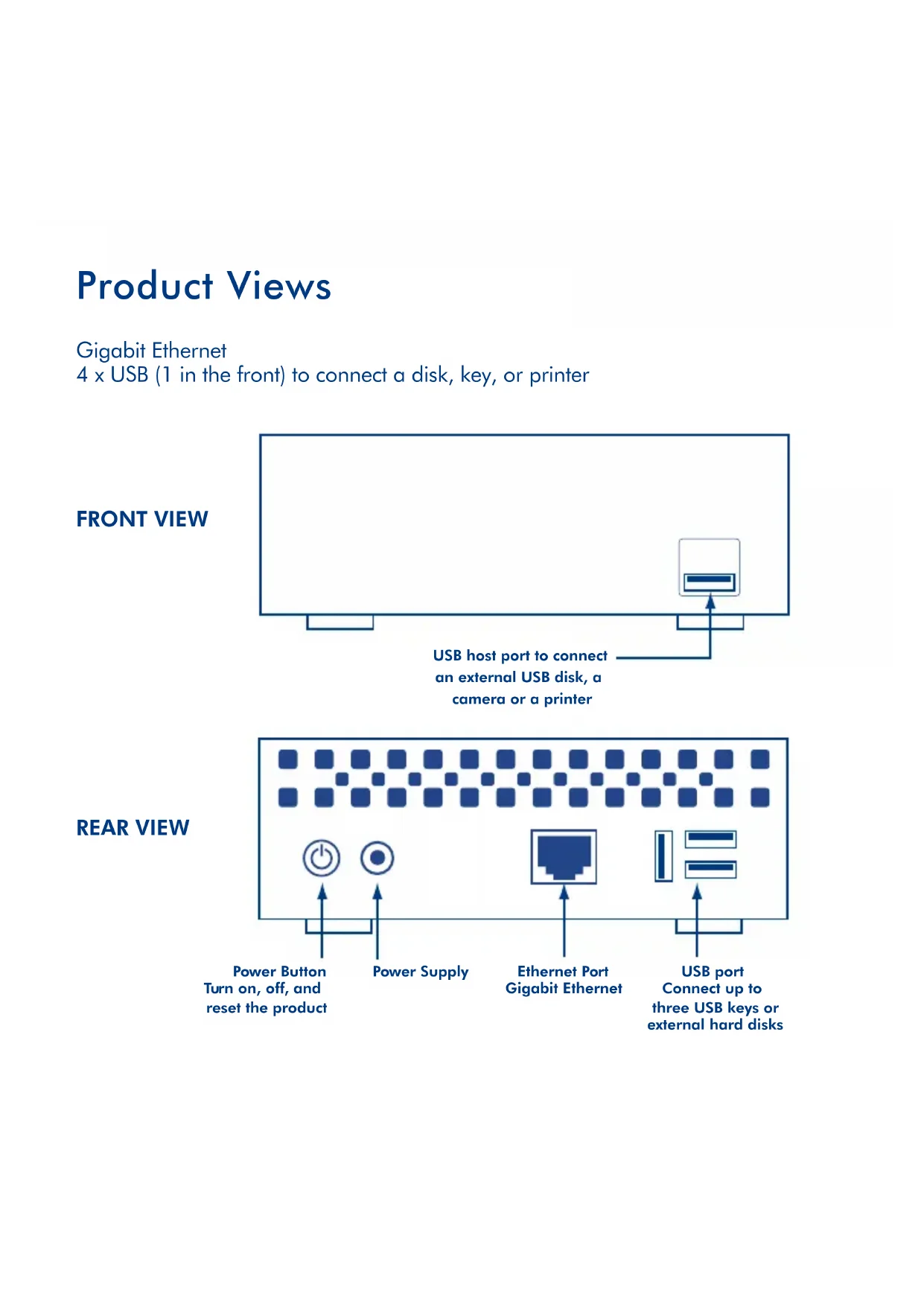
Product Views
Gigabit Ethernet
4 x USB (1 in the front) to connect a disk, key, or printer
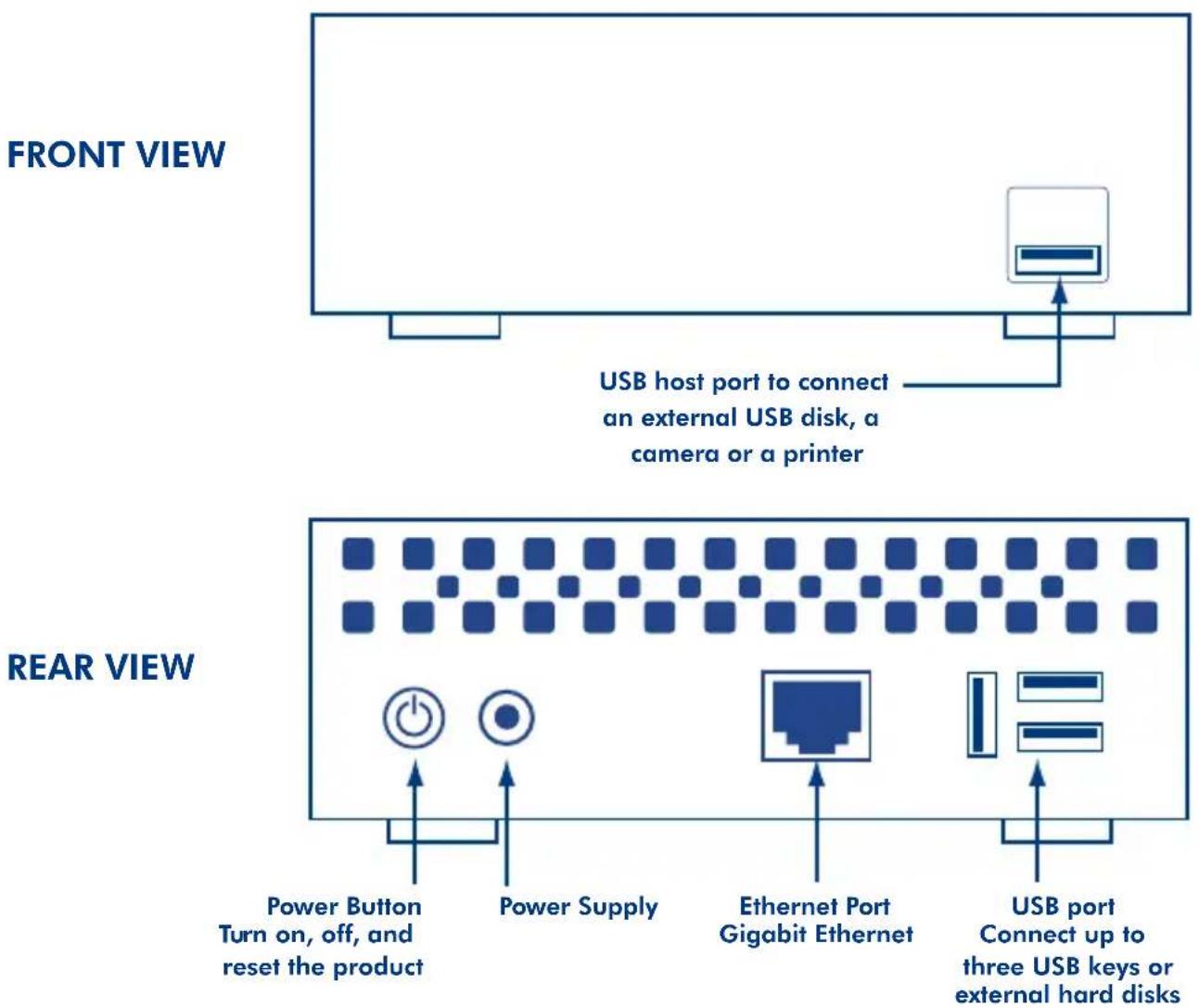
Installation
-
Connect the Ethernet cable to the product and to your local network (network hub, switch, or router).
-
Connect the power supply.
-
Push the power button until the front LED blinks blue. Release the button and the product will boot, which may take up to two minutes. When the light becomes steady blue, the product is ready to use.
-
Install and run LaCie Network Assistant, located on the CD-ROM.
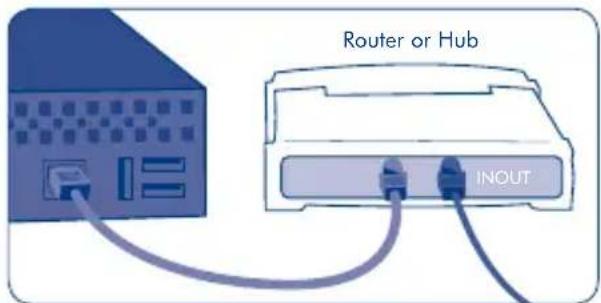
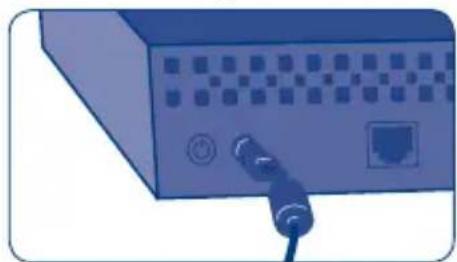
Fig. 1
Fig. 2
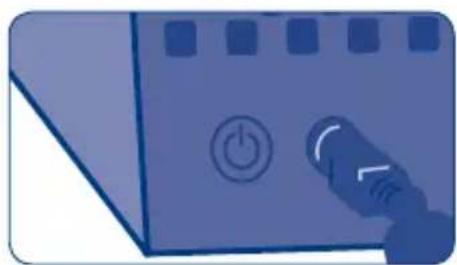
Fig. 3
Note: If you want to turn off the drive, press and hold the power button for 5 seconds until the LED blinks blue. When the LED turns off, the drive has shut down.
Accessing USB Devices (LaCie Network Assistant)
Connect an external hard disk, USB key, or printer to the USB ports. Then, to access the files located on these USB devices, you have two options:
A) Use LaCie Network Assistant.
a. Windows: Right-click the LaCie Network Assistant icon located in the system tray.
Mac: Click the LaCie Network Assistant icon located in the menu bar.
b. Under the heading LaPlug, choose the device you want to access.
c. The USB device will open in a Finder window (Mac) or an Explorer window (Windows).
d. If you are prompted for a username/ password, enter your username and password (by default):
Username = admin
Password = admin

Fig. 4
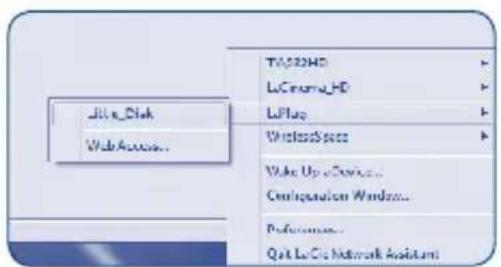
Fig. 5
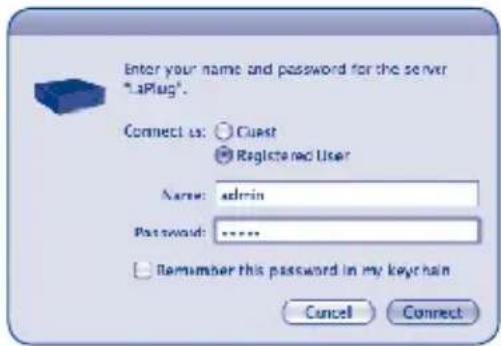
Fig. 6
Accessing USB Devices (Mac and Windows)
B) Use Finder (Mac) or an Explorer Window (Windows).
a. Windows 7/Vista users: in an Explorer window, navigate to Network > [disk name] (LaPlug)
Windows XP users: in an Explorer window, navigate to Network Places > LaPlug > [disk name]
Mac users: in the Finder, navigate to Network > LaPlug > [disk name].
b. If you are prompted for a username/ password, enter your username and password (by default):
Username = admin
Password = admin
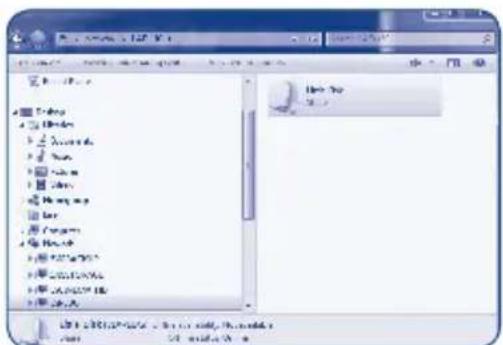
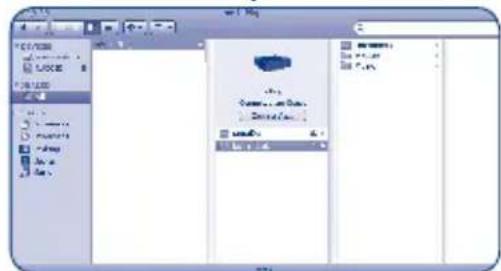
Fig. 7
Fig. 8
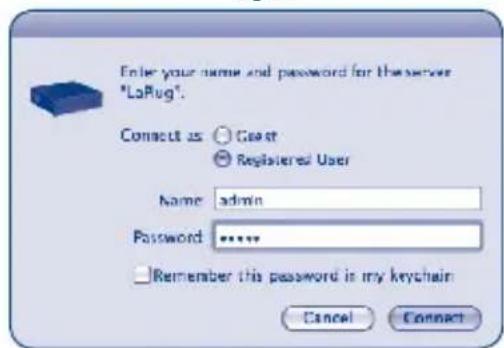
Fig. 9
Accessing LaCie Dashboard
Use the Dashboard administration tool to manage your LaCie LaPlug. You can check the status of attached USB hard drives, set up remote access, change the device network settings, and much more. See the User Manual for further information.
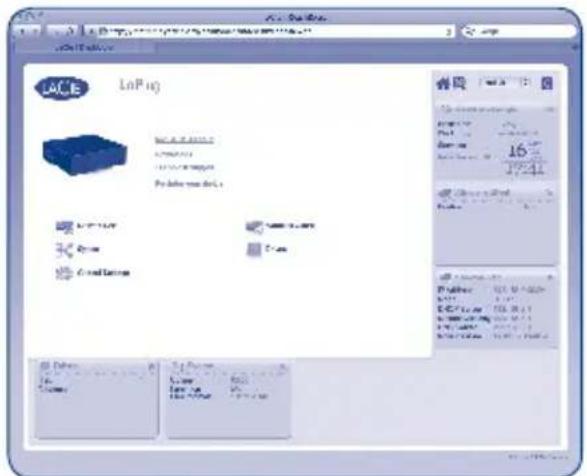
Fig. 10
Launch the Dashboard using LaCie Network Assistant:
Right-click (Windows) or click (Mac) the LaCie Network Assistant icon and select LaPlug > Web Access...
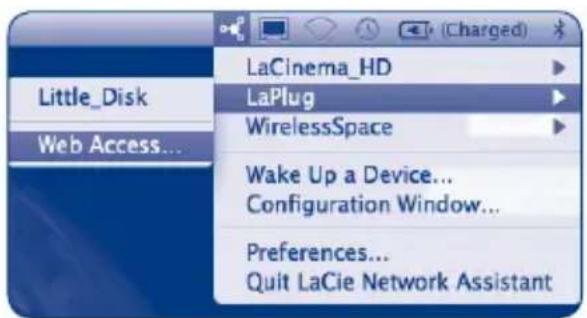
Fig. 11
For more details on administration settings and on using your LaPlug, refer to the User Manual at manuals.lacie.com/laplug.
LaPlug LED Behavior
| State | Indication |
| Solid blue | Product is idle |
| Slow blinking blue | Product is starting up |
| Solid red | System is shutting down |
| Slow blinking red | USB power failure |
| Firmware upgrade failure | |
| Slow blinking blue and red | WiFi enabled but not connected to a network |
| Fast blinking blue and red | Firmware upgrade in process |
Updating Firmware
- Download the latest firmware from www.lacie.com.
- Save the downloaded file onto a USB key or hard drive (and save it at the root level, ie not inside a folder).
- Make sure the LaPlug is turned off, then connect the USB key or hard drive to the LaPlug.
- Press and hold the power button for 10 seconds. When the LED turns red, release the power button.
- Before two seconds elapse, push and immediately release the power button once again.
- After about two minutes, the LaPlug will reboot automatically.
- Using LaCie Network Assistant, verify that the update was successful. The system version will be listed in the LaCie Network Assistant Configuration Window.
FR
Installation
(LaCie Network Assistant)
(LaCie Network Assistant)
A) Con LaCie Network Assistant.
(LaCie Network Assistant)
(LaCie Network Assistant)
(LaCie Network Assistant)
A) Met LoCie Network Assistant.
(LaCie Network Assistant)
A) Utilizar o LaCie Network Assistant.
(LaCie Network Assistant)
A) Anvand LaCie Network Assistant.
(LaCie Network Assistant)
A) Brug LaCie Network Assistant.
(LaCie Network Assistant)
(LaCie Network Assistant)
A) Uzyj programu LaCie Network Assistant.
In BbI6epnTe LaPlug > Web Access... (Puc.11).
DononHumeIbHyU uHOpMauio no napamempam adMuHucmpupoBaHua u no uCnoIb3OeaHIO LaPlug cm. b pykoBodcme neIb3OaMeJe no aDpecy: manuals.lacie.com/laplug.
Onncahne HndkaTopob LaPlug
(LaCie Network Assistant)
A) XpnoiouoioTe to LaCie Network Assistant.
EkkivnoTe to Dashboard xpoiooiowvtac to LaCie Network Assistant:
(LaCie Network Assistant)
(LaCie Network Assistant)
Parola (Password) = admin
(Mac ve Windows)
LaCie Network Assistant
LLED 1
USB
(LaCie Network Assistant)
LaCie Network Assistant
LaCie Network Assistant:Windows LAcie Network Assistant:Mac
(0) 111111111111111111111111111111111
.(Windows) (Mac) USB
(1):():
admin = p
admin = 二
(Windows, Mac)
.(Windows) (Mac)
. (V Network > [disk name] (LaPlug) : Vista/Windows 7
Network Places > LaPlug > [disk name] :Windows XP
( ) Network > LaPlug > [disk name]!Jdaii daii sdi Mac
(9) (1)
admin =
admin = 二
LaCie 1
aJ 1 aI 1 1 1 1 1 1 1 1 1 1 1 1 1 1 1 1 1 1 1 1 1 1 1
Jgssss
:LaCie Network Assistant
(11)LaPlug > Web Access LaCie Network Assistant (Mac) (Windows)
.manuals.lacie.com/laplug ggsdLg LLaPlug 1
LaPlug LED
. www.lacie.com gao jia jia jia jia jia jia jia jia
(120 1 1 1 1 1 1 1 1 1 1 1 1 1 1 1 1 1 1 1 1 1 1 1 1 1 1 1 1 1 1 1 1 1 1 1 1
LaPlug J 1000000000000000000000000000000000000000000000000000
ailll j 1 1 1 1 1 1 1 1 1 1 1 1 1 1 1 1 1 1 1 1 1
00000000000000000000000000000
LaPlug jae Jae salee
aalnssnnnssnnnssnnnssnnnssnnnssnnnssnnnssnnnssnnnssnnnssnnnssnnnssnnnssnnnssnnnssnnnssnnnssnnnssnnnssnnnssnnnssnnnssnnnssnnnssnnnssnnnssnnnssnnnssnnnssnnnssnnnssnnnssnnnssnn
LaCie Network Assistant
Contact Us
LaCie Asia
25/F Winsan Tower
98 Thomson Road
Wanchai, Hong-Kong, China
info.asia@lacie.com
LaCie Australia
458 Gardeners Rd.
Alexandria, NSW 2015
info.au@lacie.com
LaCie Benelux
Vorstlaan / 165 Bld du Souverain
B-1160 Brussels, Belgium
info.benelux@lacie.com
LaCie Canada
235 Dufferin St.
Toronto, Ontario M6K 1Z5
info.ca@lacie.com
LaCie France
17, rue Ampère
91349 Massy Cedex
info.fr@lacie.com
LaCie Germany
Am Kesselhaus 5
D-79576 Weil Am Rhein
info.de@lacie.com
LaCie Italy
Milano Business Park
Edificio B1
(Sweden, Denmark, Norway, Finland)
Sveavagen 90, 5tr
113 59 Stockholm, Sweden
info.nordic@lacie.com
LaCie Spain
C/NunezMorgado,3, 5^ pl.
28036 Madrid
info.es@lacie.com
LaCie Switzerland
Davidsbodenstrasse 15 A
4004 Basel
info.ch@lacie.com
LaCie United Kingdom and Ireland
LaCie Ltd, Power Road Studios
114 Power Road
Chiswick, London, UK W4 5PY
UK: info.uk@lacie.com
Ireland: info.ie@lacie.com
LaCie USA
22985 NW Evergreen Pkwy
Hillsboro, OR 97124
sales@lacie.com
LaCie Worldwide Export
17, rue Ampere
91349 Massy Cedex, France
sales.intl@lacie.com
support.intl@lacie.com