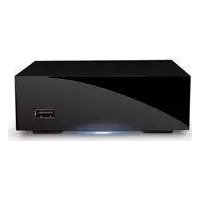
301865KUA - Media player LACIE - Free user manual and instructions
Find the device manual for free 301865KUA LACIE in PDF.


User questions about 301865KUA LACIE
0 question about this device. Answer the ones you know or ask your own.
Ask a new question about this device
Download the instructions for your Media player in PDF format for free! Find your manual 301865KUA - LACIE and take your electronic device back in hand. On this page are published all the documents necessary for the use of your device. 301865KUA by LACIE.
USER MANUAL 301865KUA LACIE
1.1. Minimum System Requirements....8
1.1.1. Windows Users....8
1.1.2. Mac Users....8
1.2. Supported Formats 9
1.3. Box Content....10
1.4. Languages....10
1.5. Views of the LaCinema Classic HD 11
1.5.1. Front View....11
1.5.2. Rear View....11
1.6. Cables and Connectors 12
1.6.1. A/V (Audio/Video) Cables 12
1.6.2. USB Cable 12
2. Using the Remote Control 13
2.1.Battery Installation 13
2.2. Remote Control Key Index 14
2.2.1. Important Button Details.... 15
3. Setting Up: Transferring Files....16
3.1. STEP 1: Connect the Power Supply....17
3.2. STEP 2: Connect the USB cable....18
3.3. STEP 3: Unmounting Your Drive 19
4. Setting Up: Connecting to TV 20
4.1. STEP 1: Connect HDMI or A/V Cables 20
4.1.1. HDMI (High-Definition) Connection....21
4.1.2. Composite Video & Stereo Audio Cable 21
4.1.3. Optical Audio (S/PDIF) Connection 22
4.2. STEP 2: Connect the Ethernet Cable 23
4.3. STEP 3: Connect the Power Supply....24
4.4. STEP 4: Complete the Installation Wizard 25
5. Playing Multimedia Files....27
5.1. Movie Space 28
5.1.1. Movie Space Options....29
5.2. Photos Space 31
5.2.1. Photo Space Options 32
5.3. Music Space 33
5.3.1. Music Space Options 35
6. Sharing Files Throughout Your Home Network 37
6.1.Manage Files from a Networked Computer 37
6.1.1. STEP 1: Connect the Power Supply 38
6.1.2. STEP 2: Connect the Ethernet Cable....39
6.1.3. STEP 3: Connect HDMI or A/V Cables....39
6.1.4. STEP 4: Configure Network Settings 40
6.1.5. STEP 5: LaCie Network Assistant: Install....41
6.1.6. STEP 6: LaCie Network Assistant: Transfer Files 42
6.1.7. Alternative Network Connection Methods....44
6.2.Play Files on Networked Media Players....45
6.2.1. UPnP Usage Example: XBOX 46
7. Playing Files Located on USB Hard Drive 47
7.1. USB Disk Connection....47
7.2. Compatibility 48
7.3. Safe USB Disk Removal 48
8. Playing Files From a Networked Media Server 49
8.1. Network-Attached Storage (NAS) 49
8.2. From Windows or Mac Computers....50
8.2.1. Packet Video TwonkyVision 50
8.2.2. Windows Media Player (WMP) 51
8.2.3. Shared folders on your Computer....52
9. Reformatting the LaCinema Classic HD 55
9.1. Reformatting: Windows Users 56
9.2. Reformatting: Mac Users 58
10. Settings Menu 59
10.1. Settings: Audio/Video 59
10.1.1.Video Output 59
10.1.2. Display Resolution....60
10.1.3. Aspect Ratio 60
10.1.4. Audio Output 60
10.1.5. NTSC/PAL....61
10.2. Settings: Video 61
10.2.1. Video Sequence....61
10.2.2. Subtitle Font Size....62
10.3. Settings: Music 63
10.3.1. Music Sequence 63
10.3.2. Audio Track Display....63
10.4. Settings: Photo 64
10.4.1.Slideshow....64
10.4.2.Picture Scaling....64
10.4.3. Transition Effect 65
10.4.4. Interval Time 65
10.5. Settings: System....66
10.5.1. Language....66
10.5.2. Content Aggregation....66
10.5.3.Screensaver Delay....66
10.5.4. Standby Mode 66
10.5.5.Browse Mode 67
10.5.6. Additional Encoding Support.... 67
10.5.7. System Reset....67
10.5.8.About 68
10.5.9.Update Device....68
10.6. Settings: Network 69
10.6.1. Network Setup....69
10.6.2.Device Name 70
10.6.3. Media Servers....70
10.6.4.Shared Folders 70
10.6.5.Auto Login 71
10.6.6. Clear Account Information....71
10.7. Settings: Restart....71
11. Technical Information....72
11.1.HD File Format Compatibility 72
11.2. Optimizing Data Transfers....72
12. Troubleshooting....73
12.1. Troubleshooting the Television/Stereo Connection 74
12.2. USB Connection (Mac Users)....75
12.3. USB Connection (Windows Users) 77
13. Contacting Customer Support 79
13.1. LaCie Technical Support Contacts....80
14. Warranty Information 81
Copyrights
Copyright © 2009 LaCie. All rights reserved. No part of this publication may be reproduced, stored in a retrieval system, or transmitted in any form or by any means, electronic, mechanical, photocopying, recording or otherwise, without the prior written consent of LaCie.
Trademarks
Apple, Mac, and Macintosh are registered trademarks of Apple Inc. Microsoft, Windows XP, Windows Vista, and Windows 7 are registered trademarks of Microsoft Corporation. Other trademarks mentioned in this manual are the property of their respective owners.
Manufactured under license from Dolby Laboratories. "Dolby" and the double-D symbol are trademarks of Dolby Laboratories.

DOLBY.
DIGITAL
Changes
The material in this document is for information only and subject to change without notice. While reasonable efforts have been made in the preparation of this document to assure its accuracy, LaCie assumes no liability resulting from errors or omissions in this document, or from the use of the information contained herein. LaCie reserves the right to make changes or revisions in the product design or the product manual without reservation and without obligation to notify any person of such revisions and changes.
FCC Statement

LaCinema Classic HD
Tested to comply with FCC standards for home or office use
This device complies with Part 15 of the FCC Rules. Operation is subject to the following conditions:
- The devices may not cause harmful interference
- The devices must accept any interference received, including interference that may cause undesired operation.
NOTE: This equipment has been tested and found to comply with the limits for a Class B digital device, pursuant to Part 15 of the FCC Rules. These limits are designed to provide reasonable protection against harmful interference in a residential installation. This equipment generates, uses and can radiate radio frequency energy and, if not installed and used in accordance with the instructions, may cause harmful interference to radio communications. However, there is no guarantee that interference will not occur in a particular installation. If this equipment does cause harmful interference to radio or television reception, which can be determined by turning the equipment off and on, the user is encouraged to try and correct the interference by one or more of the following measures:
■ Reorient or relocate the receiving antenna.
■ Increase the separation between the equipment and receiver.
■ Connect the equipment into an outlet on a circuit different from that to which the receiver is connected.
■ Consult the dealer or an experienced radio/TV technician for help.
Modifications to this product not authorized by LaCie could void the FCC & Industry Canada regulations and negate your authority to operate the product.
Canada Compliance Statement
This Class B digital apparatus meets all requirements of the Canadian Interference-Causing Equipment Regulations.

Manufacturer's Declaration for CE Certification
We, LaCie, solemnly declare that this product conforms to the following European standards: Class B EN60950, EN55022, EN55024, EN61000-3-2: 2000, EN61000-3-3: 2001
With reference to the following conditions: 73/23/EEC Low Voltage Directive; 89/336/EEC EMC Directive
CAUTION: Modifications not authorized by the manufacturer may void the user's authority to operate this device.
CAUTION: The LaCinema Classic HD's warranty may be void as a result of the failure to respect the precautions listed above.
NOTE: The main cable must be in conformity with CEI 60227 or CEI 60245 and the type of plug must match the standards in the country of use.

This symbol on the product or on its packaging indicates that this product must not be disposed of with your other household waste. Instead,
it is your responsibility to dispose of your waste equipment by handing it over to a designed collection point for the recycling of waste electrical and electronic equipment. The separate collection and recycling of your waste equipment at the time of disposal will help to conserve natural resources and ensure that it is recycled in a manner that protects human health and the environment. For more information about where you can drop off your waste equipment for recycling, please contact your local city office, your household waste disposal service, or the shop where you purchased the product.
CAUTION: The LaCinema Classic HD's warranty may be void as a result of the failure to respect the precautions listed above.
Health and Safety Precautions
■ Only qualified persons are authorized to carry out maintenance on this device.
- Read this User Manual carefully and follow the correct procedure when setting up the device.
Do not open a disk drive or attempt to disassemble or modify it. Never insert any metallic object into the drive to avoid any risk of electrical shock, fire, short-circuiting or dangerous emissions. The disk drives shipped with your LaCinema Classic HD contain no user-serviceable parts. If it appears to be malfunctioning, have it inspected by a qualified LaCie Technical Support representative.
■ Never expose your device to rain, or use it near water, or in damp or wet conditions. Never place objects containing liquids on the LaCinema Classic HD, as they may spill into its openings. Doing so increases the risk of electrical shock, short-circuiting, fire or personal injury.
■ Make sure that the computer and LaCinema Classic HD are electrically grounded. If the devices are not grounded, there is an increased risk of electrical shock. Power requirements 100-240 V\~, 1.5 A, 60-50 Hz, (Supply voltage fluctuations not exceeding ± 10% of the nominal, transient over-voltages according to over-voltage category II).
General Use Precautions
Do not expose the LaCinema Classic HD to temperatures outside the range of 5°C to 30°C (41°F to 86°F); or to operational humidity beyond 5-80%, non-condensing, or non-operating humidity beyond 10-90%, non-condensing. Doing so may damage the LaCinema Classic HD or disfigure its casing. Avoid placing your LaCinema Classic HD near a source of heat or exposing it to sunlight (even through a window). Inversely, placing your LaCinema Classic HD in an environment that is too cold or humid may damage the unit.
■ Always unplug the LaCinema Classic HD from the electrical outlet if there is a risk of lightning or if it will be unused for an extended period of time. Otherwise, there is an increased risk of electrical shock, short-circuiting or fire.
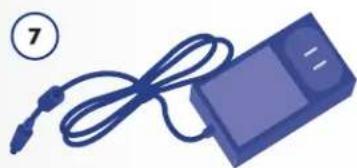
■ Use only the power supply shipped with the device.
■ Do not place objects on top of the LaCinema Classic HD or use excessive force on it.
■ Never use excessive force on your LaCinema Classic HD. If you detect a problem, see the Troubleshooting section in this manual.
CAUTION: A shielded-type power cord is required in order to meet FCC emission limits and also to prevent interference to the nearby radio and television reception. It is essential that only the supplied power cord be used.
Operating Environment Temperatures
Do not expose the LaCinema Classic HD to temperatures outside the range of 5°C to 30°C (41°F to 86°F). As high end audio/video appliance, the LaCinema Classic HD has been designed with an efficient ventilation system. Allow 5 cm of clearance for airflow on all sides of the LaCinema Classic to prevent overheating. See Fig. 01.
Do not stack the LaCinema Classic HD on another audio/video appliance such as a TV, VCR or DVD player. Other audio/video appliances require sufficient airflow and carry the same precautions of use. See Fig. 02 and Fig. 03.
IMPORTANT INFO: Any loss, corruption or destruction of data while using a LaCie drive is the sole responsibility of the user, and under no circumstances will LaCie be held liable for the recovery or restoration of this data. To help prevent the loss of your data, LaCie highly recommends that you keep TWO copies of your data; one copy on your external hard disk, for instance, and a second copy either on your internal hard disk, another external hard disk or some other form of removable storage media. LaCie offers a complete line of CD and DVD drives. If you would like more information on backup, please refer to our website.
IMPORTANT INFO: 1GB = 1,000,000,000 bytes. 1TB = 1,000,000,000,000 bytes. Once formatted, the actual available storage capacity varies depending on operating environment (typically 5-10% less).
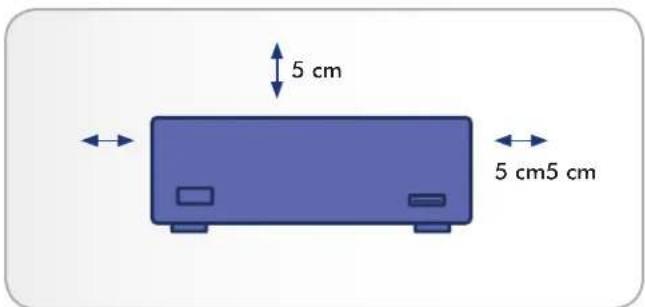
Fig. 01
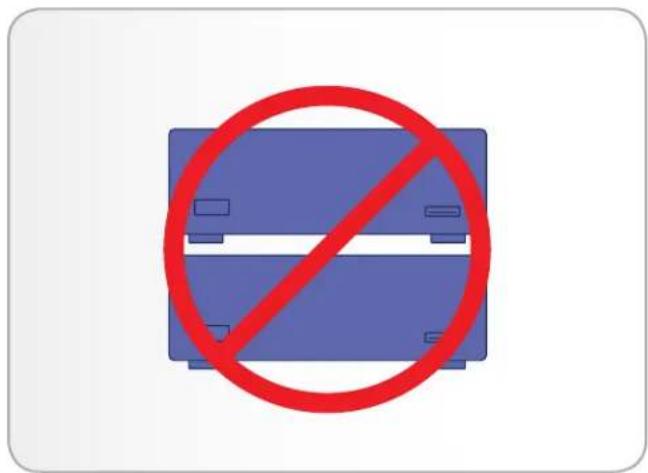
Fig. 02
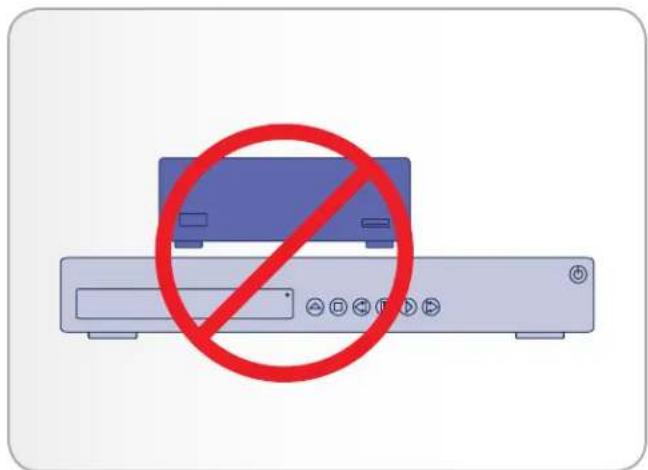
Fig. 03
1. Introduction
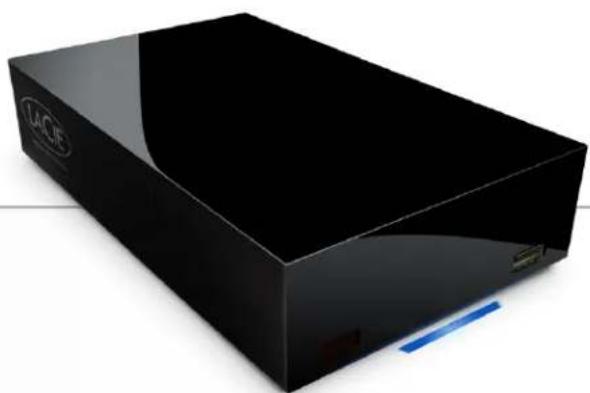
Congratulations on the purchase of your new LaCinema Classic HD! The LaCinema Classic HD plugs directly into a wide array of audio/visual equipment for instant playback of stored home movies, music or photos. And with high-quality video and quality audio, there's no compromise on performance.
To get started, simply connect the LaCinema Classic HD to your TV and use the included remote to easily navigate through the menus, called Spaces, to listen to music, view photos or watch High definition movies.
The LaCinema Classic HD allows you to choose from MPG, AVI, MP4, MKV, WMV, ISO, VOB, IFO, ASF, TS, TP, TRP, MTS, M2TS, and DAT video formats for easy playback.
Quick Links
Click a topic:
■ Setting Up: Transferring Files
■ Setting Up: Connecting to TV
■ Playing Multimedia Files
natural_image
Black rectangular electronic device with a blue indicator light and 'MACF' logo on the front panel (no readable text or symbols beyond branding)1.1. Minimum System Requirements
1.1.1. Windows Users
■ 500MHz Intel Pentium II processor or later
■ Windows XP, Vista, or Windows 7
256MB RAM
USB interface port
■ Internet connection (for downloading updates)
1.1.2. Mac Users
■ G5 or later, or Intel Core Duo
■ Mac OS X 10.4.9
256MB RAM
USB interface port
■ Internet connection (for downloading updates)
1.2. Supported Formats
Video Codecs
| MPEG-1 | Xvid |
| MPEG-2 / HD | H.264 HD |
| MPEG4 | WMV9 HD |
| DivX / HD | VC-1 |
Video File Types (Containers)
| AVI | MOV | TRP |
| MP4 | MPEG | M2TS |
| MKV | VOB | DVR-MS |
| WMV | ASF | ISO* |
| DivX | TS | Video_TS* |
| DAT | TP |
External Hard Drive File Systems
| ■ NTFS | ■ FAT32 | ■ HFS+ (not Journaled) |
Subtitles
| ■ SRT | ■ SSA | ■ SUB |
| ■ SMI | ■ PSB | ■ ASS |
Audio File Types (Containers)
| ■ | Two channels only*** |
DTS
| ■ Multichannel decoding via optical S/PDIF and HDMI to home amplifier |
Photo File Types
| ■ PNG | ■ BMP | ■ TIFF |
| ■ GIF | ■ JPEG (except Progressive JPEG) |
Video Outputs
| ■ Composite (CVBS) | ■ HDMI 1.3 |
Audio Outputs
| ■ | Optical | ■ | Stereo |
* DVD Video function is supported via VOB / IFO (Video TS folder). If the drive is formatted in FAT32, DVD ISO file size cannot exceed 4GB due to file system format limitation.
** Supports iTunes encoded (m4a).
*** For audio with more than 2 channels, connect the product to a digital home receiver. The audio is passed through the coaxial connection (see section 4.1.3. Optical Audio (S/PDIF) Connection).
TECHNICAL NOTE: A container, such as AVI or MOV, is a file format that defines how the data stream is stored. They contain data that has been compressed using a codec. For a file to play properly on your LaCinema Classic HD, both its codec and container type must be supported.
TECHNICAL NOTE: You can download third party applications that will help you to identify a file's codec, container, and other information. LaCie suggests the free application Media Info.
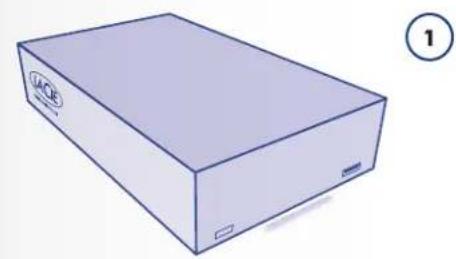
1.3. Box Content
Your LaCinema Classic HD package contains the system tower and an accessories box containing the items listed below.
- LaCinema Classic HD
- Remote control
- 2 x AAA batteries
- Video composite + stereo cable
- HDMI cable
- USB cable
- External power supply
- Quick Install Guide
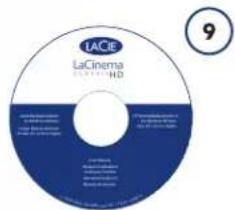
- LaCie Utilities CD-ROM (with detailed User Manual and software)
IMPORTANT INFO: Please save your packaging. In the event that the drive should need to be repaired or serviced, it must be returned in its original packaging.
1.4. Languages
Supported Languages
◆ Chinese (Simplified) ◆ Chinese (Traditional)
Dutch English
◆ French ◆ German
Greek Italian
◆ Japanese ◆ Korean
◆ Polish ◆ Portuguese
◆ Russian ◆ Spanish
Swedish
Please check the LaCie website for a complete list of supported languages.
natural_image
Illustration of a rectangular electronic device with a label '1' and 'MACE' on its side (no text or symbols on the device itself)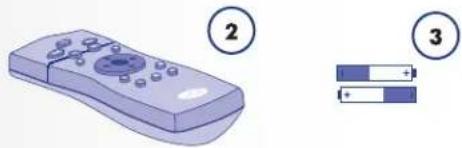
natural_image
Illustration of a remote control with two labeled buttons (2 and 3) and a bar magnet symbol (no text or labels present)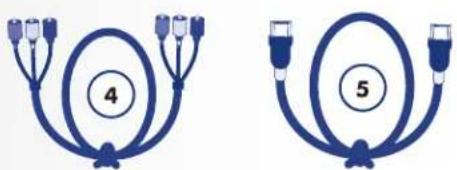
natural_image
Two blue medical catheters with connectors, labeled 4 and 5, shown side by side (no text or symbols on the devices themselves)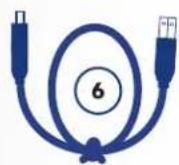
natural_image
Illustration of a blue electronic device with cables and connectors (no text or symbols)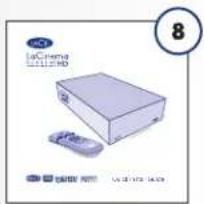
1.5. Views of the LaCinema Classic HD
1.5.1. Front View
- Infrared receiver – Receives the infrared signal from the remote control. Make sure the receiver is not obstructed.
- Disk status LED – Flickering light indicates disk activity.
- USB expansion port – Connect a USB flash disk, hard disk or card reader to access its multimedia files directly from your TV.
1.5.2. Rear View
- Power connector – Connect the power supply
- 10/100 Mbits Ethernet connector – Connect to your home network via an Ethernet cable to your router
- USB 2.0 host – Connect a USB Camera, Hard Disk or USB flash key/drive
- USB 2.0 device - Connect to your PC or Mac to copy files to the LaCinema Classic HD's internal storage
- HDMI - Connect to a High Definition flatscreen TV or video projector
- Video out (yellow) - Connect to any TV (CRT)
- Optical audio out - Connect to digital home amplifier
- Audio (white and red) – Connect to the audio input of a standard TV or stereo speakers
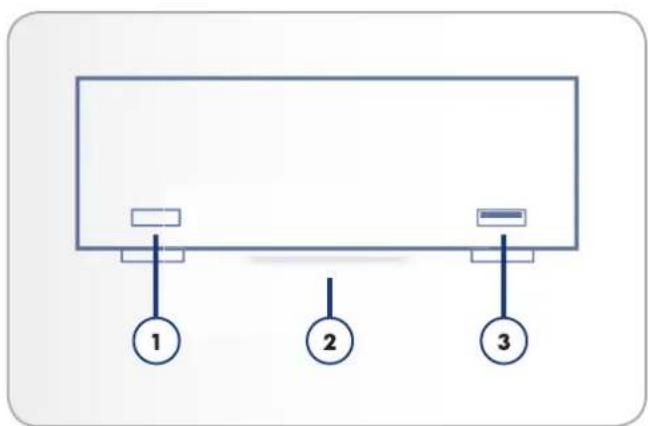
Fig. 04
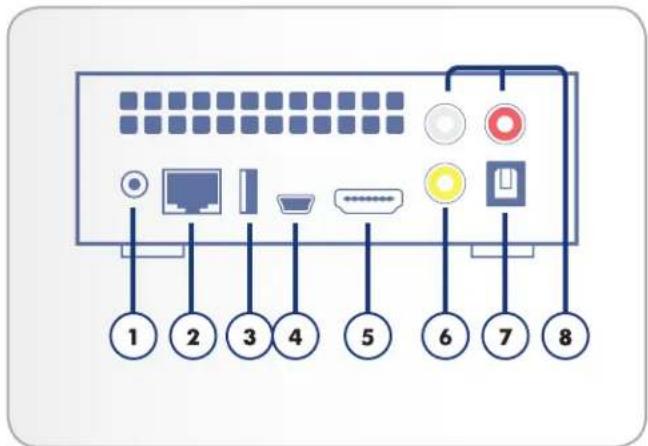
Fig. 05
1.6. Cables and Connectors
1.6.1. A/V (Audio/Video) Cables
These cables provide the audio and video signals to your stereo and TV. The LaCinema Classic HD supports the following standards:
- Composite video/stereo audio – This is the most standard video connection (yellow) as well as left (white) and right (red) stereo audio inputs. If your TV only has a SCART connector, you can purchase a SCART-Composite adapter from your local retailer.
- HDMI (High-Definition Multimedia Interface) – This is the best audio/video method for connecting the LaCinema Classic to HDTVs.
- Optical Audio (S/PDIF) (not included) – This connection allows you to connect your LaCinema Classic HD to a digital amplifier.
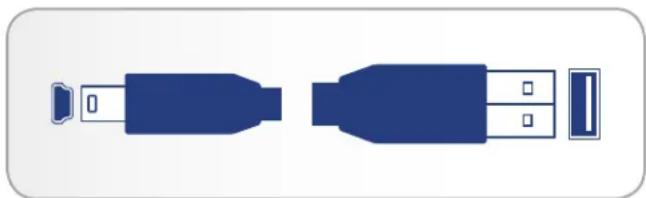
1.6.2. USB Cable
USB is a serial input/output technology for connecting peripheral devices to a computer or to each other. Hi-Speed USB 2.0 is the latest implementation of this standard, and it provides the necessary bandwidth and data transfer rates to support high speed devices such as hard drives, CD/DVD drives and digital cameras.
NOTE: Your LaCinema Classic HD is shipped with a Hi-Speed USB 2.0 cable to be used to connect the product to a PC or Mac (this cable should be connected to the rear (device) port). If you want to connect a USB peripheral (digital camera, USB drive, etc.) to the LaCinema Classic HD, use the USB cable that shipped with that product and connect it to the front (host) port.
TECHNICAL NOTE: The included (device) cable will also work when connected to a USB port, but drive performance will be limited to USB 1.1 transfer rates. To achieve Hi-Speed USB 2.0 data transfer rates you need to be connected to a Hi-Speed USB 2.0 host interface. Otherwise, transfer rates will be limited to USB 1.1 speeds.
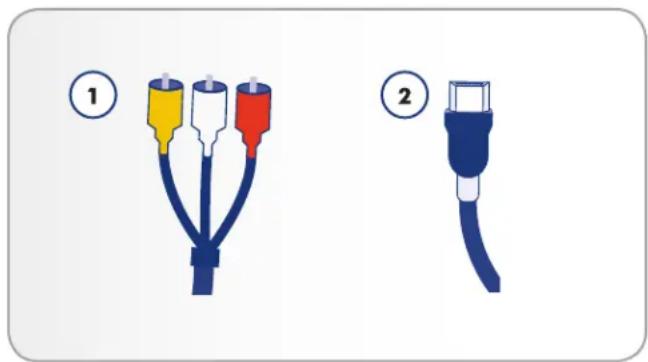
Fig. 06
| Connection | Maximum Resolution | |
| High Definition | HDMI 1080p | |
| Standard Definition | Composite 576p |
natural_image
Illustration of a blue USB connector with ports and connectors (no text or symbols)Fig. 07 - USB cable ends
2. Using the Remote Control
Some of the buttons of the remote control have different functions or no function at all depending on the type of file you are viewing. This chapter discusses the button functions for each type of file (movies, photos and music) and battery installation.
2.1. Battery Installation
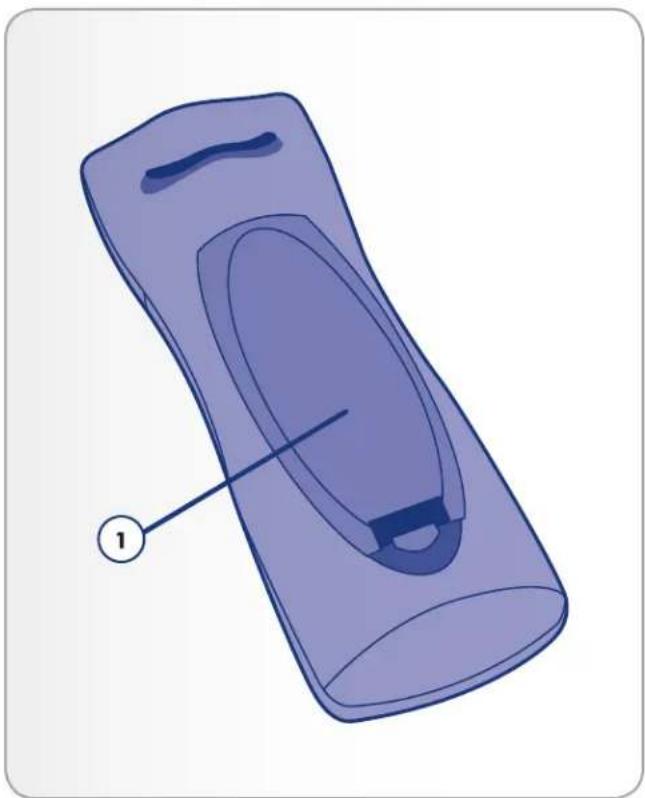
The remote control uses two AAA batteries. The batteries are not pre-installed, so you will need to install them before you can use the remote control.
To install the batteries:
- Remove the battery compartment cover (Fig. 08).
- Load the batteries onto the battery compartment. Position the batteries so that the "+" symbols on the batteries face the same direction as the "+" symbols on the battery compartment.
- Slide the battery compartment cover back into the remote.
IMPORTANT INFO: If you will not be using the remote control for an extended period of time, LaCie recommends that you remove the batteries.
IMPORTANT INFO: The remote control must be pointed at the infrared receiver on the LaCinema Classic HD (Fig. 09) no further away than of 23 feet (7 meters).
natural_image
Illustration of a purple ergonomic device with a labeled component (1), no text or symbols present.Fig. 08
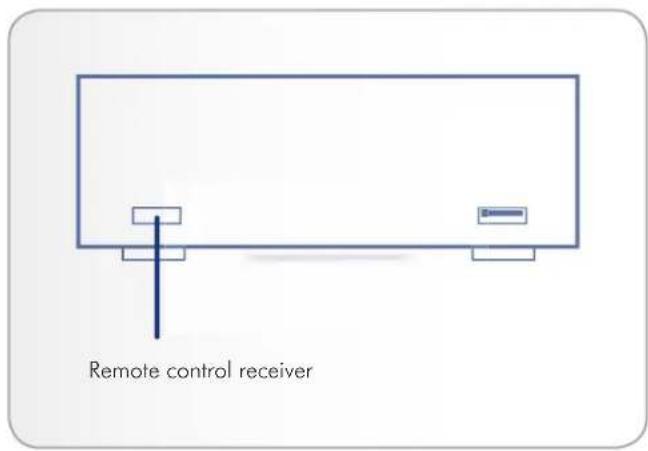
Fig. 09
2.2. Remote Control Key Index
The LaCinema Classic HD's remote control allows you to control the LaCinema Classic HD while its connected to your TV or home theatre center.
Button
- Infra-red emitter
- Stand-by
- Previous track
- Next track
- Back (previous screen)
- Select
- Home menu
- Play
- Menu up
- Left/rewind
- Right/fast forward
- Menu down
- Stop
- Pause
- Access search menu
- Option/info menu
- Safely eject USB disk
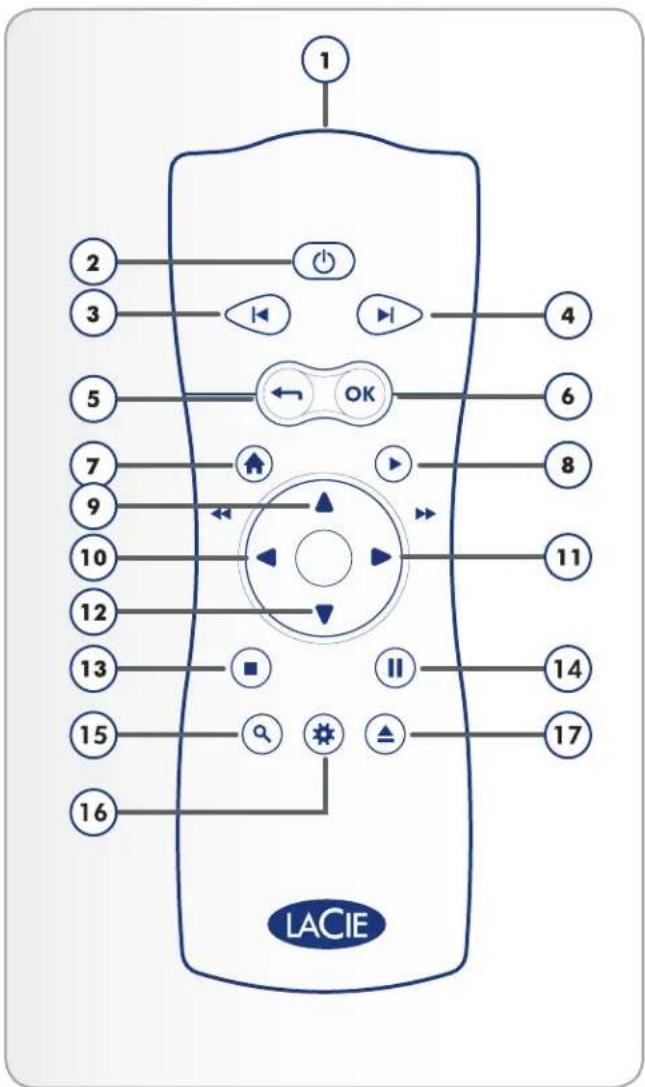
Fig. 10
2.2.1. Important Button Details
- OK: This button allows you to confirm a selection.
- Return: Press this button to return to the previous menu.
- Settings button: This button is used to display the available settings or actions in the different media spaces.
During playback, pressing this button will bring up a contextual menu with adjustable settings.
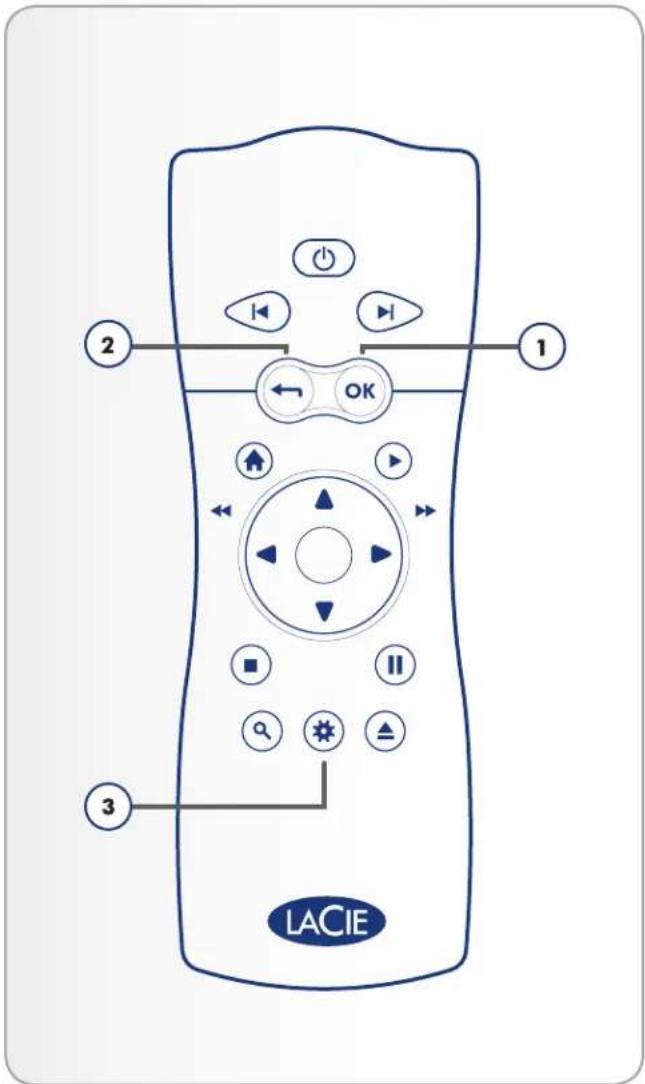
Fig. 11
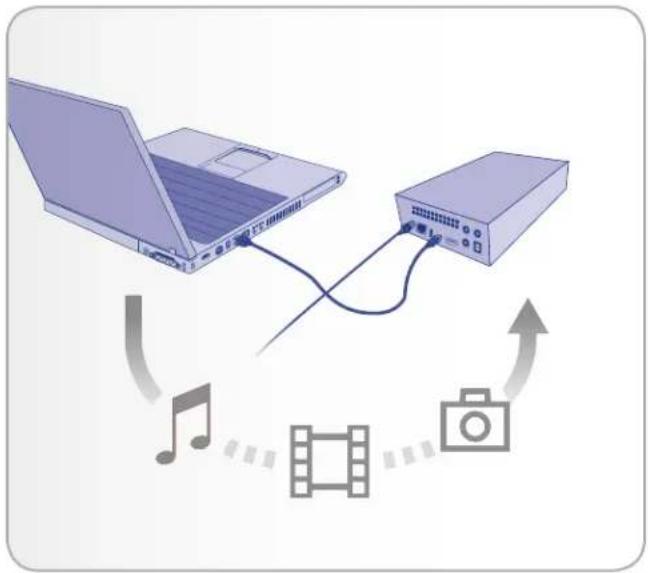
3. Setting Up: Transferring Files
This chapter explains how to transfer files to the LaCinema Classic HD from your computer via the USB connection. If your files are located on external sources, such as a USB hard drive or a networked device, you can learn about how to play these files in chapter 7. Playing Files Located on USB Hard Drive.
Since the USB connection may offer faster transfer rates than the Ethernet connection for some network configurations, LaCie suggests as a first step to transfer the bulk of your multimedia files to the LaCinema Classic HD through the USB connection.
The USB connection consists of the following steps:
3.1. STEP 1: Connect the Power Supply
3.2. STEP 2: Connect the USB cable
3.3. STEP 3: Unmounting Your Drive
When you have finished transferring files, disconnect the USB connection and proceed to chapter 4. Setting Up: Connecting to TV.
natural_image
Illustration of a laptop connected to a server via cable, with music notes and filmstrip icons indicating data transmission (no text or symbols)Fig. 12
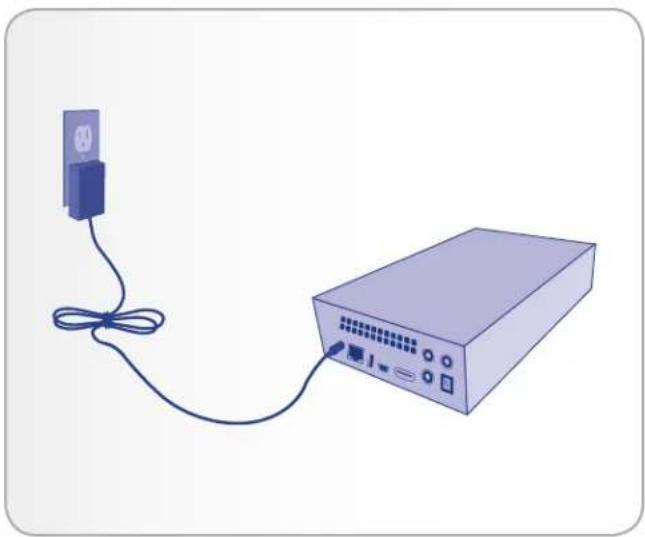
3.1. STEP 1: Connect the Power Supply
- Plug one end of the power adapter cord into the back of LaCinema Classic HD and the other end into a power outlet (Fig. 13).
- Move on to the next step, 3.2. STEP 2: Connect the USB cable.
CAUTION: Only use the AC adapter supplied with your specific LaCie device. Do not use a power supply from another LaCie device or another manufacturer. Using any other power cable or power supply may cause damage to the device and void your warranty. Always remove the AC adapter before transporting your LaCie drive. Failure to remove the adapter may result in damage to your drive and will void your warranty.
TECHNICAL NOTE: You may use your LaCie drive when in a foreign country thanks to its 100-240 Volt power supply. To be able to use this feature, you may need to purchase an appropriate adapter or cord. LaCie accepts no responsibility for any damage to the drive resulting from the use of an inappropriate adapter. Using an adapter other than one authorized by LaCie will void your warranty.
natural_image
Illustration of a connected device with a cable and power outlet (no text or symbols)Fig. 13
3.2. STEP 2: Connect the USB cable
- Make sure the power cable is connected as described in section 3.1. STEP 1: Connect the Power Supply.
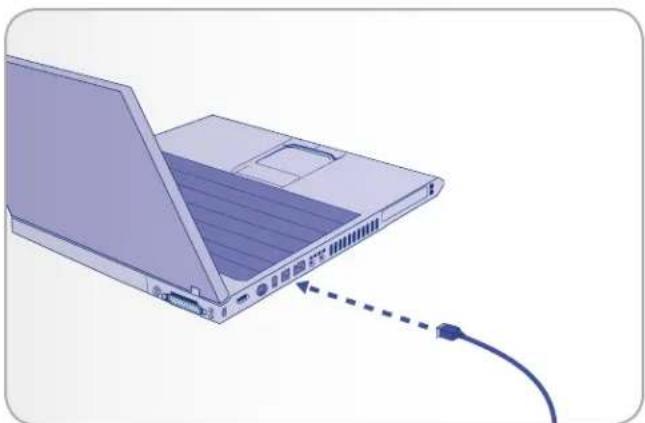
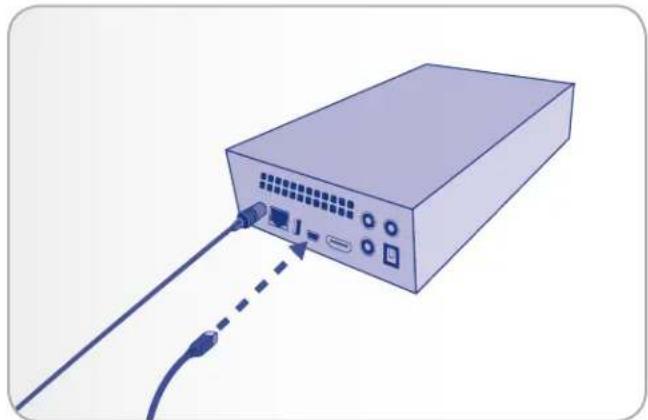
- Connect one end of the USB cable to your computer (Fig. 14) and the other end to the small USB port on the rear of the LaCinema Classic HD (Fig. 15).
Windows Users
a. The drive will mount in My Computer/Computer (Windows users) (Fig. 16).
b. Copy multimedia files to the mounted volume normally.
Mac Users
a. As the drive is preformatted in NTFS for immediate use with Windows, you will need to reformat the drive into HFS+ in order for the drive to mount on your Mac. Follow the steps in section 9.2. Reformatting: Mac Users, then proceed to step b below.
b. The drive will mount on your Desktop.
c. Copy multimedia files to the mounted volume normally.
- Unmount the drive and unplug the USB cable before connecting the drive to your television (see 3.3. STEP 3: Unmounting Your Drive).
TECHNICAL NOTE: The LaCinema Classic HD operating system features a file database that will detect the type of file (movie, music, etc.) and display it automatically on your TV in the correct media space. If you create folders on the mounted volume and want to browse the files according to this structure on your TV, your can choose to view files by Folder from within each media space.
IMPORTANT INFO: To avoid data corruption, make sure to unmount your drive before disconnecting the USB cable. See section 3.3: STEP 3: Unmounting Your Drive for details.
IMPORTANT INFO: The drive cannot be connected to your computer via USB and to the television simultaneously.
natural_image
Illustration of a laptop with an attached cable showing a dashed arrow pointing to the cable (no text or symbols present)Fig. 14
natural_image
Illustration of a server rack with connected ports and cables (no text or symbols)Fig. 15
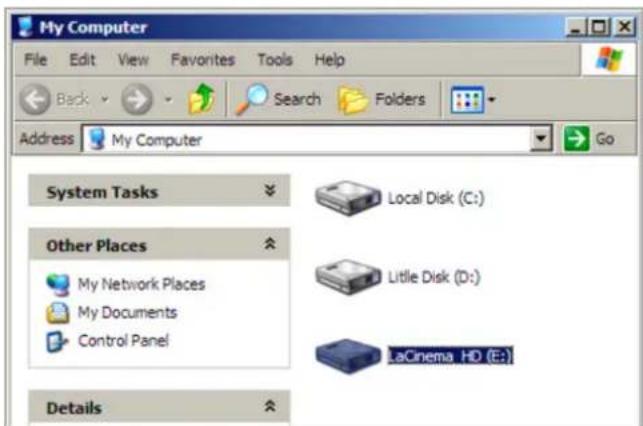
Fig. 16
3.3. STEP 3: Unmounting Your Drive
As the LaCinema Classic HD behaves like an external USB device when it is connected to your computer via USB, you should unmount its volume before unplugging the USB cable.
Windows Users
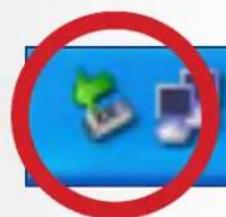
From the System Tray (located in the lower right-hand side of your screen), click the Eject icon (a small green arrow over a hardware image) (Fig. 17).
A message will appear, listing the devices the Eject icon controls (it should say, "Safely remove..."). Click on the LaCie hard drive in this prompt.
This message will appear: "Safe to Remove Hardware" (or similar). It is now safe to disconnect the device.
Mac Users
Drag the LaCinema Classic drive icon to the trash (Fig. 18). (The icon pictured below is a generic USB device icon. Your drive may be represented by an icon that looks like the drive itself.)
When the icon disappears from the desktop, the drive can be disconnected.
natural_image
Blue background with a red circular icon featuring a green computer mouse and a laptop (no text or symbols)1:16 PM
Fig. 17 - Windows Users
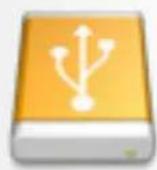


Fig. 18 - Mac Users
4. Setting Up: Connecting to TV
This chapter explains how to connect your LaCinema Classic HD to your television in order to browser and play files. Once the connection is established, move on to section 5. Playing Multimedia Files for information on playing files. Setup consists of these steps:
4.1. STEP 1: Connect HDMI or A/V Cables
4.2. STEP 2: Connect the Ethernet Cable
4.3. STEP 3: Connect the Power Supply
4.4. STEP 4: Complete the Installation Wizard
4.1. STEP 1: Connect HDMI or A/V Cables
IMPORTANT INFO: The LaCinema Classic HD cannot be connected to a TV and computer at the same time. Disconnect the USB cable before proceeding (see 3.3. STEP 3: Unmounting Your Drive).
The LaCinema Classic HD supports different ways of connecting to televisions. From the following methods, choose the setup that matches the ports on your television or receiver:
■ HDMI (section 4.1.1. HDMI (High-Definition) Connection)
■ Composite (section 4.1.2. Composite Video & Stereo Audio Cable)
In each of the above connection methods, it is possible to connect the LaCinema Classic HD to home theater systems by plugging the S/PDIF cable (not included) to your digital amplifier via the digital optical audio connector (see section 4.1.3. Optical Audio (S/PDIF) Connection for details.
The chart at right illustrates the qualities made possible by the different connection methods.
TECHNICAL NOTE: The connectors on the rear of your TV may not appear exactly the same as shown below. Please read the labels next to the connectors carefully to ensure correct connections.
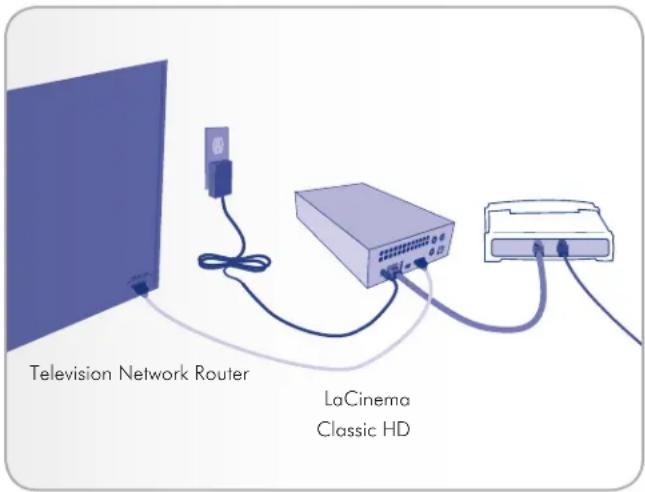
Fig. 19
| Connection | Maximum Resolution | |
| High Definition | HDMI 1080p | |
| Standard Definition | Composite 576p |
4.1.1. HDMI (High-Definition) Connection
- Connect the HDMI cable to your television's HDMI port and to the corresponding port on the LaCinema Classic HD (Fig. 20).
- Move on to the next step, 4.2. STEP 2: Connect the Ethernet Cable.
4.1.2. Composite Video & Stereo Audio Cable
- Connect the three tips of the composite video and stereo cable to the proper ports on your television and to the corresponding ports on the LaCinema Classic HD (Fig. 21).
- Move on to the next step, 4.2. STEP 2: Connect the Ethernet Cable.
IMPORTANT INFO: Before connecting either of these cables, make sure you TV is turned off.
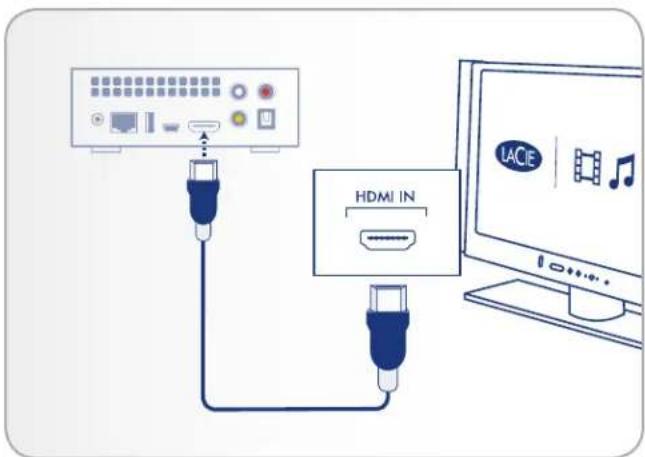
Fig. 20 - HDMI connection
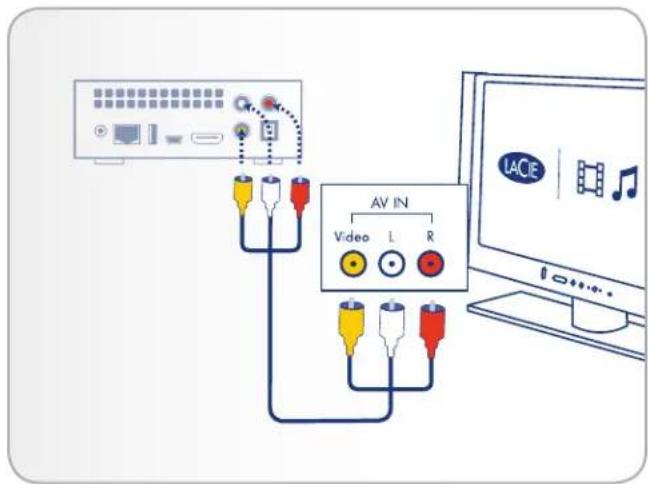
Fig. 21 - Composite connection
4.1.3. Optical Audio (S/PDIF) Connection
In each of the above connection methods, it is possible to connect the LaCinema Classic HD to home theater systems by plugging the S/PDIF cable (not included) into your digital amplifier via the LaCinema Classic HD's digital optical audio connector.
IMPORTANT INFO: Before connecting the cable, power off your digital amplifier.
- Connect one end of a S/PDIF cable to your digital amplifier (Fig. 22).
- Connect the other end of the cable to the back of the LaCinema Classic HD.
- Move on to the next step, 4.2. STEP 2: Connect the Ethernet Cable.
IMPORTANT INFO: Once you connect the cable and finish the rest of the steps in this section, you must enable digital audio in Settings > Audio Output instead of the default stereo audio. See section 10.1. Settings: Audio/Video (Fig. 23 and Fig. 24).
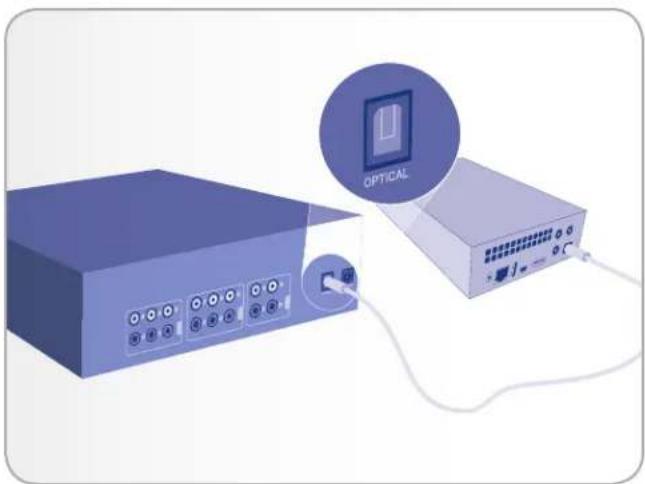
natural_image
Illustration of a portable electronic device connected to a server unit via cable, with an icon labeled 'OPTICAL' pointing to the device (no text on device or cable)Fig. 22 - S/PDIF connection
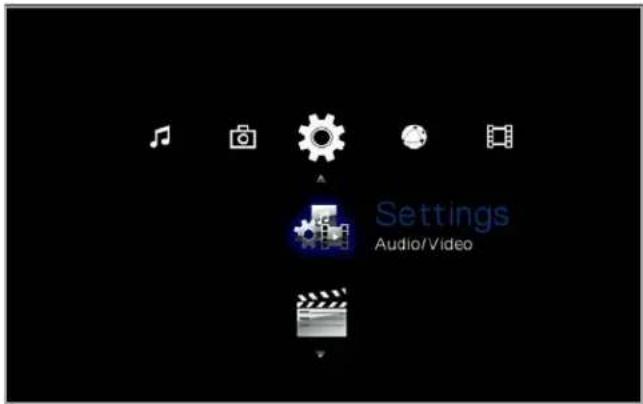
Fig. 23
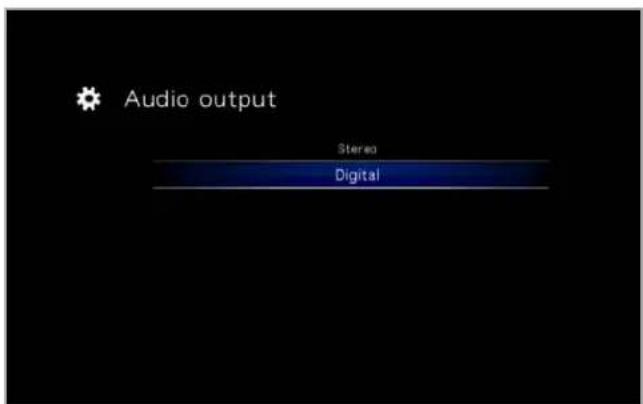
Fig. 24
4.2. STEP 2: Connect the Ethernet Cable
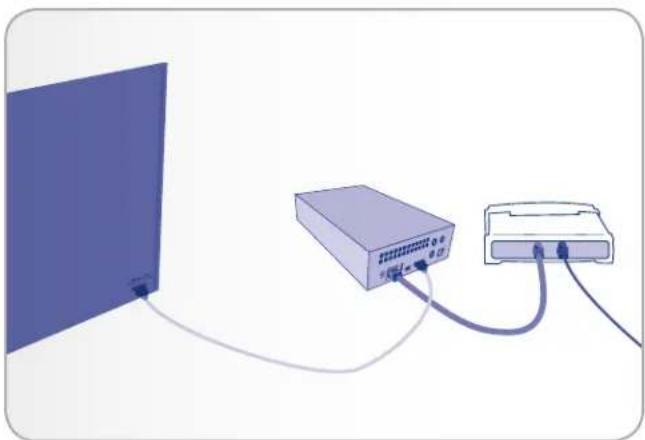
- Connect the Ethernet cable to the Ethernet port on the back of the LaCinema Classic HD (Fig. 25).
- Connect the other end of the Ethernet cable into an available Ethernet LAN (local area network) port on your router or hub (refer to your router or hub's documentation if necessary). Allow a few moments for your network to recognize the drive.
Now move on to the next step, 4.3. STEP 3: Connect the Power Supply.
NOTE: You can purchase a WiFi dongle from LaCie that will enable your LaCinema Classic HD to connect to the network wirelessly. For more information, refer to the LaCie website: www.lacie.com.
natural_image
Illustration of a network device with two connected devices, one showing cable routing and the other with two connectors (no text or symbols)Fig. 25
4.3. STEP 3: Connect the Power Supply
IMPORTANT INFO: If your power supply cable is already connected, turn on your TV and then skip to 4.4. STEP 4: Complete the Installation Wizard.
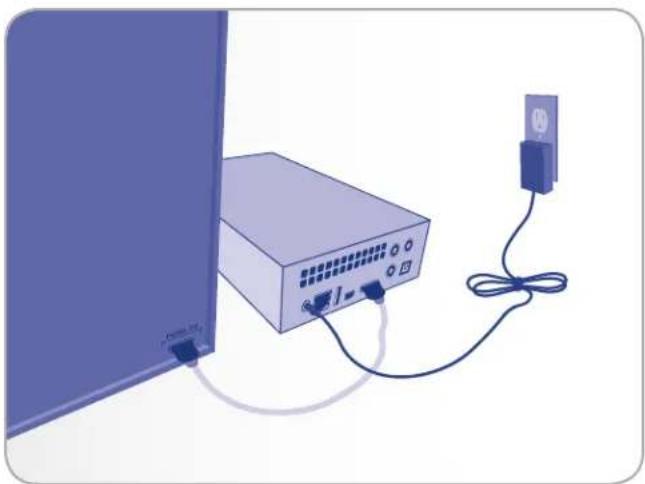
- Plug one end of the power adapter cord into the back of LaCinema Classic HD and the other end into a power outlet (Fig. 26).
- Turn on your television.
TECHNICAL NOTE: If you don't see the loading screen, adjust the video input on your TV to match the type of video cable you connected above (either HDMI or composite) (Fig. 27).
- Move on to the next step, 4.4. STEP 4: Complete the Installation Wizard.
natural_image
Illustration of a network device with cable and connector, no text or symbols presentFig. 26
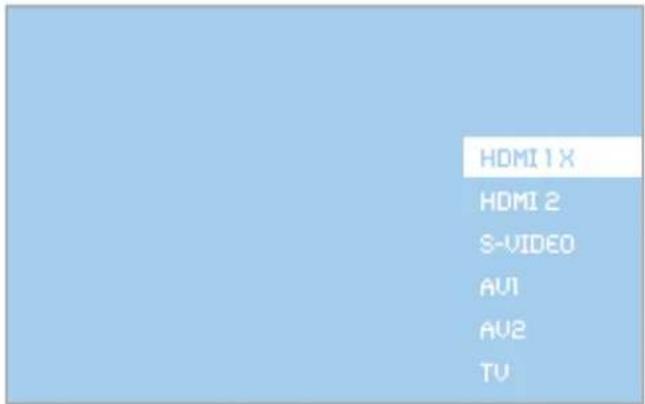
Fig. 27
4.4. STEP 4: Complete the Installation Wizard
The first time you turn on the LaCinema Classic HD, a wizard appears to help you configure your settings. The wizard appears only the first time you turn on the LaCinema Classic HD unless you have reset drive.
- Make sure the LaCinema Classic HD is connected to the TV, the power supply has been connected, and the TV is turned on.
- A startup screen will appear during product initialization.
- Select your language using the Up ▲ and Down ▼ buttons and pushing the Right ▶ button to confirm (Fig. 28).
- In the next screen, click Next (Fig. 29).
- Select your TV's physical aspect ratio (4:3 or 16:9) and click Next (Fig. 30).
continued on the next page >>
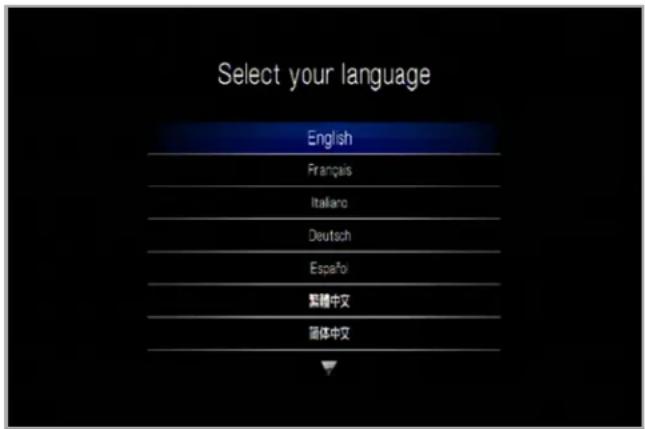
Fig. 28
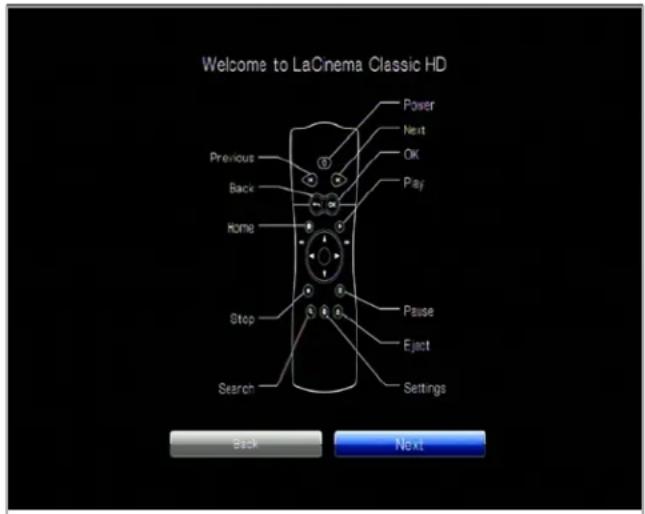
Fig. 29
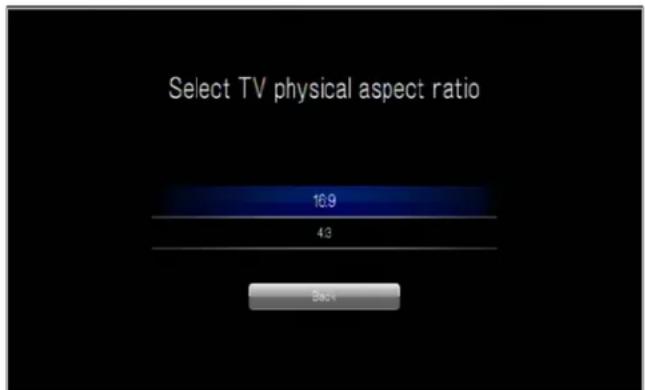
Fig. 30
- Select the type of network connection (Wireless or Ethernet) and click Next, or click Skip (Fig. 31).
IMPORTANT INFO: In order to connect the LaCinema Classic HD to your network wirelessly, you can purchase a WiFi dongle from the LaCie website.
- Select whether your network is DHCP-managed or requires a static IP and click Next (Fig. 32).
- Setup is finished (Fig. 33). For further details, move on to 5. Playing Multimedia Files.
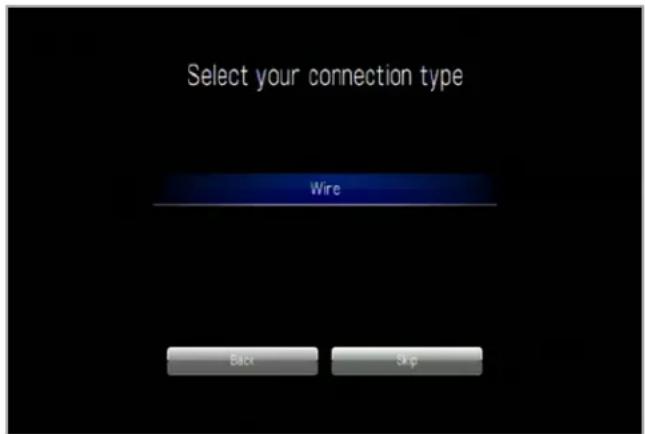
Fig. 31
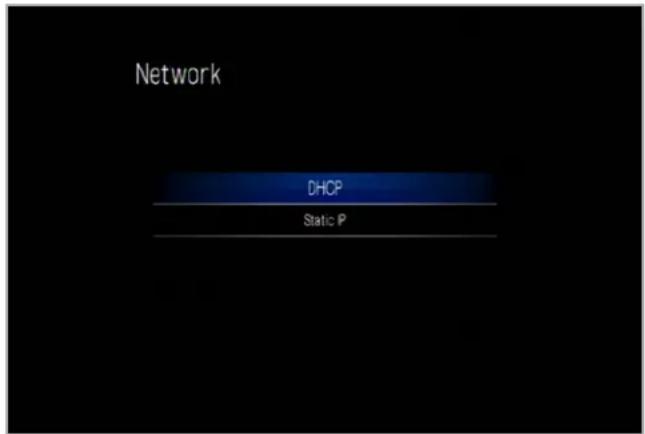
Fig. 32
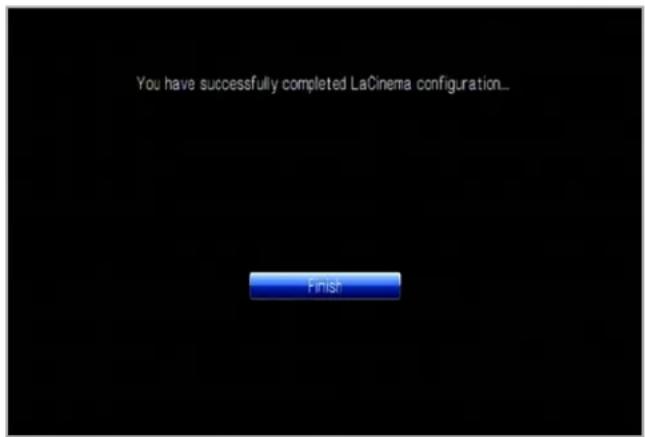
Fig. 33
5. Playing Multimedia Files
This chapter explains how to use the interface and to play files you've transferred to the LaCinema Classic HD's internal storage. For information on accessing files located on external sources, refer to section 7. Playing Files Located on USB Hard Drive.
To access your files, use the remote control to browse through the different media spaces – Movie, Photo, or Music.
The following section outlines how to play files for each media space.
Related Section
■ 7. Playing Files Located on USB Hard Drive
File Type Section
Movies 5.1. Movie Space
Photos 5.2. Photos Space
Music 5.3. Music Space
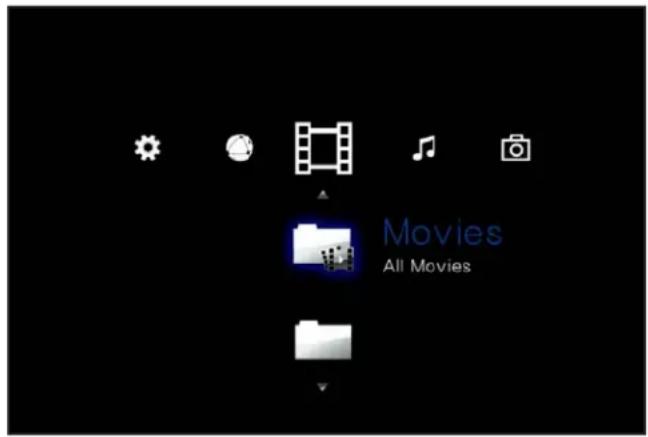
Fig. 34
5.1. Movie Space
Navigate to the Movies Space using the Left and Right buttons. Then use the Up and Down buttons to browse within the Movie Space (Fig. 35).
The Movie Space will display all of the supported video files that are accessible to the LaCinema Classic HD. Only files recognized as video files will be displayed. Music and Photo files will not be displayed.
The way files are organized will be based on their location, i.e. whether they are stored on the LaCinema Classic HD's internal storage, on an external hard drive, or on a networked server. If you enable Content Aggregation in the Settings Space (see section 10.5.2. Content Aggregation and Fig. 36 and Fig. 37), files will be organized according to the criteria below:
■ All Movies: Displays all available videos, sorted alphabetically
By Folder: Displays videos according to the volume's folder structure, including files located on an external USB hard drive connected to the front USB port
■ Most recent: Displays the most recently played videos only
USB1: Displays movie files located on an external USB hard drive connected to the front USB port (for details, refer to section 7. Playing Files Located on USB Hard Drive)
To load a movie, select the file you wish to play and press the button. A loading animation will appear while the it is being analyzed to ensure optimum playback experience.
NOTE: If you stop a film and then come back to it later, you will be asked if you want to play from where you left off or to start from the beginning.
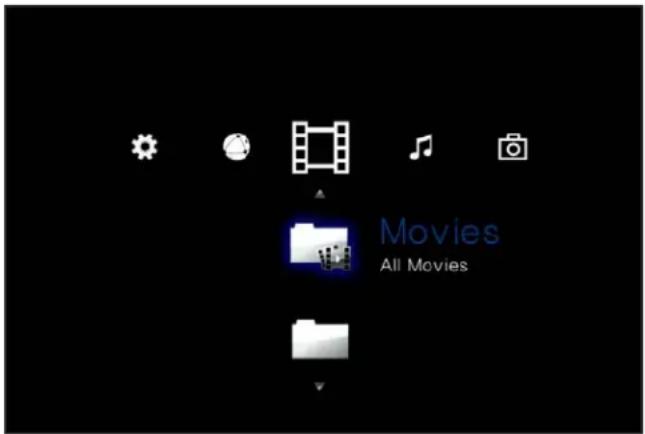
Fig. 35
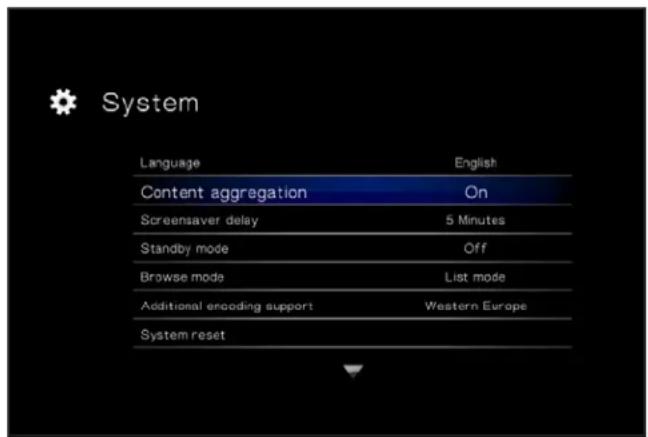
Fig. 36
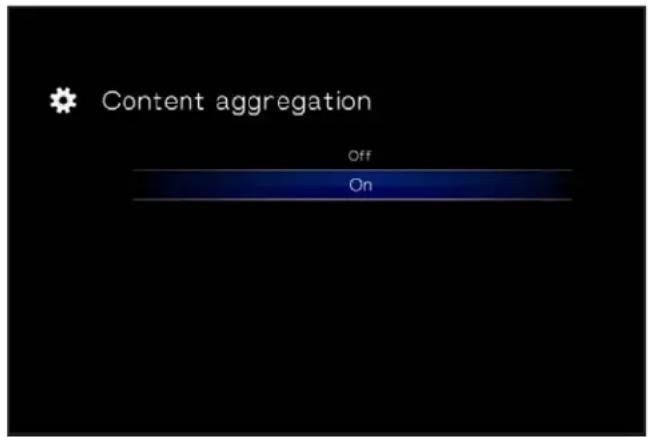
Fig. 37
5.1.1. Movie Space Options
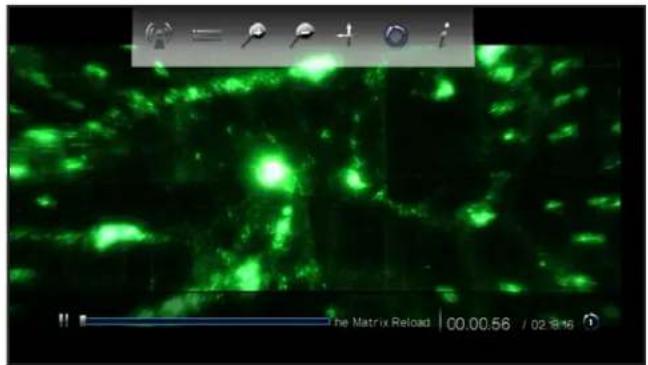
While a movie is playing, you can adjust several playback parameters. Press the Setup Button to display or exit the on-screen menu, and use the Left and Right buttons to navigate to a setting and OK to enter the setting menu (see Fig. 38 for reference). Once you've selected the option you want, click the OK button.
- Audio Languages: Select this option to modify the audio language (if alternates are available)
- Subtitle: Select this option to activate/change the subtitles (if are available)
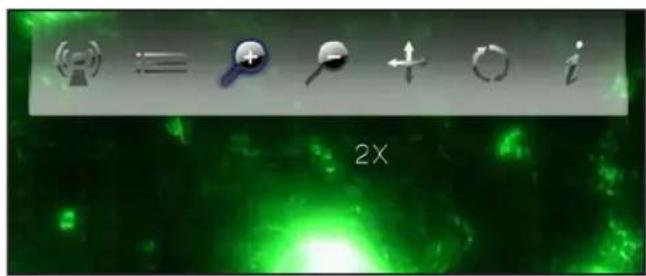
- Zoom In: This feature allows you to zoom into a video. Once the feature has been selected, use the Up button to zoom in (Fig. 39).
- Zoom Out: To zoom out, select this icon and press the Up button.
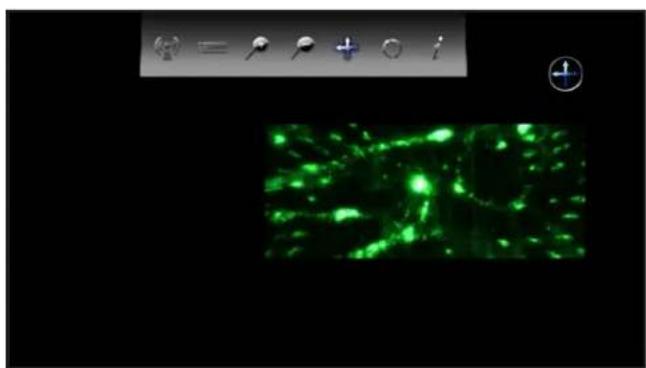
- Scroll: If you have zoomed into a video, select this icon to scroll around the video. Use the direction buttons on your remote control (Fig. 40).
continued on the next page >>
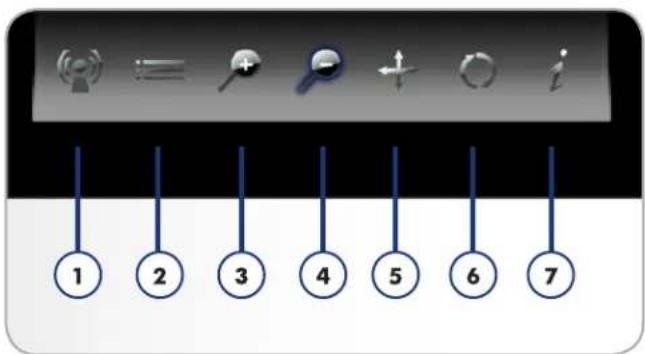
Fig. 38
natural_image
Green glowing background with abstract icons and a '2X' label (no readable text or symbols)Fig. 39
natural_image
Microscopic view of fluorescent green cellular structures against a dark background, with no visible text or symbols.Fig. 40
- Change play mode: By pressing the Setup ⚙ button you can adjust the play mode as follows:
a. Normal (Fig. 42)
b. Repeat one: The currently playing file will repeat continuously (Fig. 43)
c. Repeat all: All files in the current folder will play in succession repeatedly (Fig. 44)
- Display info: Click this button to display information about the currently playing file such as time remaining and time elapsed.
To exit the on-screen menu, click the Setup ⚙ button once again.
NOTE: You can pause the video while adjusting settings.
NOTE: If you stop a file, the settings will revert to the default when you reopen the file.
natural_image
Microscopic fluorescent image showing green-labeled cellular structures against a dark background, with no readable text or symbols.Fig. 41
Fig. 42
Fig. 43
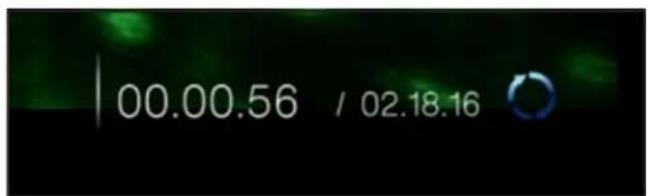
Fig. 44
5.2. Photos Space
Navigate to the Photo Space using the Left ▶ and Right ▶ buttons. Then use the Up ▲ and Down ▼ buttons to browse within the Photo Space (Fig. 45).
The Photo Space will display all of the supported video files that are accessible to the LaCinema Classic HD. Only files recognized as photo files will be displayed. Music and video files will not be displayed.
The way files are organized will be based on their location, i.e. whether they are stored on the LaCinema Classic HD's internal storage, on an external hard drive, or on a networked server. If you enable Content Aggregation in the Settings Space (see section 10.5.2. Content Aggregation and Fig. 46 and Fig. 47), files will be organized according to the criteria below:
■ All Photos: Displays all available photos, sorted alphabetically by name
■ By Date: Displays photos according to when the picture was taken
By Folder: Displays photos according to the volume's folder structure
■ Most Recent: Displays the most recently played pictures only
USB1: Displays photo files located on an external USB hard drive connected to the front USB port (for details, refer to section 7. Playing Files Located on USB Hard Drive)
To load a picture, select the file you wish to display and press the OK button.
NOTE: It is possible to play music while watching a photo slide-show. To do so, first start the music via the Music Space. Then press the Home button, navigate to the Music Space, then the track you wish to play, and press the OK button.
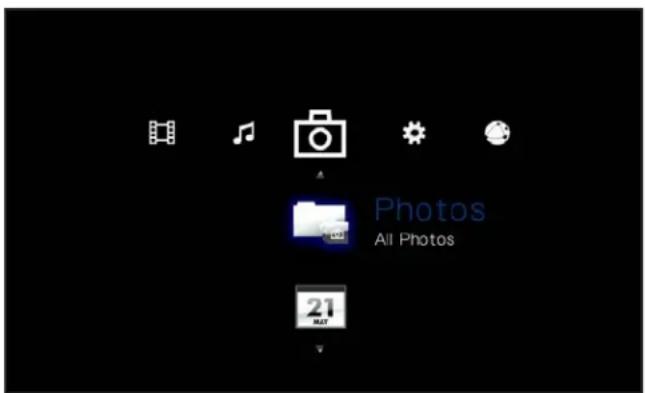
Fig. 45

Fig. 46
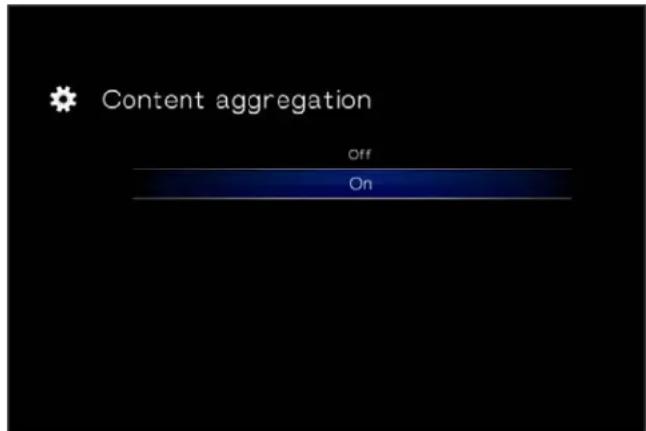
Fig. 47
5.2.1. Photo Space Options
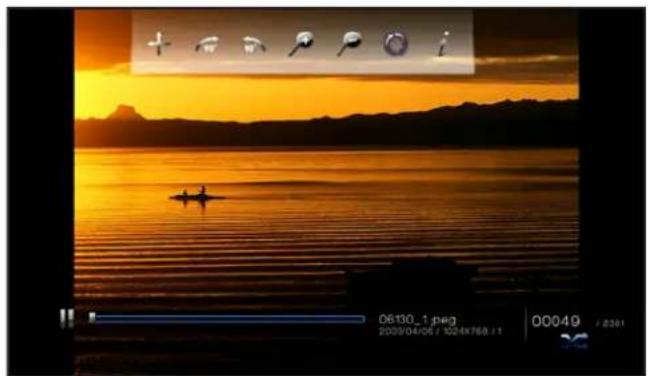
While a photo is being displayed, you can adjust several playback pa rameters. Press the Setup button to display or exit the on-screen menu, and use the Left and Right buttons to navigate to a setting and OK to adjust (see Fig. 48 for reference). Once you've selected the option you want, click the OK button.
- Scroll: If you have zoomed into a video, select this icon to scroll around the video. Use the direction buttons on your remote control.
- Rotate right: Rotate the photo 90 degrees clockwise.
- Rotate left: Rotate the photo 90 degrees counter-clockwise.
- Zoom in: This feature allows you to zoom into a video. Once the feature has been selected, use the Up button to zoom in (Fig. 49).
- Zoom out: To zoom out, select this icon and press the Up button.
- Change play mode: Choose from:
a. Normal
b. Random (Fig. 50)
c. Repeat one: The currently playing file will repeat continuously
d. Repeat all: All files in the current folder will play in succession repeatedly.
- Display info: Display info: Click this button to display information about the currently playing file.
NOTE: You can pause the slideshow while adjusting settings.
NOTE: If you stop a slideshow, the settings for a given photo and for the slideshow will revert to the default when you replay.
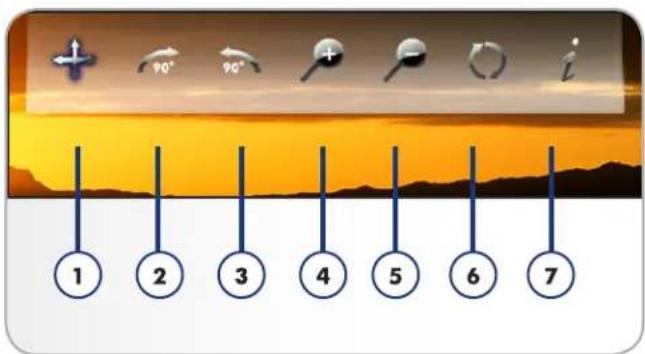
Fig. 48
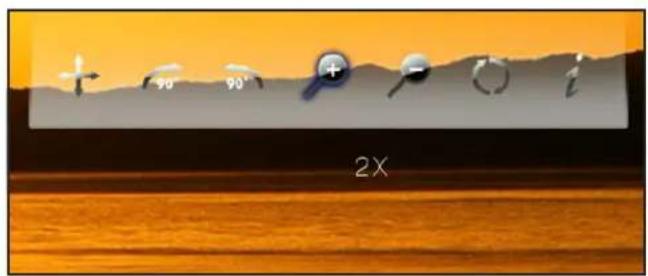
Fig. 49
natural_image
Sunset over a calm lake with silhouetted figures in the water (no text or symbols visible)Fig. 50
5.3. Music Space
Navigate to the Music Space using the Left ▶ and Right ▶ buttons. Then use the Up ▲ and Down ▼ buttons to browse within the Music Space (Fig. 51).
The Music Space will display all of the supported video files that are accessible to the LaCinema Classic HD. Only files recognized as audio files will be displayed. Photoic and video files will not be displayed.
The way files are organized will be based on their location, i.e. whether they are stored on the LaCinema Classic HD's internal storage, on an external hard drive, or on a networked server. If you enable Content Aggregation in the Settings Space (see section 10.5.2. Content Aggregation and Fig. 52 and Fig. 53), files will be organized according to the criteria below:
■ All Music: Displays all available music files, sorted alphabetically by name
■ By artist: Displays music files according to artist
■ By genre: Displays music files according to genre
■ By album: Displays music files according to album
By folders: Displays music files according to the volume's folder structure
■ Most recent: Displays the most recently added music files only
■ Playlist: Displays playlists (M3U, PLS, and WPL files)
USB1: Displays music files located on an external USB hard drive connected to the front USB port (for details, refer to section 7. Playing Files Located on USB Hard Drive)
continued on the next page >>
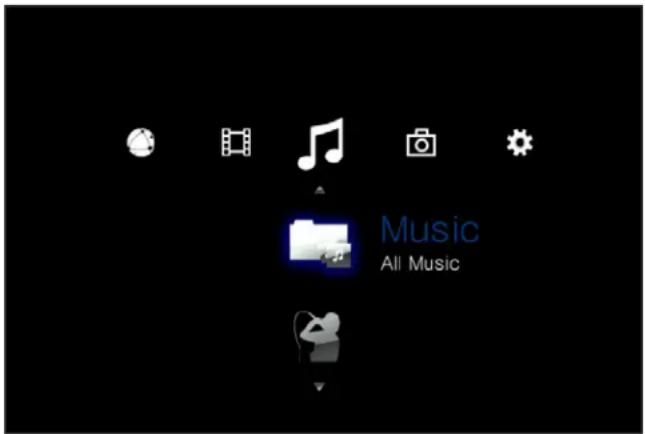
Fig. 51
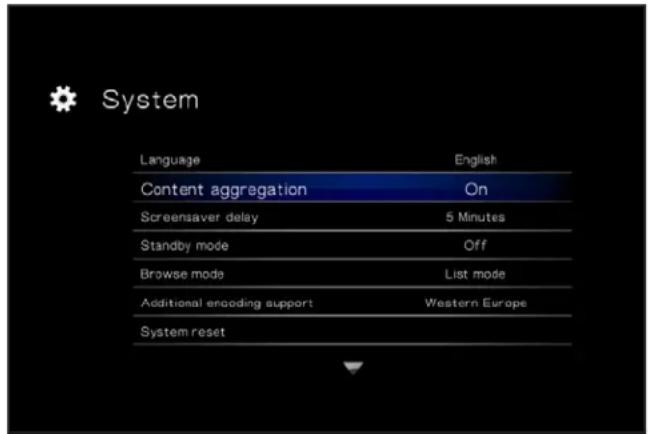
Fig. 52
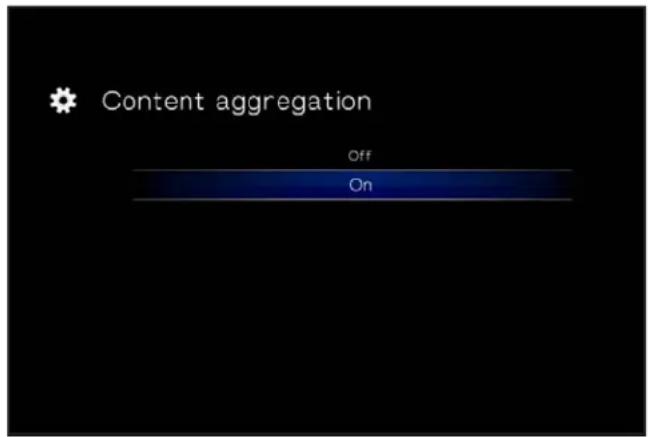
Fig. 53
■ Now playing: If a music file is playing, this icon will be present (Fig. 54). Clicking the OK button will take you to the Now Playing window. Click the ■ button to stop music playback.
To load a music file, select the file you wish to display and press the OK button.
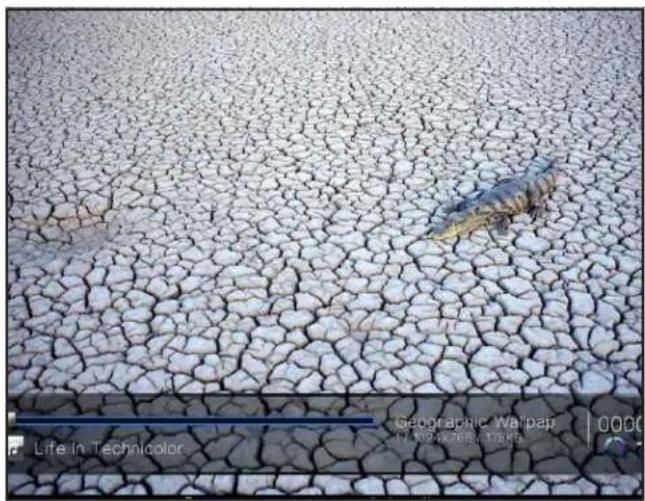
NOTE: It is possible to watch a photo slideshow while listening to music. To do so, first start the music. Then press the Home button, navigate to the Photos Space, then the album you wish to display, and press the OK button (Fig. 55).
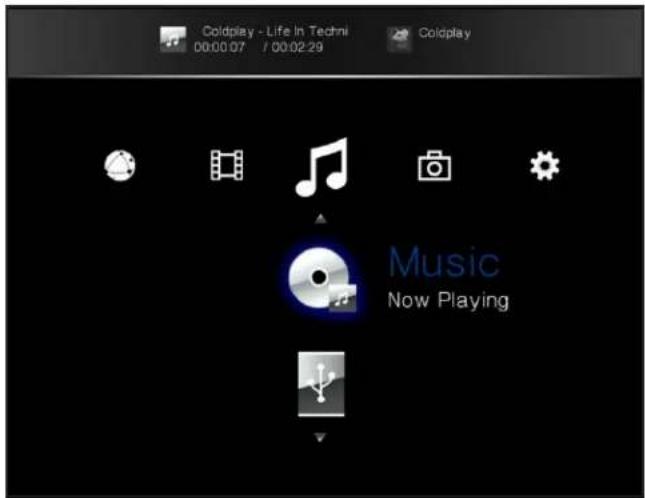
Fig. 54
natural_image
Dry, cracked earth surface with a small fish emerging from the ground (no text or symbols visible)Fig. 55
5.3.1. Music Space Options
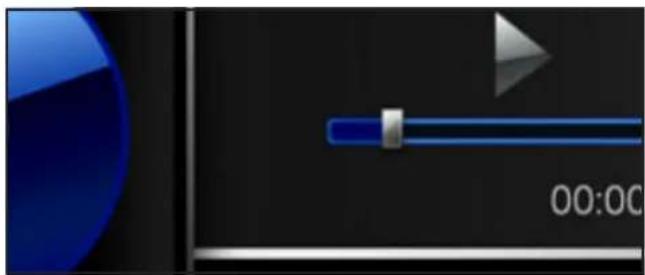
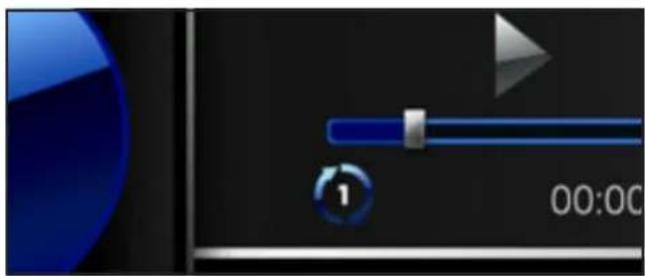
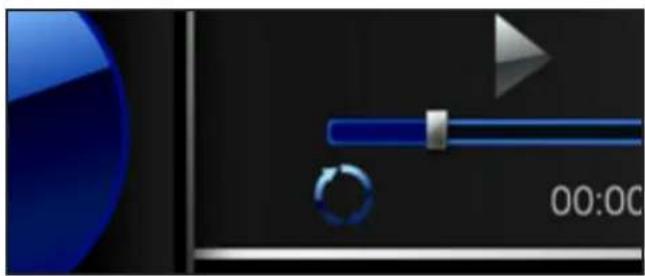
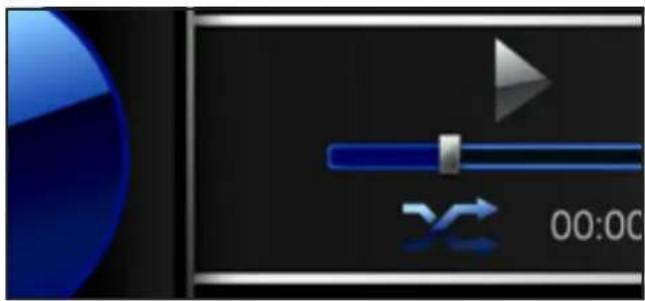
During playback, you can adjust several pa rameters (Fig. 56). Press the Setup button to display or exit the on-screen menu and configure the following settings. Once you've selected the option you want, click the OK button.
- Normal: The currently playing file will repeat continuously (Fig. 57).
- Repeat one: The currently playing file will repeat continuously (Fig. 58).
- Repeat all: All files in the current folder will play in succession repeatedly (Fig. 59).
continued on the next page >>
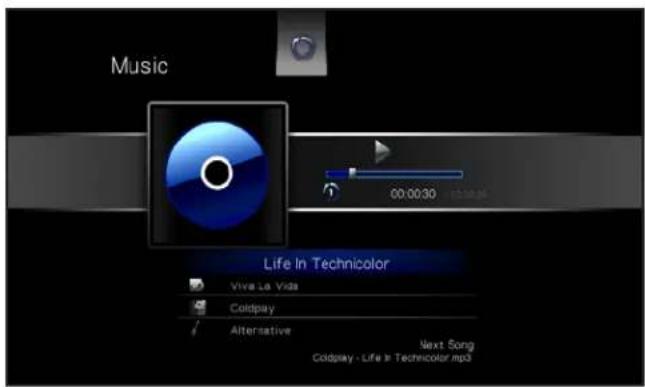
Fig. 56
natural_image
Blue circular play button with playback slider and play symbol, no readable text or symbolsFig. 57
natural_image
Blue circular play button with progress bar and play symbol, no readable text or symbolsFig. 58
natural_image
Blue play button interface with playback slider and circular progress bar (no text or symbols)Fig. 59
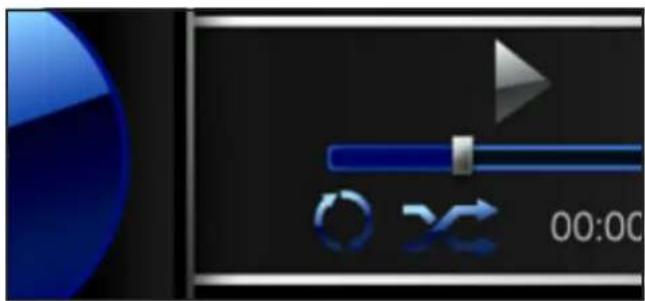
- Random: Files in the current folder or playlist will play in random order (Fig. 60).
- Random repeat all: Files in the current folder or playlist will play in random order and in succession repeatedly (Fig. 61).
natural_image
Blue play button interface with playback controls and timecode (no readable text or symbols)Fig. 60
natural_image
Blue play button interface with playback controls and playback buttons (no readable text or symbols)Fig. 61
6. Sharing Files Throughout Your Home Network
Thanks to its support for the network protocols, your LaCinema Classic HD can share files located on its internal storage and on an external USB connected to its device port to computers and digital media players on your network.
To manage files located on your LaCinema Classic HD from a networked PC or Mac, see section 6.1. Manage Files from a Networked Computer.
To use a UPnP- or DLNA-compliant digital media player to play files located on your LaCinema Classic HD, see section 6.2. Play Files on Networked Media Players.
6.1. Manage Files from a Networked Computer
It is convenient to use the network connection to transfer, move, or delete files located on the LaCinema Classic HD once it has been connected to the TV. Follow these steps to manage (move, delete, or transfer) files located on the LaCinema Classic HD using your networked computer:
6.1.1. STEP 1: Connect the Power Supply
6.1.2. STEP 2: Connect the Ethernet Cable
6.1.3. STEP 3: Connect HDMI or A/V Cables
6.1.4. STEP 4: Configure Network Settings
6.1.5. STEP 5: LaCie Network Assistant: Install
6.1.6. STEP 6: LaCie Network Assistant: Transfer Files
6.1.1. STEP 1: Connect the Power Supply
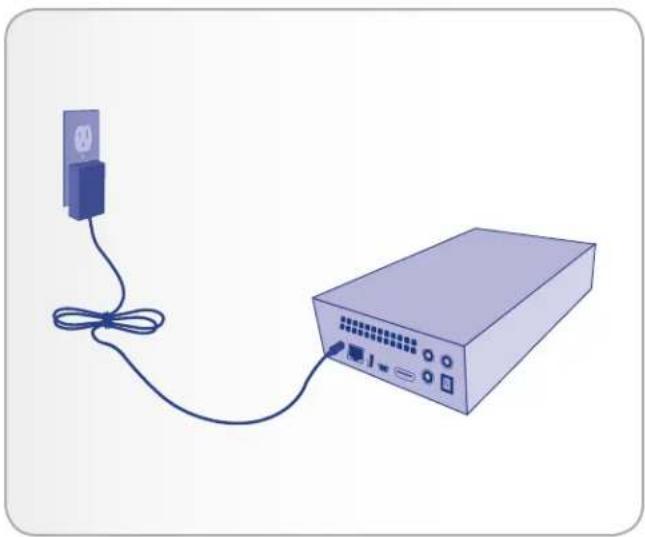
- Plug one end of the power adapter cord into the back of LaCinema Classic HD and the other end into a power outlet (Fig. 62).
The LaCinema Classic HD may take a few seconds to boot.
Move on to the next step, 6.1.2. STEP 2: Connect the Ethernet Cable.
CAUTION: Only use the AC adapter supplied with your specific LaCie device. Do not use a power supply from another LaCie device or another manufacturer. Using any other power cable or power supply may cause damage to the device and void your warranty. Always remove the AC adapter before transporting your LaCie drive. Failure to remove the adapter may result in damage to your drive and will void your warranty.
TECHNICAL NOTE: You may use your LaCie drive when in a foreign country thanks to its 100-240 Volt power supply. To be able to use this feature, you may need to purchase an appropriate adapter or cord.
natural_image
Illustration of a connected device with a cable and power outlet (no text or symbols)Fig. 62
6.1.2. STEP 2: Connect the Ethernet Cable
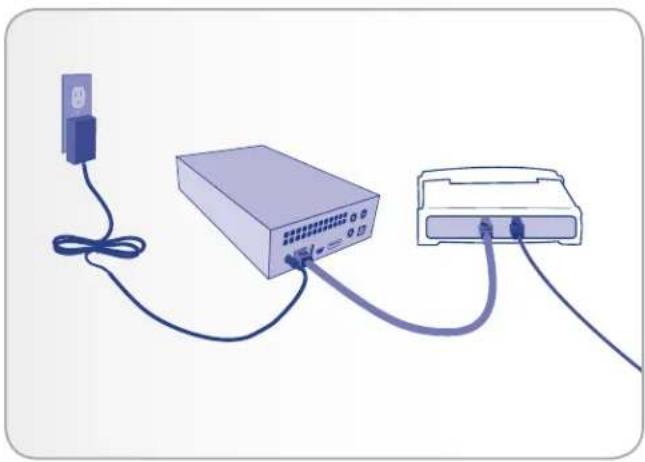
- Connect the Ethernet cable to the Ethernet port on the back of the LaCinema Classic HD (Fig. 63).
- Connect the other end of the Ethernet cable into an available Ethernet LAN (local area network) port on your router or hub (refer to your router or hub's documentation if necessary). Allow a few moments for your network to recognize the drive.
Now move on to the next step, 6.1.3. STEP 3: Connect HDMI or A/V Cables.
6.1.3. STEP 3: Connect HDMI or A/V Cables
- Connect your LaCinema Classic HD to your television using either the HDMI cable or the composite video & audio cable. For more details on this step, see section 4.1. STEP 1: Connect HDMI or A/V Cables (Fig. 64).
- Turn on the TV. The loading screen will appear.
TECHNICAL NOTE: If you don't see the loading screen, adjust the video input on your TV to match the type of video cable you connected above (either HDMI or composite) (Fig. 65).
Now move on to the next step, 6.1.4. STEP 4: Configure Network Settings.
natural_image
Illustration of a network device with two connected devices and a power outlet (no text or symbols)Fig. 63
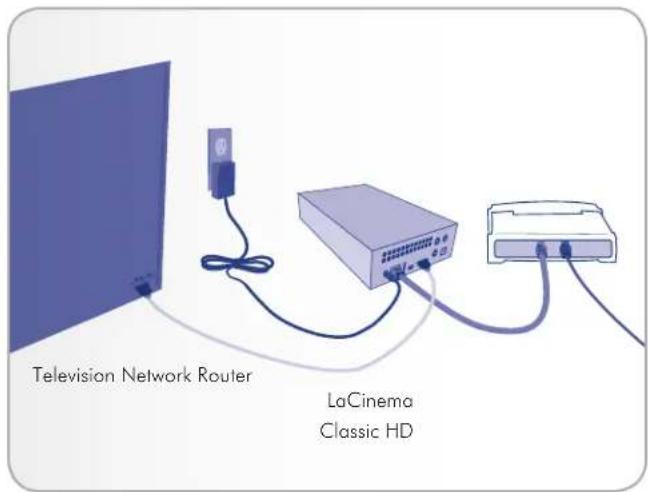
Fig. 64
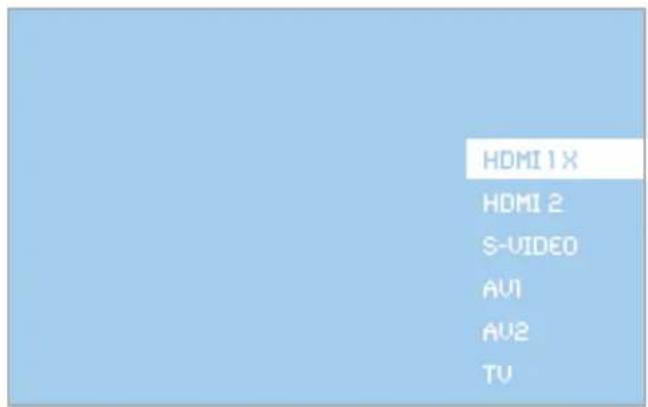
Fig. 65
6.1.4. STEP 4: Configure Network Settings
In order for your LaCinema Classic HD to be assigned an IP address, which will allow it to connect to the network, you must either follow the setup steps in the Installation Wizard or configure network settings in the Settings Space. In the Settings Space, follow these steps to request an IP address:
Use the remote control to navigate to Settings Space > Network > Network Setup > Configure > DHCP and press the OK button (Fig. 66, Fig. 67 and Fig. 68). Your network router will assign an IP address to the LaCinema Classic HD.
Move on to the next step, 6.1.5. STEP 5: LaCie Network Assistant: Install.
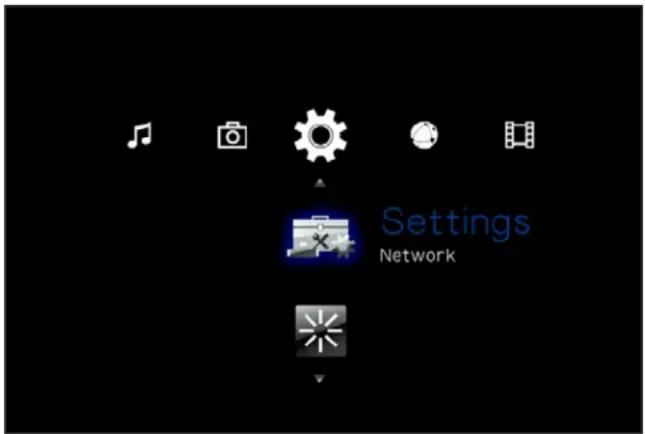
Fig. 66
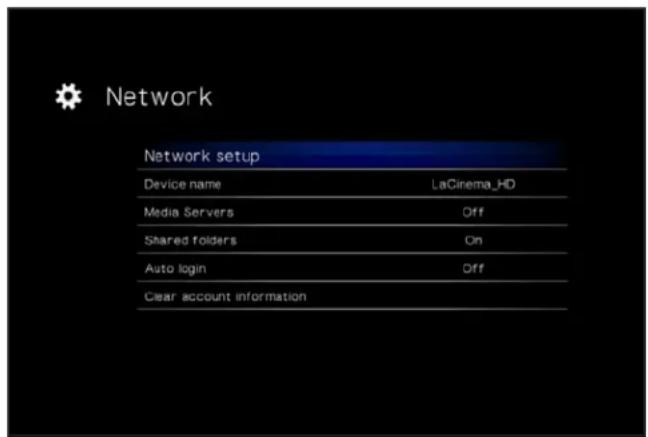
Fig. 67
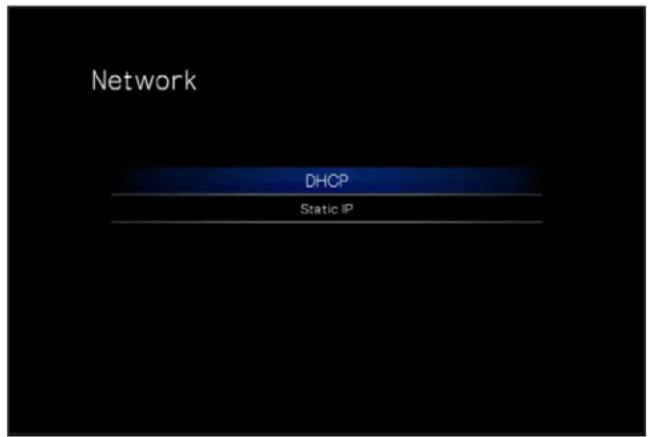
Fig. 68
6.1.5. STEP 5: LaCie Network Assistant: Install
LaCie Network Assistant software detects all LaCie network attached storage devices on your network and gives you easy ways to connect to or configure them.
Once installed and running, LaCie Network Assistant (LNA) will appear in your task bar (Windows users) or in the menu bar (Mac users) and automatically search for storage devices on your network. When a new device is found, the icon will blink.
When the LNA finds your LaCinema Classic HD on the network, you can connect to the mounted volume or configure the LaCinema Classic HD's network settings.
TECHNICAL NOTE: As an alternative to using the LaCie Network Assistant to access the drive, you can use its IP address to open a network (SMB) connection. See section 6.1.7. Alternative Network Connection Methods for more details. The IP address can be found by using the remote control to navigate to Settings > Network > Network Setup.
Install LaCie Network Assistant:
- Insert the CD-ROM into your computer's CD-ROM drive.
- Windows users, the CD should appear in My Computer. Mac users, the CD should appear on the desktop. Double-click the CD icon, then double-click "LaCie Network Assistant Setup".
- Follow the Wizard to complete installation.
Now move on to the next step, 6.1.6. STEP 6: LaCie Network Assistant: Transfer Files.
6.1.6. STEP 6: LaCie Network Assistant: Transfer Files
Windows Users:
a. Select LaCie Network Assistant in Start/Programs. A Network Assistant icon will appear in the system tray (Fig. 69) and Network Assistant will automatically detect your LaCinema Classic HD.
b. From the system tray, click the LaCie Network Assistant icon then click LaCinema_HD (Fig. 71). The volume will open in an explorer window.
c. Drag files or folders onto this volume.
Mac Users:
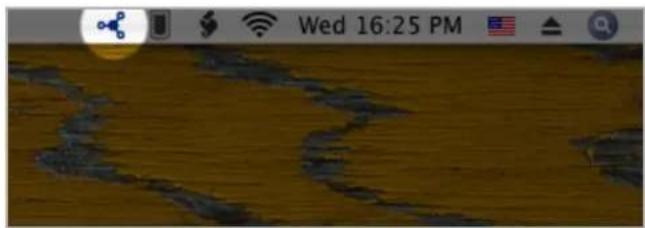
a. Select LaCie Network Assistant in your Applications folder. A Network Assistant icon will appear in the menu bar (Fig. 70) and Network Assistant will automatically detect your LaCinema Classic HD.
b. From the menu bar, click the LaCie Network Assistant icon then click LaCinema_HD (Fig. 72). The volume will open in a Finder window.
c. Drag files or folders onto this volume.
To remove files from their folders, simply drag them to the Trash or the Recycle Bin.
continued on the next page >>

Fig. 69
natural_image
Grayscale map view of a coastal region with water channels and land cover, displayed on a mobile phone interface (no readable text or symbols)Fig. 70
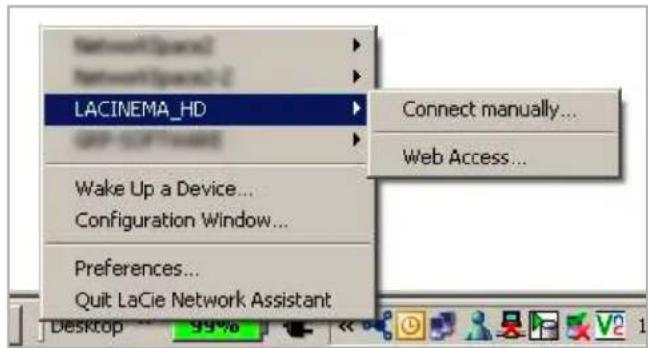
Fig. 71
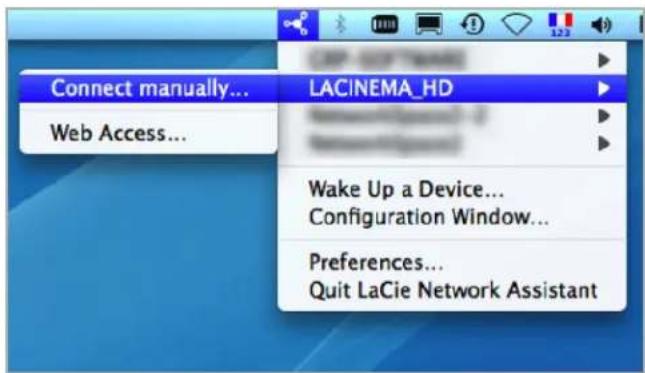
Fig. 72
IMPORTANT INFO: Make sure that IPConf support is activated in the LaCie Network Assistant preferences (Fig. 73, PC users, and Fig. 74, Mac users).
IMPORTANT INFO: If you want to remove files from the LaCinema Classic HD, you must empty the Trash or Recycle Bin after placing the files there. Otherwise, the files will still have a reference and occupy hard drive space.
TECHNICAL NOTE: The LaCinema HD is optimized for multimedia playback. If you want a network-attached hard drive for backing up your files, consider purchasing a LaCie Network Space, which offers features and performance more suited to this use.
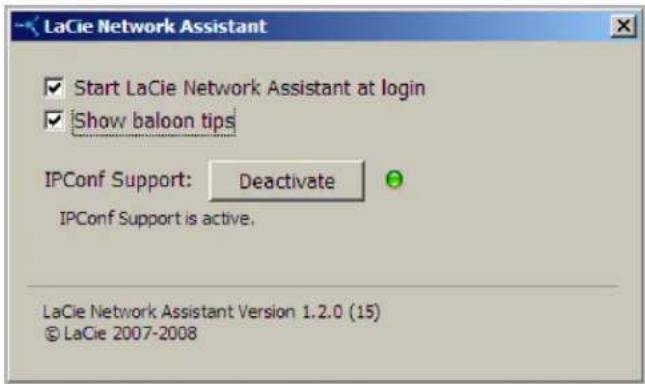
Fig. 73
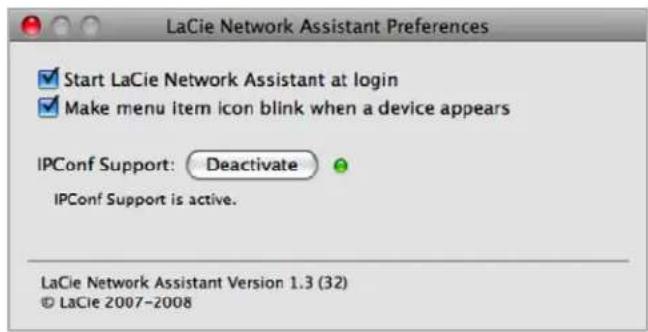
Fig. 74
6.1.7. Alternative Network Connection Methods
If your LaCinema Classic HD is connected to your home network, it is possible to access its volume without using the LaCie Network Assistant.
Windows Users
To access the volume in Windows, look in My Network Places, and select Microsoft Windows Workgroup. By default, the volume will be named lacinema_hd * (Fig. 75).
Alternatively, you can access the volume by typing the following in a Windows explorer address field:
smb://lacinema_hd * or smb://[IP address] **
Mac Users
From the Finder, select Go and then Connect to Server... In the window that opens, type (Fig. 76):
smb://lacinema_hd * or smb://[IP address] **
[If your drive is connected to the TV, you can find the IP address using the remote control by navigating to Settings > Network.]
Click Connect.
Alternatively, you can find the drive listed in the Network folder.
* If you changed the machine name in the Settings Space, type this name instead.
** The IP address can be found by using the remote control to navigate to Settings > Network > Network Setup.
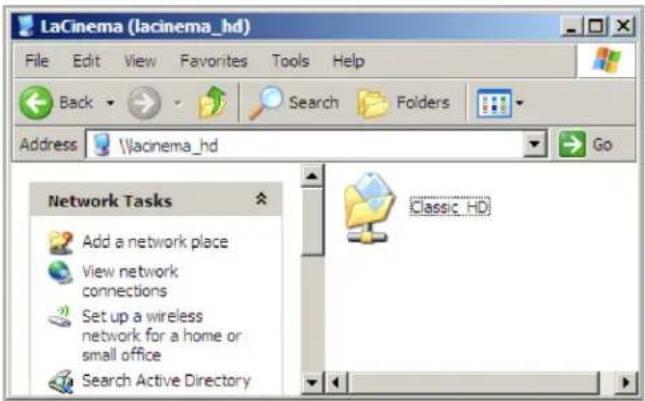
Fig. 75
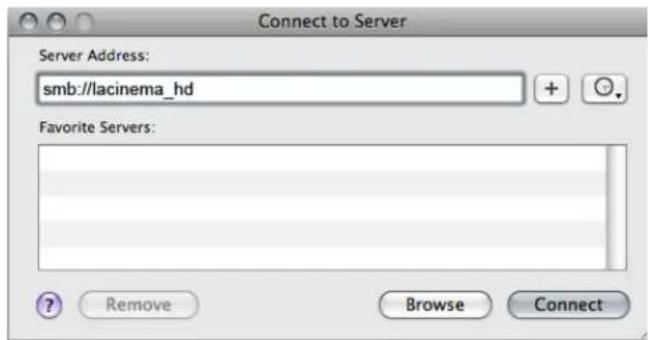
Fig. 76
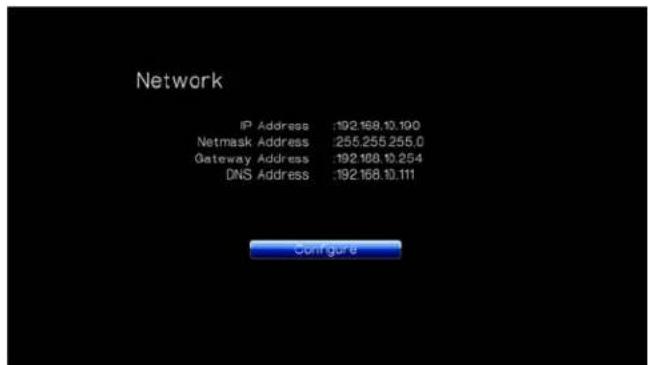
Fig. 77
6.2. Play Files on Networked Media Players
LaCinema is both a network media player and server. It can play content located on a local network server and also share the content located on its internal storage to other UPnP- and DLNA-compatible digital media players on your network. Examples include PlayStation, XBox, DLNA TV or mobile phones, Kodak Photoframe, and Philips Streamium.
The media server function will allow you to view your content on a compatible media player in a different room in your home via your home network. Follow these steps:
- Make sure your LaCinema Classic HD is connected to your network (Fig. 78) and has been assigned an IP address (for details, see 6.1.4. STEP 4: Configure Network Settings).
- Activate Media Servers service in the Settings Space (see section 10.6.3. Media Servers) (Fig. 79).
- Now you will be able to play files located on the LaCinema Classic HD on any other UPnP/DLNA-certified player/adapter connected to your network.
For a typical configuration, see section 6.2.1. UPnP Usage Example: XBOX.
NOTE: Content located on the LaCinema internal HDD or attached USB disk will be scanned and then shared in your home to other UPNP DLNA media players.
TECHNICAL NOTE: Once the media server function is activated, it will take few seconds for the server to become available to the UPnP player. As the content needs to be analyzed (artist, genre, etc.), this process can take several minutes. When new content is added to the LaCinema Classic HD's internal storage, it should appear few minutes following the completion of the transfer. The same delay should occur when adding or removing the a USB device containing multimedia content.
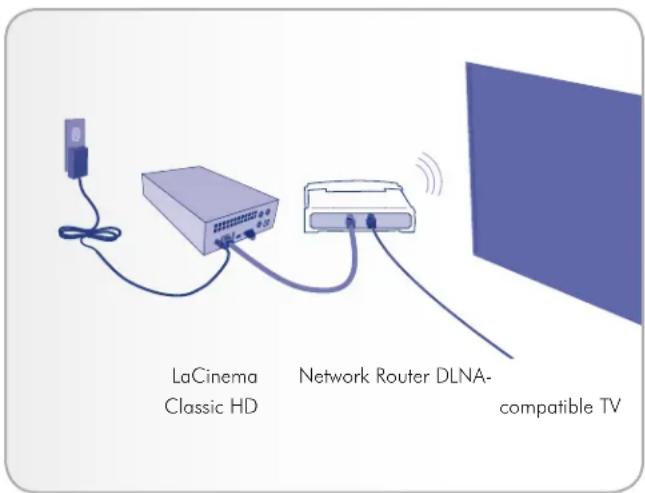
Fig. 78
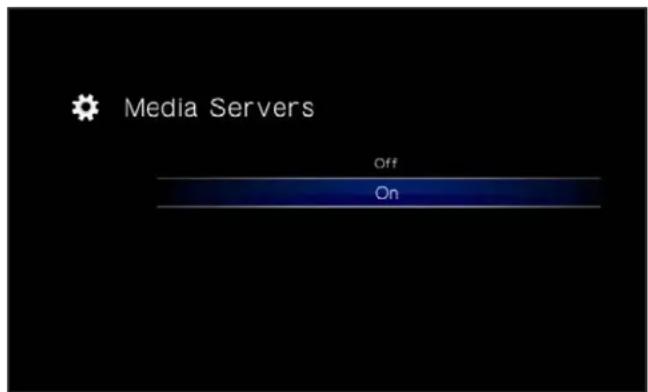
Fig. 79
6.2.1. UPnP Usage Example: XBOX
Here is a typical example using an XBOX:
- Connect the LaCinema Classic HD to your computer using the USB cable (see 3.1. STEP 1: Connect the Power Supply and 3.2. STEP 2: Connect the USB cable).
- Load content on the LaCinema Classic HD's internal storage.
- If not already done, connect the LaCinema Classic HD to your TV (see 4.1. STEP 1: Connect HDMI or A/V Cables).
- Using the remote control, navigate to Settings > Network > Media Server > ON and press the OK button. The server is now activated and multimedia content is being scanned and added to the media server database.
You can now go the room where the XBOX is located and navigate to the XBOX media server section to select LaCinema_HD (or, if you have modified the name, select the modified name).
You should be able to view and play content located on the LaCinema Classic HD.
TECHNICAL NOTE: Some files might not be available on you media player for two reasons, either the file format is not compatible with your network player, or content has not yet been added to the database as the media server is still analyzing the content.
7. Playing Files Located on USB Hard Drive
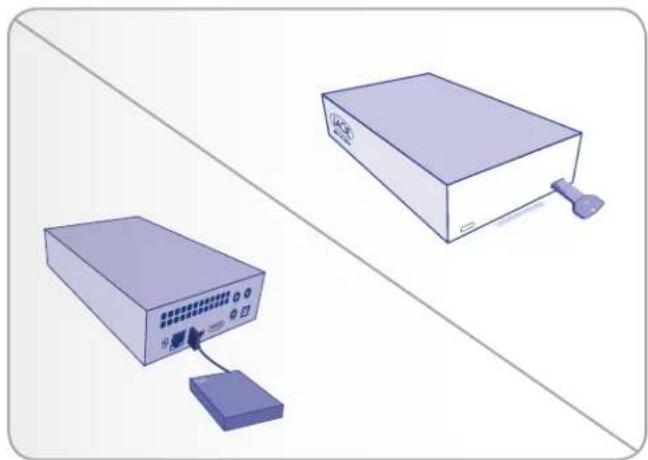
Simply turn on and plug in external hard disks to the LaCinema Classic HD's front USB port (Fig. 82, left) or rear device USB port (Fig. 82, right) to be able to play multimedia files on your television. See below for more details.
TECHNICAL NOTE: It is not possible to transfer files from an external source to the LaCinema Classic HD using the TV interface. In this case, transfer files first to your computer, then follow the steps in section 3. Setting Up: Transferring Files.
7.1. USB Disk Connection
-
Connect the external USB hard drive to your computer and transfer multimedia files from your computer to the hard drive. Unmount the drive safely from your computer (Fig. 80).
-
Connect the LaCinema Classic HD's power supply (see section 3.1. STEP 1: Connect the Power Supply for details), then connect the LaCinema Classic HD to your TV (see section 4.1. STEP 1: Connect HDMI or A/V Cables for details) (Fig. 81).
-
Next, power on the external hard disk and plug its USB cable into either the LaCinema Classic HD's front or rear USB device slot (Fig. 82).
continued on the next page >>
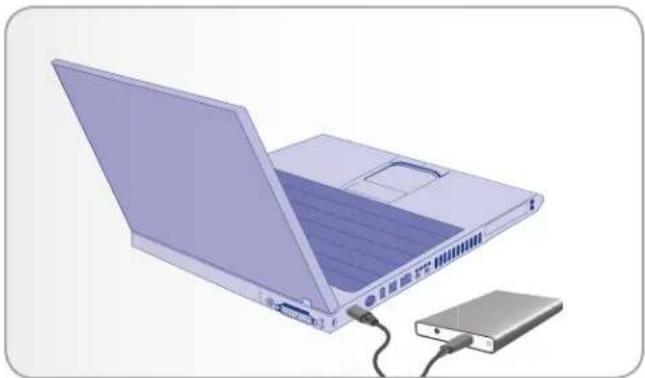
natural_image
Illustration of a laptop with an open screen and connected to a USB drive (no text or symbols visible)Fig. 80
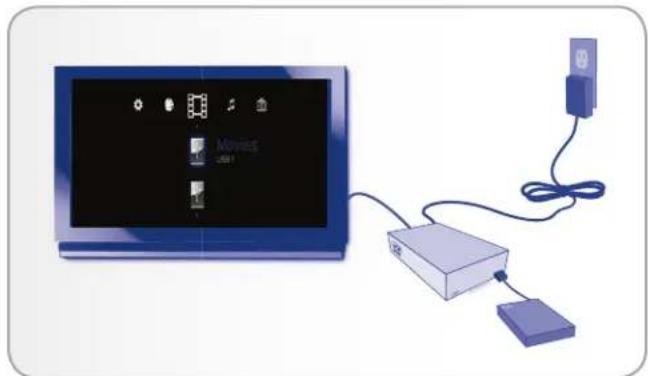
natural_image
Illustration of a device connected to a power strip and cable, with no visible text or symbols on the main components.Fig. 81
natural_image
Illustration of two electronic devices connected by a cable, one with a connector and the other a remote control unit (no text or symbols)Fig. 82
- Once connected, use the remote control to navigate to one of the Media Spaces (Movies, Photos, or Music). Files located on the external USB hard drive can be accessed under the USB1 heading (Fig. 83).
7.2. Compatibility
In addition to hard disks, you can also connect card readers, digital cameras, or digital camcorders with USB Mass storage support.
Hard drives with the following file system formats are supported: FAT32, NTFS, HFS+/Mac OS Extended (non-journalled), and Linux file systems.
IMPORTANT INFO: External USB hard drives formatted in HFS+ (journaled) are not compatible.
7.3. Safe USB Disk Removal
Click the ▲Eject) button on the remote control, confirm (Fig. 84), and then disconnect the drive.
IMPORTANT INFO: If the disk is not properly disconnected, the data located on that disk could be damaged. Make sure that you always safely eject disks in this way before disconnecting. This also applies when the disk is connected to a computer.
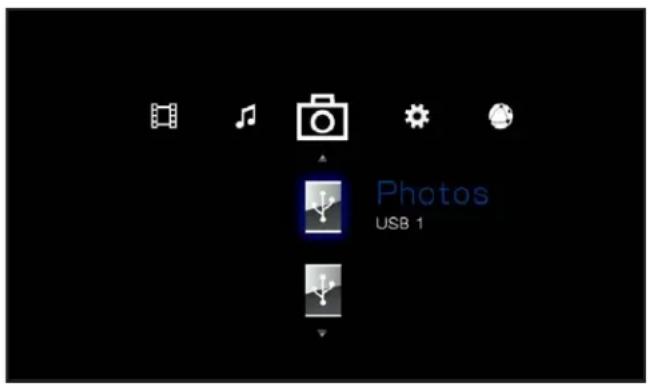
Fig. 83
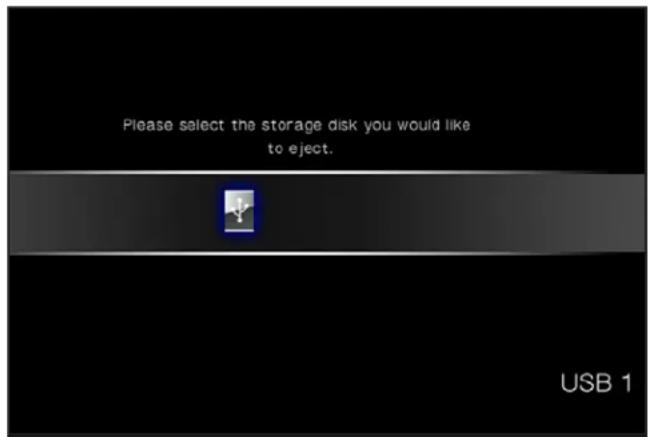
Fig. 84
8. Playing Files From a Networked Media Server
You can stream content to your LaCinema Classic HD via the network connection from a networked UPnP or DLNA server located on a host computer (Mac or PC) or a network-attached hard disk (NAS). In addition, the LaCinema Classic HD can read files from any UPnP device connected your Ethernet or wireless network. Once connected, files located on these sources will appear in the LaCinema Classic HD interface. For details, see below.
TECHNICAL NOTE: If you have purchased a WiFi dongle from LaCie and are streaming files wirelessly to the LaCinema Classic, the bandwidth might not be sufficient for HD movies. You will noticed movie lagging or dropped images. Photo slideshow could also show some delay on display, but streaming music should not be a problem.
8.1. Network-Attached Storage (NAS)
If you have a NAS running a media server, it is possible to stream this content to the LaCinema Classic HD. In order to view your NAS content on LaCinema Classic HD, first make sure that both devices are connected to the network (Fig. 85). Once connected, files located on the NAS will appear in the various Spaces on the LaCinema Classic HD.
TECHNICAL NOTE: It is not possible to transfer files from a NAS to the LaCinema Classic HD using the TV interface. In this case, transfer files first to your computer, then follow the steps in section 3. Setting Up: Transferring Files.
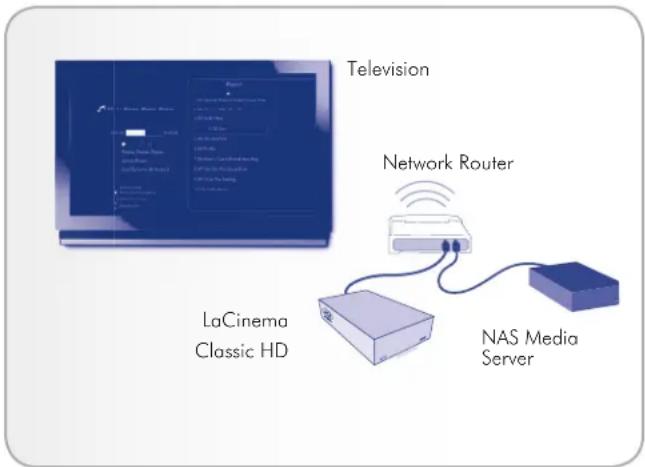
Fig. 85
8.2. From Windows or Mac Computers
You can install software on your computer which will enable it to act as a UPnP media server and stream files to the LaCinema Classic HD via your Ethernet or wireless network. Once the software has been installed and configured, files located on the host computer will appear in the various Spaces on the LaCinema Classic HD (see Fig. 86). Choose from two different software:
Software Compatibility
8.2.1. Packet Video TwonkyVision PC/MAC
8.2.2. Windows Media Player (WMP) PC only
8.2.1. Packet Video TwonkyVision
- From the Utilities CD-ROM, install the Packet Video TwonkyVision software.
- Once installed, launch the server from the Start Menu (Windows users) or the Applications folder (Mac users).
- In the configuration page that opens in your web browser, click on the Sharing link and then select the folders on your computer that contain the multimedia content you wish to access from the LaCinema Classic HD (Fig. 87). Make sure to click the Save Changes button when you finish.
- It may be necessary to restart the server. To do so, select the First Steps link and click Restart server.
- You will now be able to access your computer's multimedia content using the LaCinema Classic HD remote control. Files will appear in the various Spaces on the LaCinema Classic HD.
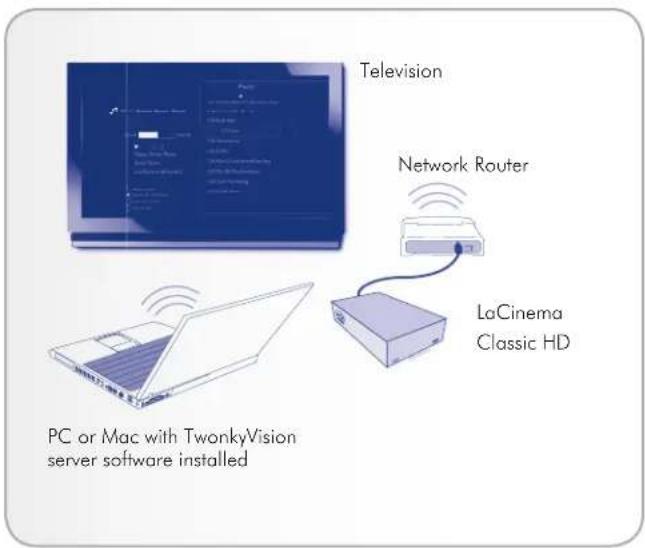
Fig. 86
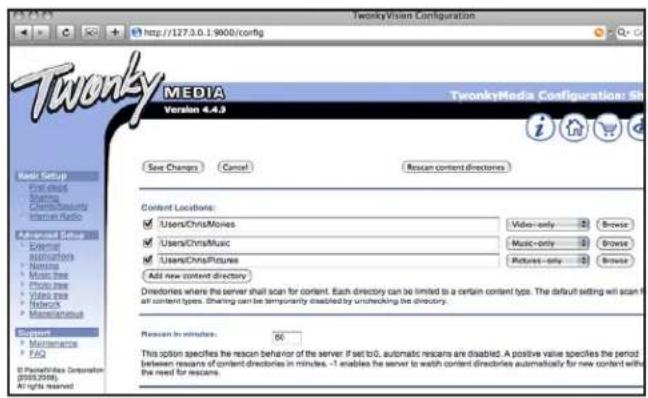
Fig. 87
8.2.2. Windows Media Player (WMP)
IMPORTANT INFO: This software is compatible with Windows only.
Install Windows Media Player (WMP) 11 to allow you to stream content to the LaCinema Classic HD via your Ethernet or wireless network. Follow these steps to configure the connection:
- Make sure that the software is installed on your computer.
TECHNICAL NOTE: WMP is preinstalled on Vista, but XP users may have to download and install the software.
- Make sure that your computer, the LaCinema Classic HD, and any UPnP devices are properly connected to your network (Fig. 88).
- In WMP, turn on Media Sharing by clicking on Library > Media Sharing... (Fig. 89).
- In the Media Sharing dialogue box, select Share My Media to... You must then tell WMP to share content with the LaCinema Classic HD. Below the Share My Media check box, select the LaCinema Classic HD and click Allow (Fig. 90).
- Multimedia content imported into WMP will now be accessible in the various Spaces on the LaCinema Classic HD.
NOTE: Windows 7 users: As of this document's publication date, Windows 7 is bringing new features to network home entertainment that might not be compatible with the LaCinema Classic HD. Please visit the LaCie website for updates to the manual and firmware.
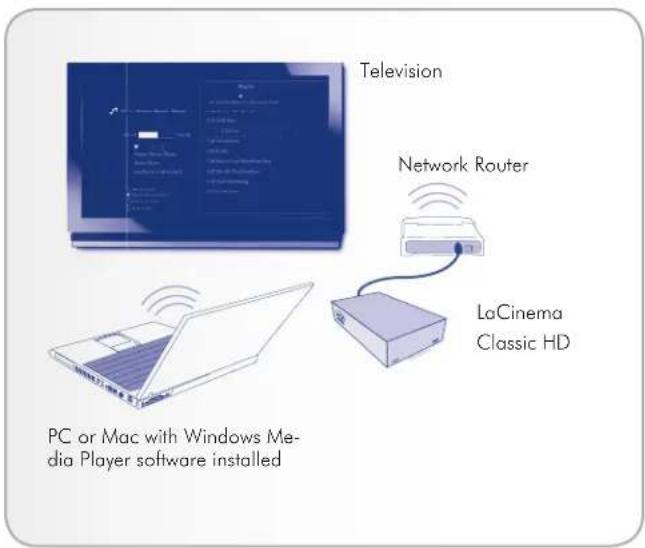
Fig. 88
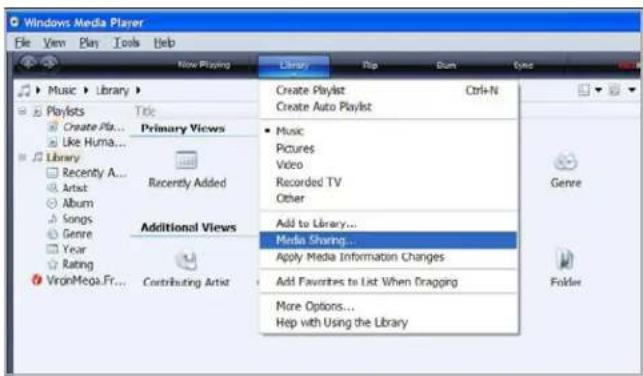
Fig. 89
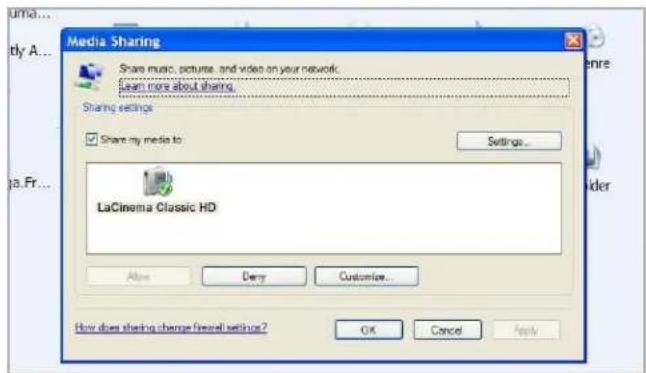
Fig. 90
8.2.3. Shared folders on your Computer
After you modify some settings in your operating system, you can make files located in certain folders on your computer available for playback on your LaCinema Classic HD in Network > Shared Folders (Fig. 91). Follow the steps below according to your operating system.
Windows XP
- Log on to your computer as an administrator.
- Right-click the folder that you want to share, and then click Sharing and Security (Fig. 92).
- If you see a message that reads, As a security measure, Windows has disabled remote access to this computer, click the Network Setup Wizard link (Fig. 93). Then follow the instructions in How to set up your computer for home networking. On the File and printer sharing page of the Network Setup Wizard, be sure to select Turn on file and printer sharing. If you do not see this message, skip this step and go to step 4.
- In the Properties dialog box, select the Share this folder on the network check box (Fig. 94).
- Click OK. Windows Explorer will show a hand holding the folder icon, indicating that the folder is now shared.
The files contained in the folders you select will now be available to the LaCinema Classic HD in Network > Shared Folders.
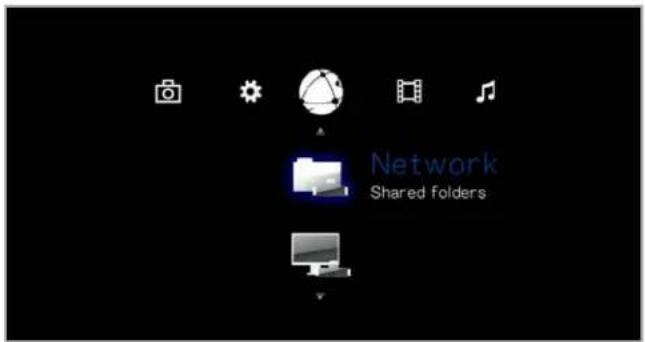
Fig. 91
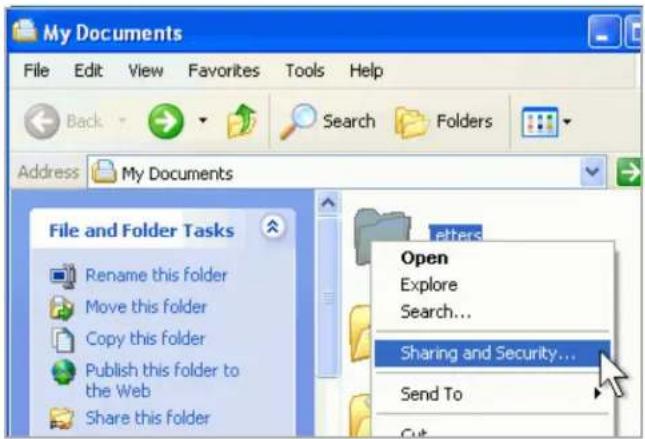
Fig. 92
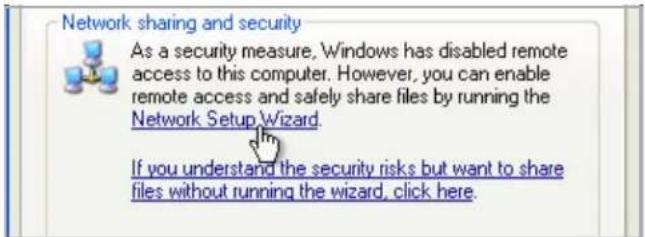
Fig. 93
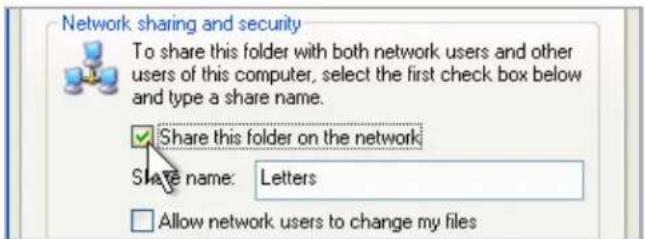
Fig. 94
Windows Vista
- Locate the folder with the files you want to share.
- Right-click the folder that you want to share, and then click Share (Fig. 95).
- In the File Sharing dialog box, click the arrow to the right of the text box and click Everyone to share the files with any device on your network (Fig. 96, 1), and then click Add (Fig. 96, 2).
- Under Permission Level, click the arrow next to Everyone and select A Contributor (Fig. 96, 3).
- When you are finished, click Share (Fig. 96, 4). If you are prompted for an administrator password or confirmation, type the password or provide confirmation.
The files contained in the folders you select will now be available to the LaCinema Classic HD in Network > Shared Folders.
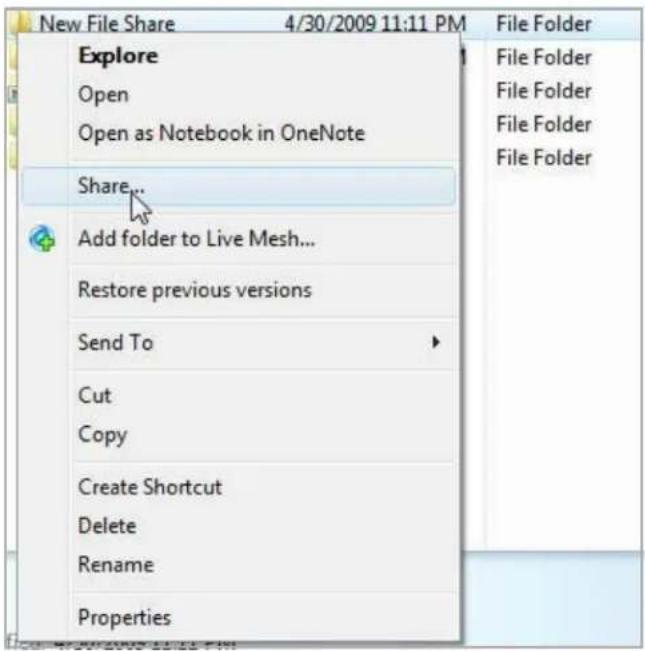
Fig. 95
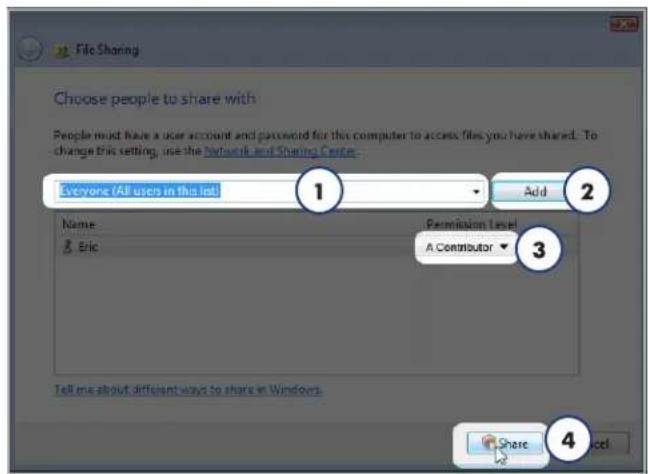
Fig. 96
Mac OS X 10.5.x
- Open your System Preferences and select Sharing.
- Click File Sharing in the left-hand column and check the box (Fig. 97, 1).
- Click the + sign under the column Shared Folders (Fig. 97, 2), and add the folders you would like to share with the LaCinema Classic HD.
- Select the first folder listed under Shared Folders. In the right-hand column, click on the permissions type for Everyone and select Read & Write (Fig. 97, 3).
- Still in File Sharing preferences, click the Options button in the lower right-hand corner (Fig. 97, 4). In the window that opens, select Share files and folders using SMB.
The files contained in the folders you select will now be available to the LaCinema Classic HD in Network > Shared Folders.
Mac OS X 10.4.x
- Open your System Preferences and select Sharing in the Internet & Network section.
- Click the Services tab, then select the checkbox next to Personal File Sharing.
The files contained in the folders you select will now be available to the LaCinema Classic HD in Network > Shared Folders.
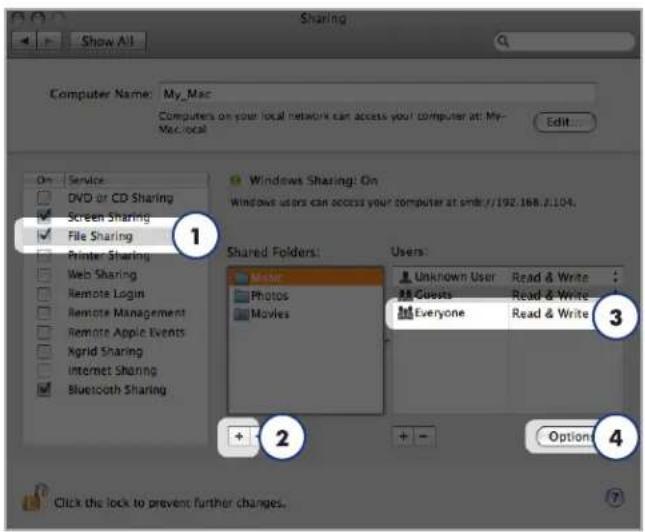
Fig. 97
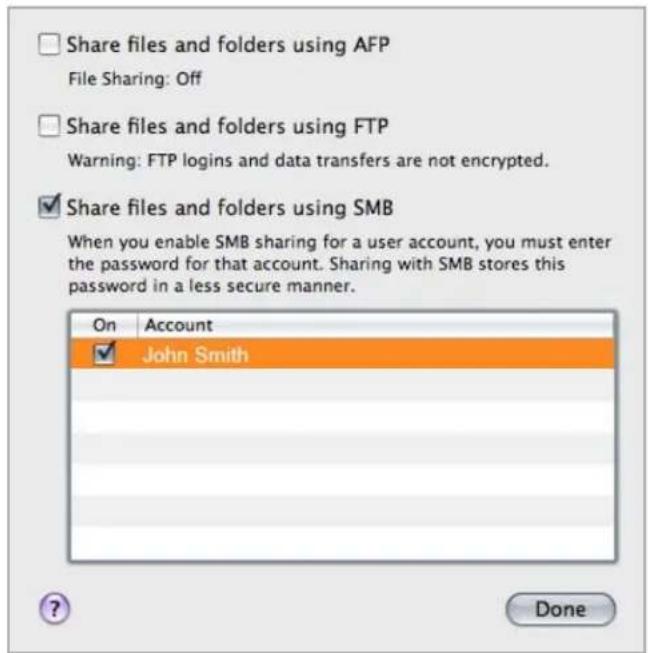
Fig. 98
9. Reformatting the LaCinema Classic HD
Please read the following information on file system formats for Windows and Mac operating systems to determine if you need to reformat the LaCinema Classic HD.
The LaCinema Classic HD is formatted in NTFS for immediate use with Windows. If you would like to reformat the drive, follow the steps below for your operating system. The following chart will help you decide which file format is most appropriate for your use. Once you've chosen a file format, see sections 9.1. Reformatting: Windows Users and 9.2. Reformatting: Mac Users for instructions on reformatting.
Windows File System Formats
NTFS
NTFS is the ideal format if you will be using the drive only with Windows machines (performance will generally be greater when compared to FAT 32 without the file size restriction).
MS-DOS (FAT32)
MS-DOS (FAT32) is a good file format if you will be using your drive with both Windows and Macs. MS-DOS (FAT32) has a maximum single file size restriction of 4GB. This means you cannot transfer files larger than 4GB to the drive.
Mac File System Formats
HFS+ (non-journalled)
HFS+ is the ideal file format if you will be using the drive on Macs only; performance is generally superior to that offered by FAT 32 without the file size restriction.
MS-DOS (FAT32)
MS-DOS (FAT32) is a good file format if you will be using your drive with both Windows and Macs. MS-DOS (FAT32) has a maximum single file size restriction of 4GB. This means you cannot transfer files larger than 4GB to the drive.
9.1. Reformatting: Windows Users
The process of formatting a drive on a computer running Windows XP, Windows Vista, or Windows 7 consists of two steps: (1) installing a signature on the drive, and (2) formatting the drive. These steps will erase anything that is on the disk.
CAUTION: Following these steps will erase everything from the LaCinema Classic. If you have information that you want to protect or continue to use, back up this information before performing these steps.
- Connect the drive to the computer via the interface port.
- Right-click My Computer and select Manage.
- From the "Computer Management" window, select Disk Management (located below the Storage group). See Fig. 99.
- If the "Initialize and Convert Disk Wizard" window appears, click Cancel.
- Windows will list the Hard Disks that are installed on the system. Locate the drive that is represented by the 🔑 icon. Right-click the icon and select Initialize.
- In the box to the right that says Unallocated, right-click and select New Partition...
- On the first page of the "New Partition Wizard," click Next. See Fig. 100.
continued on next page
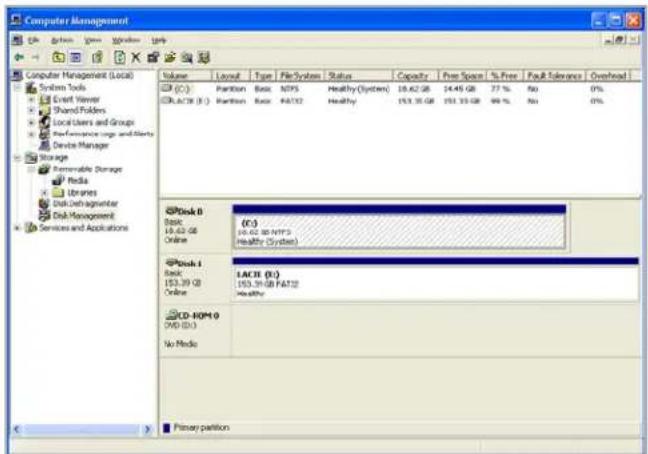
Fig. 99
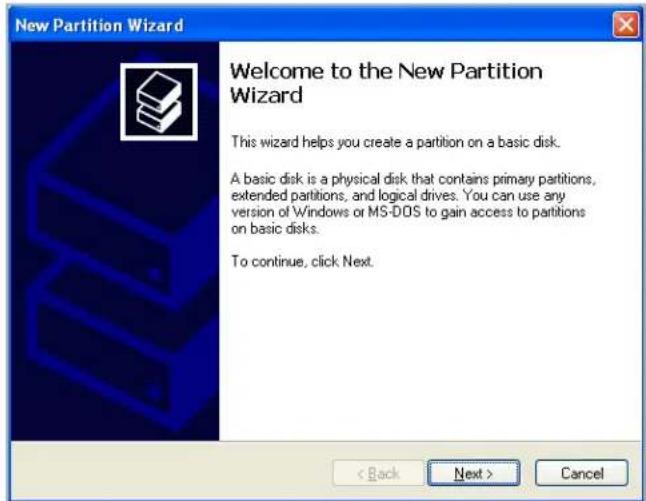
Fig. 100
- Click Next.
- Click Next.
- Click Next.
- Click Next.
- On the Format Partition window, select Quick Format. Click Next.
- Click Finish to begin the formatting process.
- Windows Disk Management will format and partition the disk according to your settings (Fig. 102), and your drive will appear in My Computer, ready to use.
IMPORTANT INFO: If you choose to format the LaCinema Classic HD in MS-DOS (FAT32), which is compatible with almost all computers, keep in mind that you will not be able to transfer files larger than 4GB to the LaCinema Classic HD.

Fig. 101
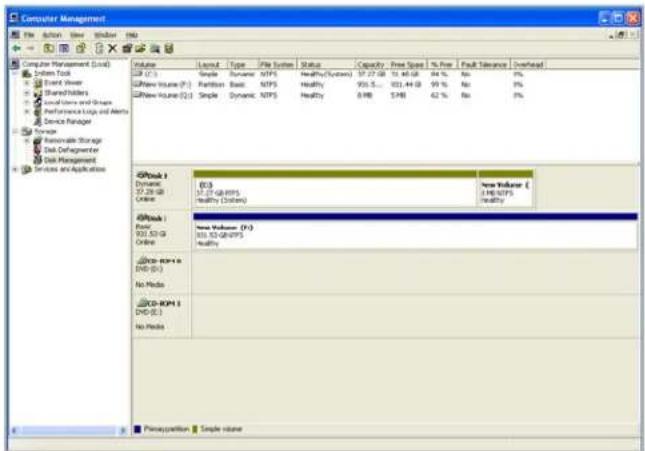
Fig. 102
9.2. Reformatting: Mac Users
TECHNICAL NOTE: The LaCinema Classic HD is formatted in NTFS for immediate use with Windows. Mac users must reformat the drive into Mac OS Extended (NOT journaled).
IMPORTANT INFO: You can alternatively choose to format the LaCinema Classic HD in MS-DOS (FAT32), which is compatible with almost all computers, keep in mind that you will not be able to transfer files larger than 4GB to the LaCinema Classic HD.
CAUTION: Following these steps will erase everything from the LaCinema Classic HD. If you have information that you want to protect or continue to use, back up this information before performing these steps.
- Connect the drive to the computer and turn on the drive.
- Select Utilities from the Go menu in the Finder menu bar.
- In the Utilities folder, double-click Disk Utility.
- The Disk Utility window will open. Select the volume labeled LaCie Hard Disk from the list of available hard disks on the left side of the window.
- Select the Partition tab.
- From the Volume Scheme: menu, choose the number of partitions you want to divide the drive into (Mac OS X gives you the option of dividing the drive into at most 16 partitions). You can adjust the size of each partition using the slide bar between the partitions in the Volume Scheme: area.
- In the Volume Information section, enter a name for each volume (partition), and choose a file system (Mac OS Extended or MS-DOS) from the drop-down menu (Fig. 104).
- Once you have finalized the volume options, click Partition. Click Partition again when the alert message appears to continue.
- Mac Disk Utility will format and partition the disk according to your settings, and your drive will be ready to use.
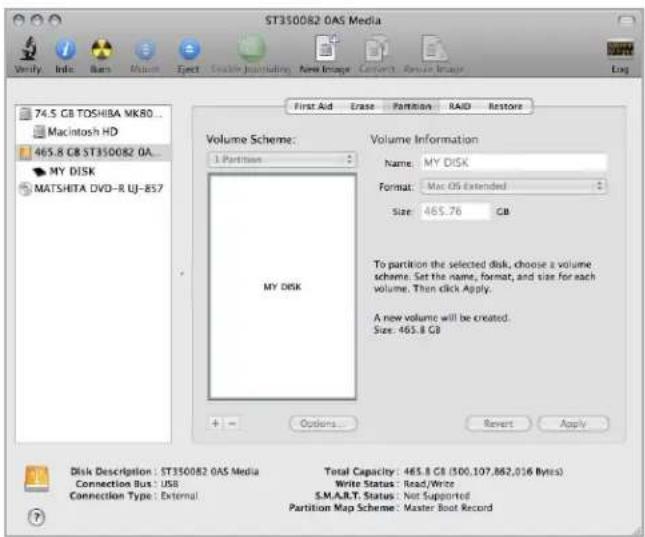
Fig. 103
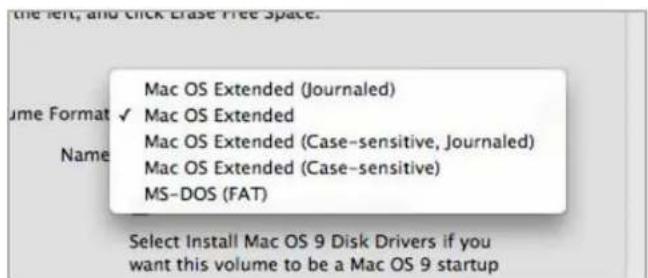
Fig. 104
10. Settings Menu
The LaCinema Classic HD Setup Space will help you to properly configure and customize your device. Access it at any time by clicking the Setup button. When the setup menu is shown, the playback will be automatically paused.
Scroll through the Setup menu using the Up ▲ and Down Buttons (Fig. 105).
To display the available options of a setup category, press the Right ▶ or OKton. To confirm your choice, press the button. All changes are automatically saved.
To select another option, press the Return ← button to go back to an previous menu. Press the Setup button again to exit the setup menu from the screen.
10.1. Settings: Audio/Video
10.1.1. Video Output
Select Video Out, then choose from the following options (Fig. 107) depending on your television capabilities and the method you used to connect the LaCinema Classic HD to your TV (note that HDMI is the default setting):
■ Composite
■ HDMI.
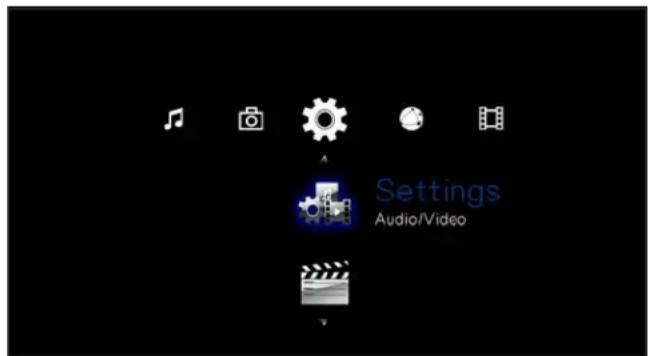
Fig. 105
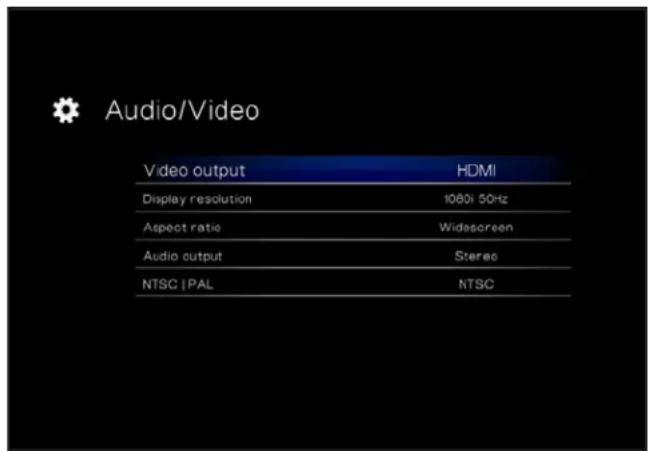
Fig. 106
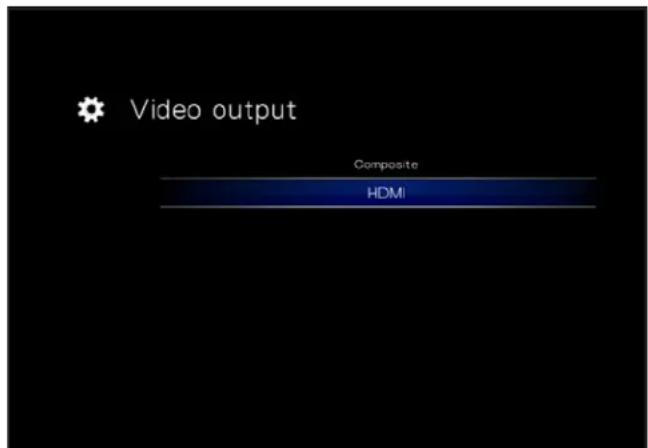
Fig. 107
10.1.2. Display Resolution
Choose a display resolution to match your television (default is Auto).
10.1.3. Aspect Ratio
Depending on your television's setup, choose either (Fig. 108) (note that Normal is the default setting):
Normal
Widescreen
10.1.4. Audio Ouput
Choose either (Fig. 109) (note that Stereo is the default setting):
Stereo
Digital
IMPORTANT INFO: If you connected the SPDI/F cable, make sure to select the Stereo option.
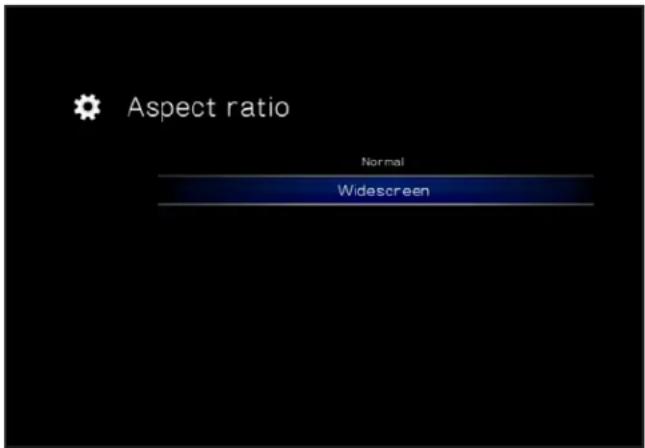
Fig. 108
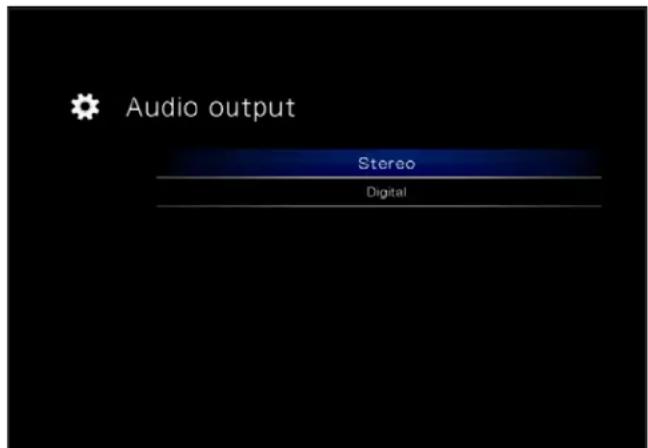
Fig. 109
10.1.5. NTSC/PAL
Depending on your television's configuration, choose either (Fig. 110) (note that PAL is the default setting):
NTSC
PAL
10.2. Settings: Video
10.2.1. Video Sequence
Choose from the following (Fig. 111):
Normal
■ Repeat One: The currently playing file will repeat continuously
■ Repeat All: All files in the current folder will play in succession repeatedly
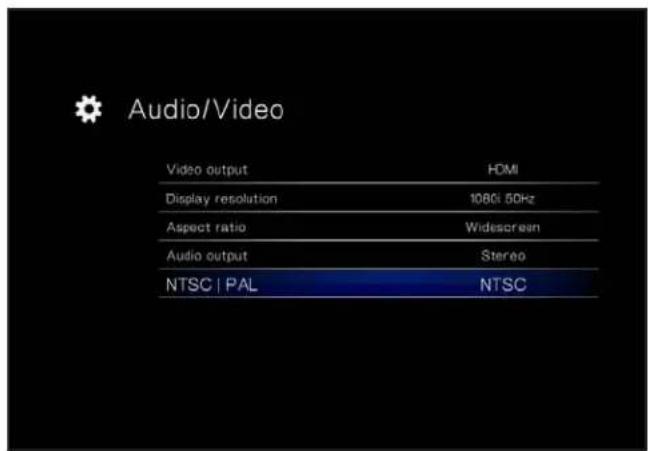
Fig. 110
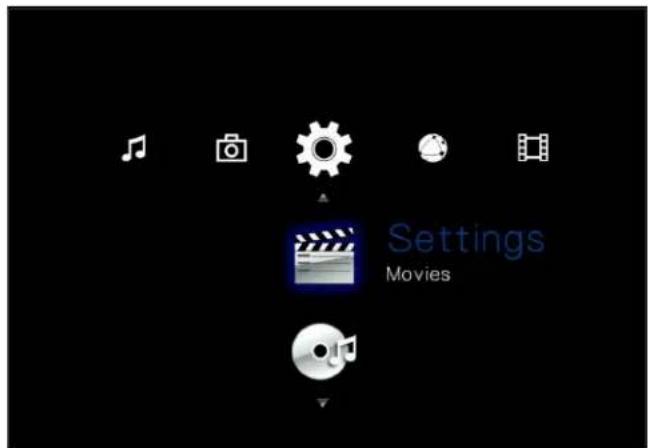
Fig. 111
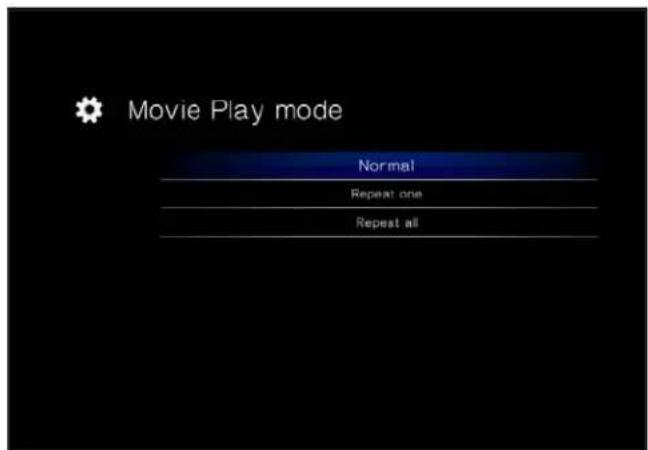
Fig. 112
10.2.2. Subtitle Font Size
Choose from a range of 24pt to 40pt (Fig. 113):
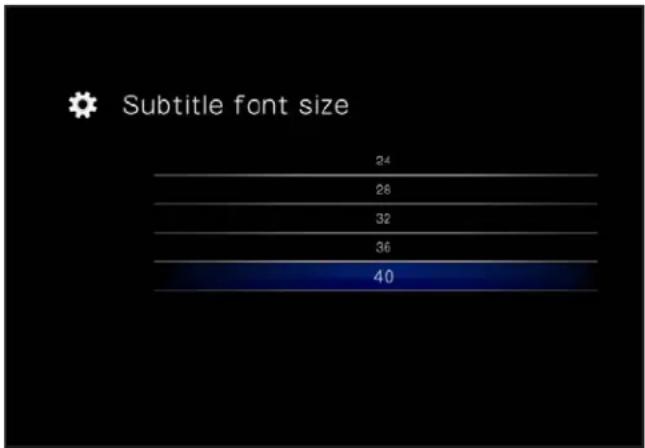
Fig. 113
10.3. Settings: Music
10.3.1. Music Sequence
Choose from the following (Fig. 114):
■ Repeat one: The currently playing file will repeat continuously.
■ Repeat all: All files in the current folder will play in succession repeatedly.
- Random: Files in the current folder or playlist will play in random order.
10.3.2. Audio Track Display
The parameter affects how audio tracks are displayed (Fig. 115).
Choose from:
File name
Title
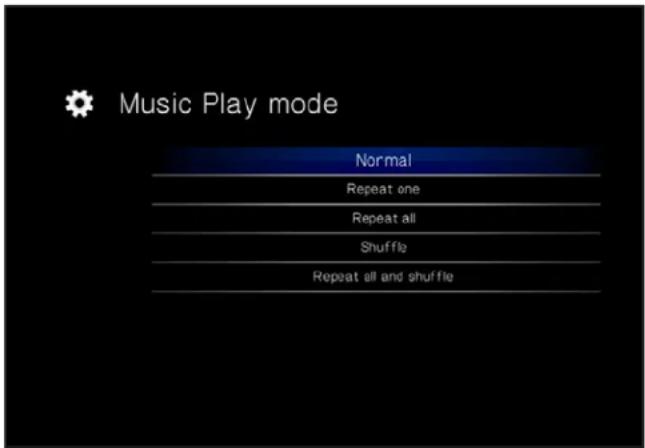
Fig. 114
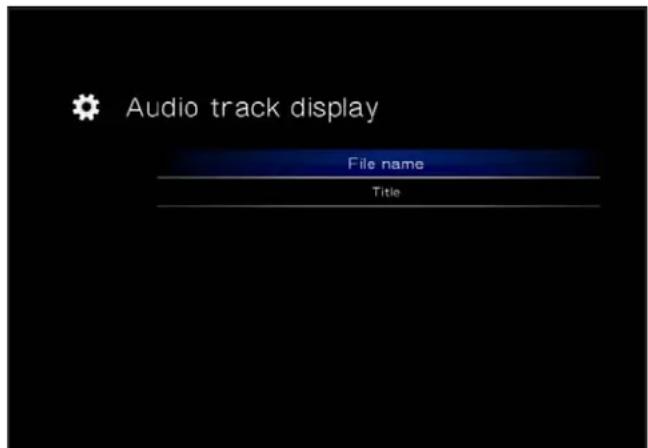
Fig. 115
10.4. Settings: Photo
10.4.1. Slideshow
This parameter allows you to change the way pictures are played back (default is Normal) (Fig. 117):
Normal
■ Shuffle
■ Repeat All
■ Repeat All and Shuffle
10.4.2. Picture Scaling
This parameter affects how the picture fits on screen (default is Keep as Original) (Fig. 118):
- Keep as Original
Fit to Screen
■ Display in Full Screen
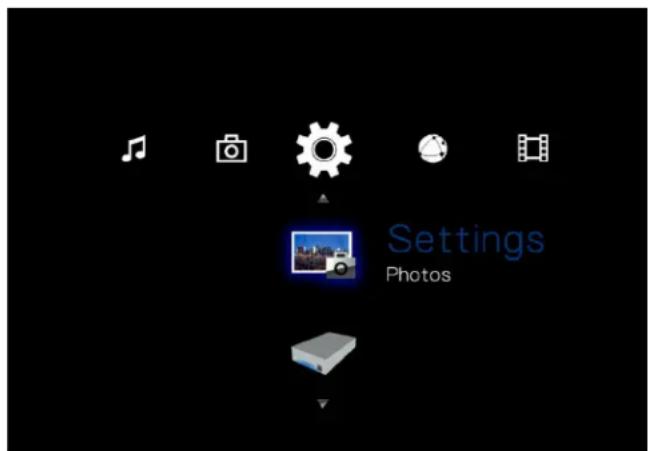
Fig. 116
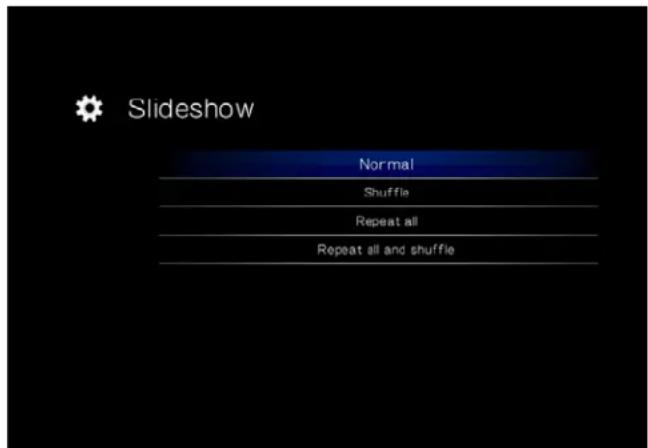
Fig. 117
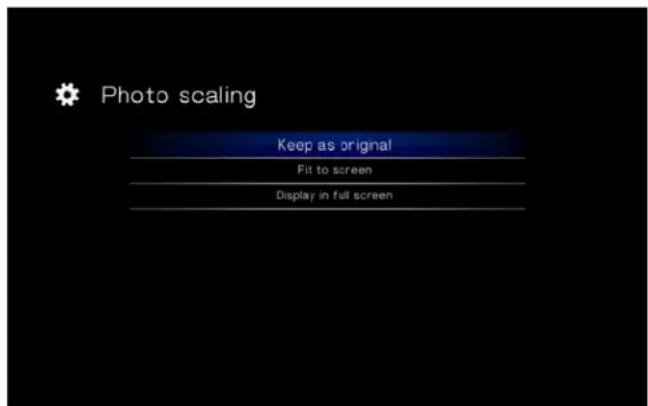
Fig. 118
10.4.3. Transition Effect
This parameter allows you to modify the transition effects between photos (default is Normal) (Fig. 119):
Normal
Fade
Random
10.4.4. Interval Time
This settings allows you to set the amount of time a photo is displayed (default is 3 Seconds) (Fig. 120):
■ 3 ■ 5
■ 10 ■ 20
■ 30 ■ 1 Minute
5 Minutes
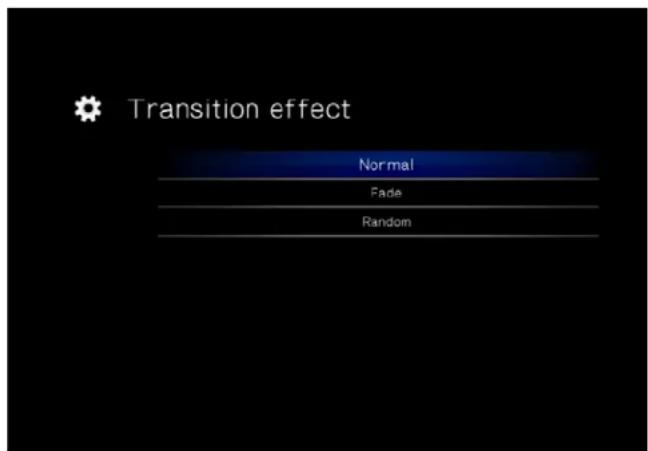
Fig. 119
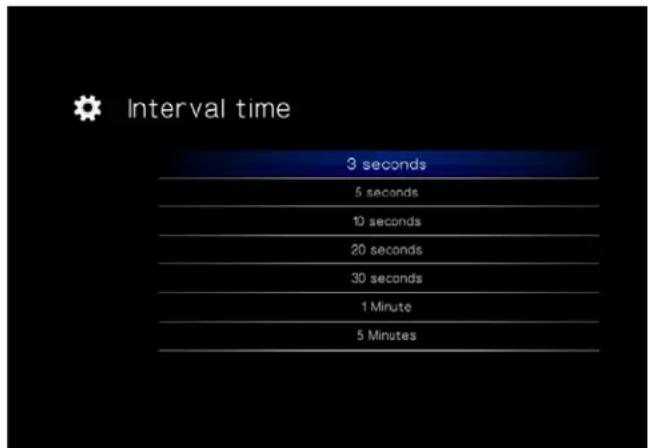
Fig. 120
10.5. Settings: System
10.5.1. Language
Choose your language.
10.5.2. Content Aggregation
This setting activates or deactivates the file database, which allows you to browse files within each media type according to certain parameters (date, recent, etc.). If this feature is deactivated, you will be able to browse files in the different media spaces alphabetically only (or, in the case of the Music Space, additionally according to artist, genre, and album) (Fig. 121).
10.5.3. Screensaver Delay
This setting controls how long a period of inactivity will last before the screensaver turns on (Fig. 122).
10.5.4. Standby Mode
This setting controls how long a period of inactivity will last before the LaCinema Classic HD will switch to standby mode (Fig. 123).
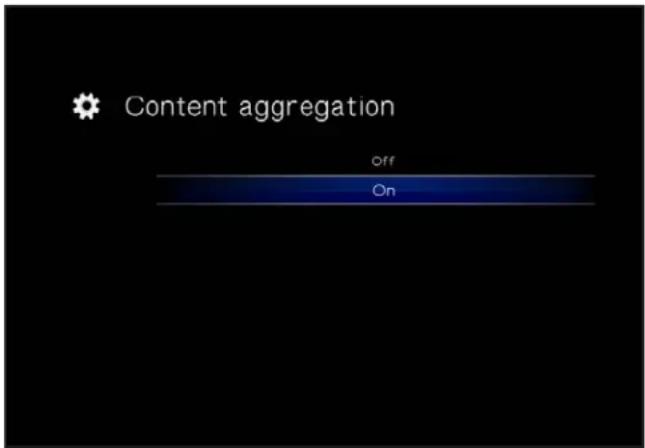
Fig. 121
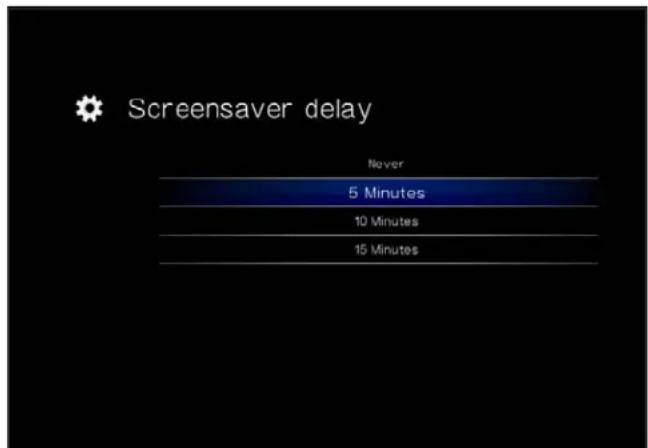
Fig. 122
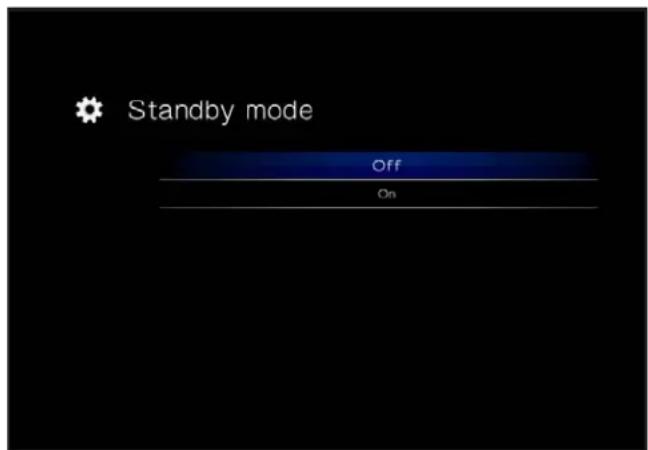
Fig. 123
10.5.5. Browse Mode
This setting allows you to change how files are displayed in a list (default is Thumbnail) (Fig. 124):
■ Thumbnail
■ List mode
10.5.6. Additional Encoding Support
Change this setting if you encounter incorrect text characters in file names in the drive operating system (default is Western Europe) (Fig. 125).
10.5.7. System Reset
This feature allows you to reset the product to its factory defaults, erasing all files and reverting all settings (Fig. 126).
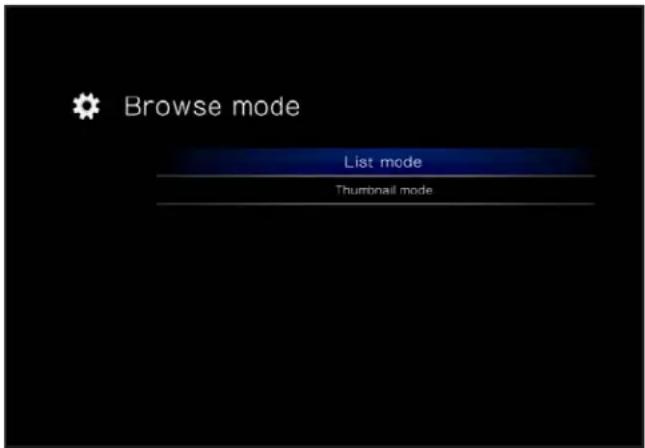
Fig. 124
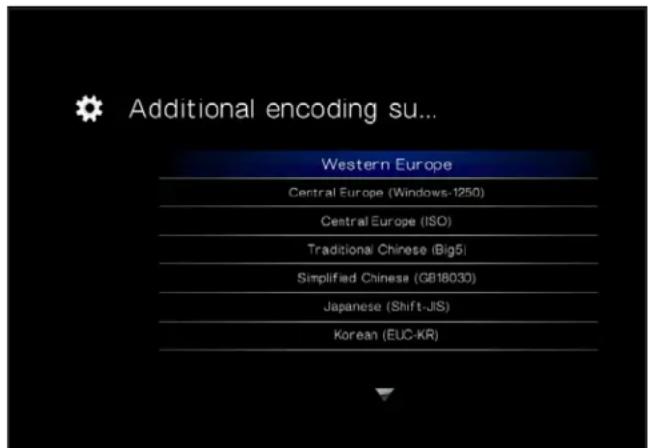
Fig. 125
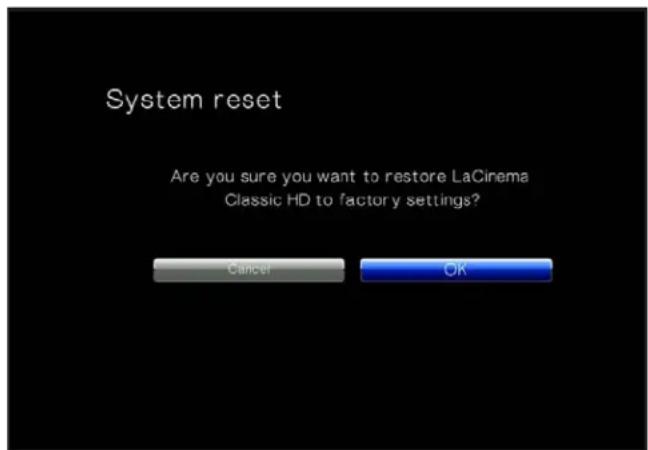
Fig. 126
10.5.8. About
Clicking this feature will provide you with the firmware version of your LaCinema Classic HD (Fig. 127).
10.5.9. Update Device
This feature allows you to update your LaCinema Classic HD's operating system.
Update using USB Key
If the drive does not have internet access, you can download an update file from the LaCie website, copy it to a USB flash drive, and connect the drive to the front port of the LaCinema Classic HD. An icon will appear in the Settings Space when a valid update file is detected (Fig. 128). Select this option and confirm (Fig. 129). When it has finished updating, the product will restart.
Update through Internet Access
If your drive is connected to the network and has access to the internet, click the OK button to check for updates (Fig. 128). If updates are available, they will be listed. Click the OK button to download and install. When it has finished updating, the product will restart.
The device will also perform an automatic check when you restart the product.
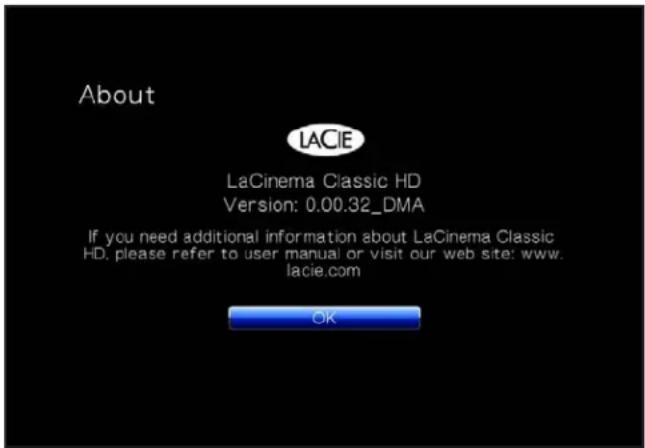
Fig. 127
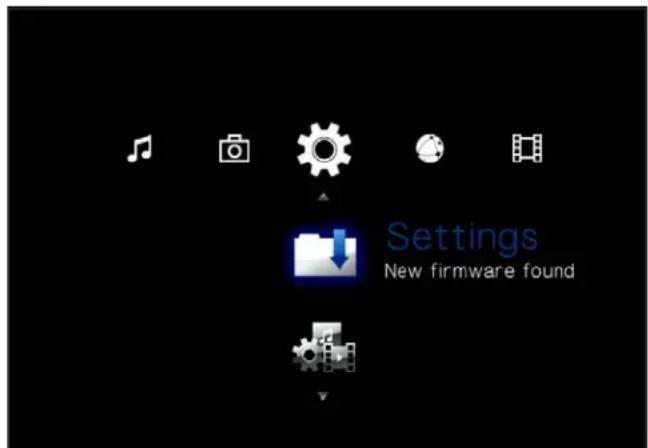
Fig. 128
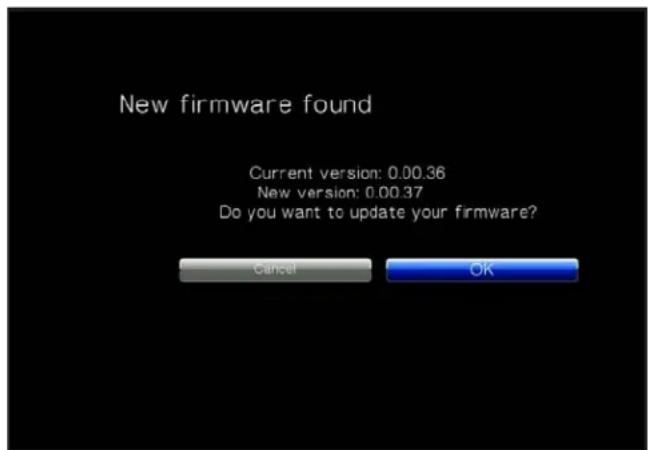
Fig. 129
10.6. Settings: Network
10.6.1. Network Setup
This page will display your LaCinema Classic HD's network values, such as IP address (Fig. 131). To modify these values or request that an IP address be assigned to the drive, click the Configure button.
Then, choose from the following and note that the default is DHCP (Fig. 132):
■ DHCP: Choose this option if your network is managed by a DHCP-enabled router
■ Static IP: Choose this option if your network is NOT managed by a DHCP-enabled router. In this case, you will need to assign an IP address to the LaCinema Classic HD.
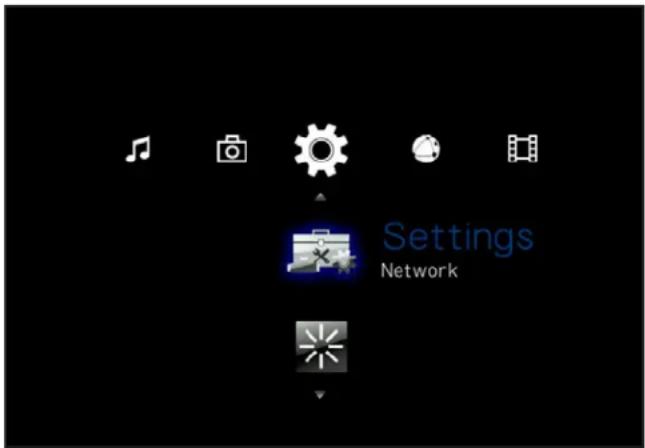
Fig. 130
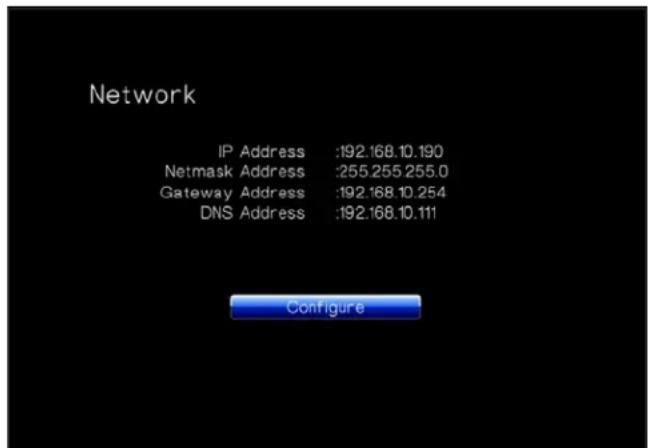
Fig. 131
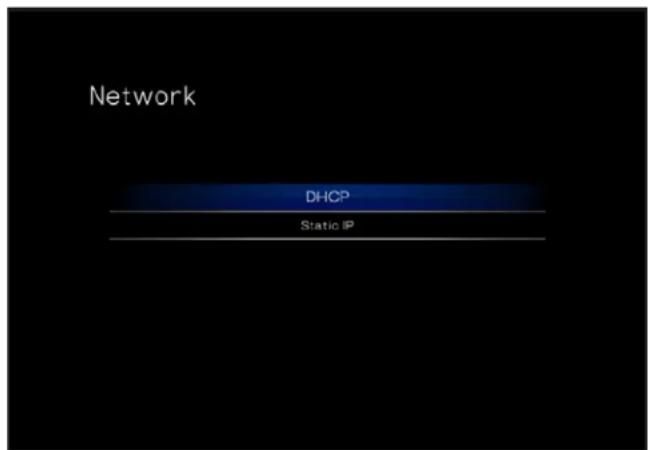
Fig. 132
10.6.2. Device Name
This page allows you to change the device name of you LaCinema Classic HD. This is the name that will appear on your network. (Fig. 133). Use the arrow keys and the OK button to use the on-screen keyboard to type a new name.
10.6.3. Media Servers
Use this page to turn on or off the Media servers (default is OFF). For details on configuring your LaCinema Classic HD as a UPnP multimedia server, see section 6.2. Play Files on Networked Media Players. (Fig. 134).
10.6.4. Shared Folders
Use this page to turn on or off shared folder (SMB/Samba) support (default is ON). SMB is a network protocol that allows you to access the LaCinema Classic HD's volume using your operating system's file system (Windows - Explorer window; Mac - Finder window). For details on accessing your drive using SMB, see 6. Sharing Files Throughout Your Home Network. (Fig. 135)
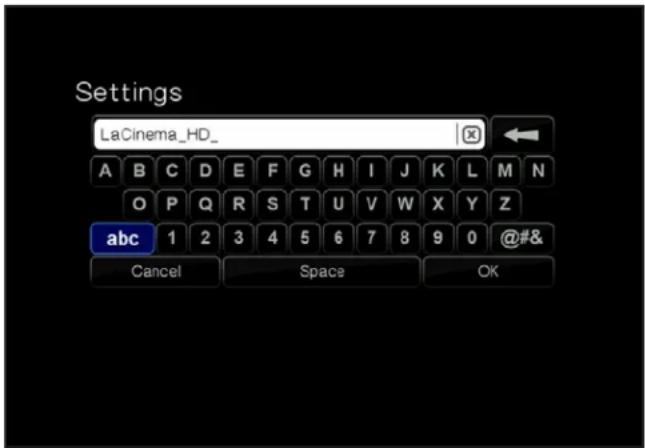
Fig. 133
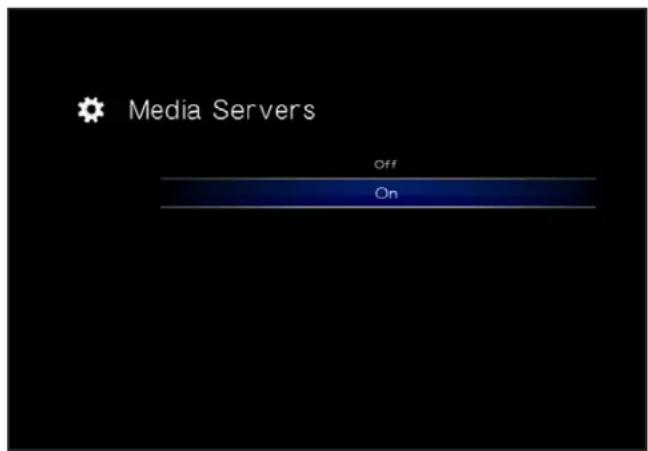
Fig. 134
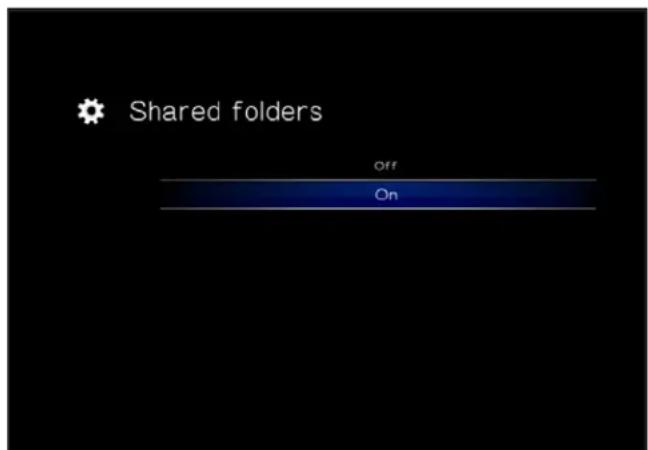
Fig. 135
10.6.5. Auto Login
This feature allows your LaCinema Classic HD to connect automatically to your wireless network (default is ON) (Fig. 136). If auto login is turned off, you will need to type your network password each time your drive is turned on.
10.6.6. Clear Account Information
This function will delete your network login credentials from the LaCinema Classic HD's operating system. Press OK to confirm (Fig. 137).
10.7. Settings: Restart
Click this icon to restart the system and confirm (Fig. 138).
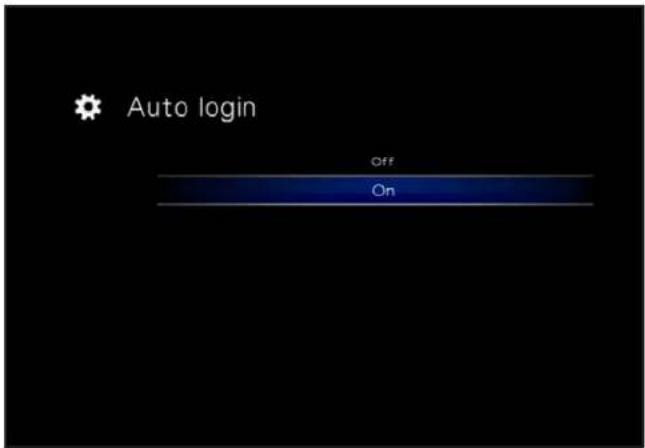
Fig. 136
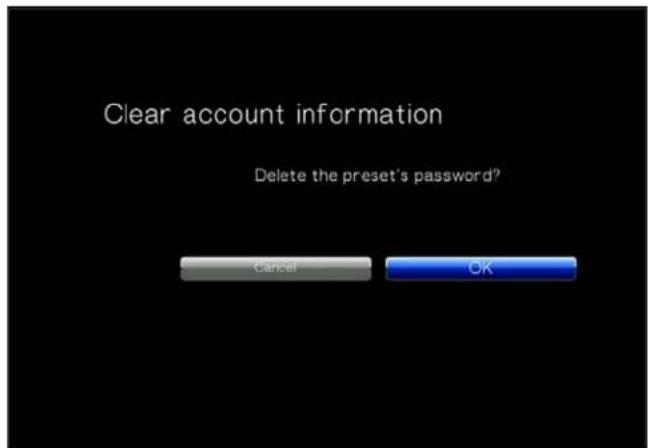
Fig. 137
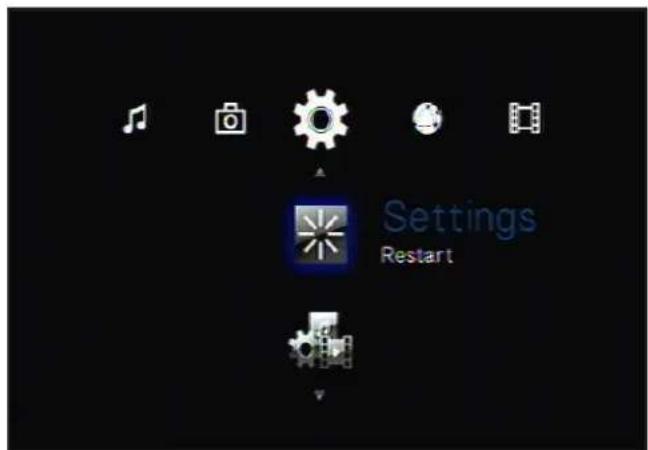
Fig. 138
11. Technical Information
11.1. HD File Format Compatibility
The LaCinema Classic HD is fully compatible with the hi-def formats below, and can play any video encoded with these compression formats:
MPEG-2 HD Xvid H.264 (MPEG-4 P10)
MPEG-4.2 WMV9 VC-1
11.2. Optimizing Data Transfers
Data transfers are the flow of data that accomplishes a task, usually related to moving data from storage to computer RAM, or between storage devices. With external drives, such as the LaCinema Classic HD, the data is transferred from the drive to the computer via the USB interface. The data is fed from the drive through the USB port on the drive, and passes to the computer through the USB host-bus adapter interface.
USB
To utilize the enhanced Hi-Speed USB 2.0 performance, your computer must be equipped with a Hi-Speed USB 2.0 host bus adapter card (either sold separately, or integrated by your computer's manufacturer) and the appropriate drivers. These host bus adapter cards, which include one or more USB ports, are shipped with special Hi-Speed USB 2.0 drivers that enable the computer to control the card. These drivers must be installed in order for USB 2.0 devices connected to the port to work at their correct speeds.
Computers running Windows XP and Windows Vista automatically manage Hi-Speed USB 2.0 devices and drivers, while Windows 98 SE and Windows Me will require that drivers be installed before a Hi-Speed USB 2.0 device is attached.
Mac OS 9.x does not support Hi-Speed USB 2.0 functionality, and all Hi-Speed USB 2.0 devices will only operate at the original USB specifications. Mac OS 10.2.7 and later supports Hi-Speed USB 2.0. Contact your LaCie reseller or LaCie Customer Support for information about Hi-Speed USB 2.0 PCI or PC Cards, or visit our Web site: www.lacie.com.
12. Troubleshooting
If your LaCinema Classic HD is not working correctly, please refer to the following checklist to determine the source of the problem. If you have gone through all of the points on the checklist and your LaCinema Classic still does not work properly, please check the FAQs that are regularly published on our website – www.lacie.com. One of these FAQs may provide an answer to your specific question. You can also visit the downloads page, where the most recent software updates will be available.
If you need further assistance, please contact your LaCie reseller or LaCie Customer Support (see section 13. Contacting Customer Support for details).
Manual Updates
LaCie strives to give you the most up-to-date, comprehensive user manuals available on the market. It is our goal to provide you with a friendly, easy-to-use format that will help you quickly install and utilize the many functions of your new device.
If your user manual does not reflect the configuration of the product you purchased, please check our website for the most current version of the user manual.
www.lacie.com
12.1. Troubleshooting the Television/Stereo Connection
| Problem Question Answer | ||
| The drive is connected, but the TV doesn't recognize it. | Have you properly set the video out parameters in the Settings menu? | Using the remote control, click the Info button to change from HDMI (default) to Composite Video Out mode. |
| Checking the firmware version. | How do you know which firmware version your LaCinema Classic HD is using? | To check which firmware is currently installed on your LaCinema Classic HD, attach it to your TV and use the remote control to navigate to the Settings menu. The firmware version is displayed in the bottom right corner of the Settings menu. |
| How do you get new firmware, and how do you install it? | For a detailed explanation, please see section 10.5.9. Update Device or go to www.lacie.com. | |
| There is no picture being displayed. | Are all of the cables connected correctly? | Ensure that all of the cables are connected correctly. See section 4. Setting Up: Connecting to TV. |
| The picture is in black and white or there is no picture being displayed. | Is the LaCinema Classic HD's Video setting correctly set? | In the event that there is an error with the Video setting, press the Info button on the remote control until the correct image is displayed. Once the picture is being displayed, go into the Settings menu and select Video. From there, you can select the correct settings. For more information, please see section 10.2. Settings: Video. |
| Optimizing video connections. | What connectivity method will produce the best quality? | For optimal quality and performance, the best video connection is the HDMI cable (included). |
| There is no sound when connecting the LaCinema Classic HD to a digital stereo. | Have the Audio Settings been adjusted? | When using the A/V cable to connect the LaCinema Classic HD to a TV, go into the Settings menu and select Audio Settings. From this menu, you will need to select the Analog option instead of Digital. |
| Slideshows are sluggish. | Does it take several seconds to load a picture? | Depending on file size, photos may take several seconds to load properly. Reducing the photo's resolution will reduce the file size, as well, and allow the file to load faster. |
12.2. USB Connection (Mac Users)
| Problem Question Answer | ||
| The drive is not recognized by the computer. | Does an icon for the drive appear on the desktop? | There should be an icon for the LaCie drive on the desktop (unless you've set the Finder preference not to show External disks on the desktop). If the drive does not appear, follow the rest of the Troubleshooting tips to isolate the problem. |
| Does your computer's configuration meet the minimum system requirements for use with this drive? | See section 1.1. Minimum System Requirements for more information. | |
| Is the drive's power supply connected? | Make sure that the power supply is properly connected (see section 4.2. STEP 2: Connect the Ethernet Cable) and that the outlet the power supply is connected to is working. | |
| Did you follow the correct installation steps for the specific interface and operating system? | Review the installation steps in section 4. Setting Up: Connecting to TV. | |
| The drive is not recognized by the computer. | Are both ends of the USB cable securely attached? | Only use a USB cable provided by LaCie. Check both ends of the USB cable to make sure they are fully seated in their respective ports. Try disconnecting the cables, waiting 10 seconds, and then reconnecting them. If the drive is still not recognized, restart your computer and try again. |
| Is there a conflict with other device drivers or extensions? | Contact LaCie Technical Support for help. | |
| Does your computer's operating system support the file system? | Check your computer's documentation and see section 9. Reformatting the LaCinema Classic HD for more information. | |
| Error messages under Mac OS 10.x. | Did you get an "Error -50" message while copying to a FAT 32 (MSDOS) volume? | When copying files or folders from Mac OS 10.x to a FAT 32 volume, file names with certain characters cannot be copied. These characters include, but are not limited to: ? < > / \ : Check your files and folders to ensure that these types of characters are not being used. |
| The drive is not running noticeably faster when connected via Hi-Speed USB 2.0. | Are you operating in Mac OS 9.x? Apple does not support the Hi-Speed USB 2.0 standard under Mac OS 9.x. You will be limited to the slower transfer rates of the original USB standard. For more information, please see section 11.2. Optimizing Data Transfers. | |
| Is the drive connected to a standard USB port on your computer? | If your drive is connected to a standard USB port, this is normal. A Hi-Speed USB 2.0 device can only operate at Hi-Speed USB 2.0 performance levels when it is connected directly to a Hi-Speed USB 2.0 port. Otherwise, the Hi-Speed USB 2.0 device will operate at the slower USB transfer rates. For more information, please see sections 11.2. Optimizing Data Transfers and 1.6. Cables and Connectors. | |
| Problem Question Answer | ||
| The drive is not running noticeably faster when connected via Hi-Speed USB 2.0. | Is the drive connected to a Hi-Speed USB 2.0 port on your computer? | Check to see that the Hi-Speed USB 2.0 drivers for both your host bus adapter and device have been installed correctly. If in doubt, un-install the drivers and re-install them. Also, make sure that you are connected directly to a Hi-Speed USB 2.0 port on your computer. |
| Does your computer or operating system support Hi-Speed USB 2.0? | See sections 1.1. Minimum System Requirements and 11.2. Optimizing Data Transfers for more information. | |
12.3. USB Connection (Windows Users)
| Problem Question Answer | ||
| The drive is not recognized by the computer. | Has the drive been formatted? | Make sure that the drive has been formatted properly. Please see section 9.Reformatting the LaCinema Classic HD. |
| Does your computer's operating system support the file system? | Check your computer's documentation and see section 6. Reformatting the LaCinema Classic. | |
| Is there an icon for the drive in My Computer? | Go into My Computer and look for an icon and drive letter assigned to the LaCie drive. If the drive does not appear, follow the rest of the Troubleshooting tips to isolate the problem. Go into My Computer and look for an icon and drive letter assigned to the LaCie drive. If the drive does not appear, follow the rest of the Troubleshooting tips to isolate the problem. | |
| Does your computer's configuration meet the minimum system requirements for use with this drive? | See section 1.1. Minimum System Requirements for more information. | |
| The drive is not recognized by the computer. | Is the drive's power supply connected? | Make sure that the power supply is properly connected (see section 4.2.STEP 2: Connect the Ethernet Cable) and that the outlet the power supply is connected to is working. |
| Did you follow the correct installation steps for the specific interface and operating system? | Review the installation steps in section 4. Setting Up: Connecting to TV. | |
| Are both ends of the USB cables firmly attached? | Check both ends of the USB cable to make sure they are fully seated in their respective ports. Try disconnecting the cables, waiting 10 seconds, and then reconnecting them. If the drive is still not recognized, restart your computer and try again. | |
| Is there a conflict with other device drivers or extensions? | Contact LaCie Technical Support for help. | |
| The drive is not running noticeably faster when connected via Hi-Speed USB 2.0. | Is the drive connected to a standard USB port on your computer? | If your drive is connected to a standard USB port, this is normal. A Hi-Speed USB 2.0 device can only operate at Hi-Speed USB 2.0 performance levels when it is connected directly to a Hi-Speed USB 2.0 port. Otherwise, the Hi-Speed USB 2.0 device will operate at the slower USB transfer rates. For more information, please see sections 11.2. Optimizing Data Transfers and 1.6. Cables and Connectors. |
| Is the drive connected to a Hi-Speed USB 2.0 port on your computer? | Check to see that the Hi-Speed USB 2.0 drivers for both your host bus adapter and device have been installed correctly. If in doubt, un-install the drivers and re-install them. Also, make sure that you are connected directly to a Hi-Speed USB 2.0 port on your computer. The LaCinema Classic HD will not work properly when connected to a hub. | |
| Does your computer or operating system support Hi-Speed USB 2.0? | See sections 1.1. Minimum System Requirements and 11.2. Optimizing Data Transfers for more information. | |
13. Contacting Customer Support
Before You Contact Technical Support
- Read the manuals and review section 12. Troubleshooting.
- Try to isolate the problem. If possible, make the drive the only external device on the CPU, and make sure that all of the cables are correctly and firmly attached.
If you have asked yourself all of the pertinent questions in the troubleshooting checklist, and you still can't get your LaCie drive to work properly, contact us at www.lacie.com. Before contacting us, make sure that you are in front of your computer and that you have the following information on hand:
| Information Location | |
| 1. LaCie hard drive serial number | Located on a sticker at the back of drive or on the original packaging |
| 3. Macintosh/PC model Mac users: Click on the Apple icon in the menu bar and select About This Mac. | |
| 4. Operating system version | |
| 5. Processor speed | Windows users: Right click My Computer and select Properties > General. |
| 6. Computer memory | |
| 7. The brands and models of other internal and external peripherals installed on your computer | Mac users: Click on the Apple icon in the finder bar and select About This Mac. Select More Info... The Apple System Profiler will launch and will list your internal and external peripherals. |
| Windows users: Right click My Computer and select Properties > Hardware. | |
13.1. LaCie Technical Support Contacts
| LaCie AsiaContact us at:http://www.lacie.com/asia/contact/ | LaCie AustraliaContact us at:http://www.lacie.com/au/contact/ |
| LaCie BelgiumContact us at:http://www.lacie.com/be/contact/ (Français) | LaCie CanadaContact us at:http://www.lacie.com/caen/contact/ (English) |
| LaCie DenmarkContact us at:http://www.lacie.com/dk/contact | LaCie FinlandContact us at:http://www.lacie.com/fi/contact/ |
| LaCie FranceContact us at:http://www.lacie.com/fr/contact/ | LaCie GermanyContact us at:http://www.lacie.com/de/contact/ |
| LaCie ItalyContact us at:http://www.lacie.com/it/contact/ | LaCie JapanContact us at:http://www.lacie.com/jp/contact/ |
| LaCie NetherlandsContact us at:http://www.lacie.com/nl/contact/ | LaCie NorwayContact us at:http://www.lacie.com/no/contact/ |
| LaCie SpainContact us at:http://www.lacie.com/es/contact/ | LaCie SwedenContact us at:http://www.lacie.com/se/contact |
| LaCie SwitzerlandContact us at:http://www.lacie.com/chfr/contact/ (Français) | LaCie United KingdomContact us at:http://www.lacie.com/uk/contact |
| LaCie IrelandContact us at:http://www.lacie.com/ie/contact/ | LaCie USAContact us at:http://www.lacie.com/contact/ |
| LaCie InternationalContact us at:http://www.lacie.com/intl/contact/ | |
14. Warranty Information
LaCie warrants your drive against any defect in material and workmanship, under normal use, for the period designated on your warranty certificate. In the event this product is found to be defective within the warranty period, LaCie will, at its option, repair or replace the defective drive.
This warranty is void if:
■ The drive was operated/stored in abnormal use or maintenance conditions;
The drive is repaired, modified or altered, unless such repair, modification or alteration is expressly authorized in writing by LaCie;
■ The drive was subjected to abuse, neglect, lightning strike, electrical fault, improper packaging or accident;
■ The drive was installed improperly;
■ The serial number of the drive is defaced or missing;
■ The broken part is a replacement part such as a pickup tray, etc.
■ The tamper seal on the drive casing is broken.
LaCie and its suppliers accept no liability for any loss of data during the use of this device, or for any of the problems caused as a result.
LaCie will not, under any circumstances, be liable for direct, special or consequential damages such as, but not limited to, damage or loss of property or equipment, loss of profits or revenues, cost of replacement goods, or expense or inconvenience caused by service interruptions.
Any loss, corruption or destruction of data while using a LaCie drive is the sole responsibility of the user, and under no circumstances will LaCie be held liable for the recovery or restoration of this data.
Under no circumstances will any person be entitled to any sum greater than the purchase price paid for the drive.
To obtain warranty service, call LaCie Technical Support. You will be asked to provide your LaCie product's serial number, and you may be asked to furnish proof of purchase to confirm that the drive is still under warranty.
All drives returned to LaCie must be securely packaged in their original box and shipped with postage prepaid.
IMPORTANT INFO: Register online for free technical support: www.lacie.com/register