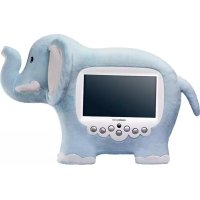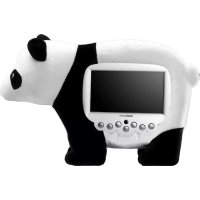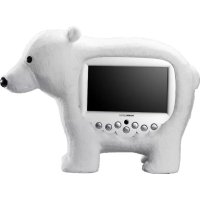
SD80ZBMW - Digital photo frame Hanns.G - Free user manual and instructions
Find the device manual for free SD80ZBMW Hanns.G in PDF.


| Product type | Digital photo frame |
| Brand | Hanns.G |
| Model | SD80ZBMW |
| Screen size | 8 inches (20.3 cm) |
| Display resolution | 800 x 480 pixels |
| Screen type | LCD TFT |
| Supported image formats | JPEG (up to 16 megapixels) |
| Supported audio formats | MP3 (MPEG 1.0 Layer 3, 44.1 kHz, 32-320 kbps) |
| Supported video formats | MPEG-1, MPEG-2, MPEG-4 (YUV420/YUV422, max resolution 720x480, 30 fps) |
| Supported memory cards | SD/SDHC, MS/MS-Pro, xD, CF |
| Ports | USB 2.0 (host), 3.5 mm headphone jack |
| Built-in speakers | 2 x 1 W |
| Power supply | Power adapter 100-240 V, 50/60 Hz, output 5 V DC 2 A |
| Power consumption | 9.5 W maximum |
| Dimensions (approx.) | 220 x 175 x 30 mm |
| Weight (approx.) | 0.5 kg |
| Main features | Slideshow with background music, calendar, alarm, clock, file manager, brightness/contrast/saturation settings, automatic on/off, image rotation and zoom, multiple OSD languages |
| Included accessories | Power adapter, remote control, stand, quick start guide, user manual |
| Care and cleaning | Clean with a dry, soft cloth. Do not use chemical or abrasive products. |
| Safety | Unplug during thunderstorms or when not in use for extended periods. Do not expose to water or humidity. Use only recommended accessories. |
Frequently Asked Questions - SD80ZBMW Hanns.G
User questions about SD80ZBMW Hanns.G
0 question about this device. Answer the ones you know or ask your own.
Ask a new question about this device
Download the instructions for your Digital photo frame in PDF format for free! Find your manual SD80ZBMW - Hanns.G and take your electronic device back in hand. On this page are published all the documents necessary for the use of your device. SD80ZBMW by Hanns.G.
USER MANUAL SD80ZBMW Hanns.G
Regulatory Information 2
Description of Warning Symbols 3
Important Safety Instructions. 5
Preface 7
Getting Started. 8
Package Contents 8
Main Menu. 9
Selecting Your Source 9
Photo 10
Viewing Photos. 10
Setting Photo Display Mode 12
Configuring Photo Display Settings 12
Configuring Sildenafil Settings 13
Video 14
Playing Videos 14
Music 15
Playing Music 15
Calendar 16
Displaying Calendar 16
Setting Calendar Display Mode 16
Setting Date & Time 17
Setting the Alarm. 18
Turning the Alarm On/Off 18
File Manager 19
Other Settings. 20
Deleting Files. 19
Setting the Language 20
Setting Auto-Power 20
Turning On/Off Auto-Power 21
Adjusting Brightness 21
Adjusting Contrast 21
Adjusting Saturation 21
Formating 21
Resetting 21
Troubleshooting 22
Specifications 24
Regulatory Information
FCC Compliance Statement1
This device complies with part 15 of the FCC Rules. Operation is subject to the following two conditions: (1) This device may not cause harmful interference, and (2) this device must accept any interference received, including interference that may cause undesired operation.
Additional Information
This equipment has been tested and found to comply with the limits for a Class B digital device, pursuant to part 15 of the FCC Rules. These limits are designed to provide reasonable protection against harmful interference in a residential installation. This equipment generates, uses and can radiate radio frequency energy and, if not installed and used in accordance with the instructions, may cause harmful interference to radio communications. However, there is no guarantee that interference will not occur in a particular installation. If this equipment does cause harmful interference to radio or television reception, which can be determined by turning the equipment off and on, the user is encouraged to try to correct the interference by one or more of the following measures:
- Reorient or relocate the receiving antenna
- Increase the separation between the equipment and receiver
- Connect the equipment into an outlet on a circuit different from that to which the receiver is connected
- Consult the dealer or an experienced technician for help
Warning: The Federal Communications Commission warns that changes or modifications of the equipment not expressly approved by the party responsible for compliance could void your authority to operate the equipment.
1 applies only to products purchased in the United States of America
DOC Compliance Notice
This digital apparatus does not exceed the Class B limits for radio noise emissions from digital apparatus as set out in the Radio Interference Regulations of the Canadian Department of Communications. This device complies with Canada ICES-003 Class B.
CE Conformity Statement2
This device is in conformity with the requirements of EU Council Directive 2004/108/ EC on the approximation of the laws of the Member States relating to electromagnetic compatibility and Directive 2006/95/EC on the harmonization of the laws of Member States relating to electrical equipment for use within certain voltage limits. Hannsprree cannot accept responsibility for any failure to satisfy the requirements resulting from a non-recommended modification of the device.
2 HANNspree
Description of Warning Symbols

BEFORE YOU PROCEED
- Read and follow all Safety Notices,Warnings and instructions in this User's Manual carefully before either plugging in or turning the equipment on.
- Keep this User's Manual, box and packaging for future reference.
- Warranty. Any uses, operations, changes, alterations or modifications of the equipment that do not follow the instructions in this manual will void this equipment's warranty.
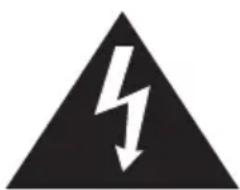
CAUTION
RISK OF ELECTRIC SHOCK DO NOT OPEN

WARNING

This symbol is used to alert users to pay attention to important descriptions regarding usage, maintenance (repair), and additional important information related to this equipment.
CAUTION
This symbol is used to alert users to the risk of electric shocks due to dangerous and uninsulated components.

Installation Safety Notes
Location
Avoid prolonged exposure to sunlight or other strong sources of heat. Don't put the equipment too close to the wall to provide enough space for the emission of heat.

WARNING
To reduce the risk of fire or electric shock, do not expose this equipment to rain or moisture.
Equipment shall not be exposed to dripping or splashing and no objects filled with liquids, such as vases, shall be placed on the equipment.

CAUTION
These servicing instructions are for use by qualified service personnel only. To reduce the risk of electric shock, do not perform any servicing other than that contained in the operating instructions unless you are qualified to do so.
Important Safety Instructions
- Read these instructions.
- Keep these instructions.
- Heed all warnings.
- Follow all instructions.
- Do not use this apparatus near water.
- Clean only with dry cloth.
- Do not block any ventilation openings. Install in accordance with manufacturer's instructions.
- Do not install near any heat sources such as radiators, heat registers, stoves, or other apparatus (including amplifiers) that produce heat.
- Do not defeat the safety purpose of the polarized or grounding-type plug. A polarized plug has two blades with one wider than the other. A grounding-type plug has two blades and a third grounding prong. The wide blade or the third prong are provided for your safety. If the provided plug does not fit into your outlet, consult an electrician for replacement of the obsolete outlet. NOTE: Applies to US only.
- Protect the power cord from being walked on or pinched, particularly at plugs, convenience receptacles, and the point where they exit from the apparatus.
- Only use attachments/accessories specified by the manufacturer.
- Unplug this apparatus during lightning storms or when unused for long periods of time.
- Refer all servicing to qualified service personnel. Servicing is required when the apparatus has been damaged in any way, such as power-supply cord or plug is damaged, liquid has been spilled or objects have fallen into the apparatus, the apparatus has been exposed to rain or moisture, does not operate normally, or has been dropped.
- Where the MAINS plug or an appliance coupler is used as the disconnect device, the disconnect device shall remain readily operable.
- The apparatus should be used in moderate climate.
CAUTION
-
If the remote control is not used for a long period, remove the batteries and store it properly.
-
Handle damaged batteries carefully, and wash hands with soap if they come in contact with leaked chemical fluids.
- If your remote control has two batteries, do not mix new and old batteries or the life of the new battery will be shortened. Chemical fluids may leak from the old batteries.
- Danger of explosion if battery is incorrectly replaced. Replace only with the same or equivalent type recommended by the equipment manufacturer. Discard used batteries according to manufacturer's instructions.
- Refer to your local recycling or waste disposal rules and contact a local waste disposal vendor to dispose of used batteries.
- The remote control cover may have a magnet in it, so do not place magnetic sensitive items such as watches, credit cards, or flash media close to the cover.
- Do not use force when pulling the remote control cover open; you may damage the hinge.
Copyright
© Copyright 2008 Hannspree, Inc.
All rights reserved. This manual is protected by copyright and distributed under licenses restricting its use, copying and distribution. No part of this manual may be reproduced in any form by any means without the prior written authorization of Hannspree. The DPF described in this manual may include copyrighted software of Hannspree (or other third parties). Hannspree (or other third parties) preserves the exclusive rights for copyrighted software, such as the right to distribute or reproduce the copyrighted software. Accordingly, and to the extent allowed by applicable law, any copyrighted software contained in the product described herein shall not be distributed, modified, reverse engineered, or reproduced in any manner without the prior written authorization of Hannspree (or of other third parties).
The Hannspree logos presented herein are trademarks of Hannspree. All other product names, trademarks or logos mentioned herein are used for identification purpose only, and may be the trademarks or registered trademarks of their respective owners.
The purchase of the product described herein shall not be deemed to grant, either directly or by implication, estoppel or otherwise, any license under the copyrights, patents, patent applications or trademarks of Hannspree, except for the normal, non-exclusive use that arises by operation of law in the sale of a product.
Flash Card References
Please refer to the flash card websites below:
SD CARD: http://www.sdcard.org/
MS CARD: http://www.memorystick.com/en/
MMC CARD: http://www.mmcard.org/
Preface
Thank you for purchasing a Hannspree Digital Photo Frame. Your new DPF will allow you to view your favorite photographs, listen to various kinds of music and watch videos while enriching your lifestyle with advanced technology.
Please carefully read this manual throughout before setting up, using or operating your DPF. To ensure the safe and correct installation and operations of the DPF, it is important that the safety and operation instructions in this manual are followed.
This instruction manual is designed to assist you in setting up and using the DPF. The information in this manual has been carefully checked for accuracy; however, no guarantee is given to the correctness of the contents. The information in this manual is subject to change without notice.
To the extent allowed by applicable law, Hannsprree, Inc. ("Hannsprree") shall not be liable for direct, indirect, special, exemplary, incidental or consequential damages arising from any defect or omission in this manual, even if advised of the possibility of such damages in advance.
1.1 Package Contents
Make sure all the following are present when you receive your digital photo frame. If any parts are missing, contact your vendor immediately.
- Digital Photo Frame
- Power Adapter
- USB Host Adapter
- Quick Start Guide
- User Manual
Warranty Card -
Remote Controller
-
S t a n d
-
For your reference only. Actual product may vary. You may refer to the description printed outside the box for the actual package contents.
1.2 Main Menu
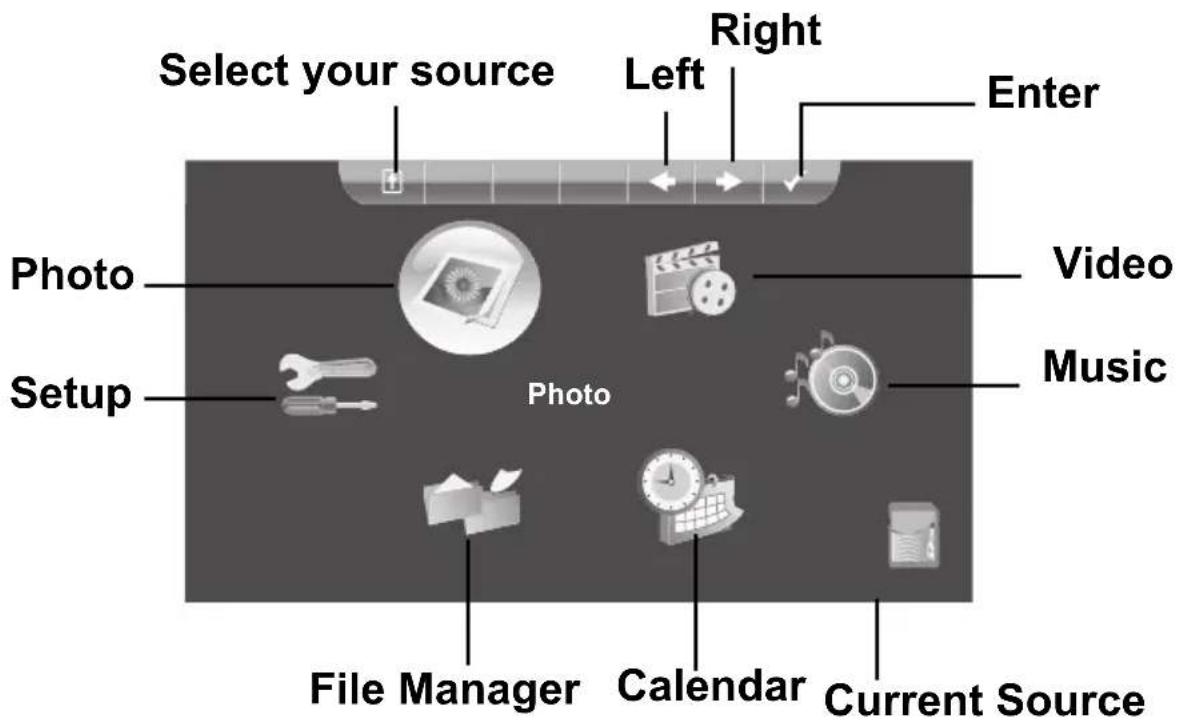
1.3 Selecting Your Source
If there is no other source available, the digital photo frame will access the files saved in the internal memory directly. If you want to access files from other sources, press and a menu will be shown as the picture on the right. Press to
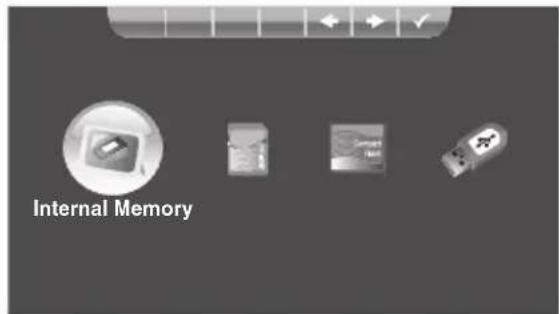
select the source you inserted and then press to enter.
2 Photo
2.1 Viewing Photos
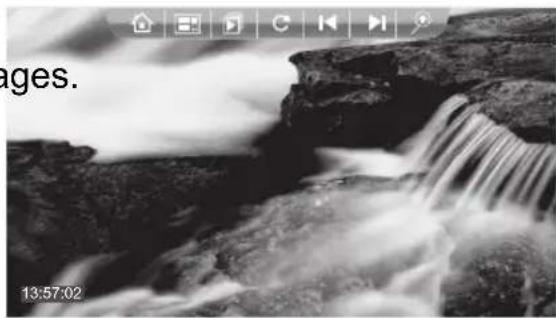
In the main menu, press l to select Photo and press l to enter. The Photos are displayed in the display mode as what is already set in Photo Setup/Display Mode. (If there is no instruction given, the photos will be displayed automatically in a sequence of slide show.)
Browse:
Press to browse
- Press to rotate.
- Press to play photo slide show.
- Press to change the display mode.
- Press to go back to main menu.
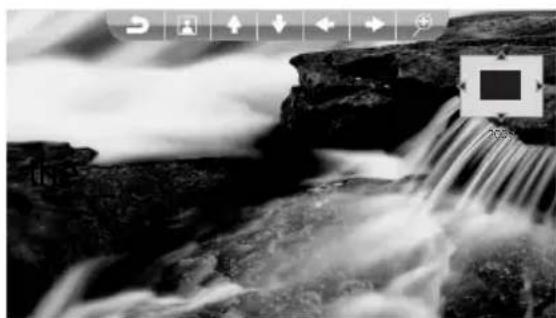
- Press to zoom an image.
- Press / / to move image.
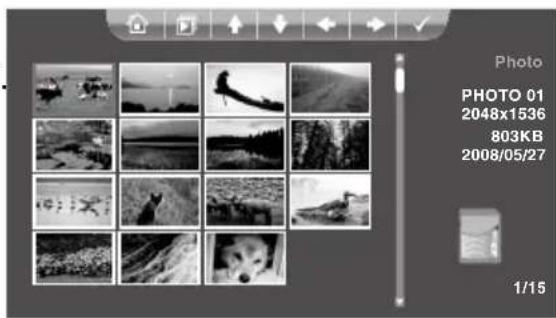
Thumbnail:
- Press / / / to select.
- Press to select an image.
- Press to display the photo.
- Press to go back to main menu.
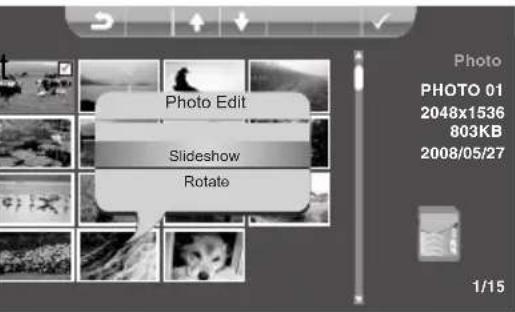
Edit Photos:
- Press & / & / to an image you want to edit.
- Press to confirm.
- Press to display the Slideshow option.
- Press to select show/Rotate and press to confirm.
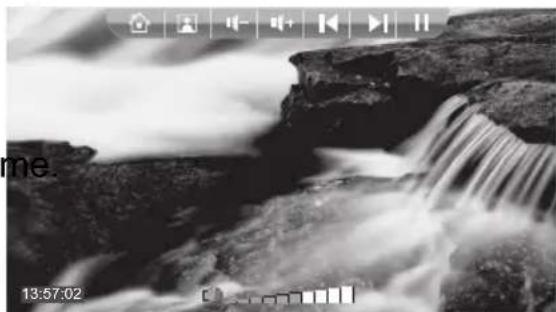
Slide Show:
- Press / to skip to previous/ next image.
- Press / to adjust
- Press to play/pause the photo and music.
- Press to change the mode.
- Press to go back to main menu.
*If there are audio files saved in the same source, the audio files will be played automatically during the slide show.
select
Slide-

Tip: This product supports JPEG (baseline) image files within 16 mega pixels.
2.2 Setting Photo Display Mode
- In the main menu, press to select Setup and press to enter.
- Press /to select Phd Setup.
- Press / to select Dis Mode.
- Press /to select Thumbnail/Slideshowhow.
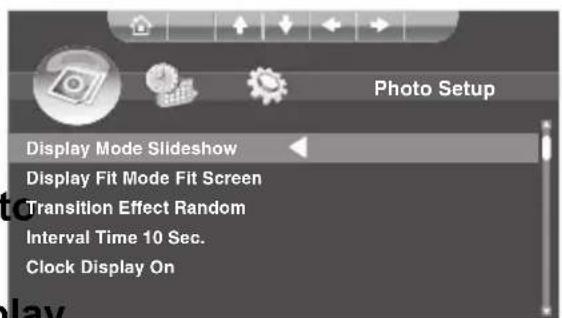
2.3 Configuring Photo Display Settings
In the main menu, press l to select Setup and press l to enter. Press l to select Photo Setup.
| Display Fit Mode | 1. Press▲/▼ to select Display Fit Mo 2. Press / to select Full Screen/Fit Screen. |
| Clock Display On/Off | 1. Press▲/▼ to select Clock Display 2. Press / to turn Clock Display On/Off. |
2.4 Configuring Sildenafil Settings
In the main menu, press l to select Setup and press l to enter. Press l to select Photo Setup.
| Interval Time | 1. Press▲/▼ to select Interval Time. 2. Press / ↑to select 5 Sec./10 Sec./15 Sec./30 Sec./ 1 Min/3 Min./Off. |
| Transition Effect | 1. Press▲/▼ to select Transition Effect. 2. Press▲/▼ to select Random/Fade-in Fake-out/Block 9/Block 8/Block 7/Block 6/ Block 5/Block 4/Block 3/Block 2/Block 1/ Color Ration Hor./Color Ration Ver./Blind Horizontal/Blind Vertical/No Effect. |
| Repeat | 1. Press▲/▼ to select Repeat. 2. Press▲/▼ to select On/Off. |
| Background Music | 1. Press▲/▼ to select Background Music. 2. Press / ↑to turn Background Music On/ Off. |
3 Video
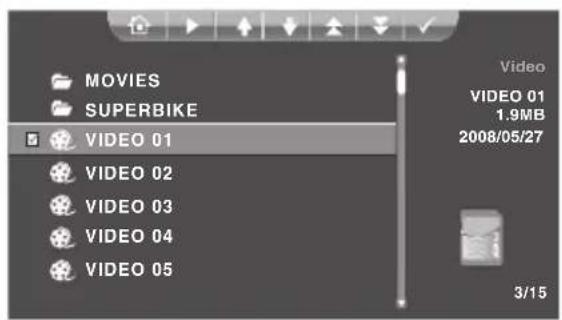
3.1 Playing Videos
- In the main menu, press to select Video and press to enter.
- Press /to select a video.
-
Press to play. Or press to confirm your selection and then select more video files to play.
-
While playing,
-
Press to exit.
- Press to play/pause.
- Press to adjust volume.
- Press to rewind.
- Press to fast forward.
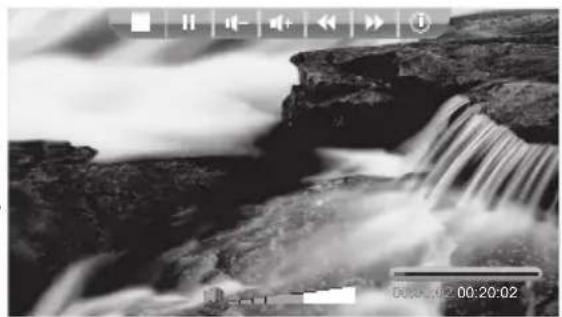

Tip: This product supports MPEG-1, MPEG-2, MPEG-4 video files with encoded type YUV420, YUV422 and audio stream type MS-PCM/MP3.

Caution:
To ensure smooth video playback, ensure that the code rate of the built-in video file or the video file on a USB disk is less than or equal to 30fps. The maximum supported resolution is 720 × 480 pixels.
4 Music
4.1 Playing Music
- In the main menu, press /to select Music and press to enter.
- Press /toSelect a music file.
- Press to play. Or press to confirm your selection and then select more music files to play.
-
While playing,
-
Press to exit.
- Press to play/pause.
- Press to adjust volume.
- Press to previous.
- Press to next.
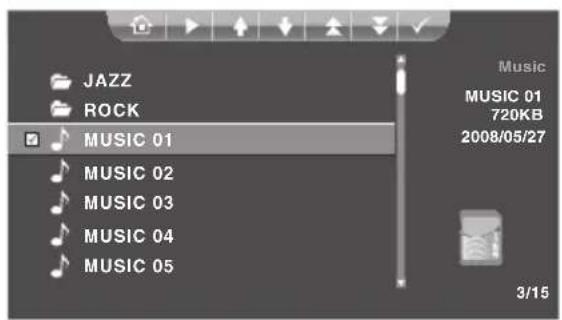
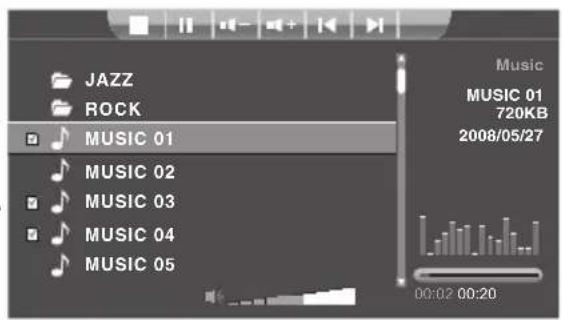

Tip: This product supports MP3 audio files (MPEG 1.0 Layer 3, with a sampling rate of 44.1kHz and a bit rate of 32kbps-320kbps).
5 Calendar
5.1 Displaying Calendar
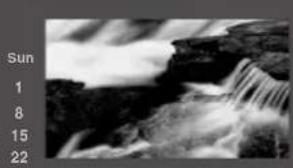
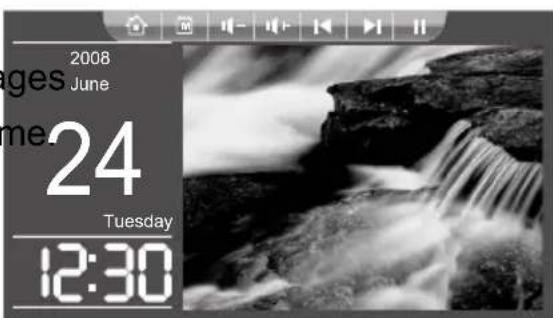
In the main menu, press l to select Calendar and press l to enter. The Calendar is displayed in the display mode as what is already set in Calendar Setup/Display Mode.
Monthly Calendar:
Press to browse
- Press / to view the previous/next month.
- Press to play/pause photos and music.
- Press to change the display mode.
- Press to be back to main menu.
Calendar:
- Press l to browse
- Press to adjust
- Press to play/pause photos and music.
- Press to change the display mode.
- Press to go back to main menu.
imai

June 2008
Mon Tue Wed Thu Fri Sat
12:18:30
5.2 Setting Calendar Display Mode
- In the main menu, press l to select Setup and press l to enter.
- Press / to select Calendar Setup.
- Press to select Display Mode.
- Press /to select Monthly Calendar/Calendar.
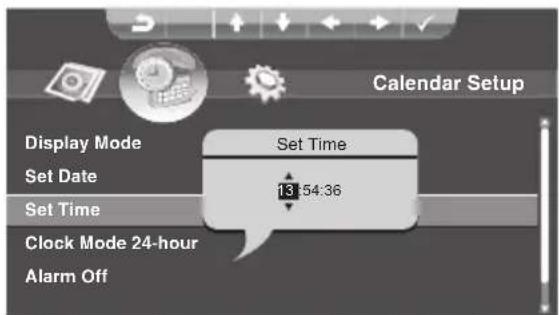
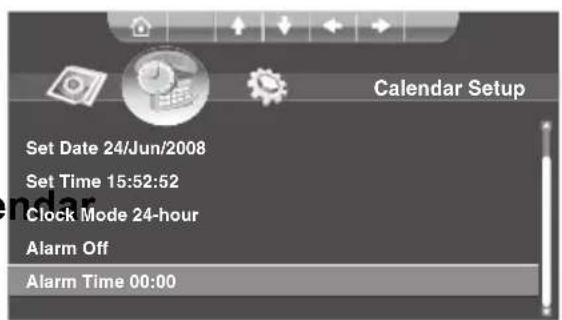
5.3 Setting Date & Time
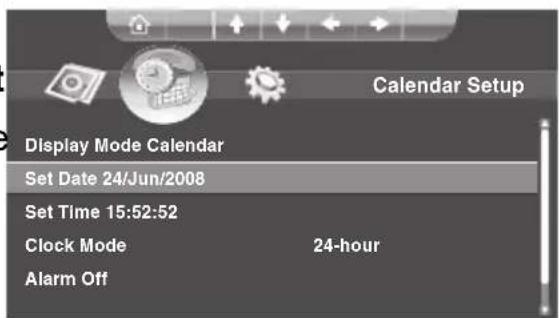
In the main menu, press l to select Setup and press l to enter. Press l to select Calendar Setup.
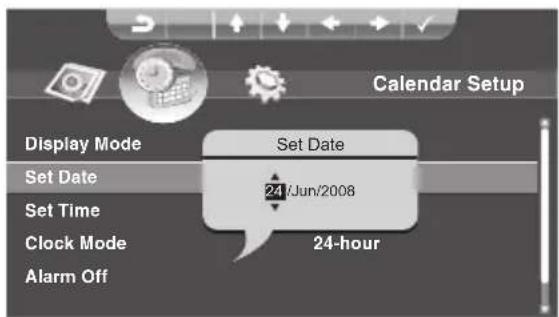
Set Date:
- Press to select Date and highlight field you want to change.
- Press / to change values.
- Press to confirm setting.
Set the
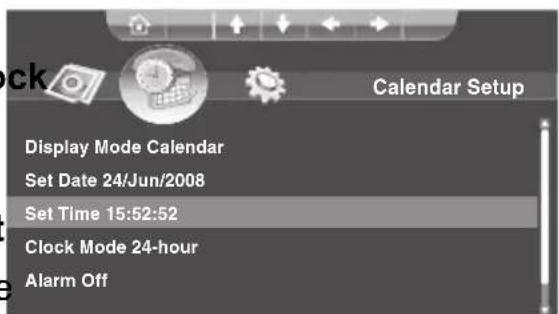
Set Time:
- Press to select Mode and choose 12-hour/24-hour.
- Press to select Time and highlight field you want to change.
- Press / to change values.
- Press to confirm setting.
Clo
.
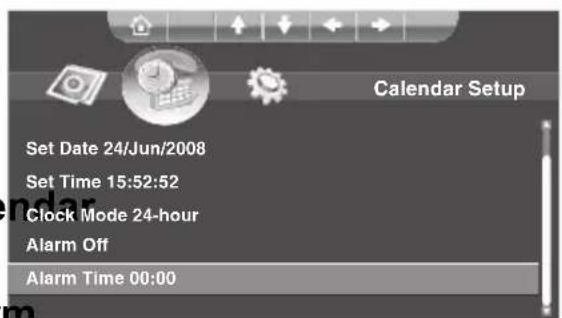
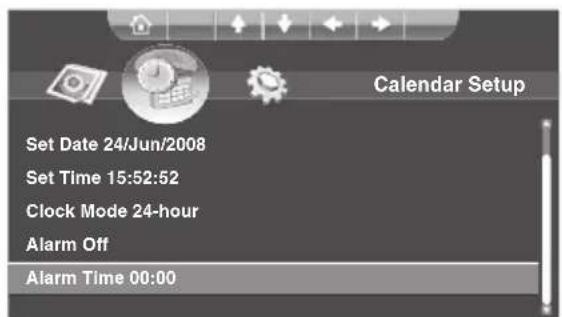
5.4 Setting the Alarm
- In the main menu, press to select Setup and press to enter.
- Press / to select Cal Setup.
- Press to select Alar Time and / highlight the field you want to change.
- Press /to change values.
- Press to confirm setting.
5.5 Turning the Alarm On/Off
- In the main menu, press to select Setup and press to enter.
- Press / to select Cal Setup.
- Press / to select Alarm and press to turn the alarm On/Off.
6 File Manager
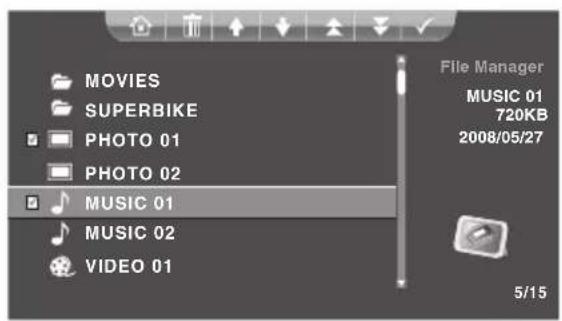
The delete function is only available for files in the internal memory of the Digital Photo Frame.
6.1 Deleting Files
- In the main menu, press to select File Manager and press to enter.
- Press /to select a file.
- Press to check the file.
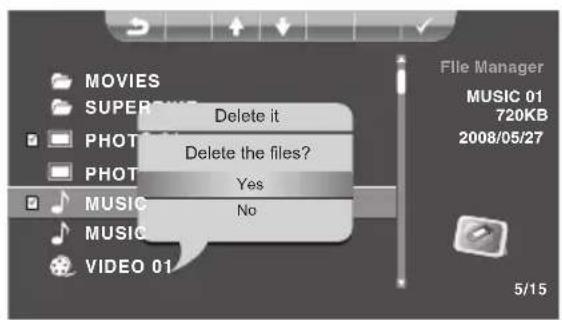
- Press to delete the file.
- Press /toSelect Yes/No.
- Press to confirm the deletion.
7 Other Settings
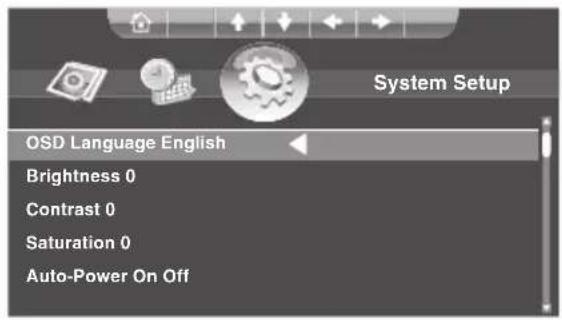
In the main menu, press l to select Setup and press l to enter. Press l to select System Setup.
7.1 Setting the Language
Press to select OSD Language, and press to select your language.
7.2 Setting Auto-Power
| Power On Time | 1. Press▲/▼ to select Power On Tin 2. Press / ▽ to highlight the field you want to change. 3. Press▲/▼ to change values. 4. Press to confirm setting. |
| Power Off Time | 1. Press▲/▼ to select Power Off Tin 2. Press / ▽ to highlight the field you want to change. 3. Press▲/▼ to change values. 4. Press to confirm setting. |
7.3 Turning On/Off Auto-Power
| Turn On/Off Auto-Power On | 1. Press▲/▼ to select Auto-Power On. 2. Press / ➀ to turn it On/Off. |
| Turn On/Off Auto-Power Off | 1. Press▲/▼ to select Auto-Power Off. 2. Press / ➀ to turn it On/Off. |
7.4 Adjusting Brightness
Press l to select Brightness, and press l to adjust between -7 and +7.
7.5 Adjusting Contrast
Press l to select Contrast, and press l to adjust between -7 and +7.
7.6 Adjusting Saturation
Press to select Saturation, and press to adjust between -7 and +7.
7.7 Formatting
- Press to select Format, and press to format.
- Press /to select Yes/No, and press to confirm.
7.8 Resetting
- Press to select Reset, and press / to reset.
- Press /to select Yes/No, and press to confirm.
8 Troubleshooting
| Problem Cause and/or Corrective Actions | |
| The power of Digital Photo Frame doesn't turn on. | ·The POWER connector to the unit is not securely inserted. ·Make sure you connect the AC adapter to the frame properly. When you connect the AC adapter to the frame and power up the unit, even without a memory card, you should see a blank white screen. If you don't see the lit screen, check if the power is connected to the Digital Photo Frame and make sure it is securely attached. |
| No Start-up screen. ·Memory card is not inserted correctly. ·No photo, music, or video file on the memory card. ·Incompatible file format. ·Verify if the way you inserted the card is correct. Make sure the front label of the memory card is facing AWAY from you. Do not force the memory card into the slot. ·Make sure there is at least one supported photo, music, or video file on the memory card. ·Compatible Photo format: JPEG. ·Compatible Music format: MP3. ·Compatible Video format: MPEG-1, MPEG-2, MPEG-4. | |
| The picture does not appear on the screen after selecting the Photo function. | ·Incompatible file format. ·No picture file is on the memory card. ·Make sure there is at least one supported picture file stored on the memory card. ·Compatible Photo format: JPEG. ·The digital frame is compatible with the JPEG file format only. The device does not supportTIFF, BMP, GIF etc. |
| Photo + Music does not work. | Incorrect operation. No music file stored on the memory card. Make sure you store at least one MP3 music file on the memory card. In Setup/Photo Setup, Background Music is off. |
| Video file does not play properly. | Slow memory card. Make sure you use a high-speed memory card to play video files. |
| Small video size on the screen. | Low video resolution. Most digital cameras capture video at 320 x 240 or lower resolution. The best supported resolution of a photo or video is 800 x 480. Use the Zoom button on the remote control to enlarge it. |
| Black bands appear around the picture. | This is normal since different digital cameras take pictures in varieties of resolutions (or pixels). Use photo editing software to resample the picture's resolution to 800 x 480. |
9 Specifications
| Display 8” TFT LCD 10” TFT | LCD | |
| Power Adapter | 100-240V, 47-63Hz, 5V DC | |
| 2A 3A | ||
| Power Consumption 9.5W Maximum 12W Maximum | ||
| Earphone 3.5 Φ Earphone jack x 1 | ||
| Built-in Speakers Output 1W x 2 | ||
| Max. Resolution 800 x 480 | 1024 x 600 | |
| Support | Image Files: JPEG Music: MP3 Video: MPEG-1,MPEG-2,MPEG-4 | |
| Memory Card SD/SDHC/MS/MS-Pro/xD/CF | ||
| USB USB 2.0 | ||
Note: All the specifications above depend on the actual product, and may be changed without prior notification.
Table des matières
Copyright 2008 Hannspree, Inc.
Copyright 2008 Hannspree, Inc.