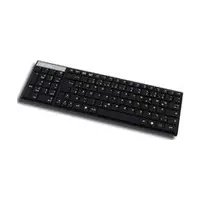
KSK6000 U - Keyboard KeySonic - Free user manual and instructions
Find the device manual for free KSK6000 U KeySonic in PDF.



| Product Type | Compact Multimedia Keyboard |
| Brand | KeySonic |
| Model | KSK6000 U |
| Number of Keys | 101 |
| Typing Technology | Membrane X-Type |
| Lifetime (per key) | Approximately 5 million keystrokes |
| Key Travel | 3.2 ± 0.5 mm |
| Actuation Force | 55 ± 10 g |
| Power Supply | +5 VDC ±5 %, 100 mA |
| Interface | USB |
| Cable Length | 2 m |
| Operating Temperature | 0 °C to +50 °C |
| Storage Temperature | -20 °C to +60 °C |
| Relative Humidity (operation and storage) | 10 % to 95 % |
| Compatible Operating Systems | Windows 98SE/ME/2000/XP/Vista |
| Multimedia Functions (Fn+F1 to F12 keys) | Volume +/-, Mute, Play/Pause, Stop, Previous, Next, Media, My Computer, Calculator, Sleep, Scroll Lock |
| Additional Functions (arrow keys + Fn) | Beginning/End of line, Up/Down |
| Indicator Lights | Blue LEDs for Caps Lock, Num Lock, Scroll Lock, illuminated KeySonic logo |
| Fold-out Feet | Yes, for tilt adjustment |
| Installation | Plug & Play, no special driver required |
| Package Contents | Keyboard, user manual |
| Recommended Cleaning | Brush, compressed air, brush vacuum, slightly damp cloth |
| Maintenance - Prohibited Products | Harsh cleaners, solvents, gasoline |
Frequently Asked Questions - KSK6000 U KeySonic
User questions about KSK6000 U KeySonic
0 question about this device. Answer the ones you know or ask your own.
Ask a new question about this device
Download the instructions for your Keyboard in PDF format for free! Find your manual KSK6000 U - KeySonic and take your electronic device back in hand. On this page are published all the documents necessary for the use of your device. KSK6000 U by KeySonic.
USER MANUAL KSK6000 U KeySonic
Declaration of Conformity
We, MaxPoint Handelsges. mbH, declare under our sole responsibility, that the product
Type: Keyboard
Brand Name: KeySonic
Model Name: KSK-6000 U
is herewith confirmed to comply with the requirements set out in the European Council Directive 89/336/EEC.
This declaration is based on the full compliance of the product with the following European standards:
EN 55022: 2006 Class B
EN 55024: 1998+A1: 2001+A2: 2003
IEC 61000-4-2: 2001
IEC 61000-4-3: 2006
IEC 61000-4-4:2004
IEC 61000-4-5:2005
IEC 61000-4-6: 2006
IEC 61000-4-8: 2001
IEC 61000-4-11:2004
Signature of responsible Person
Federal Communications Commission (FCC) Notice
This device complies with Part 15 of the FCC rules. Operation is subject to the following two conditions
(1) This device may not cause harmful interference, and
(2) This device must accept any interference received, including interference that may cause undesired operation.
This equipment has been tested and found to comply with the limits of a Class B digital device, pursuant to Part 15 of the FCC Rules. These limits are designed to provide reasonable protection against harmful interference in a residential installation. This equipment generates, uses and can radiate radio frequency energy and, if not installed and used in accordance with the instructions, may cause harmful interference to radio communications. However, there is no guarantee that interference will not occur in particular installations. If this equipment does cause harmful interference to radio or television reception, which can be determined by turning the equipment off and on, the user is encouraged to try to correct the interference by one or more of the following measures:
-
Reorient / Relocate the receiving antenna.
-
Increase the distance between the mouse and receiver.
-
Connect the equipment into an outlet on a circuit different from that the receiver is connected.
CAUTION:
Change or modifications not expressly approved by the manufacturer responsible for compliance could void the user's authority to operate the equipment.
KeySonic™
... touch the difference
KSK-6000 U

Bedienungsanleitung

Operation Manual

• Super flat Multimedia compact keyboard with trendy LED panel
- 12 integrated multifunctional keys for Volume ↓, Volume ↑, Mute, Play/Pause, Stop, Back, Forward, Media, My Computer, Calculator, Standby and Scroll
• Extremely silent stroke and tactile feedback due to high-quality X-Type membrane technology
- Impressively reflective LED panel with blue display for Caps, Num and Scroll lock as well as illuminated KeySonic logo
- Tilt feet on back side for adjustment of the tilt angle for an absolute skid-proof and ergonomic operation
• Plug & Play installation, no special driver necessary
• Perfect for all home and office applications with design requirements as well as for cramped areas
2. Technical data
Key count: 101
Construction: X-Type membrane technology
Life expectancy: approx. 5 million strokes per key
Switch travel/ Pressure point: 3.2 ±0.5 mm (total run) 55 ± 10 g
Pressure point / Power supply: +5 V DC ±5 % 100 mA
Temperature: 0 °C up to +50 °C (operating) -20 °C up to +60 °C (storage)
Humidity: 10 % up to 95 % RH (operating and storage)
Interface / Cable length: USB 2 m
Scope of delivery: Keyboard, user manual
Compatibility: Windows 2000 / XP / Vista






Manufacturer's Disclaimer Statement
The information in this document is subject to change without notice and does not represent a commitment on the part of the vendor. No warranty or representation, either expressed or implied, is made with respect to the quality, accuracy or fitness for any particular purpose of this document. The manufacturer reserves the right to make changes to the content of this document and/or the products associated with it at any time without obligation to notify any person or organization of such changes. In no event will the manufacturer be liable for direct, indirect, special, incidental or consequential damages arising out of the use or inability to use this product or documentation, even if advised of the possibility of such damages. This document contains materials protected by copyright. All rights are reserved. No part of this manual may be reproduced or transmitted in any form, by any means or for any purpose without expressed written consent of its authors. Product names appearing in this document are mentioned for identification purchases only. All trademarks, product names or brand names appearing in this document are registered property of their respective owner.
3. Installation of the keyboard
3.1 Conditions of the system
This keyboard requires a PC with USB connection and one of the following operating systems:
Windows 98SE / ME / 2000 / XP / Vista
3.2 Connection of the keyboard to the PC
In order to install your keyboard, please perform the following steps:
- Connect your keyboard to a free USB port on your computer.
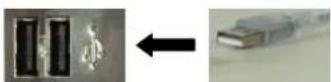
- All state-of-the-art operating systems with Plug & Play support will recognize your keyboard automatically and load the required drivers. If applicable, please follow the instructions on your screen. In certain cases, the installation CD of your operating system might be required according to the instructions on the screen.
Older operating systems do not always support automatic hardware recognition. If you have attached your keyboard via USB, and exactly this error occurs on your system, you have the following alternatives to solve the problem:
• Perform an update of your operating system and return to Step 3.2
- Check whether your BIOS system supports USB keyboards*. Some main board manufacturers offer BIOS up-dates in the Internet for downloading.
- If the letters and numbers appearing on the screen are not the ones you have typed, please check the local settings of your operating system*. You can find the regional and language options in Control Panel under Regional and Language Options in the register Keyboards and Languages. Click Change Keyboards and select the default language.
* Refer to the documentation of your PC for details.
4. How to use the keyboard
4.1 Multifunctional keys
For a fast and comfortable operation the 12 function keys F1 – F12 have additional multimedia functions. If you press the Fn key together with these function keys, they perform the functions as described below:

Increases the sound volume
Reduces the sound volume
Activates or de-activates the muting
Play / Pause - One-time pressing starts the track of a CD, VCD, DVD or media file; repeated pressing pauses the replay
Stops the track of the CD, VCD, DVD or media file
Starts the previous track of the CD, VCD, DVD or media file
Starts the next track of the CD, VCD, DVD or media file
Media - Opens the start page of the preset Media Player
My Computer – Opens My Computer
Calculator – Opens the screen calculator
Standby – Shuts down the operating system into stand-by mode
Scroll Lock key
The arrow keys together with the pressed Fn key have the functions of the position keys:

The left arrow together with Fn moves the cursor to the beginning of the row
The right arrow together with Fn moves the cursor to the end of the row
The upwards arrow together with Fn moves the cursor one section upwards
The downwards arrow together with Fn moves the cursor one section downwards
5. How to clean the keyboard
- Remove dust with a brush, with soft compressed air, or with a vacuum cleaner with brush head nozzle.
- Remove fine dirt with a not-too-damp cloth.
- DO NOT use any aggressive detergents, solvents, or gasoline in order to clean the keyboard.