DORO 916i cr - Phone

916i cr - Phone DORO - Free user manual and instructions

Find the device manual for free 916i cr DORO in PDF.

📄 40 pages English EN 💬 AI Question
Notice DORO 916i cr - page 6
View the manual : Français FR English EN

User questions about 916i cr DORO

0 question about this device. Answer the ones you know or ask your own.

Ask a new question about this device

L'email reste privé : il sert seulement à vous prévenir si quelqu'un répond à votre question.

No questions yet. Be the first to ask one.

Download the instructions for your Phone in PDF format for free! Find your manual 916i cr - DORO and take your electronic device back in hand. On this page are published all the documents necessary for the use of your device. 916i cr by DORO.

USER MANUAL 916i cr DORO

text_image 12:12 01/01 0462805000 1 2 ABC 3 DEF 4 GHI 5 JKL 6 MNO 7 PQRS 8 TUV 9 WXYZ * 0 # R

916i cr

DORO 916i cr - 1

text_image ① ② ③ ④ ⑤ ⑥ ⑦ ⑧ ⑨ ⑩ ⑪ ⑫ ⑬ ⑭ ⑮ ⑯ ⑰ ⑱ ⑲ ⑳ ㉑ ㉒ ㉓ ㉔ ㉕ ㉖ ㉗ ㉘ ㉙ ㉚ ㉛ ㉜ ㉝ ㉞ ㉟ ㉳ ㉻ ㉒ ㉓ ㉔ ㉕ ㉖ ㉗ ㉘ ㉙ ㉚ ㉛ ㉜ ㉝ ㉞ ㉟ ㉟A ㉟B ㉟C ㉟D ㉟E ㉟F ㉟G ㉟H ㉟I ㉟J ㉟K ㉟L ㉟M ㉟N ㉟O ㉟P ㉟Q ㉟R ㉟S ㉟T ㉟U ㉟V ㉟W ㉟X ㉟Y ㉟Z ㉟A ㉟B ㉟C ㉟D ㉟E ㉟F ㉟G ㉟H ㉟I ㉟J ㉟K ㉟L ㉟M ㉟N ㉟O ㉟P ㉟Q ㉟R ㉟S ㉟T ㉟U ㉟V ㉟W ㉟X ㉟YT ㉟UW ㉟VW ㉟XW ㉟YTW ㉟UWW ㉟VWWYWYWYWYWYWYWYWYWYWYWYWYWYWYWYWYWYWYWYWYWYWYWYWYWYWYWYWYWYWYWYWYWYWYWYWYWYWYWYWYWYWYWYWYWYWYWYWYWYWYW 12ABC3DEF 4GHI5JKL6MNO 7PORS8TUV9WXYZ *0#R0R0R0R0R0R0R0R0R0R0R0R0R0R0R0R0R0R0R0R0R0R0R0R0R0RR0R0R0R0R0R0

DORO 916i cr - 2

text_image 17 18 19 20

English

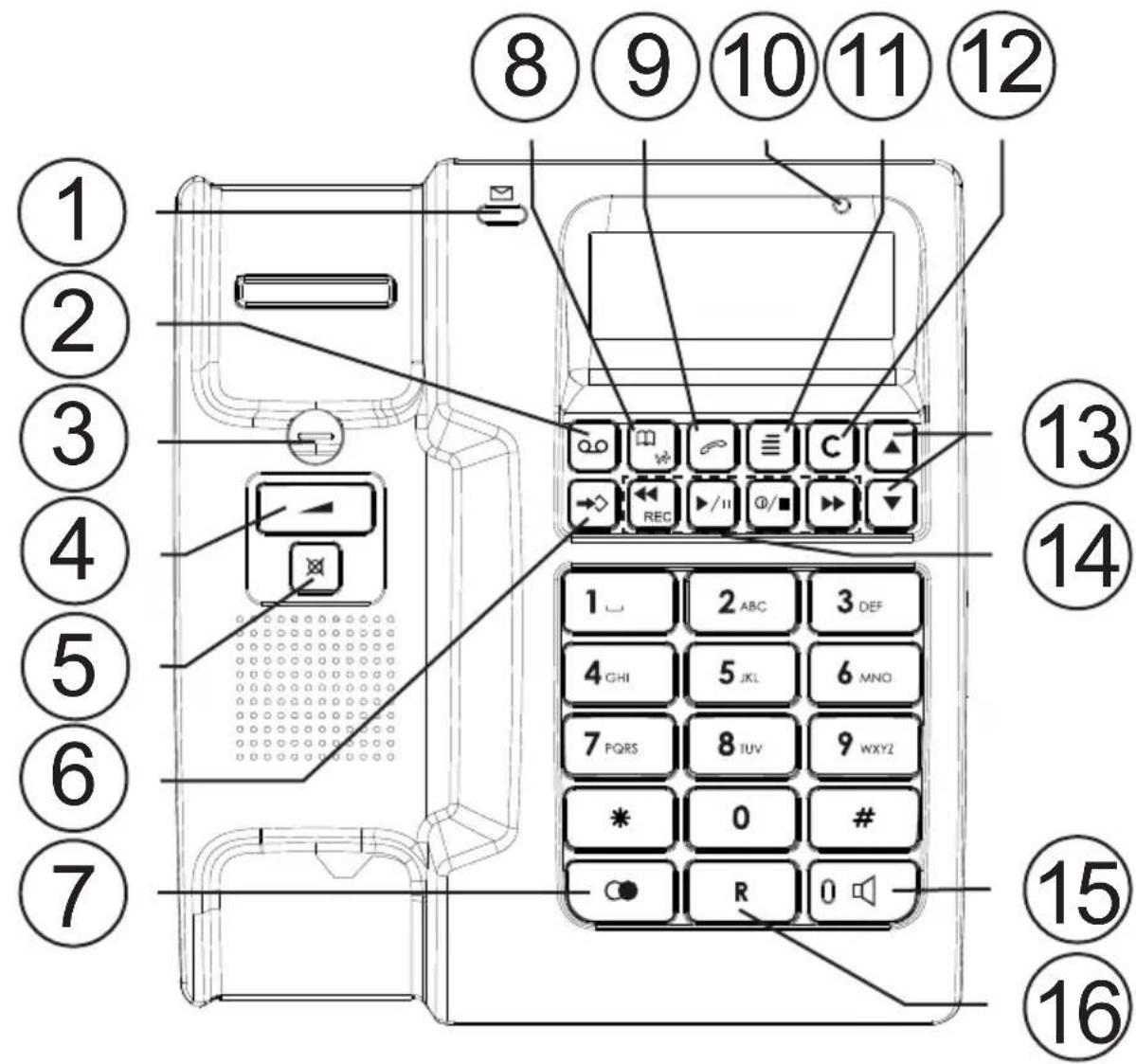
  1. New voice message - (flashing), answer machine on (on), answer machine off (off) and visual ring indicator
  2. Two-way recording/Memo
  3. Hanging Hook for Handset
  4. Handset Volume Control
  5. Mute Button
  6. Store button
  7. Redial button
  8. Select Caller ID/Phone Book mode
  9. OK/Call Number
  10. New CID message

  11. Menu button

  12. Cancel Button
  13. Scrolling Buttons
  14. Answer machine functions buttons (please refer to page 12)
  15. Hands free button and headset button with indicator
  16. Recall button
  17. Ring volume
  18. Ring melody
  19. Ringer tone
  20. Headset or hands free mode

Français

Number of Rings (Answer delay)....4

Pin Code....4

Voice 4

Answer Only 5

Privacy Mode. 5

The display....5

Service Access 5

Operation 6

Making a call 6

Normal Dialling....6

Pre-Dialling....6

Mute Button 6

Redial function 6

Timer 6

Volume control 6

Recall 6

Hands free function....7

Connecting a headset. 7

Selecting headset or hands free mode 7

Ringer 7

Phone Book 8

Using the Phone Book 8

Letters 8

Storing names/numbers 8

Dialling from the Phone Book 9

Changing phone numbers/names. 9

Deleting a Phone Book entry. 9

Deleting all entries in the Phone Book....9

Caller Identification 10

Explanation of Caller ID 10

Retrieving and dialling CID numbers....10

Messages 10

Deleting Numbers 11

Transfer Numbers to the Phone Book. 11

The Answer Machine 12

About the Answer Machine....12

Outgoing Message (OGM)....12

Recording an Outgoing Message 12

Checking the Outgoing Message 12

Restore the pre-recorded message (OGM) 12

Incoming messages (ICM) 13

The following functions are available during playback....13

Delete Incoming Messages....13

Switching the Answer Machine On/Off....14

Personal Message - MEMO 14

Two-way Recording 14

Remote Control....15

Room Monitoring....16

Remote Activation....16

Out of Memory 16

Other 17

Hearing Aid compatible 17

Troubleshooting....17

Declaration of conformity....18

Guarantee....18

Installation

Connection

  1. Connect the curly cord to the handset and to the socket marked on the underside of the telephone.

  2. Connect the mains adapter to the socket marked DC 9V/300mA on the bottom of the telephone and then to an electrical wall socket.

  3. Connect the telephone line cord to the socket marked 📞 on the underside of the telephone, and then to a network wall socket.

  4. Position the cables in the grooves underneath the telephone.

  5. Lift the handset and listen for the dial tone.

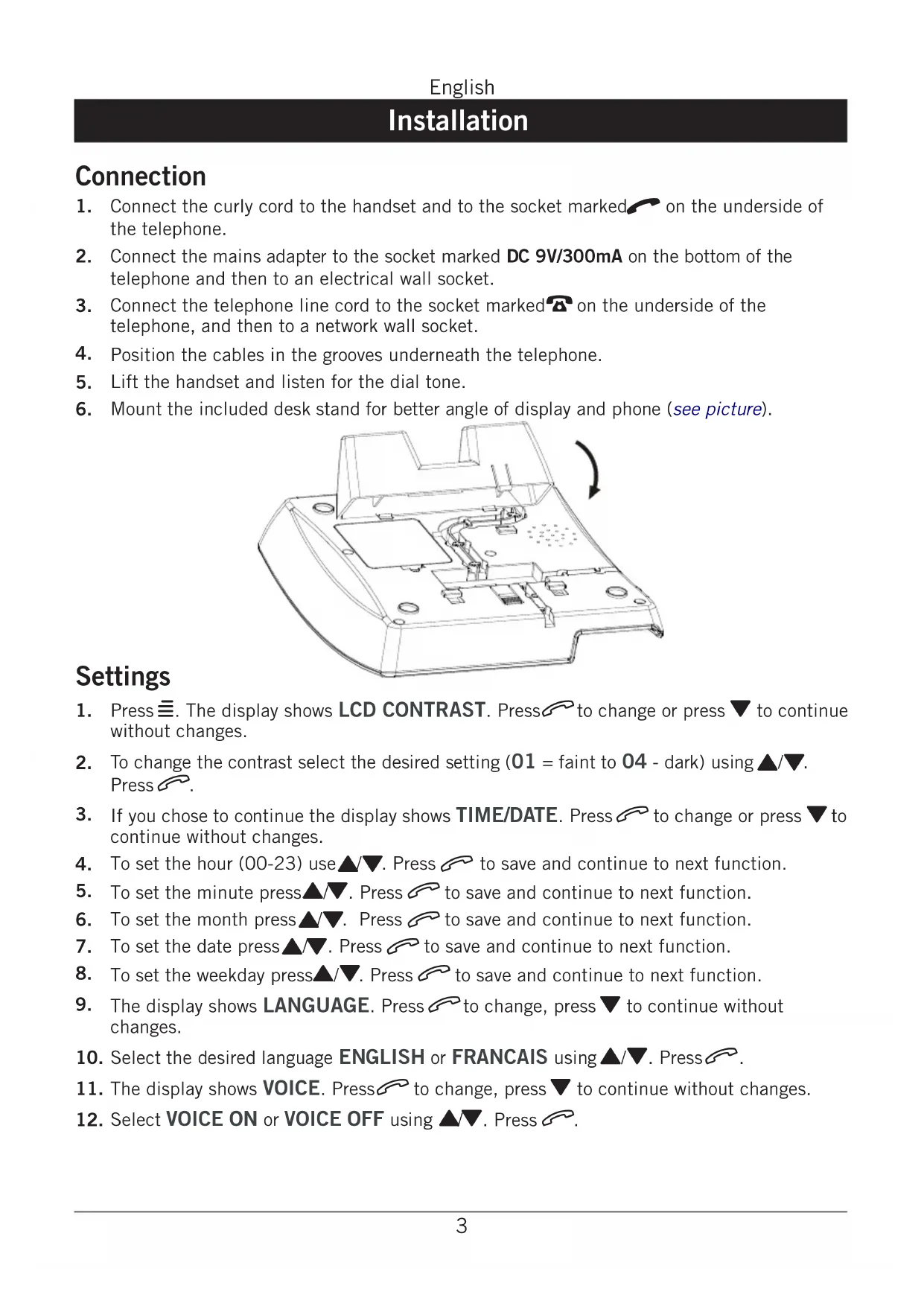
  6. Mount the included desk stand for better angle of display and phone (see picture).

DORO 916i cr - Connection - 1

natural_image Technical line drawing of a device casing with internal components and a rotation arrow indicating motion (no text or symbols)

Settings

  1. Press ≡. The display shows LCD CONTRAST. Press 📋 to change or press ▼ to continue without changes.

  2. To change the contrast select the desired setting (01 = faint to 04 - dark) using ▲/▼. Press

  3. If you chose to continue the display shows TIME/DATE. Press ↗ to change or press ▼ to continue without changes.

  4. To set the hour (00-23) use ▲▼. Press ⬇ to save and continue to next function.

  5. To set the minute press ▲▼. Press 🔔 to save and continue to next function.

  6. To set the month press ▲▼. Press ⬇ to save and continue to next function.

  7. To set the date press ▲▼. Press 🔔 to save and continue to next function.

  8. To set the weekday press ▲/▼. Press 🔔 to save and continue to next function.

  9. The display shows LANGUAGE. Press ⬇ to change, press ▼ to continue without changes.

  10. Select the desired language ENGLISH or FRANCAIS using ▲/▼. Press

  11. The display shows VOICE. Press ⬇ to change, press ▼ to continue without changes.

  12. Select VOICE ON or VOICE OFF using ▲▼. Press 📞.

  13. The display shows FLASH. Press 🔍 to change or press ▼ to continue without changes.

  14. Select the desired setting using ▲/▼. 100 for AU/UK/EU, 270 for FR and 600 for NZ. Press 🔔.
  15. The display shows TONE/PULSE. Press to change or press or press to press without changes.
  16. Select TONE or PULSE using ▲/▼. If unsure about which mode to use, select TONE as this works in most locations. Press 🔍.
  17. The display shows ANSWER DELAY. Press to change or press press press issue without changes.
  18. Select 2, 4 or TS using ▲▼. Press 🔔.
  19. The display shows ANSWER MODE. Press to change or press press press without changes.
  20. Select ANSWER&RECORD or ANSWER ONLY using ▲▼. Press 🔍.
  21. The display shows PIN CODE. Press to change or press pressptise without changes.
  22. Use the numeric keypad to enter the default code (0000). Press ☐. Enter the new code. Press ☐. If the code is not accepted/correct you will hear a short beep, repeat step 21 and 22.
  23. The display shows PRIVACY MODE. Press to change or press pressptise without changes.
  24. Select ON or OFF using ▲▼. Press ↗.

The LCD shows “TOTAL:00 NEW:00”, which means both the total call and new call counter are zero.

Press ≡ anytime to change the settings. Press ①/ ■ to return to standby.

Number of Rings (Answer delay)

The number of rings before the answer machine answers can be selected between 2, 4 or TS.

With TS (Time Saver) selected, calls will be answered after four rings until a new ICM (incoming message) has been recorded, any subsequent calls will be answered after two rings. Once these ICM's (incoming messages) have been erased this cycle will be repeated. This is useful when remotely accessing your unit, if there is no answer after three rings no ICM's (incoming messages) have been recorded, you can therefore terminate the call before you are charged.

Pin Code

This code is needed in order to gain access to the remote control functions of the answer machine (factory setting is 0000). The same code is used for Privacy mode. You can alter the code according to the description above.

Voice

With VOICE set to ON you will be announced the time for when the incoming message (ICM) was recorded. With VOICE set to OFF the time and date will not be announced but you can still see when the incoming message was recorded in the display.

Answer Only

ANSWER ONLY is your announcement message to a caller in which contact information can be supplied but no incoming message (ICM) will be recorded. When ANSWER ONLY is selected the display shows A2.

Please note!

You need to record your own greeting message, there is no pre-recorded message. See page 12 for instructions on how to record an (OGM) outgoing message.

An example:

"Sorry I cannot take your call at this time, if urgent try contacting me on 0746 ......

Please do not leave a message as this will not be recorded. Thanks for calling."

Privacy Mode

Use the Privacy mode if you want to prevent unauthorized people from accessing your incoming messages. With PRIVACY MODE set to ON you will be asked to enter the PIN CODE before listening to your incoming messages (ICM).

Please note!

Privacy mode and remote access uses the same PIN code.

The display

When the telephone is not in use, the time and date, TOTAL number of calls stored in the Caller ID memory and number of NEW calls will be shown in the display.

Please note!

There are separate logs for answer machine and Caller ID and separate red LED's. In order to stop the flashing LED the corresponding log must be reviewed.

Service Access

Key 1 and 2 can be programmed with a service number.

  1. Press and hold 1. ENTER NUMBER is displayed.
    Use the keypad and C to edit the access number. Press →.

  2. ENTER NAME is displayed. Use the keypad to edit the access name. Press → to confirm the changes.

To dial, press and hold 1 or 2 and press ↗.

Please note!

Key 2 can also be programmed in the same way, please follow description above.

Making a call

Normal Dialling

  1. Lift the handset.
  2. Dial the desired telephone number.

Pre-Dialling

This allows you to enter and change a telephone number before it is dialled.

Please note!

Only available in Caller ID mode. Press ☐ / 0 to select Caller ID mode. Ensure shows. If in phone book mode (☐) pressing the number buttons will quick-search the phone book entries.

  1. Enter the required telephone number. Mistakes can be erased by pressing C.
  2. You can now either lift the handset, press OR, the displayed telephone number will now be dialled.

Mute Button

The handset microphone can be disabled during a call by pressing and holding ✗.

Redial function

  1. If the number dialled is engaged or you wish to redial the last number called. Press ● one or more times to scroll between the 10 most recently dialled numbers, which will be shown on the LCD display.
  2. Lift the handset (or press) to dial.

Please note!

During a conversation, you can switch from the handset to hands free mode at any time by pressing □. Press again to terminate the call.

Timer

Immediately after dialling a telephone number a call timer will be shown on the display. The timer is a simple way to help you keep track of how long the call lasts.

Volume control

The handset earpiece volume may be adjusted during a call using

To adjust the speaker volume (hands free), use ▲/▼ during a call.

Recall

Press the recall button R followed by the extension number to transfer calls when connected to a PBX (TBR only).

Access to additional network services can be gained by using the recall button R, ✕ and ⏻ buttons. Contact your network operator for more information.

Hands free function

  1. Press □ The Hands free speaker will be activated and the Hands free indicator will illuminate.
  2. Dial the required telephone number. The speaker volume can be adjusted during a call using ▲/▼.
  3. Speak towards the microphone located on the front edge of the telephone.
  4. Press to terminate the call.

Please note!

During a conversation, you can switch between headset / hands free mode by picking up the handset. Replace the handset (or press) to terminate the call.

Please remember that in Hands free mode it is only possible for one person at a time to talk. The switch between speaker and microphone is automatic and dependent on the sound level of the incoming call and the microphone respectively. It is therefore essential that there are no loud noises, e.g. music, in the immediate vicinity of the telephone, as this will disrupt the speaker function.

Connecting a headset

You can connect a headset to the socket ☐ on the underside of the telephone. When a headset is connected the speaker button ☐ is used to connect /disconnect a telephone call (equivalent to lifting and putting down the handset).

The volume in the headset can be adjusted during a call using ▲▼.

A neck loop/extra handset can be connected to this socket instead of a headset. DORO original headsets are tested and adapted for this model. Other types and makes of headsets may be used, though the function and sound quality cannot be guaranteed. In the worst case, these could damage the headset and telephone. This type of damage is not covered by the telephone's guarantee.

Selecting headset or hands free mode

Select headset-/handsfree mode by setting the switch 📷 / □ on the back of the telephone.

Please note!

On delivery, the telephone is set to Hands free mode.

The Hands free speaker function will not work when the headset function is activated and vice versa.

Ringer

The ringer volume, melody and tone can be selected using the switches located on the rear side of the telephone:

DORO 916i cr - Ringer - 1

Ring volume

DORO 916i cr - Ringer - 2

Ring melody

DORO 916i cr - Ringer - 3

Ringer tone

Using the Phone Book

The phone book will store 99 telephone numbers (22 digits max) and their associated names (14 characters max) with entries arranged alphabetically. A stored phone number can be dialled using fewer keystrokes than if dialled manually.

If you subscribe to a Caller ID service, the name/number of the caller will be shown when you receive an incoming call.

Letters

Each number button has been allocated certain characters.

Button Letters/symbols

1 .... [Space character] + & - / X 1
2 A B C Å Å E æ å ä β 2
3 D E F ë 3
4 GHIi4
5 J K L 5
6 MNOÑñÖö6
7 PQRS7
8 TUVÜü 8
9 WXYZ9
* ....`@() * < >
0 . : ? = 0

\$ \_ % ! ; #

Storing names/numbers

  1. Press 📄 / 0.32 to select phone book mode. Ensure 📄 shows.
  2. Press →. Display will show NEW PBOOK?.
  3. Press → again.
  4. Enter the telephone number to be stored (up to 22 digits). Press →.
  5. Enter the name (up to 14 characters). Press the corresponding number button one or more times for the first letter (see the table above).
  6. Press →.
  7. Press → if you want to add more contacts, or press① / ■ to return to standby.

Please note!

Press ⬇ if you need to insert a pause in the telephone number.

If you wish to change a number, store the new number in the same location as the old one.

Dialling from the Phone Book

  1. Press 📄 / 0 to select phone book mode. Ensure 📄 shows.
  2. Scroll to the required memory location using ▲/▼. To quick-search in the phone book press the corresponding number button one or more times for the first letter (refer to table on previous page).
  3. Lift the handset (or either press or 1) to dial the displayed number. If you do nothing the phone will return to standby mode.

Please note!

During a conversation, you can switch from the handset to hands free mode at any time by pressing □ Press again to terminate the call.

Changing phone numbers/names

  1. Press 📄 / 0 to select phone book mode. Ensure 📄 shows.
  2. Scroll to the required memory location using ▲/▼.
  3. Press and hold → until EDIT PBOOK? is displayed. Press →.
  4. Change the displayed telephone number with C and ▲/▼. Press ➡.
  5. Changes to the displayed name can be made using C and ▲/▼.
  6. Press → to confirm the changes.

Deleting a Phone Book entry

  1. Press 📄 / 0 to select phone book mode. Ensure 📄 shows.
  2. Scroll to the required memory location using ▲▼.
  3. Press C. DELETE? will be displayed.
  4. Press and hold C until the displayed telephone number disappears.

Deleting all entries in the Phone Book

  1. Press 📄 / 0 to select phone book mode. Ensure 📄 shows.
  2. Scroll to the required memory location using ▲▼.
  3. Press and hold C until the display shows DELETE ALL?
  4. Press and hold C until the display shows EMPTY.

Caller Identification

Explanation of Caller ID

Caller ID allows you to see who is calling before you answer a call and to see who has called in your absence. If the number is stored in the phone book, the caller's name will be shown instead. Received calls are stored chronologically with the sequential number shown in the top right hand side of the display.

When the Caller ID log is full, the oldest number will be deleted automatically as the new call is logged. New calls are indicated by 📞 in the display and flashing of the upper red ring indicator light.

Please note!

In order for numbers to be shown, the Caller ID service must be provided by your network operator and a current subscription in place. Contact you operator for more information.

There are separate logs for answer machine and Caller ID and separate red LED's. In order to stop the flashing LED the corresponding log must be reviewed.

Retrieving and dialling CID numbers

  1. Press ☐ /° to select Caller ID mode. Ensure shows.
  2. Press either ▲ or ▼ to review the numbers stored in the Caller ID memory.
  3. Lift the handset (or either press or 1 to dial the displayed number. If you do nothing the phone will return to standby mode.

Please note!

During a conversation, you can switch from the handset to hands free mode at any time by pressing □ Press again to terminate the call.

Messages

Besides showing telephone numbers, the display can show a number of text messages or symbols:

OUT OF AREA It is an International call or a call from a PBX (no information received).

PRIVATE Information on the number is blocked. The call could also be from a PBX.

The call was received while using the Call Waiting function.

New call.

Message Waiting indication.

Deleting Numbers

  1. Press ☐ /° to select Caller ID mode. Ensure shows.
  2. Scroll to the telephone number you wish to erase using ▲/▼.
  3. Press C. DELETE? will be displayed, alternatively press and hold C until the display shows DELETE ALL?.
  4. Press and hold C until the display shows EMPTY. Press① / ■ to return to standby.
  5. If you do nothing the phone will return to standby mode.

Please note!

This deletes the Caller ID memory, not the Phonebook memory.

Transfer Numbers to the Phone Book

  1. Press ☐ / 0 to select Caller ID mode. Ensure shows.
  2. Scroll to the telephone number you wish to copy using ▲▼.
  3. Press →.
  4. The display shows COPY TO PBOOK?. Press →.
  5. Change the displayed telephone number with C and ▲▼. Press →.
  6. Enter the name using C and ▲/▼.
  7. Press → to confirm the changes.

The Answer Machine

About the Answer Machine

The answer machine has to be turned on in order to receive messages. When a call is received it will be answered after the selected number of rings (please refer to page 4).

When the answer machine answers an incoming call, the caller will hear your outgoing message. After a short beep they can then leave a message (up to 120 seconds). Should the caller exceed this limit the call will be disconnected.

The memory will store approximately 40 minutes of incoming messages (including the outgoing message).

Outgoing Message (OGM)

The outgoing message is your message to an incoming caller and may be up to 60 seconds in length.

You may want the message to tell the caller that they may start speaking once the beep is heard after your outgoing message.

An example of an outgoing message:

- “Hello we are unable to take your call right now, please leave a message at the sound of the beep and we’ll return your call as soon as possible. Thanks for calling.”

Recording an Outgoing Message

  1. Press and hold ◀◀. You will hear a short beep, the LED will flash and the display will show OGM RECORDING, do not release the ◀◀ - button until you are done recording.
  2. Record your outgoing message. Speak clearly towards the machine from a distance of 15-20 cm.
  3. Release ◀ to stop recording.
  4. The outgoing message will be repeated after a few seconds. Repeat this procedure if you want to change the message, any old outgoing message will automatically be erased when a new one is recorded.

Checking the Outgoing Message

Press ◀. The current outgoing message will now be played.

Restore the pre-recorded message (OGM)

  1. Press and hold ◀◀. You will hear a short beep, the LED will flash and the display shows OGM RECORDING, release the ◀◀ - button.
  2. The pre-recorded OGM is played after a few seconds.

Please note!

You can record 2 different outgoing messages, one for ANSWER&RECORD (normal) and one for ANSWER ONLY. See Installation on how to select ANSWER MODE.

Incoming messages (ICM)

The red indicator ✉ flashes to show that new messages have been received.

Playback will always begin with any new messages, for example if there are three old messages and two new ones, only the two new ones will be played back, then the answer machine will return to standby mode.

Press the play button once again to listen to all messages, starting with the oldest messages.

  1. Press▶/|| to start playback.

With PRIVACY MODE activated you need to enter the PIN CODE (0000) and then press 🔔. The TAM will then play the incoming message(s).

  1. After each message a short beep will be heard.
  2. When playback is finished you will hear a short beep, and the machine will return to standby mode. All incoming messages are saved (unless you have erased any during playback, see below), new messages will then be recorded after the old ones.

The following functions are available during playback

Button Function
◀◀Repeat the current message, or press ◀◀ twice to step back through the messages.
▶▶Skip to next message.
1 / ■Stop playback.
CErase messages.
▲/▼Increase or decrease the speaker volume.
▶ / ||Pause during playback (max. 7 seconds). Press ▶ / || again to resume playback.

Delete Incoming Messages

If you want to delete a single incoming message press C while the message is playing.

To erase all messages after playback, press and hold C until unit beeps.

Please note!

New messages cannot be deleted until they have been played.

With PRIVACY MODE activated you need to enter the PIN CODE (0000) and then press 🔒.

Switching the Answer Machine On/Off

The answer machine can be switched ON or OFF using the ① / ■ button.

In ANSWER ON position, incoming calls will be answered by the answer machine and the red indicator ☒ will be on.

In ANSWER OFF position no calls will be answered and the red indicator ✉ will be off.

Please note!

Although turned Off, the Answer Machine will answer a call after 10 Rings. This is to allow the remote ON and other features to be accessed.

Personal Message - MEMO

A personal message – MEMO – is a message recorded directly onto the answer machine (120 seconds maximum) without dialling. This means that the answer machine may be used as an electronic notebook, where messages, reminders or other notes to family members or colleagues can be recorded.

  1. Press and hold the 🔒 button. You will hear a beep.
  2. Start speaking clearly towards the machine to record your Memo message. This function only works when the handset is on the telephone base (on-hook).
  3. Release the 🔒 button to stop recording.
  4. Memos are played back in the same way as regular incoming messages.

Please note!

With PRIVACY MODE activated you need to enter the PIN CODE (0000) and then press 🔔. The TAM will then play the recorded MEMO(s).

Two-way Recording

You can record telephone conversations as they occur. There is approximately 40 minutes available recording time in memory, with the answer machine handling two-way recordings as a regular incoming call.

  1. A call is connected.
  2. Press QO. The display will show 2WAY RECORDING and QO, indicating that two-way recording is in progress.
  3. Press ① / ■ to terminate recording.

Remote Control

This machine can be remotely controlled using the buttons of an ordinary tone dialling telephone. Call up the answer machine and enter the PIN CODE (please refer to page 4) while the outgoing message is playing. Once the code is accepted, several remote control commands are available.

  1. Call up the answer machine (the number that your device is connected to, usually your home number).
  2. While the outgoing message is playing, enter the PIN CODE. If the code is accepted, you will hear two beeps.
  3. Select a remote control command (within 10 seconds) from below.
  4. When you have finished accessing the machine, replace the handset.
Command Function
1#Play new messages
2#Play all messages
During playback:
3#Erase single message during playback
4#Skip to previous message
5#Stop playback
6#Skip to next message
After playback:
7#Turn the answer machine either On or Off.
8#Record a new outgoing message, to Stop recording press 5#.
9#Record a MEMO, to Stop recording press 5#.
0#Room monitoring (active for 2 minutes and 30 seconds, press 0# to continue).

Please note!

If the machine doesn't respond correctly to the remote control commands, try pressing the telephone buttons for a longer or shorter time. In normal cases, the answer machine should react to tones approximately 0.5 – 1 seconds in length, but longer tones may be necessary in certain telephone networks.

If you do not enter any remote control command, the answer machine will disconnect after a few seconds.

If you listen to any incoming messages for more than 2 minutes and 40 seconds, you will hear two beeps. Press any button to continue.

Room Monitoring

This remote access feature enables you to call your home and turn ON the answer machine's microphone function, allowing you to monitor sounds in the room where the answer machine is situated.

Remote Activation

The answer machine can be activated using the remote control functions.

  1. Call up the answer machine. After approximately 10 rings, the machine will answer and emit a long tone.
  2. Enter the PIN CODE during your outgoing message (OGM). If the code is accepted, you will hear two short beeps.
  3. Press 7#. One beep confirms that the answer machine is now on. Replace the handset.

Out of Memory

The total capacity of the answer machine's memory is approximately 40 minutes. The memory space is shared between the outgoing message, personal memos, and regular incoming messages.

When the memory is full the display will show MEMORY FULL, the answer machine will answer after 10 rings to allow remote playback and deletion of messages, no new messages will be accepted until the existing messages have been played and erased.

Hearing Aid compatible

This telephone is hearing aid compatible. Select the T mode on your hearing aid to enable this feature.

Troubleshooting

Check that the telephone cord is undamaged and properly plugged in. Disconnect any additional equipment, extension cords and other telephones. If the problem is resolved, the fault is with the other equipment.

Test the equipment on a known working line. If the product works, then the fault is probably with the line. Please inform your local line provider.

No number shown in display when ringing

  • In order for this feature to function, you must subscribe to the Caller Identification service from your network provider.
  • If a text message is shown on the display, the call may be an international call (no data received), or from a private or withheld number.
  • It may not be possible to receive Caller ID information if the phone operates in a PBX system.

The Answer Machine Is Not Answering

  • Check that the unit is switched on.
  • Check that the telephone cable and the mains adapter are correctly connected.

The Answer Machine Does Not Respond to Remote Control

  • Check that the telephone you are using to remotely access the answer machine is tone dialling.
  • Telephones that generate only a short tone signal when pressing a button may not allow you to remotely access your machine. In this situation please use a separate tone transmitter.
  • Try holding the buttons down longer, approximately 1 second per digit.

I can't hear the outgoing message very well

• Record a new outgoing message.
- Speak closer to the unit/microphone when recording.

The line is disconnected when someone leaves a message:

  • The incoming message may be over the maximum recording time (120 seconds). After this time, the call will be disconnected.
  • If an incoming caller pauses for approximately 7 seconds while leaving a message the call will be disconnected, as the voice control function will believe that they have hung up.

I hear a tone sequence, but nothing happens when I press the playback button:

• There are no incoming messages.

If the telephone still does not work, contact the place of purchase. Please note that the receipt or a copy invoice will be required for guarantee purposes.

Declaration of conformity

Doro hereby declares that the product Doro 916i cr conforms to the essential requirements and other regulations contained in the directives 1999/5/EC (R&TTE), 2002/95/EC (ROHS). A copy of the manufacturer's declaration is available at www.doro.com/dofc

Guarantee

This product is guaranteed for a period of 12 months from the date of purchase. Proof of purchase is required for any service or support required during the guarantee period.

This guarantee shall not apply to a fault caused by an accident or a similar incident or damage, liquid ingress, negligence, abnormal usage, not reasonably maintained or any other circumstances on the purchaser's part. Furthermore, this guarantee shall not apply to a fault caused by a thunderstorm or any other voltage fluctuations.

This guarantee does not in any way affect your statutory rights. (As a matter of precaution, we recommend disconnecting the telephone during a thunderstorm.)

Sommaire

Installation 3

Raccordement....3

Réglages. 3

natural_image Technical line drawing of a mechanical device casing with internal components and a rotation arrow indicating motion (no text or symbols)

Réglages

Table of contents Cliquez un titre pour y accéder
Manual assistant
Powered by Anthropic
Waiting for your message
Product information

Brand : DORO

Model : 916i cr

Category : Phone