Adapto 5r - Phone DORO - Free user manual and instructions
Find the device manual for free Adapto 5r DORO in PDF.


| Product type | DECT/GAP cordless phone |
| Brand | Doro |
| Model | Adapto 5r |
| Power supply | Base: mains adapter; Handset: 2 Ni-MH rechargeable batteries (4.8 V, 300 mAh) |
| Range | 50 to 300 meters outdoors, variable depending on conditions |
| Display | Backlit display with icons |
| Phonebook | 20 names/numbers with customizable ringtone |
| Caller ID | Yes, subject to subscription with the operator |
| Integrated answering machine | Capacity 15 minutes or 59 messages, customizable greeting, remote interrogation |
| Phone functions | Intercom, call transfer, 3-way conference, redial key, mute key, temporary ringer off |
| Maximum number of handsets | 6 per base |
| Battery life | Talk time: 10 h; standby: 100 h; charge: 10 h |
| Warranty | 2 years (excluding batteries and non-compliant use) |
| Certification | ENERGY STAR, SAR: 0.04 W/kg (10 g of tissue) |
| Maintenance | Clean with a soft, dry cloth; do not use abrasive or solvent products |
| System requirements | Analog telephone line (PSTN) with dial tone |
Frequently Asked Questions - Adapto 5r DORO
User questions about Adapto 5r DORO
0 question about this device. Answer the ones you know or ask your own.
Ask a new question about this device
Download the instructions for your Phone in PDF format for free! Find your manual Adapto 5r - DORO and take your electronic device back in hand. On this page are published all the documents necessary for the use of your device. Adapto 5r by DORO.
USER MANUAL Adapto 5r DORO
- Up / missed call
2.Left menu button/OK - Talk button
- Down/Redial
- × and keypad lock
- Redial
- Phone book
- R Recall button (PBX features)
- and ring signal On / Off
- End call and on / off button
- Right menu button/Back/Internal call
Only for Adapto 5r:
- Paging
- Answer machine functions. Detailed in Answer machine section.
- Message indication/display
Français
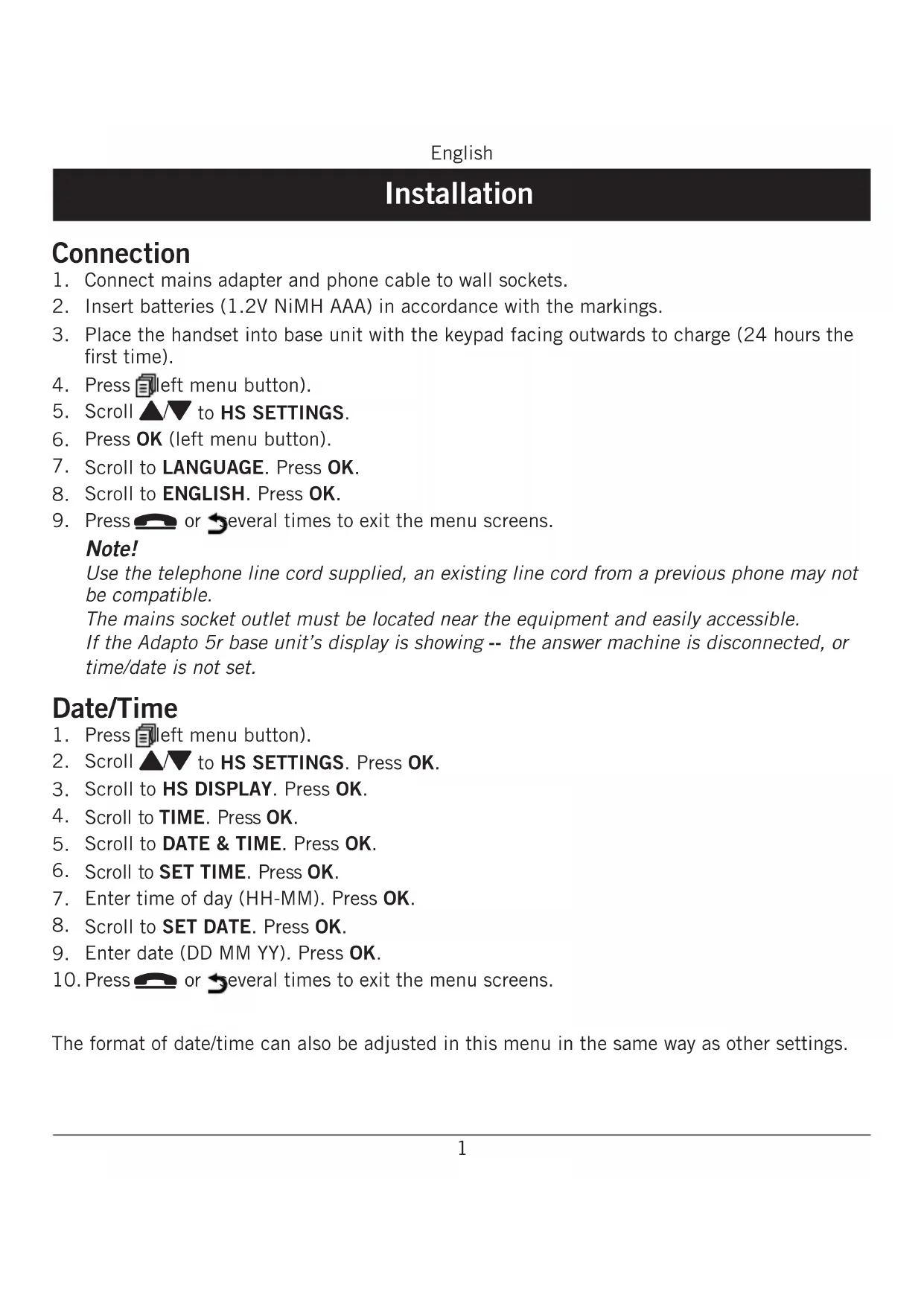
- Connect mains adapter and phone cable to wall sockets.
- Insert batteries (1.2V NiMH AAA) in accordance with the markings.
- Place the handset into base unit with the keypad facing outwards to charge (24 hours the first time).
- Press (left menu button).
5.Scroll to HS SETTINGS. - Press OK (left menu button).
- Scroll to LANGUAGE. Press OK.
- Scroll to ENGLISH. Press OK.
- Press or several times to exit the menu screens.
Note!
Use the telephone line cord supplied, an existing line cord from a previous phone may not be compatible.
The mains socket outlet must be located near the equipment and easily accessible.
If the Adapto 5r base unit's display is showing -- the answer machine is disconnected, or time/date is not set.
Date/Time
- Press (left menu button).
2.Scroll to HS SETTINGS.Press OK.
3.Scroll to HS DISPLAY. Press OK. - Scroll to TIME. Press OK.
- Scroll to DATE & TIME. Press OK.
- Scroll to SET TIME. Press OK.
- Enter time of day (HH-MM). Press OK.
8.Scroll to SET DATE. Press OK. - Enter date (DD MM YY). Press OK.
- Press or several times to exit the menu screens.
The format of date/time can also be adjusted in this menu in the same way as other settings.
Battery
When the batteries are relatively new (less than 6 months) and fully-charged (10 hours) they will last for approx 100 hours standby time or approx 10 hours call time. Full battery capacity will not be reached until the batteries have been charged 4-5 times. It is not possible to overcharge or damage the batteries by charging them for "too long". It may take up to 5 minutes charging before display illuminates, if batteries are totally empty.
Warning!
Risk of explosion if battery is replaced by an incorrect type. Use only original batteries. The guarantee does not cover any damage caused by using the wrong batteries.
Note!
When the battery is low or when there is too great a distance to the base unit the telephone will be unable to connect to a line. Do not place the base unit close to other electrical equipment, in direct sunlight or other strong heat sources! This is to minimize the risk of any interference. It is normal for the device to become warm during charging and this is not dangerous.
Dispose of used batteries according to the instructions.
Battery LED
When the batteries are running low, will flash and a warning tone will be heard when a call is in progress.
Please note that the complete battery indicator in the display will flash as long as the handset is charging, and when the battery is fully charged only the inner segment will flash.
Range
The telephone's range depends on whether or not the radio waves carrying the call are restricted by obstacles in their path, and is usually between 50 and 300 metres. Coverage can be improved by turning one's head so that the handset is aligned with the base unit. Sound quality declines as the limit is reached until the call is finally interrupted.
The symbol is shown when the phone is within range and goes out/flashes when it is out of range.
Eco Functionality
We have introduced the ECO FUNCTIONALITY label to help customers identify products within our assortment having a lower impact on the environment. Products carrying this label feature:
- Reduced power consumption in both operational and standby modes.
Adaptive transmission power depending on range on base unit.
Full Energy Star® compliance and approval (www.energystar.gov)
English
Operation
Making a call
- Enter the required number. Delete if necessary with right menu button
- Press to make the call. Press to end the call.
Receiving a call
- Wait for the handset to ring.
- Press to answer. Press to end the call.
Volume control
The volume may be adjusted during a call with
Redial
Press. Scroll among the 5 most recently dialled numbers with . Press
Mute button
The microphone can be switched on / off during a call with C (right menu button).
Paging
The handset will ring when (on the base unit) is pressed. The signal will stop automatically after a while or if the button on the handset or the button on the base unit are pressed.
Temporary silent mode
When someone calls, you can press (right menu button) to turn off the handset ring signal.
Softkeys
Note the top two keys just under the menu are "softkeys". Their function is shown in the Display directly above them.
Phonebook
You can save 20 numbers/names. If you subscribe to a caller ID service, the name allocated to the caller in the phonebook will be shown for incoming calls. It is possible to choose between various ringers for the numbers saved in the Phonebook (only functions if you subscribe to a caller ID service).
Save name/number in handset
- Press Press
- Scroll to ADD. Press OK.
- Press equivalent digit key several times for desired name. Press OK.
- Enter the telephone number, including the area code. Delete if necessary with right menu button C. Press OK.
- Scroll to required ringer. Press OK.
Managing the phonebook
- Press . Scroll between entries with . You can quick search the phonebook by pressing the corresponding number key for the first letter.
- Press to make a call or press for various options.
Edit number
- Press (left menu button).
2.Scroll to PHONEBOOK,press OK.
3.Scroll to the name you choose to edit, press - Scroll to EDIT, press OK.
- Check name is correct, press OK.
- Number will appear with cursor flashing at the end of the number
- Press C to backspace/delete number
- Re-enter correct number, press OK.
- Select melody, press OK.
Delete number
- Press (left menu button).
2.Scroll to PHONEBOOK,press OK.
3.Scroll to the name you choose to delete, press - Scroll to DELETE, press OK.
Incoming numbers/Caller ID
The display shows you who is calling and the 10 most recent missed calls. NEW CALLS will be shown in standby mode and in the list indicates a missed call. This function requires a subscription from your service provider!
Retrieving and dialling
- Press . Scroll to the desired entry with .
- Press to call or press or various options (back).
Deleting new calls/number log
1.Scroll to new call number,press left menu button)
2. Scroll to DELETE or if more than one number, scroll to DELETE ALL, press OK.
3. CONFIRM will be displayed on screen, press OK.
Caller identification messages
In addition to number display, the following messages will be shown occasionally:
OUT OF AREA Unknown number, e.g. international call.
WITHHIELD Information about the number is blocked. Number cannot be shown.
Qo MSG indication from your network operator*
*To remove the message indicator: Press ▲ and then hold down 4.
English
Settings
Functions
- Press Scroll to HS SETTINGS. Press OK.
- Scroll to desired function e.g. LANGUAGE. Press OK.
- Scroll to desired setting. Press OK.
ALARM When the alarm is activated will be shown in standby mode. When
the alarm goes off, a signal will be heard for 45 seconds. The signal can be turned off with any button. If SNOOZE is activated the alarm will go off again approx. 7 minutes later. Turn the alarm off permanently via the menu or by holding down for a few seconds. The volume is determined by the set ringer level.
RING SETUP The handset's ringer signal. INT/EXT=internal/external.
Note!
Melodies 2,3,4... will continue for up to 8 seconds if the call is answered in another phone. Set melody 1 if you want to avoid this.
TONE SETUP Any of the following warning tones can be disabled: KEYTONE, LOW BATTERY and RANGE.
LANGUAGE The language of the display texts.
RENAME HS The text shown in standby mode.
HS DISPLAY Show name or time in standby mode.
AUTO ANSWER The call is answered when the handset is lifted from the base.
DATE & TIME Setting the date/time. The format of date/time can also be adjusted.
System settings
System PIN is 0000 on delivery.
- Press Scroll to BS SETTINGS. Press OK.
- Scroll to desired function. Press OK.
- Enter the desired setting. Press OK.
BS RINGER/ The base unit's ringer signal can be adjusted. Only applies to Adapto 5r. RING VOLUME
DELETE HS To de-register a handset.
WARNING: A deregistered handset can no longer be used with the system!
FLASH TIME Recall time.
LONG=New Zealand. MEDIUM=France/Portugal. SHORT=others incl. UK/AUS.
CHANGE PIN The code (e.g. 0000) can be changed.
ECO MODE When this function is enabled, and if you only have one handset in the system (i.e. registered to the base unit), the power consumption of the antenna/radio will be close to zero during charging.
Expanded system (Two or more handsets e.g duo, trio...)
The call number for internal calls will be shown in the display in standby mode. The base unit should be positioned centrally so that the coverage area is roughly equal for all handsets.
Intercom / internal call
- Press right menu button).
- If using more than 2 handsets: Enter call number 1-6 for the desired handset or press 9 for all.
A tone will be heard if an external call comes in while an internal call is in progress. End the internal call with and then answer the external call with .
Transferring calls/Conference between handsets
- When an external call is connected;
- Press Scroll to INTERCOM. Press OK.
- If using more than 2 handsets: Enter call number 1-6 for the desired handset or press 9 for all.
- To transfer: press , For conference: hold pressed down.
Register a new handset
All handsets included in the package are already registered to the base unit. Only for separate handsets/service measures. You can register up to 6 handsets to one base unit.
Note!
This model is GAP (Generic Access Profile) compatible, which means that the handset and the base unit can both be used with most other GAP compatible units irrespective of manufacturer. However the GAP protocol cannot guarantee that all functions may be accessed. Extra handsets will not be available as accessories.
- Hold down (base unit) until indicator flashes.
- Press Scroll to Registration. Press OK.
- Enter the base unit's PIN code (e.g. 0000). Press OK.
- If the registration is successful the unit will return to standby mode within one minute.
Answer machine (only Adapto 5r)
When the answer machine is switched on calls are answered after a set number of rings, your outgoing message is heard and the caller can leave a message. Total memory capacity is up to 15 minutes depending on the set sound quality. Most functions can be accessed from both base unit and handset.
Switching the answer machine on/off
Press ① (on the base unit) to switch the answer machine on/off. If the base unit's display is flashing/showing -- the answer machine is disconnected, or time/date is not set.
On/Off from the handset
- Press Scroll to ANS. MACHINE. Press OK.
- Scroll to TAM ON/OFF. Press OK.
- Scroll to desired setting. Press OK.
If the handset's display shows a steady light the answer machine is switched on. If there are new messages, the indicator will flash whether the answer machine is off or on.
Note!
Even when answer machine is OFF it will still answer after 10 rings, please see Remote activation.
Outgoing message
The outgoing message (max 3 min) is heard by incoming calls. There are two separate outgoing messages, one for Answer only (callers cannot leave a message) and one for normal answering function. Please also select desired answer function. See TAM Settings.
- Press Scroll to ANS. MACHINE. Press OK.
- Scroll to TAM SETTINGS. Press OK.
- Scroll to OGM SETTINGS. Press OK.
- Scroll to ANSWERREC/ANSWER ONLY. Press OK.
- Scroll to Record PRESS. Press OK.
- After the long beep you can record your message (speaking 20 cm from the keypad). Press OK.
- The message will be played back to you. Repeat the above to change.
Note!
A pre-recorded message is used until you make your own recording, and that message can also be restored if required. To restore this, pressC (right menu button) during playback of outgoing message.
Screening
Incoming messages will be heard on the loudspeaker of the base unit as they are received. If nothing can be heard, check that the volume is turned up and that the function has been activated - see separate description Answer machine settings. You can also press OK on the handset while recording is in progress. The call can be intercepted by pressing or lifting the receiver of another telephone connected to the same line.
Use of answer machine (base unit)
The numbers on the base unit will flash when there are new messages.
| → | Start playback |
| ■ | Stop playback |
| ←/→ | Prev msg/Skip forward |
| X | Delete current message |
| +/- | To increase/decrease the volume |
Delete all old messages
After playback: Hold down X until you hear a beep.
Use of answer machine (handset)
New messages are indicated by flashing in the display in standby mode. Playback always starts with new messages.
- Press Scroll to ANS. MACHINE. Press OK.
- Scroll to MSG PLAYBACK. Press OK.
- During playback the following commands are available (see table below).
- End by pressing
| 2(X) | Delete during playback |
| 4(▲) Previous message | |
| 5(■) Stop | |
| 6(▶) Skip to next message | |
| ▼/▲ | Volume control |
Delete all old messages
- Press Scroll to ANS. MACHINE. Press OK.
- Scroll to Delete all. Press OK.
- Confirm by pressing OK.
Personal message (Memo)
- Press Scroll to ANS. MACHINE. Press OK.
- Scroll to MEMO. Press OK.
- After the long beep you can record your message (speaking approx. 20~cm from the keypad).
- Press OK. The message will be played back to you.
- Memos are played back in the same way as ordinary incoming messages.
Out of memory
The memory has room for up to 59 messages (including the outgoing message) max. 15 minutes depending on the compression you set. When TAM FULL is shown or the base unit flashes FF, no new messages can be recorded until the old ones have been played back and deleted. In that case, the telephone answer machine responds with the outgoing message for Answer Only.
Note!
Remember to delete messages regularly!
Answer machine settings
- Press Scroll to ANS. MACHINE. Press OK.
- Scroll to TAM SETTINGS. Press OK.
- Scroll to desired function. Press OK.
- Scroll to desired setting. Press OK.
ANSWER MODE Choose between ANSWER & REC and ANSWER ONLY ( caller cannot leave message).
TAM LANGUAGE Select language for pre-recorded outgoing message. To activate this, press C (right menu button) during playback of outgoing message.
OGM SETTINGS Record/listen to outgoing msg.
ANSWER DELAY Select after how many rings (2,4,6,8, time saver*) the call will be answered.
RECORD TIME Select maximum recording time for each msg.
REMOTE ACC. Select remote access off/on.
COMPRESSION Higher compression gives longer recording time but reduced sound quality, LOW = best sound quality but about half memory capacity.
BS SCREENING Enable/disable the function in base unit which is described in chapter Screening.
CHANGE PIN Change remote access code (0000).
Note!
The Time Saver function answers calls after six ring signals, until the first new message has been registered - then the answer machine switches to answering after approximately two signals. This is useful when using remote access; if you call up the answer machine and there is no reply after four rings that means there are no messages recorded and you can hang up before you are charged for the call.
Remote activation
The answer machine can be activated via the remote access functions.
- Call the answer machine. It will answer after approximately 10 rings.
- Press when the outgoing message is played.
- Enter the PIN code, see Answer machine Settings. One beep confirms correct code.
- Press 7.
- Replace the handset.
Remote access
The unit can be remotely accessed using an ordinary tone dialling telephone.
- Call the answer machine.
- Press when the outgoing message is played.
- Enter the PIN code, see TAM Settings. One beep confirms correct code.
- Select a remote access command (see table below).
- Replace the handset.
| 2 | Erase single msg during playback |
| 4 | Skip to previous message |
| 5 | Playback of messages |
| 6 | Skip to next message |
| 7 | Turn on the answer machine |
| 8 | Stop |
| 9 | Turn off the answer machine |
English
Troubleshooting
Check that the telephone cord is undamaged and properly plugged in. Disconnect any additional equipment, extension cords and other phones. If the problem is resolved, the fault is with some other equipment.
Test the equipment on a known working line (e.g. at a neighbour's house). If the equipment works there the fault is probably with your telephone line. Please report this to your network operator.
No number shown when ringing
This function requires a Caller ID subscription from your service provider.
Warning tone/Not possible to make calls
The batteries may be running low (charge the handset).
The hand unit may be nearly out of range. Move closer to a base unit.
Telephone does not work
- Check that the adapter/phone cord is connected correctly.
- Check that you have selected Tone Dial, see System Settings.
- Check the charge status of the handset batteries.
- Connect another functioning telephone to the network wall socket.
The telephone continues to ring
Some of the telephone's ringers do not follow the line signal, which means that the signal may continue for up to 8 seconds after answering a call.
The answer machine does not respond to remote access
- Check that you are using a tone dial telephone.
Try holding the buttons down longer, approximately 1 second per digit.
The answer machine is not answering
Memory may be full. Listen to/delete your messages.
- Check that the adapter/phone cord is connected correctly.
- Check that the answer machine function is turned on.
If the telephone still does not work, please contact the place of purchase for service. Don't forget the receipt or a copy of the invoice.
English
Warranty and other information
Specific Absorption Rate (SAR)
This device meets applicable international safety requirements for exposure to radio waves. The max. limit according to WHO is 2W / kg (per 10g tissue). This telephone measures 0,04 W/kg (per 10g tissue). Close to the base, i.e. within 20% of the maximum range, the SAR value is reduced to around 0,02 W/kg (per 10g tissue).
Doro AB, an ENERGY STAR® Partner
Products that earn the ENERGY STAR prevent greenhouse gas emissions by meeting strict energy efficiency guidelines set by the US EPA and the EU Commission.
ENERGY STAR and the ENERGY STAR mark are registered US marks.
ENERGY STAR is a registered mark owned by the US government.
Declaration of conformity
Doro hereby declares that the products Doro Adapto 3/5r conform to the essential requirements and other regulations contained in the directives 1999/5/EC (R&TTE), 2002/95/EC (ROHS). A copy of the manufacturer's declaration is available at www.doro.com/dofc
Guarantee
This product is guaranteed for a period of 24 months from the date of purchase. If you experience any problems please contact the place of purchase. Proof of purchase is required for any service or support needed during the guarantee period. This guarantee will not apply to a fault caused by an accident or a similar incident or damage, liquid ingress, negligence, abnormal usage, non-maintenance or any other circumstances on the user's part. Furthermore, this guarantee will not apply to any fault caused by a thunderstorm or any other voltage fluctuations. As a matter of precaution, we recommend disconnecting the device during a thunderstorm. Batteries are consumables and are not included in any guarantee. This guarantee does not apply if other batteries than DORO original batteries have been used.