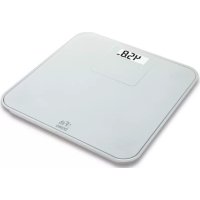
DO9104W - Scale DOMO - Free user manual and instructions
Find the device manual for free DO9104W DOMO in PDF.



| Product type | Bluetooth connected scale with iFit app |
| Brand | DOMO |
| Model | DO9104W |
| Power supply | 4 AAA 1.5V batteries |
| Connectivity | Bluetooth |
| Compatibility | iPod Touch, iPhone, iPad with iOS 4.3 or later |
| Main functions | Weighing, BMI calculation, recording and graphical tracking of weight and BMI, reminder alarm |
| Weight units | Kilograms or pounds (selector under the device) |
| Display | Digital screen |
| Startup | Automatic when stepping on scale (auto-on function) |
| Auto off | Yes, after a few seconds of inactivity |
| Bluetooth range | Up to 10 meters |
| Warranty | 2 years |
| Care and cleaning | Clean with a soft cloth, do not use harsh detergent |
| Safety | Do not use on slippery floor, soft carpet, or uneven surface; keep out of reach of children under 8 years old |
| Error messages | Err (overload), Lo (low battery), C (re-weigh) |
| Intended use | Domestic use, staff kitchen, farms, hotels, guest houses |
| Number of users | Multiple (creation of individual profiles) |
| Data protection | Password possible for each profile |
Frequently Asked Questions - DO9104W DOMO
User questions about DO9104W DOMO
0 question about this device. Answer the ones you know or ask your own.
Ask a new question about this device
Download the instructions for your Scale in PDF format for free! Find your manual DO9104W - DOMO and take your electronic device back in hand. On this page are published all the documents necessary for the use of your device. DO9104W by DOMO.
USER MANUAL DO9104W DOMO
natural_image
Modern black and white digital balance scale with digital display (no visible text or symbols)DO9103W - DO9104W
PRODUCT OF LINEA
GARANTIEVOORWAARDEN
CONDITIONS DE GARANTIE
This appliance has a two year warranty period. During this period the manufacturer is responsible for any failures that are the direct result of construction failure. When these failures occur the appliance will be repaired or replaced if necessary. The warranty will not be valid when the damage to the appliance is caused by wrong use, not following the instructions or repairs executed by a third party. The warranty will only be valid if the warranty application has been completed by the dealer at the time of purchase. All parts, which are subject to wear, are excluded from the warranty.
CONDICIONES DE GARANTÍA
If the supply cord is damaged, it must be replaced by the manufacturer, its service agent or a similarly qualified person in order to avoid a hazard.
RECYCLAGE-INFORMATIE
natural_image
Symbol of a trash bin crossed with two crossed lines, no text or numbers present
RECYCLING INFORMATIONEN
natural_image
Recycling symbol composed of three chasing arrows forming a triangle (no text or labels)RECYCLING INFORMATION
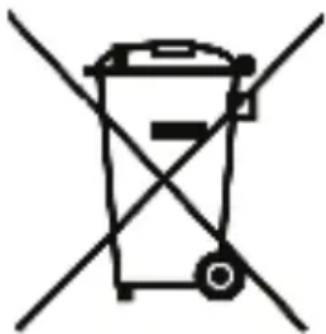
This symbol on the product or on its packaging indicates that this product may not be treated as household waste. Instead it must be brought to the applicable collection point for recycling of electrical and electronic equipment. By ensuring this product is disposed of correctly, you will help prevent potential negative consequences for the environment and human health, which could otherwise be caused by inappropriate waste handling of this product. For more detailed information about recycling of this product, please contact your local city office, your household waste disposal service or the shop where you purchased the product.
The packaging is recyclable. Please treat package ecologically.
natural_image
Simple line drawing of a trash bin with crossed lines indicating no waste or discharge (no text or symbols)
natural_image
Recycling symbol composed of three chasing arrows forming a triangle (no text or labels)natural_image
Two women in matching white bath gowns standing on a floor, one holding a smartphone and the other holding a phone, with no visible text or symbols.VEILIGHEIDSINSTRUCTIES
natural_image
Simple line drawing of a mechanical device with an open lid and internal components, enclosed in a circle (no text or symbols)GEWONE WEEGMODUS
natural_image
Close-up of a mechanical gauge or dial with no visible text or symbols (pure technical drawing)Opgelet:
My history
Edit user
natural_image
Simple line drawing of a box with an open lid and a circular arrow indicating rotation (no text or symbols)MODE DE PESÉE NORMAL
natural_image
Close-up of a circular mechanical gauge or dial with a pointer and 'File' label (no readable text beyond the icon)WEIGHT: CONSULTER L'ÉVOLUTION DU POIDS
Edit User
natural_image
Simple line drawing of a mechanical device with an open lid and internal components, enclosed in a circular frame (no text or symbols)NORMALER WIEGEMODUS
natural_image
Close-up of a circular gauge or dial with a central 'File' button, no visible text or symbols beyond the label.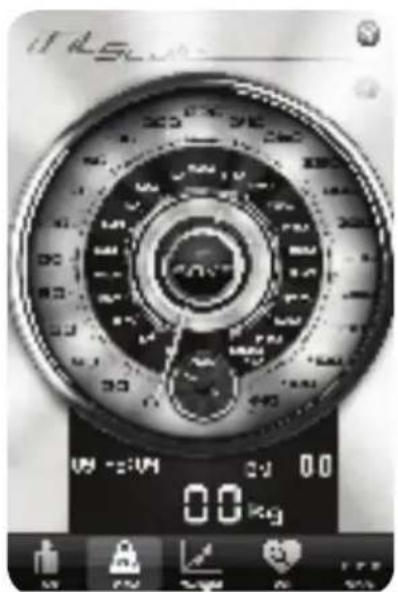
My history
Edit user
This appliance may be used by children from the age of 8 and up, and also by persons with a physical or sensory limitation, as well as mentally limited persons or persons with a lack of experience and knowledge. But only on the condition that these persons have received the necessary instructions on how to use this appliance in a safe way and know the dangers that can occur by using this appliance.
Children cannot be allowed to play with the appliance. Maintenance and cleaning of the appliance may not be done by children, unless they are older than 8 years old and are under supervision.
Keep the appliance out of reach of children younger than 8 years old.
This appliance is suitable to be used in a household environment and in similar surroundings such as:
- Kitchen for personnel of shops, offices or other similar professional surroundings
- Farms
- Hotel or motel rooms and other surroundings with a residential character
- Guest rooms or similar
Attention: This appliance cannot be used with an external timer or a separate remote control.
ABOUT IFIT
The iFit is a scale with Bluetooth transmission, that helps you to save and track the evolution of your weight and BMI on your ipod touch, iphone or ipad. This scale can transfer your weighing data to your ipod, iphone or ipad device through Bluetooth technology. The specially designed application renders graphs of your weighing results, so that you can consult the trend of your weight and BMI at any time and in this way optimally control your weight. The software application for the iFit can be downloaded in the App Store. This software is free, and only operates with DOMO's iFit scale.
SPECIAL FEATURES
- Get a complete overview of your weighing data thanks to the clear graphs that represent the trend of your weight and BMI over time.
- Secure your weighing results with a password to protect this personal information.
- Save the data of different users.
- Connect with your ipod touch, iphone or ipad through the wireless Bluetooth technology.
- Compatible with iOS 4.3 or later.
PLACING THE BATTERIES
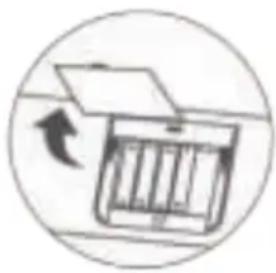
Place 4 AAA batteries of 1,5V into the battery compartment. Notice the polarity while doing so.
If the scale is not used for a longer time (over 3 months), remove the batteries from the appliance.
natural_image
Simple line drawing of a cabinet with an arrow indicating rotation (no text or symbols)REGULAR WEIGHING MODE
Put the scale on a flat surface after placing the batteries. To conduct an accurate weighing, put the scale on a hard, flat floor and avoid carpet or any other soft surfaces.
Use the switch at the bottom of the scale to select whether you want to weigh in kilo's or pounds.
Step onto the scale. The scale will switch on automatically (auto-on function). Stand still and wait until the weight on the display has stabilized.
When the weight has stabilized, the numbers on the display will start to flash. The weight will be displayed during a few seconds. The scale will automatically switch off after a few seconds when it is not being used.
WEIGHING WITH BLUETOOTH CONNECTION
Go to the App Store and download the iFit application ‘iFit scale’. Step onto the scale to turn it on. The display of the scale will light up and the appliance is now ready to be connected with your ipod touch, iphone or ipad.
natural_image
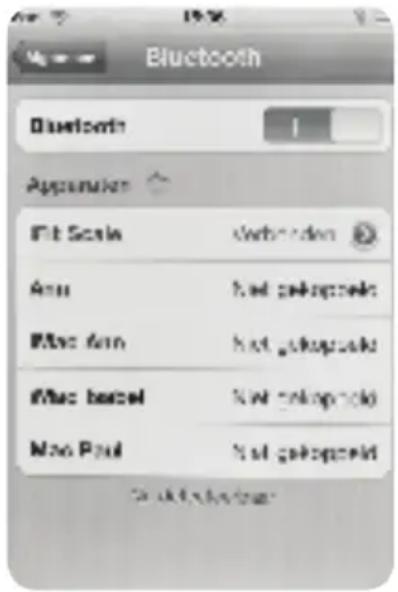
Close-up of a circular mechanical or electronic component with a central button labeled 'File' (no readable text or symbols beyond the label)Go to the settings of your ipod touch, iphone or ipad and set up a Bluetooth connection with your iFit scale:
- Go to Settings > General > Bluetooth.
- If Bluetooth is switched off, turn it on by sliding the button next to 'Bluetooth' to the right.
- Make sure that the iFit scale is turned on.
- Select 'iFit scale' in the list of devices to connect to the scale. You can now start weighing according to the manual.
From now on your Apple device is also linked to the iFit scale. To remove this link, select ‘iFit scale’ in the ‘Devices’ list and press ‘Forget this device’.
Note:
- Make sure that the scale is turned on when you want to set up the connection.
- The connection between your Apple device and your iFit scale will hold within a radius of 5 to 10 metres.
- Make sure that only 1 Apple device at a time is connected to the scale.
Open the iFit application.
You now see the user screen.
Select a user or create a new user profile by pressing the + in the upper right corner.
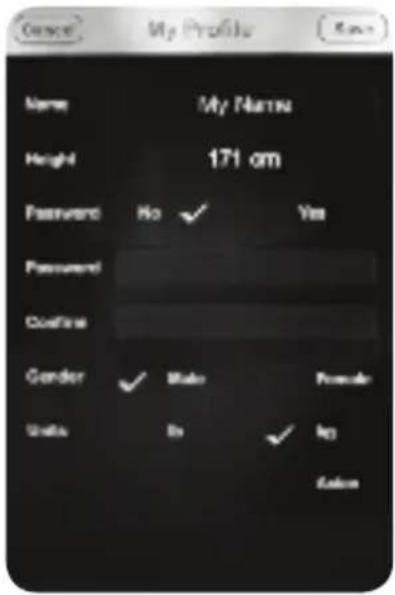
USER: CREATING A NEW USER PROFILE
- Go to the user screen. Press the + in the upper right corner of the screen.
- Fill out your name and your height.
- Indicate whether you want to protect your weighing information with a password or not.
- If you select 'yes' after 'password', enter your preferred password twice: once after 'password', once after 'confirm' for confirmation.
- Select the correct gender.
- Select the weighing unit you would like to use.
- Press 'save' to save the user profile.
The profile will now appear on the user screen. You can select a profile by tapping the name.
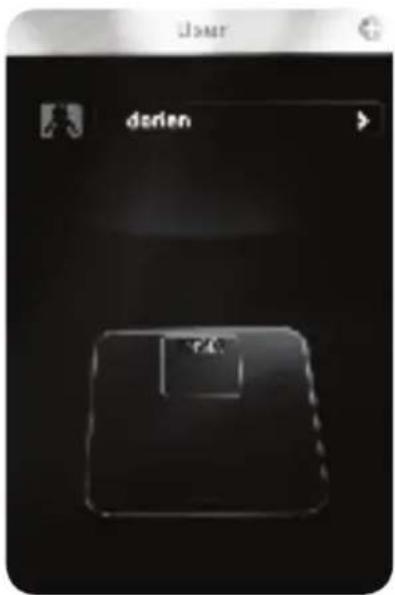
After selecting the user, you will be brought to the following screen:
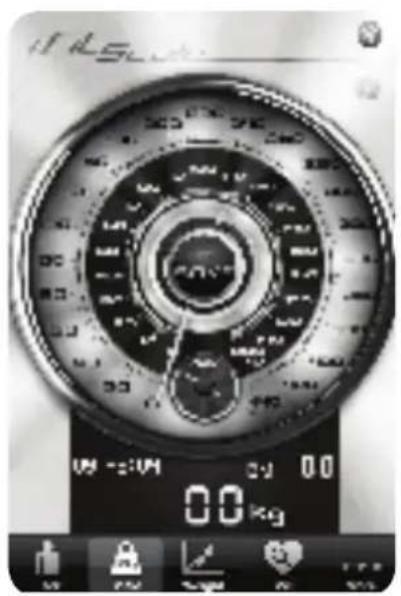
You can now start weighing, or navigate to another screen using the navigation bar below.
SCALE: WEIGHING WITH YOUR IPOD/ IPHONE/IPAD
Before weighing, check the Bluetooth symbol in the upper right corner of the screen of your ipod/iphone/ipad. If the symbol is bright blue, then your Apple device is connected to the iFit scale and you can start weighing. If the symbol is grey, check your Bluetooth connection. Take into account that after turning on the scale, it can take up to 10 seconds for the devices to connect to each other.
Step onto the scale and wait until the weight has stabilized. The scale on your ipod/iphone/ipad will display the same weight, and will also indicate your BMI value. If you would like to save the weighing, press 'SAVE' in the middle of the scale on your screen. Your weight has now been registered, which means it will be saved and will be used in the calculation of the overall weighing results and graphs.

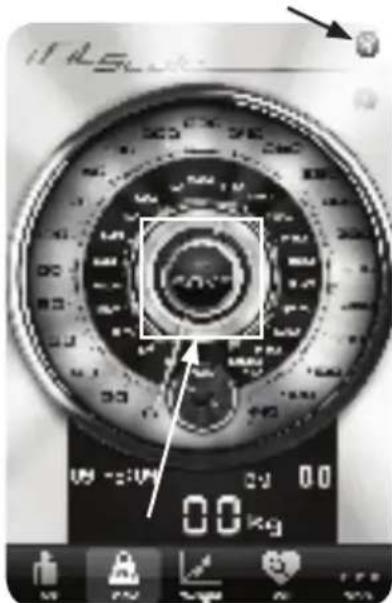
By pressing the graph symbol in the navigation bar, you will be taken to the graph that shows the trend of your weight. You can view the progress of your weight by week, month, 3 months, 6 months or year, by pressing the matching indications below the horizontal axis of the graph.
1w: the graph displays the weighing results of the current week. The application calculates the average weight for every day, so that you can track your weight trend per day over a time period of 1 week.
1m: the graph displays the weighing results of the current month. The application calculates the average weight for every week, so that you can track your weight trend per week over a time period of 1 month.
3m: the graph displays the weighing results of the last 3 months. The application calculates the average weight for every week, so that you can track your weight trend per week over a time period of 3 months.

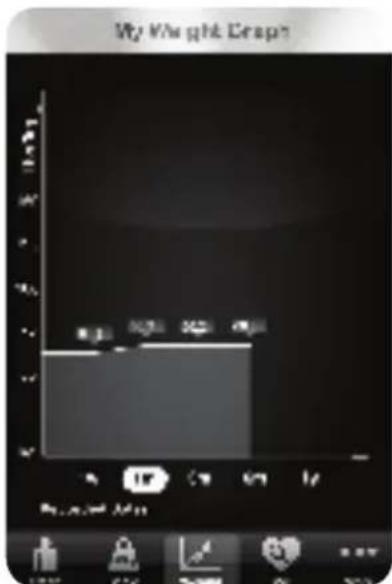
6m: the graph displays the weighing results of the last 6 months. The application calculates the average weight for every week, so that you can track your weight trend per week over a time period of 6 months.
1y: the graph displays the weighing results of the last year. The application calculates the average weight for every month, so that you can track your weight trend per month over a time period of 1 year.
By pressing the heart symbol with the magnifying glass in the navigation bar, you will be taken to the graph that shows the trend of your BMI. You can view your BMI trend by week, month, 3 months, 6 months or year, by pressing the matching indications below the horizontal axis of the graph. For further explanation, check the previous chapter ‘WEIGHT’.
The BMI graph also indicates how you may interpret your BMI results:
Underweight - the blue section
Normal - the purple section
Overweight - the yellow-brown section
Obese - the red section


The measurements will thus be located in the corresponding section. This way you can monitor changes between underweight, normal weight, overweight and obesity.
MORE: FURTHER OPTIONS

When you navigate to the 'More' screen, you will find some extra topics.
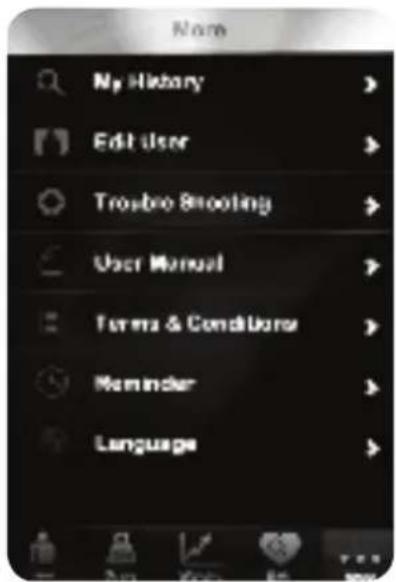
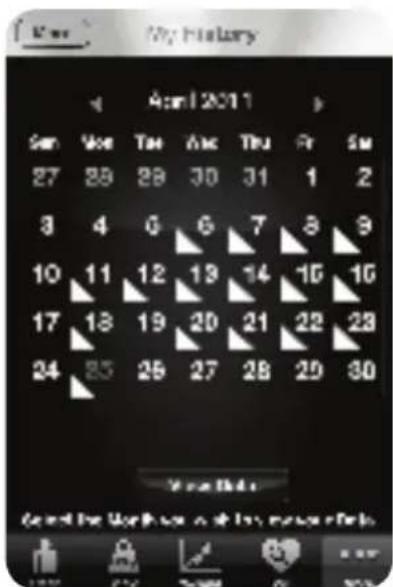
My history
Here you can consult your exact weighing results per month. The app will display a calendar, in which the days that contain weighing data are flagged. By pressing ‘view data’ you can view the exact data of the selected month. You can select a month by pressing the arrows next to the month above the calendar.
When viewing the data of a specific month, you can also forward these data to an e-mail address. You can find the button to do so in the top right corner of the screen (Email). In this e-mail you can also find advise concerning your BMI, and what weight you should reach to obtain a normal BMI.
Edit user
When you have created a user profile, you can always edit it afterwards using this option. You can for instance add a password to your profile at any time. Or you can delete a profile by pressing this symbol and selecting ‘delete’:
Trouble shooting
If you encounter any problems using the device or during the weighing process, first take a look here. In this section you can find a list of solutions for possible problems.
Terms & conditions
Reminder
Here you can set an alarm that reminds you to weigh yourself. Press ‘Action’ in the upper right corner and then press ‘add a new alarm’. You can set the alarm to be repeated (for example dayly, or every Tuesday), you can set the time and also the message that the alarm should display.
To get the most accurate results, we suggest that you always weigh yourself at the same time on successive days.
Language
Here you can set the language, English or Chinese.
POSSIBLE ERRORS
| Err overload The maximum weight has been crossed.Step off the scale to avoid damaging. | ||
| Lo low battery The battery is almost empty. Replace the batteries. | ||
| C retest The weighing was not correct. Please weigh again. |
ADVISE FOR USE AND MAINTENANCE
- Do not use the scale in an area that is too moist, too hot or too cold.
- Do not use the scale on a slippery floor, a soft carpet or an uneven surface.
- Do not drop or shock the scale. It is a precision instrument that is very sensitive to such damaging.
- Keep the scale clean. Do not use any acid cleaning products.
- Stand firmly on the scale during use.
- After intensive exercise, eating too much food or excessive dehydration the weighing results may be inaccurate.
- To obtain accurate results it is best to weigh yourself at the same time on successive days.
INFORMATION REGARDING RADIO INTERFERENCE
This device may cause interference to radio communications when it is not used according to the instructions, by the radio energy that it generates, uses or may radiate. If the equipment causes interference to the radio or tv reception, this can be determined by switching the device on and off. The interference could be solved by one of the following measures:
Relocate or redirect the receiving antenna.
Increase the distance between the interfering equipment and the receiver.
Ask the dealer or an experienced radio/tv technician for advise.
Only use the device according to the instructions.
Do not come closer than 20cm to the antenna of the appliance at normal use.
PRECAUCIONES IMPORTANTES
natural_image
Simple line drawing of a box with an arrow indicating rotation (no text or symbols)natural_image
Close-up of a circular mechanical gauge or dial with a pointer and 'File' label (no readable text beyond the dial)Precaución:
My history
Edit user

- GARANTIEVOORWAARDEN
- CONDITIONS DE GARANTIE
- CONDICIONES DE GARANTÍA
- RECYCLAGE-INFORMATIE
- RECYCLING INFORMATIONEN
- RECYCLING INFORMATION
- VEILIGHEIDSINSTRUCTIES
- GEWONE WEEGMODUS
- Opgelet:
- My history
- Edit user
- MODE DE PESÉE NORMAL
- WEIGHT: CONSULTER L'ÉVOLUTION DU POIDS
- NORMALER WIEGEMODUS
- ABOUT IFIT
- SPECIAL FEATURES
- PLACING THE BATTERIES
- REGULAR WEIGHING MODE
- WEIGHING WITH BLUETOOTH CONNECTION
- Note:
- USER: CREATING A NEW USER PROFILE
- SCALE: WEIGHING WITH YOUR IPOD/ IPHONE/IPAD
- MORE: FURTHER OPTIONS
- Trouble shooting
- Terms & conditions
- Reminder
- Language
- POSSIBLE ERRORS
- ADVISE FOR USE AND MAINTENANCE
- INFORMATION REGARDING RADIO INTERFERENCE
- PRECAUCIONES IMPORTANTES
- Precaución:
Brand : DOMO
Model : DO9104W
Category : Scale