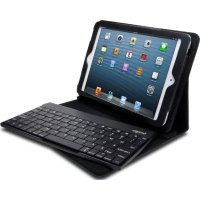
K39755WW - Keyboard KENSINGTON - Free user manual and instructions
Find the device manual for free K39755WW KENSINGTON in PDF.



| Product type | Detachable Bluetooth keyboard for iPad |
| Brand | Kensington |
| Model | K39755WW |
| Connectivity | Bluetooth |
| Bluetooth range | Up to 10 meters |
| Power supply | Rechargeable lithium polymer battery |
| Charging connector | Micro-USB (cable included) |
| Indicator lights | Bluetooth status, low battery, charging |
| Compatibility | iPad (with included tablet case) |
| Key functions | Automatic sleep after 15 min, wake on key press, automatic connection to last paired iPad |
| Operating temperature | 10 °C to 27 °C |
| Safety | Do not open, do not expose to moisture, keep out of reach of children |
| Maintenance | Keep dry, avoid full discharges, store with about 30% charge |
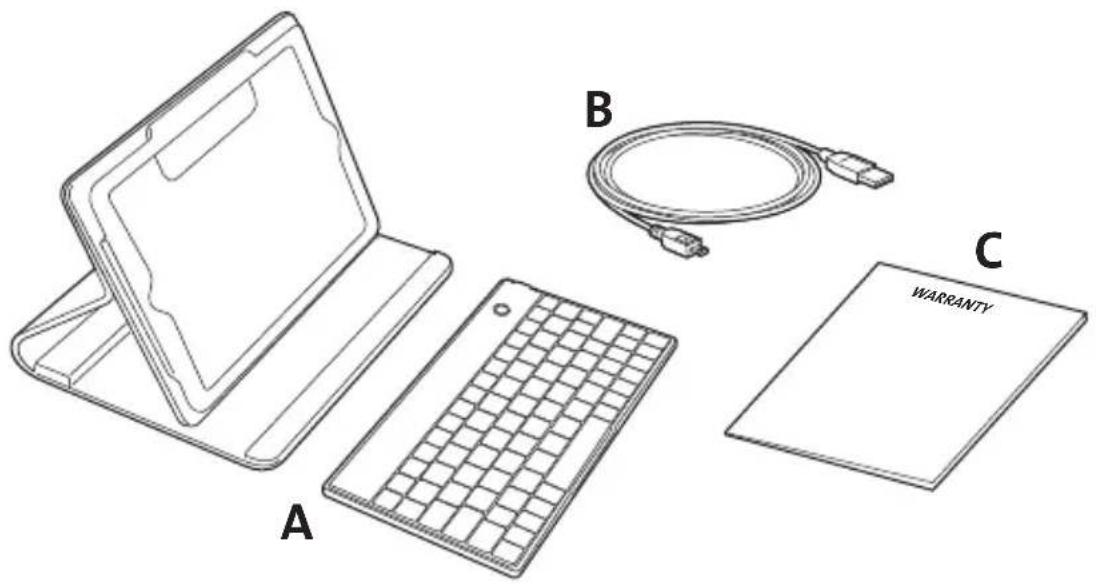
| Package contents | Bluetooth keyboard, micro-USB cable, warranty card |
| Weight | Approximately 350 g (estimate) |
| Dimensions (approx.) | 24 x 18 x 2 cm (estimate) |
Frequently Asked Questions - K39755WW KENSINGTON
User questions about K39755WW KENSINGTON
0 question about this device. Answer the ones you know or ask your own.
Ask a new question about this device
Download the instructions for your Keyboard in PDF format for free! Find your manual K39755WW - KENSINGTON and take your electronic device back in hand. On this page are published all the documents necessary for the use of your device. K39755WW by KENSINGTON.
USER MANUAL K39755WW KENSINGTON
natural_image
Line drawing of a laptop with a keyboard, a cord of cable, and a rectangular package labeled 'WARRANTY' (no other text or symbols)Register Now!
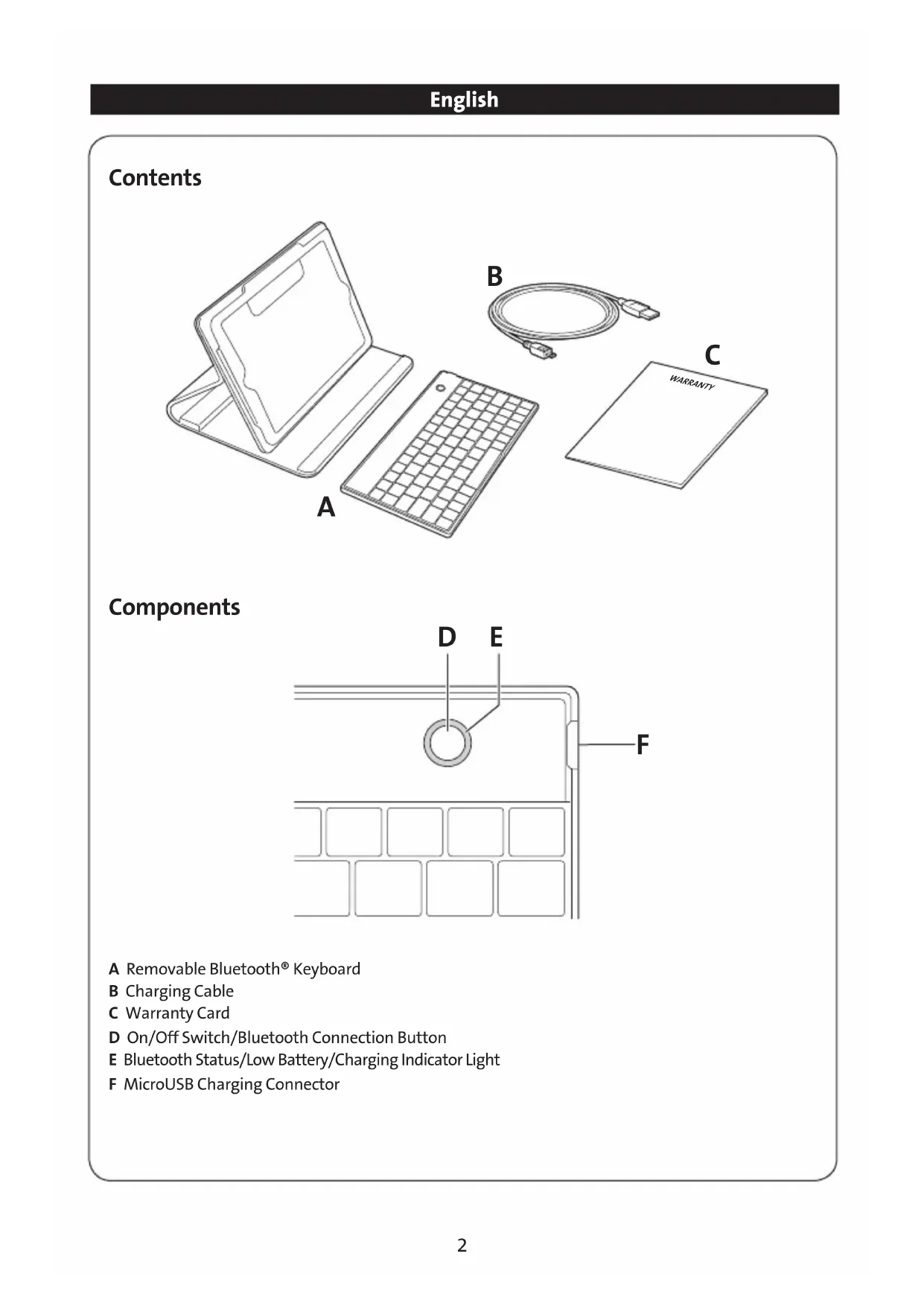
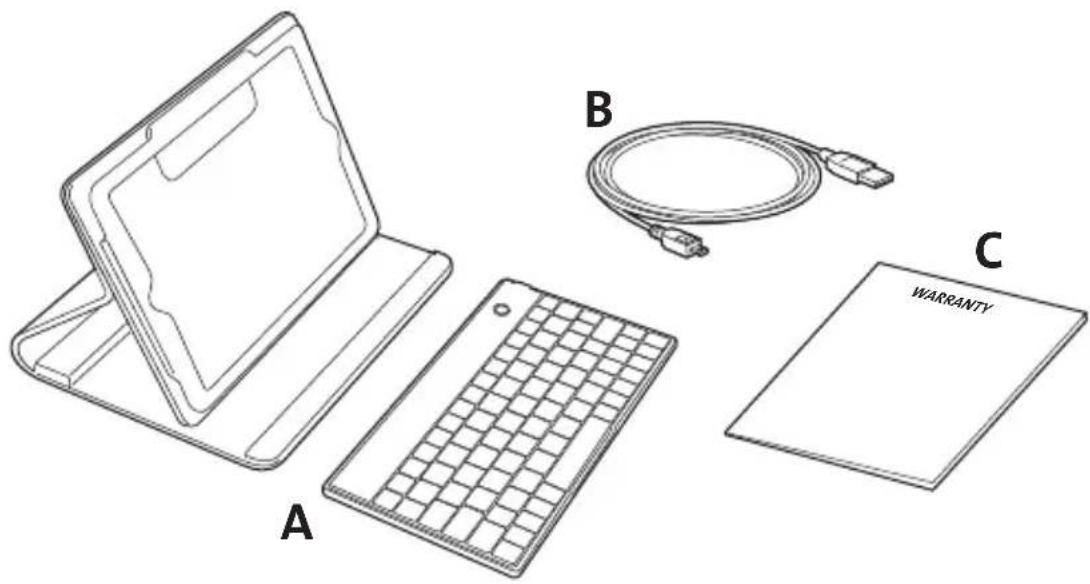
A Removable Bluetooth® Keyboard
B Charging Cable
C Warranty Card
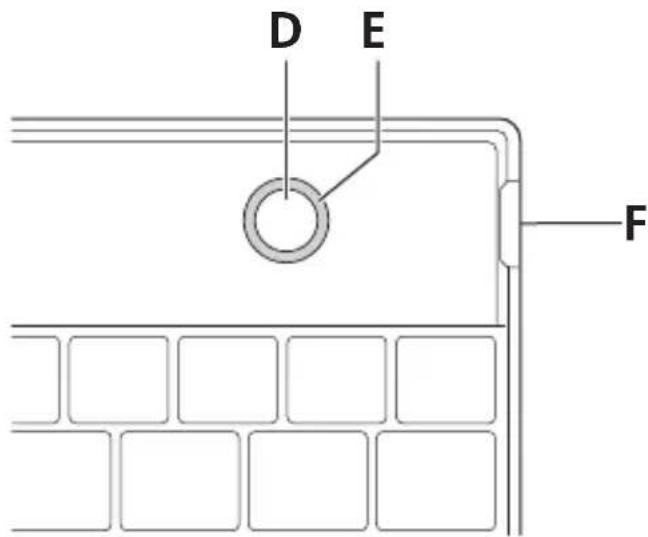
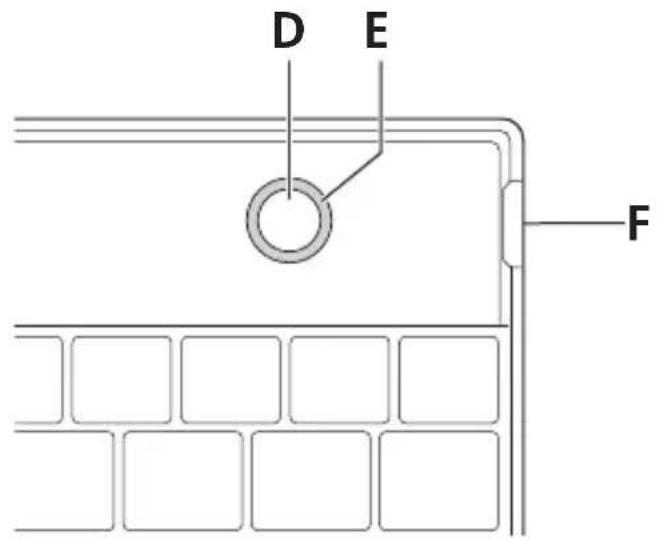
D On/Off Switch/Bluetooth Connection Button
E Bluetooth Status/Low Battery/Charging Indicator Light
F MicroUSB Charging Connector
Connect the Keyboard to Your iPad
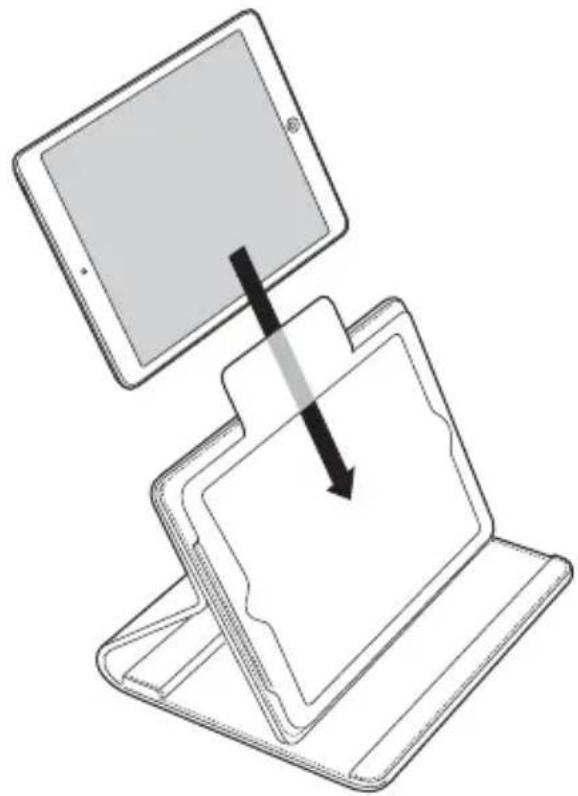
1 Insert your iPad into the tablet sleeve.
natural_image
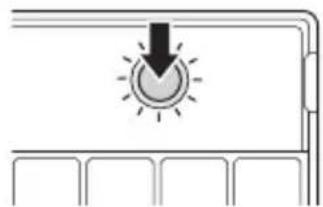
Illustration of a tablet device being placed on its stand, showing screen and document placement (no text or symbols)2 Press and hold the On/Off Switch for 0.5 to 3 seconds. The Power Indicator Light glows.
natural_image
Simple line drawing of a sun icon with a downward arrow, no text or symbols presentNOTE: When you first turn on the Keyboard the Bluetooth Status Indicator Light blinks.
3 On your iPad, tap Settings.
4 Open Bluetooth and make sure Bluetooth is on.
5 The Keyboard now appears on your iPad screen. Tap Bluetooth Wireless Keyboard.
6 Your iPad screen displays a passkey. Enter the passkey on the Keyboard, and press Enter.
7 Your iPad screen shows the Keyboard as Connected. On the Keyboard, the Bluetooth Status Indicator Light turns off.
8 You can now use your Keyboard to type in any app.
Note the following about the Bluetooth connection between the keyboard and your iPad:
- Press the On/Off Switch for 0.5 to 3 seconds then release = toggle keyboard power (on to off, off to on).
- First turn (Factory default, no prior paired BT devices) – enter pairing mode automatically.
- If there is no active key press for 15 minutes, or your iPad is out of Bluetooth range/in airplane mode/turned off, the keyboard will go into sleep mode.
- Anytime a key is pressed in sleep mode, the keyboard should automatically connect to last paired iPad if present. If iPad is not found after waking from sleep mode within 30 seconds, the device should go back to sleep.
Charge the Battery
When the Charging Indicator Light is blinking, you need to charge the Keyboard battery.
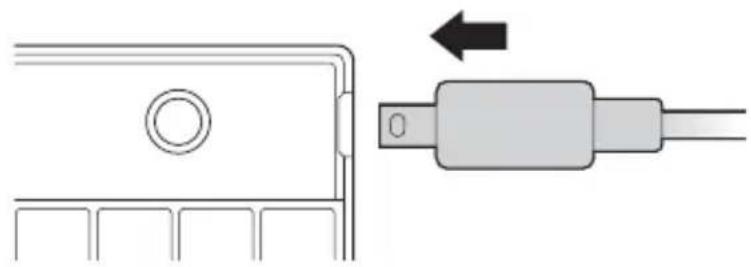
1 Insert the small end of the Charging Cable into the micro USB Charging Connector on the Keyboard.
natural_image
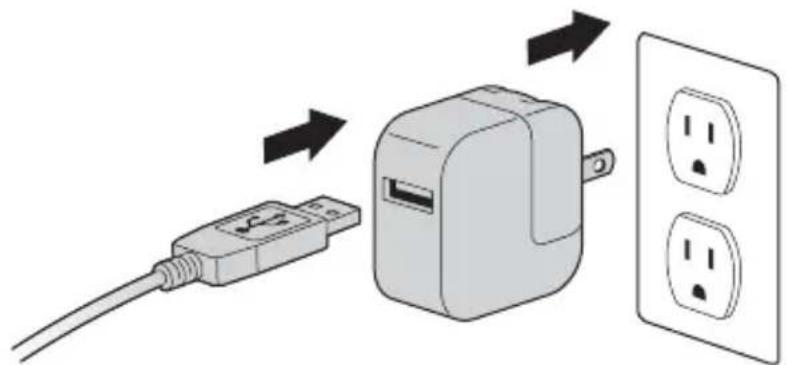
Technical diagram showing a connector with a circular head and a USB cable inserted, alongside an arrow indicating direction (no text or symbols present)2 Insert the other end of the Charging Cable into your iPad charger.
text_image
Diagram showing a connected power adapter with its internal socket, illustrating the process of charging and discharging.3 Plug your iPad charger into a working outlet. The Charging Indicator Light glows red.
4 When the Keyboard is fully charged, the Charging Indicator Light turns off.
Troubleshooting
I can't connect the Keyboard to my iPad.
Try the following in sequence. You can stop when the problem is fixed.
1 Make sure you have installed and set up Bluetooth correctly on your iPad. Check the documentation that came with your iPad for instructions.
2 Make sure that the Keyboard is within range of your iPad. Maximum Bluetooth range is about 10 meters/33 feet.
3 If your iPad is connected to other Bluetooth devices, you may need to disconnect some devices before you can connect to the Keyboard.
4 If you changed any Bluetooth settings on your iPad, try connecting the Keyboard to your iPad again.
5 Make sure that both your iPad battery and the Keyboard battery are sufficiently charged.
If this does not solve the problem, please contact Kensington Support at kensington.com.
Technical Support
Technical support is available to all registered users of Kensington products. Technical Support contact information can be found on the back page of this manual.
Web Support
You may find the answer to your problem in the Frequently Asked Questions (FAQ) section of the Support area on the Kensington Website: www.support.kensington.com.
Telephone Support
There is no charge for technical support except long-distance charges where applicable. Please visit www.kensington.com for telephone support hours. In Europe, technical support is available by telephone Monday to Friday 09:00 to 21:00 (Central European time).
Please note the following when calling support:
- Call from a phone where you have access to your device.
• Be prepared to provide the following information:
— Name, address, and telephone number
— Name of the Kensington product
— Make and model of your computer
– System software and version
– Symptoms of the problem and what led to them

WARNING! IMPORTANT SAFETY INSTRUCTIONS
Failure to read and follow these safety instructions could result in fire, explosion, electrical shock or other hazard, causing serious and/or fatal injury and/or property damage.
- Do not modify, disassemble, open, drop, crush, puncture, or shred the KeyFolio.
• The KeyFolio contains a lithium-polymer battery, which is flammable. Keep away from open flame. - To prevent short circuit or other potential hazards, prevent metal objects such as coins or keys from coming into contact with the KeyFolio, and do not insert foreign objects into the KeyFolio or its ports.
- Keep your KeyFolio dry, and do not use with wet hands. Moisture in or on the KeyFolio may lead to electrical shock. If exposed to moisture during use, unplug the KeyFolio immediately. If your KeyFolio gets wet, have a qualified technician evaluate the product's safety before resuming use.
- Your KeyFolio may become warm during operation. This is normal. However, to prevent overheating, keep area around KeyFolio ventilated and do not place anything on or around KeyFolio during operation. Do not operate your KeyFolio near a heat source, heat vent, or in direct sunlight. Your KeyFolio should be used in temperatures between 50–80°F (10–27°C).
- If the KeyFolio begins to swell or expand, emits a strong odor, or becomes hot to the touch, discontinue use of the KeyFolio, and have the product examined by a qualified electronic technician.
- Inspect your KeyFolio and cables for damage before use. Have any damaged part repaired or replaced before use.
- Your KeyFolio is not user serviceable. Do not attempt to open, modify, or repair.
- If the battery inside the KeyFolio leaks for any reason, discontinue use, and do not allow the KeyFolio's contents to contact your skin or eyes. In the event of accidental contact wash the affected area with large amounts of water and seek medical attention immediately.
- Your KeyFolio is not a toy. Keep them away from children. Insure that all persons who use this product read and follow these warnings and instructions.
- Do not leave the KeyFolio on prolonged charge when not in use.
Enhancing Performance by Proper Care and Storage of your KeyFolio
- Do not store your KeyFolio either fully charged or discharged. It is best to store your KeyFolio with at least 30 % charge remaining. To check the charge level of your KeyFolio press the battery indicator button.
- Avoid frequent full discharges because this puts additional strain on the battery in the KeyFolio. Charge your KeyFolio between uses even if it is not fully discharged. The lithium-polymer battery used in this product has no “memory effect.” Therefore, several partial discharges with frequent recharges are better than one full discharge, and will help prolong the life of your KeyFolio. Short battery life in laptops is mainly caused by heat, rather than charge/discharge patterns.
• Do not store your KeyFolio at elevated temperatures (such as in your car) or in high humidity.
Disposing of your KeyFolio
- Do not incinerate or dispose of your KeyFolio in a fire or microwave.
- Do not dispose of your KeyFolio as ordinary refuse, as it contains a lithium-polymer battery. Consult your local municipal or civil authority for instructions on correctly disposing of a lithium-polymer battery.
- In the USA and Canada: This mark 📋 indicates your KeyFolio can be recycled by the Rechargeable Battery Recovery Corporation (“RBRC”). When you are ready to dispose of the KeyFolio, please contact the RBRC at 1-800-8-BATTERY or www.rbrc.org.
FEDERAL COMMUNICATIONS COMMISSION RADIO FREQUENCY INTERFERENCE STATEMENT
This device has been tested and found to comply with the limits for a Class B digital device, pursuant to Part 15 of the FCC Rules. These limits are designed to provide reasonable protection against harmful interference in a residential installation. This equipment generates, uses, and can radiate radio frequency energy and, if not installed and used in accordance with the instructions, may cause harmful interference to radio communications.
However, there is no guarantee that interference will not occur in a particular installation. If this equipment causes harmful interference to radio or television reception, which can be determined by turning the equipment off and on, the user is encouraged to try to correct the interference by one or more of the following measures:
• Reorient or relocate the receiving antenna.
- Increase the separation between the equipment and receiver.
- Connect the equipment into an outlet on a circuit different from that to which the receiver is connected.
- Consult the dealer or an experienced radio/TV technician for help.
MODIFICATIONS: Modifications not expressly approved by Kensington may void the user's authority to operate the device under FCC regulations and must not be made.
SHIELDED CABLES: In order to meet FCC requirements, all connections to equipment using a Kensington input device should be made using only the shielded cables.
FCC DECLARATION OF CONFORMITY COMPLIANCE STATEMENT
This product complies with Part 15 of the FCC rules. Operation is subject to the following two conditions: (1) This device may not cause harmful interference, and (2) This device must accept any interference received, including interference that may cause undesired operation. As defined in Section 2.909 of the FCC Rules, the responsible party for this device is Kensington Computer Product Group, 333 Twin Dolphin Drive, Redwood Shores, CA 94065, USA.
INDUSTRY CANADA CONFORMITY
This device has been tested and found to comply with the limits specified in RSS-210. Operation is subject to the following two conditions: (1) This device may not cause interference, and (2) This device must accept any interference, including interference that may cause undesired operation of the device.
This Class [B] digital apparatus complies with Canadian ICES-003.
CE DECLARATION OF CONFORMITY
Kensington declares that this product is in compliance with the essential requirements and other relevant provisions of applicable EC directives. For Europe, a copy of the Declaration of Conformity for this product may be obtained by clicking on the Compliance Documentation link at www.support.kensington.com.
INFORMATION FOR EU MEMBER-STATES ONLY
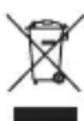
The use of the symbol indicates that this product may not be treated as household waste. By ensuring this product is disposed of correctly, you will help prevent potential negative consequences for the environment and human health, which could otherwise be caused by inappropriate waste handling of this product. For more detailed information about recycling of this product, please contact your local city office, your household waste disposal service, or the shop where you purchased the product.
Kensington and the ACCO name and design are registered trademarks of ACCO Brands. The Kensington Promise is a service mark of ACCO Brands. KeyFolio is a registered trade mark of ACCO Brands. iPad is a registered trademark of Apple Inc., registered in the U.S. and other countries. Bluetooth is a registered trademark owned by Bluetooth SIG. All other registered and unregistered trademarks are the property of their respective owners.
© 2012 Kensington Computer Products Group, a division of ACCO Brands USA LLC. Any unauthorized copying, duplicating, or other reproduction of the contents hereof is prohibited without written consent from Kensington Computer Products Group. All rights reserved. 12/12
Contenu
text_image
A B C WARRANTYComposants
text_image
D E Fnatural_image
Illustration of a tablet device being placed on its stand, showing screen and document placement (no text or symbols)natural_image
Simple line drawing of a sun icon with a downward arrow, no text or symbols presentnatural_image
Technical diagram showing a connector with a circular head and a separate cable with a right-pointing arrow (no text or symbols)text_image
Diagram showing a plug-in socket connected to a power outlet, illustrating the process of charging and discharging.Assistance technique
DÉCLARATION DE CONFORMITÉ FCC
DÉCLARATION DE CONFORMITÉ CE
natural_image
Illustration of a tablet device being placed on its screen, showing the screen and foldable portion of the screen (no text or symbols present)natural_image
Simple line drawing of a sun icon with a downward arrow, no text or symbols presentnatural_image
Technical diagram showing a connector with a circular head and a USB cable connector (no text or symbols)text_image
Diagram showing a connected power adapter with its internal socket, illustrating the process of charging and discharging.INDUSTRY CANADA-KONFORMITÄT
natural_image
Illustration of a tablet device being placed on its stand, showing the screen and fold (no text or symbols)natural_image
Simple line drawing of a sun icon with a downward arrow, no text or symbols presentnatural_image
Technical diagram showing a connector with a circular head and a separate cable with a left-pointing arrow (no text or symbols)text_image
Diagram showing a connected power adapter with its internal socket, illustrating the process of charging and discharging.www.support.kensington.com.
Telefonische ondersteuning
WAARSCHUWING! BELANGRIJKE VEILIGHEIDSVOORSCHRIFTEN
CONFORMITEIT MET INDUSTRY CANADA
natural_image
Illustration of a tablet being placed on a stack of documents with a downward arrow indicating compression (no text or symbols present)natural_image
Simple line drawing of a sun icon with a downward arrow, no text or symbols presentnatural_image
Technical diagram showing a connector with a circular end and a separate cable with a right-angle arrow (no text or symbols)text_image
Diagram showing a connected power adapter with its internal socket, illustrating the connection to a wall-mounted power outlet.natural_image
Illustration of a tablet device being placed on its stand, showing screen and document layers (no text or symbols)natural_image
Simple line drawing of a window with a sun icon and downward arrow, no text or symbols presentnatural_image
Diagram showing a connector with a circular head and a USB cable, no text or symbols presenttext_image
Diagram showing a connected USB plug and its three socket, illustrating the process of power or installation.www.support.kensington.com.
ACCO Brands Iberia, S.L.
C/Corazon de Maria, 6 60 Of 4
28002, Madrid
Espana
Tartalom
text_image
A B C WARRANTYAlkatrészek
text_image
D E Fnatural_image
Illustration of a tablet device being placed on its stand, showing the screen and document stack (no text or symbols)natural_image
Simple line drawing of a sun icon with a downward arrow, no text or symbols presentnatural_image
Diagram showing a connector with a circular port and a USB cable, no text or symbols presenttext_image
Diagram showing a plug-in socket connected to a power adapter and its three-pin socket, illustrating the process of charging.natural_image
Diagram showing a tablet being placed on a stack of documents with a downward arrow indicating compression (no text or symbols present)natural_image
Simple diagram showing a sun icon with a downward arrow, no text or symbols presentnatural_image
Technical diagram showing a connector with a circular end and a USB cable inserted into a port (no text or symbols present)text_image
Diagram showing a connected power adapter with its internal socket, illustrating the process of charging and discharging.natural_image
Illustration of a tablet device being placed on its screen, showing the screen and tablet layers (no text or symbols)natural_image
Simple line drawing of a sun icon with a downward arrow, no text or symbols presentnatural_image
Technical diagram showing a connector with a circular head and a USB cable connector (no text or symbols)text_image
Diagram showing a plug connected to a power adapter and two separate electrical outlets, illustrating the connection or charging process.DEKLARACJA ZGODNOŚCI WE
natural_image
Diagram showing a tablet being placed on its screen with a paper stack, illustrating the process (no text or symbols present)natural_image
Simple line drawing of a sun icon with a downward arrow, no text or symbols presentnatural_image
Technical diagram showing a connector with a circular head and a separate cable with a right-pointing arrow (no text or symbols)text_image
Diagram showing a connected USB plug and its internal socket, illustrating the process of power or installation.natural_image
Illustration of a tablet device being placed on its screen, showing the screen and tablet layers (no text or symbols)natural_image
Simple line drawing of a window with a sun icon and arrow, no text or symbols presentNOTA: Ao ligar o teclado, a luz do indicador de estado Bluetooth acende-se.
natural_image
Technical diagram showing a connector with a circular head and a USB cable connector (no text or symbols)text_image
Diagram showing a connected USB plug, a power adapter, and two separate electrical outlets with Chinese labels.natural_image
Illustration of a tablet device being placed on its stand, showing screen and document layers (no text or symbols)natural_image
Simple line drawing of a sun icon with a downward arrow, no text or symbols presentnatural_image
Diagram showing a connector with a circular head and a USB cable, no text or symbols presenttext_image
Diagram showing a connected power adapter with its internal socket, illustrating the process of charging and discharging.natural_image
Illustration of a tablet device being placed on its stand, showing screen and tray (no text or symbols)natural_image
Simple line drawing of a sun icon with a downward arrow, no text or symbols presentnatural_image
Diagram showing a connector with a circular head and a separate cable with an arrow indicating direction (no text or symbols)text_image
Diagram showing a connected power adapter with its internal socket, illustrating the process from cable to socket and outlet.Try the following in sequence. You can stop when the problem is fixed.
natural_image
Diagram showing a tablet being placed on a stack of devices, with one device highlighted and the other holding a document (no text or symbols present)natural_image
Simple line drawing of a sun icon with a downward arrow, no text or symbols presentnatural_image
Diagram showing a connector with a circular head and a separate cable or plug assembly, no text or symbols present.text_image
Diagram showing a plug connected to an AC power adapter and its corresponding two-pin socket, illustrating the connection mechanism.Kensington Computer Products Group A Division of ACCO Brands
333 Twin Dolphin Drive, 6th Floor Redwood Shores, CA 94065
ACCO Brands Europe
Oxford House
Oxford Road
Aylesbury
Bucks, HP21 8SZ
United Kingdom
ACCO Brands Canada
5 Precidio Court
Brampton
Ontario, L6S 6B7
Canada
ACCO Australia
Level 2,8 Lord St
Botany NSW 2019
Australia
ACCO MEXICANA, S.A. DE C.V.
Avenida Circuito de la Industria Norte # 6
Parque Industrial Lerma, Lerma, 52000 Estado de Mexico MEXICO
Acco Brands Chile S.A.,
Avda. San Josemaría
Escrivá de Balaguer N°5773
Vitacura, C.P. 7640870
Santiago, Chile
Designed in California, U.S.A. by Kensington
Made in China
Patents Pending
www.kensington.com