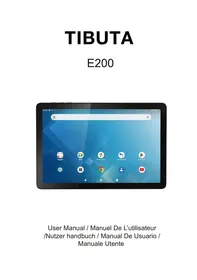
Tibuta E200 - Tablet

E200 - Tablet Tibuta - Free user manual and instructions

Find the device manual for free E200 Tibuta in PDF.

📄 99 pages English EN Download 💬 AI Question 19 questions ⚙️ Specs
Notice Tibuta E200 - page 6
View the manual : Français FR Deutsch DE English EN Español ES Italiano IT
Pick your language and provide your email: we'll send you a specifically translated version.
Screen size10.1 inches
Screen resolution1280 x 800 pixels
Screen technologyTFT LCD IPS
Touch panelG+G
ProcessorMediaTek MTK8183 8 cores (A53 + A73)
Processor frequency1.6 GHz - 2.0 GHz
GPUMali-G72 800 MHz
RAM4 GB
Internal storage64 GB eMMC
Expandable storagemicroSD up to 128 GB
Front camera5 MP
Rear camera8 MP
Battery7,000 mAh Li-polymer (3.85 V)
Operating systemAndroid 12
Wi-FiDual-band 2.4 GHz + 5 GHz
Bluetooth5.0
ConnectorsUSB-C, 3.5 mm jack, microSD slot
SpeakersDual speaker
CertificationGoogle Mobile Services (GMS)
Charger included5V / 2A

Frequently Asked Questions - E200 Tibuta

How do I reset the Tibuta E200 tablet to factory settings?
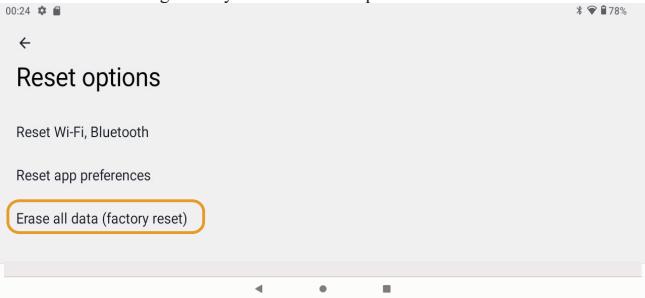
Go to Settings > System > Reset options > Erase all data (factory reset). Confirm by tapping Reset tablet. All your personal data, apps, and accounts will be deleted. Make sure to back up your files to a microSD card or the cloud before proceeding.
The Tibuta E200 tablet won't turn on, what should I do?
Start by plugging in the provided charger (5V/2A) for at least 30 minutes, as a completely dead battery might seem stuck. If the tablet remains off, hold the power button for 10 to 15 seconds to force a restart. As a last resort, try a forced restart by holding both the volume down and power button simultaneously for 10 seconds.
How do I insert a microSD card to increase storage?
The Tibuta E200 supports microSD cards up to 128 GB. Insert the card into the dedicated slot on the side of the tablet, then wait a few seconds for the system to automatically detect it. You can then move photos, videos, and some apps to the card via Settings > Storage.
Is the tablet compatible with the Google Play Store?
Yes, the Tibuta E200 has the official GMS (Google Mobile Services) certification. You can freely download all available apps from the Play Store. Simply log in with your Google account during the first use.
What is the battery life of the Tibuta E200?
The 7,000 mAh Li-polymer battery offers about 10 hours of gaming, 12 hours of video watching, and up to 14 hours of reading or web browsing. These durations vary depending on screen brightness and Wi-Fi being active. Charge the tablet using the included USB-C cable and 5V/2A charger.
How do I connect the Tibuta E200 tablet to Wi-Fi?
Open Settings > Network & Internet > Wi-Fi and turn on Wi-Fi. The tablet supports dual-band 2.4 GHz and 5 GHz: prefer the 5 GHz network for better streaming performance. Select your network from the list and enter the password to connect.
How do I update Android on the Tibuta E200?
Go to Settings > System > System update and tap Check for updates. Make sure you are connected to Wi-Fi and that the battery is above 50% before starting the download. The tablet comes with Android 12.
Does the Tibuta E200 support a SIM card?
No, the Tibuta E200 is a Wi-Fi only tablet: it does not have a SIM slot and does not support 4G/5G connectivity. To access the Internet on the go, you can share your smartphone's connection via a Wi-Fi hotspot (tethering).
How do I connect a keyboard or mouse to the Tibuta E200?
You can connect accessories via Bluetooth 5.0: enable Bluetooth in settings, put your keyboard or mouse in pairing mode, then select it from the list of devices. You can also connect USB peripherals via a USB-C OTG adapter (not included).
The tablet's touchscreen is not responding, how can I fix it?
First, restart the tablet by holding the power button for 10 seconds. Clean the screen with a dry microfiber cloth, as grease marks can interfere with the G+G touchscreen. If the problem persists after the restart, perform a factory reset via recovery mode by holding volume down + power during startup.
What charger should I use for the Tibuta E200?
The tablet charges via the USB-C port with a 5V / 2A charger (included in the box). Avoid using fast chargers with higher voltage that are not compatible. The included USB-C cable can also be used to transfer files to a computer.
The speakers on the Tibuta E200 are not emitting sound, what should I do?
First, check that the volume is not set to minimum and that no headphones are plugged into the 3.5 mm jack. If the issue persists, go to Settings > Sound to test the audio outputs. A simple restart often resolves a temporary audio bug.

User questions about E200 Tibuta

7 questions about this device. Answer the ones you know or ask your own.

Ask a new question about this device

The email remains private: it is only used to notify you if someone responds to your question.

My Tibuta E200 won't charge - what should I do?
Frequently Asked Questions - 18 j
Response Notice-Facile

If your Tibuta E200 won't charge, here are the steps to follow:

1. Charge for at least 30 minutes

A completely drained battery may seem stuck. Plug in the provided adapter for a minimum of 30 minutes without trying to turn on the device. The device may show no signs of life in this state.

2. Check the adapter

Make sure to use only the standard adapter provided with your tablet (5V/2A). Incompatible fast chargers or third-party adapters may not work properly. Also, inspect the USB-C connector for dirt or damage.

3. Normal charging time

Note that the first two charges after purchase take about 6 hours, then 4 hours are sufficient afterwards. Don't be surprised if the first charge takes longer.

4. In case of persistent defect

If after 30 minutes of charging the device still does not turn on and you have confirmed the correct adapter, there may be a hardware issue. Check that the USB-C port is not damaged and consider contacting support if the problem persists.

Respond (be the first)
How do I disable safe mode on my Tibuta E200?
Frequently Asked Questions - 28 j
Response Notice-Facile

Safe mode is a diagnostic mode on your Tibuta E200 tablet that disables third-party applications to allow you to test the basic functions of the system. Although the official manual for this tablet does not specifically detail this mode, here’s how to disable it:

To exit safe mode:

  • Press and hold the power button until the shutdown menu appears
  • Select Restart or Power off
  • If a message mentioning safe mode appears, press Cancel or choose to restart in normal mode
  • The tablet should restart normally, exiting safe mode

Note: The PDF of this Tibuta E200 manual does not specify the details of safe mode. If the problem persists or if you do not have access to a normal restart menu, try holding the power button for 10-15 seconds to force a complete shutdown, then turn the device back on.

Respond (be the first)
What should I do if I forgot the unlock code for my Tibuta E200 tablet?
Frequently Asked Questions - 28 j
Response Notice-Facile

If you have forgotten the PIN code or unlock pattern for your Tibuta E200 tablet, you can perform a forced reset to regain access to the device.

Forced Reset Procedure

  1. Ensure that the tablet has enough battery (the built-in polymer battery should be adequately charged).
  2. Press and hold the Power and Volume Down buttons simultaneously for 5-8 seconds.
  3. Wait for access to the factory mode.
  4. Use the Volume button to select "Clear eMMC".
  5. Confirm with the Power button.
  6. Wait about 1 minute for the automatic restart.

Important: This procedure will permanently erase all personal data, downloaded apps, accounts, music, photos, and files stored on the 64 GB internal memory. If you want to keep your files, connect a microSD card (supports up to 128 GB) or use cloud storage before proceeding.

Once the reset is complete, you will be able to set up a new unlock code according to your preferences.

Respond (be the first)
How to reset the Tibuta E200 tablet to factory settings?
Frequently Asked Questions - 14/04/2026
Response Notice-Facile

To reset your Tibuta E200 tablet to factory settings, go to Settings by tapping the settings icon, then select System > Reset options > Erase all data (factory reset) > Erase all data.

Before proceeding with this reset, back up all your important data. This operation will permanently delete your Google account, app settings and data, downloaded apps, music, photos, and all other files stored in the 64 GB internal memory. You can back up your files to a microSD card (up to 128 GB supported) or to a cloud storage service before you begin.

Confirm your intention at the confirmation prompt that will appear on the screen. The tablet will then automatically restart and initiate the reset process, which may take several minutes. Once completed, the Android 12 home screen will reappear and you can set up your Tibuta E200 as if it were new.

If your tablet is unresponsive and you cannot access the settings, you can perform a forced reset: simultaneously hold down the Power button and the Volume down button for 5 to 8 seconds until the factory mode menu appears. Use the Volume down button to select “Clear eMMC” and press Power to confirm. Wait about a minute before the home screen reappears.

Respond (be the first)
How to insert a SIM card into the Tibuta E200 tablet?
Frequently Asked Questions - 04/04/2026
Response Notice-Facile

To insert a SIM card into your Tibuta E200 tablet, follow these simple steps:

  1. Turn off the tablet to avoid any damage while inserting the SIM card.
  2. Locate the SIM card slot on the side of the tablet. This is usually a small drawer or a slot protected by a cover.
  3. Use an eject tool (like a small pin or a provided tool) to open the SIM drawer by gently pushing into the small hole next to the slot.
  4. Carefully remove the SIM drawer.
  5. Place the SIM card in the drawer, ensuring that the metal contacts are facing down and that the card is properly aligned.
  6. Reinsert the drawer into the tablet until it clicks into place.
  7. Turn on the tablet and check that the SIM card is recognized and functioning properly.

This procedure ensures a correct and secure installation of your SIM card in the Tibuta E200 tablet.

Respond (be the first)
How to change the language on the Tibuta E200 tablet?
Frequently Asked Questions - 15/12/2025
Response Notice-Facile

To change the language on your Tibuta E200 tablet, follow these simple steps:

  1. Open Settings: From the home screen, tap on the Settings icon (usually represented by a gear).
  2. Go to the Language section: Scroll through the menu and select Language and input or simply Language, depending on the system version.
  3. Choose the language: Tap on Language to display the list of available languages.
  4. Select the desired language: Browse the list and tap the language you wish to use. The interface will change immediately.
  5. Check the selection: Make sure the displayed language is the one you wanted. You can also adjust the keyboard settings if necessary.

These steps will allow you to quickly set the display language of your Tibuta E200 tablet.

Respond (be the first)
How to quickly start and set up the Tibuta E200 tablet?
Frequently Asked Questions - 15/12/2025
Response Notice-Facile

To quickly start your Tibuta E200 tablet and set it up, follow these simple steps:

1. Charge the tablet

  • Plug the provided charger into the tablet and a power outlet.
  • Let the tablet charge for at least 30 minutes before turning it on for the first time.

2. Turn on the tablet

  • Press and hold the power button located on the side or top of the tablet until the Tibuta logo appears.

3. Initial setup

  • Select your language.
  • Connect to a Wi-Fi network.
  • Set up your Google account or another account if necessary.
  • You can also restore data from an old tablet if you wish.

4. Navigating the interface

  • Familiarize yourself with the home screen where the application icons are located.
  • Swipe up or down to access all your applications.

5. Downloading applications

  • Open the Google Play Store to search for and download the applications that interest you.

6. Additional settings

  • Access the settings to customize your tablet (sound, display, security, etc.).

These steps will help you quickly start and effectively use your Tibuta E200 tablet.

Respond (be the first)

Download the instructions for your Tablet in PDF format for free! Find your manual E200 - Tibuta and take your electronic device back in hand. On this page are published all the documents necessary for the use of your device. E200 by Tibuta.

USER MANUAL E200 Tibuta

1 Attention 02
2 Main function 03
3 Appearance and button 04
4 First use 05

4.1 Battery management and Charge 05
4.2 Connection with PC 05

5 Equipment operation interface 06

5.1 Main interface describe 06
5.2 Status bar describe 07
5.3 Use touch panel 07

6 Equipment basic set setting 08

6.1 Sound Volume 09
6.2 Application 10
6.3 Reset Option 11
6.4 Storage 12
6.5 Language & Keyboard 13
6.6 Data & time setting 14
6.7 About Tablet 15

7 File Manager 16
8 Problem Solution 17

8.1 Device can't open 17
8.2 Device shut down after start up 17
8.3 Headset can't hear the voice 17
8.4 Can't copy file or play music and so on 17

1. Attention:

  • Please don't be in high temperature, moisture or very dust place
  • Avoid fall or Violent collision of the device, don't make the display screen were violent tremor, this could cause display screen abnormal or damage.
  • please charge in the following condition,

A. The battery power icons show have no power
B. The system automatically shut off, startup after power off soon
C. Operation buttons no response
D. The device on the top right corner show red icons When the device in the format or ongoing upload and download file, please don't suddenly disconnect, this could cause application error.

  • Don't disassemble the product, don't use alcohol, Thinner or benzene to scrubbing products

2. Main function

Operation systems:AndroidTM 12
Processor: MTK 8183
CPU processor speed: 64-Bit Octa 4 Cortex-A73 + 4 Cortex-A53 2.0GHz
EMMC:64GB
RAM:4GB
WI-FI Function:802.11b/g/n/ac
Bluetooth: 4.2
- Micro SD card: up to 512GB
Display screen: 10.1inch Capacitive multi-touch
Resolution: 800^*1280 IPS
Dual camera: Front:5.0M Pixels; Rear: 8.0M Pixels
- Battery and capacity: rechargeable Built-in type polymer battery, 3.85V/7000mAh
USB:2.0
G-sensor 3D
Support Speaker
Record: built-in microphone
- MIC phone: input
Video:DIVX4/DIVX5/DIVX6/DIVX HD/XVID/MPEG-4 SP/ASP/MPEG2/HEVC/Sorenson H.263/H.263/VP9/H.264
Audio:WAV, MP3, MP2, AAC, AMRNB, AMR-WB, MIDI, Vorbis, APE, AAC-plus v1, AAC-plus v2, FLAC, WMA, ADPCM
Pictures: JPG, JPEG, BMP, and PNG
Recording function:Format supported: 3ga Format
- 3G function: Support external 3G USB-DONGOLE wireless network
E-book Function:Format Supported: TXT,EPUB,PDF,WORD,EXCEL,PPT
Working temperature: -5 40^
- Languages: Chinese, English, Japanese, French, German, Spanish, Russian, etc.
- The company reserves the right to improve product, products specification and design have any change, and the information is subject to changes without prior notice.
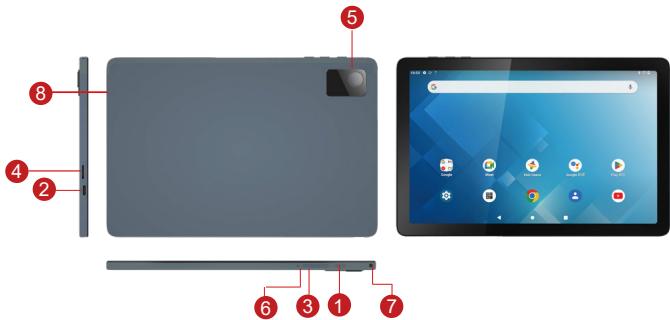
3. Appearance and button:

Tibuta E200 - Appearance and button: - 1

1 Power Button
2 TYPE-C
3 Volume buttons
4 Micro SD Card

5 Rear Camera
6 Reset Button
7 Headphone jack
8 Speakers

4. First use

4.1 Battery management and charge

Before first use, please charge the device's battery to 100% .

The first two times charging please keep it charging for about 6 hours, after that you just need leave it charging 4 hours or until fully charged.

Attention: This tablet uses Built-in type polymer battery, Charge must be to choose standard adaptor (Adaptor: power supply: DC 5V 2A, adaptor technical data: input AC100-240V,50/60Hz, DC5V 2A)

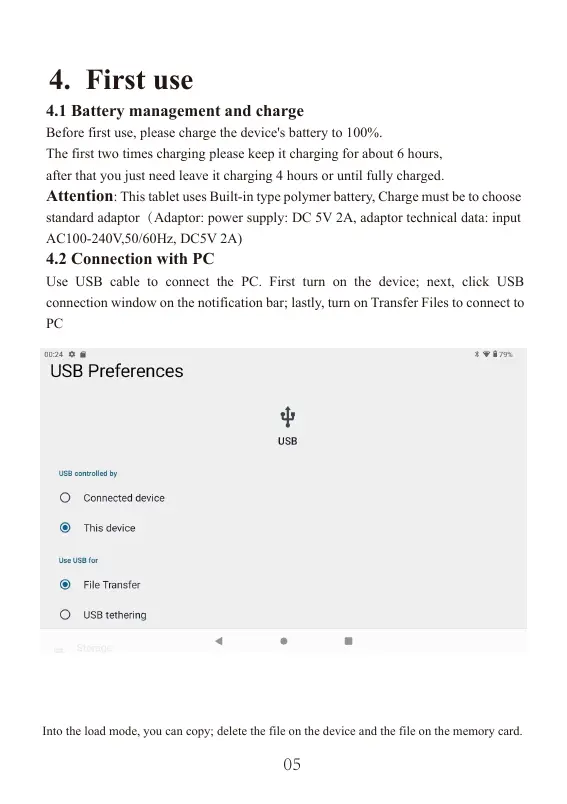
4.2 Connection with PC

Use USB cable to connect the PC. First turn on the device; next, click USB connection window on the notification bar; lastly, turn on Transfer Files to connect to PC
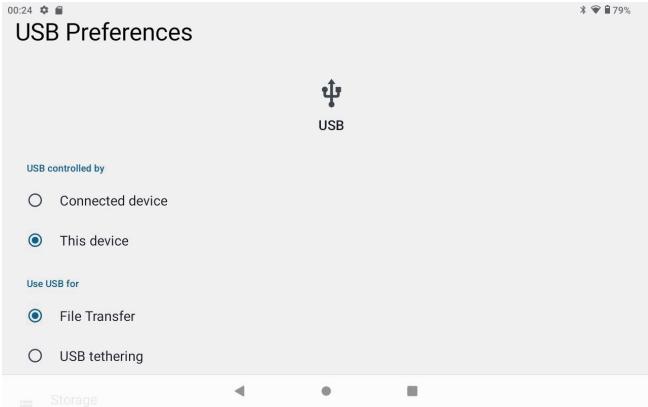
Tibuta E200 - Connection with PC - 1

5. Equipment operation interface

5.1 Main interface describe

After startup will enter the main interface, In the main interface, you can Management the main interface software icons by:

a) long press the icons for 3 seconds; after the icon will get bigger, allowing you to drag it anywhere in the interface.
b) Delete icons: long press the icon for 3 seconds; after, drag the icons to the Recycle Bin icon. Once it becomes red, Let go of the icon and app will be deleted.
c) To change wallpaper, Please enter "Settings" > "Display" > "Wallpapers"
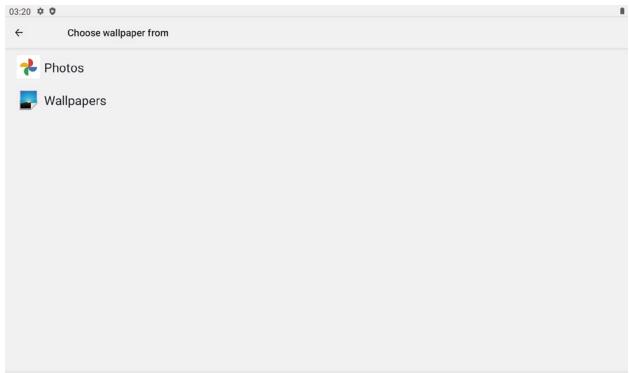
Tibuta E200 - Main interface describe - 1

5.2 status bar describe

Top right displays the battery, battery charge icons, current time, Settings Menu

5.3 Use touch panel

No matter which interface you are in, you can go back to main screen by pressing the soft key on the bottom middle corner of the main screen.

In different applications, by tapping the back soft key on the bottom middle corner on the touch screen, you can return to its previous interface

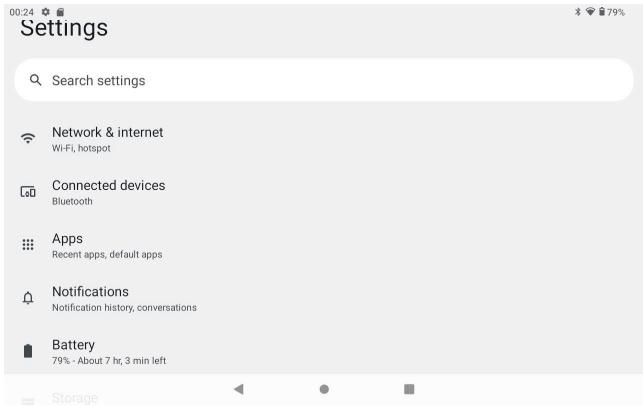
6. Equipment Basic Setting:

Click setting icons to enter the setting Interfaces.
Tibuta E200 - Equipment Basic Setting: - 1

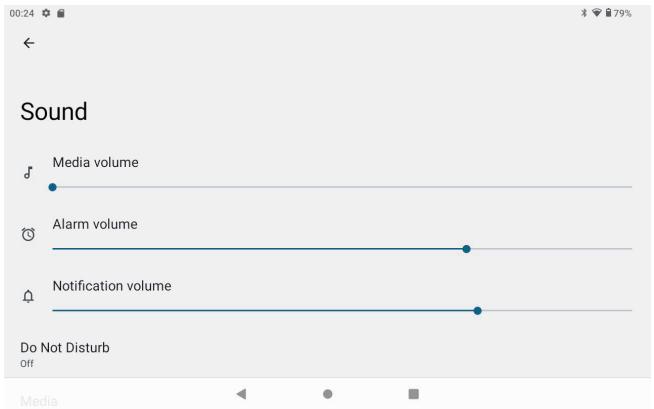
6.1 Sound Volume

Tibuta E200 - Sound Volume - 1

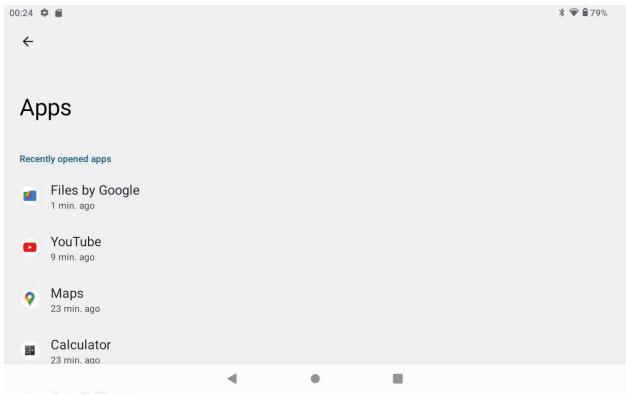
6.2 Application

Manage applications

Tibuta E200 - Manage applications - 1

A、Enter "Settings" > "Apps & Notifications" And then there will be App list
B、Select the one you want to uninstall, it will enter the following interface
C、Click Uninstall, then you can delete the application

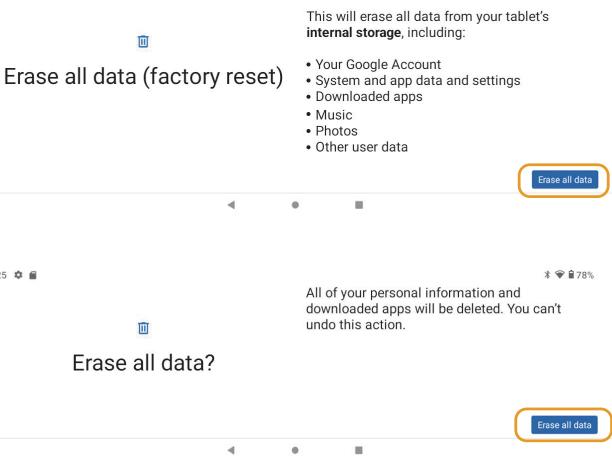
6.3 Reset Options

Please enter "Settings" > "System" > "Reset Options" > "Erase all data
Tibuta E200 - Reset Options - 1

Tibuta E200 - Reset Options - 2

6.4 Storage

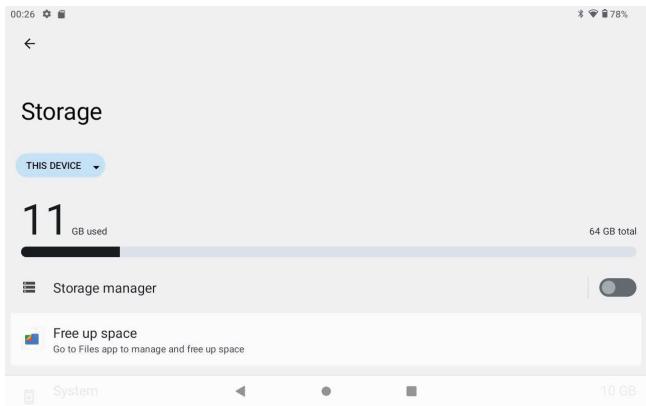
Remove SD card, to view of the available storage space
Tibuta E200 - Storage - 1

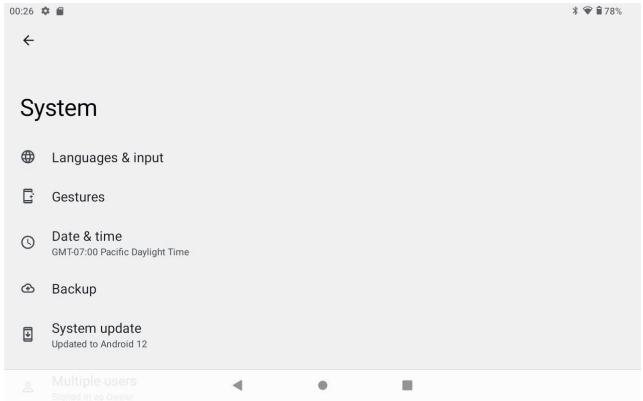
6.5 Language & keyboard

Setting: (Language), text input and automatic error correction options;
Tibuta E200 - Language & keyboard - 1

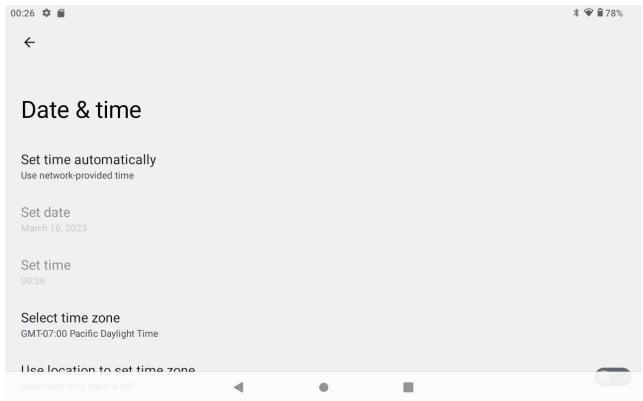
6.6 Date & time setting

Set date, set time, select time zone and select date format
Tibuta E200 - Date & time setting - 1

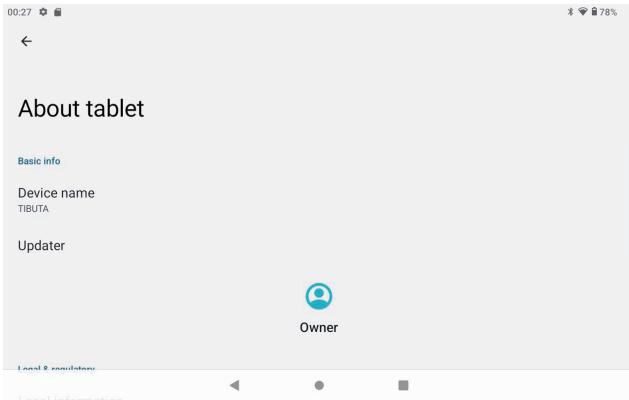
6.7 About Tablet

Please enter "Setting" > "System" > "About Tablet"
Tibuta E200 - About Tablet - 1

7. File Manager

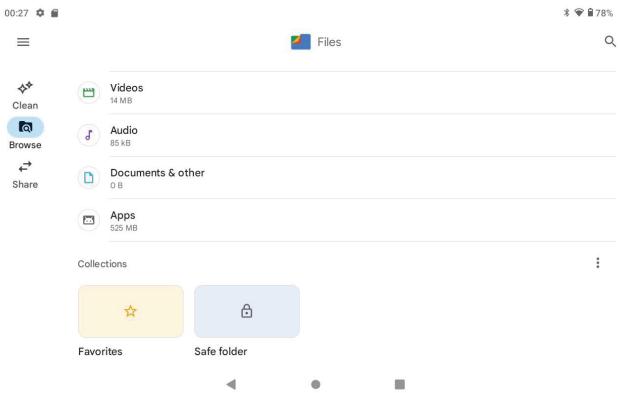
This Tablet can support Android APP in market by third party, most Apps can install in the network, can copy to NAND FLASH or SD card.

Click "Files Go" APP to open, then you can check Apps, Images, Videos, Audio and Documents.
Tibuta E200 - File Manager - 1

8. Problem solution

8.1 Device can't open

A、Check the battery power
B、Connect adaptor first, then check again
C、Press the "reset" key first, the press "power" key
D、After charging then can't to open, please contact with the supplier

8.2 Device shut down after start up

After startup the screen or the Power On Image appears, the device appear shutdown: Power is not enough, please charge

8.3 Headset can't hear the voice

A、Please check the volume whether set to 0
B、Check if the music file is damaged. Try playing another audio file.
C、If the file has been damaged it may lead to serious noise or popping sounds.

8.4 Can't copy file or play music, etc....

A、Please check if the computer and device are correct connected
B、check if the memory storage space is full
C、check if the USB cable is good or not
D、USB connection is disconnected

8.5 Forget the password!

A、Hold down the POWER and Volume "-" keys simultaneously for 5-8 seconds.
B、Release the volume key when the machine appears in factory mode, then continue to use the volume reduction key to select "Clear eMMC", and use the on key to confirm.
C、Wait about one minute for the welcome screen to appear, and then re-enter the Android system.

WARRANTY CARD

Model Name

Product Serial No.

Date of purchase

Tibuta E200 - WARRANTY CARD - 1
dd

Tibuta E200 - WARRANTY CARD - 2
mm

Tibuta E200 - WARRANTY CARD - 3
yy

Customer's Details

Name

Address in full

Telephone No.

Dealer Name & Address

Customer's signature & Date

Dealer's signature with rubber stamp

Tibuta E200 - Customer's Details - 1

Tibuta E200 - Customer's Details - 2

Tibuta E200 - Customer's Details - 3

Tibuta E200 - Customer's Details - 4

Tibuta E200 - Customer's Details - 5

Designed by Tibuta,Assembled in PRC

Tibuta E200 - Customer's Details - 6

CONTACT INFORMATION

Tibuta E200 - Customer's Details - 7

allinkluck@outlook.com

www.tibutapad.com

UKAR

Company: UK CROSSBORDER LIMITED

Address: 7 Bell Yard London WC2A 2JR,UK

Mail: uk-crossborder@outlook.com

Warning

  • Any changes or modifications not expressly approved by the party responsible for compliance could void the user's authority to operate the equipment. This device complies with part 15 of the FCC Rules. Operation is subject to the following two conditions:

This device may not cause interference.

This device must accept any interference, including interference that may cause undesired operation of the device.

Note: This equipment has been tested and found to comply with the limits for a Class B digital device, pursuant to part 15 of the FCC rules. These limits are designed to provide reasonable protection against harmful interference in a residential installation. This equipment generates, uses and can radiate radio frequency energy and, if not installed and used in accordance with the instructions, may cause harmful interference to radio communications. However, there is no guarantee that interference will not occur in a particular installation. If this equipment does cause harmful interference to radio or television reception, which can be determined by turning the equipment off and on, the user is encouraged to try to correct the interference by one or more of the following measures:

-Reorient or relocate the receiving antenna.

-Increase the separation between the equipment and receiver.

-Connect the equipment into an outlet on a circuit different from that to which the receiver is connected.

-Consult the dealer or an experienced radio/TV technician for help.

The device has been evaluated to meet general RF exposure requirement. The device can be used in portable exposure condition without restriction.

FCC ID:2AXUI-E200

Warning:

1.Use careful with the earphone maybe possible excessive sound pressure from earphones and headphones can cause hearing loss.
2.CAUTION: RISK OF EXPLOSION IF BATTERY IS REPLACED BYAN INCORRECT TYPE. DISPOSE OF USED BATTERIES ACCORDING TO THE INSTRUCTIONS.
3.The product shall only be connected to a USB interface of version USB2.0.
4. Adapter shall be installed near the equipment and shall be easily accessible.
5. Operation temperature: -10 40^
6. The plug considered as disconnect device of adapter.
7.The device complies with RF specifications when the device used at 5mm from your body. The device is in compliance with the requirements.

This information has to be presented in such a way that the user can readily understand it. Typically, this will necessitate translation into every local language (required by national consumer laws) of the markets where the equipment is intended to be sold. Illustrations, pictograms and using international abbreviations for country names may help reduce the need for translation.

Restrictions in the 5 GHz band:

According to Directive SI 2017/1206, the packaging showthat this radio equipment will be subject to some restrictions when placed on the market in Belgium (BE), Bulgaria (BG), the Czech Republic (CZ),Denmark (DK), Germany (DE), Estonia (EE), Ireland (IE), Greece (EL), Spain(ES), France (FR), Croatia (HR), Italy (IT), Cyprus (CY), Latvia (LV), Lithuania(LT), Luxembourg (LU), Hungary (HU), Malta (MT), Netherlands (NL), Austria(AT),Poland (PL), Portugal (PT), Romania (RO), Slovenia (SI), Slovakia (SK),Finland (FI), Sweden (SE), the Turkey (TR), Norway(NO), Switzerland (CH), Iceland (IS), and Liechtenstein (LI).

The WLAN function for this device is restricted to indoor use only when operating in the 5150 to 5350MHz frequency range.
Tibuta E200 - Warning: - 1

UK Declaration of Conformity We,

CHITECH SHENZHEN TECHNOLOGY CO.,LTD (101, NO.48, Xiashijia Road, Gongming Town, Guangming Dist., Shenzhen, China) hereby declares that this Tablet PC is in compliance with the essential requirements and other relevant provisions of Directive SI 2017/1206.

According to Directive SI 2017/1206, the Tablet PC can be used in Great Britain (England, Wales and Scotland) but with restriction.

Contidente

Designed by Tibuta,Assembled in PRC

EU

REP

Company: Skylimit Service GmbH

Address: Roedingsmarkt 20, 20459 Hamburg

Mail: info@skylimitservice.com

KONTAKTINFORMATION

Tibuta E200 - Contidente - 1

Tibuta E200 - Contidente - 2

Tibuta E200 - Contidente - 3

alllinkluck@outlook.com

Tibuta E200 - Contidente - 4

www.tibutapad.com

Warning:

Designed by Tibuta,Assembled in PRC

Tibuta E200 - Warning: - 1

Tibuta E200 - Warning: - 2

KONTAKTINFORMATION

allinkluck@outlook.com

www.tibutapad.com

Tibuta E200 - Warning: - 3

Company: Skylimit Service GmbH

Address: Roedingsmarkt 20, 20459 Hamburg

Mail: info@skylimitservice.com

Attention:

Manufacturer: CHITECH SHENZHEN TECHNOLOGY CO.,LTD

Address:101,NO.48,Xiashijia Road,Gongming Town,Guangming

Dist.,Shenzhen,China
Manual assistant
Powered by Anthropic
Waiting for your message
Product information

Brand : Tibuta

Model : E200

Category : Tablet