
SwannBuddy™ 4K - Videophone SWANN - Free user manual and instructions
Find the device manual for free SwannBuddy™ 4K SWANN in PDF.



| Product Type | Video doorbell (wireless video doorbell) |
| Brand | Swann |
| Model | SwannBuddy™ 4K |
| Video Resolution | 4K |
| Power | 2 AA alkaline batteries (supplied) + rechargeable via USB-C (charger not supplied) |
| Battery Life | Full charge up to 6 hours (depending on USB source) |
| Connectivity | Wi-Fi 2.4 GHz only |
| Mobile App | Swann Security (iOS and Android) |
| Main Features | Doorbell, live 4K video, two-way audio, night vision (infrared LEDs), motion detection, wireless chime (6 melodies) |
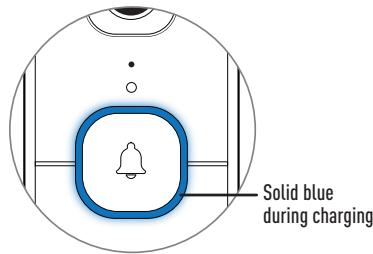
| Light Indicator | LED ring (solid blue: charging, blinking blue: Wi-Fi pairing mode, solid red: recording, blinking purple: low battery, etc.) |
| Installation | Wall mounting (screws or double-sided adhesive tape) at chest height (1.2-1.6 m) |
| Security | Tamper-proof screw, minimum distance of 20 cm for RF exposure |
| Wireless Chime | Included, pairing via SET button, 6 selectable melodies |
| Maintenance | Clean the lens with a soft, dry cloth |
| Compatibility | Wi-Fi 2.4 GHz networks, router with sufficient range |
| Dimensions | Approximately 12 x 5 x 3 cm (estimated) |
Frequently Asked Questions - SwannBuddy™ 4K SWANN
User questions about SwannBuddy™ 4K SWANN
0 question about this device. Answer the ones you know or ask your own.
Ask a new question about this device
Download the instructions for your Videophone in PDF format for free! Find your manual SwannBuddy™ 4K - SWANN and take your electronic device back in hand. On this page are published all the documents necessary for the use of your device. SwannBuddy™ 4K by SWANN.
USER MANUAL SwannBuddy™ 4K SWANN
SwannBuddy™ 4K Video Doorbell
Timbre con Cárma de Video 4K SwannBuddy™ Sonnette video SwannBuddy™ 4K Campanello video SwannBuddy™ 4K SwannBuddy™ 4K-Video-Türklingel
EN QUICK START GUIDE
ES GUIA DE INICIO RAPIDO
FR GUIDE DE DÉMARRAGE RAPIDE
GUIDA RAPIDA
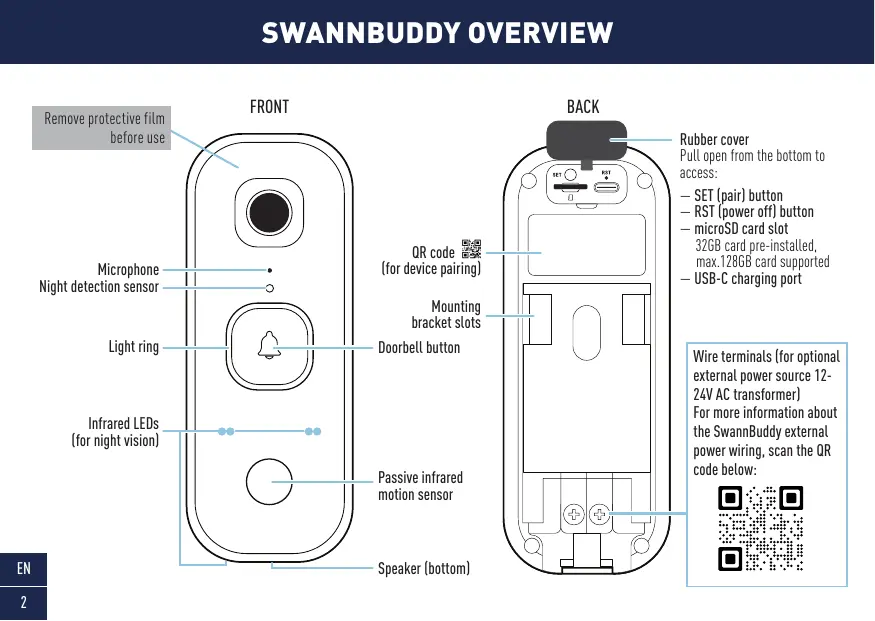
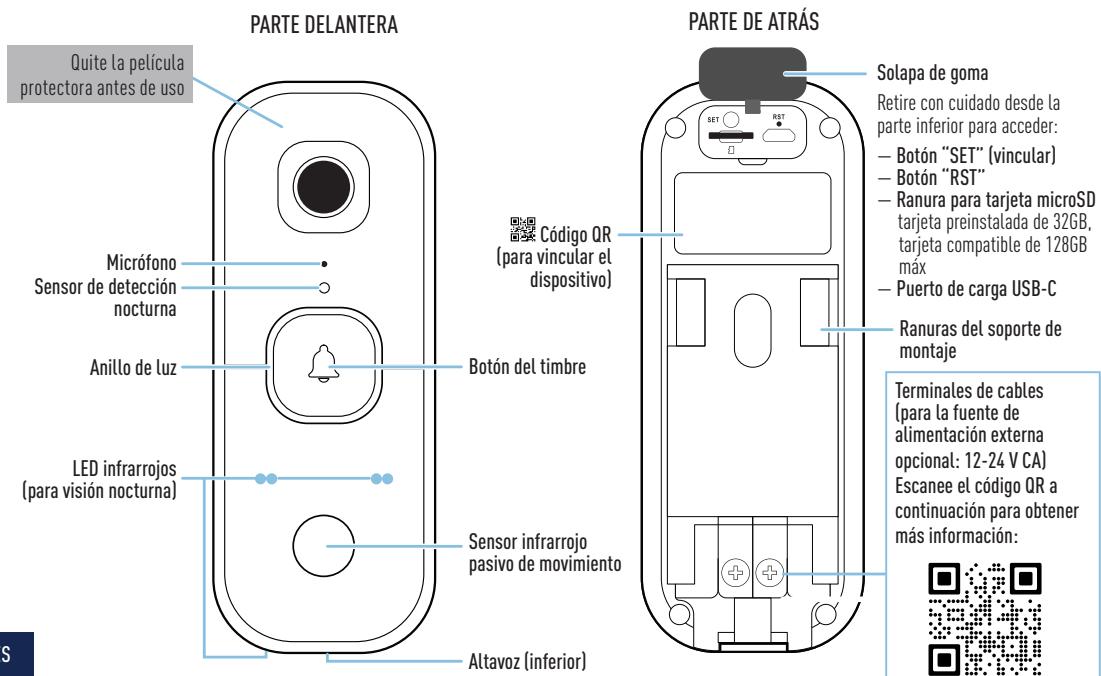
Pull open from the bottom to access:
- SET (pair) button
- RST (power off) button
microSD card slot
32GB card pre-installed, max.128GB card support
USB-C charging port
Wire terminals (for optional external power source 12-24V AC transformer) For more information about the SwannBuddy external power wiring, scan the QR code below:

CHIME OVERVIEW
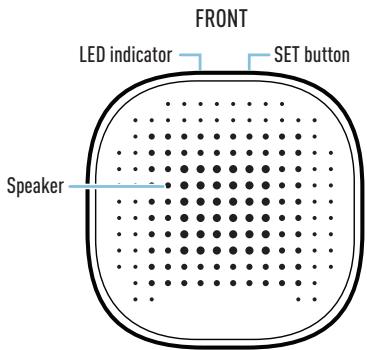
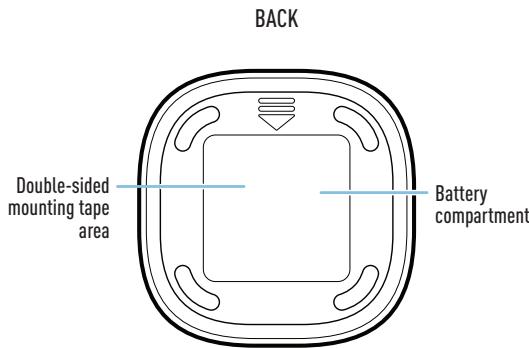
Installing Batteries
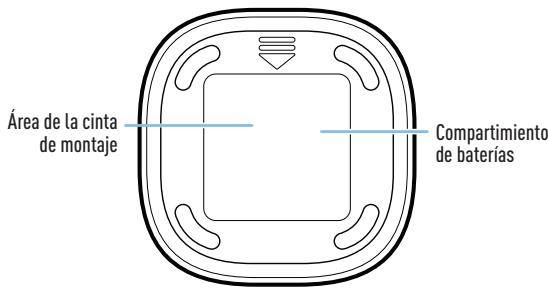
- Remove the battery compartment cover by sliding it down.
- Insert two new, high quality "AA" alkaline batteries (supplied), matching the polarity markings (+ and -) shown inside the battery compartment.
- Replace the battery compartment cover.
BATTERY SAFETY INFORMATION
- Replace batteries at the same time. Do not mix new and old batteries or battery types (for example, alkaline and lithium batteries).
- Keep batteries out of reach of children.
- Dispose of used batteries promptly in accordance with local regulations.
Charging the SwannBuddy
Before using the SwannBuddy for the first time, fully charge it with the included USB-C charging cable.
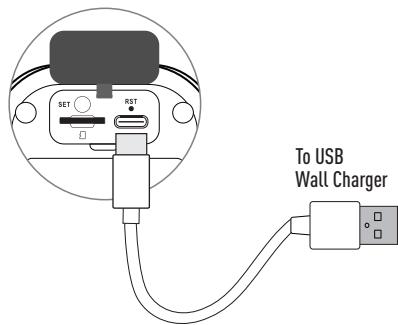
1 Open the rubber cover on the back of the SwannBuddy.
2 Insert the smaller end of the charging cable into the USB-C port and the larger end into a USB wall charger, such as the USB power adapter that came with your smartphone, as shown on the right.
3 The light ring around the doorbell button on the front of the SwannBuddy will glow solid blue during charging and turn off once the SwannBuddy is fully charged.
4 Actual charging times may vary depending on the USB power adapter used and the remaining battery level. A full charge may take up to six hours.
GET STARTED
Pairing the Chime with the SwannBuddy
You can pair the Chime with the SwannBuddy by following the steps below.
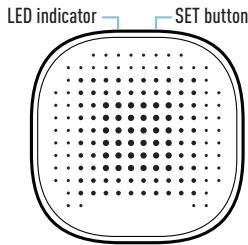
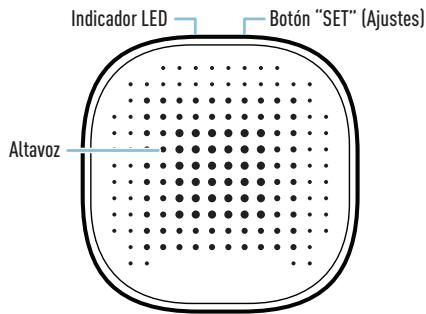
1 Press and hold the SET button on the Chime for about 3 seconds until the LED indicator starts blinking blue, and you hear a voice prompt "Setup is in progress. Press the Doorbell to connect."
2 Press and hold the Doorbell button on the SwannBuddy for 3 seconds. The LED indicator on the Chime immediately turns off, confirming successful pairing.
- Note: If you fail to complete pairing within 90 seconds, the LED indicator on the Chime will automatically turn off. Repeat steps 1-2 to pair the Chime again.
3 To test the Chime, simply press the Doorbell button on the SwannBuddy. You will hear the "Ding Dong" melody.
Changing the Chime melody
Once the Chime is paired with the SwannBuddy, you can change the Chime's default "Ding Dong" melody by following the steps below.
1 Press the SET button on the Chime once to select the next melody in the sequence.
2 Press the Doorbell button on the SwannBuddy to listen to the selected melody.
3 Repeat steps 1-2 until you hear a melody you like. There are six melodies to choose from.
DOWNLOAD THE SWANN SECURITY APP
1 Download the latest version of the Swann Security app from the Google Play™ Store or Apple App Store® on your Android or iOS mobile device. Simply search for "Swann Security". Or, you can scan the QR code below to get the app.
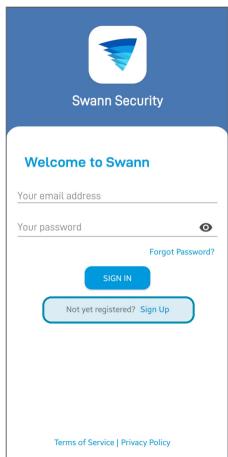
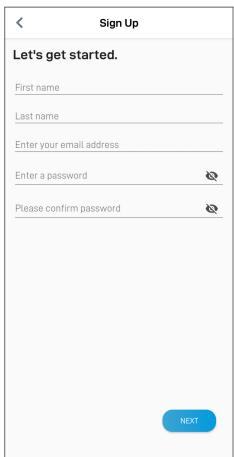
2 Open the app and create your Swann Security account by tapping "Not yet registered? Sign Up" at the bottom of the screen. Then, activate your Swann Security account by confirming the verification email sent to your registered email address.

SET UP THE SWANNBUDDY
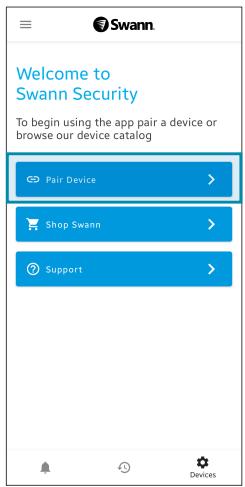
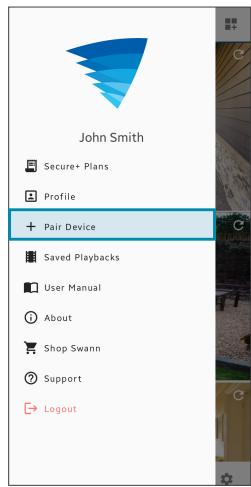
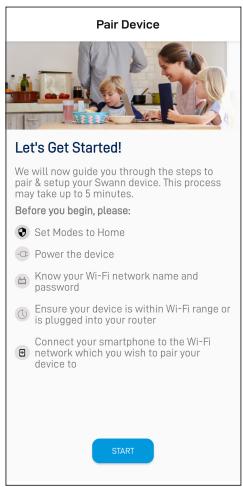
Launch the Swann Security app and sign in. Tap the Pair Device button on the screen (or tap the menu icon in the top left and select Pair Device). The app will now guide you through the pairing process to set up the SwannBuddy with your Wi-Fi network.
Please note that the camera is only compatible with the 2.4GHz network. If your router is using the 5GHz band, ensure that it is operating in mixed mode.
MOUNT THE SWANNBUDDY
The SwannBuddy can be mounted on the surface using the supplied mounting bracket as shown below. Before mounting the SwannBuddy, ensure that the desired installation location has good, reliable Wi-Fi reception. Using the app, try streaming live video from the SwannBuddy there. If you don't experience any video streaming issues, you've found a suitable place for your device. If you find that the Wi-Fi signal is weak or out of range, consider installing a Wi-Fi range extender to enhance the Wi-Fi coverage of your existing network.
Suggested installation height
Around chest-height, 1.2 - 1.6m / 3.9- 5.2ft (depending on location) from the ground.
Attaching the SwannBuddy
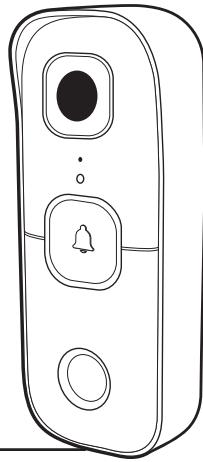
Align the mounting bracket slots on the back of the SwannBuddy with the mounted bracket, and then slide it down. Tighten the anti-tamper screw with a small Philips screwdriver to secure in place.

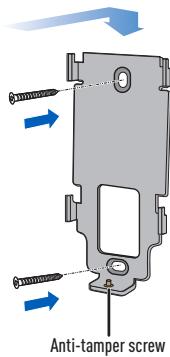
Installing the bracket
- If mounting on a wooden surface, screw the bracket directly to the surface.
- If mounting on a masonry surface or drywall, insert wall plugs before screwing the bracket to the surface.
- If mounting on a window panel, use the supplied double-sided [rectangular] tape. Peel off liner on one side of the tape and apply it to the back of the bracket. Peel off opposite liner, then using a firm amount of pressure, press the bracket against the window panel for 60 seconds. Allow 24 hours for the adhesive to fully cure before attaching the SwannBuddy to the bracket.
- For screw installation only: If there is a gap between the wall and bracket, use the supplied bracket foam tape to fill it.
HELP AND RESOURCES
Answering the SwannBuddy
When someone presses the SwannBuddy, the Chime will sound and you'll receive a Swann Security push notification on your mobile device. Simply open the notification to see who's at the door and start talking.
Light ring status guide
The light ring on the SwannBuddy tells you what is happening with the device.
| Solid Blue | USB Charging | Blinking then Solid Blue (few seconds) | Booting up / Connecting to Wi-Fi |
| Slow Blinking Blue | Wi-Fi Pairing mode | ||
| Solid Red | Live streaming / Motion recording | Blinking Purple | Low battery state |
| Infrared LEDs Blinking | Firmware update in progress |
Rebooting the SwannBuddy
On rare occasions, it might be necessary to reboot the SwannBuddy if it becomes unresponsive. A simple reboot can often fix connectivity issues quickly. Using a paper clip, press the RST button on the back of the SwannBuddy. This will power it off. Then briefly press the SET button (for 1 second) boot up the SwannBuddy. The SwannBuddy will automatically reconnect to Wi-Fi.
Swann Security App Manual
To learn more about using the Swann Security app, you can download the manual from the App Menu > User Manual or scan the QR code for your mobile device on the right. The manual provides detailed information on how to view live camera video, use 2-way talk, playback and download recordings, and configure a range of camera settings, including motion detection sensitivity, modes, and more.

Android manual

iOS manual
RESUMEN DE SWANNBUDDY
RESUMEN DEL ALTAVOZ
PARTDEDELANTERA
PARTE DE ATRÁS
Applicare to SwannBuddy
Ideale Installationshöhe
This equipment has been tested and found to comply with the limits for Class B digital device, pursuant to part 15 of the FCC Rules. These limits are designed to provide reasonable protection against harmful interference in a residential installation. This equipment generates, uses and can radiate radio frequency energy and, if not installed and used in accordance with the instructions, may cause harmful interference to radio communications. However, there is no guarantee that interference will not occur in a particular installation. If this equipment does cause harmful interference to radio or television reception, which can be determined by turning the equipment off and on, the user is encouraged to try to correct the interference by one or more of the following measures: • Reorient or relocate the receiving antenna
- Increase the separation between the equipment and the receiver - Connect the equipment into an outlet on a circuit different from that to which the receiver is connected - Consult the dealer or an experienced radio/TV technician for help. This device complies with Part 15 of the FCC Rules. Operation is subject to the following two conditions: (1) this device may not cause harmful interference, and (2) this device must accept any interference received, including interference that may cause undesired operation.
FCC RF Radiation Exposure Statement Caution: To maintain compliance with the FCC's RF exposure guidelines, place the product at least 20cm from nearby persons.
WARNING: Modifications not approved by the party responsible for compliance could void user's authority to operate the equipment.
Frequency: 2412MHz-2472MHz, Maximum radio-frequency power: < = 20dBm
IC STATEMENT
This device complies with Industry Canada license-exempt RSS standards[6]. Operation is subject to the following two conditions: (1) this device may not cause interference, and (2) this device must accept any interference, including interference that may cause undesired operation of the device.
The device is compliance with RF field strength limits, users can obtain Canadian information on RF exposure and compliance.
This Class B digital apparatus complies with Canadian ICES-003. This equipment complies with IC radiation exposure limits set forth for an uncontrolled environment. This equipment should be installed and operated with minimum distance 20cm between the radiator & your body.
UK DECLARATION OF CONFORMITY
Herby, Swan Communications declares that this product is in compliance with the requirements for UKCA marking. The Declaration of Conformity can be obtained at uk.swan.com/compliance
RECYCLING
This product bears the selective sorting symbol for Waste electrical and electronic equipment (WEEE). This means that this product must be handled pursuant to European directive 2012/19/EU in order to be recycled or disassembled to minimize its impact on the environment. User has the choice to give their product to a competent recycling organization or to the retailer when they buy a new electrical or electronic equipment.
A BUILT-IN BATTERY CAUTION
- Do not leave in an extremely low air pressure environment. Do not leave in an extremely high-temperature environment. Do not attempt to replace the battery or disassemble the product. There are no user-serviceable parts inside. Doing so will void the warranty and can result in a safety hazard
The symbol indicates DC voltage.
FC C E UK CA

- FAQs & Help Articles
- Manuals, Guides & Videos
Technical Support
Community Forums
- SWANNBUDDY™ 4K VIDEO DOORBELL
- CHIME OVERVIEW
- INSTALLING BATTERIES
- BATTERY SAFETY INFORMATION
- CHARGING THE SWANNBUDDY
- GET STARTED
- PAIRING THE CHIME WITH THE SWANNBUDDY
- CHANGING THE CHIME MELODY
- DOWNLOAD THE SWANN SECURITY APP
- SET UP THE SWANNBUDDY
- MOUNT THE SWANNBUDDY
- SUGGESTED INSTALLATION HEIGHT
- ATTACHING THE SWANNBUDDY
- INSTALLING THE BRACKET
- HELP AND RESOURCES
- ANSWERING THE SWANNBUDDY
- LIGHT RING STATUS GUIDE
- REBOOTING THE SWANNBUDDY
- SWANN SECURITY APP MANUAL
- RESUMEN DE SWANNBUDDY
- RESUMEN DEL ALTAVOZ
- APPLICARE TO SWANNBUDDY
- IDEALE INSTALLATIONSHÖHE
- IC STATEMENT
- UK DECLARATION OF CONFORMITY
- RECYCLING
- A BUILT-IN BATTERY CAUTION
Brand : SWANN
Model : SwannBuddy™ 4K
Category : Videophone