USER MANUAL 49UM7100 LG
MANUEL D'UTILISATION
- Image shown may differ from your TV.
- Image shown on a PC or mobile phone may vary depending on the OS(Operating System).
- App icon positions may vary on the platform, depending on the software version.
Network Settings
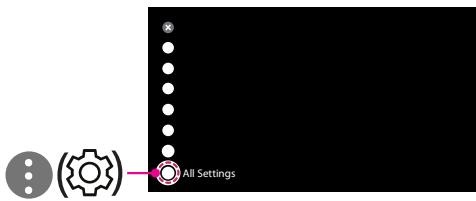
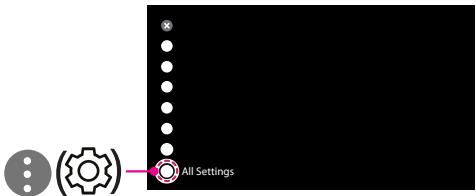
1 Press the (Settings) on the remote to access the settings menu. Point the [All Settings] icon and select by pressing the Wheel (OK) button on the remote.
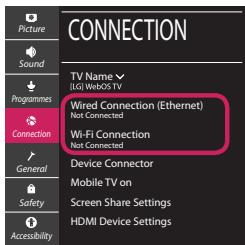
2 Select the [Connection] [Wired Connection(Ethernet)] or [Wi-Fi Connection].
3 The device automatically tries to connect to the network available (wired network first). When you select the [Wi-Fi Connection], the network list available is displayed. Choose the network you wish to use.
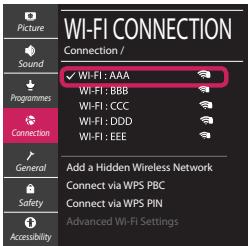
For wireless AP (Router) that have the symbol, you need to enter the security key.
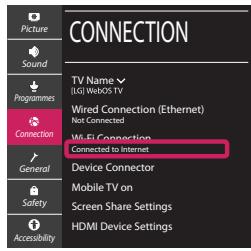
4 If the connection is successful, the "[Connected to Internet]" is displayed.
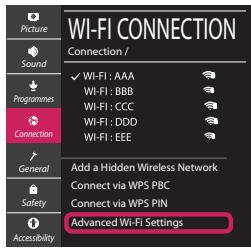
You can check the status of connection in [Advanced Wi-Fi settings].

Troubleshooting Network Problems
1 Press the (Settings) on the remote to access the settings menu. Point the [All Settings] icon and select by pressing the Wheel (OK) button on the remote.
2 Select the [Connection] [Wired Connection (Ethernet)] or [Wi-Fi Connection] [Advanced Wi-Fi Settings].
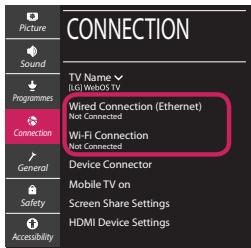
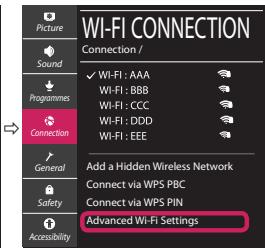
Follow the instructions below that correlate to your network status.
Check the TV or the AP (Router).

X

X

X

When X appears next to TV:
1 Check the connection status of the TV, AP (Router).
Power off and power on the TV, AP (Router).
If you are using a static IP, enter the IP directly.
4 Contact internet service provider or AP (Router) company.
Check the AP (Router) or consult your Internet service provider.

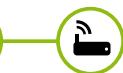


When X appears next to Gateway:
Unplug the power cord of the AP (Router) and try to connect after 5 seconds.
2 Initialize (Reset) the AP (Router).
Contact internet service provider or AP (Router) company.


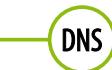


When X appears next to DNS:
Unplug the power cord of the AP (Router) and try to connect after 5 seconds.
2 Initialize (Reset) the AP (Router).
Check that the MAC address of the TV/AP (Router) is registered with your Internet service provider. (The MAC address displayed on the right pane of the network status window should be registered with your Internet service provider.)
4 Check the AP (Router) manufacturer's website to make sure your router has the latest firmware version installed.
SmartShare Connection to Smartphone
1 Check that Wi-Fi is enabled on your smartphone. To use SmartShare, both devices must on the same local network.
2 Install/run the app for sharing content on your smartphone (It's called LG TV Plus on LG phones).
3 Enable your smartphone to share content files with other devices.
4 Select the file type you want to play (movie, audio or photo).
5 Select a movie, music or photo file to play on the TV.
6 Play the media file to view and enjoy it on your TV.
Updating the TV Firmware
- If the TV is turned on for the first time after it was shipped from the factory, initialization of the TV may take a few minutes.
1 (Settings) [All Settings] [General] [About This TV] [CHECK FOR UPDATES]
2 After checking the version of the software, update it. If you check the "[Allow Automatic Updates]", you can update the software automatically.

Cánd X aparé in dreptul DNS: