USER MANUAL THC385 THOMSON
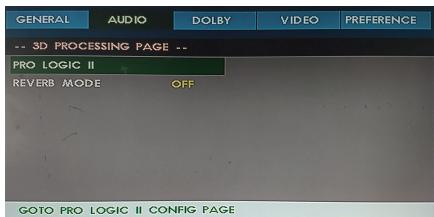
2.5 3D PROCESSING SETUP PAGE
3D PROCESSING SETUP PAGE: Set 3D to processing.
3. VIDEO SETTINGS
3.1 COMPONENTS
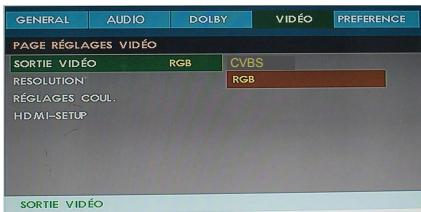
3.2 TV MODE SETTINGS
| CD RIP |
| Ripping | Selected Track |
| Track Progress | track02 30% |
| Progress | |
| Cancel | |
| SUMMARY | |
| Now Ripping | |
| Track 01/01 | |
FIGURE 2
| 00:00 00:00
001/172 C8C |
| 003 | 001 |
| 002 | All Select |
| 003 | All Unsel |
| 004 | Copy |
| 003 | Exit |
| 004 | |
FIGURE 3
| 00:00 00:00
001/172 1000 |
| US81 |
| 003 |
| 004 |
| 003 |
| 004 |
FIGURE 4 FIGURE 5
| 00:00 00:00
001/172 | ### | OBC |
| 001
002
003
004
003
004 | Remain size: |
| 30MB | |
| BACK | NEXT |
LINE IN
This symbol indicates there are dangerous voltages and laser beams within the product housing, which may have sufficient magnitude to constitute a risk of electric shock if not handled correctly.
To avoid the risk of electric shock and laser radiation, do not open the housing at any time.

This symbol identifies important operating and maintenance (servicing) instructions. Be sure to follow instructions identified with this symbol to avoid potential damage to your unit.
Safety Precautions

WARNING: TO REDUCE THE RISK OF FIRE OR ELECTRIC SHOCK, DO NOT EXPOSE THIS APPLIANCE TO RAIN OR MOISTURE. DANGEROUS HIGH VOLTAGES ARE PRESENT INSIDE THE ENCLOSURE. DO NOT OPEN THE CABINET. REFER SERVICING TO QUALIFIED PERSONNEL ONLY.
DO NOT STARE INTO BEAM OR BLINDNESS MAY RESULT.
This DVD player employs a laser system. To prevent direct exposure to laser beam, do not try to open the enclosure or defeat the interlocks. Use of controls, adjustments or the performance of procedures other than those specified may result in hazardous radiation exposure. To prevent direct exposure to laser beam, do not try to open the enclosure. Visible laser radiation when open and interlocks defeated.
This product incorporates copyright protection technology that is protected by method claims of certain U.S. Patents and other intellectual property rights owned by Macrovision Corporation and other rights owners. Use of this copyright protection technology must be authorized by Macrovision Corporation, and is intended for home and other limited viewing uses only unless otherwise authorized by Macrovision Corporation. Reverse engineering or disassembly is prohibited.
Consumers should note that not all high definition television sets are fully compatible with this product and may cause artifacts to be displayed in the picture.
In case of 525 or 625 progressive scan picture problems, it is recommended that the user switch the connection to the "standard definition" output. If there are questions regarding our TV set compatibility with this model 525p and 625p DVD player, please contact our customer service centre.
Manufactured under license from Dolby Laboratories. "Dolby" and the double-D symbol are trademarks of Dolby Laboratories. Confidential unpublished works.
Copyright 1992-1997 Dolby Laboratories. All rights reserved.
"DTS" and "DTS Digital Out" are trademarks of Digital Theater Systems, Inc.
IMPORTANT SAFETY PRECAUTIONS:
1) Read these instructions.
2) Keep these instructions.
3) Heed all warnings.
4) Follow all instructions.
5) Do not use this apparatus near water.
6) Clean only with dry cloth.
7) Do not block any ventilation openings. Install in accordance with the manufacturer's instructions.
8) Do not install near any heat sources such as radiators, heat registers, stoves, or other apparatus (including amplifiers) that produce heat.
9) Do not defeat the purpose of the polarized or grounding-type plug. A polarized plug has two blades with one wider than the other. A grounding-type plug has two blades and a third grounding prong. The wide blade or the third prong are provided for your safety. If the provided plug does not fit into your outlet, consult an electrician for replacement of the obsolete outlet.
10) Protect the power cord from being walked on or pinched, particularly at plugs, convenience receptacles, and the point where they exit from the apparatus.
11) Only use the attachments/accessories specified by the manufacturer.
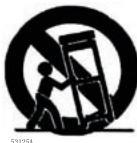
12) Use only with the cart, stand, tripod, bracket, or table specified by the manufacturer, or sold with the apparatus. When a cart is used, use caution when moving the cart/apparatus combination to avoid injury from tip-over.
13) Unplug this apparatus during lightning storms or when unused for long periods of time.
14) Refer all servicing to qualified service personnel. Servicing is required when the apparatus has been damaged in any way, such as power supply cord or plug is damaged, liquid has been spilled or objects have fallen into the apparatus, the apparatus has been exposed to rain or moisture, does not operate normally, or has been dropped.
15) Apparatus shall not be exposed to dripping or splashing, and no objects filled with liquids, such as vases, shall be placed on the apparatus.
16) Warning: To reduce the risk of fire or electric shock, do not expose this apparatus to rain or moisture.
NOTES ON HANDLING
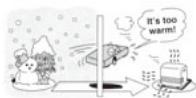
The top and rear panels of the unit may become warm after a long period of use. This is not a malfunction. When the unit is not in use, be sure to remove the disc and turn off the power. If you do not use the unit for a long period, the unit may not function properly in the future. Turn on and use the unit occasionally. Do not place foreign objects on the tray.
LOCATION
Do not locate the unit in places such as: near heating devices or in enclosed cars. High temperature (40°C or higher) or high humidity (90% or higher). Dirty places. Avoid direct exposure to sunshine.
DISTURBANCE
When you place this unit near a TV, radio or VCR, the playback picture may become poor and the sound may be distorted. In this case, place the unit away from the TV, radio or VCR.
NOTES ON MOISTURE CONDENSATION
The pickup may be condensed with water under the following situations.
- When you bring the unit directly from a cold place to a warm place.
- When you use the unit in a room where you just turned on the heater, or a place where the cold air from the air conditioner directly hits the unit. During the summer, when you use the unit in a hot and humid place just after you move the unit from an air conditioned room. The room is vaporous or damp.
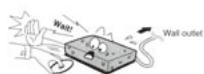
If condensation exists, the unit will not operate properly. Remove the disc, connect the power cord of the unit to the wall outlet, turn on the unit, and leave it for two or three hours. After two or three hours, the unit will have warmed up and evaporated any moisture. Keep the unit connected to the wall outlet and moisture condensation will seldom occur.
ON HANDLING DISCS
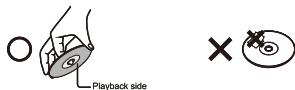
- Do not touch the playback side of the disc. Do not attach paper or tape to the disc.
ON CLEANING DISCS
Fingerprints and dust on the disc cause picture and sound deterioration. Wipe the disc from the centre outwards with a soft cloth. Always keep the disc clean.

If you cannot wipe off the dust with a soft cloth, wipe the disc lightly with a slightly moistened soft cloth and finish with a dry cloth. - Do not use any type of solvent such as thinner, benzine, commercially available cleaners or antistatic spray for vinyl LPs. It may damage the disc.
ON STORING DISCS
- Do not store discs in a place subject to direct sunlight or near a heat source.
- Do not store discs in a place subject to moisture and dust such as a bathroom or near a humidifier. Store discs vertically in a case. Stacking or placing objects on discs outside or their case may cause warping.
STRUCTURE OF DISC CONTENTS
Normally, DVD discs are divided into titles, and the titles are sub-divided into chapters. Audio CDs are divided into tracks.
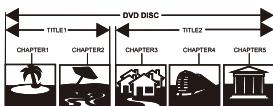
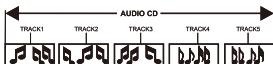
Each title, chapter, or track is assigned a number, which is called title number, chapter number, or track number respectively.
There may be discs that do not have these numbers.
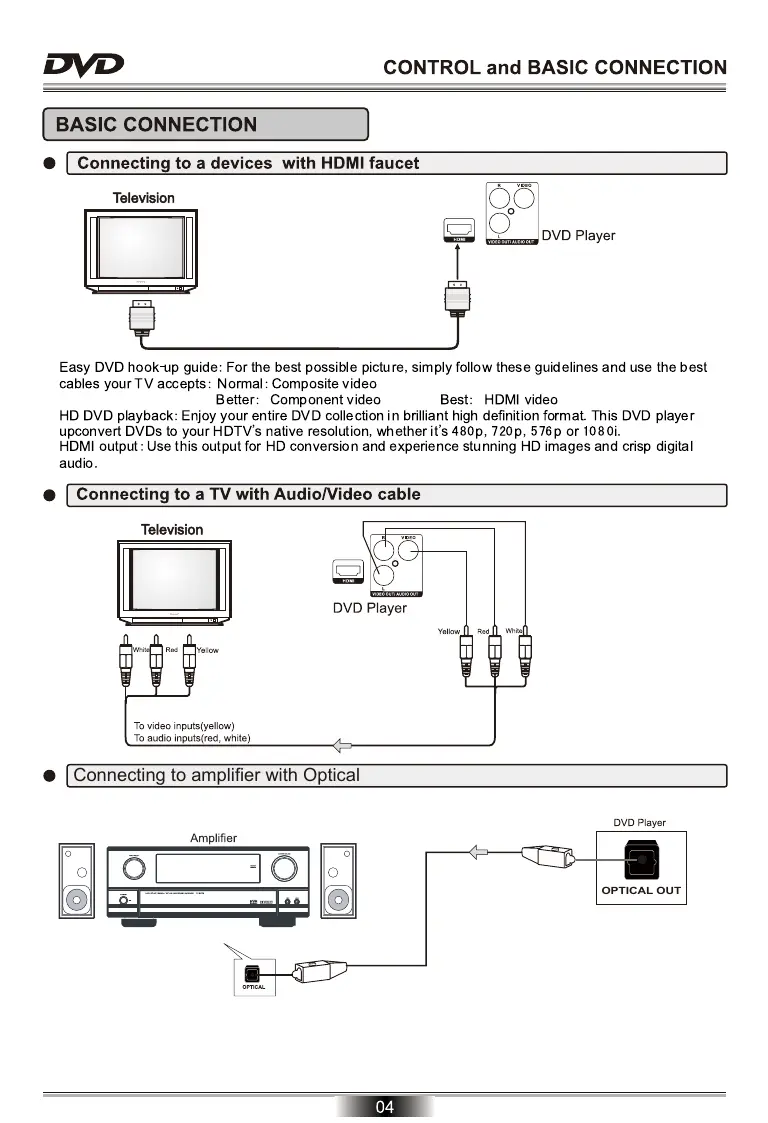
BASIC CONNECTION
- Connecting to a device with an HDMI port
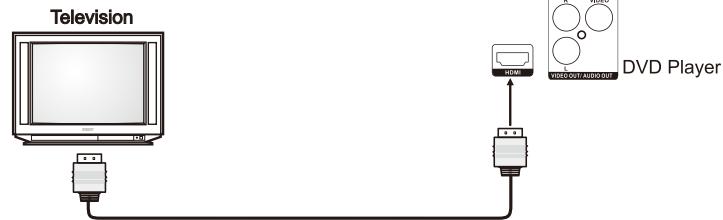
Easy DVD hook-up guide: For the best possible picture, simply follow these guidelines and use the best cables your TV accepts: Normal: Composite video
Better: Component video
Best: HDMI video
HD DVD playback: Enjoy your entire DVD collection in brilliant high definition format. This DVD player upconverts DVDs to your HDTV's native resolution, whether it's 480p, 720p, 576p, or 1080i.
HDMI output: Use this output for HD conversion and experience stunning HD images and crisp digital audio.
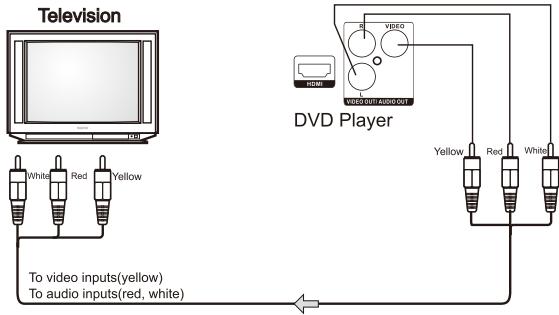
- Connecting to a TV with an Audio/Video cable
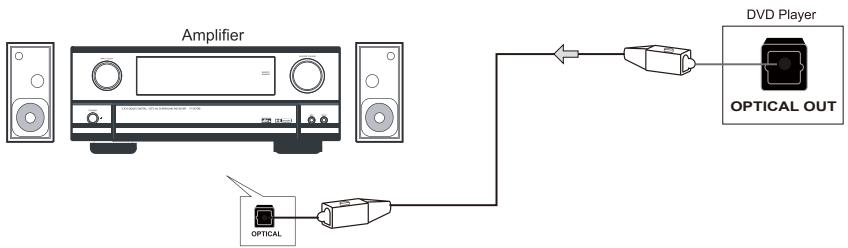
- Connecting to an amplifier with an optical cable
- Connecting to a DVD player with an optical cable
NOTE: 1. When THC385 is in optical IN mode, it will show SPDF on the LED display. 2. The optical IN function only works for PCM format. RAW format is not supported by this optical input.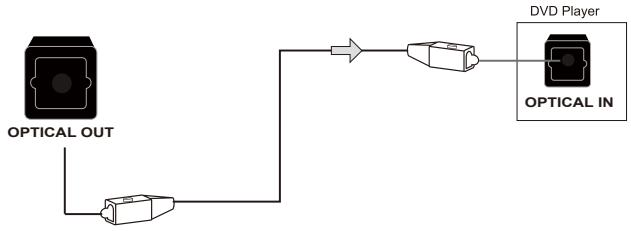
CONNECTION OF DVD AND TV
- If your TV has AV terminals, connect this unit to the TV using the supplied AV cables, and set the TV to AV input after confirming the connection is correct. (Figure 1)
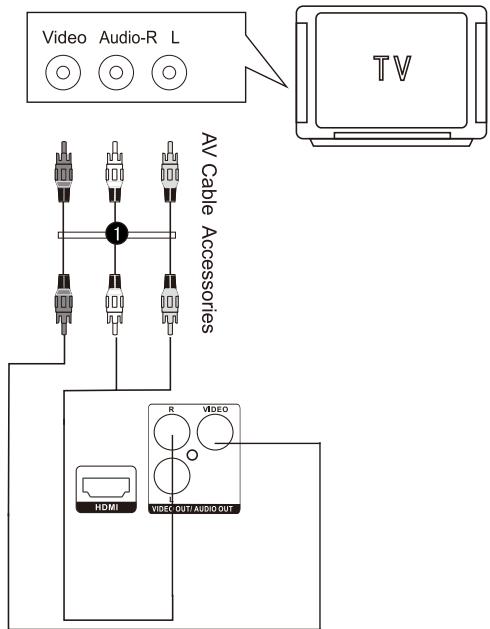
Note: 1. Please turn off the power switch of both the DVD player and the TV before connecting them, and unplug the power plug from the wall socket. 2. When watching discs with different systems, adjust the corresponding system according to your TV system (NTSC/PAL/AUTO). 3. If there are multiple connections between the DVD player and the TV, select one and unplug the others to avoid affecting the quality of images and sound. 4. Do not switch the power on and off frequently; each switch should have an interval of at least 3 seconds.
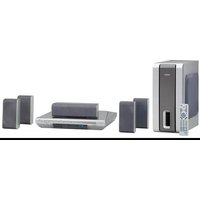
Connection instructions between the DVD player and speakers
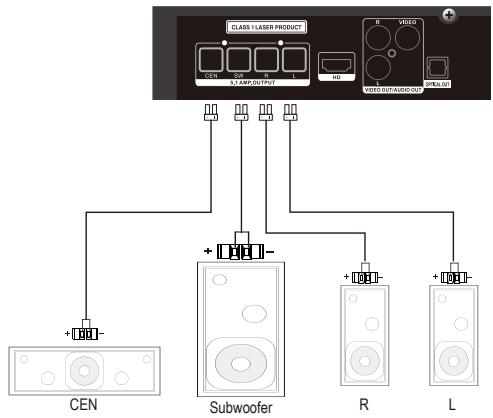
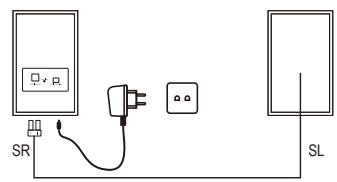
- Connect one speaker (left) to the L plug on the DVD, then connect the second speaker (right) to the R plug on the DVD.
- Connect the subwoofer to the SW plug on the DVD.
- Connect the center speaker to the CEN plug on the DVD.
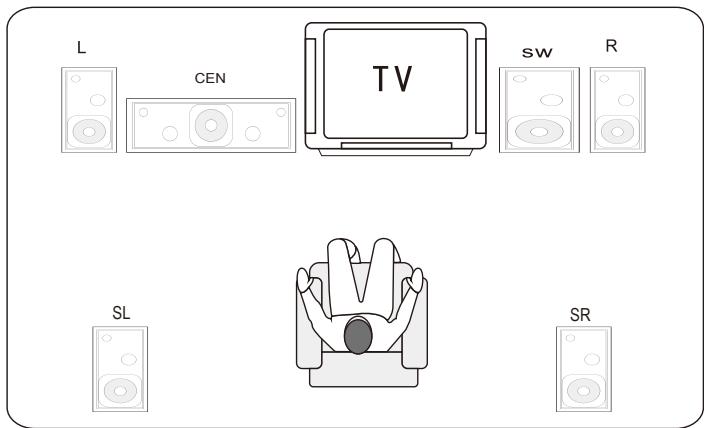
- The two surround speakers are connected to each other and to the DVD via Bluetooth, and are powered by the adapter.
- SW = Subwoofer, FR = Front Right, FL = Front Left, CEN = Center, SR = Surround Right, SL = Surround Left.
Preparations
- When you want to view a disc, turn on the TV and select the video input connected to the DVD player.
Basic playback
- Press STANDBY/ON on the front panel; the DVD player turns on and the TV screen displays the start logo. If a disc is already in the tray, it will begin to play once the power is on.
- Press OPEN/CLOSE to open the disc tray, and place a disc on the disc tray.
- There are two different disc sizes. Place the disc in the correct guide on the disc tray. If the disc is out of the guide, it may damage the disc and cause the DVD player to malfunction.
- Do not place a disc which is unplayable in this DVD player.
- Press OPEN/CLOSE to close the disc tray, the playback will automatically start.
- Some discs may not playback automatically, you can press ENTER/PLAY button to start playback.
- Some discs may start playback with a menu, use the cursor button on the remote control to select menu options and press ENTER/PLAY to start, or press digits to select a menu options directly.
Stop playback
- Press STOP button to go to stop mode, the TV screen will show the start logo. With certain disc types, such as DVD, the player can resume from the point where it was stopped.
- Press ENTER/PLAY to resume playback from the location where playback is stopped or from the beginning of the disc.
- Press STOP twice to stop completely.
Previous and Next
During playing, press PREV key can back to start of this chapter, then each press this key will skip a chapter until the start of the disc.
Each press of NEXT key during playing will skip the current chapter and play the next one.
Fast forward and Fast reverse
- Press F.FWD to fast forward through the disc. Each time the F.FWD button is pressed, the fast forward motion speed changes.
- Press ENTER/PLAY to resume normal playback.
- Press F.REV to fast reverse through the disc. Each time the F.REV button is pressed, the fast reverse motion speed changes.
- Press ENTER/PLAY to resume normal playback.
Pause playback
- Press PAUSE II to pause playback (still mode). The sound will be muted during still mode.
- Press ENTER/PLAY or PAUSE to resume normal playback.
Single step playback
- Press STEP continuously to single step forward to the next frame in the video.
- Press ENTER/PLAY to resume normal playback.
NOTES:
- "O" may appear on the TV screen during operation. A "O" means that the operation is not permitted by the unit or the disc.
IMPORTANT NOTE:
THE FOLLOWING FUNCTIONS ARE APPLICABLE ONLY TO DVD DISCS. IF OTHER DISC FORMATS ARE PLAYED, SCREEN DISPLAY AND OPERATION WILL BE DIFFERENT.
SUB/COPY:
Press this button and the screen will display "SUBTITLE 01/XX XXXXX". "01" indicates the ordinal number of this language; "XX" indicates the total number of languages; "XXXXX" indicates the language of the country. (The number of languages depends on the disc.)
COPY:
a. Copy CD music into the device. b. Copy MP3/MP4/JPEG/WMA documents to USB. c. When reading a file from USB, press this button to delete the file.
TITLE
On some DVD discs, pressing this button will display the title menu. You can then press the digits to select the preferred chapter.
PROGRAM
Press this button and the screen will display an info window. Press the digit buttons to input the program number you want. When finished, move the cursor to select the "Start" logo. At this time, the unit will start program playback and the screen will display the "Program" logo.
To cancel this function, press "STOP" and then press ENTER/PLAY.
ANGLE
For discs with this feature, pressing this key allows you to view the action from different angles. (Depending on the DVD.)
TIME
Press this button once to display the search menu; press it again to cancel. In the search menu, you can use the UP/DOWN cursor buttons to select the item you want, then press ENTER/PLAY to confirm.
REPEAT
Press REPEAT once to display Chapter repeat on the screen. Press it a second time to display Title repeat. Press it a third time to display All repeat. Press it a fourth time to cancel repeating.
A-B REPEAT
Press "A-B RPT" to set the start point, press again to set the end point and complete the setting. The selected section A-B will be repeated. The third press will cancel this function.
Press this button to display the root menu, select items according to your preference. (This key is valid for DVDs with multi-layer menus.)
The PBC allows the user to play Video CDs interactively. If PBC is ON, the user can use the digit buttons to select tracks only in the menu; if PBC is OFF, the user can select the track directly.
VOLUME and MUTE
Press "+" on the right of VOLUME to increase volume, " - " to decrease volume. The first press of MUTE will display MUTE (no voice), the second press will return to normal playback.
LANGUAGE CHANNEL CHOOSE
Press this button on the remote control to change the audio mode.
For example: Audio 1/2: AC 3 2 CH English
Audio 2/2: AC 3 5.1 CH English
Note: When pressing this button continuously, you must have an interval of more than 3 seconds.
JPEG DISC PLAYBACK
When playing a JPEG disc, a navigation menu will be displayed automatically if the disc is loaded in succession. In the menu, use UP or DOWN in the cursor to select a file, then press "ENTER/PLAY", and the file will be played as a slide-show. Press PREV or NEXT to select the previous or the next picture. Press PAUSE to pause the current picture for enjoyment; when you press ENTER/PLAY, it will return to normal playing. Press ZOOM to start the zoom function. When ZOOM is on, press F.REV and F.FWD to select different enlargement ratios. When ZOOM is on, press the CURSOR key to move the enlarged picture.
MPEG4 DISC FUNCTION INTRODUCTION
MPEG-4 is the fourth video and audio encoding standard released by MPEG (the abbreviation of "Moving Pictures Experts Group"). VCD is based on MPEG-1 technology and DVD is based on MPEG-2. MPEG-4 takes advantage of narrow bandwidth, pursuing the best picture quality by compressing and transmitting data in frame reconstruction technology. The audio data is compressed by the WMA standard. MPEG-4 is the most advanced compression technology standard in the AV field. It has the highest compression rate. With MPEG-4 technology, we can encode and
Compress a DVD film into one or two CD-R discs with pretty good picture quality, or burn several films that have the same quality as VCD onto one CD-R disc, or burn several films with similar quality to DVD onto a DVD-ROM disc.
Note:
- The MPEG-4 discs currently on the market have many different formats, such as XVID, AVI, DIVX, RM, etc. However, some discs with the "MPEG4" logo are not encoded using MPEG technology. It is normal that some of these discs cannot be played well on this player due to incorrect encoding standards.
- The MPEG-4 files are displayed as a list on the screen. Use the cursor keys to select an icon and press the "ENTER/PLAY" button to play the movie.
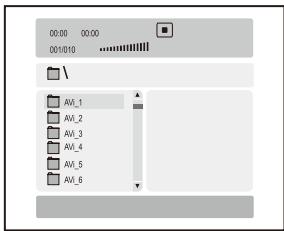
HDMI FUNCTION
HDMI, High Definition Digital Multimedia Interface, supports EDID and DDC2B. This connection operates quickly and conveniently, providing the best audio and video playback.
HDMI can transfer uncompressed, high-resolution pictures and multi-channel audio digitally at speeds up to 5 GBps. HDMI supports all ATSC HDTV standards, not only meeting 1080i resolution, which provides the highest picture quality, but also supporting DVD Audio and other advanced digital audio formats, as well as 8-channel 96 kHz digital audio transmission. You only need one HDMI cable connected, eliminating the need for separate audio cables. At the same time, the spare bandwidth provided by the HDMI standard can be used for video updates. HDMI can work with HDCP (High-bandwidth Digital Content Protection) to prevent unauthorized copying of copyrighted films.
When a Kodak Picture CD is inserted into the unit, an automatic slideshow starts. Each picture on the Kodak Picture CD will be displayed consecutively in a slideshow fashion and will be scaled to fit the entire TV screen.
To display an image indefinitely, press the "PAUSE" key. To view the next or previous picture, press the "NEXT" or "PREV" key. To resume the slideshow, press the "ENTER" or "PLAY" key.
Image Rotation
There are two modes to rotate a picture: "Left" and "Right". These operations are allowed only when a picture is being displayed normally and will be cancelled automatically when a new picture is displayed. Use the arrow keys to select the different rotation modes:
Left < - Turn left
Right > - Turn right
Zoom
The "ZOOM" key is used to turn this function on or off. When this mode is on, any picture will be displayed at the last ratio selected by the user. A message on the screen will indicate the current zoom ratio.
If zoom mode is on, "F.FWD" and "F.REV" keys are used to control the zoom in/out ratio. With ZOOM mode off, a picture is scaled to fit the whole TV screen.
Notes: During zoom function, slide-show transition and image rotation are disabled. To cancel the zoom function, press the "ZOOM" key again to resume the slide-show.
Digest
The "STOP" key is used to display thumbnail size pictures. After it is enabled, some scaled-down thumbnail pictures will be displayed on the screen. The "NEXT" and "PREV" keys can be used to display the next/prev pictures in the Kodak Picture CD.
You can select any of the displayed thumbnails by using the Arrow Keys and pressing the "ENTER or PLAY" key. The thumbnail will be enlarged to fit the TV screen and the slide show will start. If you desire to display an image indefinitely, press the "PAUSE" key. To view the next or previous picture, press "NEXT" or "PREV" key. To resume the slide show, press the "ENTER or PLAY" key.
IMPORTANT NOTE: Quality of pictures displayed on the screen is highly dependent on the viewing device.
SYSTEM SETUP
- When you press the SETUP button on the remote control, the setup menu will be displayed. It includes General Setting, Audio Setup, Video Setup, Preference Setup, Password Setup, and Exit Setup menu.
1. Within the setup menu, you can use UP, DOWN, LEFT, and RIGHT buttons on the remote control to move the cursor, and then press the ENTER/PLAY button to make your selection. Press LEFT can return to the previous menu. 2. To exit the setup menu, you can select the exit setup menu or press the SETUP button.
1. GENERAL SETUP PAGE
Setup TV screen format, video type, and all DVD functions.
1.1 TV DISPLAY
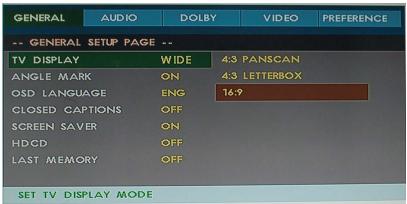
The TV Display selects the different ratio of display format and the screen of TV. There are various types of display on screen for different matches between Disc and TV.
Note:
- No matter which display format is selected, a picture recorded in standard 4:3 format always displays in the 4:3 aspect ratio.
- The display format of DVD titles may vary; please refer to the information that accompanies your specific DVD title.
- If the DVD title is recorded in 16:9 wide display format while the TV is a standard 4:3 screen, horizontal compression of the image will result.
- Some DVD titles may be recorded in special formats. In such cases, the DVD titles will always appear on the screen in their original format, regardless of which TV display format you select.
1.2 ANGLE MARK
ANGLE MARK: Users can select a particular camera angle when playing a DVD which offers multiple angles.
1.3 OSD LANGUAGE
On Screen Display (OSD) Language: Users can select the whole setup menu and on-screen display language.
1.4 CLOSED CAPTIONS
CLOSED CAPTIONS: For hearing-impaired people, the picture can be displayed with recorded explanatory captions.
1.5 SCREEN SAVER
SCREEN SAVER: If the screen saver is on, then there will be an animated picture on the screen whenever the DVD player is idle for a certain time.
1.6 LAST MEMORY
LAST MEMORY: This function is convenient when you want to continue viewing a disc from the point where you were watching before. Unlike the resume function, the Last Memory function is effective even if the DVD is removed from the player.
- When Last Memory is ON, each time you open the tray to remove the disc.
2. AUDIO SETUP PAGE
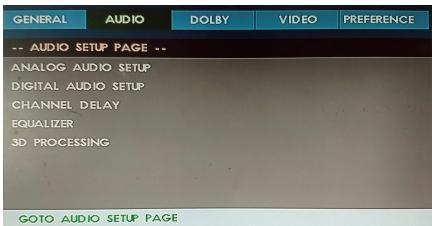
2.1 ANALOG AUDIO SETUP PAGE
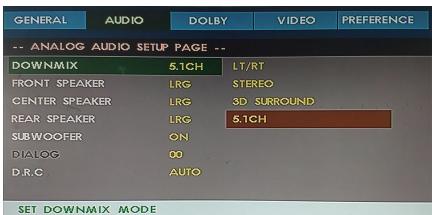
ANALOG AUDIO SETUP PAGE: Sets the DOWNMIX, FRONT SPEAKER, CENTER SPEAKER, REAR SPEAKER, SUBWOOFER, DIALOG, D.R.C.
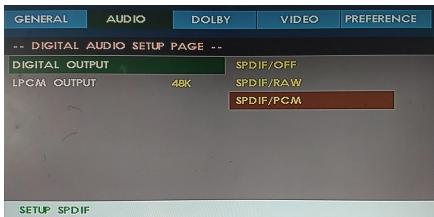
2.2 DIGITAL AUDIO SETUP PAGE
DIGITAL AUDIO SETUP PAGE: Sets the DIGITAL OUTPUT, LPCM OUTPUT.
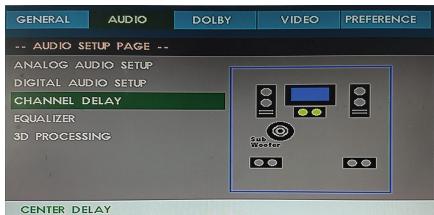
2.3 CHANNEL DELAY SETUP PAGE
CHANNEL DELAY SETUP PAGE: Set the Channel delay.
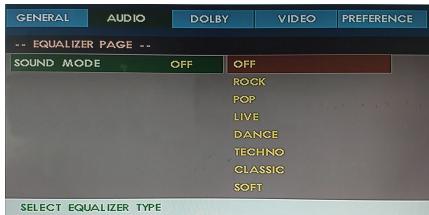
2.4 EQUALIZER SETUP PAGE
EQUALIZER SETUP PAGE: Set the EQUALIZER.
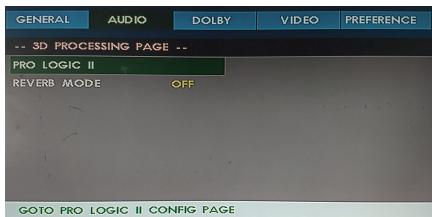
2.5 3D PROCESSING SETUP PAGE
3D PROCESSING SETUP PAGE: Set the 3D Processing.
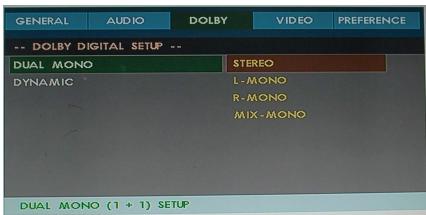
2.6 DOLBY DIGITAL SETUP PAGE
2.6.1 DUAL MONO
DUAL MONO: If your amplifier/decoder has Dolby Digital output, you may select stereo, left mono, right mono, or mixed mono mode for your amplifier/decoder.
2.6.2 DYNAMIC
DYNAMIC: This function is generally used when playing high volume programs at night, in order not to disturb the neighbor. This setting can dynamically lower the volume and still keep the original tone quality. This is the range, measured in decibels (dB), between the loudest and the quietest sound registers in a soundtrack.
3. VIDEO SETUP PAGE
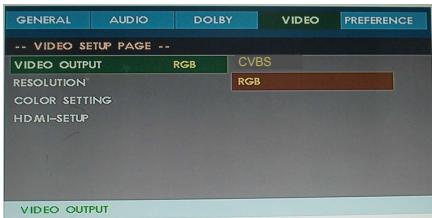
3.1 COMPONENT
COMPONENT: Sets the video output.
3.2 TV MODE SETUP
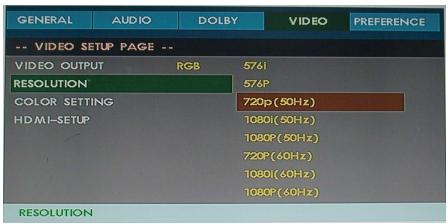
TV MODE: Sets the scan mode to match your TV. If there are picture interferences or no picture, press "V.MODE" to correct it.
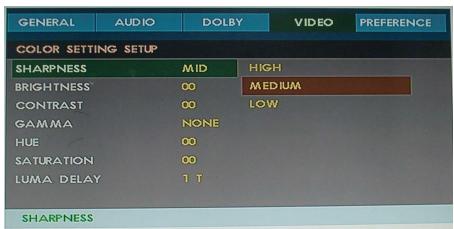
3.3 COLOR SETTING SETUP PAGE
3.3.1 SHARPNESS
SHARPNESS: Sets the sharpness level of video output.
3.3.2 BRIGHTNESS
BRIGHTNESS: Sets the brightness level of video output.
Press the right button, and the TV will display a value. Press the LEFT/RIGHT buttons to adjust, then press ENTER/PLAY to confirm and return to the menu.
3.3.3 CONTRAST
CONTRAST: Sets the contrast level of video output. Press the right button, and the TV will display a value. Press the LEFT/RIGHT buttons to adjust, then press ENTER/PLAY to confirm and return to the menu.
3.3.4 GAMMA
GAMMA: Sets the gamma value of the video.
3.3.5 HUE
HUE: Sets the hue value of the video.
Press the right button, the TV will display a value. Press LEFT/RIGHT buttons to adjust, then press ENTER/PLAY button to confirm and return to the menu.
3.3.6 SATURATION
SATURATION: Sets the saturation of the video.
Press the right button, the TV will display a value. Press LEFT/RIGHT buttons to adjust, then press ENTER/PLAY button to confirm and return to the menu.
3.3.7 LUMA DELAY
LUMA (Luminance) DELAY: Sets the luminance delay of video output depending on the TV's brightness and color. It is commonly set to 1T for DVD.
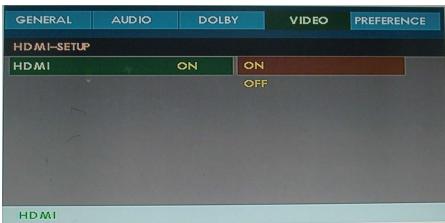
3.4 HDMI SETUP PAGE
3.4.1 HDMI
3.4.2 RESOLUTION
4. PREFERENCE SETUP PAGE
The preference setting is active only when no disc is loaded or when playback is completely stopped, and the setting takes effect on the next power-on until the saved setting is changed.
4.1 TV TYPE
TV TYPE: This player supports different TV outputs, including MULTI (Auto), NTSC, and PAL systems. If your TV supports only NTSC or PAL and you inadvertently selected the wrong TV type, the TV screen will become flickering and black-and-white. In this case, press the SETUP button to set it as follows.
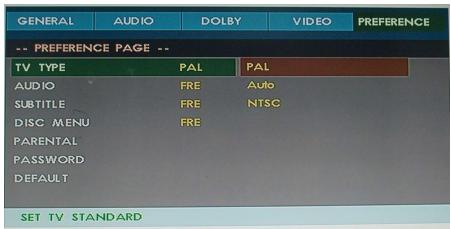
Note: How to Set the TV Type?
You may switch the NTSC/PAL setting of the DVD player to match the video signal of your TV. The table below shows what kinds of disc are compatible with each setting (MULTI, PAL and NTSC).
| Disc | Output Format |
| Type | Format | Selected TV System Mode |
| NTSC | PAL | MULTI |
| DVD | NTSC | NTSC | PAL | NTSC |
| PAL | -------- | PAL | PAL |
4.2 PBC
PBC MODE: Sets the PBC (Playback Control) to be on or off.
4.3 AUDIO
AUDIO: Sets the preferred audio language as the default when playing DVD. (If DVD supports these languages.)
4.4 SUBTITLE
SUBTITLE: Sets the preferred subtitle language as the default when playing DVD. (If DVD supports these languages.)
DISC MENU: Sets the preferred menu language as the default when playing DVD. (If DVD supports these languages.)
4.6 PARENTAL
PARENTAL: The parental control function works in conjunction with the different censorship classes assigned to DVDs. These classes help to control the types of DVDs that the family watches. There are up to 8 censorship classes for DVDs.
Note:
- The PARENTAL is changeable when PASSWORD MODE is set to OFF. After setting the level of parental control, please set the password as ON to perform the lock of changing.
4.7 DEFAULT
DEFAULT: Resets to all the manufacturer's original settings for this DVD player. Press ENTER/PLAY to perform the reset.
5. PASSWORD SETUP PAGE
5.1 PASSWORD
PASSWORD CHANGE: You can change the password. Please type 4 numerals as the new password. The initial password is 0000.
CD RIPPING & MP3/MP4 COPY function are available on the basis of the following requirements:
- The CD, MP3/MP4 (including AVI, DIVX, XVID) disc must be in good condition without any scratches or other damage. The media should play smoothly on the DVD player.
- The destination USB must be compatible with the DVD player (should be FAT or FAT32 format).
- 1. Play the CD on the unit. 2. Plug in the USB on the unit.
- Press "SUB/Copy" button on the remote control and a menu will be displayed on the screen (Figure 1).
Press the direction and enter buttons to carry out the function accordingly.
3-1. Switch the speed between normal and fast from the "Speed" item. 3-2. Change the bitrate of the song on the "Bitrate" item. 3-3. Move the cursor to "Create ID3" to choose whether to create the ID3 or not. 3-4. Check if the USB is connected or not from the "Device" item. 3-5. Move the cursor to the song you'd like to copy and press "ENTER". Choose "Select All" or "Select None" to select all songs or cancel. Press the down arrow to turn to the next page. 4. After choosing, move the cursor to "Start" and press "Enter" (Figure 2). 5. After finishing the copy, move the cursor to "Exit" to quit the CD RIPPING menu.
MP3/MP4 COPY FUNCTION OPERATION INSTRUCTION
- 1. Play the CD on the unit. 2. Plug in the USB on the unit.
- Turn to the catalog menu by pressing "STOP" then "PROG". Press "SUB/Copy" on the remote control and press the direction and enter buttons to carry out the function accordingly. 3-1. Move the cursor to the MP3/MP4 you'd like to copy and press "ENTER". Choose "Select All" or "Select None" to select all songs or cancel. Press the down arrow to turn to the next page. 3-2. After choosing, move the cursor to "COPY" and press "Enter" to go to the next menu. Choose "USB1" and press "Enter" and "NEXT" to carry out the copy function (Figure 4/Figure 5). Press the "Cancel" item on the menu to quit the function during the copy and the system will return to the catalog status.
| CD RUP |
| OPTIONS | TRACK |
| Speed Fast | track01 05:38 |
| Bitrate 128kbps | track02 05:23 |
| Create ID3 Yes | track03 02:51 |
| Device USB 1 | track04 03:47 |
| track05 04:16 |
| SUMMARY | track06 00:57 |
| Selected Track 1 | track07 05:01 |
| Sealed Time 05:23 | |
| Startl | Exil | Select All Select None |
FIGURE 1
| CD RIP |
| Ripping | Selected | Track |
| Track Progress | track02 | 30% |
| Progress | | |
| Cancel | | |
| SUMMARY | | |
| Now Ripping | | |
| Track 01/01 | | |
Figure 2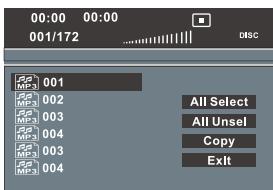
Figure 3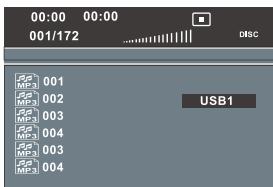
Figure 4, Figure 5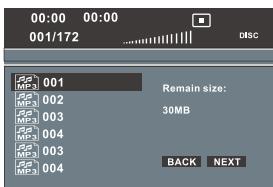
Line in
- You can connect audio devices such as your PC, laptop, iPod/iPhone, CD player, or MP3 player to the unit. Connect the headphone jack of a peripheral audio device to the LINE IN socket of the unit, using an audio cable (jack cable / RCA, not provided).
- To hear the television sound: connect the LINE IN sockets to a Peritel/RCA adaptor (Peritel/Audio output not supplied) using an audio cable (Red/White, not supplied). Then connect this adaptor to the television's Peritel socket.
- Supports USB, compatible with JPEG, MP3, AVI, etc.
- USB media operation: USB functions are available when there is no disc or no card inserted. Media will auto play when USB is connected to the unit in the above status.
Notice:
A. The unit is not all-purpose for all media, as some of them have unforeseeable problems.
- Press the BT button on the remote control to change to BT mode.
- After changing to BT mode, the indicator light on the front panel will flash once per second in blue color with a prompt "Du", then the light changes to red color automatically. 3. The light will flash quickly to search for the BT source that has been paired before (memory function), and connect automatically if the search is successful; the light will change to blue color. If it cannot find the paired BT source, the device will enter waiting pairing status, and the light will flash in blue and red alternately quickly. After pairing, the light will flash in blue color slowly with a prompt "Du".
- The device starts playing audio after the prompt; the light will flash slowly in red and blue alternately. When stopped or paused, the light will flash slowly in blue color.
- You can control the playing audio by remote control after BT connected successfully.
Notes:
1: Connecting distance no longer than 8M, with no obstacle between device and BT source. 2: If BT source version is low, device will ask you to put in code "0000" for pairing at first time. 3: BT source may have some unpredictable faults after connected with several devices, please delete some remembered devices in your BT source, then re-connect the device. 4: Due to different versions in different laptops, the connect way should be different accordingly. If cannot connect successfully, please install latest version BT driver.
Please check the following guide for the possible cause and solution for a problem before contacting the nearest service center or dealer for repairs.
SYMPTOMS AND CORRECTIONS
| SYMPTOMS | CORRECTIONS |
| No power | Check to make sure that the power connection is secure. |
| No picture | Make sure the connection between the player and the TV is secure. |
| Make sure that the TV is in good working condition. |
| Please press "V.MODE" button continuously until the picture returns to normal. |
| No sound | Make sure the connection between the player and other devices are secure. |
| Make sure that the TV and AMP are in good working condition and setup properly. |
| Failed to Play | Check that the disc is properly inserted. |
| Clean the disc. |
| Failed to respond to remote control | Remove obstacles between remote control and unit. |
| Aim remote control at the sensor on the front panel. |
| Check batteries and replace them if necessary. |
| Picture Disturbance | Check the disc for dirt and scratches. Clean or replace disc. |
| Shut down the unit, wait ten seconds, and restart the unit. |
| Failed to work with keys | Power surges or other electrical phenomena.Shut down the unit, wait ten seconds, and restart the unit. |
SPECIFICATION
SYSTEM
Power supply ~100-240V / 50/60Hz
RATED WORKING POWER CONSUMPTION 100W
Channel separation >40dB
DVD
Frequency response 20Hz-20KHz(+/-3dB)
Audio S/N >80dB
Horizontal definition 500(TV)
Video type DVD(MPEG2),VCD(MPEG1)
Audio type: MPEG1, MPEG2, PCM, Stereo
Audio output (analog audio). Electric level output: 1.0-2.0V; Resistance: 10kΩ
Audio output (digital audio). Electric level output: 0.5Vp-p; Resistance: 75Ω
Video output. Electric level output: 1.0Vp-p; Resistance: 75Ω
AMPLIFIER
Output power: 100W
FL/FR/SL/SR/CEN: 15W/8Ω
Subwoofer: 30W/4Ω
Frequency Response: 20Hz~20KHz ±3dB
S/N: >80dB
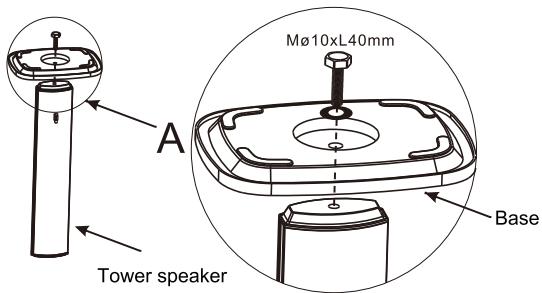
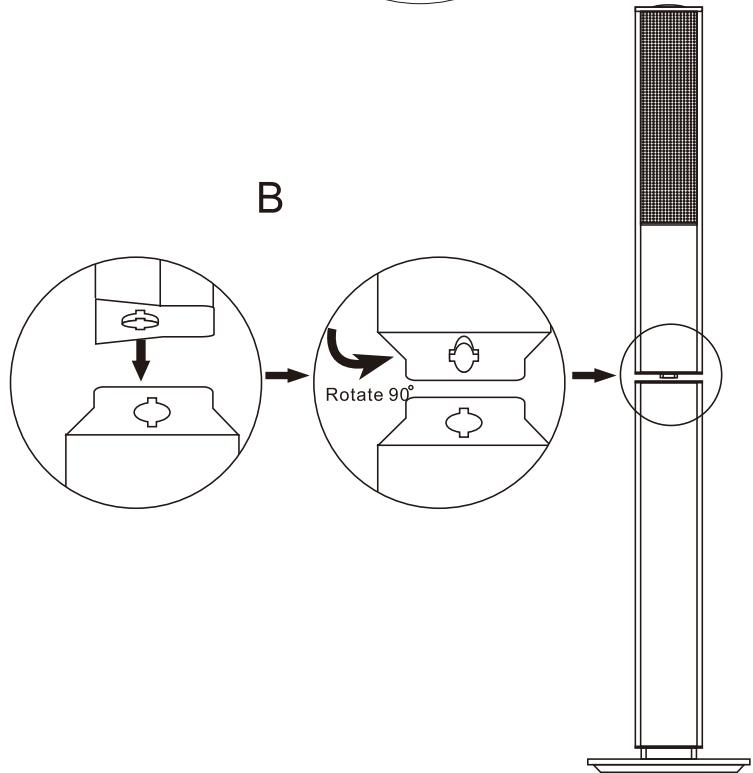
- Firstly, prepare a wrench or cross screwdriver.
- Take out the tower speaker and screw, then take out the base from the main unit gift box.
- Assemble as shown in models A and B, and tighten the screw.