MID107 - Tablet TAKARA - Free user manual and instructions
Find the device manual for free MID107 TAKARA in PDF.


| Product type | Touchscreen tablet |
| Model | MID107 |
| Brand | TAKARA |
| Dimensions (estimated) | 190 x 110 x 10 mm |
| Weight (estimated) | 300 g |
| Screen | 7 inches, 800 x 480 pixels resolution |
| Processor | Quad core 1.2 GHz |
| RAM memory | 512 MB DDR3 |
| Internal storage | 8 GB Flash |
| External storage | MicroSD up to 32 GB |
| Operating system | Android 4.4.2 |
| Wireless connectivity | Wi-Fi 802.11 b/g/n, Bluetooth |
| Front camera | 0.3 MP |
| Supported audio formats | MP3 |
| Supported video formats | MP4, AVI |
| Supported image formats | BMP, JPG, GIF, PNG |
| Supported e-book formats | HTML, PDF, RTF |
| Battery | Lithium-polymer 2200 mAh |
| Power supply | 5 V / 1.5 A |
| Motion sensor | Yes (automatic screen rotation) |
| Maintenance and cleaning | Clean with a soft, dry cloth. Do not use chemical products. Protect from moisture. |
| Safety | Do not expose to water. Do not attempt to disassemble. Use only approved accessories. |
| Spare parts and repairability | Entrust any repair to a certified professional. Battery replaceable only with an identical model. |
| General information | Warranty: EU compliance. Manufacturer: TAKARA MULTIMEDIA, 59 avenue Henry Dunant, 06105 Nice Cedex 2, France. |
Frequently Asked Questions - MID107 TAKARA
User questions about MID107 TAKARA
0 question about this device. Answer the ones you know or ask your own.
Ask a new question about this device
Download the instructions for your Tablet in PDF format for free! Find your manual MID107 - TAKARA and take your electronic device back in hand. On this page are published all the documents necessary for the use of your device. MID107 by TAKARA.
USER MANUAL MID107 TAKARA
Before you begin 17
Product overview 20
Getting started 22
Using your tablet 23
Troubleshooting 27
Technical specification 28
Before you begin
Thank you for choosing our tablet . We wish you many satisfaction from its use.
Tablet PC is a multi-functional device, which can be used for work and education and for entertainment as well. Thanks to the tablet you have the Internet always in your reach, without need of bulky personal computers of previous generation. An electronic market enable access to plenty of useful applications, for both business and entertainment purposes. Clear and intuitive interface gives you the pleasure of daily use of the tablet.
Please read the user guide and keep it for further reference. The user guide contains important information regarding safe and effective use of the tablet.
Before you begin
Safety and handling
- Prevent your tablet and accessories from getting wet. Getting electrical equipment wet not only causes serious damage, but it is also a threat to the user (risk of electric shock).
- Protect your device against shocks, falls and vibrations.
- Protect the device from high and low temperatures.
- Do not drop, bend, puncture, insert foreign objects, or place heavy objects on your tablet.
- Do not use unauthorized accessories, as the may damage the tablet and void manufacturer's warranty.
Important safety instructions
Be sure to follow instructions bellow. Make sure that they are known to all users of your tablet, including children..
- Never use your tablet while driving.
- Hospitals and other medical facilities may be prohibited from using electronic devices, including tablets. Always follow these restrictions.
- Turn off the tablet in the plane for the whole flight or during take-off and landing, according to the instructions given by the aircraft personnel.
- Switch off the device near important electronic devices, which could be disrupted by possible interference.
- Do not attempt to disassemble, modify or repair the tablet. Always entrust these tasks to authorized specialist.
- Protect your tablet from strong magnetic fields. These fields can damage magnetic storage media.
- Do not use the tablet in very high temperatures or in areas at high risk of fire or explosion, such as petrol stations.
Before you begin
Supervise the use of the device by children, do not let them play with the tablet unattended.
- Prevent the tablet from getting wet, for instance do not use or store it in the bathroom.
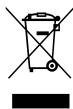
The symbol to the left means that according to European Union laws and regulations your product and/or its battery shall be disposed of separately from household waste. When this product reaches its end of life, take it to a collection point designated by local authorities. The separate collection and recycling of your product and/or its battery at the time of disposal will help conserve natural resources and ensure that it is recycled in a manner that protects human health and the environment.

At maximum volume continued listening of device may damage the ear of user
Product overview
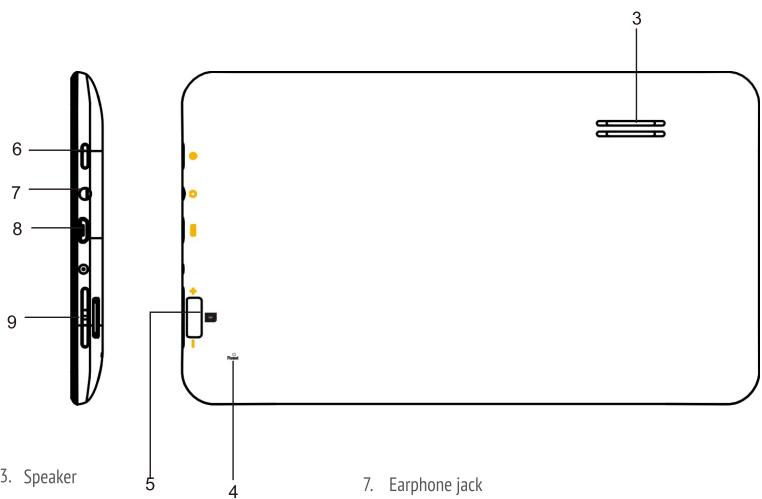
Parts and buttons of the device
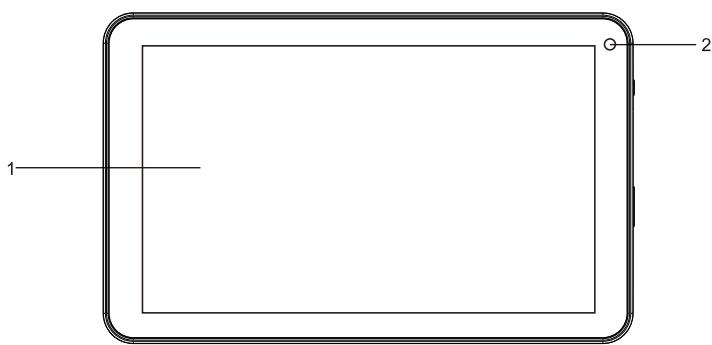
- Touch screen
- Front camera
Product overview
-
RESET button
-
Earphone jack
-
Micro USB port
-
Volume up / Volume down
-
MicroSD card slot
- Power ON/OFF button
Getting started
Battery charging
Please charge the battery before first use.
- Connect Table to the AC charger, and the charger to AC power outlet.
- Check battery icon on tablet, progress of battery keeps moving means that device charging, stop means that device full charged.
ATTENTION!
The battery will fully charge in around 3 hours.
- Using the device during charging will make charging process longer. Disconnect the ac charger from your tablet when the battery power is full or when you wish to stop the charging. You can only use identical battery as a replacement.
Physical damages to the battery may cause a fire or electric shock.
Using your tablet
Buttons functions
Power button - press and hold for a few seconds to turn on the device
Volume UP - press and hold Volume Up button to increase the volume
Volume Down - press and hold Volume Down button to decrease the volume
Powering on/off the device
Turning on
After pressing and holding the ON/OFF button for 2 seconds the start screen will appear.
Turning off
To turn off the device press and hold the ON/OFF button for 2 seconds.
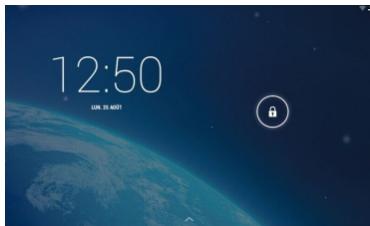
Locking the screen
To unlock the screen swipe the lock icon upwards
Using your tablet
Multi-touch screen
Never before have the use of an electronic device was so easy and natural.
The screen responds to even gentle brush, understand a few fingers touch applied simultaneously, eg.
'pinching' shrink the image, and spreading the fingers apart-expand it. You can rotate the image with two fingers, like a piece of paper on the table. The capacitive touch screen is also indispensable for gaming use.
Using the multitouch screen
Tap gently on the screen with your fingertip to launch an application, select an item, open a menu, or type text using the onscreen keyboard.
Touch
The device is operated by touching appropriate place on the screen.
Swipe or slide
Move your finger in a vertical or horizontal direction on the screen to scroll through the content.
Drag
Touch, hold and drag an item to the desired position.
Rotate the screen
The tablet has a built-in motion sensor that supports the screen auto-rotation feature. By default, this feature is enabled. When you rotate the tablet, the screen automatically rotates to landscape or portrait view which is very convenient during internet browsing, watching the movies, pictures, etc.
Navigating through the screens
Home screen surface is greater than the display surface, so it is possible to affix the more shortcuts, applications and widgets. Switching between home screen pages is possible by dragging the screen to the left or to the right.
Using your tablet
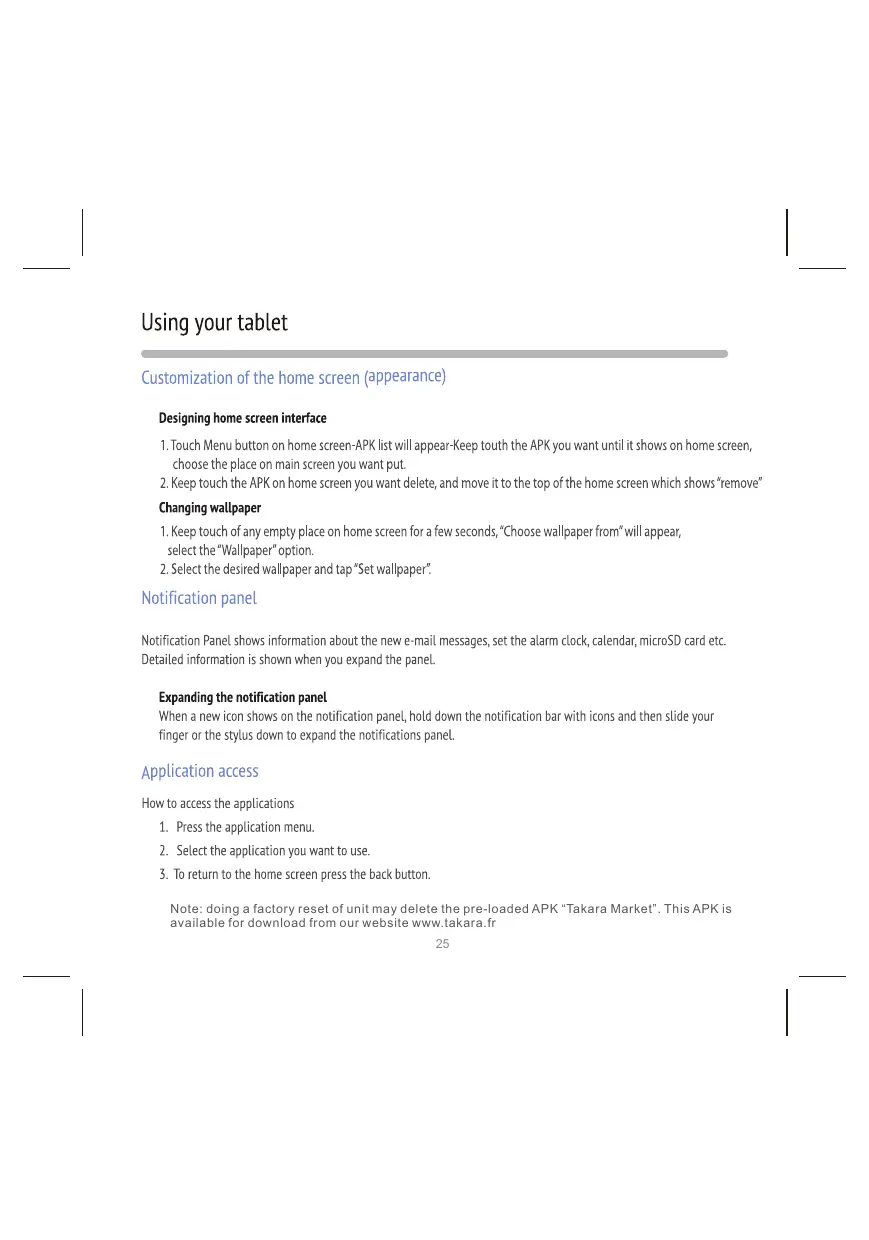
Customization of the home screen (appearance)
Designing home screen interface
- Touch Menu button on home screen-APK list will appear-Keep touth the APK you want until it shows on home screen, choose the place on main screen you want put.
- Keep touch the APK on home screen you want delete, and move it to the top of the home screen which shows "remove"
Changing wallpaper
- Keep touch of any empty place on home screen for a few seconds, "Choose wallpaper from" will appear, select the "Wallpaper" option.
- Select the desired wallpaper and tap "Set wallpaper".
Notification panel
Notification Panel shows information about the new e-mail messages, set the alarm clock, calendar, microSD card etc.
Detailed information is shown when you expand the panel.
Expanding the notification panel
When a new icon shows on the notification panel, hold down the notification bar with icons and then slide your finger or the stylus down to expand the notifications panel.
Application access
How to access the applications
- Press the application menu.
- Select the application you want to use.
- To return to the home screen press the back button.
Note: doing a factory reset of unit may delete the pre-loaded APK "Takara Market". This APK is available for download from our website www.takara.fr
Using your tablet
Computer connection and file transfer
Unit may be connected to a computer via an USB cable.
On main desktop, connect the device with the PC, touch left side of status bar on top of desktop. Press "USB connected", select "Turn on USB storage". The device is recognized by the computer. Now you can use it as an external storage.
Network settings
Go into "Settings / Wireless & Networks" to enter the network settings interface. Hold down the "OFF"-button and drag right to modify into « ON ». When Wi-Fi feature is activated it will automatically detect the wireless router networks, and display the list. Click on a wireless router to connect to the network, enter into the password input interface, and enter the network password, then click "Connection". You can now connect to the Internet.
In order to change from Wi-Fi connection to 3G dongle connection (accessory not included), please turn off and on unit before connecting 3G dongle. These systems cannot be used simultaneously. Please activate separately either via WiFi or via 3G connection.
NB: when the tablet is connected to a 3G dongle, no other external source can be connected at the
Bluetooth feature of tablet
The Bluetooth feature allows exchange of files between two Bluetooth devices (for ex. between the tablet and a computer, cellphone or other) and also connecting a peripheral Bluetooth device to tablet (such as headset, keyboard, mouse, joystick, speaker etc.).
To enter Bluetooth settings, go into "Settings" from the main menu and then choose "Bluetooth". Enable the Bluetooth feature by sliding to "ON". The screen will show « MID107 » visible to all nearby BT devices'. The tablet may now be searched by another Bluetooth device, for ex. a computer, another tablet or a smartphone. The default period of Bluetooth search signal is 120 seconds.
Search for devices:
By tapping option "Search for devices" (in the right upper corner of the screen), MID107 tablet will search for other Bluetooth devices. The detected devices will be displayed on the screen under headline "Available devices". To establish the connection, tap once on the chosen device, a confirmation message "Connected" appear in the list. The Bluetooth feature is ready to use.
Note: the other Bluetooth devices must be in pairing mode to be detected
Developer's Options
In settings menu, select "About tablet", scroll down the menu and click several times on "Build number". "Developer's Options" will appear in the settings menu.
Troubleshooting
> Unable to connect to the wireless network
Make sure, that You are within the network's service range and the signal strength is good.
Check if the name of the network and password are correct.
» The device is getting slightly warm
This is normal during operation, while the display is turned on and during battery charging.
» The operating system works unstable
Installing too many applications and applications from unknown sources can cause system instability.
Reset the device and uninstall some applications.
» Blank screen, Unable to turn the tablet on
Charge the battery.
Connect your tablet to an AC power outlet.
Restart the device.
» No sound in headphones (accessory not included)
Increase the volume.
Check the headphones cable connection.
Check if headphone jack is not dirty.
Check if the mp3 files are not corrupted (try different files).
Try using other headphones (maybe the headphones are damaged).
» Media file cannot be played
Format the memory, download uncorrupted files.
Technical specification
》ModelNo.:MID107
7"touch screen,resolution: 800× 480 pixels
Processor: Quad core 1.2 GHz
Built-in graphic processor provides 3D acceleration
» Operating system: Android 4.4.2
Memory: 512MB DDR3 RAM
Storage: 8GB Flash
» Wireless LAN: Wi-Fi 802.11b/g/n
》Front camera:0.3 Mpx
» Audio player (MP3 files support)
Video player (MP4/ /AVI files support)
» Pictures browser (BMP/JPG/GIF/PNG files support)
»Ebook reader (multiple formats:html,pdf,rtf)
» MicroSD card slot, up to 32 GB compatible
Motion sensor
Ports: micro USB,3.5nm mini-jack
Battery: Li-Polymer 2200mAh
» Operating environment: Temperature: 5^ to 35^ Celsius
» Relative humidity: 10% - 75%
Power supply 5V/1.5A
Product names, logos , brands and other trademarks featured or referred to herein are the property of the respective trademark holders . Trademark holders are not affiliated with the product manufacturer or reseller and do not sponsor or endorse this product
Hereby, TAKARA MULTIMEDIA declares that this product MID107 is in compliance with the essential requirements and other relevant provisions of directive R&TTE 1999/05/EC. The declaration of conformity is available upon request in writing to: Takara Multimedia, 59 avenue Henry Dunant, 06105 Nice Cedex 2, France.

- Before you begin
- Safety and handling
- Important safety instructions
- Product overview
- Getting started
- Battery charging
- ATTENTION!
- Using your tablet
- Buttons functions
- Powering on/off the device
- Turning on
- Turning off
- Locking the screen
- Multi-touch screen
- Using the multitouch screen
- Touch
- Swipe or slide
- Drag
- Rotate the screen
- Navigating through the screens
- Customization of the home screen (appearance)
- Designing home screen interface
- Changing wallpaper
- Notification panel
- Expanding the notification panel
- Application access
- Troubleshooting
- > Unable to connect to the wireless network
- » The device is getting slightly warm
- » The operating system works unstable
- » Blank screen, Unable to turn the tablet on
- » No sound in headphones (accessory not included)
- » Media file cannot be played
- Technical specification
Brand : TAKARA
Model : MID107
Category : Tablet