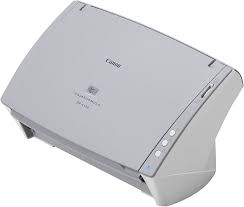
IMAGEFORMULA DR-C130 DOCUMENT SCANNER - To scan CANON - Free user manual and instructions
Find the device manual for free IMAGEFORMULA DR-C130 DOCUMENT SCANNER CANON in PDF.



| Product Type | Automatic Document Feeder (ADF) Scanner |
| Brand | Canon |
| Model | imageFORMULA DR-C130 |
| Weight | Approximately 1.8 kg |
| Power Supply | AC adapter (120 V / 60 Hz or 220‑240 V / 50‑60 Hz), 2.6 m cord |
| Interface | USB 2.0 Hi‑Speed (1.8 m cable included) |
| Supported Operating Systems | Windows XP SP3, Windows XP x64, Windows Vista SP2, Windows 7 SP1 (32/64 bit) |
| Provided Software | CaptureOnTouch, CapturePerfect 3.1, Presto! BizCard, OmniPage ROC, PaperPort, eCopy PDF Pro Office |
| Operating Temperature | 10 °C to 32.5 °C |
| Operating Humidity | 20% to 80% RH |
| Maintenance and Cleaning | Clean the rollers and scanning glass with a slightly damp cloth (no alcohol or solvent). |
| Safety Precautions | Do not use near flammable liquids, do not disassemble, unplug before cleaning, avoid drops and vibrations. |
| Available Spare Parts | Feed roller (user replaceable), consult manual for replacement. |
| Energy Consumption | ENERGY STAR compliant (standby and off modes) |
| Included Accessories | Feed roller, USB cable, AC adapter/power cord, installation DVD, setup guide |
Frequently Asked Questions - IMAGEFORMULA DR-C130 DOCUMENT SCANNER CANON
User questions about IMAGEFORMULA DR-C130 DOCUMENT SCANNER CANON
0 question about this device. Answer the ones you know or ask your own.
Ask a new question about this device
Download the instructions for your To scan in PDF format for free! Find your manual IMAGEFORMULA DR-C130 DOCUMENT SCANNER - CANON and take your electronic device back in hand. On this page are published all the documents necessary for the use of your device. IMAGEFORMULA DR-C130 DOCUMENT SCANNER by CANON.
USER MANUAL IMAGEFORMULA DR-C130 DOCUMENT SCANNER CANON
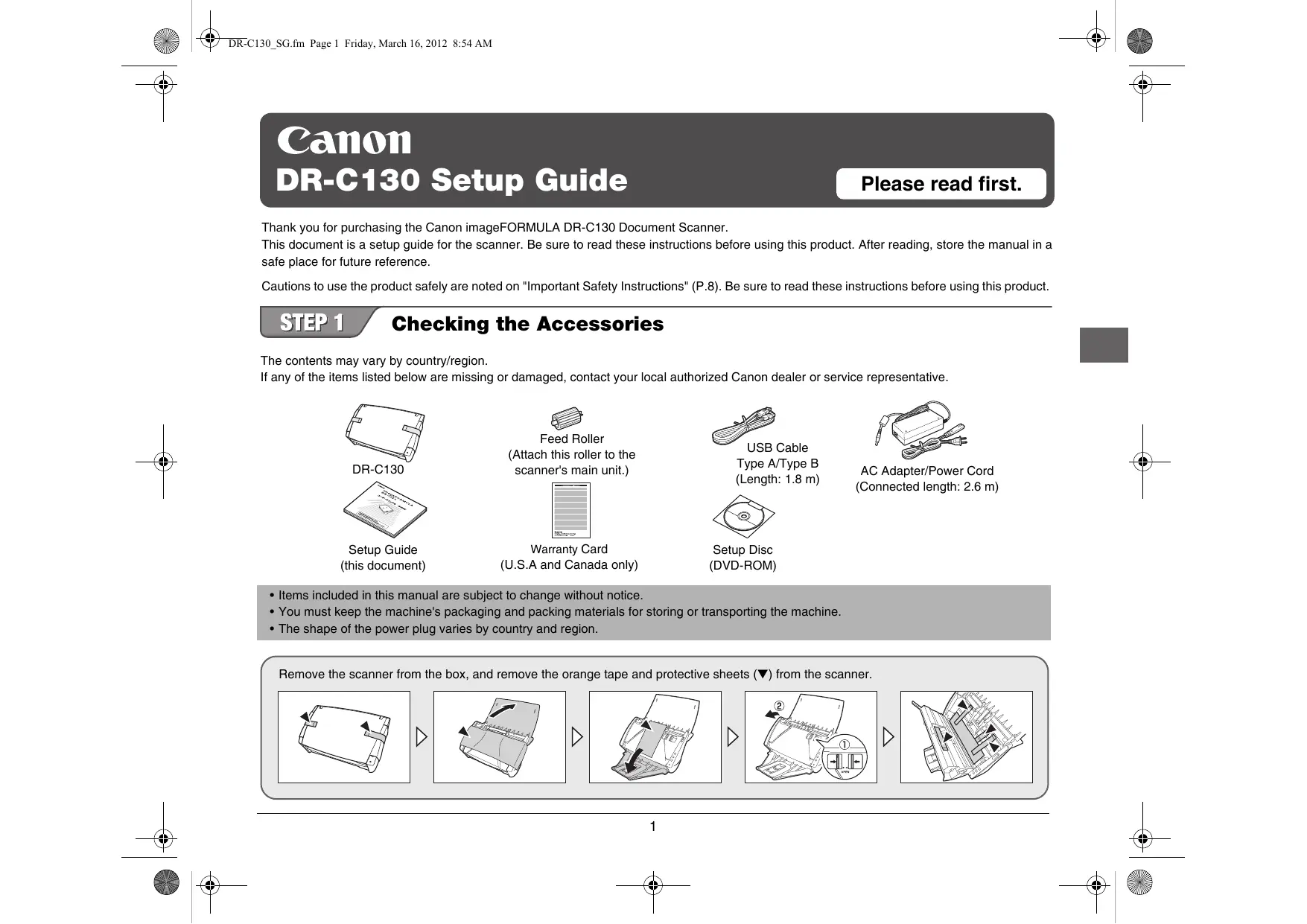
Thank you for purchasing the Canon imageFORMULA DR-C130 Document Scanner.
This document is a setup guide for the scanner. Be sure to read these instructions before using this product. After reading, store the manual in a safe place for future reference.
Cautions to use the product safely are noted on "Important Safety Instructions" (P.8). Be sure to read these instructions before using this product.
STEP1 Checking the Accessories
The contents may vary by country/region.
If any of the items listed below are missing or damaged, contact your local authorized Canon dealer or service representative.
DR-C130

Feed Roller
(Attach this roller to the scanner's main unit.)
Setup Guide (this document
Warranty Card
(U.S.A and Canada only)
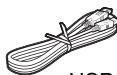
USB Cable
Type A/Type B
Length: 1.8 m)

Setup Disc
(DVD-ROM)
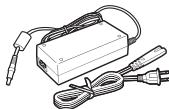
AC Adapter/Power Cord (Connected length: 2.6m
- Items included in this manual are subject to change without notice.
- You must keep the machine's packaging and packing materials for storing or transporting the machine.
- The shape of the power plug varies by country and region.
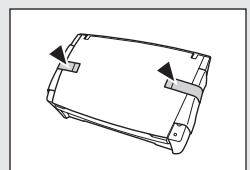
Remove the scanner from the box, and remove the orange tape and protective sheets () from the scanner.
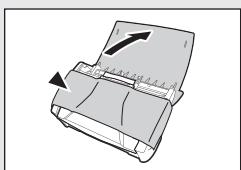
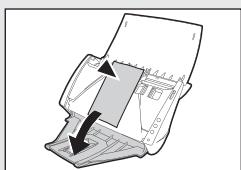
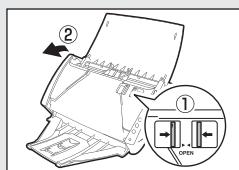
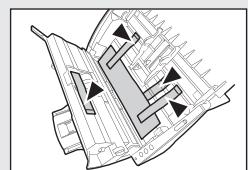
STEP 2 Installing the Feed Roller
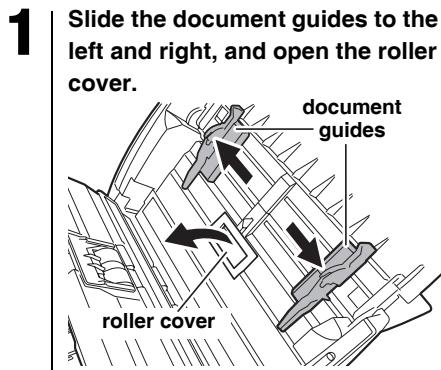
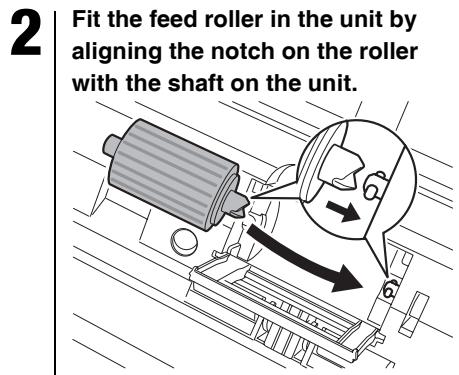
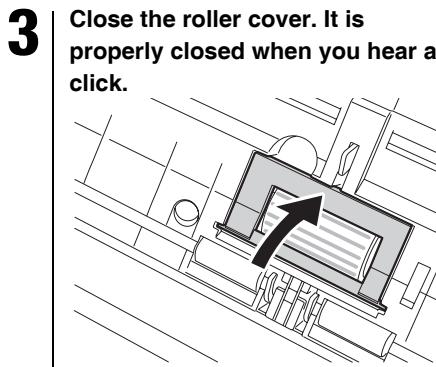
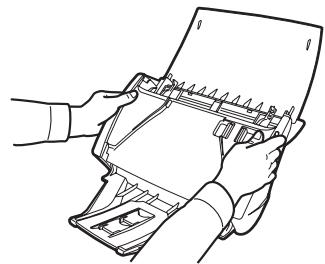
4 Gently press on the sides of the front unit to close it. It is properly closed when you hear a click.
Setup Disc Contents
Install the following software necessary for using the scanner from the supplied Setup Disc (DVD-ROM).
- CaptureOnTouch
This is a dedicated scanning utility for this product.
- CapturePerfect 3.1
This is a scanning application for the DR series scanner.
- Scanner Driver
This is the scanner driver for this product.
- User Manual
The supplied Setup Disc contains a manual that explains the overall operation on the scanner. You can open the manual from [Canon DR-C130] in the Windows Start menu, after the software is installed.
Third-Party Software
The following software applications are also included on the supplied Setup Disc.
- Presto! BizCard
Business card management software from NewSoft
TechnologyCorp.
- Presto! BizCard is a registered trademark of NewSoft Technology Corp.
- OmniPage SE
Optical character recognition (OCR) software from
NuanceCommunications Inc. with multiple language support.
The languages supported by the OmniPage software bundled with this scanner are English, French, German, Italian, and Spanish. The software cannot be installed on operating systems of other languages.
- PaperPort®
File management application from Nuance Communications Inc. that makes it easy to store, organize, and retrieve digital documents.
In order to receive support of this product, you need to upgrade to a Professional version. For details on upgrading, visit the following URL. http://www.nuance.com/partneroffer/canon
eCopy PDF Pro Office
Nuance Communications PDF creation/editing software.
Important
When scanning with third-party software, user the scanner driver of this scanner to configure scanning conditions. For details on how to open the scanner driver, refer to the manuals supplied with each software application.
Cloud Service Software
For some of the supplied third-party software, a cloud service account is required to use some or all of their functions.
| Software | Cloud service used |
| Google docs plug-in for CaptureOnTouch | Google docs |
| Evernote | Evernote |
You will be asked to agree to terms of service when obtaining an account. For details, refer to the website of your cloud service provider.
Simple installation of the above software does not require an account.
Before Installing the software
System requirements
The following system requirements are recommended for optimal use of this scanner.
Computer
CPU:Intel Core 2 Duo 1.66 GHz or faster
Memory:1 GB or more
- Hard disk:3 GB or more available space required for installation of all software
- USB interface:Hi-Speed USB 2.0
- Monitor:Resolution of 1024 × 768 (XGA) or better recommended.
- Optical drive:Drive capable of reading DVDs.
- Operating system
-
Microsoft Windows XP Service Pack 3 or later
-
Microsoft Windows XP x64 Edition Service Pack 2 or later
-
Microsoft Windows Vista Service Pack 2 or later (32-bit and 64-bit editions)
-
Microsoft Windows 7 Service Pack 1 or later (32-bit and 64-bit editions)
- Other requirement
- An ISIS-compatible application or a TWAINcompatible application that is compatible with the above operating systems.
.NET Framework 3.5 or later
Important
- Use the latest USB 2.0 driver made available by Microsoft.
- Scanning speeds are lower if your computer's standard USB interface is USB Full-Speed (equal to USB 1.1.)
- The USB cable you are using should be the one originally included with the scanner.
- If the CPU, memory, interface card, and other specifications do not satisfy the installation requirements, the scanning speed may be greatly reduced and transmission may take a long time.
- Even if the computer satisfies the recommended specifications, the scanning speed may vary, depending on the specified scan settings.
- The scanner drivers provided with the scanner do not necessarily operate on all ISIS or TWAIN-compatible applications. For details, contact your application software retailer.
Precautions for Use in 64-bit Operating Systems
- The scanner driver supplied with this product supports scanning with 32bit applications only.
- Even with 32-bit applications, not all ISIS/TWAIN compliant applications are guaranteed to operate.
- Scanning speed may vary depending on the specifications of your computer.
STEP 3 Installing the Software
CAUTION
- Do not connect the scanner to the computer before installing the software.
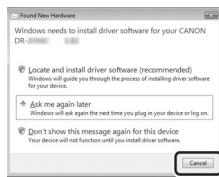
- If you connect the scanner and turn it ON before you install the software, the following wizard screen will appear. If this wizard is displayed, click the [Cancel] button to exit the wizard, and turn the scanner OFF.
- Log on to Windows as an Administrator.
- Close all other applications before installing the software.
Click
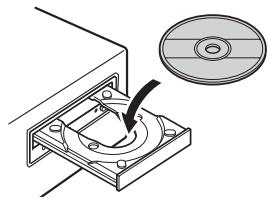
1 Insert the Setup Disc into the disk drive of the computer.
For Windows 7/Vista
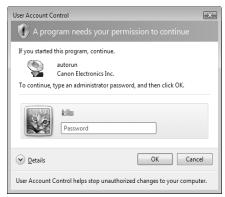
If the screen shown below is displayed, enter the password for the user logged in with administrative rights and click [OK].
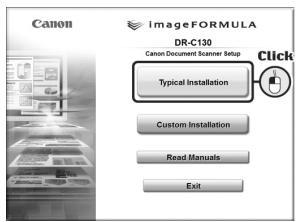
Click [Typical Installation].
3 Click [Install].
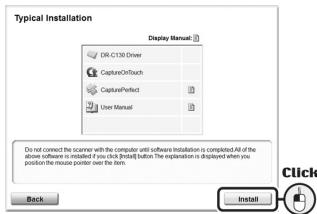
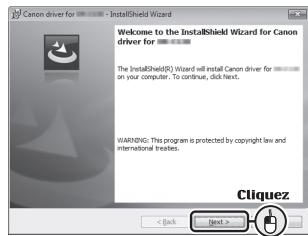
4 Follow the instructions on the screen to complete installation.
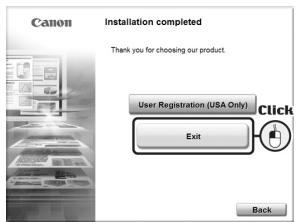
5 | Click [Exit] to finish installing.
STEP 4
Connecting to a Computer
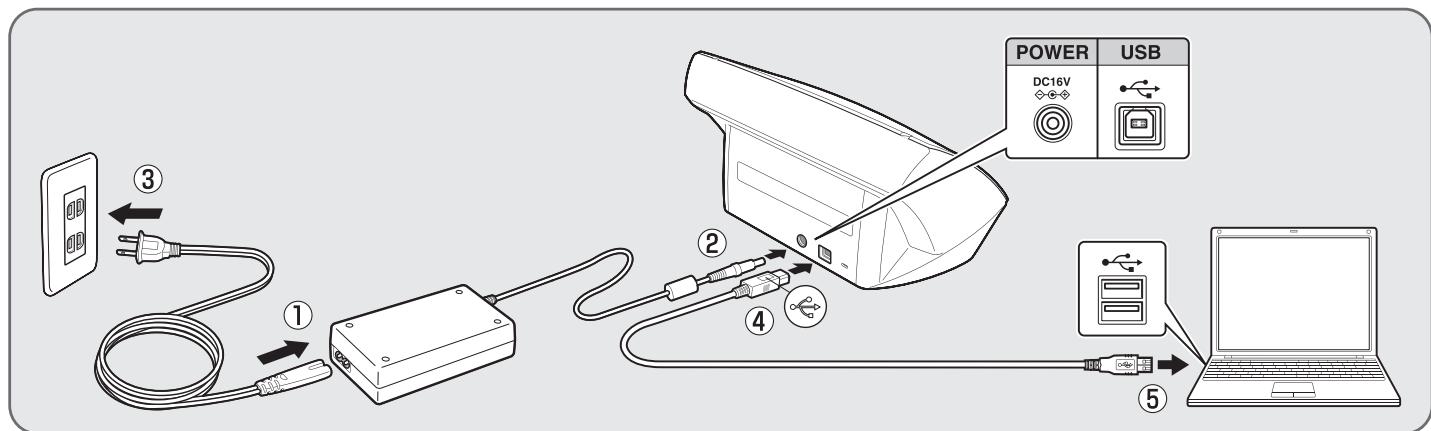
Use the supplied USB cable to connect the scanner to the PC.
CAUTION
- Be sure to use the supplied power cord and AC adapter.
- Turn off the scanner's power when connecting the scanner to the computer.
STEP5
Turning the Scanner ON
When the connection is done, press the power button to turn on the scanner's power.
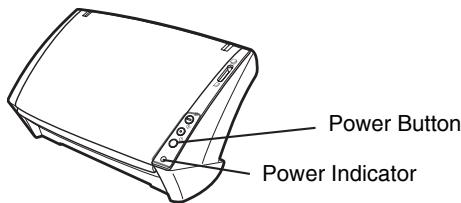
The power indicator lights blue when the power is ON.
STEP 6
Scanning
Use CaptureOnTouch to verify that you can perform the scanning operation.
1
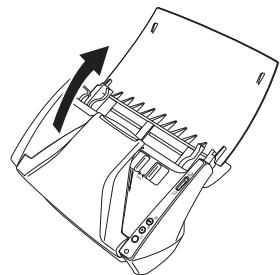
Open the feed tray gently.
2
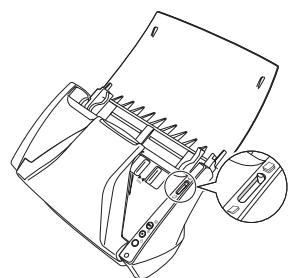
Push the feed selection lever up (Normal mode).
3
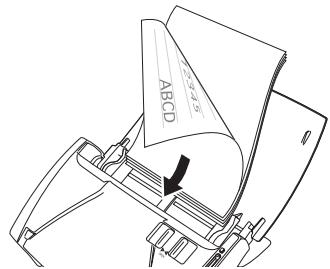
Load the scan document with its backside facing forward, and adjust the paper guides to the width of document.
4
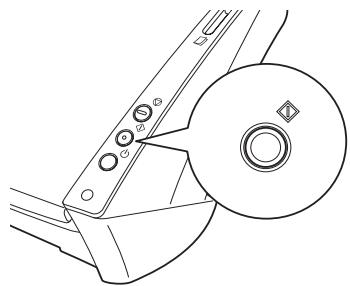
Press the scanner's Start button.
5
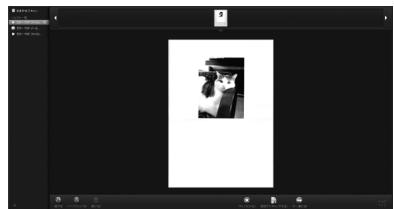
The scan result is displayed on the CaptureOnTouch screen.
6
Click [Next] and specify how to save the scan results.
For details on the operation of CaptureOnTouch, see the User Manual.

This completes setup.




Important Safety Instructions
Installation Location
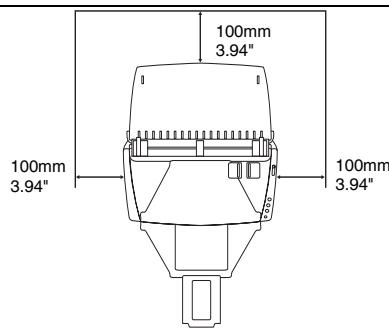
The performance of this scanner is affected by the environment in which it is installed. Make sure that the location where the scanner is installed meets the following environmental requirements.
- Provide adequate space around the scanner for operation, maintenance, and ventilation.
- Provide adequate space in front of the scanner for documents output after being scanned.
- Avoid installing the machine in direct sunlight. If this is unavoidable, use curtains to shade the scanner.
- Avoid locations where a considerable amount of dust accumulates.
- Avoid warm or humid locations, such as in the vicinity of a water faucet, water heater, or humidifier.
- Avoid locations where ammonia gas is emitted.
- Avoid locations near volatile or flammable materials, such as alcohol or paint thinner.
- Avoid locations that are subject to vibration.
- Avoid exposing the scanner to rapid changes in temperature. If the room in which the scanner is installed is cold but rapidly heated, water droplets (condensation) may form inside the scanner. This may result in a noticeable degradation in scanning quality.
- The following conditions are recommended for optimal scanning quality:
- Room temperature: 10^ C to 32.5^ C( 50^ F. to 90.5^ F )
- Humidity: 20% to 80% RH
- Avoid installing the scanner near equipment that generates a magnetic field (e.g. speakers, televisions, or radios.)
AC Adapter
- Connect only to a power outlet of the rated voltage and power supply frequency (120 V, 60 Hz or 220-240 V, 50/60 Hz depending on your region).
- Do not connect other electrical equipment to the same power outlet to which the scanner is connected. Also, when using an extension cord, make sure that the extension cord is rated for the current requirements of the scanner.
- Never disassemble or modify the AC adapter, as it is dangerous.
- The power cord may become damaged if it is often stepped on or if heavy objects are placed on it. Continued use of a damaged power cord and AC adapter can lead to an accident, such as a fire or electrical shock.
- Do not use the power cord while it is coiled.
- Do not pull directly on the power cord. When disconnecting the power cord, grasp the plug and remove it from the outlet.
- Keep the area around the power cord clear of objects so that the power cord can be disconnected easily in an emergency.
- Do not use an AC adapter other than the one provided with the scanner. Do not use the AC adapter provided with the scanner with other products.
- If you have any questions regarding the power supply, contact your local authorized Canon dealer or service representative for further information.
Moving the Scanner
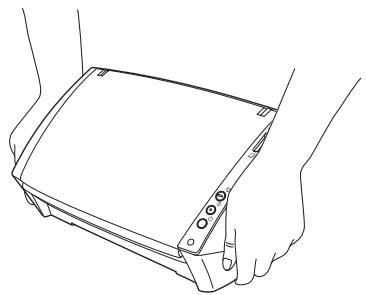
- When moving the scanner, always hold it with both hands to avoid dropping it. The scanner weighs approximately 1.8kg (3.97 lb).
- Make sure to disconnect the interface cable and AC adapter before moving the scanner. If the scanner is transported with these items connected, the plugs and connectors may be damaged.
Handling
! Warning
Note the following precautions whenever using the scanner. Failure to do so may result in a fire or electric shock.
- Never use alcohol, benzene, paint thinner, aerosol sprays, or any other highly flammable substance near the scanner.
- Do not cut, damage, or modify the power cord. Do not place heavy objects on the power cord, and do not pull or excessively bend the power cord.
- Never connect the power cord when your hands are wet.
- Do not connect the scanner to a multi plug power strip.
- Do not knot or coil the power cord as this may result in a fire or electric shock. When connecting the power cord, make sure that the power plug is securely and completely inserted into the power outlet.
- Do not use a power cord or AC adapter other than the ones provided with this scanner.
-
Do not take the scanner apart or modify it.
-
Never try to take the AC adapter apart or modify it in any way, as this is dangerous.
- Do not use flammable spray near the scanner.
- When cleaning the scanner, turn the power OFF and disconnect the power cord from the power supply.
- Clean the scanner using a slightly dampened cloth which has been well wrung out. Never use alcohol, benzene, paint thinner, or any other flammable substances.
- If the scanner makes strange noises, or gives off smoke, heat, or strange odors, or the scanner does not function or other abnormalities occur when you use the machine, immediately turn the power OFF, and disconnect the power plug from the power outlet. Then, contact your local authorized Canon dealer or service representative for further information.
- Do not drop the scanner, or subject it to impact or strong shock. Should the scanner ever become damaged, immediately turn the power OFF, and disconnect the power plug from the power outlet. Then, contact your local authorized Canon dealer or service representative to have the unit serviced.
- Before moving the scanner, be sure to turn the power OFF, and disconnect the power plug from the power outlet.
Caution
- Do not install the scanner on a surface that is unstable or tilted, or in an area subject to excessive vibrations, as this may cause the scanner to fall, resulting in personal injury or damage to the scanner.
- Never place small metal objects such as staples, paper clips, or jewelry on the scanner. These items may fall into the scanner, and cause a fire or electric shock. Should such objects ever fall inside the scanner, immediately turn the power OFF, and disconnect the power plug from the power outlet. Then, contact your local authorized Canon dealer or service representative to have the unit serviced.
- Do not install the scanner in a humid or dusty location. Doing so might cause a fire or electric shock.
- Do not place objects on top of the scanner. Such objects may tip or fall over, resulting in personal injury.
- Connect only to a power outlet of the rated voltage and power supply frequency (120 V, 60 Hz or 220-240 V, 50/60 Hz depending on your region).
- When unplugging the power cord, grasp it firmly by its plug. Do not pull directly on the power cord, as this may damage or expose the cord's internal wiring, resulting in a fire or electric shock.
- Leave sufficient space around the power plug so that it can be unplugged easily. If objects are placed around the power plug, you will be unable to unplug it in an emergency.
- Do not allow water or flammable substances (alcohol, paint thinner, benzene, etc.) to spill into the scanner, as this may result in a fire or electric shock.
- Turn the power OFF for safety when not using the scanner for a long period of time, such as overnight. Also, turn the power OFF, and disconnect the power cord from the power outlet for safety when the machine will not be used for an extended period of time, such as during consecutive holidays.
-
Do not wear loose clothing or jewelry that may get caught in the scanner while you are using it. This may result in personal injury. Be extra careful of neckties and long hair. If anything becomes caught in the scanner, immediately disconnect the power cord to stop the scanner.
-
Be careful when loading paper into the scanner and when removing jammed paper. It is possible to cut your hand on the edge of a sheet of paper.
Disposal
- When disposing of this scanner, be sure to follow all local ordinances and laws or consult with the retailer who sold you the scanner.
When sending the scanner for repairs
- When a request is made for repairs, the scanner needs to be sent to the specified address. When sending the scanner, use the packing box in which it came. Firmly secure the scanner with packaging material when you place it in the packing box.
Troubleshooting
Common Problems and Solutions
This section provides recommended solutions to common problems. The User Manual is added to the Start menu when the software is installed using the Setup Disc. Click the Start button, and then click [All Programs] > [Canon DR-C130] > [User Manual] to display the User Manual.
If you have a problem that is not solved by the following, contact your local authorized Canon dealer.
Q1 The scanner will not turn on.
A1 Confirm that the AC adapter is plugged firmly into a power outlet.
Q2 The scanner is not recognized.
A2 (1) Confirm that the scanner is properly connected to the computer with a USB cable.
(2) Confirm that the scanner is turned on. See the previous "Q1" if the scanner does not turn on.
(3) The computer's USB interface may not support the scanner. The scanner cannot be guaranteed to work with all USB interfaces.
(4) Confirm that the supplied USB cable is used to connect the scanner to the computer. The scanner cannot be guaranteed to work with all available USB cables.
(5) If the scanner is connected to the computer via a USB hub, try removing the hub and connecting directly to the computer.
Q3 Documents feed askew (scanned images are slanted).
A3 (1) Align the document guides to fit the documents as closely as possible, and load the documents so that they feed straightly.
(2) Enable [Automatically straightens skewed] in the scanner driver settings.
(3) If many pages have been scanned since roller cleaning, clean the rollers. If documents still feed askew, roller replacement or other maintenance may be needed.Refer to the User Manual (Chapter 11 Removing and Attaching the Rollers and Document Holding Guide) for detailed information.
Q4 Documents are not scanned according to the settings configured in the scanner driver.
A4 When you scan using a job registered with CaptureOnTouch, the registered job settings have priority over the scanner driver settings. Edit existing job settings, or create a new job using the desired scanning conditions.
Q5 If white lines or streaks appear in scanned images.
A5 Clean both sides of the scanner glass, and the rollers. If a sticky substance such as glue or correction fluid is found, carefully wipe with just enough pressure to clean the area where the lines appear. If the problem cannot be solved by cleaning, the internal glass may be scratched. Contact your local authorized Canon dealer.
Q6 Pages are missing.
A6 When the scanner driver's [Scanning Side] setting is [Skip Blank Page], documents with very little black may be unintentionally skipped. Select another scan mode setting such as [Simplex] or [Duplex], or decrease the [Ratio of black pixels] (Chapter 9 Special Scanning > Practical Examples > When you want to delete the images of the blank pages in two-sided documents). If pages are skipped due to the document double feeding, see "Q 7 Documents jam (or double-feed)".
Q7 Documents jam (or double-feed).
A7 (1) If the roller has been installed correctly, clean it if necessary.
(2) Proper scanning may not be possible when document pages stick together due to static electricity. Fan the documents before you load them.
(3) Set the feed selection lever to the non separation position, and manually feed the scanner one page at a time.
Q8 Multiple pages of scanned images cannot be saved to a single file.
A8 Some file formats cannot save multiple scanned image pages as a single file.
BMP and JPEG: Scanned images are always saved one page per file.
PPTX:Multi-page images are always saved to a single file.
TIFF and PDF: Multiple pages can be saved to a single file based on the application software setting.
In CaptureOnTouch, click , and then select [Save all pages as one file] in the dialog box displayed.
In CapturePerfect, select [Save all pages as one file] in "Multi Page Settings" on the [Scan to File] screen.
Q9 All of the placed documents have been scanned, but the scanned image does not appear on the application.
A9 When [Panel-Feeding] or [Automatic Feeding] is selected as the feeding method on the scanner driver's setting screen, a scanning operation will not continue after all of the documents are fed, as the scanner awaits additional documents to be fed. You can finish the operation and send the scanned images to the application by pressing the [STOP] button on the operating panel.
Q10 Memory becomes insufficient and scanning stops.
A10 If you configure scanning conditions that use a large amount of the computer's memory, scanning may stop because of insufficient memory. Although this depends on the computer's memory size, the possibility of insufficient memory increases if any of the following scanning conditions overlap.
- [Color Mode] is set to [24-bit Color]
- A large page size (e.g. Legal) is specified as the [Page Size]. Alternatively, the page size is set to [Scanner's Maximum].
-
A high resolution (600dpi etc.) is specified for [Dots per inch].
-
If an error message appears due to insufficient memory while scanning is in progress, exit the application, change the scanning conditions (e.g. reduce the resolution or page size) and then try scanning again. In addition, the amount of memory used can be contained by turning off [Moire Reduction] and [Please change prevent bleed through and remove] if they are set to on.
Q11 Cannot save scanned file.
A11 The maximum size that can be saved as a file is 2 GB. A multiple-page scan cannot be saved when it reaches the file size of 2 GB. Change the save settings if an error message is displayed.
Q12 If scanning is too slow.
A12 (1) Close other running programs, if any.
(2) Scanning can be slowed down by memory shortage caused by memory-resident applications such as antivirus programs. Close such memory-resident programs if necessary to free up memory space.
(3) When insufficient hard disk space is available, the scanner may be unable to create the necessary temporary files for scanned data. Delete unneeded data on the hard disk to free up more space.
(4) Scanning is slow if the computer's USB port is not Hi-Speed USB 2.0 compliant.
(5) If using a common USB cable that is not Hi-Speed USB 2.0 compliant, replace the cable with the supplied compliant cable.
(6) When the scanner is connected to the computer via a USB hub that is not Hi-Speed USB 2.0 compliant, remove the hub and connect the scanner directly to the computer.
Q13 If scanned image files cannot be opened in an application.
A13 (1) scanned images saved as multi-page TIFF files can be opened only by programs that support this file format.
(2) Some applications cannot open compressed TIFF files, even if it does not contain multiple pages. This issue can occur with programs that are not compatible with CaptureOnTouch and TIFF files of CapturePerfect. In this case, select "None" as the image file compression format before scanning.
FCC REGULATIONS (For 120 V model)
Document Scanner, Model M111141
This device complies with Part 15 of the FCC Rules. Operation is subject to the following two conditions: (1) This device may not cause harmful interference, and (2) this device must accept any interference received, including interference that may cause undesired operation. Note: This equipment has been tested and found to comply with the limits for a Class B digital device, pursuant to Part 15 of the FCC Rules. These limits are designed to provide reasonable protection against harmful interference in a residential installation. This equipment generates, uses, and can radiate radio frequency energy and, if not installed and used in accordance with the instructions, may cause harmful interference to radio communications. However, there is no guarantee that interference will not occur in a particular installation. If this equipment does cause harmful interference to radio or television reception, which can be determined by turning the equipment OFF and ON, the user is encouraged to try to correct the interference by one or more of the following measures:
- Reorient or relocate the receiving antenna.
- Increase the separation between the equipment and receiver.
- Connect the equipment into an outlet on a circuit different from that to which the receiver is connected.
- Consult the dealer or an experienced radio/TV technician for help. Use of shielded cable is required to comply with Class B limits in Subpart B of Part 15 of FCC Rules.
Do not make any changes or modifications to the equipment unless otherwise specified in the manual. If such changes or modifications should be made, you could be required to stop operation of the equipment.
Canon U.S.A. Inc.
One Canon Plaza, Lake Success NY 11042, U.S.A.
Tel. No. (516)328-5000
RADIO INTERFERENCE REGULATIONS (For 120 V models)
This digital apparatus does not exceed the Class B limits for radio noise emissions from digital apparatus as set out in the interference-causing equipment standard entitled "Digital Apparatus", ICES-003 of the Industry Canada.
RÉGLEMENT SUR LE BROUILLAGE RADIOÉLECTRIQUE (For 120 V models)
International ENERGY STAR® Office Equipment Program

ENERGY STAR
As an ENERGY STAR® Partner, CANON ELECTRONICS INC. has determined that this machine meets the ENERGY STAR® Program guidelines for energy efficiency.
The International ENERGY STAR® Office Equipment Program is an international program that promotes
energy saving through the use of computers and other office equipment. The program backs the development and dissemination of products with functions that effectively reduce energy consumption. It is an open system in which business proprietors can participate voluntarily. The targeted products are office equipment, such as computers, monitors, printers, fax, machine, copiers, and scanners. The standards and logos are uniform among participating nations.
European Union (and EEA) only.

13/14
This symbol indicates that this product is not to be disposed of with your household waste, according to the WEEE Directive (2002/96/EC) and your national law. This product should be handed over to a designated collection point, e.g., on an authorized one-for-one basis when you buy a
new similar product or to an authorized collection site for recycling waste electrical and electronic equipment (EEE). Improper handling of this type of waste could have a possible negative impact on the environment and human health due to potentially hazardous substances that are generally associated with EEE. At the same time, your cooperation in the correct disposal of this product will contribute to the effective usage of natural resources. For more information about where you can drop off your waste equipment for recycling, please contact your local city office, waste authority, approved WEEE scheme or your household waste disposal service. For more information regarding return and recycling of WEEE products, please visit www.canon-europe.com/environment.
(EEA: Norway, Iceland and Liechtenstein)
Für EMVG
The following names may be provided for the safety regulations in each sales region of the Document Scanner.
DR-C130: Model M111141
Trademarks
- Canon and the Canon logo are registered trademarks, of Canon Inc. in the United States and may also be trademarks or registered trademarks in other countries.
- imageFORMULA is a trademark of CANON ELECTRONICS INC.
- Microsoft, Windows, Windows Vista, PowerPoint, and SharePoint are registered trademarks or trademarks of Microsoft Corporation in the United States and other countries.
- Microsoft product screen shot(s) reprinted with permission from Microsoft Corporation.
- ENERGY STAR® is a registered trademark of the United States Environmental Protection Agency.
- ISIS is a registered trademark of Emc Corporation in the United States.
- Google and Google docs are trademarks of Google Inc.
Copyright © 1995-2012 Nuance Communications, Inc. All rights reserved. Nuance, eCopy, OmniPage, and PaperPort are trademarks and/or registered trademarks of Nuance Communications, Inc. and/or its affiliates in the United States and/or other countries. - Adobe, the Adobe logo, Acrobat, the Adobe PDF logo, and Adobe Reader are either registered trademarks or trademarks of Adobe Systems Incorporated in the United States and/or other countries.

Powered by
ADOBE PDF LIBRARY
- Other product and company names herein may be the trademarks of their respective owners. However, the ^ and symbols are not used in this document.
Copyright
Copyright 2012 by CANON ELECTRONICS INC. All rights reserved. No part of this publication may be reproduced or transmitted in any form or by any means, electronic or mechanical, including
photocopying and recording, or by any information storage or retrieval system without the prior written permission of CANON ELECTRONICS INC.
Disclaimers
The information in this document is subject to change without notice.
CANON ELECTRONICS INC. MAKES NO WARRANTY OF ANY KIND WITH REGARD TO THIS MATERIAL, EITHER EXPRESS OR IMPLIED, EXPECT AS PROVIDED HEREIN, INCLUDING WITHOUT LIMITATION, THEREOF, WARRANTY AS TO MARKETABILITY, MERCHANTABILITY, FITNESS FOR A PARTICULAR PURPOSE OF USE OR NON-INFRINGEMENT. CANON ELECTRONICS INC. SHALL NOT BE LIABLE FOR ANY DIRECT, INCIDENTAL, OR CONSEQUENTIAL DAMAGES OF ANY NATURE, OR LOSSES OR EXPENSES RESULTING FROM THE USE OF THIS MATERIAL.
CANON ELECTRONICS INC. IS NOT LIABLE FOR THE STORAGE AND HANDLING OF DOCUMENTS SCANNED WITH THIS PRODUCT, OR THE STORAGE AND HANDLING OF RESULTING SCANNED IMAGE DATA.
IF YOU INTEND TO DISCARD THE ORIGINALS OF SCANNED DOCUMENTS, YOU THE CUSTOMER ARE RESPONSIBLE FOR INSPECTING THE SCANNED IMAGES AND VERIFYING THAT DATA IS INTACT.
THE MAXIMUM LIABILITY OF CANON ELECTRONICS INC. UNDER THIS WARRANTY IS LIMITED TO THE PURCHASE PRICE OF THE PRODUCT COVERED BY THE WARRANTY.





Canon
DR-C130 Guide de configuration
Lieud'st installation
Common Problems and Solutions
19TH FLOOR, THE METROPOLIS TOWER, 10 METROPOLIS DRIVE, HUNGHOM, KOWLOON, HONG KONG.
CANON KOREA BUSINESS SOLUTIONS INC.
168-12 SAMSEONG-DONG, GANGNAM-GU, SEOUL, KOREA
PUB. CE-IM-883
XXXXXX
© CANON ELECTRONICS INC. 2012

CE-IM-883
PRINTED IN KOREA
IMPRIMPÉ EN COREE

