
ColorTrac SmartLF SG44c - Scanner CANON - Free user manual and instructions
Find the device manual for free ColorTrac SmartLF SG44c CANON in PDF.


| Product Type | Large-format scanner |
| Model | ColorTrac SmartLF SG44c |
| Brand | Canon |
| Maximum Scan Width | 44 inches (1118 mm) |
| Optical Resolution | 600 x 600 dpi |
| Color Depth | 24-bit |
| Scan Speed | Up to 12 inches/second (monochrome, 200 dpi) |
| Dimensions (W x D x H) | 64.2 x 47.2 x 29.5 inches (1630 x 1200 x 750 mm) |
| Weight | 176 lbs (80 kg) |
| Power Supply | AC 100-240 V, 50/60 Hz, 0.5 A |
| Power Consumption | 150 W (max), < 0.5 W (standby) |
| Interface | USB 2.0, Ethernet 10/100/1000 |
| Supported Media Types | Paper, film, blueprints, vellum, polyester film |
| Maximum Document Thickness | 0.08 inches (2 mm) |
| Scanning Modes | Color, grayscale, monochrome |
| Output File Formats | PDF, TIFF, JPEG, BMP, PNG, multi-page PDF |
| Software Included | Scanning utility, TWAIN driver, Copy module |
| Maintenance | Clean glass and rollers periodically; replace maintenance kit after 100,000 scans |
| Safety Certifications | CE, FCC, RoHS |
| Warranty | 1 year parts and labor |
| Repairability/Spare Parts | Replacement parts available through Canon authorized service centers; maintenance kit includes rollers, filters |
Frequently Asked Questions - ColorTrac SmartLF SG44c CANON
User questions about ColorTrac SmartLF SG44c CANON
0 question about this device. Answer the ones you know or ask your own.
Ask a new question about this device
Download the instructions for your Scanner in PDF format for free! Find your manual ColorTrac SmartLF SG44c - CANON and take your electronic device back in hand. On this page are published all the documents necessary for the use of your device. ColorTrac SmartLF SG44c by CANON.
USER MANUAL ColorTrac SmartLF SG44c CANON
Symbols Used in This Document. 4
Touch-enabled Device Users (Windows).... 5
Trademarks and Licenses. 6
Direct Print & Share Guide. 24
Precautions for Use (Direct Print & Share). 26
Features of Direct Print & Share. 29
Start Direct Print & Share. 30
Printing Files.... 32
Add Printers.... 33
Add Files to Print. 36
Confirm Print Layout in Previews.... 39
Configure Print Settings. 40
Create Shortcut Print Icons.... 41
Printing Files. 44
Call Frequently Used Settings and Print. 48
Print from Print History. 50
Print from AutoCAD.... 51
Limitations When Printing PDF Files. 53
Using Cloud Storage.... 54
Add WebDAV-Compatible Cloud Storage.... 55
Log in to the Cloud Service.... 58
Download Files from Cloud Storage.... 63
Upload Files to Cloud Storage.... 65
Share Files with Other Users (Google Drive Only). 67
Troubleshooting.... 69
Direct Print & Share Screen Descriptions. 70
Main Screen....71
Registered file List. 74
Cloud service integration Dialog Box. 76
Cloud storage selection Dialog Box. 78
Cloud login Dialog Box. 79
Proxy authentication Dialog Box. 81
Preferences Dialog Box (Cloud Service Link).... 82
Cloud storage settings Dialog Box. 83
Cloud storage information Dialog Box.... 84
Share settings Dialog Box.... 85
Add user Dialog Box.... 86
Preferences Dialog Box (Main Screen).... 87
Printer to use Dialog Box.... 89
Add printer Dialog Box....90
Print History Dialog Box....91
Presets Dialog Box. 92
Preset Name Dialog Box. 93
Shortcut Print Dialog Box. 94
Save As Dialog Box.... 95
Symbols Used in This Document
⚠ Warning
Instructions that, if ignored, could result in death, serious personal injury, or property damage caused by incorrect operation of the equipment. These must be observed for safe operation.
Caution
Instructions that, if ignored, could result in personal injury or property damage caused by incorrect operation of the equipment. These must be observed for safe operation.
Important
Instructions including important information that must be observed to avoid damage and injury or improper use of the product. Be sure to read these instructions.
Note
Instructions including notes for operation and additional explanations.
Basics
Instructions explaining basic operations of your product.
Note
- Icons may vary depending on your product.
Touch-enabled Device Users (Windows)
For touch actions, you need to replace "right-click" in this document with the action set on the operating system. For example, if the action is set to "press and hold" on your operating system, replace "right-click" with "press and hold."
Trademarks and Licenses
- Microsoft is a registered trademark of Microsoft Corporation.
- Windows is a trademark or registered trademark of Microsoft Corporation in the U.S. and/or other countries.
- Windows Vista is a trademark or registered trademark of Microsoft Corporation in the U.S. and/or other countries.
- Internet Explorer is a trademark or registered trademark of Microsoft Corporation in the U.S. and/or other countries. Mac, Mac OS, macOS, OS X, AirPort, App Store, AirPrint, the AirPrint logo, Safari, Bonjour, iPad, iPad Air, iPad mini, iPhone and iPod touch are trademarks of Apple Inc., registered in the U.S. and other countries.
- IOS is a trademark or registered trademark of Cisco in the U.S. and other countries and is used under license.
- Google Cloud Print, Google Chrome, Chrome OS, Chromebook, Android, Google Drive, Google Apps and Google Analytics are either registered trademarks or trademarks of Google Inc. Google Play and Google Play Logo are trademarks of Google LLC.
- Adobe, Acrobat, Flash, Photoshop, Photoshop Elements, Lightroom, Adobe RGB and Adobe RGB (1998) are either registered trademarks or trademarks of Adobe Systems Incorporated in the United States and/or other countries.
- Bluetooth is a trademark of Bluetooth SIG, Inc., U.S.A. and licensed to Canon Inc.
- Autodesk and AutoCAD are registered trademarks or trademarks of Autodesk, Inc., and/or its subsidiaries and/or affiliates in the USA and/or other countries.
- USB Type-C™ is a trademark of USB Implementers Forum.
Note
- The formal name of Windows Vista is Microsoft Windows Vista operating system.
Copyright (c) 2003-2015 Apple Inc. All rights reserved.
Redistribution and use in source and binary forms, with or without modification, are permitted provided that the following conditions are met:
- Redistributions of source code must retain the above copyright notice, this list of conditions and the following disclaimer.
- Redistributions in binary form must reproduce the above copyright notice, this list of conditions and the following disclaimer in the documentation and/or other materials provided with the distribution.
- Neither the name of Apple Inc. ("Apple") nor the names of its contributors may be used to endorse or promote products derived from this software without specific prior written permission.
THIS SOFTWARE IS PROVIDED BY APPLE AND ITS CONTRIBUTORS "AS IS" AND ANY EXPRESS OR IMPLIED WARRANTIES, INCLUDING, BUT NOT LIMITED TO, THE IMPLIED WARRANTIES OF MERCHANTABILITY AND FITNESS FOR A PARTICULAR PURPOSE ARE DISCLAIMED. IN NO EVENT SHALL APPLE OR ITS CONTRIBUTORS BE LIABLE FOR ANY DIRECT, INDIRECT, INCIDENTAL, SPECIAL, EXEMPLARY, OR CONSEQUENTIAL DAMAGES (INCLUDING, BUT NOT LIMITED TO, PROCUREMENT OF SUBSTITUTE GOODS OR SERVICES; LOSS OF USE, DATA, OR PROFITS; OR BUSINESS INTERRUPTION) HOWEVER CAUSED AND ON ANY THEORY OF LIABILITY, WHETHER IN CONTRACT, STRICT LIABILITY, OR TORT (INCLUDING NEGLIGENCE OR
OTHERWISE) ARISING IN ANY WAY OUT OF THE USE OF THIS SOFTWARE, EVEN IF ADVISED OF THE POSSIBILITY OF SUCH DAMAGE.
Apache License
Version 2.0, January 2004
http://www.apache.org/licenses/
TERMS AND CONDITIONS FOR USE, REPRODUCTION, AND DISTRIBUTION
1. Definitions.
"License" shall mean the terms and conditions for use, reproduction, and distribution as defined by Sections 1 through 9 of this document.
"Licensor" shall mean the copyright owner or entity authorized by the copyright owner that is granting the License.
"Legal Entity" shall mean the union of the acting entity and all other entities that control, are controlled by, or are under common control with that entity. For the purposes of this definition, "control" means (i) the power, direct or indirect, to cause the direction or management of such entity, whether by contract or otherwise, or (ii) ownership of fifty percent (50%) or more of the outstanding shares, or (iii) beneficial ownership of such entity.
"You" (or "Your") shall mean an individual or Legal Entity exercising permissions granted by this License.
"Source" form shall mean the preferred form for making modifications, including but not limited to software source code, documentation source, and configuration files.
"Object" form shall mean any form resulting from mechanical transformation or translation of a Source form, including but not limited to compiled object code, generated documentation, and conversions to other media types.
"Work" shall mean the work of authorship, whether in Source or Object form, made available under the License, as indicated by a copyright notice that is included in or attached to the work (an example is provided in the Appendix below).
"Derivative Works" shall mean any work, whether in Source or Object form, that is based on (or derived from) the Work and for which the editorial revisions, annotations, elaborations, or other modifications represent, as a whole, an original work of authorship. For the purposes of this License, Derivative Works shall not include works that remain separable from, or merely link (or bind by name) to the interfaces of, the Work and Derivative Works thereof.
"Contribution" shall mean any work of authorship, including the original version of the Work and any modifications or additions to that Work or Derivative Works thereof, that is intentionally submitted to Licensor for inclusion in the Work by the copyright owner or by an individual or Legal Entity authorized to submit on behalf of the copyright owner. For the purposes of this definition, "submitted" means any form of electronic, verbal, or written communication sent to the Licensor or its representatives, including but not limited to communication on electronic mailing lists, source code control systems, and issue tracking systems that are managed by, or on behalf of, the Licensor for the purpose of discussing and improving the Work, but excluding communication that is conspicuously marked or otherwise designated in writing by the copyright owner as "Not a Contribution."
"Contributor" shall mean Licensor and any individual or Legal Entity on behalf of whom a Contribution has been received by Licensor and subsequently incorporated within the Work.
- Grant of Copyright License. Subject to the terms and conditions of this License, each Contributor hereby grants to You a perpetual, worldwide, non-exclusive, no-charge, royalty-free, irrevocable copyright license to reproduce, prepare Derivative Works of, publicly display, publicly perform, sublicense, and distribute the Work and such Derivative Works in Source or Object form.
- Grant of Patent License. Subject to the terms and conditions of this License, each Contributor hereby grants to You a perpetual, worldwide, non-exclusive, no-charge, royalty-free, irrevocable (except as stated in this section) patent license to make, have made, use, offer to sell, sell, import, and otherwise transfer the Work, where such license applies only to those patent claims licensable by such Contributor that are necessarily infringed by their Contribution(s) alone or by combination of their Contribution(s) with the Work to which such Contribution(s) was submitted. If You institute patent litigation against any entity (including a cross-claim or counterclaim in a lawsuit) alleging that the Work or a Contribution incorporated within the Work constitutes direct or contributory patent infringement, then any patent licenses granted to You under this License for that Work shall terminate as of the date such litigation is filed.
- Redistribution. You may reproduce and distribute copies of the Work or Derivative Works thereof in any medium, with or without modifications, and in Source or Object form, provided that You meet the following conditions:
- You must give any other recipients of the Work or Derivative Works a copy of this License; and
- You must cause any modified files to carry prominent notices stating that You changed the files; and
- You must retain, in the Source form of any Derivative Works that You distribute, all copyright, patent, trademark, and attribution notices from the Source form of the Work, excluding those notices that do not pertain to any part of the Derivative Works; and
- If the Work includes a "NOTICE" text file as part of its distribution, then any Derivative Works that You distribute must include a readable copy of the attribution notices contained within such NOTICE file, excluding those notices that do not pertain to any part of the Derivative Works, in at least one of the following places: within a NOTICE text file distributed as part of the Derivative Works; within the Source form or documentation, if provided along with the Derivative Works; or, within a display generated by the Derivative Works, if and wherever such third-party notices normally appear. The contents of the NOTICE file are for informational purposes only and do not modify the License. You may add Your own attribution notices within Derivative Works that You distribute, alongside or as an addendum to the NOTICE text from the Work, provided that such additional attribution notices cannot be construed as modifying the License.
You may add Your own copyright statement to Your modifications and may provide additional or different license terms and conditions for use, reproduction, or distribution of Your modifications, or for any such Derivative Works as a whole, provided Your use, reproduction, and distribution of the Work otherwise complies with the conditions stated in this License.
- Submission of Contributions. Unless You explicitly state otherwise, any Contribution intentionally submitted for inclusion in the Work by You to the Licensor shall be under the terms and conditions of this License, without any additional terms or conditions. Notwithstanding the above, nothing herein shall supersede or modify the terms of any separate license agreement you may have executed with Licensor regarding such Contributions.
- Trademarks. This License does not grant permission to use the trade names, trademarks, service marks, or product names of the Licensor, except as required for reasonable and customary use in describing the origin of the Work and reproducing the content of the NOTICE file.
- Disclaimer of Warranty. Unless required by applicable law or agreed to in writing, Licensor provides the Work (and each Contributor provides its Contributions) on an "AS IS" BASIS, WITHOUT WARRANTIES OR CONDITIONS OF ANY KIND, either express or implied, including, without limitation, any warranties or conditions of TITLE, NON-INFRINGEMENT, MERCHANTABILITY, or FITNESS FOR A PARTICULAR PURPOSE. You are solely responsible for determining the appropriateness of using or redistributing the Work and assume any risks associated with Your exercise of permissions under this License.
- Limitation of Liability. In no event and under no legal theory, whether in tort (including negligence), contract, or otherwise, unless required by applicable law (such as deliberate and grossly negligent acts) or agreed to in writing, shall any Contributor be liable to You for damages, including any direct, indirect, special, incidental, or consequential damages of any character arising as a result of this License or out of the use or inability to use the Work (including but not limited to damages for loss of goodwill, work stoppage, computer failure or malfunction, or any and all other commercial damages or losses), even if such Contributor has been advised of the possibility of such damages.
- Accepting Warranty or Additional Liability. While redistributing the Work or Derivative Works thereof, You may choose to offer, and charge a fee for, acceptance of support, warranty, indemnity, or other liability obligations and/or rights consistent with this License. However, in accepting such obligations, You may act only on Your own behalf and on Your sole responsibility, not on behalf of any other Contributor, and only if You agree to indemnify, defend, and hold each Contributor harmless for any liability incurred by, or claims asserted against, such Contributor by reason of your accepting any such warranty or additional liability. END OF TERMS AND CONDITIONS
---- Part 1: CMU/UCD copyright notice: (BSD like) ----
Copyright 1989, 1991, 1992 by Carnegie Mellon University
Derivative Work - 1996, 1998-2000
Copyright 1996, 1998-2000 The Regents of the University of California
All Rights Reserved
Permission to use, copy, modify and distribute this software and its documentation for any purpose and without fee is hereby granted, provided that the above copyright notice appears in all copies and that both that copyright notice and this permission notice appear in supporting documentation, and that the name of CMU and The Regents of the University of California not be used in advertising or publicity pertaining to distribution of the software without specific written permission.
CMU AND THE REGENTS OF THE UNIVERSITY OF CALIFORNIA DISCLAIM ALL WARRANTIES WITH REGARD TO THIS SOFTWARE, INCLUDING ALL IMPLIED WARRANTIES OF MERCHANTABILITY AND FITNESS. IN NO EVENT SHALL CMU OR THE REGENTS OF THE UNIVERSITY OF CALIFORNIA BE LIABLE FOR ANY SPECIAL, INDIRECT OR CONSEQUENTIAL DAMAGES OR ANY DAMAGES WHATSOEVER RESULTING FROM THE LOSS OF USE, DATA OR PROFITS, WHETHER IN AN ACTION OF CONTRACT, NEGLIGENCE OR OTHER TORTIOUS ACTION, ARISING OUT OF OR IN CONNECTION WITH THE USE OR PERFORMANCE OF THIS SOFTWARE.
---- Part 2: Networks Associates Technology, Inc copyright notice (BSD) ----
Copyright (c) 2001-2003, Networks Associates Technology, Inc
All rights reserved.
Redistribution and use in source and binary forms, with or without modification, are permitted provided that the following conditions are met:
* Redistributions of source code must retain the above copyright notice, this list of conditions and the following disclaimer. * Redistributions in binary form must reproduce the above copyright notice, this list of conditions and the following disclaimer in the documentation and/or other materials provided with the distribution. * Neither the name of the Networks Associates Technology, Inc nor the names of its contributors may be used to endorse or promote products derived from this software without specific prior written permission.
THIS SOFTWARE IS PROVIDED BY THE COPYRIGHT HOLDERS AND CONTRIBUTORS ``AS IS'' AND ANY EXPRESS OR IMPLIED WARRANTIES, INCLUDING, BUT NOT LIMITED TO, THE IMPLIED WARRANTIES OF MERCHANTABILITY AND FITNESS FOR A PARTICULAR PURPOSE ARE DISCLAIMED. IN NO EVENT SHALL THE COPYRIGHT HOLDERS OR CONTRIBUTORS BE LIABLE FOR ANY DIRECT, INDIRECT, INCIDENTAL, SPECIAL, EXEMPLARY, OR CONSEQUENTIAL DAMAGES (INCLUDING, BUT NOT LIMITED TO, PROCUREMENT OF SUBSTITUTE GOODS OR SERVICES; LOSS OF USE, DATA, OR PROFITS; OR BUSINESS INTERRUPTION) HOWEVER CAUSED AND ON ANY THEORY OF LIABILITY, WHETHER IN CONTRACT, STRICT LIABILITY, OR TORT (INCLUDING NEGLIGENCE OR OTHERWISE) ARISING IN ANY WAY OUT OF THE USE OF THIS SOFTWARE, EVEN IF ADVISED OF THE POSSIBILITY OF SUCH DAMAGE.
---- Part 3: Cambridge Broadband Ltd. copyright notice (BSD) ----
Portions of this code are copyright (c) 2001-2003, Cambridge Broadband Ltd.
All rights reserved.
Redistribution and use in source and binary forms, with or without modification, are permitted provided that the following conditions are met:
* Redistributions of source code must retain the above copyright notice, this list of conditions and the following disclaimer. * Redistributions in binary form must reproduce the above copyright notice, this list of conditions and the following disclaimer in the documentation and/or other materials provided with the distribution. * The name of Cambridge Broadband Ltd. may not be used to endorse or promote products derived from this software without specific prior written permission.
THIS SOFTWARE IS PROVIDED BY THE COPYRIGHT HOLDER ``AS IS'' AND ANY EXPRESS OR IMPLIED WARRANTIES, INCLUDING, BUT NOT LIMITED TO, THE IMPLIED WARRANTIES OF MERCHANTABILITY AND FITNESS FOR A PARTICULAR PURPOSE ARE DISCLAIMED. IN NO EVENT SHALL THE COPYRIGHT HOLDER BE LIABLE FOR ANY DIRECT, INDIRECT, INCIDENTAL, SPECIAL, EXEMPLARY, OR CONSEQUENTIAL DAMAGES (INCLUDING, BUT NOT LIMITED TO, PROCUREMENT OF SUBSTITUTE GOODS OR SERVICES; LOSS OF USE, DATA, OR PROFITS; OR BUSINESS INTERRUPTION) HOWEVER CAUSED AND ON ANY THEORY OF LIABILITY, WHETHER IN CONTRACT, STRICT LIABILITY, OR TORT (INCLUDING NEGLIGENCE OR OTHERWISE) ARISING IN ANY WAY OUT OF THE USE OF THIS SOFTWARE, EVEN IF ADVISED OF THE POSSIBILITY OF SUCH DAMAGE.
---- Part 4: Sun Microsystems, Inc. copyright notice (BSD) ----
Copyright c 2003 Sun Microsystems, Inc., 4150 Network Circle, Santa Clara, California 95054, U.S.A. All rights reserved.
Use is subject to license terms below.
This distribution may include materials developed by third parties.
Sun, Sun Microsystems, the Sun logo and Solaris are trademarks or registered trademarks of Sun Microsystems, Inc. in the U.S. and other countries.
Redistribution and use in source and binary forms, with or without modification, are permitted provided that the following conditions are met:
* Redistributions of source code must retain the above copyright notice, this list of conditions and the following disclaimer. * Redistributions in binary form must reproduce the above copyright notice, this list of conditions and the following disclaimer in the documentation and/or other materials provided with the distribution. * Neither the name of the Sun Microsystems, Inc. nor the names of its contributors may be used to endorse or promote products derived from this software without specific prior written permission.
THIS SOFTWARE IS PROVIDED BY THE COPYRIGHT HOLDERS AND CONTRIBUTORS "AS IS" AND ANY EXPRESS OR IMPLIED WARRANTIES, INCLUDING, BUT NOT LIMITED TO, THE IMPLIED WARRANTIES OF MERCHANTABILITY AND FITNESS FOR A PARTICULAR PURPOSE ARE DISCLAIMED. IN NO EVENT SHALL THE COPYRIGHT HOLDERS OR CONTRIBUTORS BE LIABLE FOR ANY DIRECT, INDIRECT, INCIDENTAL, SPECIAL, EXEMPLARY, OR CONSEQUENTIAL DAMAGES (INCLUDING, BUT NOT LIMITED TO, PROCUREMENT OF SUBSTITUTE GOODS OR SERVICES; LOSS OF USE, DATA, OR PROFITS; OR BUSINESS INTERRUPTION) HOWEVER CAUSED AND ON ANY THEORY OF LIABILITY, WHETHER IN CONTRACT, STRICT LIABILITY, OR TORT (INCLUDING NEGLIGENCE OR OTHERWISE) ARISING IN ANY WAY OUT OF THE USE OF THIS SOFTWARE, EVEN IF ADVISED OF THE POSSIBILITY OF SUCH DAMAGE.
---- Part 5: Sparta, Inc copyright notice (BSD) ----
Copyright (c) 2003-2012, Sparta, Inc
All rights reserved.
Redistribution and use in source and binary forms, with or without modification, are permitted provided that the following conditions are met:
* Redistributions of source code must retain the above copyright notice, this list of conditions and the following disclaimer. * Redistributions in binary form must reproduce the above copyright notice, this list of conditions and the following disclaimer in the documentation and/or other materials provided with the distribution. * Neither the name of Sparta, Inc nor the names of its contributors may be used to endorse or promote products derived from this software without specific prior written permission.
THIS SOFTWARE IS PROVIDED BY THE COPYRIGHT HOLDERS AND CONTRIBUTORS "AS IS" AND ANY EXPRESS OR IMPLIED WARRANTIES, INCLUDING, BUT NOT LIMITED TO, THE IMPLIED WARRANTIES OF MERCHANTABILITY AND FITNESS FOR A PARTICULAR PURPOSE ARE DISCLAIMED. IN NO EVENT SHALL THE COPYRIGHT HOLDERS OR CONTRIBUTORS BE LIABLE FOR ANY DIRECT, INDIRECT, INCIDENTAL, SPECIAL, EXEMPLARY, OR CONSEQUENTIAL DAMAGES (INCLUDING, BUT NOT LIMITED TO, PROCUREMENT OF SUBSTITUTE GOODS OR
SERVICES; LOSS OF USE, DATA, OR PROFITS; OR BUSINESS INTERRUPTION) HOWEVER CAUSED AND ON ANY THEORY OF LIABILITY, WHETHER IN CONTRACT, STRICT LIABILITY, OR TORT (INCLUDING NEGLIGENCE OR OTHERWISE) ARISING IN ANY WAY OUT OF THE USE OF THIS SOFTWARE, EVEN IF ADVISED OF THE POSSIBILITY OF SUCH DAMAGE.
---- Part 6: Cisco/BUPTNIC copyright notice (BSD) ----
Copyright (c) 2004, Cisco, Inc and Information Network Center of Beijing University of Posts and Telecommunications.
All rights reserved.
Redistribution and use in source and binary forms, with or without modification, are permitted provided that the following conditions are met:
* Redistributions of source code must retain the above copyright notice, this list of conditions and the following disclaimer. * Redistributions in binary form must reproduce the above copyright notice, this list of conditions and the following disclaimer in the documentation and/or other materials provided with the distribution. * Neither the name of Cisco, Inc, Beijing University of Posts and Telecommunications, nor the names of their contributors may be used to endorse or promote products derived from this software without specific prior written permission.
THIS SOFTWARE IS PROVIDED BY THE COPYRIGHT HOLDERS AND CONTRIBUTORS ``AS IS'' AND ANY EXPRESS OR IMPLIED WARRANTIES, INCLUDING, BUT NOT LIMITED TO, THE IMPLIED WARRANTIES OF MERCHANTABILITY AND FITNESS FOR A PARTICULAR PURPOSE ARE DISCLAIMED. IN NO EVENT SHALL THE COPYRIGHT HOLDERS OR CONTRIBUTORS BE LIABLE FOR ANY DIRECT, INDIRECT, INCIDENTAL, SPECIAL, EXEMPLARY, OR CONSEQUENTIAL DAMAGES (INCLUDING, BUT NOT LIMITED TO, PROCUREMENT OF SUBSTITUTE GOODS OR SERVICES; LOSS OF USE, DATA, OR PROFITS; OR BUSINESS INTERRUPTION) HOWEVER CAUSED AND ON ANY THEORY OF LIABILITY, WHETHER IN CONTRACT, STRICT LIABILITY, OR TORT (INCLUDING NEGLIGENCE OR OTHERWISE) ARISING IN ANY WAY OUT OF THE USE OF THIS SOFTWARE, EVEN IF ADVISED OF THE POSSIBILITY OF SUCH DAMAGE.
---- Part 7: Fabasoft R&D Software GmbH & Co KG copyright notice (BSD) ----
Copyright (c) Fabasoft R&D Software GmbH & Co KG, 2003 oss@fabasoft.com
Author: Bernhard Penz bernhard.penz@fabasoft.com
Redistribution and use in source and binary forms, with or without modification, are permitted provided that the following conditions are met:
* Redistributions of source code must retain the above copyright notice, this list of conditions and the following disclaimer. * Redistributions in binary form must reproduce the above copyright notice, this list of conditions and the following disclaimer in the documentation and/or other materials provided with the distribution. * The name of Fabasoft R&D Software GmbH & Co KG or any of its subsidiaries, brand or product names may not be used to endorse or promote products derived from this software without specific prior written permission.
THIS SOFTWARE IS PROVIDED BY THE COPYRIGHT HOLDER "AS IS" AND ANY EXPRESS OR IMPLIED WARRANTIES, INCLUDING, BUT NOT LIMITED TO, THE IMPLIED WARRANTIES OF
MERCHANTABILITY AND FITNESS FOR A PARTICULAR PURPOSE ARE DISCLAIMED. IN NO EVENT SHALL THE COPYRIGHT HOLDER BE LIABLE FOR ANY DIRECT, INDIRECT, INCIDENTAL, SPECIAL, EXEMPLARY, OR CONSEQUENTIAL DAMAGES (INCLUDING, BUT NOT LIMITED TO, PROCUREMENT OF SUBSTITUTE GOODS OR SERVICES; LOSS OF USE, DATA, OR PROFITS; OR BUSINESS INTERRUPTION) HOWEVER CAUSED AND ON ANY THEORY OF LIABILITY, WHETHER IN CONTRACT, STRICT LIABILITY, OR TORT (INCLUDING NEGLIGENCE OR OTHERWISE) ARISING IN ANY WAY OUT OF THE USE OF THIS SOFTWARE, EVEN IF ADVISED OF THE POSSIBILITY OF SUCH DAMAGE.
---- Part 8: Apple Inc. copyright notice (BSD) ----
Copyright (c) 2007 Apple Inc. All rights reserved.
Redistribution and use in source and binary forms, with or without modification, are permitted provided that the following conditions are met:
- Redistributions of source code must retain the above copyright notice, this list of conditions and the following disclaimer.
- Redistributions in binary form must reproduce the above copyright notice, this list of conditions and the following disclaimer in the documentation and/or other materials provided with the distribution.
- Neither the name of Apple Inc. ("Apple") nor the names of its contributors may be used to endorse or promote products derived from this software without specific prior written permission.
THIS SOFTWARE IS PROVIDED BY APPLE AND ITS CONTRIBUTORS "AS IS" AND ANY EXPRESS OR IMPLIED WARRANTIES, INCLUDING, BUT NOT LIMITED TO, THE IMPLIED WARRANTIES OF MERCHANTABILITY AND FITNESS FOR A PARTICULAR PURPOSE ARE DISCLAIMED. IN NO EVENT SHALL APPLE OR ITS CONTRIBUTORS BE LIABLE FOR ANY DIRECT, INDIRECT, INCIDENTAL, SPECIAL, EXEMPLARY, OR CONSEQUENTIAL DAMAGES (INCLUDING, BUT NOT LIMITED TO, PROCUREMENT OF SUBSTITUTE GOODS OR SERVICES; LOSS OF USE, DATA, OR PROFITS; OR BUSINESS INTERRUPTION) HOWEVER CAUSED AND ON ANY THEORY OF LIABILITY, WHETHER IN CONTRACT, STRICT LIABILITY, OR TORT (INCLUDING NEGLIGENCE OR OTHERWISE) ARISING IN ANY WAY OUT OF THE USE OF THIS SOFTWARE, EVEN IF ADVISED OF THE POSSIBILITY OF SUCH DAMAGE.
---- Part 9: ScienceLogic, LLC copyright notice (BSD) ----
Copyright (c) 2009, ScienceLogic, LLC
All rights reserved.
Redistribution and use in source and binary forms, with or without modification, are permitted provided that the following conditions are met:
* Redistributions of source code must retain the above copyright notice, this list of conditions and the following disclaimer. * Redistributions in binary form must reproduce the above copyright notice, this list of conditions and the following disclaimer in the documentation and/or other materials provided with the distribution. * Neither the name of ScienceLogic, LLC nor the names of its contributors may be used to endorse or promote products derived from this software without specific prior written permission.
THIS SOFTWARE IS PROVIDED BY THE COPYRIGHT HOLDERS AND CONTRIBUTORS "AS IS" AND ANY EXPRESS OR IMPLIED WARRANTIES, INCLUDING, BUT NOT LIMITED TO, THE
IMPLIED WARRANTIES OF MERCHANTABILITY AND FITNESS FOR A PARTICULAR PURPOSE ARE DISCLAIMED. IN NO EVENT SHALL THE COPYRIGHT HOLDERS OR CONTRIBUTORS BE LIABLE FOR ANY DIRECT, INDIRECT, INCIDENTAL, SPECIAL, EXEMPLARY, OR CONSEQUENTIAL DAMAGES (INCLUDING, BUT NOT LIMITED TO, PROCUREMENT OF SUBSTITUTE GOODS OR SERVICES; LOSS OF USE, DATA, OR PROFITS; OR BUSINESS INTERRUPTION) HOWEVER CAUSED AND ON ANY THEORY OF LIABILITY, WHETHER IN CONTRACT, STRICT LIABILITY, OR TORT (INCLUDING NEGLIGENCE OR OTHERWISE) ARISING IN ANY WAY OUT OF THE USE OF THIS SOFTWARE, EVEN IF ADVISED OF THE POSSIBILITY OF SUCH DAMAGE.
LEADTOOLS
Copyright (C) 1991-2009 LEAD Technologies, Inc.
CMap Resources
Copyright 1990-2009 Adobe Systems Incorporated. All rights reserved.
Copyright 1990-2010 Adobe Systems Incorporated. All rights reserved.
Redistribution and use in source and binary forms, with or without modification, are permitted provided that the following conditions are met:
Redistributions of source code must retain the above copyright notice, this list of conditions and the following disclaimer.
Redistributions in binary form must reproduce the above copyright notice, this list of conditions and the following disclaimer in the documentation and/or other materials provided with the distribution.
Neither the name of Adobe Systems Incorporated nor the names of its contributors may be used to endorse or promote products derived from this software without specific prior written permission.
THIS SOFTWARE IS PROVIDED BY THE COPYRIGHT HOLDERS AND CONTRIBUTORS "AS IS" AND ANY EXPRESS OR IMPLIED WARRANTIES, INCLUDING, BUT NOT LIMITED TO, THE IMPLIED WARRANTIES OF MERCHANTABILITY AND FITNESS FOR A PARTICULAR PURPOSE ARE DISCLAIMED. IN NO EVENT SHALL THE COPYRIGHT HOLDER OR CONTRIBUTORS BE LIABLE FOR ANY DIRECT, INDIRECT, INCIDENTAL, SPECIAL, EXEMPLARY, OR CONSEQUENTIAL DAMAGES (INCLUDING, BUT NOT LIMITED TO, PROCUREMENT OF SUBSTITUTE GOODS OR SERVICES; LOSS OF USE, DATA, OR PROFITS; OR BUSINESS INTERRUPTION) HOWEVER CAUSED AND ON ANY THEORY OF LIABILITY, WHETHER IN CONTRACT, STRICT LIABILITY, OR TORT (INCLUDING NEGLIGENCE OR
MIT License
Copyright (c) 1998, 1999, 2000 Thai Open Source Software Center Ltd
Permission is hereby granted, free of charge, to any person obtaining a copy of this software and associated documentation files (the "Software"), to deal in the Software without restriction, including without limitation the rights to use, copy, modify, merge, publish, distribute, sublicense, and/or sell copies of the Software, and to permit persons to whom the Software is furnished to do so, subject to the following conditions:
The above copyright notice and this permission notice shall be included in all copies or substantial portions of the Software.
THE SOFTWARE IS PROVIDED "AS IS", WITHOUT WARRANTY OF ANY KIND, EXPRESS OR IMPLIED, INCLUDING BUT NOT LIMITED TO THE WARRANTIES OF MERCHANTABILITY, FITNESS FOR A PARTICULAR PURPOSE AND NONINFRINGEMENT. IN NO EVENT SHALL THE AUTHORS OR COPYRIGHT HOLDERS BE LIABLE FOR ANY CLAIM, DAMAGES OR OTHER LIABILITY, WHETHER IN AN ACTION OF CONTRACT, TORT OR OTHERWISE, ARISING FROM, OUT OF OR IN CONNECTION WITH THE SOFTWARE OR THE USE OR OTHER DEALINGS IN THE SOFTWARE.
Copyright 2000 Computing Research Labs, New Mexico State University
Copyright 2001-2015 Francesco Zappa Nardelli
Permission is hereby granted, free of charge, to any person obtaining a copy of this software and associated documentation files (the "Software"), to deal in the Software without restriction, including without limitation the rights to use, copy, modify, merge, publish, distribute, sublicense, and/or sell copies of the Software, and to permit persons to whom the Software is furnished to do so, subject to the following conditions:
The above copyright notice and this permission notice shall be included in all copies or substantial portions of the Software.
THE SOFTWARE IS PROVIDED "AS IS", WITHOUT WARRANTY OF ANY KIND, EXPRESS OR IMPLIED, INCLUDING BUT NOT LIMITED TO THE WARRANTIES OF MERCHANTABILITY, FITNESS FOR A PARTICULAR PURPOSE AND NONINFRINGEMENT. IN NO EVENT SHALL THE COMPUTING RESEARCH LAB OR NEW MEXICO STATE UNIVERSITY BE LIABLE FOR ANY CLAIM, DAMAGES OR OTHER LIABILITY, WHETHER IN AN ACTION OF CONTRACT, TORT OR OTHERWISE, ARISING FROM, OUT OF OR IN CONNECTION WITH THE SOFTWARE OR THE USE OR OTHER DEALINGS IN THE SOFTWARE.
Written by Joel Sherrill joel@OARcorp.com .
COPYRIGHT (c) 1989-2000.
On-Line Applications Research Corporation (OAR).
Permission to use, copy, modify, and distribute this software for any purpose without fee is hereby granted, provided that this entire notice is included in all copies of any software which is or includes a copy or modification of this software.
THIS SOFTWARE IS BEING PROVIDED "AS IS", WITHOUT ANY EXPRESS OR IMPLIED WARRANTY. IN PARTICULAR, THE AUTHOR MAKES NO REPRESENTATION OR WARRANTY OF ANY KIND CONCERNING THE MERCHANTABILITY OF THIS SOFTWARE OR ITS FITNESS FOR ANY PARTICULAR PURPOSE.
(1) Red Hat Incorporated
Copyright (c) 1994-2009 Red Hat, Inc. All rights reserved.
This copyrighted material is made available to anyone wishing to use, modify, copy, or redistribute it subject to the terms and conditions of the BSD License. This program is distributed in the hope that it will be useful, but WITHOUT ANY WARRANTY expressed or implied, including the implied warranties of MERCHANTABILITY or FITNESS FOR A PARTICULAR PURPOSE. A copy of this license is available at http://www.opensource.org/licenses. Any Red Hat trademarks that are incorporated in the source code or documentation are not subject to the BSD License and may only be used or replicated with the express permission of Red Hat, Inc.
(2) University of California, Berkeley
Copyright (c) 1981-2000 The Regents of the University of California.
All rights reserved.
Redistribution and use in source and binary forms, with or without modification, are permitted provided that the following conditions are met:
* Redistributions of source code must retain the above copyright notice, this list of conditions and the following disclaimer. * Redistributions in binary form must reproduce the above copyright notice, this list of conditions and the following disclaimer in the documentation and/or other materials provided with the distribution. * Neither the name of the University nor the names of its contributors may be used to endorse or promote products derived from this software without specific prior written permission.
THIS SOFTWARE IS PROVIDED BY THE COPYRIGHT HOLDERS AND CONTRIBUTORS "AS IS" AND ANY EXPRESS OR IMPLIED WARRANTIES, INCLUDING, BUT NOT LIMITED TO, THE IMPLIED WARRANTIES OF MERCHANTABILITY AND FITNESS FOR A PARTICULAR PURPOSE ARE DISCLAIMED. IN NO EVENT SHALL THE COPYRIGHT OWNER OR CONTRIBUTORS BE LIABLE FOR ANY DIRECT, INDIRECT, INCIDENTAL, SPECIAL, EXEMPLARY, OR CONSEQUENTIAL DAMAGES (INCLUDING, BUT NOT LIMITED TO, PROCUREMENT OF SUBSTITUTE GOODS OR SERVICES; LOSS OF USE, DATA, OR PROFITS; OR BUSINESS INTERRUPTION) HOWEVER CAUSED AND ON ANY THEORY OF LIABILITY, WHETHER IN CONTRACT, STRICT LIABILITY, OR TORT (INCLUDING NEGLIGENCE OR OTHERWISE) ARISING IN ANY WAY OUT OF THE USE OF THIS SOFTWARE, EVEN IF ADVISED OF THE POSSIBILITY OF SUCH DAMAGE.
The FreeType Project LICENSE
2006-Jan-27
Copyright 1996-2002, 2006 by
David Turner, Robert Wilhelm, and Werner Lemberg
Introduction
The FreeType Project is distributed in several archive packages; some of them may contain, in addition to the FreeType font engine, various tools and contributions which rely on, or relate to, the FreeType Project.
This license applies to all files found in such packages, and which do not fall under their own explicit license. The license affects thus the FreeType font engine, the test programs, documentation and makefiles, at the very least.
This license was inspired by the BSD, Artistic, and IJG (Independent JPEG Group) licenses, which all encourage inclusion and use of free software in commercial and freeware products alike. As a consequence, its main points are that:
o We don't promise that this software works. However, we will be interested in any kind of bug reports. ('as is' distribution)
o You can use this software for whatever you want, in parts or full form, without having to pay us. ('royalty-free' usage)
o You may not pretend that you wrote this software. If you use it, or only parts of it, in a program, you must acknowledge somewhere in your documentation that you have used the FreeType code. ('credits')
We specifically permit and encourage the inclusion of this software, with or without modifications, in commercial products.
We disclaim all warranties covering The FreeType Project and assume no liability related to The FreeType Project.
Finally, many people asked us for a preferred form for a credit/disclaimer to use in compliance with this license. We thus encourage you to use the following text:
......
Portions of this software are copyright © The FreeType
Project (www.freetype.org). All rights reserved.
......
Please replace with the value from the FreeType version you actually use.
Legal Terms
- Definitions
Throughout this license, the terms `package', `FreeType Project', and `FreeType archive' refer to the set of files originally distributed by the authors (David Turner, Robert Wilhelm, and Werner Lemberg) as the `FreeType Project', be they named as alpha, beta or final release.
'You' refers to the licensee, or person using the project, where 'using' is a generic term including compiling the project's source code as well as linking it to form a 'program' or 'executable'.
This program is referred to as `a program using the FreeType engine'.
This license applies to all files distributed in the original FreeType Project, including all source code, binaries and documentation, unless otherwise stated in the file in its original, unmodified form as distributed in the original archive.
If you are unsure whether or not a particular file is covered by this license, you must contact us to verify this.
The FreeType Project is copyright (C) 1996-2000 by David Turner, Robert Wilhelm, and Werner Lemberg. All rights reserved except as specified below.
1. No Warranty
THE FREETYPE PROJECT IS PROVIDED 'AS IS' WITHOUT WARRANTY OF ANY KIND, EITHER EXPRESS OR IMPLIED, INCLUDING, BUT NOT LIMITED TO, WARRANTIES OF MERCHANTABILITY AND FITNESS FOR A PARTICULAR PURPOSE. IN NO EVENT WILL ANY OF THE AUTHORS OR COPYRIGHT HOLDERS BE LIABLE FOR ANY DAMAGES CAUSED BY THE USE OR THE INABILITY TO USE, OF THE FREETYPE PROJECT.
2. Redistribution
This license grants a worldwide, royalty-free, perpetual and irrevocable right and license to use, execute, perform, compile, display, copy, create derivative works of, distribute and sublicense the FreeType Project (in both source and object code forms) and derivative works thereof for any purpose; and to authorize others to exercise some or all of the rights granted herein, subject to the following conditions:
o Redistribution of source code must retain this license file ('FTL.TXT') unaltered; any additions, deletions or changes to the original files must be clearly indicated in accompanying documentation. The copyright notices of the unaltered, original files must be preserved in all copies of source files.
o Redistribution in binary form must provide a disclaimer that states that the software is based in part of the work of the FreeType Team, in the distribution documentation. We also encourage you to put an URL to the FreeType web page in your documentation, though this isn't mandatory.
These conditions apply to any software derived from or based on the FreeType Project, not just the unmodified files. If you use our work, you must acknowledge us. However, no fee need be paid to us.
3. Advertising
Neither the FreeType authors and contributors nor you shall use the name of the other for commercial, advertising, or promotional purposes without specific prior written permission.
We suggest, but do not require, that you use one or more of the following phrases to refer to this software in your documentation or advertising materials: `FreeType Project', `FreeType Engine', `FreeType library', or `FreeType Distribution'.
As you have not signed this license, you are not required to accept it. However, as the FreeType Project is copyrighted material, only this license, or another one contracted with the authors, grants you the right to use, distribute, and modify it.
Therefore, by using, distributing, or modifying the FreeType Project, you indicate that you understand and accept all the terms of this license.
4. Contacts
There are two mailing lists related to FreeType:
o freetype@nongnu.org
Discusses general use and applications of FreeType, as well as future and wanted additions to the library and distribution.
If you are looking for support, start in this list if you haven't found anything to help you in the documentation.
o freetype-devel@nongnu.org
Discusses bugs, as well as engine internals, design issues, specific licenses, porting, etc.
Our home page can be found at
http://www.freetype.org
--- end of FTL.TXT ---
The TWAIN Toolkit is distributed as is. The developer and distributors of the TWAIN Toolkit expressly disclaim all implied, express or statutory warranties including, without limitation, the implied warranties of merchantability, noninfringement of third party rights and fitness for a particular purpose. Neither the developers nor the distributors will be liable for damages, whether direct, indirect, special, incidental, or consequential, as a result of the reproduction, modification, distribution or other use of the TWAIN Toolkit.
JSON for Modern C++
Copyright (c) 2013-2017 Niels Lohmann
Permission is hereby granted, free of charge, to any person obtaining a copy of this software and associated documentation files (the "Software"), to deal in the Software without restriction, including without limitation the rights to use, copy, modify, merge, publish, distribute, sublicense, and/or sell copies of the Software, and to permit persons to whom the Software is furnished to do so, subject to the following conditions:
The above copyright notice and this permission notice shall be included in all copies or substantial portions of the Software.
THE SOFTWARE IS PROVIDED "AS IS", WITHOUT WARRANTY OF ANY KIND, EXPRESS OR IMPLIED, INCLUDING BUT NOT LIMITED TO THE WARRANTIES OF MERCHANTABILITY, FITNESS FOR A PARTICULAR PURPOSE AND NONINFRINGEMENT. IN NO EVENT SHALL THE AUTHORS OR COPYRIGHT HOLDERS BE LIABLE FOR ANY CLAIM, DAMAGES OR OTHER LIABILITY, WHETHER IN AN ACTION OF CONTRACT, TORT OR OTHERWISE, ARISING FROM, OUT OF OR IN CONNECTION WITH THE SOFTWARE OR THE USE OR OTHER DEALINGS IN THE SOFTWARE.
Copyright (c) 2011 - 2015 ARM LIMITED
All rights reserved.
Redistribution and use in source and binary forms, with or without modification, are permitted provided that the following conditions are met:
- Redistributions of source code must retain the above copyright notice, this list of conditions and the following disclaimer.
- Redistributions in binary form must reproduce the above copyright notice, this list of conditions and the following disclaimer in the documentation and/or other materials provided with the distribution.
- Neither the name of ARM nor the names of its contributors may be used to endorse or promote products derived from this software without specific prior written permission.
THIS SOFTWARE IS PROVIDED BY THE COPYRIGHT HOLDERS AND CONTRIBUTORS "AS IS" AND ANY EXPRESS OR IMPLIED WARRANTIES, INCLUDING, BUT NOT LIMITED TO, THE IMPLIED WARRANTIES OF MERCHANTABILITY AND FITNESS FOR A PARTICULAR PURPOSE ARE DISCLAIMED. IN NO EVENT SHALL COPYRIGHT HOLDERS AND CONTRIBUTORS BE LIABLE FOR ANY DIRECT, INDIRECT, INCIDENTAL, SPECIAL, EXEMPLARY, OR CONSEQUENTIAL DAMAGES (INCLUDING, BUT NOT LIMITED TO, PROCUREMENT OF SUBSTITUTE GOODS OR SERVICES; LOSS OF USE, DATA, OR PROFITS; OR BUSINESS INTERRUPTION) HOWEVER CAUSED AND ON ANY THEORY OF LIABILITY, WHETHER IN CONTRACT, STRICT LIABILITY, OR TORT (INCLUDING NEGLIGENCE OR OTHERWISE) ARISING IN ANY WAY OUT OF THE USE OF THIS SOFTWARE, EVEN IF ADVISED OF THE POSSIBILITY OF SUCH DAMAGE.
Copyright (c) 2014, Kenneth MacKay
All rights reserved.
Redistribution and use in source and binary forms, with or without modification, are permitted provided that the following conditions are met:
* Redistributions of source code must retain the above copyright notice, this list of conditions and the following disclaimer. * Redistributions in binary form must reproduce the above copyright notice, this list of conditions and the following disclaimer in the documentation and/or other materials provided with the distribution.
THIS SOFTWARE IS PROVIDED BY THE COPYRIGHT HOLDERS AND CONTRIBUTORS "AS IS" AND ANY EXPRESS OR IMPLIED WARRANTIES, INCLUDING, BUT NOT LIMITED TO, THE IMPLIED WARRANTIES OF MERCHANTABILITY AND FITNESS FOR A PARTICULAR PURPOSE ARE DISCLAIMED. IN NO EVENT SHALL THE COPYRIGHT HOLDER OR CONTRIBUTORS BE LIABLE FOR ANY DIRECT, INDIRECT, INCIDENTAL, SPECIAL, EXEMPLARY, OR CONSEQUENTIAL DAMAGES (INCLUDING, BUT NOT LIMITED TO, PROCUREMENT OF SUBSTITUTE GOODS OR SERVICES; LOSS OF USE, DATA, OR PROFITS; OR BUSINESS INTERRUPTION) HOWEVER CAUSED AND ON ANY THEORY OF LIABILITY, WHETHER IN CONTRACT, STRICT LIABILITY, OR TORT (INCLUDING NEGLIGENCE OR OTHERWISE) ARISING IN ANY WAY OUT OF THE USE OF THIS SOFTWARE, EVEN IF ADVISED OF THE POSSIBILITY OF SUCH DAMAGE.
Copyright (c) 2006, CRYPTOGAMS by appro@openssl.org All rights reserved.
Redistribution and use in source and binary forms, with or without modification, are permitted provided that the following conditions are met:
* Redistributions of source code must retain copyright notices, this list of conditions and the following disclaimer. * Redistributions in binary form must reproduce the above copyright notice, this list of conditions and the following disclaimer in the documentation and/or other materials provided with the distribution. * Neither the name of the CRYPTOGAMS nor the names of its copyright holder and contributors may be used to endorse or promote products derived from this software without specific prior written permission.
ALTERNATIVELY, provided that this notice is retained in full, this product may be distributed under the terms of the GNU General Public License (GPL), in which case the provisions of the GPL apply INSTEAD OF those given above.
THIS SOFTWARE IS PROVIDED BY THE COPYRIGHT HOLDER AND CONTRIBUTORS "AS IS" AND ANY EXPRESS OR IMPLIED WARRANTIES, INCLUDING, BUT NOT LIMITED TO, THE IMPLIED WARRANTIES OF MERCHANTABILITY AND FITNESS FOR A PARTICULAR PURPOSE ARE DISCLAIMED. IN NO EVENT SHALL THE COPYRIGHT OWNER OR CONTRIBUTORS BE LIABLE FOR ANY DIRECT, INDIRECT, INCIDENTAL, SPECIAL, EXEMPLARY, OR CONSEQUENTIAL DAMAGES (INCLUDING, BUT NOT LIMITED TO, PROCUREMENT OF SUBSTITUTE GOODS OR SERVICES; LOSS OF USE, DATA, OR PROFITS; OR BUSINESS INTERRUPTION) HOWEVER CAUSED AND ON ANY THEORY OF LIABILITY, WHETHER IN CONTRACT, STRICT LIABILITY, OR TORT (INCLUDING NEGLIGENCE OR OTHERWISE) ARISING IN ANY WAY OUT OF THE USE OF THIS SOFTWARE, EVEN IF ADVISED OF THE POSSIBILITY OF SUCH DAMAGE.
ISC License
Copyright (c) 2013-2017
Frank Denis
Permission to use, copy, modify, and/or distribute this software for any purpose with or without fee is hereby granted, provided that the above copyright notice and this permission notice appear in all copies.
THE SOFTWARE IS PROVIDED "AS IS" AND THE AUTHOR DISCLAIMS ALL WARRANTIES WITH REGARD TO THIS SOFTWARE INCLUDING ALL IMPLIED WARRANTIES OF MERCHANTABILITY AND FITNESS. IN NO EVENT SHALL THE AUTHOR BE LIABLE FOR ANY SPECIAL, DIRECT, INDIRECT, OR CONSEQUENTIAL DAMAGES OR ANY DAMAGES WHATSOEVER RESULTING FROM LOSS OF USE, DATA OR PROFITS, WHETHER IN AN ACTION OF CONTRACT, NEGLIGENCE OR OTHER TORTIOUS ACTION, ARISING OUT OF OR IN CONNECTION WITH THE USE OR PERFORMANCE OF THIS SOFTWARE.
Copyright (c) 2008 The NetBSD Foundation, Inc.
All rights reserved.
This code is derived from software contributed to The NetBSD Foundation by Lennart Augustsson (lennart@augustsson.net) at Carlstedt Research & Technology.
Redistribution and use in source and binary forms, with or without modification, are permitted provided that the following conditions are met:
- Redistributions of source code must retain the above copyright notice, this list of conditions and the following disclaimer.
- Redistributions in binary form must reproduce the above copyright notice, this list of conditions and the following disclaimer in the documentation and/or other materials provided with the distribution.
THIS SOFTWARE IS PROVIDED BY THE NETBSD FOUNDATION, INC. AND CONTRIBUTORS "AS IS" AND ANY EXPRESS OR IMPLIED WARRANTIES, INCLUDING, BUT NOT LIMITED TO, THE IMPLIED WARRANTIES OF MERCHANTABILITY AND FITNESS FOR A PARTICULAR
PURPOSE ARE DISCLAIMED. IN NO EVENT SHALL THE FOUNDATION OR CONTRIBUTORS BE LIABLE FOR ANY DIRECT, INDIRECT, INCIDENTAL, SPECIAL, EXEMPLARY, OR CONSEQUENTIAL DAMAGES (INCLUDING, BUT NOT LIMITED TO, PROCUREMENT OF SUBSTITUTE GOODS OR SERVICES; LOSS OF USE, DATA, OR PROFITS; OR BUSINESS INTERRUPTION) HOWEVER CAUSED AND ON ANY THEORY OF LIABILITY, WHETHER IN CONTRACT, STRICT LIABILITY, OR TORT (INCLUDING NEGLIGENCE OR OTHERWISE) ARISING IN ANY WAY OUT OF THE USE OF THIS SOFTWARE, EVEN IF ADVISED OF THE POSSIBILITY OF SUCH DAMAGE.
Copyright (c) 2000 Intel Corporation
All rights reserved.
Redistribution and use in source and binary forms, with or without modification, are permitted provided that the following conditions are met:
* Redistributions of source code must retain the above copyright notice, this list of conditions and the following disclaimer. * Redistributions in binary form must reproduce the above copyright notice, this list of conditions and the following disclaimer in the documentation and/or other materials provided with the distribution. * Neither name of Intel Corporation nor the names of its contributors may be used to endorse or promote products derived from this software without specific prior written permission.
THIS SOFTWARE IS PROVIDED BY THE COPYRIGHT HOLDERS AND CONTRIBUTORS "AS IS" AND ANY EXPRESS OR IMPLIED WARRANTIES, INCLUDING, BUT NOT LIMITED TO, THE IMPLIED WARRANTIES OF MERCHANTABILITY AND FITNESS FOR A PARTICULAR PURPOSE ARE DISCLAIMED. IN NO EVENT SHALL INTEL OR CONTRIBUTORS BE LIABLE FOR ANY DIRECT, INDIRECT, INCIDENTAL, SPECIAL, EXEMPLARY, OR CONSEQUENTIAL DAMAGES (INCLUDING, BUT NOT LIMITED TO, PROCUREMENT OF SUBSTITUTE GOODS OR SERVICES; LOSS OF USE, DATA, OR PROFITS; OR BUSINESS INTERRUPTION) HOWEVER CAUSED AND ON ANY THEORY OF LIABILITY, WHETHER IN CONTRACT, STRICT LIABILITY, OR TORT (INCLUDING NEGLIGENCE OR OTHERWISE) ARISING IN ANY WAY OUT OF THE USE OF THIS SOFTWARE, EVEN IF ADVISED OF THE POSSIBILITY OF SUCH DAMAGE.
The following applies only to products supporting Wi-Fi.
(c) 2009-2013 by Jeff Mott. All rights reserved.
Redistribution and use in source and binary forms, with or without modification, are permitted provided that the following conditions are met:
* Redistributions of source code must retain the above copyright notice, this list of conditions, and the following disclaimer. * Redistributions in binary form must reproduce the above copyright notice, this list of conditions, and the following disclaimer in the documentation or other materials provided with the distribution. * Neither the name CryptoJS nor the names of its contributors may be used to endorse or promote products derived from this software without specific prior written permission.
THIS SOFTWARE IS PROVIDED BY THE COPYRIGHT HOLDERS AND CONTRIBUTORS "AS IS," AND ANY EXPRESS OR IMPLIED WARRANTIES, INCLUDING, BUT NOT LIMITED TO, THE IMPLIED WARRANTIES OF MERCHANTABILITY AND FITNESS FOR A PARTICULAR PURPOSE, ARE DISCLAIMED. IN NO EVENT SHALL THE COPYRIGHT HOLDER OR CONTRIBUTORS BE LIABLE FOR ANY DIRECT, INDIRECT, INCIDENTAL, SPECIAL, EXEMPLARY, OR CONSEQUENTIAL DAMAGES (INCLUDING, BUT NOT LIMITED TO, PROCUREMENT OF SUBSTITUTE GOODS OR SERVICES; LOSS OF USE, DATA, OR PROFITS; OR BUSINESS INTERRUPTION) HOWEVER CAUSED AND ON ANY THEORY OF LIABILITY, WHETHER IN CONTRACT, STRICT LIABILITY, OR TORT (INCLUDING NEGLIGENCE OR OTHERWISE) ARISING IN ANY WAY OUT OF THE USE OF THIS SOFTWARE, EVEN IF ADVISED OF THE POSSIBILITY OF SUCH DAMAGE.
Direct Print & Share Guide
Precautions for Use (Direct Print & Share) Features of Direct Print & Share Start Direct Print & Share ▶ Printing Files
- Add Printers
- Add Files to Print
- Confirm Print Layout in Previews Configure Print Settings • Create Shortcut Print Icons
- Printing Files
- Call Frequently Used Settings and Print • Print from Print History Print from AutoCAD Limitations When Printing PDF Files
Using Cloud Storage
- Add WebDAV-Compatible Cloud Storage Log in to the Cloud Service Download Files from Cloud Storage
- Upload Files to Cloud Storage Share Files with Other Users (Google Drive Only)
Troubleshooting
Direct Print & Share Screen Descriptions
Main Screen
- Registered File List ■ Cloud Service Integration Dialog Box
Cloud storage selection Dialog Box, Cloud login Dialog Box, Proxy authentication Dialog Box, Preferences Dialog Box (Cloud Service Link), Cloud storage settings Dialog Box
Cloud storage information Dialog Box, Share settings Dialog Box, Add user Dialog Box
Preferences Dialog Box (Main Screen)
Printer to use Dialog Box
Add printer Dialog Box
Print History Dialog Box
Presets Dialog Box
Preset Name Dialog Box
Shortcut Print Dialog Box
Save As Dialog Box
Precautions for Use (Direct Print & Share)
The below limitations apply when using Direct Print & Share. Please make sure to read these precautions beforehand.
- Direct Print & Share is compatible with Canon imagePROGRAF Printer Driver V4.43 or later.
- For information on compatible cloud services, see "Add WebDAV-Compatible Cloud Storage".
- For information on AutoCAD with AutoCAD plugin compatibility, see "Print from AutoCAD".
- This guide primarily refers to the Windows 10 operating system (hereafter, Windows 10) interface.
Precautions When Installing
• Installation requires administrator privileges. - Close all applications and software before installing. - If a document is being printed, terminate the printing process or wait until printing is complete.
Precautions When Using
- Printable file formats are as follows:
- V1.7-conforming PDF
* However, password protection, JBIG2, font substitution, overprinting, and some functions of transparency are not supported.
- Rev. 6-conforming TIFF
Compatible with the following:
- Color mode: RGB / CMYK / Grayscale / Binary
- Color dispersion: 24-bit / 8-bit / 1-bit
- Compression scheme: Uncompressed / CCITT / Packbits / LZW / ZIP / JPEG
- Multi-page
- Pixels: 10,800 pixels or less for both width and height
* Compatible with the following: ■ Color mode: RGB / Grayscale ■ Color dispersion: 24-bit / 8-bit - Pixels: 10,800 pixels or less for both width and height
∞ HP-GL/2
* Cannot print when a printer that does not support files in HP-GL/2 format is selected. * Files in HP-GL/2 format can be previewed in Layout preview under the following conditions (Content preview is not available): - Printer driver version is 4.52 or later.
- Printer connection is enabled when adding files.
- Printable document size is the same as the document size that can be used with the printer driver.
* However, maximum length is 3.2 m (126.0 inches). * Document sizes for raster images (tiff or jpeg) are calculated as follows:
- "Page size (inch)" = "Pixel size (pixel)" / "Resolution (dpi)".
Raster images with no resolution information will be calculated as 300 dpi resolution.
- For raster images (tiff or jpeg), if the document size does not fit within the size limit of the printer driver, you may be able to print by changing the resolution using image editing tools.
- You cannot print via a printer server.
- With data that contains images that reaches the document size limit, if you select Match Page Size in Paper Size for the main image, all four sides of the image that are outside of the printable range will not be printed.
- Printing results obtained by using this software may not match the printing results obtained from other products.
- If the number or data size of the files you are adding is too large, you may not be able to print or upload, or it may take a long time to complete depending on the environment. It may also take a long time to display thumbnails.
The recommended file size for adding and other factors are as follows:
- File size: 2 GB or less per file • Number of files: 100 files or less • Number of pages: 100 pages or less per file
Furthermore, it is recommended to only print a total of 100 pages or less in one printing process.
- If the number or data size of the files you plan to upload or download is too large, uploading or downloading may fail, or it may take a long time to complete depending on the environment.
The recommended file size for upload or download for each process and other factors are as follows:
- Total file size: 500 MB or less
- Total number of files: 100 files or less
- If the folder name, file name, or folder directory is too long, the folder name or file name may not display, or upload or download may fail.
- Canon bears no responsibility for any loss or damages caused by cloud services.
- If there is access from multiple software, including this software, for the same cloud storage, processing by the other software might be prioritized. Due to this, the processing results may not turn out as intended. (e.g. If folder deletion or file upload is executed simultaneously by multiple software.)
- Depending on what country or region you use this software in, you may not be able to use cloud services.
- If you want to use a cloud service, you must create an account for that cloud service beforehand.
Confirm that you are able to log in to the cloud service beforehand with the account you created on a web browser.
Precautions When Using AutoCAD Plugins
- Do not delete the DWG to PDF driver included in AutoCAD. If you delete or rename it, you will not be able to add AutoCAD data to Direct Print & Share.
- If the document size of the file created with AutoCAD is not supported by the DWG to PDF driver, the size will be changed to a size compatible with DWG to PDF before being added to Direct Print & Share.
- Due to limitations of the DWG to PDF driver, PDF files may not be properly created from data created with AutoCAD.
Regarding Third-Party Services
The following conditions apply if you use third-party services through the use of this product.
If you access and/or obtain third-party content through the use of "This Product" (including but not limited to text, images, videos, audio data, and software), the following actions are prohibited unless explicitly permitted by the proprietor of said content or by applicable laws:
- Extracting data, creating permanent copies of said data by creating databases or through other methods, or keeping cached copies for a period longer than permitted by the cache-control header
- Copying, translating, changing, creating derivatives, selling, leasing, lending, transferring, distributing, displaying publicly, or sublicensing to third parties
- Misrepresenting the source or owner
- Removing, concealing, or changing copyright, trademark, or other proprietary rights notices; or falsifying or removing the display of the author, legal notices, or the origins or sources of any other material
Precautions When Using Océ Printers
• Supported Océ printers are listed below.
Océ PlotWave 345
Océ PlotWave 365
Océ ColorWave 500
Océ ColorWave 700
Océ ColorWave 3500
Océ ColorWave 3700
- When printing TIFF, PDF, or HP-GL/2 files, you cannot specify which pages to print.
- When printing files with pages of different sizes, or files in HP-GL/2 format, only Match Page Size is available from Paper Size.
- When adding an Océ printer, you cannot search for the printer by its IPv6 address.
Features of Direct Print & Share
- You can print PDF documents and drawings, JPEG and TIFF images, and HP-GL/2 drawings without opening the corresponding applications.
- You can confirm the print layout in previews, and configure print settings without opening the driver properties.
- You can print files without displaying the Direct Print & Share screen by creating a Shortcut print icon, and dropping a file onto the icon.
- You can print multiple files at once, enabling you to efficiently print large volumes of drawings and images.
- You can access cloud storage and upload, download, and print files all in Direct Print & Share.
- Files uploaded to cloud storage can be shared with other users. Users you share files with will receive notification emails when files are uploaded (Google Drive only).
- You can save frequently used print settings. You can also call saved settings and print.
- Printing history is saved for a specified period of time. You can also print from the saved printing history.
- By using plugins, you can add drawings created with Autodesk's AutoCAD to the file list used in Direct Print & Share. Drawings you create can easily be printed or shared with other users through cloud storage using Direct Print & Share.
Important
- File formats that can be previewed are as follows: JPEG, TIFF, PDF (excluding password-protected PDFs), HP-GL/2, and PosterArtist document files (files with the extension "cpfx" or "cpfx2"). Printable file formats are as follows: JPEG, TIFF, PDF (excluding password-protected PDFs), and HP-GL/2. Files with formats other than those listed cannot be previewed or printed, but they can be uploaded to cloud storage.
- HP-GL/2 files can only be previewed in Layout preview.
Note
- For precautions to take when using Direct Print & Share, read "Precautions for Use (Direct Print & Share)."
The steps to start Direct Print & Share are as follows:
1. Perform one of the following actions:
- Double click the iPF Direct Print & Share icon on the desktop.

- Start from the Start menu.
- For Windows 10:
From the Start menu, (click All apps >) imagePROGRAF Direct Print & Share >imagePROGRAF Direct Print & Share in that order.
- For Windows 8.1:
Click imagePROGRAF Direct Print & Share on the Start screen.
Note
- If imagePROGRAF Direct Print & Share is not displayed on the Start screen, select the Search charm, and search for imagePROGRAF Direct Print & Share.
- For Windows 7 SP1:
From the Start menu, click All Programs > imagePROGRAF Direct Print & Share > imagePROGRAF Direct Print & Share in that order.
The main screen of Direct Print & Share will be displayed.

At initial launch, no printers are added to the main screen.
See "Add Printers" to add printers you want to use.
Note
- When you start Direct Print & Share, the Canon IJ Status Monitor of the configured printer will automatically start.
If you want to set it so that it does not start, remove the Start Status Monitor automatically check box in "Preferences Dialog Box (Main Screen)".
Printing Files
▶ Add Printers ▶ Add Files to Print ▶ Confirm Print Layout in Previews Configure Print Settings ▶ Create Shortcut Print Icons ▶ Printing Files ▶ Call Frequently Used Settings and Print ▶ Print from Print History ▶ Print from AutoCAD Limitations When Printing PDF Files
Add Printers
Printers used with Direct Print & Share are added to the Printer pull-down menu.
Follow the procedure below to add printers to the Printer pull-down menu.
1. Click the button on the main screen.1.

The Printer to use dialog box will open.
2. Click Add....

The Add printer dialog box will open.
3. Select your printer
Select the printer installed on your PC from the Canon Printer tab, and then click OK.

Note
- Printers with drivers installed on your PC are listed on the Canon Printer tab. To add a printer to the list on the Canon Printer tab, install the printer driver on your PC.
- When using an Océ printer, select your printer from the Océ Printer tab.
- If you select Free Layout plus, you'll be able to freely adjust the layout and print. However, if you select Free Layout plus, you won't be able to display the layout preview.
- Confirm that the printer you selected is added to the Printer to use dialog box, and then click OK.

The printer will be added to the Printer pull-down menu.

Add Files to Print
Files you want to print must be added to the Registered file list on the main screen.
However, if you are printing from the Shortcut print icon, you can print without adding files.
Note
• Similarly, files you want to upload to cloud storage must be added to the Registered file list.
Add Files You Want to Print by Dropping Them in the Main Screen
- Drop files you want to print in the main screen.

The files will be added to the Registered file list.

Add Using Add... in the Main Screen
1. Click Add....

2. Select the file you want to print, and then click Open.

The files will be added to the Registered file list.
Confirm Print Layout in Previews
If you select a file in the Registered file list, a preview of that file will be displayed in the preview area.

If Content is selected in Preview, the file name and updated date and time of that file are displayed in File information.
If Layout is selected in Preview, you can confirm how the file layout will be on the sheet as a preview, and information such as document size, output sheet size, and output resolution will be displayed in Print information.
Files in HP-GL/2 format can be previewed only as Layout preview under the conditions listed below. The printing position on the sheet is displayed within the preview range, but the actual printing content is not displayed.
- Printer driver version is 4.52 or later.
- Printer connection is enabled when adding files.
Note
Only the following print settings are reflected in the Direct Print & Share layout preview: Enlarged/Reduced Printing, Orientation, Rotate Page 90 degrees, Paper Source, Print Centered, Rotate 180 degrees, and Borderless Printing. Other settings (such as 2 Pages/Sheet, Page Layout, Stamp, and No Spaces at Top or Bottom) are not reflected.
Configure Print Settings
Configure settings such as paper feeding methods and printing quality as needed.
- Configure the required settings in the print settings area on the right side of the main screen.

For print settings that can be configured for HP-GL/2 files, see "Main Screen."
- If you want to configure settings that are not in the print settings area, click Advanced2. Settings.
Driver properties will open. Configure the required settings, and then close the driver properties screen.
Note
- Multiple files that are printed simultaneously will be printed under the same print settings.
- Only the following print settings are reflected in the Direct Print & Share layout preview: Enlarged/Reduced Printing, Orientation, Rotate Page 90 degrees, Paper Source, Print Centered, Rotate 180 degrees, and Borderless Printing. Other settings (such as 2 Pages/Sheet, Page Layout, Stamp, and No Spaces at Top or Bottom) are not reflected.
- Some functions are not available when using an Océ printer.
Create Shortcut Print Icons
If you drop printing data, you can create icons that can be used for printing.
Follow the procedure below to create Shortcut print icons.
- Add the files you want to print (see "Add Files to Print").
- Select the printer you want to use to print the file from the Printer pulldown menu.
- Configure the required settings in the print settings area on the right side (see "Main Screen").
- Click Shortcut Print.5.

The Shortcut Print dialog box will open.
- Select the icon type you want to create, and then click Next.

The Save As Dialog Box will open.
- Enter the icon name for the icon in File name, and then click Save.

The icon you created will be added to the folder specified in the Save As Dialog Box.
The icon name in the initial state is as follows:
- "friendly name"_"sheet type"_"printing quality"
If the file format is HP-GL/2, "sheet type" will be "GL2" instead of the sheet type.

Important
- Do not change the friendly name of the printer used in Shortcut Print.
Printing Files
You can print files by starting Direct Print & Share, or by creating a Shortcut print icon, and dropping a file onto the icon.
If you print using the Shortcut print icon, you can print files without displaying the Direct Print & Share screen.
You can print files by following the steps below.
Print Files by Starting Direct Print & Share
- Add a check mark on Print for the files you want to print in the Registered file list on the main screen.

Note
- If the added files are displayed as a list, you can add check marks to all files by adding a check-mark on the left side of Print. If you remove the check mark, the check marks for all files will be removed.
- Enter the number of copies you want to print for each file.
- Select a printer from the Printer pulldown menu, and configure print settings as needed.
- Click Print.
Printing will start with the selected printer.
Note
- Multiple files that are printed simultaneously will be printed under the same print settings.
Print by Dropping a File on the Shortcut Print Icon
You must create a Shortcut print icon beforehand. For instructions on how to create Shortcut print icons, see "Create Shortcut Print Icons".
- Drop a file on the Shortcut print icon.

Printing status can be confirmed on the Canon IJ Status Monitor. If you want to stop printing while printing is in progress, stop the printing in the Canon IJ Status Monitor.
When using an Océ printer, you can check the print status or cancel printing from the Remote UI.
Note
- If the Canon IJ Status Monitor is not automatically displayed, perform the following settings in the Canon IJ Status Monitor:
- If the Canon IJ Status Monitor displays the Printer Status sheet:
Select Display Options from the Option menu, and in the Display Options dialog box that is displayed, add a check mark on Start when Printing is Started and select Display Pop-up Window.
- If the Canon IJ Status Monitor does not display the Printer Status sheet:
Select Enable Status Monitor and Always Display Current Job in the Option menu.
If the Canon IJ Status Monitor is not automatically displayed even after performing these settings, display it from the Start menu or task bar.
- If you want to display the Canon IJ Status Monitor on the taskbar when you start Windows, perform the following settings in the Canon IJ Status Monitor:
- Only if the Canon IJ Status Monitor displays the Printer Status sheet:
Select Display Options from the Option menu, and in the Display Options dialog box that is displayed, add a check mark on Start when Windows is Started and select Display Icon in Taskbar.
For detailed information, see the Canon IJ Status Monitor help.
Printing results are exported to the report file.
Report files are created in "\Canon\imagePROGRAF Direct Print & Share\Shortcut Print\Reports" of Documents or My Documents.
The report file name is "ipfdps_sp_report.txt".
If the report file exceeds 10 MB, one backup file of "ipfdps_sp_report_back.txt" will be created.
Important
- Do not move or delete the file you want to print until printing is complete.
Note
• One copy will be printed. - Files other than PDF, TIFF, JPEG, and HP-GL/2 will not be printed. - If you drop a HP-GL/2 file on an icon for printing PDF, TIFF, or JPEG, Print Quality will be printed as Printer default. If you drop a PDF, TIFF, or JPEG file on an icon for printing HP-GL/2, it will be printed under the initial settings of the printer driver set at the time the Shortcut print icon was created. - If multiple files are selected, the order in which files are printed depends on the OS. If you want to print in a specific order, drop one file at a time. - If you select many files, you may encounter an error depending on the length limitations of the selected file names. If this happens, reduce the number of selected files, and then drop them.
Print by Dropping a File on the Start Icon with Print Settings Attached
You must create a Start icon with print settings attached beforehand. For instructions on how to create Start icons with print settings attached, see "Create Shortcut Print Icons".
- Drop a file on the Start icon with print settings attached.

The main screen of Direct Print & Share will start.
- Enter the number of copies you want to print for each file.
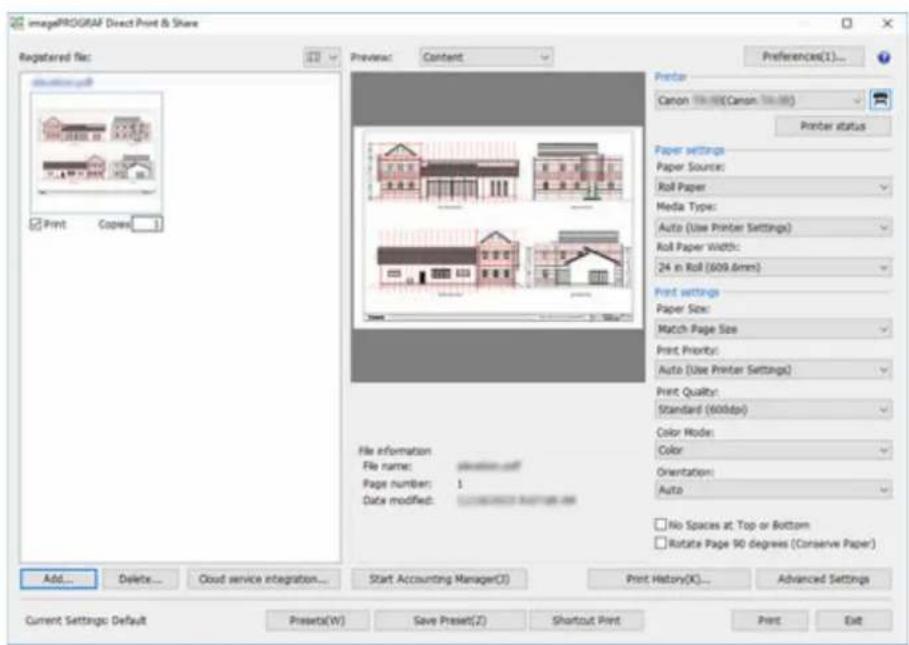
- Specify a printer in the Printer list, and configure print settings as needed.
- Click Print.
Printing will start with the selected printer.
You can save the current settings of Direct Print & Share, or replicate saved settings for the current settings.
Save Frequently Used Settings
- Configure the required settings in the print settings area on the right side of the main screen.

- Click Save Preset.
The Preset Name dialog box will be displayed.
- Enter the name of the settings you want to save in Preset Name.
- Click OK.
The current settings will be saved as the specified name.
Note
- You can save up to 500 print settings.
- The setting items that can be saved are Printer, Paper settings, and Print settings.
- Files that are in tiff/jpeg/PDF formats, and HP-GL/2 format files have different saved items for frequently used settings. Therefore, if you are printing in a file format that is different from when you saved it, you cannot replicate frequently used settings.
- Depending on the printer you are using, the item differs from when you saved it, so the settings content cannot be replicated.
Call Frequently Used Settings and Print
1. Click Presets on the main screen.

The Presets dialog box will be displayed.
2. Select the settings you want to call from the Preset Name file list.
Note
- Click Delete to delete the selected settings.
3. Click Apply.
The specified settings will be replicated on the main screen.
4. Click Print.
Printing will start.
Print from Print History
You can browse through your print history and print the same file with the same settings.
1. Click Print History... on the main screen.

The Print History dialog box will be displayed.
2. Select the item you want to print from the print history list.
Note
- Click Delete to delete the selected print history items.
3. Click Apply.
The specified print history item will be replicated on the main screen.
4. Click Print.
Printing will start.
Important
- If the file you printed in the past is deleted, you cannot print it from the history.
- You can configure how long print history is saved in the Save History For pull-down menu in the Print History dialog box. History that is older than the retention period is automatically deleted.
If you install Direct Print & Share on a PC with Autodesk's CAD software AutoCAD installed, the Direct Print & Share plugin will be added to AutoCAD.
Start Direct Print & Share from AutoCAD to easily print drawings or upload to cloud storage.
Note
- The AutoCAD plugin is available for AutoCAD 2008 to AutoCAD 2020. AutoCAD 2020 only supports 64-bit installation. If you install AutoCAD 2011 or earlier after installing Direct Print & Share, the AutoCAD plugin will not be added to AutoCAD. Reinstall Direct Print & Share to add the AutoCAD plugin.
- Open a drawing in AutoCAD
Note
- It will open in AutoCAD's Paper space. The AutoCAD plugin cannot be used from the Model space.
- Click Print and Preview from the AutoCAD ribbon menu or the menu displayed by right-clicking.
Note
• AutoCAD 2008 does not have a ribbon menu.
A PDF file containing the layout of the open drawing will be generated, and Direct Print & Share will start.
Note
- If you want to change the layout of the PDF file, change the layout of the drawing in AutoCAD, and click Print and Preview again.
- Confirm that the PDF file generated from the AutoCAD drawing is displayed in the Registered file list on the Direct Print & Share main screen.

The generated PDF file can be printed or uploaded to cloud storage.
Limitations When Printing PDF Files
These are limitations that apply when using Direct Print & Share to print PDF files that contain the below image processing.
Caution is needed when using Direct Print & Share to print PDF files created with Adobe Illustrator and other applications for graphical purposes.
- Transparency processing: Transparency will not be processed as intended.
- Drop shadows
Drop shadow effects (shadow effects applied to text, shapes, etc.) applied to objects placed on rectangles with transparency processing will not be processed correctly.
• Overprinting
The overlaying parts of images will not be printed as intended.
- Knockouts
Knockouts (cutting out parts where images overlap) will not be processed properly.
- PDF with security settings
Cannot be printed.
- 16-bit data or JPEG 2000 image data with transparency settings Images cannot be printed.
- JBIG2 image data Images cannot be printed.
- PostScript data Images cannot be printed.
- Halftone Cannot be printed.
- Data with comments added Images cannot be printed if there is no data for displaying comments.
- Data with comments added Images cannot be printed if there is no data for displaying comments.
- Font substitution function not supported It is recommended to use embedded fonts.
▶ Add WebDAV-Compatible Cloud Storage Log in to the Cloud Service ▶ Download Files from Cloud Storage ▶ Upload Files to Cloud Storage Share Files with Other Users (Google Drive Only)
Add WebDAV-Compatible Cloud Storage Log in to the Cloud Service Download Files from Cloud Storage Upload Files to Cloud Storage Share Files with Other Users (Google Drive Only)
Follow the procedure below to add WebDAV-compatible cloud storage.
Follow the procedure below to add WebDAV-compatible cloud storage.

- If you want to use a cloud service, you must create an account for that cloud service beforehand.
- If you want to use a cloud service, you must create an account for that cloud service beforehand.

The following cloud storage services are supported: "Google Drive", "HOME-BOX2", and WebDAV-compatible cloud storage.
- Access to cloud storage for services other than "Google Drive" and "HOME-BOX2" is not guaranteed.
- Access to cloud storage for services other than "Google Drive" and "HOME-BOX2" is not guaranteed.
- "HOME-BOX2" is a cloud storage service provided by Canon Marketing Japan Inc. for the Japan domestic market.
1. Click Cloud service integration on the main screen.

The Cloud service integration dialog box will open.
- Click the button on the Cloud service integration dialog box.

The Preferences dialog box will open.
3. Click Cloud storage settings.

The Cloud storage settings dialog box will open.
4. Click Add....

The Cloud storage information dialog box will open.
- Enter the cloud storage name in Storage name and the URL for connecting to WebDAV in URL and then click OK.

The added cloud storage can now be selected in the Cloud storage selection dialog box.
Log in to the Cloud Service
If you want to download files from cloud storage or upload files to cloud storage, log in to the cloud service first.
You must create an account for that cloud service beforehand.
If Using Google Drive
1. Click Cloud service integration on the main screen.

The Cloud service integration dialog box will open. (See "Cloud service integration Dialog Box".)
2. Click Login.

The Cloud storage selection dialog box will open.
- Select Google Drive, and then click OK.

The Cloud login dialog box will open.
- Click Obtain an authorization code.
![Cloud login Cloud storage: Google Drive Display Google's authentication page from the link below, then enter the password and log in. When you authorize this application, an authorization code appears. Enter the displayed code into [Authorization code], then click [OK]. Obtain an authorization code…](/content/2026/06/1350142/images/36436f77dd8aa1b960a29859143d91c5644a9b0ddb5d3b3e733528a0b1eaff3d.jpg)
Your web browser will start, and the Google Account sign-in page will be displayed.
- Sign in to your Google Account.
- Follow the displayed instructions and authorize data usage for Google Drive.
- Enter the displayed code into Authorization code in the Cloud login dialog box.
![Cloud login Cloud storage: Google Drive Display Google's authentication page from the link below, then enter the password and log in. When you authorize this application, an authorization code appears. Enter the displayed code into [Authorization code], then click [OK]. Obtain an authorization code…](/content/2026/06/1350142/images/ce58fdf12a7ea4122462fd5bda8de69e38a6eabb749446988370863a732e7a04.jpg)
Note
- If you add a check mark to Log in automatically at the next startup in the Cloud login dialog box, you can log in without going through steps 4 to 7 from the next time onwards.
8. Click OK.
![Cloud login Cloud storage: Google Drive Display Google's authentication page from the link below, then enter the password and log in. When you authorize this application, an authorization code appears. Enter the displayed code into [Authorization code], then click [OK]. Obtain an authorization code…](/content/2026/06/1350142/images/d6b4ef4a090c59d97340fd4b04b1b3400eb1e843b8d7d824a8546335b760ca97.jpg)
Note
- If proxy authentication is required, the Proxy authentication dialog box will be displayed. Enter the username and password of the proxy server set in Windows, and perform proxy authentication.
If Using a Cloud Service Other Than Google Drive
1. Click Cloud service integration on the main screen.

The Cloud service integration dialog box will open. (See "Cloud service integration Dialog Box".)
2. Click Login.

The Cloud storage selection dialog box will open.
3. Select the cloud storage you want to log in to, and then click OK.

The Cloud login dialog box will open.
4. Enter the login ID and password for the cloud service account displayed in Cloud storage, and then click OK.

Note
- If proxy authentication is required, the Proxy authentication dialog box will be displayed.
Enter the username and password of the proxy server set in Windows, and perform proxy authentication.
Download Files from Cloud Storage
Follow the procedure below to download files from cloud storage.
- Log in to the cloud service (see "Log in to the Cloud Service").

- Add a check mark to Download on the file you want to download in Cloud storage.

Note
- You can select multiple files.
3. Click Download.
The Download dialog box will be displayed, and the download will start.
Once the download completes, the downloaded files will be added to the Registered file list.

Upload Files to Cloud Storage
Follow the procedure below to upload files to cloud storage.
Files you want to upload to cloud storage must be added to the Registered file list. (See "Add Files to Print".)
- Log in to the cloud service (see "Log in to the Cloud Service").

If you want to share the files you upload with other users, add a check mark to Share settings when uploading.
- Add a check mark on Upload for the files you want to upload in the Registered file list.

Note
- You can select multiple files.
3. Click Upload.
If you add a check mark on Share settings when uploading, the Share settings dialog box will open.
Configure the settings as needed. (See "Share Files with Other Users (Google Drive Only)".)
The Upload dialog box will be displayed, and the upload will start.
Once the upload completes, the uploaded files will be added to Cloud storage.

Share Files with Other Users (Google Drive Only)
Files uploaded to the cloud storage in Google Drive can be shared with other users.
Follow the procedure below to set the users with whom you want to share files. Users you set will be able to view uploaded files once the uploads are complete.
- Log in to the cloud service (see "Log in to the Cloud Service").
![Cloud service integration. Cloud storage. Please login. Login. Create folder... Delete... Delete file... Download. File name, Date modified, Size. 1 Download. 1 [value]. Share settings when uploading. Registered file. Upload. File name, Date modified, Size. □ upload file name 2,012 KB. □ download fi…](/content/2026/06/1350142/images/a71d9b49446e424cc180f5bbeea32018777cad1230d43f140aef8b91f49b2210.jpg)
- Add a check mark to Share settings when uploading.
- Add a check mark on Upload for the files you want to upload, and then click Upload.
The Share settings dialog box will open.
- You can add users with whom you want to share the files you upload to the Share user list.

Note
- If you open the Share settings dialog box, the users you added previously will be displayed in the Share user list.
- If you want to delete users from the Share user list, select the user you want to delete, and then click Delete....
- If you want to add users with whom you want to share files, click Add....
The Add user dialog box will open.
- Enter the Google Account email address of the user with whom you want to share files.

Note
- You can enter multiple email addresses. If you want to enter multiple email addresses, separate them using commas.
7. Click OK.
Email addresses you add will be displayed in the Share user list of the Share settings dialog box.
8. Click OK.
The Upload dialog box will be displayed, and the upload will start.
Once file uploads are complete, notification emails will be sent to the users you have set.
Troubleshooting
Shortcut Prints do not get printed in order
Your files may not print in the order you selected due to OS specifications.
If you want to print files in order, drop the files one by one and print.
I want to continue using the Shortcut print icon even after buying a new printer
If the new printer you purchase is the same model, you can continue using the Shortcut print icon as long as you don't change the friendly name you are using.
I want to confirm the results of Shortcut Prints
Shortcut Print results are exported to report files.
Report files are created in "\Canon\imagePROGRAF Direct Print & Share\Shortcut Print\Reports" of Documents or My Documents.
The report file name is "ipfdps_sp_report.txt".
The top, bottom, left, and right edges of the images are not being printed
Set the Paper Size to something other than Match Page Size on the main screen, and then print.
Direct Print & Share Screen Descriptions
Main Screen
- Registered file List Cloud service integration Dialog Box ■ Cloud storage selection Dialog Box ■ Cloud login Dialog Box ■ Proxy authentication Dialog Box ■ Preferences Dialog Box (Cloud Service Link) ■ Cloud storage settings Dialog Box ■ Cloud storage information Dialog Box Share settings Dialog Box
- Add User Dialog Box
- Preferences Dialog Box (Main Screen), Printer to Use Dialog Box, Add Printer Dialog Box, Print History Dialog Box, Presets Dialog Box
- Preset Name Dialog Box
- Shortcut Print Dialog Box, Save As Dialog Box
Main Screen
You can specify files and print them on the Direct Print & Share main screen. The main screen consists mainly of the Registered file list area on the left side, the preview area in the middle, and the print settings area on the right side.

Note
- You can maximize the Direct Print & Share screen to fill the screen on your PC.
By clicking □ on the top-right, you can make it easier to check the content of the Registered file list and the preview area in the center.
Registered file list
Add files you want to print to this list. For more information, see "Registered file List".
Button
Click this button if you want to switch the Registered file list display method.
You can switch between thumbnail display and text display.
Add...
Click this button if you want to add files to the Registered file list. For information on how to add files, see "Add Files to Print".
Delete...
If you want to delete files from the Registered file list, select the files you want to delete, and then click this button.
Cloud service integration
The Cloud service integration dialog box will open. It is used when downloading files from cloud storage or uploading files to cloud storage.
For more information, see "Cloud service integration Dialog Box".
Preview
Preview of the file selected in the Registered file list is displayed.
Select Content from the pull-down menu to display the file image. Information such as file name and updated date and time of the file are displayed in File information.
Select Layout to display what the sheet layout will look like when printed. Information such as configured document size and output sheet size are displayed in Print information.
Note
- HP-GL/2 files can only be previewed in Layout preview.
Start Accounting Manager
Starts the Accounting Manager. Accounting Manager is a software program that constantly communicates with managed printers to collect job logs.
The collected job logs are saved to the hard disk of your computer, which you can use to calculate total printing costs and for other purposes.
Preferences
The Preferences dialog box will open. It is used for setting automatic launch of the Canon IJ Status Monitor and using the driver's internal spool processing function. It is also used for inserting blank pages between files and collating files into sets.
For more information, see "Preferences Dialog Box (Main Screen)".
Printer
Select the printer you want to use to print files.

Button
Click this button to add a printer to the Printer pull-down menu. For information on how to add printers, see "Add Printers".
Printer status
The Canon IJ Status Monitor of the selected printer will start, and the status of the print job can be confirmed.
When using an Océ printer, Remote UI will open allowing you to check the printing progress.
Note
- For detailed information, see the Canon IJ Status Monitor help.
Paper settings
You can configure the following printer driver settings: Paper Source, Media Type, and Roll Paper Width.
This cannot be configured when HP-GL/2 files are selected.
Print settings
You can configure the following printer driver settings: Paper Size, Print Priority, Print Quality, Color Mode, Orientation, No Spaces at Top or Bottom, and Rotate Page 90 degrees (Conserve Paper).
Only Print Quality can be configured when HP-GL/2 files are selected.
Important
- If Paper Size is set to something other than Match Page Size, the image will be enlarged or shrunk to match the printing area of the output sheet size, and then printed.
Note
- For information on each of the setting items of the printer driver, see the printer driver help.
- Auto in Orientation cannot be configured in driver properties. If you select Auto, the appropriate orientation for each page will be automatically configured.
Print History...
Click this button to browse through your print history and print. For information on how to print from print history, see "Print from Print History".
Advanced Settings
Driver properties will open.
Note
- For settings that are not in Paper settings or Print settings, open the driver properties and configure settings.
- This button cannot be clicked when HP-GL/2 files are selected.
Current Settings
Display the name of the setting that is currently applied.
Presets
Click this button to replicate saved settings for the current settings. For information on how to replicate settings, see "Call Frequently Used Settings and Print".
Save Preset
Click this button to save current settings. For information on how to save settings, see "Save Frequently Used Settings" in "Call Frequently Used Settings and Print".
Shortcut Print
The Shortcut Print dialog box will open. You can create shortcut print icons that can be used to print simply by dropping the data you want to print.
For instructions on how to create Shortcut print icons, see "Create Shortcut Print Icons".
Printing will start. The Print dialog box will open while printing is in progress.
? Button
The Direct Print & Share online manual will be displayed.
Icon
Click About imagePROGRAF Direct Print & Share... to display information such as version information.
Note
- When using an Océ printer, Start Accounting Manager, Preferences, Print settings (Print Priority, No Spaces at Top or Bottom, Rotate Page 90 degrees (Conserve Paper)), and Advanced Settings will not function.
Registered file List
Add files you want to use in Direct Print & Share.
Files added to this list can be printed from Direct Print & Share.
You can also switch between thumbnail display and list display from the pull-down menu at the upper-right of the Registered file list area.

Important
- Files you want to upload to cloud storage must also be added to this list.
- File formats that can be previewed and printed are as follows: JPEG, TIFF, PDF (excluding password-protected PDFs), and HP-GL/2. Files with formats other than those listed cannot be previewed or printed, but they can be uploaded to cloud storage.
- HP-GL/2 files can only be previewed in Layout preview.
- If you select a file, right click, and add a check mark to Process in HP-GL/2 format, you can forcibly process a file as HP-GL/2.
However, you should always remove the Process in HP-GL/2 format check mark for files other than HP-GL/2. If you print with this check mark added, a large volume of sheets may be printed, or documents may be incorrectly printed.
Thumbnail View

Print check box
Add check marks to files and pages you want to print. If you click Print on the bottom right of the main screen, only the files and pages with check marks on Print will be printed.
The check box will be disabled if it is a file format that can't be printed.
Copies
Enter the number of copies you want to print for the files with check marks on Print.

Note
- Files in HP-GL/2 format have the numbers of copies to print configured inside the files. The actual number of copies that will be printed is as follows:
— (Number of copies entered here) x (Number of copies configured in the HP-GL/2 file)
List Display

File name
The file name is displayed. To display files that contain multiple pages in an expanded per-page view, click the triangle on the left side of the file name.
Page
The number of pages contained in the file is displayed.
Page Size(XXXX)
Document sizes are displayed.
Print check box
Add check marks to files and pages you want to print. If you click Print on the bottom right of the main screen, only the files and pages with check marks on Print will be printed.
The check box will be disabled if it is a file format that can't be printed.
Note
- If you add a check mark on the left side of Print, check marks will be added to all files. If you remove the check mark, the check marks for all files will be removed.
- If you add a check mark to the left of Print while only some files have check marks added, it will add check marks to all files. If you click it again, check marks on all files will be removed. If you click it again after that, it will go back to the original state. Each time you click, it will repeat the following pattern: Adds check marks to all files > Removes check marks from all files > Adds check marks to some files
Copies
Enter the number of copies you want to print for the files with check marks on Print.
Note
- Files in HP-GL/2 format have the numbers of copies to print configured inside the files. The actual number of copies that will be printed is as follows:
— (Number of copies entered here) x (Number of copies configured in the HP-GL/2 file)
Cloud service integration Dialog Box
You can log in to cloud services and download files from cloud storage or upload files to cloud storage.
It is displayed by clicking Cloud service integration on the main screen.

Cloud storage
Folders in the cloud storage you are logged in to and the list of files are displayed.
Storage
The cloud storage you are logged in to is displayed.
Download check box
There are check boxes on the left side of the file list in Cloud storage.
If you add check marks to the files you want to download, and click Download at the bottom of the file list, only the files with check marks will be downloaded from cloud storage.
Note
- If you add a check mark on the left side of Download in the file list, check marks will be added to all files. If you remove the check mark, the check marks for all files will be removed.
Login
The Cloud storage selection dialog box will open. For more information, see "Cloud storage selection Dialog Box".
Logout
Log out of cloud services.
Button
The Preferences dialog box will open. It is used when configuring settings related to downloading files from cloud storage, or when adding or deleting the cloud storage you want to use.
For more information, see "Preferences Dialog Box (Cloud Service Link)".
Create folder...
Click this button to create a new folder in the cloud storage you are currently logged in to.
Delete...
If you want to delete folders from the cloud storage you are logged in to, select the folders you want to delete, and then click this button. Selected folders and all files contained in them will be deleted.
Delete file...
If you want to delete files from the cloud storage you are logged in to, select the files you want to delete, and then click this button.

Button
Folders in the cloud storage you are logged in to and the list of files will be updated.
Click this button if you make changes to folders and files on the cloud storage from somewhere other than Direct Print & Share, such as from Internet Explorer.
Registered file list
Files used in Direct Print & Share are displayed. This is the same list as the Registered file list on the main screen.
Files downloaded from cloud storage are added to this list. Files you want to upload to cloud storage must be added to this list.
Upload check box
There are check boxes on the left side of the file list in Registered file.
If you add check marks to the files you want to upload, and click Upload at the bottom of the file list, only the files with check marks will be uploaded to cloud storage.

Note
- If you add a check mark on the left side of Upload in the file list, check marks will be added to all files. If you remove the check mark, the check marks for all files will be removed.
Download
Files with check marks added to Download will be downloaded from cloud storage. For information on how to download files, see "Download Files from Cloud Storage".
Upload
Files with check marks added to Upload will be uploaded to cloud storage. For information on how to upload files, see "Upload Files to Cloud Storage".
Share settings when uploading
If you add a check mark and click Upload, the Share settings dialog box will open. You can set users with whom you want to share uploaded files with in the Share settings dialog box.
For more information, see "Share settings Dialog Box".
Close
The Cloud service integration dialog box will close.
Cloud storage selection Dialog Box
This is a dialog box for selecting cloud storage.
Click Login in the Cloud service integration dialog box to display.
For information on how to log in to the cloud service, see "Log in to the Cloud Service".

Cloud storage
Select the cloud storage you want to use.
OK
The Cloud login dialog box will open. For more information, see "Cloud login Dialog Box".
Cloud login Dialog Box
This dialog box is for logging in to cloud services. You must create an account for that cloud service beforehand.
Click OK in the Cloud storage selection dialog box to display.
For information on how to log in to the cloud service, see "Log in to the Cloud Service".
If Cloud storage is Google Drive
![Cloud login Cloud storage: Google Drive Display Google's authentication page from the link below, then enter the password and log in. When you authorize this application, an authorization code appears. Enter the displayed code into [Authorization code], then click [OK]. Obtain an authorization code…](/content/2026/06/1350142/images/44cbbb400503a816a2f82cbe20cdd631c324211901030e5cacaafb499a056b79.jpg)
Cloud storage
The cloud storage you can use is displayed.
Obtain an authorization code
Your web browser will start, and the Google Account sign-in page will be displayed.
Authorization code
Enter the code obtained from Google.
Log in automatically at the next startup
The next time you log in, you can log in without obtaining a code from Google.
Log in with a different account
It will switch to the dialog box for obtaining the authorization code.
If Cloud storage is Other Than Google Drive
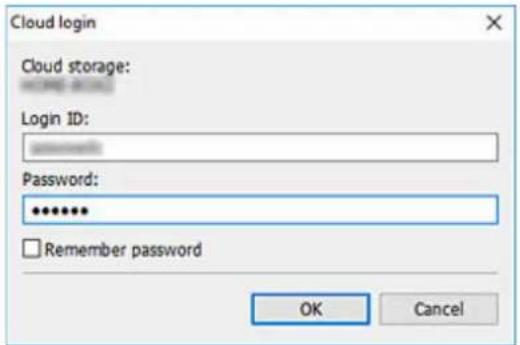
Cloud storage
The cloud storage you can use is displayed.
Login ID
Enter the login ID for the cloud service account.
Password
Enter the password for the cloud service account.
Remember password
The login ID and password you entered will be saved. The next time you log in, the login ID and password will be automatically entered.
Proxy authentication Dialog Box
Perform Windows proxy authentication.

User name
Enter the username for logging in to the proxy server.
Password
Enter the password for logging in to the proxy server.
Remember password
The username and password you entered will be saved. The next time you log in, the username and password will be automatically entered.
Preferences Dialog Box (Cloud Service Link)
Configure settings related to downloading files from cloud storage, or when adding or deleting the cloud storage you want to use.
Click the button in the Cloud service integration dialog box to display.

Destination to save downloaded files
Set the save destination for the files you download from cloud storage. Click Browse... and specify the save destination folder.
Delete downloaded files when program exits
If you add a check mark, files you download from cloud storage will be deleted from the Registered file list and folder when you quit Direct Print & Share.
Note
- The files that will be deleted are the files that were downloaded after Direct Print & Share was last launched. Files that were downloaded before that will not be deleted.
Cloud storage settings
The Cloud storage settings dialog box will open. For more information, see "Cloud storage settings Dialog Box".
Cloud storage settings Dialog Box
This dialog box is for adding or deleting the cloud storage you want to use. You can also select cloud storage displayed in the Cloud storage selection dialog box.
Click Cloud storage settings in the Preferences dialog box to display.

Storage
The cloud storage you added is displayed.
The cloud storage with check marks added are displayed in the Cloud storage selection dialog box. For more information, see "Cloud storage selection Dialog Box".
Add...
The Cloud storage information dialog box will open, where you can enter the cloud storage you want to add. For more information, see "Cloud storage information Dialog Box".
Delete...
Delete the cloud storage that is selected.
Note
- You cannot delete "Google Drive" or "HOME-BOX2".
- "HOME-BOX2" is a cloud storage service provided by Canon Marketing Japan Inc. for the Japan domestic market.
Edit
The Cloud storage information dialog box will open, where information of the selected cloud storage is displayed. For more information, see "Cloud storage information Dialog Box".
Cloud storage information Dialog Box
This dialog box is for configuring the WebDAV cloud storage.
Click Add... or Edit in the Cloud storage settings dialog box to display.

Storage name
Enter the storage name.
If you click Edit in the Cloud storage settings dialog box, the storage name of the selected cloud storage will be displayed.
URL
Enter the URL for connecting to WebDAV.
If you click Edit in the Cloud storage settings dialog box, the URL of the selected cloud storage will be displayed.

Important
- Access to cloud storage for services other than "Google Drive" and "HOME-BOX2" is not guaranteed.
- "HOME-BOX2" is a cloud storage service provided by Canon Marketing Japan Inc. for the Japan domestic market.
- For detailed information regarding cloud storage, please check with the cloud storage service provider.
Connection protocol
WebDAV will be displayed.
Share settings Dialog Box
Set the users with whom you want to share the files you upload.
For information on how to set users with whom you want to share files, see "Share Files with Other Users (Google Drive Only)".

Share user list
Google Account email addresses of added users are displayed.
Once files are done uploading, you will be able to share them with the users displayed here.
Add...
Click this button to add users to the Share user list.
The Add user dialog box will open.
Delete...
Select the users you want to delete from the Share user list, and then click this button.
The selected users will be deleted from the Share user list.
OK
The Share settings dialog box will close, and upload will start.
Add User Dialog Box
Add the users with whom you want to share the files you upload.

Email Address
Enter the email addresses of the users with whom you want to share files.
Preferences Dialog Box (Main Screen)
You can set automatic launch of the Canon IJ Status Monitor and use the driver's internal spool processing function.
You can also insert blank pages between files, and collate files into sets.
Click Preferences on the main screen to display.
When using an Océ printer, the Preferences button on the main screen does not function.

Start Status Monitor Automatically Check Box
If you start Direct Print & Share when the check mark is added, the Canon IJ Status Monitor of the configured printer will automatically start. If you switch printers, the Canon IJ Status Monitor will also switch automatically.
Important
- You may not be able to select this depending on the Canon printer you are using.
Note
- If you quit Direct Print & Share, the automatically launched Canon IJ Status Monitor will also end.
Use Spooling at Printer Driver check box
Add a check mark if you want to use all printer driver functions, such as Print from Last Page and 2 Pages/Sheet.
Important
- If the Use Spooling at Printer Driver check mark is added, intermediate files are temporarily generated before printing when printing large files. Depending on how much space you have on your hard disk, this may cause an error.
- You may not be able to select this depending on the printer you are using.
Insert blank page between files check box
If you want to make it easier to see the separation points between files when printing multiple files, add a check mark. A blank page will be inserted between files.
Note
- This function will not work if you are using HP-GL/2 files or cut paper, or if you have enabled Set PIN for printing or Save in Job Box on the printer driver.
Collate files into sets check box
If you want to collate files into sets when printing multiple files, add a check mark. If a check mark is added in Insert blank page between files, blank pages will be inserted between sets.
- Collate files into sets:
Insert blank page between files: √
![graph LR A["Step 1: A-1, A-2"] --> B["Step 2: B-1, B-2, B-3"] B --> C["Step 3: A-1, A-2, B-1, B-2, B-3"] C --> D["Step 4: B-1, B-2, B-3"]](/content/2026/06/1350142/images/f08e08bccbb55fdead7b7eec6890d69fa33976652f277a34cc1cdedaa041bbc7.jpg)
- Collate files into sets:
Insert blank page between files: √
![graph LR subgraph Left A1["A-1"] --> A2["A-2"] A2 --> A3["A-1"] A3 --> A4["A-2"] end subgraph Right B1["B-1"] --> B2["B-2"] B2 --> B3["B-3"] B3 --> B4["B-1"] B4 --> B5["B-2"] B5 --> B6["B-3"] B6 --> B7["B-1"] end](/content/2026/06/1350142/images/bce29f26278f43cfc1047965665893b4d3b2c59578d0d1c01522b690bf6a1c01.jpg)
Printer to use Dialog Box
This dialog box is used to add or delete printers that are displayed in the Printer pull-down menu of the main screen.
Click the button on the main screen to display.
Note
- Printers you want to use with Direct Print & Share must be added to the Printer pull-down menu beforehand.

Printer to use list
Printers that are displayed in the Printer pull-down menu of the main screen are displayed.
Add...
The Add printer dialog box will be displayed showing a list of printer drivers installed on your PC. When using an Océ printer, printers found on the network are displayed.
Printers can be added to the Printer pull-down list on the main screen. For information on how to add printers, see "Add Printers".
Delete...
If you want to delete printers from the Printer pull-down menu on the main screen, select the printers you want to delete from the Printer to use list, and then click this button.
OK
The Printer to use dialog box will close, and the printers displayed in the Printer to use list will be displayed in the Printer pull-down menu of the main screen.
Add Printer Dialog Box
This dialog box is used to select the printer you want to use for printing.

Canon Printer
List of printer drivers installed on your PC.
Océ Printer
List of Océ printers found on the network.
For a list of supported Océ printers, see "Supported Printers".
Print History Dialog Box
This is a dialog box for browsing through a history of items you printed in the past.
Click Print History... on the main screen to display.

Print history list
The file paths and printed time/date of the files you printed in the past are displayed as a list. When selected, information such as printers used and print settings are displayed at the bottom of the dialog box.
The number of saved history items is displayed on the bottom-left of the dialog box window. You can save up to 500 history items.
Delete
Click to delete the selected history items.
Save History For pull-down menu
You can select how long you want to keep items in your history. You can select one of the following: 1 week, 2 weeks, 1 month, 3 months, or Do not save.
Apply
Click to replicate the selected print history on the main screen.
Presets Dialog Box
This is a dialog box for selecting saved settings.
Click Presets on the main screen to display.

List of frequently used settings
The names of saved settings are displayed.
When selected, information such as print settings information and file types are displayed at the bottom of the dialog box.
Delete
Click to delete the selected settings.
Apply
Click to replicate the selected settings on the main screen.
Preset Name Dialog Box
This is a dialog box for saving current settings.
Click Save Preset on the main screen to display.

Preset Name
Enter the name of the settings you want to save.
Shortcut Print Dialog Box
This is a dialog box for selecting the type of icon for executing Shortcut Print.
For instructions on how to create Shortcut print icons, see "Create Shortcut Print Icons".
For information on how to print using the Shortcut Print function, see "Printing Files".

Create shortcut print icon
Create icons for Shortcut Print.
Create startup icon with print settings
Create Start icons with print settings attached.
Next
The Save As Dialog Box will open. For more information, see "Save As Dialog Box".
Save As Dialog Box
This is a dialog box for setting the name and save destination of the icon for executing Shortcut Print. If PDF, JPEG, or TIFF is selected, the icon for printing with the printer driver is created. If HP-GL/2 is selected, the icon for printing HP-GL/2 is created.

File name
Specify the name of the icon for executing Shortcut Print.
The icon name in the initial state is as follows:
- "friendly name"_"sheet type"_"printing quality"
If the file format is HP-GL/2, "sheet type" will be "GL2" instead of the sheet type.

Important
- Do not change the friendly name of the printer used in Shortcut Print.
Save
A Shortcut print icon is created in the specified folder.
- SYMBOLS USED IN THIS DOCUMENT
- ⚠ WARNING
- CAUTION
- IMPORTANT
- NOTE
- BASICS
- TOUCH-ENABLED DEVICE USERS (WINDOWS)
- TRADEMARKS AND LICENSES
- DEFINITIONS
- ALL RIGHTS RESERVED
- LEADTOOLS
- MIT LICENSE
- RED HAT INCORPORATED
- UNIVERSITY OF CALIFORNIA, BERKELEY
- NO WARRANTY
- REDISTRIBUTION
- ADVERTISING
- CONTACTS
- DIRECT PRINT & SHARE GUIDE
- PRECAUTIONS FOR USE (DIRECT PRINT & SHARE)
- PRECAUTIONS WHEN INSTALLING
- PRECAUTIONS WHEN USING
- PRECAUTIONS WHEN USING AUTOCAD PLUGINS
- REGARDING THIRD-PARTY SERVICES
- PRECAUTIONS WHEN USING OCÉ PRINTERS
- FEATURES OF DIRECT PRINT & SHARE
- PERFORM ONE OF THE FOLLOWING ACTIONS
- PRINTING FILES
- ADD PRINTERS
- CLICK THE BUTTON ON THE MAIN SCREEN
- CLICK ADD
- SELECT YOUR PRINTER
- ADD FILES TO PRINT
- ADD FILES YOU WANT TO PRINT BY DROPPING THEM IN THE MAIN SCREEN
- ADD USING ADD... IN THE MAIN SCREEN
- SELECT THE FILE YOU WANT TO PRINT, AND THEN CLICK OPEN
- CONFIRM PRINT LAYOUT IN PREVIEWS
- CONFIGURE PRINT SETTINGS
- CREATE SHORTCUT PRINT ICONS
- PRINT FILES BY STARTING DIRECT PRINT & SHARE
- PRINT BY DROPPING A FILE ON THE SHORTCUT PRINT ICON
- PRINT BY DROPPING A FILE ON THE START ICON WITH PRINT SETTINGS ATTACHED
- SAVE FREQUENTLY USED SETTINGS
- CALL FREQUENTLY USED SETTINGS AND PRINT
- CLICK PRESETS ON THE MAIN SCREEN
- SELECT THE SETTINGS YOU WANT TO CALL FROM THE PRESET NAME FILE LIST
- CLICK APPLY
- CLICK PRINT
- PRINT FROM PRINT HISTORY
- CLICK PRINT HISTORY... ON THE MAIN SCREEN
- SELECT THE ITEM YOU WANT TO PRINT FROM THE PRINT HISTORY LIST
- LIMITATIONS WHEN PRINTING PDF FILES
- ADD WEBDAV-COMPATIBLE CLOUD STORAGE LOG IN TO THE CLOUD SERVICE ▶ DOWNLOAD FILES FROM CLOUD STORAGE ▶ UPLOAD FILES TO CLOUD STORAGE SHARE FILES WITH OTHER USERS (GOOGLE DRIVE ONLY)
- FOLLOW THE PROCEDURE BELOW TO ADD WEBDAV-COMPATIBLE CLOUD STORAGE
- IF YOU WANT TO USE A CLOUD SERVICE, YOU MUST CREATE AN ACCOUNT FOR THAT CLOUD SERVICE BEFOREHAND
- THE FOLLOWING CLOUD STORAGE SERVICES ARE SUPPORTED: "GOOGLE DRIVE", "HOME-BOX2", AND WEBDAV-COMPATIBLE CLOUD STORAGE
- CLICK CLOUD SERVICE INTEGRATION ON THE MAIN SCREEN
- CLICK CLOUD STORAGE SETTINGS
- LOG IN TO THE CLOUD SERVICE
- IF USING GOOGLE DRIVE
- CLICK LOGIN
- CLICK OK
- IF USING A CLOUD SERVICE OTHER THAN GOOGLE DRIVE
- SELECT THE CLOUD STORAGE YOU WANT TO LOG IN TO, AND THEN CLICK OK
- ENTER THE LOGIN ID AND PASSWORD FOR THE CLOUD SERVICE ACCOUNT DISPLAYED IN CLOUD STORAGE, AND THEN CLICK OK
- DOWNLOAD FILES FROM CLOUD STORAGE
- CLICK DOWNLOAD
- UPLOAD FILES TO CLOUD STORAGE
- CLICK UPLOAD
- SHARE FILES WITH OTHER USERS (GOOGLE DRIVE ONLY)
- TROUBLESHOOTING
- SHORTCUT PRINTS DO NOT GET PRINTED IN ORDER
- I WANT TO CONTINUE USING THE SHORTCUT PRINT ICON EVEN AFTER BUYING A NEW PRINTER
- I WANT TO CONFIRM THE RESULTS OF SHORTCUT PRINTS
- THE TOP, BOTTOM, LEFT, AND RIGHT EDGES OF THE IMAGES ARE NOT BEING PRINTED
- DIRECT PRINT & SHARE SCREEN DESCRIPTIONS
- MAIN SCREEN
- REGISTERED FILE LIST
- BUTTON
- ADD
- DELETE
- CLOUD SERVICE INTEGRATION
- PREVIEW
- START ACCOUNTING MANAGER
- PREFERENCES
- PRINTER
- PRINTER STATUS
- PAPER SETTINGS
- PRINT SETTINGS
- PRINT HISTORY
- ADVANCED SETTINGS
- CURRENT SETTINGS
- PRESETS
- SAVE PRESET
- SHORTCUT PRINT
- ICON
- THUMBNAIL VIEW
- PRINT CHECK BOX
- COPIES
- LIST DISPLAY
- FILE NAME
- PAGE
- PAGE SIZE(XXXX)
- CLOUD SERVICE INTEGRATION DIALOG BOX
- CLOUD STORAGE
- STORAGE
- DOWNLOAD CHECK BOX
- LOGIN
- LOGOUT
- CREATE FOLDER
- DELETE FILE
- UPLOAD CHECK BOX
- DOWNLOAD
- UPLOAD
- SHARE SETTINGS WHEN UPLOADING
- CLOSE
- CLOUD STORAGE SELECTION DIALOG BOX
- OK
- CLOUD LOGIN DIALOG BOX
- IF CLOUD STORAGE IS GOOGLE DRIVE
- OBTAIN AN AUTHORIZATION CODE
- AUTHORIZATION CODE
- LOG IN AUTOMATICALLY AT THE NEXT STARTUP
- LOG IN WITH A DIFFERENT ACCOUNT
- IF CLOUD STORAGE IS OTHER THAN GOOGLE DRIVE
- LOGIN ID
- PASSWORD
- REMEMBER PASSWORD
- PROXY AUTHENTICATION DIALOG BOX
- USER NAME
- PREFERENCES DIALOG BOX (CLOUD SERVICE LINK)
- DESTINATION TO SAVE DOWNLOADED FILES
- DELETE DOWNLOADED FILES WHEN PROGRAM EXITS
- CLOUD STORAGE SETTINGS
- CLOUD STORAGE SETTINGS DIALOG BOX
- EDIT
- CLOUD STORAGE INFORMATION DIALOG BOX
- STORAGE NAME
- URL
- CONNECTION PROTOCOL
- SHARE SETTINGS DIALOG BOX
- SHARE USER LIST
- ADD USER DIALOG BOX
- EMAIL ADDRESS
- PREFERENCES DIALOG BOX (MAIN SCREEN)
- START STATUS MONITOR AUTOMATICALLY CHECK BOX
- USE SPOOLING AT PRINTER DRIVER CHECK BOX
- INSERT BLANK PAGE BETWEEN FILES CHECK BOX
- COLLATE FILES INTO SETS CHECK BOX
- PRINTER TO USE DIALOG BOX
- PRINTER TO USE LIST
- ADD PRINTER DIALOG BOX
- CANON PRINTER
- OCÉ PRINTER
- PRINT HISTORY DIALOG BOX
- PRINT HISTORY LIST
- SAVE HISTORY FOR PULL-DOWN MENU
- APPLY
- PRESETS DIALOG BOX
- LIST OF FREQUENTLY USED SETTINGS
- PRESET NAME DIALOG BOX
- PRESET NAME
- SHORTCUT PRINT DIALOG BOX
- CREATE SHORTCUT PRINT ICON
- CREATE STARTUP ICON WITH PRINT SETTINGS
- NEXT
- SAVE AS DIALOG BOX
- SAVE
Brand : CANON
Model : ColorTrac SmartLF SG44c
Category : Scanner