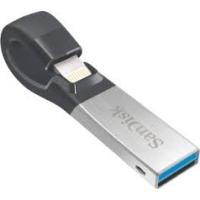
iXPAND 3.0 32G - USB Drive SANDISK - Free user manual and instructions
Find the device manual for free iXPAND 3.0 32G SANDISK in PDF.


| Product Type | USB flash drive with integrated security software |
| Brand | SanDisk |
| Model | iXPAND 3.0 |
| Capacity | 32 GB |
| Interface | USB 3.0 (backward compatible with USB 2.0) |
| Dimensions (approx.) | 60 x 20 x 10 mm |
| Weight (approx.) | 10 g |
| Power supply | Powered via USB port |
| Compatible operating systems | Windows Vista, 7, 8, 10 ; macOS X v10.7+ |
| Main features | Data storage and transfer; password protection and AES 128-bit encryption via SanDisk SecureAccess |
| Included software | SanDisk SecureAccess (creates an encrypted vault) |
| Security | AES 128-bit encryption; password-protected access |
| Maintenance and cleaning | Wipe with a soft, dry cloth; avoid contact with liquids |
| Spare parts and repairability | Not applicable (non-repairable product, no spare parts) |
| Warranty | Limited manufacturer warranty (typically 2 years) |
Frequently Asked Questions - iXPAND 3.0 32G SANDISK
User questions about iXPAND 3.0 32G SANDISK
0 question about this device. Answer the ones you know or ask your own.
Ask a new question about this device
Download the instructions for your USB Drive in PDF format for free! Find your manual iXPAND 3.0 32G - SANDISK and take your electronic device back in hand. On this page are published all the documents necessary for the use of your device. iXPAND 3.0 32G by SANDISK.
USER MANUAL iXPAND 3.0 32G SANDISK
- Connecting to iPhone/iPad
- Charging
- Understanding the LED indicator
Applications
- App Overview
- Camera Roll Sync
- File Management
- Photo
- Video
Music - Password Protection
- Sharing
- Contact Management
Device Settings
- Drive Name
- Formatting
- Firmware update
Troubleshooting & Support
Instructional Icons

Warning

Information

Quick Tip
Introduction
iXpand Flash Drive Overview
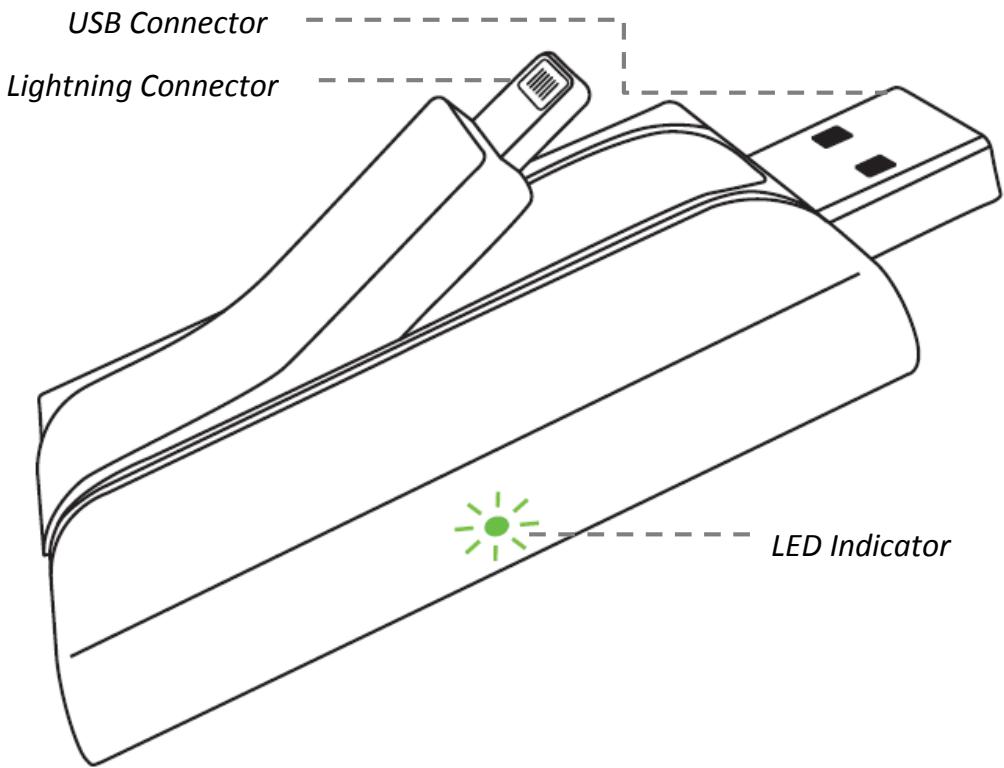
Figure: iXpand Flash Drive layout
- Automatically syncs photos and videos from camera roll when connected.
- Transfer photos and videos from the camera roll to the drive to free up iPhone/iPad memory.
- Watch popular-format movies directly from the drive1.
Encrypted files across iPhone, iPad, and computers for secure transfer
Works with
iPhone 5, iPhone 5C, iPhone 5S, iPhone 6, iPhone 6 Plus, iPad Air™, iPad mini™, iPad with Retina display and newer (iOS 7.1+).
Windows vista®, Windows 7, Windows 8, Mac OS X v10.6+.
Specifications
- Interface: Lightning and USB 2.0 connectors
Available in: 16GB, 32GB and 64GB - Operational Temperature: 0 60^ C .
- Dimensions: 64.17mm x 36.78mm x 11.80mm
- Battery: pre-charged, ready to use
Getting Started
Connecting to iPhone/iPad
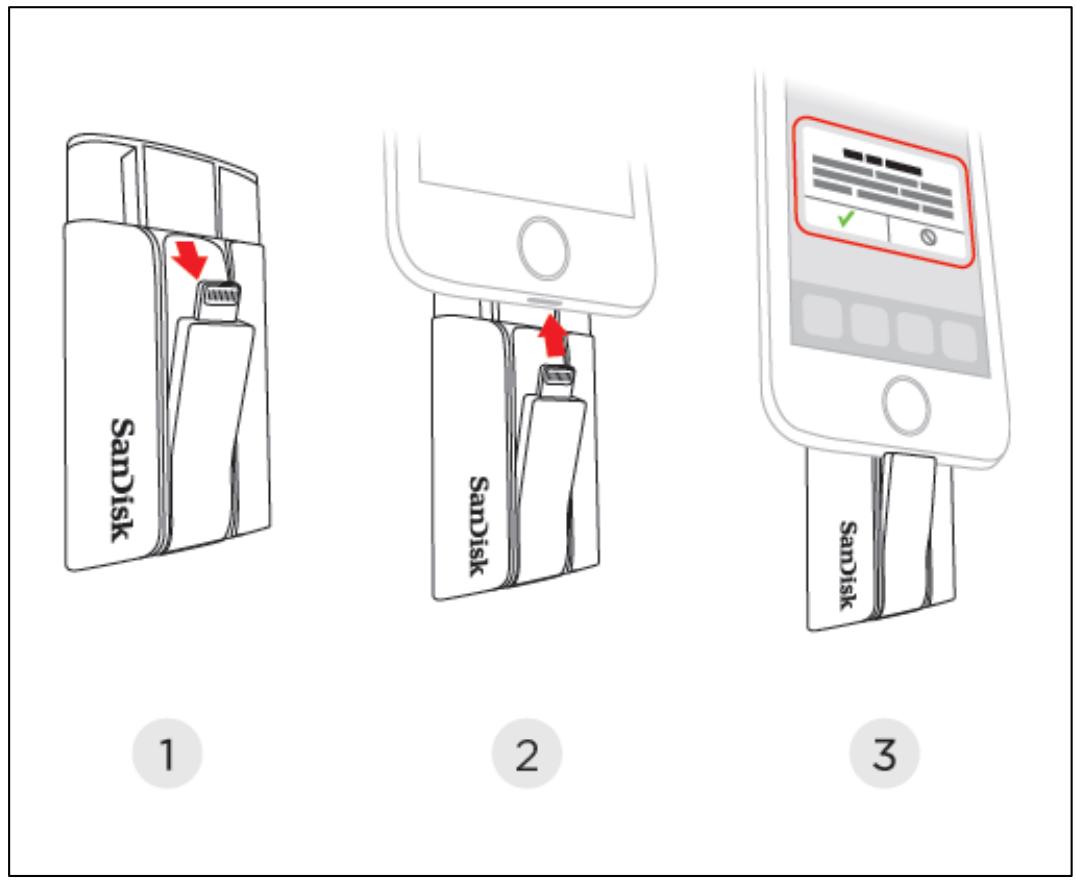
Physical connection

Gently lift the Lightning connector slightly to connect to iPhone/ iPad
Installing the app
When you've connected the drive to your iPhone or iPad, you'll be prompted to install the companion iXpand Sync app.
1 If this does not occur, please be sure the drive is fully charged. On the screen, select "App Store".
App Not Installed
The accessory "iXpand Flash Drive" uses an app you do not have installed. Would you like to get it from the App Store?
App Store
Ignore
2 Install the "iXpand Sync" app from the App Store.

SanDisk
Charging iXpand Flash Drive
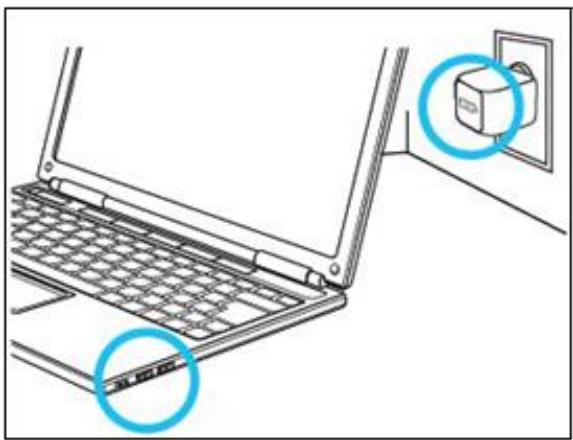
Plug your drive into a computer USB port or a USB AC adaptor* to charge it.
LED Indicator
The LED on the side of iXpand Flash drive indicates its battery, charging and transfer status as explained below
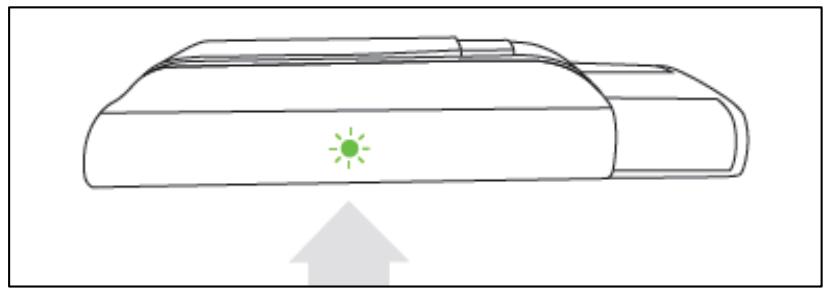
- Green - sufficient battery
- Red - low battery level. Charge by plugging the device to a USB port of PC/Mac computer or a USB AC adaptor
- Amber- charging in progress. Will become green when done
- Blinking-file transfer in progress. Do not disconnect the drive
Applications
App overview
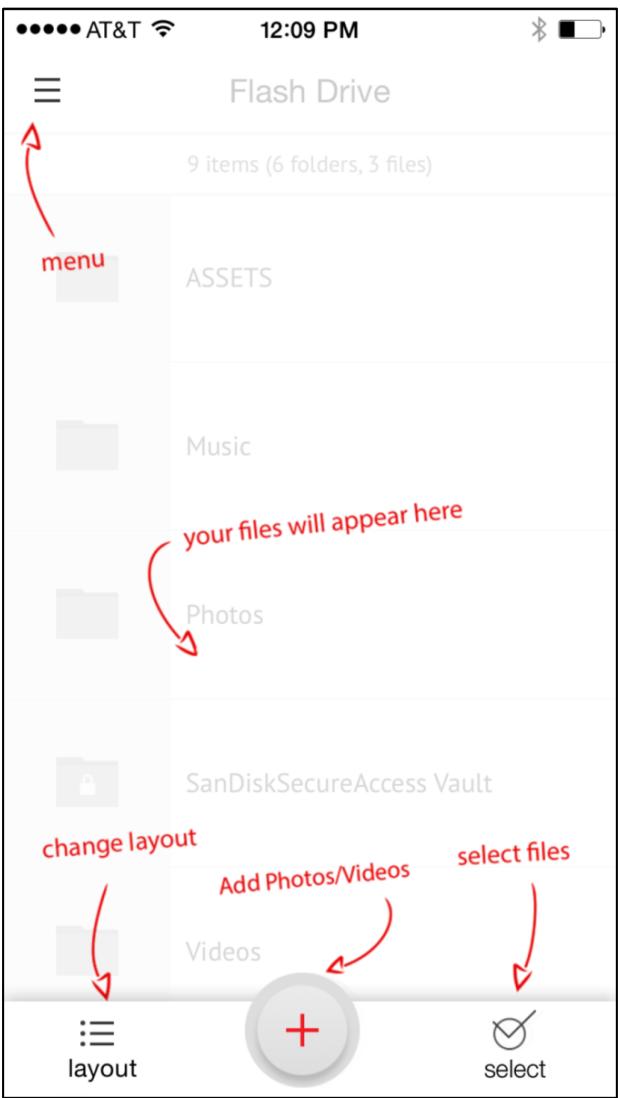
iXpand sync app is the companion to your iXpand Flash Drive. Its major functions:
- Add photos/videos from the camera roll to the drive with the ‘+’ button.
- Access other functions - camera sync, "My Downloads", settings and transfer contacts through the menu icon in the top left corner.
Camera Roll Sync
You can back up your camera roll to the iXpand Flash Drive by setting up auto-sync or manually syncing as needed.
Automatic Sync
Set-up once and transfer your camera roll to the drive automatically each time the drive is connected.
To set-up:
1 Connect the iXpand Flash Drive to the iPhone/iPad.
2 On the app, go to Menu Camera Sync.
3 Turn on the "Automatic Sync" option on the camera sync screen.

Syncing may take longer than normal the 1^st time. Once set up, only newly added files will be copied to the drive.
Manual Sync
Sync your camera roll with the drive as needed using manual sync.
To sync:
1 Connect the iXpand Flash Drive to your iPhone/iPad.
2 Go to Menu Camera Sync.
3 To change the destination of the syncd files on the drive, select the "Sync Destination" as a folder on the drive.
4 Select "Sync Now".
5 All the files in your Camera Roll will be copied to the drive in the folder specified as the Sync Destination.

Syncing may take longer than normal the 1^st time. Once set up, only newly added files will be copied to the drive.
File Management
Use your iXpand Flash Drive and iXpand sync app to transfer and manage files between your iPhone, iPad, PC and Mac computer.
Transfer files from your iPhone or iPad to the drive
1 Connect the iXpand Flash Drive to your iPhone/iPad.
2 Select the add file button "+"
3 When prompted to "select files", choose the files you want to transfer from iPhone/iPad to the drive.
4 "Select Destination" to specify where to store the files on your drive.

You can choose "New Folder" option to create a new folder as the destination of the file transfer on the drive.
Transfer files from drive to iPhone/iPad
1 Connect the iXpand Flash Drive to your iPhone/iPad.
2 Press "Select" button to choose the files from the drive.
3 Press at the bottom of the screen.
4 Choose "Save to My Downloads" or, if you're copying iOS-supported photos and videos only, choose "Save Images/Videos" to save them to the Camera Roll
5 The selected files will be saved to your phone.

Files downloaded to My Downloads are accessible using the iXpand sync app even when drive is not connected.
Transfer files between PC and drive
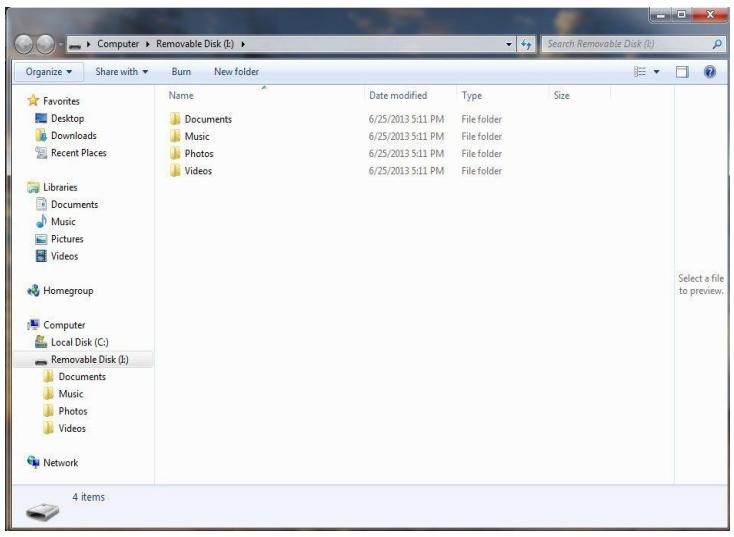
To transfer files between your iXpand Flash Drive and computer simply plug the iXpand Flash Drive into your computer's USB port.
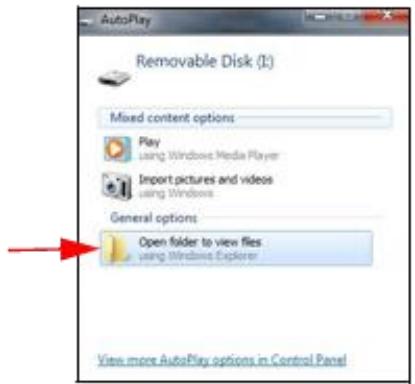
1 In the AutoPlay window, click Open folder to view files:
2 Drag and drop music, videos, photos, and documents between your computer and the iXpand Flash Drive window.
Transfer files between Mac computer and drive
To transfer content between your iXpand Flash Drive and Mac computer:
1 Plug your iXpand Flash Drive into your Mac computer's USB port.
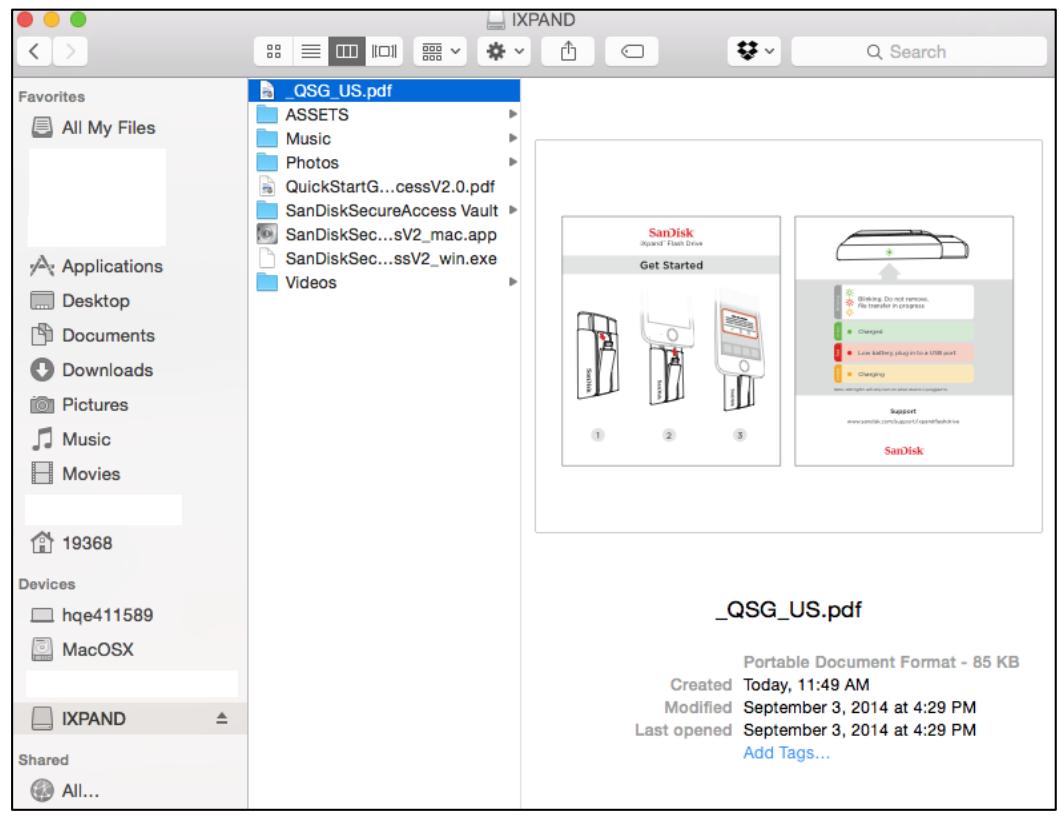
2 Drag and drop music, videos, photos, and documents between your Mac computer and the iXpand Flash Drive window.
Delete files
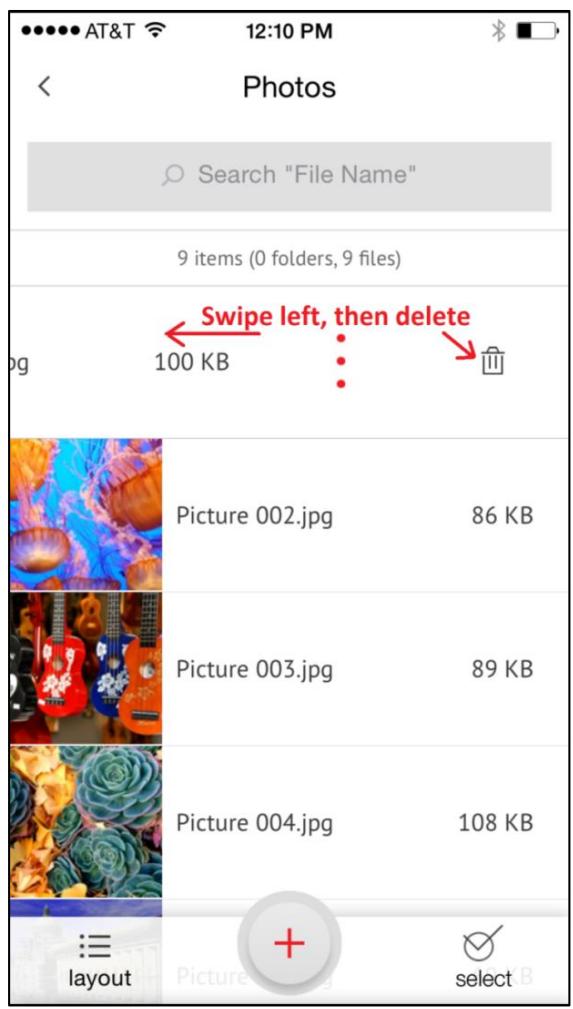
1 Connect the iXpand Flash Drive to your iPhone/iPad.
2 Press "Select" and choose the files you'd like to delete from the drive.
3 Press at the bottom of the screen.

You can swipe left on a file icon in list view and choose "delete" to easily remove individual files.
Search
1 In the file view, pull down the screen.
2 You will see a search box appear at the top. Enter the file name you would like to find.
3 You'll see search results appear for any matching files.
Photos
Supported file formats
BMP, TIF, TIFF, JPG, PNG, GIF, XBM, ICO, TGA
Playback
1 Plug the iXpand Flash Drive to your iPhone/iPad.
2 The contents of the drive will appear. Browse to the folder containing your photos.
3 Tap the photo you'd like to view.
4 You can view other photos in the same folder by swiping left or right.
Slideshow
1 Browse to the folder containing your photos.
2 Choose the photo you want to start with.
3 Select the slideshow button at the bottom of the screen and the slideshow will begin.
4 Slideshow settings can be changed through the settings option on the same screen.
Videos
Supported file formats
WMV, AVI, MKV, MP4, MOV, FLV, MPG, RMVB, M4V, TS
Playback
1 Connect the iXpand Flash Drive to your iPhone/iPad.
2 The contents of the drive will appear. Browse to the folder containing your videos.
3 Tap the video you want to play.
4 You can play other videos in the same folder by swiping left or right.

Some DRM-protected content cannot be streamed. Check with the content provider for playback restrictions.
Music
Supported file formats
MP3, AIF, WAV, AIFF, M4A, WMA, AAC, OGG, FLAC
Playback
1 Connect the iXpand Flash Drive to your iPhone/iPad.
2 The contents of the drive will appear. Browse to the folder containing your music.
3 Tap the song you want to play.
4 You can play the other songs in the same folder by swiping left or right.

Playback supports music purchased from iTunes. Some DRM-protected content is not supported. Check with the content provider for playback restrictions.
Securing Files/ SanDisk SecureAccess
SanDisk SecureAccess™ Software
The SanDisk SecureAccess software is designed to protect sensitive data on your drive. When security is enabled in the app, a special “SanDiskSecureAccess Vault” folder is created in your drive. Any locked files are moved into the SanDiskSecureAccess Vault and can be accessed only with a password.
Enable Security on iPhone/iPad
1 Connect the iXpand Flash Drive to your iPhone/iPad.
2 Go to Menu Settings Security.
3 Enable the security by swiping the dot to the right.
4 Enter a password when prompted to set password. Then select OK.
5 Enter a hint for your password. Then select OK. IMPORTANT: If this password is forgotten, locked files will not be recoverable.
6 Once the security is enabled, a folder called "SanDiskSecureAccess Vault" (along with a SanDisk SecureAccess Vault Settings folder) is created in the drive.

Do not delete SanDiskSecureAccess Vault Settings folder, if you want to use security feature.
Secure Files on iPhone/iPad
1 To secure files, enable security first as explained above.
2 Select the files you'd like to secure.
3 Press thelock icon at the bottom of the screen.

All secured files are moved to SanDiskSecureAccess Vault folder.
Access secured files (secured through iXpand Sync) on a Mac Computer
1 On your mac, download Secure Access™ software from downloads.sandisk.com/downloads/SanDiskSecureAccessV3 mac.zip
2 Copy the file SanDiskSecureAccessV3_mac to the iXpand Flash Drive.
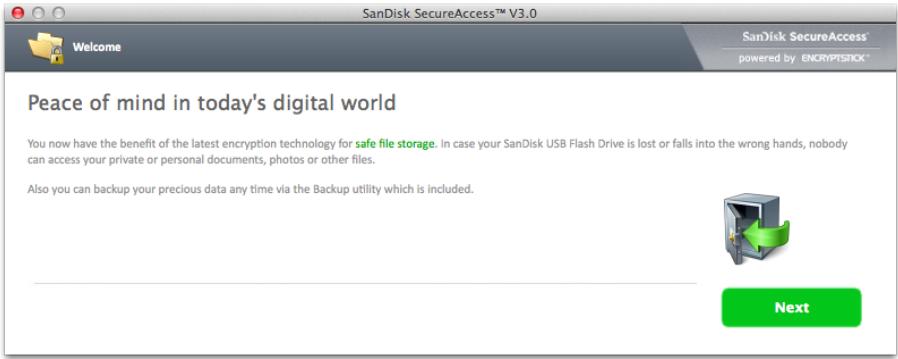
3 Launch the app SanDiskSecureAccessV3_mac. Click "Next" in the screen below.
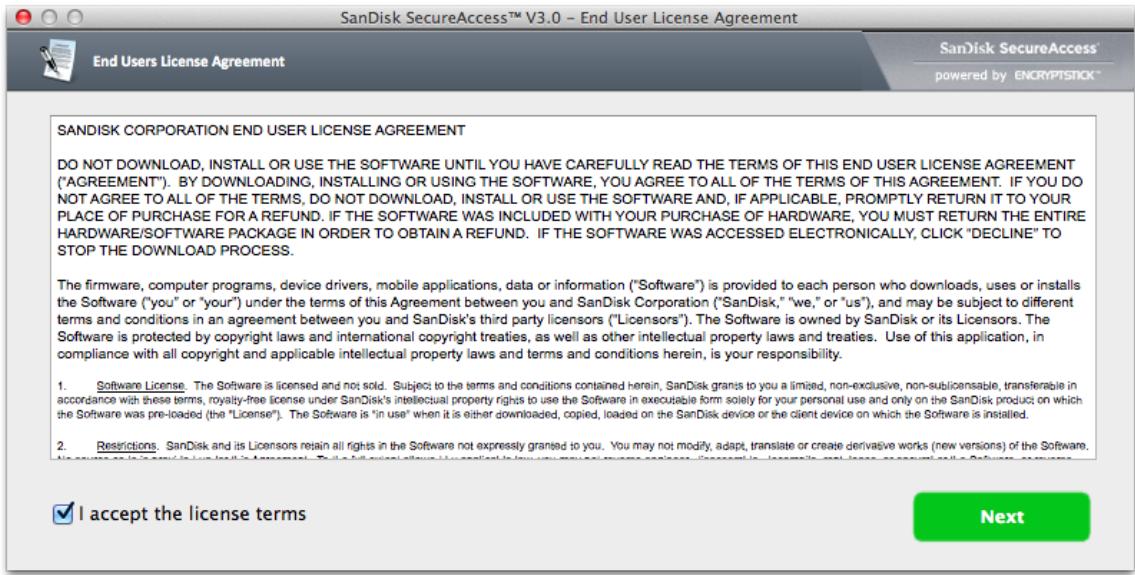
4 Read and accept the license terms and click "Next".
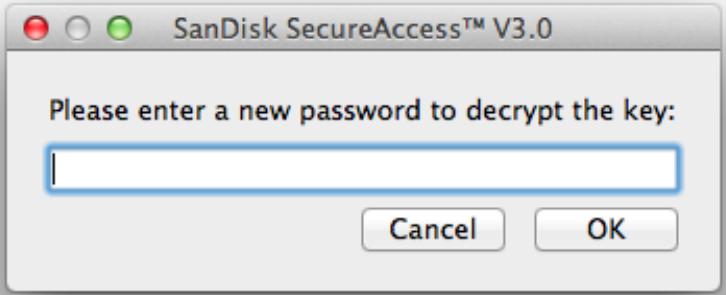
5 Enter the password you used to protect files on iXpand Flash Drive using iXpand Sync app.
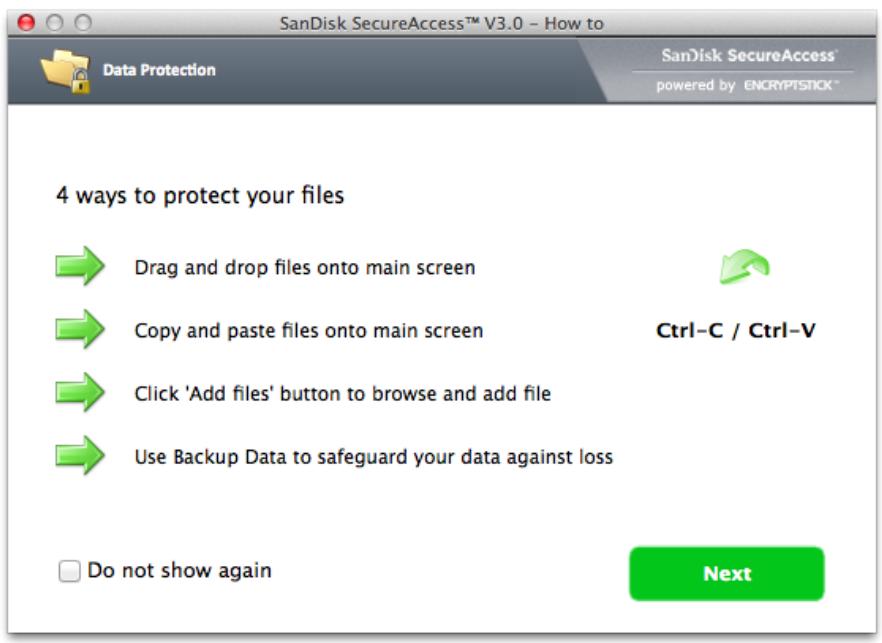
6 Read the guidelines and click "Next".
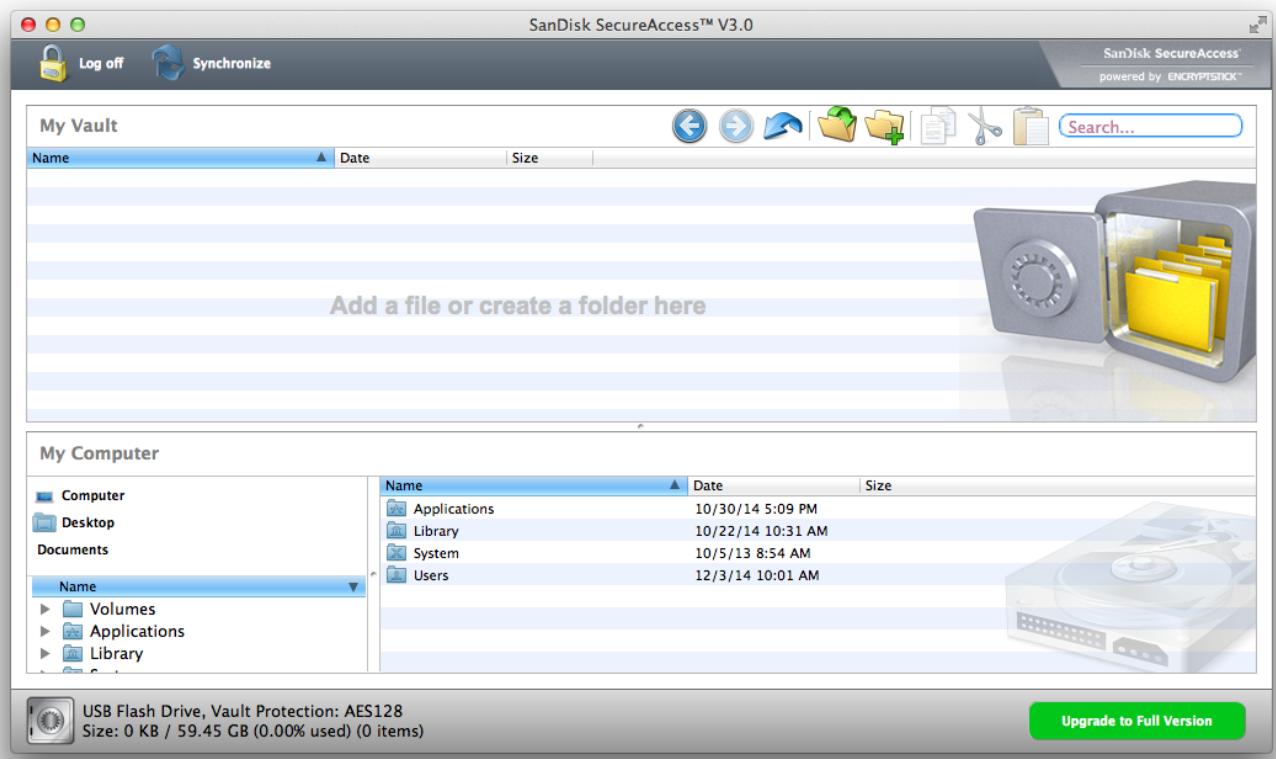
7 Access locked files or lock additional files using the below interface.

To access the secured files on Windows®- based computers, download Secure Access™ software from
downloads.sandisk.com/downloads/SanDiskSecureAccessV3_win.exe and follow the instructions at http://downloads.sandisk.com/downloads/qsg/secureaccessv2-qsg.pdf
Sharing
You can share files from your iXpand Flash Drive in many ways including Facebook, Twitter and others from within the app.
How to share
1 Connect the iXpand Flash Drive to your iPhone/iPad.
2 Select the file you want to share from the drive.
3 Select at the bottom of the screen.
4 Choose the desired upload/share option.
Contact Management
Create a backup contact file and restore it when needed. This is particularly valuable when moving to a new iPhone.
Backup
1 Go to Menu Transfer Contacts Backup
2 Select the contacts to back up.
3 Select "Backup".
Restore
1 Go to Menu Transfer Contacts Restore
2 Choose the backup file you'd like to restore.
3 Select "Restore".

The contact restore operation may create duplicate contacts.
Device Settings
Drive Name
You can choose a name for your drive to make it easier to identify the drive in your file browser when it's plugged into a PC or Mac computer.
1 Go to Menu Settings Drive Name
2 In the text box, name the drive and hit OK.
Formatting the drive
1 Connect the drive to a PC/Mac computer through the USB connector.
2 Format the drive as a regular USB flash drive.

iXpand Flash Drive must be formatted as FAT-32 only.
About the device
1 Go to Menu Settings About
2 Under the About section, you can see
a. Current app version
b. Drive firmware version
c. Device ID of the drive
d. SanDisk Privacy Statement
e. Legal terms and conditions
Device FW Update
SanDisk rolls out regular app updates to constantly improve the user experience.
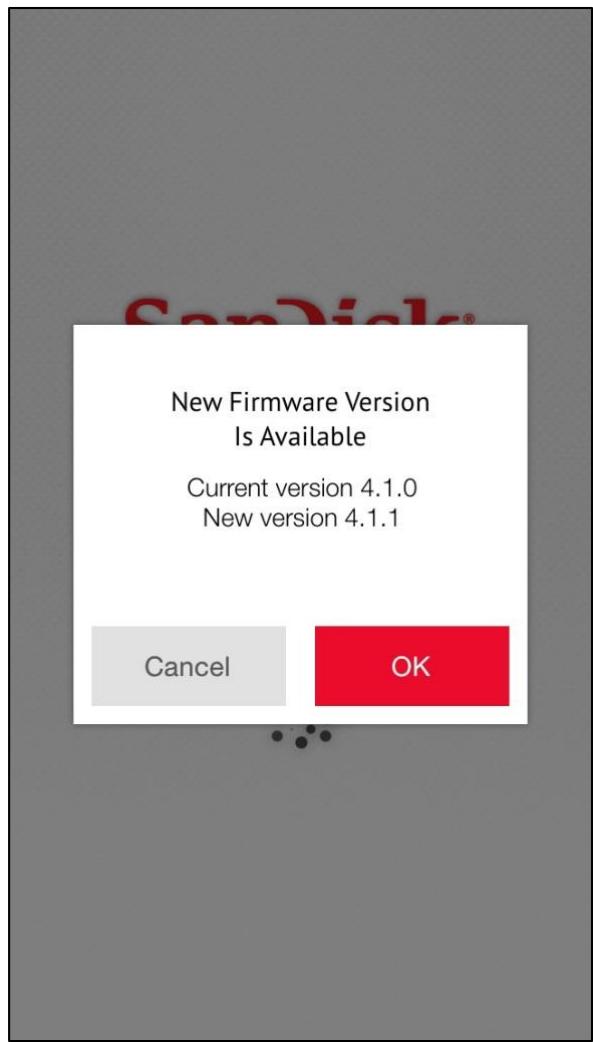
When a firmware update is available and the drive is connected to an iPhone or iPad,
you will see a prompt in the app (as below). Hit OK to update the app.

DO NOT disconnect the drive while app update is in progress.
Troubleshooting & Support
In-app Support
Go to Menu Help. To access the app walkthrough, getting started guide and online support.
Online Support
The support page for iXpand Flash Drive is available at:
www.sandisk.com/support/ixpandflashdrive
SanDisk is a trademark of Western Digital Corporation, registered in the United States and other countries. iXpand and SanDisk SecureAccess are trademarks of Western Digital Corporation. iPhone, iPad, and Mac are trademarks of Apple Inc. All other trademarks are the property of their respective owners.
©2014 Western Digital Corporation. All rights reserved.



- Applications
- Device Settings
- Troubleshooting & Support
- Instructional Icons
- Introduction
- iXpand Flash Drive Overview
- Works with
- Specifications
- Getting Started
- Connecting to iPhone/iPad
- Physical connection
- Installing the app
- App Not Installed
- Charging iXpand Flash Drive
- LED Indicator
- App overview
- Camera Roll Sync
- Automatic Sync
- Manual Sync
- File Management
- Transfer files from your iPhone or iPad to the drive
- Transfer files from drive to iPhone/iPad
- Transfer files between PC and drive
- Transfer files between Mac computer and drive
- Delete files
- Search
- Photos
- Playback
- Slideshow
- Videos
- Music
- Securing Files/ SanDisk SecureAccess
- SanDisk SecureAccess™ Software
- Enable Security on iPhone/iPad
- Secure Files on iPhone/iPad
- Access secured files (secured through iXpand Sync) on a Mac Computer
- Read and accept the license terms and click "Next".
- Enter the password you used to protect files on iXpand Flash Drive using iXpand Sync app.
- Read the guidelines and click "Next".
- Access locked files or lock additional files using the below interface.
- Sharing
- Contact Management
- Backup
- Restore
- Drive Name
- Formatting the drive
- About the device
- Device FW Update
- In-app Support
- Online Support
Brand : SANDISK
Model : iXPAND 3.0 32G
Category : USB Drive