SX-NSOAE-SB - Audio Amplifier PIONEER - Free user manual and instructions
Find the device manual for free SX-NSOAE-SB PIONEER in PDF.



| Product Type | Network Stereo Audio Amplifier |
| Brand | Pioneer |
| Model | SX-NSOAE-SB |
| Weight | 8.3 kg |
| Power Supply | AC 220-230 V, 50/60 Hz |
| Power Consumption | 220 W (operation), 0.1 W (standby), 2.9 W (hybrid standby) |
| Rated Output Power | 2 × 135 W (6 Ω, 1 kHz, 1% THD) |
| Compatible Speaker Impedance | 4 Ω to 16 Ω (one pair), 8 Ω to 16 Ω (two pairs) |
| Frequency Response | 10 Hz - 100 kHz (+1 dB, -3 dB, Direct mode) |
| Signal-to-Noise Ratio | 106 dB (LINE, IHF-A) |
| Digital Audio Inputs | 1 optical (GAME), 1 coaxial (BD/DVD) |
| Analog Audio Inputs | LINE IN (6), PHONO (MM), SIGNAL GND |
| Audio Outputs | Speakers A/B, subwoofer (SUBWOOFER PRE OUT), headphones (PHONES) |
| Network Connectivity | Ethernet (10/100), Wi-Fi (IEEE 802.11 a/b/g/n), Bluetooth 4.1+LE |
| Supported Audio Formats (USB/Network) | MP3, WMA, AAC, WAV, FLAC, AIFF, Apple Lossless, DSD (DSF/DSDIFF) |
| Radio | AM/FM with RDS, 40 presets |
| Network Functions | Internet Radio (TuneIn, Pandora, Deezer, TIDAL), Spotify Connect, Music Server |
| USB Port | Front and rear, USB 2.0 compatible, 5V/1A power supply |
| Remote Control Included | Yes (RC-907S) with AAA batteries |
| Care and Cleaning | Clean with a soft dry cloth. Do not use chemicals. |
| Safety | Use in a well-ventilated area. Do not expose to moisture. Unplug before cleaning. |
| General Information | 124-page manual available for download. Firmware update via network or USB. |
Frequently Asked Questions - SX-NSOAE-SB PIONEER
User questions about SX-NSOAE-SB PIONEER
0 question about this device. Answer the ones you know or ask your own.
Ask a new question about this device
Download the instructions for your Audio Amplifier in PDF format for free! Find your manual SX-NSOAE-SB - PIONEER and take your electronic device back in hand. On this page are published all the documents necessary for the use of your device. SX-NSOAE-SB by PIONEER.
USER MANUAL SX-NSOAE-SB PIONEER
Step1: Connect the Speakers 8
Step2: Connect an external device 9
Step3: Connect Other Cables 11
Initial Setup
Initial Setup with Auto Start-up Wizard 12
Entering text 14
Playback
Playing audio from a connected device 15
BLUETOOTH®Playback 15
Internet Radio 16
Spotify 17
USB Storage Device 18
Listening to the AM/FM Radio 20
Registering a station 22
Music Server 23
AUDIO Menu 25
Supplementary information
Supplementary information for player functions ....26
Advanced Setup
Setup Menu 27
Web Setup 32
Firmware Update 33
Others
Troubleshooting 35
General Specifications 39
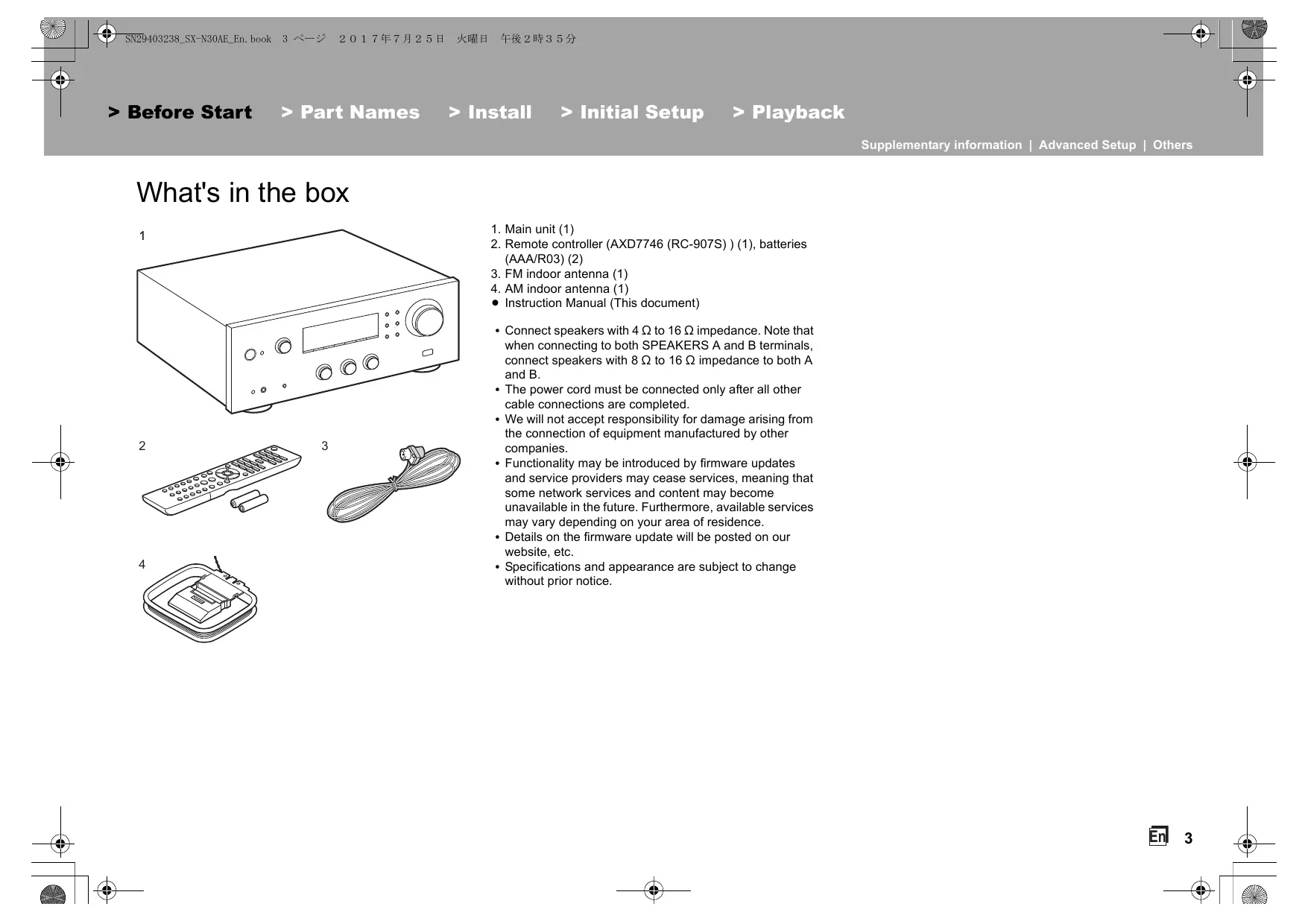
What's in the box
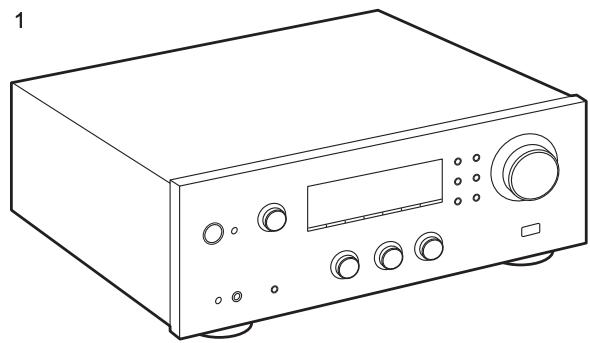
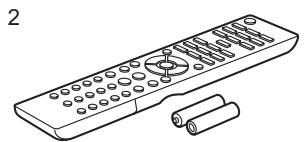
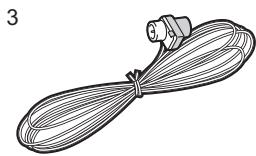
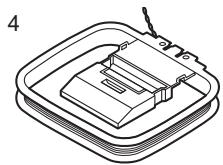
-
Main unit (1)
-
Remote controller (AXD7746 (RC-907S)) (1), batteries (AAA/R03) (2)
-
FM indoor antenna (1)
-
AM indoor antenna (1)
-
Instruction Manual (This document)
-
Connect speakers with 4 to 16 impedance. Note that when connecting to both SPEAKERS A and B terminals, connect speakers with 8 to 16 impedance to both A and B.
- The power cord must be connected only after all other cable connections are completed.
- We will not accept responsibility for damage arising from the connection of equipment manufactured by other companies.
- Functionality may be introduced by firmware updates and service providers may cease services, meaning that some network services and content may become unavailable in the future. Furthermore, available services may vary depending on your area of residence.
- Details on the firmware update will be posted on our website, etc.
- Specifications and appearance are subject to change without prior notice.
Part Names
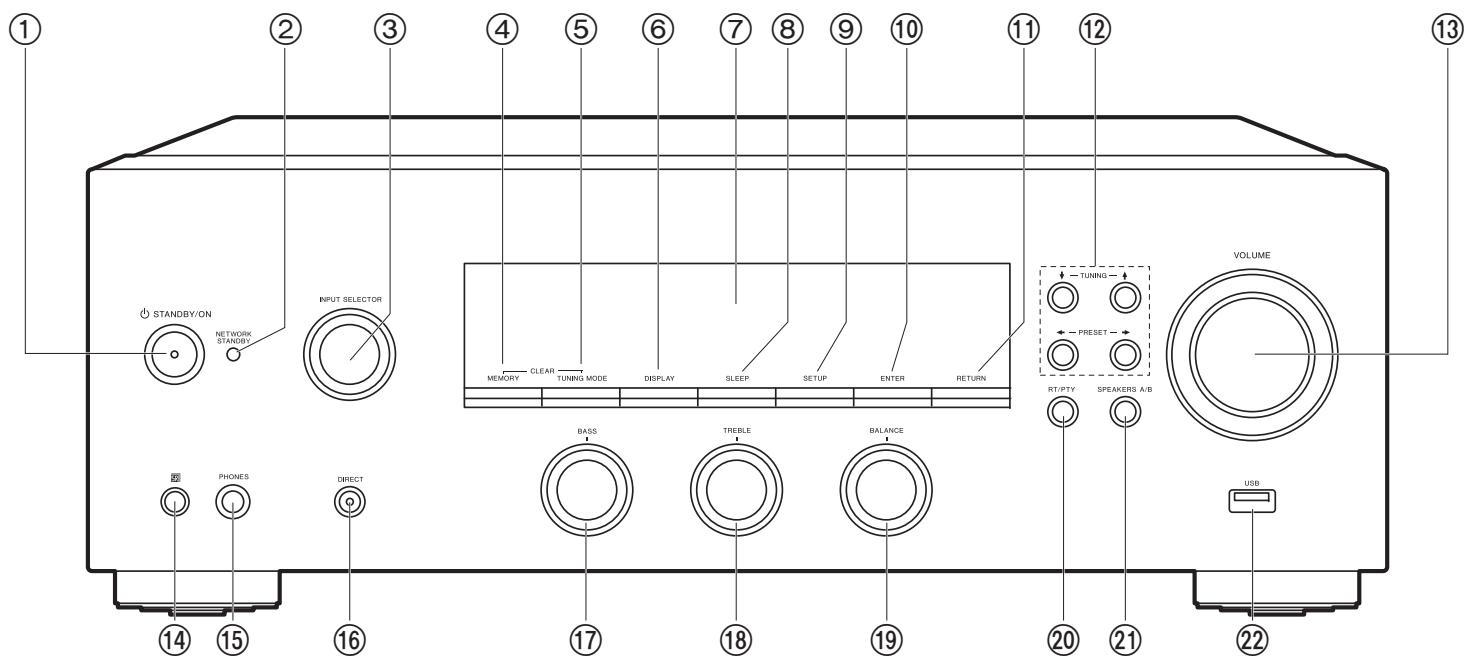
Front Panel
- STANDBY/ON button
- NETWORK STANDBY indicator: Lights if the unit enters standby mode when the features such as NET Stby are enabled that continue to work when this unit is in standby.
- INPUT SELECTOR dial: Switches the input to be played. Turn the control to switch the source in the following order; BD/DVD SAT/CBL AUX GAME TV SACD/ CD PHONO AM FM NET BLUETOOTH
- MEMORY button: Used to register AM/FM radio stations.
- TUNING MODE button: Switches tuning to an AM/FM station between automatic tuning and manual tuning.
- DISPLAY button: Switches the information on the display.
- Display (P5)
- SLEEP button: Set the sleep timer. Press the button repeatedly to select the time. When
the time set (30, 60, or 90 minutes) has elapsed, the unit switches to standby. If SLEEP button is pressed after setting, the time remaining until sleep is displayed.
- SETUP button: You can show advanced setting items on the display to provide you with an even better experience (P27).
- ENTER button: Press this button to confirm the selection.
- RETURN button: Returns the display to the previous state during setting.
- Direction/ TUNING / PRESET buttons: Move the cursor. When listening to AM/FM broadcasting, tune in to the station with TUNING or select the registered station with PRESET .
- VOLUME
- Remote control sensor: Receives signals from the remote controller.
The signal range of the remote controller is within about 16^ / 5m , at an angle of 20^ on the perpendicular axis and 30^ to either side.
15.PHONES jack: Connect stereo headphones with a standard plug (Ø1/4"/6.3 mm
diameter).
- DIRECT button: Selects the listening mode. The mode changes Direct Pure Direct Stereo each time you press the button.
- BASS dial: Adjusts the bass.
18.TREBLE dial: Adjusts the treble.
19.BALANCE dial: Adjusts the balance of the sounds output from the left and right speakers.
20.RT/PTY button: Used when receiving stations transmitting text information (P21).
21.SPEAKERS A/B button: Select the terminals to output audio from between SPEAKERS A/B. - USB jack: A USB storage device is connected so that music files stored in it can be played. You can also supply power (maximum 5 V/0.5 A) to USB devices with a USB cable.
- When connecting a HDD that requires more than 5 V/0.5 A, connect to the USB port (maximum 5 V/1 A) on the rear of the unit.
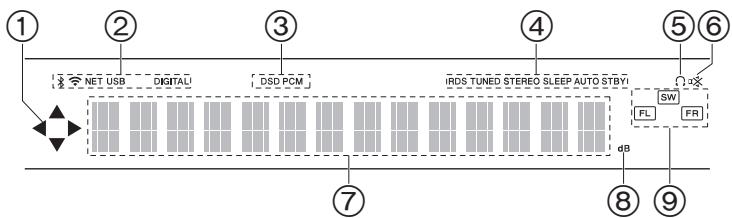
Display
- This may light when performing operations with the "NET" input selector.
- Lights in the following conditions.
: When connected via BLUETOOTH
: When connected by Wi-Fi
NET: When "NET" is selected with the input selector and the unit is connected to the network. It will flash if the connection to the network is not correct.
USB: When "NET" is selected with the input selector and the unit is connected by USB and the USB device is selected. Flashes if the USB is not properly connected.
DIGITAL: Digital signals are input and the digital input selector is selected.
- Lights according to the type of input digital audio signals.
- Lights in the following conditions.
RDS: Receiving RDS broadcasting.
TUNED: Receiving AM/FM radio
STEREO: Receiving FM stereo.
SLEEP: Sleep timer has been set.
AUTO STBY: Auto Stby (P28) has been set.
- Q: Lights when headphones are connected.
- Flashes when muting is on.
- Displays various information of the input signals.
- Lights while adjusting the volume.
- Speaker/Channel display: Displays the output channel of the speakers.
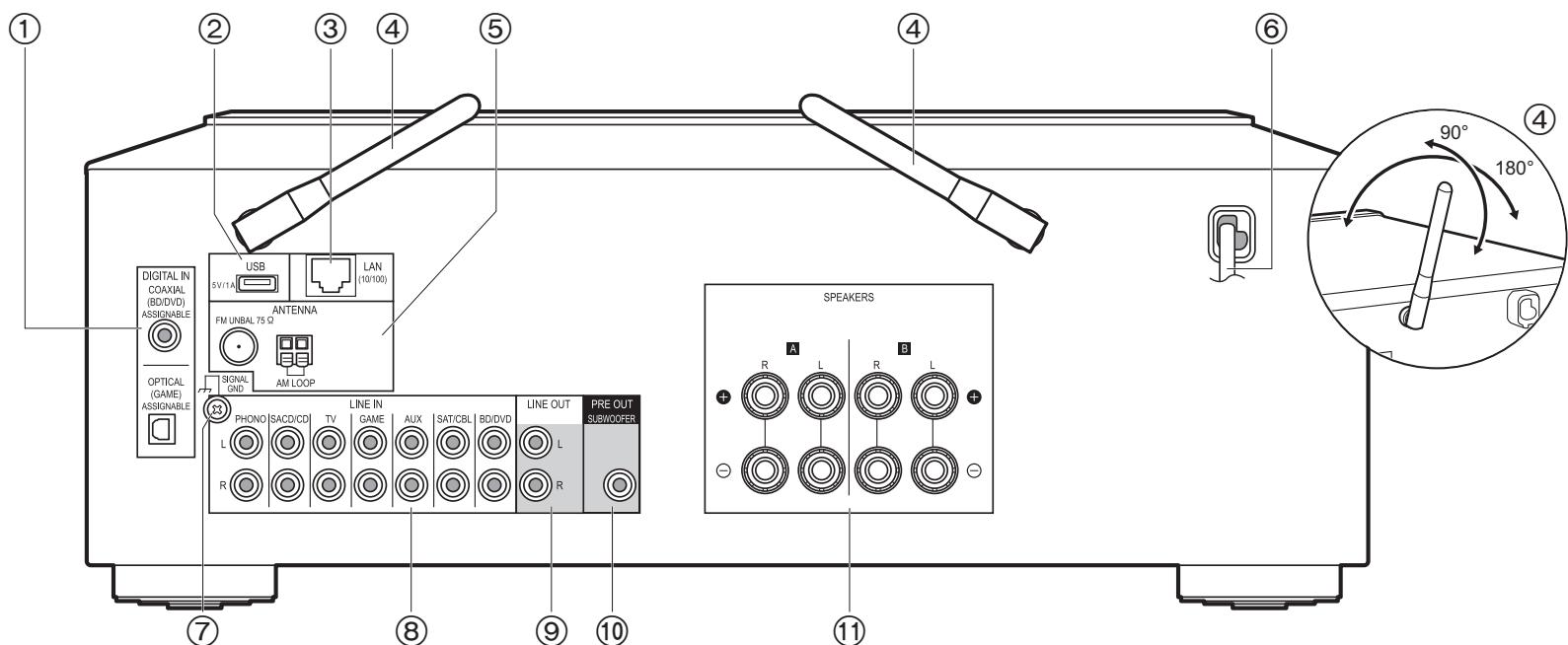
Rear Panel
- DIGITAL IN OPTICAL/COAXIAL jacks: Input digital audio signals from an external device with a digital optical cable or digital coaxial cable.
- USB jack: A USB storage device is connected so that music files stored in it can be played. You can also supply power (maximum 5 V/1 A) to USB devices with a USB cable.
- LAN (10/100) jack: Connect to the network with an Ethernet cable.
- Wireless antenna: Raise for Wi-Fi connection or when using a BLUETOOTH wireless technology enabled device. Adjust their angles according to the connection status.
- FM UNBAL 75Ω/AM LOOP ANTENNA jacks: Connect the supplied FM indoor antenna and AM indoor antenna.
- Power cord
- SIGNAL GND jack: The ground wire of the turntable is connected.
-
LINE IN jacks: Input audio signals from an external device with an analog audio cable.
-
LINE OUT jacks: Connect a recording device, such as a cassette tape deck. Connect to the LINE IN jacks on the recording device using analog audio cable.
- SUBWOOFER PRE OUT jack: Connect a powered subwoofer with a subwoofer cable.
- SPEAKERS jacks: Connect speakers with speaker cables. You can connect a set of left and right speakers to each of the A/B terminals.
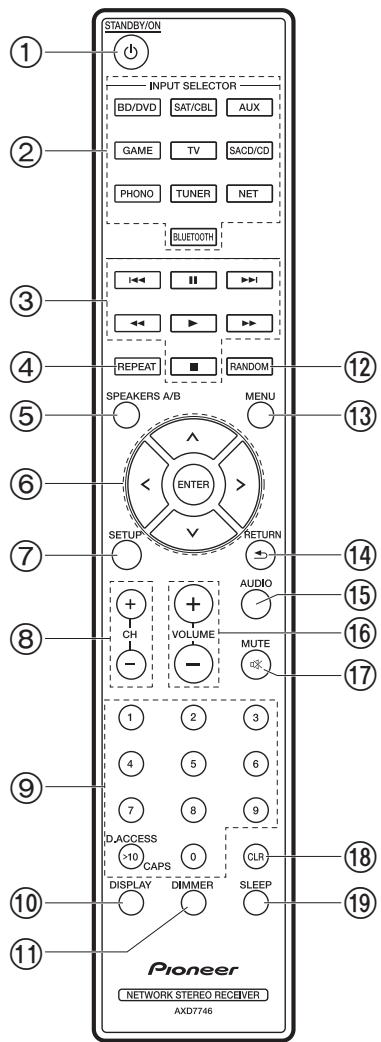
Remote Controller
- STANDBY/ON button
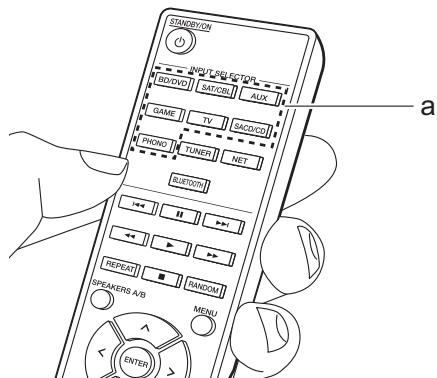
- INPUT SELECTOR buttons: Switches the input to be played.
- Play buttons: Used to control play of a Music Server or device connected via USB.
- The , buttons are not used.
- REPEAT button: Used for repeat play operations when playing Music Server or USB. Each time you press the button, the mode switches from I Iin^out (1-track repeat) to Iin^out (folder repeat).
- SPEAKERS A/B button: Select the terminals to output audio from between SPEAKERS A/ B.
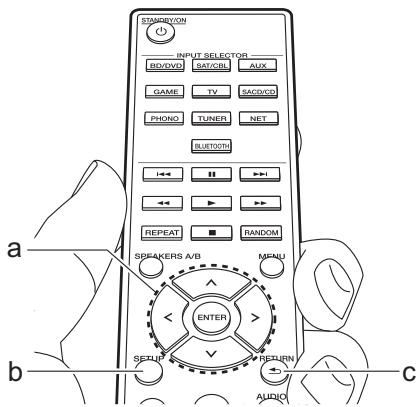
- Cursor (Up / Down / Left / Right), ENTER button: Select the item with the cursors and press ENTER to confirm.
- SETUP button: You can show advanced setting items on the display to provide you with an even better experience (P27).
- CH (+ / -) buttons: Used to select AM/FM radio stations.
- Numbered buttons
10.DISPLAY button: Switches the information on the display. You can display information such as the input source and input format when pressed repeatedly during play. - DIMMER button: You can adjust the brightness of the display in three steps. It cannot be turned off completely.
- RANDOM button: Used for random play operations when playing Music Server or USB. Random turns on or off each time you press the button t .
13.MENU button: Used to display the menu. - RETURN button: Returns the display to the previous state during setting.
15.AUDIO button: Use for setting "Bass", "Treble", etc. (P25).
16.VOLUME
17.MUTE button: Temporarily mutes audio. Press again to cancel muting. - CLR button: Deletes all characters you have entered when entering text. (P14)
- SLEEP button: Set the sleep timer. Press the button repeatedly to select the time. When the time set (30, 60, or 90 minutes) has elapsed, the unit switches to standby. If SLEEP button is pressed after setting, the time remaining until sleep is displayed.
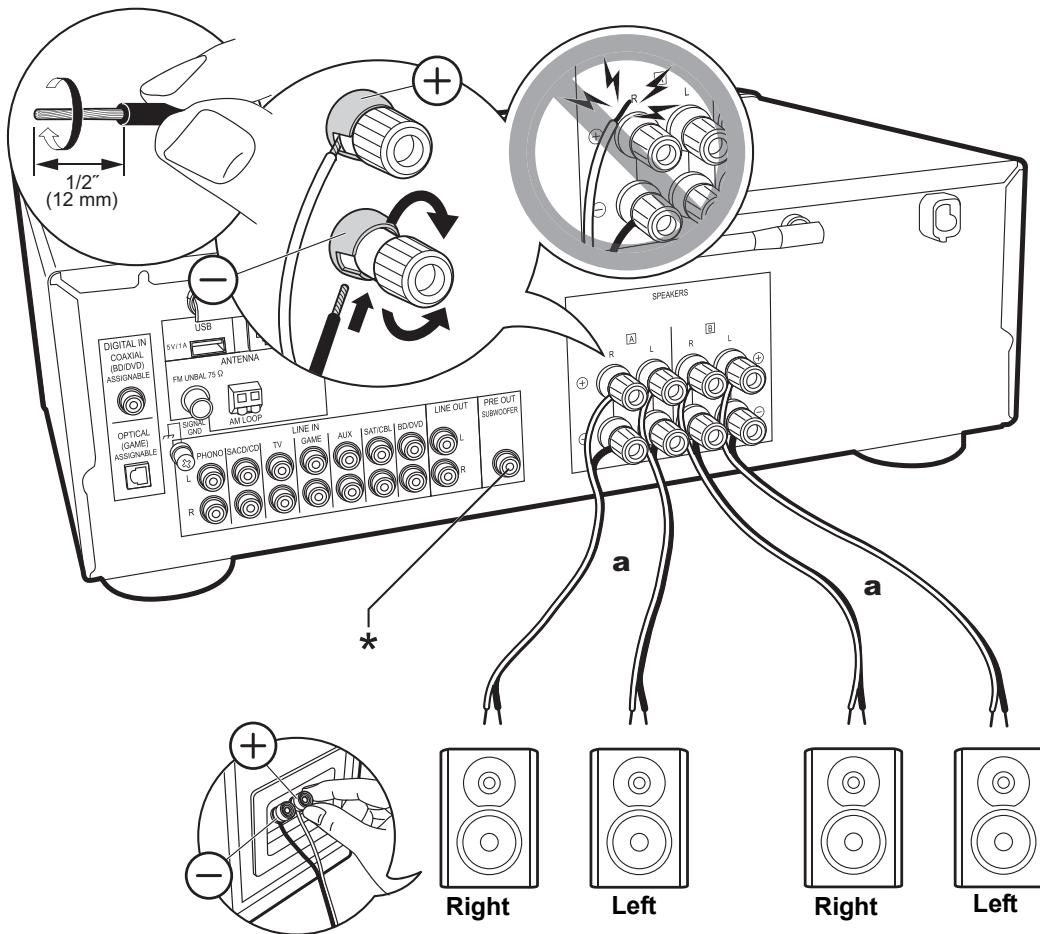
Step1: Connect the Speakers
Speaker A
You can connect two systems, Speaker A and Speaker B, as the Speaker System. When connecting only one set, connect to the SPEAKERS A terminals. With one set, use speakers with 4 Ω to 16 Ω impedance. Note that when connecting to both SPEAKERS A and B terminals, connect speakers with 8 Ω to 16 Ω impedance to both A and B. Connect the speaker cable so the wires do not protrude from the speaker jacks. If the exposed wires of the speakers touch the rear panel or the + and - wires touch each other, the protection circuit will be activated.

Setup
- When connected as a Speaker B System, you can output the same audio as Speaker A System by switching with A/B/A+B. Press SPEAKER A/B on the remote control to switch. The selection changes in the order SPEAKER A, SPEAKER B, SPEAKER A+B with each press.
- If any of the connected speakers have an impedance of 4 or more to less than 6 , or when speaker systems are connected to both of the SPEAKERS A/B terminal, after completing Initial Setup, you need to make some settings in the Setup menu. Press SETUP on the remote controller, and set "3. Hardware" - "SplImpedance" to "4Ω". (P28)
(*)You can also connect a subwoofer with a built-in amplifier to the SUBWOOFER PRE OUT jack to boost bass playback even more. Use a subwoofer cable for connection. When only Speaker B is outputting audio, there will be no audio output from the powered subwoofer.
Step2: Connect an external device
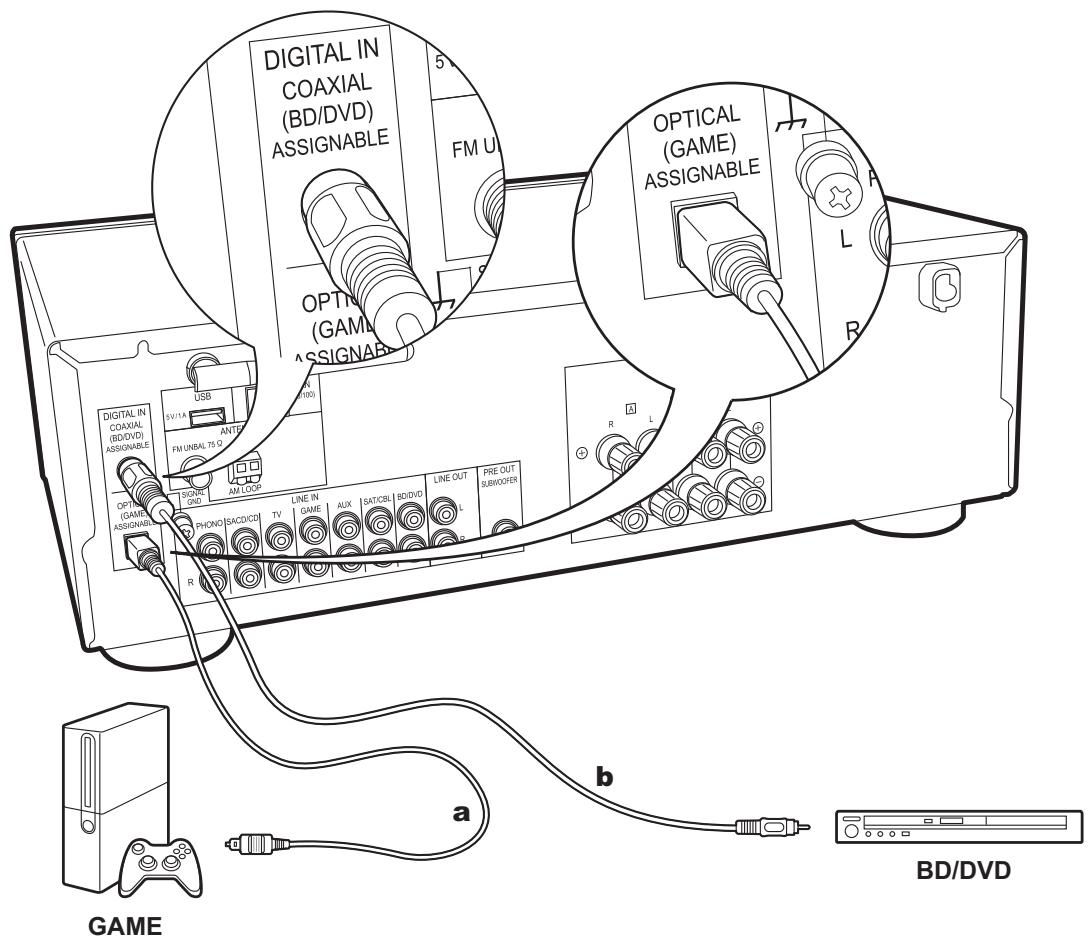
a Digital Optical Cable, b Digital Coaxial Cable
1. DIGITAL IN connection
Connect an external device with a digital optical cable or digital coaxial cable. Note that this unit is equipped with an "Opt Wakeup feature" so that when play starts on an external device connected to the OPTICAL (GAME) terminal, this unit comes on and the INPUT SELECTOR automatically changes. (P29)
- The default setting for "Opt Wakeup feature" is "Off". To enable this function, press SETUP on the remote controller, then in the Setup menu displayed set "3. Hardware" - "Opt Wakeup" to "On". (P29)
- Only PCM audio is supported for input through the DIGITAL IN OPTICAL/COAXIAL jacks. Set the audio output on the external device to output PCM.
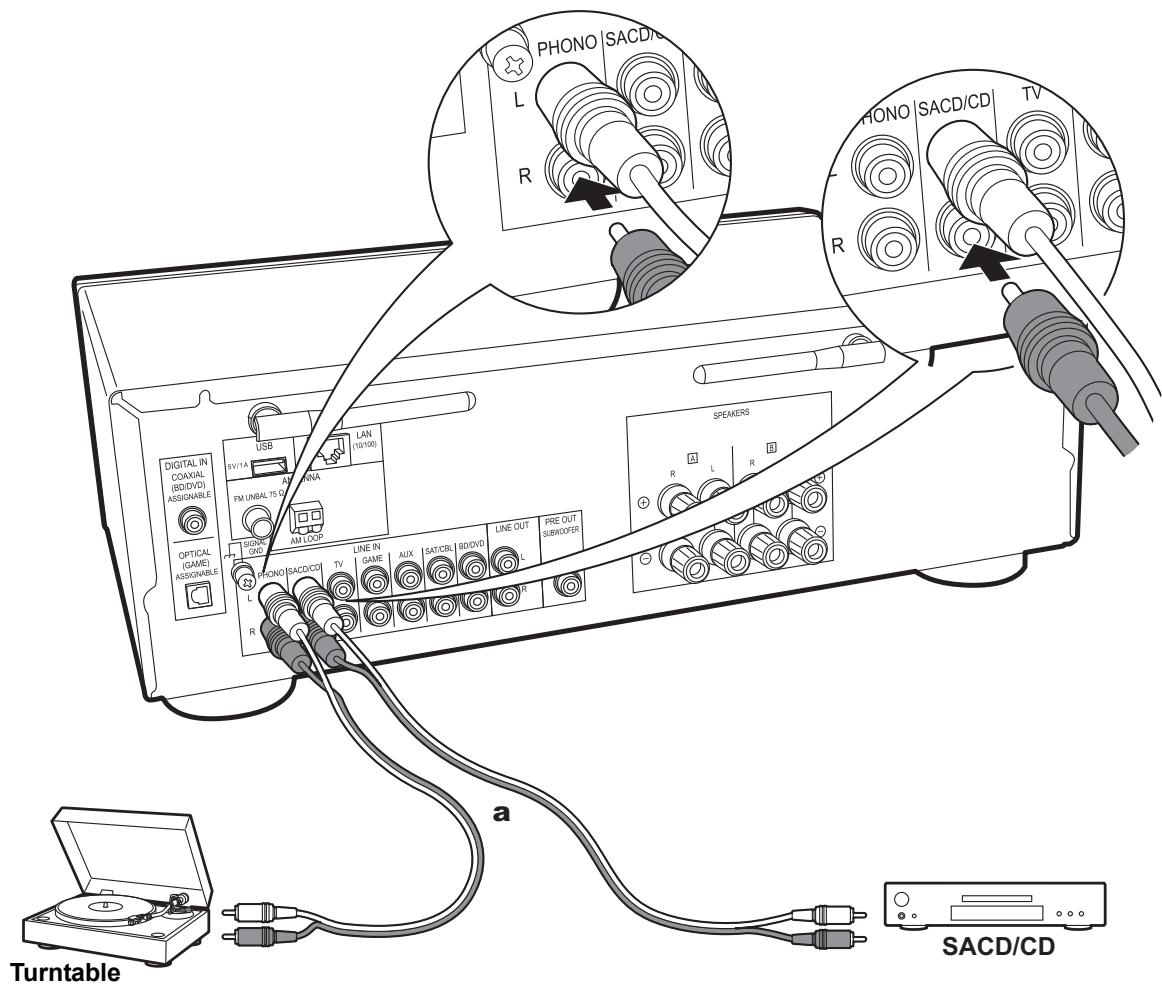
a Analog Audio Cable
2. LINE IN connection
Connect an external device with an analog audio cable. You can connect a turntable that has an MM-type cartridge to the PHONO jack.
- If the turntable has a built-in audio equalizer, connect it to an LINE IN jack other than the PHONO jack. Also, if the turntable uses an MC type cartridge, install an audio equalizer compatible with the MC type cartridge between the unit and the turntable, then connect to any LINE IN jack other than the PHONO jack.
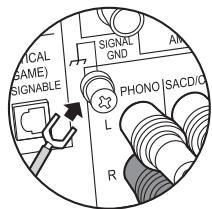
If the turntable has a ground wire, connect it to the SIGNAL GND terminal.
Step3: Connect Other Cables
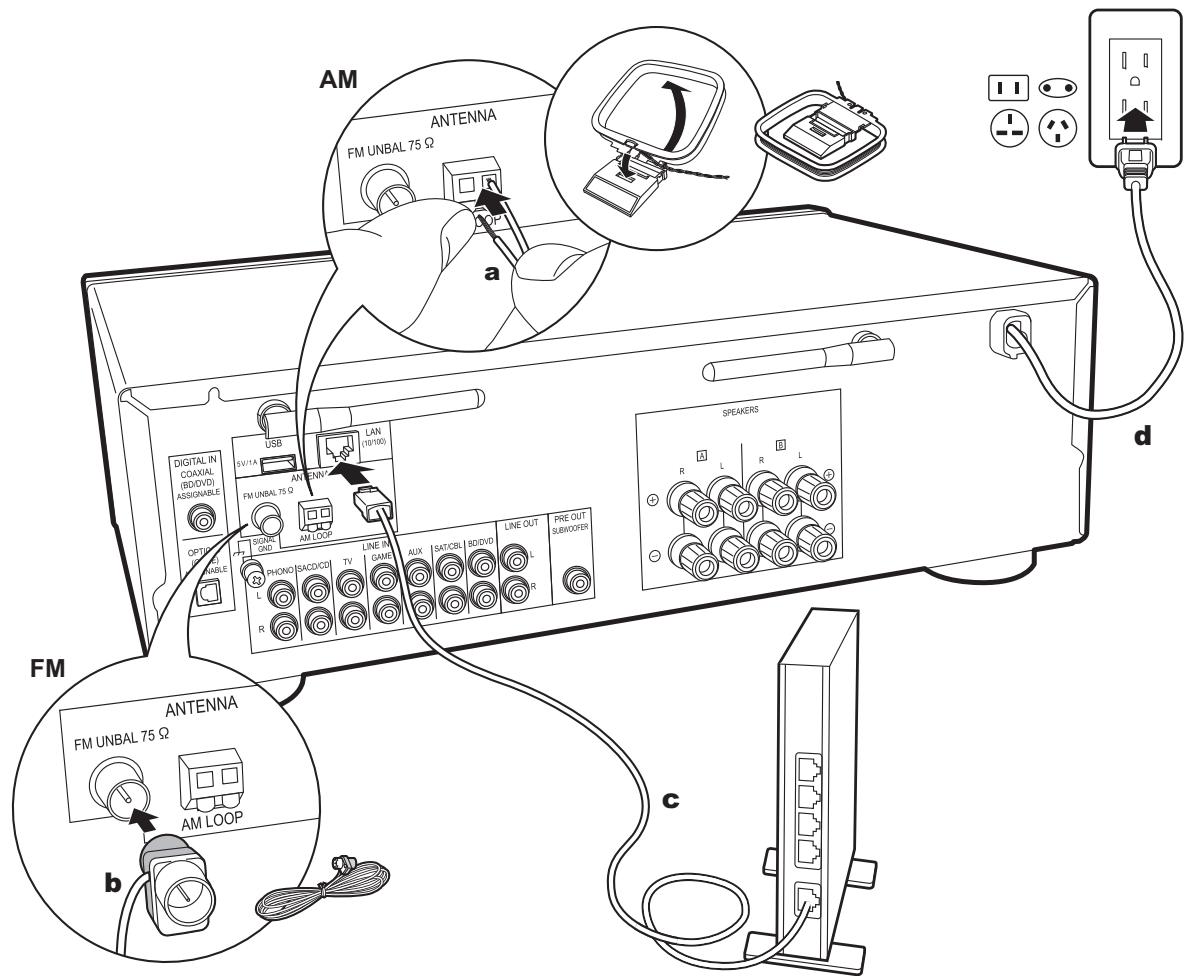
a AM Indoor Antenna, b FM Indoor Antenna, c Ethernet Cable, d Power Cord
1. Network Hookup
Connect this unit to the network using wired LAN or Wi-Fi (wireless LAN). You can enjoy Network Functions such as internet radio by connecting to the network. If you connect by wired LAN, connect to the router with an Ethernet cable to the LAN port as shown in the illustration. To connect by Wi-Fi, select "Wi-Fi" in Initial Setup (P12) and configure the connection.
2. AM, FM Antenna Hookup
Move the antenna around while playing the radio to find the position with the best reception. Use a thumb tack or similar to attach the FM Indoor antenna to a wall.
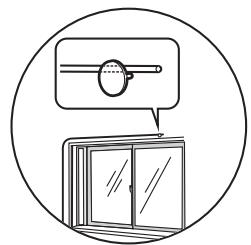
FM indoor antenna
3. Power Cord Hookup
The power cord must be connected only after all other connections are completed.
Initial Setup with Auto Start-up Wizard
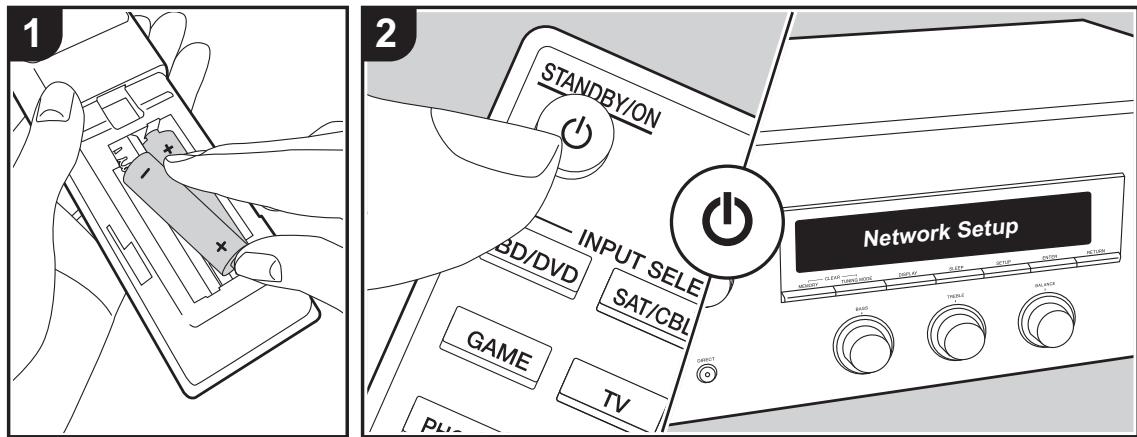
Starting up: When you press , "Now Initializing..." is displayed on the display. After this, when "Now Initializing..." goes out, you can start operating the unit.
Wi-Fi connection settings
When you first turn the power on, the Network Setup display is displayed automatically, allowing you to easily make Wi-Fi connection settings.
Network Setup
To set, select the item with the cursors on the remote controller and press ENTER to confirm.
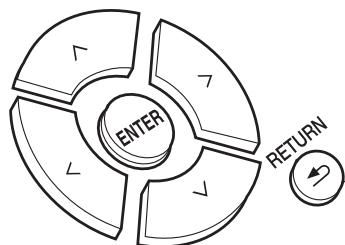
- To return to the previous display, press RETURN.
- Press ENTER when "Network Setup" is displayed.
- To make Wi-Fi settings, select "Wi-Fi". If you have connected with an ethernet cable, select "Wired(Exit)" with Up/Down on the remote controller and press ENTER.
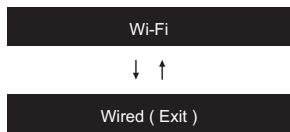
If you selected "Wi-Fi", press ENTER. Then after
"Searching..." is displayed, the display switches to show the SSID settings.
- To redo the initial settings, press SETUP on the remote controller, and set "5. Network" - "Wi-Fi" to "On". Select "Wi-Fi Setup" after this.
Setting
From the list of SSID for access points such as wireless LAN routers, select the required SSID and make the settings.
- Select the SSID of the access point you want to connect with Up/Down on the remote controller and press ENTER.
My SSID
- Select "Enter Password" or "Push Button" with Up/Down on the remote controller and press ENTER. If the access point has an automatic connection button, by selecting "Push Button" you can connect without entering a password.
Enter Password

Push Button
- If you select "Enter Password", enter the password of the access point. For details on how to enter text, refer to "Entering text" (P14).
If you select "Push Button", then after pressing and holding the automatic setting button on the access point for the required amount of time, press ENTER on the remote controller.
-
After "Now Connecting" is displayed, the information of the display switches when the Wi-Fi settings are complete.
-
If "Retry" appears on the display, press ENTER to retry the settings.
When the access point is not displayed
Press the Right button on the remote controller to select "Other...", then press ENTER. Set by entering the SSID of the access point you want to connect.
- Enter the SSID. For details on how to enter text, refer to "Entering text" (P14).
- Select the authentication method with Up/Down on the remote controller and press ENTER.
Security : None

Security : WEP

Security : WPA

Security : WPA2
- If you select "None", proceed to step 3. If you select "WEP", "WPA", or "WPA2", enter the password and confirm.
- After "Now Connecting" is displayed, the information of the display switches when the Wi-Fi settings are complete.
- If "Retry" appears on the display, press ENTER to retry the settings.
Entering text
Text entry, for passwords, etc., uses the following procedure.
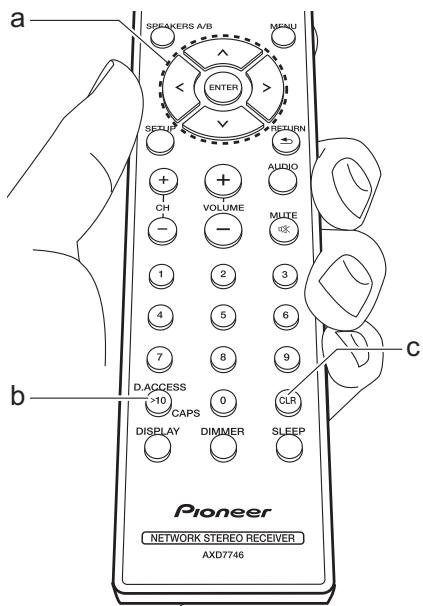
- Select the characters or symbols with Up/Down/Left/Right (a).
abcdefghijkl
-
Press ENTER (a) to confirm the selected character. Repeat this to enter text.
-
Press CAPS (b) to change the characters to be enter, for example to switch between upper and lower case.
-
Press CLR (c) to delete all the input characters.
-
After completing input, select "OK" with Up/Down/Left/Right (a) and press ENTER (a).
A/a BSOK
Characters that can be entered
a
| a | b | c | d | e | f | g | h | i | j | k | l | m |
| n | o | p | q | r | s | t | u | v | w | x | y | z |
| 1 | 2 | 3 | 4 | 5 | 6 | 7 | 8 | 9 | 0 | - | ^ | \ |
| , | . | / | ; | : | @ | [ ] | S | p | a | c | e | |
| A/a | <- | -> | B | S | O | K | ||||||
A
| A | B | C | D | E | F | G | H | I | J | K | L | M |
| N | O | P | Q | R | S | T | U | V | W | X | Y | Z |
| ! | " | # | $ | % | & | ' | ( ) | _ | = | ~ | I | |
| < | > | ? | + | * | ` | { } | S | p | a | c | e | |
| A/a | <-> | B | S | O | K | |||||||
Space: A single space the size of a character is entered.
Ala: Switches between characters displayed. (a A)
(left) I (right): Select to move the
cursor.
BS (backspace): Removes a character on the left of the cursor. The cursor moves left.
OK: Confirms the entered content.
Playing audio from a connected device
Basic Operations
You can play the audio from external devices such as Blu-ray Disc players through this unit.
Perform the following procedure when the unit is on.
-
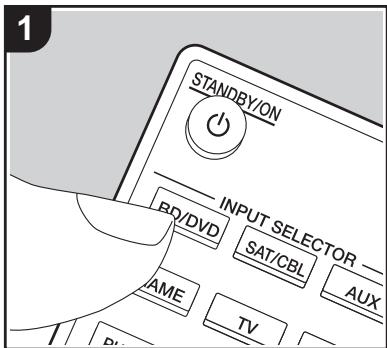
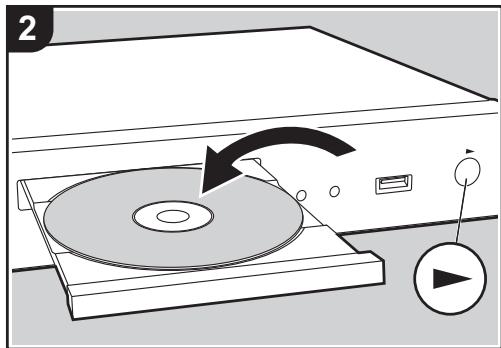
Press the input selector (a) on the remote controller with the same name as the jack to which you connected the player to switch the input. For example, press the BD/DVD button to play the player connected to the BD/DVD jack. Press TV to listen the TV's sound.
-
Start play on the connected player.
BLUETOOTH®Playback
You can wirelessly play music on a smartphone or other BLUETOOTH wireless technology enabled device. Perform the following procedure when the unit is on.
Pairing
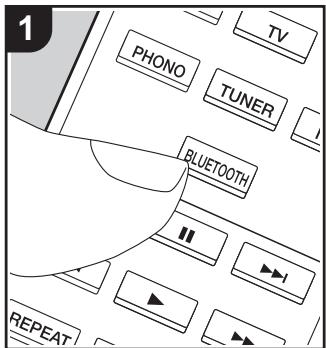
- When you press the BLUETOOTH button, "Now Pairing..." is displayed on this unit's display, and the pairing mode is enabled.
Now Pairing...
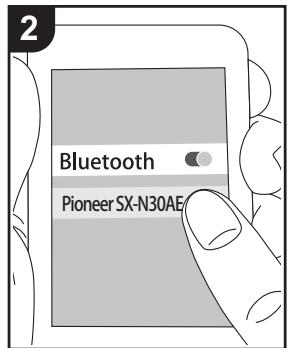
- Enable (turn on) the BLUETOOTH function of the BLUETOOTH wireless technology enabled device, then select this unit from amongst the devices displayed. If a password is requested, enter "0000".
This unit is displayed as "Pioneer SX-N30AEXXXXXX".
- To connect another BLUETOOTH wireless technology enabled device,
press and hold BLUETOOTH until "Now Pairing..." is displayed, then perform step 2. This unit can store the data of up to eight paired devices.
- The coverage area is 48^ / 15 meters. Note that connection is not always guaranteed with all BLUETOOTH wireless technology enabled devices.
Playing Back
- Perform the connection procedure on the BLUETOOTH wireless technology enabled device.
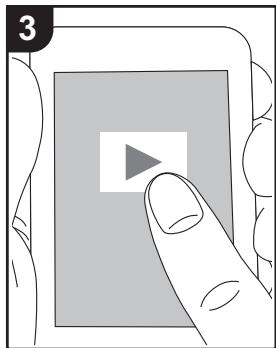
The input on this unit automatically switches to "BLUETOOTH". - Play the music files. Increase the volume of the BLUETOOTH wireless technology enabled device to an appropriate level.
- Due to the characteristics of BLUETOOTH wireless technology, the sound produced on this unit may slightly be behind the sound played on the BLUETOOTH wireless technology enabled device.
Internet Radio
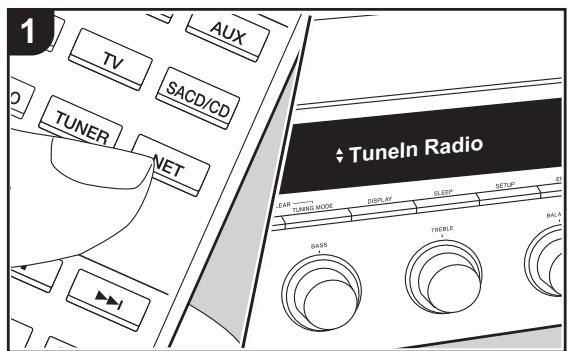
You can use internet radio services such as Tuneln Radio, Pandora, Deezer, and TIDAL by connecting this unit to a network that has an internet connection.
network services and content may become unavailable in the future.
Playing Back
Perform the following procedure when the unit is on.
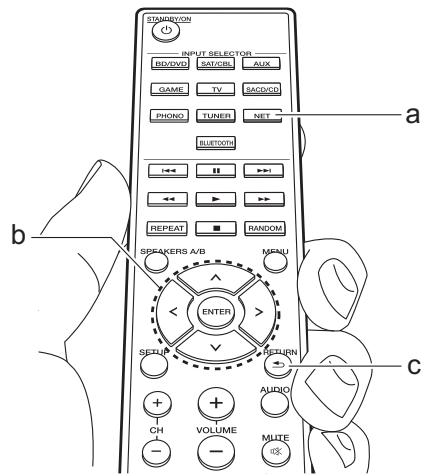
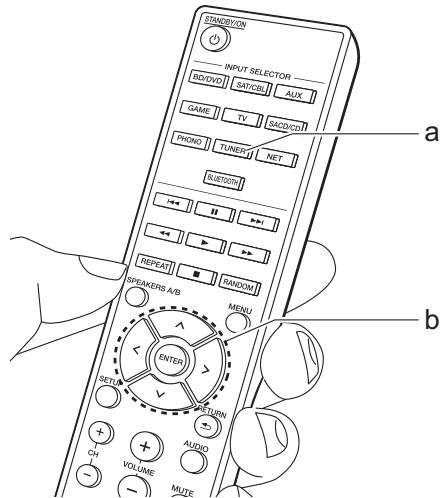
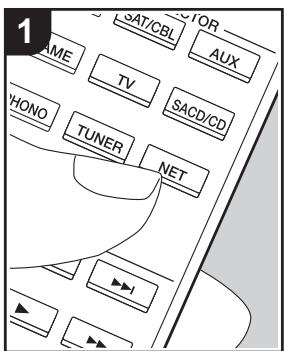
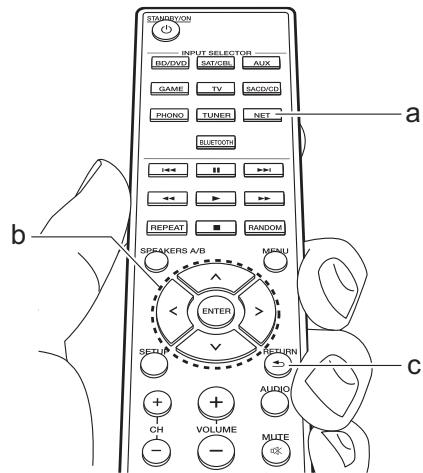
- Press NET (a) on the remote controller.
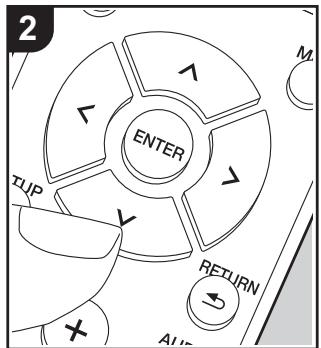
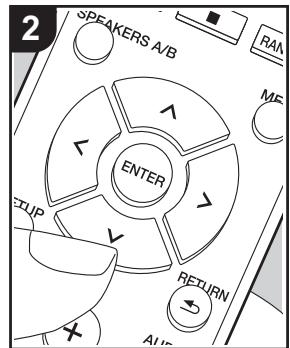
- With the Up/Down cursors (b) on the remote controller, select "Tuneln Radio", for example, and then press ENTER (b).
- Use the Up/Down cursors (b) on the remote controller to select radio stations and programs, then press ENTER to play (b).
- To return to the previous display, press RETURN (c).
Internet Radio Service Menus
You can register certain stations as your favorites or delete stations you have registered from your favorites. The menu displayed depends on the service currently selected.
A menu is displayed on the display when you press MENU on the remote controller while playing a radio station.
To operate, press Up/Down on the remote controller to select the menu and press ENTER to confirm your selection.
Regarding the Tuneln Radio Account
Creating an account on the TuneIn Radio website (tunein.com) and logging in from the unit allows you to automatically add your favorite radio stations and programs to your "My Presets" on the unit as you follow them on the website. "My Presets" are displayed in the level under TuneIn Radio.
To display a radio station registered in "My Presets", you must log into Tuneln Radio from the unit. To log in, select "Login" - "I have a Tuneln account" in the "Tuneln Radio" top list on the unit, and then enter your user name and password.
- If you select "Login" on this unit, you can use the displayed registration code to associate this device on the My Page section of the Tuneln Radio website so that you can login to "Login" - "Login with a registration code" without having to enter your user name and password.
Spotify
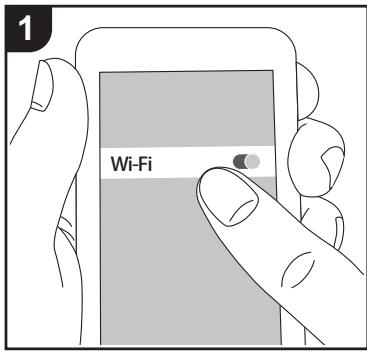
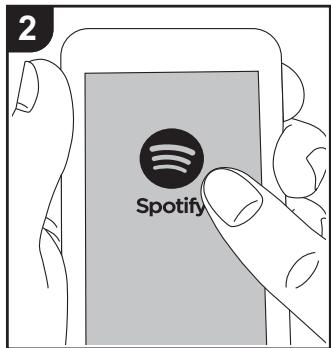
Spotify Connect play is possible by connecting this unit to the same network as a smart phone or tablet.
-
To play Spotify Connect, you need to install the Spotify application on your smartphone or tablet. You also need to create a Spotify premium account.
-
Refer to the following for Spotify settings: www.spotify.com/connect/
the unit on and then press NET on the remote controller.
Playing Back
- Connect the smartphone to the access point that this unit is connected to.
- Start the Spotify app.
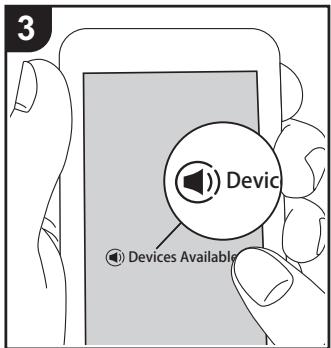
- Play the track in the Spotify app, then after switching to the screen for controlling play, tap "Devices Available" at the bottom of the screen.
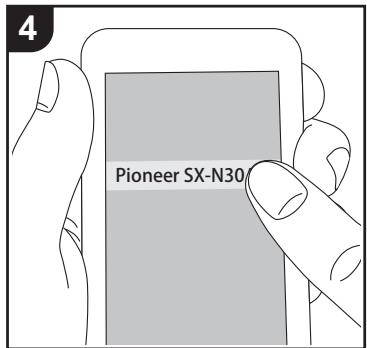
- Select this unit.
- This unit turns on automatically and the input selector changes to NET and streaming of Spotify starts.
- If "3. Hardware" - "NET Stby" is set to "Off" in the Setup menu, manually turn
USB Storage Device
Basic Operations
You can play music files stored on a USB storage device.
Perform the following procedure when the unit is on.
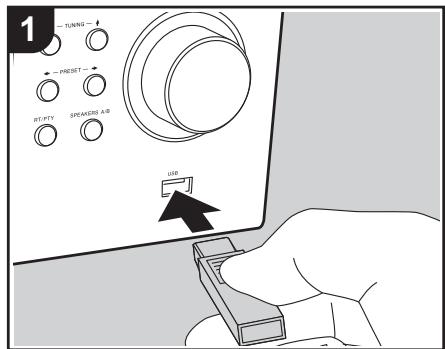
- Plug your USB storage device with the music files into the USB port either on the front panel or rear panel of this unit.
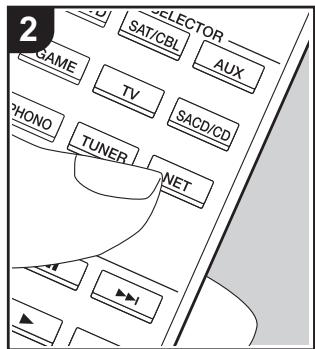
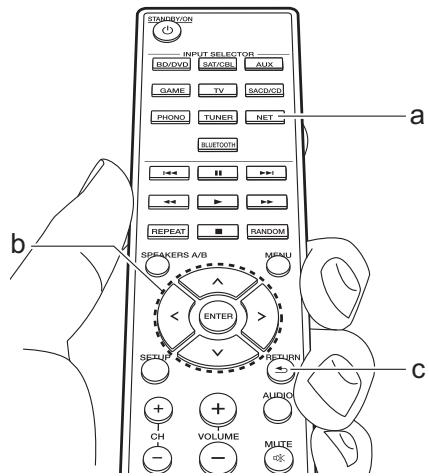
- Press NET (a) on the remote controller.
-
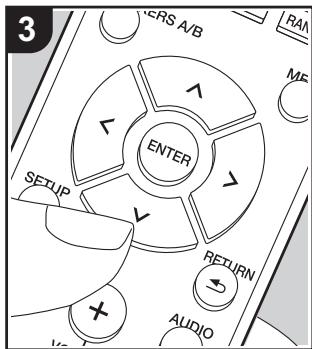
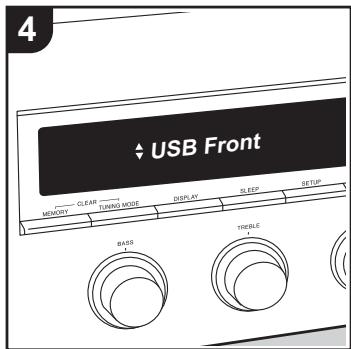
Press the Up/Down cursors (b) on the remote controller, select "USB Front" or "USB Rear" on the display, and then press ENTER (b).
-
If the "USB" indicator flashes on the display, check whether the USB storage device is plugged in properly.
- Do not unplug the USB storage device while "Connecting..." is on the display. This may cause data corruption or malfunction.
- Press ENTER (b) on the remote controller after reading is complete.
- Press the Up/Down cursors (b) on the
remote controller to select the folder and music file, and then press ENTER (b) to start playback.
- To return to the previous display, press RETURN (c).
- The USB port of this unit conforms with the USB 2.0 standard. The transfer speed may be insufficient for some content you play, which may cause some interruption in sound.
Supported Audio Formats
This unit supports the following music file formats. Note that sound files that are protected by copyright cannot be played on this unit.
MP3 (.mp3/.MP3):
Supported formats: MPEG-1/MPEG-2 Audio Layer 3
Supported sampling rates: 44.1 kHz, 48 kHz
- Supported bitrates: Between 8 kbps and 320 kbps and VBR
WMA (.wma/.WMA):
Supported sampling rates: 44.1 kHz and 48 kHz
- Supported bitrates: Between 5 kbps and 320 kbps and VBR
- WMA Pro/Voice/WMA Lossless formats are not supported
WAV (.wav/.WAV):
WAV files include uncompressed PCM digital audio.
Supported sampling rates: 44.1 kHz, 48 kHz, 88.2 kHz, 96 kHz, 176.4 kHz, 192 kHz
- Quantization bit: 8 bit, 16 bit, 24 bit
AIFF (.aiff/.aif/.AIFF/.AIF):
AIFF files include uncompressed PCM digital audio.
Supported sampling rates: 44.1 kHz, 48 kHz, 88.2 kHz, 96 kHz, 176.4 kHz, 192 kHz
- Quantization bit: 8 bit, 16 bit, 24 bit
AAC (.aac/.m4a/.mp4/.3gp/.3g2/.AAC/.M4A/.MP4/.3GP/.3G2):
Supported formats: MPEG-2/MPEG-4 Audio
Supported sampling rates: 44.1 kHz, 48 kHz, 88.2 kHz, 96 kHz
- Supported bitrates: Between 8 kbps and 320 kbps and VBR
FLAC (.flac/.FLAC):
Supported sampling rates: 44.1 kHz, 48 kHz, 88.2 kHz, 96 kHz, 176.4 kHz, 192 kHz
- Quantization bit: 8 bit, 16 bit, 24 bit
Apple Lossless (.m4a/.mp4/.M4A/.MP4):
Supported sampling rates: 44.1 kHz, 48 kHz, 88.2 kHz, 96 kHz, 176.4 kHz, 192 kHz
- Quantization bit: 16 bit, 24 bit
DSD (.dsf/.dff/.DSF/.DFF):
- Supported formats: DSF/DSDIFF
Supported sampling rates: 2.8 MHz and 5.6 MHz - Variable bit-rate (VBR) files are supported. However, playback times
may not be displayed correctly.
- This unit supports the gapless playback of the USB storage device in the following conditions.
When playing WAV, FLAC and Apple Lossless, and the same format, sampling frequency, channels and quantization bit rate are played continuously
Device Requirements
Note that operation is not guaranteed with all USB storage devices.
- This unit can use USB storage devices that comply with the USB mass storage device class standard. The unit is also compatible with USB storage devices using the FAT16 or FAT32 file system formats.
- If the USB storage device has been partitioned, each section will be treated as an independent device.
- Up to 20,000 tracks per folder can be displayed, and folders may be nested up to 16 levels deep.
- USB hubs and USB storage devices with hub functions are not supported. Do not connect these devices to the unit.
- USB storage devices with security function are not supported on this unit.
- If you connect a USB hard disk drive to the USB port of the unit, we recommend that you use its AC adapter to power it.
- Media inserted to the USB card reader may not be available in this function. Furthermore, depending on the USB storage device, proper reading of the contents may not be possible.
- We accept no responsibility whatsoever
for the loss or damage to data stored on a USB storage device when that device is used with this unit. We recommend that you back up your important music files beforehand.
Listening to the AM/FM Radio
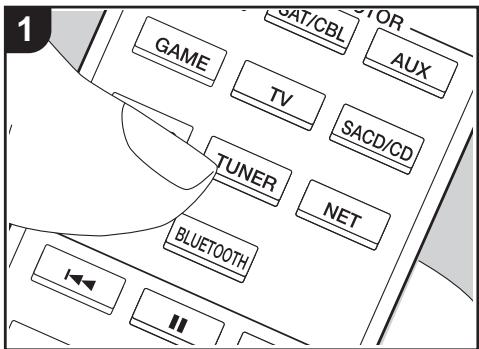
You can receive AM/FM radio stations on this unit with the built-in tuner. Perform the following procedure when the unit is on.
Tuning into a Radio Station
Tuning Automatically
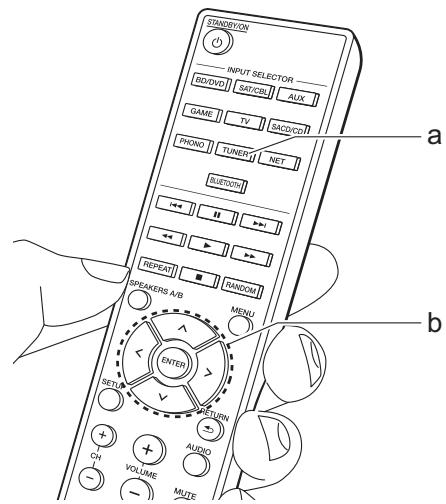
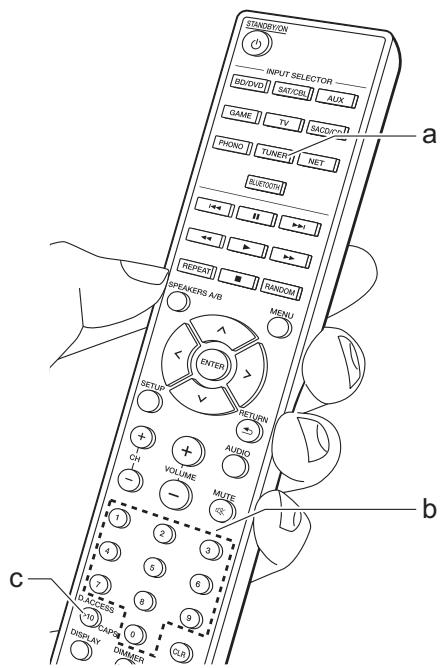
- Repeatedly press TUNER (a) on the remote controller and select "AM" or "FM".
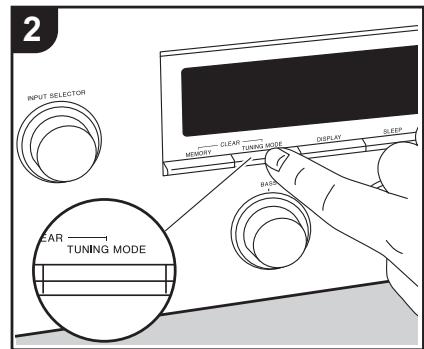
- Press TUNING MODE on the main unit so that "TunMode : Auto" appears on the display.
TunMode : Auto
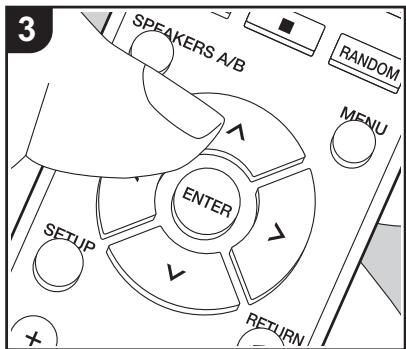
- When you press the cursor Up/Down buttons (b) on the remote controller, automatic tuning starts, and searching stops when a station is found. When tuned into a radio station, the "TUNED" indicator on the display lights. When tuned into a stereo FM radio station, the "STEREO" indicator lights.
When FM broadcasts reception is poor: Perform the procedure for "Tuning Manually" in the following section. Note that if you tune manually, the reception for FM broadcasts will be monaural rather than stereo, irrespective of the sensitivity of the reception.
Tuning Manually
If you tune manually, the reception for FM broadcasts will be monaural rather than stereo, irrespective of the sensitivity of the reception.
- Repeatedly press TUNER (a) on the remote controller and select "AM" or "FM".
- Press TUNING MODE on the main unit so that "TunMode: Manual" appears on the display.
TunMode:Manual
- While pressing the cursor Up/Down
buttons (b) on the remote controller, select the desired radio station.
- The frequency changes by 1 step each time you press Up/Down buttons. The frequency changes continuously if the button is held down and stops when the button is released.
Tuning into Stations by Frequency
It allows you to directly enter the frequency of the radio station you want to listen to.
- Press the TUNER button (a) of the remote controller repeatedly to select either "AM" or "FM".
- Press D.Access button (c) on the remote controller.
-
Using the number buttons (b) on the remote controller, enter the frequency of the radio station within 8 seconds.
-
To enter 87.5 (FM), for example, press 8, 7, 5 or 8, 7, 5, 0. If the entered number is incorrect, press the D.Access button again and re-enter the number.
AM Frequency step setting:
Press SETUP on the remote controller, then use the cursor buttons and ENTER on the remote controller to select "3. Hardware" - "AM Freq", and select the frequency step for your region. Note that when this setting is changed, all radio presets are deleted.
Using RDS
RDS stands for Radio Data System and is a method of transmitting data in FM radio signals. In regions using RDS, the radio station name is displayed when you tune into a radio station broadcasting program information. Further, when you press RT/PTY on the main unit in this state, you can use the following functions.
Displaying Text Information (Radio Text)
- While the name of the station is being displayed on the display, press RT/PTY on the main unit once.
Text information broadcast by the station (Radio Text) is displayed scrolling across the display. "No Text Data" is displayed when no text information is available.
Search for Stations by Program Type
- While the name of the station is being displayed on the display, press RT/PTY on the main unit twice.
- Press the cursors Left/Right on the remote controller to select the Program Type you want to find, then press ENTER to start the search.
The Program Types displayed are as follows: None / News (News reports) / Affairs (Current affairs) / Info (Information) / Sport / Educate (Education) / Drama / Culture / Science (Science and technology) / Varied / Pop M (Pop music) / Rock M (Rock music) / Easy M (Middle of the road music) / Light M (Light classics) / Classics (Serious classics) / Other M (Other music) / Weather / Finance / Children (Children's programmes) / Social (Social affairs) / Religion / Phone In / Travel / Leisure / Jazz (Jazz music) / Country (Country music) / Nation M (National music) / Oldies (Oldies music) / Folk M (Folk music) / Document (Documentary)
- The information displayed may sometimes not match the content being broadcast by the station.
3. When a station is found, the station
flashes on the display. Press ENTER while this is happening to start receiving that station. If you don't press ENTER, the unit continues to search for another station.
-
If no stations are found, the message "Not Found" is displayed.
-
Unusual characters may be displayed when the unit receives unsupported characters. However, this is not a malfunction. Also, if the signal from a station is weak, information may not be displayed.
Registering a station
You can register up to 40 of your favorite radio stations (AM, FM).
Registering
After tuning into the radio station you want to register, perform the following procedure.
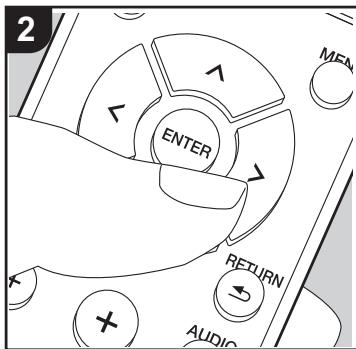
- Press MEMORY on the main unit so that the preset number on the display flashes.
FM 87.5 MHz
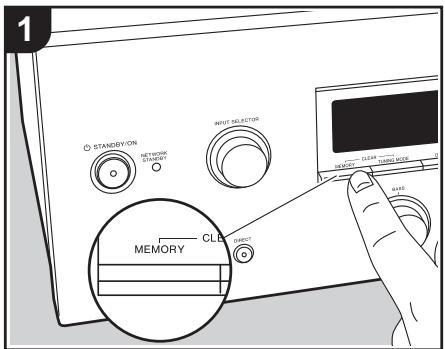
- While the preset number is flashing (about 8 seconds), repeatedly press the cursor Left/Right buttons (b) on the remote controller to select a number between 1 and 40.
- Press MEMORY again on the main unit to register the station. When the station is registered, the preset number stops flashing. Repeat this procedure for all of your favorite radio stations.
Selecting a Preset Radio Station
- Press TUNER (a) on the remote controller.
- Press the cursor Left/Right buttons (b) on the remote controller to select a preset number.
- You can also use the CH (+/-) buttons.
Deleting a Preset Radio Station
- Press TUNER (a) on the remote controller.
- Press the cursor Left/Right buttons (b) on the remote controller to select the preset number to delete.
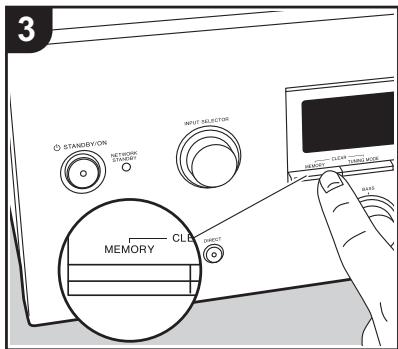
- While pressing MEMORY on the main unit, press TUNING MODE to delete the preset number. When deleted, the number on the display goes off.
Music Server
It is possible to stream music files stored on PCs or NAS devices connected to the same network as this unit.
- The network servers compatible with the Music Server feature are those PCs with players installed that have the server functionality of Windows Media Player 11 or 12, or NAS that are compatible with home network functionality. Note that with PCs, only music files registered in the library of Windows Media Player can be played.
- You may need to make some settings on the PC in advance to use Windows Media® Player 11 or 12 with the Music Server feature.
Windows Media® Player settings
On Windows Media® Player 11
- Turn on your PC and start Windows Media® Player 11.
- In the "Library" menu, select "Media Sharing" to display a dialog box.
- Select the "Share my media" check box, and then click "OK" to display the compatible devices.
- Select this unit, click "Allow" and put a check mark next to the icon for this unit.
-
Click "OK" to close the dialog.
-
Depending of the version of Windows Media® Player, there may be differences in the names of items you can select.
On Windows Media® Player 12
- Turn on your PC and start Windows Media® Player 12.
-
In the "Stream" menu, select "Turn on media streaming" to display a dialog box.
-
If media streaming is already turned on, select "More streaming options..." in the "Stream" menu to list players in the network, and then go to step 4.
- Click "Turn on media streaming" to list players in the network.
- Select this unit in "Media streaming options" and check that it is set to "Allow".
- Click "OK" to close the dialog.
Depending of the version of Windows Media® Player, there may be differences in the names of items you can select.
Playing Back
Before performing the operations below, start the server (Windows Media Player 11, Windows Media Player 12, or NAS device) containing the music files to play, and make sure that the PCs and/or NASs are properly connected to the same network as this unit.
Perform the following procedure when the unit is on.
- Press NET (a) on the remote controller.
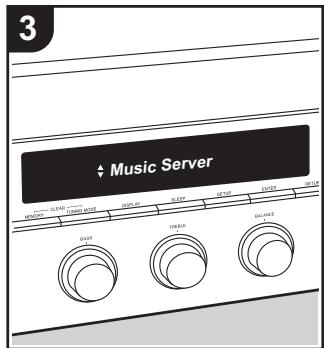
- Select "Music Server" with the Up/Down cursors (b) on the remote controller and press ENTER to confirm your selection (b).
- With the Up/Down cursors (b) on the remote controller, select the server you want and then press ENTER (b).
- With the Up/Down cursors (b) on the remote controller, select the music file to play, and then start playback with ENTER (b).
To return to the previous display, press
RETURN (c).
- If "No Item." is displayed, check whether the network is properly connected.
Depending on the server and share settings, the unit may not recognize it, or may not be able to play its music files. Furthermore, the unit cannot access pictures and videos stored on servers. - For music files on a server, there can be up to 20,000 tracks per folder, and folders may be nested up to 16 levels deep.
Controlling Remote Playback from a PC
You can use this unit to play music files stored on your PC by operating the PC inside your home network. The unit supports remote playback with Windows Media® Player 12.
- Turn on your PC and start Windows Media® Player 12.
- Open the "Stream" menu and check that "Allow remote control of my Player..." is checked. Click "Turn on media streaming" to list players in the network.
- Select and right-click the music file to play with Windows Media® Player 12. To remotely play a music file on another server, open the target server from "Other Libraries" and select the music file to play.
- Select this unit in "Play to" to open the "Play to" window of Windows Media Player 12 and start playback on the unit. If your PC is running on Windows® 8.1, click "Play to", and then select this unit. If your PC is running on Windows® 10, click "Cast to Device", and select this unit. Operations during remote playback are possible from the "Play to" window on the PC.
- Adjust the volume using the volume bar on the "Play to" window.
- Sometimes, the volume displayed on the remote playback window may differ from that appeared on the display of the unit. Also, when the volume is adjusted from this unit, this is not reflected in the "Play to" window.
- Remote playback is not possible when
using a network service or playing music files on a USB storage device.
- Depending of the version of Windows®, there may be differences in the names of items you can select.
Supported Audio Formats
This unit supports the following music file formats. Remote play of FLAC and DSD is not supported.
MP3 (.mp3/.MP3):
Supported formats: MPEG-1/MPEG-2 Audio Layer 3
Supported sampling rates: 44.1 kHz, 48 kHz
Supported bitrates: Between 8 kbps and 320 kbps and VBR
WMA (.wma/.WMA):
Supported sampling rates: 44.1 kHz, 48 kHz
Supported bitrates: Between 5 kbps and 320 kbps and VBR
- WMA Pro/Voice/WMA Lossless formats are not supported
WAV (.wav/.WAV):
WAV files include uncompressed PCM digital audio.
Supported sampling rates: 44.1 kHz, 48 kHz, 88.2 kHz, 96 kHz, 176.4 kHz, 192 kHz
- Quantization bit: 8 bit, 16 bit, 24 bit
AIFF (.aiff/.aif/.AIFF/.AIF):
AIFF files include uncompressed PCM digital audio.
Supported sampling rates: 44.1 kHz, 48
kHz, 88.2 kHz, 96 kHz, 176.4 kHz, 192 kHz
- Quantization bit: 8 bit, 16 bit, 24 bit
AAC (.aac/.m4a/.mp4/.3gp/.3g2/.AAC/.M4A/.MP4/.3GP/.3G2):
Supported formats: MPEG-2/MPEG-4 Audio
Supported sampling rates: 44.1 kHz, 48 kHz, 88.2 kHz, 96 kHz
- Supported bitrates: Between 8 kbps and 320 kbps and VBR
FLAC (.flac/.FLAC):
Supported sampling rates: 44.1 kHz, 48 kHz, 88.2 kHz, 96 kHz, 176.4 kHz, 192 kHz
- Quantization bit: 8 bit, 16 bit, 24 bit
LPCM (Linear PCM):
Supported sampling rates: 44.1 kHz and 48 kHz
- Quantization bit: 16 bit
Apple Lossless (.m4a/.mp4/.M4A/.MP4):
Supported sampling rates: 44.1 kHz, 48 kHz, 88.2 kHz, 96 kHz
- Quantization bit: 16 bit, 24 bit
DSD (.dsf/.dff/.DSF/.DFF):
-
Supported formats: DSF/DSDIFF
Supported sampling rates: 2.8 MHz, 5.6 MHz -
Variable bit-rate (VBR) files are supported. However, playback times may not be displayed correctly.
- Remote playback does not support the gapless playback.
AUDIO Menu
By pressing AUDIO on the remote controller during play, you can adjust frequently used settings, such as the sound quality.
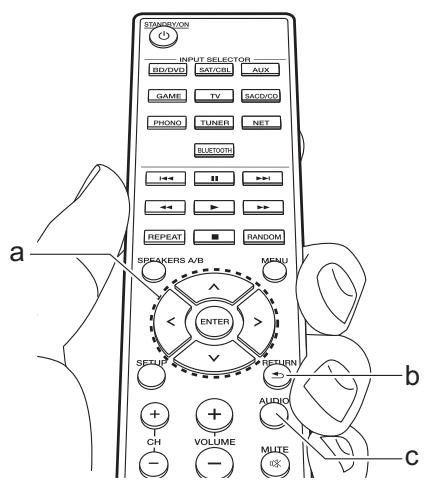
- Press AUDIO (c) on the remote controller.
- Select the item with the Up/Down buttons (a) on the remote controller.
-
Select the setting value with the Left/Right buttons (a) on the remote controller.
-
To return to the previous display, press RETURN (b).
Direct
Enable or disable the Direct feature which outputs pure sound as it was intended by bypassing the tone control circuits during play.
Bass
Enhance or moderate the bass range of the speakers.
Select between -10 dB and +10 dB in 1 dB increments. (default value: 0 dB)
- It cannot be set if the Direct mode or Pure Direct mode is selected.
Treble
Enhance or moderate the treble range of the speakers.
Select between -10dB and +10dB in 1 dB increments. (default value: 0 dB)
- It cannot be set if the Direct mode or Pure Direct mode is selected.
Balance
Adjust the balance of the sounds output from the left and right speakers.
Select between L + 10 and R + 10 in 1 steps increments. (default value: 0)
Supplementary information for player functions
Due to firmware (the software for the system) updates after you make your purchase or firmware changes during production of the product, there may be additions or changes to the features available compared to what is in the instruction manual.
For information about player functions that have been added or changed or the operation of FireConnect, see the following references.
http://jp.pioneer-audiovisual.com/manual/sup/17piopoly01.pdf
Setup Menu
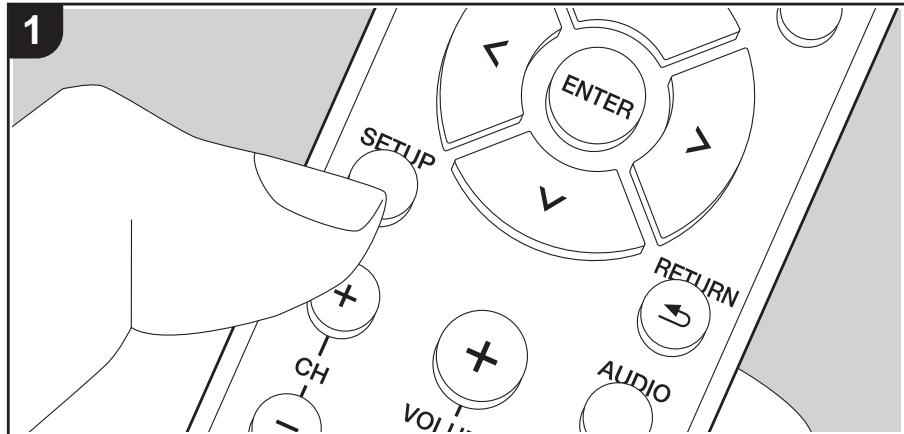
The unit allows you to configure advanced settings to provide you with an even better experience.
- Press SETUP (b) on the remote controller.
1.DigitalAudio
- Select the item with the Up/Down buttons (a) on the remote controller and press ENTER (a) to confirm your selection.
- Select the submenu with the Up/Down buttons (a) on the remote controller.
- Select the setting value with the Left/Right buttons (a) on the remote controller and press ENTER (a) to confirm your selection.
- To return to the previous display, press RETURN (c).
- To exit the settings, press SETUP (b).
1. DigitalAudio
You can change input assignment between the input selectors and DIGITAL IN COAXIAL/OPTICAL jacks. If you do not assign a jack, select "---".
| COAX | "BD/DVD", "SAT/CBL", "GAME", "AUX", "SACD/CD", "TV", "PHONO": Allocate an input selector to the DIGITAL IN COAXIAL jack. (Default Value is "BD/DVD") |
| OPT | "BD/DVD", "SAT/CBL", "GAME", "AUX", "SACD/CD", "TV", "PHONO": Allocate an input selector to the DIGITAL IN OPTICAL jack. (Default Value is "GAME") |
-
Supported sampling rates for PCM signals (stereo, mono) from a digital input are 32 kHz, 44.1 kHz, 48 kHz, 88.2 kHz, 96 kHz/16 bit, 20 bit, 24 bit, 176.4 kHz, 192 kHz/16 bit, 20 bit, 24 bit.
-
Main Volume
| VolLimit | Set the maximum value to avoid too high volume. "Off (default value)" or a value between "50" and "99". |
| POn Lvl | Set the volume level of when the power is turned on. Select "Last (default value)" (volume level before entering standby mode), "Min", "0.5" to "99.5" and "Max".You cannot set a higher value than that of "VolLimit". |
| HP Lvl | Adjust the output level of the headphones. Select from "-12.0 dB" to "+"12.0 dB. (Default Value is "0.0 dB") |
- Hardware
| SplImpedance | Set the impedance of the connected speakers. "4Ω": When any of the connected speakers have 4 Ω or more to less than 6 Ω impedance, or when speaker systems are connected to both of the SPEAKERS A/B terminals "6Ω (default value): When the connected speakers all have 6 Ω or more impedance • Note that when connecting to both SPEAKERS A and B terminals, connect speakers with 8 Ω to 16 Ω impedance to both A and B. • For impedance, check the indications on the back of the speakers or their instruction manual. |
| Auto Stby | This setting places the unit on standby automatically after 20 minutes of inactivity without any audio input. (When "NET Stby" is on, this becomes the HYBRID STANDBY mode which reduces the increase in power consumption to a minimum.) "On": The unit will automatically enter standby mode. "AUTO STBY" lights on the display. "Off": The unit will not automatically enter standby mode. • "Auto Stby" is displayed on the display 30 seconds before the Auto Standby comes on. • Default values vary depending on the regions. |
| NET Stby | When this feature is turned "On (default value)", you can turn on the power of the unit via the network using an application that can control this unit. • When using "NET Stby", power consumption increases even when this unit is on standby, however, the increase in power consumption is kept to a minimum by automatically entering the HYBRID STANDBY mode, where only essential circuits are operating. • When the connection to the network is lost, "NET Stby" is disabled to reduce power consumption. Use the power button on the remote controller or main unit to turn the unit on if this happens. |
| BT Wakeup | This function wakes up the unit on standby by connecting a BLUETOOTH wireless technology enabled device. "On": When this function is to be used "Off (default value): When this function is not to be used • When this setting is turned "On", power consumption increases even when this unit is on standby, however, the increase in power consumption is kept to a minimum by automatically entering the HYBRID STANDBY mode, where only essential circuits are operating. • The setting is fixed to "Off" if "6. Bluetooth" - "AutoChange" is set to "Off". |
| Opt Wakeup | When an audio signal is input through the OPTICAL terminal while this unit is in standby, this feature automatically detects it. "On": This unit is turned on and outputs the audio. "Off (default value)": The function is disabled. · When a cable is connected to the OPTICAL terminal and this setting is enabled, power consumption increases even when the unit is on standby, however, the increase in power consumption is kept to a minimum by automatically entering the HYBRID STANDBY mode, where only essential circuits are operating. |
| AM Freq | Select a frequency step depending on your area of residence. Select "9 kHz (default value)" or "10 kHz". · When this setting is changed, all radio presets are deleted. |
- Source
| Vol Abs | Adjust the volume level difference between the devices connected to the unit. Select the input selector to configure. Select from "-12 dB" to "+"12 dB". Set a negative (-) value if the volume of the target device is larger than the others and a positive (+) value if smaller. To check the audio, start playback of the connected device. (Default Value is "0.0 dB") |
| Name Edit | Set an easy name to each input. The set name will be shown on the main unit display. Select the input selector to configure. For details on how to enter text, refer to "Entering text" (P14). • To name a preset radio station, press TUNER on the remote controller, select AM/FM and select the preset number. • It cannot be set if the "NET" or "BLUETOOTH" input is selected. |
5. Network
- When LAN is configured with a DHCP, set "DHCP" to "Enable" to configure the setting automatically. Further, to assign fixed IP addresses to each component, you must set "DHCP" to "Disable" and assign an address to this unit in "IP Address" as well as set information related to your LAN, such as Subnet Mask and Gateway.
| Wi-Fi | Connect the unit to network via wireless LAN router. "On": Wireless LAN connection "Off (default value)": To connect via wired LAN |
| Wi-Fi Setup | You can configure wireless LAN settings by pressing ENTER when "Start" is displayed. · This is displayed only when "On" is selected in "Wi-Fi". · Refer to Initial Setup (P12) for Wi-Fi settings. |
| SSID | TheSSID of the connected access point |
| Signal | The signal strength of the connected access point |
| Stat | The status of the connected access point |
| MAC Address | This is the MAC address of this unit. This value is specific to the component and cannot be changed. |
| DHCP | "Enable (default value): Auto configuration by DHCP "Disable": Manual configuration without DHCP If "Disable" is selected, you must set "IP Address", "Subnet Mask", "Gateway", and "DNS Server" manually. |
| IP Address | Displays/Sets the IP address. |
| Subnet Mask | Displays/Sets the subnet mask. |
| Gateway | Displays/Sets the gateway. |
| DNS Server | Displays/Sets the primary DNS server. |
| Proxy URL | Displays/Sets the proxy server URL. |
| Proxy Port | Displays/Sets the proxy server port number when you enter "Proxy URL". |
| Friendly Name | Change the device name for this unit which is shown on other devices connected to the network to an easily recognized name. This is set to Pioneer SX-N30AE **** at the time of purchase. (* stand for alphanumeric characters identifying each unit) For details on how to enter text, refer to "Entering text" (P14). |
| Network Check | You can check the network connection. Press ENTER when "Start" is displayed. |
- Wait for a while if "Network" cannot be selected. It will appear when the network feature is started.
6. Bluetooth
| Bluetooth | Select whether or not to use the BLUETOOTH function. "On (default value): Enables connection with a BLUETOOTH wireless technology enabled device by using the BLUETOOTH function. Select "On" also when making various BLUETOOTH settings. "Off": When the BLUETOOTH function is not to be used |
| AutoChange | The input of the unit will automatically be switched to "BLUETOOTH" when connection is made from a BLUETOOTH wireless technology enabled device to the unit. "On (default value): The input will automatically become "BLUETOOTH" when a BLUETOOTH wireless technology enabled device is connected. "Off": The function is disabled. • If the input is not switched automatically, set to "Off" and change the input manually. |
| Reconnect | This function automatically reconnects to the BLUETOOTH wireless technology enabled device connected last when you change the input to "BLUETOOTH". "On (default value): When this function is to be used "Off": When this function is not to be used • This may not work with some BLUETOOTH wireless technology enabled devices. |
| Pairing Info | You can initialize the pairing information saved on this unit. Pressing ENTER when "Clear" is displayed initializes the pairing information stored in this unit. ·This function does not initialize the pairing information on the BLUETOOTH wireless technology enabled device. When pairing the unit again with the device, be sure to clear the pairing information on the BLUETOOTH wireless technology enabled device in advance. For information on how to clear the pairing information, refer to the BLUETOOTH wireless technology enabled device's instruction manual. |
| Device | Displays the name of the BLUETOOTH wireless technology enabled device connected to the unit. ·The name is not displayed when "Stat" is "Ready" or "Pairing". |
| Stat | Displays the status of the BLUETOOTH wireless technology enabled device connected to the unit. "Ready": Not paired "Pairing": Pairing "Connected": Successfully connected |
- Wait for a while if "Bluetooth" cannot be selected. It will appear when the BLUETOOTH function is started up.
7. F/W Update
| Notice | Availability of a firmware update will be notified via network. "Enable (default value): Notify updates "Disable": Disable notifications |
| Ver | The current firmware version will be displayed. |
| Update via NET | Press ENTER to select when you want to update the firmware via network. You will not be able to select this setting if you do not have Internet access or there is nothing to update. |
| Update via USB | Press ENTER to select when you want to update the firmware via USB. ·You will not be able to select this setting if a USB storage device is not connected or there is nothing to update in the USB storage device. |
- Wait for a while if "Firmware Update" cannot be selected. It will appear when the network feature is started.
8. Lock
| Setup | Lock the Setup menu to protect the settings. "Locked": The menu is locked. "Unlocked (default value)"': Unlocked |
Web Setup
You can make the settings for network features for this unit in an internet browser on a PC, smartphone, etc.
- Press SETUP on the remote controller to display the Setup menu.
- Select "5. Network" - "IP Address" with the cursors and take a note of the IP address displayed.
- Start the internet browser on your PC or smartphone and enter the IP address of the unit in the URL field.
- Information for the unit (Web Setup screen) is displayed in the internet browser.
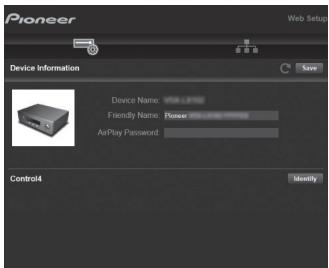
- After changing the settings, select "Save" to save the settings.
Device Information
You can change the Friendly Name etc.
Control4: Register this unit if you are using a Control4 system.
Network Setting
Status: You can see information for the network such as the MAC address and IP address for this unit.
Network Connection: You can select how to connect to the network. If you select "Wireless", select an access point from "Wi-Fi Setup" to connect.
DHCP: You can change DHCP settings. If you select "Off", set "IP Address", "Subnet Mask", "Gateway", and "DNS Server" manually.
Proxy: Display and set the URL for the proxy server.
Firmware Update
The updating function on this unit
This unit has functionality to update the firmware (the system software) over a network or by the USB port. This enables us to make improvements to a variety of operations and to add features.
How to update
There are two methods for updating the firmware: via network and via USB. The update may take about 20 minutes to complete for either method: via network or via USB. Furthermore, settings you have changed are maintained regardless of the method used for update. Note that when this unit is connected to a network, you may see notifications about firmware updates on the display. To execute updating, select "Update Now" with the cursors of the remote controller and press ENTER. "Completed!" is displayed when the update is complete.
- For the latest information on updates, visit our website.
There is no need to update the firmware on this unit if there is no update available.
-
During an update, do not:
-
Disconnect and reconnect any cable or USB storage device, headphones, or perform any operation on the component such as turn off its power
-
Accessing this unit from a PC or smartphone using an application
Disclaimer: The program and accompanying online documentation are furnished to you for use at your own risk.
We will not be liable and you will have no remedy for damages for any claim of any kind whatsoever concerning your use of the program or the accompanying online documentation, regardless of legal theory, and whether arising in tort or contract.
In no event will we be liable to you or any third party for any special, indirect, incidental, or consequential damages of any kind, including, but not limited to, compensation, reimbursement or damages on account of the loss of present or prospective profits, loss of data, or for any other reason whatsoever.
Updating the Firmware via Network
- Check that the unit is turned on, and the connection to the Internet is secured.
- Turn off the controller component (PC etc.) connected to the network.
- Stop any playing Internet radio, USB storage device, or server content.
- Press SETUP on the remote controller.
- Select "7. F/W Update" - "Update via NET" in order with the Up/Down buttons on the remote controller and press ENTER.
Update via NET
-
You will not be able to select "Update via NET" if there is no firmware update.
-
Press ENTER with "Update" displayed to start the update.
- "Completed!" is displayed when the update is complete.
- Press STANDBY/ON on the main unit to switch the unit to standby. The process is completed and your firmware is updated to the latest version.
- Do not use on the remote controller.
If an Error Message is Displayed: When an error occurs, "** Error!" is displayed on the display of the unit. ("" represents an alphanumeric character.) Check the following:
- -01, -10 : Cannot recognize Ethernet cable. Connect the Ethernet cable properly.
- -02, -03, -04, -05, -06, -11, -13, -14, -16, -17, -18, -20, *-21: Internet connection error.
Check the following:
- Whether the router is turned on
- Whether this unit and router are connected to the network
Try to disconnect and then connect again the power to the unit and router. This may solve the problem. If you
are still unable to connect to the Internet, the DNS server or proxy server may be temporarily down. Check the service status with your ISP provider.
- Others: Disconnect then reconnect the power cord, then repeat from the beginning.
Updating via USB
- Prepare a 128 MB or larger USB storage device. FAT16 or FAT32 file system format.
- Media inserted in a USB card reader may not be used for this function.
- USB storage devices with security function are not supported.
- USB hubs and USB devices with hub function are not supported. Do not connect these devices to the unit.
- Delete any data stored on the USB storage device.
- Turn off the controller component (PC etc.) connected to the network.
- Stop any playing Internet radio, USB storage device, or server content.
- Some USB storage devices may take long to load, may not be loaded correctly, or may not be correctly fed depending on the device or their content.
- We will not be liable whatsoever for any loss or damage of data, or storage failure arising from the use of the USB storage device with this unit. Thank you for your understanding.
- Connect the USB storage device to your PC.
- Download the firmware file from the our website to your PC and unzip.
Firmware files are named in the following way: PIORCV***.zip
Unzip the file on your PC. The number of unzipped files and folders varies depending on the model. - Copy all unzipped files and folders to the root folder of the USB storage device.
- Make sure to copy the unzipped files.
- Connect the USB storage device to the USB port on the
main unit.
- If you connect a USB hard disk drive to the USB port of the unit, we recommend that you use its AC adapter to power it.
-
If the USB storage device has been partitioned, each section will be treated as an independent device.
-
Press SETUP on the remote controller.
- Select "7. F/W Update" - "Update via USB" in order with the Up/Down buttons on the remote controller and press ENTER.
Update via USB
-
You will not be able to select "Update via USB" if there is no firmware update.
-
Press ENTER with "Update" displayed to start the update.
-
During the update, do not turn off, or disconnect then reconnect the USB storage device.
-
"Completed!" is displayed when the update is complete.
-
Disconnect the USB storage device from the main unit.
- Press STANDBY/ON on the main unit to switch the unit to standby. The process is completed and your firmware is updated to the latest version.
- Do not use on the remote controller.
If an Error Message is Displayed: When an error occurs,
"*-* Error!" is displayed on the display of the unit. ("" represents an alphanumeric character.) Check the following:
- -01, -10 : USB storage device not found. Check whether the USB storage device or USB cable is correctly inserted to the USB port of this unit.
Connect the USB storage device to an external power source if it has its own power supply.
-
-05, -13, -20, -21 : The firmware file is not present in the root folder of the USB storage device, or the firmware file is for another model. Retry from the download of the firmware file.
-
Others: Disconnect then reconnect the power cord, then repeat from the beginning.
Troubleshooting
Before starting the procedure
Problems may be solved by simply turning the power on/off or disconnecting/connecting the power cord, which is easier than working on the connection, setting and operating procedure. Try the simple measures on both the unit and the connected device. If the problem isn't fixed after referring to "Troubleshooting", resetting the unit to the status at the time of shipment may solve the problem. Note that your settings will also be initialized when you reset, so we recommend that you note down your settings before doing the following.
- This unit contains a microPC for signal processing and control functions. In very rare situations, severe interference, noise from an external source, or static electricity may cause it to lockup. In the unlikely event that this happens, unplug the power cord from the wall outlet, wait at least 5 seconds, and then plug it back in.
- We are not responsible for reparations for damages (such as CD rental fees) due to unsuccessful recordings caused by the unit's malfunction. Before you record important data, make sure that the material will be recorded correctly.
If operation becomes unstable
Try restarting the unit
The issue may be fixed by restarting this unit. After switching this unit to standby, press and hold STANDBY/ON on this unit for 5 or more seconds to restart the unit. (The settings in the unit are maintained.) If the issue is not fixed by restarting, try unplugging the power cords of the unit and connected devices, and then plugging them in again.
Resetting the unit (this resets the unit settings to the default)
If restarting the unit doesn't fix the problem, resetting the unit to the status at the time of shipment may solve the
problem. Your settings will also be initialized when you reset, so note down your settings before doing the following.
- While holding down TUNING MODE on the main unit, press STANDBY/ON.
- The unit switches to standby and the settings are reset.
Power
Cannot turn on the unit
- Make sure that the power cord is properly plugged into the wall outlet.
- Unplug the power cord from the wall outlet, wait 5 seconds or more, then plug it in again.
The unit turns off unexpectedly
- The unit automatically switches to standby when the "3. Hardware" - "Auto Stby" setting in the Setup menu functions.
- The protective circuit function may have been activated. If "CHECK SP WIRE" appears on the display, the speaker cables may be short-circuited. Make sure bare speaker wires are not touching each other or the back panel of the unit, then turn the unit on again. If "NG" is displayed, immediately unplug the power cord from the wall outlet and contact your dealer.
- The protective circuit function may have been activated because the temperature of the unit rose abnormally. If this happens, then the power will continue to turn off after you have turned the unit on again. Make sure the unit has plenty of space for ventilation around it, wait for the unit to cool down sufficiently, and then try turning it on again.
WARNING: If smoke, smell or abnormal noise is produced by the unit, unplug the power cord from the wall outlet immediately and contact the dealer or customer support.
Audio
- Confirm that the connection between the output jack on the device and the input jack on this unit is correct.
- Make sure that none of the connecting cables are bent, twisted, or damaged.
- If the ※ indicator on the display flashes, press MUTE on the remote controller to cancel muting.
- While headphones are connected to the PHONES jack,
no sound is output from the speakers.
No sound from a connected external device
- Change the input selector on this unit to the position of the terminal to which the external device is connected.
- Check the digital audio output setting on the connected component. On some game consoles, such as those that support DVD, the default setting is off.
- Only PCM audio is supported for input through the DIGITAL IN OPTICAL/COAXIAL jacks. Set the audio output on the external device to output PCM.
A speaker produces no sound
- Make sure that the polarity of the speaker cables (+/-) is correct, and that no bare wires are in contact with the metal part of speaker terminals.
- Make sure that the speaker cables have not shorted.
- Make sure the speakers are connected correctly (P8).
Noise can be heard
- Using cable ties to bundle analog audio cables, power cords, speaker cables, etc. may degrade the audio performance, Do not bundle cords.
- An audio cable may be picking up interference. Try repositioning your cables.
Sound suddenly reduces
- When the temperature inside the unit exceeds a certain temperature for extended periods, the volume may be reduced automatically to protect the circuits.
■ AM/FM broadcasting
Radio reception is poor or there is a lot of noise
- Re-check the antenna connection.
- Separate the antenna from speaker cables and the power cord.
-
Move the unit away from your TV or PC.
Passing cars and airplanes can cause interference.
Concrete walls weaken radio signals. -
Listen to the station in mono.
- When listening to an AM station, operating the remote controller may cause noise.
- FM reception may become clearer if you use the antenna jack on the wall used for the TV.
The BLUETOOTH feature
- Try plugging/unplugging the power of the unit and try turning on/off the BLUETOOTH wireless technology enabled device. Restarting the BLUETOOTH wireless technology enabled device may be effective.
- The BLUETOOTH wireless technology enabled devices must support the A2DP profile.
- Radio wave interference may occur in the vicinity of components, such as microwave ovens or cordless phones, which use radio waves in the 2.4 GHz range. This interference may render this unit unusable.
- If there is a metallic object near the unit, BLUETOOTH connection may not be possible as the metal can effect on the radio waves.
Cannot connect with this unit
- Check that the BLUETOOTH function of the BLUETOOTH wireless technology enabled device is enabled.
Music playback is unavailable on the unit even after successful BLUETOOTH connection
- When the audio volume of your BLUETOOTH wireless technology enabled device is set low, the playback of audio may be unavailable. Turn up the volume on the BLUETOOTH wireless technology enabled device.
- Some BLUETOOTH wireless technology enabled devices may be equipped with a Send/Receive selector switch. Select Send mode.
- Depending on the characteristics or specifications of your BLUETOOTH wireless technology enabled device, playback on this unit may not be possible.
Sound is interrupted
- There may be a problem with the BLUETOOTH wireless technology enabled device. Check the information on the internet.
The audio quality is poor after connection with a BLUETOOTH wireless technology enabled device
- Reception is poor. Move the BLUETOOTH wireless technology enabled device closer to the unit or remove any obstacle between the BLUETOOTH wireless technology enabled device and this unit.
Network Functions
- If you cannot select a network service, it will become selectable when the network function is started. It may take about a minute to start up.
- When NET is blinking, this unit is not properly connected to the home network.
- Try plugging/unplugging the power supply of this unit and the router, and try rebooting the router.
- If the desired wireless LAN router is not in the access point list, it may be set to hide SSID or the ANY connection may be off. Change the setting and try again.
Cannot access the Internet radio
- Certain network service or contents available through the unit may not be accessible in case the service provider terminates its service.
- Make sure that your modem and router are properly connected, and make sure they are both turned on.
- Make sure that the LAN side port on the router is properly connected to this unit.
- Make sure that connecting to Internet from other components is possible. If connecting is not possible, turn off all components connected to the network, wait for a while, and then turn on the components again.
- If a specific radio station is unavailable for listening, make sure the registered URL is correct, or whether the format distributed from the radio station is supported by
this unit.
- Depending on ISP, setting the proxy server is necessary.
- Make sure that the router and/or modem you are using is supported by your ISP.
Cannot access the network server
- This unit needs to be connected to the same router as the network server.
- This unit is compatible with Windows Media® Player 11 or 12 network servers or NAS that are compatible with home network functionality.
- You may need to make some settings on Windows Media® Player (P23).
- When using a PC, only music files registered in the Windows Media® Player library can be played.
Playback stops while listening to music files on the network server
- Make sure the network server is compatible with this unit.
- When the PC is serving as the network server, try quitting any application software other than the server software (Windows Media® Player 12 etc.).
- If the PC is downloading or copying large files, the playback may be interrupted.
USB storage device
USB storage device is not displayed
- Check whether the USB storage device or USB cable is correctly inserted to the USB port of the unit.
- Disconnect the USB storage device from the unit, and then try reconnecting.
- Performance of hard disks that receive power from the USB port of the unit is not guaranteed.
- Depending on the type of format, the playback may not be performed normally. Check the type of the file formats that is supported.
- USB storage devices with security functions may not be played.
Wireless LAN Network
- Try plugging/unplugging the power supply of wireless LAN router and the unit, check the wireless LAN router power-on status, and try reboot of the wireless LAN router.
Cannot access wireless LAN network
- The wireless LAN router setting may be switched to Manual. Return the setting to Auto.
- Try the manual set-up. The connection may succeed.
- When the wireless LAN router setting is at stealth mode (mode to hide the SSID key) or when ANY connection is off, the SSID is not displayed. Change the setting and try again.
- Check that the setting of SSID and encryption (WEP, etc.) is correct. Make sure the network settings of the unit is properly set.
- Connection to an SSID that includes multi-byte characters is not supported. Name the SSID of the wireless LAN router using single-byte alphanumeric characters only and try again.
Connected to an SSID different to the SSID selected
- Some wireless LAN routers allow you to set multiple SSIDs for one unit. If you use the automatic setting button on such a router, you may end up connecting with a different SSID from the SSID you wanted to connect to. Use the connection method requiring you to enter a password if this happens.
Playback is interrupted and communication does not work
- You may not receive radio waves due to bad radio wave conditions. Shorten the distance from the wireless LAN router or remove obstacles to improve visibility, and try again. Place the unit away from microwave ovens or other access points. It is recommended to place the wireless LAN router and the unit in the same room.
- If there is a metallic object near the unit, wireless LAN
connection may not be possible as the metal can effect on the radio wave.
- When other wireless LAN devices are used near the unit, several issues such as interrupted playback and communication may occur. You can avoid these issues by changing the channel of your wireless LAN router. For instructions on changing channels, see the instruction manual provided with your wireless LAN router.
- There may not be enough bandwidth available in the band for wireless LAN. Connect using an Ethernet cable.
Remote Controller
- Make sure that the batteries are installed with the correct polarity.
- Install new batteries. Do not mix different types of batteries, or old and new batteries.
- Make sure that the unit is not subjected to direct sunshine or inverter-type fluorescent lights. Relocate if necessary.
- If the unit is installed in a rack or cabinet with colored-glass doors or if the doors are closed, the remote controller may not work reliably.
Display
The display doesn't light
- The display may go dim while the Dimmer is working. Press DIMMER to change the brightness level of the display.
- The display is turned off when the Pure Direct listening mode is selected.
Others
Strange noises can be heard from the unit
- If you have connected another unit to the same wall outlet as this unit, this noise may be an effect from the
other unit. If the symptoms improve by unplugging the power cord of the other unit, use different wall outlets for this unit and the other unit.
General Specifications
Amplifier (Audio) section
Rated Output Power (IEC) 2 ch × 135 W at 6 ohms, 1 kHz, 1 ch driven of 1% THD
Dynamic Power (*)
(*)IEC60268-Short-term maximum output power 180 W (3 Ω, Front)
160 W (4 Ω, Front)
100 W (8 Ω, Front)
THD+N (Total Harmonic Distortion+Noise)
0.08% (20 Hz - 20,000 Hz, half power)
Input Sensitivity and Impedance (1 kHz, 100 W/8 Ω)
200 mV/50 kΩ (LINE (Unbalance))
2.5 mV/50 kΩ (PHONO MM)
Rated RCA Output Level and Impedance
150 mV/470 Ω (PRE OUT)
470 mV/680 Ω (SUBWOOFER PRE OUT)
Phono Overload
70 mV (MM 1 kHz, 0.5%)
Frequency Response 10 Hz - 100 kHz/+1 dB, -3 dB (Direct/Pure Direct)
Tone Control Characteristics
±10 dB, 100 Hz (BASS)
±10 dB, 10 kHz (TREBLE)
Signal to Noise Ratio
106 dB (IHF-A, LINE IN, SP OUT)
80 dB (IHF-A, PHONO IN, SP OUT)
Speaker Impedance
4Ω-16Ω
Headphone Output Impedance 390Ω
Headphone Rated Output 200 mW (32 Ω, 1 kHz, 10% THD)
Tuner Section
FM Tuning Frequency Range 87.5 MHz - 108.0 MHz, RDS
AM Tuning Frequency Range 522/530 kHz - 1611/1710 kHz
Preset Channel
Network Section
Ethernet LAN
10BASE-T/100BASE-TX
Wireless LAN
IEEE 802.11 a/b/g/n standard
(Wi-Fi® standard)
2.4 GHz/5 GHz band
BLUETOOTH Section
Communication system
BLUETOOTH Specification version 4.1+LE
Frequency band
2.4 GHz band
Modulation method
FHSS (Frequency Hopping Spread Spectrum)
Compatible BLUETOOTH profiles A2DP 1.2
AVRCP 1.3
HOGP-Host (Client)
HOGP-HID Device (Server)
HID Service (HIDS)
Supported Codes
SBC
AAC
Transmission range (A2DP)
20 Hz - 20 kHz (Sampling frequency 44.1 kHz)
Maximum communication range Line of sight approx. 48^ / 15m (^*)
(*)The actual range will vary depending on factors such as obstacles between devices, magnetic fields around a microwave oven, static electricity, cordless phone, reception sensitivity, antenna's performance, operating system, software application, etc.
General
Power Supply
AC 220-230 V, 50/60 Hz
Power Consumption
220W
0.1 W (Stand-by)
65 W (No-sound)
2.9 W (Hybrid Standby)
17-1/8" × 5-7/8" × 12-7/8"
Weight
8.3 kg /18.3 lbs
Audio Inputs
Digital
OPTICAL (GAME)
Maximum Fs: 192 kHz
COAXIAL (BD/DVD)
Maximum Fs: 192 kHz
Analog
PHONO, SACD/CD, TV, GAME, AUX, SAT/CBL
BD/DVD
Audio Outputs
Analog
SUBWOOFER PRE OUT
LINE OUT L/R
Speaker Outputs
SPEAKERS A: FRONT L/R
SPEAKERS B:FRONT L/R
Phones
PHONES (Front, 01/4''/6.3 mm)
Others
USB: 2 (Front: Ver.2.0, 5 V/0.5 A, Rear: Ver.2.0, 5 V/1 A)
Ethernet: 1
The Wi-Fi CERTIFIED Logo is a certification mark of Wi-Fi Alliance®.
pandora
PANDORA, the PANDORA logo, and the Pandora trade dress are trademarks or registered trademarks of Pandora Media, Inc. Used with permission.

Bluetooth
The BLUETOOTH® word mark and logos are registered trademarks owned by Bluetooth SIG, Inc.
The Spotify software is subject to third party licenses found here: https://developer.spotify.com/esdk-third-party/licenses/

BLACKFIRE
This Mark Certifies that this product is compliant with the BLACKFIRE ALLIANCE Standard. Please refer to WWW.BLACKFIREALLIANCE.COM for more information. BLACKFIRE™ is a Registered Trademark (No. 85,900,599) of BLACKFIRE RESEARCH CORP. All rights reserved.

Fire Connect
FireConnect™ is technology powered by BlackFire Research.
This product is protected by certain intellectual property rights of Microsoft. Use or distribution of such technology outside of this product is prohibited without a license from Microsoft.
Windows 7, Windows Media, and the Windows logo are trademarks or registered trademarks of Microsoft Corporation in the United States and/or other countries.
DSD and the Direct Stream Digital logo are trademarks of Sony Corporation.
All other trademarks are the property of their respective owners. / Toutes les autres marques commerciales sont la propriété de leurs détenteurs respectifs. / El resto de MARCAS commerciales son propidad de sus propresivos propriétarios. / Tutti gli和其他i marchi di fabbrica sono di propietà dei rispetti propriatori. / Alle anderen Warenzeichen sind das Eigumentur ihrer jeweiligen Eigentümer. / Alle andere handelsmerken zijng eigendom van de desbetreffende rechtsbebbenden. / Alle andra verumärken tilhör deras respective ägare. / Kaikkmuut tuotemerkit ovarat omastijenaomsaisuuttua. /的所有其他商標為各自所有者所有。
SX-N30AE
NETWORK STEREO RECEIVER
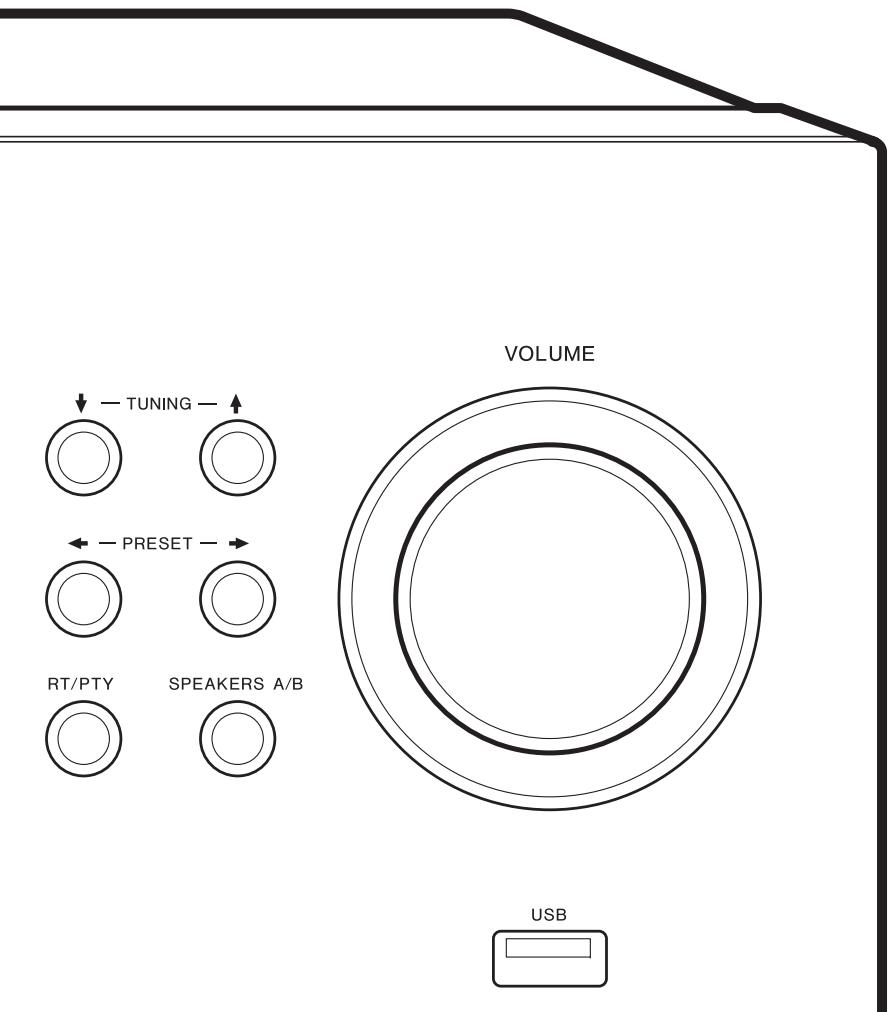
Instruction Manual
Mode d'emploi
1. Raccordement DIGITAL IN
AAC (.aac/.m4a/.mp4/.3gp/.3g2/.AAC/.M4A/.MP4/.3GP/.3G2):
DSD (.dsf/.dff/.DSF/.DFF):
44,1 kHz, 48 kHz, 88,2 kHz, 96 kHz, 176,4 kHz, 192 kHz
- Bits de quantification: 8 bits, 16 bits, 24 bits
AIFF (.aiff/.aif/.AIFF/.AIF):
DSD (.dsf/.dff/.DSF/.DFF) :
PHONO, SACD/CD, TV, GAME, AUX, SAT/CBL, BD/DVD
Sorties audio
Analagogue SUBWOOFER PRE OUT LINE OUT L/R
Sorties haut-parleurs SPEAKERS A:FRONT L/R SPEAKERS B:FRONT L/R
Casques PHONES (Avant, 01/4''/6,3 mm)
Autres
USB:2 (avant:Ver.2.0,5V/0,5A,Arriere:Ver.2.0,5V/1 A) Ethernet 1
The Wi-Fi CERTIFIED Logo is a certification mark of Wi-Fi Alliance®.
pandora
PANDORA, the PANDORA logo, and the Pandora trade dress are trademarks or registered trademarks of Pandora Media, Inc. Used with permission.

Bluetooth
The BLUETOOTH® word mark and logos are registered trademarks owned by Bluetooth SIG, Inc.
The Spotify software is subject to third party licenses found here: https://developer.spotify.com/esdk-third-party/licenses/

BLACKFIRE
This Mark Certifies that this product is compliant with the BLACKFIRE ALLIANCE Standard. Please refer to WWW.BLACKFIREALLIANCE.COM for more information. BLACKFIRE™ is a Registered Trademark (No. 85,900,599) of BLACKFIRE RESEARCH CORP. All rights reserved.

Fire Connect
FireConnect™ is technology powered by BlackFire Research.
This product is protected by certain intellectual property rights of Microsoft. Use or distribution of such technology outside of this product is prohibited without a license from Microsoft.
Windows 7, Windows Media, and the Windows logo are trademarks or registered trademarks of Microsoft Corporation in the United States and/or other countries.
DSD and the Direct Stream Digital logo are trademarks of Sony Corporation.
All other trademarks are the property of their respective owners. / Toutes les autres marques commerciales sont la propriété de leurs détenteurs respectifs. / El resto de MARCAS commerciales son propidad de sus propresivos propriétarios. / Tutti gli和其他i marchi di fabbrica sono di propietà dei rispetti propriatori. / Alle anderen Warenzeichen sind das Eigumentur ihrer jeweiligen Eigentümer. / Alle andere handelsmerken zijng eigendom van de desbetreffende rechtsbebbenden. / Alle andra verumärken tilhör deras respective ägare. / Kaikkmuut tuotemerkit ovarat omstajena somainuuttua. /的所有其他商標為各自所有者所有。
SX-N30AE
NETWORK STEREO RECEIVER
AAC (.aac/.m4a/.mp4/.3gp/.3g2/.AAC/.M4A/.MP4/.3GP/.3G2):
DSD (.dsf/.dff/.DSF/.DFF):
AAC (.aac/.m4a/.mp4/.3gp/.3g2/.AAC/.M4A/.MP4/.3GP/.3G2):
DSD (.dsf/.dff/.DSF/.DFF):
10 Hz - 100 kHz/ + 1 dB, -3 dB (Direct/Pure Direct)
Characteristicasdecontroldetono
± 10 dB, 100Hz (BASS)
±10 dB, 10 kHz (TREBLE)
106 dB (IHF-A, LINE IN, SP OUT)
80 dB (IHF-A, PHONO IN, SP OUT)
Impedancia de altovoz
4Ω-16Ω
200 mW (32 Ω, 1 kHz, 10% THD)
87,5 MHz - 108,0 MHz, RDS
522/530 kHz - 1611/1710 kHz
PHONO, SACD/CD, TV, GAME, AUX, SAT/CBL
BD/DVD
Salidas de audio
Analógico
SUBWOOFER PRE OUT
LINE OUT L/R
The Wi-Fi CERTIFIED Logo is a certification mark of Wi-Fi Alliance®.
pandora
PANDORA, the PANDORA logo, and the Pandora trade dress are trademarks or registered trademarks of Pandora Media, Inc. Used with permission.

Bluetooth
The BLUETOOTH® word mark and logos are registered trademarks owned by Bluetooth SIG, Inc.
The Spotify software is subject to third party licenses found here: https://developer.spotify.com/esdk-third-party/licenses/

BLACKFIRE
This Mark Certifies that this product is compliant with the BLACKFIRE ALLIANCE Standard. Please refer to WWW.BLACKFIREALLIANCE.COM for more information. BLACKFIRE™ is a Registered Trademark (No. 85,900,599) of BLACKFIRE RESEARCH CORP. All rights reserved.

Fire Connect
FireConnect™ is technology powered by BlackFire Research.
This product is protected by certain intellectual property rights of Microsoft. Use or distribution of such technology outside of this product is prohibited without a license from Microsoft.
Windows 7, Windows Media, and the Windows logo are trademarks or registered trademarks of Microsoft Corporation in the United States and/or other countries.
DSD and the Direct Stream Digital logo are trademarks of Sony Corporation.
All other trademarks are the property of their respective owners. / Toutes les autres marques commerciales sont la propriété de leurs détenteurs respectifs. / El resto de MARCAS commerciales son propidad de sus propresivos propriétarios. / Tutti gli和其他i marchi di fabbrica sono di propietà dei rispetti propriatori. / Alle anderen Warenzeichen sind das Eigumentur ihrer jeweiligen Eigentümer. / Alle andere handelsmerken zijng eigendom van de desbetreffende rechtsbebbenden. / Alle andra verumärken tilhör deras respective ägare. / Kaikkmuut tuotemerkit ovarat omstajena somainuuttua. /的所有其他商標為各自所有者所有。
2-3-12 Yaesu, Chuo-ku, Tokyo 104-0028 JAPAN
18 PARK WAY, UPPER SADDLE RIVER, NEW JERSEY 07458, U.S.A.
Tel: 1-201-785-2600 Tel: 1-844-679-5350
Tel: +49(0)8142 4208 188 (Product Support)
Anteros Building, Odyssey Business Park, West End Road, South Ruislip,
Middlesex, HA4 6QQ United Kingdom
Tel: +44(0)208 836 3612
6, Avenue de Marais F - 95816 Argenteuil Cedex FRANCE
Tel: +33(0)969 368 050
KopnpaunO3HPi
© 2017 Onkyo & Pioneer Corporation. All rights reserved.
Onkyo group has established its Privacy Policy, available at [http://pioneer-audiovisual.com/privacy/].
"Pioneer" is a trademark of Pioneer Corporation, and is used under license.