
HW-T550 - Soundbar SAMSUNG - Free user manual and instructions
Find the device manual for free HW-T550 SAMSUNG in PDF.


| Product Type | Soundbar |
| Brand | Samsung |
| Model | HW-T550 |
| Soundbar Dimensions (W x H x D) | 860.0 x 54.0 x 74.0 mm |
| Soundbar Weight | 1.5 kg |
| Subwoofer Dimensions | 181.5 x 343.0 x 272.0 mm |
| Subwoofer Weight | 4.1 kg |
| Power Supply | AC (voltage varies by region) |
| Output Power (Soundbar) | 35 W x 2 (6 ohms) |
| Output Power (Subwoofer) | 80 W (3 ohms) |
| Standby Power Consumption | 2.0 W |
| Connectivity | Bluetooth, Optical Digital Input, USB (5V/0.5A) |
| Inputs | 1 x Optical, 1 x USB |
| Sound Modes | Standard, Surround Sound, Game, Smart |
| Wireless Functions | Bluetooth Power On, Auto Power Down, Audio Sync |
| Wall Mounting | Wall mount kit included (guide, brackets, screws) |
| Safety | Electric shock protection, do not expose to rain/humidity |
| Care and Cleaning | Clean with a soft dry cloth |
| Spare Parts and Repairability | No user-serviceable parts; contact qualified service center |
| Warranty | Standard manufacturer warranty (consult seller) |
Frequently Asked Questions - HW-T550 SAMSUNG
User questions about HW-T550 SAMSUNG
0 question about this device. Answer the ones you know or ask your own.
Ask a new question about this device
Download the instructions for your Soundbar in PDF format for free! Find your manual HW-T550 - SAMSUNG and take your electronic device back in hand. On this page are published all the documents necessary for the use of your device. HW-T550 by SAMSUNG.
USER MANUAL HW-T550 SAMSUNG
Thank you for purchasing this Samsung product.
To receive more complete service, please register
your product at www.samsung.com/register
SAFETY INFORMATION
SAFETYWARNINGS
TO REDUCE THE RISK OF ELECTRIC SHOCK, DO NOT REMOVE THE COVER (OR BACK).
NO USER-SERVICEABLE PARTS ARE INSIDE. REFER SERVICING TO QUALIFIED SERVICE PERSONNEL.
Refer to the table below for an explanation of symbols which may be on your Samsung product.
| 4 | CAUTION RISK OF ELECTRIC SHOCK. DO NOT OPEN. | ! |
| 4 | This symbol indicates that high voltage is present inside. It is dangerous to make any kind of contact with any internal part of this product. | |
| ! | This symbol indicates that this product has included important literature concerning operation and maintenance. | |
| Class II product: This symbol indicates that it does not require a safety connection to electrical earth (ground). If this symbol is not present on a product with a power cord, the product MUST have a reliable connection to protective earth (ground). | ||
| ~ | AC voltage: This symbol indicates that the rated voltage marked with the symbol is AC voltage. | |
| --- | DC voltage: This symbol indicates that the rated voltage marked with the symbol is DC voltage. | |
| Caution, Consult instructions for use: This symbol instructs the user to consult the user manual for further safety related information. | ||
WARNING
- To reduce the risk of fire or electric shock, do not expose this appliance to rain or moisture.
CAUTION
- TO PREVENT ELECTRIC SHOCK, MATCH WIDE BLADE OF PLUG TO WIDE SLOT, FULLY INSERT.
- This apparatus shall always be connected to a AC outlet with a protective grounding connection.
- To disconnect the apparatus from the mains, the plug must be pulled out from the mains socket, therefore the mains plug shall be readily operable.
- Do not expose this apparatus to dripping or splashing. Do not put objects filled with liquids, such as vases on the apparatus.
- To turn this apparatus off completely, you must pull the power plug out of the wall socket. Consequently, the power plug must be easily and readily accessible at all times.
PRECAUTIONS
- Ensure that the AC power supply in your house complies with the power requirements listed on the identification sticker located on the bottom of your product. Install your product horizontally, on a suitable base (furniture), with enough space around it for ventilation (7~10 cm). Make sure the ventilation slots are not covered. Do not place the unit on amplifiers or other equipment which may become hot. This unit is designed for continuous use. To fully turn off the unit, disconnect the AC plug from the wall outlet. Unplug the unit if you intend to leave it unused for a long period of time.
- During thunderstorms, disconnect the AC plug from the wall outlet. Voltage peaks due to lightning could damage the unit.
- Do not expose the unit to direct sunlight or other heat sources. This could lead to overheating and cause the unit to malfunction.
-
Protect the product from moisture (i.e. vases), and excess heat (e.g. a fireplace) or equipment creating strong magnetic or electric fields. Unplug the power cable from the AC wall socket if the unit malfunctions. Your product is not intended for industrial use. It is for personal use only. Condensation may occur if your product has been stored in cold temperatures. If transporting the unit during the winter, wait approximately 2 hours until the unit has reached room temperature before using.
-
The battery used with this product contains chemicals that are harmful to the environment. Do not dispose of the battery in the general household trash. Do not expose the battery to excess heat, direct sunlight, or fire. Do not short circuit, disassemble, or overheat the battery. Danger of explosion if the battery is replaced incorrectly. Replace only with the same or equivalent type.
ABOUT THIS MANUAL
The user manual has two parts: this simple paper, USER MANUAL and a detailed FULL MANUAL you can download.

USER MANUAL
See this manual for safety instructions, product installation, components, connections, and product specifications.
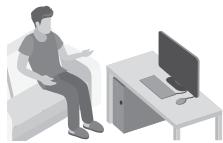

FULL MANUAL
You can access the FULL MANUAL on Samsung's on-line customer support centre by scanning the QR code. To see the manual on your PC or mobile device, download the manual in document format from Samsung's website. (http://www.samsung.com/support)
Design and specifications are subject to change without prior notice.
CONTENTS
01 Checking the Components 2
Inserting Batteries before using the Remote Control (AA batteries X 2) 2
02 Product Overview 3
Front Panel / Top Panel of the Soundbar 3
Bottom Panel of the Soundbar 4
03 Connecting the Soundbar 5
Connecting Electrical Power 5
Connecting the Subwoofer to the Soundbar 5
04 Connecting to your TV 6
Method 1. Connecting with a Cable
- Connecting using an Optical Cable 6
Method 2. Connecting Wirelessly
- Connecting a TV via Bluetooth
05 Connecting an External Device 9
Connecting using an Optical Cable 9
06 Connecting a USB Storage Device 10
07 Connecting a Mobile Device 12
Connecting via Bluetooth 12
08 Using the Remote Control 15
How to Use the Remote Control 15
Adjusting the Soundbar volume with a TV remote control 18
Using the Hidden Buttons (Buttons with more than one function) 19
Output specifications for the different sound effect modes 19
09 Installing the Wall Mount 20
Installation Precautions 20
Wallmount Components 20
10 Software Update 22
Update Procedure 23
If UPDATE is not displayed 23
11 Troubleshooting 24
12 Licence 25
13 Open Source Licence Notice 25
14 Important Notes About Service 25
15 Specifications and Guide 26
Specifications 26
01 CHECKING THE COMPONENTS
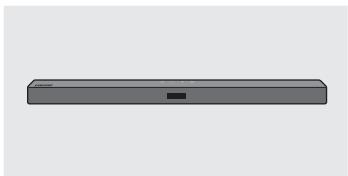
Soundbar Main Unit
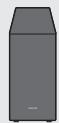
Subwoofer
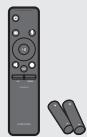
Remote Control / Batteries

Power Cord

Wall Mount Guide

Holder-Screw

Screw

Bracket-Wall Mount
- For more information about the power supply and power consumption, refer to the label attached to the product. (Label: Bottom of the Soundbar Main Unit)
- To purchase additional components or optional cables, contact a Samsung Service Centre or Samsung Customer Care.
- The appearance of the accessories may differ slightly from the illustrations above.
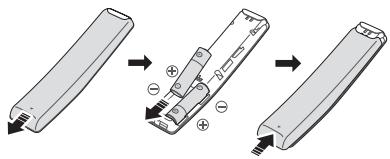
Inserting Batteries before using the Remote Control (AA batteries X 2)
Slide the back cover in the direction of the arrow until it is completely removed. Insert 2 AA batteries (1.5V) oriented so that their polarity is correct. Slide the back cover back into position.
02 PRODUCT OVERVIEW
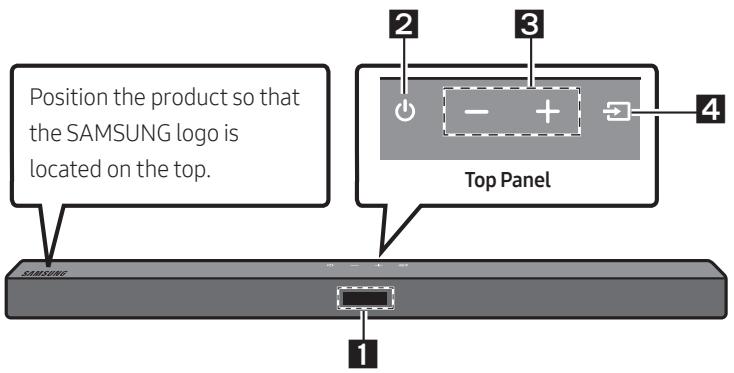
Front Panel / Top Panel of the Soundbar
| 1 | Display Displays the product's status and current mode. | |
| 2 | (Power) Button Turns the power on and off. • Auto Power Down Function The unit turns off automatically in the following situations: - In D.IN / BT / USB Mode: If there is no audio signal for 18 minutes. | |
| 3 | /+(Volume) Button Adjusts the volume. • When adjusted, the volume level appears on the Soundbar's front display. | |
| 4 | (Source) Button Selects the source input mode. | |
| Input mode | Display | |
| Optical Digital input | D.IN | |
| BLUETOOTH mode | BT | |
| USB mode | USB | |
| To turn on “BT PAIRING” mode, change the source to “BT” mode, and then press and hold the (Source) button for more than 5 seconds. | ||
- When you plug in the AC cord, the power button will begin working in 4 to 6 seconds.
- When you turn on this unit, there will be a 4 to 5 second delay before it produces sound.
- If you want to enjoy sound only from the Soundbar, you must turn off the TV's speakers in the Audio Setup menu of your TV. Refer to the owner's manual supplied with your TV.
Bottom Panel of the Soundbar
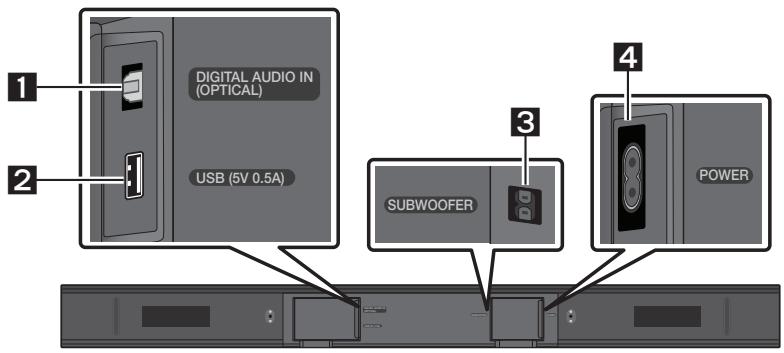
| 1 | DIGITAL AUDIO IN (OPTICAL) Connect to the digital (optical) output of an external device. |
| 2 | USB (5V 0.5A) Connect a USB device here to play music files stored on the USB device through the Soundbar. |
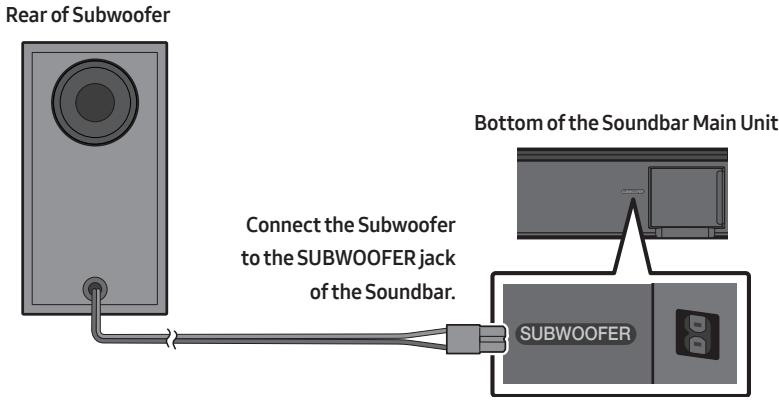
| 3 | SUBWOOFER Connect the speaker cable on the subwoofer. |
| 4 | POWER Connect the Soundbar's AC power cable. |
- When disconnecting the power cord from a wall outlet, pull the plug. Do not pull the cable.
- Do not connect this unit or other components to an AC outlet until all connections between components are complete.
03 CONNECTING THE SOUNDBAR
Connecting Electrical Power
For more information about the required electrical power and power consumption, refer to the label attached to the product. (Label: Bottom of the Soundbar Main Unit)
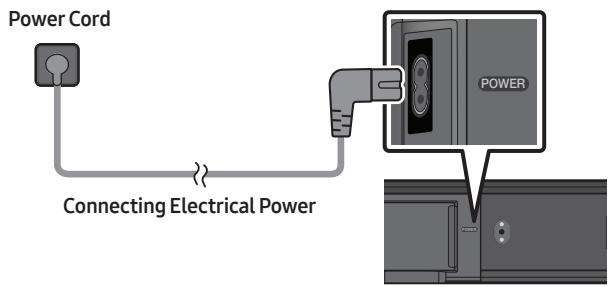
Bottom of the Soundbar Main Unit
Connecting the Subwoofer to the Soundbar
When the subwoofer is connected, you can enjoy rich bass sound.
04 CONNECTING TO YOUR TV
Hear TV sound from your Soundbar through wired or wireless connections.
-
When the Soundbar is connected to selected Samsung TVs, the Soundbar can be controlled using the TV's remote control.
-
This feature is supported by 2017 and later Samsung Smart TVs that support Bluetooth when you connect the Soundbar to the TV using an optical cable.
- This function also allows you to use the TV menu to adjust the sound field and various settings as well as the volume and mute.
Method 1. Connecting with a Cable
When the audio in a broadcast is encoded in Dolby Digital and the "Digital Output Audio Format" on your TV is set to PCM, we recommend that you change the setting to Dolby Digital. When the setting on the TV is changed, you will experience better sound quality. (The TV menu may use different words for Dolby Digital and PCM depending on the TV manufacturer.)
Connecting using an Optical Cable
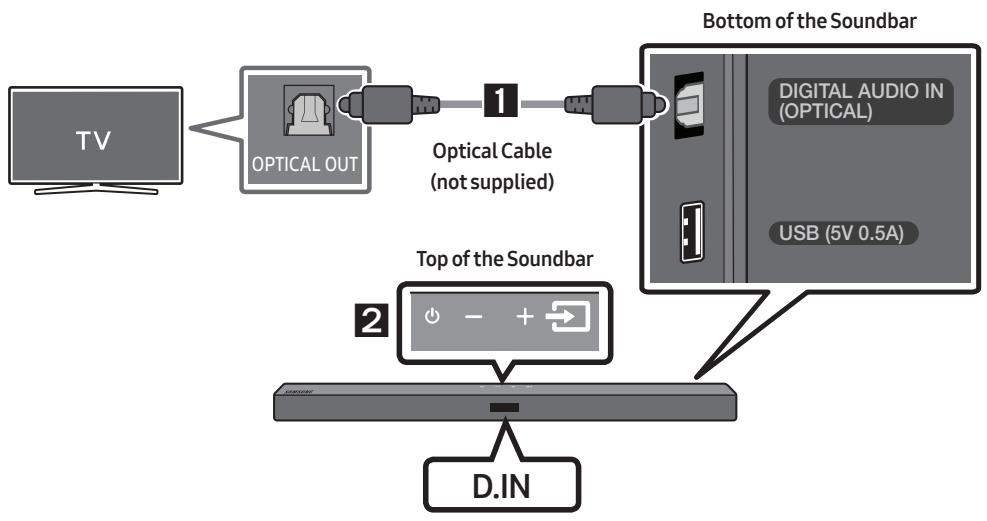
- Connect the DIGITAL AUDIO IN (OPTICAL) jack on the Soundbar to the OPTICAL OUT jack of the TV with a digital optical cable (not supplied).
- Press the (Source) button on the top panel or remote control, and then select the "D.IN" mode.
Method 2. Connecting Wirelessly
Connecting a TV via Bluetooth
When a TV is connected using Bluetooth, you can hear stereo sound without the hassle of cabling.
- Only one TV can be connected at a time.
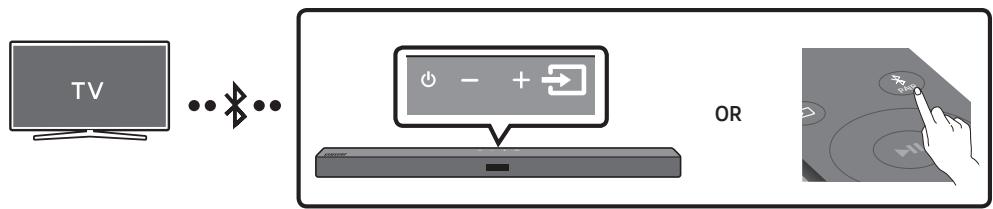
The initial connection
- Press the PAIR button on the remote control to enter the "BT PAIRING" mode.
(OR) a. Press the (Source) button on the top panel and then select "BT".
"BT" changes to "BT PAIRING" in a few seconds automatically or changes to "BT READY" if there is a connect record.
b. When "BT READY" appears, press and hold the (Source) button on the top panel of the Soundbar for more than 5 seconds to display "BT PAIRING".
- Select Bluetooth mode on the TV. (For more information, see the TV's manual.)
- Select "[AV] Samsung Soundbar T4-Series" from the list on TV's screen.
An available Soundbar is indicated with "Need Pairing" or "Paired" on the TV's Bluetooth device list. To connect the TV to the Soundbar, select the message, and then establish a connection.
-
When the TV is connected, [TV Name] "BT" appears on the Soundbar's front display.
-
You can now hear TV sound from the Soundbar.
If the device fails to connect
- If a previously connected Soundbar listing (e.g. "[AV] Samsung Soundbar T4-Series") appears in the list, delete it.
- Then repeat steps 1 through 3.
NOTE
- After you have connected the Soundbar to your TV the first time, use the "BT READY" mode to reconnect.
Disconnecting the Soundbar from the TV
Press the (Source) button on the top panel or on the remote control and switch to any mode but "BT".
- Disconnecting takes time because the TV must receive a response from the Soundbar. (The time required may differ, depending on the TV model.)
- To cancel the automatic Bluetooth connection between the Soundbar and TV, press the Left button on the remote control for 5 seconds with the Soundbar in "BT READY" status. (Toggle On Off)
What is the difference between BT READY and BT PAIRING?
- BT READY : In this mode, you can search for previously connected TVs or connect a previously connected mobile device to the Soundbar.
- BT PAIRING: In this mode, you can connect a new device to the Soundbar. (Press the PAIR button on the remote control or press and hold the Source) button on the top of the Soundbar for more than 5 seconds while the Soundbar is in "BT" mode.)
NOTES
- If asked for a PIN code when connecting a Bluetooth device, enter <0000>.
- In Bluetooth connection mode, the Bluetooth connection will be lost if the distance between the Soundbar and the Bluetooth device exceeds 10m .
- The Soundbar automatically turns off after 18 minutes in the Ready state.
- The Soundbar may not perform Bluetooth search or connection correctly under the following circumstances:
If there is a strong electrical field around the Soundbar.
If several Bluetooth devices are simultaneously paired with the Soundbar.
If the Bluetooth device is turned off, not in place, or malfunctions.
- Electronic devices may cause radio interference. Devices that generate electromagnetic waves must be kept away from the Soundbar main unit - e.g., microwaves, wireless LAN devices, etc.
05 CONNECTING AN EXTERNAL DEVICE
Connect to an external device via a wired connection or Bluetooth connection to play the external device's sound through the Soundbar.
Connecting using an Optical Cable
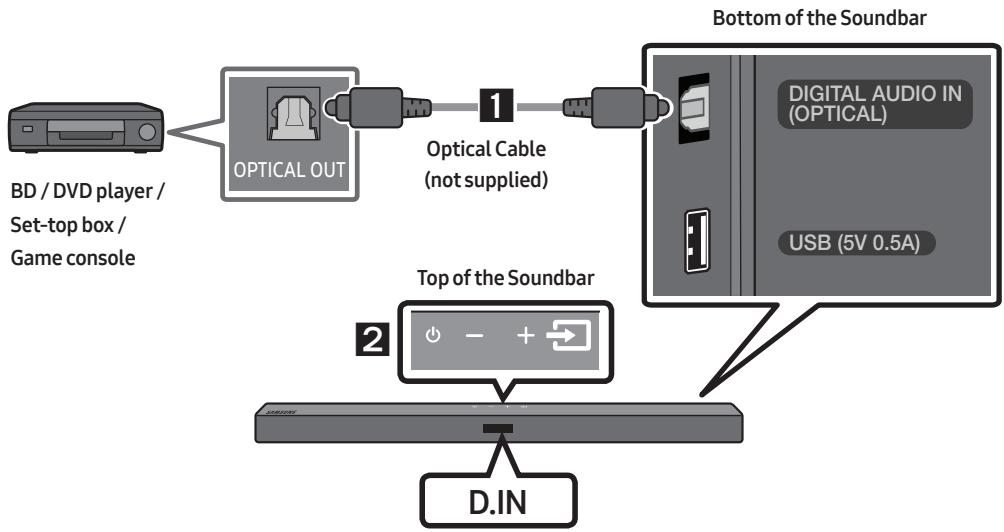
- Connect DIGITAL AUDIO IN (OPTICAL) on the main unit to the OPTICAL OUT jack of the Source Device using a digital optical cable (not supplied).
- Select "D.IN" mode by pressing the (Source) button on the top panel or on the remote control.
06 CONNECTING A USB STORAGE DEVICE
You can play music files located on USB storage devices through the Soundbar.
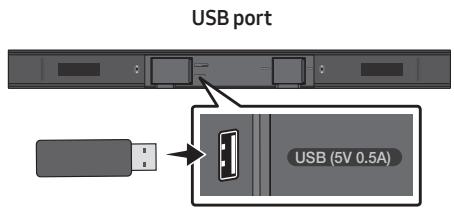
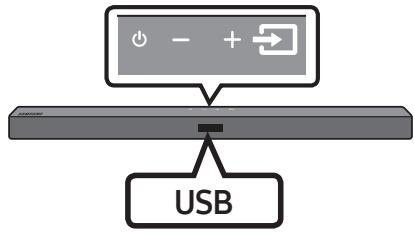
- Connect the USB device to the USB port on the bottom of the product.
- Press the (Source) button on the top panel or on the remote control, and then select "USB".
- "USB" appears in the display screen.
-
Play music files from the USB storage device through the Soundbar.
-
The Soundbar automatically turns off (Auto Power Down) if no USB device has been connected for more than 18 minutes.
File Format Type Compatibility list
| Extension | Codec | Sampling Rate | Bit Rate |
| *.mp3 | MPEG 1 Layer2 | 32kHz ~ 48kHz | 32kbps~320kbps |
| MPEG 1 Layer3 | 32kHz ~ 48kHz | 32kbps~320kbps | |
| MPEG 2 Layer3 | 16kHz ~ 24kHz | 8kbps~160kbps | |
| MPEG 2.5 Layer3 | 8kHz ~ 12kHz | 8kbps~160kbps | |
| *.wma | WMA7/8/9/STD | 8kHz ~ 48kHz | 32kbps~320kbps |
| *.aac | AAC | 8kHz ~ 96kHz | <1728kbps |
| AAC-LC | |||
| HE-AAC | |||
| *.ogg | Vorbis codec | (8, 16, 22.05, 32, 44.1, 48)kHz | unsupported agg: 1. block size 0 < 256, block size 0 > 1024 2. block size 1 < 512, block size 1 > 4096 3. codebook counter > 64 4. codebook entry > 640 5. floor counter > 2 6. floor type 0 7. residua counter > 2 8. dimension != 2 9. mapping counter > 2 10. mode counter > 2 11. residue type != channel number |
| *.flac | - | 8kHz ~ 192kHz | <5Mbps |
| *.wav | PCM/LPCM/IMA_ ADPCM/MPEG/MULAW | 8kHz ~ 192kHz | <5Mbps |
| *.AIFF | Compression type: alwa, ulaw, sowt | (8, 16, 22.05, 32, 44.1, 48, 96, 192)kHz ≤2 channels | <5Mbps |
- If there are too many folders and files stored on the USB device, it may take the Soundbar some time to access and play files.
07 CONNECTING A MOBILE DEVICE
Connecting via Bluetooth
When a mobile device is connected using Bluetooth, you can hear stereo sound without the hassle of cabling.
- You cannot connect more than one Bluetooth device at a time.
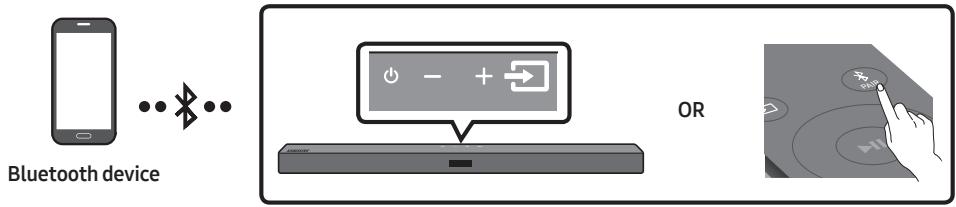
The initial connection
- Press the PAIR button on the remote control to enter the "BT PAIRING" mode.
(OR) a. Press the (Source) button on the top panel and then select "BT". "BT" changes to "BT PAIRING" in a few seconds automatically or changes to "BT READY" if there is a connect record.
b. When "BT READY" appears, press and hold the (Source) button on the top panel of the Soundbar for more than 5 seconds to display "BT PAIRING".
-
On your device, select "[AV] Samsung Soundbar T4-Series" from the list that appears.
-
When the Soundbar is connected to the Bluetooth device, [Bluetooth Device Name] "BT" appears in the front display.
-
Play music files from the device connected via Bluetooth through the Soundbar.
If the device fails to connect
- If a previously connected Soundbar listing (e.g. "[AV] Samsung Soundbar T4-Series") appears in the list, delete it.
- Then repeat steps 1 and 2.
NOTE
- After you have connected the Soundbar to your mobile device the first time, use the "BT READY" mode to reconnect.
What is the difference between BT READY and BT PAIRING?
- BT READY : In this mode, you can search for previously connected TVs or connect a previously connected mobile device to the Soundbar.
- BT PAIRING: In this mode, you can connect a new device to the Soundbar. (Press the PAIR button on the remote control or press and hold the Source) button on the top of the Soundbar for more than 5 seconds while the Soundbar is in "BT" mode.)
NOTES
- If asked for a PIN code when connecting a Bluetooth device, enter <0000>.
- In Bluetooth connection mode, the Bluetooth connection will be lost if the distance between the Soundbar and the Bluetooth device exceeds 10 meters.
- The Soundbar automatically turns off after 18 minutes in the Ready state.
-
The Soundbar may not perform Bluetooth search or connection correctly under the following circumstances:
-
If there is a strong electrical field around the Soundbar.
-
If several Bluetooth devices are simultaneously paired with the Soundbar.
If the Bluetooth device is turned off, not in place, or malfunctions. -
Electronic devices may cause radio interference. Devices that generate electromagnetic waves must be kept away from the Soundbar main unit - e.g., microwaves, wireless LAN devices, etc.
- The Soundbar supports SBC data (44.1kHz, 48kHz).
- Connect only to a Bluetooth device that supports the A2DP (AV) function.
- You cannot connect the Soundbar to a Bluetooth device that supports only the HF (Hands Free) function.
- Once you have paired the Soundbar to a Bluetooth device, selecting "[AV] Samsung Soundbar T4-Series" from the device's scanned devices list will automatically change the Soundbar to "BT" mode.
Available only if the Soundbar is listed among the Bluetooth device's paired devices.
(The Bluetooth device and the Soundbar must have been previously paired at least once.)
- The Soundbar will appear in the Bluetooth device's searched devices list only when the Soundbar is displaying "BT READY".
- The Soundbar cannot be paired to another Bluetooth device if already in Bluetooth mode and paired to a Bluetooth device.
Bluetooth Power On (SOUND MODE)
If a previously paired Bluetooth device tries to pair with the Soundbar when the Bluetooth Power On function is on and the Soundbar is turned off, the Soundbar turns on automatically.
- Press and hold the SOUND MODE button for more than 5 seconds on the remote while the Soundbar is turned on.
- "ON-BLUETOOTH POWER" appears on the Soundbar's display.
Disconnecting the Bluetooth device from a Soundbar
You can disconnect a Bluetooth device from the Soundbar. For instructions, see the Bluetooth device's user manual.
- The Soundbar will be disconnected.
- When the Soundbar is disconnected from the Bluetooth device, the Soundbar will display "BT DISCONNECTED" on the front display.
Disconnecting the Soundbar from the Bluetooth device
Press the (Source) button on the top panel or on the remote control, and then change to any mode except "BT".
- Disconnecting takes time because the Bluetooth device must receive a response from the Soundbar. (Disconnection time may differ, depending on the Bluetooth device)
- When the Soundbar is disconnected from the Bluetooth device, the Soundbar will display "BT DISCONNECTED" on the front display.
NOTES
- In Bluetooth connection mode, the Bluetooth connection will be lost if the distance between the Soundbar and the Bluetooth device exceeds 10 meters.
- The Soundbar automatically turns off after 18 minutes in the Ready state.
More About Bluetooth
Bluetooth is a technology that enables Bluetooth-compliant devices to interconnect easily with each other using a short wireless connection.
- A Bluetooth device may cause noise or malfunction, depending on usage, if:
- A part of your body is in contact with the receiving/transmitting system of the Bluetooth device or the Soundbar.
- It is subject to electrical variation from obstructions caused by a wall, corner, or office partition.
- It is exposed to electrical interference from same frequency-band devices including medical equipment, microwave ovens, and wireless LANs.
- Pair the Soundbar with the Bluetooth device while they are close together.
- The further the distance between the Soundbar and Bluetooth device, the worse the quality is. If the distance exceeds the Bluetooth operational range, the connection is lost.
- In poor reception areas, the Bluetooth connection may not work properly.
- The Bluetooth connection only works when it is close to the unit. The connection will be automatically cut off if the Bluetooth device is out of range. Even within range, the sound quality may be degraded by obstacles such as walls or doors.
- This wireless device may cause electric interference during its operation.
08 USING THE REMOTE CONTROL
How to Use the Remote Control
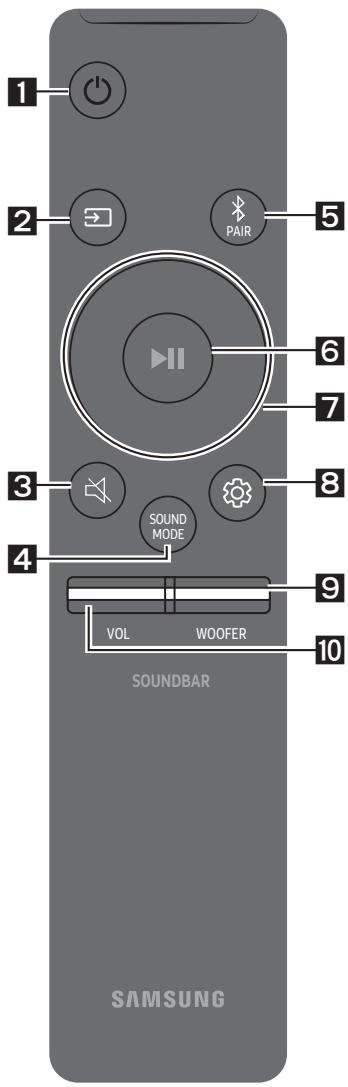
| 1 | Power | Turns the Soundbar on and off. |
| 2 | Source | Press to select a source connected to the Soundbar. |
| 3 | Mute | Press the (Mute) button to mute the sound. Press it again to unmute the sound. |
| 4 | SOUND MODE | You can select the desired sound effect by choosing STANDARD, SURROUND SOUND, GAME, or SMART. - STANDARD Outputs the original sound. - SURROUND SOUND Provides a wider sound field than standard. - GAME Provides stereoscopic sound to immerse you in the action while gaming. - SMART Analyzes the content in real time and automatically provides the optimal sound field based on the characteristics of the content. - DRC (Dynamic Range Control) Lets you apply dynamic range control to Dolby Digital tracks. Press and hold the SOUND MODE button while the Soundbar is powered off to turn DRC (Dynamic Range Control) on or off. With the DRC turned on, loud sound is reduced. (The sound may be distorted.) |
| • Bluetooth Power This feature automatically turns the Soundbar on when it receives a connection request from a previously connected TV or Bluetooth device. The setting is On by default. - Press and hold the SOUND MODE button for more than 5 seconds to turn off the Bluetooth Power function. | ||
| 5 | PAIRBluetoothPAIR | Press the PAIR button. "BT PAIRING" appears in the Soundbar's display. You can connect the Soundbar to a new Bluetooth device in this mode by selecting the Soundbar from the Bluetooth device's search list. |
| 6 | Play/Pause | Press the ➔ button to pause a music file temporarily. When you press the button again, the music file plays. |
| 7 | Up/Down/Left/Right | Press the indicated areas to select Up/Down/Left/Right. Press Up/Down/Left/Right on the button to select or set functions. • Repeat To use the Repeat function in "USB" mode, press the Up button. • Music Skip Press the Right button to select the next music file. Press the Left button to select the previous music file. • Volume Restriction function To protect your hearing, the Volume Restriction function restricts the volume to 20 if you turn on the Soundbar when the volume is set higher than 20. - The default value for the Volume Restriction function is Off. You must turn it on to activate it. - When turned on, the Volume Restriction function stays on even when the power is turned off. - To turn Volume Restriction on or off, press and hold the Down button on the remote control for 5 seconds in standby mode. With Volume Restriction off, "V FREE" appears on the front display. With the function on, "V LOCK" appears. |
| 8 | Sound Control | You can select TREBLE, BASS, or AUDIO SYNC. • To control the volume of the treble or bass sound, press the Sound Control button to select TREBLE or BASS and then adjust the volume between -6~+6 by using the Up/Down buttons. • Press and hold the (Sound Control) button for about 5 seconds to adjust the sound for each frequency band. 150Hz, 300Hz, 600Hz, 1.2kHz, 2.5kHz, 5kHz, and 10kHz are selectable using the Left/Right buttons and each can be adjusted to a setting between -6 to +6 using the Up/Down buttons. • If the video on the TV and audio from the Soundbar are not synchronised, press the Sound Control button to select AUDIO SYNC and then set the audio delay between 0~300 milliseconds by using the Up/Down buttons. (Not available in “USB” mode.) • AUDIO SYNC is only supported for some functions. |
| 9 | WOOFER | Rock the WOOFER button forward or backward to adjust the volume of the subwoofer to -12 or between -6 to +6. To set the subwoofer volume level to 0, press the button in. |
| 10 | VOL | Rock the VOL button forward or backward to adjust the volume. • Mute Press the VOL button in to mute the sound. Press it in again to unmute the sound. |
Adjusting the Soundbar volume with a TV remote control
If you have a Samsung TV, you can adjust the Soundbar's volume using the IR remote control that came with your Samsung TV.
First use the TV menu to set the TV audio on your Samsung TV to external speakers, then use your Samsung remote to control the Soundbar's volume. For more information, see the TV's user manual. The default mode for this function is control by a Samsung TV remote. If your TV is not a Samsung TV, follow the directions below to change the settings of this function.
1. Turn Off the Soundbar.
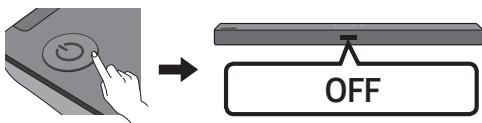
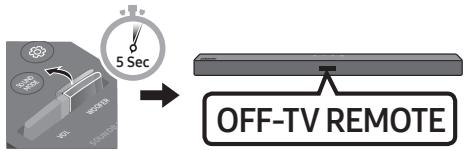
2. If you do not want to use this function, push up and hold the WOOFER button for 5 seconds repeatedly until "OFF-TV REMOTE" appears in the display.
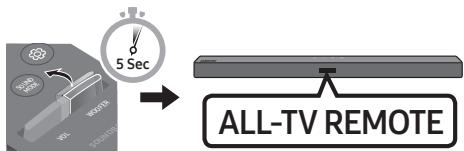
3. If you want to control the Soundbar with your TV's remote, push up and hold the WOOFER button for 5 seconds repeatedly until "ALL-TV REMOTE" appears in the display. Then, use your TV's menu to select external speakers.
- If you want to return the Soundbar to the default mode (control by a Samsung TV remote), push up and hold the WOOFER button for 5 seconds repeatedly until "SAMSUNG-TV REMOTE" appears in the display.
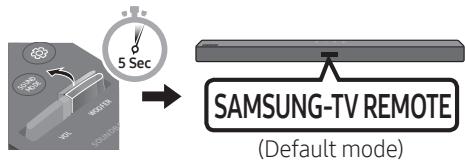
Each time you push the WOOFER button up and hold it for 5 seconds, the mode switches in the following order: "SAMSUNG-TV REMOTE" (Default mode) "OFF-TV REMOTE" "ALL-TV REMOTE".
- This function may not be available, depending on the remote control.
Manufacturers supporting this function: VIZIO, LG, Sony, Sharp, PHILIPS, PANASONIC, TOSHIBA, Hisense, RCA
Using the Hidden Buttons (Buttons with more than one function)
| Hidden Button | Reference page | |
| Remote Control Button | Function | |
| WOOFER (Up) | TV remote control On/Off (Standby) | page 18 |
| ■II (Play / Pause) | Initialise (Standby) | page 23 |
| Left | TV Auto connect On/Off (BT Ready) | page 8 |
| Down | Volume Restriction On/Off (Standby) | page 16 |
| (Sound Control) | 7 Band EQ | page 17 |
| SOUND MODE | DRC ON/OFF (Standby) | page 15 |
| Bluetooth Power | page 16 | |
Output specifications for the different sound effect modes
| Effect | Input | Output | ||
| Without Wireless Rear Speaker Kit | With Wireless Rear Speaker Kit | |||
| SOUND MODE | STANDARD | 2.0 ch | 2.1 ch | 4.1 ch |
| 5.1 ch | 2.1 ch | 4.1 ch | ||
| SURROUND SOUND | 2.0 ch | 2.1 ch | 4.1 ch | |
| 5.1 ch | 2.1 ch | 4.1 ch | ||
| GAME | 2.0 ch | 2.1 ch | 4.1 ch | |
| 5.1 ch | 2.1 ch | 4.1 ch | ||
| SMART | 2.0 ch | 2.1 ch | 4.1 ch | |
| 5.1 ch | 2.1 ch | 4.1 ch | ||
- The Samsung Wireless Rear Speaker Kit can be purchased separately. To purchase a Kit, contact the vendor you purchased the Soundbar from.
09 INSTALLING THE WALL MOUNT
Wallmount Components

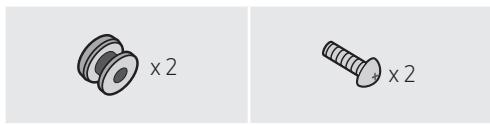
Wall Mount Guide

Holder-Screw
Screw
Bracket-Wall Mount
-
Place the Wall Mount Guide against the wall surface.
-
The Wall Mount Guide must be level.
- If your TV is mounted on the wall, install the Soundbar at least 5 cm below the TV.

-
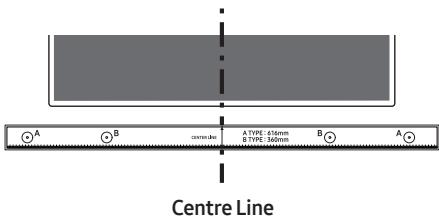
Align the Wall Mount Guide's Centre Line with the centre of your TV (if you are mounting the Soundbar below your TV), and then fix the Wall Mount Guide to the wall using tape.
-
If you are not mounting below a TV, place the Centre Line in the centre of the installation area.
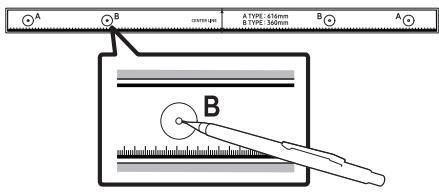
- Push a pen tip or sharpened pencil tip through the centre of the B-TYPE images on each end of the Guide to mark the holes for the supporting screws, and then remove the Wall Mount Guide.
-
Using an appropriately sized drill bit, drill a hole in the wall at each marking.
-
If the markings do not correspond to the positions of studs, make sure you insert appropriate anchors or mollies into the holes before you insert the support screws. If you use anchors or mollies, make sure the holes you drill are large enough for the anchors or mollies you use.
-
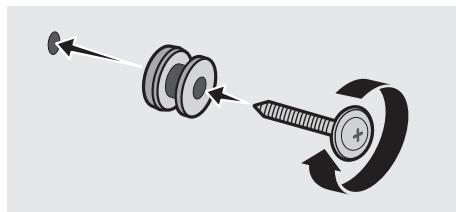
Push a screw (not supplied) through each Holder-Screw, and then screw each screw firmly into a support screw hole.
- Install the 2 Bracket-Wall Mounts in the correct orientation on the bottom of the Soundbar using 2 Screws.
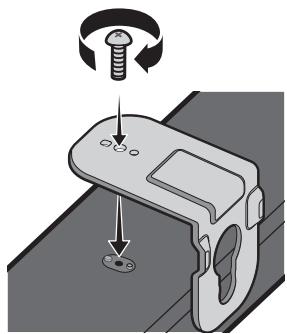
- When assembling, make sure the hanger part of the Bracket-Wall Mounts are located behind the rear of the Soundbar.
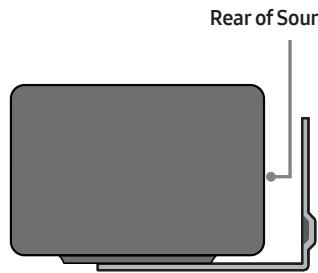
Right end of Soundbar
- Install the Soundbar with the attached Bracket-Wall Mounts by hanging the Bracket-Wall Mounts on the Holder-Screws on the wall.
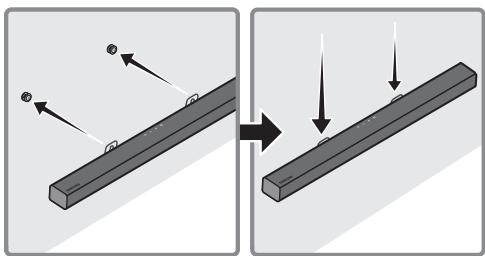
-
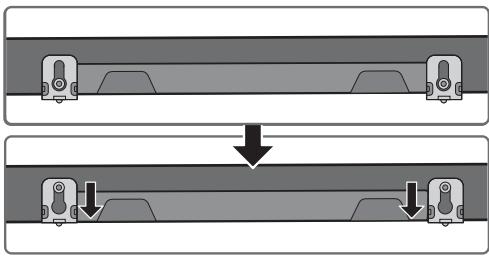
Slide the Soundbar down as shown below so that the Bracket-Wall Mounts rest securely on the Holder-Screws.
-
Insert the Holder-Screws into the wide (bottom) part of the Bracket-Wall Mounts, and then slide the Bracket-Wall Mounts down so that the Bracket-Wall Mounts rest securely on the Holder-Screws.
10 SOFTWARE UPDATE
Samsung may offer updates for the Soundbar's system firmware in the future.
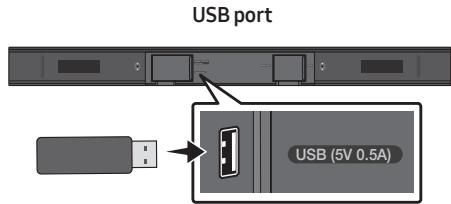
If an update is offered, you can update the firmware by connecting a USB device with the firmware update stored on it to the USB port on your Soundbar. For more information about how to download update files, go to the Samsung Electronics website at www.samsung.com Support.
Then, select the product type or enter the model number of your Soundbar, select the Software & Apps option, and then Downloads. Note that the option names can vary.
Update Procedure
Important: The updating function erases all user settings. We recommend you write down your settings so that you can easily reset them after the update. Note that updating the firmware resets the subwoofer connection too.
- Connect a USB thumb drive to the USB port on your computer.
Important: Make sure there are no music files on the USB thumb drive. This may cause the firmware update to fail. - Go to the Samsung website (samsung.com) select Enter Model Number and enter the model of your Soundbar. Select manuals and downloads and download the latest software file.
- Save the downloaded software to a USB stick and select "Extract Here" to unzip the folder.
- Turn off the Soundbar and connect the USB stick containing the software update to the USB port.
- Turn on the Soundbar and source change to "USB" mode. Within 3 minutes, "UPDATE" is displayed and updating begins.
-
When the update finishes, the Soundbar turns off (or turns off by press the (Power) button). Press the button on the remote control for 5 seconds. "INIT" appears on the display and then the Soundbar turns off. The update is complete.
-
This product has a DUAL BOOT function. If the firmware fails to update, you can update the firmware again.
-
Restore your settings on the Soundbar.
If UPDATE is not displayed
- Turn off the Soundbar, disconnect and then reconnect the USB storage device that contains the update files to the Soundbar's USB port.
- Disconnect the Soundbar's power cord, reconnect it, and then turn on the Soundbar.
NOTES
- The firmware update may not work properly if audio files supported by the Soundbar are stored in the USB storage device.
- Do not disconnect the power or remove the USB device while updates are being applied.
- After the update is completed, the user setup in the Soundbar is initialised so you can reset your settings. We recommend you write down your settings so that you can easily reset them after the update.
If the software update fails, check if the USB stick is defective.
Mac OS users should use MS-DOS (FAT) as the USB format.
- Updating via USB may not be available, depending on the USB storage device manufacturer.
11 TROUBLESHOOTING
Before seeking assistance, check the following.
| The unit will not turn on. |
| Is the power cord firmly plugged into the wall outlet?→ Unplug and reconnect the power cord to the wall outlet to make sure the connection is secure. |
| A function does not work when the button is pressed. |
| Is there static electricity in the air?→ Disconnect the power plug and connect it again. |
| Sound dropouts occur in BT mode. |
| → See the Bluetooth connection sections on pages 7 and 12. |
| Sound is not produced. |
| Is the Mute function on?→ Press the (Mute) button to cancel the mute function. |
| Is the volume set to minimum?→ Adjust the Volume. |
| The remote control does not work. |
| Are the batteries drained?→ Replace with new batteries. |
| Is the distance between the remote control and Soundbar main unit too far?→ Move the remote control closer to the Soundbar main unit. |
| The subwoofer drones and vibrates noticeably. |
| Try to adjust the vibration of your subwoofer.→ Rock the WOOFER button on your remote control forward or backward to adjust the subwoofer level. (to -12, or between -6 ~ +6). |
Manufactured under license from Dolby Laboratories. Dolby, Dolby Audio, and the double-D symbol are trademarks of Dolby Laboratories.

dt
2.0 Channel
For DTS patents, see http://patents.dts.com. Manufactured under license from DTS Licensing Limited. DTS, the Symbol, DTS in combination with the Symbol, and DTS 2.0 Channel are registered trademarks or trademarks of DTS, Inc. in the United States and/or other countries. © DTS, Inc. All Rights Reserved.

Bluetooth
The Bluetooth® word mark and logos are registered trademarks owned by the Bluetooth SIG, Inc. and any use of such marks by Samsung Electronics Co., Ltd. is under license. Other trademarks and trade names are those of their respective owners.
13 OPEN SOURCE LICENCE NOTICE
To send inquiries and requests regarding open sources, contact Samsung via Email (oss.request@samsung.com).
14 IMPORTANT NOTES ABOUT SERVICE
- Figures and illustrations in this User Manual are provided for reference only and may differ from actual product appearance.
- An administration fee may be charged if either (a) an engineer is called out at your request and there is no defect with the product (i.e. where the user manual has not been read). (b) you bring the unit to a repair centre and there is no defect with the product (i.e. where the user manual has not been read).
- You will be informed of the administration fee amount before a technician visits.
15 SPECIFICATIONS AND GUIDE
Specifications
| Model Name | HW-T420 |
| USB | 5V/0.5A |
| Weight | 1.5 kg |
| Dimensions (W x H x D) | 860.0 x 54.0 x 74.0 mm |
| Operating Temperature Range | +5°C to +35°C |
| Operating Humidity Range | 10 % ~ 75 % |
| AMPLIFIER Rated Output power | 35W x 2, 6 ohm |
| Supported play formats (DTS 2.0 sound is played in DTS format.) | LPCM 2ch, Dolby Audio™ (supporting Dolby® Digital), DTS |
| WIRELESS DEVICE OUTPUT POWER BT max transmitter power | 100mW at 2.4GHz – 2.4835GHz |
| Subwoofer Name | PS-T4SWT |
| Weight | 4.1 kg |
| Dimensions (W x H x D) | 181.5 x 343.0 x 272.0 mm |
| AMPLIFIER | |
| Rated Output power | 80W, 3 ohm |
| Overall Standby Power Consumption (W) | 2.0W |
| Bluetooth Port deactivation method | Press and hold the SOUND MODE button for more than 5 seconds to turn off Bluetooth Power function. |
NOTES
Samsung Electronics Co., Ltd reserves the right to change the specifications without notice.
- Weight and dimensions are approximate.
- Hereby, Samsung Electronics, declares that this equipment is in compliance with Directive 2014/53/EU.
The full text of the EU declaration of conformity is available at the following internet address: http://www.samsung.com go to Support > Search Product Support and enter the model name.
This equipment may be operated in all EU countries.

[Correct disposal of batteries in this product]
(Applicable in countries with separate collection systems)
This marking on the battery, manual or packaging indicates that the batteries in this product should not be disposed of with other household waste at the end of their working life. Where marked, the chemical symbols Hg, Cd or Pb indicate that the battery contains mercury, cadmium or lead above the reference levels in EC Directive 2006/66.
If batteries are not properly disposed of, these substances can cause harm to human health or the environment.
To protect natural resources and to promote material reuse, please separate batteries from other types of waste and recycle them through your local, free battery return system.

Correct Disposal of This Product
(Waste Electrical & Electronic Equipment)
(Applicable in countries with separate collection systems)
This marking on the product, accessories or literature indicates that the product and its electronic accessories (e.g. charger, headset, USB cable) should not be disposed of with other household waste at the end of their working life. To prevent possible harm to the environment or human health from uncontrolled waste disposal, please separate these items from other types of waste and recycle them responsibly to promote the sustainable reuse of material resources.
Household users should contact either the retailer where they purchased this product, or their local government office, for details of where and how they can take these items for environmentally safe recycling.
Business users should contact their supplier and check the terms and conditions of the purchase contract. This product and its electronic accessories should not be mixed with other commercial wastes for disposal.
For information on Samsung's environmental commitments and product specific regulatory obligations e.g. REACH, WEEE, Batteries, visit:
http://www.samsung.com/uk/aboutsamsung/samsungelectronics/corporatecitizenship/data-corner.html
INFORMATIONS RELATIVES À LA SÉCURITÉ
AVERTISSEMENTS
Manufactured under license from Dolby Laboratories. Dolby, Dolby Audio, and the double-D symbol are trademarks of Dolby Laboratories.

dt's 2.0 Channel
For DTS patents, see http://patents.dts.com. Manufactured under license from DTS Licensing Limited. DTS, the Symbol, DTS in combination with the Symbol, and DTS 2.0 Channel are registered trademarks or trademarks of DTS, Inc. in the United States and/or other countries. © DTS, Inc. All Rights Reserved.

Bluetooth
The Bluetooth® word mark and logos are registered trademarks owned by the Bluetooth SIG, Inc. and any use of such marks by Samsung Electronics Co., Ltd. is under license. Other trademarks and trade names are those of their respective owners.
13 AVIS DE LICENCE LIBRE
Manufactured under license from Dolby Laboratories. Dolby, Dolby Audio, and the double-D symbol are trademarks of Dolby Laboratories.

dt
2.0 Channel
For DTS patents, see http://patents.dts.com. Manufactured under license from DTS Licensing Limited. DTS, the Symbol, DTS in combination with the Symbol, and DTS 2.0 Channel are registered trademarks or trademarks of DTS, Inc. in the United States and/or other countries. © DTS, Inc. All Rights Reserved.

Bluetooth
The Bluetooth® word mark and logos are registered trademarks owned by the Bluetooth SIG, Inc. and any use of such marks by Samsung Electronics Co., Ltd. is under license. Other trademarks and trade names are those of their respective owners.
13 AVVISO DI LICENZA OPEN SOURCE
http://www.samsung.com/it/aboutsamsung/sustainability/environment/our-commitment/data/
INFORMAÇÉS DE SEGURANÇA
Manufactured under license from Dolby Laboratories. Dolby, Dolby Audio, and the double-D symbol are trademarks of Dolby Laboratories.

dt
2.0 Channel
For DTS patents, see http://patents.dts.com. Manufactured under license from DTS Licensing Limited. DTS, the Symbol, DTS in combination with the Symbol, and DTS 2.0 Channel are registered trademarks or trademarks of DTS, Inc. in the United States and/or other countries. © DTS, Inc. All Rights Reserved.

Bluetooth
The Bluetooth® word mark and logos are registered trademarks owned by the Bluetooth SIG, Inc. and any use of such marks by Samsung Electronics Co., Ltd. is under license. Other trademarks and trade names are those of their respective owners.
13 AVISO DE LICENÇA DE OPEN SOURCE
Para enviar pedidos e perguntas sobre software open source,contacta Samsung por e-mail (oss.request@samsung.com).
14 NOTA IMPORTANTE SOBRE O SERVICO
Manufactured under license from Dolby Laboratories. Dolby, Dolby Audio, and the double-D symbol are trademarks of Dolby Laboratories.

dt
2.0 Channel
For DTS patents, see http://patents.dts.com. Manufactured under license from DTS Licensing Limited. DTS, the Symbol, DTS in combination with the Symbol, and DTS 2.0 Channel are registered trademarks or trademarks of DTS, Inc. in the United States and/or other countries. © DTS, Inc. All Rights Reserved.

Bluetooth
The Bluetooth® word mark and logos are registered trademarks owned by the Bluetooth SIG, Inc. and any use of such marks by Samsung Electronics Co., Ltd. is under license. Other trademarks and trade names are those of their respective owners.
13 AVISO SOBRE LICENCIA DE CÓDIGO ABIERTO
© 2020 Samsung Electronics Co., Ltd. All rights reserved.
Contact SAMSUNG WORLD WIDE
If you have any questions or comments relating to Samsung products, please contact the SAMSUNG customer care Centre.
| Area | Contact Centre | Web Site |
| ■ Europe | ||
| UK | 0333 000 0333 | www.samsung.com/uk/support |
| IRELAND (EIRE) | 0818717100 | www.samsung.com/ei/support |
| GERMANY | 061967755577 | www.samsung.com/de/support |
| FRANCE | 01486300000 | www.samsung.com/fr/support |
| ITALIA | 800-SAMSUNG (800.7267864) | www.samsung.com/it/support |
| SPAIN | 911750015 | www.samsung.com/es/support |
| PORTUGAL | 808207267 | www.samsung.com.pt/support |
| LUXEMBURG | 26103710 | www.samsung.com/be_fr/support |
| NETHERLANDS | 0889090100 | www.samsung.com/nl/support |
| BELGIUM | 02-201-24-18 | www.samsung.com/be/support (Dutch)www.samsung.com/be_fr/support (French) |
| NORWAY | 21629099 | www.samsung.com/nq/support |
| DENMARK | 70701970 | www.samsung.com/dk/support |
| FINLAND | 030-6227515 | www.samsung.com/fi/support |
| SWEDEN | 0771726786 | www.samsung.com/se/support |
| POLAND | 801-172-678* lub +4822607-93-33*Specialistyczna infolina do obstugi zapytań dotycznych Telefonówkomórkowych: 801-672-678* (oplata wedlug taryfy operadora) | http://www.samsung.com/pl/support/ |
| HUNGARY | 0680SAMSUNG (0680-726-7864) | www.samsung.com/hu/support |
| AUSTRIA | 08007267864 (0800-SAMSUNG) | www.samsung.com/at/support |
| SWITZERLAND | 0800726786 | www.samsung.com/ch/support (German)www.samsung.com/ch_fr/support (French) |
| Area | Contact Centre | Web Site |
| CZECH | 800 - SAMSUNG (800-726786) | www.samsung.com/cz/support |
| SLOVAKIA | 0800 - SAMSUNG (0800-726786) | www.samsung.com/sk/support |
| CROATIA | 072 726786 | www.samsung.com/hr/support |
| BOSNIA | 055 233 999 | www.samsung.com/support |
| NORTHMACEDONIA | 023 207 777 | www.samsung.com/mk/support |
| MONTENEGRO | 020 405 888 | www.samsung.com/support |
| SLOVENIA | 080 697 267 (brezplačna stevilka) | www.samsung.com/si/support |
| SERBIA | 011 321 6899 | www.samsung.com/rs/support |
| KOSOVO | 0800 10 10 1 | www.samsung.com/support |
| ALBANIA | 045 620 202 | www.samsung.com/al/support |
| BULGARIA | *3000 İngen na主题教育ıpeçden repadınıpaşa oprogram 0800 111 315 beşkıdentena ve basınkı onepatkı | www.samsung.com/bg/support |
| ROMANIA | *8000 (apel in retea)08008-726-78-64 (08008-SAMSUNG)Apel GRATUITAtenţje: Dacă efectuţi apelu din rețeaua Digi (RCS/RDS), va rugamă ne contactati formân durnărul Telverde fãră ultimele două citre, astfel: 0800872678. | www.samsung.com/ro/support |
| CYPRUS | 8009 4000 only from landline, toll free | www.samsung.com/gr/support |
| GREECE | 80111-SAMSUNG (80111 726 7864) only from land line (+30) 210 6897691 from mobile and land line | |
| LITHUANIA | 8-800-77777 | www.samsung.com/lt/support |
| LATVIA | 8000-7267 | www.samsung.com/lv/support |
| ESTONIA | 800-7267 | www.samsung.com/ee/support |