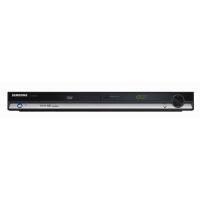
DVD-HD860 - DVD player SAMSUNG - Free user manual and instructions
Find the device manual for free DVD-HD860 SAMSUNG in PDF.



User questions about DVD-HD860 SAMSUNG
0 question about this device. Answer the ones you know or ask your own.
Ask a new question about this device
Download the instructions for your DVD player in PDF format for free! Find your manual DVD-HD860 - SAMSUNG and take your electronic device back in hand. On this page are published all the documents necessary for the use of your device. DVD-HD860 by SAMSUNG.
USER MANUAL DVD-HD860 SAMSUNG
Refer to the identification label located on the rear of your player for its proper operating voltage.
Install your player in a cabinet with adequate ventilation holes. (7~10cm) Do not block ventilation holes on any of the components for air circulation.
- Do not push the disc tray in by hand.
- Do not stack components.
- Be sure to turn all components off before moving the player.
- Before connecting other components to this player, be sure to turn them off.
- Be sure to remove the disc and turn off the player after use, especially if you are not going to use it for a long time.
- To disconnect the apparatus from the mains, the plug must be pulled out from the mains socket, therefore the mains plug shall be readily operable.
2. For your safety
- This product utilizes a laser. Use of controls or adjustments or performance of procedures other than those specified herein may result in hazardous radiation exposure.
- Do not open covers and do not repair yourself. Refer servicing to qualified personal.
3. Caution
- Your player is not intended for industrial use but for domestic purposes. Use of this product is for personal use only.
- Do not put any container filled with liquid or any small metal objects on the player.
- Exterior influences such as lightning and static electricity can affect normal operation of this player. If this occurs, turn the player off and on again with the POWER button, or disconnect and then reconnect the AC power cord to the AC power outlet. The player will operate normally.
- When condensation forms inside the player due to sharp changes in temperature, the
player may not operate correctly. If this occurs, leave the player at room temperature until the inside of the player becomes dry and operational.
4. Disc
- Do not clean disc using record-cleaning sprays, benzene, thinner, or other volatile solvents that may cause damage to the disc surface.
- Do not touch the disc's signal surface. Hold by the edges or by one edge and the hole in the center.
- Wipe the dirt away gently; never wipe a cloth back and forth over the disc.
5. Environmental info
- The battery used in this product contains chemicals that are harmful to the environment.
- So, dispose of batteries in the proper manner, according to federal, state, and local regulations.
The product unit accompanying this user manual is licensed under certain intellectual property rights of certain third parties. This license is limited to private non-commercial use by end-user consumers for licensed contents. No rights are granted for commercial use. The license does not cover any product unit other than this product unit and the license does not extend to any unlicensed product unit or process conforming to ISO/OUR 11172-3 or ISO/OUR 13818-3 used or sold in combination with this product unit. The license only covers the use of this product unit to encode and/or decode audio files conforming to the ISO/OUR 11172-3 or ISO/OUR 13818-3. No rights are granted under this license for product features or functions that do not conform to the ISO/OUR 11172-3 or ISO/OUR 13818-3.
CAUTION: USE OF ANY CONTROLS, ADJUSTMENTS, OR PROCEDURES OTHER THAN SPECIFIED HEREIN MAY RESULT IN HAZARDOUS RADIATION EXPOSURE.
BEFORE YOU START
TABLE OF CONTENTS
Accessories
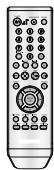
Remote Control
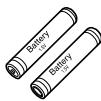
Batteries for Remote Control (AAA Size)

User's Manual
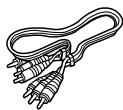
Video/Audio Cable
Install Batteries in the Remote control
- Open the battery cover on the back of the remote control.
- Insert two AAA batteries.
Make sure that the
polarities (+ and -) are aligned correctly.
- Replace the battery cover.
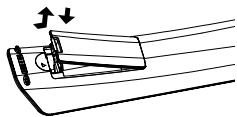
If remote control doesn't operate properly:
- Check the polarity + - of the batteries (Dry-Cell)
- Check if the batteries are drained.
- Check if remote control sensor is blocked by obstacles.
- Check if there is any fluorescent lighting nearby.
Precautions 2
Before you start 3
Setup
General Features 4
Disc Type and Characteristics 5
Description 6
Tour of the Remote Control 8
Connections
Choosing a Connection 9
Basic Functions
Playing a Disc 16
Using the Search and Skip Functions 17
Using the Display Function 17
Using the Disc and Title Menu 18
Using the Function Menu 18
Repeat Play 18
Slow Play 19
Advanced Functions
Adjusting the Aspect Ratio (EZ View) 19
Selecting the Audio Language 20
Selecting the Subtitle Language 20
Changing the Camera Angle. 21
Using the Instant Replay/Skip Function. 21
Using theBookmark Function. 21
Using the Zoom Function 22
Clips Menu for MP3/WMA/JPEG/MPEG4/
CD Audio 22
Folder Selection 22
MP3/WMA/CD Audio Playback 23
MPEG4Playback. 23
Picture CD Playback 24
Picture CDPlayback for HD-JPEG. 25
Changing Setup Menu
Using the Setup Menu 26
Setting Up the Language Features 26
Setting Up the Audio Options 27
Setting Up the Display Options. 28
Setting Up the Parental Control 30
Reference
Firmware Upgrade 31
Troubleshooting 32
Specifications. 33
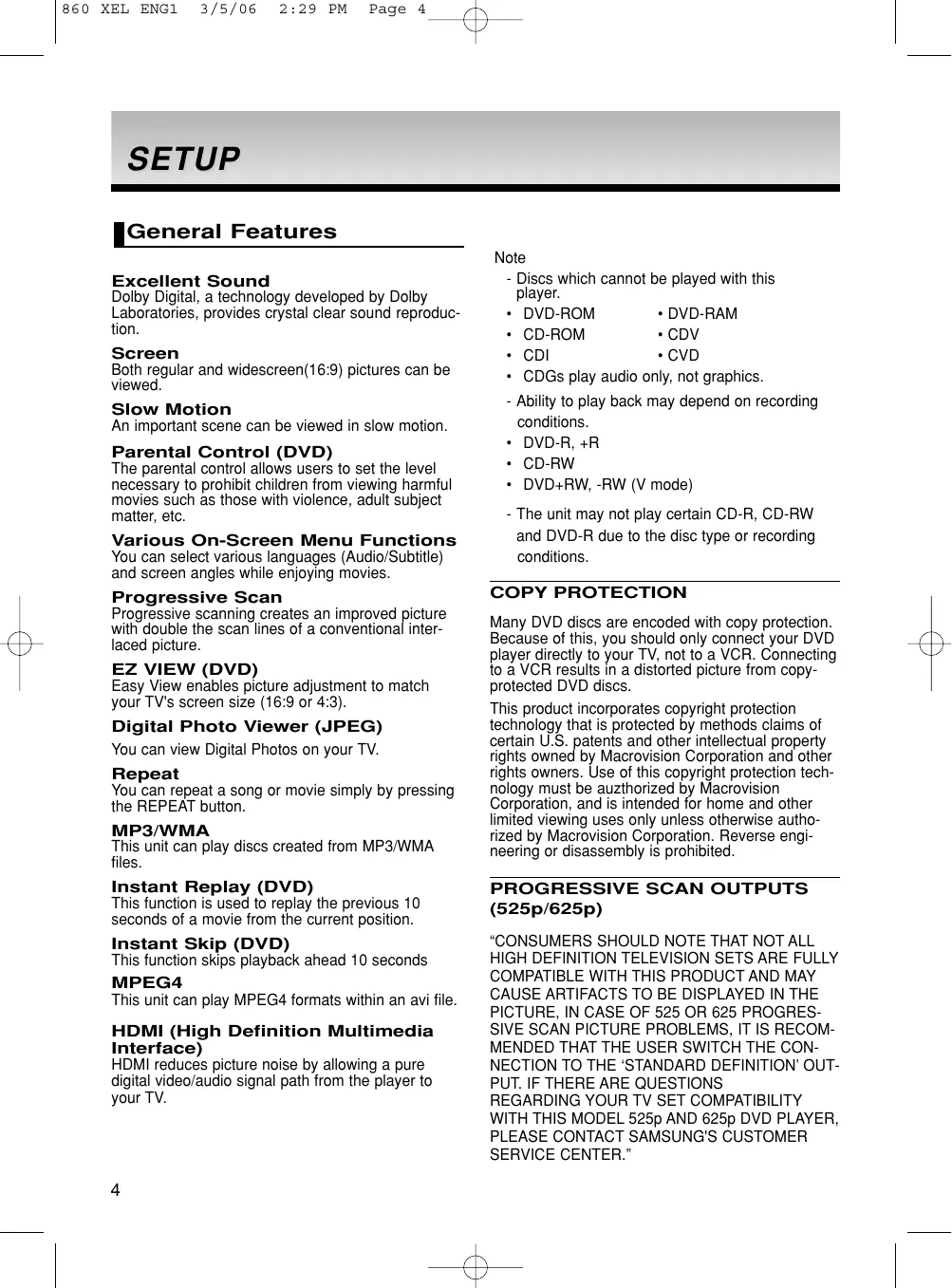
General Features
Excellent Sound
Dolby Digital, a technology developed by Dolby Laboratories, provides crystal clear sound reproduction.
Screen
Both regular and widenscreen(16:9) pictures can be viewed.
Slow Motion
An important scene can be viewed in slow motion.
Parental Control (DVD)
The parental control allows users to set the level necessary to prohibit children from viewing harmful movies such as those with violence, adult subject matter, etc.
Various On-Screen Menu Functions
You can select various languages (Audio/Subtitle) and screen angles while enjoying movies.
Progressive Scan
Progressive scanning creates an improved picture with double the scan lines of a conventional interlaced picture.
EZ VIEW (DVD)
Easy View enables picture adjustment to match your TV's screen size (16:9 or 4:3).
Digital Photo Viewer (JPEG)
You can view Digital Photos on your TV.
Repeat
You can repeat a song or movie simply by pressing the REPEAT button.
MP3/WMA
This unit can play discs created from MP3/WMA files.
Instant Replay (DVD)
This function is used to replay the previous 10 seconds of a movie from the current position.
Instant Skip (DVD)
This function skips playback ahead 10 seconds
MPEG4
This unit can play MPEG4 formats within an avi file.
HDMI (High Definition Multimedia Interface)
HDMI reduces picture noise by allowing a pure digital video/audiosignal path from the player to your TV.
Note
- Discs which cannot be played with this player.
DVD-ROM DVD-RAM
- CD-ROM CDV
- CDI
- CVD
- CDGs play audio only, not graphics.
- Ability to play back may depend on recording conditions.
DVD-R, +R
CD-RW
DVD+RW, -RW (V mode) - The unit may not play certain CD-R, CD-RW and DVD-R due to the disc type or recording conditions.
COPY PROTECTION
Many DVD discs are encoded with copy protection. Because of this, you should only connect your DVD player directly to your TV, not to a VCR. Connecting to a VCR results in a distorted picture from copy-protected DVD discs.
This product incorporates copyright protection technology that is protected by methods claims of certain U.S. patents and other intellectual property rights owned by Macrovision Corporation and other rights owners. Use of this copyright protection technology must be a unauthorized by Macrovision Corporation, and is intended for home and other limited viewing uses only unless otherwise authorized by Macrovision Corporation. Reverse engineering or disassembly is prohibited.
PROGRESSIVE SCAN OUTPUTS (525p/625p)
"CONSUMERS SHOULD NOTE THAT NOT ALL HIGH DEFINITION TELEVISION SETS ARE FULLY COMPATIBLE WITH THIS PRODUCT AND MAY CAUSE ARTIFACTS TO BE DISPLAYED IN THE PICTURE, IN CASE OF 525 OR 625 PROGRESSIVE SCAN PICTURE PROBLEMS, IT IS RECOMMENDED THAT THE USER SWITCH THE CONNECTION TO THE 'STANDARD DEFINITION' OUTPUT. IF THERE ARE QUESTIONS REGARDING YOUR TV SET COMPATIBILITY WITH THIS MODEL 525p AND 625p DVD PLAYER, PLEASE CONTACT SAMSUNG'S CUSTOMER SERVICE CENTER."
This DVD player is capable of playing the following types of discs with the corresponding logos:
| Disc Types (Logos) | Recording Types | Disc Size | Max. Playing Time | Characteristics |
| DVD DVD VIDEO | Audio + Video | 12 Cm | Single-sided 240 min. Double-sided 480 min. | - DVD contains excellent sound and video due to Dolby Digital and MPEG-2 system. - Various screen and audio functions can be easily selected through the on-screen menu. |
| 8 Cm | Single-sided 80 min. Double-sided 160 min. | |||
| VIDEO-CD COMPACT DISC DIGITAL VIDEO | Audio + Video | 12 Cm | 74 min. | - Video with CD sound, VHS quality & MPEG-1 compression technology. |
| 8 Cm | 20 min. | |||
| AUDIO-CD COMPACT DISC DIGITAL AUDIO | Audio | 12 Cm | 74 min. | - CD is recorded as a Digital Signal with better audio quality, less distortion and less deterioration of audio quality over time. |
| 8 Cm | 20 min. |
Disc Markings
| Play Region Number | |
| PAL | PAL broadcast system in U.K, France, Germany, etc. |
| Dolby Digital disc | |
| Stereo | Stereo disc |
| Digital Audio disc | |
| DTS disc | DTS disc |
| MP3 disc | MP3 disc |
You must only insert one DVD disc at a time. Inserting two or more discs will not allow to play them back and it may cause damage to the DVD player.
Region Number
Both the DVD player and the discs are coded by region. These regional codes must match in order for the disc to play. If the codes do not match, the disc will not play.
The Region Number for this player is described on the rear panel of the player.
DivX Certification
DivX, DivX Certified, and associated logos are trademarks of DivXNetworks, Inc and are used under license
Front Panel Controls
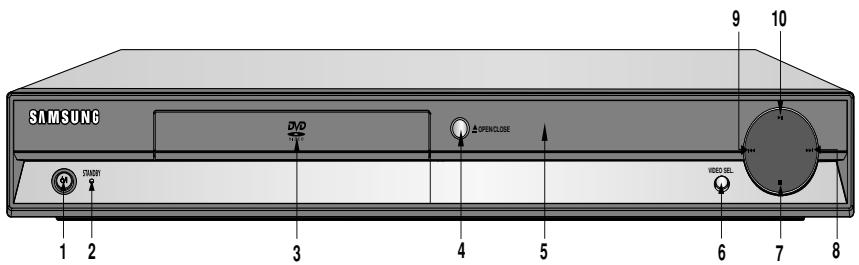
1. STANDBY/ON (0/1)
When STANDBY/ON is pressed on, the indicator goes out and the player is turned on.
2. STANDBY Indikator
When the unit is first plugged in, the indicator lights.
3. DISC TRAY
Place the disc here.
4. OPEN/CLOSE (▲)
Press to open and close the disc tray.
5. DISPLAY
Operation indicators are displayed here.
6.VIDEO SEL.
Press to change Video output mode.
7. STOP()
Stops disc play.
8. SKIP (▶) / SEARCH
Use to forward skip a scene or music.
9. SKIP (↓) / SEARCH
Use to reverse skip a scene or music.
10. PLAY/PAUSE (▶II)
Begin or pause disc play.
Front Panel Display
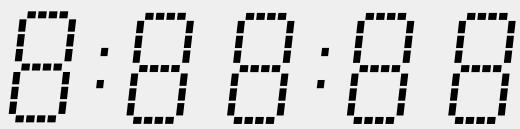
Total playing time/Displays various messages concerning operations such as PLAY, STOP, LOAD ...
nodSC: No disc loaded.
OPEN: The disc tray is open.
LOAd: Player is loading disc information.
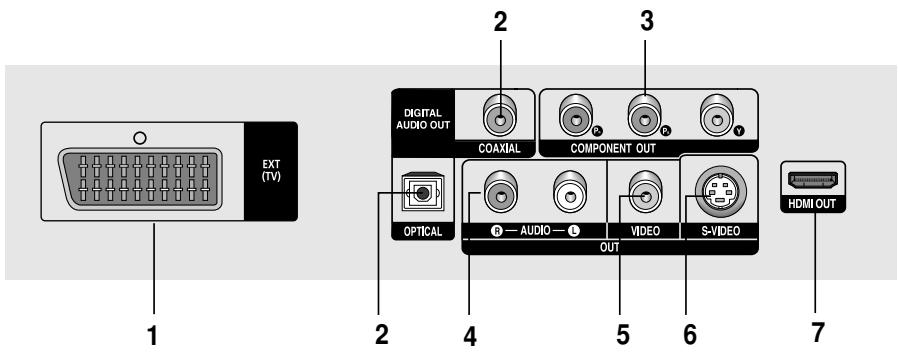
1. SCART JACK
- Connect to a TV scart input jack
2. DIGITAL AUDIO OUT JACKS
- Use either an optical or coaxial digital cable to connect to a compatible Dolby Digital receiver.
- Use either an optical or coaxial digital cable to connect to an A/V Amplifier that contains a Dolby Digital, MPEG2 or DTS decoder.
3. COMPONENTVIDEOOUTJACKS
- Use these jacks if you have a TV with Component Video in jacks. These jacks provide PR , PB and Y video.
- If P-SCAN Video Output is selected in Setup Menu, progressive scan mode will work.
- If I-SCAN Video Output is selected in Setup Menu, interlaced scan mode will work.
4. AUDIO OUT JACKS
- Connect to the Audio input jacks of your television or audio/video receiver.
5.VIDEO OUT JACK
-
Use a video cable to connect to the Video input jack on your television.
-
The Video Output in Setup Menu must be set to S-Video.
6. S-VIDEO OUT JACK
- Use the S-Video cable to connect this jack to the S-Video jack on your television for higher picture quality.
- The Video Output in Setup Menu must be set to S-Video.
7. HDMI OUT JACK
- Use the HDMI cable to connect this jack to the HDMI jack on your television for the best quality picture.
- If an HDMI cable is connected to an HDMI-compatible TV, HDMI will be output automatically within 10 seconds.
- If you want to use a Video, S-Video or Component Output, unplug HDMI cable.
Note
- Consult your TV User's Manual to find out if your TV supports Progressive Scan (P-SCAN). If Progressive Scan is supported, follow the TV User's Manual regarding Progressive Scan settings in the TV's menu system.
- If P-SCAN Video Output is selected in Setup Menu, S-Video Outputs do not work.
- The HDMI output of this unit can be connected to a DVI jack on a TV or other device using a conversion adapter. In this case, it is necessary to use a TV or display with an HDCP-compatible DVI input.
- There may be no image output if the DVD player is connected to a TV or display that is not compatible with the above format.
Refer to the TV's instruction manual for detailed information regarding the HDMI terminal. - See pages 28 ~ 29 to get more information on how to use the setup menu.
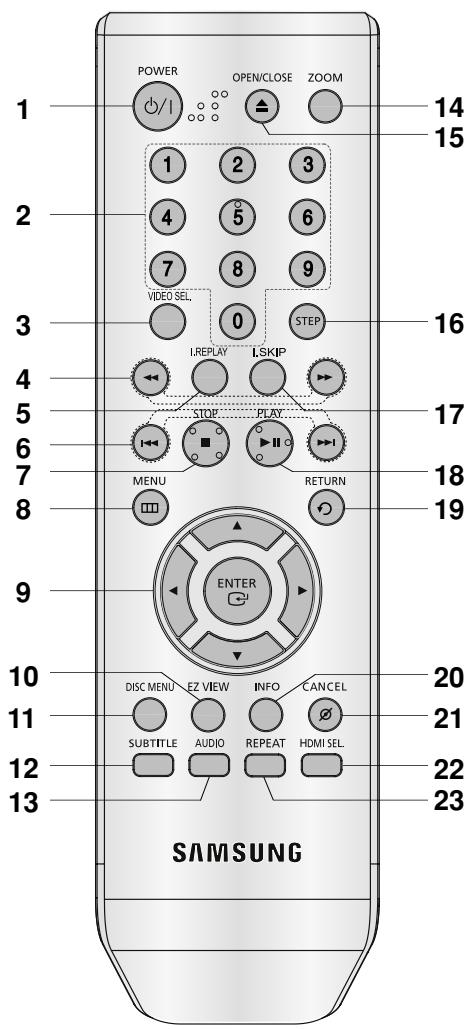
1. DVD POWER Button
Turns the power on or off.
2. NUMBER Buttons
3.VIDEO SEL. Button
Change Video output mode.
4.SEARCH Buttos ( / )
Allow you to search forward/backward through a disc.
5. INSTANT REPLAY Button
This function is used to replay the previous 10 seconds of a movie from the current position.
6. SKIP Buttons (|←/→|)
Use to skip the title, chapter or track.
7. STOP Button ( )
8. MENU Button
Brings up the DVD player's menu.
9. ENTER/▲/▼,▲/▶ Buttons
This button functions as a toggle switch.
10. EZ VIEW Button
The aspect ratio of a picture can easily be adjusted according to the screen size of your TV (16:9 or 4:3).
11.DISCMENUButton
Brings up the Disc menu.
12. SUBTITLE Button
13. AUDIO Button
Use this button to access various audio functions on a disc.
14. ZOOM Button
Enlarge DVD Picture
15. OPEN/CLOSE (▲) Button
To open and close the disc tray.
16. STEP Button
Advances play one frame at a time.
17. INSTANT SKIP Button
This function skips playback ahead 10 seconds.
18. PLAY/PAUSE Button (▶II)
Begin/Pause disc play.
19. RETURN Button
Returns to a previous menu.
20. INFO Button
Displays the current disc mode.
21. CANCEL Button
Use to remove menus or status displays from the screen.
22. HDMI SEL. Button
HDMI or DVI Output resolution setup.
23. REPEAT Button
Allows you to repeat play a title, chapter, track, or disc.
Choosing a Connection
The following shows examples of connections commonly used to connect the DVD player with a TV and other components.
Before Connecting the DVD Player
- Always turn off the DVD player, TV, and other components before you connect or disconnect any cables.
- Refer to the user's manual of the additional components you are connecting for more information on those particular components.
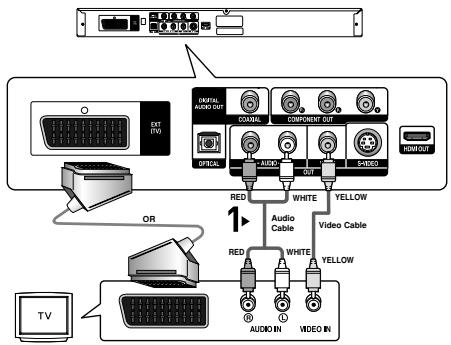
Connecting to a TV (SCART)
- Using the SCART, connect the SCART (EXT) terminal on the rear of the DVD Player to the SCART (IN) terminal of your TV.
- If your TV is not equipped with a SCART you can select one of the following alternative connections:
Connecting to a TV (VIDEO CVBS)
1
Using video/audio cables, connect the VIDEO (yellow)/AUDIO (red and white) OUT terminals on the rear of the DVD player to the VIDEO (yellow)/AUDIO (red and white) IN terminals of TV.
2
Turn on the DVD player and TV.
3
Press the input selector on your TV remote control until the Video signal from the DVD player appears on the TV screen.
Note
-
Noise may be generated if the audio cable is too close to the power cable.
-
If you want to connect to an Amplifier, please refer to the Amplifier connection page. (See pages 14 to 15)
- The number and position of terminals can vary depending on your TV set. Please refer to the user's manual of the TV.
- If there is one audio input terminal on the TV, connect it to the [AUDIO OUT][left] (white) terminal of the DVD player.
- If you press the Video SEL. button when DVD Player is in stop mode or no disc is inserted, the Video Output mode changes in the following sequence: (I-SCAN P-SCAN SCART)
- When the Video Output in Setup menu is set to P-SCAN, the Video and S-Video Outputs do not work.
- Please do not connect Scart and Component Video (Y, Pb, Pr) output simultaneously, as they may interfere and degrade both video output quality.
- If you set the HDMI output resolution 720p or 1080i, Video/S-Video and component output cannot be used.
Connection to a TV (S-Video)
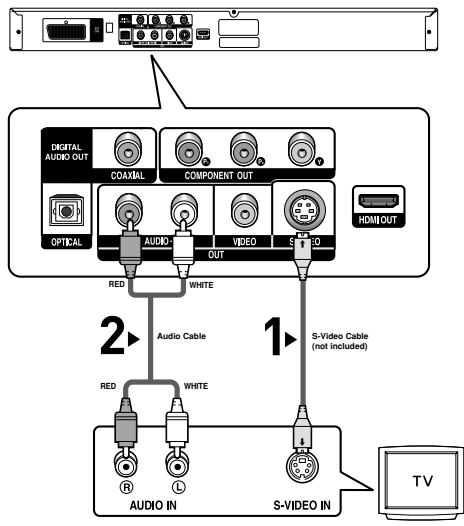
- Connecting to your TV using an S-Video cable.
- You will enjoy high quality images. S-Video separates the picture element into black and white(Y) and color(C) signals to present clearer images than regular video input mode. (Audio signals are delivered through the audio output.)
1
Using an S-Video cable (not included), connect the SVIDEO OUT terminal on the rear of the DVD player to the S-VIDEO IN terminal of TV.
2
Using the audio cables, connect the AUDIO (red and white) OUT terminals on the rear of the DVD player to the AUDIO (red and white) IN terminals of TV. Turn on the DVD player and TV.
3
Press the input selector on your TV remote control until the S-Video signal from the DVD player appears on your TV screen.
4
Set the Video Output to I-SCAN in the Display Setup menu. (See pages 28 to 29)
You can use theVIDEO SEL. button to change the Video Output mode. (See page 9)
Note
- If you want to connect to an Amplifier, please refer to the Amplifier connection page. (See pages 14 to 15)
- The number and position of terminals can vary depending on the TV set. Please refer to the user's manual of the TV.
- Please do not connect S-Video and Component Video (Y, Pb, Pr) output simultaneously, as they may interfere and degrade both video output quality.
- If you set the HDMI output resolution 720p or 1080i, Video/S-Video and component output cannot be used.
Connection to a TV (Interlace)
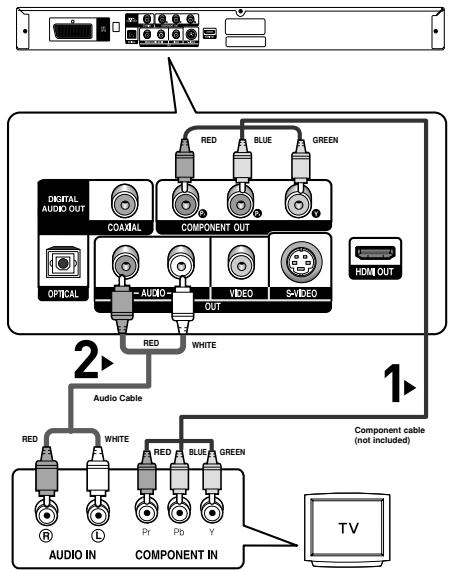
- Connecting to your TV using Component video cables.
- You will enjoy high quality and accurate color reproduction images. Component video separates the picture element into black and white(Y), blue(PB), red(PR) signals to present clear and clean images. (Audio signals are delivered through the audio output.)
1
Using component video cables (not included), connect the COMPONENT VIDEO OUT terminal on the rear of the DVD player to the COMPONENT IN terminal of TV.
2
Using the audio cables, connect the AUDIO (red and white) OUT terminals on the rear of the DVD player to the AUDIO (red and white) IN terminals of TV. Turn on the DVD player and TV.
3
Press the input selector on your TV remote control until the Component signal from the DVD player appears on the TV screen.
4
Set the Video Output to I-SCAN in the Display Setup menu. (See pages 28 to 29)
You can use theVIDEO SEL button to change the Video Output mode. (See page 9)
Note
- If Video output is incorrectly set to S-Video with the Component cables connected, the screen will turn red.
- If you want to connect to an Amplifier, please refer to the Amplifier connection page. (See pages 14 to 15)
- The component terminal of TV can be marked by "R-Y, B-Y, Y" or "Cr, Cb, Y" instead of "P_R, P_B, Y" depending on the manufacturer. The number and position of terminals can vary depending on the TV set. Please refer to the user's manual of the TV.
- If you set the HDMI output resolution 720p or 1080i, Video/S-Video and component output cannot be used.
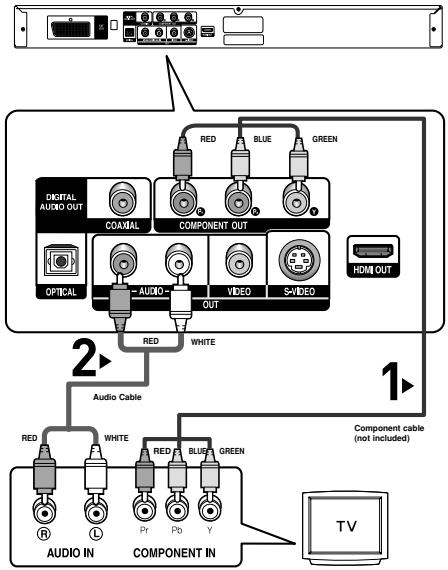
1
Using component video cables (not included), connect the COMPONENTVIDEOOUT terminal on the rear of the DVD player to the COMPONENT IN terminal of TV.
2
Using the audio cables, connect the AUDIO (red and white) OUT terminals on the rear of the DVD player to the AUDIO (red and white) IN terminals of TV. Turn on the DVD player and TV.
3
Press the input selector on your TV remote control until the Component signal from the DVD player appears on the TV screen.
4
Set the Video Output to P-SCAN in the Display Setup menu. (See pages 28 to 29)
You can use theVIDEO SEL. button to change the Video Output mode. (See page 9)
To see the progressive video output,
- Consult your TV User's Manual to find out if your TV supports Progressive Scan. If Progressive Scan is supported, follow the TV User's Manual regarding Progressive Scan settings in the TV's menu system.
- Depending on your TV, the connection method may differ from the illustration above.
Note
- What is "Progressive Scan"?
Progressive scan has twice as many scanning lines as the interlace output method has. Progressive scanning method can provide better and clearer picture quality. - If you set the HDMI output resolution 720p or 1080i, Video/S-Video and component output cannot be used.
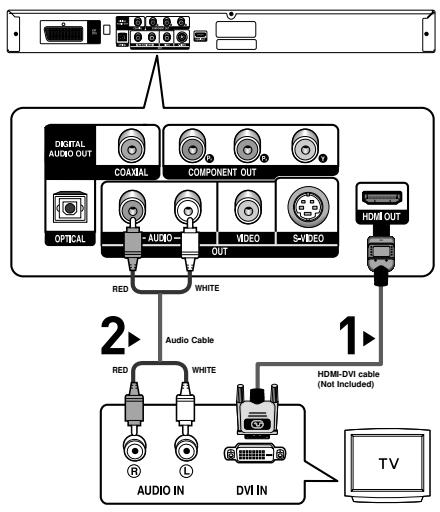
1
Using the HDMI-DVI cable (not included), connect the HDMI OUT terminal on the rear of the DVD player to the DVI IN terminal of your TV.
2
Using the audio cables, connect the AUDIO (red and white) OUT terminals on the rear of the DVD player to the AUDIO (red and white) IN terminals of your TV. Turn on the DVD player and TV.
3
Press the input selector on your TV remote control until the DVI signal from the DVD player appears on your TV screen.
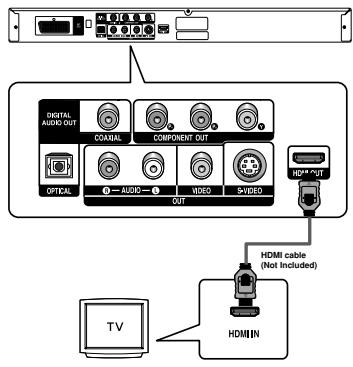
Connecting to a TV with HDMI Jack
1
Using the HDMI-HDMI cable connect the HDMI OUT terminal on the rear of the DVD player to the HDMI IN terminal of your TV.
2
Press the input selector on your TV remote control until the HDMI signal from the DVD player appears on your TV screen.
HDMIVIDEO Specifications
When you press the HDMI SEL. button, 480p, 576p, 720p, and 1080i are selected in order.
The first press of the HDMI SEL. button brings up the current resolution.
The second press allows you to change the HDMI output resolution.
- Depending on your TV, certain HDMI output resolutions may not work.
- Please refer to the user's manual of your TV.
- If HDMI or HDMI-DVI cable is plugged into TV, the DVD player's output is set to HDMI/DVI within 10 seconds.
- If you set the HDMI output resolution 720p or 1080i, HDMI output provides better picture quality.
-
If you set the HDMI output resolution 720p or 1080i, Video/S-Video and component output cannot be used.
-
HDMI (High Definition Multimedia Interface)
HDMI is an interface to enable the digital transmission of video and audio data with just a single connector. Using HDMI, the DVD player transmits a digital video and audio signal and displays a vivid picture on a TV having an HDMI input jack.
HDMI connection description
HDMI connector - Both uncompressed video data and digital audio data (LPCM or Bit Stream data).
- Though the player uses a HDMI cable, the player outputs only a pure digital signal to the TV.
-
If TV does not support HDCP (High-bandwidth Digital content protection), snow noise appears on the screen.
-
Why does Samsung use HDMI?
Analog TVs require an analog video/audiosignal. However, when playing a DVD, the data transmitted to a TV is digital. Therefore either a digital-to-analog converter (in the DVD player) or an analog-to-digital converter (in the TV) is required. During this conversion, the picture quality is degraded due to noise and signal loss. DVI technology is superior because it requires no D/A conversion and is a pure digital signal from the player to your TV.
What is the HDCP?
HDCP (High-bandwidth Digital Content Protection) is a system for protecting DVD content outputted via DVI from being copied. It provides a secure digital link between a video source (PC, DVD, etc) and a display device (TV, projector, etc). Content is encrypted at the source device to prevent unauthorized
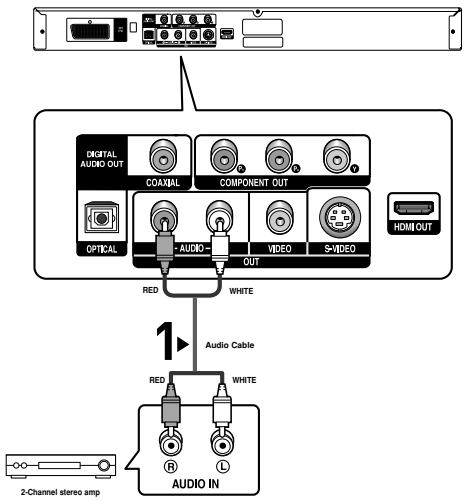
Connection to an Audio System (2 Channel Amplifier)
1
Using the audio cables, connect the AUDIO (red and white) OUT terminals on the rear of the DVD player to the AUDIO (red and white) IN terminals of the Amplifier.
2
Using the video signal cable(s), connect the VIDEO, S-VIDEO or COMPONENT OUT terminals on the rear of the DVD player to the VIDEO, S-VIDEO or COMPONENT IN terminal of your TV as described on pages 9 to 14.
3
Turn on the DVD player, TV, and Amplifier.
4
Press the input select button of the Amplifier to select external input in order to hear sound from the DVD player.
Note
- Please turn the volume down when you turn on the Amplifier. Sudden loud sound may cause damage to the speakers and your ears.
- Please set the audio in the menu screen according to the Amplifier. (See pages 27 to 28)
- The position of terminals can vary depending on the Amplifier. Please refer to the user's manual of the Amplifier.
1
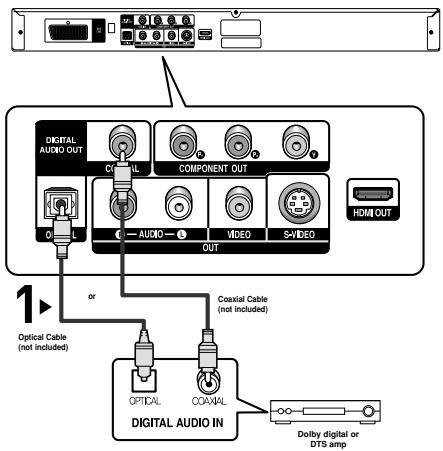
If using an optical cable (not included), connect the DIGITAL AUDIO OUT (OPTICAL) terminal on the rear of the DVD player to the DIGITAL AUDIO IN (OPTICAL) terminal of the Amplifier.
If using a coaxial cable (not included), connect the DIGITAL AUDIO OUT (COAXIAL) terminal on the rear of the DVD player to the DIGITAL AUDIO IN (COAXIAL) terminal of the Amplifier.
2
Using the video signal cable(s), connect the VIDEO, SVIDEO, COMPONENT or HDMI OUT terminals on the rear of the DVD player to the VIDEO, SVIDEO, COMPONENT or DVI IN terminals of your TV as described on pages 9 to 14.
3
Turn on the DVD player, TV, and Amplifier.
4
Press the input select button of the Amplifier to select external input in order to hear sound from the DVD player. Refer to your Amplifier's user manual to set the Amplifier's audio input.
Note
- When you connect the DVD player to DTS Amplifier and play a DTS disc, set the DTS to On in Audio Setup menu. If it is set to Off, sound doesn't come out or there will be a big noise.
- Please turn the volume down when you turn on the Amplifier. Sudden loud sound may cause damage to the speakers and your ears.
- Please set the audio in the menu screen according to the Amplifier. (See pages 27 to 28)
- The position of terminals can vary depending on the Amplifier.
Please refer to the user's manual of the Amplifier.
- Please remove the dust cover before using the optical cable (not included) and put the cover on the cable again when it's not used.
Playing a Disc
Before Play
- Turn on your TV and set it to the correct Video Input by pressing TV/VIDEO button on the TV remote control.
- If you connected an external Audio System, turn on your Audio System and set it to the correct Audio Input.
After plugging in the player, the first time you press the DVD POWER button, this screen comes up: If you want to select a language, press a NUMBER button. (This screen will only appear when you plug in the player for the first time.) If the language for the startup screen is not set, the settings may change whenever you turn the power on or off. Therefore, make sure that you select the language you want to use.
Once you select a menu language, you can change it by pressing the button on the front panel of the unit for more than 5 seconds with no disc in the unit. Then the SELECT MENU LANGUAGE window appears again where you can reset your preferred language.
SELECT MENU LANGUAGE
Press 1 for English
- Press the OPEN/CLOSE (▲) button. The STANDBY indicator light goes out and the tray opens.
-
Place a disc gently into the tray with the disc's label facing up.
-
Press the PLAY/PAUSE (▶II) button or OPEN/ CLOSE (▲) button to close the disc tray.
-
When you stop disc play, the player remembers where you stopped, so when you press PLAY/PAUSE (▶II) button again, it will pick up where you left off.
-
Stopping Play
Press the STOP (■) button during play.
- Removing Disc
Press the OPEN/CLOSE (▲) button.
- Pausing Play
Press the PLAY/PAUSE (▶II) or STEP button on the remote control during play.
- Screen stops, no sound.
To resume, press the PLAY/PAUSE (▶I) button once again.
- Step Motion Play (Except CD)
Press the STEP button on the remote control during play.
Each time the button is pressed, a new frame will appear.
- No sound is heard during STEP mode.
- Press the PLAY/PAUSE (▶II) button to resume normal play.
- You can only perform step motion play in the forward direction.
- Slow Motion Play
Press the SEARCH (←/→) button to choose the play speed between 1/8, 1/4 and 1/2 of normal during PAUSE or STEP mode.
- No sound is heard during slow mode.
- Press the PLAY/PAUSE (▶II) button to resume normal play.
Note
- If the player is left in the stop mode for more than one minute without any user interaction, a screen saver will be activated. Press the PLAY/PAUSE (▶II) button to resume normal play.
- If the player is left in the stop mode for more than about 30 minutes, the power will automatically shut off except when the MIC is connected. (Automatic Power-Off Function)
- If the player is left for about 5 minutes in pause mode, it will stop.
- This () icon indicates an invalid button press.
Using the Search and Skip Functions
During play, you can search quickly through a chapter or track, and use the skip function to jump to the next selection.
Searching through a Chapter or Track
During play, press the SEARCH (← or →) button on the remote control for more than 1 second.
| DVD | 2X, 4X, 64X, 128X |
| VCD | 4X, 8X |
| CD | 2X, 4X, 8X |
Note
- The speed marked in this function may be different from the actual playback speed.
- No sound is hearing during search mode (Except CD).
Skipping Tracks
During play, press the SKIP (I or ) button.
- When playing a DVD, if you press the SKIP (▶) button, it moves to the next chapter. If you press the SKIP (▶) button, it moves to the beginning of the chapter. One more press makes it move to the beginning of the previous chapter.
- When playing a VCD 2.0 in Menu Off mode, or a VCD 1.1 or a CD, if you press the SKIP (▶) button, it moves to the next track. If you press the SKIP (↓) button, it moves to the beginning of the track. One more press makes it move to the beginning of the previous track.
- If a track exceeds 15 minutes when playing a VCD and you press the button, it moves forward 5minutes. If you press the button, it moves backward 5 minutes.
Note
When playing VCD2.0, this function works only when the menu is off. Select Menu Off by pressing the DISC MENU button.
Using the Display Function
When Playing a DVD/VCD/MPEG4
- During play, press the INFO button on the remote control.
- You can select Info in the function menu by pressing the MENU button.
- Press the / buttons to select the desired item.
- When playing VCD2.0, this function works only when the menu is off. Select Menu Off by pressing the DISC MENU button.
- Press the buttons to make the desired setup and then press the ENTER button.
- You may use the number buttons of the remote control to directly access a title, chapter or to start the play back from a desired time.
- To make the screen disappear, press the INFO button again.
Note
| Title | To access the desired title when there is more than one in the disc. For example, if there is more than one movie on a DVD, each movie will be identified. |
| Chapter | Most DVD discs are recorded in chapters so that you can quickly find a specific passage (similar to tracks on an audio CD). |
| Track | |
| Time | Allows playback of the film from a desired time. You must enter the starting time as a reference. The time search function does not operate on some disc. |
| Audio | Refers to the language of the film soundtrack. In the example, the soundtrack is played in English 5.1CH. A DVD disc can have up to eight different soundtracks. |
| Subtitle | Refers to the subtitle languages available in the disc. You will be able to choose the subtitle languages or, if you prefer, turn them off from the screen. A DVD disc can have up to 32 different subtitles. |
| Size | (Divx)File size has a relationship with resolution of a title.The larger file size is, the higher resolution is displayed.If the file resolution is small, it scales up automatically, so you can see the larger screen. |
Using the Disc and Title Menu
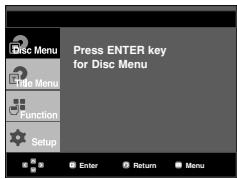
Using the Disc Menu
- During the playback of a DVD disc, press the MENU button on the remote control.
- Press the / buttons to select Disc Menu, then press the or ENTER button.
Note
Depending on a disc, the Disc Menu may not work.
- You can also use the Disc Menu, using the DISC MENU button on the remote control.
- When playing VCD2.0, this function works only when the menu is off. Select Menu Off by pressing the DISC MENU button.
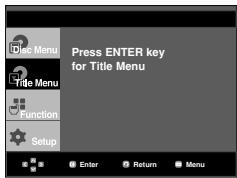
Using the Title Menu
- During the playback of a DVD disc, press the MENU button on the remote control.
- Press the / buttons to select Title Menu, then press the or ENTER button.
Note
Depending on a disc, the Title Menu may not work.
- Title Menu will only be displayed if there are at least two titles in the disc.
Using the Function Menu
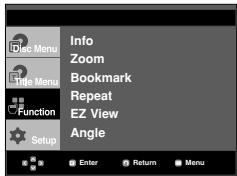
Using the Function Menu (DVD/VCD)
- Press the MENU button during playback.
- Press the / buttons to select Function, then press the or ENTER button.
-Info (See pages 17)
- Zoom (See page 22)
-Bookmark (See pages 21 to 22)
- Repeat (See pages 18 to 19)
-EZ View (See pages 19 to 20)
- Angle (See pages 21)
-
Press the / buttons to select one of the six functions. Then press the or ENTER button to access the function. You can also directly select these functions using their respective buttons on the remote control.
-
INFO
-EZVIEW - REPEAT
Repeat Play
Repeat the current track, chapter, title, a chosen section (A-B), or all of the disc.
When playing a DVD/VCD
- Press the REPEAT button on the remote control.
Repeat screen appears.
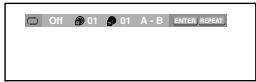
- Press the / buttons to select Chapter, Title or A-B, then press the ENTER button.
DVD repeats play by chapter or title, VCD repeat play by disc or track.
- Chapter (O): repeats the chapter that is playing.
- Title (): repeats the title that is playing.
- Disc () : repeats the disc that is playing.
- Track ( ): repeats the track that is playing.
-A-B: repeats a segment of the disc that you select.
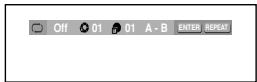
DVD
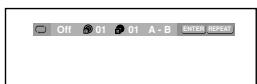
VCD
Using the A-B Repeat function
- Press the REPEAT button on the remote control.
- Press the / buttons to select A-B button.
- Press the ENTER button at the point where you want repeat play to start (A). B is automatically highlighted.
- Press the ENTER button at the point where you want the repeat play to stop (B).
- To return to normal play, press the CANCEL button.
- To return to normal play, press REPEAT button again, then press the buttons to select Off and press ENTER button.
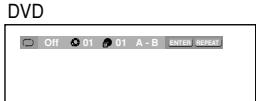
VCD
Note
- A-B REPEAT allows you to set point (B) directly after point (A) has been set.
- Depending on a disc, the Repeat function may not work.
- When playing VCD2.0, this function works only when the menu is off. Select Menu Off by pressing the DISC MENU button.
Slow Play
This feature allows you slowly to repeat scenes containing sports, dancing, musical instruments being played etc., so you can study them more closely.
When playing a DVD
- During play, press the PLAY/PAUSE (▶II) button.
- Press the SEARCH ( / ) button to choose the play speed between 1/8, 1/4 and 1/2 of normal during PAUSE or STEP mode.
ADVANCED FUNCTIONS
Adjusting the Aspect Ratio (EZ View)
To play back using aspect ratio (DVD)
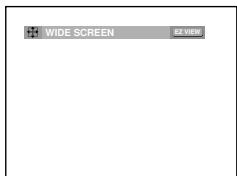
Press the EZ VIEW button.
- The screen size changes when the button is pressed repeatedly.
- The screen zoom mode operates differently depending on the screen setting in the Display Setup menu.
- To ensure correct operation of the EZ VIEW button, you should set the correct aspect ratio in the Display Setup menu. (See pages 28 to 29).
If you are using a 16:9 TV
For 16:9 aspect ratio discs
WIDE SCREEN
Displays the content of the DVD title in 16:9 aspect ratio.
- SCREEN FIT
The top and bottom portions of the screen are cut off.
When playing a 2.35:1 aspect ratio disc, the black bars at the top and bottom of the screen will disappear. The picture will look vertically stretched. (Depending on a type of disc, the black bars may not disappear completely.)
- ZOOM FIT
The top, bottom, left and right of the screen are cut off and the central portion of the screen is enlarge
For 4:3 aspect ratio discs
- Normal Wide
Displays the content of the DVD title in 16:9 aspect ratio.
The picture will look horizontally stretched.
- SCREEN FIT
The top and bottom portions of the screen are cut off and the full screen appears.
The picture will look vertically stretched.
- ZOOM FIT
The top, bottom, left and right portions of the screen are cut off and the central portion of the screen is enlarged.
Vertical Fit
When a 4:3 DVD is viewed on a 16:9 TV, black bars will appear at the left and right of the screen in order to prevent the picture from looking horizontally stretched.
If you are using a 4:3 TV
For 16:9 aspect ratio discs
- 4:3 Letter Box
Displays the content of the DVD title in 16:9 aspect ratio. The black bars will appear at the top and bottom of the screen.
- 4:3 Pan Scan
The left and right portions of the screen are cut off and the central portion of the 16:9 screen is displayed.
- SCREEN FIT
The top and bottom portions of the screen are cut off and a full screen appears. The picture will look vertically stretched.
-ZOOM FIT
The top, bottom, left and right of the screen are cut off and the central portion of the screen is enlarged.
For 4:3 aspect ratio discs
- Normal Screen
Displays the content of the DVD title in 4:3 aspect ratio.
- SCREEN FIT
The top and bottom portions of the screen are cut off and the full screen appears. The picture will look vertically stretched.
-ZOOM FIT
The top, bottom, left and right portions of the screen are cut off and the central portion of the screen is enlarged.
Note
This function may behave differently depending on the type of disc.
Selecting the Audio Language
You can select a desired audio language quickly and easily with the AUDIO button.
Using the AUDIO button (DVD/VCD/MPEG4)
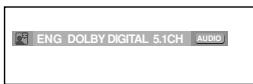
- Press the AUDIO button. The Audio changes when the button is pressed repeatedly.
The audio languages are represented by abbreviations.
DVD
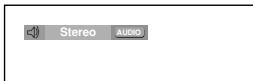
When playing a VCD you can select among Stereo, Right or Left.
VCD
Press AUDIO button at remocon repeatedly to select the desired Audio on MPEG4 then press the ENTER.
MPEG4
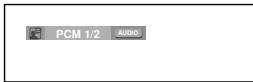
- To remove the AUDIO icon, press the CANCEL or RETURN button.
Note
- This function depends on audio languages are encoded on the disc and may not work.
- A DVD disc can contain up to 8 audio languages.
- To have the same audio language come up whenever you play a DVD; Refer to "Using the Audio Language" on page 27.
Selecting the Subtitle Language
You can select a desired subtitle quickly and easily with the SUBTITLE button.
Using the SUBTITLE button (DVD/MPEG4)
- Press the SUBTITLE button. The subtitle languages are represented by abbreviations.
The subtitle changes when the button is pressed repeatedly.
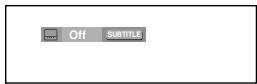
DVD
External subtitle option will appear, depends the DivX Disc.
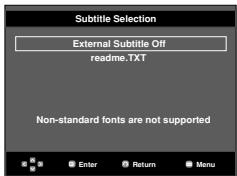
MPEG4
Press SUBTITLE button at remocon repeatedly to select the desired subtitle language on a MPEG4 then press the ENTER.
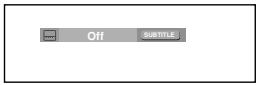
MPEG4
- To remove the SUBTITLE icon, press the CANCEL or RETURN button.
Note
- You have to change the desired subtitle in the Disc Menu, according to discs. Press the DISC MENU button.
- This function depends on what subtitles are encoded on the disc and may not work on all DVDs.
- A DVD disc can contain up to 32 subtitle languages.
- To have the same subtitle language come up whenever you play a DVD; Refer to "Using the Subtitle Language" on page 27.
Changing the Camera Angle
When a DVD contains multiple angles of a particular scene, you can use the ANGLE function.
Using the ANGLE function (DVD)
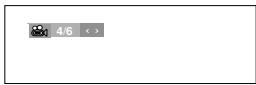
If the disc contains multiple angles, the ANGLE appears on the screen.
- During play or pause mode, press the MENU button on the remote control.
- Press the / buttons to select Function, then press the or ENTER button.
- Press the / buttons to select Angle, then press the or ENTER button.
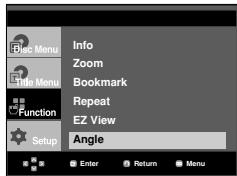
- Press the buttons or you can use the number buttons on the remote control to select the desired angle.
Note
- If the disc has only one angle, this feature won't work. Currently, very few discs have this feature.
- Depending on the disc, these functions may not work.
Using the Instant Replay/Skip Function
Using the Instant Replay function (DVD)
If you miss a scene, you can see it again using this function.
If you press the INSTANT REPLAY button, the current scene moves backward about 10 seconds, and plays back.
Using the Instant Skip function (DVD)
Use this function to skip playback about 10 seconds ahead of the current scene.
Press the INSTANT SKIP button.
- Playback will skip ahead 10 seconds.
Note
Depending on the disc, these functions may not work.
Using theBookmark Function
This feature lets you bookmark sections of a DVD or VCD (Menu Off mode) so you can quickly find them at a later time.
Using theBookmark Function (DVD/VCD)
- During play, press the MENU button on the remote control.
- Press the / buttons to select Function, then press the or ENTER button.
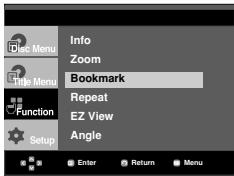
- Press the / buttons to selectBookmark, then press the or ENTER button.
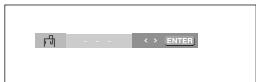
- When you reach the scene you want to mark, press the ENTER button. Up to three scenes may be marked at a time.
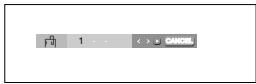
Note
- When VCD 2.0 is in Menu Off mode only, this function works. Select Menu Off by pressing the DISC MENU button.
Depending on a disc, theBookmark function may not work.
Recalling a Marked Scene
1~3. The first 1~3 steps are the same as those for "Using theBookmark Function" on page 21.
4. Press the / buttons to select a marked scene.
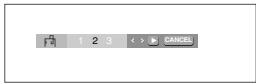
- Press the PLAY/PAUSE (▶II) button to skip to the marked scene.
Clearing aBookmark
1~3. The first 1~3 steps are the same as those for "Using theBookmark Function" on page 21.
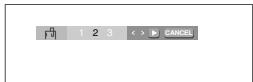
4. Press the buttons to select the bookmark number you want to delete.
- Press the CANCEL button to delete a bookmark number.
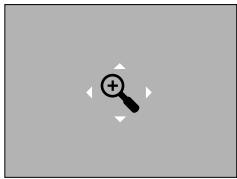
Using the Zoom Function
Using the Zoom Function (DVD/VCD)
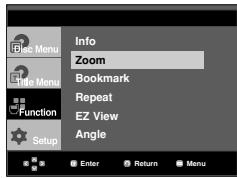
- During play or pause mode, press the MENU button on the remote control.
- Press the / buttons to select Function, then press the or ENTER button.
- Press the / buttons to select Zoom, then press the or ENTER button.
-
Press the / or / buttons to select the part of the screen you want to zoom in on. Press the ENTER button.
-
During DVD play, press ENTER to zoom in 2X/4X/2X/Normal in order.
- During VCD play, press ENTER to zoom in 2X/4X/2X/Normal in order.
Clips Menu for MP3/WMA/JPEG/MPEG4/CD Audio
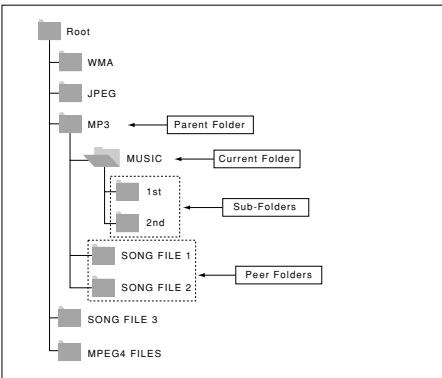
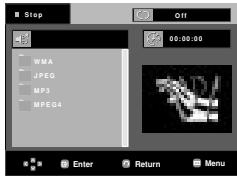
CD Audio or discs with MP3/WMA/JPEG contain individual songs and/or pictures that can be organized into folders as shown below. They are similar to how you use your computer to put files into different folders.
Open the disc tray.
Place the disc on the tray.
Close the tray.
The tray closes and this screen displays.
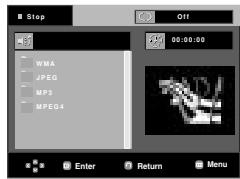
- : Name of currently playing file.
- : CurrentPlayback Time.
-
: Current Playback Mode : There are four modes. They can be selected in order by pressing the REPEAT button.
-
Off: Normal Playback
- Track: Repeats the current track.
- Folder: Repeats the current folder
-
Random: Files in the disc will be played in random order.
-
MP3: MP3 file icon. CD Audio file icon.
- :WMA file icon. - :Folder icon.
- JPEG file icon : Current Folder icon.
AVI:AVIFileicon.
Folder Selection
The folder can be selected both in Stop or Play mode.
- To select the Parent Folder
Press the RETURN button to go to parent folder, or press the / buttons to select .. and press ENTER to go to the parent folder. - To select the Peer Folder
Press the / buttons to select the desired folder, then press ENTER. - To select the Sub-Folder
Press the / buttons to select the desired folder, then press ENTER.
MP3/WMA/CD AudioPlayback
-
Open the disc tray. Place the disc on the tray. Close the tray.
-
Only one kind of file is played back when a disc or a folder contains both MP3 and WMA files.
-
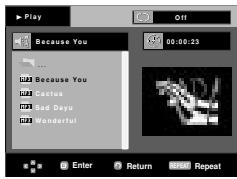
Press the / or / buttons to select a song file.
Press ENTER to begin playback of the song file.
Repeat/Random playback
Press the REPEAT button to change the playback mode. There are four modes, such as Off, Track, Folder and Random.
- Off: Normal Playback
- Track: Repeats the current song file.
- Folder: Repeats the song files which have the same extension in the current folder.
- Random: Song files which have the same extension will be played in random order.
To resume normal play, press the CANCEL button.
CD-R MP3/WMA file
When you record MP3 or WMA files on CD-R, please refer to the following.
- Your MP3 or WMA files should be ISO 9660 or JOLIET format.
ISO 9660 format and Joliet MP3 or WMA files are compatible with Microsoft's DOS and Windows, and with Apple's Mac. This format is the most widely used.
- When naming your MP3 or WMA files, do not exceed 8 characters, and enter“.mp3,.wma” as the file extension. General name format : Title.mp3. or Title.wma. When composing your title, make sure that you use 8 characters or less, have no spaces in the name, and avoid the use of special characters including: (.,/.,=.,+) .
- Use a decompression transfer rate of at least 128 Kbps when recording MP3 files.
Sound quality with MP3 files basically depends on the rate of compression/decompression you choose. Getting CD audio sound requires an analog/digital sampling rate, that is conversion to MP3 format, of at least 128 Kbps and up to 160 Kbps. However, choosing higher rates, like 192 Kbps or more, only rarely give better sound quality. Conversely, files with decompression rates below 128 Kbps will not be played properly.
- Use a decompression transfer rate of at least 64Kbps when recording WMA files.
Sound quality with WMA files basically depends on the rate of compression/decompression you choose.
Getting CD audio sound requires an analog/digital sampling rate, that is conversion to WMA format, of at least 64Kbps and up to 192Kbps. Conversely, files with decompression rates below 64Kbps or over 192Kbps will not be played properly.
- Do not try recording copyright protected MP3 files.
Certain "secured" files are encrypted and code protected to prevent illegal copying. These files are of the following types: Windows Media™ (registered trade mark of Microsoft Inc) and SDMI™ (registered trade mark of The SDMI Foundation). You cannot copy such files.
- Important:
The above recommendations cannot be taken as a guarantee that the DVD player will play MP3 recordings, or as an assurance of sound quality. You should note that certain technologies and methods for MP3 file recording on CD-Rs prevent optimal playback of these files on your DVD player (degraded sound quality and in some cases, inability of the player to read the files). - This unit can play a maximum of 500 files and 500 folders per disc.
MPEG4Playback
MPEG4 Play Funktion
AVI files are used to contain the audio and video data. Only AVI format files with the ".avi" extensions can be played.
- Open the disc tray. Place the disc on the tray. Close the tray.
- Press the / or / buttons to select an avi file (DivX/XiviD) and then press ENTER button.
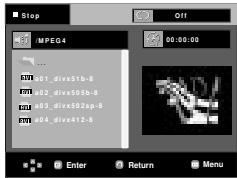
Repeat playback
Press the REPEAT button to change playback mode. There are 3 modes, such as Off, Folder and Title.
- Folder : repeats the AVI files which have the same extension in the current folder.
- Title : repeats the title that is playing.
MPEG4 Function Description
| Function | Description | Reference page |
| Skip (← or →) | During play, press the ↙ or ↘ button, it moves forward or backward 5 minutes. | - |
| Search (← or →) | During play, press the SEARCH (← or ↘ ) button and press again to search at a faster speed. Allows you to search at a faster speed in an AVI file. (2X, 4X, 8X) | - |
| Slow Motion Play | Allows you to search at a slower speed in an AVI file. (1/8X, 1/4X, 1/2X) | P 16 |
| Step Motion Play | Each time the STEP button is pressed, a new frame will appear. | P 16 |
| ZOOM | 2X/4X/2X/Normal in order | P 22 |
- These functions may not work depending on MPEG4 file.
CD-R AVI file
This unit can play the following video compression formats within the AVI file format:
- DivX 3.11 contents
- DivX 4 contents (Based on MPEG-4 Simple Profile)
- DivX 5 contents (MPEG-4 simple profile plus additional features such as bi-directional frames. Qpel and GMC are also supported.)
-XviD MPEG-4 compliant Contents.
This unit supports all resolutions up to maximum below.
| DivX3.11 & DivX4 & XviD | DivX5 |
| Bitrate may fluctuate: Device may skip decoding the high bitrate portions and begin decoding again when Bitrate returns to normal. | 720 x 480 @30fps 720 x 576 @25fps : Maximum bitrate : 4Mbps |
Note
- Some MPEG-4 files created on a personal computer may not be play back. That is why Codec Type, Version and Higher resolution over specification is not supported.
- This unit supports CD-R/RW written in MPEG4 in accordance with the "ISO9660 format".
Picture CD Playback
- Select the desired folder.
- Press the / buttons to select a Picture file in the clips menu and then press the ENTER button.
- Press the INFO button on the remote control to select the menu you want to view and then press the ENTER button.
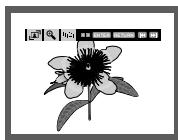
Note
- Press the STOP button to return to the clips menu.
- When playing a Kodak Picture CD, the unit displays the Photo directly, not the clips menu.
Rotation

Each time the ENTER button is pressed, the picture rotates 90 degrees clockwise.
Zoom

Press the / buttons to select the part of the screen you want to zoom in on. Press the ENTER button. Each time the ENTER button is pressed, the picture is enlarged up to 2X.
Slide Show
: The unit enters slide show mode.
- Before beginning the Slide Show, the picture interval must be set.

: When this icon is selected and ENTER is pressed, the pictures change automatically with about a 6 second interval.

The pictures change automatically with about a 12 second interval.

The pictures change automatically with about a 18 second interval.
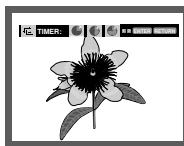
Note
Depending on a file size, the amount of time between each picture may be different from the manual.
- If you don't press any button, the slide show will start automatically in about 10 seconds by default.
Picture CD Playback for HD-JPEG
Must connect to HDMI. Resolution should be 720p/1080i, and HD-JPEG should be in HD mode. (See page 29)
- Set the HD-JPEG to HD from Setup menu. (See page 29)
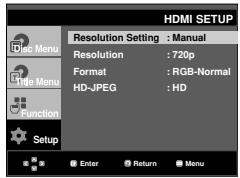
Note
-Only available in P-SCAN.
- To make the setup menu disappear, press the MENU button.
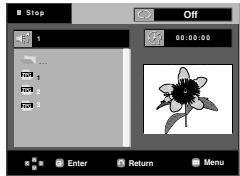
- Select the desired folder.
-
Press the / buttons to select a Picture file in the clips menu and then press the ENTER button.
-
Press the STOP (■) button to return to the clips menu.
- When playing a Kodak Picture CD, the unit displays the Photo directly, not the clips menu.
- Rotation
Press the button to rotate the screen 90 degrees to the left/right.
- Skip Picture
Press the or button to select previous or next picture.
- Slide Show
Press the PLAY/PAUSE( ) button to start SLIDE function.
Press the STOP ( ) button to stop SLIDE function.
Note
Depending on a file size, the amount of time between each picture may be different from the set interval time.
- OSD (On Screen Display) messages are not displayed when displaying images in HD-JPEG mode.
- The image may be displayed at a smaller size depending on the picture size when displaying images in HD-JPEG mode.
MP3-JPEG Playback
You can play JPEG using music as a background.
- Press the / buttons to select an MP3 file in the clips menu and then press the ENTER button.
-
Press the / buttons to select a JPEG file in the clips menu and then press the ENTER button.
-
Music will play from the beginning
-
Press Stop button when you want to stop the playback.
Note
MP3 and JPEG files have to be on the same disc.
CD-R JPEG Disc
- Only files with the "jpg" and "JPG" extensions can be played.
- If the disc is not closed, it will take longer to start playing and not all of the recorded files may be played.
- Only CD-R discs with JPEG files in ISO 9660 or Joliet format can be played.
- The name of the JPEG file may not be longer than 8 characters and should contain no blank spaces or special characters (. / = +) .
- Only a consecutively written multi-session disc can be played. If there is a blank segment in the multi-session disc, the disc can be played only up to the blank segment.
- A maximum of 3000 images can be stored on a single CD.
- Kodak Picture CDs are recommended.
- When playing a Kodak Picture CD, only the JPEG files in the pictures folder can be played.
- Kodak Picture CD: The JPEG files in the pictures folder can be played automatically.
- Konica Picture CD: If you want to see the Picture, select the JPEG files in the clips menu.
- Fuji Picture CD: If you want to see the Picture, select the JPEG files in the clips menu.
- QSS Picture CD: The unit may not play QSS Picture CD.
- If the number of files in 1 Disc is over 500, only 500 JPEG files can be played.
- If the number of folders in 1 Disc is over 500, only JPEG files in 500 folders can be played
CHANGING SETUP MENU
Using the Setup Menu
The Setup menu lets you customize your DVD player by allowing you to select various language preferences, set up a parental level, even adjust the player to the type of television screen you have.
- With the unit in Stop mode, press the MENU button on the remote control. Use the / buttons to select Setup, then press the or ENTER button.
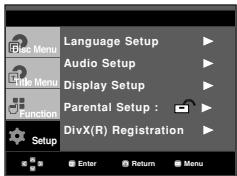
Language Setup: Setup of the Language.
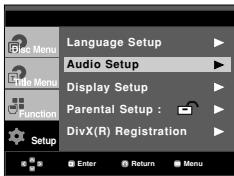
Audio Setup: Setup of the Audio Options.
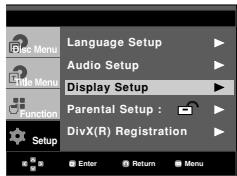
Display Setup: Setup of the Display Options. Use to select which type of screen you want to watch and several display options.
4 Parental Setup: Setup of the Parental Level. Allows users to set the level necessary to prevent children from viewing unsuitable movies such as those with violence, adult subject matter, etc.
Divx(R) Registration: Please use the Registration code to register this player with the DivX(R) Video On Demand format. To learn more go to www.divx.com/vod.
2. Press the / buttons to access the different features. Press the or ENTER button to access the sub features.
3. To make the setup screen disappear after setting up, press the MENU button again.
Note
Depending on the disc, some Setup Menu selections may not work.
Setting Up the Language Features
If you set the player menu, disc menu, audio and subtitle language in advance, they will come up automatically every time you watch a movie.
Using the Player Menu Language
- With the unit in Stop mode, press the MENU button.
- Press the / buttons to select Setup, then press the or ENTER button.
- Press the / buttons to select Language Setup, then press the or ENTER button.
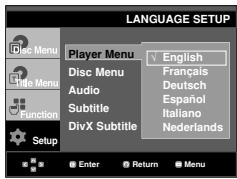
- Press the / buttons to select Player Menu, then press the or ENTER button.
-
Press the / buttons to select the desired language, then press the or ENTER button.
-
The language is selected and the screen returns to Language Setup menu.
- To make the setup menu disappear, press the MENU button.
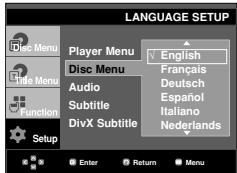
Using the Disc Menu Language
This function changes the text language only on the disc menu screens.
- With the unit in Stop mode, press the MENU button.
- Press the / buttons to select Setup, then press the or ENTER button.
- Press the / buttons to select Language Setup, then press the or ENTER button.
- Press the / buttons to select Disc Menu, then press the or ENTER button.
-
Press the / buttons to select the desired language, then press the or ENTER button.
-
If the selected language is not recorded on the disc, the original pre-recorded language is selected.
- The language is selected and the screen returns to Language Setup menu.
- To make the setup menu disappear, press the MENU button.
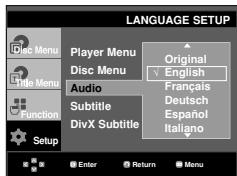
Using the Audio Language
- With the unit in Stop mode, press the MENU button.
- Press the / buttons to select Setup, then press the or ENTER button.
- Press the / buttons to select Language Setup, then press the or ENTER button.
- Press the / buttons to select Audio, then press the or ENTER button.
-
Press the / buttons to select the desired language, then press the or ENTER button.
-
Select "Original" if you want the default soundtrack language to be the original language the disc is recorded in.
- If the selected language is not recorded on the disc, the original pre-recorded language is selected.
- The language is selected and the screen returns to Language Setup menu.
- To make the setup menu disappear, press the MENU button.
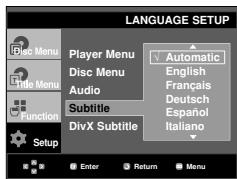
Using the Subtitle Language
- With the unit in Stop mode, press the MENU button.
- Press the / buttons to select Setup, then press the or ENTER button.
- Press the / buttons to select Language Setup, then press the or ENTER button.
- Press the / buttons to select Subtitle, then press the or ENTER button.
-
Press the / buttons to select the desired language, then press the or ENTER button.
-
Select "Automatic" if you want the subtitle language to be the same as the language selected as the audio language.
- Some discs may not contain the language you select as your initial language; in that case the disc will use its original language setting.
- The language is selected and the screen returns to setup menu.
- To make the setup menu disappear, press the MENU button.
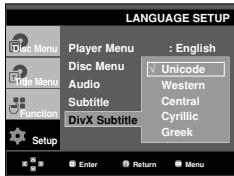
Using the DivX Subtitle Language
- With the unit in Stop mode, press the MENU button.
- Press the / buttons to select Setup, then press the or ENTER button.
- Press the / buttons to select Language Setup, then press the or ENTER button.
- Press the / buttons to select DivX Subtitle, then press the or ENTER button.
-
Press the / buttons to select the desired language, then press the or ENTER button.
-
The language is selected and the screen returns to Language Setup menu.
- To make the setup menu disappear, press the MENU button.
Setting Up the Audio Options
Audio Options allows you to setup the audio device and sound status settings depending on the audio system in use.
- With the unit in Stop mode, press the MENU button.
- Press the / buttons to select Setup, then press the or ENTER button.
- Press the / buttons to select Audio Setup, then press the or ENTER button.
- Press the / buttons to select the desired item, then press the or ENTER button.
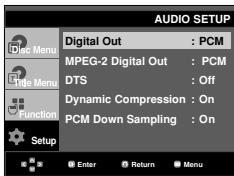
Digital Out
- PCM:Converts to PCM(2CH)audio.
- Bitstream: Outputs Dolby Digital via the digital output. Select Bitstream when connecting to a Dolby Digital Decoder.
MPEG-2 Digital Out
-
PCM: Converts to PCM(2CH) audio.
-
Bitstream : Converts to MPEG-2 Digital Bitstream (5.1CH
or 8CH). Select Bitstream when using the Digital Audio Output.
DTS
Select On when connecting to a DTS Decoder.
- Off : Doesn't output digital signal.
- On: Outputs DTS Bitstream via digital output.
Note
- There is no analog audio output when you play a DTS sound disc.
Dynamic Compression
- On : To select dynamic compression.
- Off : To select the standard range.
PCM Down Sampling
- On: Select this when the Amplifier connected to the player is not 96KHz compatible. In this case, the 96KHz signals will be down converted to 48KHZ.
- Off: Select this when the Amplifier connected to the player is 96KHz compatible. In this case, all signals will be output without any changes.
Note :
Even when PCM Down sampling is Off
- Some discs will only output down sampled audio through the digital outputs.
- To make the Setup menu disappear, press the MENU button.
HDMI
- If your TV is not compatible with compressed multi-channel formats (Dolby Digital, DTS, MPEG), you should set Digital Audio to PCM.
- If your TV is not compatible with LPCM sampling rates over 48kHz , you should set PCM Down sampling to On.
Manufactured under license from Dolby Laboratories. "Dolby" and the double-D symbol are trademarks of Dolby Laboratories.
"DTS" and "DTS Digital Out" are trademarks of Digital Theater Systems, Inc.
Setting Up the Display Options
Display options enable you to set various video functions of the player.
- With the unit in Stop mode, press the MENU button.
- Press the / buttons to select Setup, then press the or ENTER button.
- Press the / buttons to select Display Setup, then press the or ENTER button.
- Press the / buttons to select the desired item, then press the or ENTER button.
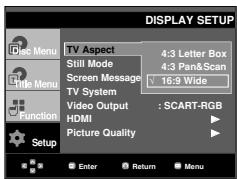
TV Aspect
Depending on a type of television you have, you may want to adjust the screen setting (aspect ratio).
- 4:3 Letter Box : Select when you want to see the total 16:9 ratio screen DVD supplies, even though you have a TV with a 4:3 ratio screen. Black bars will appear at the top and bottom of the screen.
- 4:3 Pan&Scan : Select this for conventional size TVs when you want to see the central portion of the 16:9 screen. (Extreme left and right side of movie picture will be cut off.)
- 16:9 Wide : You can view the full 16:9 picture on your wide screen TV.
Still Mode
These options will help prevent picture shake in still mode and display small text clearer.
- Auto: When selecting Auto, Field/Frame mode will be automatically converted.
- Field: Select this feature when the screen shakes in the Auto mode.
- Frame : Select this feature when you want to see small letters more clearly in the Auto mode.
③ Screen Messages
Use to turn on-screen messages On or Off.
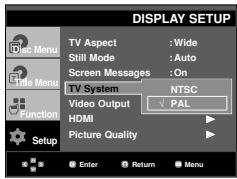
4 TV System
- NTSC : In case of using NTSC disc
- If your TV system only has PAL-Video input, you must choose "PAL". When you choose "PAL", Interlace output format is PAL 60 Hz output.
- If your TV system only has NTSC, input you must choose "NTSC".
- If you set up the NTSC TV, HDMI output frame rate is 60Hz .
- PAL : In case of using PAL disc
- If your TV system only has NTSC-Video input, you must choose "NTSC".
- If your TV system only has PAL input, you must choose "PAL".
- If you set up the PAL TV, HDMI output frame rate is 50Hz .
Video Output
Select Video Output.
- I-SCAN : Select when you want to use Component Interlace (625i/525i) Out.
- P-SCAN: Select when you want to use Component Progressive (625p/525p) Out.
- SCART Output : Select when you want to use Scart Out.
- RGB : Select when you want to use SCART RGB Out.
- If you press the VIDEO SEL. button, Video output mode is changed in regular sequence in no disc mode. (I-SCAN P-SCAN SCART)
- If the Yes/No selection in the Display Setup sub Menu is not made within 10 seconds, the screen returns to the previous menu.
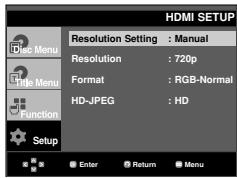
6HDMI
This setting is used when the unit is connected by HDMI to Display devices (TV, Projector, etc.).
-
Resolution Setting
-
Auto : Resolution setting automatically
-
Manual : Resolution setting manually
-
Resolution
-
480p/576p : 720 × 480, 720 × 576
-
720p : 1280 x 720
-
1080i : 1920 x 1080
-
Format
You can use this function to set HDMI output's digital data RGB range.
- RGB-Normal : HDMI Limited range RGB data output.
- RGB-Expand : HDMI Full range RGB data output.
- YCbCr-(4:4:4):HDMI Limited range YCbCr-(4:4:4) output.
- YCbCr-(4:2:2) : HDMI Limited range YCbCr-(4:2:2) output.
Limited range - Black/White and color level displayed within Limited data range.
ex) When the bit depth is 8 bits
- Y: 16~235 - levels of brightness
- CbCr : 16~240 - levels of color
Ful range - Black/White and color level are expressed within full data range.
ex) When the bit depth is 8 bits
- Y:0~255 - levels of brightness
- CbCr : 0~255 - levels of color
-HD-JPEG
- HD : High Definition image source
- Available when resolution is 720p/1080i in HDMI enabled.
- SD: Standard Definition image source.
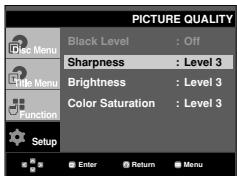
Picture Quality
- Black Level : Adjusts the brightness of the screen.(On or Off) It does not function in Progressive mode.
- Sharpness : Level 1 ~ Level 5
- Brightness : Level 1 ~ Level 5
-Color Saturation:Level1\~Level5
- Consult your TV User's Manual to find out if your TV supports Progressive Scan. If Progressive Scan is supported, follow the TV User's Manual regarding Progressive Scan settings in the TV's menu system.
- If Video Output is set incorrectly, the screen may be blocked.
- The resolutions available for HDMI output depend on the connected TV or projector. For details, see the user's manual of your TV or projector.
- When the resolution is changed during playback, it may take a few seconds for a normal image to appear.
- If you set the HDMI output resolution 720p or 1080i, HDMI output provides better picture quality.
Setting Up the Parental Control
The Parental Control function works in conjunction with DVDs that have been assigned a rating, which helps you control the types of DVDs that your family watches. There are up to 8 rating levels on a disc.
Setting Up the Rating Level
- With the unit in Stop mode, press the MENU button.
- Press the / buttons to select Setup, then press the or ENTER button.
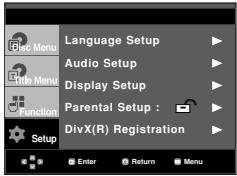
- Press the / buttons to select Parental Setup, then press the or ENTER button.
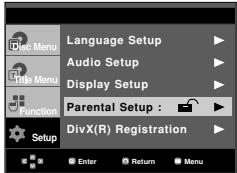
- Press the / buttons to select Rating Level, then press the or ENTER button.
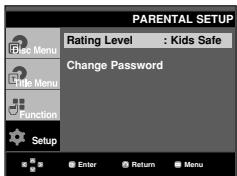
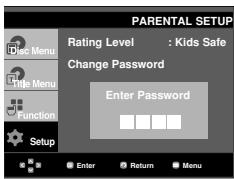
-
Enter your password.
-
By default, password is set to 0000.
- Press the / buttons to select the Rating Level you want, then press the or ENTER button.
e.g) Setting up in Kids Safe.
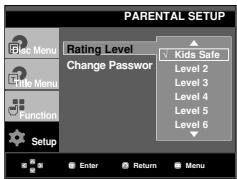
To make the setup menu disappear, press the MENU button. For example, if you select up to Level 6, discs that contain Level 7,8 will not play.
Changing the Password
- With the unit in Stop mode, press the MENU button.
- Press the / buttons to select Setup, then press the or ENTER button.
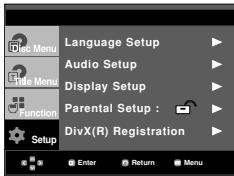
- Press the / buttons to select Parental Setup, then press the or ENTER button.
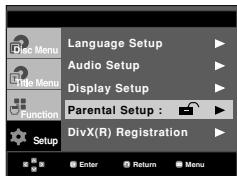
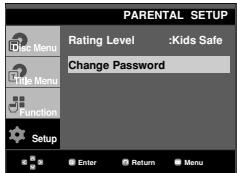
- Press the / button to select Change Password, then press the or ENTER button. Enter your new password. Re-enter the new password again.
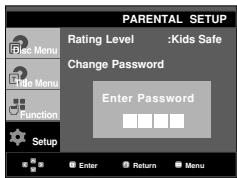
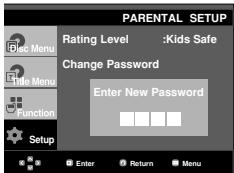
Note
If you have forgotten your password, see "Forgot Password" in the Troubleshooting Guide.
Firmware upgrade
Introduction
Samsung will often support the software upgrade to improve the performance of this unit to the latest status, through Samsung Internet Site (www.samsung.com).
Because the specially newmpeg4 codec continues and it is appearing. What improvements are made depends on the upgrade software you are using as well as the software that your DVD-player contained before the upgrade.
How to make an upgrade disc
Write the downloaded file onto a blank CD-R or CDRW disc, using the following settings:
- You have to download a new file through Download Center of Samsung Internet Site (www.samsung.com).
- Write the file to Disc using CD-RW of your computer.
Note
- File System CD-ROM ISO Level
- Character set ISO 9660
- Finalized, single session
- Write speed low
Upgrade procedure
- Open the disc tray. Place the disc on the tray. Close the tray. The Firmware upgrade screen appears.
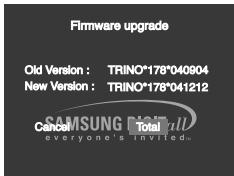
Firmware upgrade appears on the display
- Press the buttons to select Total, then press the ENTER button.
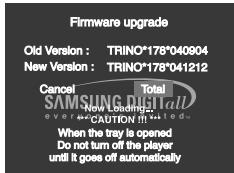
Firmware upgrade starts
- In the middle of the writing, the tray will open automatically. After taking out the disc, please wait for about 2 minutes.
- If the unit was successfully updated, the unit will turn off and on after closing the tray automatically. When the unit turns on, this screen will display.
- Press the number buttons to select the desired language
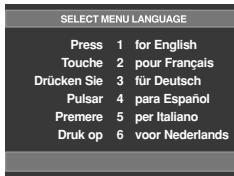
Note
- If the "Select Menu Language" doesn't appear, please contact to "Samsung Service Center".
- Do not press any button and unplug the power code during upgrade.
- The upgrade procedure may change, refer to the web site (www.samsung.com).
Before requesting service (troubleshooting), please check the following.
| Problem | Action | Page |
| No operations can be performed with the remote control. | ·Check the batteries in the remote control. They may need replacing. ·Operate the remote control at a distance of no more than 20 feet. ·Remove batteries and hold down one or more buttons for several minutes to drain the microprocessor inside the remote control to reset it. Reinstall batteries and try to operate the remote control again. | P3 |
| Disc does not play. | ·Ensure that the disc is installed with the label side facing up. ·Check the region number of the DVD. | P5 |
| 5.1 channel sound is not being reproduced. | ·51 channel sound is reproduced only when the following conditions are met.: 1) The DVD player is connected with the proper Amplifier 2) The disc is recorded with 5.1 channel sound. ·Check whether the disc being played has the "5.1 ch" mark on the outside. ·Check if your audio system is connected and working properly. ·In a SETUP Menu, is the Audio Output set to Bitstream? | P14-15 P27~28 |
| The icon appears on screen. | ·The features or action cannot be completed at this time because: 1. The DVD's software restricts it. 2. The DVD's software doesn't support the feature (e.g., angles). 3. The feature is not available at the moment. 4. You've requested a title or chapter number or search time that is out of range. | |
| Disc Menu doesn't appear. | ·Check if the disc has a Menu. | |
| Play mode differs from the Setup Menu selection. | ·Some of the functions selected in the Setup Menu may not work properly if the disc is not encoded with the corresponding function. | P26~30 |
| The screen ratio cannot be changed. | ·The Screen Ratio is fixed on your DVDs. | P28~29 |
| No audio. | ·Make sure you have selected the correct Digital Output in the Audio Options Menu. | P27~28 |
| The screen is blocked | ·Press the ➔ button (in front panel) for more than 5 seconds under no disc inside. All settings will revert to the factory settings. | P16 |
| Forgot password | ·Press the ➔ button (in front panel) for more than 5 seconds under no disc inside. All settings including the password will revert to the factory settings. Don't use this unless absolutely necessary. | P30 |
| If you experience other problems. | ·Go to the contents and find the section of the instruction book that contains the explanations regarding the current problem, and follow the procedure once again. ·If the problem still cannot be solved, please contact your nearest authorized service center. | |
| The picture is noisy or distorted | ·Make sure that the disc is not dirty or scratched. ·Clean the disc. | P2 |
| No HDMI output. | ·Check the Video output is HDMI enabled. ·Check the connection between the TV and the HDMI jack of DVD player. ·See if the TV supports this 480p/720p/1080i DVD player. | P13~14 |
| Abnormal HDMI output screen. | ·If snow noise appears on the screen, it means that TV does not support HDCP (High-bandwidth Digital Content Protection). | P13~14 |
| HDMI output Jitter | ·Check your TV system setup correctly. ·The screen Jitter phenomenon may occur when frame rate is converted from 50Hz to 60Hz for 720P/1080i HDMI (High Definition Multimedia Interface) Output. ·Please refer to the user's manual of your TV. | P29 |
| General | Power Requirements | AC 110-240 V, 60/50 Hz |
| Power Consumption | 9 W | |
| Weight | 2.3 Kg | |
| Dimensions | 430mm (W) X 250mm (D) X 45mm (H) | |
| Operating Temperature Range | +5°C to +35°C | |
| Operating Humidity Range | 10 % to 75 % | |
| Disc | DVD (DIGITAL VERSATILE DISC) | Reading Speed: 3.49 ~ 4.06 m/sec. Approx. Play Time (Single Sided, Single Layer Disc): 135 min. |
| CD: 12Cm (COMPACT DISC) | Reading Speed: 4.8 ~ 5.6 m/sec. Maximum Play Time: 74 min. | |
| CD: 8Cm (COMPACT DISC) | Reading Speed: 4.8 ~ 5.6 m/sec. Maximum Play Time: 20 min. | |
| VCD: 12Cm | Reading Speed: 4.8 ~ 5.6 m/sec. Maximum Play Time: 74 min. (Video + Audio) | |
| Video Output | Composite Video | 1 channel: 1.0 Vp-p (75 Ω load) |
| SCART Jack | R(Red): 0.7 Vp-p (75 Ω load) G(Green): 0.7 Vp-p (75 Ω load) B(Blue): 0.7 Vp-p (75 Ω load) Composite Video: 1.0 Vp-p (75 Ω load) Luminance Signal: 1.0 Vp-p (75 Ω load) Color Signal: 0.3 Vp-p (75 Ω load) | |
| Component Video | Y: 1.0 Vp-p (75 Ω load) Pr: 0.70 Vp-p (75 Ω load) Pb: 0.70 Vp-p (75 Ω load) | |
| S-Video | Luminance Signal: 1.0 Vp-p (75 Ω load) Chrominance Signal: 0.3 Vp-p (75 Ω load) | |
| HDMI | 480p/576p. 720p. 1080i | |
| Audio Output | SCART Jack | 2 Channel: L(1/L), R(2/R) |
| 2 Channel | L(1/L), R(2/R) | |
| *Frequency Response | 48 kHz Sampling: 4 Hz to 22 kHz 96 kHz Sampling: 4 Hz to 44 kHz | |
| *S/N Ratio | 110 dB | |
| *Dynamic Range | 100 dB | |
| *Total Harmonic Distortion | 0.004 % |
*: Nominal specification
- Samsung Electronics Co., Ltd reserves the right to change the specifications with out notice.
- Weight and dimensions are approximate.
Contact SAMSUNG WORLD WIDE
If you have any questions or comments relating to Samsung products, please contact the SAMSUNG customer care centre.
| Region | Country | Customer Care Center Π | Web Site |
| North America | CANADA | 1-800-SAMSUNG (7267864) | www.samsung.com/ca |
| MEXICO | 01-800-SAMSUNG (7267864) | www.samsung.com/mx | |
| U.S.A | 1-800-SAMSUNG (7267864) | www.samsung.com | |
| Latin America | ARGENTINE | 0800-333-3733 | www.samsung.com/ar |
| BRAZIL | 0800-124-421 | www.samsung.com/br | |
| CHILE | 800-726-7864(SAMSUNG) | www.samsung.com/cl | |
| COSTA RICA | 0-800-507-7267 | www.samsung.com/latin | |
| ECUADOR | 1-800-10-7267 | www.samsung.com/latin | |
| EL SALVADOR | 800-6225 | www.samsung.com/latin | |
| GUATEMALA | 1-800-299-0013 | www.samsung.com/latin | |
| JAMAICA | 1-800-234-7267 | www.samsung.com/latin | |
| PANAMA | 800-7267 | www.samsung.com/latin | |
| PUERTO RICO | 1-800-682-3180 | www.samsung.com/latin | |
| REP. DOMINICA | 1-800-751-2676 | www.samsung.com/latin | |
| TRINIDAD & TOBAGO | 1-800-7267-864 | www.samsung.com/latin | |
| VENEZUELA | 1-800-100-5303 | www.samsung.com/latin | |
| Europe | BELGIUM | 02 201 2418 | www.samsung.com/be |
| CZECH REPUBLIC | 844 000 844 | www.samsung.com/cz | |
| DENMARK | 38 322 887 | www.samsung.com/dk | |
| FINLAND | 09 693 79 554 | www.samsung.com/fi | |
| FRANCE | 08 25 08 65 65 (0,15€/Min) | www.samsung.com/fr | |
| GERMANY | 01805 - 121213 (€ 0,12/Min) | www.samsung.de | |
| HUNGARY | 06 40 985 985 | www.samsung.com/hu | |
| ITALIA | 199 153 153 | www.samsung.com/fit | |
| LUXEMBURG | 02 261 03 710 | www.samsung.lu | |
| NETHERLANDS | 0900 20 200 88 (€ 0.10/Min) | www.samsung.com/nl | |
| NORWAY | 231 627 22 | www.samsung.com/no | |
| POLAND | 0 801 801 881 | www.samsung.com/pl | |
| PORTUGAL | 80 8 200 128 | www.samsung.com/pt | |
| SLOVAKIA | 0850 123 989 | www.samsung.com/sk | |
| SPAIN | 902 10 11 30 | www.samsung.com/es | |
| SWEDEN | 08 585 367 87 | www.samsung.com/se | |
| U.K | 0870 242 0303 | www.samsung.com/uk | |
| CIS | RUSSIA | 8-800-200-0400 | www.samsung.ru |
| UKRAINE | 8-800-502-0000 | www.samsung.com/ur | |
| Asia Pacific | AUSTRALIA | 1300 362 603 | www.samsung.com/au |
| CHINA | 800-810-5858, 010- 6475 1880 | www.samsung.com.cn | |
| HONG KONG | 2862 6001 | www.samsung.com/hk | |
| INDIA | 3030 8282 1600 1100 11 | www.samsung.com/in | |
| INDONESIA | 0800-112-8888 | www.samsung.com/id | |
| JAPAN | 0120-327-527 | www.samsung.com/jp | |
| MALAYSIA | 1800-88-9999 | www.samsung.com/my | |
| PHILIPPINES | 1800-10-SAMSUNG (7267864) | www.samsung.com/ph | |
| SINGAPORE | 1800-SAMSUNG (7267864) | www.samsung.com/sg | |
| THAILAND | 1800-29-3232 02-689-3232 | www.samsung.com/th | |
| TAIWAN | 0800-329-999 | www.samsung.com/tw | |
| VIETNAM | 1 800 588 889 | www.samsung.com/vn | |
| Middle East & Africa | SOUTH AFRICA | 0860 7267864 (SAMSUNG) | www.samsung.com/za |
| U.A.E | 800SAMSUNG (7267864) | www.samsung.com/MEA |


Correct Disposal of This Product (Waste Electrical & Electronic Equipment)
This marking shown on the product or its literature, indicates that it should not be disposed with other household wastes at the end of its working life. To prevent possible harm to the environment or human health from uncontrolled waste disposal, please separate this from other types of wastes and recycle it responsibly to promote the sustainable reuse of material resources.
Household users should contact either the retailer where they purchased this product, or their local government office, for details of where and how they can take this item for environmentally safe recycling.
Business users should contact their supplier and check the terms and conditions of the purchase contract. This product should not be mixed with other commercial wastes for disposal.
1. Installation
- Press the PLAY/PAUSE (▶II) button to skip to the marked scene.
CONDITIONS DE GARANTIE
PROGRESSIVE SCAN OUTPUTS (525p/625p)
WIEDERGABEMIT PROGRESSIVER ABTASTRATE (525p/625p) DER BENUTZER WIRD DARAUF HINGEWIESEN, DASS NICTHT ALLE HOCHAUFLOSENDEN FERNSEHGERATE VOLLSTANDIGM DIESEM PRODUKT KOMPATI-BEL SIND,UND DASS ES DAHER BEI DER WIEDERGABEZUM AUFTRETEN VON ARTEFAKTEN KOM-MEN KANN.FALLS BEI DEN MODELLEN 525p ODER 625p PROBLEME BEI DER WIEDERGABEMIT PROGRESSIVER ABTASTUNG AUFTRETEN, WIRD EMPFOhlen, DIE AUSGABE AUF“STANDARD DEFINITION" UMZUSCHALTEN.
BEI FRAGEN ZUR KOMPATIBILITÄT IHRES FERNSEHGERATES MIT DEN DVD-PLAYER-MODELLEN 525p UND 625p WENDEN SIE SICH BITTE AN DEN KUNDENDIENST VON SAMSUNG."
- Normal Wide (Normale Breite)
PROGRESSIVE SCANUITGANGEN (525p/625p)
CONSUMENTEN DIENEN ER REKENING MEE TE HOUDEN DAT NIET IEDERE HOGE-DEFINITIE TV-SET VOLLEDIG COMPATIBEL IS MET DIT PRODUCT. DIT KAN ERVOOR ZORGEN DAT NIET ALLE BEELDEN JUIST WORDEN WEERGEGEVEN. ALS U PROBLEMEN ONDERVINDT IN DE PROGRESSIVE SCAN BEELDEN BIJ DE 525 OF 625, WORDT U AANGERADEN DE AANSLUITING OVER TE SCHAKELEN NAAR DE "STANDAARD DEFINITIES"-UITGANG. ALS U VRAGEN HEEFT OVER DE COMPATIBILITEIT VAN ONZE TV-SET MET DE DVD-SPELERS MODELLEN 525p EN 625p, KUNT U CONTACT OPNEMEN MET ONZE KLANTENSERVICE.
Diashow (Slide Show)