EasyManual
HTX8500 - Soundbar SONY - Free user manual and instructions
Find the device manual for free HTX8500 SONY in PDF.


User questions about HTX8500 SONY
0 question about this device. Answer the ones you know or ask your own.
Ask a new question about this device
Download the instructions for your Soundbar in PDF format for free! Find your manual HTX8500 - SONY and take your electronic device back in hand. On this page are published all the documents necessary for the use of your device. HTX8500 by SONY.
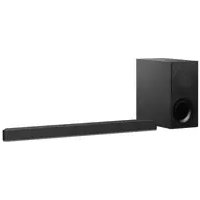
USER MANUAL HTX8500 SONY
- Sound Bar Operating Instructions HT-X8500 For the Sound Bar WARNING Do not install the Sound Bar in a confined space, such as a bookcase or built-in cabinet. To reduce the risk of fire, do not cover the ventilation opening of the Sound Bar with newspapers, tablecloths, curtains, etc. Do not expose the Sound Bar to naked flame sources (for example, lighted candles). To reduce the risk of fire or electric shock, do not expose this Sound Bar to dripping or splashing, and do not place objects filled with liquids, such as vases, on the Sound Bar. The AC adapter is not disconnected from the mains as long as it is connected to the AC outlet, even if the Sound Bar itself has been turned off. As the main plug of AC power adapter is used to disconnect the AC power adapter from the mains, connect it to an easily accessible AC outlet. Should you notice an abnormality in it, disconnect it from the AC outlet immediately. CAUTION Do not expose batteries or appliances with battery-installed to excessive heat, such as sunshine and fire. Indoor use only. Recommended cables Properly shielded and grounded cables and connectors must be used for connection to host computers and/or peripherals. 2GB The nameplate is located on the bottom of the Sound Bar. For the AC adapter Labels for AC adapter Model No. and Serial No. are located at the bottom of AC adapter. Disposal of old electrical & electronic equipment (applicable in the European Union and other countries with separate collection systems) For the customers in Australia or New Zealand It should be installed and operated with at least 20 cm and more between the radiator and person’s body (excluding extremities: hands, wrists, feet and ankles). This equipment has been tested and found to comply with the limits set out in the EMC regulation using a connection cable shorter than 3 meters. Using the Various Functions Table of Contents About These Operating Instructions p. 3
- What’s in the Box p. 4
- What You Can Do with the Sound Bar p. 5
- Guide to Parts and Controls p. 6
- Connecting to a TV or AV Device Connecting to a TV or AV Device with the HDMI Cable Startup Guide (separate document) Connecting Sony TV with the BLUETOOTH Function Wirelessly p. 12
- Connecting a 4K TV and 4K Devices p. 15
- Connecting a TV Compatible with eARC p. 16
- Mounting the Sound Bar on a Wall p. 17
- When the TV Remote Control does not Work p. 18
- Listening to the Sound Listening to a TV and Other Devices p. 19
- Enjoying the Surround Sound p. 20
- Adjusting the Sound p. 22
- Listening to Music/Sound with the BLUETOOTH® Function Using the Control for HDMI Function p. 27
- Using the “BRAVIA” Sync Function p. 29
- Saving Power Consumption p. 29
- Troubleshooting Troubleshooting p. 30
- Resetting the Sound Bar p. 35
- Additional Information Specifications p. 36
- Supported Input Audio Formats p. 37
- Supported HDMI Video Formats p. 38
- On BLUETOOTH Communication p. 40
- Precautions About These Operating Instructions p. 41
- The instructions in these Operating Instructions describe the controls on the remote control.
- Some illustrations are presented as conceptual drawings, and may be different from the actual products.
- The default settings are underlined on each feature description. Example: Vertical surround off Listening to Music from a Mobile Device .................................... 24 Changing the Settings of the BLUETOOTH Function ............ 26 3GB What’s in the Box
- AC power cord (mains lead) (1) – Australia/New Zealand models
- Sound Bar (1) – Other models
- R03 (size AAA) battery (2)
- HDMI cable (supports the specification equal to Premium High Speed HDMI Cable with Ethernet) (1)
- Operating Instructions What You Can Do with the Sound Bar The Sound Bar supports object-based audio formats such as Dolby Atmos and DTS:X as well as HDR video formats such as HDR10, HLG, and Dolby Vision. “Listening to a TV and Other Devices” (page 19) Blu-ray Disc™ player, cable box, satellite box, etc. Basic connection: Refer to “Startup Guide” (separate document). Other connections: See “Connecting to a TV or AV Device” (page 12). “Connecting Sony TV with the BLUETOOTH Function Wirelessly” (page 12) “Using the Control for HDMI Function” (page 27) “Using the “BRAVIA” Sync Function” (page 29) “Listening to Music from a Mobile Device” (page 24) 5GB Guide to Parts and Controls Details are omitted from the illustrations. Sound Bar Front Remote control sensor Point the remote control at the remote control sensor to operate the Sound Bar. (power) button Turns on the Sound Bar or sets it to standby mode.
(input select) button (page 19) BLUETOOTH button (page 24) +/– (volume) buttons 6GB Indicators A lighting or flashing of the indicators on the Sound Bar indicates the following state. Currently selected input Indicators Status Lights while TV input is selected. Lights while HDMI input is selected. Lights while BLUETOOTH input is selected. Light while the Sound Bar is connected to the TV with the BLUETOOTH function (TV input is selected). Sound format, surround effect Indicators/colors Status White Lights while the Dolby Atmos format is playing and the virtual surround processing is activated. White Lights while the DTS:X format is playing. Green Lights while the DTS format is playing and the sound effect setting is set to “DTS Virtual:X” (page 21). Orange Lights while the DTS:X format is playing and the sound effect setting is set to “DTS Virtual:X” (page 21). White Lights while the vertical surround function is set to on (page 20). Volume Indicators Status Indicate the volume level by the flashing indicators when adjusting the volume by pressing +/–. As the volume level is turned up, the flashing indicators increase (from left to right).
- Flash repeatedly while the sound is muted.
- Flash twice when the volume level is set to minimum. Flash twice when the volume level is set to maximum. 7GB Setting value for each function The changed setting for each function is indicated as the status of the indicators. The following status indicates the on/off setting for each function. For the status when the settings other than the on/off setting are changed, see the description for each function. Indicators Status
- Flash twice when the function is set to on (for the function other than the night/voice mode).
- Light for 2 seconds when the function is set to on (for the night/voice mode).
- Flash twice when the function is set to off (for the function other than the night/voice mode).
- Light for 2 seconds when the function is set to off (for the night/voice mode). 8GB Rear DC IN terminal TV IN (OPT) jack HDMI IN jack Peel the sticker when connecting the device to the HDMI IN jack. For specifications and notes on connections, see “Supported HDMI Video Formats” (page 38). “Supported Input Audio Formats” (page 37). For specifications and notes on connections, see “Supported HDMI Video Formats” (page 38). IR repeater (page 18) Transmits the remote signal of the TV remote control to the TV. HDMI OUT (TV eARC/ARC) jack Connect a TV that has an HDMI input jack with an HDMI cable. The Sound Bar is compatible with eARC and ARC. ARC is the function that sends TV sound to an AV device such as the Sound Bar from the TV’s HDMI jack. eARC is an extension of ARC and enables transmission of the object audio and multi-channel LPCM content that cannot be transmitted with ARC. For details of eARC, see “Connecting a TV Compatible with eARC” (page 16). For supported audio formats, see 9GB Remote Control Some buttons function differently depending on how long the button is pressed. The icons below indicate how long to press the button.
- : Press the button. : Press and hold the button for 5 seconds. INPUT (page 19) Selects the playback source. When you press INPUT once, the current input indicator flashes. Press INPUT again to select the device you want. Each time you press INPUT, the input changes cyclically as follows. TV input HDMI input BLUETOOTH input VERTICAL S. : Turns on/off the vertical surround function. (page 20) : Selects the sound effect setting. (page 21) AUTO SOUND : Selects AUTO SOUND for the sound mode. (page 20) : Turns on/off the AAC codec function. (page 26) VOICE : Turns on/off the voice mode. (page 22) : Turns on/off the Control for HDMI function. (page 27) (volume) +*/– Adjusts the volume. BASS (page 22) Adjusts the level of the bass tone. INDICATORS : Turns on/off the indicators on the Sound Bar. : Turns on/off the auto standby function. (page 29) GAME : Selects GAME for the sound mode. (page 20) : Selects the HDMI standby through setting. (page 28) 10GB SPORTS : Selects SPORTS for the sound mode. (page 20) : Turns on/off the eARC function. (page 27) A/V SYNC (page 23) Adjusts the delay between the picture and sound. (power) Turns on the Sound Bar or sets it to standby mode. CINEMA (page 20) Selects CINEMA for the sound mode. MUSIC (page 20) Selects MUSIC for the sound mode. NIGHT : Turns on/off the night mode. (page 22) : Turns on/off the BLUETOOTH standby mode. (page 26) DTS DIALOG (page 23) Adjusts the dialog volume while the DTS:X content is played back.
- The + and AUDIO buttons have a tactile dot. Use it as a guide during operation. Tip You can turn the indicators off by pressing INDICATORS. Even if the indicators are turned off by pressing INDICATORS, when you operate the Sound Bar, the indicators in relation to the operation light or flash. About the replacement of batteries for the remote control When the Sound Bar does not respond by operating with the remote control, replace two batteries with new batteries. Use R03 (size AAA) manganese batteries for replacement. (muting) Turns off the sound temporarily or turns on the sound. AUDIO* : Selects the audio channel for Dolby Digital multiplex broadcast. (page 22) : Turns on/off the Audio DRC function. (page 22) NEWS : Selects NEWS for the sound mode. (page 20) : Selects the HDMI signal format setting. (page 16) STANDARD : Selects STANDARD for the sound mode. (page 20) : Turns on/off the IR repeater function. (page 18) 11GB Connecting to a TV or AV Device Connecting to a TV or AV Device with the HDMI Cable To connect a 4K TV or 4K devices See “Connecting a 4K TV and 4K Devices” (page 15). To connect a TV compatible with eARC For the connection, refer to Startup Guide (separate document). For the settings, see “Connecting a TV Compatible with eARC” (page 16). Connecting Sony TV with the BLUETOOTH Function Wirelessly When using Sony TV* with the BLUETOOTH function, you can listen to sound of the TV or device that is connected to the TV by connecting the Sound Bar and TV wirelessly.
- The TV needs to be compatible with A2DP (Advanced Audio Distribution Profile). Blu-ray Disc player, cable box, satellite box, etc. To connect to a TV other than the above, refer to Startup Guide (separate document). Connecting the Sound Bar and TV Wirelessly To connect the Sound Bar and TV wirelessly, you need to perform pairing of the Sound Bar and TV by using the BLUETOOTH function. Pairing is the process required to mutually register the information on BLUETOOTH devices to be connected wirelessly in advance. 12GB
On the TV, search the Sound Bar by performing the pairing operation. The list of the BLUETOOTH devices that are searched appears on the TV screen. For the operation method to pair the BLUETOOTH device to the TV, refer to the operating instructions of the TV. Pair the Sound Bar and TV by selecting “HT-X8500” from the list on the TV screen. Make sure that the TV and BLUETOOTH indicators on the Sound Bar light. A connection between the Sound Bar and TV has been established. Insert batteries (supplied) into the remote control. Turn on the TV. Turn on the Sound Bar. Point the remote control at the remote control sensor on the Sound Bar, and press and hold the INPUT on the remote control and BLUETOOTH button on the Sound Bar simultaneously for 5 seconds. The TV and BLUETOOTH indicators flash twice, the Sound Bar enters the pairing mode, then the BLUETOOTH indicator flashes quickly. BLUETOOTH indicator
Select the program or input of the TV by using the TV remote control. The sound of the displayed image on the TV screen is output from the Sound Bar. Adjust the volume of the Sound Bar by using the TV remote control. When pressing the muting button on the TV remote control, the sound is muted temporarily. Notes
- If the TV sound is not output from the Sound Bar, press INPUT on the remote control of the Sound Bar repeatedly to Remote control sensor 13GB select the TV input and check the status of the indicators on the Sound Bar. – The TV and BLUETOOTH indicators light: The Sound Bar and TV are connected and TV sound is output from the Sound Bar. – The BLUETOOTH indicator flashes quickly: Perform pairing on the TV. – The TV indicator lights: Perform the connecting operation again from the start.
- When you connect the Sound Bar and TV with the HDMI cable (supplied), the BLUETOOTH connection is canceled. To connect the Sound Bar and TV with the BLUETOOTH function again, disconnect the HDMI cable, then perform the connecting operation from the start.
- To pair another TV after the first TV is paired, turn off the paired TV, then pair the new one by following the steps of mobile device connection (page 24). Listening to the Sound of the TV or Device that is Connected to the TV You can turn the Sound Bar on/off, adjust the volume, and mute the sound by using the TV remote control when connecting the TV to the Sound Bar wirelessly.
Turn the TV on with the TV remote control. The Sound Bar is turned on by interlocking with the TV power and TV sound is output from the Sound Bar. Select the program or input of the TV by using the TV remote control. The sound of the image displayed on the TV screen is output from the Sound Bar. 14GB
Adjust the volume of the Sound Bar by using the TV remote control. When pressing the mute button on the TV remote control, the sound is muted temporarily. Tip When the TV is turned off, the Sound Bar is also turned off by interlocking with the TV power. Connecting a 4K TV and 4K Devices All HDMI jacks on the Sound Bar support 4K video format, HDCP2.2, and HDCP2.3 (High-bandwidth Digital Content Protection System Revision 2.2 and 2.3). To watch 4K video content, connect the 4K TV and 4K devices to the Sound Bar via an HDCP2.2 or HDCP2.3-compatible HDMI jack on each device. You can only view 4K video content through the HDCP2.2 or HDCP2.3-compatible HDMI jack connection. HDMI cable (supplied) HDMI cable (not supplied) Use an HDMI cable which supports the 4K video format that you want to watch. For details, see “Supported HDMI Video Formats” (page 38). Optical digital cable (not supplied)
Check which HDMI IN jack on your TV is compatible with HDCP2.2 or HDCP2.3. Refer to the operating instructions of the TV. Connect the HDCP2.2 or HDCP2.3compatible HDMI IN jack on the TV and HDMI OUT (TV eARC/ARC) jack on the Sound Bar with the HDMI cable (supplied). If the HDCP2.2 or HDCP2.3compatible HDMI IN jack on the TV supports eARC or ARC, TV connection is complete. Go to step 4. The HDCP2.2 or HDCP2.3compatible HDMI IN jack on the TV does not support eARC or ARC, connect the optical digital output jack on the TV and the TV IN (OPT) jack on the Sound Bar with an optical digital cable (not supplied). When connecting the TV and Sound Bar with the HDMI cable (supplied) only, the TV sound is not output from the Sound Bar. Connect an optical digital cable (not supplied). TV connection is complete. Connect the HDCP2.2 or HDCP2.3compatible HDMI OUT jack of the 4K device and HDMI IN jack of the Sound Bar with an HDMI cable (not supplied). Refer to the operating instructions of the 4K device to check that the HDMI OUT jack of the 4K device is compatible with HDCP2.2 or HDCP2.3. 4K device connection is complete. Insert batteries into the remote control. 15GB
Turn on the TV. Turn on the Sound Bar. Tip 4K content can be watched by a device compatible with HDCP2.2 or HDCP2.3 even though devices with different versions (ex. TV compatible with HDCP2.2 and 4K device compatible with HDCP2.3) are connected. Setting the HDMI Signal Format to Watch 4K Video Content To watch 4K video content, select the appropriate setting for the connected 4K TV and 4K device. Press and hold NEWS for 5 seconds to select the HDMI signal format setting. Standard format Select when the connected TV and devices support standard bandwidth video formats. The Dolby ATMOS and DTS:X indicators flash. Enhanced format Select when both the connected TV and devices support high bandwidth video formats such as 4K 60p 4:4:4, etc. The HDMI and BLUETOOTH indicators flash. For the relation of the HDMI signal format setting, supported video format signals, and HDMI cables to be used, see “Supported HDMI Video Formats” (page 38). Connecting a TV Compatible with eARC The Sound Bar is compatible with eARC (Enhanced Audio Return Channel). eARC is a new function standardized by HDMI
2.1 and supports latest audio formats in
addition to audio formats that are supported with existing ARC (Audio Return Channel). You can enjoy object audio content such as Dolby Atmos - Dolby TrueHD and DTS:X, or multi-channel LPCM content that cannot be transmitted with ARC by connecting the Sound Bar and TV compatible with eARC using an HDMI cable. For the connection, refer to Startup Guide (separate document). Preparing to Use the eARC Function The default setting of the eARC function is on. If the eARC function is set to off, press and hold SPORTS for 5 seconds to set the eARC function to on (page 27). The eARC function is enabled and it works while connecting a TV compatible with eARC. The ARC function works while connecting a TV compatible with ARC (not compatible with eARC). Notes
- Depending on the TV, the TV setting for HDMI output may be required. Refer to the operating instructions of the TV.
- When the picture is not displayed after “Enhanced format” is set, set it to “Standard format.” 16GB Note When the eARC function is set to on, make sure to check the eARC setting of the connected TV. For details, refer to the operating instructions of the TV. Mounting the Sound Bar on a Wall
Prepare two screws (not supplied) that are suitable for the wall mount holes on the rear of the Sound Bar. You can mount the Sound Bar on a wall. 4 mm More than 30 mm
- Prepare screws (not supplied) that are suitable for the wall material and strength. As a plasterboard wall is especially fragile, attach the screws securely in the wall beam. Install the speakers horizontally, hung by screws in studs in a continuous flat section of the wall.
- Have the installation done by a Sony dealer or licensed contractor and pay special attention to safety during the installation.
- Sony shall not be held responsible for accidents or damage caused by improper installation, insufficient wall strength, improper screw installation or natural disaster, etc. Hole on the rear of the Sound Bar
Stick WALL MOUNT TEMPLATE (supplied) on a wall. Center of the TV Adhesive tape, etc. WALL MOUNT TEMPLATE
Align TV CENTER LINE () of WALL MOUNT TEMPLATE with the center line of your TV.
Align TV BOTTOM LINE () of WALL MOUNT TEMPLATE with the bottom of your TV, then stick WALL MOUNT TEMPLATE on a wall by using a commercially available adhesive tape, etc. 17GB
Fasten the screws into the marks () on SCREW LINE () of WALL MOUNT TEMPLATE as in the illustration below.
Screws Marks () When the TV Remote Control does not Work When the Sound Bar obstructs the remote control sensor of the TV, the TV remote control may not work. In that case, enable the IR repeater function of the Sound Bar. You can control the TV with the TV remote control by sending the remote signal from the rear of the Sound Bar. Press and hold STANDARD for 5 seconds to set the function to on or off. 10 mm to 11 mm IR repeater on The HDMI and BLUETOOTH indicators flash. IR repeater off The Dolby ATMOS and DTS:X indicators flash.
Notes Remove WALL MOUNT TEMPLATE. Hang the Sound Bar on the screws. Align the holes of the rear of the Sound Bar with the screws, then hang the Sound Bar on the two screws. Note When sticking WALL MOUNT TEMPLATE, smooth it out fully. 18GB
- Be sure to check that the TV remote control cannot control the TV, and then set the IR repeater function to on. If it is set to on when the remote control can control the TV, appropriate operation may not be obtained because of the interference between the direct command from the remote control and the command via the Sound Bar.
- If the IR repeater function is set to on, this function may not work depending on your TV. Also, the remote controls of other devices such as an air conditioner may not work correctly. In this case, change the installation position of the Sound Bar or TV. TV input
- TV that is connected to the TV IN (OPT) jack on the Sound Bar
- TV compatible with the eARC or ARC function that is connected to the HDMI OUT (TV eARC/ARC) jack on the Sound Bar When you connect the TV to both the HDMI OUT (TV eARC/ARC) and TV IN (OPT) jacks, the input of the HDMI OUT (TV eARC/ARC) jack has priority if the TV audio signal is input with the ARC or eARC function. Listening to the Sound Listening to a TV and Other Devices INPUT HDMI input Device that is connected to the HDMI IN jack on the Sound Bar BLUETOOTH input BLUETOOTH device that supports A2DP For details, see “Listening to Music/ Sound with the BLUETOOTH® Function” (page 24).
- Adjust the volume by pressing +/– on the remote control.
- Adjust the level of the bass tone by pressing BASS on the remote control (page 22). Tip Press INPUT repeatedly. When you press INPUT once, the current input indicator flashes. Press INPUT again to select the device you want. The indicator of the selected device lights up. Each time you press INPUT, the input changes cyclically as follows. TV input HDMI input BLUETOOTH input You can also select the input by pressing on the Sound Bar. 19GB Enjoying the Surround Sound Enjoying Immersive Surround Experience (VERTICAL S.) You can feel immersed by the sound from not only the horizontal direction, but also from the upward direction by using Vertical Surround Engine* effectively for sound modes (page 20) other than NEWS. This function also works for the 2.0 channel signal such as a TV program.
- Vertical Surround Engine is a highly precise digital sound field processing technology developed by Sony that produces the sound field in the height direction virtually in addition to a sound field in the horizontal direction by only using front speakers and without using top speakers. You do not need to install speakers on a ceiling and you can enjoy the sound with rich presence regardless of the ceiling height. Also, this function is hardly affected by the shape of a room because it does not use the sound reflected from a wall and enables improved surround playback. Press VERTICAL S. to set the function to on or off. Vertical surround on The VERTICAL S. indicator lights. Vertical surround off The VERTICAL S. indicator turns off. Notes
- The surround effect from all directions differs depending on the sound source.
- A time gap between the sound and picture may occur depending on the sound source. If your TV has a function that delays the image, use it for adjustment. Enjoying the Sound Mode that is Tailored to Sound Sources You can easily enjoy pre-programmed sound effects that are tailored to different kinds of sound sources. CINEMA MUSIC AUTO SOUND VERTICAL S. NEWS GAME STANDARD SPORTS 20GB Press the sound mode selecting button to select the sound mode. When selecting the sound mode, the Dolby ATMOS, DTS:X, and VERTICAL S. indicators light for 2 seconds. Selecting the Sound Effect Setting You can select sound effects. AUTO SOUND The appropriate sound setting is automatically selected for the sound source with ClearAudio+. CINEMA You feel immersed by the sound that travels behind you and surrounds your entire body. This mode is suitable for watching movies. MUSIC Vividness and glossiness of the sound are expressed in detail. This mode is suitable for enjoying music in a way that moves you. GAME You can immerse yourself in your game by reproducing the feeling of movement and distance of objects, as well as clearly hearing the dialog. NEWS Recreates the clear speech of newscasts. SPORTS You can experience an atmosphere as if you were watching an event in a stadium. However, narrations of commentators are reproduced vividly. STANDARD The sound of a TV program can be heard clearly. VERTICAL S. Press and hold VERTICAL S. for 5 seconds to select the sound effect setting. The sound effect setting changes cyclically as follows. Sound mode on Dolby Speaker Virtualizer DTS Virtual:X Sound effect off Sound mode on Vertical Surround Engine enhances the surround and height speaker channels to create an immersive and enveloping virtual surround effect such as sound mode (page 20) and vertical surround (page 20). The VERTICAL S. indicator lights for 2 seconds. Dolby Speaker Virtualizer Dolby Speaker Virtualizer enhances the surround and height speaker channels to create an immersive and enveloping virtual surround effect when you play Dolby format. Disables sound effects other than Dolby format. The Dolby ATMOS indicator lights for 2 seconds. DTS Virtual:X DTS Virtual:X is enabled. DTS Virtual:X Technology in the Sound Bar puts you in the middle of multi speaker. The DTS:X indicator lights for 2 seconds. Sound effect off Disables the sound effects. The Dolby ATMOS, DTS:X, and VERTICAL S. indicators flash 3 times. 21GB Adjusting the Sound You can adjust the sound with the buttons on the remote control. Function name Button Night mode Function You can enjoy clear sound with low volume at midnight.
- On: The HDMI and BLUETOOTH indicators light for 2 seconds.
- Off: The Dolby ATMOS and DTS:X indicators light for 2 seconds. Note When you turn the Sound Bar off, the night mode is set to off automatically. Voice mode You can make dialogs clearer.
- On: The HDMI and BLUETOOTH indicators light for 2 seconds.
- Off: The Dolby ATMOS and DTS:X indicators light for 2 seconds. Audio DRC You can compress dynamic range of the audio signal (range between the maximum and minimum volume) and sound with low volume is easy to hear. This function works only when playing the Dolby Digital or DTS signal. The setting changes cyclically in the order of Auto On Off.
- Auto: Automatically compresses sound encoded in Dolby TrueHD. The Dolby ATMOS, DTS:X, HDMI, and BLUETOOTH indicators flash.
- On: The HDMI and BLUETOOTH indicators flash.
- Off: The Dolby ATMOS and DTS:X indicators flash. Press and hold for 5 seconds Multiplex broadcast sound You can enjoy multiplex broadcast sound when the Sound Bar receives a Dolby Digital multiplex broadcast signal. The setting changes cyclically in the order of Main Sub Main/Sub.
- Main: The HDMI and BLUETOOTH indicators light for 2 seconds.
- Sub: The Dolby ATMOS and DTS:X indicators light for 2 seconds.
- Main/Sub: Main sound is output from the left speaker and sub sound is output from the right speaker. The Dolby ATMOS, DTS:X, HDMI, and BLUETOOTH indicators light for 2 seconds. Bass tone adjustment The level of the bass tone changes cyclically as follows. 0 +1 -1 0...
- 0 (Normal): The VERTICAL S. and TV indicators light for 2 seconds.
- +1 (Strong): The HDMI and BLUETOOTH indicators light for 2 seconds.
- -1 (Light): The Dolby ATMOS and DTS:X indicators light for 2 seconds. Note When the input source does not contain much bass sound, such as in TV programs, the bass sound from the subwoofer may be difficult to hear. 22GB Function name A/V Sync Button Function When the sound does not match the pictures on the TV screen, you can adjust the delay between the picture and sound.
- 0 msec: The Dolby ATMOS indicator lights for 2 seconds.
- 40 msec: The Dolby ATMOS and DTS:X indicators light for 2 seconds.
- 80 msec: The Dolby ATMOS, DTS:X, and VERTICAL S. indicators light for 2 seconds.
- 120 msec: The Dolby ATMOS, DTS:X, VERTICAL S., and TV indicators light for 2 seconds. Tips
- This function works only for the HDMI input.
- If your TV has a function that adjusts the delay between the picture and sound, use it for adjustment. For details, refer to the operating instructions of the TV. DTS dialog control You can easily listen to dialog since it stands out from the ambient noise by adjusting the dialog volume. This function works while playing content that is compatible with the DTS:X dialog control function.
- 0 dB: The Dolby ATMOS and BLUETOOTH indicators flash twice.
- 1 dB: The Dolby ATMOS indicator lights for 2 seconds.
- 2 dB: The Dolby ATMOS and DTS:X indicators light for 2 seconds.
- 3 dB: The Dolby ATMOS, DTS:X, and VERTICAL S. indicators light for 2 seconds.
- 4 dB: The Dolby ATMOS, DTS:X, VERTICAL S., and TV indicators light for 2 seconds.
- 5 dB: The Dolby ATMOS, DTS:X, VERTICAL S., TV, and HDMI indicators light for 2 seconds.
- 6 dB: All the indicators flash twice. Tip AUDIO does not work while the BLUETOOTH indicator is lit. 23GB BLUETOOTH indicator Listening to Music/Sound with the BLUETOOTH® Function Listening to Music from a Mobile Device You can listen to music stored on a mobile device such as a smartphone or tablet via a wireless connection by connecting the Sound Bar and the mobile device with the BLUETOOTH function. When connecting to the mobile device with the BLUETOOTH function, you can operate by simply using the supplied remote control without turning the TV on. BLUETOOTH button If pairing is not performed for 5 minutes after the Sound Bar enters the pairing mode, the pairing mode is canceled. In this case, perform pairing from the start.
Listening to Music by Pairing with a Mobile Device To listen to music of the mobile device with the BLUETOOTH function, you need to perform pairing of the Sound Bar and mobile device. Pairing is the process required to mutually register the information on BLUETOOTH devices to be connected wirelessly in advance.
Press and hold the BLUETOOTH button on the Sound Bar for 2 seconds. The Sound Bar enters the pairing mode and the BLUETOOTH indicator flashes quickly.
24GB On the mobile device, search the Sound Bar by performing the pairing operation. The list of the BLUETOOTH devices that are searched appears on the screen of the mobile device. For the operation method to pair the BLUETOOTH device to the mobile device, refer to the operating instructions of the mobile device. Pair the Sound Bar and mobile device by selecting “HT-X8500” from the list on the screen of the mobile device. If a Passkey is requested, enter “0000.” Make sure that the BLUETOOTH indicator on the Sound Bar lights in blue. A connection between the Sound Bar and mobile device has been established. Start audio playback with the music app on the connected mobile device. Sound is output from the Sound Bar. Adjust the volume.
- Adjust the volume by pressing +/– on the remote control.
- Adjust the level of the bass tone by pressing BASS on the remote control (page 22). Listening to Music from the Paired Mobile Device To check the connection status of the BLUETOOTH function INPUT Status BLUETOOTH indicator During pairing standby status Flashes quickly in blue Connection is being attempted Flashes in blue Connection has been established Lights in blue Not connected Lights at 2 second intervals The BLUETOOTH function is turned off Turns off
- You can pair the BLUETOOTH devices up to the following number. – Mobile devices: 9 – Sony TV with the BLUETOOTH function:
If a new device is paired after pairing the above number of devices, the least recent connected device will be replaced by the new one.
- Perform pairing for the second and subsequent mobile devices.
- You can check the connection status of the BLUETOOTH function by checking the BLUETOOTH indicator status.
- While the BLUETOOTH input is being selected, the Sound Bar enters the pairing mode by pressing the BLUETOOTH button on the Sound Bar shortly.
- While the BLUETOOTH input is not selecting, the Sound Bar automatically reconnects to the BLUETOOTH device it was most recently connected to by pressing the BLUETOOTH button on the Sound Bar shortly.
Turn the BLUETOOTH function of the mobile device on. Press INPUT repeatedly to select the BLUETOOTH input or press the BLUETOOTH button on the Sound Bar shortly. The BLUETOOTH indicator flashes and the Sound Bar automatically reconnects to the BLUETOOTH device it was most recently connected to. Make sure that the BLUETOOTH indicator lights in blue. A connection between the Sound Bar and mobile device has been established. Start audio playback with the music app on the connected mobile device. Sound is output from the Sound Bar. Adjust the volume.
- Adjust the volume by pressing +/– on the remote control.
- Adjust the level of the bass tone by pressing BASS on the remote control (page 22). 25GB Changing the Settings of the BLUETOOTH Function Turning the Sound Bar On by Operating the BLUETOOTH Device When the Sound Bar has pairing information, you can turn the Sound Bar on and listen to music from a BLUETOOTH device even when the Sound Bar is in standby mode by setting the BLUETOOTH standby mode to on. Press and hold NIGHT for 5 seconds to set the function to on or off. BLUETOOTH standby mode on The HDMI and BLUETOOTH indicators flash. BLUETOOTH standby mode off The Dolby ATMOS and DTS:X indicators flash. Note While the BLUETOOTH standby mode is on, standby power consumption increases. Enjoying the Sound of the BLUETOOTH Device with High Sound Quality You can enjoy high-quality sound if the AAC codec function is set to on and your device supports AAC. Press and hold AUTO SOUND for 5 seconds to set the function to on or off. AAC codec on The HDMI and BLUETOOTH indicators flash. AAC codec off The Dolby ATMOS and DTS:X indicators flash. 26GB Turning the BLUETOOTH Function Off You can turn the BLUETOOTH function off. Press and hold (power), (input), and – (volume) on the Sound Bar for more than 10 seconds. BLUETOOTH function on The HDMI and BLUETOOTH indicators flash. BLUETOOTH function off The Dolby ATMOS and DTS:X indicators flash. Note When the BLUETOOTH function is set to off, the BLUETOOTH input is skipped while selecting input by pressing INPUT. Using the Various Functions Using the Control for HDMI Function Connecting a device such as a TV or Bluray Disc player compatible with the Control for HDMI function* using an HDMI cable enables you to easily operate the device by using a TV or Bluray Disc player remote control. Note These functions may work with devices other than those manufactured by Sony, but operation is not guaranteed.
- Control for HDMI is a standard used by CEC (Consumer Electronics Control) for allowing HDMI (High-Definition Multimedia Interface) devices to control each other. Preparing to Use the Control for HDMI Function Press and hold VOICE for 5 seconds to set the function to on or off. Control for HDMI function on The HDMI and BLUETOOTH indicators flash. Control for HDMI function off The Dolby ATMOS and DTS:X indicators flash. Enable the Control for HDMI function settings for the following devices after setting the Control for HDMI function of the Sound Bar to on by performing the operation above.
- TV or AV device connected to the Sound Bar
- AV device connected to the TV manufactured by Sony, the Control for HDMI function of the Sound Bar is also enabled automatically. System Power Off Function When you turn off the TV, the Sound Bar will turn off automatically. System Audio Control Function If you turn on the Sound Bar while you are watching the TV, the TV sound will be output from the speakers of the Sound Bar. The volume of the Sound Bar can be adjusted using the TV remote control. When you turn on the TV, the Sound Bar is turned on automatically and the TV sound is output from the speakers of the Sound Bar. Operations can also be made by the TV’s menu. For details, refer to the operating instructions of your TV. Notes
- The number for the Sound Bar’s volume level is displayed on the TV screen depending on the TV.
- Depending on the settings of the TV, the System Audio Control function may not be available. For details, refer to the operating instructions of your TV.
- Depending on the TV, if the TV sound was output from the speakers of the TV the previous time you watched the TV, the Sound Bar may not turn on by interlocking with the TV power even if the TV is turned on. eARC/ARC (Enhanced Audio Return Channel/Audio Return Channel) Tip If you enable the Control for HDMI (“BRAVIA” sync) function when using a TV If the Sound Bar is connected to a TV’s HDMI IN jack compatible with eARC or 27GB ARC, you can listen to TV sound from the speakers of the Sound Bar without connecting an optical digital cable. Press and hold SPORTS for 5 seconds to set the function to on or off. eARC function on The HDMI and BLUETOOTH indicators flash. eARC function off The Dolby ATMOS and DTS:X indicators flash. Notes
- Enable the eARC or ARC function of the TV. For details, refer to the operating instructions of the TV.
- If the TV is not compatible with eARC or ARC, an optical digital cable (not supplied) needs to be connected (refer to the supplied Startup Guide). One-Touch Play Function When you play content on a device (Bluray Disc player, “PlayStation®4,” etc.) connected to the Sound Bar, the Sound Bar and TV are turned on automatically, the input of the Sound Bar is switched to TV input, and sound is output from the speakers of the Sound Bar. Notes
- If the TV sound was output from the speakers of the TV the previous time you watched the TV, the Sound Bar does not turn on and the sound and picture are output from the TV even if device content is played.
- Depending on the TV, the beginning part of content being played may not play correctly. HDMI Standby Through Power Saving Setting HDMI Standby Through power saving setting is a function that allows you to enjoy the sound and picture of a connected device without turning on the Sound Bar. Press and hold GAME for 5 seconds to select the HDMI standby through setting. The HDMI standby through setting changes cyclically as follows. Auto On Off Auto Signals are output from the HDMI OUT (TV eARC/ARC) jack of the Sound Bar when the TV is turned on while the Sound Bar is not turned on. The standby power consumption of the Sound Bar can be reduced more than when set to “On” by turning off the connected TV. The Dolby ATMOS, DTS:X, HDMI, and BLUETOOTH indicators flash. Signals are always output from the HDMI OUT (TV eARC/ARC) jack of the Sound Bar when the Sound Bar is not turned on. If you connect a TV other than those manufactured by Sony, we recommend that you select this setting. The HDMI and BLUETOOTH indicators flash. Off Signals are not output from the HDMI OUT (TV eARC/ARC) jack of the Sound Bar when the Sound Bar is not turned on. Turn on the Sound Bar to enjoy on the TV content of a device connected to the Sound Bar. The standby power consumption of the Sound Bar can be reduced more than when set to on. The Dolby ATMOS and DTS:X indicators flash. Note If the picture of a device connected to the Sound Bar is not displayed on the TV, set the HDMI standby through setting to on. If you connect a TV other than those manufactured by Sony, we recommend you to select this setting. 28GB Using the “BRAVIA” Sync Function Saving Power Consumption In addition to the Control for HDMI function, you can also use the “BRAVIA” sync function such as the Sound mode/ Scene Select function. To use the Sound Bar while saving power consumption, change the following settings. Note This function is proprietary function of Sony. This function cannot operate with products other than those manufactured by Sony. Sound mode/Scene Select Function The sound mode of the Sound Bar is automatically switched according to the setting of the TV’s Scene Select function or sound mode. For details, refer to the operating instructions of your TV. Set the sound mode to AUTO SOUND (page 20). Turn the Sound Bar Off by Detecting the Using State When you set the auto standby function to on, the Sound Bar enters standby mode automatically when you do not operate the Sound Bar for about 20 minutes and the Sound Bar is not receiving an input signal. Press and hold INDICATORS for 5 seconds to set the function to on or off. Auto standby on The HDMI and BLUETOOTH indicators flash. Auto standby off The Dolby ATMOS and DTS:X indicators flash. Saving Power in Standby Mode To save power consumption during the standby mode, check that you have made the following settings: – BLUETOOTH standby mode is set to off (page 26). (The default setting is on.) – Control for HDMI function is set to off (page 27). (The default setting is on.) – HDMI standby through setting is set to off (page 28). (The default setting is auto.) 29GB The Sound Bar turns off when the TV is turned off. Troubleshooting Troubleshooting If you experience any of the following difficulties while using the Sound Bar, use this troubleshooting guide to help remedy the problem before requesting repairs. Should any problem persist, consult your nearest Sony dealer. Power The Sound Bar does not power up. Check that the AC power cord (mains lead) and AC adapter are connected securely. Disconnect the AC power cord (mains lead) from the wall outlet (mains), and then reconnect after several minutes. The Sound Bar is turned off automatically. The auto standby function is working. Set the auto standby function to off (page 29). The Sound Bar does not turn on even when the TV is turned on. Set the Control for HDMI function to on (page 27). The TV must support the Control for HDMI function. For details, refer to the operating instructions of your TV. Check the speaker settings of the TV. The Sound Bar power syncs with the speaker settings of the TV. For details, refer to the operating instructions of your TV. Depending on the TV, if the sound was output from the speakers of the TV the previous time, the Sound Bar may not turn on by interlocking with the TV power even when the TV is turned on. 30GB Check the setting of the Control for HDMI function (page 27). When the Control for HDMI function is set to on and the input of the Sound Bar is the TV or HDMI input, the Sound Bar turns off automatically when you turn off the TV. The Sound Bar does not turn off even when the TV is turned off. Check the setting of the Control for HDMI function (page 27). To turn the Sound Bar off automatically by interlocking with the TV power, set the Control for HDMI function to on (page 27). This function works only if the input of the Sound Bar is the TV or HDMI input. The TV must support the Control for HDMI function. For details, refer to the operating instructions of your TV. The Sound Bar cannot be turned off. The Sound Bar may be in demo mode. To cancel demo mode, reset the Sound Bar. Press and hold (power) and – (volume) on the Sound Bar for more than 5 seconds (page 35). Picture There is no picture or the picture is not output correctly. Select the appropriate input (page 19). When there is no picture while the TV input is selected, select the TV channel that you want using the TV remote control. When there is no picture while the HDMI input is selected, press the playback button of the connected device. Disconnect the HDMI cable, then connect it again. Make sure that the cable is firmly inserted. When there is no picture from the connected device or the picture from the connected device is not output correctly, set the HDMI signal format function to “Standard format” (page 16). If no picture appears while connecting the device with the HDMI cable, make sure that the device is connected to the HDMI IN jack and the TV is connected to the HDMI OUT (TV eARC/ARC) jack. The Sound Bar is connected to an input device that is not HDCP (Highbandwidth Digital Content Protection) compliant. In this case, check the specifications of the connected device. 3D content from the HDMI IN jack does not appear on the TV screen. Depending on the TV or video device, 3D content may not appear. Check the supported HDMI video format (page 38). 4K video content from the HDMI IN jack does not appear on the TV screen. Depending on the TV or the video device, 4K video content may not appear. Check the video capability and settings of your TV and video device. The picture may not be displayed properly if the HDMI signal format setting is changed. In this case, change the setting to “Standard format” (page 16). Use a Premium High Speed HDMI Cable with Ethernet that supports 18Gbps or High Speed HDMI Cable with Ethernet (page 38). If the Sound Bar is connected to the HDMI jack that is not compatible with HDCP2.2 or HDCP2.3, the HDMI indicator on the Sound Bar flashes. Connect to the HDMI jack compatible with HDCP2.2 or HDCP2.3 of the 4K TV or 4K device. An image is not displayed on the entire TV screen. The aspect ratio on the media is fixed. Picture and sound of the device that is connected to the Sound Bar are not output from the TV when the Sound Bar is not turned on. Set the HDMI standby through setting to on (page 28). Turn on the Sound Bar, and then switch the input for the device playing. HDR contents cannot show as highdynamic range. Check the settings of the TV and connected device. For details, refer to the operating instructions of your TV and the connected device. Some devices may convert HDR contents to SDR if the bandwidth is not enough. In that case, set the HDMI signal format setting to “Enhanced format” if the TV and the connected device support a bandwidth of up to 18Gbps (page 16). When you select “Enhanced format,” be sure to use a Premium High Speed HDMI Cable with Ethernet that supports 18Gbps (page 38). Sound The Sound Bar cannot connect to a TV with the BLUETOOTH function. When you connect the Sound Bar and TV with the HDMI cable (supplied), the BLUETOOTH connection is canceled. Disconnect the HDMI cable, then perform the connecting operation from the start (page 12). No TV sound is output from the Sound Bar. Check the type and connection of the HDMI cable or optical digital cable that is connected to the Sound Bar and the TV (refer to the supplied Startup Guide). Disconnect the cables that are connected between the TV and the Sound Bar, then connect them firmly again. Disconnect the AC power cords (mains leads) of the TV and the Sound 31GB
Bar from the AC outlets (mains), then connect them again. When the Sound Bar and TV are connected with the HDMI cable only, check the following. – The HDMI jack of the connected TV is labeled with “eARC” or “ARC.” – The Control for HDMI function of the TV is set to on. – The eARC or ARC function of the TV is enabled. – The eARC function of the Sound Bar is enabled (page 27). – On the Sound Bar, the Control for HDMI function is set to on (page 27). If your TV is not compatible with eARC, set the eARC function to off (page 27). If your TV is not compatible with eARC or ARC, connect an optical digital cable (not supplied) (refer to the supplied Startup Guide). If the TV is not compatible with eARC or ARC, TV sound will not be output from the Sound Bar even if the Sound Bar is connected to the TV’s HDMI IN jack. Press INPUT repeatedly to select the TV input (page 19). Increase the volume on the Sound Bar or cancel muting. If sound of a cable box/satellite box connected to the TV is not output, connect the device to a HDMI IN jack of the Sound Bar and switch input of the Sound Bar to HDMI (refer to the supplied Startup Guide). Depending on the order in which you turn on the TV and Sound Bar, the Sound Bar may be muted and the Dolby ATMOS and BLUETOOTH indicators flash slowly. If this happens, turn on the TV first, then the Sound Bar. Set the speakers setting of the TV (BRAVIA) to Audio System. Refer to the operating instructions of your TV regarding how to set the TV. 32GB Picture and sound of the device that is connected to the Sound Bar are not output from the TV when the Sound Bar is not turned on. Set the HDMI standby through setting to on (page 28). Turn on the Sound Bar, and then switch the input for the device playing. The sound is output from both the Sound Bar and TV. Mute the sound of the Sound Bar or TV. The output sound of the Sound Bar is not the same level as that of the TV even though the values of the volume level on the Sound Bar and TV are set to the same value. If the Control for HDMI function is set to on, the value of the volume level on the Sound Bar may appear on your TV as the TV volume. The output sound levels of the Sound Bar and TV differ even though the values of the volume level on the Sound Bar and TV are set to the same value. The output sound levels of the Sound Bar and TV differ depending on the sound processing characteristics of each, and it is not a malfunction. The sound is interrupted while watching a TV program or content on a Blu-ray Disc, etc. Check the sound mode setting (page 20). If the sound mode is set to AUTO SOUND, the sound may be interrupted when the sound mode is changed automatically according to the information of the program that is being played. If you do not want to change the sound mode automatically, set the sound mode to a setting other than AUTO SOUND. The TV sound from the Sound Bar lags behind the image. Set the adjustment value of the delay between the picture and sound to 0 msec if it is set to the range between 40 msec and 120 msec (page 23). A time gap between the sound and picture may occur depending on the sound source. If your TV has a function that delays the image, use it for adjustment. No sound or only a very low-level sound of the device connected to the Sound Bar is heard. Press + on the remote control and check the volume level (page 10). Press or + on the remote control to cancel the muting function (page 10). Make sure the input source is selected correctly. You should try other input sources by pressing INPUT repeatedly (page 19). Check that all the cables and cords of the Sound Bar and connected device are firmly inserted. When you play content compatible with copyright protection technology (HDCP), it may not be output from the Sound Bar. Set the HDMI signal format function to “Standard format” (page 16). The surround effect cannot be obtained. Depending on the input signal and the sound mode setting, surround sound processing may not work effectively. The surround effect may be subtle, depending on the program or disc. To play multi-channel audio, check the digital audio output setting on the device connected to the Sound Bar. For details, refer to the operating instructions supplied with the connected device. Subwoofer No sound or only a very low-level sound is heard from the subwoofer. Press BASS repeatedly to adjust the level of the bass tone (page 22). The subwoofer is designed for playback of bass or low frequency sound. If the input sources contain very little bass sound components (i.e., a TV broadcast), the sound from the subwoofer may be difficult to hear. Play the built-in demonstration music by following the steps below and check that the sound is output from the subwoofer. Press and hold on the Sound Bar for 3 seconds. The built-in demonstration music is played. Press again. The built-in demonstration music is canceled and the Sound Bar returns to the previous status. Set the night mode to off. For details, see “Night mode” (page 22). Mobile Device Connection Pairing cannot be achieved. Bring the Sound Bar and the BLUETOOTH device closer together. Make sure the Sound Bar is not receiving interference from a wireless LAN device, other 2.4 GHz wireless devices, or a microwave oven. If a device that generates electromagnetic radiation is nearby, move the device away from the Sound Bar. BLUETOOTH connection cannot be completed. Make sure that the BLUETOOTH indicator on the Sound Bar is lit (page 25). Make sure the BLUETOOTH device to be connected with is turned on and the BLUETOOTH function is enabled. 33GB Bring the Sound Bar and the BLUETOOTH device closer together. Pair the Sound Bar and BLUETOOTH device again. You may need to cancel the pairing with the Sound Bar using your BLUETOOTH device first. Pairing information may be deleted. Perform pairing operation again (page 24). Sound of the connected BLUETOOTH mobile device is not output from the Sound Bar. Make sure that the BLUETOOTH indicator on the Sound Bar is lit (page 25). Bring the Sound Bar and the BLUETOOTH device closer together. If a device that generates electromagnetic radiation, such as a wireless LAN device, other BLUETOOTH devices, or a microwave oven is nearby, move the device away from the Sound Bar. Remove any obstacle between the Sound Bar and the BLUETOOTH device or move the Sound Bar away from the obstacle. Reposition the connected BLUETOOTH device. Switch the wireless LAN frequency of any nearby wireless LAN router or PC to 5 GHz range. Increase the volume on the connected BLUETOOTH device. Remote Control The remote control of the Sound Bar does not function. Point the remote control at the remote control sensor on the Sound Bar (page 6). Remove any obstacles in the path between the remote control and the Sound Bar. Replace both batteries in the remote control with new ones, if they are weak. 34GB Make sure you are pressing the correct button on the remote control. TV remote control does not work. This problem might be solved by enabling the IR repeater function (page 18). Others The Control for HDMI function does not work properly. Check the connection with the Sound Bar (refer to the supplied Startup Guide). Enable the Control for HDMI function on the TV. For details, refer to the operating instructions of your TV. Wait a while, and then try again. If you unplug the Sound Bar, it will take a while before operations can be made. Wait for 15 seconds or longer, and then try again. Make sure the devices connected to the Sound Bar support the Control for HDMI function. Enable the Control for HDMI function on the devices connected to the Sound Bar. For details, refer to the operating instructions of your device. The type and number of devices that can be controlled by the Control for HDMI function is restricted by the HDMI CEC standard as follows: – Recording devices (Blu-ray Disc recorder, DVD recorder, etc.): up to 3 devices – Playback devices (Blu-ray Disc player, DVD player, etc.): up to 3 devices – Tuner-related devices: up to 4 devices – Audio system (receiver/ headphones): up to 1 device (used by the Sound Bar) All the indicators flash quickly and the Sound Bar is turned off. Disconnect the AC power cord (mains lead) and make sure nothing is obstructing the ventilation holes of the Sound Bar. Sensors of the TV do not work properly. The Sound Bar may block some sensors (such as the brightness sensor), the remote control receiver of your TV or the emitter for 3D glasses (infrared transmission) of a 3D TV that supports the infrared 3D glass system, or wireless communication. Move the Sound Bar away from the TV within a range that allow those parts to operate properly. For the locations of the sensors and remote control receiver, refer to the operating instructions supplied with the TV. Resetting the Sound Bar If the Sound Bar still does not operate properly, reset the Sound Bar as follows.
Wireless function (the BLUETOOTH function) is unstable. Do not place metal objects other than a TV around the Sound Bar. Music that you are not familiar with suddenly plays. Press and hold – (volume) and (power) on the Sound Bar for more than 5 seconds. All the indicators on the Sound Bar flash 4 times and the settings return to their initial status. Disconnect the AC power cord (mains lead). Connect the AC power cord (mains lead), then press to turn on the Sound Bar. Tip The default settings are underlined on each feature description. The pre-installed sample music may have been played. Press on the Sound Bar to stop playback. The Sound Bar does not work properly. The Sound Bar may be in demo mode. To cancel demo mode, reset the Sound Bar. Press and hold – (volume) and (power) on the Sound Bar for more than 5 seconds (page 35). 35GB Additional Information
Amplifier section POWER OUTPUT (rated) Front L + Front R: 32 W + 32 W (at 6 ohms, 1 kHz, 1% THD) Subwoofer: 64 W (at 3 ohms, 100 Hz, 1% THD) POWER OUTPUT (reference) Front L/Front R speaker: 50 W (per channel at 6 ohms, 1 kHz) Subwoofer: 100 W (at 3 ohms, 100 Hz) Inputs TV IN (OPT) HDMI IN Output HDMI OUT (TV eARC/ARC) BLUETOOTH section Communication system BLUETOOTH Specification version 5.0 Output BLUETOOTH Specification Power Class 1 Maximum communication range Line of sight approx. 25 m1) Frequency band
Modulation method FHSS (Freq Hopping Spread Spectrum) Compatible BLUETOOTH profiles2) A2DP (Advanced Audio Distribution Profile) AVRCP (Audio Video Remote Control Profile) Supported Codecs3) SBC4), AAC5) Transmission range (A2DP) 20 Hz - 20,000 Hz (Sampling frequency 32 kHz, 44.1 kHz, 48 kHz)
factors such as obstacles between devices, magnetic fields around a 36GB
microwave oven, static electricity, cordless phone use, reception sensitivity, the operating system, software applications, etc. BLUETOOTH standard profiles indicate the purpose of BLUETOOTH communication between devices. Codec: Audio signal compression and conversion format Abbreviation for Subband Codec Abbreviation for Advanced Audio Coding Speaker section Speaker system 2-Way 4 Speaker System, Bass reflex Speaker Front L/Front R speaker: 52 mm × 90 mm cone type Subwoofer: 52 mm × 90 mm cone type General Power requirements DC 24 V (using the supplied AC adapter connected to AC 100 V - 240 V, 50 Hz/ 60Hz power supply) Power consumption On: 32 W Standby mode: 0.5 W or less (Power Saving mode) (When Control for HDMI function and BLUETOOTH Standby mode are set to off) Standby mode: 2 W or less* (When Control for HDMI function and BLUETOOTH Standby mode are set to on)
- The Sound Bar will automatically enter Power saving mode when there is no HDMI connection and no BLUETOOTH pairing history. Dimensions* (approx.) (w/h/d) 890 mm × 64 mm × 96 mm
- Not including projection portion Mass (approx.)
Design and specifications are subject to change without notice. Supported Input Audio Formats Audio formats supported by the Sound Bar are as follows. Format Function “HDMI” “TV” (eARC) “TV” (ARC) “TV” (OPT) LPCM 2ch
: Supported format. –: Unsupported format. 37GB Supported HDMI Video Formats Video formats supported by the Sound Bar are as follows. Resolution Frame Rate
8/10/12 bit RGB 4:4:4 : Compatible with 3D signal in Side-by-Side (Half) format : Compatible with 3D signal in Frame packing and Over-Under (Top-and-Bottom) format
Use a Premium High Speed HDMI Cable with Ethernet that supports 18Gbps. Use a Premium High Speed HDMI Cable with Ethernet or Sony High Speed HDMI Cable with Ethernet with the Cable Type Logo. Notes on HDMI Jack and HDMI Connections
- Use an HDMI-authorized cable.
- We do not recommend using an HDMI-DVI conversion cable.
- Audio signals (sampling frequency, bit length, etc.) transmitted from an HDMI jack may be suppressed by the connected device.
- Sound may be interrupted when the sampling frequency or the number of channels of audio output signals from the playback device is switched.
- When the TV input is selected, video signals via the HDMI IN jack selected last time are output from the HDMI OUT (TV eARC/ARC) jack.
- The Sound Bar supports “TRILUMINOS.” 38GB
- All HDMI IN and HDMI OUT (TV eARC/ARC) jacks support bandwidth up to 18Gbps, HDCP2.2 and HDCP2.31), BT.2020 wide color spaces2), and HDR (High Dynamic Range)3) contents pass-through.
HDCP2.2 and HDCP2.3 are newly enhanced copyright protection technology that is used to protect content such as 4K movies. BT.2020 color space is new wider color standard that is defined for ultra-high definition television systems. HDR is an emerging video format that can display a wider range of brightness levels. The Sound Bar is compatible with HDR10, HLG (Hybrid Log-Gamma), and Dolby Vision. 39GB On BLUETOOTH Communication
- BLUETOOTH devices should be used within approximately 10 meters (33 feet) (unobstructed distance) of each other. The effective communication range may become shorter under the following conditions. – When a person, metal object, wall or other obstruction is between the devices with a BLUETOOTH connection – Locations where a wireless LAN is installed – Around microwave ovens that are in use – Locations where other electromagnetic waves occur
- BLUETOOTH devices and wireless LAN (IEEE 802.11b/g/n) use the same frequency band (2.4 GHz). When using your BLUETOOTH device near a device with wireless LAN capability, electromagnetic interference may occur. This could result in lower data transfer rates, noise, or inability to connect. If this happens, try the following remedies: – Use this Sound Bar at least 10 meters (33 feet) away from the wireless LAN device. – Turn off the power to the wireless LAN device when using your BLUETOOTH device within 10 meters (33 feet). – Install this Sound Bar and BLUETOOTH device as closer to each other as possible.
- The radio waves broadcast by this Sound Bar may interfere with the operation of some medical devices. Since this interference may result in malfunction, always turn off the power on this Sound Bar and BLUETOOTH device in the following locations: 40GB – In hospitals, on trains, in airplanes, at gas stations, and any place where flammable gasses may be present – Near automatic doors or fire alarms
- This Sound Bar supports security functions that comply with the BLUETOOTH specification to ensure secure connection during communication using BLUETOOTH technology. However, this security may be insufficient depending on the setting contents and other factors, so always be careful when performing communication using BLUETOOTH technology.
- Sony cannot be held liable in any way for damages or other loss resulting from information leaks during communication using BLUETOOTH technology.
- BLUETOOTH communication is not necessarily guaranteed with all BLUETOOTH devices that have the same profile as this Sound Bar.
- BLUETOOTH devices connected with this Sound Bar must comply with the BLUETOOTH specification prescribed by the Bluetooth SIG, Inc., and must be certified to comply. However, even when a device complies with the BLUETOOTH specification, there may be cases where the characteristics or specifications of the BLUETOOTH device make it impossible to connect, or may result in different control methods, display or operation.
- Noise may occur or the audio may cut off depending on the BLUETOOTH device connected with this Sound Bar, the communications environment, or surrounding conditions. If you have any questions or problems concerning your Sound Bar, please consult your nearest Sony dealer. Precautions On safety
- Should any solid object or liquid fall into the Sound Bar, unplug the Sound Bar and have it checked by qualified personnel before operating it any further.
- Do not climb on the Sound Bar, as you may fall down and injure yourself, or Sound Bar damage may result. On power sources
- Before operating the Sound Bar, check that the operating voltage is identical to your local power supply. The operating voltage is indicated on the nameplate on the bottom of the Sound Bar.
- If you are not going to use the Sound Bar for a long time, be sure to disconnect the Sound Bar from the wall outlet (mains). To disconnect the AC power cord (mains lead), grasp the plug itself; never pull the cord.
- One blade of the plug is wider than the other for the purpose of safety and will fit into the wall outlet (mains) only one way. If you are unable to insert the plug fully into the outlet, contact your dealer.
- AC power cord (mains lead) must be changed only at a qualified service shop. On heat buildup Although the Sound Bar heats up during operation, this is not a malfunction. If you continuously use this Sound Bar at high volume, the Sound Bar temperature at the rear and bottom rises considerably. To avoid burning yourself, do not touch the Sound Bar. sunlight, excessive dust, or mechanical shock.
- Do not place anything on the top of the Sound Bar.
- If the Sound Bar is being used in combination with a TV, VCR, or tape deck, noise may result and picture quality may suffer. In such a case, place the Sound Bar away from the TV, VCR, or tape deck.
- Use caution when placing the Sound Bar on a surface that has been specially treated (with wax, oil, polish, etc.), as staining or discoloration of the surface may result.
- Take care to avoid any possible injury from the corners of the Sound Bar. On operation Before connecting other equipment, be sure to turn off and unplug the Sound Bar. If you encounter color irregularity on a nearby TV screen Color irregularities may be observed on certain types of TV.
- If color irregularity is observed... Turn off the TV, then turn it on again after 15 to 30 minutes.
- If color irregularity is observed again... Place the Sound Bar further away from the TV. On cleaning Clean the Sound Bar with a soft, dry cloth. Do not use any type of abrasive pad, scouring powder, or solvent such as alcohol or benzine. If you have any question or problem concerning your Sound Bar, please consult your nearest Sony dealer. On placement
- Place the Sound Bar in a location with adequate ventilation to prevent heat buildup and prolong the life of the Sound Bar.
- Do not place the Sound Bar near heat sources or in a place subject to direct 41GB Copyrights and Trademarks This Sound Bar incorporates Dolby* Digital and the DTS** Digital Surround System.
- Manufactured under license from Dolby Laboratories. Dolby, Dolby Audio, Dolby Atmos, Dolby Vision, and the double-D symbol are trademarks of Dolby Laboratories. **For DTS patents, see https:// patents.dts.com. Manufactured under license from DTS, Inc. DTS, the Symbol, DTS and the Symbol together, DTS:X, Virtual:X, the DTS:X logo, and the DTS Virtual:X logo are registered trademarks or trademarks of DTS, Inc. in the United States and/or other countries. © DTS, Inc. All Rights Reserved. The BLUETOOTH® word mark and logos are registered trademarks owned by Bluetooth SIG, Inc. and any use of such marks by Sony Corporation is under license. Other trademarks and trade names are those of their respective owners. The terms HDMI, HDMI High-Definition Multimedia Interface, and the HDMI Logo are trademarks or registered trademarks of HDMI Licensing Administrator, Inc. “BRAVIA” logo is a trademark of Sony Corporation. “PlayStation” is a registered trademark or trademark of Sony Interactive Entertainment Inc. MPEG Layer-3 audio coding technology and patents licensed from Fraunhofer IIS and Thomson. Windows Media is either a registered trademark or trademark of Microsoft Corporation in the United States and/or other countries. This product is protected by certain intellectual property rights of Microsoft Corporation. Use or distribution of such technology outside of this product is 42GB prohibited without a license from Microsoft or an authorized Microsoft subsidiary. “TRILUMINOS” and “TRILUMINOS” logo are a registered trademark of Sony Corporation. All other trademarks are trademarks of their respective owners. FreeRTOS Kernel V10.0.1 Copyright (C) 2017 Amazon.com, Inc. or its affiliates. All Rights Reserved. Permission is hereby granted, free of charge, to any person obtaining a copy of this software and associated documentation files (the “Software”), to deal in the Software without restriction, including without limitation the rights to use, copy, modify, merge, publish, distribute, sublicense, and/or sell copies of the Software, and to permit persons to whom the Software is furnished to do so, subject to the following conditions: The above copyright notice and this permission notice shall be included in all copies or substantial portions of the Software. THE SOFTWARE IS PROVIDED “AS IS”, WITHOUT WARRANTY OF ANY KIND,