
SLC700ES - Turntable TECHNICS - Free user manual and instructions
Find the device manual for free SLC700ES TECHNICS in PDF.


| Product type | Audio CD player |
| Brand | Technics |
| Model | SL-C700 (SLC700ES) |
| Dimensions (W × H × D) | 340 mm × 78 mm × 295 mm |
| Weight | Approx. 5.2 kg |
| Power supply | 120 V AC, 60 Hz |
| Power consumption | 10 W (standby: 0.5 W) |
| Compatible discs | CD, CD-R/RW (CD-DA, MP3, WMA) |
| Audio outputs | Analog (LINE OUT), Optical and coaxial digital |
| Network / control | System port (CONTROL) for connection with SU-C700/ST-C700 |
| High-resolution remastering function | Bandwidth extension and coding depth for high-quality sound |
| Master clock | High precision to drive digital circuits |
| D/A converter | Parallel with independent L/R channels |
| Signal-to-noise ratio | 117 dB (IHF-A) |
| Frequency response | 2 Hz – 20 kHz (−0.5 dB) |
| Dynamic range | 100 dB (IHF-A) |
| Remote control | Not supplied, compatible with SU-C700/ST-C700 remote control |
| Maintenance | Clean with a soft, dry cloth; do not use solvents |
| Safety | Do not expose to water or objects filled with liquid; unplug during thunderstorms |
| Repairability | Repair by a qualified technician only; 2-year warranty (parts and labor) |
| Included accessories | Power cord, system connection cable, coaxial digital cable |
Frequently Asked Questions - SLC700ES TECHNICS
User questions about SLC700ES TECHNICS
0 question about this device. Answer the ones you know or ask your own.
Ask a new question about this device
Download the instructions for your Turntable in PDF format for free! Find your manual SLC700ES - TECHNICS and take your electronic device back in hand. On this page are published all the documents necessary for the use of your device. SLC700ES by TECHNICS.
USER MANUAL SLC700ES TECHNICS
Music is borderless and timeless,
touching people's hearts across cultures and generations.
Each day the discovery of a truly emotive experience
from an unencountered sound awaits.
Let us take you on your journey to rediscover music.
Thank you for purchasing this product.
Please read these instructions carefully before using this product, and save this manual for future use.
If you have any questions, visit:
U.S.A.: www.panasonic.com/support
Canada: www.panasonic.ca/english/support
Register online at www.panasonic.com/register (U.S. customers only)
Features of this unit
This unit offers the following features:
High Res Re-master
The High Res Re-master function enables high-precision expansion of bandwidth and bit depth for high-quality sound reproduction from music CDs and other compressed sources.
High Precision Master Clock
A high-precision master clock, generated by very precise crystals, drives all the digital circuits, ensuring accurate reproduction.
High Quality Analog Circuit
Equipped with an L/R independent high-precision parallel DAC that eliminates channel interference and reproduces a rich sound field.
Recommended devices
We recommend using Technics devices (optional) for superior audio quality.
| Product name | Model number |
| Speaker System | SB-C700 |
| Network Audio Player | ST-C700 |
| Stereo Integrated Amplifier | SU-C700 |
IMPORTANT SAFETY INSTRUCTIONS
Read these operating instructions carefully before using the unit. Follow the safety instructions on the unit and the applicable safety instructions listed below. Keep these operating instructions handy for future reference.
1 Read these instructions.
2 Keep these instructions.
3 Heed all warnings.
4 Follow all instructions.
5 Do not use this apparatus near water.
6 Clean only with dry cloth.
7 Do not block any ventilation openings. Install in accordance with the manufacturer's instructions.
8 Do not install near any heat sources such as radiators, heat registers, stoves, or other apparatus (including amplifiers) that produce heat.
9 Do not defeat the safety purpose of the polarized or grounding-type plug. A polarized plug has two blades with one wider than the other. A grounding-type plug has two blades and a third grounding prong. The wide blade or the third prong are provided for your safety. If the provided plug does not fit into your outlet, consult an electrician for replacement of the obsolete outlet.
10 Protect the power cord from being walked on or pinched particularly at plugs, convenience receptacles, and the point where they exit from the apparatus.
11 Only use attachments/accessories specified by the manufacturer.
12 Use only with the cart, stand, tripod, bracket, or table specified by the manufacturer, or sold with the apparatus. When a cart is used, use caution when moving the cart/apparatus combination to avoid injury from tip-over.
13 Unplug this apparatus during lightning storms or when unused for long periods of time.
14 Refer all servicing to qualified service personnel. Servicing is required when the apparatus has been damaged in any way, such as power-supply cord or plug is damaged, liquid has been spilled or objects have fallen into the apparatus, the apparatus has been exposed to rain or moisture, does not operate normally, or has been dropped.
WARNING
Unit
- To reduce the risk of fire, electric shock or product damage,
- Do not expose this unit to rain, moisture, dripping or splashing.
- Do not place objects filled with liquids, such as vases, on this unit.
- Use only the recommended accessories.
- Do not remove covers.
- Do not repair this unit by yourself. Refer servicing to qualified service personnel.
- Do not let metal objects fall inside this unit.
- Do not place heavy items on this unit.
AC power supply cord
- The power plug is the disconnecting device.
Install this unit so that the power plug can be unplugged from the socket outlet immediately.
CAUTION
Unit
- This unit utilizes a laser. Use of controls or adjustments or performance of procedures other than those specified herein may result in hazardous radiation exposure.
- Do not place sources of naked flames, such as lighted candles, on this unit.
- This unit may receive radio interference caused by mobile telephones during use. If such interference occurs, please increase separation between this unit and the mobile telephone.
Placement
- Place this unit on an even surface.
-
To reduce the risk of fire, electric shock or product damage,
-
Do not install or place this unit in a bookcase, built-in cabinet or in another confined space. Ensure this unit is well ventilated.
- Do not obstruct this unit's ventilation openings with newspapers, tablecloths, curtains, and similar items.
- Do not expose this unit to direct sunlight, high temperatures, high humidity, and excessive vibration.
- Keep your speakers at least 10mm(^13 / _32^ ) away from the system for proper ventilation.
- Do not lift or carry this unit by holding any of its levers. Doing so may cause this unit to fall, resulting in personal injury or malfunction of this unit.
MPEG Layer-3 audio coding technology licensed from Fraunhofer IIS and Thomson.
Windows Media and the Windows logo are trademarks or registered trademarks of Microsoft Corporation in the United States and/or other countries.
This product is protected by certain intellectual property rights of Microsoft Corporation and third parties. Use or distribution of such technology outside of this product is prohibited without a license from Microsoft or an authorized Microsoft subsidiary and third parties.

CAUTION :
CAUTION
RISK OF ELECTRIC SHOCK DO NOT OPEN

TO REDUCE THE RISK OF ELECTRIC SHOCK,DO NOT REMOVE SCREWS. NO USER-SERVICEABLE PARTS INSIDE. REFER SERVICING TO QUALIFIED SERVICE PERSONNEL.

The lightning flash with arrowhead symbol, within an equilateral triangle, is intended to alert the user to the presence of uninsulated "dangerous voltage" within the product's enclosure that may be of sufficient magnitude to constitute a risk of electric shock to persons.
The exclamation point within an equilateral triangle is intended to alert the user to the presence of important operating and maintenance (servicing) instructions in the literature accompanying the appliance.
Conforms to UL STD 60065.
Certified to CAN/CSA STD C22.2 No.60065.
Product Identification Marking is located on the rear panel of the unit.
THE FOLLOWING APPLIES ONLY IN THE U.S.A.
FCC Note:
This equipment has been tested and found to comply with the limits for a Class B digital device, pursuant to Part 15 of the FCC Rules. These limits are designed to provide reasonable protection against harmful interference in a residential installation. This equipment generates, uses, and can radiate radio frequency energy and, if not installed and used in accordance with the instructions, may cause harmful interference to radio communications.
However, there is no guarantee that interference will not occur in a particular installation. If this equipment does cause harmful interference to radio or television reception, which can be determined by turning the equipment off and on, the user is encouraged to try to correct the interference by one or more of the following measures:
- Reorient or relocate the receiving antenna
- Increase the separation between the equipment and receiver.
- Connect the equipment into an outlet on a circuit different from that to which the receiver is connected.
- Consult the dealer or an experienced radio/TV technician for help.
FCC Caution: To assure continued compliance, follow the attached installation instructions and use only shielded interface cables when connecting to peripheral devices.
Any changes or modifications not expressly approved by the party responsible for compliance could void the user's authority to operate this equipment.
This device complies with Part 15 of the FCC Rules.
Operation is subject to the following two conditions:
(1) This device may not cause harmful interference, and
(2) this device must accept any interference received, including interference that may cause undesired operation.
Responsible Party:
Panasonic Corporation of North America
Two Riverfront Plaza, Newark, NJ 07102-5490
Support Contact: http://www.panasonic.com/contactinfo
THE FOLLOWING APPLIES ONLY IN CANADA
CANICES-3(B)/NMB-3(B)
Table of contents
IMPORTANT SAFETY INSTRUCTIONS 5
Accessories 6
Unit care 6
Control reference guide. 7
Getting started 9
Playing back CDs 11
Others 14
Notes on CDs. 17
Troubleshooting 17
Specifications 19
Limited Warranty (ONLY FOR U.S.A.) 20
Limited Warranty (ONLY FOR CANADA) 21
About descriptions in this Owner's Manual
Pages to be referred to are indicated as
- The illustrations shown may differ from your unit.
Accessories
1 AC power supply cord
(K2CB2YY00098)
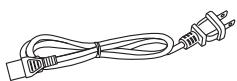
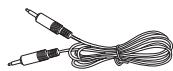
1 System connection cable
(K2KYYYYY00233)
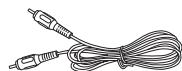
1 Coaxial digital cable
(K2KYYYYY00251)
(ONLY FOR CANADA)
The enclosed Canadian French label sheet corresponds to the English display on the unit.

- Product numbers provided in this Owner's Manual are correct as of March 2015. These may be subject to change.
- Do not use AC power supply cord with other equipment.
Unit care
Pull out the AC power supply cord from the outlet before maintenance. Clean this unit with a soft cloth.
- When dirt is heavy, wring a wet cloth tightly to wipe the dirt, and then wipe it with a soft cloth.
- Do not use solvents including benzine, thinner, alcohol, kitchen detergent, a chemical wiper, etc. This might cause the exterior case to be deformed or the coating to come off.
Control reference guide
This unit
Front

(1) Power switch lever
Turn on/off this unit.
- The remote control does not operate when the power switch lever is in the lowered position.
② Remote control signal sensor
Distance: Within approx. 7 m (23 ft) directly in front
Angle: Approx. 30^ left and right
- A remote control is not supplied with this unit. Use the remote control supplied with the SU-C700/ST-C700 to control this unit.
③ Display
(4) Basic control switches
These switches work just by touching the marks. Each time you touch the switch, there will be a beep sound. ( 14)
⑤ Disc tray
Rear
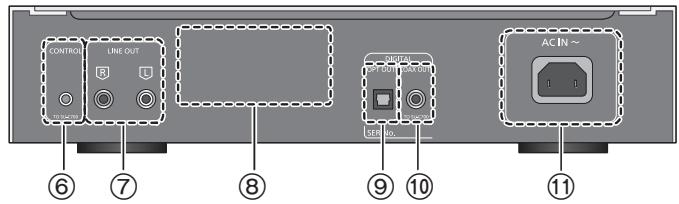
⑥ System terminal [CONTROL] (⇒ 9)
⑦ Analog audio output terminal [LINE OUT] (⇒ 10)
Product identification marking The model number is indicated.
⑨ Digital audio output terminal [OPT OUT] ( 10)
Digital audio output terminal [COAX OUT] ( 9)
⑪ AC IN terminal [AC IN ~] (⇒ 10)
Remote control (supplied with the SU-C700/ST-C700)
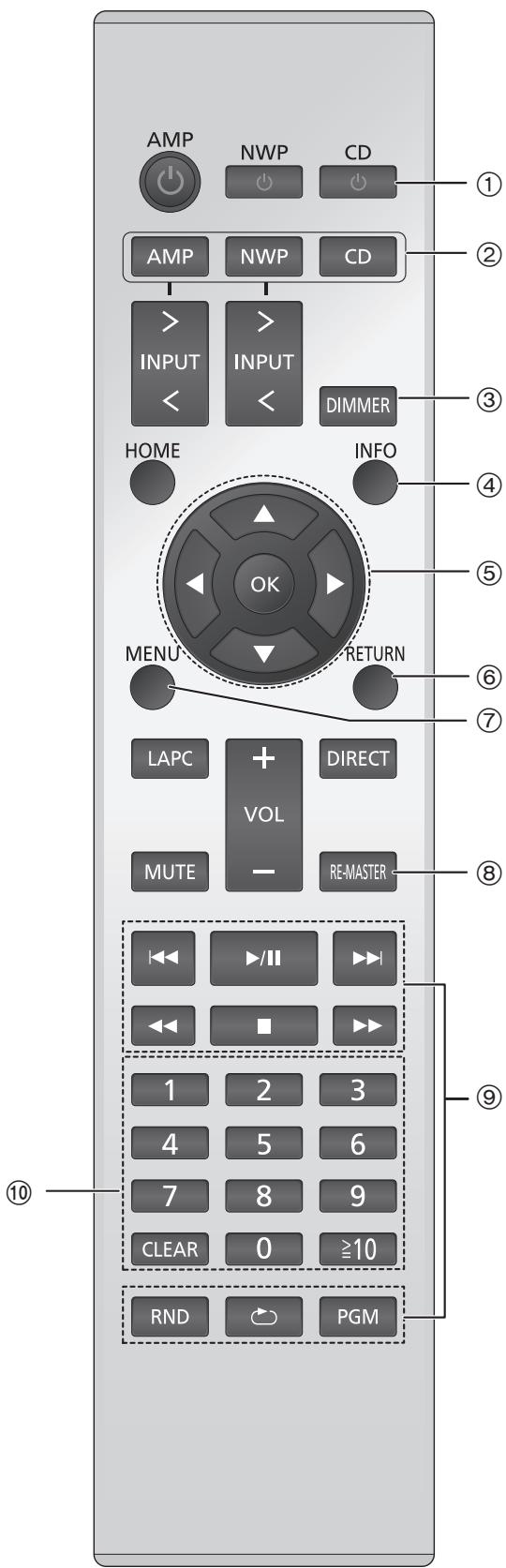
Use the remote control supplied with the SU-C700/ST-C700 to control this unit.
For information on the operations of the SU-C700/ST-C700, please also refer to their operating instructions.
① [CD]: Standby/on switch
Press to switch the unit from on to standby mode or vice versa. In standby mode, the unit is still consuming a small amount of power.
- The remote control does not operate when the power switch lever is in the lowered position.
② [AMP]/[NWP]/[CD]: Select the device to be operated
(3) [DIMMER]: Adjust the brightness of the display, etc. (⇒ 14)
(4) [INFO]: View content information
⑤ [▲,▼,▲,▶]/[OK]: Selection/OK
(6) [RETURN]: Return to the previous display
(7) [MENU]: Enter menu (⇒ 13, 14, 15, 16, 17)
[RE-MASTER]: Turn on/off Re-master (⇒ 15)
⑨ Basic playback control buttons
⑩ Numeric buttons, etc.
To select a 2-digit number
Example:
16: [ ≥ 10 ] [ 1 ] [ 6 ]
To select a 3-digit number
Example:
124: [≥10] → [≥10] → [1] → [2] → [4]
- [CLEAR]: Clear the entered value.
Getting started
- Turn off all equipment before connection and read the appropriate operating instructions.
- Do not connect the AC power supply cord until all other connections are complete.
- Fully insert the cable plug into the pin jack to assure a good connection.
- Do not bend cables at sharp angles.
System control connection to an SU-C700
- You can output digital audio signals from this unit and play back music.
- You can automatically link this unit with the SU-C700 and operate them easily with the remote control. ( 16)
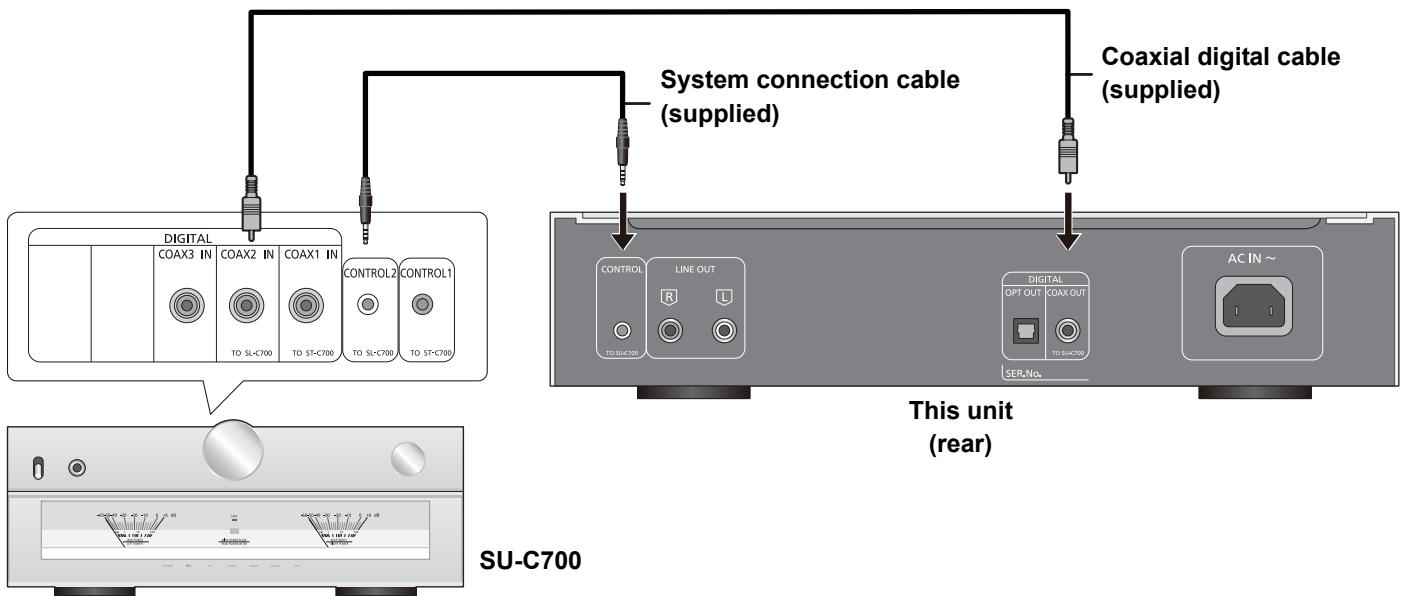

- Do not use any other system connection cables or coaxial digital cables except the supplied one.
- Connect the system connection cable to the system terminal [CONTROL2] of the SU-C700.
- Connect the coaxial digital cable to the digital audio input terminal [COAX2 IN] of the SU-C700.
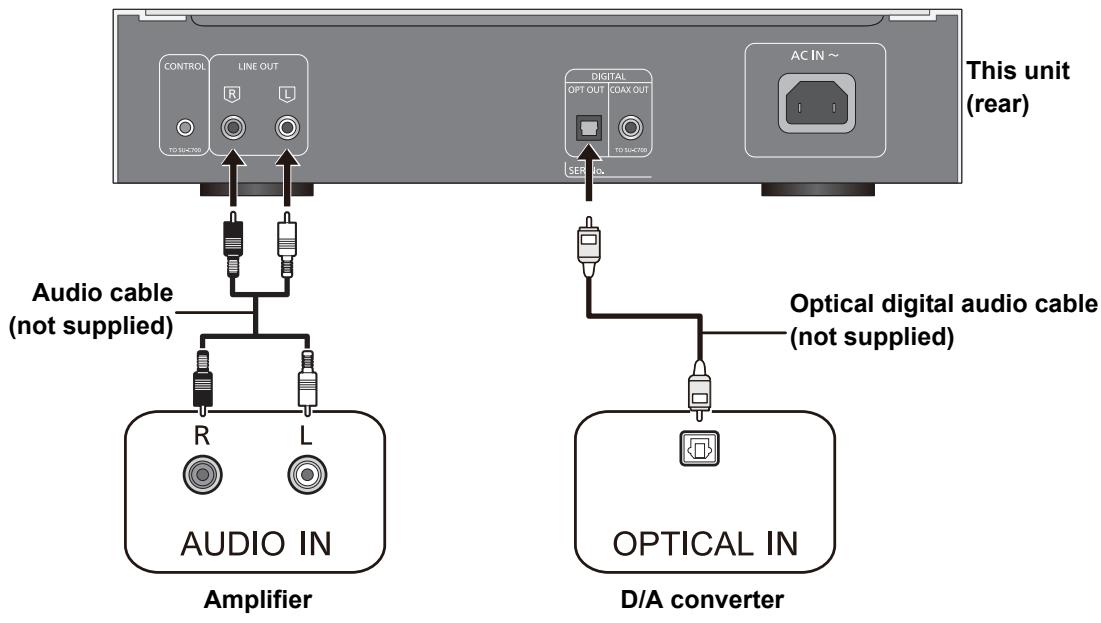
Connecting to an amplifier and a D/A converter
You can output analog or digital audio signals from this unit and play back music.
e.g.,
AC power supply cord connection
Connect only after all other connections are completed.
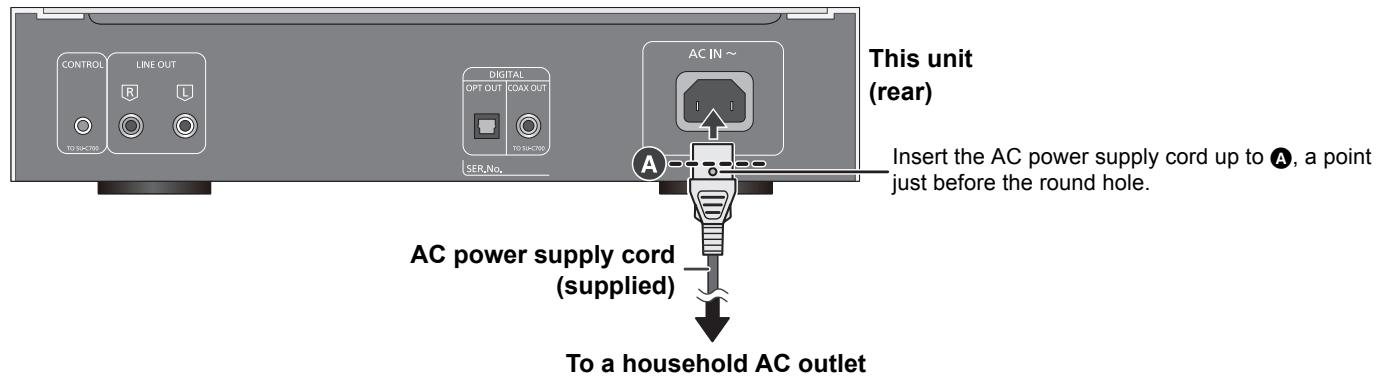

- This unit consumes a small amount of AC power ( 19) even the power switch lever is in the [OFF] position. Remove the plug from the main electrical outlet if you will not be using the unit for an extended period of time. Place the unit so the plug can be easily removed.
Playing back CDs
Refer to "Notes on CDs" (⇒ 17) for information about the discs this unit can play back.
Preparation
- Turn on the connected device (amplifier, etc.) and lower its volume.
1 Raise the power switch lever of this unit to the [0 / 1] position.
2 Touch [▲] on the unit to open the disc tray and insert a CD.
Place label up in the proper position in the middle of the disc tray.
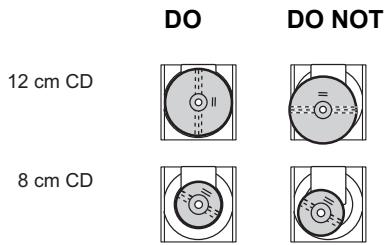
Touch [▲] again to close the disc tray.
3 Touch [▶/■].
Adjust the volume of the connected device. (amplifier, etc.)
Operations during playback
| Stop | Touch [■]. • When using the SU-C700/ST-C700 remote control, press [CD] first, and then press [■]. |
| Pause | Touch [▷/■]. • Touch again to restart play. • When using the SU-C700/ST-C700 remote control, press [CD] first, and then press [▷/■]. |
| Skip | Touch [◇←] or [▷→] to skip track. • When using the SU-C700/ST-C700 remote control, press [CD] first, and then press [◇←] or [▷→]. |
| Search | During play or pause, touch and hold [◇←] or [▷→]. • When using the SU-C700/ST-C700 remote control, press [CD] first, and then press and hold either [◇←] or [▷→]. |
Random repeat playback
① Touch [MENU] repeatedly to select "Random".
② Touch [I▲, ▷] to select an item and then touch [▶/■].
| On | All tracks are repeated randomly. ●“RND ➔ ” is displayed. |
| Off | Turns off random repeat mode. |

- When using the SU-C700/ST-C700 remote control, press [CD] first, and then press [RND]. (Press again to turn off random repeat mode.)
-
Random repeat mode also turns off:
-
When the disc tray is opened.
- When the unit is turned to standby or off mode.
- When the auto off function ( 14) works.
Repeat playback
① Touch [MENU] repeatedly to select "Repeat".
② Touch [▶,▶] to select an item and then touch [▶/■].
| 1 Track | Only plays the selected track. ●“1” is displayed. |
| All Tracks | All tracks are repeated. ●“→” is displayed. |
| Off | Turns off repeat mode. |

- When using the SU-C700/ST-C700 remote control, press [CD] first, and then press []. (Press again to turn off repeat mode.)
-
Repeat mode also turns off:
-
When the disc tray is opened.
- When the unit is turned to standby or off mode.
- When the auto off function ( 14) works.
Viewing information such as the remaining playback time
- Only available from the SU-C700/ST-C700 remote control:
1 Press [CD].
2 Press [INFO] while playing back or paused.
The information displayed changes each time you press the button.
For CD-DA:
The display changes as follows; elapsed play time of the track, remaining time for the track, and remaining time on the entire disc (or entire program).
For MP3/WMA:
The display changes as follows; file name, folder name, title name, artist name, album name, format, etc.
Program playback
This function allows you to program up to 25 tracks.
- Only available from the SU-C700/ST-C700 remote control:
1 Press [PGM] in the stop mode.
- "PGM" screen will be displayed.
2 Select tracks
For CD-DA:
Press the numeric buttons
For MP3/WMA:
Select folders/files ( 13)
- Repeat this step to make further selections.
3 Press [▶/■] to start playback.
Operations on the remote control
| Stop | Press [■]. • Programmed content is maintained. |
| Check the programmed order | Press [←▲] or [▶▷] in the stop mode. |
| Add tracks | Do steps 2 through 3 in the stop mode. |
| Clear the last track | Press [CLEAR] in the stop mode. • It is not possible to select and clear the desired programmed track. |
| Cancel program mode | Press [PGM] in the stop mode. “PGM” disappears. (Programmed content is maintained) |

The program memory will be cleared:
- When the disc tray is opened.
- When the unit is turned to standby or off mode.
- When the auto off function ( 14) works.
- Program play settings are not possible while playing back a CD.
- Random repeat playback is not possible during program playback.
- You can also cancel program mode by operating the touch panel on this unit.
① Touch [MENU] repeatedly to select "Play Mode".
② Touch [▶,▶] to select the item and then touch [▶/■].
Selecting folders and files for MP3/WMA CDs
For MP3/WMA CDs, files (MP3/WMA files) may be organized in a hierarchy, with folders containing files and sub folders, as shown below.
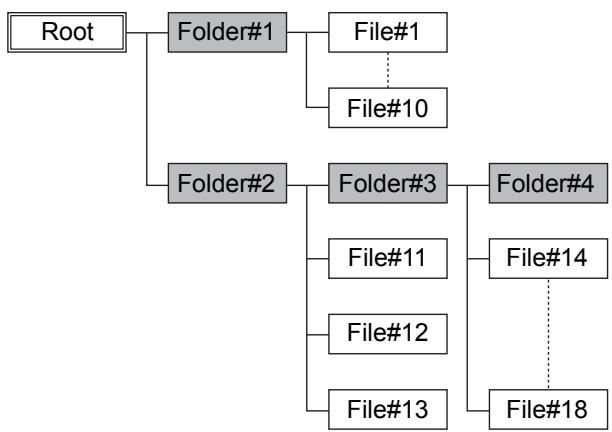
If you don't select a specific MP3/WMA file or folder for playback, all of the MP3/WMA files on the CD will be played in numerical order starting with file #1.
Selecting files in folder mode
In folder mode, all folders containing files are shown as the same level, so you can select files without worrying about the structure of the folders. Select while the disc is stopped.
Operation with the touch panel on the unit:
① Touch [MENU] repeatedly to select "Folder" and then touch [▶/■].
- The first folder is displayed. ("Root" is displayed if it is the root folder.)
② Touch [1], [2].
- Another folder name is displayed.
③ Touch [▶/■] so that you can select the files in that folder.
-
Touch [▶,▶] to display the files in the folder.
-
Touch [■] to enable selection of a different folder and select different files.
④ Touch [▶/■].
-
Playback starts for the displayed folder or file.
-
Touch [■] to stop playback.
Operation with the SU-C700/ST-C700 remote control:
① Press [CD].
② Press [MENU].
③ Press [▲,▼] repeatedly to select "Folder" and then press [OK].
- The first folder is displayed. ("Root" is displayed if it is the root folder.)
④ Press [▲,▼] or [▲,▶],
- Another folder name is displayed.
⑤ Press [▶] or [OK] so that you can select the files in that folder.
(6) The first file name in the folder is displayed.
- Press [, ] or [||, ] to display the files in the folder.
- Press [<] or [RETURN] to enable selection of a different folder and select different files.
⑦ Press [▶/■] or [OK].
- Playback starts for the displayed folder or file.
- To cancel the procedure at any point, press the [■]
Selecting the playback mode
All: Plays back all tracks on the CD.
1 Folder: Plays back the tracks in a folder.
Operation with the touch panel on the unit:
① Touch [MENU] repeatedly to select "Play Mode".
② Touch [▶,▶] to select the item and then touch [▶/■].
Operation with the SU-C700/ST-C700 remote control:
① Press [CD].
(2) Press [MENU].
③ Press [▲,▼] repeatedly to select "Play Mode".
④ Press [▲, ▲] to select the item and then press [OK].
Others
Display brightness
The brightness of this unit's display and the basic control switches can be changed.
Operation with the touch panel on the unit:
1 Touch [MENU] repeatedly to select "Dimmer".
2 Touch [I, ] to select an item and then touch [I].

- When using the SU-C700/ST-C700 remote control, press [DIMMER] to select the brightness.
- When the display is turned off, it will light up only when you operate this unit. Before the display turns off again, "Display Off" will be displayed for a few seconds.
Operation sound setting
You can turn the beep sound on/off.
The factory default is "On".
Operation with the touch panel on the unit:
1 Touch [MENU] repeatedly to select "Setup" and then touch [ / 口]
2 Touch [MENU] repeatedly to select "Beep".
3 Touch [▶,▶] to select an item and then touch [▶/■].
4 Touch [■] twice after you have finished setting.
Operation with the SU-C700/ST-C700 remote control:
1 Press [CD].
2 Press [MENU].
3 Press [, ] repeatedly to select "Setup" and then press [OK].
4 Press [, ] repeatedly to select "Beep".
5 Press [<, >] to select "On"/"Off" and then press [OK].
6 Press [MENU] after you have finished setting.
Auto off function
This unit is designed to conserve its power consumption and save energy. The unit will turn to standby mode automatically if there is no sound and it is not being used for approximately 20 minutes.
The factory default is "On".
To cancel this function
Operation with the touch panel on the unit:
1 Touch [MENU] repeatedly to select "Setup" and then touch [ / 口]
2 Touch [MENU] repeatedly to select "AUTO OFF".
3 Touch [▶,▶] to select an item and then touch [▶/■].
4 Touch [■] twice after you have finished setting.
Operation with the SU-C700/ST-C700 remote control:
1 Press [CD].
2 Press [MENU].
3 Press [, ] repeatedly to select "Setup" and then press [OK].
4 Press [, ] repeatedly to select "AUTO OFF".
5 Press [<, >] to select "Off" and then press [OK].
- To enable the output again, select "On".
6 Press [MENU] after you have finished setting.

- The auto off function works unless you turn it off, even if you turn off and on this unit.
CD EXTRA
Make settings to play back CD EXTRA discs.
Audio : Plays back CD-DA data.
MP3/WMA : Plays back MP3/WMA data.
The factory default is "Audio".
Operation with the touch panel on the unit:
1 Touch [MENU] repeatedly to select "Setup" and then touch [ / 口]
2 Touch [MENU] repeatedly to select "CD EXTRA".
3 Touch [|, ] to select an item and then touch [ / ] .
Operation with the SU-C700/ST-C700 remote control:
1 Press [CD].
2 Press [MENU].
3 Press [, ] repeatedly to select "Setup" and then press [OK].
4 Press [, ] repeatedly to select "CD EXTRA".
5 Press [<, >] to select an item and then press [OK].
Listening to more natural-sounding audio (Re-master)
Re-mastering expands the playback band and achieves a higher bit depth to reproduce natural and expansive sound close to original music.
The factory default is "Off".
Operation with the touch panel on the unit:
1 Touch [MENU] repeatedly to select "RE-MASTER".
2 Touch [I, to select an item and then touch [I].
Operation with the SU-C700/ST-C700 remote control:
1 Press [CD].
2 Press [RE-MASTER] to select "On"/"Off".

- This function works for both the analog and digital audio outputs.
Setting the upper limit for the sampling frequency during digital output
You can set the upper limit for the sampling frequency for signals output from the digital audio output terminal when [RE-MASTER] is "On". The sampling frequencies you can transmit depend on the device you have connected. Refer to the operating instructions for the device you have connected for details.
The factory default is "176.4kHz".
- We recommend that you select "176.4kHz" when you have connected this unit and SU-C700 as a system. ( 9)
Operation with the touch panel on the unit:
1 Touch [MENU] repeatedly to select “Setup” and then touch [ / 口] .
2 Touch [MENU] repeatedly to select "Digital Output".
3 Touch [, ] to select an item and then touch [ / ] .
4 Touch [■] twice after you have finished setting.
Operation with the SU-C700/ST-C700 remote control:
1 Press [CD].
2 Press [MENU].
3 Press [, ] repeatedly to select "Setup" and then press [OK].
4 Press [, ] repeatedly to select "Digital Output".
5 Press [<, >] to select an item and then press [OK].
- You can select a sampling frequency of 44.1kHz or 176.4kHz .
6 Press [MENU] after you have finished setting.

- Depending on the music source that you play back, the applied setting may be less effective.
- Depending on the music source that you play back, it may not be possible to achieve the desired audio quality and sound field effect. In such cases, turn off this function.
- It may take some time to output audio when you have adjusted the audio quality.
- This has no effect on analog audio output.
- Sound may not be output when you set to 176.4kHz , depending on the device you have connected. Set to 44.1kHz if this occurs. ([RE-MASTER] will be disabled.)
Remote control code
When other equipment responds to the supplied remote control, change the remote control code.
- The factory default is "Mode 1".
- Only available from the SU-C700/ST-C700 remote control: Point the remote control at this unit, and press and hold [OK] and the numeric button for at least 4 seconds.
- When the remote control code is changed, the new code will appear on the display for a few seconds.
| [OK] + [1] | Set the code to “Mode 1” |
| [OK] + [2] | Set the code to “Mode 2” |

- When the SU-C700/ST-C700 is connected via the system control function, change its remote control code as well as the remote control code for this unit.
Language
Select English or French for the display.
The factory default is "English".
Operation with the touch panel on the unit:
1 Touch [MENU] repeatedly to select "Setup" and then touch [ / 口]
2 Touch [MENU] repeatedly to select "Language".
3 Touch [I, ] to select "English"/"Français" and then touch [▶/■].
4 Touch [■] twice after you have finished setting.
Operation with the SU-C700/ST-C700 remote control:
1 Press [CD].
2 Press [MENU].
3 Press [, ] repeatedly to select "Setup" and then press [OK].
4 Press [, ] repeatedly to select "Language".
5 Press [▲, ▲] to select "English"/"François" and then press [OK].
6 Press [MENU] after you have finished setting.
Using the system control function
You can automatically link this unit with SU-C700 to operate them.
Preparation
① Connect this unit and the SU-C700 with a system connection cable and a coaxial digital cable. (⇒ 9)
(2) Set the power switch lever of this unit and the SU-C700 to the [O/I] position.
Switching this unit and the SU-C700 to on/standby simultaneously
- When this unit and SU-C700 are in standby mode, while pointing the SU-C700/ST-C700 remote control at this unit, press [CD Ⓞ] so that this unit and SU-C700 switch on automatically.
Switching the SU-C700's input source automatically
When you perform an operation such as playback on this unit, the input source of the SU-C700 will be automatically switched to "COAX2".

- For information on the operations of the SU-C700, please also refer to its operating instructions.
Notes on CDs
Compatible CD
- A disc with the CD Logo.

- This unit can play back discs that conform to the CD-DA format.
- The unit may not be able to play some discs due to the condition of the recording.
- Before playback, finalize the disc on the device it was recorded on.
Compatible MP3 files
- Supported format: Files with the extension ".mp3" or ".MP3".
- Compatible compression rate: Between 16 kbps and 320 kbps (stereo).
Sampling Rate: 32, 44.1, 48 kHz. - Depending on how you create the MP3 files, they may not play in the order you numbered them or may not play at all.
Compatible WMA files
- Supported format: Files with the extension“.wma” or“.WMA”.
- Compatible compression rate: Between 32 kbps and 192 kbps (stereo).
- Depending on how you create the WMA files, they may not play in the order you numbered them or may not play at all.
CD-R/RW
- Maximum number of tracks and albums: 499 tracks and 99 albums (Including Root folder).
- Disc formats: ISO9660 level 1 and level 2 (except for extended formats).
- This unit cannot play files recorded using packet write.
Note about using a DualDisc
- The digital audio content side of a DualDisc does not meet the technical specifications of the Compact Disc Digital Audio (CDDA) format so play may not be possible.
- Do not use a DualDisc in this unit as it may not be possible to insert it correctly and it may get scratched.

- This unit can display the "Windows-1252" character code.
Troubleshooting
Before requesting service, make the following checks. If you are uncertain about some of the check points, or if the solutions indicated in the following guide does not resolve the issue, then consult your dealer for instructions.
Heat buildup of this unit.
- This unit becomes warm when used for a long time. This is not a malfunction.
To return all settings to the factory defaults
When the following situations occur, reset the memory:
- There is no response when buttons are pressed.
- You want to clear and reset the memory contents.
Operation with the touch panel on the unit:
① Touch [MENU] repeatedly to select “Setup” and then touch [▶/■].
② Touch [MENU] repeatedly to select "Initialization".
③ Touch [I▲, ▷■] to select “Yes” and then touch [▶/■].
④ Touch [I▲, ▷■] to select “Yes” and then touch [■/■] again.
Operation with the SU-C700/ST-C700 remote control:
① Press [CD].
(2) Press [MENU].
③ Press [▲,▼] repeatedly to select “Setup” and then press [OK].
(4) Press [▲,▼] repeatedly to select "Initialization" and then press [OK].
⑤ Press [▲, ▲] to select “Yes” and then press [OK].
(6) Press [▲, ▲] to select “Yes” and then press [OK] again.
General
A "humming" sound can be heard during playback.
- An AC power supply cord or fluorescent light is near the cables. Keep other appliances and cords away from the cables of this unit.
No sound.
- Check the volume of the connected device (amplifier, etc.).
- Check to see if the cable connections to the input and output terminals are incorrect. If this is the case, turn off this unit and reconnect the cables correctly.
- Fully insert the cable plug into the pin jack to assure a good connection.
The sound is interrupted.
- Depending on your environment, the audio may be interrupted during playback. Check the operating instructions of the connected device and the connection to the device.
Playback does not start.
Depending on your environment or connected devices, it may take some time.
The system control function is not working.
- Connect the system connection cable to the system terminal [CONTROL2] of the SU-C700.
- Connect the coaxial digital cable to the digital audio input terminal [COAX2 IN] of the SU-C700.
The unit enters standby mode automatically.
Is the auto off function turned on? ( 14)
- If the SU-C700 is connected to this unit via the system control function, this unit may automatically enter standby mode when the SU-C700 enters standby mode. ( 9,16)
Disc
Incorrect display or play does not start.
- Make sure that the disc is compatible with this unit. (⇒ 17)
- There is moisture on the lens. Wait for about an hour and then try again.
- Unfinalised CD-R and CD-RW cannot be played back.
Playback takes time to start .
- It may take some time for the disc to load if there are a lot of tracks or folders on it.
Remote control
(Supplied with the SU-C700/ST-C700)
The remote control does not work properly.
- To avoid interference, please do not put any objects in front of signal sensor. ( 7)
- Change the remote control code if other products react to this remote control. ( 16)
- If the SU-C700/ST-C700 is selected for the device to be operated, press [CD] and retry the operation. ( 8)
- When this unit and the SU-C700 are connected with an audio cable, switch the input of the SU-C700 to "LINE".
Pressing [DIMMER] changes the display, the light and the indicator brightness of the SU-C700/ST-C700.
- [DIMMER] works for the SU-C700/ST-C700 as well as this unit. Turn off the device that you want to maintain the brightness level of, and press [DIMMER].
Messages
The following messages or service numbers may appear on the unit's display.
"Full"
- The number of programmed tracks is more than 25.
"Not Conditional"
- The function you have tried to use is not available with the current settings. Check the steps and settings.
"No Disc"
- Insert the disc to be played (⇒ 11).
"No File"
- Insert the disc to be played (⇒ 11).
- Insert a disc that has MP3/WMA files on it (⇒ 17).
"No Play"
- A CD that is not in CD-DA, MP3 or WMA format is inserted. It cannot be played.
- Examine the content. You can only play supported format. ( 17)
"Reading"
- The unit is checking the CD information. After this display has disappeared, start operating.
"Remote " (" " stands for a number.)
-
The remote control and this unit are using different codes. Change the code on the remote control.
-
When "Remote 1" is displayed, press and hold [OK] and [1] for at least 4 seconds.
-
When "Remote 2" is displayed, press and hold [OK] and [2] for at least 4 seconds.
-
The display time is over 99 minutes and 59 seconds.
Specifications
GENERAL
| Power supply | AC 120 V, 60 Hz |
| Power consumption | 10 W |
| Power consumption in standby mode | Approx. 0.5 W |
| Power consumption in off mode | Approx. 0.5 W |
| Dimensions (W×H×D) | 340 mm×78 mm×295 mm (13 3/8"×3 1/16"×11 5/8") |
| Mass (Weight) | Approx. 5.2 kg (11.44 lbs) |
| Operating temperature range | 0 °C to +40 °C (+32 °F to +104 °F) |
| Operating humidity range | 35 % to 80 % RH (no condensation) |
TERMINALS SECTION
| Analog output | |
| LINE OUT | Pin jack |
| Digital output | |
| Optical digital output | Optical terminal |
| Coaxial digital output | Pin jack |
| System port | |
| System control | Ø3.5 mm (1/8") jack |
DISC SECTION
| Playable Disc (8 cm or 12 cm) | CD, CD-R/RW (CD-DA, MP3*1, WMA*1) |
| MP3 | MPEG-1 Audio Layer 3*2 |
| WMA | Windows Media Audio9*3 |
| Pick up | |
| Wavelength | 790 nm |
| Laser power | CLASS 1 |
| Channel | 2 ch (Stereo) |
ANALOG OUTPUT SECTION
| Channel | 2 ch |
| Output level | |
| LINE OUT | 2.0 Vrms |
| Frequency response | 2 Hz to 20 kHz (−0.5 dB) |
| THD+N | 0.0018 % (1 kHz, 0 dB) |
| S/N | 117 dB (IHF-A) |
| Dynamic range | 100 dB (IHF-A) |

- Specifications are subject to change without notice.
- Mass and dimensions are approximate.
1 ISO9660 Level-1, Level-2, Joliet,Romeo Recommended single-session. Recommended finalized disc.
2 ID3 tag: ver.2(2.2/2.3) and ver.1(1.0/1.1) supported
*3 Not support WMA9 Pro/WMA9 Lossless/WMA9 Voice. Not support file with DRM
Limited Warranty (ONLY FOR U.S.A.)
Technics Products – Limited Warranty
Limited Warranty Coverage (For USA Only)
If your product does not work properly because of a defect in materials or workmanship, Panasonic Corporation of North America (referred to as "the warrantor") will, for the length of the period indicated on the chart below, which starts with the date of original purchase ("warranty period"), at its option either (a) repair your product with new or refurbished parts, (b) replace it with a new or a refurbished equivalent value product, or (c) refund your purchase price. The decision to repair, replace or refund will be made by the warrantor.
| Product or Part Name | Parts | Labor |
| Technics Stereo Integrated Amp | 3 (three) years | 3 (three) years |
| Technics Network Audio Player | ||
| Technics Speaker System | ||
| Technics Compact Disc Player | 2 (two) years | 2 (two) years |
During the "Labor" warranty period there will be no charge for labor. During the "Parts" warranty period, there will be no charge for parts. This Limited Warranty excludes both parts and labor for non-rechargeable batteries, antennas, and cosmetic parts (cabinet). This warranty only applies to products purchased and serviced in the United States. This warranty is extended only to the original purchaser of a new product which was not sold "as is".
Mail-In Service--Online Repair Request
Online Repair Request
To submit a new repair request and for quick repair status visit our Web Site at www.panasonic.com/support.
When shipping the unit, carefully pack, include all supplied accessories listed in the Owner's Manual, and send it prepaid, adequately insured and packed well in a carton box. When shipping Lithium Ion batteries please visit our Web Site at www.panasonic.com/BatteryHandling as Panasonic is committed to providing the most up to date information. Include a letter detailing the complaint, a return address and provide a daytime phone number where you can be reached. A valid registered receipt is required under the Limited Warranty.
IF REPAIR IS NEEDED DURING THE WARRANTY PERIOD, THE PURCHASER WILL BE REQUIRED TO FURNISH A SALES RECEIPT/PROOF OF PURCHASE INDICATING DATE OF PURCHASE. AMOUNT PAID AND PLACE OF PURCHASE. CUSTOMER WILL BE CHARGED FOR THE REPAIR OF ANY UNIT RECEIVED WITHOUT SUCH PROOF OF PURCHASE.
Limited Warranty Limits and Exclusions
This warranty ONLY COVERS failures due to defects in materials or workmanship, and DOES NOT COVER normal wear and tear or cosmetic damage. The warranty ALSO DOES NOT COVER damages which occurred in shipment, or failures which are caused by products not supplied by the warrantor, or failures which result from accidents, misuse, abuse, neglect, mishandling, misapplication, alteration, faulty installation, set-up adjustments, misadjustment of consumer controls, improper maintenance, power line surge, lightning damage, modification, introduction of sand, humidity or liquids, commercial use such as hotel, office, restaurant, or other business or rental use of the product, or service by anyone other than a Factory Service Center or other Authorized Servicer, or damage that is attributable to acts of God.
THERE ARE NO EXPRESS WARRANTY EXCEPT AS LISTED UNDER "LIMITED WARRANTY COVERAGE".
THE WARRANTYOR IS NOT LIABLE FOR INCIDENTAL OR CONSEQUENTIAL DAMAGES RESULTING FROM THE USE OF THIS PRODUCT, OR ARISING OUT OF ANY BREACH OF THIS WARRANTY. (As examples, this excludes damages for lost time, travel to and from the servicer, loss of or damage to media or images, data or other memory or recorded content. The items listed are not exclusive, but for illustration only. ALL EXPRESS AND IMPLIED WARRANTYES, INCLUDING THE WARRANTY OF MERCHANTABILITY, ARE LIMITED TO THE PERIOD OF THE LIMIT WARRANTY.
Some states do not allow the exclusion or limitation of incidental or consequential damages, or limitations on how long an implied warranty lasts, so the exclusions may not apply to you.
This warranty gives you specific legal rights and you may also have other rights which vary from state to state. If a problem with this product develops during or after the warranty period, you may contact your dealer or Service Center. If the problem is not handled to your satisfaction, then write to:
Consumer Affairs Department
Panasonic Corporation of North America
661 Independence Pkwy
Chesapeake, VA 23320
PARTS AND SERVICE, WHICH ARE NOT COVERED BY THIS LIMITED WARRANTY, ARE YOUR RESPONSIBILITY.
Shop Accessories!
for all your Technics gear
Go to
www.panasonic.com/accessories
Get everything you need to get the most out of your Technics products
Accessories & Parts for your Camera, Phone, A/V
products, TV, Computers & Networking, Personal
Care, Home Appliances, Headphones, Batteries, Backup Chargers & more...
Customer Services Directory
For Product Information, Operating Assistance, Parts, Owner's Manuals, Dealer and Service info go to www.panasonic.com/support
For the hearing or speech impaired TTY: 1-877-833-8855
As of October 2014
The model number and serial number of this product can be found on either the back or the bottom of the unit.
Please note them in the space provided below and keep for future reference.
MODEL NUMBER
SL-C700
SERIAL NUMBER
User memo:
DATE OF PURCHASE
DEALER NAME
DEALER ADDRESS
TELEPHONE NUMBER
Limited Warranty (ONLY FOR CANADA)
Panasonic Canada Inc.
5770 Ambler Drive, Mississauga, Ontario L4W 2T3
TECHNICS PRODUCT - LIMITED WARRANTY
Panasonic Canada Inc. warrants this product to be free from defects in material and workmanship under normal use and for a period as stated below from the date of original purchase agrees to, at its option either (a) repair your product with new or refurbished parts, (b) replace it with a new or a refurbished equivalent value product, or (c) refund your purchase price. The decision to repair, replace or refund will be made by Panasonic Canada Inc.
| Technics Stereo Integrated Amp | 3 (three) years parts and labour |
| Technics Network Audio Player | 3 (three) years parts and labour |
| Technics Speaker System | 3 (three) years parts and labour |
| Technics Compact Disc Player | 2 (two) years parts and labour |
This warranty is given only to the original purchaser, or the person for whom it was purchased as a gift, of a Technics brand product mentioned above sold by an authorized Panasonic dealer in Canada and purchased and used in Canada, which product was not sold "as is", and which product was delivered to you in new condition in the original packaging.
IN ORDER TO BE ELIGIBLE TO RECEIVE WARRANTY SERVICE HEREUNDER, A PURCHASE RECEIPT OR OTHER PROOF OF DATE OF ORIGINAL PURCHASE, SHOWING AMOUNT PAID AND PLACE OF PURCHASE IS REQUIRED
LIMITATIONS AND EXCLUSIONS
This warranty ONLY COVERS failures due to defects in materials or workmanship, and DOES NOT COVER normal wear and tear or cosmetic damage. The warranty ALSO DOES NOT COVER damages which occurred in shipment, or failures which are caused by products not supplied by Panasonic Canada Inc., or failures which result from accidents, misuse, abuse, neglect, mishandling, misapplication, alteration, faulty installation, set-up adjustments, misadjustment of consumer controls, improper maintenance, power line surge, lightning damage, modification, introduction of sand, humidity or liquids, commercial use such as hotel, office, restaurant, or other business or rental use of the product, or service by anyone other than an Authorized Servicer, or damage that is attributable to acts of God.
Dry cell batteries are also excluded from coverage under this warranty.
THIS EXPRESS, LIMITED WARRANTY IS IN LIEU OF ALL OTHER WARRANTYES, EXPRESS OR IMPLIED INCLUDING ANY IMPLIED WARRANTY OF MERCHANTABILITY AND FITNESS FOR A PARTICULAR PURPOSE. IN NO EVENT WILL PANASONIC CANADA INC. BE LIABLE FOR ANY SPECIAL, INDIRECT OR CONSEQUENTIAL DAMAGES RESULTING FROM THE USE OF THIS PRODUCT OR ARISING OUT OF ANY BREACH OF ANY EXPRESS OR IMPLIED WARRANTY. (As examples, this warranty excludes damages for lost time, travel to and from the Authorized Servicer, loss of or damage to media or images, data or other memory or recorded content. This list of items is not exhaustive, but for illustration only.)
In certain instances, some jurisdictions do not allow the exclusion or limitation of incidental or consequential damages, or the exclusion of implied warranties, so the above limitations and exclusions may not be applicable. This warranty gives you specific legal rights and you may have other rights which vary depending on your province or territory.
WARRANTY SERVICE
For product operation, repairs and information assistance, please visit our Support page on: www.panasonic.ca/english/support
IF YOU SHIP THE PRODUCT TO A SERVICENTRE
Carefully pack and send prepaid, adequately insured and preferably in the original carton. Include details of the defect claimed, and proof of date of original purchase.
IMPORTANT MISES EN GARDE
Panasonic Canada Inc.
5770, Ambler Drive, Mississauga (Ontario) L4W 2T3
PRODUIT TECHNICS - GARANTIE LIMITÉE
Panasonic Corporation of North America
Two Riverfront Plaza, Newark, NJ 07102-5490
http://www.panasonic.com
Panasonic Canada Inc.
5770 Ambler Drive,
Mississauga, Ontario,
L4W 2T3
www.panasonic.com
- Features of this unit
- High Res Re-master
- High Precision Master Clock
- High Quality Analog Circuit
- Recommended devices
- IMPORTANT SAFETY INSTRUCTIONS
- WARNING
- Unit
- AC power supply cord
- CAUTION
- Placement
- THE FOLLOWING APPLIES ONLY IN THE U.S.A.
- FCC Note:
- THE FOLLOWING APPLIES ONLY IN CANADA
- Table of contents
- Accessories
- Unit care
- Control reference guide
- This unit
- Front
- Power switch lever
- ② Remote control signal sensor
- ③ Display
- Basic control switches
- ⑤ Disc tray
- Rear
- Remote control (supplied with the SU-C700/ST-C700)
- Getting started
- System control connection to an SU-C700
- Connecting to an amplifier and a D/A converter
- AC power supply cord connection
- Playing back CDs
- Preparation
- Operations during playback
- Viewing information such as the remaining playback time
- Program playback
- Selecting folders and files for MP3/WMA CDs
- Selecting files in folder mode
- Selecting the playback mode
- Others
- Display brightness
- Operation sound setting
- Auto off function
- To cancel this function
- CD EXTRA
- Listening to more natural-sounding audio (Re-master)
- Setting the upper limit for the sampling frequency during digital output
- Remote control code
- Language
- Using the system control function
- Notes on CDs
- Compatible CD
- Compatible MP3 files
- Compatible WMA files
- CD-R/RW
- Note about using a DualDisc
- Troubleshooting
- Heat buildup of this unit.
- To return all settings to the factory defaults
- General
- A "humming" sound can be heard during playback.
- No sound.
- The sound is interrupted.
- Playback does not start.
- The system control function is not working.
- The unit enters standby mode automatically.
- Disc
- Incorrect display or play does not start.
- Playback takes time to start .
- Remote control
- (Supplied with the SU-C700/ST-C700)
- The remote control does not work properly.
- Pressing [DIMMER] changes the display, the light and the indicator brightness of the SU-C700/ST-C700.
- Messages
- The following messages or service numbers may appear on the unit's display.
- "Full"
- "Not Conditional"
- "No Disc"
- "No File"
- "No Play"
- "Reading"
- "Remote " (" " stands for a number.)
- Specifications
- TERMINALS SECTION
- DISC SECTION
- ANALOG OUTPUT SECTION
- Limited Warranty (ONLY FOR U.S.A.)
- Technics Products – Limited Warranty
- Limited Warranty Coverage (For USA Only)
- Online Repair Request
- Limited Warranty Limits and Exclusions
- Shop Accessories!
- Limited Warranty (ONLY FOR CANADA)
- TECHNICS PRODUCT - LIMITED WARRANTY
- IN ORDER TO BE ELIGIBLE TO RECEIVE WARRANTY SERVICE HEREUNDER, A PURCHASE RECEIPT OR OTHER PROOF OF DATE OF ORIGINAL PURCHASE, SHOWING AMOUNT PAID AND PLACE OF PURCHASE IS REQUIRED
- LIMITATIONS AND EXCLUSIONS
- WARRANTY SERVICE
- IMPORTANT MISES EN GARDE
- Panasonic Canada Inc.
- PRODUIT TECHNICS - GARANTIE LIMITÉE
Brand : TECHNICS
Model : SLC700ES
Category : Turntable