D-LINK DIR-809 - Router

DIR-809 - Router D-LINK - Free user manual and instructions

Find the device manual for free DIR-809 D-LINK in PDF.

📄 83 pages English EN Download 💬 AI Question 11 questions ⚙️ Specs
Notice D-LINK DIR-809 - page 3
Pick your language and provide your email: we'll send you a specifically translated version.
Product Type N600 Dual Band Wi-Fi Router
Brand D-Link
Model DIR-809
Dimensions (L x W x H) 200 x 150 x 30 mm
Weight 300 g
Power Supply 12 V / 1 A power adapter
Wi-Fi Standard IEEE 802.11n, dual band 2.4 GHz and 5 GHz
Maximum Data Rate Up to 300 Mbps per band
Ports 4 LAN 10/100 ports, 1 WAN 10/100 port
Antennas 2 fixed external antennas (non-removable)
Buttons Power On/Off, Reset
LED Indicators Power, Internet, Wi-Fi 2.4GHz, Wi-Fi 5GHz, LAN (x4)
Main Functions Wireless router, NAT firewall, DHCP, Quality of Service (QoS), guest wireless
Wireless Security WEP, WPA/WPA2-PSK, MAC filtering
Configuration Via web interface (http://dlinkrouter.local) or D-Link Wi-Fi app
Care and Cleaning Clean with a soft, dry cloth; do not use liquids or aerosols
Spare Parts and Repairability Not available separately; contact D-Link after-sales service
Warranty 2 years (depending on country)

Frequently Asked Questions - DIR-809 D-LINK

How to set up the DIR-809 router for the first time?
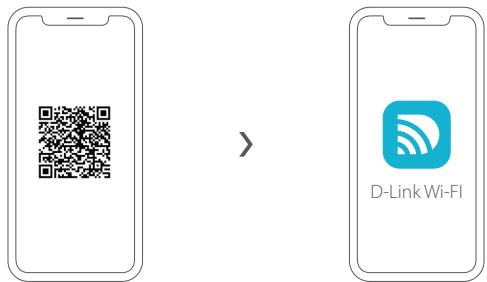
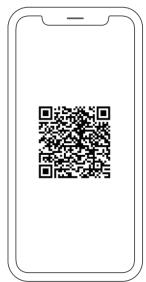
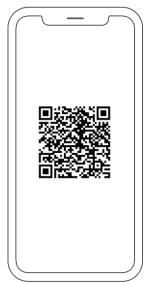
Plug in the router, connect your computer to the default Wi-Fi (SSID and password on the label), open a browser and type http://dlinkrouter.local/. Follow the on-screen instructions. You can also use the D-Link Wi-Fi app by scanning the QR code on the quick installation card.
What to do if I forgot the Wi-Fi password or the admin password?
You must reset the router to factory defaults. Press and hold the Reset button for 10 seconds with a paperclip while the router is powered on. All settings will be erased, including the Wi-Fi and admin password.
How to reset the router to factory defaults?
Locate the Reset button on the back of the router. With the device on, use a paperclip to press and hold the button for about 10 seconds until the LEDs flash. Release, the router will restart with default settings.
Why can't I access the web configuration utility?
Make sure your computer is connected to the router's Wi-Fi network (same subnet) and that you correctly type http://dlinkrouter.local/ in the address bar. You do not need to be connected to the Internet to access the local interface.
Why can't I access the Internet after installation?
Check that the Ethernet cable between the modem and the router's INTERNET port is properly connected. Restart the router and modem. If the problem persists, contact your Internet service provider to check your connection.
How to connect devices to the DIR-809 Wi-Fi?
Search for the network name (SSID) you set during configuration. Enter the corresponding Wi-Fi password. By default, the SSID and password are printed on the label on the back of the router.
Is the D-Link Wi-Fi app mandatory for setup?
No, it is optional. You can configure the router via the web interface using a browser. The app simplifies setup via a QR code on the quick installation card.
What do the LED indicators on the router mean?
The Power LED indicates power. Internet lights up when the WAN connection is established. The 2.4G and 5G LEDs flash during wireless activity. The LAN LEDs correspond to connected Ethernet ports.
Can I use the DIR-809 without external antennas?
The antennas are fixed and non-removable. They are necessary for proper Wi-Fi operation. Do not bend or remove them.
How to clean the DIR-809 router?
Use a soft, dry cloth to dust the casing. Never use liquids, sprays, or abrasive products that could damage the device.

User questions about DIR-809 D-LINK

1 question about this device. Answer the ones you know or ask your own.

Ask a new question about this device

The email remains private: it is only used to notify you if someone responds to your question.

Why are all the green lights on the D-Link DIR-809 router flashing simultaneously?
Frequently Asked Questions - 29/04/2026
Response Notice-Facile

When all the green lights on the D-Link DIR-809 router are flashing in sync, it generally indicates a specific situation that requires particular attention. This behavior is not normal during the standard operation of the router.

Firmware update in progress: The most common reason for all the lights flashing simultaneously is a firmware update of the router. During this process, the LEDs flash to indicate that the router is being updated. This state can last several minutes depending on the size of the firmware file. It is absolutely critical not to interrupt this process: do not turn off the router, do not unplug the power supply, and do not press any buttons until the flashing stops and the lights stabilize.

Router reset or restart: If you have just pressed the reset button or restarted the router, the simultaneous flashing of the lights indicates that the reset process is underway. Wait 1 to 2 minutes for the router to complete its restart cycle and for the lights to return to their normal state (usually stable and lit for active lights).

Power issue: An abnormal flashing of all the lights may also signal a power issue. Check that the power cable is properly connected to the router and the wall outlet, and that the electrical outlet is functioning normally. You can check by plugging another device into the same outlet.

Recommended first step: Wait 2 to 3 minutes to see if the flashing stops naturally (update or restart in progress). If the flashing persists after this time or if there are signs of abnormality (suspicious smell, warm casing), perform a complete restart: unplug the power adapter, wait 30 seconds, then plug it back in. Observe if the lights stabilize after this operation.

If the problem persists despite these checks, contact D-Link technical support at eu.dlink.com/support for further assistance, as the router may have a hardware malfunction requiring professional intervention.

Respond (be the first)

Download the instructions for your Router in PDF format for free! Find your manual DIR-809 - D-LINK and take your electronic device back in hand. On this page are published all the documents necessary for the use of your device. DIR-809 by D-LINK.

USER MANUAL DIR-809 D-LINK

1 /

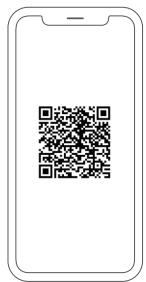
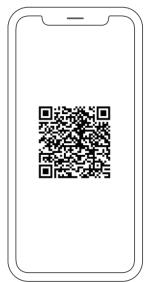
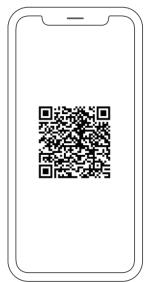
D-LINK DIR-809 - OPTION 1 D-LINK WI-FI APP SETUP - 1

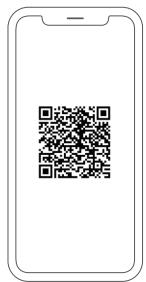
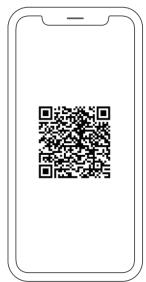
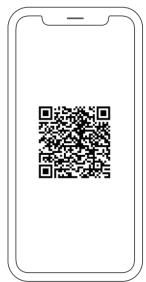
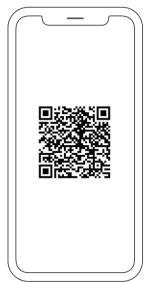
D-LINK DIR-809 - OPTION 1 D-LINK WI-FI APP SETUP - 2

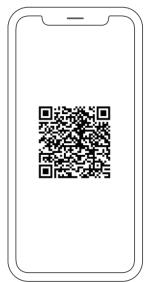
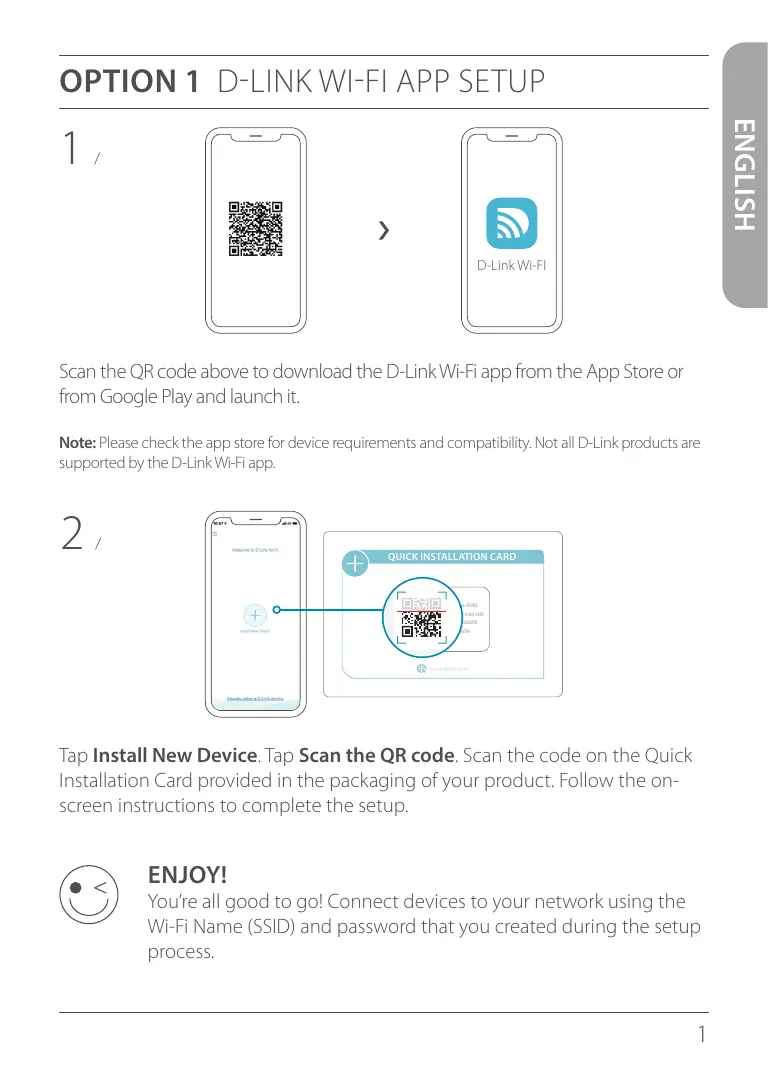
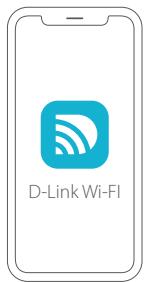
Scan the QR code above to download the D-Link Wi-Fi app from the App Store or from Google Play and launch it.

Note: Please check the app store for device requirements and compatibility. Not all D-Link products are supported by the D-Link Wi-Fi app.

2
D-LINK DIR-809 - OPTION 1 D-LINK WI-FI APP SETUP - 3

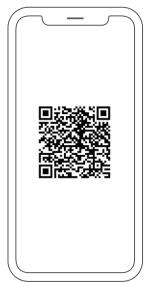
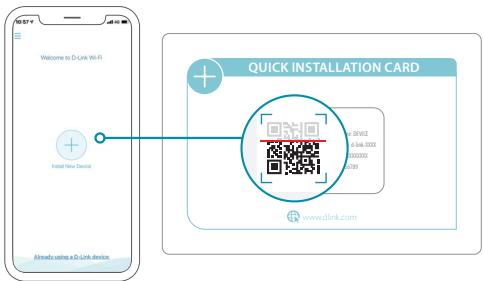
Tap Install New Device. Tap Scan the QR code. Scan the code on the Quick Installation Card provided in the packaging of your product. Follow the on-screen instructions to complete the setup.

D-LINK DIR-809 - OPTION 1 D-LINK WI-FI APP SETUP - 4

ENJOY!

You're all good to go! Connect devices to your network using the Wi-Fi Name (SSID) and password that you created during the setup process.

OPTION 2 WEB BROWSER SETUP

1 Install the antennas. If the antennas are already fixed, position your router near your Internet-connected modem and computer. Keep the router in an open area for better wireless coverage.
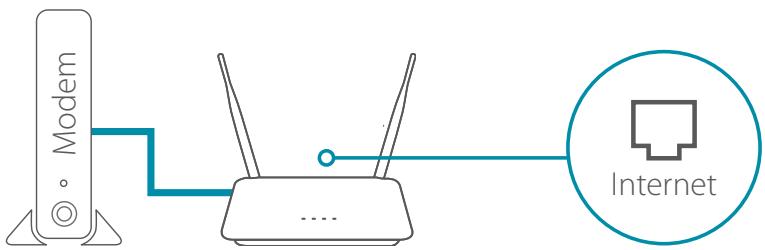
Plug an Ethernet cable from your modem into the port labeled / INTERNET on the router.
D-LINK DIR-809 - OPTION 2 WEB BROWSER SETUP - 1

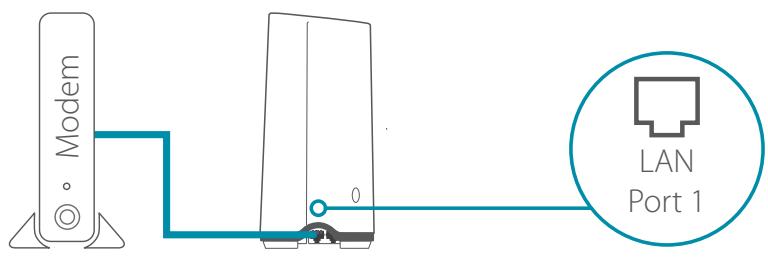
Note: If your router does not have a port labeled as INTERNET, plug the Ethernet cable into LAN Port 1.
D-LINK DIR-809 - OPTION 2 WEB BROWSER SETUP - 2

3 Plug the router into a power source to power on the router. Make sure that the power button is in the ON configuration.

Wait for the 2.4 GHz and 5 GHz wireless LEDs to turn on.

4 / Note: If your router does not have 2.4 and 5G wireless LEDs, refer to the User Manual for LED behaviour.
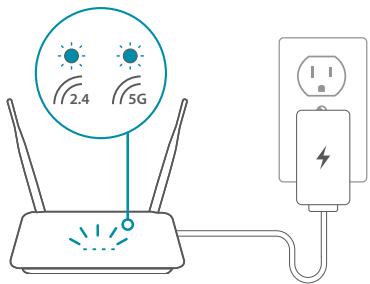
D-LINK DIR-809 - OPTION 2 WEB BROWSER SETUP - 3

5 Connect your computer to the Wi-Fi name and password printed on the Quick Installation Card, or on the device label on the bottom of the device.
Type http://dlinkrouter.local./ into the address bar of a web browser. Follow the on-screen instructions to complete the setup.
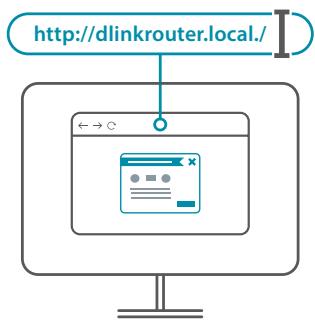
D-LINK DIR-809 - OPTION 2 WEB BROWSER SETUP - 4

D-LINK DIR-809 - OPTION 2 WEB BROWSER SETUP - 5

ENJOY!

You're all good to go! Connect devices to your network using the Wi-Fi Name (SSID) and password that you created during the setup process.

Why can't I access the web-based configuration utility?

Verify that http://dlinkrouter.local./ is correctly entered into the browser. At this stage, you are not connecting to a website, nor do you have to be connected to the Internet. The device has the utility built-in to a ROM chip in the device itself. Your computer must be connected to the router's network and in the same IP subnet to connect to the web-based utility.

Why can't I access the Internet?

Verify that your router is working by rebooting the router. If you still can not connect to the Internet, contact your Internet service provider.

What do I do if I forgot my device password / my wireless network password?

If you forgot your password, you must reset your router. This process will change all your settings back to the factory defaults.

How do I restore the router to its factory default settings?

Locate the reset button on the rear panel of the unit. With the router powered on, use a paper clip to hold the button down for 10 seconds. Release the button and the router will go through its reboot process.

For technical support, product documentation and other information, please visit our website.

https://eu.dlink.com/support

https://eu.dlink.com/support

1 /
D-LINK DIR-809 - For technical support, product documentation and other information, please visit our website. - 1

D-LINK DIR-809 - For technical support, product documentation and other information, please visit our website. - 2

https://eu.dlink.com/support

https://eu.dlink.com/support

1 /
D-LINK DIR-809 - OPTIE 1 D-LINK WI-FI APP SETUP - 1

D-LINK DIR-809 - OPTIE 1 D-LINK WI-FI APP SETUP - 2

https://eu.dlink.com/support

1 /

D-LINK DIR-809 - OPCJA 1 KONFIGURACJA APLIKACJI D-LINK WI-FI - 1

D-LINK DIR-809 - OPCJA 1 KONFIGURACJA APLIKACJI D-LINK WI-FI - 2

https://eu.dlink.com/support

1 /

D-LINK DIR-809 - MOZNOST 1 NASTAVENÍ APLIKACE D-LINK WI-FI - 1

D-LINK DIR-809 - MOZNOST 1 NASTAVENÍ APLIKACE D-LINK WI-FI - 2

https://eu.dlink.com/support

1 /

D-LINK DIR-809 - ALTERNATIV 1 KONFIGURERING I D-LINK WI-FI-APP - 1

Skann QR-koden ovenfor for Å laste ned D-Link Wi-Fi-appen fra App Store ell Google Play og Åpne den.

https://eu.dlink.com/support

1 /

D-LINK DIR-809 - MULIGHED 1 OPSAETNING AF D-LINK WI-FI APP - 1

D-LINK DIR-809 - MULIGHED 1 OPSAETNING AF D-LINK WI-FI APP - 2

Scan QR-koden ovenfor for at downloade D-Link Wi-Fi-appen fra App Store eller Google Play og starte den.

https://eu.dlink.com/support

1 /

D-LINK DIR-809 - VAIHTOEHTO 1 D-LINK WI-FI -SOVELLUKSEN ASENNUS - 1

D-LINK DIR-809 - VAIHTOEHTO 1 D-LINK WI-FI -SOVELLUKSEN ASENNUS - 2

https://eu.dlink.com/support

1 /

D-LINK DIR-809 - ALTERNATIV 1 INSTALLATION AV D-LINK WI-FI-APP - 1

D-LINK DIR-809 - ALTERNATIV 1 INSTALLATION AV D-LINK WI-FI-APP - 2

https://eu.dlink.com/support

https://eu.dlink.com/support

1 /
D-LINK DIR-809 - ALTERNATIV 1 INSTALLATION AV D-LINK WI-FI-APP - 3

D-LINK DIR-809 - ALTERNATIV 1 INSTALLATION AV D-LINK WI-FI-APP - 4

Zapwoté tov npapanaw Kwδiko QR yia va npaymuToIOinøe λnψn tnc εφapouynC D-Link Wi-Fi anó to App Store n anó to Google Play kai ekkvnoTe tnV.

https://eu.dlink.com/support

1 /

D-LINK DIR-809 - OPTIUNEA 1 CONFIGURARE APL. D-LINK WI-FI - 1

D-LINK DIR-809 - OPTIUNEA 1 CONFIGURARE APL. D-LINK WI-FI - 2

Scanati codul QR de mai sus pentru a descarca aplicata D-Link Wi-din App Store sau Google Play si a o lansa.

https://eu.dlink.com/support

1 /

D-LINK DIR-809 - MOZNOST: INSTALÁCIA APLIKÁCIE D-LINK WI-FI - 1

D-LINK DIR-809 - MOZNOST: INSTALÁCIA APLIKÁCIE D-LINK WI-FI - 2

Manual assistant
Powered by Anthropic
Waiting for your message
Product information

Brand : D-LINK

Model : DIR-809

Category : Router