
ELUGA - Smartphone PANASONIC - Free user manual and instructions
Find the device manual for free ELUGA PANASONIC in PDF.


| Product Type | Smartphone |
| Brand | Panasonic |
| Model | ELUGA (EB-3901) |
| Dimensions (approx.) | 130 x 65 x 10 mm |
| Weight (approx.) | 140 g |
| Screen | Capacitive touch screen, resolution not specified |
| Operating System | Android |
| Processor | Not specified (likely dual-core or quad-core) |
| Internal Memory | Built-in USB storage (capacity not specified) |
| Networks | 2G, 3G, Wi-Fi, Bluetooth, GPS, NFC |
| Camera | Rear camera with flash, front camera (not specified) |
| Battery | Rechargeable lithium-ion, charging via USB or AC adapter |
| Main Functions | Calls, SMS, MMS, Email, Web browsing, Camera/Video, Music player, FM radio (not specified), GPS, Bluetooth, Wi-Fi, NFC, Phonebook, Calendar, Voice recorder |
| Maintenance and Cleaning | Use a soft, dry cloth. Do not use liquid or abrasive products. |
| Security | Screen lock (pattern, PIN, IC card), SIM lock, Terminal password, Data safe |
| General Information | Manual available in PDF, 83 pages. Manufactured by Panasonic Mobile Communications. |
Frequently Asked Questions - ELUGA PANASONIC
User questions about ELUGA PANASONIC
0 question about this device. Answer the ones you know or ask your own.
Ask a new question about this device
Download the instructions for your Smartphone in PDF format for free! Find your manual ELUGA - PANASONIC and take your electronic device back in hand. On this page are published all the documents necessary for the use of your device. ELUGA by PANASONIC.
USER MANUAL ELUGA PANASONIC
Inserting the SIM card 6 Charging the battery 6 Turning the phone on 7 Unlocking the screen 8 Configuring the phone for the first time 8
Getting to know your phone 9
Phone overview 9 Indicator 9 Front panel buttons (3) 10 Using the touch panel screen 10 Switching between vertical and horizontal viewing modes 12 Home screen 12 App List 13 Using apps 14 Status and notifications 15 Typing on your phone 15 Customising your phone 17 eco mode 19 Stereo headset 19
Connecting to networks 21
Connecting to mobile networks 21 Connecting to Wi-Fi networks 22 Connecting to VPNs 23 Creating a Wi-Fi hotspot 24
Calling 25
Making emergency calls 25 Making calls 25 Using other features during a call 25 Answering calls 26 Call log 26 Voicemail 27 Call forwarding 27 Call waiting 27 Conference calls 28 Sending your caller information (Caller ID) 28 Fixed dialling 28
Phonebook 30
Adding contacts to your phone 30 Managing your contacts 31 Sharing and backing up contacts 31
Email 33
Setting up an email account 33 Using email 33
Using email accounts 34 Gmail and other Google services 35
36
Using text and multimedia messaging 36 Text and multimedia message options 37 Google Talk 37
Web browser 38
Browsing the web 38 Navigating web pages 38 Bookmarking your favourite web pages 39 Downloading from web pages 40 Using the web browser's options menu 40 Changing web browser settings 40
Music 42
Copying media files to the phone 42 Listening to your music 42
Pictures and videos 44
Taking pictures and recording videos 44 Viewing your pictures and videos 48
Location services 50
Google Maps 50 Getting directions 51 Navigation 51 Places 51 Latitude 52
Other apps 53
IC Link 53 Notepad 53 Voice recorder 54 Calendar 54 YouTube 56
PlayStore 57
Finding and downloading apps 57 App management 57
Connecting to other devices 59
Bluetooth wireless technology 59 USB 61 DLNA (content streaming) 62
Synchronise, backup, and restore 63
Synchronising with your Google account 63 Synchronising your corporate email, calendar and contacts 64 Backing up to the USB storage 64 Backing up to a computer 65
Phone security 66
Locking the screen 66
Hiding your data 67 Protecting phone settings with a terminal password 67 Protecting your SIM card 68
Updating the phone 69
Downloading updates wirelessly 69 Downloading updates with a computer 69
Phone settings overview 70
List of icons 71
Troubleshooting 76
General troubleshooting 76
Need help? 79
Index. 80
Introduction
Product documentation
The following documentation is available for your phone.
Important Information
Provides information about how to use your phone safely.
Quick Start Guide
Briefly introduces you to the phone and explains how to use it for the first time.
User Guide (this document)
Introduces you to your phone, explains how to configure and customise it, and provides information and instructions on how to use many of your phone's features.
Trademarks
- Android™, Android Market™, Gmail™, Google™, Google Calendar™, Google Latitude™, Google Maps™, Google Places™, Google Play™, Google Sync™, Google Talk™, Google Wallet™, and YouTube™ are trademarks of Google Inc.
- The Bluetooth® word mark and logos are registered trademarks owned by Bluetooth SIG, Inc. and any use of such marks by Panasonic Mobile Communications Co., Ltd. is under licence.
- DLNA® is a trademark, a service mark, or a certification mark of the Digital Living Network Alliance.
- Microsoft® is either a registered trademark or a trademark of Microsoft Corporation in the United States and/or other countries.
- Wi-Fi® is a registered trademark of the Wi-Fi Alliance.
- All other trademarks identified herein are the property of their respective owners.
Notice
- The term "apps" is used in this document to refer to programs that are installed on the phone. The illustrations and screenshots shown in this document are for reference only and may differ from the appearance of the actual product. Information in this document is subject to change without notice.
- Some third-party apps may refer to the phone's USB storage (i.e., internal memory) as "SD card". In this case selecting "SD card" will select the USB storage.
Getting started
Inserting the SIM card
Your phone's SIM card contains your phone number and service details.
Inserting the SIM card
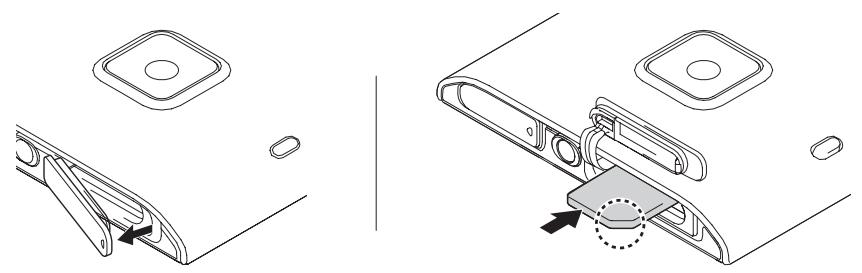
- Open the SIM card slot cover on the top of the phone, and then insert the SIM card into the slot as shown.
- Insert only a micro SIM card. Do not attempt to insert a full-size SIM card.
- Note the position of the notched corner of the SIM card in the illustration below and insert the correct end of the card.
- Close the SIM card slot cover.
Removing the SIM card
- Open the SIM card slot cover on the top of the phone.
- Gently push the SIM card slightly into the phone.
- Remove the SIM card.
- Close the SIM card slot cover.
Charging the battery
You can charge your phone by connecting it to a power outlet using the included USB cable and AC adaptor, and also by connecting it to your computer's USB port. The phone's indicator will light in red while the battery is charging, and it will turn off when charging stops or is complete.
If your phone has never been turned on, the indicator may flash in red while it is connected to a power source. This is not a malfunction.
Charging the battery using the AC adaptor
Connect your phone to a power outlet using the included USB cable and AC adaptor.
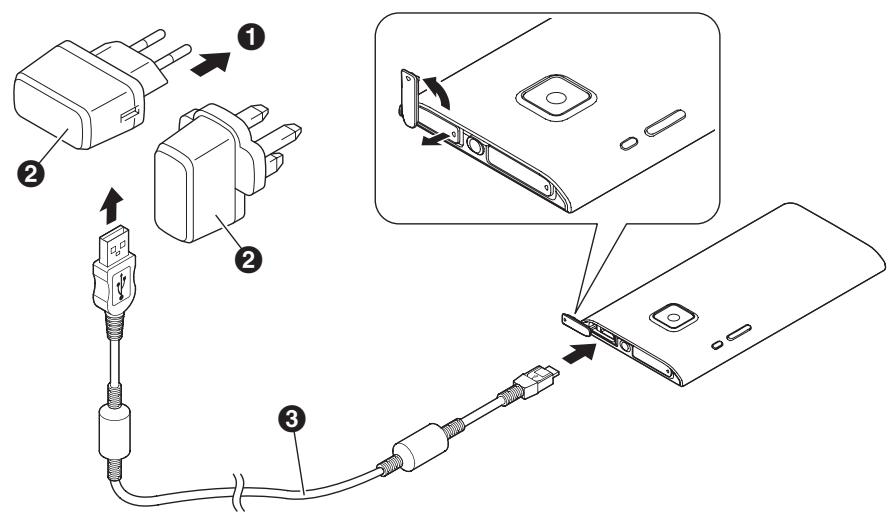
To power outlet AC adaptor USB cable
Note
One AC adaptor is included with the phone. - The appearance of the AC adaptor varies by country/area of purchase.
Charging the battery using a computer or other device
Connect your phone to your computer's USB port using the included USB cable.
Turning the phone on
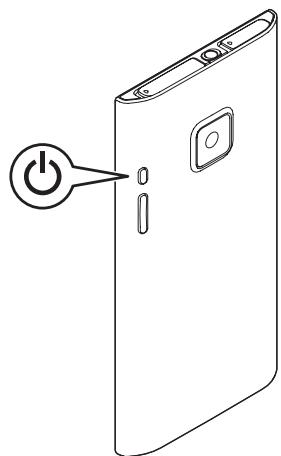
Press and hold (power button) on the side of your phone. When the lock screen appears, unlock the screen (see “Unlocking the screen” (page 8)).
Turning the phone on for the first time
The first time you turn on your phone, you will be prompted to configure different settings. See "Configuring the phone for the first time" (page 8) for more information.
Turning the phone off
Press and hold the power button on the side of your phone, and then tap [Power off] -> [OK].
Turning the screen on
Press the power button on the side of your phone, or press and hold it.
Turning the screen off
Press the power button on the side of your phone.
Unlocking the screen
The lock screen prevents you from accidentally tapping your phone and operating it unintentionally. When the lock screen is displayed, you can unlock the screen by swiping from the right side of the screen to the left, or from left to right, from top to bottom, or from bottom to top.
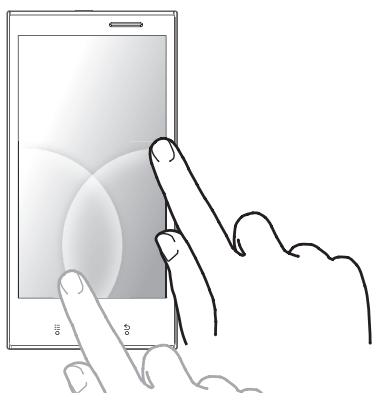
Configuring the phone for the first time
The first time you turn on your phone, you will be prompted to configure the following settings. Follow the on-screen instructions and configure each item as needed.
- Display language, Wi-Fi network settings
- Google account settings
- Google location services
- Google data backup services
- Date and time settings
Note
- If you cannot read the language displayed on the screen, tap the button in the lower-right corner of the screen and then select the desired language.
Getting to know your phone
Phone overview
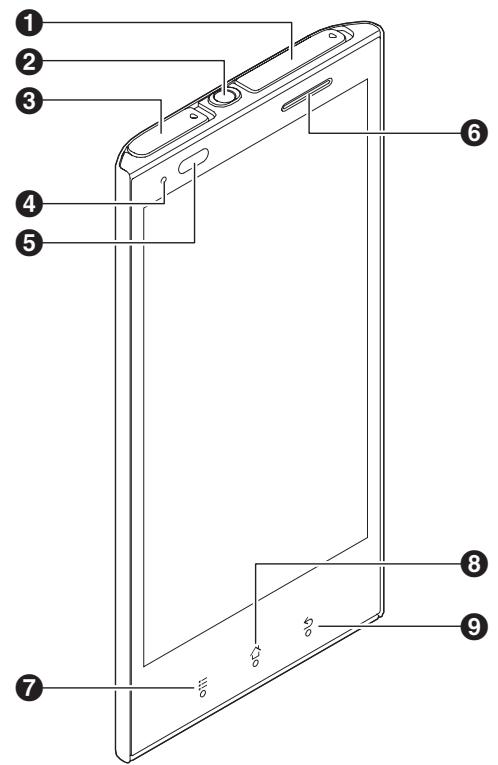
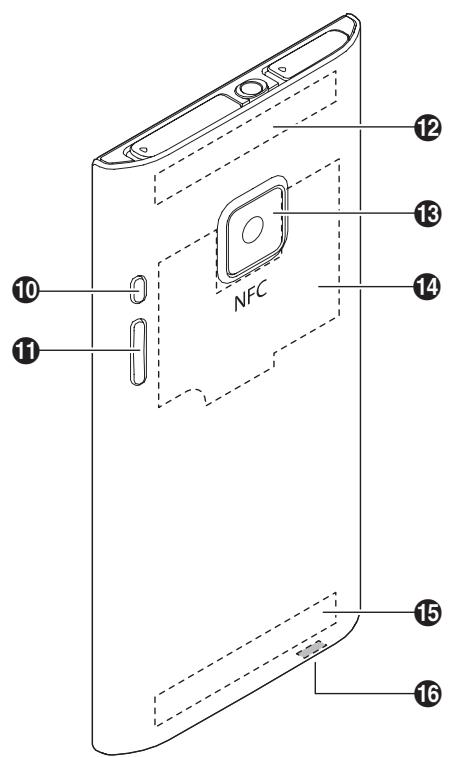
SIM card slot cover 2 Headset jack microUSB jack cover Indicator Light sensor, proximity sensor Combination earpiece and speaker (menu) button (home) button (back) button (power) button and (volume) buttons Wi-Fi, Bluetooth, and GPS antenna 3 Camera 14 NFC antenna 15 Main antenna 16 Microphone
Indicator
The indicator lights in red while the battery is charging and turns off when charging stops or is complete. When a call or a new message is received, the indicator flashes.
Front panel buttons
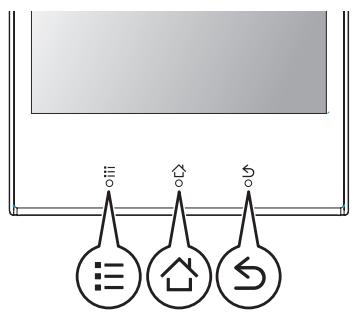
(menu)
Press to display a list of options available in the current screen.
(home)
Press to display the Home screen. Press and hold to display a list of recently used apps.
(back)
Press to return to the previous screen or close the current dialogue box, menu, on-screen keyboard, etc.
Using the touch panel screen
Your phone features a touch panel screen, which you can operate by touching directly with your fingers. The gestures you can use to operate the touch panel screen are described below.
Note
- App behaviours vary. Some of the gestures described here are not available in certain apps.
Tapping
Tap an item or icon to select it.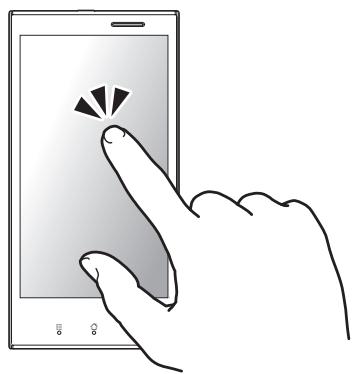
Double-tapping
Tap the touch panel screen quickly two times to zoom in and out.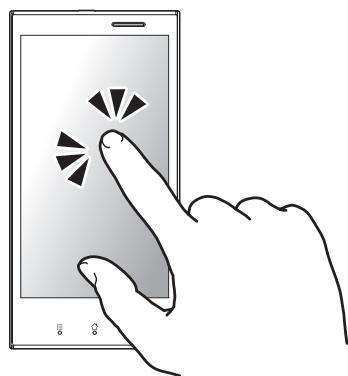
Tapping and holding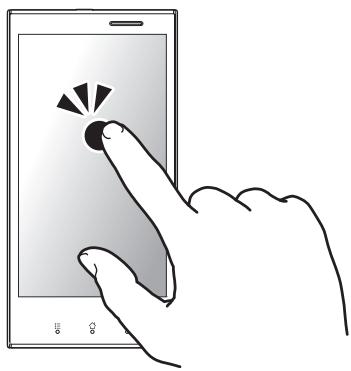
Tap an item or icon without releasing your finger from the touch panel screen to display a context menu, if available.
Flicking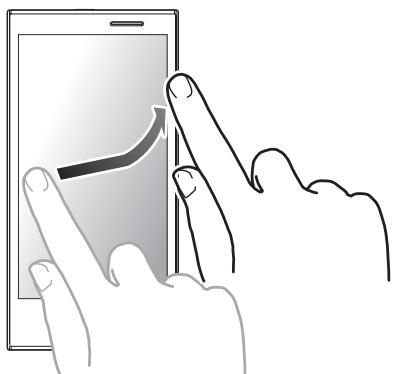
Move your finger across the touch panel screen quickly to browse through pages, pictures, etc.
Dragging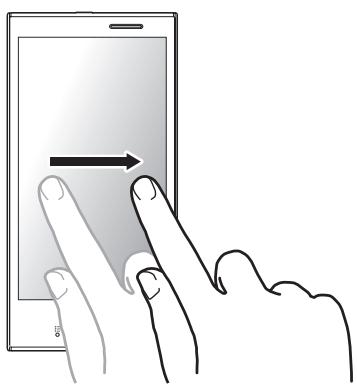
Hold your finger on an item or icon and, without lifting your finger, move your finger on the touch panel screen to drag the item to another place.
Scrolling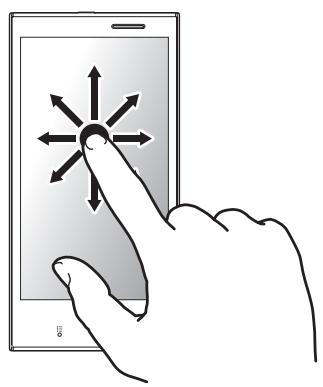
Slide your finger on the touch panel screen to scroll to a different area of the page, picture, etc.
Pinching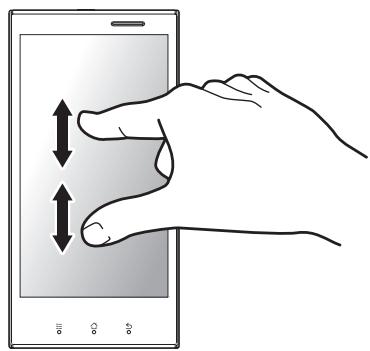
Using two fingers, "pinch" together two points on the touch panel screen to zoom out, and push apart two points on the touch panel screen to zoom in.
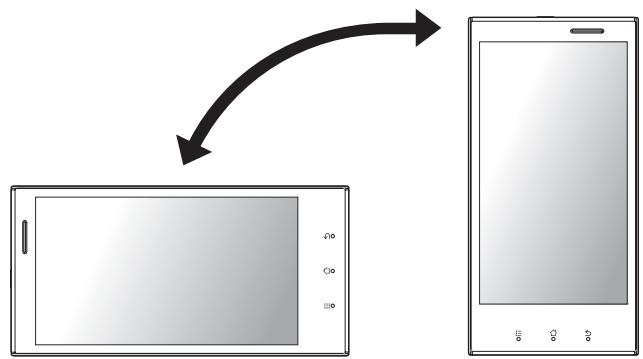
Switching between vertical and horizontal viewing modes
Your phone's motion sensor can detect when you have turned the phone on its side, allowing you to switch to horizontal (also called "landscape") viewing mode, and when you have turned the phone upright again, allowing you to switch back to vertical (also called "portrait") viewing mode. Note that not all apps support both of these modes.
Home screen
The Home screen is your phone's main screen from which you can start apps, such as the phone, camera, and web browser, and check widgets. You can customise the Home screen to suit your needs, and add, move, and remove items as desired.
Going to the Home screen
Press at any time.
Browsing the Home screen
The Home screen can contain multiple pages of app icons and widgets. Flick left and right to view other pages. The current page is indicated at the top of the screen by the dots (● ● ●).
Launching an app in the Home screen
Tap the app's icon.
Moving an item on the Home screen
- Tap and hold an item until the phone vibrates and the item is highlighted.
- Drag the item to the new location.
- You can move items to other pages by dragging them to the left or right edge of the screen.
Adding a widget to the Home screen
- Widgets are special items that you can use to view weather, news, or other information quickly and without leaving the Home screen.
- Browse to the page of the Home screen where you want to add a widget.
- Press 3.
- Tap [Add] -> [Widgets].
- Select the desired widget.
Adding a shortcut to the Home screen
- Browse to the page of the Home screen where you want to add a shortcut.
- Press :三.
- Tap [Add] -> [Shortcuts].
- Select the desired shortcut.
Adding a folder to the Home screen
- Browse to the page of the Home screen where you want to add a folder.
- Press the Menu key.
- Tap [Add] then [Folders].
- Tap [New folder].
Renaming a folder
- Tap the desired folder.
- Tap and hold the folder's title bar.
- Enter the name.
- Tap [OK].
Adding an item to a folder
- Tap and hold the item until the phone vibrates and the item is highlighted.
- Drag the item and drop it in the folder.
Deleting an item on the Home screen
- Tap and hold the item until the phone vibrates and the item is highlighted.
- Drag the item and drop it at the bottom of the screen.
Changing the wallpaper on the Home screen
- Press :E.
- Tap [Wallpaper].
- Browse to and select the desired item.
App List
The [App List] gives you access to all the apps stored on your phone.
Viewing the [App List]
Tap [App List] in the Home screen.
Browsing the [App List]
Flick left and right to view different pages.
Adding a shortcut to an app on the Home screen
- Tap and hold an app until the phone vibrates and the app is highlighted.
- The screen switches to the Home screen.
- Drag the app and drop it on the Home screen.
Searching for a preinstalled app
Tap [Preinstall] in the [App List].
Searching for a downloaded app
Tap [Download] in the [App List].
Checking for app updates
Tap [Update] in the [App List].
Sorting apps in the [App List]
You can sort your apps by dragging each of them to the new locations.
- Press E:
- Tap [Sort].
- Tap and hold an app until the phone vibrates and the app is highlighted.
- Drag the app to the desired location.
Changing the layout of the [App List]
- Press :
- Tap [Change Layout].
- Select the desired layout.
Using apps
Apps expand the capabilities of your phone and allow you to customise it to suit your needs. Your phone comes preinstalled with a variety of apps, and you can download other apps from a variety of sources.
Launching an app
Find the app in the Home screen or [App List], and then tap it.
Closing an app
While using the app, press the Home key.
Note
- App behaviours vary. When you press the Home key, the current app may pause or continue to run in the background without quitting.
Opening an app's options menu
While using the app, press the Menu key.
Note
- App behaviours vary. The current app may not have an options menu, or the method for opening the options menu may be different.
Switching between apps
Press and hold the Home key. When the list of recently used apps is displayed, tap the desired app.
Status and notifications
Status bar
The status bar is displayed at the top of your phone's screen when using most apps. It displays the time and provides icons and other indicators that let you know the status of your phone's battery, network signal strength, and certain features of your phone.
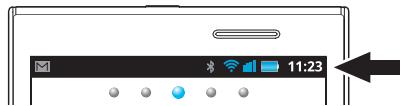
See "Status icons" (page 71) for a list of status icons and their meanings.
Notifications panel
The notifications panel provides detailed information about incoming email messages, missed calls, calendar events, etc. You can open the notifications panel by tapping the status bar and sliding your finger down. To close the notifications panel, tap the bottom of the screen and slide your finger up.
See "Notification icons" (page 72) for a list of notification icons and their meanings.
Typing on your phone
Your phone's keyboard is displayed automatically when you tap a text entry field or when you are prompted to enter information.
Note
- The keys displayed on your keyboard may vary depending on the input language.
- Certain features explained here may not be available depending on the app or the type of information being typed on the keyboard (e.g., email addresses, passwords, etc.).
FlexT9 keyboard overview
When the FlexT9 keyboard is displayed, you can select a different keyboard and change keyboard settings by tapping and holding the lower-left key (2 in the illustration).
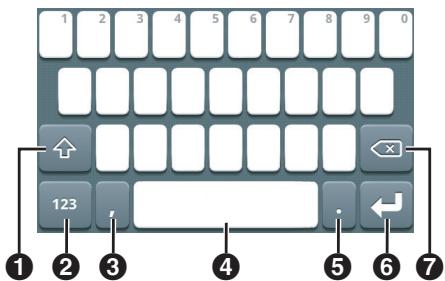
1 The shift key. Tap to change the character case; double-tap to turn on the caps lock. Tap to switch between letters, numbers, and symbols. Tap and hold to select a different keyboard or change keyboard settings. 3 Tap to enter a comma.
The space bar. Tap to enter a space; tap and hold to select a different input language. 5 Tap to enter a period. 6 Tap to enter a line break or confirm the text you have input. 7 Tap to delete the character before the cursor; tap and hold to delete characters quickly.
Note
- You can tap and hold certain keys to display a list of other characters available.
- You can also enter text by sliding your finger from one key to another.
- Turn the phone on its side to display the keyboard in horizontal viewing mode.
Android keyboard overview
When the Android keyboard is displayed, you can select a different keyboard by tapping and holding (3 in the illustration).
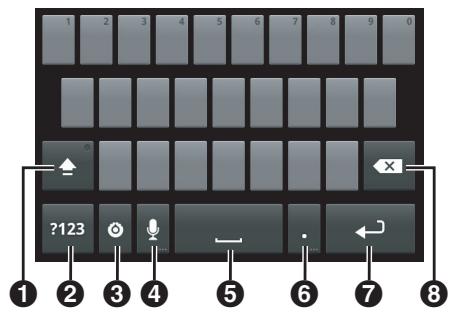
1 The shift key. Tap to change the character case; double-tap to turn on the caps lock. 2 Tap to switch between letters, numbers, and symbols. 3 Tap to display the options menu; tap and hold to select a different keyboard. 4 Tap to enable voice input. The space bar. Tap to enter a space. 6 Tap to enter a period. 7 Tap to enter a line break or confirm the text you have input. 8 Tap to delete the character before the cursor; tap and hold to delete characters quickly.
Note
- You can tap and hold certain keys to display a list of other characters available.
- Turn the phone on its side to display the keyboard in horizontal viewing mode.
Selecting the input languages when using the Android keyboard
You can select the input languages available when entering text. If more than one input language is selected, you can change the current input language when typing by flicking the space key left and right.
- From the Home screen, press :三.
- Tap [Settings] → [Language & keyboard] → [Android keyboard] → [Input languages].
- Select the desired languages.
Using voice recognition when using the Android keyboard
You can enter words by speaking to your phone.
- Tap 9.
- Speak the words or a sentence.
- Your phone automatically recognises the words and enters the text you spoke.
Customising your phone
You can customise your phone by changing the date and time, ringtone, vibrating mode, screen settings, display language, etc. Some commonly used settings are explained below.
General settings
Setting the date, time, and time zone
Your phone can set its date and time setting automatically using network-provided information, or you can set the date and time manually if you prefer.
- From the Home screen, press :E.
- Tap [Settings] → [Date & time].
- If you want to set the date and time automatically:
Turn on the [Automatic] checkbox. No other settings are required.
If you want to set the date and time manually: Make sure the [Automatic] checkbox is turned off and continue to the next step.
- Tap [Set date].
- Set the date and then tap [Set].
- Tap [Select time zone].
- Select a city in your time zone.
- Tap [Set time].
- Set the time and then tap [Set].
Switching between 12-hour and 24-hour format time
- From the Home screen, press :E.
- Tap [Settings] → [Date & time].
- Turn the [Use 24-hour format] checkbox on or off.
Turning on airplane mode
Airplane mode turns off all wireless features to prevent interference with aircraft equipment.
- From the Home screen, press :E.
- Tap [Settings] → [Wireless & networks] → [Airplane mode].
Screen settings
Changing the language of the phone
- From the Home screen, press :三.
- Tap [Settings] → [Language & keyboard] → [Select language].
- Select the desired language.
Adjusting the screen brightness manually
- From the Home screen, press Ξ .
- Tap [Settings] → [Display] → [Brightness].
- Turn off the [Automatic brightness] checkbox and then adjust brightness.
- Tap [OK].
Note
- Increasing the brightness setting decreases your phone's battery performance.
Setting the screen timeout
The screen timeout setting determines how much time passes before the screen automatically turns off to save power.
- From the Home screen, press the Menu key.
- Tap [Settings] > [Display] > [Screen timeout].
- Select the time.
Note
- You can turn off the screen at any time by pressing the Power key.
Setting the screen to stay on while charging the phone
- From the Home screen, press the Menu key.
- Tap [Settings] > [Applications] > [Development] > [Stay awake].
Sound settings
Changing the ringtone for phone calls
- From the Home screen, press the Menu key.
- Tap [Settings] > [Sound] > [Phone ringtone].
- Select a ringtone and then tap [OK].
Adjusting the volume
- From the Home screen, press :三.
- Tap [Settings] → [Sound] → [Volume].
- Adjust the volume for each item and then tap [OK].
Note
- This setting is unavailable when [Silent mode] is enabled.
Turning silent mode on and off
- From the Home screen, press :三.
- Tap [Settings] → [Sound] → [Silent mode].
Turning dialling touch tones on and off
- From the Home screen, press :E.
- Tap [Settings] → [Sound] → [Audible touch tones].
Setting the vibrate mode
- From the Home screen, press :三.
- Tap [Settings] → [Sound] → [Vibrate].
- Select a vibrate mode.
Setting the phone to vibrate when operated
You can set your phone to vibrate when you tap the screen while using certain apps.
- From the Home screen, press ☰.
- Tap [Settings] → [Sound] → [Haptic feedback].
Account settings
Entering your account information
You can enter your account information for services such as Google contacts, Facebook, and Twitter, so that you can use your phone to access these services.
- From the Home screen, press ☰.
- Tap [Settings] → [Accounts & sync].
- To add an account to the phone:
→ Tap [Add account] and follow the on-screen instructions.
If you have already entered your Google account information or corporate account information on the phone:
→ Tap the name of the account, press ≡, and then tap [Sync now].
eco mode
Eco mode is a suite of features that help you save battery power. When the remaining battery power drops below the preset level, the phone can switch to eco mode and change certain phone features and settings so that your phone consumes less battery power.
Setting the eco mode operation mode
- Tap [eco mode] in the Home screen or [App List].
- Under [Eco Mode status], select the desired operation mode.
- [On]: The phone always runs in eco mode, regardless of the current battery level. Features will be limited to save battery power according to the eco mode settings.
- [Off]: The phone never switches to eco mode.
- [Auto Eco]: When the remaining battery power drops below the preset level, features will be limited to save battery power according to the eco mode settings.
Note
- If your phone is operating in eco mode and you try to change phone settings that are also controlled by eco mode, you will be asked whether or not you want to disable eco mode. If you disable eco mode, [Eco Mode status] will be automatically set to [Off].
Eco mode settings
Eco mode settings determine how your phone saves power.
- Tap [eco mode] in the Home screen or [App List].
- Tap [Eco Mode settings].
- Change the settings as desired.
- [Auto Eco Mode setting]: Set the battery level at which the phone switches to eco mode.
- [Eco Mode settings]: Set each item as desired.
- Tap [OK].
Stereo headset
You can use the included stereo headset to talk on the phone, listen to music and videos, etc. For information on using the headset to talk on the phone, see "Using a headset" (page 26).
Connecting the stereo headset
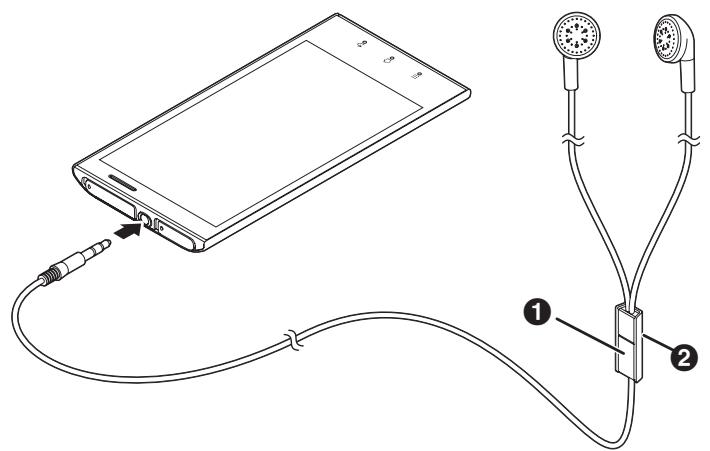
1 Headset button 2 Microphone
Note
- Make sure you insert the headset plug completely into the headset jack.
Connecting to networks
Connecting to mobile networks
In order to send text and multimedia messages, and to connect to the Internet, your phone must be configured to connect to a 2G and/or 3G network. For most mobile networks and mobile network operators, your phone is configured at the time of purchase and you do not need to configure your phone manually. For information about configuring your phone manually, contact your mobile network operator.
Viewing the current Access Point Name (APN)
- From the Home screen, press the Menu key.
- Tap [Settings] → [Wireless & networks] → [Mobile networks] → [Access Point Names].
- If multiple connections are available, the current connection will be indicated.
Configuring Internet settings manually
- From the Home screen, press the Menu key.
- Tap [Settings] → [Wireless & networks] → [Mobile networks] → [Access Point Names].
- Press the Menu key.
- Tap [New APN] → [Name].
- Enter the desired name for the new settings, and then tap [OK].
- Tap [APN].
- Enter the access point name, and then tap [OK].
- Select other items and enter the information as required by your mobile network operator.
- Press :三.
- Tap [Save].
Connecting to GSM networks only
You can select to connect to GSM networks only. This may be useful when travelling abroad and you want to use a particular network.
- From the Home screen, press .
- Tap [Settings] → [Wireless & networks] → [Mobile networks] → [Network Mode] → [GSM only].
Selecting a specific network manually
You can select a specific network to connect to. This may be useful when travelling abroad and you want to use a particular network. Note that if you select a specific network, your phone will not connect to other networks even if you move out of range of the network you selected manually.
- From the Home screen, press :E.
- Tap [Settings] → [Wireless & networks] → [Mobile networks] → [Network operators] → [Search networks].
- Select a network.
Selecting a network automatically
- From the Home screen, press :E.
- Tap [Settings] → [Wireless & networks] → [Mobile networks] → [Network operators] → [Select automatically].
Disabling mobile network data connections
You can disable 2G and 3G mobile network data connections. This can be useful if you want to avoid unwanted downloading of data or synchronising of data. Wi-Fi network connections will remain available.
- From the Home screen, press :E.
- Tap [Settings] → [Wireless & networks] → [Mobile networks].
- Turn off the [Data enabled] checkbox.
Enabling data roaming
When data roaming is enabled, you may be able to use another mobile network operator's network for data connections. This can be useful when you are outside of the range of your operator's network. Note that data transmission charges may apply, and some apps on your phone may use data connections without notifying you. Contact the mobile network operator for more information.
- From the Home screen, press :E.
- Tap [Settings] → [Wireless & networks] → [Mobile networks].
- Turn on the [Data roaming] checkbox.
- Mobile network data connections must be enabled in order to select this option.
Connecting to Wi-Fi networks
If your phone is within range of a Wi-Fi access point, such as a wireless router, you can access the Internet wirelessly using your phone's Wi-Fi features. When your phone is connected to a Wi-Fi access point, appears in the status bar and indicates the approximate signal strength, and your phone uses the Wi-Fi connection to access the Internet (as opposed to using the 2G or 3G mobile data connection).
Turning on Wi-Fi
- From the Home screen, press :三.
- Tap [Settings] → [Wireless & networks] → [Wi-Fi].
Note
- When Wi-Fi is turned on, the phone can continue to use its mobile data connection, but the phone will use the Wi-Fi connection when it is available.
- If you turn Wi-Fi off, the phone will automatically switch to the mobile data connection. In this case, note that data transmission charges may apply.
Connecting to a Wi-Fi network
- From the Home screen, press :三.
- Tap [Settings] → [Wireless & networks] → [Wi-Fi settings].
- Select a Wi-Fi network.
- If the desired Wi-Fi network is not displayed, you may need to enter the network name (SSID). See "Adding a Wi-Fi network manually" (page 22) for more information.
- Enter the password if you are connecting to a secure Wi-Fi network.
Note
- After you connect to a Wi-Fi network, your phone will automatically connect to the network the next time it is within range.
- After you move out of range of a Wi-Fi network, it may take some time for the phone to re-connect automatically once the phone is within range of that Wi-Fi network again.
- Some Wi-Fi networks require you to access a web page or enter a user name and password in order to access the network. Consult the network administrator for more information.
Adding a Wi-Fi network manually
Some Wi-Fi networks do not broadcast their availability. In this case you need to enter the name of the network (also called the "network SSID") as well as the network's password. Consult the network system administrator for more information.
- From the Home screen, press :E.
- Tap [Settings] → [Wireless & networks] → [Wi-Fi settings] → [Add Wi-Fi network].
- Enter the network SSID.
- Select the network's security type and enter its password, if required.
- Tap [Save].
Enabling Wi-Fi network notification
Your phone can notify when a Wi-Fi network is available.
- From the Home screen, press :E.
- Tap [Settings] → [Wireless & networks] → [Wi-Fi settings].
- Turn on the [Network notification] checkbox.
Viewing information about the Wi-Fi network
- From the Home screen, press :三.
- Tap [Settings] → [Wireless & networks] → [Wi-Fi settings].
- Select the Wi-Fi network which you are currently connected to.
Adding a Wi-Fi sleep policy
You can select when your phone suspends its Wi-Fi connection.
- From the Home screen, press :E.
- Tap [Settings] → [Wireless & networks] → [Wi-Fi settings].
- Press 三.
- Tap [Advanced] → [Wi-Fi sleep policy].
- Select a sleep policy.
Using a static IP address
- From the Home screen, press the Menu key.
- Tap [Settings] → [Wireless & networks] → [Wi-Fi settings].
- Press the Menu key.
- Tap [Advanced] → [Use static IP].
- Select each item and enter the necessary information.
- Press the Menu key.
- Tap [Save].
Connecting to VPNs
If your company or organisation uses a Virtual Private Network (VPN), you can use your phone to connect to the VPN. For information about configuring your phone to connect to a VPN, consult your network administrator.
Connecting to a VPN
- From the Home screen, press the Menu key.
- Tap [Settings] → [Wireless & networks] → [VPN settings].
- Select your VPN.
- Enter the information as needed, and then tap [Connect].
Adding a VPN
- From the Home screen, press :E.
- Tap [Settings] → [Wireless & networks] → [VPN settings] → [Add VPN].
- Select the type of your VPN.
- Enter the information as needed.
- Press :
- Tap [Save].
Disconnecting from a VPN
- Open the notification panel by dragging the status bar down.
- Tap the VPN connection notification.
Creating a Wi-Fi hotspot
Your phone can function as a portable Wi-Fi hotspot, allowing you to share your phone's mobile network connection with up to five devices.
Configuring the phone as a Wi-Fi hotspot
- From the Home screen, press :三.
- Tap [Settings] → [Wireless & networks] → [Tethering & portable hotspot] → [Portable Wi-Fi hotspot settings] → [Configure Wi-Fi hotspot].
- Configure the SSID (i.e., network name), security method, and password, and then tap [Save].
- Turn on the [Portable Wi-Fi hotspot] checkbox.
- The following icons are displayed in the status bar and notification panel when hotspot is enabled.

Displayed when the phone is enabled as a Wi-Fi hotspot

Displayed when hotspot and USB tethering (see "USB tethering" (page 61)) are both enabled
Note
- Turn off the [Portable Wi-Fi hotspot] checkbox when you are finished using your phone as a hotspot.
Calling
You can use the [Phone] app to make and receive calls, as well as use services supported by your mobile network operator, such as voicemail and call forwarding. For information about available services, contact your mobile network operator.
Making emergency calls
Your phone supports international emergency numbers, such as 112 and 911.
- Tap [Phone] in the Home screen or [App List].
- Enter the emergency number.
To delete a number, tap
- Tap
- Tap [End] to end the call.
Note
- If the screen is locked using a security method (see "Configuring the screen lock" (page 66)), you can make emergency calls by tapping [Emergency call].
- You can make emergency calls if there is no SIM card inserted, as long as the phone is in range of a network and the country you are in allows emergency calling with no SIM card inserted.
Making calls
Dialling manually
- Tap [Phone] in the Home screen or [App List].
- Enter the phone number.
To delete a number, tap
- Tap
- Tap [End] to end the call.
Making an international call
- Tap [Phone] in the Home screen or [App List].
- Tap and hold [0] until the international prefix “+” is displayed.
- Enter the country code or region code, followed by the area code (without the first 0), and then the phone number.
- Tap
- Tap [End] to end the call.
Using other features during a call
Adjusting the earpiece or speaker volume
Press or repeatedly during a call.
Muting the microphone
Tap [Mute] during a call to mute your phone's microphone so that the other party cannot hear you.
Using the speakerphone
Tap [Speaker] to turn on the speakerphone during a call. Tap [Speaker] again to switch back to the earpiece.
Activating the screen while talking
Your phone's proximity sensor detects when you raise the phone to your ear and automatically turns off the screen. This not only saves battery power, but also prevents you from inadvertently operating the screen while talking. You can turn the screen back on during a call by pressing and holding Δ .
Entering numbers during a call
Tap [Dialling Pad] if you need to enter numbers while on a call, such as when navigating a call centre's voice guided menu system.
Using a headset
You can use the included stereo headset to answer calls, talk on the phone, and end calls.
- To answer an incoming call, press the headset button.
- To reject an incoming call, or to end the current call, press and hold the headset button for about a second.
- To stop and start music playback while listening to music, press the headset button.
Answering calls
- When a call is being received, drag to the right across the screen.
- To reject the call, drag to the left across the screen.
- When the included stereo headset is connected, you can answer incoming calls by pressing the headset button.
- Tap [End] to end the call.
Turning the ringer off (Silent mode)
Press and hold 𝒪 then tap [Silent mode]. To turn the ringer back on, repeat this procedure.
Turning the ringer off temporarily
Press △ or ▽ when a call is being received to turn the ringer off temporarily.
Call log
You can view your call log while using the [Phone] app by tapping [Call log]. The following icons are used in the call log to indicate different types of calls.

Missed calls

Incoming calls (calls that you answered)

Outgoing calls
Viewing your missed calls
Open the notifications panel by tapping the status bar and sliding your finger down, and then tap [Missed call].
Making a call from the call log
Tap next to the phone number or person you want to call.
Adding information from the call log to your phonebook
- Tap [Phone] in the Home screen or [App List].
- Tap [Call log].
- Tap and hold the number and then tap [Add to contacts].
- Tap an existing contact or tap [New contact].
- Enter the information as needed and tap [Done].
Clearing the call log
- Tap [Phone] in the Home screen or [App List].
- Tap [Call log].
- Press E:
- Tap [Clear call log] → [OK].
Voicemail
If your phone has voicemail service, you can have your calls forwarded to voicemail.
Listening to voicemail
- Tap [Phone] in the Home screen or [App List].
- Tap aa.
Setting the voicemail access number
For the correct setting, contact your mobile network operator.
- From the Home screen, press :E.
- Tap [Settings] → [Call settings] → [Voicemail settings] → [Voicemail number].
- Enter your mobile network operator's voicemail access number and then tap [OK].
Call forwarding
If your phone has call forwarding service, you can forward your calls to another phone number.
Turning call forwarding on
- From the Home screen, press Ξ.
- Tap [Settings] → [Call settings] → [Call forwarding].
- Select the desired setting.
- Enter the forwarding number and then tap [Enable].
Turning call forwarding off
- From the Home screen, press Ξ.
- Tap [Settings] → [Call settings] → [Call forwarding].
- Tap the current setting.
- Tap [Disable].
Call waiting
If your phone has call waiting service, you can receive a second call while talking on the phone. While talking, you will hear a tone that indicates a second call is being received. When you receive a second call, you can choose to reject it or answer it.
Turning call waiting on
- From the Home screen, press :三.
- Tap [Settings] → [Call settings] → [Additional settings].
- Turn on the [Call waiting] checkbox.
Answering another call while talking on the phone
When you hear the call waiting tone, drag to the right across the screen.
Rejecting a call received while talking on the phone
When you hear the call waiting tone, drag to the left across the screen.
Conference calls
If your phone has conference calling service, you can talk on the phone with multiple parties at the same time and put the other party on hold.
Making a second call
- While on a call, tap [Add call].
- Enter the other party's phone number and then tap
The first call is put on hold.

Handling multiple calls
- While on a call, make or answer a second call.
- To switch between calls:
Tap [Swap].
To join the calls and have a conversation with all parties:
Tap [Merge calls].
To end the current call: Tap [End].
Sending your caller information (Caller ID)
Changing the Caller ID setting
You can choose to show or hide your phone number to the other party when you make calls.
- From the Home screen, press :E.
- Tap [Settings] -> [Call settings] -> [Additional settings] -> [Caller ID].
- Select the desired setting.
Fixed dialling
You can use a Fixed Dialling Number (FDN) list to restrict outgoing calls. When this feature is turned on, your phone can only make calls to numbers that are added to the list.
Note
- You must enter the PIN 2 code assigned to you by your mobile network operator in order to use this feature.
Turning fixed dialling on and off
- From the Home screen, press :E.
- Tap [Settings] → [Call settings] → [Fixed Dialling Numbers] → [Enable FDN].
- Enter your PIN 2 code and then tap [OK].
Editing the list of fixed dialling numbers
- From the Home screen, press Ξ.
- Tap [Settings] → [Call settings] → [Fixed Dialling Numbers] → [FDN list].
Phonebook
Adding contacts to your phone
You can use the [Phonebook] app to store all your contact information. Phonebook entries (also called "contacts") contain name, address, phone number, email address, and other information about your friends, family, and colleagues. There are several ways you can get contact information into your phone.
- Use your phone to add contact information manually.
- Synchronise your phone with contact information you've added to an online data synchronisation service, such as Google Sync.
- Import contact information that you've stored on your phone's SIM card.
- Use your phone's Bluetooth wireless technology feature to download contact information from another device.
- Import contact information that you've received as an attachment via SMS, MMS, and email.
Synchronising your contacts with an existing online synchronisation service account
See "Entering your account information" (page 19).
Importing contacts stored in the USB storage area of your phone
- Tap [Phonebook] in the Home screen or [App List].
- Press :E.
- Tap [Import/Export] → [Import] → [Import from USB storage].
- Select the account that the contacts will be added to.
Importing contacts using Bluetooth wireless technology
In order to import contacts using Bluetooth wireless technology, make sure your phone's Bluetooth feature is turned on and is set to discoverable mode (see "Bluetooth wireless technology" (page 59)).
- Send the data to your phone from the sending device.
Refer to the operating instructions included with the other device for details. 2. Open the phone's notification panel and tap [Bluetooth share: Incoming file] → [Accept]. 3. Tap the received file to import the contacts.
Importing contacts from SMS, MMS, or email
You can import contacts you've received as a vCard file attached to an SMS, MMS, or email message.
- Open the message containing the vCard file.
- Tap the vCard file and use the menu options to save the contacts on the phone.
Adding contacts manually
- Tap [Phonebook] in the Home screen or [App List].
- Tap [New contact].
- Enter the information as needed.
- Tap the image icon to add an image.
- Tap + or - to add or delete fields.
- To undo the changes you have made, tap [Revert]. Note that if you press the back key, the changes will be saved.
- Tap [Done].
Managing your contacts
Adding yourself to your phonebook
- Tap [Phonebook] in the Home screen or [App List].
- Tap your phone number at the top of the screen.
- Press the Edit button.
- Tap [Edit contact].
- Edit each item as needed.
- Tap the image icon to add an image.
- Tap + or - to add or delete fields.
- To undo the changes you have made, tap [Revert]. Note that if you press the Save icon, the changes will be saved.
- Tap [Done].
Searching for a contact
There are several ways to search for a contact.
- Search by text: Tap [Keyword search] and then enter the search text.
- Search by first letter: Tap or scroll the right side of the screen to search for a contact by first letter.
- Search by group: Tap [Group search] and then select the group.
Calling, texting, or emailing a contact
Tap the contact and then select the desired method of communication.
Editing a contact
- Tap [Phonebook] in the Home screen or [App List].
- Tap and hold the contact you want to edit and then tap [Edit contact].
- Edit each item as needed.
- Tap the image icon to add an image.
- Tap + or - to add or delete fields.
- To undo the changes you have made, tap [Revert]. Note that if you press , the changes will be saved.
- Tap [Done].
Deleting a contact
- Tap [Phonebook] in the Home screen or [App List].
- Tap and hold the contact you want to delete and then tap [Delete contact] → [OK].
Adding a contact to your list of favourites
You can access frequently used contacts quickly by adding them to your list of favourites.
- Tap [Phonebook] in the Home screen or [App List].
- Tap the contact you want to add to your favourites.
- Tap to the right of the name.
- Tap to remove the contact from your list of favourites.
Sharing and backing up contacts
Share displayed contacts
You can share all contacts displayed on the contacts screen. You can use this feature to backup all your contacts, or search for certain contacts and narrow the items down before sharing them.
- Tap [Phonebook] in the Home screen or [App List].
- Press :E.
- Tap [Import/Export] → [Export] → [Share visible contacts].
- Select an app and then follow the on-screen instructions.
Note
- Group names are not sent when exporting contacts using this method.
Setting up an email account
You can use your phone's [Email] app to send and receive emails. The [Email] app supports POP3, IMAP, and Exchange accounts.
Setting up an email account in your phone
- Tap [Email] in the Home screen or [App List].
- Enter your email address and password.
- Tap [Next].
- Follow the on-screen instructions.
Note
- If the account cannot be set up using this procedure, you may need to set up the account manually. In this case consult your email service provider for details about settings.
Using email
Composing and sending an email message
- Tap [Email] in the Home screen or [App List].
- Press :E.
- Tap [Compose].
- Tap the [To] field and then enter the recipient's address.
- To add Cc and/or Bcc, press and then tap [Add Cc/Bcc].
- Tap the [Subject] field and then enter the subject.
- Tap the [Compose Mail] field and then enter the message.
- To attach a file, press the menu key, tap [Add attachment] and then select a file.
- Tap [Send].
Note
- If the recipient's device or email service provider rejects email messages that were sent from a computer, email messages sent from your phone will also be rejected.
Receiving email messages
- Tap [Email] in the Home screen or [App List].
- Press the menu key.
- Tap [Refresh].
Reading email messages
- Tap [Email] in the Home screen or [App List].
- Select the desired message.
- If you have multiple accounts, you can check messages received by all accounts in the [Combined Inbox].
Viewing an email message attachment
- Tap [Email] in the Home screen or [App List].
- Select the message containing the attachment to open and read the message.
- Tap [Open] or [Save].
Adding a sender's email address to your phonebook
- Tap [Email] in the Home screen or [App List].
- Select the desired message.
- Tap the name of the sender at the top of screen.
- Tap [OK].
- Select an existing contact or tap [New contact].
- Edit the contact information then tap [Done].
Replying to an email message
- Tap [Email] in the Home screen or [App List].
- Select the desired message.
- Tap [Reply] or [Reply all].
- Enter your reply then tap [Send].
Forwarding an email message
- Tap [Email] in the Home screen or [App List].
- Tap and hold the desired message.
- Tap [Forward].
- Tap the [To] field then enter the recipient's address.
- Tap [Send].
Deleting an email message
- Tap [Email] in the Home screen or [App List].
- Turn the checkbox on next to any messages you want to delete.
- Tap [Delete].
Note
- You can also delete a message from your inbox or a folder by tapping and holding the message and then tapping [Delete].
Using email accounts
Adding an extra email account in the phone
- Tap [Email] in the Home screen or [App List].
- Press :E.
- Tap [Accounts].
- Press :三.
- Tap [Add account].
- Enter your email address and password.
- Tap [Next].
- Follow the on-screen instructions.
Note
- If you have more than one email account in your phone, you will see a list of your accounts when you launch the [Email] app. Select the email account you want to receive messages from.
Setting an email account as your default account
You can specify an email account that will be used as the default account when composing and sending email messages.
- Tap [Email] in the Home screen or [App List].
- Select the desired account.
- Press :
- Tap [Account settings].
- Turn on the [Default account] checkbox.
Removing an email account from the phone
- Tap [Email] in the Home screen or [App List].
- Tap and hold the desired account.
- Tap [Remove account] → [OK].
Changing an email account settings
You can change various settings for an email account such as [Account name], [Signature], and [Inbox check frequency].
- Tap [Email] in the Home screen or [App List].
- Tap and hold the desired account.
- Tap [Account settings].
- Select the desired setting and then change the setting.
Gmail and other Google services
If you have a Google account, you can use the Gmail and other Google services in your phone. The first time you open certain Google apps on your phone, you will be required to sign in with your existing Google account. If you do not have a Google account, you will be prompted to create one.
Setting up the phone to use your Google account
- From the Home screen, press :E.
- Tap [Settings] → [Accounts & sync] → [Add account] → [Google].
- Follow the on-screen instructions.
Using the [Gmail] app
The [Email] app and the [Gmail] app function similarly. When using the [Gmail] app, refer to the information provided in "Using email" (page 33).
To launch the [Gmail] app, tap [Gmail] in the Home screen or [App List].
Messaging
Using text and multimedia messaging
You can use your phone to send and receive text messages using SMS (Short Message Service). If you have subscribed to your mobile network operator's MMS (Multimedia Messaging Service), you can also send and receive messages that contain media files, such as pictures and videos. For details about these services, contact your mobile network operator.
Note
- SMS messages are typically limited to 160 characters. This limit may vary depending on the region and the language.
Composing and sending a message
- Tap [Messaging] in the Home screen or [App List].
- Tap [New message].
- Tap the [To] field and enter the name of a contact or enter the recipient's contact information manually. To add a subject or attach a file before you send the message, press the menu key.
- Tap the [Type to compose] field and enter the message.
- Tap [Send].
Reading a received message
- Tap [Messaging] in the Home screen or [App List].
- Tap the conversation.
Replying to a message
- Tap [Messaging] in the Home screen or [App List].
- Tap the conversation.
- Enter a reply and tap [Send].
Forwarding a message
- Tap [Messaging] in the Home screen or [App List].
- Tap the conversation.
- Tap and hold the message and then tap [Forward].
- Tap the [To] field and enter the name of a contact or enter the recipient's contact information manually.
- Tap [Send].
Deleting a message
- Tap [Messaging] in the Home screen or [App List].
- Tap the conversation.
- Tap and hold the message, and then tap [Delete message] -> [Delete].
Deleting a conversation
- Tap [Messaging] in the Home screen or [App List].
- Tap and hold the conversation.
- Tap [Delete thread] -> [Delete].
Adding a sender's number to your phonebook
- Tap [Messaging] in the Home screen or [App List].
- Tap and hold the conversation.
- Tap [Add to Contacts].
Calling a message sender
- Tap [Messaging] in the Home screen or [App List].
- Tap the conversation.
- Tap the sender's number.
- Tap
Saving a file attachment
- Tap [Messaging] in the Home screen or [App List].
- Tap the conversation.
- If the message has not been downloaded yet, tap [Download].
- Tap and hold the file and then select the desired option.
Text and multimedia message options
Changing the notification settings for messages
- Tap [Messaging] in the Home screen or [App List].
- Press :三.
- Tap [Settings].
- Select the desired notification settings.
Viewing messages saved on your SIM card
- Tap [Messaging] in the Home screen or [App List].
- Press :三.
- Tap [Settings] → [Manage SIM card messages].
Google Talk
You can use the Google Talk instant messaging app to chat with friends.
Adding friends to your friend list
- Tap [Talk] in the Home screen or [App List].
- Press :三.
- Tap [Add friend].
- Enter an email address of the friend then tap [Send invitation].
- When your friend accepts the invitation, the friend is added to your friend list.
Starting a chat
- Tap [Talk] in the Home screen or [App List].
- Select a friend in the friend list.
- Enter a message in the text box then tap [Send] to chat.
Web browser
Your phone includes a full-featured web browser that allows you to view web pages, manage bookmarks, download pictures and files, etc.
Note
- A data plan is required to access the Internet when using your operator's mobile network. Contact your mobile network operator regarding data plans and rates. Additional charges may be incurred for accessing the Internet or downloading media files from the Internet. Contact your mobile network operator for more information.
Browsing the web
Viewing a web page
- Tap [Browser] in the Home screen or [App List].
- Enter the web address in the address bar and then tap the arrow.
Searching for a web page
- Tap [Browser] in the Home screen or [App List].
- Enter the search text in the address bar and then tap the arrow.
Viewing a previously viewed web page
- Tap [Browser] in the Home screen or [App List].
- Press the menu key.
- Tap [Bookmarks].
- Tap the desired web page, or tap [Most visited] or [History] to view a list of previously viewed web pages and then tap the desired web page.
- You can bookmark an item in the [Most visited] and [History] lists by tapping the star next to the desired item.
Navigating web pages
Zooming in and out on a web page while browsing
Using two fingers, pinch together two points on the screen to zoom out, and push apart two points on the screen to zoom in. You can also zoom in and out by double-tapping.
Returning to the previous web page while browsing
Press
Using a link to open another web page while browsing
Tap the link. To open the link in a new window, tap and hold the link until the menu appears, and then tap [Open in new window].
Searching for text within a web page while browsing
- Press 三.
- Tap [More] → [Find on page].
- Enter the desired text in the search bar.
- Tap or to highlight the previous or next instance of the text.
- Tap to close the search bar.
Opening a new window while browsing
You can open new windows and switch between different pages while browsing.
- Press :E.
- Tap [New window].
Switching between windows while browsing
- Press 三.
- Tap [Windows].
- Tap the desired page.
Adding a web page shortcut to the Home screen while browsing
- Press 三.
- Tap [Bookmarks] → [Add].
- Edit the name and web address of the web page as desired and then tap [OK].
- Tap and hold the bookmark and then tap [Add shortcut to Home].
Sharing a link to the current web page while browsing
- Press 三.
- Tap [More] → [Share page].
- Tap the app you want to use to share the link.
Bookmarking your favourite web pages
Bookmarks allow you to access your favourite web pages quickly and without entering the web address each time you access the page. Depending on your mobile operator, your phone may have bookmarks preinstalled.
Adding a bookmark
- Tap [Browser] in the Home screen or [App List].
- Navigate to the desired page.
- Press E:
- Tap [Bookmarks] → [Add].
- Edit the name and web address of the web page as desired and then tap [OK].
Opening a bookmark
- Tap [Browser] in the Home screen or [App List].
- Press :E.
- Tap [Bookmarks].
- Select the desired bookmark.
Editing a bookmark
- Tap [Browser] in the Home screen or [App List].
- Press :E.
- Tap [Bookmarks].
- Tap and hold the bookmark and then tap [Edit bookmark].
- Edit the name and web address of the web page as desired and then tap [OK].
Deleting a bookmark
- Tap [Browser] in the Home screen or [App List].
- Press :三.
- Tap [Bookmarks].
- Tap and hold the bookmark and then tap [Delete bookmark].
- Tap [OK].
Downloading from web pages
Downloading files from a web page
- Tap [Browser] in the Home screen or [App List].
- Navigate to the desired page.
- Tap and hold the desired image or file name link.
- Tap [Save image] or [Save link].
Cancelling a download or deleting a downloaded file
- Tap [Browser] in the Home screen or [App List].
- Press :三.
- Tap [More] → [Downloads].
- Turn on the checkbox for the desired file then tap [Delete].
Viewing a downloaded file
- Tap [Browser] in the Home screen or [App List].
- Press :E.
- Tap [More] → [Downloads].
- Tap the desired file.
- If prompted, select the app to be used to open the file.
Using the web browser's options menu
The options menu provides quick access to various features of the web browser, as explained below. You can open the options menu by pressing ≡
- [New window]: Opens a new web browser window.
- [Bookmarks]: Opens the [Bookmarks] screen, where you can add and manage your bookmarks, and provides access to the [Most visited] and [History] screens.
- [Windows]: Displays a list of open web browser windows, allowing you to switch to another window.
- [Refresh]: Reloads the current web page.
- [Forward]: Opens the next web page in the browsing history.
- [More]: Displays a list of web browser settings.
Changing web browser settings
You can customise the web browser to suit your needs by configuring various settings, such as the web site used for web searches, how web pages are displayed, etc. Some commonly used settings are described below.
- Tap [Browser] in the Home screen or [App List].
- Press :
- Tap [More] → [Settings].
- Change the desired setting.
- [Text size]: Changes the text size displayed in the web browser.
- [Set homepage]: Sets the web page that opens when you open a new web browser window.
- [Clear history]: Clears the list of previously viewed web pages (history).
- [Set search engine]: Changes the web site used for web searches.
- [Reset to default]: Restores web browser settings to their default values.
Music
The [Music] app gives you instant access to your personal music collection stored in your phone, allowing you to take your favourite music with you wherever you go.
Copying media files to the phone
The [Music] app detects any media files stored in your phone so that you can use your phone to listen to your music. In order to listen to your music, you must first copy it from your computer to your phone.
Copying media files from your computer to your phone
- Use the included USB cable and connect the phone and computer.
- Follow the instructions displayed on your phone and turn on the USB storage feature.
- Your phone will appear as an external disk to your computer.
- Copy the desired files to your phone.
Listening to your music
Browsing through your music
- Tap [Music] in the Home screen or [App List].
- Tap [Artists], [Albums], [Songs], or [Playlists] to display files by the desired category.
- Scroll through the list and tap a file that you want to play.
Using the playback controls

Tap to pause playback.

Tap to start or resume playback.

Tap to repeat the current file from the beginning. Tap and hold to rewind through the file.

Tap to skip to the next file. Tap and hold to fast forward through the current file.

Tap to display information about the current playlist.

Tap to turn shuffle playback on and off. When turned on, songs are played in random order.

Tap to turn continuous playback on and off. When turned on, the current song or collection of songs plays repeatedly.
Additional options are available by pressing the menu button while listening to music.
- Tap [Library] to return to your music library.
- Tap [Party shuffle] to create a random playlist using music in your phone.
- Tap [Add to playlist] to add the current song to a playlist.
- Tap [Use as ringtone] to use the current song as a ringtone.
- Tap [Delete] to delete the current song.
Adding a song to a playlist
You can create and manage playlists of your favourite songs.
- Tap [Music] in the Home screen or [App List].
- Tap and hold a file name until the context menu appears.
- Tap [Add to playlist].
- Do one of the following:
- Choose an existing playlist.
- Tap [New] to create a playlist and then follow the on-screen instructions.
- Tap [Current playlist] to add the file to the current playlist.
Playing a song in a playlist
- Tap [Music] in the Home screen or [App List].
- Tap [Playlists].
- Select a playlist and then select a song to play.
Removing a song from a playlist
While browsing a playlist, tap and hold the name of a song, and then tap [Remove from playlist].
Changing the order of songs in a playlist
While browsing a playlist, tap and drag the left side of a song title up and down to change the order.
Renaming a playlist
- Tap [Music] in the Home screen or [App List].
- Tap and hold a playlist until the context menu appears.
- Tap [Rename].
- Enter the new name and tap [Save].
Deleting a playlist
- Tap [Music] in the Home screen or [App List].
- Tap and hold a playlist until the context menu appears.
- Tap [Delete].
Playing music in the background
While playing music, press to return to the Home screen. You can use other apps while playing music in the background. To return to the [Music] app, open the notification panel by dragging the status bar down then tap the name of the current file.
Pictures and videos
Taking pictures and recording videos
Your phone offers a full-featured camera that can shoot still images and record movies.
Launch the [Camera] app by tapping [Camera] in the Home screen or [App List].
Note
- If the power turns off or the phone becomes excessively hot or cold when shooting a still image or recording a movie, the image or movie may not be saved, or the saved file may be unplayable.
Picture mode screen
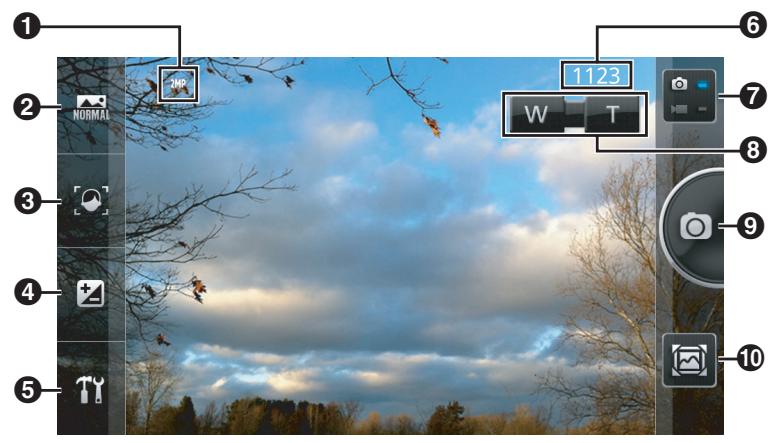
Current resolution • Shooting mode selector • Focus mode selector • Exposure adjustment • Settings panel • Number of pictures you can take • Picture/video mode selector • Zoom controls • Shutter button • Review screen
Taking pictures
- Tap [Camera] in the Home screen or [App List].
- Tap to select picture mode if necessary.
- Select the desired shooting mode, options, and zoom.
- Hold the phone steady and tap
- The phone captures an image, saves it in the internal memory, and displays the picture in the review screen ("Viewing recent pictures and videos" (page 45)).
Video mode screen
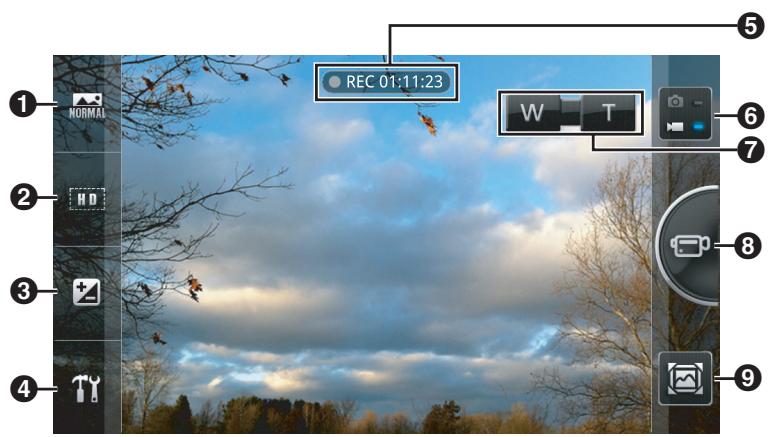
1 Scene mode selector 2 Resolution selector 3 Exposure adjustment 4 Settings panel 5 Available recording time 6 Picture/video mode selector 7 Zoom controls 8 Record button 9 Review screen
Recording videos
- Tap [Camera] in the Home screen or [App List].
- Tap to select video mode if necessary.
- Select the desired scene mode, options, and zoom.
- Hold the phone steady and tap
- Tap to stop recording.
- The phone saves the video in the internal memory and displays the video in the review screen ("Viewing recent pictures and videos" (page 45)).
Zooming
Tap T and W to zoom in and out. You can also slide the zoom slider while it is displayed.
Note
- You cannot adjust the zoom while recording videos. Adjust the zoom before recording.
Viewing recent pictures and videos
The review screen is displayed after you take a picture or finish recording a video. You can also open the review screen by tapping the icon. The following operations are available in the review screen depending on the camera settings.
- Flick left and right to browse.
- Tap to return to the camera.
- Tap to delete the current picture or video.
- Tap to share the current picture or video using the desired method.
- Tap i to display information about the current picture or video.
- Tap to delete the current picture or video and return to the camera.
- Tap to confirm the area selected for a contact's picture and add the photo to one of your contacts, or confirm the video captured for video upload.
Changing picture mode settings
The following settings are available when using picture mode.
[Shooting Mode]
Select a shooting mode according to the kind of pictures you want to take. You can also use the [Scene] mode for more options.
| [Normal] | Use this mode for typical picture taking. |
| [Burst] | Allows you to take a series of up to 7 pictures. The phone takes pictures for as long as you tap and hold Ⓞ. |
| [Collage] | Allows you to take multiple pictures and put them in a fun template. |
| [Pinhole] | Allows you to take pictures with a blurred dark edges. |
| [Panorama] | Allows you to take panorama pictures. |
| [Contact ID] | Allows you to take a picture of someone and add it to your phonebook. |
| [Beauty] | Allows you to give skin a soft appearance in your pictures. |
| [Smile] | Allows you to take pictures automatically once the subject smiles. |
| [Frame] | Allows you to add fun frames to your pictures. |
| [Stabilization] | After tapping Ⓞ, the phone takes a picture as soon as the phone is held still. |
[Focus Mode]
Select a focus mode depending on the shooting conditions and the desired subject.
| [Auto] | When you tap , the phone focuses on the subject in the centre of the screen and takes a picture. |
| [Face] | The phone focuses on faces. |
| [Touch] | Allows you to focus on a subject by simply tapping the desired subject on the screen. |
| [Infinity] | The phone focuses on distant landscapes. |
| [Continue] | The phone continually adjusts its focus according to the subject in the centre of the screen. |
| [Object] | Allows you to focus on a subject by simply tapping the desired subject on the screen. If the subject moves, or if you move the phone, the phone will track the movement and continue to focus on that subject. |
| [Macro] | Select this mode when shooting objects that are very close to the phone. |
Exposure
Allows you to adjust overall image brightness.
Settings panel
| [Scene] | Select a scene mode according to the shooting conditions and the kind of pictures you want to take. |
| Note | |
| Certain scene modes are not available depending on the current shooting mode. | |
| [Normal] The phone sets the shutter speed and aperture value according to the brightness of the subject. | |
| [Portrait] Makes skin tones look healthier. | |
| [Landscape] Allows you to take pictures of wide landscapes by giving priority focus to distant subjects. | |
| [Night] Uses slower shutter speeds to allow you to capture vivid nightscape pictures. | |
| [Sports] Allows you to take pictures of fast-moving subjects by increasing the shutter speed. Most effective when shooting in the daytime under clear skies. | |
| [Food] Allows you to take pictures of food that have a natural hue, without being affected by the ambient light in kitchens, restaurants, etc. | |
| [Backlight] If the light source is behind the subject, this mode compensates by brightening the subject. | |
| [Character] Useful for taking pictures of railway timetables, maps, etc. | |
| [Snow] Adjusts the exposure and white balance to help your pictures of the snow appear as white as possible. | |
| [Sunset] Allows you to take vivid pictures of sunsets. | |
| [Pet] Use this mode when taking pictures of animals. | |
| [Effect] | Allows you to select a colour effect. |
| [Self Timer] | The self timer allows you to take pictures 3, 5, or 10 seconds after you tap |
| [Photo Resolution] | Allows you to select the size at which pictures are captured. |
| [Photo Quality] | Allows you to select the quality at which pictures are captured. |
| [White Balance] | Allows you to adjust overall image colour based on the lighting conditions where you are taking pictures. |
| [ISO] | Determines how sensitive the lens is to light. |
| [Brighten] | Brightens dark areas in pictures. |
| [GPS Location] | Determines if location information is attached to pictures. |
| [Show Grid] | Determines if a grid is shown on the screen. |
| [Review] | Determines whether the review screen is displayed after you take a picture. |
| [Reset] | Reset all picture mode settings to their default values. |
Changing video mode settings
The following settings are available when using video mode.
[Scene Mode]
Select a scene mode according to the shooting conditions and the kind of videos you want to take.
[Normal] Use this mode for typical video recording.
[Night] Uses slower shutter speeds to allow you to capture vivid nightscape videos.
[Backlight] If the light source is behind the subject, this mode compensates by brightening the subject.
[Sunset] Allows you to record sunsets in vivid colour.
[Portrait] Makes skin tones look healthier.
[Sports] Allows you to record videos of fast-moving subjects by increasing the shutter speed. Most effective when shooting in the daytime under clear skies.
[Character] Useful for recording videos of railway timetables, maps, etc.
[Pet] Use this mode when recording videos of animals.
[Landscape] Allows you to record videos of wide landscapes by giving priority focus to distant subjects.
[Food] Allows you to record videos of food that have a natural hue, without being affected by the ambient light in kitchens, restaurants, etc.
[Snow] Adjusts the exposure and white balance to help your videos of the snow appear as white as possible.
[Resolution Mode]
Allows you to select the size at which videos are recorded.
Exposure
Allows you to adjust overall image brightness.
Settings panel
[White Balance] Allows you to adjust overall image colour based on the lighting conditions where you are recording videos.
[Effect] Allows you to select a colour effect.
[Video Quality] Allows you to select the image quality of recorded videos.
[Audio Record] Determines whether audio is also recorded when you record videos.
[Review] Determines whether the review screen is displayed after you record a video.
[Shot mode] Select [Mail] to limit recorded videos to 2 MB.
[Reset] Resets all video mode settings to their default values.
Viewing your pictures and videos
You can use the [Picture Album] app to view your pictures and videos.
Launch the [Picture Album] app by tapping [Picture Album] in the Home screen or [App List].
Browsing your picture album
Scroll left and right. Tap a picture or video to view it full-screen, and press to return to the album.
Viewing pictures and videos by category
- While browsing your picture album, tap the button in the upper-left corner of the screen.
- The [All files] button is displayed the first time you use this app.
- Select a category.
- If a group of images is displayed, tap the desired group. If individual images are displayed, tap the desired image.
Viewing pictures and videos in a slideshow
- While a group of images is displayed, press the menu button and then tap [Slideshow].
- Configure the slideshow and then tap [Start].
Note
- If a video is included in a slideshow, only a still image from the video is displayed in the slideshow.
Viewing pictures and videos on a map
If a picture or video in your picture album has geographic information attached to it, you can view it on a map by tapping [Map].
Sharing a picture in your album (Picture Jump)
You can use the Picture Jump feature to delete pictures and videos or easily send them to other apps.
- While browsing your picture album, tap and hold a picture or video to display the Picture Jump feature.
- Drag the picture or video to the desired location on the screen.
Configuring Picture Jump
- While browsing your picture album, press the menu button and then tap [Picture Jump settings].
- Drag the desired action to an area of the screen.
- The action is now available when using Picture Jump.
Increasing video image quality
The phone can increase video image quality by automatically adjusting image contrast.
- From the Home screen, press :三.
- Tap [Settings] → [Display] → [Contrast adjustment].
Note
- Some videos cannot be adjusted depending on the file format and file size.
Other features available when viewing pictures and videos
The following options are available by pressing : ≡ while viewing a picture or video full screen.
- [Share]: You can share pictures and videos with others using a variety of apps.
- [Delete]: You can delete pictures and videos.
- [Location info]: You can add geographic information to pictures and videos.
- [Edit image]: If a compatible image editor app is installed on the phone, you can open a picture using that app.
- [Set image]: You can set a picture to be used as a contact picture or as wallpaper.
- [More]: Additional features are available by using this menu option.
Location services
You can use your phone to find your location. Different apps can use this information to provide a variety of services, such as helping you find nearby shops and restaurants, adding location information to pictures you take with your phone, or showing you your location on a map.
Your phone can calculate its approximate location based on nearby wireless networks and by using its GPS (Global Positioning System) antenna, which receives signals from satellites. Using wireless networks to determine location is faster but less precise; using GPS is more precise but generally slower and requires a visible sky. You can enable and disable each of these features, and you can enable both if preferred.
Note
- The accuracy of location services cannot be guaranteed.
Enabling GPS-based location services
- From the Home screen, press :三.
- Tap [Settings] → [Location & security].
- Turn on the [Use GPS satellites] checkbox.
Note
- GPS-based location services require a visible sky.
Enabling wireless network-based location services
- From the Home screen, press :三.
- Tap [Settings] → [Location & security].
- Turn on the [Use wireless networks] checkbox.
Google Maps
You can use Google Maps to find your current location and get information specific to your location, such as directions and traffic information.
Launch the Google Maps app by tapping [Maps] in the Home screen or [App List].
Note
- Google Maps requires an active mobile network connection or Wi-Fi connection.
- Maps and place information may not be available in certain areas.
Using Google Maps
Search box: Allows you to enter text and search for places on the map.
Allows you to show specific information on the map, such as traffic information and transit lines.

Allows you to show specific information on the map, such as traffic information and transit lines.

Viewing the Google Maps help site
While viewing the map, press ≡ and then tap [Help].
While viewing the map, press and then tap [Help].
Getting directions
You can use Google Maps to get detailed directions for travelling by car, public transportation, or on foot.
Using Google Maps to get directions
- Tap [Maps] in the Home screen or [App List].
- Press :
- Tap [Directions].
- Specify the starting point and end point as desired.
- Select a mode of transportation.

Get directions for when travelling by car

Get directions for when travelling by public transportation

Get directions for when travelling on foot
6. Tap [Get directions].
Note
- Your destination is saved in the history so that you can easily select it again as the starting point or end point later.
- Maps and place information may not be available in certain areas.
Navigation
The [Navigation] app uses your phone's Internet connection and GPS antenna to provide voice-guided navigation with turn-by-turn directions.
Using [Navigation]
- Tap [Navigation] in the Home screen or [App List].
- Select one of following options to enter your destination:
- [Speak Destination]: Allows you to specify a destination by speaking it.
- [Type Destination]: Allows you to specify a destination by entering it with the keyboard.
- [Contacts]: Allows you to specify a destination by selecting it from your contacts.
- [Starred Places]: Allows you to specify a destination by selecting it from your [Starred Places] that you created in Google Maps.
- Follow the directions once they are displayed.
Note
- Navigation information may not be available in certain areas.
Places
Google Places provides you with details about nearby places of interest.
Using Google Places
- Tap [Places] in the Home screen or [App List].
- Select a category.
- Select a place and view the information.
- Tap the corresponding icon for more information, such as the phone number or to see the location on the map.
Note
- Maps and place information may not be available in certain areas.
Latitude
Google Latitude lets you share your location and status with your friends, as well as send instant messages and emails, make phone calls, etc.
Note
- In order to use these features, you need to create a Google account.
Sharing your location and status information with your friends
You can share your location and status information with your friends who also use Latitude.
- Tap [Latitude] in the Home screen or [App List].
- Tap.
- Follow the on-screen instructions to add a friend.
- Once your friend accepts your invitation, you will be able to see each other's location and status information.
Other apps
IC Link
You can use an IC card to trigger actions on your phone, such as opening a frequently-used web site or app, or changing the app used to display the Home screen.
Registering an IC card to the IC Link feature
- Tap [NFC Starter] in the Home screen or [App List].
- If an IC card has already been registered, tap [New] to register an additional card.
- Follow the on-screen instructions and touch the IC card to the [NFC] mark on the rear of the phone.
- Tap [Yes].
- Enter a name for the IC card and tap [OK] then [Yes].
- Select the desired action.
- [Change Home screen]: Allows you to configure the phone to change the app used to display the Home screen whenever you touch the IC card to the phone.
- [Start app]: Allows you to configure the phone to start a specific app whenever you touch the IC card to the phone.
- [Open web page]: Allows you to configure the phone to open a specific web site whenever you touch the IC card to the phone.
- Configure the action and then tap [OK].
Note
- The phone cannot detect IC cards if the phone's NFC feature is turned off. To confirm the setting, tap the menu icon in the Home screen, tap [Settings] then [Wireless & networks], and then turn on the [NFC] checkbox if necessary. Certain IC cards may not be able to be registered.
- An IC card registered for use with the screen lock feature cannot be used with the IC Link feature (see "Configuring the screen lock" (page 66)).
Using [NFC Starter]
Once you have registered an IC card to the phone for use with [NFC Starter], simply touch the IC card to the [NFC] mark on the rear of the phone to initiate the action you selected.
Changing the name assigned to an IC card
- Tap [NFC Starter] in the Home screen or [App List].
- Tap the desired item.
- Tap [Edit title].
- Enter a name for the IC card and tap [OK] → [Yes].
Deleting an [NFC Starter] action
- Tap [NFC Starter] in the Home screen or [App List].
- Tap the desired item.
- Tap [Delete] → [Yes].
Notepad
The [Notepad] app is a simple text processor that allows you to enter text notes. You can enter and save several notes, and share the content of a note with other apps.
Adding a new note
- Tap [Notepad] in the Home screen or [App List].
- Tap [New note].
- Enter the title and then enter the note text.
- Press the Back key twice when finished.
Editing a note
- Tap [Notepad] in the Home screen or [App List].
- Tap the desired note.
- Edit the title and note text as desired.
- Press the Back key twice when finished.
Deleting a note
- Tap [Notepad] in the Home screen or [App List].
- Tap and hold the desired note.
- Tap [Delete] then [OK].
Sharing a note
- Tap [Notepad] in the Home screen or [App List].
- Tap and hold the desired note.
- Tap [Share].
- Select the app that you want to share the note with.
- The note title and content is opened in the selected app.
- Use the selected app as desired.
Voice recorder
The [Voice Recorder] app allows you to record voice memos and play them back later.
Recording a voice memo
- Tap [Voice Recorder] in the Home screen or [App List].
- Tap to start recording.
- Tap to stop recording.
Playing back a voice memo
- Tap [Voice Recorder] in the Home screen or [App List].
- Tap the desired recording.
- Use the on-screen controls to pause and resume playback, or slide the bar to fast-forward and rewind.
Other functions
Tap and hold the recording in the recording list to edit the title, share, or delete the recording. You can also use a recording as a ringtone.
Calendar
The [Calendar] app allows you to create and manage your schedule. If you have a Google account, you can also synchronise your phone's calendar with the Google Calendar service.
Changing the calendar view
- Tap [Calendar] in the Home screen or [App List].
- Press :
- Tap [Day], [Week], or [Month] as desired.
Viewing multiple calendars
- Tap [Calendar] in the Home screen or [App List].
- Press :三.
- Tap [More] → [Calendars].
- Tap the icons to hide, display, and sync the desired calendars.
- Tap [OK].
Creating an event
- Tap [Calendar] in the Home screen or [App List].
- Press :三.
- Tap [More] → [New event].
- Enter the event details.
- If you set a reminder, your phone will remind you at the set time and will be displayed in the status bar.
- Tap [Done].
Viewing your monthly schedule
When viewing your monthly schedule, flick up and down to switch months. Tap a day to view your schedule for that day.
Viewing your weekly schedule
When viewing your weekly schedule, scroll up and down to look at your schedule week, and flick left and right to switch weeks.
Viewing your daily schedule
When viewing your daily schedule, scroll up and down to look at your schedule for the day, and flick left and right to switch days.
Viewing an event's details
Tap an event while viewing your daily or weekly schedule.
Editing an event
- Tap [Calendar] in the Home screen or [App List].
- Tap and hold an event while viewing your daily or weekly schedule.
- Tap [Edit event].
- Edit the event details and then tap [Done].
Deleting an event
- Tap [Calendar] in the Home screen or [App List].
- Tap and hold an event while viewing your daily or weekly schedule.
- Tap [Delete event] then [OK].
Dismissing or snoozing an event
- When the notification icon appears in the status bar, open the notifications panel by tapping the status bar and sliding your finger down.
- Tap the event.
- Tap [Snooze all] or [Dismiss all].
Changing calendar settings
- Tap [Calendar] in the Home screen or [App List].
- Press :E.
- Tap [More] -> [Settings].
- Change the settings as desired.
YouTube
You can use your phone to access the YouTube video-sharing service where you can view videos uploaded by other YouTube users. If you have a YouTube account, you can upload videos from your phone.
Watching a video
- Tap [YouTube] in the Home screen or [App List].
- Browse the list of videos and tap the desired video.
- Once playback begins, use the icons displayed to control video playback.
- You can rotate your phone and view videos in landscape viewing mode.
Searching for a video
- Tap [YouTube] in the Home screen or [App List].
- Tap Q.
- Enter the search text and then tap
Uploading a video already saved on the phone
- Tap [YouTube] in the Home screen or [App List].
- Press :E.
- Tap [Upload].
- Select the desired app and locate the video on the phone that you want to upload.
- Follow the on screen instructions.
Recording a video for upload
- Tap [YouTube] in the Home screen or [App List].
- Tap
- Once the [Camera] app starts, record a video (see "Recording videos" (page 45)).
- When recording has finished, follow the on-screen instructions to upload the video.
Increasing video image quality
The phone can increase video image quality by automatically correcting image contrast.
- From the Home screen, press :三.
- Tap [Settings] → [Display] → [Contrast adjustment].
Note
- Some videos cannot be corrected depending on the file format and file size.
Play Store
Google Play
Google Play is an online service where you can buy apps, music, movies, and books. You can use the [Play Store] app to purchase and download Google Play content.
Note
- A Google account and Internet access are required to use [Play Store].
- Google Play and certain service content may not be available in all regions.
- Google Play and the [Play Store] app were previously named "Android Market" and "Market", respectively.
Payment options
Google Play purchases are handled by Google Wallet. Google Wallet is an online payment processing service that provides services such as protection from credit card fraud and information about your purchase history.
Note
- Paid content may not be available in all regions.
- Direct carrier billing may also be available depending on your mobile operator and region.
Finding and downloading apps
Downloading an app
- Tap [Play Store] in the Home screen or [App List].
- Search for the app that you want to download by looking through the various categories or using the search function.
- Tap the app to see more information about it.
- Follow the on-screen instructions to download and/or purchase the app.
- An additional screen is displayed that informs you what the selected app can access if it needs to access data or control functions on your phone. Read this information carefully because it may dramatically change the performance and functionality of your phone.
- If the app is a paid app, select the desired payment method to complete the purchase.
App management
Clearing all data for an app
You can clear the data for an app. This may be necessary if the app's memory becomes full, or if you want to delete incoming email, text, or other messages in an app, or clear a game's high scores.
- From the Home screen, press :三.
- Tap [Settings] → [Applications] → [Manage applications].
- Tap the desired app.
- Tap [Clear data] → [OK].
Note
- You may not be able to clear the data for some apps.
Deleting an installed app
- From the Home screen, press :E.
- Tap [Settings] → [Applications] → [Manage applications].
- Tap the desired app.
- Tap [Uninstall] → [OK].
Note
- You may not be able to delete some preinstalled apps.
Viewing app permissions
In order to perform properly, some apps must access information stored on your phone or information about your phone. For example, certain apps may want to know your geographic location so that they can provide you with relevant information. Some apps could misuse their permission and report your location, or delete or steal your data. Only install and give permissions to apps that you trust.
- From the Home screen, press :三.
- Tap [Settings] → [Applications] → [Manage applications].
- Tap the desired app.
- Confirm the desired items under the [Permissions] title.
Allowing installation of apps from unknown sources
- Installing apps from unknown sources, such as services other than Google Play, may damage your phone.
- Installations from unknown sources are blocked by default, however, you may change this setting to allow installations from unknown sources.
- From the Home screen, press :三.
- Tap [Settings] then [Applications].
- Turn on the [Unknown sources] checkbox.
- Read the message and then tap [OK].
Connecting to other devices
Bluetooth wireless technology
Bluetooth wireless technology enables short-range (about 10 m) communication, including voice, audio, and data transfer, between Bluetooth-compatible devices such as phones, hands-free accessories, and computers.
Bluetooth wireless technology allows you to take advantage of a wide variety of features. For example, you can connect a compatible headset and talk on the phone or listen to music, or connect to your car stereo and listen to music and other content stored on your phone through your car stereo and enjoy hands-free phone conversations in the car. You can also use Bluetooth wireless technology to send and receive data such as pictures, videos, and contacts with another Bluetooth device.
Bluetooth settings
In order to use your phone with another Bluetooth device, you must first register your phone and the other device to each other. This is called "pairing". In order to pair with each other, your phone and the other device must be able to find each other using Bluetooth wireless technology. This is done by making your phone "discoverable" by the other device, or vice versa.
Note
- Feature compatibility between Bluetooth devices may vary.
Turning on the phone's Bluetooth feature
- From the Home screen, press the Menu key.
- Tap [Settings] then [Wireless & networks].
- Turn on the [Bluetooth] checkbox.
- When the Bluetooth feature has been turned on, the Bluetooth icon appears in the status bar.
Pairing a Bluetooth device with the phone
Use this procedure to use your phone to initiate the pairing process, such as when pairing a Bluetooth headset.
- From the Home screen, press the Menu key.
- Tap [Settings] > [Wireless & networks] > [Bluetooth settings].
- Set the other Bluetooth device to pairing mode or discoverable mode.
- Refer to the operating instructions included with the other device for details.
- Tap [Scan for devices].
- The phone displays the names of any Bluetooth devices that can be discovered.
- Tap the name of the device that you want to pair with the phone.
- Enter the other device's passkey if prompted.
Note
- You can confirm the pairing and connection status of other Bluetooth devices in the [Bluetooth devices] list.
Connecting to a paired Bluetooth device
Once you have paired another Bluetooth device with your phone, you may need to connect to the device in order to use it. (This is typically the case with Bluetooth headsets.)
- From the Home screen, press :E.
- Tap [Settings] → [Wireless & networks] → [Bluetooth settings].
- Tap the name of the device in the [Bluetooth devices] list.
Note
- While your phone can be paired to multiple Bluetooth devices, each Bluetooth profile (phone and audio) can connect to only one device at a time.
Entering the phone name
You can enter a name for your phone so that it is easily identified by other devices when your phone is discoverable.
- From the Home screen, press the Menu key.
- Tap [Settings] > [Wireless & networks] > [Bluetooth settings].
- Make sure that the phone's Bluetooth feature is turned on.
- Tap [Device name].
- Enter the name and then tap [OK].
Pairing the phone to another Bluetooth device
Use this procedure if you want to use another Bluetooth device to initiate pairing of your phone and the other device, such as when pairing your phone to a Bluetooth-compatible car stereo.
- From the Home screen, press the Menu key.
- Tap [Settings] > [Wireless & networks] > [Bluetooth settings].
- Make sure that the phone's Bluetooth feature is turned on.
- Turn on the [Discoverable] checkbox.
- The phone enters discoverable mode for 2 minutes by default. You can change this time by changing the [Discoverable timeout] setting.
- The amount of time before discoverable mode ends is displayed.
- Operate the other device to pair the phone to the other device.
Refer to the operating instructions included with the other device for details. 6. Use the phone to enter the other device's passkey if prompted.
Disconnecting a Bluetooth device
- From the Home screen, press :E.
- Tap [Settings] → [Wireless & networks] → [Bluetooth settings].
- Tap and hold the name of device in the [Bluetooth devices] list.
- Tap [Disconnect].
Note
- Devices that are disconnected are still paired with your phone. To disconnect and remove the pairing, tap [Disconnect & unpair].
Unpairing a Bluetooth device
- From the Home screen, press :E.
- Tap [Settings] → [Wireless & networks] → [Bluetooth settings].
- Tap and hold the name of the device in the [Bluetooth devices] list.
- Tap [Unpair] or [Disconnect & unpair].
Sending data to a Bluetooth device
- Using one of the apps on the phone, select the data you want to send.
- Select the app's share or send option.
- Select the Bluetooth option.
- Select the destination device.
Receiving data from a Bluetooth device
- Send the data to your phone from the sending device. Refer to the operating instructions included with the other device for details.
- Open the phone's notification panel and tap [Bluetooth share: Incoming file] → [Accept].
USB
You can use the included USB cable to connect your phone to your computer. This allows you to copy data between your phone and computer, which is useful for backing up data on your phone and saving it on your computer, or for using your phone as a portable data storage device.
You can also share your phone's network connection with your computer over USB, which is known as "USB tethering". This allows you to use your computer to access the Internet, check email, download data, etc. even while away from home or the office where there is no Wi-Fi service.
USB storage
When you connect your phone to a computer via USB, the computer identifies your phone as a removable disk, allowing you to copy data between the two devices.
- Use the included USB cable to connect the phone to the computer.
- The USB mass storage screen is displayed. If it is not displayed, open the notification panel and tap the USB notification.
- Tap [Turn on USB storage] → [OK].
- If you are running an app that is using the internal memory, you may have to close the app in order to access the internal memory.
- Wait for the computer to recognise the phone as an external disk and then access the phone's memory as desired.
IMPORTANT
- Do not disconnect your phone from the computer while data is being transferred, otherwise data on your phone may become corrupted. To safely disconnect your phone, return to the USB mass storage screen (tap the item in the notification panel if necessary) and tap [Turn off USB storage].
USB tethering
- From the Home screen, press :E.
- Tap [Settings] → [Wireless & networks] → [Tethering & portable hotspot].
- Turn on the [USB tethering] checkbox.
- The following icons are displayed in the status bar and notification panel when tethering is enabled.
Displayed when USB tethering is enabled. Displayed when USB tethering and hotspot (see “Configuring the phone as a Wi-Fi hotspot” (page 24)) are both enabled.
Note
- Disable [USB tethering] when you are finished using the USB tethering feature.
- You cannot use USB tethering and access your phone's memory using a USB cable at the same time.
- You may need to configure your computer to be able to access the Internet when using USB tethering. Visit www.android.com/tether for the latest information.
DLNA (content streaming)
The [DLNA] app is a multimedia content streaming app that allows you to connect your phone wirelessly to other DLNA-compatible network devices. DLNA-compatible devices, including your phone, can be used to stream content to other DLNA-compatible devices and copy or transfer content from one device to another. This means you can enjoy your multimedia content even when it is stored on another device.
Note
Refer to the operating instructions for your DLNA-compatible device for more information. - In order to use this feature, each device must be connected on the same network. Additionally, your phone must be connected to this network via Wi-Fi.
Watching content stored on another device
- Tap [DLNA] in the Home screen or [App List].
- Tap [External devices].
- Select the desired device.
- Browse for content and select the desired item.
Sending content from the phone to another device
You can use your phone to copy content from your phone to another device, or to stream content from your phone to the other device without copying it.
Note
- In order to use this feature, you must first configure the Picture Jump feature in the [Picture Album] app. Add [Upload (DLNA)] if you want to copy the content to the other device, and add [Play from external device (DLNA)] if you want to stream the content to the other device without copying it. For more information, see “Configuring Picture Jump” (page 49).
- Tap [DLNA] in the Home screen or [App List].
- Tap [Local content].
- The [Picture Album] app opens.
- Browse for and select the desired picture or video.
- Tap and hold the picture or video to display the Picture Jump feature.
- Drag the picture or video to [Upload (DLNA)] (for copying) or [Play from external device (DLNA)] (for streaming).
Note
- To set or change the destination device when uploading (copying) content, launch the [DLNA] app, tap [Settings], tap the item displayed under [Upload to], and then specify the device.
Using the phone as a media server
- Tap [DLNA] in the Home screen or [App List].
- Tap [Media server].
- Once your phone's media server is running, other DLNA-compatible devices can browse for and view content that is stored on your phone.
- To stop the media server, press
Synchronise, backup, and restore
You can synchronise information on your phone with information stored somewhere else. This allows you to make sure that the latest files, emails, calendar events, and other information stored on your phone and other devices are up-to-date.
Synchronising with your Google account
Google Sync allows you to synchronise your phone with your Gmail account, Google Calendar events, and your Google contacts. In order to use these features, you need to create a Google account.
Adding a Google account
Use this procedure if you have not yet added your Google account to your phone, or if you want to add an additional account.
- From the Home screen, press the Menu key.
- Tap [Settings] then [Accounts & sync].
- Tap [Add account] then [Google].
- Follow the on-screen instructions.
Turning on synchronisation features
- From the Home screen, press the Menu key.
- Tap [Settings] then [Accounts & sync].
- Turn on the [Background data] checkbox.
- Turn on the [Auto-sync] checkbox.
Note
- We recommend you make a backup of your data before synchronising it.
Turning on synchronisation for specific features
- From the Home screen, press the Menu key.
- Tap [Settings] → [Accounts & sync].
- Confirm that [Background data] and [Auto-sync] are turned on.
- Select the account name.
- Tap the desired items to turn their checkboxes on and off.
Synchronising manually with your Google account
- From the Home screen, press :三.
- Tap [Settings] → [Accounts & sync].
- Select the account name.
- Press :三.
- Tap [Sync now].
Removing a Google account
- From the Home screen, press :三.
- Tap [Settings] → [Accounts & sync].
- Turn on the [Auto-sync] checkbox.
- Select the account name.
- Tap [Remove account].
- Tap [Remove account] again to confirm.
Note
- You can remove all but the first Google account registered in the phone. To delete the first account, you must reset the phone. See "Resetting the phone" (page 76) for more information.
Synchronising your corporate email, calendar and contacts
You can use your phone to access your corporate email account, calendar appointments, and contacts.
Note
- This feature requires that your institution uses a Microsoft Exchange server.
Setting up corporate email, calendar and contacts
- From the Home screen, press :三.
- Tap [Settings] → [Accounts & sync].
- Make sure the [Auto-sync] checkbox is turned on.
- Tap [Add account] → [Corporate].
- Follow on-screen instructions to set up your account.
- If the settings for your corporate account are not found automatically, you may need to configure the account manually. Contact your corporate network administrator for more information.
Changing settings for your corporate email, calendar, and contacts account
You can change settings such as a synchronization interval and notification settings for your corporate account.
- From the Home screen, press :三.
- Tap [Settings] → [Accounts & sync].
- Select your corporate account.
- Tap [Account settings].
- Change the account settings as desired.
Removing a corporate account
- From the Home screen, press :E.
- Tap [Settings] → [Accounts & sync].
- Select your corporate account.
- Tap [Remove account].
- Tap [Remove account] again to confirm.
Backing up to the USB storage
You can use the [USB storage backup] feature to back up the data on your phone, such as your contacts and SMS messages, to a backup file that is stored in the phone's USB storage (i.e., internal memory). You can use the backup file to later restore data to your phone, and you can delete backup files as necessary.
Backing up data
- From the Home screen, press the Menu key.
- Tap [Settings] -> [Privacy] -> [USB storage backup] -> [Back up to USB storage].
- Enter the terminal password and tap [OK].
- Select the type of data that will be backed up and then tap [Yes].
- Tap [OK].
Note
- Make sure the battery is charged before backing up data.
Restoring backed up data
- From the Home screen, press the Menu key.
- Tap [Settings] -> [Privacy] -> [USB storage backup] -> [Restore data to phone].
- Enter the terminal password and tap [OK].
- Select the type of data that will be restored.
- Select the desired option.
- [Replace]: The backup data replaces the current data.
- [Add]: The backup data is added to the current data.
- Select the data that will be restored and then tap [Yes].
- Tap [OK].
Note
- Make sure the battery is charged before restoring data.
Deleting backed up data
- From the Home screen, press :E.
- Tap [Settings] → [Privacy] → [USB storage backup] → [Delete backup data].
- Enter the terminal password and tap [OK].
- Select the type of data that will be deleted.
- Select the data that will be deleted and then tap [Delete].
- Tap [Yes] then [OK].
Backing up to a computer
You can use the [PC Backup] app to back up the pictures on your phone and save the backup file on a computer.
Configuring [PC Backup]
In order to make backups, you must first specify information about the computer including the computer name, user name, password, and the name of the shared folder where the backups will be saved.
- Tap [PC Backup] in the Home screen or [App List].
- Press 3.
- Tap [Settings].
- Tap each item and enter the corresponding information about your computer.
- You can also tap [Settings wizard] to search automatically for available computers and shared folders on the network.
- Tap [Connection test] to confirm that the settings you made are correct.
- If an error message is displayed, confirm the settings and try again.
Backing up your data
- Tap [PC Backup] in the Home screen or [App List].
- Select the desired backup option.
- [All data]: Backs up all pictures.
- [Since last backup]: Backs up all pictures that were created or modified since the last backup.
- [Specify date]: Backs up pictures created or modified on a specified date.
- Follow the on-screen instructions and start the backup.
Phone security
There are various ways you can lock your phone.
- Locking the screen: This prevents you from accidentally tapping your phone and operating it unintentionally. You can also lock the screen using a security method to prevent unauthorized access to your phone. Once the screen is locked, it must be unlocked before your phone can be used. When the screen is unlocked, the user has access to the phone and most settings.
- Hiding your data: You can prevent unauthorized access to your important data by storing it in a virtual safe. You can also store entire email accounts in the safe, so that the accounts are not visible when the safe is closed.
- Protecting phone settings: You can set a terminal password (phone password) to prevent unauthorized access to certain phone settings. When the user attempts to change certain settings, the phone will ask the user to enter the terminal password.
- Protecting your SIM card: You can lock the SIM card to prevent unauthorized use of the card, even if it is removed and inserted into another phone. Once the SIM card is locked, it must be unlocked each time the phone is turned on. If the unlock code is entered incorrectly 3 times, it can only be unlocked with the operator-provided PUK (Personal Unblocking Key).
Locking the screen
You can lock your screen to prevent unauthorized access to your phone.
Configuring the screen lock
- Tap [Data Security] in the Home screen or [App List].
- Tap [Change settings now].
- Select an unlock method, and then follow the on-screen instructions to set the unlock pattern.
- Select whether you want to register an IC card to be used to unlock the screen.
- To finish without registering an IC card, tap [Skip].
- To register an IC card, tap [Register].
- Follow the on-screen instructions to complete the setup.
Note
- Once a screen unlock method is selected, you must use that unlock method to unlock the screen (such as when pressing < > to activate the screen) and also to change the screen lock setting.
- If you try to unlock the screen five times unsuccessfully, the screen will remain locked for 30 seconds.
- If the screen is locked, you can make emergency calls by tapping [Emergency call].
- The phone cannot detect IC cards if the phone's NFC feature is turned off. To confirm the setting, tap ≡ in the Home screen, tap [Settings] → [Wireless & networks], and then turn on the [NFC] checkbox if necessary.
Changing the screen lock
- Tap [Data Security] in the Home screen or [App List].
- Enter the correct unlock method.
- Tap [Security Settings].
- Select the desired setting.
- [None]: Disables security settings.
- Allows you to change the unlock pattern.
- Allows you to add, change, and delete an IC card used for unlocking the phone.
- Follow the on-screen instructions to complete the setup.
Hiding your data
You can store important information, such as documents, pictures, videos, and email accounts in a virtual "safe" on your phone, where they are protected from unauthorized access. Information stored in the safe cannot be seen while the safe is closed.
Note
- In order to use this feature, you must first configure the screen lock (see "Locking the screen" (page 66)).
Opening the safe
- Tap [Data Security] in the Home screen or [App List].
- Enter the correct unlock method.
- All files in the safe will be visible.
Note
- If you used an IC card to lock the phone, note that the phone cannot detect IC cards if the phone's NFC feature is turned off. To confirm the setting, tap the menu icon in the Home screen, tap [Settings] > [Wireless & networks], and then turn on the [NFC] checkbox if necessary.
Closing the safe
- Tap [Data Security] in the Home screen or [App List].
- If you are prompted to unlock the phone, the safe is already closed.
- Tap [Lock].
Adding a file to the safe
- While using an app that is compatible with this feature, select the desired file.
- Press the menu button.
- Tap [Share] > [Security Box].
- If the safe is closed, enter the correct unlock method.
- This procedure varies depending on the app being used.
- Tap [Store].
- The file will now be visible only when the safe is open.
- To remove a file from the safe, open the safe, then repeat this procedure and select [Remove].
Adding an email account to the safe
You can add an email account to the safe by creating the account while the safe is open.
- Tap [Data Security] in the Home screen or [App List].
- If the safe is closed, enter the correct unlock method.
- Tap [Secure Email].
- Create a new email account.
Protecting phone settings with a terminal password
A terminal password (phone password) is required when changing certain settings.
Configuring the terminal password
- From the Home screen, press :E.
- Tap [Settings] → [Location & security] → [Set phone password].
- If the terminal password has already been set, you will be prompted to enter the current terminal password.
- Enter the desired terminal password and then tap [OK].
- Enter the desired terminal password again and then tap [OK].
Protecting your SIM card
You can lock the SIM card to prevent unauthorised use of the card, even if it is removed and inserted into another phone. Once the SIM card is locked, it must be unlocked each time the phone is turned on. If the unlock code is entered incorrectly 3 times, it can only be unlocked with the operator-provided PUK (Personal Unblocking Key).
Locking the SIM card
- From the Home screen, press :三.
- Tap [Settings] → [Location & security] → [Set up SIM lock].
- Turn on the [Lock SIM] checkbox.
- Enter the current SIM PIN and tap [OK].
Changing the SIM PIN
- From the Home screen, press :三.
- Tap [Settings] → [Location & security] → [Set up SIM lock].
- Tap [Change SIM PIN].
- This option is only available if the SIM card is already locked.
- Enter the current PIN and tap [OK].
- Enter the desired PIN and tap [OK].
- Enter the desired PIN again and tap [OK].
Updating the phone
Downloading updates wirelessly
When software updates have been released for your phone, you can download them wirelessly.
Checking for updates automatically
- From the Home screen, press :E.
- Tap [Settings] → [About phone] → [Software update] → [Update from server] → [Settings].
- Select the desired setting.
- When the [Auto search] checkbox is turned on, the phone will connect to the network automatically at the preset time and search for updates.
- When the [Auto search] checkbox is turned off, the phone will not search for updates automatically.
- Tap [OK].
Checking for updates immediately
- From the Home screen, press :E.
- Tap [Settings] → [About phone] → [Software update] → [Update from server] → [Software update].
- Tap [Yes] to check for updates immediately.
- Tap [No] to cancel.
- Information about any available updates is displayed.
- Follow the on-screen instructions.
Downloading updates with a computer
You can use your computer to download software updates from the Panasonic web site and copy them to your phone. You can then use the following procedure to update the software manually.
- From the Home screen, press :E.
- Tap [Settings] → [About phone] → [Software update] → [Update from USB storage] → [OK].
- Follow the on-screen instructions.
Phone settings overview
You can customise general phone settings to suit your needs using the [Settings] menu. Settings are grouped into the categories explained below.
To view the [Settings] menu from the Home screen, press ≡ and then tap [Settings].
| Settings category | Description |
| [Wireless & networks] | Contains wireless network, Wi-Fi, Bluetooth wireless technology, VPN, and other settings. |
| [Call settings] | Contains phone call related settings such as voicemail, call forwarding, and call waiting. |
| [Sound] | Contains settings related to volume and silent mode, vibration, and ringtones. |
| [Display] | Contains settings such as brightness, animation, and screen timeout. |
| [Location & security] | Contains location services related settings as well as security-related settings such as screen lock, SIM lock, and terminal password. |
| [Applications] | Contains settings that help you manage and remove the apps installed on your phone. |
| [Accounts & sync] | Contains settings that determine which services your phone uses to get email and calendar information, as well as how your phone syncs to other servers to keep its data up-to-date. |
| [Privacy] | Contains data backup and deletion related settings that help you manage and back up your personal information to Google servers. You can also reset your phone and its information using settings found here. |
| [Storage] | Allows you to confirm the available space in your phone’s internal memory. |
| [Language & keyboard] | Contains settings related to display language, input language, the keyboard, and the user dictionary. |
| [Voice input & output] | Contains settings that help you customise your phone’s speech recognition and text-to-speech features. |
| [Accessibility] | Allows you to enable and disable accessibility apps that you have installed in your phone. |
| [Date & time] | Contains settings that determine your phone’s date, time, time zone, and time format. |
| [About phone] | Allows you to configure software update settings and general phone information such as battery level, network status, and installed software versions. |
List of icons
Status icons
Signal strength Roaming GPRS is available GPRS in use EDGE is available EDGE in use 3G is available 3G in use Battery is charging
eco mode is on
GPS is activated Airplane mode is on Bluetooth feature is on Bluetooth device is connected SIM card is not inserted Connected to Wi-Fi network Microphone is muted Speakerphone is on Vibrate mode is on Silent mode is on Voicemail has been received Alarm is set
Notification icons

New Gmail

New email message

New instant message

New voicemail

Data is synchronising

Wireless networks are available

PC is connected via USB

Error message

Missed call

Call in progress

Call is on hold

Downloading data

Uploading data
App icons
Preinstalled apps may vary by region.

Phone
Phone calls

Phonebook
Address book

Messaging
Text messaging

Gmail
Email client

Email client

Browser
Internet browser

Camera
Picture and video capture

Picture Album
Picture and video viewing

Music
Music playback

DLNA
Multimedia streaming

YouTube
Video sharing

Voice Recorder
Voice memo recording

Maps
Maps and local information

Navigation
Directions

Places
Location-based places of interest

Latitude
Location-based status tracking

Social network

Social media

Talk
Instant messaging

Play Store
Software purchase and download

Calculator
Calculator
PC Backup
Data backup

eco mode
Power management

Settings
General device configuration

NFC Starter
NFC tag utility

Task viewer
App management


Calendar

Appointment management
Notepad
Text memos

Polaris Office
Office apps
Troubleshooting
General troubleshooting
My phone is not working as expected
If you experience any difficulty with the phone, try to resolve the problem by performing the following troubleshooting tips. Perform each operation one by one until the problem is resolved.
- Turn the phone off and then on again.
- Turn the phone off, remove and re-insert the SIM card, then turn the phone on again.
- Update the phone. See page "Updating the phone" (page 69) for more information.
- If you are prompted to force an app to close, tap [Force close].
- Disconnect the USB cable from the phone and then press and hold the down arrow for about 20 seconds. The phone will turn off, and then turn on again. If it does not turn on again automatically, turn the phone on manually. You may need to charge the battery before the phone can be turned on again.
- Reset the phone.
Resetting the phone
- From the Home screen, press the Menu key.
- Tap [Settings] > [Privacy] > [Factory data reset].
- Enter the terminal password if prompted and then tap [OK].
- If you want to delete the internal memory also, turn on the [Erase USB storage] checkbox.
- Tap [Reset phone] > [Erase everything].
IMPORTANT
- All personal information and downloaded apps will be deleted if you reset the phone. Back up any important data stored on the phone before resetting it.
I forgot the unlock method used for screen lock
Contact your regional Panasonic service centre.
The phone does not recognise my IC card
- The phone cannot detect IC cards if the phone's NFC feature is turned off. To confirm the setting, tap ≡ in the Home screen, tap [Settings] → [Wireless & networks], and then turn on the [NFC] checkbox if necessary. Certain IC cards may not be able to be registered.
The battery does not charge
The USB cable is not connected to the phone or to the power source correctly. Check all connections.
The battery charging icon does not appear
It may take a few minutes before the battery icon appears when the phone starts charging.
The battery performance is low
Try using eco mode to save battery power. See page "eco mode" (page 19) for more information.
The battery performance is poor
- Check all connections and charge the battery again.
- Ambient temperature is too hot or too cold.
The phone is hot
When you use apps that require more power or when you use apps for an extended period of time, the phone may feel hot to the touch. This is normal and should not affect the phone's life span or performance.
I cannot make or receive calls
- Reception may be poor in the current location. Move to another area and try again.
- Confirm that the phone is connected to the correct network.
- You may have enabled calling features such as call forwarding or fixed dialling, which are preventing the phone from making/receiving calls.
Calls are being dropped
The signal may be weak or reception may be poor. Move to another area and try again.
I cannot make calls to contacts
Make sure you have entered the correct phone number for the contact.
I can only make emergency calls
- Confirm that the SIM card is inserted properly.
- Confirm that the phone is connected to the correct network.
The other party cannot hear my voice
- Make sure you are not covering the microphone.
- Make sure that you are speaking into the microphone and that the microphone is not too far from your mouth.
- If you are using a headset, make sure the headset is connected properly.
- Reception may be poor in the current location. Move to another area and try again.
I cannot open or receive a file
The phone does not support the file type, or there is not enough available memory to receive the file.
I cannot play certain songs
Confirm that the file type is supported by the phone.
I cannot use Internet-based services
Make sure that the Internet and network settings in your phone are correct. See page
"Connecting to mobile networks" (page 21) for more information. Contact your mobile network operator for more information.
The SIM card is locked
If you have enabled the SIM lock feature, the SIM card must be unlocked each time your phone is turned on.
If the unlock code is entered incorrectly 3 times, it becomes PUK-locked and can only be unlocked with the operator-provided PUK (Personal Unblocking Key). Contact your mobile network operator for more information.
The SIM card is PUK-locked
Once the SIM card is PUK-locked, it can only be unlocked with the operator-provided PUK (Personal Unblocking Key). If the PUK is entered incorrectly 10 times, the SIM card can no longer be used and you must replace the SIM card. Contact your mobile network operator for more information.
The touch panel screen does not turn on as expected
A foreign object is interfering with the proximity sensor. Remove any protective covers from the screen that may be interfering with the touch panel screen's functionality.
No sound is heard
- Confirm that silent mode is turned off.
- Confirm that the volume is turned up.
Connectivity using Bluetooth wireless technology is not working
- Make sure that the Bluetooth feature of both devices is turned on.
- Make sure that the devices are within 10 m of each other.
- Refer to the operating instructions included with the other device for proper operation and troubleshooting tips.
Need help?
If you experience any problems with your phone, there are several ways that we can be of assistance.
Troubleshooting
Refer to the Troubleshooting section of this document for assistance in solving any problems you might be having with your phone.
Support on the web
Visit the support web site at http://www.panasonic.eu/customer_service.html for the latest support information, software downloads, FAQs, and more.
Index
A
AC adaptor 6
Account information 19
Airplane mode 17
App List 13
App updates 14
Apps
Adding shortcuts 14
Searching for 14
Update 14
B
Backup 64, 65
Battery charging 6
Bluetooth wireless technology
Pairing 59,60
Receiving data 61
Sending contacts 30
Sending data 60
Unpairing 60
Brightness 17
Browser 38
Bookmarks 39
Downloading 40
Settings 40
C
Calendar 54
Call forwarding 27
Call log 26
Caller ID 28
Calling features
Answering calls 26
Call forwarding 27
Call waiting 27
Conference calls 28
Emergency calls 25
Fixed dialling 28
International calls 25
Making calls 25
Rejecting a call 28
Camera 44
Charging 6
Computer
Connection 7
Copying files to phone 42
Downloading software updates 69
Conference calls 28
Contacts
Add yourself 31
Adding contacts 30
Adding email sender 34
Adding text sender 36
Backing up 31
Deleting 31
Editing 31
Importing 30
Sharing 31
Syncing 19,30
D
Data security 67
Date & time 17
Directions 51
DLNA 62
E
Earpiece volume 25
eco mode 19
Email 33
Accounts 34
Composing 33
Default account 34
Deleting 34
File attachments 33
Forwarding 34
Reading 33
Receiving 33
Removing account 35
Replying 34
Sending 33
Setting accounts 33
Emergency calls 25
Entering text 15
F
Fixed dialling 28
Fixed dialling numbers (FDN) 28
Folders 13
G
Gmail 35
Google account 35
Google Latitude 52
Google Maps 50
Google Places 51
Google Sync 63
Google Talk 37
GPS 50
H
Headset 19,26
Home screen 12
App List 13
Folders 13
Shortcuts 13
Wallpaper 13
Web page shortcut 39
Widgets 13
1
IC card 53,66
IC Link 53
Icons
App icons 73
Notification icons 72
Status icons 71
K
Keyboard 15
Voice recognition 16
L
Language 16, 17
Latitude 52
M
Messaging 36
Calling sender 37
Composing 36
Deleting 36
File attachments 37
Forwarding 36
Notifications 37
Replying 36
Microphone 19,26
Missed calls 26
Mobile networks 21
Music
Copying files to phone 42
Listening 42
Playlists 42
Mute 25
N
Navigation 51
Notepad 53
Notification panel 15
P
Parts of phone 9
Phone security 66
Phonebook 27,30
Picture album 49
Pictures 44, 48
Sharing 49
Viewing on a map 49
Places 51
PlayStore 57
Power on/off 7
R
Recording videos 45
Restore 65
Ringer 26
Ringtone 18
Screen
Gestures 10
Unlock 8
Vertical and horizontal viewing 12
Screen lock 66
Screen timeout 18
Security 66, 67
Settings 70
Account & sync 63
Account information 19
Airplane mode 17
Brightness 17
Browser 40
Call forwarding 27
Call waiting 28
Caller ID 28
Camera 45, 48
Contrast correction 49, 56
Data roaming 22
Date & time 17
Dialling touch tones 18
Disabling network data connection 21
First time 8
Fixed dialling 28
General 17
Google account 35
GPS 50
Input language 16
Internet 21
Ringtone 18
Screen language 17
Screen timeout 18
Silent mode 18
Sound 18
Static IP address 23
Time format 17
Vibrate mode 18
Voicemail 27
Volume 18
VPN 23
Wi-Fi 22
Shortcuts 13, 14
Silent mode 18,26
SIM card
Inserting 6
Removing 6
SIM card lock 68
Slideshow 49
Software update 69
Speaker volume 25
Speakerphone 26
Static IP 23
Status bar 15
Synchronising 63
Calendar 64
Contacts 64
Email 64
Google Sync 63
T
Taking pictures 44
Terminal password 67
Time zone 17
Troubleshooting 76
Typing 15
U
Update software 69
Uploading videos 56
USB cable 6,7
USB storage 61
USB tethering 61
V
Vibrate 18
Videos 45, 48
Voice recognition 16
Voice recorder 54
Voicemail 27
Playing messages 27
Settings 27
Volume 18,25
VPN 23
W
Wallpaper 13
Web browser 38
Widgets 13
Wi-Fi 22
Wi-Fi hotspot 24
Y
YouTube 56
Panasonic Mobile Communications Co., Ltd.
600 Saedo-cho, Tsuzuki-ku, Yokohama-city, Kanagawa 224-8539 Japan
http://panasonic.net/
Copyright:
This material is copyrighted by Panasonic Mobile Communications Co., Ltd., and may be reproduced for internal use only. All other reproduction, in whole or in part, is prohibited without the written consent of Panasonic Mobile Communications Co., Ltd.
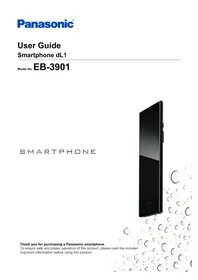
- GETTING TO KNOW YOUR PHONE
- CONNECTING TO NETWORKS
- CALLING
- PHONEBOOK
- WEB BROWSER
- MUSIC
- PICTURES AND VIDEOS
- LOCATION SERVICES
- OTHER APPS
- PLAYSTORE
- CONNECTING TO OTHER DEVICES
- SYNCHRONISE, BACKUP, AND RESTORE
- PHONE SECURITY
- UPDATING THE PHONE
- PHONE SETTINGS OVERVIEW
- TROUBLESHOOTING
- NEED HELP
- INDEX
- INTRODUCTION
- PRODUCT DOCUMENTATION
- IMPORTANT INFORMATION
- QUICK START GUIDE
- USER GUIDE (THIS DOCUMENT)
- TRADEMARKS
- NOTICE
- GETTING STARTED
- INSERTING THE SIM CARD
- REMOVING THE SIM CARD
- CHARGING THE BATTERY
- CHARGING THE BATTERY USING THE AC ADAPTOR
- NOTE
- CHARGING THE BATTERY USING A COMPUTER OR OTHER DEVICE
- TURNING THE PHONE ON
- TURNING THE PHONE ON FOR THE FIRST TIME
- TURNING THE PHONE OFF
- TURNING THE SCREEN ON
- TURNING THE SCREEN OFF
- UNLOCKING THE SCREEN
- CONFIGURING THE PHONE FOR THE FIRST TIME
- PHONE OVERVIEW
- INDICATOR
- FRONT PANEL BUTTONS
- USING THE TOUCH PANEL SCREEN
- TAPPING
- DOUBLE-TAPPING
- SWITCHING BETWEEN VERTICAL AND HORIZONTAL VIEWING MODES
- HOME SCREEN
- GOING TO THE HOME SCREEN
- BROWSING THE HOME SCREEN
- LAUNCHING AN APP IN THE HOME SCREEN
- MOVING AN ITEM ON THE HOME SCREEN
- ADDING A WIDGET TO THE HOME SCREEN
- ADDING A SHORTCUT TO THE HOME SCREEN
- ADDING A FOLDER TO THE HOME SCREEN
- RENAMING A FOLDER
- ADDING AN ITEM TO A FOLDER
- DELETING AN ITEM ON THE HOME SCREEN
- CHANGING THE WALLPAPER ON THE HOME SCREEN
- APP LIST
- ADDING A SHORTCUT TO AN APP ON THE HOME SCREEN
- CHANGING THE LAYOUT OF THE [APP LIST]
- USING APPS
- LAUNCHING AN APP
- CLOSING AN APP
- OPENING AN APP'S OPTIONS MENU
- SWITCHING BETWEEN APPS
- STATUS AND NOTIFICATIONS
- STATUS BAR
- NOTIFICATIONS PANEL
- TYPING ON YOUR PHONE
- FLEXT9 KEYBOARD OVERVIEW
- ANDROID KEYBOARD OVERVIEW
- SELECTING THE INPUT LANGUAGES WHEN USING THE ANDROID KEYBOARD
- USING VOICE RECOGNITION WHEN USING THE ANDROID KEYBOARD
- CUSTOMISING YOUR PHONE
- GENERAL SETTINGS
- SETTING THE DATE, TIME, AND TIME ZONE
- SWITCHING BETWEEN 12-HOUR AND 24-HOUR FORMAT TIME
- TURNING ON AIRPLANE MODE
- SCREEN SETTINGS
- CHANGING THE LANGUAGE OF THE PHONE
- ADJUSTING THE SCREEN BRIGHTNESS MANUALLY
- SETTING THE SCREEN TIMEOUT
- SETTING THE SCREEN TO STAY ON WHILE CHARGING THE PHONE
- SOUND SETTINGS
- CHANGING THE RINGTONE FOR PHONE CALLS
- ADJUSTING THE VOLUME
- TURNING SILENT MODE ON AND OFF
- TURNING DIALLING TOUCH TONES ON AND OFF
- SETTING THE VIBRATE MODE
- SETTING THE PHONE TO VIBRATE WHEN OPERATED
- ACCOUNT SETTINGS
- ENTERING YOUR ACCOUNT INFORMATION
- ECO MODE
- SETTING THE ECO MODE OPERATION MODE
- ECO MODE SETTINGS
- STEREO HEADSET
- CONNECTING THE STEREO HEADSET
- CONNECTING TO MOBILE NETWORKS
- VIEWING THE CURRENT ACCESS POINT NAME (APN)
- CONFIGURING INTERNET SETTINGS MANUALLY
- CONNECTING TO GSM NETWORKS ONLY
- SELECTING A SPECIFIC NETWORK MANUALLY
- SELECTING A NETWORK AUTOMATICALLY
- DISABLING MOBILE NETWORK DATA CONNECTIONS
- ENABLING DATA ROAMING
- CONNECTING TO WI-FI NETWORKS
- TURNING ON WI-FI
- CONNECTING TO A WI-FI NETWORK
- ADDING A WI-FI NETWORK MANUALLY
- ENABLING WI-FI NETWORK NOTIFICATION
- VIEWING INFORMATION ABOUT THE WI-FI NETWORK
- ADDING A WI-FI SLEEP POLICY
- USING A STATIC IP ADDRESS
- CONNECTING TO VPNS
- CONNECTING TO A VPN
- ADDING A VPN
- DISCONNECTING FROM A VPN
- CREATING A WI-FI HOTSPOT
- CONFIGURING THE PHONE AS A WI-FI HOTSPOT
- MAKING EMERGENCY CALLS
- MAKING CALLS
- DIALLING MANUALLY
- MAKING AN INTERNATIONAL CALL
- USING OTHER FEATURES DURING A CALL
- USING THE SPEAKERPHONE
- ACTIVATING THE SCREEN WHILE TALKING
- ENTERING NUMBERS DURING A CALL
- USING A HEADSET
- ANSWERING CALLS
- TURNING THE RINGER OFF (SILENT MODE)
- TURNING THE RINGER OFF TEMPORARILY
- CALL LOG
- VIEWING YOUR MISSED CALLS
- MAKING A CALL FROM THE CALL LOG
- ADDING INFORMATION FROM THE CALL LOG TO YOUR PHONEBOOK
- CLEARING THE CALL LOG
- VOICEMAIL
- LISTENING TO VOICEMAIL
- SETTING THE VOICEMAIL ACCESS NUMBER
- CALL FORWARDING
- TURNING CALL FORWARDING ON
- TURNING CALL FORWARDING OFF
- CALL WAITING
- TURNING CALL WAITING ON
- ANSWERING ANOTHER CALL WHILE TALKING ON THE PHONE
- REJECTING A CALL RECEIVED WHILE TALKING ON THE PHONE
- CONFERENCE CALLS
- MAKING A SECOND CALL
- HANDLING MULTIPLE CALLS
- SENDING YOUR CALLER INFORMATION (CALLER ID)
- CHANGING THE CALLER ID SETTING
- FIXED DIALLING
- TURNING FIXED DIALLING ON AND OFF
- EDITING THE LIST OF FIXED DIALLING NUMBERS
- ADDING CONTACTS TO YOUR PHONE
- SYNCHRONISING YOUR CONTACTS WITH AN EXISTING ONLINE SYNCHRONISATION SERVICE ACCOUNT
- IMPORTING CONTACTS STORED IN THE USB STORAGE AREA OF YOUR PHONE
- IMPORTING CONTACTS USING BLUETOOTH WIRELESS TECHNOLOGY
- IMPORTING CONTACTS FROM SMS, MMS, OR EMAIL
- ADDING CONTACTS MANUALLY
- MANAGING YOUR CONTACTS
- ADDING YOURSELF TO YOUR PHONEBOOK
- SEARCHING FOR A CONTACT
- CALLING, TEXTING, OR EMAILING A CONTACT
- EDITING A CONTACT
- DELETING A CONTACT
- ADDING A CONTACT TO YOUR LIST OF FAVOURITES
- SHARING AND BACKING UP CONTACTS
- SHARE DISPLAYED CONTACTS
- SETTING UP AN EMAIL ACCOUNT
- SETTING UP AN EMAIL ACCOUNT IN YOUR PHONE
- USING EMAIL
- COMPOSING AND SENDING AN EMAIL MESSAGE
- RECEIVING EMAIL MESSAGES
- READING EMAIL MESSAGES
- VIEWING AN EMAIL MESSAGE ATTACHMENT
- ADDING A SENDER'S EMAIL ADDRESS TO YOUR PHONEBOOK
- REPLYING TO AN EMAIL MESSAGE
- FORWARDING AN EMAIL MESSAGE
- DELETING AN EMAIL MESSAGE
- USING EMAIL ACCOUNTS
- ADDING AN EXTRA EMAIL ACCOUNT IN THE PHONE
- SETTING AN EMAIL ACCOUNT AS YOUR DEFAULT ACCOUNT
- REMOVING AN EMAIL ACCOUNT FROM THE PHONE
- CHANGING AN EMAIL ACCOUNT SETTINGS
- GMAIL AND OTHER GOOGLE SERVICES
- SETTING UP THE PHONE TO USE YOUR GOOGLE ACCOUNT
- USING THE [GMAIL] APP
- MESSAGING
- USING TEXT AND MULTIMEDIA MESSAGING
- COMPOSING AND SENDING A MESSAGE
- READING A RECEIVED MESSAGE
- REPLYING TO A MESSAGE
- FORWARDING A MESSAGE
- DELETING A MESSAGE
- DELETING A CONVERSATION
- ADDING A SENDER'S NUMBER TO YOUR PHONEBOOK
- CALLING A MESSAGE SENDER
- SAVING A FILE ATTACHMENT
- TEXT AND MULTIMEDIA MESSAGE OPTIONS
- CHANGING THE NOTIFICATION SETTINGS FOR MESSAGES
- VIEWING MESSAGES SAVED ON YOUR SIM CARD
- GOOGLE TALK
- ADDING FRIENDS TO YOUR FRIEND LIST
- STARTING A CHAT
- BROWSING THE WEB
- VIEWING A WEB PAGE
- SEARCHING FOR A WEB PAGE
- VIEWING A PREVIOUSLY VIEWED WEB PAGE
- NAVIGATING WEB PAGES
- ZOOMING IN AND OUT ON A WEB PAGE WHILE BROWSING
- RETURNING TO THE PREVIOUS WEB PAGE WHILE BROWSING
- USING A LINK TO OPEN ANOTHER WEB PAGE WHILE BROWSING
- SEARCHING FOR TEXT WITHIN A WEB PAGE WHILE BROWSING
- OPENING A NEW WINDOW WHILE BROWSING
- SWITCHING BETWEEN WINDOWS WHILE BROWSING
- ADDING A WEB PAGE SHORTCUT TO THE HOME SCREEN WHILE BROWSING
- SHARING A LINK TO THE CURRENT WEB PAGE WHILE BROWSING
- BOOKMARKING YOUR FAVOURITE WEB PAGES
- ADDING A BOOKMARK
- OPENING A BOOKMARK
- EDITING A BOOKMARK
- DELETING A BOOKMARK
- DOWNLOADING FROM WEB PAGES
- DOWNLOADING FILES FROM A WEB PAGE
- CANCELLING A DOWNLOAD OR DELETING A DOWNLOADED FILE
- VIEWING A DOWNLOADED FILE
- USING THE WEB BROWSER'S OPTIONS MENU
- CHANGING WEB BROWSER SETTINGS
- COPYING MEDIA FILES TO THE PHONE
- COPYING MEDIA FILES FROM YOUR COMPUTER TO YOUR PHONE
- LISTENING TO YOUR MUSIC
- BROWSING THROUGH YOUR MUSIC
- USING THE PLAYBACK CONTROLS
- ADDING A SONG TO A PLAYLIST
- PLAYING A SONG IN A PLAYLIST
- REMOVING A SONG FROM A PLAYLIST
- CHANGING THE ORDER OF SONGS IN A PLAYLIST
- RENAMING A PLAYLIST
- DELETING A PLAYLIST
- PLAYING MUSIC IN THE BACKGROUND
- TAKING PICTURES AND RECORDING VIDEOS
- PICTURE MODE SCREEN
- TAKING PICTURES
- VIDEO MODE SCREEN
- RECORDING VIDEOS
- ZOOMING
- VIEWING RECENT PICTURES AND VIDEOS
- CHANGING PICTURE MODE SETTINGS
- [SHOOTING MODE]
- [FOCUS MODE]
- EXPOSURE
- SETTINGS PANEL
- CHANGING VIDEO MODE SETTINGS
- [SCENE MODE]
- [RESOLUTION MODE]
- VIEWING YOUR PICTURES AND VIDEOS
- BROWSING YOUR PICTURE ALBUM
- VIEWING PICTURES AND VIDEOS BY CATEGORY
- VIEWING PICTURES AND VIDEOS IN A SLIDESHOW
- VIEWING PICTURES AND VIDEOS ON A MAP
- SHARING A PICTURE IN YOUR ALBUM (PICTURE JUMP)
- CONFIGURING PICTURE JUMP
- INCREASING VIDEO IMAGE QUALITY
- OTHER FEATURES AVAILABLE WHEN VIEWING PICTURES AND VIDEOS
- ENABLING GPS-BASED LOCATION SERVICES
- ENABLING WIRELESS NETWORK-BASED LOCATION SERVICES
- GOOGLE MAPS
- USING GOOGLE MAPS
- WHILE VIEWING THE MAP, PRESS ≡ AND THEN TAP [HELP]
- GETTING DIRECTIONS
- USING GOOGLE MAPS TO GET DIRECTIONS
- TAP [GET DIRECTIONS]
- NAVIGATION
- USING [NAVIGATION]
- PLACES
- USING GOOGLE PLACES
- LATITUDE
- SHARING YOUR LOCATION AND STATUS INFORMATION WITH YOUR FRIENDS
- IC LINK
- REGISTERING AN IC CARD TO THE IC LINK FEATURE
- USING [NFC STARTER]
- CHANGING THE NAME ASSIGNED TO AN IC CARD
- DELETING AN [NFC STARTER] ACTION
- NOTEPAD
- ADDING A NEW NOTE
- EDITING A NOTE
- DELETING A NOTE
- SHARING A NOTE
- VOICE RECORDER
- RECORDING A VOICE MEMO
- PLAYING BACK A VOICE MEMO
- OTHER FUNCTIONS
- CALENDAR
- CHANGING THE CALENDAR VIEW
- VIEWING MULTIPLE CALENDARS
- CREATING AN EVENT
- VIEWING YOUR MONTHLY SCHEDULE
- VIEWING YOUR WEEKLY SCHEDULE
- VIEWING YOUR DAILY SCHEDULE
- VIEWING AN EVENT'S DETAILS
- EDITING AN EVENT
- DELETING AN EVENT
- DISMISSING OR SNOOZING AN EVENT
- CHANGING CALENDAR SETTINGS
- YOUTUBE
- WATCHING A VIDEO
- SEARCHING FOR A VIDEO
- UPLOADING A VIDEO ALREADY SAVED ON THE PHONE
- RECORDING A VIDEO FOR UPLOAD
- PLAY STORE
- GOOGLE PLAY
- PAYMENT OPTIONS
- FINDING AND DOWNLOADING APPS
- DOWNLOADING AN APP
- APP MANAGEMENT
- CLEARING ALL DATA FOR AN APP
- DELETING AN INSTALLED APP
- VIEWING APP PERMISSIONS
- ALLOWING INSTALLATION OF APPS FROM UNKNOWN SOURCES
- BLUETOOTH WIRELESS TECHNOLOGY
- BLUETOOTH SETTINGS
- TURNING ON THE PHONE'S BLUETOOTH FEATURE
- PAIRING A BLUETOOTH DEVICE WITH THE PHONE
- CONNECTING TO A PAIRED BLUETOOTH DEVICE
- ENTERING THE PHONE NAME
- PAIRING THE PHONE TO ANOTHER BLUETOOTH DEVICE
- DISCONNECTING A BLUETOOTH DEVICE
- UNPAIRING A BLUETOOTH DEVICE
- SENDING DATA TO A BLUETOOTH DEVICE
- RECEIVING DATA FROM A BLUETOOTH DEVICE
- USB
- USB STORAGE
- IMPORTANT
- USB TETHERING
- DLNA (CONTENT STREAMING)
- WATCHING CONTENT STORED ON ANOTHER DEVICE
- SENDING CONTENT FROM THE PHONE TO ANOTHER DEVICE
- USING THE PHONE AS A MEDIA SERVER
- SYNCHRONISING WITH YOUR GOOGLE ACCOUNT
- ADDING A GOOGLE ACCOUNT
- TURNING ON SYNCHRONISATION FEATURES
- TURNING ON SYNCHRONISATION FOR SPECIFIC FEATURES
- SYNCHRONISING MANUALLY WITH YOUR GOOGLE ACCOUNT
- REMOVING A GOOGLE ACCOUNT
- SYNCHRONISING YOUR CORPORATE EMAIL, CALENDAR AND CONTACTS
- SETTING UP CORPORATE EMAIL, CALENDAR AND CONTACTS
- CHANGING SETTINGS FOR YOUR CORPORATE EMAIL, CALENDAR, AND CONTACTS ACCOUNT
- REMOVING A CORPORATE ACCOUNT
- BACKING UP TO THE USB STORAGE
- BACKING UP DATA
- RESTORING BACKED UP DATA
- DELETING BACKED UP DATA
- BACKING UP TO A COMPUTER
- CONFIGURING [PC BACKUP]
- BACKING UP YOUR DATA
- LOCKING THE SCREEN
- CONFIGURING THE SCREEN LOCK
- CHANGING THE SCREEN LOCK
- HIDING YOUR DATA
- OPENING THE SAFE
- CLOSING THE SAFE
- ADDING A FILE TO THE SAFE
- ADDING AN EMAIL ACCOUNT TO THE SAFE
- PROTECTING PHONE SETTINGS WITH A TERMINAL PASSWORD
- CONFIGURING THE TERMINAL PASSWORD
- PROTECTING YOUR SIM CARD
- LOCKING THE SIM CARD
- CHANGING THE SIM PIN
- DOWNLOADING UPDATES WIRELESSLY
- CHECKING FOR UPDATES AUTOMATICALLY
- CHECKING FOR UPDATES IMMEDIATELY
- DOWNLOADING UPDATES WITH A COMPUTER
- LIST OF ICONS
- STATUS ICONS
- NOTIFICATION ICONS
- APP ICONS
- PHONE
- GMAIL
- BROWSER
- CAMERA
- PICTURE ALBUM
- DLNA
- MAPS
- GENERAL TROUBLESHOOTING
- MY PHONE IS NOT WORKING AS EXPECTED
- RESETTING THE PHONE
- THE PHONE IS HOT
- I CANNOT MAKE OR RECEIVE CALLS
- CALLS ARE BEING DROPPED
- I CANNOT MAKE CALLS TO CONTACTS
- I CAN ONLY MAKE EMERGENCY CALLS
- THE OTHER PARTY CANNOT HEAR MY VOICE
- I CANNOT OPEN OR RECEIVE A FILE
- I CANNOT PLAY CERTAIN SONGS
- I CANNOT USE INTERNET-BASED SERVICES
- THE SIM CARD IS LOCKED
- THE SIM CARD IS PUK-LOCKED
- THE TOUCH PANEL SCREEN DOES NOT TURN ON AS EXPECTED
- NO SOUND IS HEARD
- CONNECTIVITY USING BLUETOOTH WIRELESS TECHNOLOGY IS NOT WORKING
- SUPPORT ON THE WEB
- A
- B
- C
- D
- E
- F
- G
- H
- K
- L
- M
- N
- P
- R
- T
- U
- V
- W
- Y
- COPYRIGHT
Brand : PANASONIC
Model : ELUGA
Category : Smartphone