 ManualGo.com
HM-TA20 - Camcorder PANASONIC - Free user manual and instructions
Find the device manual for free HM-TA20 PANASONIC in PDF.



Download the instructions for your Camcorder in PDF format for free! Find your manual HM-TA20 - PANASONIC and take your electronic device back in hand. On this page are published all the documents necessary for the use of your device. HM-TA20 by PANASONIC.
USER MANUAL HM-TA20 PANASONIC
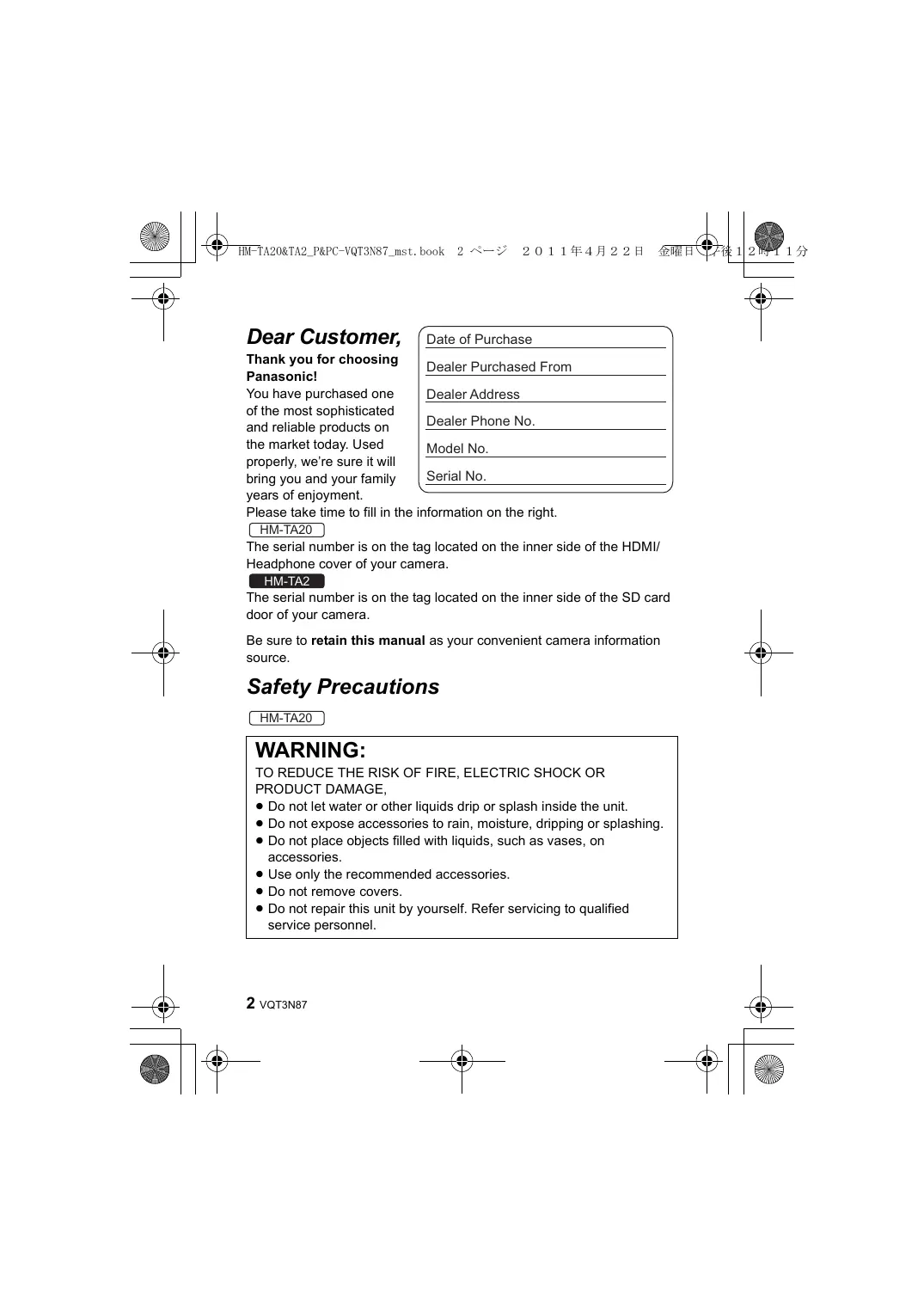
Dear Customer, Date of Purchase Thank you for choosing Panasonic! You have purchased one Dealer Address of the most sophisticated and reliable products on the market today. Used Model No. properiy, we're sure it will bring you and your family Serial No. years of enjoyment. Please take time to fill in the information on the right. The serial number is on the tag located on the inner side of the HDMI/ Headphone cover of your camera. The serial number is on the tag located on the inner side of the SD card door of your camera. Dealer Purchased From Dealer Phone No. Be sure to retain this manual as your convenient camera information LS $ source. NZ Safety Precautions
TO REDUCE THE RISK OF FIRE, ELECTRIC SHOCK OR PRODUCT DAMAGE, + Do not let water or other liquids drip or splash inside the unit. + Do not expose accessories to rain, moisture, dripping or splashing. + Do not place objects filed with liquids, such as vases, on accessories. + Use only the recommended accessories. + Do not remove covers. + Do not repair this unit by yourself. Refer servicing to qualified service personnel. 2 varans7 ap
VOT3NST_mst. book 3 -<—% 2011#4A22FA ÆM
TO REDUCE THE RISK OF FIRE, ELECTRIC SHOCK OR PRODUCT DAMAGE, + Do not expose this unit to rain, moisture, dripping or splashing. + Do not place objects filed with liquids, such as vases, on this unit. + Use only the recommended accessories. + Do not remove covers. + Do not repair this unit by yourself. Refer servicing to qualified service personnel.
7 MT Ta2oUTA2_P&PC CAUTION! DO NOT INSTALL OR PLACE THIS UNIT IN A BOOKCASE, BUILT- IN CABINET OR IN ANOTHER CONFINED SPACE. ENSURE THE UNIT IS WELL VENTILATED. TO PREVENT RISK OF ELECTRIC SHOCK OR FIRE HAZARD DUE TO OVERHEATING, ENSURE THAT CURTAINS AND ANY OTHER MATERIALS DO NOT
AC adaptor (optional) This AC adaptor operates on AC between 100 V and 240 V. But + Inthe U.S.A. and Canada, the AC adaptor must be connected to a 120 V AC power supply only. When connecting to an AC supply outside of the U.S.A. or Canada, use a plug adaptor to suit the AC outlet configuration. THE SOCKET OUTLET SHALL BE INSTALLED NEAR THE EQUIPMENT AND SHALL BE EASILY ACCESSIBLE. varans7 3 FN
2011#4R221 ÆMAY/#1 VQT3NST_mst. book 4 — THE FOLLOWING APPLIES ONLY IN THE U.S.A. FCC Note: This equipment has been tested and found to comply with the limits for a Class B digital device, pursuant to Part 15 of the FCC Rules. These limits are designed to provide reasonable protection against harmful interference in a residential installation. This equipment generates, uses, and can radiate radio frequency energy and, if not installed and used in accordance with the instructions, may cause harmful interference to radio communications. However, there is no guarantee that interference will not oceur in a particular installation. f this equipment does cause harmful interference to radio or television reception, which can be determined by turing the equipment off and on, the user is encouraged to try to correct the interference by one or more of the following measures: + Reorient or relocate the receiving antenna. + Increase the separation between the equipment and receiver. + Connect the equipment into an outlet on a circuit different from that to which the receiver is connected. + Consult the dealer or an experienced radio/TV technician for help. FCC Caution: To assure continued compliance, follow the attached installation instructions and use only NS Ÿ shielded interface cables with ferrite core when S4 connecting to computer or peripheral devices. Any changes or modifications not expressiy approved by the party responsible for compliance could void the user's authority to operate this equipment. Declaration of Conformity. Trade Name: Panasonic Model No.: HM-TA20/HM-TA2 Responsible party Panasonic Corporation of North America One Panasonic Way, Secaucus, NJ 07094 Support Contact: Panasonic Consumer Electronics Company 1-800-211-PANA (7262) This device complies with Part 15 of the FCC Rules. Operation is subject to the following two conditions: (1) This device may not cause harmful interference, and (2) this device must accept any interference received, including interference that may cause undesired operation. THE FOLLOWING APPLIES ONLY IN CANADA. This Class B digital apparatus complies with Canadian ICES-003. F 4 varas7 FN e+- ‘
[ Product Identification Marking is located on the bottom of unit. r U.S.A.CANADA CONSUMERS: ATTENTION: A lithium ion battery that is recyclable powers the product you have purchased. Please call 1-800-8-BATTERY for information on how to recycle this battery <For USA-California only> This product contains a CR Coin Cell Lithium Battery which contains Perchlorate Material — special handling may apply. See www.dtsc.ca.gov/hazardouswaste/perchlorate. Precautions USE & LOCATION À WARNING + TO AVOID SHOCK HAZARD … Your camera and power supply should not be exposed to rain or moisture. Do not connect the power supply or operate your camera if it gets wet. Your camera has been designed for outdoor use, however it is not designed to sustain direct exposure to water, rain, sleet, snow, sand, dust, or a direct splashing from a pool or even a cup of coffee. This action could permanentiy damage the internal parts of your camera. Do not attempt to disassemble this unit. There are no user serviceable parts inside. Unplug your camera from the power supply before cleaning, + AS WITH ANY SMALL OBJECT, SD CARDS CAN BE SWALLOWED BY YOUNG CHILDREN. DO NOT ALLOW CHILDREN TO HANDLE THE SD CARD. 4 VATaN87 5 7
À CAUTION DO NOT AIM YOUR CAMERA AT THE SUN OR OTHER BRIGHT OBJECTS + DO NOT EXPOSE YOUR CAMERA TO EXTENDED HIGH TEMPERATURE … Such as, in direct sunlight, inside a closed car, next to a heater, etc... This action could permanently damage the internal parts of your camera. + AVOID SUDDEN CHANGES IN TEMPERATURE … Ifthe unit is suddenly moved from a cold place to a warm place, moisture may form on the SD card and inside the unit. + DO NOT LEAVE YOUR CAMERA OR THE POWER SUPPLY TURNED ON WHEN NOT IN USE. + STORAGE OF YOUR CAMERA … Store and handle your camera in a manner that will not subject it to unnecessary movement (avoid shaking and striking). Your camera contains a sensitive pick-up device which could be damaged by improper handling or storage. CARE + TO CLEAN YOUR CAMERA … Do not use strong or abrasive detergents when cleaning your camera body. + TO PROTECT THE LENS .… Do not touch the surface ofthe lens with your hand. Use a commercial camera lens solution and lens paper when cleaning the lens. Improper cleaning can scratch the lens coating. + TO PROTECT THE FINISH OF YOUR CAMERA … Before handling your camera, make sure your hands and face are free from any chemical products, such as suntan lotion, as it may damage the finish +f you see this symbol-
VQT3NST_mst. book 6<—% 2011#4H22H HAS 22 Information on Disposal in other Countries outside the European Union This symbol is only valid in the European Union. If you wish to discard this product, please contact your local authorities or dealer and ask for the correct method of disposal. 6 varaner
@ 2 HE TAZORTAZ PRPC-VQTANST_mst. book 7 2 2011#4H22H HAS 22 M Indemnity about recorded content Panasonic does not accept any responsibility for damages directly or indirectly due to any type of problems that result in loss of recording or edited content, and does not guarantee any content if recording or editing does not work properiy. Likewise, the above also applies in a case where any type of repair is made to the unit. M About recording method and compatibility of this unit This unit can record detailed high definition images based on the MP4 format (MPEG-4 AVC/H.264 codec). + Since the recording method is different from the AVCHD format, the data is not compatible. Œ Cards that you can use with this unit SD Memory Card, SDHC Memory Card and SDXC Memory Card + 4 GB or more Memory Cards that do not have the SDHC logo or 48 GB or more Memory Cards that do not have the SDXC logo are not based on SD Memory Card Specifications. + Refer to page 27 for more details on SD cards. Œ For the purposes of this owner’s manual S + SD Memory Card, SDHC Memory Card and SDXC Memory Card are NA referred to as the “SD card”. + Pages for reference are indicated by an arrow, for example: -+ 00 This owners manual is designed for use with models (CHM-TA20 and METEZMR. Pictures may be slighty different from the original. < The illustrations used in this owner's manual show model CHM-TAZ0_), however, parts of the explanation refer to different models. < Depending on the model, some functions are not available. « Features may vary, so please read carefully. + Not all models may be available depending on the region of purchase. VATaN7 7 7
@ 2 HE TALORTAZ PRPC-VQTANST_mst. book 8 —2 2011#4H22H HAS 22 Contents Please be sure to read “{Important) About the Waterproof/ Dustproof and Anti-shock Performance of this unit IHM-TA20/” (+ 10) before using this unit underwater to prevent the unit from being mishandled, which may cause water to seep in. (important) Recording/Playback About the Waterproof/ Recording. Dustproof and Anti-shock Selecting a mode Performance of this unit Recording motion pictures . [HM-TA20] . Recording still pictures Check before using Recording voices .… underwater Intelligent Auto Mode Using this unit underwater Digital zoom in/out function Care of this unit after Recording with the LED gt using it undenwater. Night View mode. : Accessories. Effect function Preparation (applying special effects) …… 40 NS Ÿ identi For underwater recording @7 Parts identification and IHM-TA20].… 41 handling Playback . Charging the battery. Playing back the slide show/ Charging and motion pictures continuous playback recording time . 25 Zooming in on a still picture Approximate operating lime and during playback number of recordable (Playback zoom) … still pictures … 25 Deleting scenes, still pictures Charging and voices recording or voices: time 26 Creating still pi Preparing the card … . motion picture Cards that you can use To delete unwanted parts of à with this uni : motion picture Inserting/removing Setting of online sharing of an SD card motion pictures... Turning the unit on/o Using the Setup menu How to use the touch screen. 53 screen. Setting date and time. Watching Motion/Still Pictures on your TV. 4 8 varawer &
@ 2 HE TALORTAZ PRPC-VQTANST_mst. book 9 —2 2011#Æ4H22H HAS 22 With a PC What you can do with a PC. Operating environment Installation Connecting to a PC. About the PC display. Starting HD Writer PE 2.0 Reading the operating instructions of the software applications If using Mac To use as a camera for Skype How to connect Others Indications. Messages/Troubleshooting. Cautions for use. Requests when disposing of this unit . & About copyright . & Recording modes/approximat recordable time {motion pictures). Approximate number of recordable pictures . Recording modes/approximat recordable time (voices) Specifications. Optional accessories. Accessory Order Form {For USA and Puerto Rico Customers) Limited Warranty (ONLY FOR
7 MT Ta2oUTA2_P&PC (Important) | About the Waterproof/Dustproof and Anti-shock Performance of this unit [HM-TA20] Waterproof/Dustproof Performance This units waterproof/dustproof rating complies with the “IP58” rating. Provided the care and maintenance guidelines described in this document are strictly followed, this unit can operate underwater, to a depth not exceeding 3 m (10 feet) for a time not exceeding 60 minutes. (*1) Anti-shock Performance This unit also complies with “MIL-STD 810F Method 516.5- Shock”. This unit has cleared a drop test from a height of
1.5 m (5.0 feet) onto 3 cm (0.10 feet) thick plywood. In most
cases this unit should not sustain any damage if dropped from a height not exceeding 1.5 m (5.0 feet). (*2) À $ This does not guarantee no destruction, no malfunction, or waterproofing in all conditions. | #1 This means that this unit can be used underwater for specified time in specified pressure in accordance with the handling method established by Panasonic. *2_“MIL-STD 810F Method 516.5-Shock" is the test method standard of the U.S. Defense Department, which specifies performing drop tests from a height of 122 cm (4.0 feet), at 26 orientations (8 comers, 12 ridges, 6 faces) using 5 sets of devices, and passing the 26 orientation drops within 5 devices. (If failure occurs during the test, a new set is used to pass the drop orientation test within a total of 5 devices.) Panasonic's test method is based on the above “MIL-STD 810F Method 516.5-Shock”. However, the drop height was changed from 122 cm (4.0 feet) to 150 cm (5.0 feet) dropping onto 3 cm (0.10 feet) thick plyboard. This drop test was passed. (Disregarding appearance change such as loss of paint or distortion of the part where drop impact is applied.) Les 10 varaner Les
VQT3NS7_mst. book 11 - Œ Handling of this unit + Waterproofing is not guaranteed if the unit is subject to an impact as a result of being hit or dropped etc. If an impact to this unit occurs, it should be inspected (subject to a fee) by a Panasonic's Service Center to verify that the waterproofing is still effective. + The waterproof performance may be degraded due to the strong water pressure when this unit is used deeper than 3 m (10 feet) underwater. + When this unit is splashed with detergent, soap, hot spring, bath additive, sun oil, sun screen, chemical, etc. wipe it off immediately. + Waterproof function of this unit is for sea water and fresh water only. + Any malfunction caused by customer misuse, or mishandling will not be covered by the warranty. + The inside of this unit is not waterproof. Water leakage will cause malfunction. + Supplied accessories are not waterproof. + Cards are not waterproof. Do not handle with a wet hand. Also, do not insert wet card into this unit. + Do not leave this unit for a long period of time in places where temperature is very low (at ski resorts or at high altitude etc.) or very high [above 35 °C (95 *F)], inside a car under strong sunlight, close to a heater, on the beach, etc. Waterproof performance may be degraded « Foreign objects may adhere to the inner side of the door/cover (around the rubber seal or connecting terminals) when the door/ cover is opened or closed in places with sand or dust etc. T may result in the impairment of the waterproof performance if the door/cover is closed with foreign objects adhered. Be extremely careful since it may result in malfunction etc. « If any foreign object is adhered to the inner side of the door/cover, remove with a lint-free cloth. + If any liquid such as water droplets is adhered to this unit or inner side of the door/cover, wipe off with a soft dry cloth. Do not open or close the door/cover near the water, when underwater, using wet hands, or when this unit is wet. lt may cause water leakage. varane7 11
Æ When inner side of the lens is fogged (condensation) Itis not a malfunction or failure of this unit. It may be caused by the environment in which this unit is used. What to do when inner side of the lens is fogged + Turn off the unit and open the door/cover in a place with constant ambient temperature, away from high temperatures, humidity, sand and dust. The fog will disappear naturally in 10 minutes to 2 hours with the door/cover open when the temperature of this unit gets close to the ambient temperature + Contact Panasonic's Service Center if the fogging does not disappear. Conditions in which inner side of the lens may be fogged Condensation may occur and the inner side of the lens may be fogged when this unit is used in areas that undergo a significant change in temperature or in high humidity, such as the following: < When this unit is used underwater suddenly after being on a hot beach etc. + When this unit is moved to a warm area from a cold area, such as at a ski resort or at high altitude NS $ + When the door/cover is opened in a high-humidity environment @7 Check before using underwater Do not open or close the door/cover in places with sand and dust, close to water, or with wet hands. Sand or dust adhering may cause water leaks. 1 Check that there are no foreign objects on the inner side of the door/cover. < lfthere is any foreign object, such as lint, hair, sand, etc., on the surrounding area, water will leak within a few seconds causing malfunction + Wipe it off with a dry soft cloth if there is any liquid. It may cause water leaks and malfunction if you use this unit with liquid adhered. « lfthere is any foreign material, remove with the lint-free cloth + Be extremely careful to remove any sand etc. that may adhere to the sides and comers of the rubber seal. re 12 varaner æ&
@ V7 HTTAZOUTAZ P&PC-VATSNST_nst. book 13 2 Check for cracks and deformation of the rubber seal on the door/cover. + The integrity of the rubber seals may decrease after about 1 year, with use and age. To avoid permanently damaging this unit the seals should be replaced once each year. Please contact Panasonic's Service Center for related costs and other information. 3 Close the door/cover securely. + Lock the LOCK lever securely until the red part is no longer visible. « To prevent water seeping into this unit, be careful not to trap foreign objects such as liquids, sand, hair or dust etc. HDMl/Headphone cover USB terminal cover SD card door LOCK lever
Open/close lever f © Released state + @ Locked state TD © © Red part varane7 13
@ V7 HTTAZOUTAZ P&PC-VATSNST_nst. book 14 k $ Using this unit underwater + Use this unit underwater at a depth of up to 3 m (10 feet) with the water temperature between 0 °C and 35 °C (32 °F to 95 °F). + Do not use this unit at a depth of over 3 m (10 feet). + Do not use it in the hot water over 35 °C (95 °F) (in the bath or hot spring). + Do not use this unit underwater not longer than 60 minutes continuously. + Do not open or close the door/cover. + Do not apply shock to this unit undenwater. (Waterproof performance may not be maintained, and there is a chance of water leak.) + Do not dive into water holding this unit. Do not use this unit in a location where water will splash strongly, such as near rapids or waterfalls. (Strong water pressure may be applied, and it may cause malfunction.) + This unit will sink in the water. Take care not to drop this unit and lose it underwater by securely placing the strap around your wrist or similar measure. « Attaching a tripod with a 5.5 mm (0.22 ") screw or larger may open a LS $ hole in this unit through which water will leak. K@) + The touch screen will not work underwater. It will malfunction, so make sure to press the screen lock button. (=> 41) 14 varanez æ&
@ V7 HTTA2OUTAZ P&PC-VATSNST_nst. book 15 k $ Care of this unit after using it underwater Do not open or close the door/cover until the sand and dust is removed by rinsing this unit with water. Make sure to clean this unit after using it. + Thoroughiy wipe off any water droplets, sand, and saline matter on your hands, body, hair, etc. + Itis recommended to clean this unit indoors, avoiding places where water spray or sand may fall. Do not leave this unit uncared for more than 60 minutes after using it underwater. + Leaving this unit with foreign objects or saline matter on it may. cause damage, discoloration, corrosion, unusual odour, or deterioration of the waterproof performance. 1 Rinse with water with the door/cover closed. + After use at the seaside or underwater, soak the unit in fresh water in a shallow container for 10 minutes or less. varane7 15 FN
2 Drain water by holding this unit upside down and shaking it lightly a few times. « After using this unit at the seaside or underwater, or after washing it, water will remain at the speaker site of this unit for a while and it may cause lower sound or sound distortion. < Fasten the strap firmly to prevent this unit from dropping. 3 Wipe off water drops on this unit With a dry soft cloth and dry this un shaded area which is well ventilated. S S < Dry this unit by standing it on a dry cloth. ©? + Do not dry this unit with hot air from dryer or similar. Waterproof performance will deteriorate due to deformation. + Do not use chemicals such as benzine, thinner, alcohol, or cleanser, or soap or detergents. 4 Confirm that there are no water droplets, open the door/cover, and wipe off any water droplets or sand left inside using a soft dry cloth. « Water droplets may adhere to the card when the door/cover is opened without thoroughly drying. Also, water may accumulate in the gap around the card compartment or the terminal connector. Be sure to wipe any water off with a soft dry cloth. + The water droplets may seep into this unit when the door/cover is closed while it is still wet, causing condensation or failure. re 16 varaner æ&
VOT3NST_mst. book 17 2011#4H22H Æ k ) Accessories Check the accessories before using this unit. Keep the accessories out of reach of children to prevent swallowing. Product numbers correct as of April 2011. These may be subject to change. Hand strap with stylus pen VFC4708 e The stylus pen is used for operations that are hard to operate with your fingers or performing detailed operations with the touch screen operation. (=> 32) USB extension cord VFA0545 A Tripod ai È VFC4709 bs e The unit comes with built-in HD Writer PE 2.0 video editing software. « Supplied accessories are not waterproof. 4 varaner 17 &
Due to limitations in LCD production technology, there may be some tiny bright or dark spots on the LCD monitor screen. However, this is not a malfunction and does not affect the recorded picture.
18 CHVTAZO HDMl/Headphone cover re 20 varaner
HDMI cover 2 MIS Headphone terminal cover About locks for USB terminal cover, HDMI/Headphone cover and SD card door Each door/cover is equipped with a LOCK lever to lock the open/close lever. When opening and closing the door/cover, slide the LOCK lever and then slide the open/close lever. HDMl/Headphone cover USB terminal cover SD card door
re Preparation Charging the battery When this unit is purchased, the battery is not charged. Charge the battery fully before using this unit for the first time. Important: + This unit has a built-in rechargeable lithium-ion battery. Do not remove except when disposing of this unit. « The battery will not be charged if the unit is turned on. « The battery can also be charged using the AC adaptor (optional). (2 23, 98) 1 Take out the USB terminal. + Be careful as the USB terminal will jump out.
© Slide the LOCK lever for the USB terminal cover @ to release the lock on the open/close lever for the USB terminal cover @. @ Open the USB terminal cover while sliding the open/close lever for the USB terminal cover @ in the direction indicated by the arrow. © Press the USB Latch @ until the USB terminal comes out. © Slide the USB Latch @ until the USB terminal cover opens. © Slide the USB Latch @ again until the USB terminal comes out. 4 22 voraner
@ V7 HTTA2OUTAZ P&PC-VQTSNST_nst. book 23 2 Connect USB terminal of this unit to a PC with a USB extension cord. + Be sure to connect USB terminal of this unit to a PC with a USB extension cord when charging the battery. + Connect the USB extension cord by inserting it securely all the way without forcing 2011#4H22H © USB extension cord (supplied) © AC adaptor (optional) Ni + Do notuse any other USB extension cords except the supplied one. (Operation is not guaranteed with any other USB extension cords.) + Insert the USB extension cord securely all the way. (Insert to line @.) It will not operate proper if it is not inserted all the way. « Always use a genuine Panasonic AC adaptor (VSKO750; optional). < The status indicator will flash red at an interval of 2 seconds, indicating that charging has begun. « During charging, the status indicator flashes. When charging is finished, the status indicator turns off. varane7 23 FN
= To return the USB terminal to its original position + When pressing the USB terminal with your fingers, press slowly and carefully. HM-TA20 © Press the USB Latch @. © While pressing on the USB Latch @. press the USB terminal with your finger. + Release your finger from the USB Latch @, and push in the USB terminal until it is locked. Close the USB terminal cover. While the USB terminal cover is closed, slide the open/close lever for the USB terminal cover © toward the direction of the arrow. © Slide the LOCK lever for the USB terminal cover @ to lock the open/ close lever for the USB terminal cover @. © Side the USB Latch @. © While the USB Latch @ is siid, press the USB terminal with your finger. + Release your finger from the USB Latch @, and push in the USB terminal until it is locked. © Close the USB terminal cover. « Please refer to page 82 if the status indicator flashes quickly. + Do not heat or expose to flame. + Do not leave unit in an automobile exposed to direct sunlight for a long period time with doors and windows closed. « Ifthe operating time is still too short even after the battery is fully charged, the battery has wo out and needs to be replaced. Contact consumer support. (+ 101, 102) « Operation is not guaranteed for all devices equipped with a USB terminal re 24 varaner æ&
2011#4H22H arging and motion pictures recording time = Charging/Recording time « Temperature: 25 °C (77 “F)/humidity: 60%RH Maximum Actual Charging time | Recording mode| continuous , | recordable recordable time time 1h25 min 50 min 4 h 20 min 1h30 min 55 min E] 1h45 min 1h
- Maximum continuous recordable time for one scene: — If [Video Rec Mode] is set to fu] / [es] / [eo : 29 min 59 sec — If [Video Rec Mode] is set to Approx. 20 min (up to 4 GB recording capacity) « These times are approximations. + The indicated charging for when the battery has been NW discharged completely. Charging time and recordable time vary @ depending on the usage conditions such as high/low temperature. e The actual recordable time refers to the recordable time when repeatedly starting/stopping recording, tuming the unit on/off, adjusting the zoom etc. « This unit becomes warm after use or charging. This is not a malfunction Approximate operating time and number of recordable still pictures Number of recordable IX pictures 230 pictures By CIPA standard Recordingtime EEE Playback time Approx. 210 min Recording conditions by CIPA standard « CIPA is an abbreviation of Camera & Imaging Products Association. + Using a Panasonic SD Memory Card (2 GB) varane7 25 fe s)
@ V7 HTTAZOUTAZ P&PC-VATSNST_nst. book 26 rging and voices recording time = Charging/Recording time « Temperature: 25 °C (77 “F)/humidity: 60%RH Maximum continuous Charging time Recording mode | RE
- Maximum continuous recordable time for one voice: Approx. 5 h (up to 4 GB recording capacity) « These times are approximations. « The indicated charging for when the battery has been discharged completely. Charging time and recordable time vary depending on the usage conditions such as high/low temperature. $ < This unit becomes warm after use or charging. This is not a @7 malfunction. Battery capacity indication < The display changes as the battery capacity reduces. Cm-Cm-0 2-07 If the battery discharges, then ©] will become red. 26 varaner Les
re Preparation Preparing the card The following operations can be performed using this unit. + When a card has not been inserted: Scenes, still pictures and voices can be recorded on the built-in memory and played back. CR appears.) < When a card has been inserted: Scenes, still pictures and voices can be recorded on the card and played back. Normally, insert the card to use. Cards that you can use with unit This unit (an SDXC compatible device) is compatible with SD Memory Cards, SDHC Memory Cards and SDXC Memory Cards. When using an SDHC memory card/SDXC memory card with other equipment, check the equipment is compatible with these memory cards. Use SD cards conforming to Class 4 or higher of the SD Speed Class Rating” for motion picture recording. $ Card ; Motion picture! | Still picture type GET Voice recording | recording 8 MB/ | Cannot be Cannot be SD| 16 MB/32 MB/64 MB} | guaranteed in guaranteed in Memory. 128 MB/256 MB | operation. operation. Card 512 ME/1 GB/2 GB
SDHC 4 GB/6 GB/8 GB/
Memory. 12 GB/16 GB/24 GB/ Card 32 GB | Can be used Can be used. SDXC Memory 48 GB/64 GB Card + SD Speed Class Rating is the speed eg: standard regarding continuous writing. Check via the label on the card, etc. cLass@ 4 varene7 27
« Please confirm the latest information about SD Memory Cards/SDHC Memory Cards/SDXC Memory Cards that can be used for motion picture recording on the following website. http{/panasonic.jp/support/globallcsle_cam {This website is in English only.) + 4 GB or more Memory Cards that do not have the SDHC logo or 48 GB or more Memory Cards that do not have the SDXC logo are not based on SD Memory Card Specifications. « When the write-protect switch @ on SD card is locked, no recording, deleion or editing will be possible onthe card. 4 4] => « Keep the Memory Card out of reach of children to prevent swallowing. Be M About Built-in Memory + Recordable Memory size: Approx. 10 MB + You cannot copy the recorded pictures to a card. + The built-in memory can be used as a temporary storage device. + The access time for the built-in memory may be longer than the access time for a card. 28 varaner
Inserting/removing an SD card When using an SD card not from Panasonic, or one previously used on other equipment, for the first time on this unit, format the SD card {2 57) When the SD card is formatted, all of the recorded data is deleted. Once the data is deleted, it cannot be restored. Caution: Check that the status indicator has gone off. Status indicator @ « When this unit is accessing Le the SD card, the status = indicator lights up. LS
«Insert SD card as shown in the figure. 1 Open the SD card door and insert (remove) the SD card into (from) the card slot ©. < Face the label side @ in the direction shown in the illustration and press it straight in as far as it will go. + Press the center of the SD card and then pull it straight out.
Open the SD card door after releasing the lock with the LOCK lever for the SD card door. 2 Securely close the SD card door. re varane7 29 FN
VQT3NST_mst. book 30 - + Do not touch the terminals on the back of the SD card. + Do not apply strong shocks, bend, or drop the SD card. « Electrical noise, static electricity or the failure of this unit or the SD card may damage or erase the data stored on the SD card. « When the status indicator is lit, do not: — Remove the SD card — Turn the unit off — Insert and remove the USB terminal — Expose the unit to vibrations or shock Performing the above while the status indicator is on may result in damage to data/SD card or this unit. + Do not expose the terminals of the SD card to water, dirt or dust. + Do not place SD cards in the following areas: — In direct sunlight — In very dusty or humid areas — Near a heater — Locations susceptible to significant difference in temperature (condensation can occur.) — Where static electricity or electromagnetic waves occur $ @7 + To protect SD cards, return them to their cases when you are not using them. « About disposing of or giving away the SD card. (- 85) 4 30 varaner æ&
Preparation Turning the unit on/off Press the power button to turn on the unit. + The LCD monitor lights on. To turn off the unit Continue pressing the power button until the LCD monitor goes off. = About the screen display Please refer to page 74 for details of the icons displayed on the screen. = About the power save function To prevent battery consumption, it will turn off the screen and go into idle mode after approx. 2 minutes of no operation. (The status indicator @ flashes.) The unit will be turned off automatically if no operation is performed for a further 5 minutes (approx.) while in idle mode. + Idie mode is canceled by pressing the Power button or Recording button. NS k @7 = About the high temperature warning icon When the high temperature waming icon [A\ is displayed, the temperature of the unit is high. + itis possible to continue recording/playback when [lA\ is displayed, but it is recommended to stop operations and turn off the unit as soon as possible. « lfthe temperature rises further, the unit will be tumed off automatically after [/A\ flashes. You wil not be able to turn on the unit again until the temperature lowers ([J\ wi flash.), so wait until the temperature lowers before using again. + À countdown until the recording is stopped will start from approx. 15 seconds during motion picture recording, and the recording will stop when the display reaches 0 seconds. « When you tum off the unit while the temperature is high (JA is displayed.), you will not be able to turn on the unit again until the temperature lowers. ({{\ will flash.) varane7 31 FN
Preparation How to use the touch screen You can operate by directly touching the LCD monitor (touch screen) with your finger. Itis easier to use the stylus pen (supplied) for detailed operation or if itis hard to operate with your fingers. M Touch Touch and release the touch screen to select icon or picture. « Touch the center of the icon. « Touching the touch screen will not operate while you are touching another part of the touch V screen. Æ Slide while touching Move your finger while pressing on S the touch screen.
A | + Do not touch on the LCD monitor with hard pointed tips, such as ball point pens. 4 32 voraner 7 $ SA
2 Touch the date or time to be set, then set the desired value using (4)/(9. + The year can be set between 2000 and 2039. + The 12-hour system is used to display the time. 3 Touch [ENTER]. + The clock is not set when the unit is shipped. « When the unit is tumed on for the first time, a message asking you to set the date and time will appear. < The date and time function is driven by a built-in lithium battery. « lfthe buil-in lithium battery needs to be charged, the message “Set date and time” appears. To recharge the built-in lithium battery, connect USB terminal of this unit to a booted PC. Leave the unit as itis NS $ for approx. 24 hours and the battery will maintain the date and time for @7 approx. 3 months. (The battery is still being recharged even if the unit is off.) « The date and time will be set to January 1, 2011 00:00 when recording is performed without the date and time set. varane7 33 FN
Recording/Playback Recording + This unit will perform automatic recording. Auto focusing, auto white balance, and electronic stabilizer will function during the recording, + The electronic stabilizer will not function when recording st pictures or during operation of digital zoom. « Record with this unit vertically. Selecting a mode 1 Touch [MODE]. e If[MODE] is not displayed, press the Recording button. 2 Touch the icon. Motion Picture Recording Mode (+5 35) Ci LL appears on the screen. St Picture Recording Mode (+ 36) Le] + _(G] (White) appears on the screen. Recording Mode (+ 37) L. & C2 + Q (White) appears on the screen & 4 34 varanez &
k $ Recording motion pictures When in Motion Picture Recording Mode 1 Press the Recording button to start recording. (O)] + When you begin recording, HA changes to @. 2 Press the Recording button again to pause recording. « The images recorded between pressing the Recording button to start recording and pressing it again to pause recording become one scene. « Inthe following cases, the countdoun until the recording is stopped wil start from approx. 30 seconds and the recording will stop when the display reaches 0 second — When the total of the capacity of the SD card is about to be used during the recording, — When the recording time reaches near the maximum continuous recordable time for a single scene. (-> 90) Please refer to page 90 for details on continuous recordable time for a single scene. < Maximum number of recordable scenes on a single SD card is 899100. + Operation sound may be recorded when you perform touch operation L LC while recording. & = About the screen display when recording motion pictures Recording mode Recording motion picture = 1 Recording pause 01h30m: Remaining time for motion picture recording 00m00s: Elapsed recording time e ‘h° is an abbreviation for hour, ‘m' for minute and “s” for second. About the compatibility of the recorded motion pictures < They are not compatible with devices other than those that support MPA. Images cannot be played with equipment that does not support MP4. Confirm that your equipment supports MP4 by referring to the operating instructions. < There are some cases where the recorded motion pictures cannot be played back, even if the device supports MPA. In such cases, play the recorded motion picture with this unit instead. varane7 35 FN
2011#4H22H When in Still Picture Recording Mode Press the Recording button. (O)] + [1 is displayed where the focus is set. + Ê (Red) appears on the screen. « Still pictures cannot be recorded while recording the motion picture. « The screen aspect ratio changes depending on the number of recording pixels that is set. + The focus prioritizes closer subjects. If [1 is not displayed at the desired position, reset the focus by getting closer to the subject or moving the unit, etc. « Using a tripod is recommended when recording stil pictures in dark places because the shutter speed becomes slow. < The screen will tu black for an instant when pressing the Recording button. m About the screen display when recording still pictures SP Still picture operation indicator Number of recording pixels for still pictures 12345: Remaining number of recordable pictures Focus area Iris value Shutter speed re 36 varaner æ&
Recording v: When in Voice Recording Mode 1 Press the Recording button to start recording. (O)] + When you begin recording, @ (White) changes to @ (Red).
2 Press the Recording button again to pause recording. M To record sti 1 Touch @ + An image is displayed on the screen, and you will be able to record still pictures. 2 Touch © to record a still picture. ictures while recording voices + To prevent battery consumption, it will turn off the screen after approx. 2 minutes of no operation during voice recording. To display it again, touch the screen. + Operation sound may be recorded when you perform touch operation Le while recording. M About the screen display when recording voices Recording mode DEN Recording voice 01h30m: Remaining time for voice recording 01h30m59s: Elapsed recording time « ‘h° is an abbreviation for hour, ‘m' for minute
and “s” for second. ©] re varane7 37 FN
The following modes (appropriate for the condition) are set just by pointing the unit to what you want to record. Mode Scene Portrait When the object is a person Scenery Recording outdoors Spotlight Under a spotlight Night portrait Recording night portrait Night scenery Recording night scenery Macro Recording zooming in on a flower etc. ŒJ*T [Normal Other situations GA] à #1 In Motion Picture Recording Mode only SP *2_In Still Picture Recording Mode only + Depending on the recording conditions, the unit may not enter the desired mode. + In the Portrait, Spotlight mode, the face will be surrounded by white frame when detected. In the Portrait mode, a subject that is bigger and close to center of the screen will be surrounded by an orange frame. + Up to 3 frames are indicated when a face is detected. « When recording still pictures during voice recording, the Intelligent Auto Mode icon does not display on the screen. Butthe Intelligent Auto Mode will work. + Using a tripod is recommended in Night Portrait and Night Scenery Mode. « Faces may not be detected depending on the recording conditions, such as when faces are of certain sizes or at certain tits. 4 38 varaner 7 $ SA
@ V7 HTTA2OUTAZ P&PC-VATSNST_nst. book 39 Digital zoom in/out function The maximum digital Zoom ratio is X4. Touch and hold (©) or @. + You can also zoom by directly touching the Zoom bar. Ge» T 2011#4H22H + Motion pictures: Independent of zoom magnification, this unit can focus on a subject approx. 30 cm (11.8) away from the lens. Stil pictures: Independent of zoom magnification, this unit can focus on a subject approx. 10 cm (3.9 ") away from the lens. « The larger the zoom magnification, the more the image quality is degraded Recording with the LED light The LED light enables brightening of the images taken in a dimly-lit place. 1 (While the recording is paused) Touch = [MENU]. SN 2 Touch xæ. TT Each time 3D is touched, the LED light is turned on or off. « The setting will be canceled when you tum off the unit or touch [F] [PLAY]. + When the LED light is in use, the recordable time when using the battery is shortened + The subject should be within approx. 80 cm (2.6 feet) of the unit. e Turn of the LED light at places where using a light is prohibited. + Do not look directly at the LED light when it is on. — The bright light may hurt your eyes. — Keep a distance of at least 1 m (3.3 feet) when recording babies. + Do not use pointing the LED light at drivers etc. as it may lead to accidents. Setting for the LED light will be maintained even when the unit is turned off during the screen lock mode. varane7 39 FN
@ V7 HTTA2OUTAZ P&PC-VATSNST_nst. book 40 Itis possible to record brighter than usual. © Change the mode to Motion Picture Recording Mode. 1 Touch = [MENU] while the recording is paused. 2 Touch *. + Eachtime À) is touched, the Night View mode is tumed on or off. When the scene is dark, or when the Night View mode is on and the scene becomes right, @) will flash automatically. You can also turn the Night View mode onloff by touching @ . © You cannot tum the Night View mode on/off while recording. « When the Night View mode is on, Intelligent Auto Mode does not work. & Effect function (applying special effects) & You can record with effects such as changing the color tone or making the skin tone smooth. 1 Touch = [MENU] while the recording is paused. 2 Touch €y. 3 Touch the desired effect icon to be set. + Selected effect icon will be displayed in yellow, and the effect will be reflected on the screen. ee Cancels the setting. & Makes i black and white. e Makes i sepia tone. e Makes the skin tone smooth. 4 40 voransr 7
+ The setting will be normal when you turn off the unit or touch [>] [PLAY]. For underwater recording [HM-TA20] This unit can record motion pictures/still pictures under water to a depth 3 m (10 feet). 1 Press and hold the screen lock button until the precaution message appears. + You cannot perform touch operations. < While setting Æ [MENU] or [MODE], it cannot be set to the screen lock mode. + To release the screen lock mode, press and hold the screen lock button again. < 2 Press the Recording button. @) @> = To switch between Motion Picture Recording Mode and Still Picture Recording Mode Press the screen lock button. + When you use the screen lock mode, you have the following limitations. — The effect function will be released. — The zoom magnification will be X1. + To use the LED light, tum on the LED light setting, and then set to screen lock mode. (-> 39) varane7 41 FN
Recording/Playback Playback During playback, we recommend you use this unit horizontally. In this Owner's Manual, instructions for playback are given primarily for using horizontally. 1 Touch [5] [PLAY]. « The last recorded scene or still picture or voice will be played back. e lf voices to be played back was recorded with still pictures, the still picture is displayed. Touch [> / <]_ on the still picture or slide the screen display from right to left (from left to right) while touching it to playback next (previous) still picture. + Playback will end and it will go into pause mode for recording when the Recording button is pressed. 2 Hold this unit horizontally.
© Operation icon + The screen display automatically switches to horizontal. + To display the operation icon, touch the screen. lt will disappear when there is no operation for a few seconds. 3 Select the playback operation by touching the operation icon. re 42 varaner Les
EH Playback operation VQT3NST_mst. book 43 - 2011#4H22H Æ Icon/ Crime Playback Playback operation Pi g step: data (Only playing back horizontally) Touch Æ during pause. AI (> 44) Il Touch || during playback. | Scenes! Pause Voices Touch ui or 1° during playback. M: increases the volume AI 4: Decreases the volume Touch > (fast forward DOTE Volume adjustment
Fast forward/rewind pop du pl re k sers playback playback) during playback or pause. nu Touch à during pause. 4 fc « Playing back the slide show/ All & | y! continuous playback (=> 46) 4 Hp Touch 1 or 44 during Skip playback (to the | playback or pause. start of a scenelvoice) AI To the next (previous) still pictures < varsns7 43 rs $ SA
@ V7 TTAZOUTAZ P&PC-VATSNST_nst. book 44 2011#4H22H k / Icon/ ; Playback Playback operation GERETS | data Touch the Direct playback bar or slide it while touching. + The playback pauses = | ‘mporarilyandskipstothe | Scenes/ Direct playback position touched or slid to Voices while touching. « Playback will start by releasing your touching or sliding finger. + Itis possible to touch Ip (Frame-by-frame playback) or il (Reverse frame-by-frame playback) when editing. (= 50, 51) + To playback next (previous) scene, still picture or voice: Touch D /Q. — Slide the screen display from right to left (from left to right) while touching it = When selecting a scene, still picture or voice to be played back from thumbnail display L S Scene/Still picture Voice SP DOME TRE fRNOvIS ZT 200PM 100-0011 fENOV2o20N a45PM 100-0012 LL] 1 Touch Æ. 2 Touch scene, still picture or voice to be played back. e 88 is displayed for scene, and [is displayed for still picture. + To display the next (previous) pag} — Touch . — Slide the thumbnail display upward (downward) while touching it. 4 44 varansr 7 $ SA
Touch the thumbnail display @, then the touched scene, still picture or voice will play back. If you touch [> / < the next (previous) page can S ÿ be displayed. Ÿ + The only time you can display the thumbnail is while paused. À (a © 51), À (2 50), @ (2 52) and EE (+ 44) icons will be displayed only when playing back horizontal. m About the screen display during playback 00m00s: Playback time (Motion Picture Playback Mode only) + 00h00m00s is displayed during the Voice Playback Mode. 100-0001: File number NOV 152011: Date indication 100-0001 NS NOV 15 2011 VaTaNe7 45 fe s)
Motion picture compatibility < This unit is based on the MPEG-4 AVC file format. < This unit may degrade or not play back motion pictures recorded or created on other products, and other products may degrade or not play back motion pictures recorded on this unit, even if the products support MP4. Still picture compat < This unit is compliant with the unified standard DCF (Design rule for Camera File system) established by JEITA (Japan Electronics and Information Technology Industries Association) and with Exif (Exchangeable Image File Format). Files which do not comply with the DCF standard cannot be played back. Voice compat < This unit is compliant with LPCM file standards and AAC file standards. < This unit may degrade or not play back voices recorded or created on other products, and other products may degrade or not play back voices recorded on this unit. S Playing back the slide show/continuous playback Recorded motion pictures/stil pictures or voices can be played back as a slide show/continuous playback. For motion pictures/voices di 11 00mO0s Touch and hold » for approx. 2 seconds. For still pictures Touch ». ° Œh appears. re 46 varaner Les
KIP7 HN-TA20RTA2_P&PC-
+ Slide show/continuous playback will start from the scene/still picture or voices that is currently being played back. It will stop once all the recorded scenes/still pictures or voices are played back. + Scenes are played back normally, and still pictures are played back for approx. 2 seconds each. To cancel playing back the slide show/continuous playback Touch IL. + The unit will switch to the normal playback screen for the scene/stil picture or voices that was being played back when the slide show! continuous playback was canceled. (Scenes or voices will go into pause mode.) « For the still pictures recorded while voice was recorded and played back during the continuous playback of the voice, it is possible to display the next (previous) still picture by sliding the screen display from right to left (from left to right) while touching it. (Stil pictures will not change automatically by the voice that is being played back.) Zooming in on a still picture during playback (Playback zoom) You can zoom in by touching a still picture during playback. 1 Touch Q , and then touch the screen display during still picture playback. + The still picture is zoomed in order of normal display (X1)—> x2—
4. Touch Q, to zoom in from normal display to x2, touch the
screen display to zoom in from X2 to x4. + The still picture is zoomed in on, centering on the part you touched « You can also zoom by touching + . 2 Move to the zoomed in position by sliding the screen display while touching it. Zooming out from the zoomed still picture Touch = to zoom out. (Xx4-> x2-> x1) « Touch [1x] to return to normal playback (x 1). varane7 47
VOT3NST_mst. book 48 - 2011#4H22H Æ pictures or voices Deleted scenes, still pictures or voices cannot be restored, so perform appropriate confirmation of the contents before proceeding with deletion. e When a card has been inserted, scenes, still pictures and voices can be deleted on the card. + When a card has not been inserted, scenes, still pictures and voices can be deleted on the built-in memory. = To delete the scenes, still pictures or voices being played back with this unit horizontally 1 Touch ff while scenes, still pictures or voices to be deleted are being played back. 2 Touch [DELETE]. = To delete scenes, still pictures or voices from the thumbnail display when using horizontally, or during playback when using vertically 1 (On1y playing back horizontally) Touch f during thumbnail display. (Only playing back vertically) Touch ÿ. 2 Touch the item. Oniy playing back horizontally) Touch the scene, still picture or voice to be deleted. + When touched, the scene, still picture or voice is selected and the F1 indication ISELEGTI appears on the anna pue the scene, stil picture or voice again to cancel the operation. + Up to 100 scenes, still pictures or voices can be selected to be deleted. 48 varaner
VQT3NST_mst. book 49 - 2011#4H22H Æ When scenes or still pictures are selected, all the scenes or still pictures on the SD card/ [ALL] built-in memory will be deleted. When voices are selected, all the voices on the SD card/builtin memory will be deleted TOniy playing back vertically) ISINGLE] Delete the selected scene, still picture or voice. IRETURN] Deleting is canceled 3 (When [SELECT] or [ALL] are selected in step 2) Touch [YES]. (When [SINGLE] is selected in step 2) Touch [DELETE]. + Scenes, still pictures or voices protected on other products cannot be deleted. « The scenes, still pictures or voices that cannot be played back (with DB CE] on the thumbnail) may not be deleted. «In case of [ALL], the deletion may take time if there are many scenes/ still pictures or voices. « If you delete scenes recorded on other products or still pictures conforming to DCF standard with this unit, all the data related to the scenes/still pictures may be deleted. + When still pictures recorded on an SD card by other products are deleted, a still picture (other than JPEG) that cannot be played back on this unit may be erased. varane7 49
Creating still picture from motion picture A single frame from the recorded motion picture can be saved as a still picture. (Only playing back horizontally) 1 Touch 2. 2 Touch f. 3 Pause at the scene you want to save as a still picture during playback. + Itis convenient to use frame-by-frame playback. 4 Touch « Quality will be different from the normal still picture.
M Picture size Size of the still pictures will differ depending on the [Video Rec Mode] of the recorded scenes. È Recording mode Size of still pictures Le Fe] 2M (1920x 1080)
@ V7 HTTAZOUTAZ P&PC-VATSNST_nst. book 51 To delete unwanted parts of a motion picture You can delete unwanted parts of scenes. (Only playing back horizontally) 1 Touch 2. 2 Touch fu 3 Slide @ or @ while 11 03m20s touching it to determine the unwanted part ©. + When you touch @ or ®. 2011#4H22H D. you can advance or rewind frames. + Touch [EXIT] to close the edit screen. 4 (To check the scene excluding @) S Touch @). Q? + Playback operation during preview can be performed by touching playback bar. + It will return to the previous screen when (æ) 5 Touch [ENTER]. 6 Touch [ENTER].
2011#Æ4H22H b œ.. You can easily upload to YouTube or Facebook when this unit is connected to the PC by setting up the upload destination of the motion pictures. (= 60) The PC for connection needs to have the HD Writer PE 2.0 installed and be connected to the Internet. {Only playing back horizontally) 1 Touch @. + Proceed to step 3 during playback. 2° (When the thumbnail is displayed) 3 Touch the upload Touch the scene to be uploaded. + When touched, the scene is selected and the F7 indication appears on the thumbnail. (Up to 20 scenes can be selected.) Touch the scene again to cancel the operation. + Touch [ENTER]. destination. RNOUUbE + When touched, the icon is selected and the FA indication [mMFacebook appears. Touch the icon again to cancel the operation. « Touch [ENTER]. 52 varaner œ|$— The share setting will be automatically canceled when the scene set for Sharing is uploaded with the HD Writer PE 2.0. œ|-
Recording/Playback Using the Setup menu screen 1 Touch = [MENU]. 2 Touch ÿ. 3 Touch the submenu @. + To display the next (previous) page: Video Rec Mode — Touch . — Slide the submenu display upward PICTURE SIZE (downward) while touching it. O Eu Voice Rec Mode 4 Touch the desired item to enter the setting. SELF TIMER « Touch [EXIT] to exit the menu setting È [Video Rec Mode] Le Switch the picture quality of the motion pictures to be recorded. | Æ IMENUj]— 4 — [Video Rec Mode] —> desired setting | [1920x 1080 30fps]/ [=] [1280 X720 30fps]/ [es] [640 X480 30fps] !: Set the recording mode to MP4. Ed [960 x540 30fps] 2: Set the recording mode to iFrame. #1 Recording will have higher quality in the order of [a]. [æ] and [s]. *2 _iFrame is a format suitable for Mac (iMovie"11). It is recommended when using a Mac. + Please refer to page 25 for details about charging and motion pictures recording time. + This function's default setting is re varane7 53 FN
« Please refer to page 90 for details about approximate recordable time. « When the unit is moved a lot or moved quickly, or when a fast-moving subject is recorded (particularly when recording using [a] ), mosaic- type noise may appear at playback. [PICTURE SIZE] VQT3NST_mst. book 54 - 2011#4H22H Æ The higher the number of pixels, the higher the clarity of the picture when printing. | Æ [MENU] > } — [PICTURE SIZE] > desired setting (3264x2448)/[2] (1920 X 1080) [16:9]/[Zu] (1600 x1200)/ (640*<480) « This functions default setting is + The recording will become longer depending on the recording pixels. + Please refer to page 91 for details about the number of recordable pictures. & [Voice Rec Mode] KP Select the recording quality. | Æ [MENU] 4 — [Voice Rec Mode] > desired setting THigh Quality]: Set the recording mode to L-PCM. [Standard 256kbps]/ Interview 128k LowGain [Long Time 128kbps]/ Set the recording mode to AAC. + Voice recording modes are in order of high to low audio que + Itis recommended that you use mode when interviewing. « This functions default setting is « Please refer to page 91 for details about approximate recordable time. 4 54 varaner fe s)
VOT3NST_mst. book 2011#4H22H Æ k / [SELF TIMER] This is for recording scenes, still pictures or voices using the timer. | Æ [MENU] j} — [SELF TIMER] — desired setting [OFF]: Cancel the setting [sec]: Records after 2 seconds [Osec]: Records after 10 seconds + When the Recording button is pressed or ©) is touched (In Voice Recording Mode only), a motion picture/stll picture or voice is recorded after the Ô10 or ©2 flashes for the time which has been set. After recording, the Self-timer is canceled. + When another operation is performed during countdown of the self- timer, the countdown will stop. + Setting the Self-timer to ©2 is a good way to prevent image shake when the Recording button is pressed or ©) is touched (In Voice Recording Mode only) while using a tripod etc. |
Please refer to page 33. IDATE FORMAT] Itis possible to change the date format: | Æ [MENU] j} — [DATE FORMAT] > desired setting
[ALERT SOUND] You can check the start and stop of recording, or tuming the unit on/off with an audio tone.
| Æ [MENU] }{ —> [ALERT SOUND] > [ON] |
[HDMI resolution] Select the desired method of HDMI output. | Æ [MENU] }{ — [HDMI resolution] > desired setting | [AUTO]/[1080i]/[576p]/[480p] + When [HDMI OUTPUT] is set to [50Hz], [576p] is displayed. When IHDMI OUTPUT] is set to [60Hz], [480p] is displayed. + [AUTO] determines the output resolution automatically based on information from the recorded scene. Ifthe images are not output on the TV when the setting is [AUTO], NS ÿ switch to the method [1080ï] or [576p]/480p] which enables the SA images to be displayed on your TV. (Please read the operating instructions for the TV.) [HDMI OUTPUT] Output settings can be changed to match the environment in use when playing back connected to a TV. | Æ [MENU] }{ — [HDMI OUTPUT] > desired setting [50Hz]/[60Hz] 56 varanez Les
7 MT Ta2oUTA2_P&PC VOT3NST_mst. book [FORMAT MEDIA] Please be aware that if a medium is formatted, then all the data recorded on the medium will be erased and cannot be restored. Back up important data on a PC etc. (-> 60)
| Æ IMENUJ— 4 — [FORMAT MEDIA] |
+ When the confirmation message appears, select [YES]. + Do notturn this unit off or remove the SD card, while formatting. Do not expose the unit to vibrations or shock. « When formatting the built-in memory, start the formatting after removing the SD card Use this unit to format media. Do not format an SD card using any other equipment such as a PC. The card may not be used on this unit. À ILANGUAGE] À
re Recording/Playback Watching Motion/Still Pictures on your TV + Use the HDMI mini cable (optional). 1 Connect this unit to a TV. + The LCD monitor on this unit will turn off and the status indicator will flash. HDMI IN © HDMI mini cable (optional) + Check that the plugs are inserted as far as they go. < Always use a genuine Panasonic HDMI mini cable (RP-CDHM15, RP-CDHM30; optional). 2 Select the video input on the TV. + Example: Select the [HDMI] channel with a HDMI mini cable. {The name of the channel may differ depending on the connected TV) + Check the input setting (input switch) and the audio input setting on the TV. (For more information, please read the operating instructions for the TV.)
3 Start playback on this unit. Perform playback operations by touching the icons.
During playback/pause During thumbnail display
With a PC What you can do with a PC + The unit comes with built-in HD Writer PE 2.0 video editing software. + See page 65 for how to install HD Writer PE 2.0 on your PC. HD Writer PE 2.0 You can copy the motion/still picture data to the HDD of PCs or write to SD cards using the HD Writer PE 2.0 software. Refer to the operating instructions of HD Writer PE 2.0 (PDF file) for details on how to use it. M Smart wizard The Smart wizard screen is automatically = displayed when you connect this unit to a PC with à HD Writer PE 2.0 installed. (=> 67) % + Select the function you wish to use and follow > the on-screen instructions for easy copying and uploading motion pictures on the Internet. + When there are scenes set to online sharing, the upload screen will be ke displayed iQ Available function using HD Writer PE 2.0 Data type Copying data to a PC Motion picture and still picture Playing back on a PC Online sharing: You can upload motion pictures on the Internet and share them with your family and friends. + The upload screen is automatically displayed with the linking function of the HD Writer PE 2.0 when there are any scenes that are set for sharing in this Motion unit. picture Editing: Editing motion picture data copied on an HDD of a PC + Title, Transition, Delete partially, Divide Scene + Converting part of motion picture into still picture 4 60 varansr fe s)
+ Voices recorded with this unit can be played back on a PC using QuickTime (Ver. 7 or later) or copied to a PC using Windows Explorer. « Playing back still pictures on a PC using standard Windows picture viewer or a commercially available picture viewer, or copying still pictures to a PC using Windows Explorer is available. « Refer to page 70 if using a Mac. VQT3NS7_mst. book 61 - 2011#4H22H Æ Important Notice + When using an SDXC Memory Card, check the following support site. http://panasonic.net/avc/sdcard/information/SDXC.html + Motion pictures that have been recorded on another device cannot be written to HD Writer PE 2.0. + We cannot guarantee operation if you use software other than HD Writer PE 2.0 to read/write motion picture. + Do not start HD Writer PE 2.0 and other software at the same time. Close any other software if you start HD Writer PE 2.0 and close HD Writer PE 2.0 if you start any other software. varane7 61 FN
VQT3NST_mst. book 62 - 2011#4H22H Æ re With a PC > Operating environment « Even if the system requirements mentioned in this owners manual are ullled, some PCS cannot be used. + Operation is not guaranteed in the following cases. — When 2 or more USB devices are connected to a PC, or when devices are connected through USB hubs or by using extension cables other than the supplied USB extension cord. — Operation on an upgraded OS — Operation on an OS other than the one pre-installed. + This sofware is not compatible with Microsoft Windows 3.1, Windows 95, Windows 98, Windows 98SE, Windows Me, Windows NT and Windows 2000. Œ Operating environment for HD Writer PE 2.0 PC IBM PC/AT compatible PC os Windows 7 (32 bit/64 bit) Starter/Home Basic/ Home Premium/Ultimate/Professional or SP1 Windows Vista (32 bit) Home Basic/ Home Premium/Business/Ultimate SP1/SP2 NS Ÿ Windows XP (32 bit) SP3 7 CPU Intel Pentium 4 2.8 GHz or higher + Intel Core 2 Duo 2.16 GHz or higher or AMD Athlon 64 X2 Dual-Core 5200+ or higher is recommended when a playback function is used. + Intel Core 2 Quad 2.6 GHz or higher is recommended when using the editing function. RAM Windows 7: 1 GB or more (32 bit) 2 GB or more (64 bit) Windows Vista: 1 GB or more Windows XP: 512 MB or more (1 GB or more recommended) & 62 varansr 7
Display High Color (16 bit) or more (32 bit or more recommended) Desktop resolution of 1024x768 pixels or more (1920x 1080 pixels or more recommended) Windows 7/Windows Vista: DirectX 9.0c compatible video card (DirectX 10 recommended) Windows XP: DirectX 9.0c compatible video card Compatible with DirectDraw overlay PCI Express “x16 compatible recommended Video memory of 256 MB or more recommended Free hard disk Ultra DMA — 100 or more drive space 450 MB or more (for installing the software) Sound DirectSound Support Interface USB port [Hi-Speed USB (USB 2.0)] Other Mouse or equivalent pointing device requirements Intemet connection + Input is not supported in languages other than English, German, French, Simplified Chinese and Russian. « Operation is not guaranteed on Microsoft Windows Vista Enterprise, Windows XP Media Center Edition, Tablet PC Edition and Windows 7 Enterprise. < This software is not compatible with a multi-boot environment. < This software is not compatible with a multi-monitor environment. + If using Windows XP, an administrative account user only can use this software. Ifusing Windows Vista/Windows 7, administrative account and standard account users only can use this software. (An administrative account user should install and uninstall this software.) « Operation during the playback may become slow ifthe CPU or memory is not fuffiling the requirements of the operating environment + Always use the most current driver for the video card. « Always make sure there is enough capacity on the HDD in the PC. It may become inoperable or the operation may stop suddenly if the capacity gets low. re varane7 63 ap
VQT3NST_mst. book 64 - 2011#4H22H Æ Œ Operating environment for the card reader function (mass storage)
32-bit (x86) or 64-bit (x64) processor Windows XP: Intel Pentium III 450 MHz or higher or Intel Celeron 400 MHz or higher Windows 7: 1 GB or more (32 bit} 2 GB or more (64 bit) Windows Vista Home Basic: 512 MB or more Windows Vista Home Premium/Business/ Ultimate/Enterprise: 1 GB or more Windows XP: 128 MB or more (256 MB or more recommended) Interface USB port Other requirements Mouse or equivalent pointing device + The USB equipment operates with the driver installed as standard in the OS. 64 varaner
KIP7 HN-TA20RTA2_P&PC-
With a PC ) Installation When installing the software, log on to your computer as the Administrator or with a user name with equivalent authorization. (If you do not have authorization to do this, consult your manager.) « Before starting the installation, close all applications that are running. + Do not perform any other operations on your PC while the software is being installed. + Explanation of operations and screens is based on Windows 7. + Turn on the unit. 1 Connect USB terminal of this unit to a PC with a USB extension cord. + Do not use any other USB extension cords except the supplied one. (Operation is not guaranteed with any other USB extension cords.) 2 Touch [PC] on the screen of this unit. + The following screen is displayed automatically. Click [HD Writer PE 2.0] [Yes]. « If using Windows 7 is in use, or if the following screen is not displayed NS $ automatically, select [Start] —> [Computer] (or double-click on @7 [Computer] on the desktop), and then double-click [HD Writer PE] — Isetup(.exe)].
- Depending on the PC you are using, [CAM_APP] may be displayed. 3 Click [Next]. 4 Read the [End User License Agreement], then place a check beside [l accept the terms of the license agreement] if you agree to them and click [Next]. varane7 65 fe s)
@ 2 HE TAZORTAZ PRPC-VOTANST_mst. book 66 —2 20114Æ4H22H ÆMAYA Î 5 Select where the application is to be installed, then click [Next]. 6 Select [Yes] or [No] to create shortcut. 7 When installation is complete, some notes will appear. Check the contents, then close the window. 8 Select [Yes, | want to restart my computer now.], then click [Finish]. The PC must be rebooted for the application to work Œ Uninstalling HD Writer PE 2.0 Follow the steps below to uninstall any software applications that you no longer require. 1 Select [Start] [Control Panel] > [Uninstall a program]. 2 Select [HD Writer PE 2.0], then click [Uninstall]. + Proceed with the uninstallation by following the on-screen instructions. After uninstalling the software, be sure : to reboot the PC.
@ V7 HTTAZOUTAZ P&PC-VATSNST_nst. book 67 With a PC Connecting to a PC © USB extension cord (supplied) + Turn on the unit. 1 Connect USB terminal of this unit to a PC with a USB extension cord. + Do not use any other USB extension cords except the supplied one. (Operation is not guaranteed with any other USB extension cords.) LS ke + Insert the USB extension cord securely all the way. (Insert to line ©.) It @ will not operate properiy if it is not inserted all the way. 2 Touch [PC] on the screen of this unit. + The LCD monitor turns off. + The Smart wizard screen is automatically displayed when HD Writer PE 2.0 is installed. + When there are scenes set to online sharing, the upload screen will be displayed + This unit is automatically recognized as an extemal drive of the PC. (- 68) + Do not disconnect the USB terminal of this unit while the status indicator is on. « When performing readinghwriting between a PC and an SD card, be aware that some SD card slots buit into PCs and some SD card readers are not compatible with the SDHC Memory Card or SDXC Memory Card. < When using an SDXC Memory Card, check the following support site. http:l/panasonic.netlavc/sdcard/information/SDXC.html + Operation is not guaranteed for all devices equipped with a USB terminal. varane7 67 fe s)
= To disconnect USB terminal of this unit safely Select the M9 icon in task tray displayed on the PC, and then click [Eject Panasonic Mobile Camera]. + Depending on your PC's settings, this icon may not be displayed. About the PC display When the unit is connected to a PC, it is recognized as an external drive. + Removable disk (Example:_ , CAM_SD (G:) ) is displayed in [Computer]. We recommend using HD Writer PE 2.0 to copy or write back motion picture data Using Windows Explorer or other programs on the PC to copy, move or rename filles and folders recorded with this unit will result in them being unusable with HD Writer PE 2.0. Example folder structure of an SD card: Up to a total of 999 files of motion pictures, still “# CAM_SD/CAM_MEM pictures and voices can DCIM be saved in a single 100CDPFP —@ L. N folder. IMGA0001.MP4 —@ NA Recorded scenes. JPEG format still pictures IMGA0002.JPG —® Recorded voices IMGA0003.M4A —@Q IMGA0004.WAV —@ Cc0® Œ Copying your still pictures to your PC Card reader function (mass storage) Still pictures recorded with this unit can be copied to the PC with Explorer or other programs. 1 Double click the folder that contains the still pictures. ([DCIM] > [100CDPFP] etc.) 2 Drag and drop the still pictures onto the destination folder (on the PC's HDD). + Do not delete the SD card's folders. Doing so may make the SD card unusable in this unit + When data not supported by this unit has been recorded on a PC, it will not be recognized by this unit. « Always use this unit to format SD cards. re 68 varaner Les
@ V7 HTTAZOUTAZ P&PC-VATSNST_nst. book 69 With a PC ) Starting HD Writer PE 2.0 e To use the software, log on as an Administrator or as user name for standard user account (only for Windows 7/Windows Vista). The software cannot be used with the user name for a guest account. (On the PC) Select [Start] > [AIl Programs] —> [Panasonic] —> IHD Writer PE 2.0] > [HD Writer PE]. + For details on how to use the software applications, read the PDF operating instructions of the software. NS Reading the operating instructions of the software applications + You will need Adobe Acrobat Reader 5.0 or later or Adobe Reader 7.0 or later to read the PDF operating instructions. Select [Start] > [AIl Programs] —> [Panasonic] —> IHD Writer PE 2.0] > [Operating Instructions]. varane7 69 FN
7 MT Ta2oUTA2_P&PC With a PC æ If using Mac | + HD Writer PE 2.0 is not available for Mac. + iMovie" 11 supported. For details about iMovie" 11, please contact Apple Inc. Œ Operating environment PC Mac os Mac OS X 10.6.6 CPU Intel Core Duo or better RAM 1 GB or more Interface USB port + Even if the system requirements mentioned in this owners manual are fufflled, some PCs cannot be used. + The USB equipment operates with the driver installed as standard in the OS. Œ Copying still pictures on PC + Turn on the unit. 1 Connect USB terminal of this unit to a PC with a USB “4 extension cord. < + Do not use any other USB extension cords except the supplied one. (Operation is not guaranteed with any other USB extension cords.) 2 Touch [PC] on the screen of this unit. 3 Double-click [CAM_SD] or [CAM_MEMI] displayed on the desktop. < Files are stored in [100CDPFP] folder etc. in the [DCIM] folder. 4 Using a drag-and-drop operation, move the pictures you want to acquire or the folder storing those pictures to any different folder on the PC. = To disconnect USB terminal of this unit safely Drag [CAM_SD] or [CAM_MEMI] disk icon to the [Trash], and then disconnect the USB terminal of this unit. 7 70 varaner fe s)
With a PC To use as a camera for Skype It is possible to perform video conferencing using Skype when this unit is connected to a PC that is connected to the Internet. Skype is a software that allows you to perform video conferencing using an Internet connection. < Skype must first be installed before use. « For downloading or details regarding Skype, refer to the Skype Website. + For information on how to use Skype, refer to the Skype help file. + Depending on the PC or Internet environment used, you may not be able to use Skype, images may be disrupted, cut off, the resolution may be low or the audio may be cut off. + A higher performance CPU is recommended for high-quality video conferencing. varane7 71 FN
or higher RAM Windows 7 512 MB or 1 GB or more (32 bit)/2 GB or more (64 bit) |more Windows Vista Home Basic: 512 MB or more Windows Vista Home Premium/Business/ L Ultimate/Enterprise: 1 GB or more | Windows XP: 512 MB or more Free hard disk |100 MB free disk space drive space Sound Speaker or headphones Interface USB port Other High-speed broadband Internet connection of 4 Mbps requirements _ |down/512 kbps up « Even if the system requirements mentioned in this owners manual are fufflled, some PCs cannot be used. + This sofiware is not compatible with Microsoft Windows 3.1, Windows 95, Windows 98, Windows 98SE, Windows Me, Windows NT and Windows 2000. + Operation on an upgraded OS is not guaranteed « Operation on an OS other than the one pre-installed is not guaranteed. 4 72 voransr
2011#4H22H How to connect © Turn on the unit. 1 Connect USB terminal of this unit to a PC with a USB extension cord. + Connect the USB extension cord by inserting it securely al the way without forcing
© USB extension cord (supplied) + Do not use any other USB extension cords except the supplied one. (Operation is not guaranteed with any other USB extension cords.) + Insert the USB extension cord securely all the way. (Insert to line @.) it will not operate properiy if it is not inserted all the way. 2 Touch [WEB CAMERA] on the screen of this unit. 3 (OnaPc) Start Skype. « Check this unit is selected with the Skype settings. + The image quality will automatically vary among 640X480, 320x 240 and 160*120 depending on the Internet environment. + When disconnecting the USB terminal of the unit from your PC, shut down Skype before disconnecting. + Operation is not guaranteed for all devices equipped with a USB terminal. varane7 73
@ V7 HITTAZOTAZ_P&PC-VATSNST_mst. book re Others > Indications Œ Recording indications Motion pictures Still pictures Voices EDS LI 01h30m GO) D 12345 | # 0th30m45s Ba [En] PS um PS ce 3 e 3 CA de LE @l 50 @ Fen/[ro)/[ap)/fFrnd Video Rec Mode (=> 53) e Recording motion picture 1 Recording pause (motion picture) Æ)/D/M/EN/fO) Intelligent Auto Mode (= 38) Cale] :] 01h30m Remaining time for motion picture or voice | 4 recording (+ 35, 37) & | 00m00s Elapsed recording time for motion pictures | (235) 00h00m00s Elapsed recording time for voices (=> 37) is an abbreviation for hour, “m' for minute and “s” for second. 15 Countdown until recording tops (+ 31, 35) LED light (+ 39) High temperature warning (=> 31) Remaining battery power (+ 26) (G] (White) Recording pause (still picture) fi (Red) Recording still picture Q (White) Recording pause (voice) ® (Red) Recording voice Caa1/C2u 1 Cu a Number of recording pixels for til pictures (=> 54) 4 74 voransr 7
7 HETAZOTAZ_ PLPC-VATANST_mst. book Others Messages/Troubleshooting | H Messages Major confirmation/error messages to be indicated on the screen in text. incompatible card. Please check card. This card is not compatible or it cannot be recognized by the unit. this message appears even though motion pictures, still pictures and voices are recorded on an SD card, the card may be unstable. Reinsert the SD card, then turn the unit off and then on again. = Troubleshooting This unit cannot be « Charge the battery again to ensure it turned on. is sufficientiy charged. (-> 22) + In cold places, the battery life | This unit does not becomes shorter. 4 stay on long enough. e The battery has a limited life. Ifthe | Battery runs down |” Operating lim is st too short even | quickly. after the battery is fully charged, the battery has worn out and needs to be replaced. Contact Panasonic's Service Center. This unit cannot be « Press the RESET button with the operated though it is stylus pen. (+ 80) Then about turned on. 1 minute later, turn on the unit again. (Conducting the above operation is uni while the SD card is being accessed This unit does not |, TS the data on the SD operate normally. El) « I normal operation is still not restored, contact consumer support. (2 101, 102) fe à varan87 77 fe D
KP7 HTAZORTAZ_P&PC-VATANST_mst. book 78 - The unit arbitrarily + Use an SD card that can be used for stops recording. motion picture recording. (=? 27) « The recordable time may have shortened due to the deterioration of the data writing speed or repeated recording and deletion. Using the unit, format the SD card. (- 57)
Scenes, still pictures Any scenes, stil pictures or voices or voices cannot be where the thumbnails are displayed played back. as [ Y | cannot be played back. Although this unit is Please read the operating correctly connected instructions of your TV and select the to a TV, images channel that matches the input used cannot be seen. »» _ forthe connection. À « Check the setting of [HDMI À $ resolution]. (-> 56) Scenes, still pictures Any scenes, stil pictures or voices or voices cannot be where the thumbnails are displayed deleted. as [ ] cannot be deleted. Ifthe scenes, stil pictures or voices are unnecessary, format the SD card to erase the data. (+ 57) Please be aware that if an SD card is formatted then all the data recorded on the SD card is erased and cannot be recovered. Back up important data on a PC etc.
If the SD card is Ifthe SD card is formatted on a PC, it inserted in this uni may not be recognized by this unit. itis notrecognized. |» Use this unit to format SD cards. (2 57) 7 78 VaraNe7 fe s)
KP7 HTAZORTA2_P&PC-VATANST_mst. book 79 - Ifthe SD card is « Check that the device is compatible inserted in another with the capacity or type of SD card device, it is not (SD Memory Card/SDHC Memory recognized. > Card/SDXC Memory Card) that you inserted. Refer to the operating instructions of the device for details. Color or brightness + Color or brightness ofthe image may of the image change, or you may see horizontal changes, or you may bars in the image when the object is see horizontal bars recorded under fluorescent light, in the image. »» mercury light or sodium light, etc. but this is not a malfunction. The LCD monitor flickers indoors. “Error occurred. The unit has automatically detected Please turn unit off, an error. Restart the unit by turning off then turn on again.” and on. is displayed. Press the RESET button with the stylus pen. (> 80) Repair is needed i is repeatedly displayed even if it is restarted. Contact consumer support. (-? 101,
102) Do not attempt to repair the unit
by yourself. 7 varane7 79 æ&
When connected by the USB terminal, this unit is not detected by the PC.
Cannot see the PDF operating instructions for HD Writer PE 2.0.
$ When using Skype, the image/audio is cut off. VQT3NS7_mst. book 80 - 2011#4H22H Check points + After re-inserting the SD card into the unit, reconnect the USB terminal of this unit. « Select another USB terminal on the PC. « Check the operating environment. (> 62, 70, 71) + Connect the USB terminal of this unit again after restarting the PC and tuming on this unit again. « You will need Adobe Acrobat Reader 5.0 or later or Adobe Reader 7.0 or later to read the PDF operating instructions for HD Writer PE 2.0 « Reconnect the USB terminal of this unit after shutting down Skype, and connect to Skype again. About the RESET button Use the stylus pen, when you press the RESET button. HM-TAZ0 re 80 varaner
Others Cautions for use About this unit The unit and the SD card become warm during use. This is not a malfunction. Do not drop or bump the unit. Do not subject to strong pressure. < A strong impact can break the lens, LCD monitor or the units casing, causing it to malfunction. + Do not attach any other items to the hand strap that's supplied with the unit. While being stored, that item can rest against the LCD monitor and damage it. « While the unit is stored in a bag, be careful not to drop or hit the bag so that the unit may not be subjected to impact. Keep this unit as far away as possible from electromagnetic equipment (such as microwave ovens, TVs, video games etc.). «If you use this unit on top of or near a TV, the pictures and/or sound on this unit may be disrupted by electromagnetic wave radiation. NS + Do not use this unit near cell phones because doing so may result in SA noise adversely affecting the pictures and/or sound. « Recorded data may be damaged, or pictures may be distorted, by strong magnetic fields created by speakers or large motors. « Electromagnetic wave radiation generated by microprocessors may adversely affect this unit, disturbing the pictures and/or sound « lfthis unit is adversely affected by electromagnetic equipment and stops functioning properiy, turn this unit off and press the RESET button. Then turn this unit on. Do not use this unit near radio transmitters or high-voltage lines. «If you record near radio transmitters or high-voltage lines, the recorded pictures and/or sound may be adversely affected. Make sure to use the supplied cords. If you use optional accessories, use the cords and the cables supplied with them. Do not extend the cords and the cables. Do not spray insecticides or volatile chemicals onto the unit. + lfthe unit is sprayed with such chemicals, its body may be marred and the surface finish may peel off. varane7 81 FN
VQT3NS7_mst. book 82 - + Do not leave rubber or plastic products in contact with the unit for a long time. When you use the unit in a sandy or dusty place such as a beach, do not let sand or fine dust get into the body and terminals of the unit. « Sand or dust may damage the unit. (Care should be taken when inserting and removing a card.) Keep the unit away from sea water. + If sea water splashes onto the unit, wipe off the water with a well wrung cloth. Then wipe the unit again with a dry cloth. Do not use the unit for surveillance purposes or other business uses. + In certain situations, continuous use could cause the unit to overheat and cause a malfunction. Such use is strongly discouraged. « This unit was designed for consumer intermittent use. It was not intended for continuous use, or for any industrial or commercial application resulting in prolonged use. Perform a formatting of the built-in memory when this unit is to be disposeditransferred. (-> 57) About status indicator during charging When the status indicator is flashing at a particularly fast rate, the following should be considered. Flashing with approx. 2 second period (off for approx. 1 second, on for approx. 1 second): + The battery is not charged. Press the RESET button, and try charging again. + Check that the terminals of the unit are not dirty or covered with a foreign object, and connect this unit correctly once again. If a foreign object or dirt is present, turn off the unit and then remove it + The battery or environment is at an extremely high or low temperature. Wait until the temperature has retumed to an appropriate level and try charging again. you are still unable to charge, there may be a fault in this unit. 82 varaner
VQT3NST_mst. book 83 - Cleaning When cleaning, wipe this unit with a soft, dry cloth. + Ifthe unit is very dirty, dip a cloth in water and squeeze firmly, and then wipe the unit with the damp cloth. Next, dry the unit with a dry cloth. + Use of benzine, paint thinner, alcohol, or dishwashing liquid may alter the unit body or peel the surface finish. Do not use these solvents. « When using a chemical dust cloth, follow the instructions that came with the cloth LCD monitor + Do not press the LCD monitor with excessive force. Uneven colors may appear on the LCD monitor and it may malfunction. « When the LCD monitor gets dirty, wipe it with a soft cloth such as eye glass cleaner. « Do not touch the LCD monitor with your finger naïls, or rub or press with strong force. + lt may become hard to see or hard to recognize the touch when the LCD protection sheet is affixed. S © In a place with drastic temperature changes, condensation may form Le on the LCD monitor. Wipe it with a soft cloth such as eye glass cleaner. « When the unit has become very cold, for example due to storage in a cold area, its LCD monitor will be slightiy darker than usual immediately after the unit is tumed on. The normal brightness will be restored when the unis internal temperature rises. Extremely high precision technology is employed to produce the LCD Monitor screen featuring a total of approximately 230,000 dots. The result is more than 99.99% effective dots with a mere 0.01% of the dots inactive or always lit. However, this is not a malfunction and does not affect the recorded picture. About the Lens, the microphone and the speaker + Do not press against the lens with excessive force. + Do not leave the unit with the lens facing the sun, as rays of light from the sun may cause it to malfunction. Also, be careful when placing the unit outside or near a window. re varane7 83
« Ifthe lens gets dirty with fingerprints etc. wipe the lens surface with a soft dry cloth {if you leave fingerprints on or otherwise dirty the lens, the pictures you take may look whiter than normal.) + A sound might be muffled or warped when there is water on the microphone or the speaker. Wipe the residues after letting the water drip out from the microphone and speaker by tipping this unit downward, and use it after letting it dry for a while. + Do not poke the holes of microphone and speaker with sharp points. {it may damage the waterproof sheet inside, which may damage the waterproof performance.) About the battery The battery used in this unit is a rechargeable lithium-ion battery. It is susceptible to humidity and temperature and the effect increases the more the temperature rises or falls. If the operating time is very short even after the battery has been recharged, the battery has worn out. Contact consumer support. &> (2 101,102) About the SD card + The memory capacity indicated on the label of an SD card is the total of the capacity for copyright protection and management and the capacity which can be used on the unit, a PC etc. Do not leave the SD card where the temperature is high, where electromagnetie waves or static electricity are easily generated or exposed to direct sunlight. Do not bend or drop the SD card. + The SD card may be damaged or the recorded content may be damaged or deleted. « Putthe SD card in the card case or the storage bag after use and when storing or carrying the SD card. + Do not allow dirt, dust or water to get into the terminals on the back of the SD card and do not touch the terminals with your fingers. re 84 varaner æ&
When disposing of or giving away the SD card, note that: VQT3NST_mst. book 85 - 2011#4H22H Æ Formatting and deletion of this unit or computer only changes the file management information and does not completely delete the data in the SD card. Itis recommended to physically destroy the SD card or use the commercially available computer data deletion software to completely erase the data in the SD card before transferring to another party or disposing. The customer is responsible for the management of the data in the SD card. When not using the unit for a long period of time « This unit should be stored in a cool place free from humidity, with as constant temperature as possible. (Recommended temperature: 15 °C to 25 °C (59 °F to 77 °F), Recommended humidity: 40%RH to 60%RH) + Always remove the SD card from the unit. « When storing this unit for a long period of time, we recommend charging it once a year. NS $ « The battery will self-discharge little by litle even when this unit is not SA used. The battery may get exhausted when you do not use it for a long period of time. « When storing the unit in a cupboard or cabinet, itis recommended that you place a desiccant (silica gel) in with it. About condensation + Condensation occurs when the ambient temperature or humidity changes. Be careful of condensation since it causes lens stains, fungus and unit malfunction « If condensation occurs, tum the unit off and leave it for about 2 hours. The fog will disappear naturally when the temperature of the unit becomes close to the ambient temperature. VaTans7 85 7
Others Requests when disposing of this unit When disposing of your used products, remove the battery built into the unit, and please cooperate in recycling of the battery. Please refer to page 87 about how to remove the battery. « Please make sure that the battery is disposed of at an officially assigned location, if there is one in your country. Do not disassemble this unit other than when disposing of this uni This is the rechargeable battery for this unit. Do not use other than with this unit. Do not charge the rechargeable battery when it has been removed. + Do not place in fire or heat it. + Do not puncture with nails, subject it to impact, disassemble or modify it + Do not touch metal to the + and — terminals + Do not store or carry together with necklaces or hairpins, etc. + Do not heat in microwaves or ovens, etc. + Do not charge, use or leave in hot places such as next to fires or in LS $ extremely hot weather. NZ + Do not put into water. This may cause leaking, overheating, fire or rupture. « If a leak should occur, by no means touch the liquid with bare hands. Ifthe liquid gets on the body or clothes, wash well with water. fthe liquid gets into your eyes, there is a danger of blindness. Do not rub the eyes: after washing immediately with clean water, consult your physician. Keep removed screws etc. out of the reach of small children. If accidentally ingested there will be adverse physical effects « Should you suspect that such an object has been ingested, consult your physician immediately. Battery used for this unit Name: Lithium ion (Li-ion) rechargeable battery Nominal voltage: DC37V 4 86 varansr 7 $ SA
How to remove the battery Disassemble after the battery runs out. This figure describes the disposal of the unit, itis not instruction for repair. If disassembled, repair is not possible. + Using a driver (optional), disassemble in the following sequence. + Ifit cannot be removed smoothly, contact Panasonic's Service Center. + Keep disassembled parts out of reach of children. 1 Remove all screws shown in the figure. (CEN-TA20 7: 9 screws, MIE : 7 screws) « Use a Philips screwdriver (optional) to remove screws. HM-TA20
@ & HFTAZORTA2_PRPC-VOT3NST_mst. book 88 —% 2011#Æ4H22H ne: Î 2 Open this unit as shown in the figure below, and remove the battery with a driver. Regarding the handling of used batteries + Insulate the terminals with cellophane tape or similar. + Do not disassemble. et + + œ|-
Others About copyright Œ Carefully observe copyright laws Whatever you have recorded and created can be used for your personal entertainment only. Under copyright laws, other materials cannot be used without obtaining permission from the holders of the copyrights. H Licenses + SDXC Logo is a trademark of SD-3C, LLC. + HDMI, the HDMI Logo, and High-Definition Multimedia Interface are trademarks or registered trademarks of HDMI Licensing LLC in the United States and other countries. e Microsoft®, Windows® and Windows Vista® are either registered trademarks or trademarks of Microsoft Corporation in the United States and/or other countries. + Microsoft product screen shot(s) reprinted with permission from Microsoft Corporation: + IBM and PC/AT are registered trademarks of International Business Machines Corporation of the U.S. NS LS e Intel®, Core”, Pentium® and Celeron® are the registered trademarks or NA trademarks of Intel Corporation in the United States and other countries. + AMD Athlon” is a trademark of Advanced Micro Devices, Inc. + iMovie and Mac are trademarks of Apple Inc., registered in the U.S. and other countries. « YouTube is a trademark of Google Inc. « Facebook is a trademark of Facebook Inc. + Other names of systems and products mentioned in these instructions are usually the registered trademarks or trademarks of the manufacturers who developed the system or product concerned. This product is licensed under the AVC patent portfolio license for the personal and non-commercial use of a consumer to (i) encode video in compliance with the AVC Standard (‘AVC Video”) and/or (ii) decode AVC Video that was encoded by a consumer engaged in a personal and non- commercial activity and/or was obtained from a video provider licensed to provide AVC Video. No license is granted or shall be implied for any other use. Additional information may be obtained from MPEG LA, LLC. See http://www.mpegla.com. varane7 89 ap
Others ) Recording modes/approximate recordable time (motion pictures) + SD cards are only mentioned with their main memory size. The stated times are the approximate recordable times for continuous recording, O0 —— e Recording mode CETÉENM 19201080 | 1280x720 | 640x480 | 960x540 4GB | 40min | 50min |2h20min| 20 min SD card | 16GB | 2h 40 min | 3h 30 min | 9 h 50 min | 1 h 20 min 64GB | 10h |13h30min| 32h |5h20min Built-in memory Approx. 10 MB 3s 4s 13s 2s © Favors image quality S © Favors recording time Ÿ © Use this to play back and edit using a Mac. « The default setting is + Maximum continuous recordable time for one scene: — if [Video Rec Mode] is set to. fou] / [5] / Ce : 29 min 59 sec — if [Video Rec Mode] is set to Approx. 20 min (up to 4 GB recording capacity) «if a recording with a lot of action is recorded, the recording time is reduced. « The recordable time may be reduced if recording of short scene is repeated. 4 90 varansr 7
Others ) Approximate number of recordable pictures + SD cards are only mentioned with their main memory size. The stated number is the approximate number of recordable pictures: Aspect rati 4 16 j ï En L2v] Œ Picture size |3264X2448/1600x1200| 640x480 |1920x1080 46B 1400 5400] 23900 5200 SD card | 16GB 5800] 22100[ 97600] 21200 6468 23500] 82300[ 247100] 82300 Built-in memory Approx. 10 MB 4 16 m1 15 Recording modes/approximate recordable time (voices) ° SD cards are only mentioned with their main memory size. The stated times are the approximate recordable times for continuous recording, NS
Recording mode 128 kbps AACI File format ALES 128 kbps AAC AAC / LowGain 4GB |5h30mn| 32h 62 h 20 min SDcard| 1668 | 22h |tthiomn 254 h 50 min 64GB | 91h 532h 1033 h Built-in memory Approx 10 ME 3s 3 min 7 min e The default setting is + Maximum continuous recordable time for one voice: Approx. 5 h (up to 4 GB recording capacity) < The recordable time may be reduced if short recording is repeated. varane7 91 ap
64.3 mm (W)x112.6 mm (H)x 17.7 mm (D)
L.53" (W)x4.43" (H)X0.70 ” (D)] (excluding projecting parts)
59.8 mm (W)x108.9 mm (H)x16.9 mm (D)
L2.35" (W)x4.29" (H)X0.67 ” (D)] (excluding projecting parts) Mass (Weight) in operation: Approx. 155 g (Approx. 0.342 lbs.) with an SD card (optional)] Approx. 144 8 (Approx. 0.317 lbs.) with an SD card (optional)] Mass (Weight): Approx. 153 g (Approx. 0.337 lbs.) NS without an SD card (optional)] NZ Approx. 142 g (Approx. 0.313 lbs.) without an SD card (optional)] Operating temperature: 0 °C to 35 °C (32 °F to 95 °F) Operating humidity: 10%RH to 80%RH Battery operation time: See page 25 Waterproof performance: Equivalent to IEC 60529 “IPX8". {Usable for 60 minutes in 3 m (10 feet) water depth) 94 varaner Les
@ V7 HTTA2OUTAZ P&PC-VATSNST_nst. book 95 HM-TA20 Dustproof performance: Equivalent to IEC 60529 “IP5X". HVETAZ0 Crash resistance performance: The test method of this unit is in compliance with “MIL-STD 810F Method 516.5-Shock”.
- “MIL-STD 810F Method 516.5-Shock" is the test method standard of the U.S. Defense Department, which specifies performing drop tests from a height of 122 cm (4.0 feet), at 26 orientations (8 comers, 12 ridges, 6 faces) using 5 sets of devices, and passing the 26 orientation drops within 5 devices. (if failure occurs during the test, a new set is used to pass the drop orientation test within a total of 5 devices.) + Panasonic’ test method is based on the above “MIL-STD 810F Method 516.5-Shock”. However, the drop height was changed from 122 cm (4.0 feet) to 150 cm (5.0 feet) dropping onto 3 cm (0.10 feet) thick plyboard. This drop test was passed. (Disregarding appearance change such as loss of paint or distortion of the part where drop impact is applied.) There is no guarantee of not breaking or malfunctioning under all conditions. Æ Motion pictures Recording media: SD Memory Card (FAT12 and FAT16 system compliant) SDHC Memory Card (FAT32 system compliant) SDXC Memory Card (exFAT system compliant) Refer to page 27 for details on SD cards usable in this unit. Built-in memory: Approx. 10 MB Compression: MPEG-4 AVC/H.264, Frame re varane7 95
@ & HFTAZORTA2_P&PC-VAT3NST_mst. book 96 + 2011#4H22H Recording mode and transfer rate: Approx. 12 Mbps (VBR) Approx. 9 Mbps (VBR) Approx. 3 Mbps (VBR) Approx. 24 Mbps (VBR) Refer to page 90 for the recordable time. Picture size: 1920x 1080/30p 1280x720/30p 640x480/30p 960 x 540/30p Audio compression: AAC (2 ch) = Still pictures Recording media: SD Memory Card (FAT12 and FAT16 system compliant) SDHC Memory Card (FAT32 system compliant) SDXC Memory Card (exFAT system compliant) Refer to page 27 for details on SD cards usable in this unit. Builtin memory; Approx. 10 MB Compression: JPEG (Design rule for Camera File system, based on Exif 2.2 standard) Picture size: Picture aspect [4:3]; 3264 X 2448/1600 * 1200/640x480 Picture aspect [16:9]; 1920x 1080 Refer to page 91 for the number of recordable pictures. 96 varaner et + + œ|-
@ V7 HTTA2OUTAZ P&PC-VATSNST_nst. book 97 MH Voices 22H Recording media: SD Memory Card (FAT12 and FAT16 system compliant) SDHC Memory Card (FAT32 system compliant) SDXC Memory Card (exFAT system compliant) Refer to page 27 for details on SD cards usable in this unit. Built-in memory: Approx. 10 MB Compression: AAC Specifications may change without prior notice. varane7 97
- AC adaptor (VSKO750) is only for charging, NOTE: Accessories and/or model numbers may vary by country. Please consult your local dealer. Product numbers correct as of April 2011. These may be subject to change. 7 98 varaner 7
Accessory Order Form (For USA and Puerto Rico Customers) Please photocopy this form when placing an order.
Accessory# | Description [Price Each Quantty Total Price Subtotal Your State & Local Sales Tax Shipping & Handing 695 Total Enclosed
3. Method of payment (check one)
[I Check of Money Order enclosed (NO C.O.D.SHIPMENTS) D visa Credit Gard # D MasterCard Expiration Date
Discover Customer Signature \ Make Check or Money Order Payable to: PANASONIC ACCESSORIES (Please do not send cash)
4. Shipping information (UPS delivery requires complete street address)
HFTAZORTA2_PKPC-VOT3NST_mst. book 100 — Limited Warranty (ONLY FOR U.S.A. AND PUERTO RICO) Panasonic Consumer Electronics Company, Division of Panasonic Corporation of North America One Panasonic Way, Secaucus, New Jersey 07094 Panasonic Mobile Camera Products Limited Warranty Limited Warranty Coverage (For USA and Puerto Rico Only) I vour product does not work propery because of a defect in materials or workmanship, Panasonic Consumer Electronics Company (referred to as “he warrantor ) vil, for he length oi the period indicated on the chart below, which starts th the date of original purchase (warranty pero), at ls ophon either (a) repair Your product win ne ar refurianed pars, () replace À wih a new or a refurbished equivalent value product, or (c) refund your purchase price. The decision to repair, replace or refund will be made by In warrantor. Product or Part Name pars Labor Mobile Camera year 20 days Rechargeable Batteries (defective exchange) 10 days Not Applicable SD Memory Cards (defective exchange) 90 das Not Applicable During the “Labor” warranty period there will be no charge for labor. During the “Pañs” warrant period. ere il be no charge for parts. This Limited Warranty exclues Dolh paris and labor 0 non-réchargeable batteries, antennas, and cosmetic parts (cabinet. This warranty only applies 10 produes purchased and semiced in ine United Siales or Puerto Rico. This Warranty 8 extended only to the original purchaser of a new product which was not sold “as is” Carry or Mail-in Service To find a service center please visit hit: panasonic comihelp or call 1-800-211-PANA (7262) When shipping the unit, carefull pack, include al accessories, and send it prepaid. adequately insured and preferably in the original carton, When shipping Lithium lon batteries please visit our Web Site at ww panasonic com/BaltenHanding as Panasonic is commited lo providing the most up to date information. Iciude a letier detaling the complaint, a return address and provide à daytime phone number where you can be reached. À valid registered recaipt is required under the Limiled Warranty. IF REPAIR IS NEEDED DURING THE WARRANTY PERIOD, THE PURCHASER WILL BE REQUIRED TO FURNISH À SALES RECEIPT/PROOF OF PURCHASE INDICATING DATE OF PURCHASE, AMOUNT PAID AND PLACE OF PURCHASE. CUSTOMER WILL BE CHARGED FOR THE REPAIR OF ANY UNIT RECEIVED WITHOUT SUCH PROOF OF PURCHASE, Limited Warranty Limit Exclusions This warranty ONLY COVERS falures due t defects in materials or workmanship, and DOES NOT COVER normal wear and tear or cosmetc damage. The warranty ALSO DOES NOT. COVER damages which occurred in shipment, or falures which are caused by products not supplied by the warranor, or faïlures which result from accidents, misuse, abuse, neglect, mishanding, misapplication, aiteration, fault installation, setup adjustments, misadjustment of consumer Gontrols, improper maintenance, power line surge, lighining damage, modification, introduction of sand, humidity or liquids, commercial use Such as holel, offce, restaurant, o other business or rental use of the product, or service by anyone other than a Factory Service ‘Center or oiher Authorized Seruicer, or damage that is atibutable to acts of God. 100 varaner
HNFTAZORTAZ_PRPC-VOT3NST_mst. book 101 —% 20114#4H22FA THERE ARE NO EXPRESS WARRANTIES EXCEPT AS LISTED UNDER “LIMITED WARRANTY COVERAGE”. THE WARRANTOR IS NOT LIABLE FOR INCIDENTAL OR CONSEQUENTIAL DAMAGES RESULTING FROM THE USE OF THIS PRODUCT, OR ARISING OUT OF ANY BREACH OF THIS WARRANTY. {AS examples, this excludes damages for lost time, travel to and from the servicer, loss of or damage to media or images, data or other memory or recorded content. The items listed are not exclusive, but for ilustration only.) ALL EXPRESS AND IMPLIED WARRANTIES, INCLUDING THE WARRANTY OF MERCHANTABILITY, ARE LIMITED TO THE PERIOD OF THE LIMITED WARRANTY. Some states do not allow the exclusion or limitation of incidental or consequential damages, or limitations on how long an implied warranty lasts, so the exclusions may not apply o you ‘This warranty gives you specific legal nights and you may also have olher rights which vary from state to state. If a problem with this product develops during or after the warranty period, you may contact your dealer or Service Center. if tne problem is not handied to your satisfaction, then write to the warrantors Consumer Affairs Department at the addresses listed for the warrantor. PARTS AND SERVICE, WHICH ARE NOT COVERED BY THIS LIMITED WARRANTY, ARE YOUR RESPONSIBILITY. Customer Services Directory (United States and Puerto Rico) Obtain Product Information and Operating Assistance; locate your nearest Dealer or Service Center; purchase Parts and Accessories; or make Customer Service and Literature requests by visiting our Web Site at: http:/www.panasonic.com/help or, contact us via the web at: http:/www.panasonic.com/contactinto You may also contact us direct at 1-800-21 1-PANA (7282) Menday-Friday Sam-9pm, Saturday-Sunday 10am-7pm EST [Forhearing or speschimpaired TTY usars, TV: 1-977-603-2888 ] Accessory Purchases (United States and Puerto Rico) Purchase Paris, Accessories and instruclion Books online for ail Panasonis Producls y visiting our Web Site at: hitp:/Mww.pstc.panasonic.com (Or, send your request by E-mail to: npcparsQ@us.panasonic.com You may also contact us direct at: 1-800-332-5368 (Phone) 1-800-237-9080 (Fax Only) {Monday-Friday Sam-9pm EST) Panasonic Service and Technology Company 20421 84th Avenue South, Kent, WA 98032 (We accept Visa, MasterCard, Discover Card, American Express, and Personal Checks) For hearing or speech impaired TTY users, TTY: 1-866-605-1277 As of December 2010 varans7 101
EXCHANGE PROGRAM Panasonic Canada Inc. warrants this product Lo be free from defects in material and manship under normal use and {or à period as stated below from the date of original gurchase agree Lo ts plon either () repar your grodue th new 0 elurbished parts (b) replace I with a new or a refurbished équivalent value product, or () refund your purchase price. The decision to repair, replace or refund will be made by Panasonic Canada Inc. Panasonic HM-TA20/HM-TA2 One (1) year his warranty is given ny Lo the original puréaser, or the person for whom it was purchased a à gi, of a Panasanic brand product mentioncd above sold by an authorzed Panasonic dealer in Canada and purchased and used in Cana, which proguel was not sol #1. and which product was delverad lo you I nou condition in he original packaging IN ORDER TO BE ELIGIBLE TO RECEIVE WARRANTY SERVICE HEREUNDER, À PURCHASE RECEIPT OR OTHER PROOF OF DATE OF ORIGINAL PURCHASE, SHOWING AMOUNT PAID AND PLACE OF PURCHASE IS REQUIRED
LIMITATIONS AND EXCLUSIONS
This warranty ONLY COVERS failures due to defects in materials or workmanship, and DOES NOT COVER nomma wear and tar or cosmeti damage. The warranty ALSO DOËS NOT COVER ich occurred in shipment, or filres which are caused by products not supplied by Famssone Canada inc, or ilures Wie result hom accidens, msuec abuse, neglect mshadling, ù msapplcation alertion, Auly instalation, setup adjusiments, msadjusiment of consumer éontrols mproper maimténance, improperbateries power Le SurgeHehtmine damage, modificäion, Mtroduction of sand, Bunny or quid, commercial Use such as hotel office, restaurant of other business or renal se of te produt or service by anyone other than an Authoried Serviser, or damage that atributae to acts Of God Dry cell batteries are also excluded from coverage under this warranty. Rechargeable baiories are Warranted for ninetÿ (80) days Iom date df orginal purchase. THIS EXPRESS, LIMITED WARRANTY IS IN LIEU OF ALL OTHER WARRANTIES, EXPRESS OR IMPLIED, INCLUDING ANY IMPLIED WARRANTIES OF MERCHANTABILITY AND FITNESS FOR À PARTICULAR PURPOSE. IN NO EVENT WILL PANASONIC CANADA INC, BE LIABLE FOR ANY SPECIAL, INDIRECT OR CONSEQUENTIAL DAMAGES RESULTING FROM THE USE OF THIS PRODUCT OR ARISING OUT OF ANY BREACH OF ANY EXPRESS OR IMPLIED WARRANTY. (As examples, this warranty excludes damages or lost ie, rave o and from the Authorized Servicer, loss of or ‘damage 15 media or Images, data or ather memory or recorded content This Is of loms Is not exhaustive Put for lustrton only) In certain instances, some jurisdictions do not allow the exclusion or limitation of incidental or consequential damages, or the exclusion of implied warranties, so the above limitations and exclusions may not be applicable This warranty gives you speci legal nights and you may have olher righis which vary depending on your province or terrlory. CONTACT INFORMATION For product operation and information assistance, please contact: Our Customer Care Centre: Telephone #: 1-800-905-8649 Fax #: (905) 238-2360 Mobile Camera Email link: camcorderconcierge@ca.panasonic.com For defecive product exchange within the warranty period, please contact the original dealer or our Customer Care Centre. re 102 varaner