
PVDC352 - Camcorder PANASONIC - Free user manual and instructions
Find the device manual for free PVDC352 PANASONIC in PDF.



| Product Type | Digital Camcorder |
| Brand | Panasonic |
| Model | PV-DC352 |
| Recording Format | Mini DV |
| Sensor | 1/4-inch CCD, 1.3 megapixels |
| Lens | Leica Dicomar, F1.8, 10x optical zoom, 37 mm filter |
| Digital Zoom | 25x / 700x |
| LCD Screen | 2.5-inch adjustable |
| Viewfinder | Yes, adjustable |
| Image Stabilization | Electronic (EIS) |
| Scene Modes | Sports, Portrait, Low Light, Spotlight, Beach and Snow |
| Shutter Speed | 1/60 - 1/8000 s |
| Power | 7.2V lithium-ion battery or 7.8V AC adapter |
| Power Consumption | 6.5 W (recording) |
| Microphone | Built-in stereo + external jack |
| Inputs/Outputs | AV, S-Video, DV (i.LINK), USB |
| Storage Media | Mini DV cassette + SD/MMC card |
| Operating Temperature | 0°C to 40°C |
| Included Accessories | AC adapter, battery, remote control, lens cap, shoulder strap, AV cable, USB cable, SD card, CD-ROM |
| Warranty | 1 year parts and labor |
| Cleaning | Dry cloth, avoid abrasive products |
| Safety | Do not expose to moisture, do not disassemble |
| Repairability | Repair by qualified personnel only |
Frequently Asked Questions - PVDC352 PANASONIC
User questions about PVDC352 PANASONIC
0 question about this device. Answer the ones you know or ask your own.
Ask a new question about this device
Download the instructions for your Camcorder in PDF format for free! Find your manual PVDC352 - PANASONIC and take your electronic device back in hand. On this page are published all the documents necessary for the use of your device. PVDC352 by PANASONIC.
USER MANUAL PVDC352 PANASONIC
Digital Video Camcorder Operating Instructions
Models No. PV-DC352 PV-DC352-K
MultiMediaCard™

Mini DV

Before attempting to connect, operate or adjust this product, please read these instructions thoroughly. Spanish Quick Use Guide is included.
For Canadian assistance, please call: 1-800-561-5505 or visit us at www.panasonic.ca
Things You Should Know
Thank you for choosing Panasonic!
You have purchased one of the most sophisticated and reliable products on the market today. Used properly, we're sure it will bring you and your family years of enjoyment. Please take time to fill in the information on the right. The serial number is on the tag located on the underside of your Palmcorder. Be sure to retain this manual as your convenient Palmcorder information source.
Date of Purchase
Dealer Purchased From
Dealer Address
Dealer Phone No.
Model No.
Serial No.
Safety Precautions
WARNING: TO PREVENT FIRE OR SHOCK HAZARD, DO NOT EXPOSE THIS EQUIPMENT TO RAIN OR MOISTURE.
Your Palmcorder is designed to record and play back in Standard Play (SP) mode and Long Play (LP) mode. It is recommended that only cassette tapes that have been tested and inspected for use in Palmcorder with the mark be used.
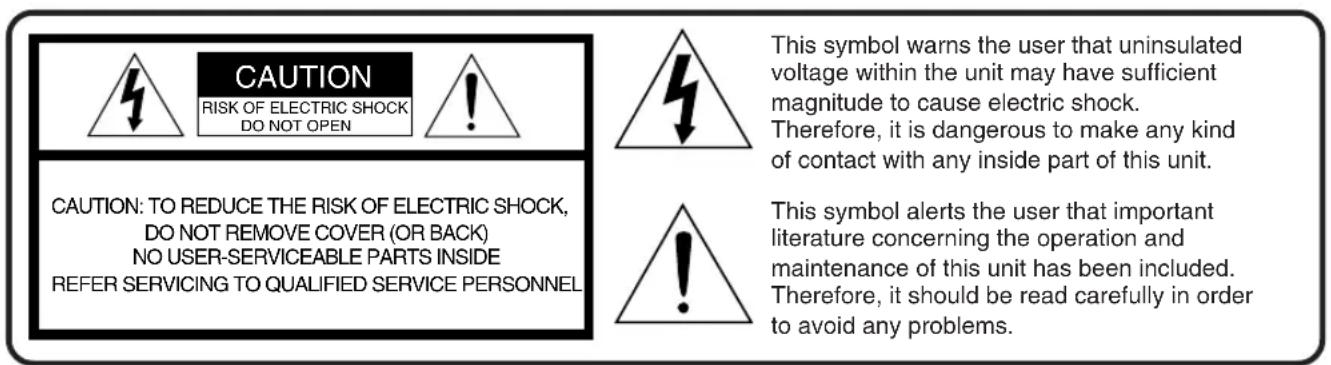
The above markings are located on the appliance bottom cover.
Note: This equipment has been tested and found to comply with Part 15 of the FCC Rules. These limits are designed to provide reasonable protection against harmful interference when operated in a residential environment.
If this equipment does cause interference to radio or television reception, which can be determined by turning the equipment off and on, use the equipment in another location and/or utilize an electrical outlet different from that used by the receiver.
If necessary, consult the dealer or an experienced radio/TV technician for help. You may find the booklet, 'Something About Interference' available from FCC local regional offices helpful.
FCC Warning:
- To assure continued FCC compliance, the user must use only the provided shielded interfacing cable with ferrite core when connecting the digital Palmcorder to computer in accordance with instruction herein. Also, any unauthorized changes or modifications to this equipment could void the user's authority to operate.
Declaration of Conformity
Model No.: PV-DC352
Trade Name: Panasonic
Responsible party: Matsushita Electric Corporation of America
Address: One Panasonic Way, Secaucus, New Jersey 07094
Telephone number: 1-800-211-PANA (7262)
This device complies with Part 15 of the FCC Rules. Operation is subject to the following two conditions: (1) This device may not cause harmful interference, and (2) this device must accept any interference received, including interference that may cause undesired operation.
CAUTION: TO PREVENT FIRE OR SHOCK HAZARD AND ANNOYING INTERFERENCE, USE THE RECOMMENDED ACCESSORIES ONLY.
CAUTION: TO PREVENT ELECTRIC SHOCK, MATCH WIDE BLADE OF PLUG TO WIDE SLOT, FULLY INSERT.
CAUTION: DANGER OF EXPLOSION IF BATTERY IS INCORRECTLY REPLACED. REPLACE ONLY WITH THE SAME OR EQUIVALENT TYPE.
- Since this product gets hot during use, operate it in a well-ventilated place; do not install this equipment in a confined space such as a bookcase or similar unit.
Important Safeguards
1) Read Instructions - All the safety and operating instructions should be read before the unit is operated. 2) Retain Instructions - The safety and operating instructions should be retained for future reference. 3) Heed Warnings - All warnings on the unit and in the operating instructions should be adhered to. 4) Follow Instructions - All operating and maintenance instructions should be followed. 5) Cleaning - Unplug this video unit from the wall outlet before cleaning. Do not use liquid or aerosol cleaners. Use a dry cloth for cleaning. 6) Attachments - Do not use attachments not recommended by the video product manufacturer as they may be hazardous. 7) Water and Moisture - Do not use this video unit near water - for example near a bath tub, wash bowl, kitchen sink, or laundry tub, in a wet basement, or near a swimming pool, and the like. 8) Accessories - Do not place this video unit on an unstable cart, stand, tripod, bracket, or table. The video unit may fall, causing serious injury to a child or adult, and serious damage to the unit. Use only with a cart, stand, tripod, bracket, or table recommended by the manufacturer, or sold with the video unit. Any mounting of the unit should follow the manufacturer's instructions and should use a mounting accessory recommended by
the manufacturer. An appliance and cart combination should be moved with care. Quick stops, excessive force, and uneven surfaces may cause the appliance and cart combination to overturn.
9) Ventilation - Slots and openings in the cabinet are provided for ventilation and to ensure reliable operation of the video unit and to protect it from overheating. These openings must not be blocked or covered. Never place the video unit on a bed, sofa, rug, or other similar surface, or near or over a radiator or heat register. This video unit should not be placed in a built-in installation such as a bookcase or rack unless proper ventilation is provided or the manufacturer's instructions have been adhered to.
provided for ventilation and to ensure reliable operation of the video unit and to protect it from overheating. These openings must not be blocked or covered. Never place the video unit on a bed, sofa, rug, or other similar surface, or near or over a radiator or heat register. This video unit should not be placed in a built-in installation such as a bookcase or rack unless proper ventilation is provided or the manufacturer's instructions have been adhered to.
10) Power Sources - This video unit should be operated only from the type of power source indicated on the marking label. If you are not sure of the type of power supply to your home, consult your appliance dealer or local power company. For video units intended to be operated from battery power, or other sources, refer to the operating instructions.
11) Grounding or Polarization - This video unit may be equipped with either a polarized 2-wire AC (Alternating Current) line plug (a plug having one blade wider than the other) or a 3-wire grounding type plug, a plug having a third (grounding) pin.
The 2-wire polarized plug will fit into the power outlet only one way. This is a safety feature. If you are unable to insert the plug fully into the outlet, try reversing the plug. If the plug still fails to fit, contact your electrician to replace your obsolete outlet. Do not defeat the safety purpose of the polarized plug.
The 3-wire grounding type plug will fit into a grounding type power outlet. This is a safety feature. If you are unable to insert the plug into the outlet, contact your electrician to replace your obsolete outlet. Do not defeat the safety purpose of the grounding type plug.
12) Power-Cord Protection - Power-supply cords should be routed so that they are not likely to be walked on or pinched by items placed upon or against them, paying particular attention to cords of plugs, convenience receptacles, and the point where they exit from the unit. 13) Outdoor Antenna Grounding - If an outside antenna or cable system is connected to the video unit, be sure the antenna or cable system is grounded so as to provide some protection against voltage surges and built-up static charges. Part 1 of the Canadian Electrical Code, in USA Section 810 of the National Electrical Code, provides information with respect to proper grounding of the mast and supporting structure, grounding of the lead-in wire to an antenna discharge unit, size of grounding conductors, location of antenna discharge unit, connection to grounding electrodes, and requirements for the grounding electrode.
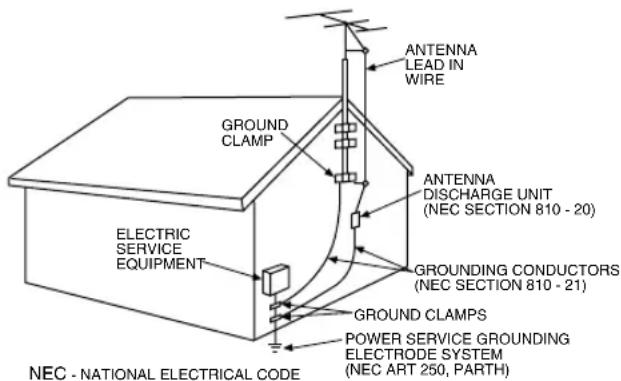
14) Lightning - For added protection of this video unit receiver during a lightning storm, or when it is left unattended and unused for long periods of time, unplug it from the wall outlet and disconnect the antenna or cable system. This will prevent damage to the video unit due to lightning and power-line surges. 15) Power Lines - An outside antenna system should not be located in the vicinity of overhead power lines or other electric light or power circuits, or where it can fall into such power lines or circuits. When installing an outside antenna system, extreme care should be taken to keep from touching such power lines or circuits as contact with them might be fatal. 16) Overloading - Do not overload wall outlets and extension cords as this can result in a risk of fire or electric shock.
Important Safeguards
17) Objects and Liquids - Never push objects of any kind into this video unit through openings as they may touch dangerous voltage points or short out parts that could result in a fire or electric shock. Never spill liquid of any kind onto the video unit. 18) Servicing - Do not attempt to service this video unit yourself as opening or removing covers may expose you to dangerous voltage or other hazards. Refer all servicing to qualified service personnel. 19) Damage Requiring Service - Unplug this video unit from the wall outlet and refer servicing to qualified service personnel under the following conditions:
a. When the power-supply cord or plug is damaged. b. If any liquid has been spilled into, or objects have fallen onto, the video unit. c. If the video unit has been exposed to rain or water. d. If the video unit does not operate normally by following the operating instructions. Adjust only those controls that are covered by the operating instructions, as an improper adjustment of other controls may result in damage and will often require extensive work by a qualified technician to restore the video unit to its normal operation. e. If the video unit has been dropped or the cabinet has been damaged.
f. When the video unit exhibits a distinct change in performance - this indicates a need for service.
20) Replacement Parts - When replacement parts are required, be sure the service technician has used replacement parts specified by the manufacturer or have the same characteristics as the original part. Unauthorized substitutions may result in fire, electric shock or other hazards. 21) Safety Check - Upon completion of any service or repairs to this video unit, ask the service technician to perform safety checks to determine that the video unit is in safe operating order.
Precautions
USE & LOCATION
- TO AVOID SHOCK HAZARD ... Your Palmcorder and power supply should not be exposed to rain or moisture. Do not connect the power supply or operate your Palmcorder if it gets wet. Your Palmcorder has been designed for outdoor use, however it is not designed to sustain direct exposure to water, rain, sleet, snow, sand, dust, or a direct splashing from a pool or even a cup of coffee. This action could permanently damage the internal parts of your Palmcorder. Do not attempt to disassemble this unit. There are no user serviceable parts inside. Unplug your Palmcorder from the power supply before cleaning. DO NOT AIM YOUR PALMCORDER AT THE SUN OR OTHER BRIGHT OBJECTS. DO NOT LEAVE THE PALMCORDER WITH THE EVF AIMED DIRECTLY AT THE SUN AS THIS MAY CAUSE DAMAGE TO THE INTERNAL PARTS OF THE EVF. DO NOT EXPOSE YOUR PALMCORDER TO EXTENDED HIGH TEMPERATURE ... Such as, in direct sunlight, inside a closed car, next to a heater, etc... This action could permanently damage the internal parts of your Palmcorder.
- AVOID SUDDEN CHANGES IN TEMPERATURE ... If the unit is suddenly moved from a cold place to a warm place, moisture may form on the tape and inside the unit. DO NOT LEAVE YOUR PALMCORDER OR THE POWER SUPPLY TURNED ON WHEN NOT IN USE.
- STORAGE OF YOUR PALMCORDER ... Store and handle your Palmcorder in a manner that will not subject it to unnecessary movement (avoid shaking and striking). Your Palmcorder contains a sensitive pick-up device which could be damaged by improper handling or storage.
CARE
- TO CLEAN YOUR PALMCORDER ... Do not use strong or abrasive detergents when cleaning your Palmcorder body. TO PROTECT THE LENS... Do not touch the surface of the lens with your hand. Use a commercial Palmcorder lens solution and lens paper when cleaning the lens. Improper cleaning can scratch the lens coating.
- TO PROTECT THE FINISH OF YOUR PALMCORDER ... Before handling your Palmcorder, make sure your hands and face are free from any chemical products, such as suntan lotion, as it may damage the finish.
This class B digital apparatus complies with CANADIAN ICES-003.
This Product has fluorescent lamps that contain a small amount of mercury. It also contains lead in some components. Disposal of these materials may be regulated in your community due to environmental considerations. For disposal or recycling information please contact your local authorities, or the Electronics Industries Alliance: http://www.eiae.org .
U.S.A./CANADA CONSUMERS: ATTENTION:

A lithium ion/polymer battery that is recyclable powers the product you have purchased. Please call 1-800-8-BATTERY for information on how to recycle this battery.
Contents
Before Using
Standard Accessories 6
Quick Guide. 7
To View the Playback Picture. 7
Controls and Components. 8
Remote Controller 10
Power Supply 12
Charging Time and Available Recording Time 12
Lens Cap and Grip Belt 13
Attaching the Shoulder Strap 14
Inserting a Cassette 14
Turning on/off the Palmcorder and Selecting Modes 15
Using the Viewfinder 15
Using the LCD Monitor 15
Using the Menu Screen. 16
List of Menus. 17
Setting Date and Time 20
Internal Lithium Battery Recharge. 20
LP Mode 20
Audio Recording Mode 20
CAMERA Mode
Recording 21
PhotoShot Recording on the DV Cassette 22
Zoom In/Out Functions 22
Digital Zoom Function 23
Digital Electronic Image Stabilizer Function. 23
Fade In/Out Functions 23
Cinema Function 24
Backlight Compensation Function. 24
MagicPix Function 24
Quick Start 25
Wind Noise Reduction Function 25
Recording in Special Situations (Program AE) 25
Manual Shutter Speed Adjustment 26
Manual Iris Adjustment (F Number) 26
Manual Focus Adjustment 26
Recording in Natural Colors (White Balance) 27
Adjusting White Balance Manually 27
Using the Free Angle Flash 28
Digital Effect Functions. 29
VCR Mode
Playing Back. 31
Finding a Scene You Want to Play Back. 31
Slow Motion Playback 32
Still Playback/Still Advance Playback 32
Finding the End of a Recording (Blank Search Function). 32
Index Search Functions 33
Playback Zoom Function 34
Playback Digital Effect Functions 34
Playing Back on Your TV 36
Audio Dubbing 36
Special Features
Using a Memory Card. 37
Recording on the Memory Card. 37
Playing Back Files from the Memory Card 40
Copying Pictures from a Memory Card to a Cassette 41
Slide Show. 42
Creating a Title 43
Inserting a Title 43
Protecting the Files on a Memory Card from Accidental
Erasure (File Lock). 44
Deleting the Files recorded on a Memory Card 44
Formatting a Memory Card. 45
DPOF Setting. 45
Copying your DV Cassette to an S-VHS or VHS Cassette (Dubbing). 46
Copying an S-VHS or VHS Cassette to your DV Cassette. 46
Using your Palmcorder with Digital Video Equipment (Dubbing) 47
Using the Software with a Computer 48
ArcSoft Software 49
Using the Supplied USB Connection Kit. 50
Installing USB Driver. 50
Connecting Computer and Palmcorder 50
Using the G726 Decoder 51
Installing the G726 Decoder 51
Check if Palmcorder is correctly recognized. 52
To disconnect USB cable safely 52
Verifying and updating driver 53
If you no longer need software or driver (install) 56
Notes 57
Others
Indications. 58
Warning/Alarm Indications. 60
Notes & Precautions. 61
Cautions for Use 67
Explanation of Terms. 70
Specifications. 71
Palmcorder Accessory System. 72
Palmcorder Accessory Order Form (For USA Customers) 73
Before Requesting Service (Problems and Solutions) 74
Request for Service Notice 76
Limited Warranty (For USA Customers). 77
Customer Services Directory 78
Warranty (For Canadian Customers) 79
Index 80
Standard Accessories
Illustrated on the left are accessories packaged with the Palmcorder.
1) AC Adaptor, DC Cable and AC Cable (→ 12)
Supplies power to the Palmcorder.
CAUTION:
This unit will operate on 110/120/220/240 V AC. An AC plug adaptor may be required for voltages other than 120 V AC. Please contact either a local or foreign electrical parts distributor for assistance in selecting an alternate AC plug. We recommend using the accessory power plug adaptor (VJSS0070) in an area which has special AC outlets.
2) Battery Pack (→ 12) Supplies power to the Palmcorder. 3) Remote Controller and Button-Type Battery (→ 10, 11) 4) Tethered Remote Control 5) Lens Cap and Lens Cap String (→ 13) 6) Lens Hood for Card Mode Recording (→ 37, 64, 69)
- By attaching supplied Lens Hood in Card Mode you can block direct sunlight when recording images. However, the Lens Cap cannot be attached when the lens hood is being used.
7) A/V Cable (→ 36) 8) Shoulder Strap (→ 14) 9) SD Memory Card (→ 57)
10) CD-ROM:
USB Driver for Panasonic DVC (→ 50)
G726 Decoder (→ 51)
ArcSoft Software (→ 48, 49)
Microsoft and Windows are registered trademarks of Microsoft in the United States and other countries.
- Macintosh is a registered trademark of Apple Computer, Inc. 2001. ArcSoft, the ArcSoft logo, ArcSoft Photolmpression 3.0, ArcSoft PhotoBase 3.0, ArcSoft PanoramaMaker 3.0 and ArcSoft PhotoPrinter 2000 Pro are trademarks of ArcSoft, Inc.
- All product/brand names are trademarks or registered trademarks of the respective holders.
- Intel Pentium is a registered trademark. i.LINK and " are trademarks.
- IBM is a registered trademark of IBM Company.
- MultiMediaCard is a trademark. -SD is a trademark.
11) USB Cable (→ 50)
Quick Guide
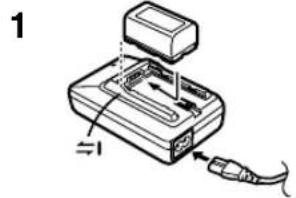
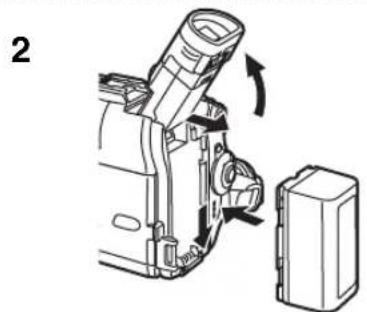
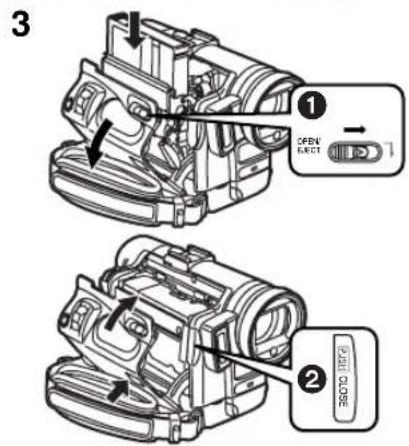
1 Charge the Battery. (→ 12)
- Connect the AC Cable to the AC Adaptor and plug it into the AC Wall Outlet.
- Attach the Battery to the AC Adaptor. (This will start the charging process.) The [POWER] Lamp and [CHARGE] Lamp light up, and charging starts.
- When the [CHARGE] Lamp goes off, charging is completed.
- Since the Battery will not be charged when the DC Cable is connected to the AC Adaptor, disconnect it.
2 Attach the Charged Battery to the Palmcorder. (→ 12)
3 Insert the Cassette. (→ 14)
- Slide the [OPEN/EJECT] Lever toward the front and pull down to open the Cassette Compartment.
- Insert the Cassette
- Press the [PUSH CLOSE] ② to load the Cassette.
- Close the outside compartment cover.
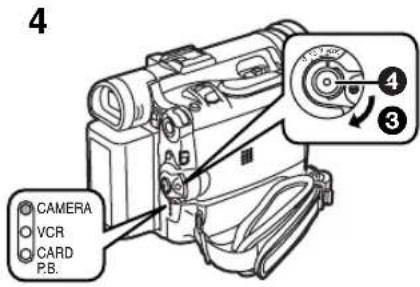
4 Start recording. (→ 21)
- Turn the Palmcorder on. (→ 15)
- Rotate the switch ③ to [ON]. (The [CAMERA] lamp lights up.)
- Press the 4 button. (Recording starts.)
- Press the 4 button again to pause the recording.
To view the playback picture
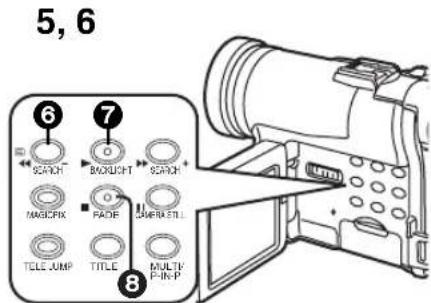
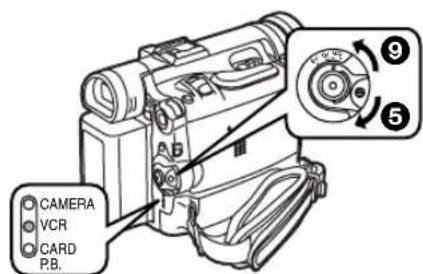
5 Switch to the VCR mode, rewind the tape, and play the tape back. (→ 31)
- Set the ⑤ switch to VCR mode. (The [VCR] lamp lights up.)
- Press the Θ button. (Rewind the tape.)
- Press the ⑦ button. (Playback starts.)
- Press the ⑧ button. (Playback stops.)
6 Turn the Palmcorder off. (→ 15)
- Set the Θ switch to [OFF].
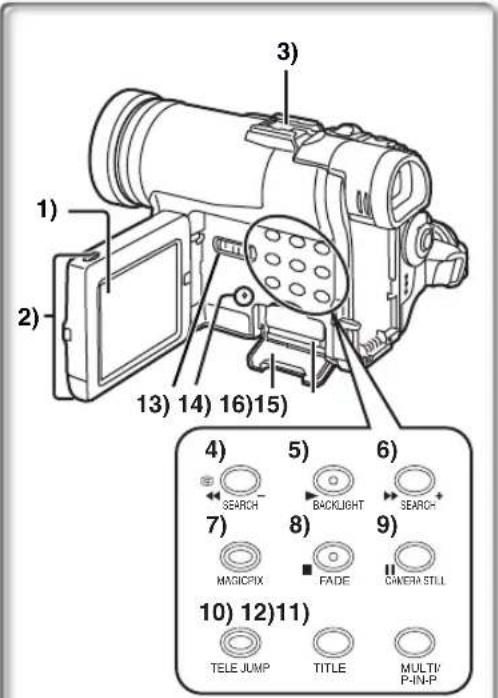
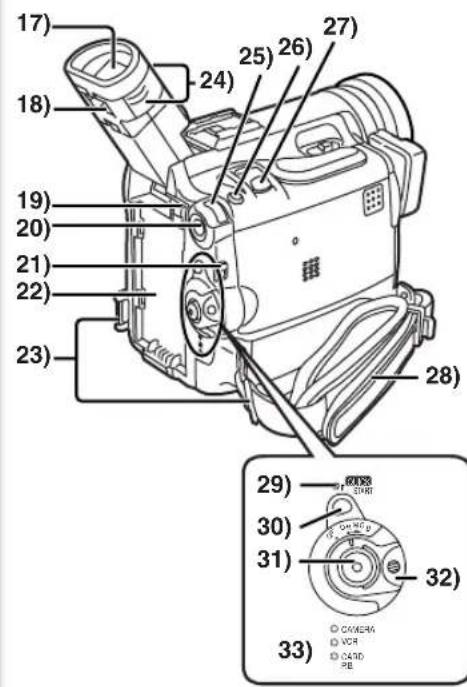
Controls and components
1) LCD Monitor (→ 15, 69)
- Due to limitations in LCD production technology, there may be some tiny bright or dark spots on the LCD Monitor screen. However, this is not a malfunction and does not affect the recorded picture.
2) LCD Monitor Open Tab [OPEN▼] (→ 15) 3) Accessory Shoe
- Accessories, such as a stereo microphone (not supplied), are attached here.
4) Rewind/Review Button [▲] (→ 31) Reverse Search Button [SEARCH-] (→ 21) Recording Check Button [C] (→ 21) 5) Play Button [▶] Backlight Button [BACKLIGHT] (→ 24) 6) Fast Forward/Cue Button [▶▶] (→ 31) Forward Search Button [SEARCH+] (→ 21) 7) MAGICPIX Button [MAGICPIX] (→ 24) 8) Stop Button [■] (→ 31, 40, 42) Fade Button [FADE] (→ 23) 9) Still Button [II] (→ 32, 40, 42) Camera Still Button [CAMERA STILL] (→ 22) 10) 1.5 Times Tele Jump Zoom Button [TELE JUMP] (→ 22) 11) Title Button [TITLE] (→ 43) 12) Multi-Picture Button [MULTI] (→ 30, 43) Picture-in-Picture Button [P-IN-P] (→ 30) 13) Tape/Card PhotoShot Selector [TAPE/CARD/CARD MODE] (→ 21, 37) 14) Card Access Lamp [ACCESS] (→ 37) 15) Card Slot Cover (→ 37) 16) Card Slot (→ 37) 17) Viewfinder (→ 15, 69)
- Due to limitations in LCD production technology, there may be some tiny bright or dark spots on the Viewfinder screen. However, this is not a malfunction and does not affect the recorded picture.
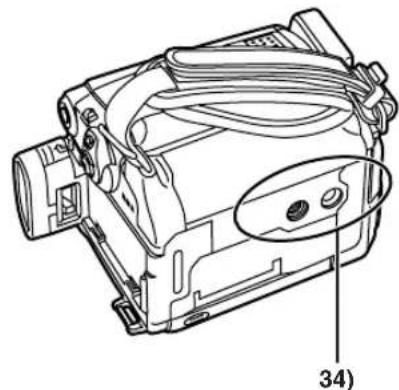
18) Eyepiece Corrector Knob (→ 15) 19) Battery Eject Button [PUSH BATT] (→ 12) 20) Menu Button [MENU] (→ 16) 21) Mode Selector Switch [AUTO/MANUAL/FOCUS] (→ 21, 25, 26, 27) 22) Battery Holder (→ 12) 23) Shoulder Strap Holders (→ 14) 24) Viewfinder Pull Knob (→ 15) 25) Multi-Function Dial [PUSH] (→ 16, 20, 26, 27, 31, 32) 26) PhotoShot Button [PHOTO SHOT] (→ 22, 37, 38) 27) Zoom Lever [W/T] (→ 22, 23) 28) Grip Belt (→ 13) 29) Quick Start Lamp (→ 25) 30) Quick Start Button [QUICK START] (→ 25) 31) Recording Start/Stop Button (→ 21, 29, 30) 32) Off/On Mode Selector Switch [OFF/ON/MODE] (→ 15, 21, 31) 33) Operation Mode Lamps CAMERA/VCR/CARD P.B. 34) Tripod Receptacle
- Use for mounting the Palmcorder on an optional tripod.
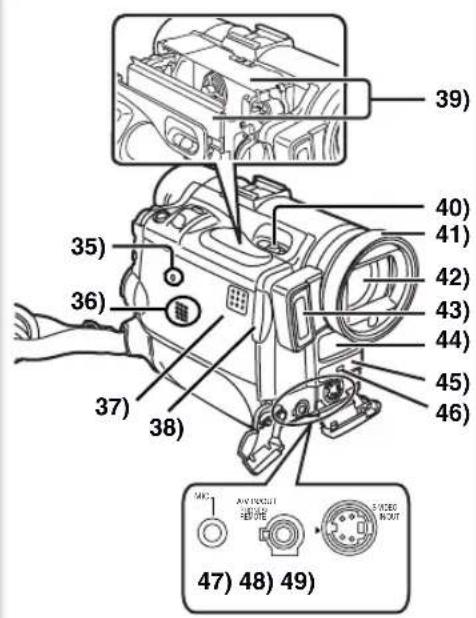
35) Reset Button [RESET] (→ 74) 36) Speaker 37) Cassette Compartment Cover (→ 14) 38) Cassette Cover Close Button [PUSH CLOSE] (→ 14) 39) Cassette Holder 40) Cassette Eject Lever [OPEN/EJECT] (→ 14) 41) Lens Hood (→ 69) 42) Lens (LEICA DICOMAR)
- LEICA is a registered trademark of Leica microsystems IR GmbH and DICOMAR is a registered trademark of Leica Camera AG.
43) Free Angle Flash (→ 28) 44) Microphone (Built-in, stereo) (→ 22) 45) White Balance Sensor (→ 27, 70) Remote Control Sensor (→ 11) 46) Tally Lamp (→ 21) 47) Microphone Jack [MIC] (→ 22, 64)
- Connecting with an external microphone or audio equipment. (When this Jack is in use, the built-in microphone does not operate.)
48) Audio-Video Input/Output Jack [A/V IN/OUT] (→ 36)
Headphone Jack [PHONES] (→ 63)
Tethered Remote Control Jack [REMOTE] (→ 10)
- Connecting an AV Cable or Tethered Remote Control to this Jack activates the Palmcorder's built-in speaker, but connecting a headphone, etc. deactivates it.
- When plugging the pin plug of the AV cable into the AV output terminal, plug it in as far as it goes.
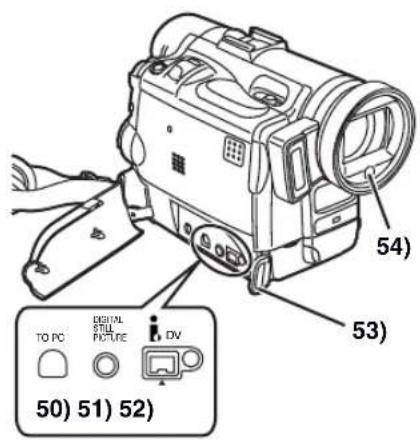
49) S-Video Input/Output Jack [S-VIDEO IN/OUT] (→ 36) 50) USB Jack [TO PC] (→ 50) 51) Digital Still Picture Terminal [DIGITAL STILL PICTURE] (52) DV Input/Output Terminal (i.LINK) [8] (→ 47)
- Connect this to the digital video equipment. • "i.LINK" is the name of connectors in accordance with IEEE1394-1995.
" is a logo marked on products conforming with the "i.LINK" specifications.
53) Lens Cap String Holder (→ 13) 54) Flash Sensor (→ 28)
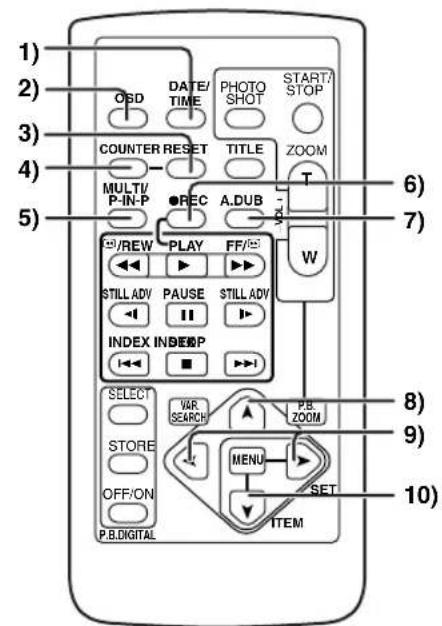
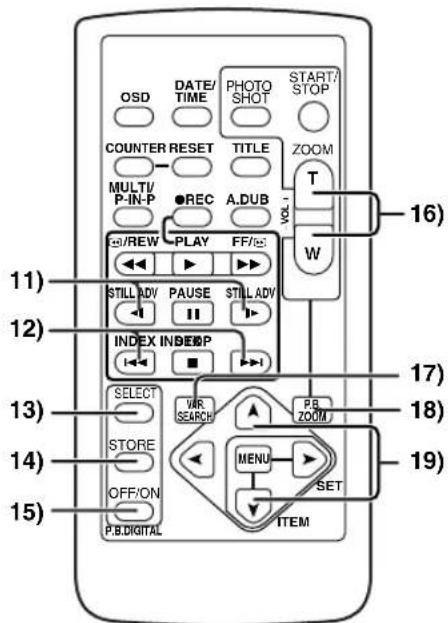
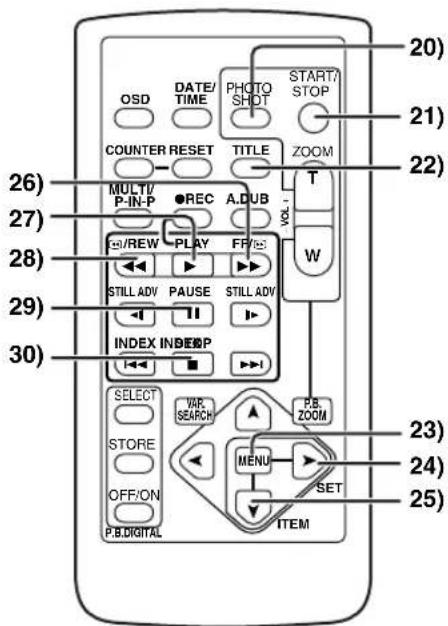
Remote Controller
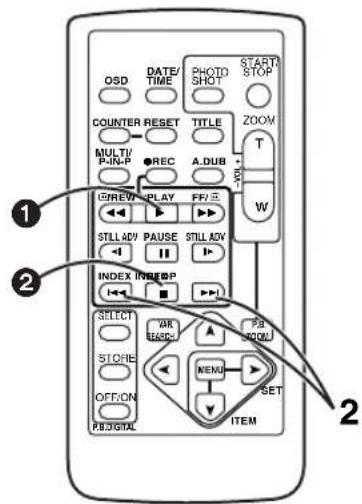
Using the wireless Remote Controller that is supplied with the Palmcorder, most of the Palmcorder functions can be operated from a distance.
Remote Controller Buttons
1) Date and Time Button [DATE/TIME] (→ 60) 2) Indication Output Button [OSD] (→ 36) 3) Counter Reset Button [RESET] (→ 70) 4) Indication Shift Button [COUNTER] (→ 60) 5) Multi-Picture/Picture-in-Picture Button [MULTI/P-IN-P] (→ 30, 41) 6) Recording Button [REC] (→ 47) 7) Audio Dubbing Button [A.DUB] (→ 36) 8) Upward Direction Button [A] (for Playback Zoom Function) (→ 34) 9) Left/Right Direction Button [<, >] (for Playback Zoom Function) (→ 34) 10) Downward Direction Button [Y] (for Playback Zoom Function) (→ 34) 11) Slow Motion/Still Advance Button [<1, ]] (<: reverse direction, : normal direction) (→ 32) 12) Index Search Button [▶,▶] (▶: reverse direction, ▶: normal direction) (→ 33) 13) Selection Button [SELECT] (→ 34) 14) Store Button [STORE] (→ 34) 15) Off/On Button [OFF/ON] (→ 34) 16) Zoom/Volume Button [ZOOM/VOL] (→ 22, 23, 31, 34) 17) Variable Speed Search Button [VAR.SEARCH] (→ 31) 18) Playback Zoom Button [P.B. ZOOM] (→ 34) 19) Speed Selection Button [A, Y] (for Variable Speed Search Function) (→ 31)
The following buttons function in the same manner as the corresponding buttons on the Palmcorder.
20) PhotoShot Button [PHOTO SHOT] (→ 22, 37) 21) Recording Start/Stop Button [START/STOP] (→ 21) 22) Title Button [TITLE] (→ 43) 23) Menu Button [MENU] (→ 16) 24) Item Set Button [SET] (→ 16) 25) Item Select Button [ITEM] (→ 16) 26) Fast-forward/Cue Button [>>] 27) Play Button [▶] (→ 31, 40) 28) Rewind/Review Button [◀] (→ 31) 29) Pause Button [II] (→ 32, 40) 30) Stop Button [■] (→ 31, 40)
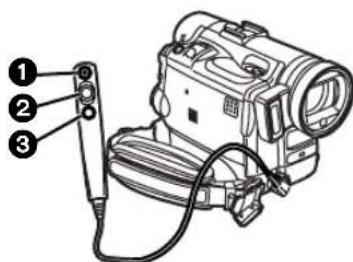
Tethered Remote Control
This controller allows the scene to be shot in various angles, high to low, and is also convenient when a tripod is used. When you do not use this controller, attach the clip to the Grip Belt for convenience.
This controller allows the camera to be used more conveniently by a left-handed user.
- When using the Tethered Remote Control, plug it in as far as it goes.
1) Recording Start/Stop Button [REC] Zoom Lever [W/T] PhotoShot Button [PHOTO SHOT]
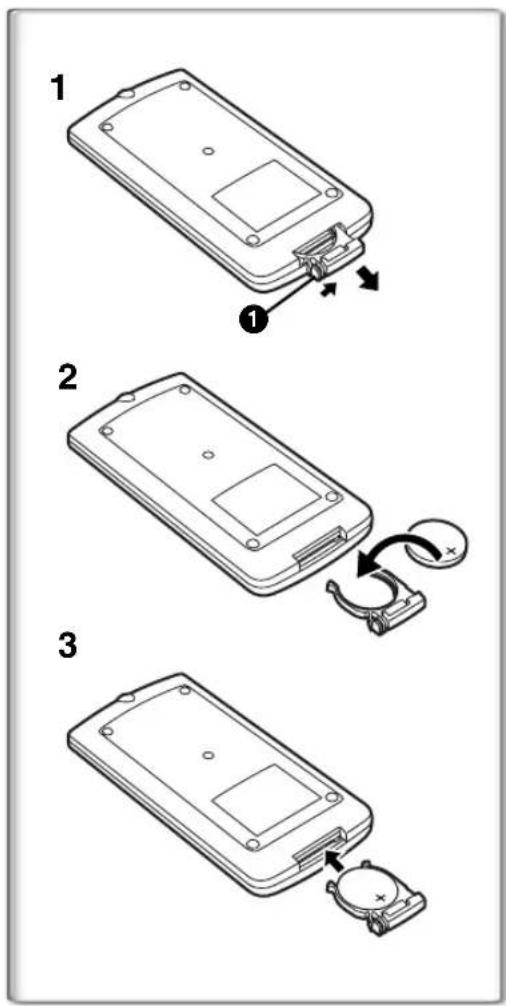
Inserting the Button-type Battery
Before using the remote controller, insert the supplied button-type battery.
1) While pressing the Stopper 1, pull out the Battery Holder. 2) Insert the button-type battery with the imprint (+) facing upward.
3) Insert the Battery Holder into the Remote Controller.
- When the button-type battery becomes weak, replace it with a new CR2025 battery. (A battery is normally expected to last about one year. However, it depends on operation frequency.)
- Be sure to match the poles properly when inserting the battery.
Warning
Danger of explosion if battery is incorrectly replaced.
Replace only with the same or equivalent type recommended by the equipment manufacturer. Discard used batteries according to manufacturer's instructions.
Risk of fire, explosion and burns. Do not recharge, disassemble, heat above 212°F (100°C) or incinerate. Keep the Button-Type battery out of the reach of children. Never put Button-Type battery in mouth. If swallowed, call your doctor.
Replace battery with Panasonic PART NO. VSBW0004 (CR2025) only. Use of another battery may present a risk of fire or explosion. Caution: Battery may explode if mistreated. Dispose of used battery promptly. Keep away from children. Do not recharge, disassemble or dispose of in fire.
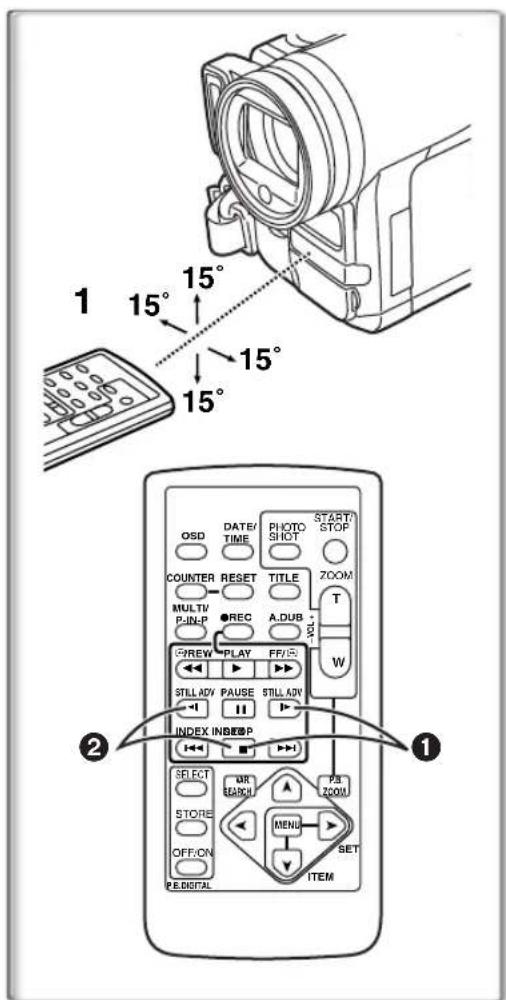
Using the Remote Controller
1 Direct the Remote Controller at the Remote Control Sensor on the Palmcorder and press the desired button.
- Distance from the Palmcorder: Within approximately 15 feet (5 meters) Angle: Approximately 15 degrees in the vertical and horizontal directions from the central axis
- The above operating ranges are for indoor use. Outdoors, or under strong light, the equipment may not operate properly even within the above ranges.
- Within 3 feet (1 meter) range, you can also use the Remote Controller on the side (the LCD Monitor side) of the Palmcorder.
Selecting Remote Controller Modes
When two Palmcorders are used simultaneously, they can be operated individually by selecting different Remote Controller Modes. - If the Remote Controller Mode on the Palmcorder and Remote Controller do not match, [REMOTE] is displayed.
Setting on the Palmcorder:
Set [REMOTE] on the [OTHER FUNCTIONS] Sub-Menu to the desired Remote Controller Mode.
Setting on the Remote Controller:
[VCR1]: Press the ■ Button and [■] Button simultaneously.
[VCR2]: Press the [<] Button and [■] Button simultaneously.
- When the battery in the Remote Controller is replaced, the Mode is automatically reset to [VCR1] Mode.
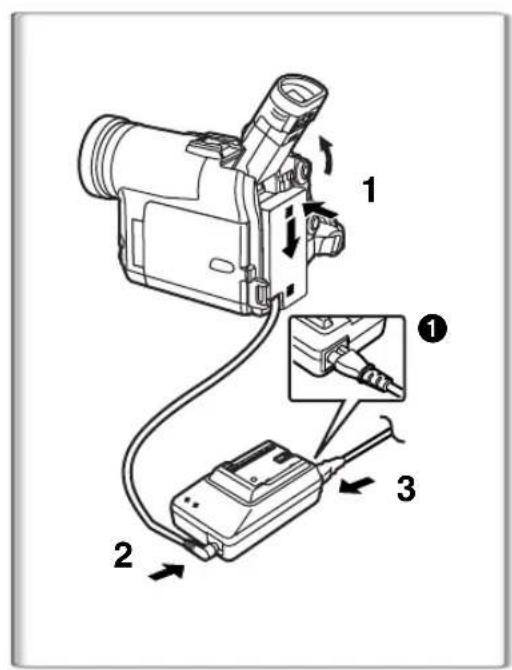
Power Supply
Using the AC Adaptor
1. Insert the battery-shaped connector of the DC Cable into the Battery Holder on the Palmcorder. 2. Connect the DC Cable to the [DC OUT] Jack on the AC Adaptor. 3. Connect the AC Adaptor and AC Cable.
- The AC Cable's outlet plug cannot be pushed fully into the AC Adaptor Jack. A gap will remain as shown in figure 1.
- Before connecting or disconnecting the power supply, set the [OFF/ON/MODE] Switch on the Palmcorder to [OFF] and make sure that neither the [CAMERA/VCR/CARD P.B.] Lamps nor the Quick Start Recording Lamp is lit.
- Battery cannot be charged if the DC Cable is connected to the AC Adapter.
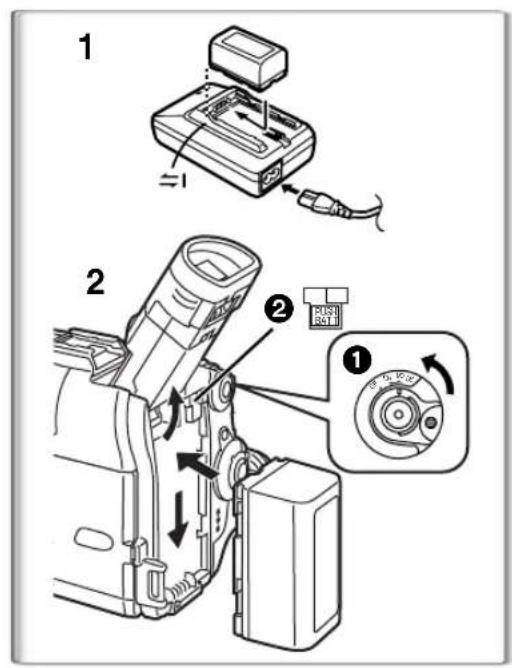
Using the Battery
Before use, fully charge the battery.
1. Attach the Battery to the AC Adaptor and charge it.
- Since the Battery will not be charged when the DC Cable is connected to the AC Adaptor, disconnect it. The [POWER] Lamp and [CHARGE] Lamp light up, and charging starts.
- When the [CHARGE] Lamp goes off, charging is completed.
2. Attach the charged Battery to the Palmcorder.
Disconnecting the Power Source
Set the [OFF/ON/MODE] Switch 1 to [OFF], and while pressing the [PUSH BATT] Button 2, slide the Battery or DC Input Lead upward to disconnect it.
- When attaching or removing the battery, set the [OFF/ON/MODE] Switch to [OFF] and make sure the Operation Mode Lamp is not lit. For other notes, see page 61.

Charging Time and Available Recording Time
Charging Time and Maximum Continuous Recording Time: 1 h 20 min. indicates 1 hour and 20 minutes. The Battery CGR-D14 is supplied. The hours shown in the table are approximate. The numeric characters in parentheses indicate the recording time when the LCD monitor is used. In actual use, the available recording time may be shorter in some cases. The hours shown in the table are for continuous recording at a temperature of 68°F (20°C) and humidity of 60%. If the battery is charged at a higher or lower temperature, the charging time may be longer.
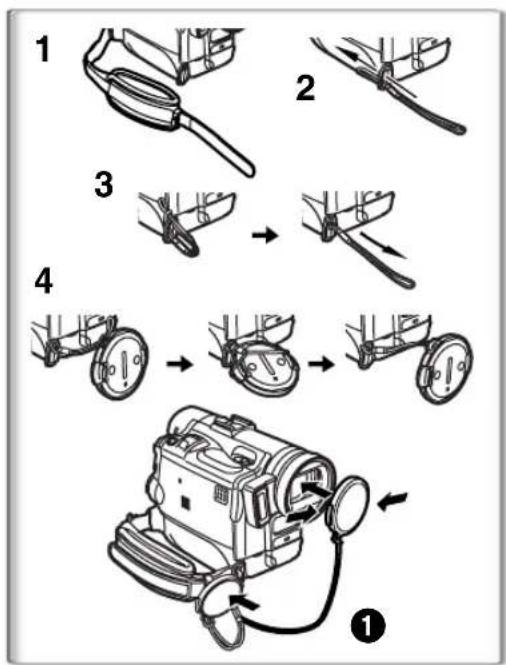
Lens Cap and Grip Belt
Attach the Lens Cap
To protect the lens surface, attach the lens cap.
1. Detach the Grip Belt from the Grip Belt Holder. 2. Pass the end of the Lens Cap String through the Lens Cap String holder. 3. Pass the other end of the String through the loop made by the String itself and pull it toward the direction indicated by an arrow. 4. Fit the lens cap onto the lens cap string. - The removed Lens Cap can be hooked onto the Grip Belt (1). (When you are not recording, be sure to keep the Lens Cap attached to the Lens for protection.) - The Lens Cap cannot be attached when the supplied Lens Hood for Card Mode Picture Recording is being used.
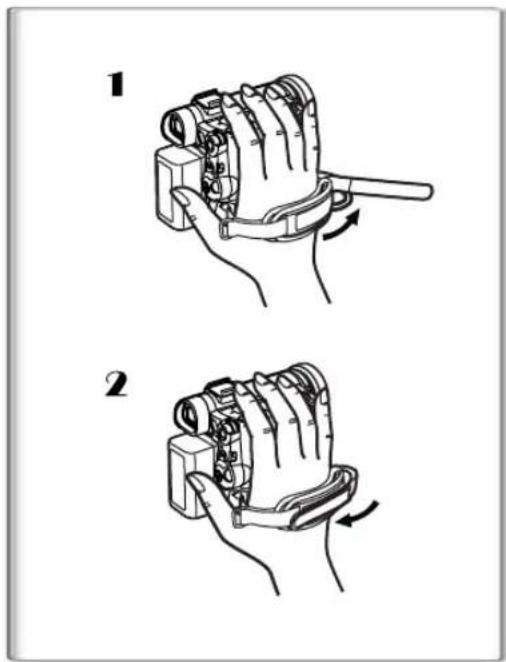
Adjust the Grip Belt
Adjust the length of the Grip Belt to the size of your hand.
1. Detach the tip of the Grip Belt and adjust its length. 2. Reattach the tip of the Grip Belt.
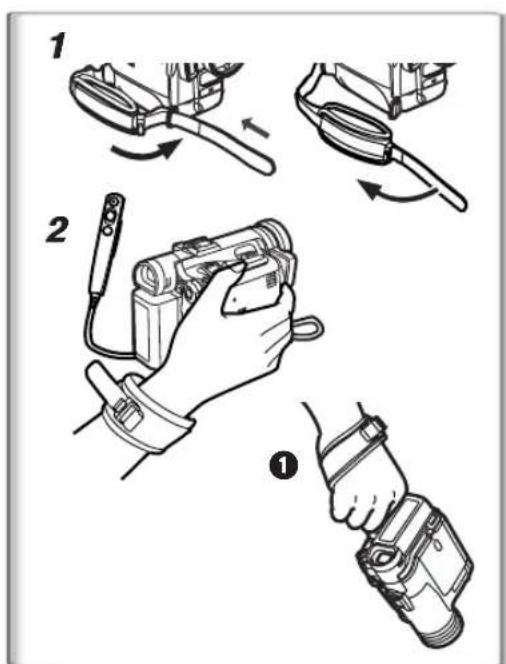
To Use as a Free Style Grip Belt
Using the Grip Belt as the Free Style Grip Belt makes it easier to handle and carry the Palmcorder. It is also more convenient to use with the Tethered Remote Control.
1. Detach the tip of the Grip Belt from the Grip Belt Holder and adjust its length. 2. Attach the Grip Belt around your wrist.
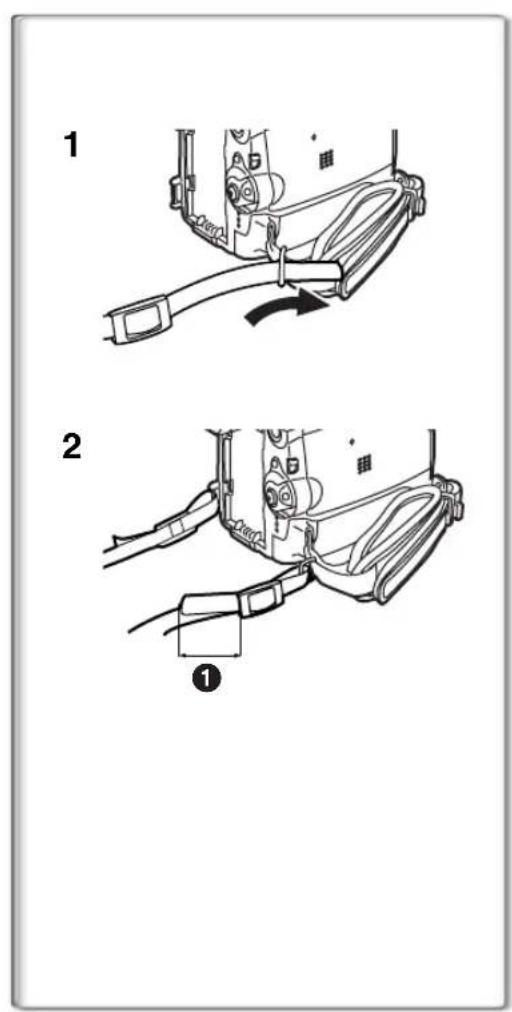
Attaching the Shoulder Strap
We recommend that you attach the Shoulder Strap before going outdoors to record so as to avoid dropping the Palmcorder.
1 Pass the tip of the Shoulder Strap through the Shoulder Strap Holders on the Palmcorder and pull the Shoulder Strap. 2 Fold the tips of the Shoulder Strap, pass it through the Shoulder Strap Length Adjuster, and pull it.
- Pull it out more than 1 inch (2 cm) ① from the Shoulder Strap Length Adjuster so that it cannot slip off.
- Please perform this step on the other side as well.
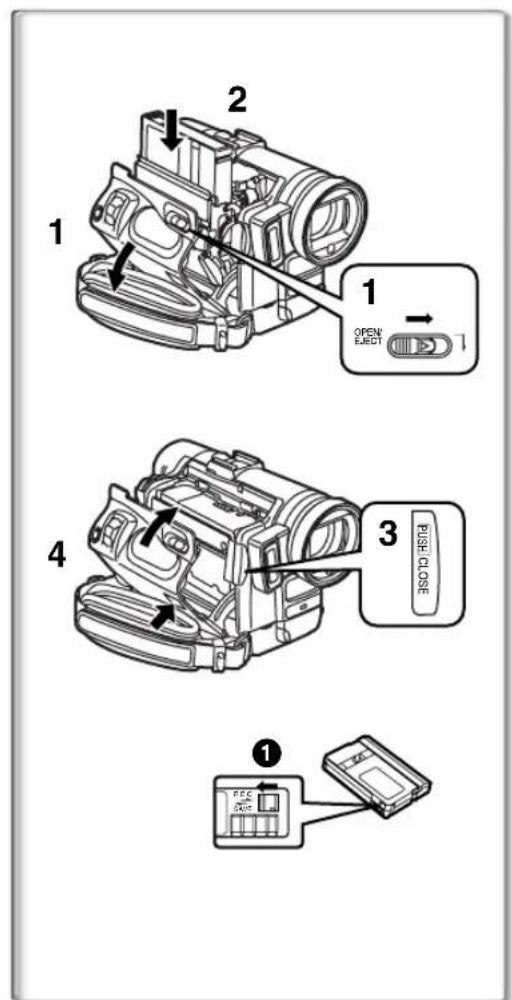
Inserting a Cassette
When power is supplied to the Palmcorder, the cassette can be taken out without turning the Palmcorder on.
1 Slide the [OPEN/EJECT] Lever toward the front and pull down to open the Cassette Compartment Cover. 2 Insert a Cassette. 3 Close the Cassette Holder by pressing the [PUSH CLOSE] Button. 4 Close the Cassette Compartment Cover.
For other notes, see page 61.
Accidental Erasure Prevention
Opening the accidental erasure prevention slider 1 on the cassette (by sliding it in the [SAVE] arrow direction) prevents recording. To enable recording, close the accidental erasure protection slider (by sliding it in the [REC] arrow direction.)
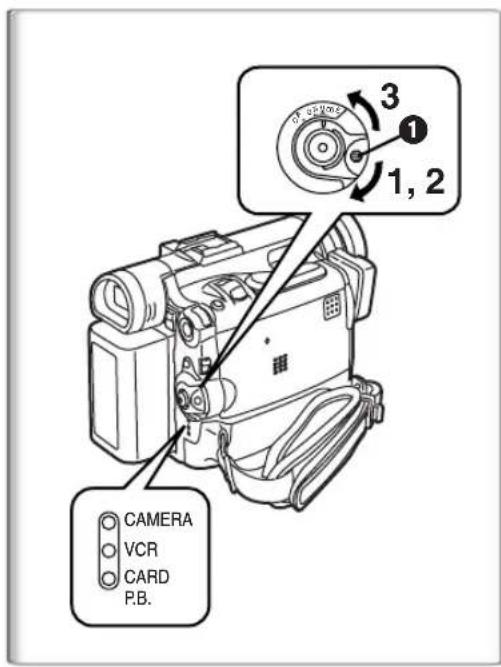
Turning on/off the Palmcorder and Selecting Modes
Turn on the power first and then select Modes.
How to Turn on the Power
1 Set the [OFF/ON/MODE] Switch to [ON] while pressing the center Button ①. The [CAMERA] Lamp lights up. How to Switch Modes 2 Rotate the [OFF/ON/MODE] Switch.
- With each slide of the Switch, the Mode switches in the order of Camera Mode, VCR Mode, and Card Playback Mode. The appropriate Mode Lamp lights up. How to Turn off the Power: Set the [OFF/ON/MODE] Switch to [OFF] while pressing the center Button.
Using the Viewfinder
Before using the Viewfinder, adjust the field of view so that the displays inside the Viewfinder become clear and easy to read.
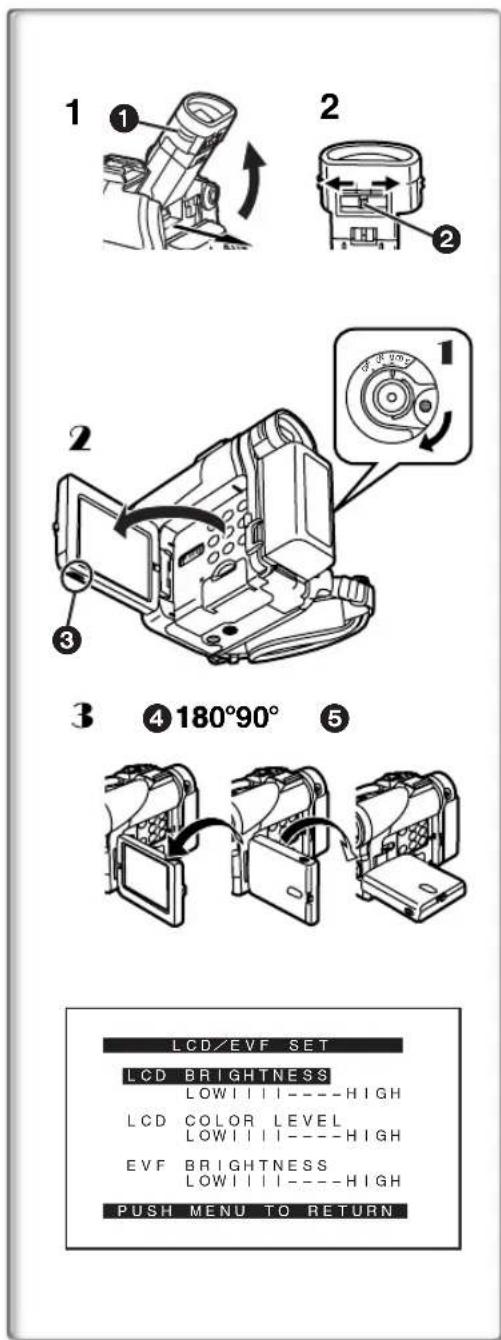
1. Hold the Viewfinder Pull knob ①, pull out the Viewfinder and tilt it up. 2. Adjust the Viewfinder by sliding the Eyepiece Corrector Knob ②.
Using the LCD Monitor
With the LCD Monitor open, you can also record the picture while watching it.
1. Set the [OFF/ON/MODE] Switch to [ON]. 2. Put your finger on the [OPEN ∇] Tab ③ and pull the LCD Monitor out about 90° in the direction of the arrow.
The Viewfinder goes off. 3. Adjust the LCD Monitor angle according to the desired recording angle.
The LCD Monitor can rotate a maximum of 180° from the vertical position to the upward direction and a maximum of 90° to the downward direction. Forcefully rotating the LCD monitor beyond these ranges will damage the Palmcorder.
Closing the LCD monitor
Push the LCD Monitor until it is securely locked.
Adjusting Brightness and Color Level
When [LCD/EVF SET] on the [DISPLAY SETUP] Sub-menu is set to [YES], the following items are displayed:
LCD Brightness [LCD BRIGHTNESS]: Adjusts the brightness of the image on the LCD screen. LCD Color Level [LCD COLOR LEVEL]: Adjusts the color saturation of the image on the LCD screen. Brightness of the Viewfinder [EVF BRIGHTNESS]: Adjust the brightness of the image in the Viewfinder.
1. Press the [PUSH] Dial and select the item you want to adjust. 2. Rotate the [PUSH] Dial and increase or decrease the number of the vertical bars on the Bar Indication.
The Bar Indication has 8 steps. A larger number of vertical bars indicates stronger brightness or color saturation.
Increasing the Brightness of the Entire LCD Monitor
Set the [LCD MODE] on the [DISPLAY SETUP] Sub-Menu to [BRIGHT]. These adjustments do not affect the recorded images. - For other notes, see page 69.
2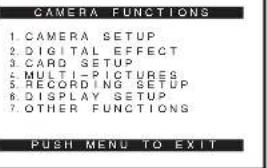
3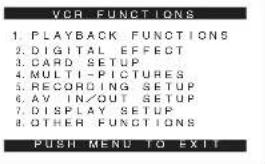
4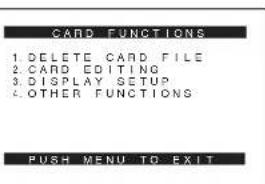
Using the Menu Screen
To facilitate the selection of a desired function or setting, this Palmcorder displays various function settings on menus.
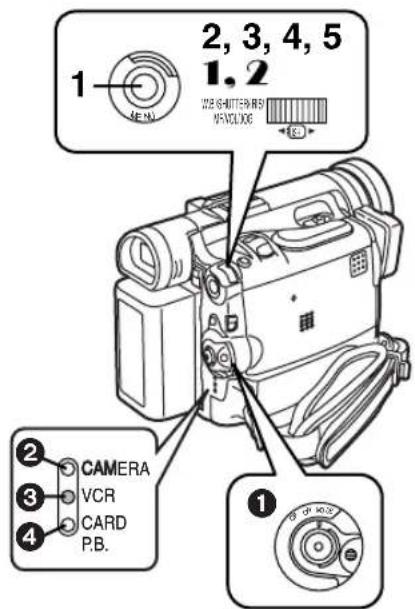
1 Press the [MENU] Button.
- The Menu corresponding to the Mode selected by using the [OFF/ON/MODE] Switch 1 is displayed.
- When the [CAMERA] Lamp is on, the Camera Function Menu is displayed. 2
- When the [VCR] Lamp is on, the VCR Function Menu is displayed. 3
- When the [CARD P.B.] Lamp is on, the Card Function Menu is displayed.
2 Rotate the [PUSH] Dial to select a desired Sub-Menu. 3 Press the [PUSH] Dial to display the selected Sub-Menu. 4 Rotate the [PUSH] Dial to select the item to be set. 5 Press the [PUSH] Dial to set the selected item to a desired Mode.
- With each press of the [PUSH] Dial, the cursor ▸ brings up a subsequent Mode. Menu items that cannot be used in combination with the selected menu items are displayed in dark blue.
While a Menu is displayed, you cannot begin to record or play back. Menus can be displayed during playback but not during recording. The above operations can be carried out using the Remote Controller.
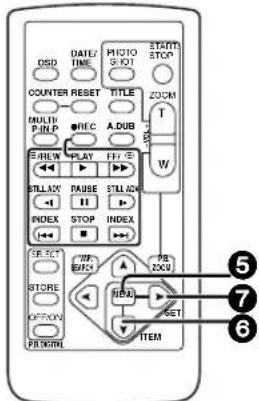
(→ 10)
- To display the Menu, press the [MENU] Button ⑤ on the Remote Controller.
- To select items on the Menu, press the [ITEM] Button Θ on the Remote Controller.
- To set the mode for the selected items, press the [SET] Button 7 on the Remote Controller.
To Exit the Menu Screen
Press the [MENU] Button again.
About the Menu Mode Setting
The setting selected on the Menu will be retained even when the Palmcorder is turned off. However, if the Battery or AC Adaptor is disconnected before turning the Palmcorder off, the selected setting may not be retained. (But, the setup of [EFFECT2] (→ 29) is not retained.)
- Menu operation flow is shown in this text by >>.
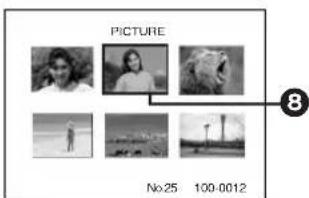
File Selection in the Card Playback Mode
A File Selection Operation may be necessary during Menu Operations. In this case, carry out the following procedure.
1 Turn the [PUSH] Dial and select a file.
The selected file is marked by a frame 8.
Press the [PUSH] Dial to confirm the selection of the file.
- After the above File Selection Procedure, carry out the various Menu Operations. (The above procedure will not be repeated in the following instructions.)
![PANASONIC PVDC352 - Turn the [PUSH] Dial and select a file. - 1](/content/2026/03/449276/images/dc7d370c1ea6fcf12f1b0dd33f37c8cecfc4c313f9c8262a10ea851d960961a0.jpg)
List of Menus
The illustrations of the Menu are for explanation purposes only, and they are different from the actual Menu.
Camera Mode Main-Menu [CAMERA FUNCTIONS]
[CAMERA SETUP] Sub-Menu
1) Auto Exposure Mode [PROG.AE] (→25) 2) Progressive PhotoShot Mode [PROGRESSIVE] (→22) 3) Digital Effect Image Stabilizer [EIS] (→23) 4) Digital Zoom [D.ZOOM] (→23) 5) Cinema-like Format Recording [CINEMA] (→24) 6) Returning to the Main-Menu [RETURN]
[DIGITAL EFFECT] Sub-Menu
7) Digital Effects 1 [EFFECT1] (→29) 8) Digital Effects 2 [EFFECT2] (→29)
[CARD SETUP] Sub-Menu
9) Picture Size [PICTURE SIZE] (→37) 10) Picture Quality [PICTURE QUALITY] (→38) 11) MPEG4 Picture Quality [MPEG4 MODE] (→39) 12) Title Creation [CREATE TITLE] (→43)
[MULTI-PICTURES] Sub-Menu
13) Multi-Picture Mode [SCAN MODE] (→30) 14) Strobe Multi-Picture Speed [SPEED] (→30) 15) Swing Mode [SWING] (→30) 16) Position of Small Picture inside Normal Picture [P-IN-P] (→30)
[RECORDING SETUP] Sub-Menu
17) Recording Speed Mode [REC-SPEED] (→20) 18) Audio Recording Mode [AUDIO-REC] (→20,36) 19) Index Mode [INDEX] (→33) 20) Wind Noise Reduction [WIND-CUT] (→25)
- If this function is set to [ON], the sound of wind hitting the microphone
can be reduced for recording.
21) Zoom Microphone [ZOOM MIC] (→ 22) 22) Flash [FLASH] (→ 28) 23) Red Eye Reduction [RED EYE REDUCTION] (→ 28) 24) Flash Level [FLASH LEVEL] (→ 28)
[DISPLAY SETUP] Sub-Menu
25) Date and Time Indication [DATE/TIME] (→ 60) 26) Counter Display Mode [C.DISPLAY] (→ 60) 27) Counter Reset [C.RESET] (→ 70)
- Set the counter value to zero. However, it cannot reset the Time Code.
28) Display Mode [DISPLAY] (→ 60) 29) LCD Brightness [LCD MODE] (→ 15) 30) LCD and Viewfinder Adjustment [LCD/EVF SET] (→ 15)
[OTHER FUNCTIONS] Sub-Menu
31) Remote Controller Mode [REMOTE] (→ 11) 32) Recording Lamp [TALLY LED] (→ 21) 33) Beep Sound [BEEP] (→ 61) 34) Shutter Effect [SHUTTER] (→ 22) 35) Date and Time Setting [CLOCK-SET] (→ 20) 36) Self-Recording [SELF-REC] (→ 21) 37) Voice Power Save [VOICE POWER SAVE] (→ 65)
![PANASONIC PVDC352 - [OTHER FUNCTIONS] Sub-Menu - 1](/content/2026/03/449276/images/7b40a13763b9da4712c92e20b1401a64f6b052d46c4f75b5e825e9456ae04627.jpg)
VCR Mode Main-Menu [VCR FUNCTIONS]
[PLAYBACK FUNCTIONS] Sub-Menu
1) Blank Search [BLANK SEARCH] (→ 32)
2) Recording to Card [RECORD TO CARD] (→ 38)
3) Index Search Mode [INDEX] (→ 33)
4) Audio Selector [AUDIO] (→ 36)
5) Audio Output Mode [AUDIO OUT] (→ 64)
6) Returning to the Main-Menu [RETURN]
[DIGITAL EFFECT] Sub-Menu
7) Digital Effect On/Off [EFFECT] (→ 34)
8) Digital Effect Selection [EFFECT SELECT] (→ 34)
[CARD SETUP] Sub-Menu
9) Picture Quality [PICTURE QUALITY] (→ 38)
10) MPEG4 Picture Quality [MPEG4 MODE] (→ 40)
11) Title Creation [CREATE TITLE] (→ 43)
[MULTI-PICTURES] Sub-Menu
12) Multi-Picture Mode [SCAN MODE] (→ 35)
13) Strobe Multi-Picture Speed [SPEED] (→ 30,35)
14) Swing Mode [SWING] (→ 35)
[RECORDING SETUP] Sub-Menu
15) Recording Speed Mode [REC-SPEED] (→ 20)
16) Audio Recording Mode [AUDIO-REC] (→ 20,36)
[AV IN/OUT SETUP] Sub-Menu
17) AV Jack [AV JACK] (→ 36, 46, 63)
18) Audio Dubbing Input [A.DUB INPUT] (→ 36)
19) AD Conversion Output [DV OUT] (→ 47)
[DISPLAY SETUP] Sub-Menu
20) Camera Data [REC DATA]
- If you set [REC DATA] to [ON], the settings (shutter speed (→ 26), iris (→ 26) and white balance settings (→ 27), etc.) used during the recordings are displayed during playback. ---] appears on the display when there is no data.
- The settings information may not be displayed properly if the camera data of this Palmcorder are played back on other equipment.
The camera data will not be recorded in the following cases:
- When the data are recorded from a card to a tape.
- When recording proceeds with no input signals supplied.
- When recording involves the use of the S-Video or AV Input Jack.
- When pictures with no camera data are recorded using the DV Terminal.
- When displaying a list of titles.
All of the other items on the [DISPLAY SETUP] Sub-Menu are the same as those on the [DISPLAY SETUP] Sub-Menus of the [CAMERA FUNCTIONS] Main-Menus.
[OTHER FUNCTIONS] Sub-Menu
- Same as described on page 17.
![PANASONIC PVDC352 - [OTHER FUNCTIONS] Sub-Menu - 1](/content/2026/03/449276/images/bff0399568913f46ce704046215c5ade6ed85052d3a4d28c7918a5ef6e88cd9c.jpg)
Card Playback Mode Main-Menu [CARD FUNCTIONS]
[DELETE CARD FILE] Sub-Menu
1) Selecting and deleting a File [DELETE FILE BY SELECTION] (→ 44) 2) Deleting All Files [DELETE ALL FILES] (→ 44) 3) Selecting and Deleting a Title [DELETE TITLE BY SELECTION] (→ 44)
[CARD EDITING] Sub-Menu
4) Recording to Cassette [RECORD TO TAPE] (→ 41) 5) Searching a File [FILE SEARCH] (→ 41) 6) Setting the Lock [FILE LOCK] (→ 44) 7) Setting a Slide Show [SLIDE SHOW] (→ 42) 8) Setting DPOF [DPOF SETTING] (→ 45) 9) Formatting a Card [CARD FORMAT] (→ 45)
[DISPLAY SETUP] Sub-Menu
- Same as described on page 17.
[OTHER FUNCTIONS] Sub-Menu
Same as described on page 17.
Short-Cut Menus of the Card Playback Mode A
If you use the Short-Cut Menu, the Card Playback Mode Menu can be called up quickly. Press the [PUSH] Dial to display the Short-Cut Menu, and turn the [PUSH] Dial to select the desired Menu.
10) [FILE SEARCH]:
The [FILE SEARCH] Menu for finding files by number appears. (→ 41)
11) [DELETE FILE]:
The [DELETE FILE] Menu for deleting the file being displayed appears. (→ 44) Use this Menu after the file to be erased appears.
12) [FILE LOCK]:
The [FILE LOCK] Menu to prevent the accidental erasure of files (Lock Setting) being displayed appears. (→ 44) Use this Menu after the file to be locked appears.
13) [DPOF SETTING]:
The [DPOF SETTING] Menu for performing the DPOF settings for the displayed picture appears. (→ 45) Use this Menu after the picture whose DPOF settings are to be performed has appeared.
14) [EXIT]:
For terminating the Short-Cut Menu.
Setting Date and Time
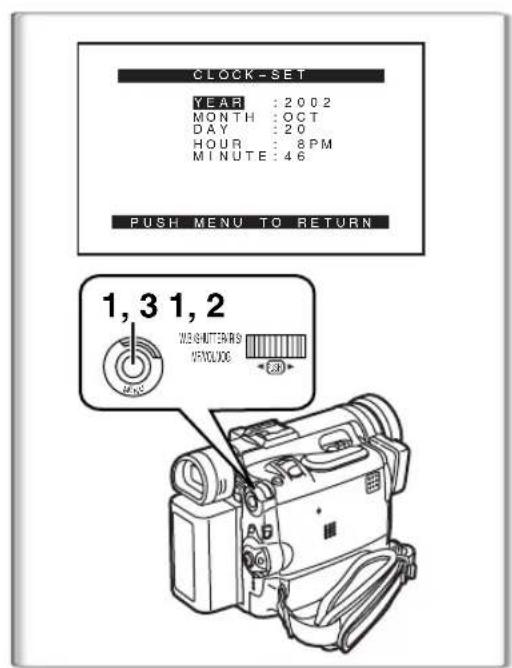
1 Press the [MENU] Button and rotate the [PUSH] Dial to select [OTHER FUNCTIONS] >> [CLOCK-SET] >> [YES]. 2 Rotate and press the [PUSH] Dial to select [YEAR]/[MONTH]/[DAY]/[HOUR]/[MINUTE] and set it to a desired value.
Year will cycle in the order shown below. 2000 → 2001 → … → 2089 → 2000 → …
3 Press the [MENU] Button to finish setting the date and time.
The clock operation starts from [00] seconds. - The menu will disappear when the [MENU] button is pressed again.
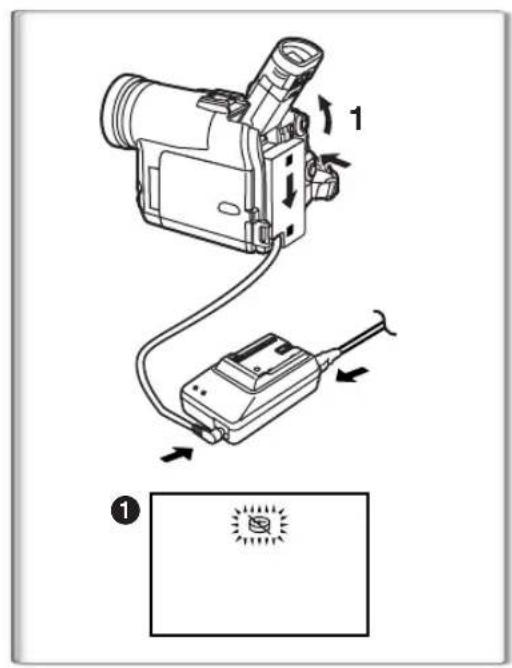
- It is possible that the built-in clock in the Palmcorder may become inaccurate. Please check the time before recording. If the [ ] Indication is flashing, charge the built-in lithium battery and reset the date and time.
Internal Lithium Battery Recharge
The internal lithium battery sustains the operation of the clock. When the [ ] Indication 1 is lit, the internal lithium battery is near exhaustion.
1 Connect the AC Adaptor to the Palmcorder with the power turned off and then connect to the AC Jack.
After charging for 4 hours, the built-in lithium battery can power the clock for approximately 3 months.
LP Mode
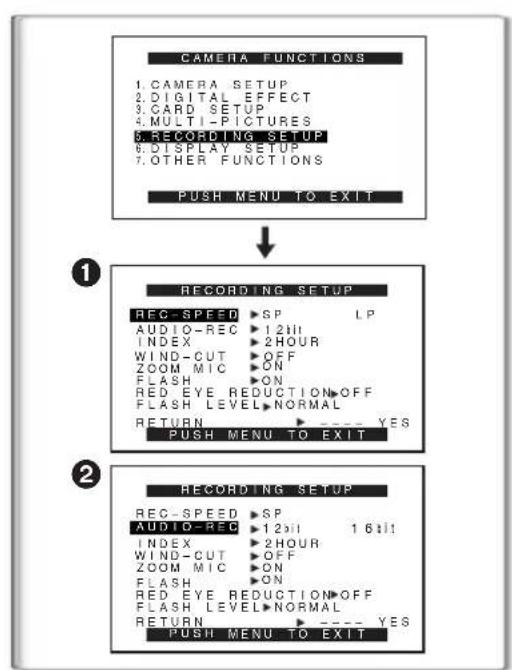
A desired recording speed can be selected with [REC-SPEED] on the [RECORDING SETUP] Sub-Menu. 1
If LP Mode is selected, the recording time becomes 1.5 times longer than that of SP Mode.
Although the image quality does not decrease with the LP Mode recording, mosaic-like noise patterns may appear on a playback image, or some normal functions may be restricted.
The contents that are recorded in LP Mode are not completely compatible with other equipment. - Audio Dubbing is not possible with LP Mode. (→ 36)
Audio Recording Mode
The sound quality of the recorded sound can be selected with [AUDIO-REC] on the [RECORDING SETUP] Sub-Menu. 2
High sound-quality recording is possible with "16bit 48kHz 2 track" Mode. With the "12bit 32kHz 4 track" Mode, the original sound can be recorded on 2 tracks in stereo, while the other 2 tracks can be used for re-recording.
CAMERA Mode
Recording
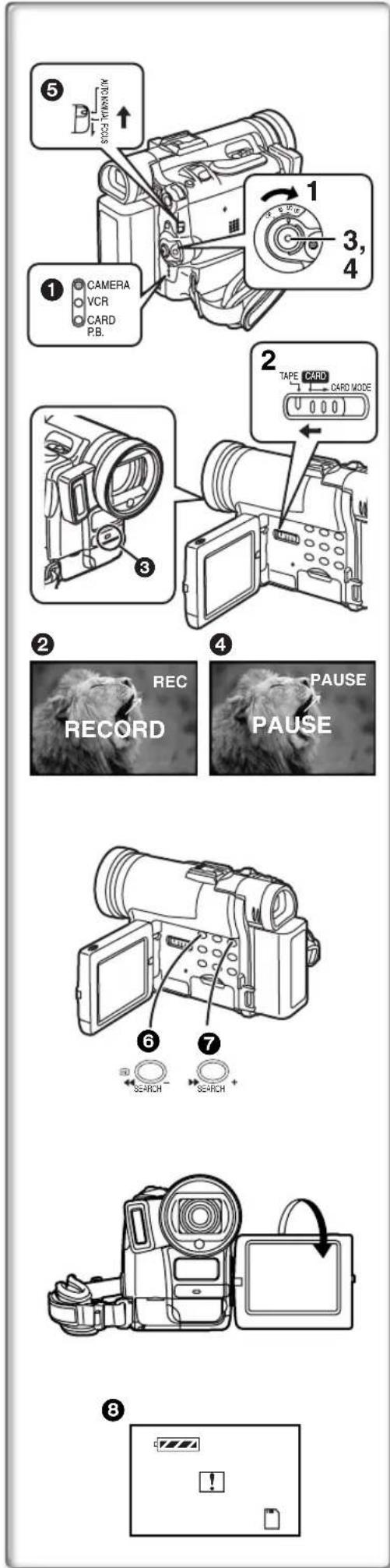
1 Set the [OFF/ON/MODE] Switch to [ON]. The [CAMERA] Lamp lights up. 1 2 Slide the [TAPE/CARD/CARD MODE] Selector towards [TAPE]. 3 Press the Recording Start/Stop Button.
● Recording starts. After the [RECORD] indicator is displayed, it changes to [REC]. 2 - The Tally Lamp (LED Lamp) ③ lights up during recording and alerts those being recorded that recording is in progress. The Tally Lamp does not light up if the [TALLY LED] on the [OTHER FUNCTIONS] Sub-menu is set to [OFF].
4 Press the Recording Start/Stop Button again to pause the recording.
- [PAUSE] is displayed.
- If the Recording Pause Mode continues for more than 5 minutes, the power is turned off automatically for tape protection and power conservation. To resume recording from this condition, turn on the power again.
- When recording while the Mode Selector Switch is set to [AUTO] ⑤, the Palmcorder automatically adjusts the focus and white balance. (In some cases, they cannot be adjusted automatically and need to be adjusted manually.) (→ 26, 27)
To Check the Recording
By pressing the [ ] Button 6 in the Recording Pause Mode, you can play back the last few seconds of the recorded scene.
- [CHK] is displayed. After checking, the Palmcorder resumes the Recording Pause Mode.
To View the recorded scene while the Recording is paused (Camera Search)
The recorded scene can be viewed by holding down the [SEARCH-] Button 6 or [SEARCH+] Button 7 in the Recording Pause Mode. The Camera Search function is useful for finding the starting point of a new scene to create a smooth transition from one scene to another. - When the [SEARCH-] Button is pressed, images are played back in the reverse direction. - When the [SEARCH+] Button is pressed, images are played back in the forward direction.
Self-Recording
By opening the LCD Monitor and turning it so that it faces forward (to the lens side), you can let the subject in front of the Palmcorder monitor the shot while shooting is in progress.
- When the LCD Monitor is opened, the Viewfinder is disabled automatically. However, when the LCD Monitor is rotated forward, the image is also shown in the Viewfinder.
- If you prefer to have the image on the LCD Monitor to look like an image in a mirror, set [SELF-REC] on the [OTHER FUNCTIONS] Sub-Menu to [MIRROR]. (Mirror Mode) Images are recorded normally and no left and right reversal occurs.
- If [MIRROR] is selected, only recording Indication [●], recording pause Indication [●■], Card Mode Indication [■] and Remaining Battery Power Indication [■■] are displayed 8.
- If a general Warning/Alarm Indication [! ] appears, return the LCD Monitor to the original position in order to check the specific content of the Warning/Alarm Indication.
To Finish the Recording
Set the [OFF/ON/MODE] Switch to [OFF].
For other notes, see page 61.
PhotoShot Recording on the DV Cassette
With this function, you can record still pictures with sound for approximately 7 seconds each on the Cassette.
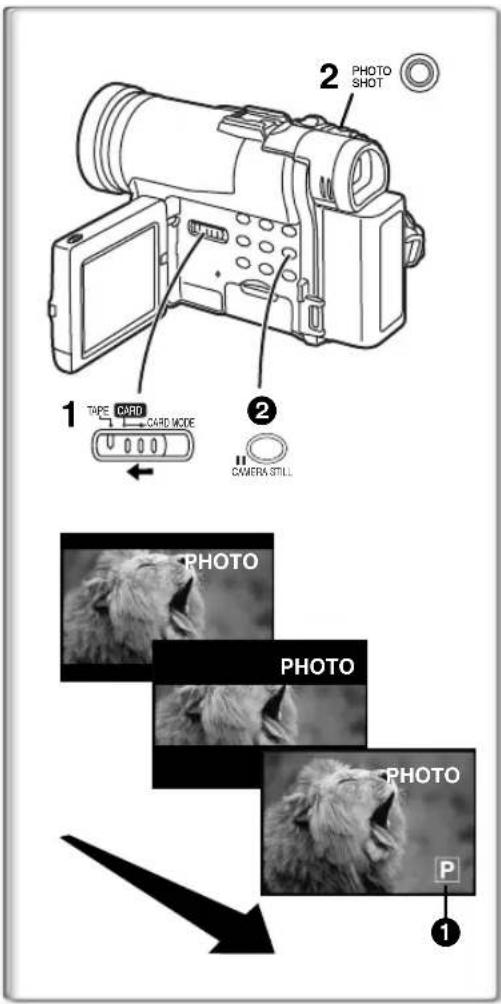
1 Slide the [TAPE/CARD/CARD MODE] Selector to [TAPE]. 2 Press the [PHOTO SHOT] Button in the Recording Pause Mode.
- The Palmcorder records a still picture for about 7 seconds and then switches back to the Recording Pause Mode.
- PhotoShot Recording results in slightly inferior image quality.
Progressive PhotoShot Mode
With the Progressive PhotoShot™ Mode, you can record still pictures with higher resolution than with the normal PhotoShot Function.
- After setting [PROGRESSIVE] on the [CAMERA SETUP] Sub-menu to [ON] or [AUTO], press the [PHOTO SHOT] Button in the Recording Pause Mode. [P] is displayed. 1
- This function may not work with some function settings. (→ 61)
- If you select Card Mode, [PROGRESSIVE] is set to [ON].
Continuous PhotoShot
If the [PHOTO SHOT] button is held down with the [SHUTTER] of the Sub-Menu [OTHER FUNCTIONS] set to [ON], the Palmcorder will record still images without interruptions every 0.7 seconds until the button is released.
- The screen blinks and, at the same time, a shutter clicking sound is recorded. (This function, however, is not enabled when Progressive PhotoShot is set to [ON] or [AUTO].)
Digital Still Picture
When the [CAMERA STILL] button 2 is pressed, images become still pictures. When the button is pressed again, the Digital Still Picture Mode is cancelled.
- We recommend that you press the [CAMERA STILL] button first at the position where you want to record the picture and then press the [PHOTO SHOT] button.
- For the still pictures taken in the Continuous PhotoShot Mode or Digital Still Picture Mode, PhotoShot index signals are not recorded.
For other notes, see page 61.
Zoom In/Out Functions
The Zoom function can be used to record objects close by or to achieve a wide-angle shot.
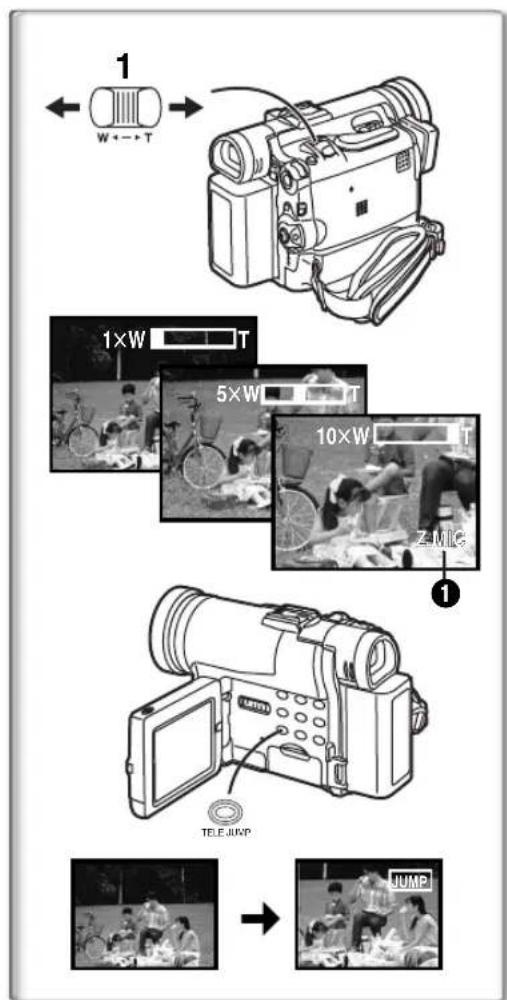
1 For wide-angle shots (zoom out): Press the [W/T] zoom lever towards [W].
For close-ups (zoom in):
Press the [W/T] zoom lever towards [T].
- Zoom magnification is displayed for a few seconds.
- Generally speaking, when the [W/T] zoom lever is pressed farther towards [W] or [T], the zooming speed gradually increases.
1.5 Times Tele Jump Zoom Function
By pressing the [TELE JUMP] Button, the image on the screen will be instantly magnified 1.5 times.
The indication appears. - You cannot use the 1.5 Times Tele Jump Zoom Function in the Card Mode.
Taking Close-up Shots of Small Subjects (Macro Close-up Function)
When the zoom magnification is 1x, the Palmcorder can focus on a subject that is as close as approximately 0.8 inches (20 mm) from the lens. With this feature, small subjects such as insects can be recorded.
To Use the Zoom Microphone Function
Along with the zooming operation, the microphone's directional angle and sensitivity are varied for recording sounds.
- Set [CAMERA FUNCTIONS] >> [RECORDING SETUP] >> [ZOOM MIC] >> [ON]. (The [Z.MIC] Indication is displayed.) For other notes, see page 61.
Digital Zoom Function
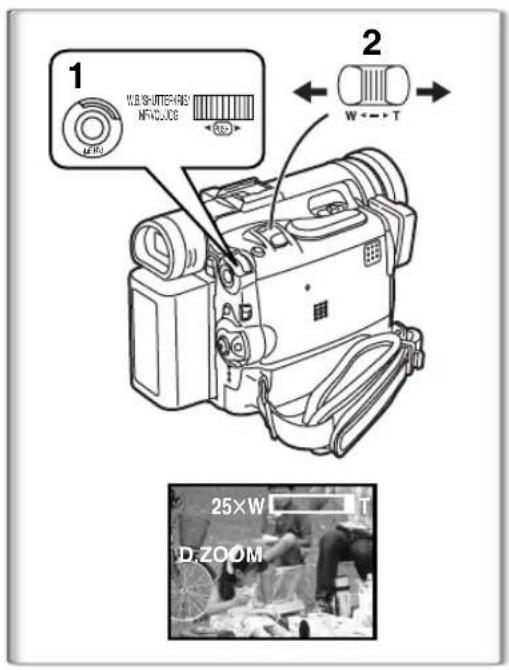
This function is useful when you want to record close-up shots of subjects located beyond a normal zoom range of 1x to 10x magnification. With the Digital Zoom Function, you can select a magnification of 25x or 700x.
1 Set [CAMERA FUNCTIONS] >> [CAMERA SETUP] >> [D.ZOOM] >> [25x] or [700x].
-25x: Digital zooming to 25x -700x: Digital zooming to 700x
2 To zoom in or out, press the [W/T] zoom lever towards [T] or towards [W].
Canceling the Digital Zoom Function
Set [D.ZOOM] on the [CAMERA SETUP] Sub-menu to [OFF].
- For other notes, see page 61.
Digital Electronic Image Stabilizer Function
If you are recording in unstable situations and the Palmcorder is shaky, you can use this function to correct for camera shake for these images.
- If the Palmcorder shakes too much, this function may not be able to stabilize images.
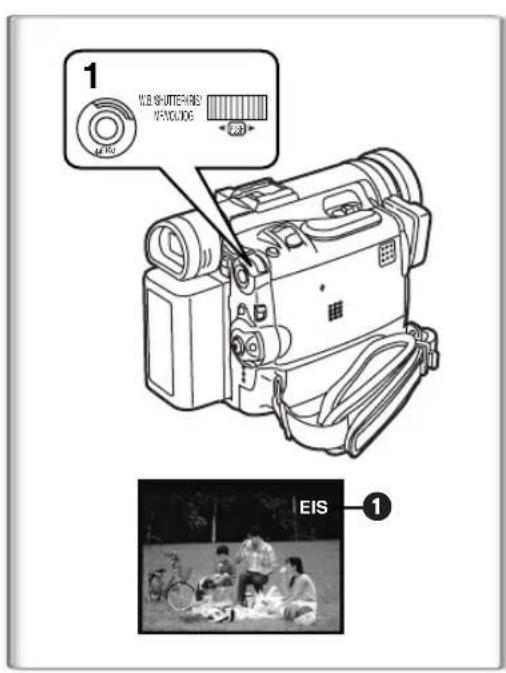
1 Set [CAMERA FUNCTIONS] >> [CAMERA SETUP] >> [EIS] >> [ON]. The [EIS] Indication 1 appears. Canceling Digital Electronic Image Stabilizer: Set [EIS] on the [CAMERA SETUP] Sub-Menu to [OFF]. EIS function may not work when... - Palmcorder movement is too extreme. - Recording a subject with distinct horizontal or vertical stripes. - Recording in low light situations. - Recording a subject under a great amount of fluorescent light. - Recording a scene with very fast movement. For other notes, see page 62.
Fade In/Out Functions
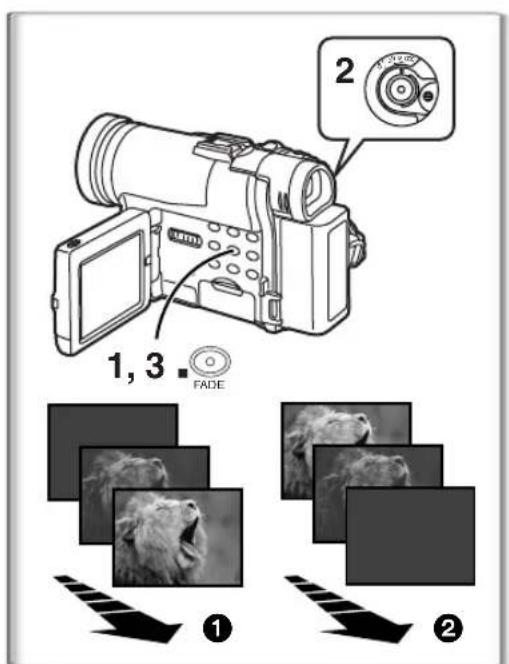
Fade In 1
Fade In brings out images and sounds gradually from a black screen at the beginning of a scene.
1 Hold down the [FADE] Button while the Palmcorder is set to the Recording Pause Mode.
The image fades out gradually.
2 When the image is completely gone, press the Recording Start/Stop Button to start recording.
3 Release the [FADE] Button about 3 seconds after starting recording.
The image reappears gradually.
Fade Out 2
Fade Out causes images and sounds to disappear gradually, leaving a black screen at the end of a scene.
1 Hold down the [FADE] Button while recording. The image fades out gradually. 2 About 3 seconds after the image is completely gone, press the recording Start/Stop Button to stop recording. 3 Release the [FADE] Button.
For other notes, see page 62.
Cinema Function
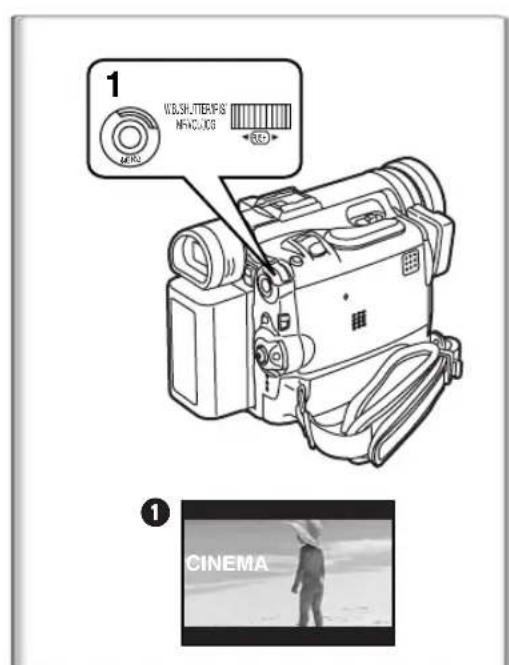
This function is for recording in a cinema-like wide screen.
1 Set [CAMERA FUNCTIONS] >> [CAMERA SETUP] >> [CINEMA] >> [ON].
- Black bars appear at the top and bottom of the screen. 1
To Cancel the Cinema Mode
Set [CAMERA FUNCTIONS] >> [CAMERA SETUP] >> [CINEMA] >> [OFF].
For other notes, see page 62.

Backlight Compensation Function
This function prevents a recording subject from being recorded too dark in backlight. (Backlight is the light that shines from behind a recording subject.)
1 Press the [BACKLIGHT] Button.
The [ ] Indication 1 flashes and then is displayed.
To resume normal Recording
Press the Backlight Button [BACKLIGHT].
- When the [BACKLIGHT] Button is pressed, the entire screen becomes brighter.
- By operating the [OFF/ON/MODE] Switch, the Backlight Compensation Function is cancelled.
- This function cannot be used when the Iris is set.
MagicPix Function
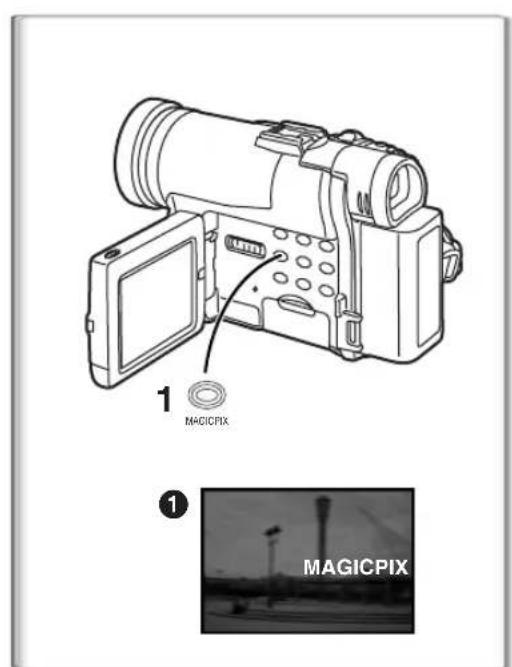
This function allows you to record color images brightly in a dark place without using a light.
1 Press the [MAGICPIX] Button.
The [MAGICPIX] Indication 1 appears.
To Cancel the MagicPix Function
Press the [MAGICPIX] Button.
For other notes, see page 62.
Quick Start
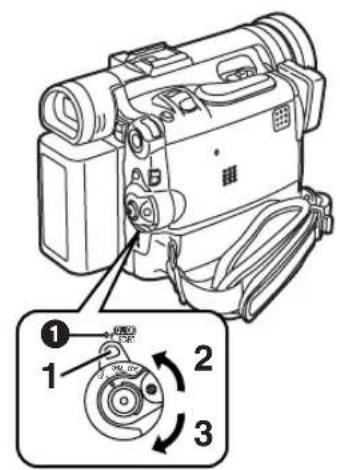
When this feature is activated, you can resume recording quickly even if the Palmcorder goes into standby mode (when left in Pause mode for 5 minutes). Palmcorder will be ready for shooting in approximately 1.5 seconds when the Power switch is turned [OFF] and back to [ON] again. To activate this feature, press the [QUICK START] button to turn on the Quick Start Lamp.
1 Press the [QUICK START] Button.
The Quick Start Recording Lamp 1 lights up.
2 Set the [OFF/ON/MODE] Switch to [OFF].
The Quick Start Recording Lamp remains lit.
3 Set the [OFF/ON/MODE] Switch to [ON].
The Palmcorder will be ready for recording in approximately 1.5 seconds.
- For other notes, see page 62.
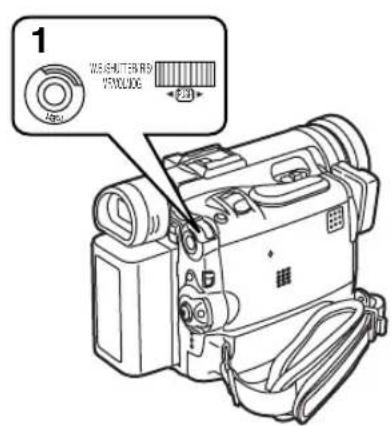
Wind Noise Reduction Function
This function reduces the noise that the wind makes as it hits the microphone during recording.
1 Set [CAMERA FUNCTIONS] >> [RECORDING SETUP] >> [WIND-CUT] >> [ON].
The [WIND-CUT] Indication 1 appears.
To Cancel the Wind Noise Reduction Function
Set [CAMERA FUNCTIONS] >> [RECORDING SETUP] >> [WIND CUT] >> [OFF].
- For other notes, see page 62.
2
3
4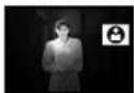
5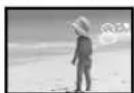
Recording in Special Situations (Program AE)
Select optimal automatic exposures under specific recording situations.
1 Set the Mode Selector Switch to [MANUAL].
The [MNL] Indication appears.
2 Set [CAMERA FUNCTIONS] >> [CAMERA SETUP] >> [PROG.AE] >> a desired Mode [ ], [ ], [ ], [ ]
The Indication of the selected Mode is displayed.
[ ]Sports Mode 1
For recording scenes involving quick movements, such as sports scenes.
[ ] Portrait Mode 2
Focuses on the main subject of the image and leaves the background slightly out of focus.
[ ] Low Light Mode ③
Preserves the mood of dim light settings without altering picture brightness.
[ ] Spotlight Mode 4
Neutralizes the additional brightness created by a spotlight.
[8] Surf & Snow Mode ⑤
Compensates for excessive illumination from sun glare to produce a clear picture.
Canceling the Program AE Function
Set [PROG.AE] on the [CAMERA SETUP] Sub-Menu to [OFF]. Or, set the Mode Selector Switch to [AUTO].
- For other notes, see page 62.
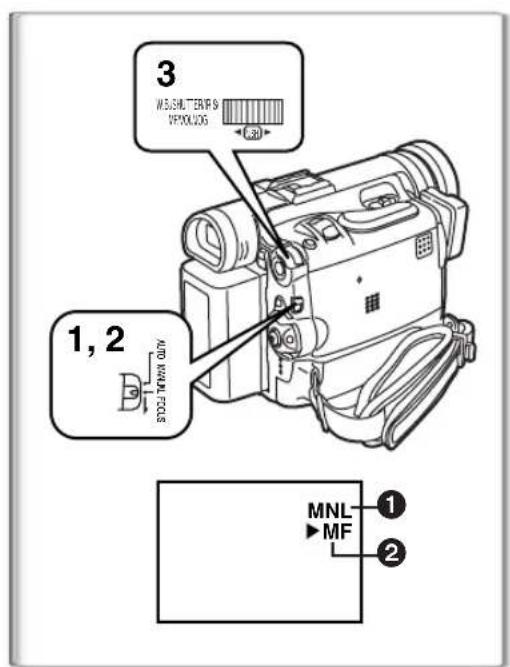
Manual Shutter Speed Adjustment
Useful for recording fast-moving subjects.
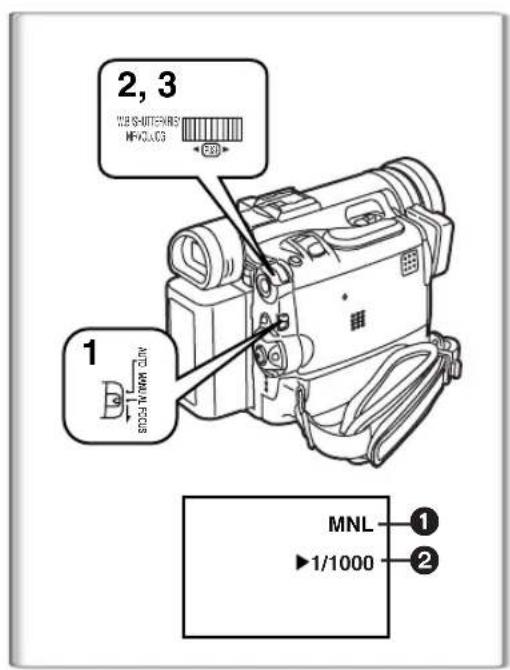
1 Set the Mode Selector Switch to [MANUAL]. The [MNL] Indication 1 appears. 2 Press the [PUSH] Dial repeatedly until the shutter speed Indication 2 appears. 3 Rotate the [PUSH] Dial to adjust the shutter speed.
The Range of Shutter Speed Adjustment
1/60-1/8000
The standard shutter speed is 1/60 second.
Selecting a speed closer to [1/8000] causes the shutter speed to be faster, resulting in crisper captures of moving subjects but a lower light level.
- When the progressive function is [ON], a speed only up to 1/500 can be used.
To Resume Automatic Adjustment
Set the Mode Selector Switch to [AUTO].
For other notes, see page 63.
Manual Iris Adjustment (F Number)
You can use this function when the screen is too bright or too dark.
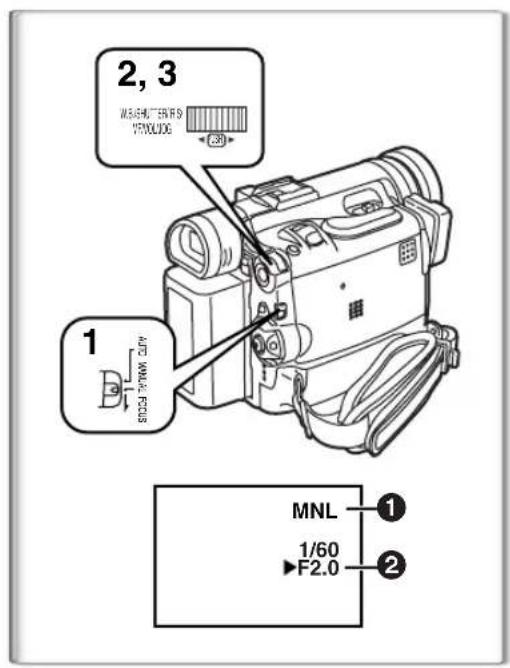
1 Set the Mode Selector Switch to [MANUAL]. The [MNL] Indication 1 appears. 2 Press the [PUSH] Dial repeatedly until the Iris Indication ② appears. 3 Rotate the [PUSH] Dial to adjust the iris.
Adjustable Range of the Iris
CLOSE (Closed), F16, ..., F2.0
When the Gain-up Mode [GAIN-UP] is used.
Iris adjustment is by OP + 15 dB
When a value closer to [CLOSE] is selected, the image becomes darker.
When a value closer to [OP + 18 dB] is selected, the image becomes brighter. The value to which +dB is attached indicates a gain value. If this value is too large, the quality of the image deteriorates.
To Resume Automatic Adjustment
Set the Mode Selector Switch to [AUTO].
For other notes, see page 63.
Manual Focus Adjustment
Focus can be adjusted manually for recording in a situation where auto focus may not function well.
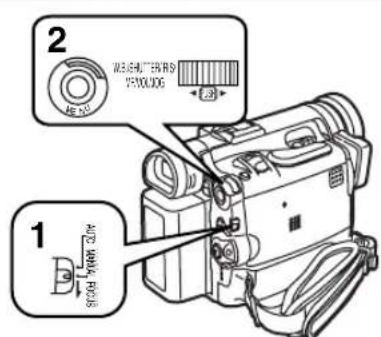
1 Set the Mode Selector Switch to [MANUAL]. The [MNL] Indication 1 appears. 2 Set the Mode Selector Switch to [FOCUS]. The [MF] Indication (Manual Focus Mode) 2 appears. 3 Rotate the [PUSH] Dial to adjust the focus.
To Resume Automatic Adjustment
Set the Mode Selector Switch to [AUTO].
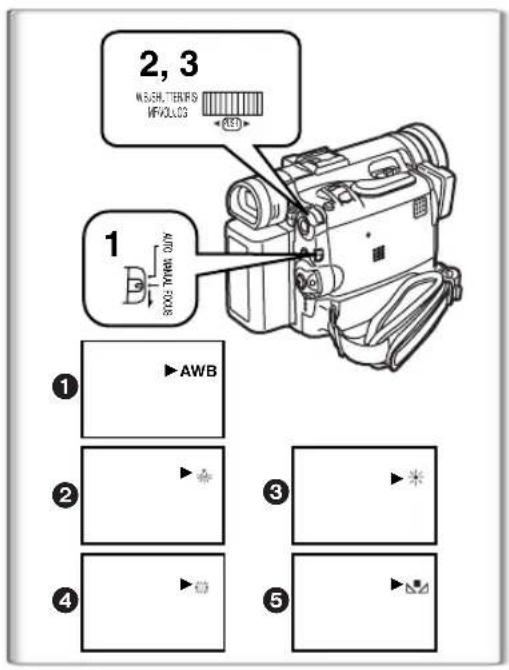
Recording in Natural Colors (White Balance)
Depending on the scene or light conditions, the Automatic White Balance Adjustment Mode may not be able to bring out natural colors. In such a case, the white balance can be adjusted manually.
1 Set the Mode Selector Switch to [MANUAL].
The [MNL] Indication appears.
2 Press the [PUSH] Dial.
The [AWB] Indication appears.
3 Rotate the [PUSH] Dial to set a desired White Balance Mode.
Automatic White Balance Adjustment [AWB] • Indoor Mode (shooting under incandescent lighting) [杂] Outdoor Mode [米] 4 Fluorescent light Mode [ 5 The White Balance setting that was previously set manually [L]
To Resume Automatic Adjustment
Rotate the [PUSH] Dial until the [AWB] indication appears. Or, set the Mode Selector Switch to [AUTO].
- When power is turned on with the Lens Cap on, the Automatic White Balance Adjustment may not function properly. Please turn on the Palmcorder after removing the Lens Cap. For other notes, see page 63.
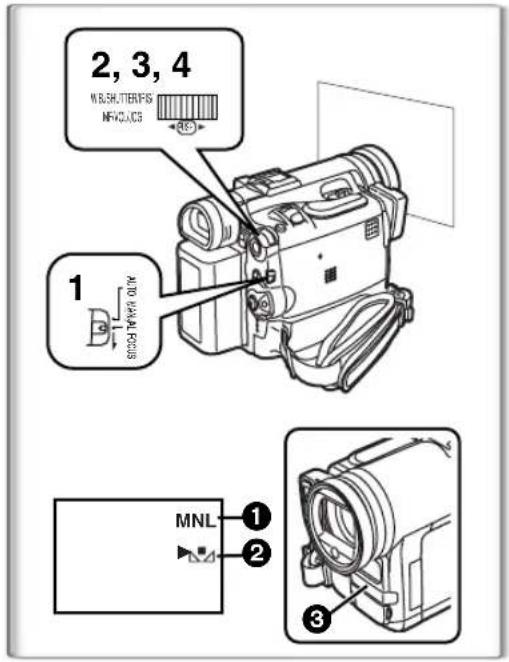
Adjusting White Balance Manually
When the Auto White Balance Adjustment function does not operate suitably under the existing light conditions, use the Manual White Balance Adjustment mode.
1 Set the Mode Selector Switch to [MANUAL]. The [MNL] indication appears. 2 Press the [PUSH] Dial. The [AWB] indication appears. 3 Rotate the [PUSH] Dial until the [∇Δ] indication is displayed. 4 Point the Palmcorder at a full-screen white subject, and then keep the [PUSH] Dial pressed until the [NΔ] indication stops flashing.
- When the [□] indication flashes after turning the Palmcorder on, the previously adjusted white balance setting is still kept.
To Resume Automatic Adjustment
Rotate the [PUSH] Dial until the [AWB] indication is displayed. Or, set the Mode Selector Switch to [AUTO].
About White Balance Sensor
The White Balance Sensor determines the nature of the light source during recording. - Do not cover the White Balance Sensor with your hand during recording. Otherwise, White Balance will not work normally.
Use of Auto White Balance Adjustment in inappropriate lighting conditions may result in reddish or bluish images. Where the subject is found on the left, but surrounded by many light sources, Auto White Balance Adjustment may not operate properly. In such a case, we suggest that you adjust the White Balance.
1) The range that is controlled by the Auto White Balance Adjustment Mode of this Palmcorder 2) Blue sky 3) Cloudy sky (Rain) 4) TV screen 5) Sunlight 6) White fluorescent light 7) Halogen light bulb 8) Incandescent light bulb 9) Sunrise and sunset 10) Candlelight
For other notes, see page 63.
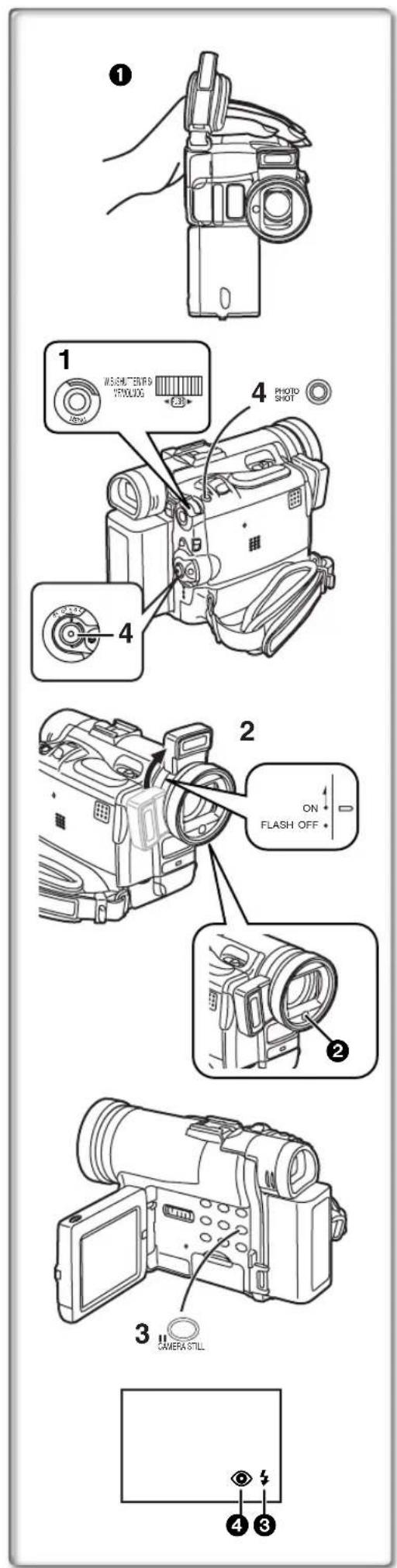
Using the Free Angle Flash
The Built-in Flash enables you to record still pictures in a dark place.
Rotating the Flash enables you to light up objects from the upper angle even if the Palmcorder is inclined horizontally.
1 Set [CAMERA FUNCTIONS] >> [RECORDING SETUP] >> [FLASH] >> [ON] or [AUTO].
- If [AUTO] is selected, Flash is lighted if light is needed by sensing the surrounding luminosity.
2 Rotate the Flash to [ON].
- When it is set to [ON] or above, this flash will be ready for use.
3 Press the [CAMERA STILL] Button.
-Flash is activated.
4 Press the [PHOTO SHOT] Button or Recording Start/Stop Button.
-Flash is not lit, when the Palmcorder is in recording mode. - If either [3] , [4] + ... or [4] - ... Indication is lit, flash will light. If [5] is flashing or not displayed, Flash will not fire. - Do not cover the Flash Sensor 2 with your hand during recording.
Adjusting Brightness of the Flash
Set [CAMERA FUNCTIONS] >> [RECORDING SETUP] >> [FLASH LEVEL] >> a desired Flash Level.
- For recording under normal conditions, set it to [NORMAL]. (The [3] Indication ③ appears).
- If the brightness is not enough in [NORMAL] setting, set it to [+] (the [# +] Indication appears), if it is too bright, set it to [-] (the [# -] Indication appears).
To reduce the "Red Eye" effect
[CAMERA FUNCTIONS] >> [RECORDING SETUP] >>
[RED EYE REDUCTION] [ON].
The [] Indication appears. - For other notes concerning this item, see 63.
1) MULTI 2) P-IN-P


3) WIPE 4) MIX
5) STROBE
6) GAIN-UP 7) TRAIL
8) MOSAIC 9) MIRROR
10) NEGA 11) SEPIA

12) MONO 13) SOLARI

Digital Effect Functions
This Palmcorder is equipped with digital effect functions that add special effects to the scene.
Digital Effects 1 [EFFECT1]
1) [MULTI] Multi-Picture Mode 2) [P-IN-P] Picture-in-Picture Mode 3) [WIPE] Wipe Mode 4) [MIX] Mix Mode 5) [STROBE] Strobe Mode
- Records images with a stroboscopic effect.
6) [GAIN-UP] Gain-up Mode
Brightens images electronically. - Adjust focus manually when using this Mode.
7) [TRAIL] Trailing Effect Mode
- Records images with a trailing effect. 8) [MOSAIC] Mosaic Mode
- Produces a mosaic-like image.
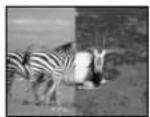
9) [MIRROR] Mirror Mode The right half of an image becomes a mirror image of the left half.
Digital Effects 2 [EFFECT2]
10) [NEGA] Negative Mode The colors of the recorded image are inverted as seen in a negative. 11) [SEPIA] Sepia Mode - Records a scene with a brownish tint, like the color of old pictures. 12) [MONO] Black & White Mode - Records an image in black and white. 13) [SOLARI] Solarization Mode - Records an image with a painting-like effect.
Selecting a desired digital effect
Set [CAMERA FUNCTIONS] >> [DIGITAL EFFECT] >> [EFFECT1] or
[EFFECT2] >> a desired digital effect.
Canceling the digital effect
Set [CAMERA FUNCTIONS] >> [DIGITAL EFFECT] >> [EFFECT1] or [EFFECT2] >>[OFF].
- If the Palmcorder is turned off, the [EFFECT2] settings are cancelled. For other notes, see page 63.
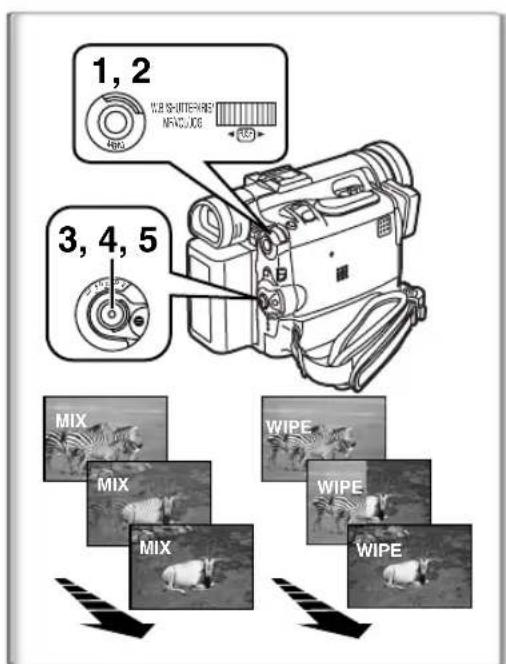
Wipe Mode and Mix Mode
Wipe Mode:
Like a curtain being pulled, the still picture of the last recorded scene gradually changes to the moving image of a new scene.
Mix Mode:
While the moving image of a new scene fades in, the still image of the last recorded scene gradually fades out.
1 Set [DIGITAL EFFECT] >> [EFFECT1] >> [WIPE] or [MIX]. 2 Exit the menu by pressing the [MENU] Button.
The [WIPE] or [MIX] Indication appears.
3 Press the Recording Start/Stop Button to start the Recording. 4 Press the Recording Start/Stop Button to pause the Recording.
The last scene is stored in memory. The [WIPE] or [MIX] Indication changes to [WIPE] or [MIX].
5 Press the Recording Start/Stop Button to restart the Recording.
The last image of the previous scene gradually changes to the new scene.
For other notes, see page 63.
Multi-Picture Mode
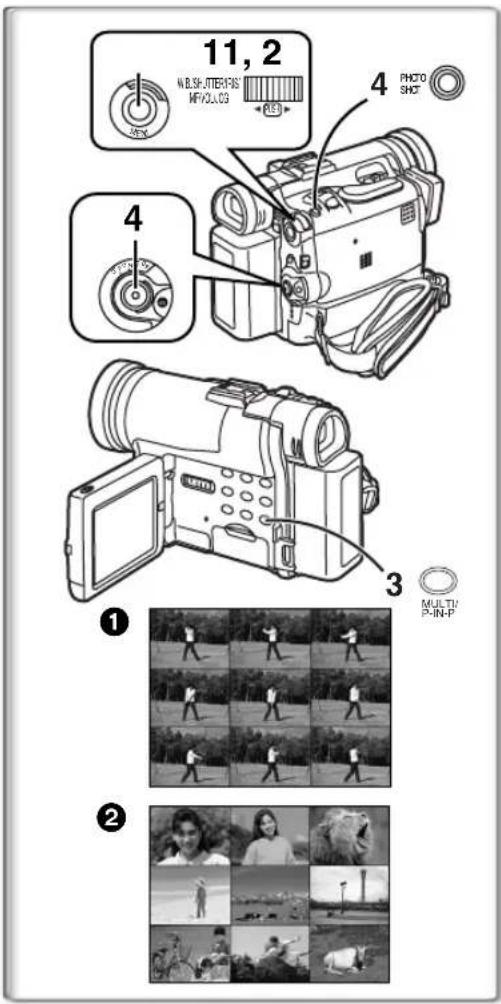
Strobe Multi-Picture Mode 1:
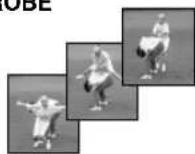
You can capture and record 9 consecutive small still pictures.
Manual Multi-Picture Mode 2:
You can manually capture and record 9 small still pictures.
After setting [CAMERA FUNCTIONS] >> [DIGITAL EFFECT] >> [EFFECT1] >> [MULTI]....
1 Set [MULTI-PICTURES] >> [SCAN MODE] >> [STROBE] or [MANUAL].
When [STROBE] is selected:
- Set the [SPEED] to a desired strobe speed.
[FAST]: You can capture 9 consecutive still pictures within approximately 1 second
[NORMAL]: You can capture 9 consecutive still pictures within approximately 1.5 seconds
[SLOW]: You can capture 9 consecutive still pictures within approximately 2 seconds
- If you set [SWING] on the [MULTI-PICTURES] Sub-Menu to [ON], the intervals at which the 9 still pictures are taken are longer at the beginning and end than in the middle of the swing strobe period, and it is useful for analyzing swing motion, etc., in sports.
When [MANUAL] is selected:
- You can select a desired scene one at a time up to 9 small pictures.
2 Exit the menu by pressing the [MENU] Button.
3 Press the [MULTI] Button.
- If [MANUAL] is selected, press the [MULTI] Button at each scene you want to capture.
4 Press the Recording Start/Stop Button or the [PHOTO SHOT] Button to record on the Cassette.
Deleting all the captured Multi-Pictures
While 9 multi-pictures are displayed, press the [MULTI] Button.
- If [MANUAL] has been selected, press the [MULTI] Button after 9 pictures are displayed.
To Display the Multi-Pictures again
Press the [MULTI] Button for 1 second or longer.
To Delete Multi-Pictures one by one (When pictures were captured in [MANUAL])
When the [MULTI] Button is pressed for 1 second or longer while the still pictures are displayed, the picture captured last is deleted. If you keep pressing the [MULTI] Button, the pictures are deleted continuously.
- After still pictures are deleted, they cannot be displayed again.
For other notes, see page 63.
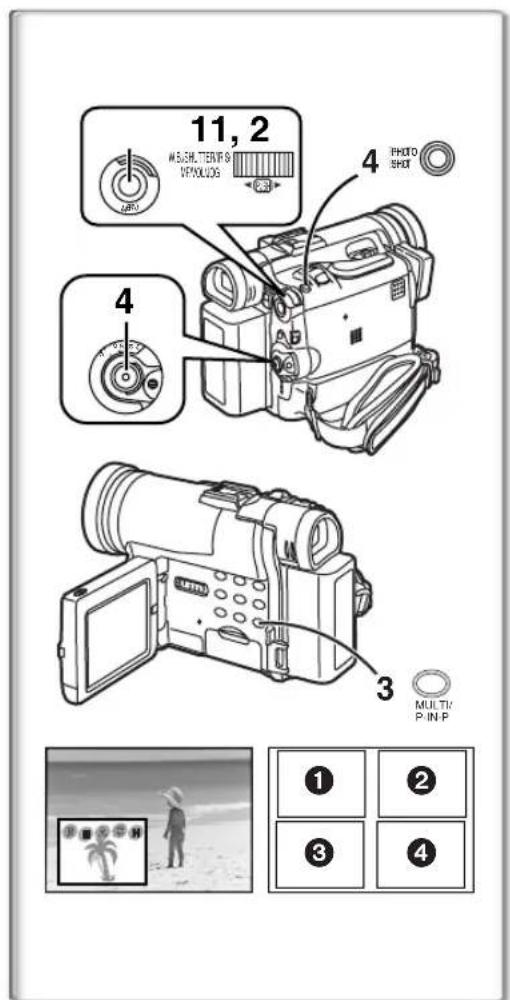
Picture-in-Picture Mode
You can display a sub-screen (still picture) inside the screen.
After setting [CAMERA FUNCTIONS] >> [DIGITAL EFFECT] >> [EFFECT1] >> [P-IN-P]....
1 Select [P-IN-P] on the [MULTI-PICTURES] Sub-Menu and set the position (1234) where you want to insert a small still picture.
2 Exit the menu by pressing the [MENU] Button.
3 Aim the Palmcorder at the scene you want to capture and press the [P-IN-P] Button to insert a small still picture.
- A small still picture is displayed in a Normal picture.
- If the [P-IN-P] Button is pressed again, the small still picture is cleared.
4 Press the Recording Start/Stop Button or the [PHOTO SHOT] Button to record on the Cassette.
For other notes, see page 63.
![PANASONIC PVDC352 - Press the Recording Start/Stop Button or the [PHOTO SHOT] Button to record on the Cassette. - 1](/content/2026/03/449276/images/5e6bae7724dd1a3f32339afe4357847473d53d26cce5ee4e1afb0fec1c447034.jpg)
![PANASONIC PVDC352 - Press the Recording Start/Stop Button or the [PHOTO SHOT] Button to record on the Cassette. - 2](/content/2026/03/449276/images/8fe86b854dfc2657e6c92e4a084d38bf38e829fc6ae966ec2a60d6200e7d8880.jpg)
VCR Mode
Playing Back
The recorded scene can be played back immediately after recording.
1 Rotate the [OFF/ON/MODE] Switch and set the Palmcorder in the VCR Mode.
The [VCR] Lamp lights up.
2 Press the [▲] Button to rewind the tape.
- Rewind the tape to the point where you want to start playback.
- When the tape reaches the beginning, rewinding stops automatically.
3 Press the [▶] Button to start playback.
To Stop Playback
Press the [ ] Button 2.
- If a cassette recorded with copyright protection signals is played back, the screen becomes blue or mosaic-like noise patterns appear.
Adjusting the Sound Volume
Until the [VOLUME] Indication 3 appears, keep pressing the [PUSH] Dial 4. Then, rotate the [PUSH] Dial to adjust the volume. After the adjustment, press the [PUSH] Dial to make the [VOLUME] Indication disappear. To adjust the volume with the Remote Controller, press the [T] or [W] Button to display the [VOLUME] Indication. Press the [T] Button to increase the volume or press the [W] Button to decrease the volume. The [VOLUME] Indication goes off 2 or 3 seconds after the adjustment is finished. - When the Playback Zoom Function is in use, the sound volume cannot be adjusted. For other notes, see page 63.
Finding a Scene You Want to Play Back
Cue/Review Playback
Cue Playback A
Press the [▶▶] Button 1 during playback.
Review Playback B
Press the [▶] Button 2 during playback.
- If the Button is held continuously, it remains as Cue Playback or Review Playback until you release it.
Hyper Check Function
If you press the [▶▶] Button during fast-forwarding of the tape or the [▲▲] Button during rewinding of the tape, Cue Playback or Review Playback continues for as long as the Button is held down.
Variable Speed Search Function
The speed of Cue Playback or Review Playback can be varied.
1. During playback, press the [▶] Button.
- The [1×▶] indication appears.
2. Rotate the [PUSH] Dial and select a desired search speed.
The following 6 playback speeds are available for the Variable Speed Search Function in both the fast-forwarding and rewinding directions: 1/5× (slow playback, SP mode only), 1/3× (slow playback, LP mode only), 1×, 2×, 5×, 10×, and 20×.
The same setting can be performed using the Remote Controller's [VAR.SEARCH] Button, the [A] Button, and the [V] Button.
Resuming Normal Playback
Press the [▶] Button. - During Cue or Review Playback, fast-moving images may show mosaic-like noise patterns. This is not a malfunction. The sound is muted during search. - The Variable Speed Search feature is not available when Repeat Playback is active.
Repeat Playback
If you hold down the [▶] Button for 5 seconds or longer, the Palmcorder switches to Repeat Playback Mode, and the [R▶] indication appears (D). (To cancel Repeat Playback Mode, set the [OFF/ON/MODE] Switch to [OFF].)
Slow Motion Playback
This Palmcorder can play back at a slow speed.
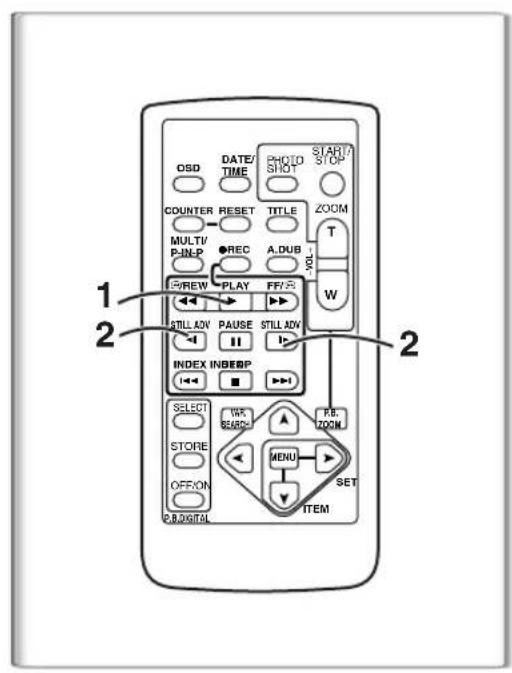
1. Press the [▶] Button. 2. Press the [←] Button or the [▶] Button on the Remote Controller.
- When the [←] Button is pressed, Slow Motion Playback proceeds in the reverse direction, while pressing the [▶] Button starts Slow Motion Playback in the forward direction.
Scenes recorded in SP mode are played back at approximately 1/5th of the normal speed.
Scenes recorded in LP mode are played back at approximately 1/3rd of the normal speed.
Resuming Normal Playback
Press the [▶] button.
Still Playback / Still Advance Playback
This Palmcorder is capable of still picture playback and frame-advance playback.
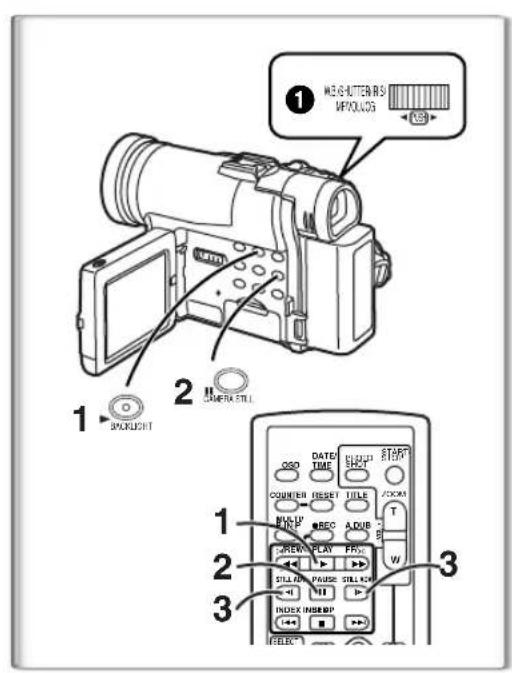
1. Press the [▶] button. 2. Press the [I] button.
The playback image stops in the Still Playback Mode.
3. Press the [←] button or the [▶] button on the Remote Controller.
- With each press of the [←] button, still pictures advance in the reverse direction. With each press of the [▶] button, still pictures advance in the forward direction. If either button is pressed continuously, still pictures advance continuously one frame at a time until the button is released.
Resuming Normal Playback
Press the [▶] button or the [■■] button.
Jog Playback
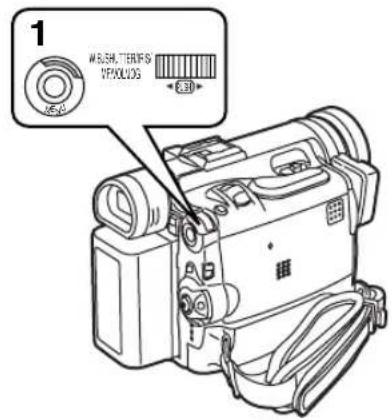
By rotating the Jog Dial ([PUSH] Dial) 1 of the Palmcorder in the Still Playback Mode, still pictures can be advanced one frame at a time in the forward or reverse direction.
- If the Palmcorder is left in the Still Playback Mode for more than 5 minutes, the Palmcorder switches to the Stop Mode to protect the video heads from excessive wear and tear.
Finding the End of a Recording (Blank Search Function)
The Blank Search Function helps you to quickly locate the end of a recording on the cassette.
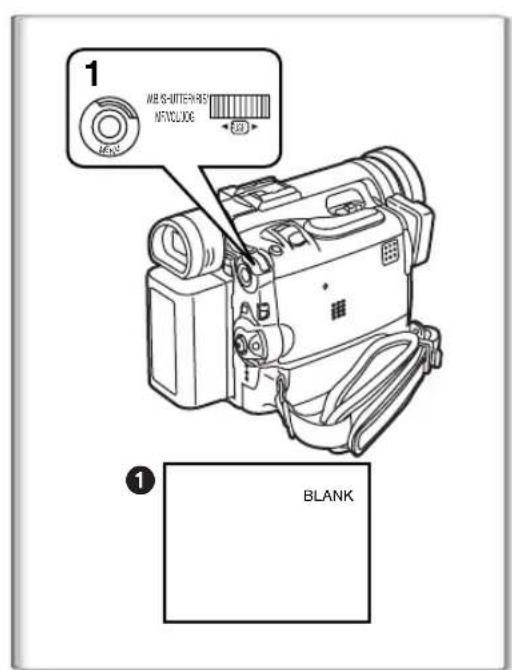
1. Set [VCR FUNCTIONS] >> [PLAYBACK FUNCTIONS] >> [BLANK SEARCH] >> [YES].
The [BLANK] indication appears. - Approximately 1 second before the last recorded scene, the Palmcorder switches to the Still Playback Mode. - If there is no blank portion left on the cassette, the Palmcorder stops at the end of the tape.
Canceling Blank Search prior to completion
Press the [ ] button.
A

B
Index Search Functions
To facilitate searching for a desired scene, this Palmcorder automatically records index signals during recording, as explained below.
PhotoShot Index Signal
These signals are automatically recorded whenever still pictures are taken in PhotoShot Mode (→ 22).
When recording still pictures using the Continuous PhotoShot Mode (→ 22), the index signal is not recorded.
Scene Index Signal
Scene Index Signals are automatically recorded when you start recording after inserting a cassette.
However, if the Palmcorder is switched from the VCR Mode to Camera Mode, or if the date and time is set before the start of recording, the index signal is not recorded.
- If [INDEX] of [RECORDING SETUP] Sub-Menu on the [CAMERA FUNCTIONS] Main-Menu is set to [2HOUR], an index signal is recorded when Recording is restarted after a lapse of 2 hours or longer. If it is set to [DAY], an index signal is recorded when recording is restarted after the date has changed since the last recording. (While the index signal is recorded, the [INDEX] indication A flashes for a few seconds.)
PhotoShot Index Search
1 Set [VCR FUNCTIONS] >> [PLAYBACK FUNCTIONS] >> [INDEX] >> [PHOTO].
2 Press the [▶] Button or the [▶] Button on the Remote Controller.
- With each press of the corresponding button, still pictures recorded in PhotoShot Mode are searched.
After pictures with sounds are played back for 4 seconds, the Palmcorder switches to the Still Playback Mode.
Scene Index Search
1 Set [VCR FUNCTIONS] >> [PLAYBACK FUNCTIONS] >> [INDEX] >> [SCENE].
2 Press the [▶] Button or the [▶] Button on the Remote Controller.
- When the corresponding button is pressed once, the [S 1] Indication appears, and searching of the subsequent scene marked with an index signal starts. Each time the button is pressed after the start of Scene Index Search, the indication changes from [S 2] to [S 9], and the beginning of the scene corresponding to the selected number will be searched. After reaching the desired scene, playback starts automatically.
- Up to 9 scene numbers can be selected.
Top Scan
If the [>>] Button or the [| | |] Button is pressed for more than 2 seconds, the Palmcorder will scan for scenes (or PhotoShots) and play back the first few seconds of each. (To cancel, press the [>] Button 1 or the [■] Button 2.)
For other notes, see page 64.
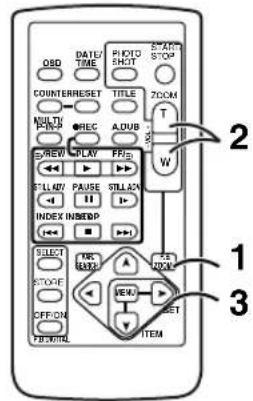
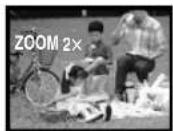
Playback Zoom Function
A part of the image can be enlarged up to 10 times during playback.
1 During playback, press the [P.B. ZOOM] Button on the Remote Controller.
The center of the image is enlarged to approximately double the size.
Changing the Zoom Magnification
2 Change the magnification by pressing the [W] or [T] Button on the Remote Controller.
- You can increase the magnification up to 10x.
Changing the enlarged area of an image
3 Press the Arrow Button (▲, ◀, ▶, ▼) on the Remote Controller that points to the area you want to enlarge.
- When the playback is stopped, the position of the enlarged image area is reset to the center automatically.
Canceling the Playback Zoom Function
Press the [P.B. ZOOM] Button on the Remote Controller.
For other notes, see page 64.
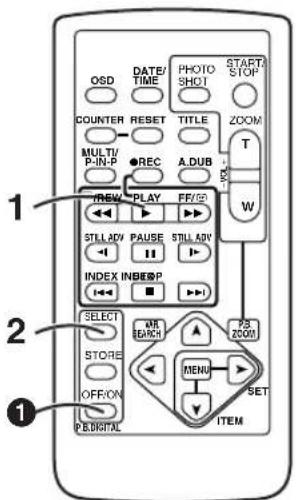
Playback Digital Effect Functions
During playback, special Digital Effects can be added to the Recording. The digital effects that may be applied in the process of recording (except Picture in Picture Mode) will be the same as these added effects.
1 Press the [▶] Button. 2 Press the [SELECT] Button of the Remote Controller and select desired Digital Effect.
- When the [SELECT] Button is pressed repeatedly, the Digital Effect selection changes.
MULTI→WIPE→MIX→STROBE→NEGA→SEPIA→MONO
→TRAIL→SOLARI→MOSAIC→MIRROR
The same setting can also be set using the [DIGITAL EFFECT] on the [VCR FUNCTIONS] Main-Menu.
Suspending Playback Digital Effect Temporarily
Press the [OFF/ON] Button 1 to clear or restart the digital effect. When the digital effect is paused temporarily, the selected effect's indication flashes.
Canceling the Digital Effect
Press the [SELECT] Button on the Remote Controller repeatedly until the Digital Effect Indication is cleared.
For other notes, see page 64.
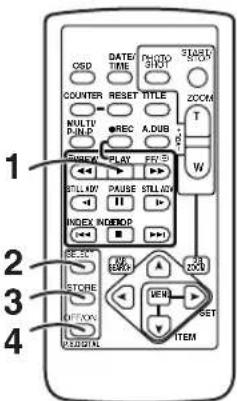

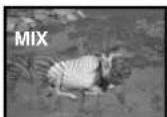
Playback with Wipe Mode and Mix Mode
1 Press the [▶] Button to start playback. 2 Press the [SELECT] Button on the Remote Controller and select [WIPE] or [MIX]. 3 Press the [STORE] Button at the moment you want to save as a still picture.
The last scene is stored in memory. The [WIPE] or [MIX] Indication changes to [WIPE] or [MIX]. 4 Press the [OFF/ON] Button in the scene in which you want to use the Wipe or Mix effect. The scene changes as a result of the Wipe or Mix effect. - The Wipe Function and Mix Function can be used only from the Remote Controller during playback. - If the [OFF/ON] Button is pressed while Wipe Function or Mix Function is used, the effect will stop temporarily at that point. Pressing the [OFF/ON] Button again will bring back the effect.
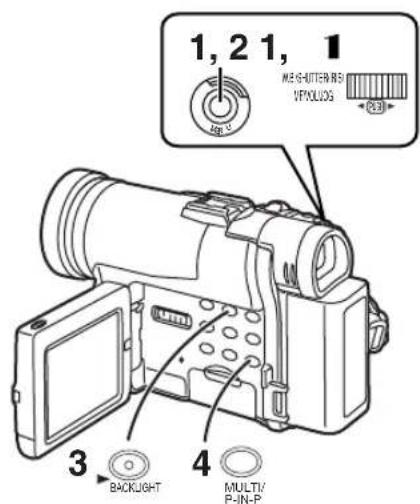
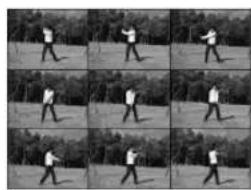

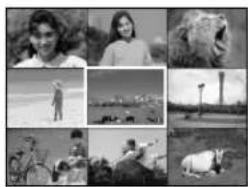
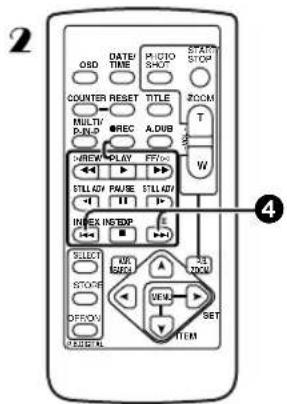
Playing Back with Multi-Picture Mode
Strobe Multi-Picture Mode [STROBE]1:
You can capture 9 consecutive still pictures from playback images. Manual Multi-Picture Mode [MANUAL]
Selecting a desired still picture one at a time, you can capture 9 still pictures. Index Multi-Picture Mode ([PHOTO], [SCENE])
You can capture 9 screens of pictures to which index signals are attached. After setting [VCR FUNCTIONS] >> [DIGITAL EFFECT] >> [EFFECT SELECT] >> [MULTI]...
1 Set [MULTI-PICTURES] >> [SCAN MODE] >> [STROBE] or [MANUAL] or [PHOTO] or [SCENE], whichever mode you prefer.
When [STROBE] is selected:
- Set the [SPEED] to a desired strobe speed.
[FAST]: You can capture 9 consecutive still pictures within approximately 1 second
[NORMAL]: You can capture 9 consecutive still pictures within approximately 1.5 seconds
[SLOW]: You can capture 9 consecutive still pictures within approximately 2 seconds
- If you set [SWING] on the [MULTI-PICTURES] Sub-Menu to [ON], the intervals at which the 9 still pictures are taken are longer at the beginning and end than in the middle of the swing strobe period, and it is useful for analyzing swing motion, etc., in sports.
2 Exit the Menu by pressing the [MENU] Button.
3 Play back the tape.
- If you select Index mode, it is not necessary to play back the tape.
4 Press the [MULTI] Button.
- If [STROBE] is selected: 9 screens are automatically captured from the point at which the Button is pressed.
- If [MANUAL] is selected: press the [MULTI] Button at each scene you want to capture. When 9 screens are captured, the tape will stop.
- If [PHOTO] or [SCENE] is selected: From the point at which the Button is pressed, 9 screens of pictures to which index signals are attached are captured in the playback direction. After 9 screens are captured, the tape will stop, but, if there are 8 or less pictures to be captured, the tape will stop at its end.
Deleting All the Captured Multi-Pictures
While displaying the multi-pictures that have been captured, press the [MULTI] Button.
- If [MANUAL] has been selected, press [MULTI] Button after 9 screens are displayed.
To Display the Multi-Pictures again
Press the [MULTI] Button for 1 second or longer.
To Delete Multi-Pictures one by one (When Pictures have been captured in Manual Mode)
When the [MULTI] Button is pressed for 1 second or longer while the still pictures are displayed, the picture that was captured last is deleted. If you continue to press the Button, the pictures are deleted consecutively.
After still pictures are deleted one at a time, they cannot be displayed again.
To Stop Capturing Pictures midway (When Pictures have been captured in Index Mode)
Press the [ ] Button.
To Search the tape position of a desired picture among the playback pictures displayed on 9 screens
After displaying pictures in Multi-Picture Mode, rotate the [PUSH] Dial to select the image whose tape position you want to search.
The selected picture is marked with a red frame.
2 Press the Index Button [←] or [▶] on the Remote controller.
- Still picture playback takes place at the selected picture.
For other notes, see page 64.
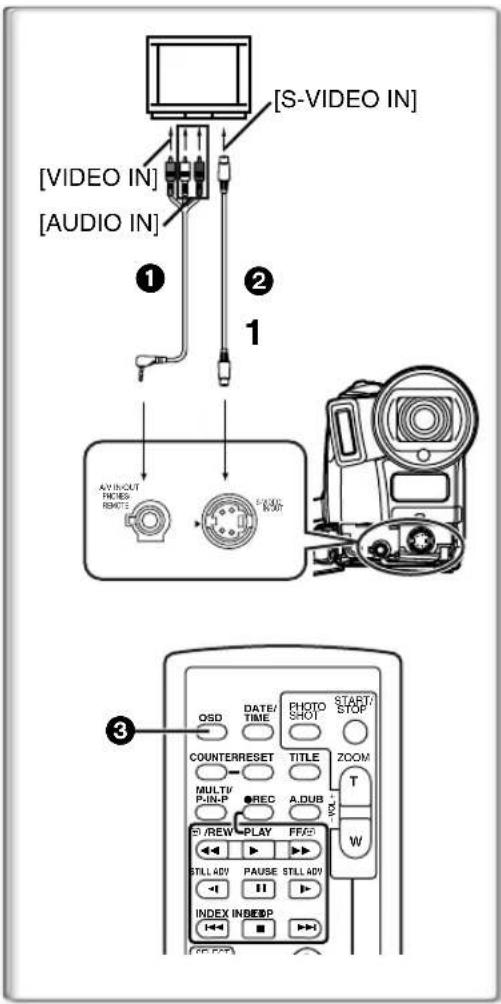
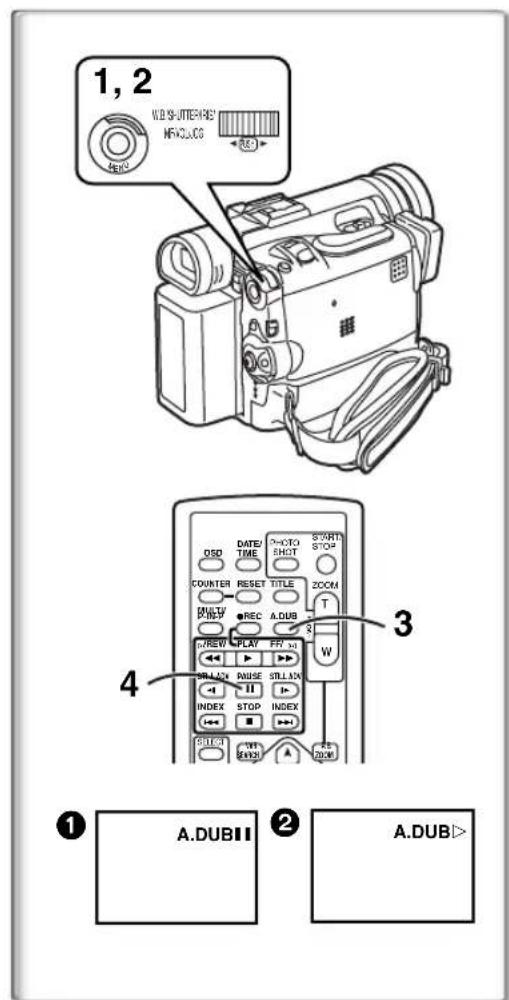
Playing Back on Your TV
By connecting your Palmcorder to your TV, the recorded scenes can be viewed on your TV screen.
- Before connecting them, turn off the power of both the Palmcorder and TV.
1 Connect the [A/V OUT] Jack of the Palmcorder to the Video and Audio Input Jacks of the TV.
- Using the A/V Cable (supplied), make a connection with the TV. If the TV has an S-Video Jack, connect an S-Video Cable (not supplied) too.
Making the Indications Appear on the TV screen
Press the [OSD] Button 3 on the Remote Controller.
- Be sure to select the proper input on your TV. (If necessary, consult your TV's operating instructions.)
- If you play back a Cassette recorded with copyright protection signals, the screen becomes blue or mosaic-like noise patterns appear.
- If you set [AV JACK] on the [AV IN/OUT SETUP] Sub-Menu to [IN/OUT], nothing will be shown on the TV screen except during playback.
Audio Dubbing
You can add music or narration to the recorded Cassette.
- If you perform audio dubbing onto a tape that was recorded with [AUDIO-REC] on the [RECORDING SETUP] Sub-Menu of the [CAMERA FUNCTIONS] Main-Menu set to [16bit], the original sound is erased. (If you want to preserve the original sound, use the [12bit] Mode when recording.)
- Audio Dubbing cannot be performed onto recordings made in LP Mode. (→ 20)
1 Set [VCR FUNCTIONS] >> [AV IN/OUT SETUP] >> [AV JACK] >> [IN/OUT]. 2 Continuing the aforesaid setup, select [A.DUB INPUT] >> [MIC] or [AV IN].
- Set to [AV IN] when external device is used, and to [MIC] when an external or built-in microphone is used.
- Switch the Palmcorder over to the Still Playback Mode where you want to add new sound track.
3 Press the [A.DUB] Button on the Remote Controller. [A.DUB] Indication appears. 4 To start Audio Dubbing, press the [I] Button on the Remote Controller. [A.DUB] Indication appears.
To Stop Audio Dubbing
Press the [I] Button on the Remote Controller.
The Palmcorder is in the Still Playback Mode again.
Playing Back the Sound Recorded with Audio Dubbing (For 12 bit Audio Recording)
Set [VCR FUNCTIONS] >> [PLAYBACK FUNCTIONS] >> [AUDIO] >> [ST2] or [MIX].
ST1: Play back only the original sound.
ST2: Play back only the sound added by Audio Dubbing.
MIX: Play back both the original sound and the sound added by Audio Dubbing simultaneously.
For other notes, see page 64.
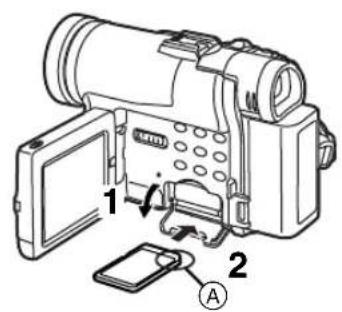
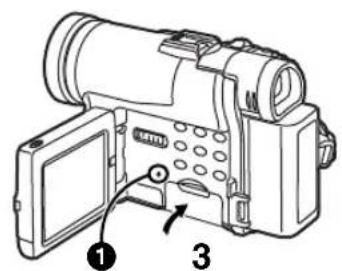
1,2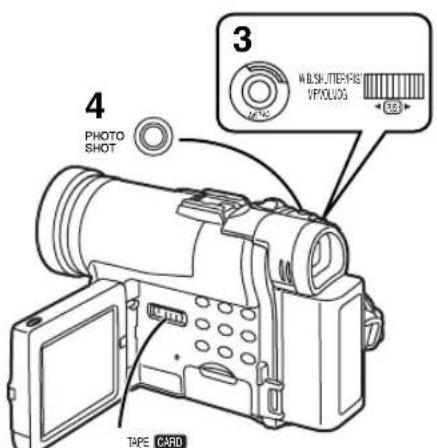

1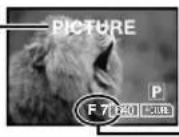
2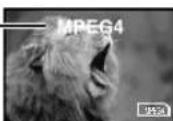
3
Special Features
Using a Memory Card
A Card can be used to record files or play back files.
- Use a genuine SD Memory Card or MultiMediaCard only.
Inserting a Memory Card
Before inserting a Memory Card, be sure to turn off the Palmcorder.
1 Open the Card Slot Cover.
2 While holding the Memory Card with its cut corner A facing right, insert it into the Card Slot.
3 Close the Card Slot Cover securely.
Removing the Memory Card
Open the Card Slot Cover, press the centre of the Card and then pull it straight out.
After removing the Card, close the Card Slot Cover.
- The Palmcorder or the Card may be damaged if the Card is forced out when the Card is fully inserted.
[ACCESS] Lamp
While the Palmcorder is accessing the Card (reading, recording, playback, erasing, moving of images), the [ACCESS] Lamp ① lights up.
- While the [ACCESS] Lamp is on, never attempt to: pull out the Card, to turn off the Palmcorder power, or switch the [TAPE/CARD/CARD MODE] Selector. Such actions will damage the Card and cause the Palmcorder to malfunction.
Recording on the Memory Card
3 kinds of data can be recorded by selecting with the [TAPE/CARD/ CARD MODE] Selector. When recording still picture, slide the [TAPE/CARD/ CARD MODE] Selector until the [PICTURE] Indication 1 appears (Card PhotoShot), when recording a moving picture, slide the [TAPE/CARD/ CARD MODE] Selector until the [MPEG4] Indication 2 appears (MPEG4 Recording), when recording voice, slide the [TAPE/CARD/CARD MODE] Selector until the [VOICE] Indication 3 appears (Voice Recording).
For other notes, see page 64.
Card PhotoShot
Still pictures can be recorded on the Memory Card from the Palmcorder lens as well as from scenes that have already been recorded on a cassette. The size of images that are recorded using this Palmcorder is approximately 1,230,000 pixels. Recording of images with a size that is larger than a million pixels is called mega-pixel still-picture recording. Compared to images of normal recording, images that are created by mega-pixel still-picture recording can be printed out more clearly.
Recording from the Palmcorder Lens (Camera Mode)
1 Slide the [TAPE/CARD/CARD MODE] Selector to [CARD].
2 Slide the [TAPE/CARD/CARD MODE] Selector to [CARD MODE] until the [PICTURE] Indication appears.
- Remaining Number of Card PhotoShot pictures 4.
3 Set [CAMERA FUNCTIONS] >> [CARD SETUP] >>
[PICTURE SIZE] >> [1280×960] or [640×480].
4 Press the [PHOTO SHOT] Button.
The [Pnndication will light in red.
- Mega-pixel recording (when you select [1280 × 960] in step 3) is useful for taking clear pictures, but the following functions are disabled during mega-pixel recording.
The power automatically turns off about 5 minutes after a card has been inserted.
- With the Progressive PhotoShot Function, you can record still pictures with higher resolution than with the normal PhotoShot Function (→ 22).
For other notes, see page 64.
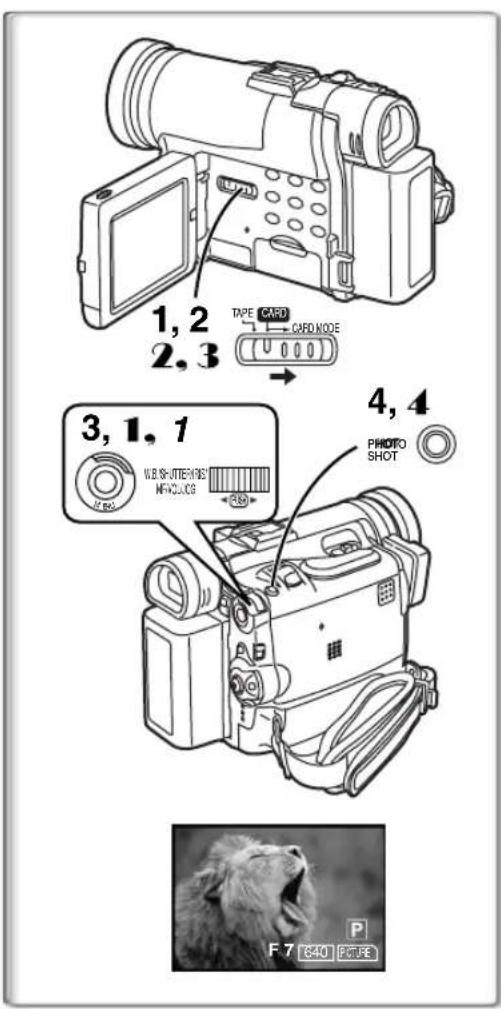
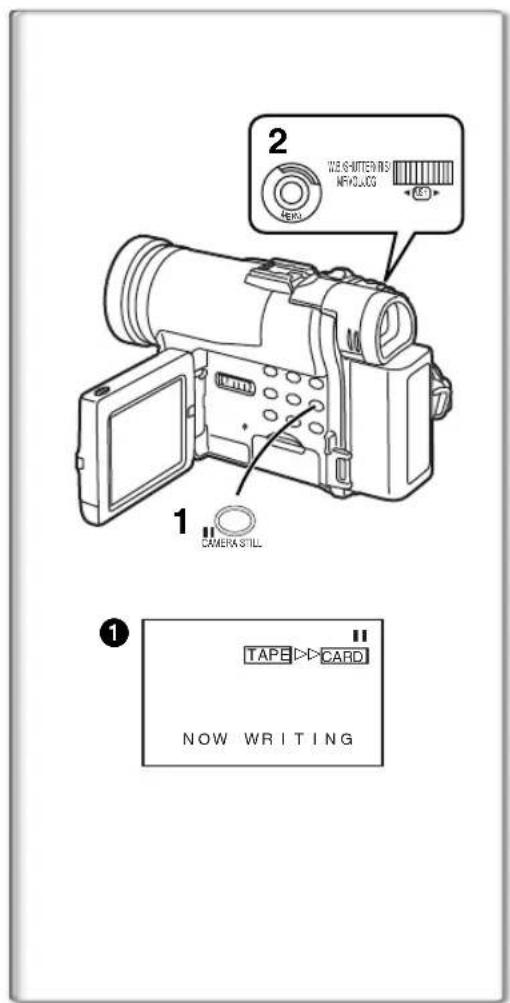
Card PhotoShot (continued)
Recording from a Cassette (VCR Mode)
1. Slide the [TAPE/CARD/CARD MODE] Selector to [CARD]. 2. Slide the [TAPE/CARD/CARD MODE] Selector to [CARD MODE] until the [PICTURE] Indication appears. 3. Set [VCR FUNCTIONS] >> [CARD SETUP] >> [PICTURE QUALITY] >> a desired picture quality. 4. Start playback and press the [PHOTO SHOT] Button at the scene you want to record.
While the image is being recorded, it stays still for a few seconds.
Recording from other equipment
1. Set [CAMERA FUNCTIONS] or [VCR FUNCTIONS] >> [CARD SETUP] >> [PICTURE QUALITY] >> a desired picture quality. 2. Slide the [TAPE/CARD/CARD MODE] Selector to [CARD]. 3. Slide the [TAPE/CARD/CARD MODE] Selector to [CARD MODE] until the [PICTURE] Indication appears. 4. Input the picture from the other equipment then press the [PHOTO SHOT] Button at the desired scene.
Selecting the quality of Card PhotoShot images
1. Set [CAMERA FUNCTIONS] or [VCR FUNCTIONS] >> [CARD SETUP] >> [PICTURE QUALITY] >> a desired picture quality.
Maximum number of images recordable on the supplied Card (16 MB) When the picture size is 1280×960
[FINE] (high image quality): approximately 22 pictures
[NORMAL] (Normal): approximately 35 pictures
[ECONOMY] (low image quality): approximately 50 pictures
When the picture size is 640 × 480 :
[FINE] (high image quality): approximately 100 pictures
[NORMAL] (Normal): approximately 200 pictures
[ECONOMY] (low image quality): approximately 400 pictures
The figures vary depending on the subject being photographed.
Automatically copying still pictures recorded on a cassette
The Palmcorder copies images automatically, referring to Photo Index signals.
After setting the Palmcorder to the VCR Mode (→ 31)
1 Set the Palmcorder to Still Playback Mode just before the point where picture transfer is to commence. 2 Set [VCR FUNCTIONS] >> [PLAYBACK FUNCTIONS] >> [RECORD TO CARD] >> [YES].
Search starts from the current Cassette position, and images with Photo Index signals are recorded onto the Card sequentially. While copying, the Indication 1 appears.
To Stop the Transfer of Images
Press the [ ] Button.
- For other notes, see page 65.
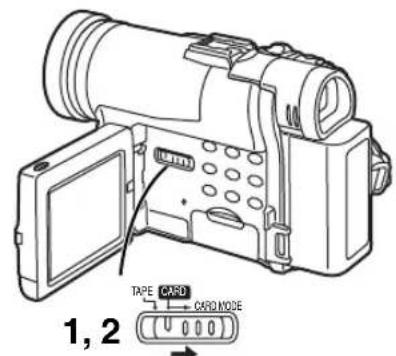
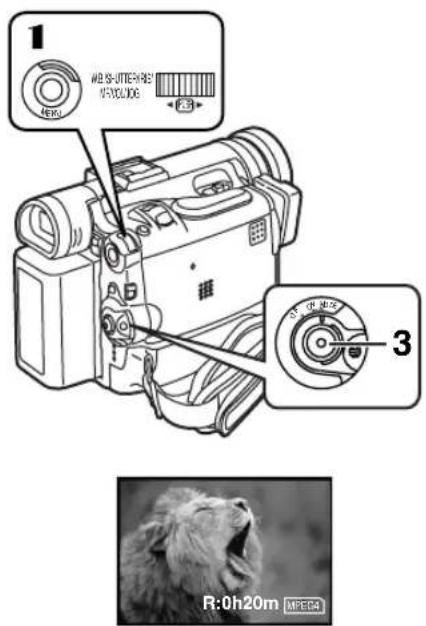
Recording Moving Pictures (MPEG4)
You can record moving pictures on a Memory Card for e-mailing. The recorded data can also be played back on a computer with Windows Media Player.
Recording from the Palmcorder Lens (Camera Mode)
1. Slide the [TAPE/CARD/CARD MODE] Selector to [CARD]. 2. Slide the [TAPE/CARD/CARD MODE] Selector to [CARD MODE] until the [MPEG4] Indication appears. 3. Press the Recording Start/Stop Button.
It takes 2 to 3 seconds to start recording. - During recording, the [red] indication is lit in red. The maximum continuous recording times are:
[FINE] (high image quality): 2 minutes
[NORMAL] (normal image quality): 120 minutes
The Palmcorder will automatically stop recording when the approximate time listed above has elapsed (the card capacity has been fully utilized).
Recording from a Cassette (VCR Mode)
1. Slide the [TAPE/CARD/CARD MODE] Selector to [CARD]. 2. Slide the [TAPE/CARD/CARD MODE] Selector to [CARD MODE] until the [MPEG4] Indication appears. 3. Start playback and press the Recording Start/Stop Button at the desired scene.
Recording from other equipment (VCR Mode)
1. Slide the [TAPE/CARD/CARD MODE] Selector to [CARD]. 2. Slide the [TAPE/CARD/CARD MODE] Selector to [CARD MODE] until the [MPEG4] Indication appears. 3. Input the image from other equipment then press the Recording Start/Stop Button at the desired scene.
Selecting the quality of MPEG4 Recording images
1. Set [CAMERA FUNCTIONS] or [VCR FUNCTIONS] >> [CARD SETUP] >> [MPEG4 MODE] >> a desired image quality.
Maximum recording time on the supplied Card (16 MB)
[FINE]: approximately 5 minutes
[NORMAL]: approximately 15 minutes
- The video resolution of the camera is reduced when making an MPEG4 recording. This is done in order to optimize the image quality in MPEG4 recordings, and does not reflect that there is a problem with the software or hardware.
For other notes, see page 65.
Recording Voice (Voice Recording Function)
You can record voice data on a memory card.
1 Slide the [TAPE/CARD/CARD MODE] Selector to [CARD]. 2 Slide the [TAPE/CARD/CARD MODE] Selector to [CARD MODE] until the [VOICE] Indication appears. 3 Press the Recording Start/Stop Button.
Voice from built-in microphone is recorded. It takes 2 to 3 seconds to start recording. The recorded file is automatically locked (to prevent accidental erasure). - Voice from external microphone connected to the microphone jack can also be recorded. - During recording, the [Vindication is lit in red. - When Remaining Time Indication becomes [R:0h00m],
[NO SPACE LEFT] Indication appears. Recording may not be started.
Maximum recording time on the supplied Card (16MB)
Approximately 58 minutes
- For other notes, see page 65.
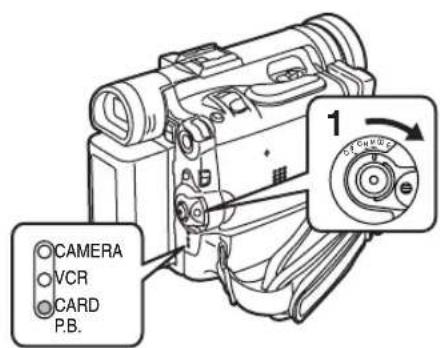
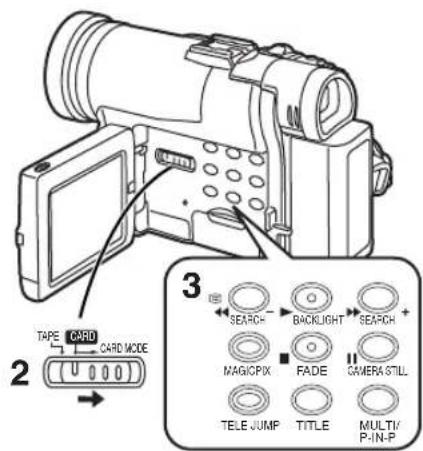
0
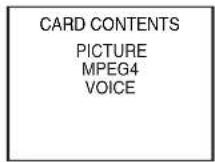
2
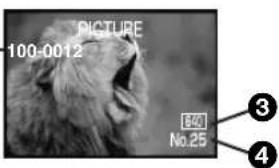
2
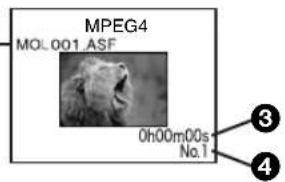
Playing Back Files from the Memory Card
You can play back files recorded on a Card.
- When you set the Palmcorder to Card Playback Mode, the card contents are displayed to inform you of the type of data (still picture, moving picture and/or voice data) recorded on the Card.
Playing back Still Pictures
1 Set the Palmcorder to Card Playback Mode.
The [CARD P.B.] Lamp lights up. The still picture that was recorded last on the Card is displayed.
2 Slide the [TAPE/CARD/ CARD MODE] Selector to [CARD MODE] until the [PICTURE] Indication appears.
3 Start Playback.
▶: Starts Slide Show (The [SLIDE> ] Indication is displayed) ▶: Playing back the next picture ◀: Playing back the previous picture ■: Stop the slide playback II: Pause slide playback
Playing back Moving Pictures (MPEG4)
1 Set the Palmcorder to Card Playback Mode.
The [CARD P.B.] Lamp lights up.
2 Slide the [TAPE/CARD/CARD MODE] Selector to [CARD MODE] until the [MPEG4] Indication appears.
3 Start Playback.
Playing back: ▶: Start playback ■: Stop playback II: Pause playback (This button does not pause playback within 2 seconds of finishing playback.) ▶▶: (Stop Mode) To the beginning of the next file. (Playback Mode) To the beginning of the next file picture and start playback. (Pause Mode) To the beginning of the next file and turns to Stop Mode. ◀◀: (Stop Mode) To the beginning of the previous playback file. (Playback Mode) To the beginning of the playback file and start playback. (Pause Mode) To the beginning of the file under playback and turns to Stop Mode. - File is numbered in hexadecimal form. - When the object is moving fast or zoom operation is performed, picture may appear to be still or a mosaic noise pattern appears, but this is not a malfunction.
Playing back Voice recordings
1 Set the Palmcorder to Card Playback Mode.
The [CARD P.B.] Lamp lights up.
2 Slide the [TAPE/CARD/CARD MODE] Selector to [CARD MODE] until the [VOICE] Indication appears.
3 Start playback.
Playing back
: Stop the playback
1: Pause playback (This button does not pause playback within 2 seconds of finishing playback).
>>: (Stop Mode) To the beginning of the next File. (Playback Mode) To the beginning of the next File and start playback. (Pause Mode) To the beginning of the next File and turns to Stop Mode.
<<: (Stop Mode) To the beginning of the previous playback File. (Playback Mode) To the beginning of the playback File and start playback. (Pause Mode) To the beginning of playback File and turns to Stop Mode.
- If the [▲] Button or [▶] Button is pressed for 1 or more seconds during playback, it becomes 10x playback speed and if pushed for 7 or more seconds, it becomes 60x playback speed. Releasing the button brings it back to normal playback.
2 Folder-File Number (When the picture is played back) File Name (When the MPEG4 data is played back) Picture Size (When the picture is played back) (→ 59) Playback time (When MPEG4 data or Voice data is played back) 4 File Number (When pictures are played back)
To adjust the volume (Only when playing back MPEG4 and Voice Recordings)
- During playback, hold down the [PUSH] Dial until the volume indication appears and rotate it to adjust the volume. (→ 31)

To Select a Desired File and Play it Back After setting the Palmcorder to the Card Playback Mode (→ 40) ....
1 Slide the [TAPE/ CARD/ CARD MODE] Selector to [CARD]. 2 Slide the [TAPE/CARD/CARD MODE] Selector to [CARD MODE] until the desired type of data indication appears. 3 Press the [MULTI] Button.
The files recorded on the Memory Card are displayed in Multi-Picture Mode.
4 Rotate the [PUSH] Dial and select a desired file.
The selected file is marked with a red frame. - When 7 or more files have been recorded, turn the [PUSH] Dial to display the next file. The [▲] Button or [▶] Button can be used instead of the [PUSH] Dial.
5 Press either the [PUSH] Dial or the [MULTI] Button.
The selected file is shown on the entire screen.
Picture Size (When [PICTURE] is selected at Step 2) FINE or NORMAL (When [MPEG4] is selected at Step 2) 3 File Number 4 Folder-File Number (When [PICTURE] is selected at Step 2)
File Name (When [MPEG4] is selected at Step 2)
Using File Search Mode
1 Set [CARD FUNCTIONS] >> [CARD EDITING] >> [FILE SEARCH] >> [YES].
The file search screen 5 appears.
2 Rotate the [PUSH] Dial to select the desired number of the file and then press it.
The selected number's file appears.
The same process can be performed using the short-cut menu (→ 19) - For other notes, see page 65.
Copying Pictures from a Memory Card to a Cassette
After setting the Palmcorder to the Card Playback Mode (→ 40) ....
To Copy One Picture
1 Slide the [TAPE/CARD/ CARD MODE] Selector to [TAPE]. 2 Display a desired picture on a Memory Card.
- Please refer to "To select a Desired File and Play it Back". 3 Press the [PHOTO SHOT] Button.
- It takes approximately 7 seconds to copy a still picture to the Cassette.
- During the copying, the Indication 1 appears.
- When recording to tape, select the tape position before recording. The picture will be recorded to the selected tape location when the [PHOTO SHOT] button is pressed in step 3.
To Copy All the Pictures
1 Display the first picture.
- If a picture other than the first one is displayed, only the subsequent pictures will be copied.
2 Set [CARD FUNCTIONS] >> [CARD EDITING] >> [RECORD TO TAPE] >> [YES].
- During the copying, the Indication 1 appears. It takes approximately 7-11 seconds for each picture to be copied to the cassette. To stop the copying midway, press the [■] Button.
- For other notes, see page 65.
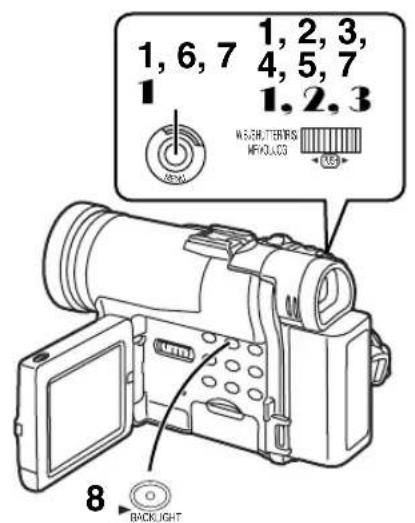
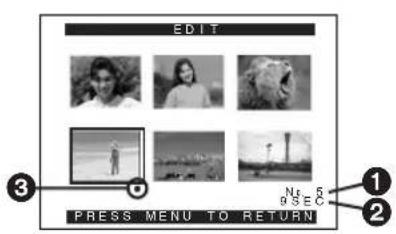
4
5
6
Slide Show
The recorded still pictures in the Card can be played back like a Slide Show. You can set up a Slide Show or change the content.
To Select Pictures to Play Back in Slide Show
1 Set [CARD FUNCTIONS] >> [CARD EDITING] >> [SLIDE SHOW] >> [YES].
- Slide Show editing screen appears.
2 Set [EDIT] >> [YES].
3 Rotate the [PUSH] Dial to select a picture and then press the dial.
4 Rotate the [PUSH] Dial to select playback order and then press the dial.
- This step is skipped when there are no pictures set for the Slide Show.
5 Rotate the [PUSH] Dial to adjust the playback time and then press the dial.
The Playback Order indication 1 and the Playback Time (Second) indication 2 appear. The [ ] indication 3 is displayed below pictures that have been selected for the Slide Show. (→ 59) To select the next picture, repeat Steps 3 to 5 above.
6 Press the [MENU] Button to end the setup.
7 After setting [SLIDE SHOW] >> [PRESET], press the [MENU] Button. 8 Press the [▶] Button.
The [M.SLIDE> ] Indication is displayed. 4
To Play Back All the Pictures Continuously
After setting the [SLIDE SHOW] to [ALL], press the Button.
The [SLIDE> Indication is displayed. 5 - All pictures are played back for approximately 5 seconds each, from the first to the last recorded picture, and playback then stops.
To Pause the Slide Show
Press the [ ] Button.
The [(M.) SLIDE] Indication is displayed.
To Stop the Slide Show
Press the [ ] Button.
To Verify the Selected Pictures
Set [CARD FUNCTIONS] >> [CARD EDITING] >> [SLIDE SHOW] >> [YES] >> [VERIFY] >> [YES].
- Only the selected pictures are displayed in Multi-Picture Mode in the Playback order.
To Delete the Selected Pictures
1 Set [CARD FUNCTIONS] >> [CARD EDITING] >> [SLIDE SHOW] >> [YES]. 2 Set [DELETE] >> [YES]. 3 Select the picture you want to delete and press the [PUSH] Dial.
To Reset the Slide Show Setup
Set [CARD FUNCTIONS] >> [CARD EDITING] >> [SLIDE SHOW] >> [YES] >> [RESET] >> [YES] >> [YES].
- Slide Show settings are reset.
For other notes, see page 66.
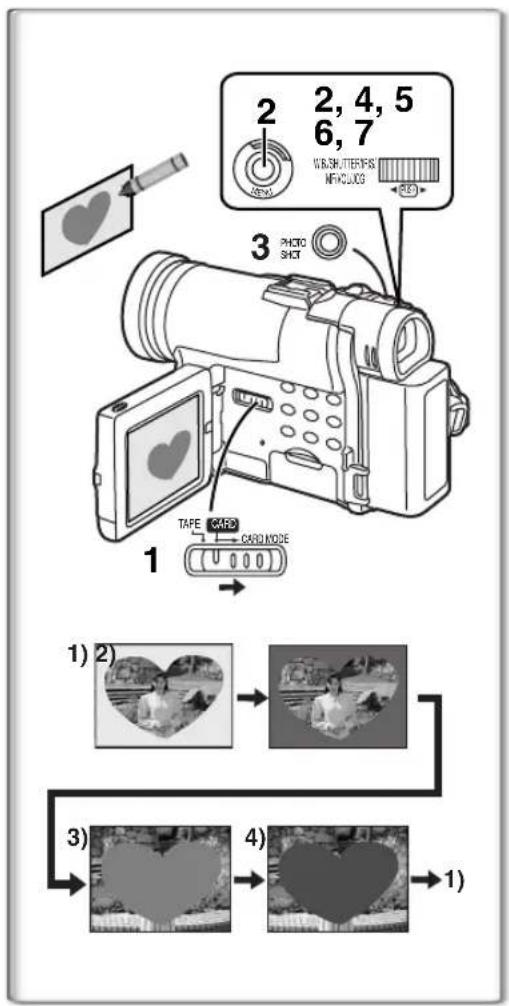
Creating a Title
You can create a title and record it on a Memory Card.
1 Camera Mode:
Slide the [TAPE/CARD/CARD MODE] Selector to [CARD MODE] until the [PICTURE] Indication appears. Set the Lens to the image you want to use for creating a title. VCR Mode:
Search for the image you want to use for creating a title and set the Palmcorder to the Still Playback Mode.
2 Set [CARD SETUP] >> [CREATE TITLE] >> [YES].
3 Press the [PHOTO SHOT] Button.
The title is stored.
- To perform PhotoShot again, select [RETURN].
4 Rotate the [PUSH] Dial to select [LUMINANCE] and press it.
5 Rotate the [PUSH] Dial to adjust the title contrast and then press it.
The [COLOR] Indication appears.
6 Rotate the [PUSH] Dial to select desired color and press it.
7 Select [RECORD] and then press the [PUSH] Dial. Selecting Colors
If you make color selection by rotating the [PUSH] Dial when creating a title, you can change the color as follows.
1) Original Color (the color of the captured image) - Title in the original color in which the dark portion (blackish portion) of the captured image is missing. 2) Preset colors (black, blue, green, cyan, red, magenta, yellow, and white) - Title in a preset color in which the dark portion (blackish portion) of the captured image is missing. 3) Original color (the color of the captured image) - Title in the original color in which the bright portion (whitish portion) of the captured image is missing. 4) Preset colors (black, blue, green, cyan, red, magenta, yellow, and white) - Title in a preset color in which the bright portion (whitish portion) of the captured image is missing.
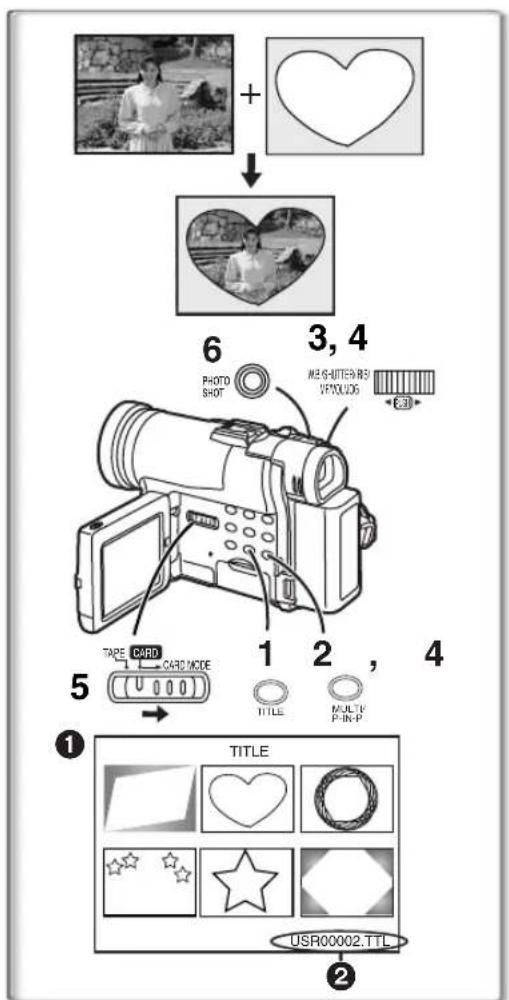
Inserting a Title
You can select one of your original titles and display it. (It can be displayed in Camera Mode, VCR Mode, and Card Playback Mode.)
1 Press the [TITLE] Button.
The title that was created last is displayed.
2 Press [MULTI] Button.
A list of titles is displayed. 1
3 Rotate the [PUSH] Dial to select a desired title.
The selected title is marked with a red frame.
4 Press the [PUSH] Dial or press the [MULTI] Button.
The selected title is displayed.
5 Using the [TAPE/CARD/CARD MODE] Selector, select the recording target.
Camera Mode: TAPE or CARD
VCR Mode: CARD
Card Playback Mode: TAPE
6 Press the [PHOTO SHOT] Button.
- A still picture is recorded under the inserted title.
- If you record on a Cassette in Normal Recording Mode, set the [TAPE/CARD/CARD MODE] Selector to [TAPE] and press the Recording Start/Stop Button.
2 File Name
Clearing a Title Display
Press the [TITLE] Button.
The [ACCESS] Indication appears until the titles are displayed completely. Perform the Recording after the Indication disappears. For other notes, see page 66.
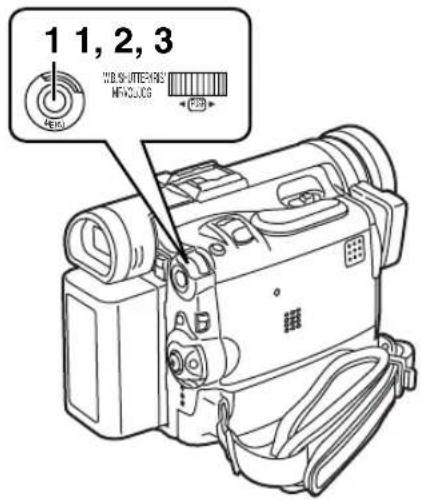
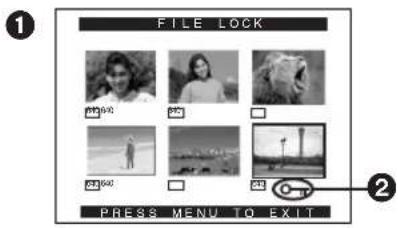
Protecting the Files on a Memory Card from Accidental Erasure (File Lock)
Precious files recorded on a Memory Card can be locked to prevent accidental erasure. (Even if files are locked, the files will be deleted when the Memory Card is formatted.)
After setting the Palmcorder to the Card Playback Mode (→ 40) ...
1 Set [CARD FUNCTIONS] >> [CARD EDITING] >> [FILE LOCK] >> [YES]. 2 Rotate the [PUSH] Dial to select [PICTURE] or [TITLE], and then press it.
- The [FILE LOCK] 1 Menu is displayed.
3 Rotate the [PUSH] Dial to select the file to be locked, and then press it.
The Indication 2 is attached to the selected file. - Press the [PUSH] Dial again to cancel.
The Lock Setting carried out by this Palmcorder is only effective for this Palmcorder. The same setting can be performed using the short-cut menu (→ 19)
About the write protection switch of the SD Memory Card
- The SD Memory Card has a write protection switch on it. If the switch is set to the [LOCK] side, you cannot write to the Card, delete the data, or format the Card. If it is moved back, you can.
Deleting the Files recorded on a Memory Card
Using the Palmcorder, you can delete the still picture files and titles recorded on a Memory Card. After the file is deleted, it cannot be restored. At first, slide the [TAPE/CARD/CARD MODE] Selector to [CARD] to select the type of data to be erased.
After setting the Palmcorder to the Card Playback Mode (→ 40) ...
To Select and Delete File(s) by selection
1 Set [CARD FUNCTIONS] >> [DELETE CARD FILE] >> [DELETE FILE BY SELECTION] or [DELETE TITLE BY SELECTION]. 2 Rotate the [PUSH] Dial to select the file that you want to delete, and then press it.
The selected file flashes. - To delete more than 2 files, repeat this step.
3 Press the [PHOTO SHOT] Button.
- A verification message appears.
4 Rotate the [PUSH] Dial to select [YES] and then press it.
The selected file is deleted from the Memory Card.
To Delete all Files
1 Set [CARD FUNCTIONS] >> [DELETE CARD FILE] >> [DELETE ALL FILES].
- A verification message appears. 2 Rotate the [PUSH] Dial to select [YES] and then press it.
- All the files of the selected Card Mode ([PICTURE], [MPEG4] or [VOICE]) are erased.
- A locked file cannot be deleted.
The same setting can be performed using the short-cut menu (→ 19) - When you delete a Voice File, be sure to cancel the Lock setting before deleting. - Do not delete a Voice File recorded with this Palmcorder using other devices.
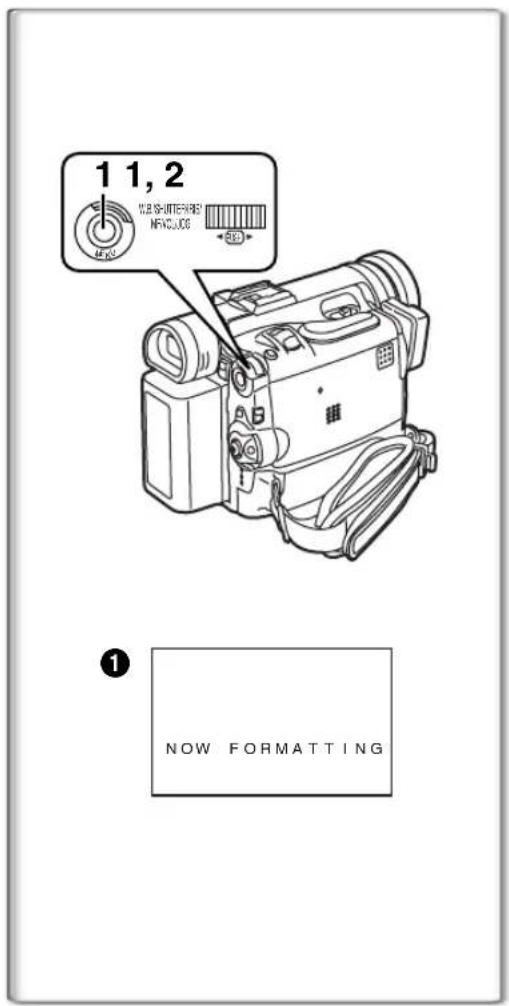
Formatting a Memory Card
If a Memory Card becomes unreadable by the Palmcorder, formatting it may make it reusable. Formatting will delete all the data recorded on a Memory Card.
After setting the Palmcorder to Card Playback Mode (→ 40) ....
1 Set [CARD FUNCTIONS] >> [CARD EDITING] >> [CARD FORMAT] >> [YES]. 2 Select [YES] and press the [PUSH] Dial. - During formatting the [NOW FORMATTING] Indication 1 appears. - When the formatting is completed, the screen becomes white. - Even if files are locked, the files will be deleted when the Memory Card is formatted. - It may not be possible to use a Card which was formatted using this Palmcorder on another unit. In this case, format the Card on the unit which will be using the Card. Take steps to ensure that valuable files are stored on a personal computer, etc. as well, before proceeding. - A Card formatted with other equipment (like a Personal Computer) might be unusable or might take more time for recording. We recommend that you use this Palmcorder to format it.
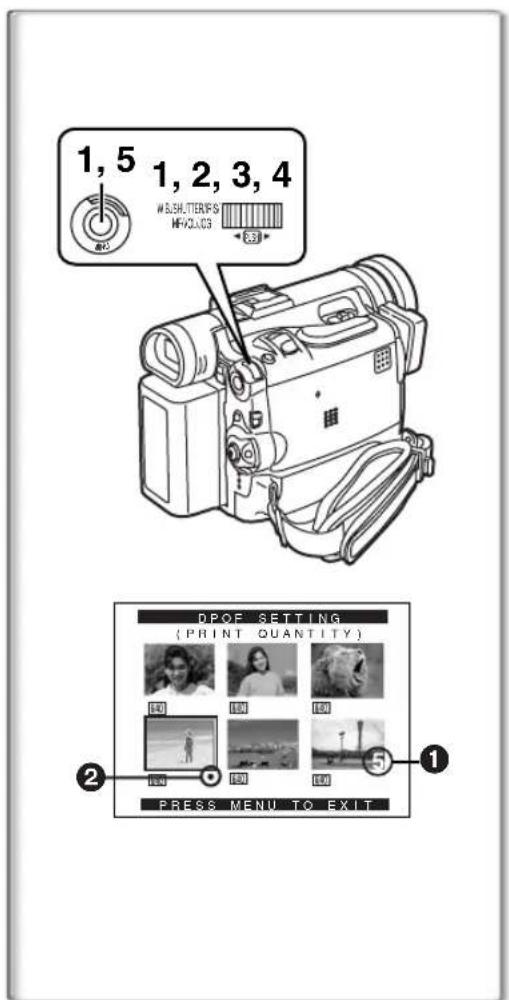
DPOF Setting
You can select the images to be printed, the number of prints, and other print-related information (DPOF setting) on a Memory Card. "DPOF" stands for Digital Print Order Format, and since printing data can be added to images on the Memory Card, the Memory Card can be used with any system that supports DPOF.
After setting the Palmcorder to Card Playback Mode (→ 40) ....
1 Set [CARD FUNCTIONS] >> [CARD EDITING] >> [DPOF SETTING] >> [YES]. 2 Rotate the [PUSH] Dial to select [VARIABLE] and then press it.
- When printing one each of all the pictures, select [ALL 1]; if not all the pictures are to be printed, select [ALL 0].
3 Rotate the [PUSH] Dial to select the picture and then press it. 4 Rotate the [PUSH] Dial to set the number of prints 1 and then press it.
The framed images will be set to DPOF and the [●] mark 2 will be displayed. The [●] mark indicates pictures for which 1 or more prints have been set. (→ 59)
5 Repeat Step 3-4 to set other pictures, and press the [MENU] Button when the setting is completed.
To Verify DPOF Setting
Select [VERIFY] in Step 2 above. The pictures for which 1 or more prints are set in DPOF are played back continuously.
- Print mark is based on DPOF (Digital Print Order Format). The same setting can be performed using the short-cut menu (→ 19)
- For other notes, see page 66.
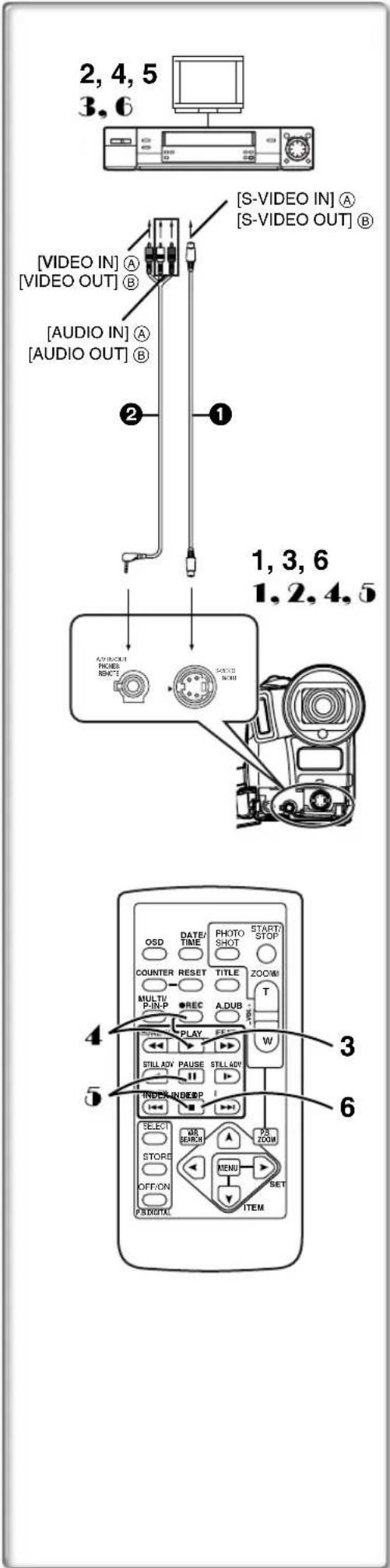
Copying your DV Cassette to an S-VHS or VHS Cassette (Dubbing)
After connecting the Palmcorder and the S-Video, Video and Audio Input Jacks of the VCR as illustrated on the left, start the following procedure.
- Be sure to press the [OSD] Button on the Remote Controller before copying so that no indications are left visible. Otherwise, the displayed tape counter and Function indications are also copied.
[Palmcorder]
1 Insert the recorded Cassette.
[VCR]
2 Insert a blank Cassette with an erasure prevention tab.
- If various settings (such as external input, tape speed, etc.) are required, please refer to the operating instructions of your VCR.
[Palmcorder]
3 Press the [▶] Button to start playback.
[VCR]
4 Start recording. 5 Press the Pause or Stop Button to stop recording.
[Palmcorder]
6 Press the [■] Button to stop playback.
![PANASONIC PVDC352 - [VCR] - 1](/content/2026/03/449276/images/41cf46d65ee06e951a4f16915e5c06dc6145f65a377069ae02ff80f8b647e90c.jpg)
S-Video Cable (not supplied)
![PANASONIC PVDC352 - [VCR] - 2](/content/2026/03/449276/images/b19b2171d66ec4d8d2aed5f193ef3c20805806ceff78e10012542b3d1fe6d380.jpg)
A/V Cable (supplied)
Copying an S-VHS or VHS Cassette to your DV Cassette
After connecting the Palmcorder and the S-Video, Video, Audio Output Jacks (8) of the other equipment as illustrated on the left, start the following procedures.
- You need the Remote Controller.
[Palmcorder]
Set [VCR FUNCTIONS] >> [AV IN/OUT SETUP] >> [AV JACK] >> [IN/OUT]. 2. Insert a blank Cassette with an erasure prevention tab.
[Other Equipment]
3. Insert a recorded Cassette and start playback.
[Palmcorder]
4. While pressing the [REC] Button, press the [PLAY] Button. (Both buttons are located on the Remote Controller.) Press the [I] Button or [■] Button to stop recording.
[Other Equipment]
6. Press the Stop Button to stop playback.
![PANASONIC PVDC352 - [Other Equipment] - 1](/content/2026/03/449276/images/ac485316bb566107ff0c08a87d7bbaf06b2aff8dcee8b9fb4b5182ec3ceb755f.jpg)
S-Video Cable (not supplied)
![PANASONIC PVDC352 - [Other Equipment] - 2](/content/2026/03/449276/images/8c393b92573c6f3c13e0f35e9092d0fd038fdb26ab1aa315592f840f76435dc4.jpg)
A/V Cable (supplied)
CAUTION:
Unauthorized exchanging and/or copying of copyrighted recordings may be copyright infringement.
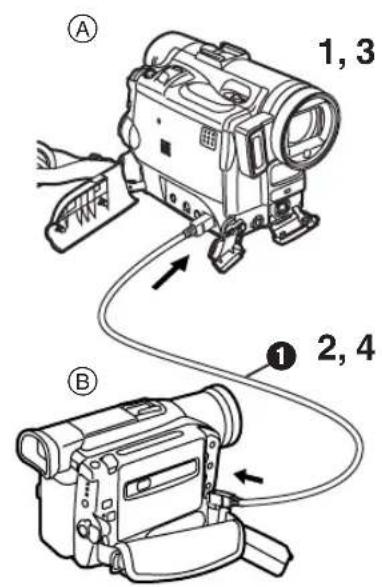
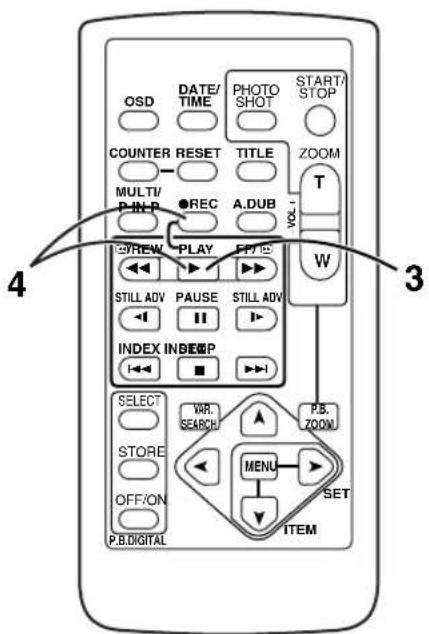
Using your Palmcorder with Digital Video Equipment (Dubbing)
By connecting this Palmcorder with other digital video equipment (such as another Palmcorder of the same format/model) that has a DV input/output terminal (i.LINK), and using a 4-pin to 4-pin DV Interface cable PV-DDC9 (optional), high quality image and sounds can be dubbed in the digital mode.
[Playback Unit A]
1. Insert the recorded cassette and set the Palmcorder to the VCR Mode.
[Recording Unit B]
2. Insert a cassette to be used for dubbing and set the Palmcorder to the VCR mode.
[Playback Unit A]
3. Press the [▶] button to start playback.
[Recording Unit B]
4. While pressing the [REC] button, press the [PLAY] button. (Both buttons are located on the Remote Controller.) Recording starts.
Stopping Dubbing
Press the [■] button on the recording unit first, and then press the [■] button on the playback unit to stop dubbing.
CAUTION:
Unauthorized exchanging and/or copying of copyrighted recordings may be copyright infringement.
- For other notes, see page 66.
■ Analog-Digital Conversion
When the Palmcorder is connected with other digital video equipment through its DV Terminal, the analog format pictures that have been input from other external equipment can be output to the digital video equipment through the DV Terminal.
- To DV-output analog video signals sent from other equipment, set [DV OUT] on the [AV IN/OUT SETUP] Sub-Menu to [ON]. (Normally, keep the [DV OUT] set to [OFF]. If it is set to [ON], the quality of the image may be disturbed.)
CAUTION:
Unauthorized exchanging and/or copying of copyrighted recordings may be copyright infringement.
- Please refer to "Recording to a Card from other equipment" (→ 65), regarding the recording to a Card.
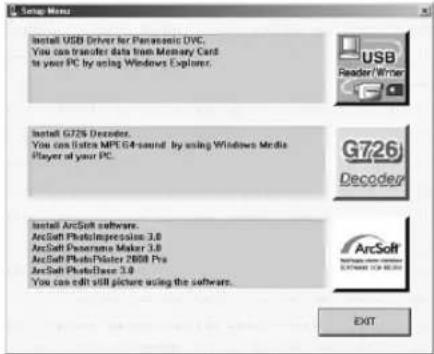

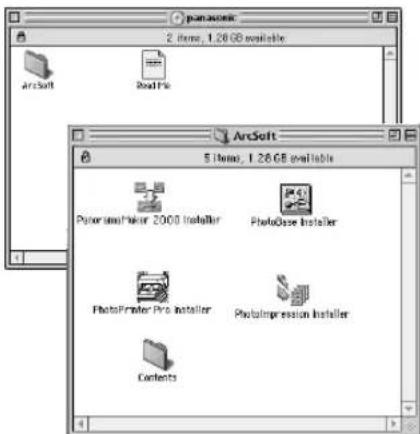
Using the Software with a Computer
An image stored on the DV Cassette can be transferred to your Personal Computer.
System Requirements for ArcSoft
- CD-ROM drive (for installation)
(for ArcSoft Software)
For Windows®
- IBM PC/AT or compatible Intel Pentium II Processor: 266 MHz or more
- Windows XP, Windows Me, Windows 98, Windows 95, Windows 2000 Professional RAM: 64 MB or more
- 300 MB minimum available hard disk space High color (16 bit) or more -CD-ROM drive (for installation)
- Mouse or other pointing device
For Macintosh
Mac OS 8.6 - 9.1 RAM: 64 MB or more - 180 MB minimum available hard disk space High color (16 bit) or more
(USB Driver For SD Memory Card)
For Windows
- IBM PC/AT or compatible Intel Pentium II Processor: 266 MHz or more
- Microsoft Windows XP, Windows Me, Windows 98SE, Windows 2000 Professional pre-installed PC with USB port Microsoft and Windows are either registered trademarks or trademarks of Microsoft Corporation in the United States and/or other countries. Macintosh is a registered trademark of Apple Computer, Inc.
- All product/brand names are trademarks or registered trademarks of the respective holders
- Please refer to page 50, regarding the system requirements of USB Driver.
Software Installation (Windows)
1 Turn on Computer and start up Windows. 2 Insert supplied CD-ROM into the CD-ROM drive.
- [Setup Menu] ① appears.
3 Select the software to be installed from [Setup Menu].
-USB Driver (→ 50):
Software for USB Driver allows you to transfer images directly off of the memory card into the computer (Please refer to page 50 to install the driver of the USB Driver.)
G726 Decoder (→ 51):
Software for G726 Decoder allows you to listen to MPEG4 sound with Windows Media Player.
- ArcSoft Software (→ 49):
PhotoImpression 3.0, PhotoBase 3.0, PanoramaMaker 3.0 and PhotoPrinter 2000 Pro are included.
4 Follow the instructions on the computer screen until the installation is complete.
- Setup window will disappear when the installation is complete.
Note:
If a window does not appear automatically, click the "Start" Button on your desktop and then click "Run". When the "Run" Box is open, type in "D:\InstMenu.exe" and click "OK". ("D" applies when the CD-ROM drive is drive D.)
Software Installation (Macintosh)
1 Turn on Computer and start up Macintosh. 2 Insert supplied CD-ROM into the CD-ROM drive. 3 Double click the icon of a CD-ROM that appears. 4 Double click the software to be installed from [ArcSoft]. Follow the instructions on the computer screen until the installation is complete.
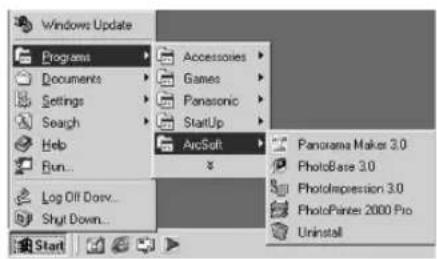
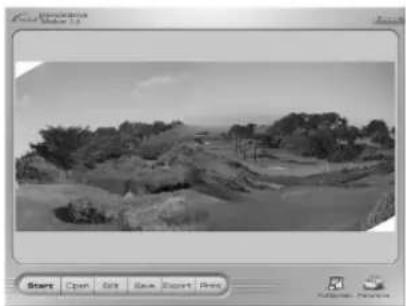
2
3
4
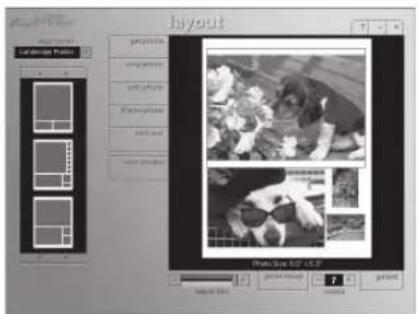
ArcSoft Software
There are 4 types of image editing software in the ArcSoft Software package.
Before you begin...
1 Open [Start] >> [Programs] >> [ArcSoft] >> [Panorama Maker 3.0] or [Photolmpression 3.0] or [PhotoBase 3.0] or [PhotoPrinter 2000 Pro].
Panorama Maker 3.0 (Windows, Mac)
- Easy-to-use photo-stitching program seamlessly combines multiple photos into a single panoramic picture.
2 Photolmpression 3.0 (Windows, Mac)
- Easy-to-use photo editing program to edit, enhance, retouch or add special effects to any image. Also offers creative solutions for making greeting cards and calendars.
3 PhotoBase 3.0 (Windows), PhotoBase 2.0 (Mac)
- Create albums of image, video, audio, and other electronic files for easy viewing, retrieval, and management.
4 PhotoPrinter 2000 Pro (Windows), PhotoPrinter Pro (Mac)
- Program to layout images in multiple sizes quickly and effortlessly to create a collage or photo album, all on one page.
For Information on ArcSoft Software:
TEL: 1-510-440-9901
FAX: 1-510-440-1270
Web Site: www.arcsoft.com
E-mail: support@arcsoft.com
Refer to Help information about application operations and other error messages.
VFA0366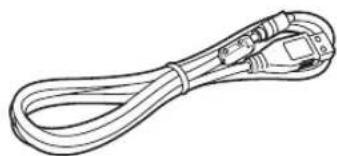
LSFT0489
10
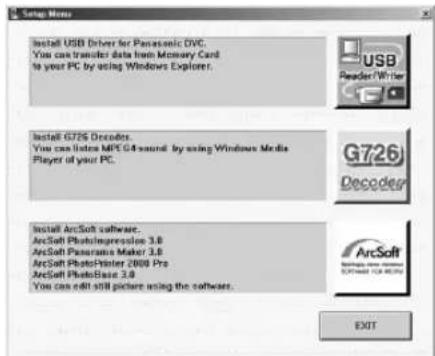
4
Restarting Windows
Setup has finished copying files to your computer. Before you can use the program, you must restart your computer.
If any other application is already running, press ALT+TAB to switch to the application and close it.
- Yes, I want to restart my computer now.
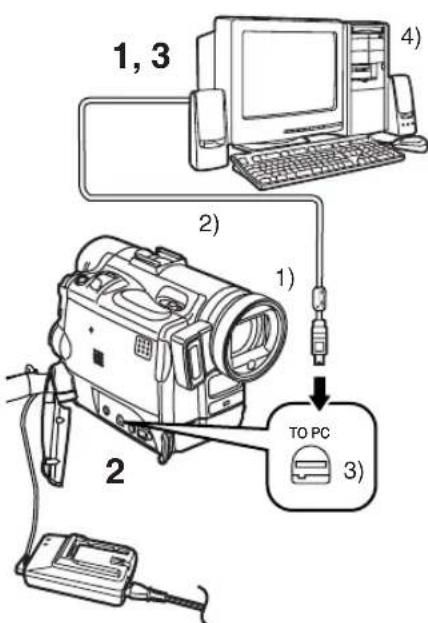
Using the Supplied USB Connection Kit
Operating environment
USB Driver can be installed in a PC/AT compatible personal computer which can run Microsoft Windows XP, Windows Me, Windows 98SE, Windows 2000 Professional.
- USB Driver
For Windows
- IBM PC/AT or compatible Intel Pentium II Processor: 300 MHz or higher CPU recommended
- Microsoft Windows XP, Windows Me, Windows 98SE, Windows 2000 Professional pre-installed PC with USB port Video card that supports 16 bit color at 800x600 monitor resolution RAM: 64 MB or more
- 2 MB minimum available hard disk space
- Disk drive: CD-ROM drive -Ports: USB Terminal
- Other requirements: Mouse or other pointing device

Installing USB Driver
In order for USB Driver to be installed, the hard disk must have at least 2 MB of free space. Before proceeding with installation, check out the amount of free space on the hard disk.
1 Insert supplied CD-ROM into the CD-ROM drive.
- [Setup Menu] ① appears.
2 Select the software to be installed from [Setup Menu].
The set up program starts running.
3 Finish installation by following the on-screen instructions.
- Carefully read the license agreement on the window, and if you agree click [Yes]. Software is not installed if [No] is clicked.
4 Click [OK] when the [Restarting Windows] Dialog appears.
- Reboot the computer to finish installing USB driver.
- Installation continues after the computer reboots if you selected additional software.
- If you no longer need the driver, see page 56.
- Update the driver after upgrading the OS (if necessary).
Connecting Computer and Palmcorder
Install USB Driver (above) before connecting.
Before making these connections, turn off all devices which are to be connected.
1 Install the supplied USB Driver. (above) 2 Insert memory card into Palmcorder, then set card playback mode. 3 Use auxiliary USB Connection Cable to connect.
-PC connecting mode.
1) Palmcorder 2) USB Connection Cable 3) USB terminal 4) Personal computer (not supplied)
After making the connections, turn the connected equipment on. - The appropriate driver to recognize the Palmcorder is automatically installed by Windows Plug and Play when connected for the first time. - When using the USB Connection Kit, it is recommended that you use the AC Adaptor as the power supply for the Palmcorder.
- After the USB Driver is installed and the USB Connection Cable is connected to the Palmcorder, open [My Computer] or [Windows Explorer] to check that the drive is displayed as a removable disk drive (only when a card is inserted into the Palmcorder). This enables you to operate it in the same way as a floppy disk drive, and you can use the same drag-and-drop or copy methods.
1 ①
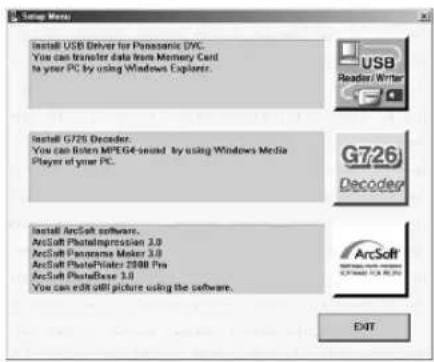
4

Using the G726 Decoder
The G726 Decoder allows you to listen to MPEG4 sound with Windows Media Player. Install it from the enclosed CD-ROM.
In order for the G726 Decoder to be installed, the hard disk must have at least 16 MB of free space. Before proceeding with installation, check the amount of free space on the hard disk.
For Windows
- Microsoft Windows XP, Windows Me, Windows 98SE, Windows 2000 Professional pre-installed PC. Also, DirectX 6, 7, 8 random, DirectX Media 6 or WMP 6-6.4, WMP7 must be correctly installed. Video card that supports 16-bit color at 800×600 monitor resolution. RAM: 32 MB or more.
- 16 MB minimum available hard disk space
- Microsoft and Windows are registered trademarks of Microsoft in the United States and other countries. Macintosh is a registered trademark of Apple Computer, Inc. © 2001. ArcSoft, the ArcSoft logo, ArcSoft Photolmpression, ArcSoft PhotoPrinter Pro, ArcSoft Photo Base, and ArcSoft Panorama Maker are trademarks of ArcSoft, Inc.
- All product/brand names are trademarks or registered trademarks of the respective holders.
- Intel Pentium is a registered trademark. i.LINK and " are trademarks.
- IBM is a registered trademark of IBM Company. -SD is a trademark.
- Disk drive: CD-ROM drive - Ports: USB Terminal
- Other requirements: Mouse
Installing the G726 Decoder
1. Insert the supplied CD-ROM into the CD-ROM drive.
- [Setup Menu] ① appears.
2. Select the software to be installed from [Setup Menu].
The setup program starts up. - Quit all Windows applications.
3. Install it by following the instructions on the screen.
- Carefully read the license agreement on the [Software License Agreement] window, and if you agree click [Yes]. Software is not installed if [No] is clicked.
4. Click [Finish] when the [Setup Complete] Dialog appears.
- Finish installing the G726 Decoder by restarting the computer.
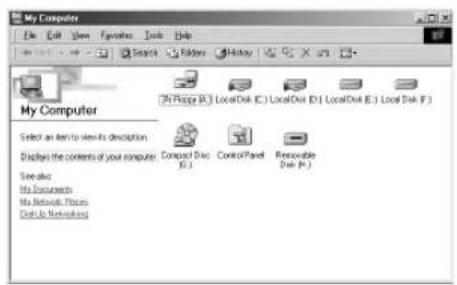
Check if Palmcorder is correctly recognized
1. Verify [Removable Disk] icon is added in [My Computer].
- Drive name (H: etc.) may vary depending on your computer.
- If Palmcorder is connected to the computer before the driver is installed, or you are using the driver that came with Windows, then it may not be able to correctly recognize Palmcorder.
- If it doesn't function properly, check to see if the driver was correctly installed, and update the driver if necessary.
1
![PANASONIC PVDC352 - Verify [Removable Disk] icon is added in [My Computer]. - 1](/content/2026/03/449276/images/042be31147c59ffcd072d932eca272102113969bba34574058095450b943da3e.jpg)
2
![PANASONIC PVDC352 - Verify [Removable Disk] icon is added in [My Computer]. - 2](/content/2026/03/449276/images/3e1a84a1dcc776a65deed201f809e98de98aea059a07657eaeee8ab069af7328.jpg)
3
![PANASONIC PVDC352 - Verify [Removable Disk] icon is added in [My Computer]. - 3](/content/2026/03/449276/images/ccaea0496f9f73ab7e69f5cd2506896f95a31d25a34965c451de255b6f465df9.jpg)
4
![PANASONIC PVDC352 - Verify [Removable Disk] icon is added in [My Computer]. - 4](/content/2026/03/449276/images/9f4218f812ce6a991a72c98ba8975c178eac7217318127e4652eb0efdf84d4e1.jpg)
To disconnect USB cable safely
If USB cable is disconnected while computer is on, an error message may appear. In such a case click [OK] and close the dialog box. By following the steps below you can disconnect the cable safely.
1 Double click the icon in task tray. - Hardware disconnect dialog box appears. 2 Select [Panasonic DVC USB Driver] and click [Stop]. 3 Verify [Panasonic DVC USB Driver] is selected and click [OK]. 4 Click [OK].
- You can safely disconnect the cable.
- Some OS, such as Windows 98 SE, may not show the icon indicating that you may safely disconnect in task tray. (OS may be set not to show) Make sure Palmcorder's [ACCESS] lamp is off and disconnect the cable.
CAUTION:
If you disconnect the USB Cable while the [ACCESS] Lamp is on, it may damage the Card data.
1
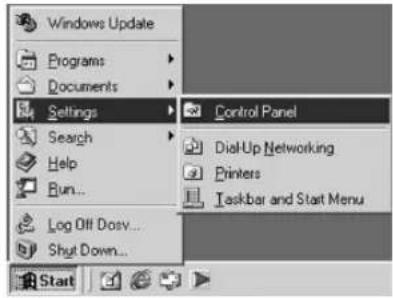
1
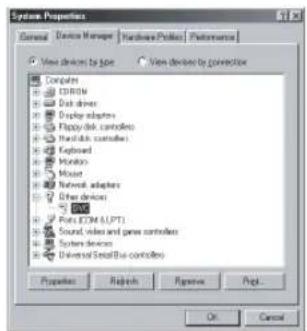
3
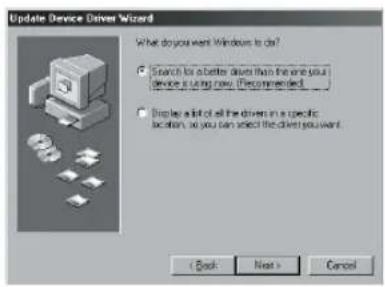
4
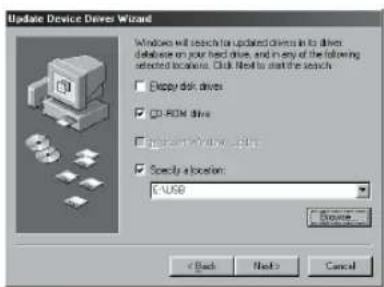
5
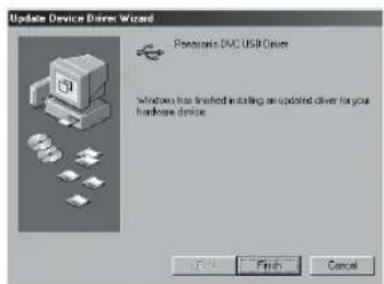
Verifying and updating driver
Windows 98 SE
Verify and update driver while Palmcorder is connected to the computer.
Verifying driver
(Palmcorder must be connected to computer.)
1 Select [Start] >> [Settings] >> [Control Panel], double click [System] select device driver tab, verify [Panasonic DVC USB Driver] and [Panasonic DVC Port Driver] are displayed in [Universal Serial Bus controllers] of [Device Manager]. If [DVC] is displayed in [Other devices] of [Device Manager] tab, we recommend updating the driver by following the steps below:
Updating driver
1 Select [DVC] in [Other devices] of [Device Manager] and click [Properties]. 2 Select [Driver] and click [Update Driver]. 3 Select [Search for a better driver than the one your device is using now (Recommended)] and click [Next]. 4 Select [Specify a location], refer to the location of the driver and the driver file name, click [Next].
- Location of the driver (folder) varies depending on the computer used. (e.g.: C:\WINDOWS\INF\MTUSDV98.INF)
When the dialog box to finish appears, click [Finish].
- Driver update is complete.
1,1
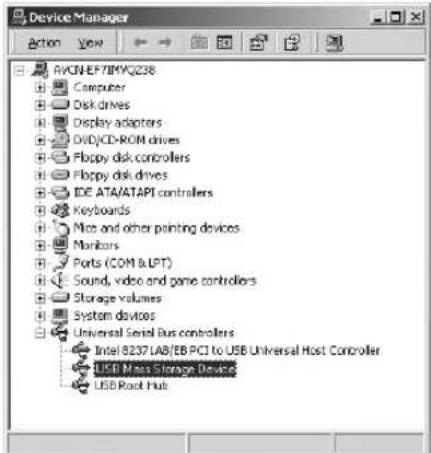
2
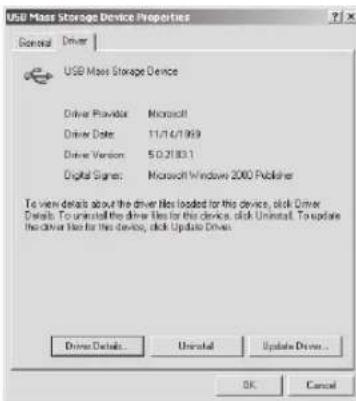
3
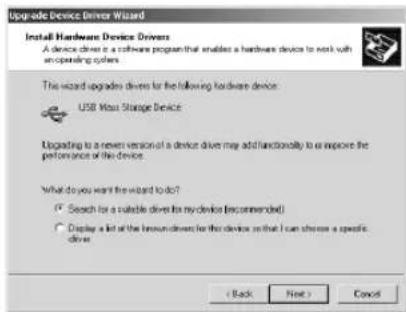
4
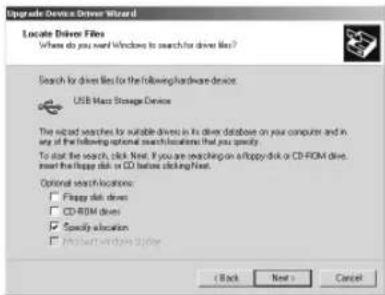
Windows 2000 Professional
Verify and update driver while Palmcorder is connected to the computer.
Verify driver
(Palmcorder must be connected to computer.)
1 Select [Start] >> [Settings] >> [Control Panel], double click [System] Hardware tab, [Device Manager]. Verify [Panasonic DVC USB Driver] and [USB Root Hub] in [Universal Serial Bus controllers] of [Device Manager] of [Hardware].
- If [USB Mass Storage Device] is shown in [Universal Serial Bus controllers] of [Device Manager] tab, we recommend updating the driver as described below to Panasonic DVC USB Driver.
Updating driver
1 Click [USB Mass Storage Device] of [Device Manager]. 2 Select [Driver] and click [Update Driver] 3 Select [Search for a suitable driver for my device (recommended)] and click [Next]. 4 Select [Specify a location], refer to the location of the driver and the driver file name, click [Next].
- Location of the driver (folder) varies depending on the computer used. (e.g.: C:\WINDOWS\INF\MTUSDV2K.INF)
When the dialog box to finish appears, click [Finish].
- Driver update is complete.
1,1
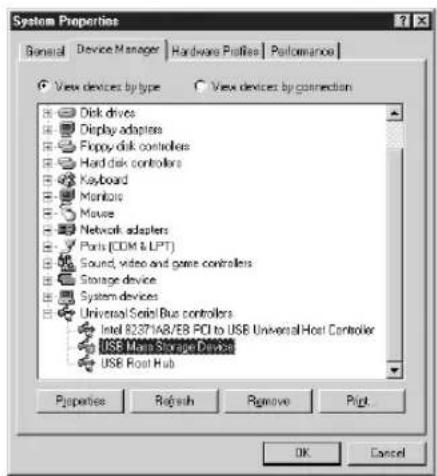
2
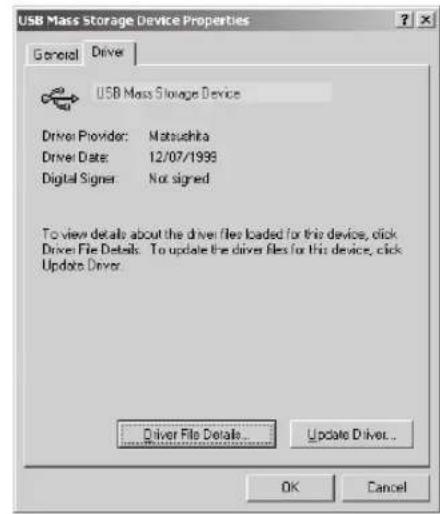
3
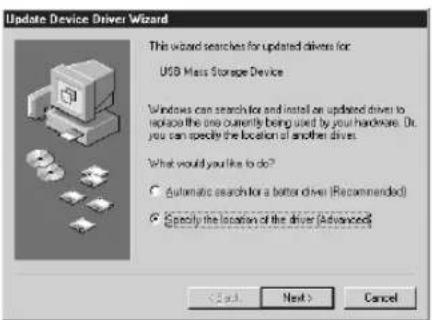
Windows Me
Verify and update driver while Palmcorder is connected to the computer.
Verifying driver
(Palmcorder must be connected to computer.)
1 Select [Start] >> [Settings] >> [Control Panel], double click [System], Device Manager tab and verify [Panasonic DVC USB Driver] is displayed in [Universal Serial Bus controllers] of [Device Manager].
- If [USB Mass Storage Device] is displayed in [Universal Serial Bus controllers] of [Device Manager] tab, we recommend updating the driver by following the steps below.
Updating driver
1 Select [USB Mass Storage Device] in [Universal Serial Bus controllers] of [Device Manager] and click [Properties]. 2 Select [Driver] and click [Update Driver]. 3 Select [Specify the location of the driver (Advanced)] and click [Next]. 4 Select [Specify a location] in [Search for a better driver than the one your device is using now. (Recommended)], refer to the location of the driver and the driver file name, click [Next].
- Location of the driver (folder) varies depending on the computer used.
(e.g.: C:\WINDOWS\INF\MTUSDVME.INF)
When the dialog box to finish appears, click [Finish].
- Driver update is complete.
1
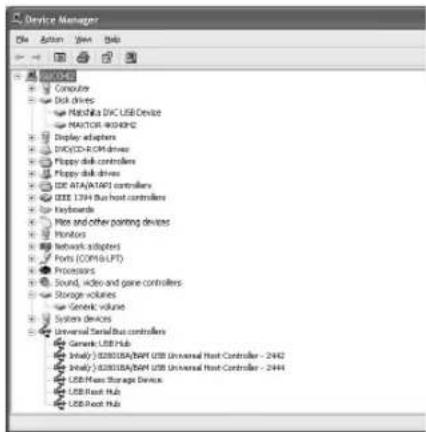
Windows XP
Verify the driver while Palmcorder is connected to the computer.
Verifying driver
(Palmcorder must be connected to computer)
1 Select [Start] >> [Control Panel] >> [Performance and Maintenance], double click [System], Hardware tab, Device Manager.
Please make sure that you can see the following drivers that come with Windows.
- Matsushita DVC USB Device
- Generic Volume
- USB Mass Storage Device
Uninstalling Application Software
1 Click [Start] >> [Settings] >> [Control Panel]. 2 Double Click [Add/Remove Programs] in [Control Panel]. 3 Select the application software you want to remove.
Uninstalling Application Software (Windows XP)
1 Click [Start] >> [Control Panel] >> [Pick a Category]. 2 Click [Add or Remove Programs] in [Pick a Category]. 3 Select the application software you want to remove.
Uninstalling ArcSoft Software
1. Select [ArcSoft Software].
Uninstalling USB driver
1. Select [USB Driver for Panasonic DVC].
Uninstalling steps may vary depending on the computer's operating system (OS).
Please refer to the user manual of your computer's operating system (OS).
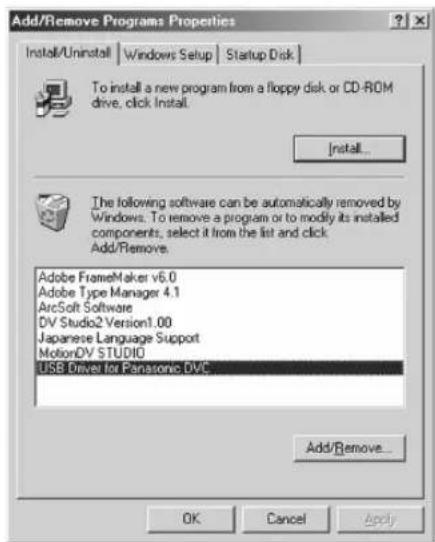
Notes
- Do not disconnect the USB connection cable while the operation light of the Palmcorder is on. It may freeze the software or destroy the data in transfer. Please refer to the user manual of the Palmcorder.
- We recommend using the AC adapter as the power source for the Palmcorder when using the USB Connection Kit. Data may be lost if the battery power is lost while transferring data. G726 may not recognize memory card files not created by the Palmcorder.
- Do not delete the folders in the memory card such as picture folder, DPOF folder, title folder, etc. The memory card may not be recognized if folders are deleted.
About the SD Memory Card and MultiMediaCard
SD Memory Card
The SD Memory Card (supplied) is virtually the same size as a MultiMediaCard. It is an external memory card that is available in larger capacities. It has a write protect switch to prevent data writing and card formatting, as well as a copyright protection function.
- SD Logo is a trademark.
MultiMediaCard
The MultiMediaCard is a compact, lightweight and removable external memory card.
- All other company and product names in the operating instructions are trademarks or registered trademarks of their respective corporations.
Files recorded on a SD Memory Card or MultiMediaCard
It may not be possible to play back the files on this Palmcorder recorded on and created by other equipment or vice versa. For this reason, check the compatibility of the equipment in advance.
About the compatibility of the card files
Data files recorded on an "SD Memory Card" or a "MultiMediaCard" by this Palmcorder conform with DCF (Design Rules for Camera Files Systems universal standard) established by JEITA (Japan Electronics and Information Technology Industries Association).
- If you attempt to play back files recorded with this Palmcorder in other equipment or to play back files recorded with other equipment in this Palmcorder, you may not be able to play them back. Please check the compatibility with the other equipment in advance.
About the folder structure when using the Memory Card in a personal computer
- When a Card with data recorded on it is inserted into a personal computer, folders will be displayed as in the figure.


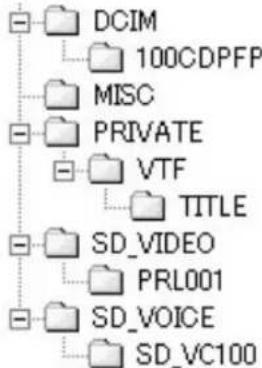
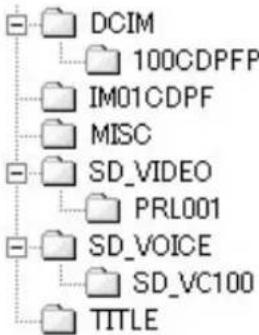
[100CDPFP]: The images (Imga0001.jpg, etc.) in this folder are recorded in the JPEG format.
[MISC]: Files in which DPOF Data has been set to the image are in this.
[TITLE]: This contains the data of the original titles (Usr00001.ttl, etc.).
[PRL001]: MPEG4 moving picture is recorded in ASF format (MOL001.ASF etc.). It can be played back with Windows Media Player (ver.6.4 and later). Because of their small size, these files are well suited for transmitting data through telephone lines etc.. To play back a moving picture with Windows Media Player, select a file and double click. Necessary software is automatically downloaded and starts playing back. (Internet connection is required).
- [DCIM], [IM01CDPF], [PRIVATE], [VTF], [SDVIDEO], [SD_VOIDE] etc. are necessary items in the folder structure. They have nothing to do with actual operations. In the Card Mode, the Palmcorder automatically saves file numbers (lmga0001.jpg, etc.) along with the images. The file numbers are recorded with each image as consecutive numbers.
- In the [SD_VC100] folder, the Voice data (MOB001.vm1 etc.) is recorded. It, however, cannot be played back on a Personal Computer.
- The [SD_VOID] folder and the Voice files in the folder are set as hidden. Depending on the settings of your personal computer, this hidden folder and these hidden files might not appear in Windows Explorer or the "My Computer" screen. The memory capacity indicated on the SD Card label corresponds to the total card capacity. Some of this capacity is used to protect and manage the copyright data, and not all capacity is available as a conventional memory for a Palmcorder, Personal Computer or others. Capacity that can be used as conventional memory: 16 MB Card: about 14,900,000 bytes
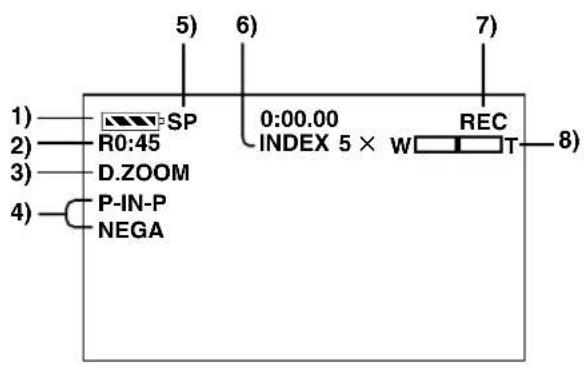
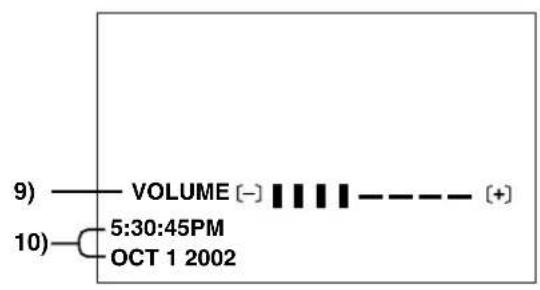
Others
Indications
Various functions and Palmcorder conditions are displayed on the screen.
1) Remaining Battery Power [ ]
- When the battery power becomes low, the indication changes. When the battery is discharged completely, the indication flashes.
- When you are using the AC Adaptor, the indication may appear, however, this has no meaning in this case.
2) Remaining Tape Time [R0:00]
- Remaining tape time is indicated in minutes. When it reaches less than 3 minutes, the indication starts flashing.
3) Digital Zoom [D.ZOOM] (→ 23)
Playback Zoom [ZOOM 5×] (→ 34)
4) Digital Effects Function
- MULTI: Multi-Picture Mode (→ 30, 34) - P-IN-P: Picture-in-Picture Mode (→ 30) - WIPE: Wipe Mode (→ 29, 34) - MIX: Mix Mode (→ 29, 34) - STROBE: Strobe Mode (→ 29, 34) - GAIN-UP: Gain-up Mode (→ 29) - TRAIL: Trailing Effect Mode (→ 29, 34) - MOSAIC: Mosaic Mode (→ 29, 34) - MIRROR: Mirror Mode (→ 29, 34) - NEGA: Negative Mode (→ 29, 34) - SEPIA: Sepia Mode (→ 29, 34) - MONO: Black & White Mode (→ 29, 34) - SOLARI: Solarization Mode (→ 29, 34)
5) Recording Speed Selector
- SP: Standard Play Mode (→ 20) - LP: Long Play Mode (→ 20)
6) Index
For several seconds while index signals are being recorded, the [INDEX] Indication flashes. (→ 33) Search Number [S1] (→ 33) The figure indicates which number of scenes ahead from the present scene is to be played back.
7) Tape Run Indications
REC: Recording (→ 21) - PAUSE: Recording Paused (→ 21) - >: Playback/Camera Search in forward direction (→ 31) • ◄: Camera Search in reverse direction (→ 31) Still Playback (→ 32) Fast-forward/Cue Playback (→ 31) • ◄: Rewind/Review Playback (→ 31) Slow Playback in forward direction (→ 32) • ◄: Slow Playback in reverse direction (→ 32) -11>: Still Advance Playback in forward direction (→ 32) Still Advance Playback in reverse direction (→ 32) - Index Search in forward direction (→ 33) Index Search in reverse direction (→ 33) - CHK: Recording Check (→ 21) A.DUB ►: Audio Dubbing (→ 36) A.DUB II: Audio Dubbing Pause (→ 36) - PHOTO: Photo Shot Mode Recording (→ 22) BLANK: Blank Search (→ 32) R: Repeat Playback (→ 31) -2×▷▷: Variable Speed Search (→ 31)
8) Zoom Magnification
- When the [W/T] Zoom Lever is pushed up or down, the Zoom Magnification Indication and Zoom Gauge appear. (→ 22, 23)
9) Sound Volume
- Use this indication to adjust the volume of playback sound from the built-in speaker or headphones. (→ 31)
10) Date/Time Indication (→ 20, 60)
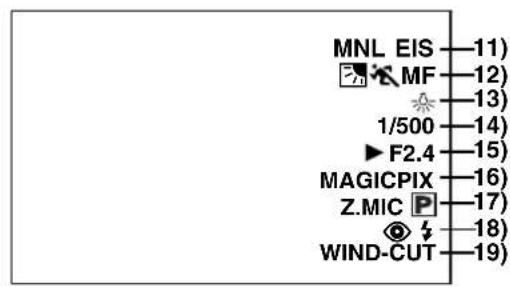
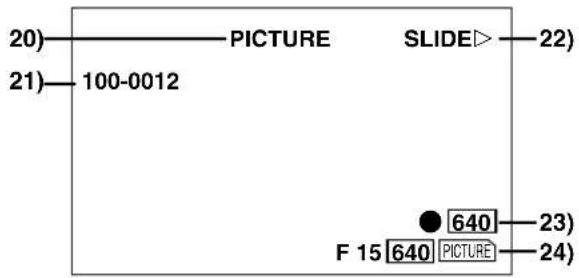
11) Recording Mode
- AUTO: This appears when Mode Selector Switch is set to [AUTO]. (→ 21)
- MNL: This appears when Mode Selector Switch is set to [MANUAL]. (→ 25, 26, 27)
Electronic Image Stabilizer [EIS] (→ 23)
1.5 Times Tele Jump Zoom Function [JU22]
Audio Dubbing Input Display [MIC/AV IN] (→ 36)
Audio Recording Mode [12bit/16bit] (→ 20)
12) Manual Focus [MF] (→ 26)
Backlight Mode [2] (→ 24)
Program AE Mode
Sports Mode (→ 25) - Portrait Mode (→ 25) Low Light Mode (→ 25) - Spotlight Mode (→ 25) Surf & Snow Mode (→ 25)
17) Zoom Microphone [Z.MIC] (→ 22) Progressive PhotoShot™ Mode [P] (→ 22)
18) Red Eye Reduction [@] (→ 28) Flash [♀] (→ 28)
19) Wind Noise Reduction [WIND-CUT] (→ 25)
20) File Type Display [PICTURE/MPEG4/VOICE/TITLE] (→ 40, 43)
21) Folder-File Number (→ 40)
22) Card File Indications 1 (CARD P.B. Mode)
-SLIDE>: Slide Show Playback (→ 42) - SLIDEII: Slide Show Playback Pause (→ 42) M.SLIDE>: Manual Slide Show Playback (→ 42) M.SLIDEII: Manual Slide Show Playback Pause (→ 42)
23) Card File Indications 2 (CARD P.B. Mode)
Image size [640/1280] (→ 37, 40)
When you playback a scene recorded on a Palmcorder with a picture size specification different from the one stated above, the following indications should be displayed. If the size of the picture is from 640 pixels to 800 horizontal pixels, the [640] Indication will be displayed; if picture size is 640 pixels or lower, the scene should be displayed without any indication of picture size.
- 1280|1280×960| Image size
- [640]: [640×480] Image size SVGA: from 800 to 1024 pixels XGA: from 1024 to 1280 pixels SXGA: from 1280 to 1600 pixels UXGA: from 1600 to 2048 pixels QXGA: 2048
Number set DPOF [00] (→ 45)
DPOF setting & Slide Show
- (White): DPOF Setting completed (set to 1 or more pictures) (→ 45) • (Green): Slide Show Settings completed (→ 42) • (Blue): DPOF Setting (set to 1 or more pictures) / Slide Show Settings both completed (→ 42, 45)
24) Card File Indications 3 (Camera Mode)
- Card PhotoShot picture quality [F/N/E] (→ 38) (Card PhotoShot Recording) [F] is Fine, [N] is Normal, [E] is Economy in abbreviated terms.
- Remaining number of Card PhotoShot Pictures [000] (→ 37)
- Recording in Card PhotoShot [PICTURE] (red) (→ 37)
- Recording the Moving Picture [MPEG4] (red) (→ 39)
- Recording Voice [VOICE] (red) (→ 39)
- Memory Card is not inserted [PICTURE (MPEG4, VOICE)] (flashing in red) (→ 37)
- Card PhotoShot is ready to record [PICTURE (MPEG4, VOICE)] (cyan) (→ 37)
- File number [No.000] (→ 40)
- Lock setting 0 - π
Changing the Counter Display Mode
By changing [C.DISPLAY] on the [DISPLAY SETUP] Sub-Menu, you can change the Counter Display Mode to Tape Counter Indication (0:00.00), Memory Counter Indication (M0:00.00), and Time Code Indication (Oh00m00s00f).
- You can also press the [COUNTER] Button of the Remote Controller repeatedly to change the Counter Indication.
Displaying Date/Time Indication
To display Date/Time Indication, set the appropriate date/time in [DATE/TIME] on the [DISPLAY SETUP] Sub-Menu.
- You can also press the [DATE/TIME] Button on the Remote Controller repeatedly to display or change the Date/Time Indication.
Changing the Display Mode
By changing [DISPLAY] on the [DISPLAY SETUP] Sub-Menu, Counter Display Mode changes to All Function Display, Partial Display, and Minimum Display.
Warning/Alarm Indications
If any one of the following indications lights up or flashes, please check the condition of the Palmcorder.
EJECT TAPE: After the [DEW DETECTED] Indication appears, eject the Cassette.
CHECK REC TAB: The erasure prevention tab on the inserted Cassette is open (that is, set to [SAVE]).
When you are attempting to do audio dubbing on the unrecorded (blank) portion of the tape, or you are attempting to do dubbing on the Cassette whose tab is set at [SAVE]. (→ 36, 47)
TAPE NOT INSERTED: No Cassette is inserted. (→ 14)
LOW BATTERY: The Battery is low. Recharge it. (→ 12)
The internal lithium battery is low. (→ 20)
END/TAPE END: The tape ended during recording. REMOTE/
CHECK REMOTE MODE: Wrong Remote Controller Mode has been selected. (→ 11)
CANNOT REC LP-MODE: Because the original recording was done in LP Mode, audio dubbing cannot be performed. (→ 36)
INCOMPATIBLE DATA: This Cassette is incompatible or contains copy-guard. Because the medium is protected by a copy guard, images cannot be recorded correctly.
If this Indication appears, return the LCD Monitor to the original position in order to check the specific content of the Warning/Alarm Indication.
AV INPUT RECORDING:
When you are attempting to record on the Memory Card during dubbing (→ 47) on the Cassette.
NO CARD: There is no Memory Card inserted.
PLEASE WAIT: When reading of the Memory Card (playback, format, when using the Multi-Picture Function). (→ 40, 45)
CARD ERROR: The Memory Card is not compatible with the Palmcorder.
CHECK SELECT SWITCH:
With the combination of modes set with the [TAPE/CARD/ CARD MODE] Selector, this Indication appears.
Pressing the Recording Start/Stop Button with [CARD] and [STILL] in Camera Mode.
Pressing the PhotoShot Button with [CARD] and [MPEG4] or [VOICE] in Camera Mode.
Pressing the PhotoShot Button with [TAPE] and [STILL] in VCR Mode. Pressing the Recording Start/Stop Button with [TAPE] and [MPEG4] in VCR Mode.
Pressing the PhotoShot Button with [CARD] and [STILL] in Card Playback Mode.
FILE LOCKED: When you are attempting to delete a locked picture. The locked picture cannot be deleted.
WRITE PROTECTED: When you are attempting to write the data on an SD Memory Card whose write protection switch is set at [LOCK].
NO PICTURE: There are no pictures in the Memory Card.
NO MPEG4 DATA: There are no moving pictures in the Memory Card.
NO VOICE DATA: There are no voice data in the Memory Card.
NO TITLE: There are no titles in the Memory Card.
NO SPACE LEFT: Card does not have sufficient memory remaining. Select Card Mode and delete unnecessary files.
X: You are attempting to play back a data which is not compatible with this Palmcorder. (→ 40)
DEW DETECTED: Condensation has occurred. (→ 68) NEED HEAD CLEANING: The video heads are dirty. (→ 68)
PUSH THE RESET SWITCH:
Irregular mechanism is detected. Press the [RESET] Button.
This may solve the problem. You are attempting to record to a Memory Card formatted with other equipment (like a Personal Computer). Format the Memory Card with this equipment.
NEEDS TO BE SERVICED:
First disconnect the power supply and request service.
Notes & Precautions
Power-Related Item (Section 12)
- When the Palmcorder is used for a long time, the Camera body becomes warm, but this is not a malfunction.
- If the [CHARGE] Lamp does not light up, although the Battery is attached to the AC Adaptor, detach the Battery and reattach it.
Inserting/Ejecting the Cassette (Section 14)
In the case of using a previously recorded Cassette, you can use the Camera Search Function to find the position where you want to continue recording. - If a new Cassette is inserted, rewind to the beginning of the tape before starting to record.
If the Cassette Holder Does Not Go Back in:
- Press the [PUSH CLOSE] mark and close the Upper Cassette Compartment Cover firmly.
- Turn off the Palmcorder and then turn it on again.
- Check if the Battery charge is low.
If the Cassette Holder Does Not Come Out:
- Close the Lower Cassette Compartment Cover completely. Then, open it again.
- Check if the Battery is weak.
Alarm Sounds
When [BEEP] on the [OTHER FUNCTIONS] Sub-Menu on the [CAMERA FUNCTIONS] Main-Menu is set to [ON], confirmation/alarm beeps are issued as follows.
1 Beep - When you start recording - When you switch the [OFF/ON/MODE] Switch from [OFF] to [ON] 2 Beeps - When you pause recording 10 Beeps - If you perform a wrong operation before or during recording
- Before turning on the Palmcorder, remove the Lens Cap. If the lens cap is still attached when the Palmcorder is turned on, Automatic White Balance Adjustment may not function correctly.
Recording Check (→ 21)
- For recording check, the Palmcorder must be the same as the recording speed Modes (SP/LP) used for the recording. Otherwise the playback images will be distorted.
Camera Search (→ 21)
- In Camera Search Mode, images may contain mosaic-like noise patterns. This is a phenomenon that is characteristic of digital video and not a malfunction.
- If the recording speed Modes (SP/LP) of previous recording and new recording are different, playback images may be distorted.
Progressive PhotoShot™ Function (→ 22)
- The still pictures are recorded at a slightly rewind point from where you press the [PHOTO SHOT] Button.
- When you change to the still picture Mode, you will hear a click. This is the sound of the iris closing and not an indication of malfunction.
- If you record still pictures in Progressive PhotoShot™ Mode when your Palmcorder is set to Program AE, the brightness of the images may vary. The picture may be blurred when recording a scene with many horizontal lines or fine patterns.
- Using the MagicPix Function or the 1.5 Times Tele Jump Zoom Function cancels the Progressive PhotoShot™ Function.
About [PROGRESSIVE] Setting
- When the [PROGRESSIVE] indication is displayed, you can use the Progressive PhotoShot Function.
When [PROGRESSIVE] is set to [ON]:
You can use the Progressive PhotoShot Function at any time. In this case, however, the following functions are disabled.
[EFFECT1] Digital Effect Modes - Digital Zoom [D.ZOOM] 1/750 or faster shutter speed - Continuous PhotoShot Function
When [PROGRESSIVE] is set to [AUTO]
You cannot use the Progressive PhotoShot Function in the following circumstances.
- When the zoom magnification is approximately 10x or higher
- When the shutter speed is 1/750 or faster
- When [EFFECT1] is set to [WIPE], [MIX], [STROBE], [GAIN-UP], [TRAIL], [MOSAIC], [MIRROR]
- When the pictures are displayed on a Multi screen
- Continuous PhotoShot Function
Zoom In/Out Functions 22, 23)
- By pressing the [W/T] zoom lever to [W] or to [T] in Recording Pause Mode, you can zoom 1 - 10x at the maximum speed of 0.3 seconds.
- During recording, you can zoom 1 - 10x in as short a time as approximately 0.8 seconds.
- During considerably fast zooming, the image may become out of focus temporarily.
- When you are using a high amount of zoom, a sharper focus is achieved if the recording subject is approximately 4 feet (1.2 m) or more away from the Palmcorder.
1.5 Times Tele Jump Zoom Function (→ 22)
- You cannot use the 1.5 Times Tele Jump Zoom Function in the Card Mode.
- Operating the [OFF/ON/MODE] Switch cancels the 1.5 Times Tele Jump Zoom Function.
Zoom Microphone Function (→ 22)
The Zoom Microphone Function may not work effectively if the surrounding noise is too loud. - When the [TAPE/CARD/CARD MODE] Selector is set to [CARD], the Zoom Microphone Function does not work. The Zoom Microphone Function is also applied for the 1.5 Times Tele Jump Zoom Function.
Digital Zoom Function (23)
- As the magnification of digital zoom increases, the quality of image may deteriorate.
- White balance cannot be set in the digital zoom range.
Electronic Image Stabilizer Function (→ 23)
- Under conditions of dim lighting, the Electronic Image Stabilizer Function will not operate correctly. In such a case, the [EIS] Indication will flash.
- Under fluorescent lighting, image brightness may change or colors may not look natural. After-images may appear.
- We recommend that you turn off the Image Stabilizer function when a Tripod is in use.
- By setting [EFFECT1] on the [DIGITAL EFFECT] Sub-Menu to [GAIN-UP], you can disable the Image Stabilizer function. In this Case, the [EIS] Indication flashes.
- The Image Stabilizer Function does not operate when using MagicPix. In this case, the [EIS] Indication flashes.
Fade In/Out Mode → 23)
- Fading-in and fading-out cannot be used when recording still pictures in the PhotoShot Mode, Digital Still picture Mode, Multi-Picture Mode, and for the small still picture in the Picture-in-Picture Mode.
Cinema Function (24)
- Using the Cinema function does not widen the recording angle.
- If you play back tape recorded in Cinema Mode on a wide-screen (16:9) format TV, playback size is automatically adjusted to fit the TV screen format. Please refer to the TV's operating instructions for details.
- When images are displayed on a TV screen, the Date/Time Indication may be erased in some cases. Depending on the TV, the picture quality may be deteriorated. The Cinema Mode is cancelled when a Title is displayed.
MagicPix Function → 24)
The recorded picture is presented in a time-lapse-like manner because of the slow shutter speed of 1/2 second. - Focusing must be adjusted manually. - Use this function only in situations where there is limited light. Do not use it in brightly lit places or aim at the sun. The Palmcorder will be seriously damaged. The Progressive Function is automatically turned off. The Continuous PhotoShot Function cannot be used. - White Balance cannot be set. - The shutter speed cannot be adjusted. The Program AE or Digital Effect Modes in [EFFECT 1] cannot be set. The Image Stabilizer does not function. - When recording with the MagicPix Function, it is recommended to use a tripod. - When using the Card PhotoShot Function, the [PICTURE SIZE] on the [CARD SETUP] Sub-Menu will automatically set to [640×480].
Quick Start (25)
- This Function is not activated in the following cases even if the Quick Start Recording Lamp lights:
- A tape is not inserted, while the Tape Mode is set.
- A Card is not inserted, while the Card Mode is set.
- In the following cases, Quick Start is temporarily cancelled when the Quick Start Mode is set. Set the Camera Mode again, and the Quick Start Mode will be restored.
- Set to the VCR Mode or Card Playback Mode
The Battery is replaced
- If the [QUICK START] Button is pressed and held for approximately 2 seconds during the Quick Start Standby Mode, the Lamp will go off and the Palmcorder will turn off.
- If the Palmcorder is not operated for approximately 30 minutes when the Quick Start Recording Lamp lights, the Lamp will go off and the Palmcorder will turn off.
- In the Automatic White Balance Mode, the color may be recorded unnaturally at the beginning of the recording.
- The zoom magnification differs from when it is in the Quick Start Standby Mode and when the recording starts.
Wind Noise Reduction Function (25)
- It does not work with an external microphone.
- When it is set to [ON], directivity of microphone is regulated depending on the strength of wind to reduce wind noise.
If any of the Program AE Modes is selected, you cannot adjust the shutter speed or iris. - You cannot use Program AE with Gain-up Mode [GAIN-UP].
Sports Mode
- During normal playback, the image movement may not appear smooth.
- Because the color and brightness of the playback image may change, avoid recording under fluorescent light, mercury light, or sodium light.
- If you record a subject illuminated with strong light or a highly reflective subject, vertical lines of light may appear. If the light is insufficient, the indication flashes.
Sports Mode/Portrait Mode
- If you record a still picture in Progressive PhotoShot Mode, the brightness of the recorded still picture may become unstable.
- If these modes are used for indoor recording, playback images may flicker.
- When using this mode, using the MagicPix Function cancels this mode.
Low Light Mode
- Extremely dark scenes may not be able to be made brighter to a satisfactory degree.
Spotlight Mode
- With this Mode, recorded images may turn out to be extremely dark. If the recording subject is extremely bright, its recorded image may turn out to be whitish.
Surf & Snow Mode
If the recording subject is extremely bright, its recorded image may turn out to be whitish.
Manual Shutter Speed Adjustment (→ 26)
- You may see vertical lines of light in the playback image of a brightly shining subject or highly reflective subject.
- During Normal Playback, transition from one scene to another may not appear smooth.
- Because the color and brightness of the playback image may become unstable, avoid recording under fluorescent light, mercury light, or sodium light.
- If you are using either Gain-up Mode or Program AE Mode, you cannot adjust the shutter speed. If the shutter speed is adjusted manually, this setting will be cancelled.
Manual Iris Adjustment (→ 26)
Depending on zoom magnification, the iris value may not be displayed correctly. If you are using either Gain-up Mode or Program AE Mode, you cannot adjust the iris. - If you attempt to adjust the Shutter Speed after setting the Iris, the value set for the Iris will be cancelled.
White Balance (→ 27)
In the following cases, you cannot change White
Balance:
- When you set [EFFECT1] of [DIGITAL EFFECT] Sub-Menu on the [CAMERA FUNCTIONS] Main-Menu to [GAIN-UP] or [EFFECT2] to [SEPIA] or to [MONO].
- When you set the Zoom to 10× or higher.
- During Digital Still Picture Mode.
- When you display a Menu.
- When you use the MagicPix.
In the following cases, the [◄] indication flashes:
The flashing indicates that the previously adjusted White Balance setting is still kept. This setting will be kept until White Balance is adjusted again. - You may not be able to achieve correct White Balance adjustment manually under weak illumination.
Using the Free Angle Flash (→ 28)
The available range of the Flash is approximately 3 to 7.5 feet (1 to 2.5 metres) in dark places. Pictures will appear dark when they are recorded by using the Flash at distances greater than 7.5 feet (2.5 metres). - Using the Flash may enable you to record still pictures farther than 7.5 feet (2.5 metres) in a dark place. The available range is approximately 3 to 12 feet (1 to 4 metres). - Subject may appear dark if Flash is lit in front of white background. - Tele Conversion Lens (optional) or Wide Conversion Lens (optional) can block flash light and may cause a vignetting effect. - Even if the [RED EYE REDUCTION] is set to [ON], you still may get "red eyes phenomenon" depending on recording conditions. - The Palmcorder, even when its Flash has been turned off, automatically determines whether the flash light is necessary or not by detecting the ambient brightness. (If it determines that the flash light is necessary, the yellow indicator [‡], [‡ +] or [‡ -] flashes.) - When the [P-IN-P] Button is pressed or Title is created, Flash is also lit. - Continuous PhotoShot is not possible if the Flash is used. - When the [FLASH] on the [RECORDING SETUP] Sub-Menu is set to [AUTO] and the Shutter Speed, Iris or Gain is adjusted, the Indication (either [4], [4 +] or [4 -]) may disappear and the Flash may not light.
- Using the Flash outdoors, with backlight, or in other bright conditions may result in white blotches (colour blotches) on the pictures.
- Under backlit conditions, either adjust the iris manually, or use the Backlight Compensation Function.
Digital Effect Functions (Camera Mode)
(→ 29)
- It is not possible to use [MULTI], [P-IN-P], [WIPE], [MIX] or [TRAIL] of [EFFECT1] together with the digital modes of [EFFECT2] on the [DIGITAL EFFECT] Sub-Menu.
- If you set [EFFECT1] on [DIGITAL EFFECT] Sub-Menu to [GAIN-UP], you need to adjust the focus manually. However, you cannot adjust the shutter speed and cannot select White Balance.
- If [EFFECT2] on the [DIGITAL EFFECT] Sub-Menu is set to [MONO] or [SEPIA], the selected White Balance Mode cannot be changed.
- You cannot use Program AE with Gain-up Mode [GAIN-UP].
- When [PROGRESSIVE] on the [CAMERA SETUP] Sub-Menus is set to [ON], it is not possible to use any of the digital modes in [EFFECT1] on the [DIGITAL EFFECT] Sub-Menus.
- Setting the Cinema Mode cancels the Picture-in Picture Mode and the Multi-Picture Mode.
Wipe Mode and Mix Mode (→ 29)
If either one of the following operations is carried out, stored images will be erased, and Wipe and Mix Functions cannot be used.
- Use the Camera Search Function
- Press the [CAMERA STILL] Button.
- Switch the [TAPE/CARD/CARD MODE] Selector.
Multi-Picture Mode (→ 30)
- When [PROGRESSIVE] on the [CAMERA SETUP] Sub-Menus is [ON], Multi-Picture Mode cannot be used.
- If the [MULTI] Button is pressed while self-recording Mirror mode (→ 21) is used, the still picture is displayed from the upper right corner of the screen, but in reality, the picture is recorded from the upper left corner as usual.
The quality of images recorded in Multi Mode deteriorates slightly.
- Multi Mode cannot be used in still picture mode. The top and bottom of the Multi pictures will be cut off slightly.
P-IN-P Mode (→ 30)
- If the Palmcorder power is turned off, the smaller picture will disappear.
- A title cannot be inserted into the smaller picture.
■ Listening to Playback Sound Through Headphones (→ 31)
If you want to listen to the playback sound of a tape through headphones, set [AV JACK] on the [AV IN/OUT SETUP] Sub-Menu to [OUT/PHONES] and connect the headphones to the [PHONES] Jack on this Palmcorder. In this case, no sound (including warning sounds and shutter sounds) will be reproduced through the built-in speaker of the Palmcorder. When the A/V Cable is inserted into the AV Jack, the internal speaker works.
- When connecting the remote controller to the [PHONES] Socket, the Palmcorder may not operate properly.
Index Search Functions (→ 33)
- Index Search may not be possible at the beginning of tape.
- Because PhotoShot Index Signals are not recorded on still pictures recorded in Continuous PhotoShot Mode, the PhotoShot Index Search Function cannot be used for these still pictures.
- Scene Index Search may not function properly if the interval between 2 scene index signals is shorter than 1 minute.
- You cannot adjust volume with the Remote Controller in Playback Zoom Mode.
- If you turn off the Palmcorder, or if you switch from VCR Mode to Camera Mode, Playback Zoom Mode is automatically cancelled.
- Even if Playback Zoom Functions are being used, images that are output from the DV Terminal or Digital Still Picture Terminal are not enlarged.
- As you enlarge an image, the quality of image suffers.
- During the Playback Zoom Function, the Variable Speed Search Function cannot be used with the Remote Controller.
Playback Digital Effect Function (see page 34)
- Revised signals of images to which digital effects are added during playback cannot be output from the DV Terminal or Digital Still Picture Terminal.
- You cannot use the Wipe Function or Mix Function while playing back the non-recorded portion of tape.
Multi-Picture Mode (VCR Mode) (see page 35)
The quality of Multi images deteriorates slightly. - Playback multi-mode screens cannot be output through DV Terminal or Digital Still Picture Terminal. - If there is input from the DV Terminal, a multi screen cannot be created. - When signals are input from S-Video Input/Output Jack or Audio-Video Input/Output Jack, a multi screen cannot be re-displayed. - Signals input from S-Video Input/Output Jack or Audio-Video Input/Output Jack cannot be displayed on a multi screen. - If you switch the Palmcorder from the Index Multi-Picture Mode over to the Camera Mode, the setting of [SCAN MODE] on the [MULTI-PICTURES] Sub-Menu of the [CAMERA FUNCTIONS] Main-Menu is automatically set to [STROBE].
Selecting the Sound during Playback
(see pages 31, 36)
You can select the sound by using the [AUDIO OUT] on the [PLAYBACK FUNCTIONS] Sub-Menu.
STEREO: Stereo Sound (main sound and subsound)
L: Left channel sound (main sound)
R: Right channel sound (sub sound)
- If you dub a tape recorded at the [12bit] selected as the [AUDIO-REC] setting, playback sound becomes stereo sound regardless of whether [AUDIO] is set to [MIX] or to [AUDIO OUT].
Audio Dubbing* 36)
The blank section of a tape cannot be dubbed. - Sounds sent through the DV Terminal cannot be dubbed. - If a tape has a non-recorded portion when the tape is dubbed, images and sounds may be disturbed when this portion of the tape is played back. - If you set the tape counter back to 0 at the position where you want to stop Audio Dubbing so as to make it possible to use the Memory Stop function (→ 70), Audio Dubbing is terminated automatically when the tape reaches this position. - In the case of importing data recorded with Audio Dubbing to a Computer using the Computer's software program, only the original sound (ST1) may be imported, depending on the software program.
Microphone Jack
When audio dubbing is carried out through an external microphone or audio equipment, connect it to the [MIC] Jack. In this case, the built-in microphone of the Palmcorder will be turned off.
Card Function 37-45)
- Do not touch the connector terminal located on the back of the card.
- If the Card Slot Cover is open, the card cannot be accessed.
- Wide images cannot be recorded on the Memory Card.
- A card that was formatted with this Palmcorder may not be usable in other equipment. If this happens, please format the card with the equipment with which the card is to be used. Before proceeding with this operation, we suggest that you take the precautionary measure of storing important images in your personal computer.
- In the Card PhotoShot mode, the Palmcorder automatically saves the file numbers (100-0012, etc.) along with the pictures. A file number is recorded with each picture as a running number.
- If the [TAPE/CARD/CARD MODE] Selector is set to [CARD], the Palmcorder is automatically turned off when you leave it for about 5 minutes without performing any PhotoShot recording.
- When the [TAPE/CARD/CARD MODE] Selector is set to [CARD], you cannot record to the Tape.
- It is recommended to use the Lens Hood for Card Mode Recording attached as standard to record in Card Mode. It will block the direct incoming light and allows you to record more beautiful pictures.
- When the Lens Hood for Card Mode Recording is used, the lens cap cannot be fitted on it.
Card PhotoShot: 37
Sound cannot be recorded. The Shutter Effect cannot be used. The Progressive Function is set to [ON]. The shutter speed ranges from 1/30-1/500. - Mega-pixel images cannot be recorded on a cassette as a Mega-pixel picture. - A Card formatted with other equipment (like a Personal Computer) might be unusable or it might take more time for recording. We recommend that you use this equipment to format it.
The following functions are not possible.
Digital Zoom Cinema Mode Digital Effects/Functions - Title functions (When in Mega-pixel mode only)
Recording to a Card from other equipment (→ 38)
If you set the [TAPE/CARD/CARD MODE] Selector to [CARD], you can use the Card PhotoShot Function for externally input signals. (Not during recording.)
- Black streaks may appear at the four edges of the image.
- When the [PHOTO SHOT] Button is pressed, the image may seem to move backward momentarily, but this does not affect the recording. While recording with analog input, a Card PhotoShot Function cannot be used.
Recording Moving Pictures (MPEG4)
- The file format supported by this Palmcorder is ASF. (Not all the ASF formatted files will be played back.)
- [PHOTO SHOT] Button does not operate.
- When the color of the screen changes or blurs, adjust the shutter speed manually to 1/30, 1/60 or 1/100.
- The Zoom Microphone Function is disabled.
- More than 100 hours of remaining time is indicated as [R:99h59m].
- When Remaining Time Indication becomes [R:0h00m], [NO SPACE LEFT] Indication appears. Recording may not be started. The shutter speed is adjustable within the range of 1/30 to 1/500 while recording moving pictures (MPEG4). The picture size of the moving picture (MPEG4) is set to be [176×144].
- When attaching to email, we recommend the file size to be less than 1MB.
[FINE]: approximately 20 seconds [NORMAL]: approximately 1 minute
The following functions are disabled.
- 1.5 Times Tele Jump Zoom function (→ 22)
- Zoom Microphone function (→ 22)
- Digital Zoom (→ 23) • Cinema Function (→ 24)
- Digital Effect Functions (→ 29)
- Title In/Creation (→ 43) - Fade In/Out Function (→ 23)
Voice (Voice Recording Function) 39
- [PHOTO SHOT] Button does not operate. The sound is recorded in monaural, that is, mixed [L] and [R] of the stereo sound. The continuous recording time for voice depends on the capacity of the memory card. (24 hours, max.)
- More than 100 hours of remaining time is indicated as [R:99h59m].
Card Playback (→ 40)
- If a blank (nothing recorded) Card is played, the screen becomes white and the [NO PICTURE], [NO MPEG4 DATA] or [NO VOICE DATA] Indication appears depending on the mode selected.
- If you attempt to play back a file recorded in a different format or if file data is defective, the [×] Indication and the [CARD ERROR] Indication could appear as a warning.
- In the case of displaying memory images on a Multi Screen, if there are 7 or more images, they cannot be displayed all at once. Rotate the [PUSH] Dial or push the [▶▶] Button to display the next 6 still pictures.
39)
- When the pictures recorded by another Palmcorder are played back with this Palmcorder, the size of the pictures may be different from the recorded size.
- MPEG4 data or Voice data will not be output from DV Terminal.
- MPEG4 data cannot perform Cue/Review Playback, Slow Motion Playback (forward direction and reverse direction), Still Advance Playback (forward direction and reverse direction) or Jog Playback.
- During automatic copying of tape pictures onto a card, the remaining number of pictures that can still be recorded on the Card is displayed. When it becomes [0], the tape is set to the Recording Pause Mode.
- For the MPEG4 moving pictures recorded on a camera other than this camera, "×" may be displayed when they are played back. If the [▶] Button is pressed in this case, "▷" will be displayed for a few seconds and the next image will be displayed. For the still images recorded on the camera other than this camera, the mega-pixel image size may be displayed.
- If an MPEG4 motion picture is played continuously for a long time, the playback may stop in the midway and the video camera may freeze while a still picture is being displayed. If this happens, press the [RESET] button.
- When performing Cue or Review Playback of a voice data, the Playback elapsed time may not correspond to the actual recording time of the sound.
- When playing back an MPEG4 or voice data recorded by other equipment, a part of the playback elapsed time may be indicated as [-].
- Voice Power Save Function automatically shuts off the monitor to reduce the power consumption when no operation is being performed in the Voice Recording Mode. When [VOICE POWER SAVE] on the [OTHER FUNCTIONS] Menu is set to [ON], the power save function is activated, and the screen turns off in a few seconds after operations, such as play or recording are performed. The Voice Power Saving Function is cancelled when any operation is performed.
- Do not forget to turn off the power.
Copying Pictures from a Memory Card to a cassette (→ 41)
- When recording the Card Images on a Tape, a PhotoShot index signal is automatically recorded with a picture.
- Even if you edit the Slide Show, it is not applied to the order in copying the pictures.
Slide Show (→ 42)
The playback time can be set from 5 to 99 seconds. - Perform the Slide Show Settings with your own Palmcorder. Depending on the File size, playback may take longer than the set time. - When performing the preset Slide Show after the Titles are displayed, the Titles disappear.
Title Function 43)
- When the [TAPE/CARD/CARD MODE] Selector is set to [MPEG4] or [VOICE], Title Creation Function is not possible.
- If the [PICTURE SIZE] is set to [1280 × 960], titles cannot be created. Even if the contrast of the Title is adjusted, the portions where there is little difference between light and dark and where the boundary between light and dark is unclear may not appear. The Title may not appear well if something small is used for it.
- If you create an original title, the number of pictures that can be recorded on the Memory Card decreases.
- If the number of pictures that can be recorded on the Memory Card is small, you may not be able to create an original title in some cases.
- When a title is displayed in VCR Mode, the title is not output from the DV Terminal or Digital Still Picture Terminal.
- When the [TAPE/CARD/CARD MODE] Selector is set to [CARD] and [1280 × 960] is selected for [PICTURE SIZE], titles are not displayed.
- When the [TAPE/CARD/ CARD MODE] Selector is set to [MPEG4] or [VOICE], Title In Function is not possible.
DPOF setting* 45)
The number of prints can be set from 0 to 99. - Perform DPOF setting on the Palmcorder you are using. It may take some time to verify the DPOF setting. Please wait until the [ACCESS] Lamp goes off.
Using your Palmcorder with Digital Video equipment (Dubbing) (→ 47)
- Regardless of the setting, dubbing is carried out automatically in the same audio recording mode as that of the cassette in the playback-side equipment. The images on the monitor of the recording side may be disturbed, but this does not affect the recorded images. Even if Playback Digital Effects, Playback Zoom, or Playback Title In have been used, these effects are not output from the DV Terminal. Even if you use a device with DV Terminals (such as i.LINK), you may not be able to perform digital dubbing in some cases.
- Date or other information to be displayed cannot be displayed if the software of the connected equipment does not support the display function.
Using a Card in a Personal Computer
To erase pictures that you recorded on the Card by using the Palmcorder, be sure to erase them on the Palmcorder, not on the computer. - You may not be able to properly play back or search the images on the Palmcorder after editing the recorded data or changing the image data on a personal computer.
Cautions for Use
After Use
1 Take out the Cassette. (→ 14) 2 Set the [OFF/ON/MODE] Switch to [OFF]. (→ 15) 3 Detach the Power Source and retract the Viewfinder. (→ 12) 4 To protect the Lens, attach the supplied Lens Cap. (→ 13)
Tips for using your Palmcorder
When you use your Palmcorder on a rainy or snowy day or on a beach, make sure that no water enters the Palmcorder.
Water may cause the Palmcorder or Cassette to malfunction. (Irreparable damage may occur.) - If sea water splashes onto the Palmcorder, wet a soft cloth with tap water, wring it well, and use it to wipe the Palmcorder body carefully. Then, wipe it again thoroughly with a soft dry cloth.
Keep the Palmcorder away from magnetically charged equipment (such as a TV, game equipment, etc.)
If you use the Palmcorder near a TV, images or sounds may be disturbed due to electromagnetic wave radiation.
- If you use the Palmcorder near a TV, images or sounds may be disturbed due to electromagnetic wave radiation.
- Do not use near a cell phone because doing so may cause noise that adversely affects the picture and sound.
- Due to strong magnetic fields created by speakers or large motors, recording on the tape may be damaged, or images may be distorted. Electromagnetic wave radiation generated by a microprocessor may adversely affect the Palmcorder, causing the disturbance of images and sounds.
- If the Palmcorder is affected by magnetically charged equipment and does not function properly, turn off the Palmcorder power and detach the Battery or AC Adaptor, then connect the Battery or AC Adaptor again. Thereafter, turn on the Palmcorder power.
Do not use your Palmcorder near radio transmitters or high-voltage lines.
- If you record pictures near radio transmitters or high-voltage lines, recorded images or sounds may be adversely affected.
Do not use this Palmcorder for surveillance purposes or other business use.
- If you use the Palmcorder for a long period of time, the internal temperature increases and, consequently, this may cause malfunction.
- This Palmcorder is not intended for industrial use.
When you use your Palmcorder on a beach or similar place, do not let sand or fine dust get into the Palmcorder.
- Sand or dust may damage the Palmcorder or Cassette. (Care should be taken when inserting and removing the Cassette.)
Do not spray insecticides or volatile chemicals onto the Palmcorder.
- If the Palmcorder is sprayed with such chemicals, the Palmcorder body may deform and the surface finish may peel off.
- Do not keep a rubber or plastic product in contact with the Palmcorder for a long period of time.
When cleaning the Palmcorder, do not use any solvent, such as benzine, alcohol, thinner, etc.
The Palmcorder body may become damaged and the surface finish may peel off. Before cleaning, detach the Battery or pull out the AC Cable from the AC Jack. - Wipe the Palmcorder with a soft dry cloth. To remove stubborn stains, wipe with a cloth that is soaked in a detergent diluted with water and afterward finish wiping with a dry cloth. - For storing or transporting the Palmcorder, place it in a bag or case lined with soft pads so as to prevent the coating on the Palmcorder body from becoming worn.
After use, be sure to take the Cassette out and detach the Battery from the Palmcorder or pull out the AC Cable from the AC Jack.
- If the Cassette is left in the Palmcorder, the tape sags and deteriorates.
- If you leave the Battery attached to the Palmcorder for a long time, the voltage drops excessively, and the Battery will not function even after it is recharged.
About the AC Adaptor
- If the temperature of the Battery is extremely high or extremely low, the [CHARGE] Lamp may continue flashing, and the Battery may not charge. After the temperature of the Battery has decreased or increased sufficiently, charging starts automatically. If the [CHARGE] Lamp continues to flash even after the Battery temperature has decreased or increased sufficiently, the Battery or AC Adaptor may be faulty. In this case, please contact your dealer.
- If the Battery is warm, charging takes longer than usual.
- If you use the AC Adaptor near a radio, radio reception may be disturbed. Keep the AC Adaptor 1 meter or more away from radios.
- When the AC Adaptor is in use, it may generate whirring sounds. This is normal. After use, be sure to pull out the AC Cable from the AC Jack. (If they are left connected, a small amount of electricity is consumed.)
- Always keep the electrodes of the AC Adaptor and Battery clean.
Condensation
If excessive moisture condenses in the unit, [DEW DETECTED] Indication will flash, and the Palmcorder will automatically turn off after about 1 minute.
If this happens, follow the steps below:
1 Take out the Cassette.
- None of the other functions operate. Depending on the amount of condensation, removing the Cassette may become difficult. If this happens, wait for 2 to 3 hours before taking the Cassette out.
2 Open the Cassette Compartment and wait for 2 to 3 hours.
The number of hours you should wait depends on the amount of condensation and ambient temperature.
3 2 to 3 hours later, turn on the Palmcorder and check to see if the [DEW DETECTED] Indication is displayed.
Even if the [DEW DETECTED] indication is not displayed, as a precaution, please wait for another hour before using the Palmcorder.
Watch for condensation even before the [DEW DETECTED] indication is displayed.
- Because condensation takes place gradually, the [DEW DETECTED] indication may not be displayed during the first 10 to 15 minutes of condensation formation inside the Palmcorder.
- In extremely cold places, condensation may freeze and form frost. In this case, the frost melts first, thus forming condensation, and then it takes another 2 to 3 hours to eliminate the condensation.
When the lens is fogged:
Set the [OFF/ON/MODE] switch to [OFF] and leave the Palmcorder in this condition for about 1 hour. When the lens temperature becomes close to the ambient temperature, the fog disappears naturally.
Digital Video Head Cleaner
If the heads (the parts that make contact with tape) are dirty, mosaic-like noise patterns may appear on the playback image, or the screen as a whole becomes black. If the heads are extremely dirty, recording performance deteriorates, and, in the worst case, the Palmcorder cannot record at all.
Causes of Digital Video Heads Becoming Dirty
Large quantity of dust in the air, high-temperature and high-humidity environment, damaged tape, long operating hours.
Using Mini-DV Format Digital Video Head Cleaner
1. Insert the head cleaner into the Palmcorder in the same manner as a video cassette. 2. Press the [▶] button, and 20 seconds later, press the [■] button. (Do not rewind the tape.) 3. Take out the head cleaner. Insert a video cassette and start recording. Then, play the tape back to check the recorded image. 4. If the image is still not clear, repeat steps 1 to 3. (Do not use the head cleaner 3 times or more consecutively.)
Notes:
- Do not rewind every time you use the head cleaner. Rewind only when the tape reaches the end, and then use it again from the beginning in the same manner as before.
- If the heads become dirty soon after cleaning, the Mini DV may be damaged. In this case, immediately stop using that cassette.
- Do not clean the heads excessively. Excessive cleaning may cause excessive wear of the heads. If the heads are worn, images cannot be played back even after the heads are cleaned.
- If the dirty heads cannot be cleaned with the head cleaner, the Palmcorder needs to be cleaned at a service center. Please consult a distributor or Panasonic Servicenter. Video head cleaners can be purchased from service centers. Head cleaning due to dirty heads is not considered a malfunction of the product. It is not covered by the warranty.
Periodic Check-up
To maintain the highest image quality, we recommend replacement of worn parts, such as heads, etc., after approximately 1000 hours of use. (This, however, depends on operating conditions, such as temperature, humidity, dust, etc.)
Optimal Use of the Battery
Battery Characteristics
This Battery is a rechargeable lithium ion battery. Its ability to generate power is based upon the chemical reaction that takes place inside it. This reaction is affected by the surrounding temperature and humidity, and, if the temperature is too high or too low, the operating time of the Battery becomes shorter. If the Battery is used in an extremely cold environment, the Battery may operate only for about 5 minutes. If the Battery becomes extremely hot, a protective function may operate, and the Battery may even become unusable for awhile.
Be Sure to Detach the Battery After Use
Be sure to detach the Battery from the Palmcorder. (If it is left attached to the Palmcorder, a minute amount of current is consumed even when the Palmcorder power is off.) If the Battery is left attached to the Palmcorder for a long time, over discharge takes place. The Battery may become unusable after it is charged.
Disposing of an unusable Battery
The Battery has a limited life. - Do not throw the Battery into fire because it may cause an explosion.
Always Keep the Terminals of the Battery Clean
Prevent the terminals from getting clogged with dirt, dust, or other substances.
If you drop the Battery accidentally, check to see if the Battery body and terminals are damaged.
Attaching a damaged Battery to the Palmcorder or AC Adaptor may damage the Palmcorder or AC Adaptor.
Cautions for Storage
Before storing the Palmcorder, take the Cassette out and detach the Battery.
Store all the components in a dry place with a relatively stable temperature.
Recommended Temperature: 59°F to 77°F (15°C to 25°C), Recommended Humidity: 40% to 60%
Palmcorder
- Wrap it with a soft cloth to prevent dust from getting into the Palmcorder.
- Do not leave the Palmcorder in places that expose it to high temperature.
Battery
- Extremely high temperatures or low temperatures will shorten the life of the Battery.
- If the Battery is kept in smoky or dusty places, the terminals may rust and cause malfunctions.
- Do not allow the Battery terminals to come in contact with metal objects (such as necklaces, hairpins, etc.) This can result in a short circuit or heat generation and, if you touch the Battery in this condition, you may be badly burned.
- Store the Battery in a completely discharged state. To store the Battery for a long period of time, we recommend you charge it once every year and store it again after you completely use up the charged capacity.
Cassette
- Before storing it, rewind the tape to the beginning. If the Cassette is left for more than 6 months with the tape stopped midway, the tape sags (although it depends on the storage conditions.) Be sure to rewind to the beginning.
- Store the Cassette in its case. Dust, direct sunlight (ultraviolet rays), or humidity may damage the tape. Dust contains hard mineral particles, and dusty Cassettes damage the heads of the Palmcorder and other components. Develop a habit of returning the Cassette back to its case.
- Twice a year, wind the tape to the end and then rewind it to the beginning. If the cassette is left for 1 year or longer without winding or rewinding, temperature and humidity changes may cause the cassette to deform due to swelling, shrinking, and so forth. The wound tape may stick to itself.
- Do not place a cassette near highly magnetic substances or equipment.
- The surface of the tape is covered with extremely minute magnetic particles, upon which signals are recorded. Magnetic necklaces, toys, etc., have magnetic force that is stronger than you may normally expect, and they may erase the contents of a recording or may cause noise in images and sounds.
Card
- When the card is being read, do not remove the card, turn off the power, or subject it to vibration or impact.
- Do not leave the card in places where there is high temperature or direct sunlight, or where electromagnetic waves or static electricity are easily generated.
- Do not bend or drop the card. The card or the recorded content may be damaged. After use, be sure to remove the card from the Palmcorder. After use, store the supplied SD Memory Card in the enclosed yellow bag.
LCD Monitor/Viewfinder/Lens Hood
LCD Monitor
- In a place with drastic temperature changes, condensation may take place on the LCD Monitor. Wipe it with a soft dry cloth.
- If your Palmcorder is extremely cold when you turn its power on, the image on the LCD Monitor will be slightly darker than usual at first. However, as the internal temperature increases, it goes back to the normal brightness.
Extremely high precision technology is employed to produce the LCD Monitor screen featuring a total of approximately 112,000 pixels. The result is more than 99.99% effective pixels with a mere 0.01% of the pixels inactive or always lit. However, this is not a malfunction and does not affect the recorded picture.
Viewfinder
- Do not direct the Viewfinder or Lens to the sun. Internal components may be seriously damaged.
- When the Palmcorder is used with a large capacity Battery attached to it, it is not practical to look in the Viewfinder from behind the Battery. In this case, lift up the Viewfinder to an easy-to-see angle. To clean the inside of the Viewfinder, slide the Eye Piece Corrector Knob 1 to the centre, press the release button 2, hold the Eyecup 3 and pull it out.
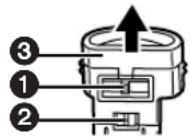
Extremely high precision technology is employed to produce the Viewfinder screen featuring a total of approximately 113,000 pixels. The result is more than 99.99% active pixels with a mere 0.01% of the pixels inactive or always lit. However, this is not a malfunction and does not affect the recorded picture.
Lens Hood
- Do not attach other conversion lenses in front of the Lens Hood; there is no mount to be used for the attachment.
- If you want to attach the Tele Conversion Lens (not supplied) or the Wide Conversion Lens (not supplied), MC Protector (not supplied) or ND Filter (not supplied) first of all, turn the Lens Hood counterclockwise. If the MC Protector (not supplied) or ND Filter (not supplied) is used, the Lens Hood can be mounted on the filter.
- When you attach the Lens Hood, insert 1 into the slot 2 and turn it clockwise.
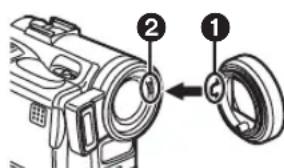
- If you push the [W/T] Lever toward [W] during recording with the filter or conversion lens attached to the Palmcorder, the 4 corners of the image may become dark (vignetting). For details, please refer to the operating instructions for your accessories.
- Be sure to keep the Lens Hood attached to the Palmcorder so as to shut out unnecessary light.
- Remove the Lens Hood attached to this Palmcorder first before attaching the supplied Lens Hood for Card Mode Recording.
Explanation of Terms
Digital Video System
In a digital video system, images and sounds are converted into digital signals and recorded on a tape. This complete digital recording is capable of recording and playback with minimal image and sound deterioration.
In addition, it automatically records data, such as Time Code and date/time, as digital signals.
Compatibility with S-VHS or VHS Cassettes
Because this Palmcorder employs a digital system for recording image and sound data, the cassette is not compatible with conventional S-VHS or VHS video equipment that employs an analog recording system. The size and shape of the Cassettes are also different.
Compatibility with Output Signals
Because AV signal output from the AV signal output jack is analog (the same as conventional video systems), this Palmcorder can be connected with S-VHS or VHS VCR or a TV for playback. (→ 46)
Focus
Auto Focus Adjustment
The Auto Focus System automatically moves the internal focusing lens forward or backward and adjusts the focus so that the subject can be seen clearly.
However, the Auto Focus System does not function properly for the following subjects or under the following recording conditions.
Please use the Manual Focus Mode instead.
1) Recording a subject whose one end is located closer to the Palmcorder and the other end farther away from it
- Because Auto Focus makes adjustments at the center of an image, it may be impossible to focus on a subject that is located in both foreground and background.
2) Recording a subject behind dirty or dusty glass
Because the focus is on the dirty glass, the subject behind the glass will not be in focus.
3) Recording a subject in dark surroundings
- Because the light information that comes through the lens decreases considerably, the Palmcorder may not focus correctly.
4) Recording a subject that is surrounded by objects with glossy surfaces or by highly reflective objects
- Because the Palmcorder focuses on the objects with glossy surfaces or on highly reflective objects, the recording subject may become blurry.
5) Recording a fast-moving subject
- Because the focus lens inside moves mechanically, it may not be able to keep up with the fast-moving subject.
6) Recording a subject with little contrast
Because the Palmcorder achieves focus based upon the vertical lines of an image, a subject with little contrast, such as a white wall, may become blurry.
White Balance Adjustment
Depending on the type of light source, the colors recorded by the Palmcorder may be affected. In some cases, images may be recorded with a bluish or reddish hue. To minimize the effect of light on the subject's color, White Balance Adjustment becomes necessary.
White Balance Adjustment
White Balance Adjustment recognizes the color of light and makes adjustment so that the white color will become pure white.
Auto White Balance Adjustment
This Palmcorder stores settings that are optimal for several kinds of general light sources. The Palmcorder determines the hue of light that it receives through the lens and White Balance Sensor, thereby judging the recording condition, and selects the closest hue setting. This function is called Auto White Balance Adjustment.
However, since white balance settings for only certain kinds of light sources are stored, the Auto White Balance function does not operate properly when recording occurs under light that is out of the range of the setting values.
Time Code
Time Code signals are data that indicate time measured in hours, minutes, seconds, and frames (30 frames per second.) If this data is included in a recording, an address is assigned to each image on the tape.
The Time Code is automatically recorded as a part of the sub-code at each recording. - When a new (previously unrecorded) Cassette is inserted, the Time Code automatically starts from zero. If a recorded Cassette is inserted, the Time Code picks up from the point where the last scene was recorded. (In this case, when the Cassette is inserted, the zero display [0h00m00s00f] may appear, but the Time Code starts from the previous value.) The Time Code cannot be reset to zero. - Unless the Time Code is continuously recorded from the beginning of a tape, accurate editing may not be possible. To ensure that the Time Code will be recorded with no breaks, we recommend the use of the Camera Search Function (→ 21) or the Blank Search Function (→ 32) before recording a new scene.
Memory Stop Function
The Memory Stop Function is useful for the following operations.
Rewinding or fast-forwarding a tape to a desired position
1 Set [DISPLAY SETUP] >> [C.DISPLAY] >> [MEMORY]. 2 Reset the Tape Counter to zero at the tape position from which you want to play it back later. (See pages 10, 17) 3 Start playback or recording. 4 When playback or recording is over: slide the [OFF/ON/MODE] Switch from [ON] to put the Palmcorder in the VCR Mode.
The [VCR] Lamp lights up.
5 Rewind the tape.
- The tape automatically stops approximately at the position where the counter was set to zero.
Stopping editing automatically during audio dubbing
1 Set [DISPLAY SETUP] >> [C.DISPLAY] >> [MEMORY]. 2 Reset the Tape Counter to zero at the position where you want to stop editing. 3 Play back the still pictures where you want to start audio dubbing. 4 Start audio dubbing. (See page 36)
- Audio dubbing automatically stops at the position where the counter was set to zero.
Specifications
Digital Palmcorder Information for your safety
Power Source: DC 7.8/7.2 V
Power Consumption: Recording
6.5 W
Recording Format: Mini DV (Consumer-use Digital Video SD Format)
Tape Used: 6.35 mm digital video tape
Recording/Playback Time: SP: 80 min.;
LP: 120 min. (with DVM80)
Video
Recording System: Digital Component
Television System: EIA Standard: 525 lines 60 Fields
NTSC color signal
Audio
Recording System: PCM Digital Recording
16 bit (48 kHz/2 track),
12 bit (32 kHz/4 track)
Image Sensor: 1/4-inch CCD Image Sensor
(1.3 M pixels)
Lens: Auto Iris, F1.8
Focal Length; 3.55-35.5 mm,
Macro (Full Range AF)
Filter Diameter: 37 mm
Zoom: 10:1 Power Zoom
Monitor: 2.5-inch
Finder:
Microphone:
Speaker:
Standard Illumination:
Minimum Required Illumination:
Illumination:
Video Output Level:
S-Video Output Level:
Audio Output Level:
Video Input Level:
S-Video Input Level:
Audio Input Level (Line):
Mic Input:
2.5-inch
Color
Stereo
1 round speaker 20 mm
1.400lx
12lx
1.0 Vp-p, 75 ohm
Y Output: 1.0 Vp-p, 75 ohm
C Output: 0.286 Vp-p, 75 ohm
316 mV, 600 ohm
1.0 Vp-p, 75 ohm
Y Input: 1.0 Vp-p, 75 ohm
C Input: 0.286 Vp-p, 75 ohm
316 mV, 10 kohm or more
Mic sensitivity -50 dB
(0 dB = 1 V/Pa, 1 kHz)
(Stereo mini jack)
Digital Still Picture: Digital Still Picture Output, Control
Signal Input/Output
(Transfer rate: max. 115 kbps)
RS-232 output terminal for transfer
from tape
PhotoVu Link software and RS-232C
cable optional (PV-DRS2)
Card reader/writer function
USB 2.0 compliant (max. 12 Mbps)
No copyright protection support
DV Input/Output Terminal
(i.LINK, 4-pin)
Dimensions:
2-3/4 (W) x 3-5/8 (H) x 5-1/2 (D) inch
71 (W) x 93 (H) x 139 (D) mm
1.23 lbs. (0.56 kg)
(without Battery and DV cassette)
32°F-104°F (0°C-40°C)
10%-80%
Card Memory Functions
Recording Media:
Image Compression:
Video Compression:
Sound Compression:
SD Memory Card, MultiMediaCard
JPEG
MPEG4
G.726
Maximum Number of pictures that can be recorded on the supplied SD Memory Card
When the size of pictures is [1280×960]
FINE:
approx. 22 pictures
NORMAL:
approx. 35 pictures
ECONOMY:
approx. 50 pictures
When the size of pictures is [640×480]
FINE:
approx. 100 pictures
NORMAL:
approx. 200 pictures
ECONOMY:
approx. 400 pictures
- When you record in one Memory Card using various modes (FINE, NORMAL, ECONOMY), the maximum number of images available will not exceed the indications stated above. The indicated Maximum Number of pictures that can be recorded is an approximate calculation. The number of recordable still pictures on the SD Memory Card may differ depending on the subject.
AC Adaptor
Information for your safety
Power Source:
AC 110-240 V, 50/60 Hz
Power Consumption: 18 W
DC Output:
1 W (When not in use.)
DC7.8V,1.4A
(Palmcorder Operation)
DC 8.4 V, 1.2 A (Battery Charging)
Dimensions:
2-3/4 (W) x 1-3/4 (H) x 4-9/16 (D) inch
70 (W) x 45 (H) x 116 (D) mm
0.363 lbs. (0.165 kg)
Weight and dimensions shown are approximate.
Designs and specifications are subject to change without prior notice.
Palmcorder Accessory System
| Accessory# | Figure | Description |
| PV-DAC11A(For USA) PV-DAC11A-K(For Canada) | AC Adaptor with AC Cable and DC Cable | |
| *CGR-D08A/1B (Replaces *CGR-D120A/1B) | 800mAh/Rechargeable Lithium Ion Battery Pack | |
| *CGR-D16A/1B (Replaces *CGR-D220A/1B) | 1600mAh/Rechargeable Lithium Ion Battery Pack | |
| *CGP-D28A/1B | 2800mAh/Rechargeable Lithium Ion Battery Pack | |
| *CGR-D53A/1K (Replaces *CGR-D815A/1B) | 5300mAh/Rechargeable Lithium Ion Battery Pack | |
| PV-DDC9 (For USA) PV-DDC9-K(For Canada) | DV Interface Cable (i.LINK) (4-pin to 4-pin) | |
| PV-DRC9 (For USA) PV-DRC9-K(For Canada) | IR Remote Control | |
| PV-H150 (USA only) | Carrying Case | |
| PV-H210 (USA only) | Leather Carrying Case | |
| RP-SD064BPPA RP-SD032BPPA RP-SD016BPPA | 64 MB SD Memory Card 32 MB SD Memory Card 16 MB SD Memory Card | |
| BN-SDCAPE/1B (For USA) BN-SDCAPU/1B (For Canada) | USB Reader/Writer for SD Memory Card (compatible with MultiMediaCard) | |
| BN-SDABPE/1B (For USA) BN-SDABPU/1B (For Canada) | SD PCMCIA Adaptor (compatible with MultiMediaCard) | |
| PV-PD2100 (USA only) | Digital Video Printer | |
| PV-DRS2 | PC Connection Unit (Includes RS-232C connection cables and PHOTOVU LINK Software) |
*Please refer to page 12, concerning the battery charging time and available recording time. *NOTE: Accessories and/or model numbers may vary by country. Please consult your local dealer.
Palmcorder Accessory Order Form (For USA Customers)
Please photocopy this form when placing an order.
- Palmcorder Model #
- Items Ordered
| Quantity Accessory Total Price Each Description | ||||
| SubtotalYour State & Local Sales TaxShipping & HandlingTotal Enclosed | ||||
| 6.95 | ||||
- Method of payment (check one)
Check or Money Order enclosed (NO C.O.D. SHIPMENTS) VISA Credit Card # MasterCard Expiration Date Discover Customer Signature
Make Check or Money Order payable to: PANASONIC ACCESSORIES
(Please do not send cash)
- Shipping information (UPS delivery requires complete street address)
Ship To:
Mr.
Mrs.
Ms.
First Last
Street Address
City State Zip
Phone#:
Day
Night
TO OBTAIN ANY OF OUR PALMCORDER ACCESSORIES YOU CAN DO ANY OF
THE FOLLOWING:
20421 84th Avenue South Kent, WA. 98032
In CANADA, please contact your local Panasonic dealer for more information on Accessories.
Before Requesting Service (Problems and Solutions)
If you are experiencing one of the following problems with your Digital Palmcorder, it may be something you can correct yourself. Check the list below for Problems and Solutions.
| Problems Solutions | |
| The Palmcorder power cannot be turned on. Is the power source connected correctly? | If you leave the Palmcorder in Recording Pause Mode for more than 5 minutes, the power is turned off automatically to protect the tape and to save the Battery power. |
| The Palmcorder power does not stay on long enough. | Is the Battery low? Charge the Battery or attach a fully charged Battery. |
| Something is wrong with the Palmcorder's operation. The Palmcorder is turned on but no functions operate. | Press the [RESET] Button on the Palmcorder with a pointed object. If this does not solve the problem, first disconnect the power supply and wait for a minute or so, and then reconnect the power supply to turn the power back on. (If the above operation is performed when the [ACCESS] Lamp of the Card Slot is lit, the data on the Card may be damaged.) |
| Battery runs down quickly. | ● Is the Battery fully charged? Charge it with the AC Adaptor. ● Are you using the Battery in an extremely cold place? In cold places, the operating time of the Battery becomes shorter. ● Has the Battery worn out? If the operating time is still too short even after the Battery is fully charged, the Battery has worn out. |
| The Battery cannot be charged. | If the DC Cable is connected to the AC Adaptor, charging cannot be performed. Disconnect the DC Cable. |
| Recording does not start although power is supplied to the Palmcorder and the Cassette is correctly inserted. | ● Is the accidental erasure protection tab on the Cassette open? If it is open (set to [SAVE]), recording cannot be performed. ● Is the tape wound to the end? Insert a new Cassette. ● Is the Palmcorder power turned on? ● Is the [CAMERA] Lamp on? If the [CAMERA] Lamp is not on, no recording function can be operated. ● Has condensation occurred? Wait until the [DEW DETECTED] Indication disappears. |
| Audio dubbing cannot be performed. | ● Is the accidental erasure prevention slider on the Cassette open? If it is open (set to [SAVE]), recording cannot be performed. ● Are you attempting to edit a tape portion that was recorded in LP Mode? LP Mode does not allow audio dubbing to operate. |
| The Time Code becomes inaccurate. | The Time Code Indication counter may not be constant in the reverse direction in Slow Motion Playback Mode, but this is not a malfunction. |
| The Remaining Tape Time Indication disappears. | When you record still pictures in PhotoShot Mode, the Remaining Tape Time Indication may disappear temporarily. However, it reappears when the Palmcorder is set back to Normal Recording Mode. |
| The Remaining Tape Time Indication does not match the actual remaining tape time. | ● If scenes of less than 15 seconds are continuously recorded, the remaining tape time cannot be displayed correctly. ● In some cases, the Remaining Tape Time Indication may show remaining tape time that is 2 to 3 minutes shorter than the actual remaining tape time. |
If you are experiencing one of the following problems with your Digital Palmcorder, it may be something you can correct yourself. Check the list below for Problems and Solutions.
| Problems Solutions | |
| Video cannot be played back even when the [▶] Button is pressed. | Is the [VCR] Lamp on? If the [VCR] Lamp is not on, the playback function cannot be used. |
| Mosaic-like noise patterns appear on images during Cue, Review or Slow Motion Playback. | This phenomenon is characteristic of digital video systems. It is not a malfunction. |
| Although the Palmcorder is correctly connected to a TV, playback images cannot be seen. | Have you selected Video Input on the TV? Please read the operating instructions of your TV and select the input that matches the input jacks used for the connection. |
| Playback image is not clear. | Are the heads of the Palmcorder dirty? If the heads are dirty, playback image will not be clear. |
| No sound is played back from the built-in speaker or headphones of the Palmcorder. | Is the volume too low? During playback, continue pressing the [PUSH] Dial until the [VOLUME] Indication appears. Then, rotate the [PUSH] Dial to adjust the volume. |
| Different sounds are reproduced at the same time. | [AUDIO] on the [PLAYBACK FUNCTIONS] Sub-Menu of the [VCR FUNCTIONS] Main-Menu has been set to [MIX]. As a result, the original sound and sound that was recorded by audio dubbing are played back together. It is possible to reproduce the sounds separately. |
| The original sound was erased when audio dubbing was performed. | If you perform audio dubbing on a recording done in [16bit] Mode, the original sound will be erased. If you want to preserve the original sound, be sure to select [12bit] Mode at the time of recording. |
| Sounds cannot be played back. | Although a Cassette with no audio dubbing is being played, is [AUDIO] on the [PLAYBACK FUNCTIONS] Sub-Menu of the [VCR FUNCTIONS] Main-Menu set to [ST2]? To play back a Cassette with no audio dubbing, [AUDIO] must be set to [ST1].Is the Variable Speed Search Function working? Press the [▶] Button to cancel the Variable Speed Search Function. |
| The recorded picture on the Memory Card is not clear. | Do you have [PICTURE QUALITY] on the [CARD SETUP] Sub-Menu set to [ECONOMY]? If recording is made when it is set to [ECONOMY], a detailed image may show a mosaic pattern. Set the [PICTURE QUALITY] to [NORMAL] or [FINE]. (→ 38) |
| Card PhotoShot playback pictures do not look normal. | There is a possibility that the images are damaged. To prevent the loss of image data, we recommend that you back images up on a Cassette or personal computer. (→ 41, 50) |
| Even if a Card is formatted, it cannot be used. | There is a possibility of damage to either the Palmcorder or the Card. Please contact Panasonic Call Center. |
Request for Service Notice
Please photocopy this form when making a request for service notice.
In the unlikely event this product needs service.
Request for Service Notice:
(USA Only)
- Please include your proof of purchase.
(Failure to do so will delay your repair.)
- To further speed your repair, please provide
an explanation of what is wrong with the unit and any symptom it is exhibiting.
Mail this completed form and your Proof of Purchase along with your unit to:
Panasonic Services Company
1705 N. Randall Road
Elgin, IL. 60123-7847
Attn: Camcorder Repair
Please write the displayed above Self Diagnostic number here.
Limited Warranty (For USA Customers)
PANASONIC CONSUMER ELECTRONICS COMPANY, DIVISION OF MATSUSHITA ELECTRIC CORPORATION OF AMERICA One Panasonic Way Secaucus, New Jersey 070
PANASONIC SALES COMPANY, DIVISION OF MATSUSHITA ELECTRIC OF PUERTO RICO, INC., AVE. 65 de Infanteria, Km. 9.5 San Gabriel Industrial Park, Carolina, Puerto Rico 00985
Panasonic/Quasar Video Products Limited Warranty
Limited Warranty Coverage
If your product does not work properly because of a defect in materials or workmanship, Panasonic Consumer Electronics Company or Panasonic Sales Company (collectively referred to as "the warrantor") will, for the length of the period indicated on the chart below, which starts with the date of original purchase ("warranty period"), at its option either (a) repair your product with new or refurbished parts, or (b) replace it with a new or a refurbished product. The decision to repair or replace will be made by the warrantor.
| Product | Parts | Labor | Service | Contact Number |
| Camcorder | One (1) Year (except CCD Image Sensor)CCD Image Sensor - 6 (Six) Months | Ninety (90) DaysNinety (90) Days | Carry-In or Mail-In | 1-800-211-PANA(7262) |
| DVD/VCR Deck,A/V Mixer | One (1) Year | Ninety (90) Days | Carry-In or Mail-In | 1-800-211-PANA(7262) |
| TV/VCR, TV/DVD,TV/DVD/VCRCombination | One (1) Year (except CRT)CRT - Two (2) Years | Ninety (90) DaysNinety (90) Days | Carry-In: 21"CRTand SmallerIn-Home or Carry-In:22" CRT and Larger | 1-800-211-PANA(7262) |
| TV/HDRCombination | One (1) Year (except CRT)CRT - Two (2) Years | Ninety (90) DaysNinety (90) Days | In-Home or Carry-In | 1-888-843-9788 |
| RechargeableBatteries(in exchange fordefective item) | Ten (10) Days | Not Applicable | Carry-In or Mail-In | 1-800-211-PANA(7262) |
| Tape(in exchange fordefective item) | Five (5) Days | Not Applicable | Carry-In or Mail-In | 1-800-211-PANA(7262) |
| Memory Cards(in exchange fordefective item) | Ninety (90) Days | Not Applicable | Carry-In or Mail-In | 1-800-211-PANA(7262) |
During the "Labor" warranty period there will be no charge for labor. During the "Parts" warranty period, there will be no charge for parts. You must carry-in or mail-in your product or arrange for in-home service, as applicable, during the warranty period. If non-rechargeable batteries are included, they are not warranted. This warranty only applies to products purchased and serviced in the United States or Puerto Rico. This warranty is extended only to the original purchaser of a new product which was not sold "as is". A purchase receipt or other proof of the original purchase date is required for warranty service.
Carry-In, Mail-in or In-Home Service
For Carry-In, Mail-In or In-Home Service (as applicable) in the United States call toll free contact number listed above or visit Panasonic Web Site: http://www.panasonic.com
For assistance in Puerto Rico call Panasonic Sales Company (787)-750-4300 or fax (787)-768-2910.
In-Home service, if applicable, requires clear, complete and easy access to the product by the authorized servicer and does not include removal or re-installation of an installed product. It is possible that certain in-home repairs will not be completed in-home, but will require that the product, or parts of the product, be removed for shop diagnosis and/or repair and then returned.
Limited Warranty Limits And Exclusions
This warranty ONLY COVERS failures due to defects in materials or workmanship, and DOES NOT COVER normal wear and tear or cosmetic damage, nor does it cover markings or retained images on the picture tube resulting from viewing fixed images (including, among other things, letterbox pictures on standard 4:3 screen TV's, or non-expanded standard 4:3 pictures on wide screen TV's, or onscreen data in a stationary and fixed location). The warranty ALSO DOES NOT COVER damages which occurred in shipment, or failures which are caused by products not supplied by the warrantor, or failures which result from accidents, misuse, abuse, neglect, mishandling, misapplication, alteration, faulty installation, set-up adjustments, misadjustment of consumer controls, improper maintenance, power line surge, lightning damage, modification, or commercial use (such as in a hotel, office, restaurant, or other business), rental use of the product, service by anyone other than a Factory Servicenter or other Authorized Servicer, or damage that is attributable to acts of God.
THERE ARE NO EXPRESS WARRANTIES EXCEPT AS LISTED UNDER "LIMITED WARRANTY COVERAGE". THE WARRANTOR IS NOT LIABLE FOR INCIDENTAL OR CONSEQUENTIAL DAMAGES RESULTING FROM THE USE OF THIS PRODUCT, OR ARISING OUT OF ANY BREACH OF THIS WARRANTY.
As examples, this excludes damages for lost time, cost of having someone remove or re-install an installed unit if applicable, or travel to and from the servicer, loss of media or images, data or other memory or recorded content. The items listed are not exclusive, but are for illustration only.)
ALL EXPRESS AND IMPLIED WARRANTIES, INCLUDING THE WARRANTY OF MERCHANTABILITY, ARE LIMITED TO THE PERIOD OF THE LIMITED WARRANTY.
Some states do not allow the exclusion or limitation of incidental or consequential damages, or limitations on how long an implied warranty lasts, so the exclusions may not apply to you. This warranty gives you specific legal rights and you may also have other rights which vary from state to state. If a problem with this product develops during or after the warranty period, you may contact your dealer or Servicenter. If the problem is not handled to your satisfaction, then write to the warrantor's Consumer Affairs Department at the addresses listed for the warrantor.
PARTS AND SERVICE (INCLUDING COST OF AN IN-HOME SERVICE CALL, WHERE APPLICABLE) WHICH ARE NOT COVERED BY THIS LIMITED WARRANTY ARE YOUR RESPONSIBILITY.
Customer Services Directory
Service in Canada: As per Servicenter listed in Canadian warranty information on page 79.
For Product Information, Operating Assistance, Literature Request, Dealer Locations, and all Customer Service inquiries please contact:
1-800-211-PANA (7262), Monday-Friday 9 am-9 pm; Saturday-Sunday 9 am-7 pm, EST. or send e-mail : consumerproducts@panasonic.com
Web Site: http://www.panasonic.com
You can purchase parts, accessories or locate your nearest servicenter by visiting our Web Site.
Accessory Purchases:
1-800-332-5368 (Customer Orders Only)
Panasonic Services Company 20421 84th Avenue South, Kent, WA 98032
(Monday - Friday 6 am-5 pm; Saturday 6 am-10:30 am, PST)
(Visa, MasterCard, Discover Card, American Express, Check)
Product Repairs
Centralized Factory Servicenter
MAIL TO :
Panasonic Services Company
1705 N. Randall Road,
Elgin, IL 60123-7847
Attention: Camcorder Repair
Please carefully pack and ship, prepaid and insured, to the Elgin Centralized Factory Servicenter
Customer's in Puerto Rico, please ship or carry in to location below ("Service in Puerto Rico").
Service in Puerto Rico
Matsushita Electric of Puerto Rico, Inc. Panasonic Sales Company/Factory Servicenter:
Panasonic Canada Inc.
5770 Ambler Drive, Mississauga, Ontario L4W 2T3
PANASONIC PRODUCT - LIMITED WARRANTY
Panasonic Canada Inc. warrants this product to be free from defects in material and workmanship and agrees to remedy any such defect for a period as stated below from the date of original purchase.
Camcorder Product - One (1) year, parts and labour
LIMITATIONS AND EXCLUSIONS
This warranty does not apply to products purchased outside Canada or to any product which has been improperly installed, subjected to usage for which the product was not designed, misused or abused, damaged during shipping, or which has been altered or repaired in any way that affects the reliability or detracts from the performance, nor does it cover any product which is used commercially. Dry cell batteries are also excluded from coverage under this warranty.
This warranty is extended to the original end user purchaser only. A purchase receipt or other proof of date of original purchase is required before warranty service is performed.
THIS EXPRESS, LIMITED WARRANTY IS IN LIEU OF ALL OTHER WARRANTIES, EXPRESS OR IMPLIED, EXCLUDING ANY IMPLIED WARRANTIES OF MERCHANTABILITY OR FITNESS FOR A PARTICULAR PURPOSE.
IN NO EVENT WILL PANASONIC CANADA INC. BE LIABLE FOR ANY SPECIAL, INDIRECT OR CONSEQUENTIAL DAMAGES.
In certain instances, some jurisdictions do not allow the exclusion or limitation of incidental or consequential damages, or the exclusion of implied warranties, so the above limitations and exclusions may not be applicable.
WARRANTY SERVICE
For product operation and information assistance, please contact your Dealer or our Customer Care Centre at:
Telephone #: (905) 624-5505 Fax #: (905) 238-2360 Web: www.panasonic.ca
For product repairs, please contact one of the following:
- Your Dealer who will inform you of an authorized Servicentre nearest you.
- Our Customer Care Centre at (905) 624-5505 or www.panasonic.ca A Panasonic Factory Servicentre listed below:
Richmond, British Columbia
Panasonic Canada Inc.
12111 Riverside Way
Richmond, BC V6W 1K8
Tel: (604) 278-4211
Fax: (604) 278-5627
Calgary, Alberta
Panasonic Canada Inc.
6835-8 th St. N. E.
Calgary, AB T2E 7H7
Tel: (403) 295-3955
Fax: (403) 274-5493
Mississauga, Ontario
Panasonic Canada Inc.
5770 Ambler Dr.
Mississauga, ON L4W 2T3
Tel: (905) 624-8447
Fax: (905) 238-2418
Lachine, Quebec
Panasonic Canada Inc.
3075, rue Louis A. Amo
Lachine, QC H8T 1C4
Tel: (514) 633-8684
Fax: (514) 633-8020
IF YOU SHIP THE PRODUCT TO A SERVICENTRE
Carefully pack and send prepaid, adequately insured and preferably in the original carton.
Include details of the defect claimed, and proof of date of original purchase.
Index

A
AC Adaptor 12
ArcSoft 49
Audio Dubbing 36
Auto Focus 70
Auto White Balance Adjustment 70
B
Backlight Compensation 24
Before Requesting Service 74
Black & White Mode 29, 34
Blank Search 32
C
Camera Data 18
Camera Search 21
Card PhotoShot 37, 38
CardPlayback 40
Charging the Battery 12
Cinema Mode 24
Color Temperature 27
Condensation 68
Continuous PhotoShot 22
CuePlayback 31
D
Date/Time Indication 60
Date/Time Setting 20
Digital Effect 29, 30, 34, 35
Digital Electronic Image Stabilizer 23
Digital Still Picture 22
Digital Zoom 23
DPOF Setting 45
Dubbing 46, 47
E
Erasure Prevention Slider 14
F
F Number 26
Fade 23
File Lock Setting 44
File Search Mode 41
Folder Structure 57
45
G
Gain-up Mode 29
1
Index Search 33
Iris 26
J
JogPlayback 32
#
LCD Monitor 15
Limited Warranty 77
Low Light Mode 25
M
Macro Close-up Function 22
Manual Focus 26
Mega-Pixel Still-Picture Recording 37
Memory Card 37
Memory Stop Function 70
Menu Screen 16
Microphone 22,64
Mirror Mode (Digital Effect) 29, 34
Mix Mode 29,34
Mosaic Mode 29,34
Moving Picture (MPEG4) Recording 39
Multi-Picture Mode 30, 35
N
Negative Mode 29,34
P
Palmcorder Accessory 72
PhotoShot 22
Picture-in-Picture Mode 30
Playback Digital Effect Functions 34, 35
Playback Zoom 34
Portrait Mode 25
Program AE 25
Progressive Photoshot 22
Recording Check 21
Recording Pause Mode 21
Recording Speed 20
Remote Controller 10, 11
Repeat Playback 31
Review Playback 31
SD Memory Card 57
Self-Recording 21
Sepia Mode 29, 34
Shutter Speed 26
Slide Show 42
Slow Motion Playback 32
Solarization Mode 29, 34
Sound Volume 31
SP/LP Mode 20
Sports Mode 25
Spotlight Mode 25
Still Advance Playback 32
Strobe Mode 29,34
Sub-Code 70
Surf & Snow Mode 25
Swing Mode 30, 35
T
Time Code 70
Title 43
Trailing Effect Mode 29,34
U
USB Connection Kit 50
V
Variable Speed Search 31
Video Head Clogging 68
Viewfinder 15
Voice Power Save 65
Voice Recording 39
W
Warranty 79
White Balance 27, 70
Wind Noise Reduction 25
Wipe Mode 29, 34
#
Zoom 22, 23
Zoom Microphone 22
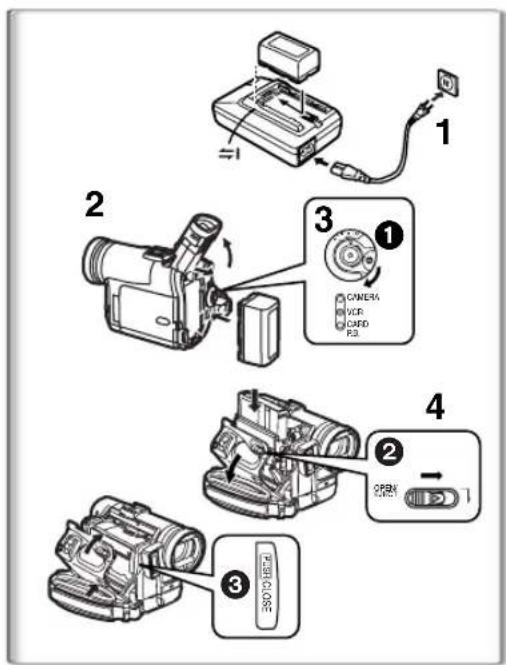
Panasonic Consumer Electronics Company,
Division of Matsushita Electric Corporation of America
Executive Office:
One Panasonic Way, Secaucus, NJ 07094
(201) 348-7000
Panasonic Company East: 6749 Baymeadow Drive, Glen Burnie, MD 21060
Panasonic Company Central: 1707 North Randall Road, Elgin, IL 60123
Panasonic Company West: 6550 Katella Avenue, Cypress, CA 90630
Division of Matsushita Electric Corporation of America
Panasonic Sales Company ("PSC")
Division of Matsushita Electric of Puerto Rico, Inc.
San Gabriel Industrial Park, Ave. 65 de Infantería, Km. 9.5, Carolina, PR 00985
Panasonic Canada Inc.
5770 Ambler Drive, Mississauga, ON, L4W 2T3

LSQT0561A
F0402Nm0 (1000 A)
Standard accessories. 6
Quick guide. 7
How to turn on the camcorder
Submenu [AV IN/OUT SETUP]
17) AV jack [AV JACK] (→ 36, 46, 64) 18) Audio dubbing input [A.DUB INPUT] (→ 36) 19) Analog-to-digital conversion output [DV OUT] (→ 47)
Submenu [DISPLAY SETUP]
Progressive PhotoShot mode
Index/playback review
Manual multi-image mode [MANUAL] 2:
PhotoShot card (continued)
3 Start playback.
REMOTE/ CHECK REMOTE MODE:
DEW DETECTED: Condensation detected. (→ 68) NEED HEAD CLEANING:
Sports mode/portrait mode
16-bit (48 kHz/2 channels),
12 bits (32 kHz/4 tracks)
Dimensions: 71 (W) × 93 (H) × 139 (D) mm
2 3/4 (W) × 3 5/8 (H) × 5 1/2 (D) in
Weight: 0.56 kg (1.23 lb)
Dimensions: 70 (W) × 45 (H) × 116 (D) mm
2 3/4 (W) × 1 3/4 (H) × 4 9/16 (D) in
Weight: 0.165 kg (0.363 lb)
Subject to change without notice.
Panasonic Canada Inc.
12111 Riverside Way
Richmond, BC V6W 1K8
Tel.: (604) 278-4211
Fax: (604) 278-5627
Calgary, Alberta
Panasonic Canada Inc.
6835-8th St. N.E.
Calgary, AB T2E 7H7
Panasonic Canada Inc.
5770 Ambler Dr.
Mississauga, ON L4W 2T3
Tel.: (905) 624-8447
Fax: (905) 238-2418
Lachine, Quebec
Panasonic Canada Inc.
Oscillation mode 30, 35
Continuous PhotoShot 22
Progressive PhotoShot 22
R
Panasonic Canada Inc.
5770 Ambler Drive,
Mississauga, Ontario
L4W2T3
(905)624-5010
www.panasonic.ca
Montreal: 3075 Louis A. Amos, Lachine, Quebec H8T 1C4 (514) 633-8684
Toronto: 5770 Ambler Drive, Mississauga, Ontario L4W 2T3 (905) 238-2181
Calgary: 6835 8th Street N.E., Calgary, Alberta T2E7H7 (403) 295-3922
Vancouver: 12111 Riverside Way, Richmond, BC V6W 1K8 (604) 278-4211

- DIGITAL VIDEO CAMCORDER OPERATING INSTRUCTIONS
- MULTIMEDIACARD™
- THINGS YOU SHOULD KNOW
- THANK YOU FOR CHOOSING PANASONIC
- SAFETY PRECAUTIONS
- THE ABOVE MARKINGS ARE LOCATED ON THE APPLIANCE BOTTOM COVER
- FCC WARNING
- IMPORTANT SAFEGUARDS
- PRECAUTIONS
- USE & LOCATION
- CARE
- U.S.A./CANADA CONSUMERS: ATTENTION
- CONTENTS
- BEFORE USING
- CAMERA MODE
- VCR MODE
- SPECIAL FEATURES
- OTHERS
- STANDARD ACCESSORIES
- CAUTION
- QUICK GUIDE
- CHARGE THE BATTERY. (→ 12)
- ATTACH THE CHARGED BATTERY TO THE PALMCORDER. (→ 12)
- INSERT THE CASSETTE. (→ 14)
- START RECORDING. (→ 21)
- TO VIEW THE PLAYBACK PICTURE
- SWITCH TO THE VCR MODE, REWIND THE TAPE, AND PLAY THE TAPE BACK. (→ 31)
- TURN THE PALMCORDER OFF. (→ 15)
- CONTROLS AND COMPONENTS
- REMOTE CONTROLLER
- REMOTE CONTROLLER BUTTONS
- TETHERED REMOTE CONTROL
- INSERTING THE BUTTON-TYPE BATTERY
- WARNING
- USING THE REMOTE CONTROLLER
- SELECTING REMOTE CONTROLLER MODES
- SETTING ON THE PALMCORDER
- SETTING ON THE REMOTE CONTROLLER
- POWER SUPPLY
- USING THE AC ADAPTOR
- USING THE BATTERY
- DISCONNECTING THE POWER SOURCE
- CHARGING TIME AND AVAILABLE RECORDING TIME
- LENS CAP AND GRIP BELT
- ATTACH THE LENS CAP
- ADJUST THE GRIP BELT
- TO USE AS A FREE STYLE GRIP BELT
- ATTACHING THE SHOULDER STRAP
- INSERTING A CASSETTE
- ACCIDENTAL ERASURE PREVENTION
- TURNING ON/OFF THE PALMCORDER AND SELECTING MODES
- HOW TO TURN ON THE POWER
- USING THE VIEWFINDER
- USING THE LCD MONITOR
- ADJUSTING BRIGHTNESS AND COLOR LEVEL
- USING THE MENU SCREEN
- PRESS THE [MENU] BUTTON
- TO EXIT THE MENU SCREEN
- ABOUT THE MENU MODE SETTING
- FILE SELECTION IN THE CARD PLAYBACK MODE
- TURN THE [PUSH] DIAL AND SELECT A FILE
- LIST OF MENUS
- CAMERA MODE MAIN-MENU [CAMERA FUNCTIONS]
- [CAMERA SETUP] SUB-MENU
- [DIGITAL EFFECT] SUB-MENU
- [CARD SETUP] SUB-MENU
- [MULTI-PICTURES] SUB-MENU
- [RECORDING SETUP] SUB-MENU
- [DISPLAY SETUP] SUB-MENU
- [OTHER FUNCTIONS] SUB-MENU
- VCR MODE MAIN-MENU [VCR FUNCTIONS]
- [PLAYBACK FUNCTIONS] SUB-MENU
- [AV IN/OUT SETUP] SUB-MENU
- THE CAMERA DATA WILL NOT BE RECORDED IN THE FOLLOWING CASES
- CARD PLAYBACK MODE MAIN-MENU [CARD FUNCTIONS]
- [DELETE CARD FILE] SUB-MENU
- [CARD EDITING] SUB-MENU
- SHORT-CUT MENUS OF THE CARD PLAYBACK MODE A
- SETTING DATE AND TIME
- INTERNAL LITHIUM BATTERY RECHARGE
- LP MODE
- AUDIO RECORDING MODE
- RECORDING
- TO CHECK THE RECORDING
- TO VIEW THE RECORDED SCENE WHILE THE RECORDING IS PAUSED (CAMERA SEARCH)
- SELF-RECORDING
- TO FINISH THE RECORDING
- PHOTOSHOT RECORDING ON THE DV CASSETTE
- PROGRESSIVE PHOTOSHOT MODE
- CONTINUOUS PHOTOSHOT
- DIGITAL STILL PICTURE
- ZOOM IN/OUT FUNCTIONS
- TIMES TELE JUMP ZOOM FUNCTION
- TO USE THE ZOOM MICROPHONE FUNCTION
- DIGITAL ZOOM FUNCTION
- DIGITAL ELECTRONIC IMAGE STABILIZER FUNCTION
- FADE IN/OUT FUNCTIONS
- CINEMA FUNCTION
- TO CANCEL THE CINEMA MODE
- BACKLIGHT COMPENSATION FUNCTION
- TO RESUME NORMAL RECORDING
- MAGICPIX FUNCTION
- TO CANCEL THE MAGICPIX FUNCTION
- QUICK START
- WIND NOISE REDUCTION FUNCTION
- RECORDING IN SPECIAL SITUATIONS (PROGRAM AE)
- MANUAL SHUTTER SPEED ADJUSTMENT
- TO RESUME AUTOMATIC ADJUSTMENT
- MANUAL IRIS ADJUSTMENT (F NUMBER)
- MANUAL FOCUS ADJUSTMENT
- RECORDING IN NATURAL COLORS (WHITE BALANCE)
- ADJUSTING WHITE BALANCE MANUALLY
- ABOUT WHITE BALANCE SENSOR
- USING THE FREE ANGLE FLASH
- ADJUSTING BRIGHTNESS OF THE FLASH
- TO REDUCE THE "RED EYE" EFFECT
- DIGITAL EFFECT FUNCTIONS
- DIGITAL EFFECTS 1 [EFFECT1]
- DIGITAL EFFECTS 2 [EFFECT2]
- SELECTING A DESIRED DIGITAL EFFECT
- CANCELING THE DIGITAL EFFECT
- WIPE MODE AND MIX MODE
- MULTI-PICTURE MODE
- STROBE MULTI-PICTURE MODE
- MANUAL MULTI-PICTURE MODE
- SET [MULTI-PICTURES] >> [SCAN MODE] >> [STROBE] OR [MANUAL]
- EXIT THE MENU BY PRESSING THE [MENU] BUTTON
- PRESS THE [MULTI] BUTTON
- PRESS THE RECORDING START/STOP BUTTON OR THE [PHOTO SHOT] BUTTON TO RECORD ON THE CASSETTE
- DELETING ALL THE CAPTURED MULTI-PICTURES
- TO DISPLAY THE MULTI-PICTURES AGAIN
- TO DELETE MULTI-PICTURES ONE BY ONE (WHEN PICTURES WERE CAPTURED IN [MANUAL])
- PICTURE-IN-PICTURE MODE
- PLAYING BACK
- FINDING A SCENE YOU WANT TO PLAY BACK
- SLOW MOTION PLAYBACK
- RESUMING NORMAL PLAYBACK
- STILL PLAYBACK / STILL ADVANCE PLAYBACK
- JOG PLAYBACK
- FINDING THE END OF A RECORDING (BLANK SEARCH FUNCTION)
- SET [VCR FUNCTIONS] >> [PLAYBACK FUNCTIONS] >> [BLANK SEARCH] >> [YES]
- CANCELING BLANK SEARCH PRIOR TO COMPLETION
- INDEX SEARCH FUNCTIONS
- PHOTOSHOT INDEX SIGNAL
- SCENE INDEX SIGNAL
- PHOTOSHOT INDEX SEARCH
- SCENE INDEX SEARCH
- TOP SCAN
- PLAYBACK ZOOM FUNCTION
- PLAYBACK DIGITAL EFFECT FUNCTIONS
- SUSPENDING PLAYBACK DIGITAL EFFECT TEMPORARILY
- PLAYBACK WITH WIPE MODE AND MIX MODE
- PLAYING BACK WITH MULTI-PICTURE MODE
- STROBE MULTI-PICTURE MODE [STROBE]
- TO DELETE MULTI-PICTURES ONE BY ONE (WHEN PICTURES HAVE BEEN CAPTURED IN MANUAL MODE)
- TO STOP CAPTURING PICTURES MIDWAY (WHEN PICTURES HAVE BEEN CAPTURED IN INDEX MODE)
- TO SEARCH THE TAPE POSITION OF A DESIRED PICTURE AMONG THE PLAYBACK PICTURES DISPLAYED ON 9 SCREENS
- PLAYING BACK ON YOUR TV
- AUDIO DUBBING
- TO STOP AUDIO DUBBING
- PLAYING BACK THE SOUND RECORDED WITH AUDIO DUBBING (FOR 12 BIT AUDIO RECORDING)
- USING A MEMORY CARD
- INSERTING A MEMORY CARD
- REMOVING THE MEMORY CARD
- [ACCESS] LAMP
- RECORDING ON THE MEMORY CARD
- CARD PHOTOSHOT
- RECORDING FROM THE PALMCORDER LENS (CAMERA MODE)
- CARD PHOTOSHOT (CONTINUED)
- RECORDING FROM A CASSETTE (VCR MODE)
- RECORDING FROM OTHER EQUIPMENT
- SELECTING THE QUALITY OF CARD PHOTOSHOT IMAGES
- MAXIMUM NUMBER OF IMAGES RECORDABLE ON THE SUPPLIED CARD (16 MB) WHEN THE PICTURE SIZE IS 1280×
- AUTOMATICALLY COPYING STILL PICTURES RECORDED ON A CASSETTE
- TO STOP THE TRANSFER OF IMAGES
- RECORDING MOVING PICTURES (MPEG4)
- RECORDING FROM OTHER EQUIPMENT (VCR MODE)
- SELECTING THE QUALITY OF MPEG4 RECORDING IMAGES
- MAXIMUM RECORDING TIME ON THE SUPPLIED CARD (16 MB)
- RECORDING VOICE (VOICE RECORDING FUNCTION)
- MAXIMUM RECORDING TIME ON THE SUPPLIED CARD (16MB)
- PLAYING BACK FILES FROM THE MEMORY CARD
- PLAYING BACK STILL PICTURES
- SET THE PALMCORDER TO CARD PLAYBACK MODE
- SLIDE THE [TAPE/CARD/ CARD MODE] SELECTOR TO [CARD MODE] UNTIL THE [PICTURE] INDICATION APPEARS
- START PLAYBACK
- PLAYING BACK MOVING PICTURES (MPEG4)
- SLIDE THE [TAPE/CARD/CARD MODE] SELECTOR TO [CARD MODE] UNTIL THE [MPEG4] INDICATION APPEARS
- PLAYING BACK VOICE RECORDINGS
- SLIDE THE [TAPE/CARD/CARD MODE] SELECTOR TO [CARD MODE] UNTIL THE [VOICE] INDICATION APPEARS
- TO ADJUST THE VOLUME (ONLY WHEN PLAYING BACK MPEG4 AND VOICE RECORDINGS)
- COPYING PICTURES FROM A MEMORY CARD TO A CASSETTE
- TO COPY ONE PICTURE
- TO COPY ALL THE PICTURES
- SLIDE SHOW
- TO SELECT PICTURES TO PLAY BACK IN SLIDE SHOW
- TO PLAY BACK ALL THE PICTURES CONTINUOUSLY
- TO PAUSE THE SLIDE SHOW
- TO STOP THE SLIDE SHOW
- TO VERIFY THE SELECTED PICTURES
- TO DELETE THE SELECTED PICTURES
- TO RESET THE SLIDE SHOW SETUP
- CREATING A TITLE
- INSERTING A TITLE
- CLEARING A TITLE DISPLAY
- PROTECTING THE FILES ON A MEMORY CARD FROM ACCIDENTAL ERASURE (FILE LOCK)
- ABOUT THE WRITE PROTECTION SWITCH OF THE SD MEMORY CARD
- DELETING THE FILES RECORDED ON A MEMORY CARD
- TO SELECT AND DELETE FILE(S) BY SELECTION
- TO DELETE ALL FILES
- FORMATTING A MEMORY CARD
- DPOF SETTING
- TO VERIFY DPOF SETTING
- COPYING YOUR DV CASSETTE TO AN S-VHS OR VHS CASSETTE (DUBBING)
- [PALMCORDER]
- [VCR]
- COPYING AN S-VHS OR VHS CASSETTE TO YOUR DV CASSETTE
- [OTHER EQUIPMENT]
- USING YOUR PALMCORDER WITH DIGITAL VIDEO EQUIPMENT (DUBBING)
- [PLAYBACK UNIT A]
- [RECORDING UNIT B]
- STOPPING DUBBING
- ANALOG-DIGITAL CONVERSION
- USING THE SOFTWARE WITH A COMPUTER
- SYSTEM REQUIREMENTS FOR ARCSOFT
- (FOR ARCSOFT SOFTWARE)
- FOR MACINTOSH
- (USB DRIVER FOR SD MEMORY CARD)
- SOFTWARE INSTALLATION (WINDOWS)
- NOTE
- SOFTWARE INSTALLATION (MACINTOSH)
- ARCSOFT SOFTWARE
- RESTARTING WINDOWS
- USING THE SUPPLIED USB CONNECTION KIT
- OPERATING ENVIRONMENT
- FOR WINDOWS
- INSTALLING USB DRIVER
- CONNECTING COMPUTER AND PALMCORDER
- ①
- USING THE G726 DECODER
- INSTALLING THE G726 DECODER
- CHECK IF PALMCORDER IS CORRECTLY RECOGNIZED
- VERIFY [REMOVABLE DISK] ICON IS ADDED IN [MY COMPUTER]
- TO DISCONNECT USB CABLE SAFELY
- VERIFYING AND UPDATING DRIVER
- VERIFYING DRIVER
- (PALMCORDER MUST BE CONNECTED TO COMPUTER.)
- UPDATING DRIVER
- WINDOWS 2000 PROFESSIONAL
- VERIFY DRIVER
- WINDOWS ME
- WINDOWS XP
- (PALMCORDER MUST BE CONNECTED TO COMPUTER)
- UNINSTALLING APPLICATION SOFTWARE
- UNINSTALLING APPLICATION SOFTWARE (WINDOWS XP)
- UNINSTALLING ARCSOFT SOFTWARE
- UNINSTALLING USB DRIVER
- NOTES
- ABOUT THE SD MEMORY CARD AND MULTIMEDIACARD
- SD MEMORY CARD
- MULTIMEDIACARD
- FILES RECORDED ON A SD MEMORY CARD OR MULTIMEDIACARD
- ABOUT THE COMPATIBILITY OF THE CARD FILES
- ABOUT THE FOLDER STRUCTURE WHEN USING THE MEMORY CARD IN A PERSONAL COMPUTER
- INDICATIONS
- REMAINING BATTERY POWER [ ]
- REMAINING TAPE TIME [R0:00]
- DIGITAL ZOOM [D.ZOOM] (→ 23)
- DIGITAL EFFECTS FUNCTION
- RECORDING SPEED SELECTOR
- INDEX
- TAPE RUN INDICATIONS
- ZOOM MAGNIFICATION
- SOUND VOLUME
- DATE/TIME INDICATION (→ 20, 60)
- RECORDING MODE
- ELECTRONIC IMAGE STABILIZER [EIS] (→ 23)
- MANUAL FOCUS [MF] (→ 26)
- BACKLIGHT MODE [2] (→ 24)
- PROGRAM AE MODE
- FOLDER-FILE NUMBER (→ 40)
- CARD FILE INDICATIONS 2 (CARD P.B. MODE)
- NUMBER SET DPOF [00] (→ 45)
- DPOF SETTING & SLIDE SHOW
- CARD FILE INDICATIONS 3 (CAMERA MODE)
- CHANGING THE COUNTER DISPLAY MODE
- DISPLAYING DATE/TIME INDICATION
- CHANGING THE DISPLAY MODE
- WARNING/ALARM INDICATIONS
- NOTES & PRECAUTIONS
- POWER-RELATED ITEM (SECTION 12)
- INSERTING/EJECTING THE CASSETTE (SECTION 14)
- IF THE CASSETTE HOLDER DOES NOT GO BACK IN
- IF THE CASSETTE HOLDER DOES NOT COME OUT
- ALARM SOUNDS
- RECORDING CHECK (→ 21)
- CAMERA SEARCH (→ 21)
- PROGRESSIVE PHOTOSHOT™ FUNCTION (→ 22)
- ABOUT [PROGRESSIVE] SETTING
- WHEN [PROGRESSIVE] IS SET TO [ON]
- WHEN [PROGRESSIVE] IS SET TO [AUTO]
- ZOOM IN/OUT FUNCTIONS 22, 23)
- TIMES TELE JUMP ZOOM FUNCTION (→ 22)
- ZOOM MICROPHONE FUNCTION (→ 22)
- DIGITAL ZOOM FUNCTION (23)
- ELECTRONIC IMAGE STABILIZER FUNCTION (→ 23)
- FADE IN/OUT MODE → 23)
- CINEMA FUNCTION (24)
- MAGICPIX FUNCTION → 24)
- QUICK START (25)
- WIND NOISE REDUCTION FUNCTION (25)
- SPORTS MODE
- SPORTS MODE/PORTRAIT MODE
- LOW LIGHT MODE
- SPOTLIGHT MODE
- SURF & SNOW MODE
- MANUAL SHUTTER SPEED ADJUSTMENT (→ 26)
- MANUAL IRIS ADJUSTMENT (→ 26)
- WHITE BALANCE (→ 27)
- IN THE FOLLOWING CASES, YOU CANNOT CHANGE WHITE
- BALANCE
- IN THE FOLLOWING CASES, THE [◄] INDICATION FLASHES
- USING THE FREE ANGLE FLASH (→ 28)
- DIGITAL EFFECT FUNCTIONS (CAMERA MODE)
- (→ 29)
- WIPE MODE AND MIX MODE (→ 29)
- MULTI-PICTURE MODE (→ 30)
- P-IN-P MODE (→ 30)
- LISTENING TO PLAYBACK SOUND THROUGH HEADPHONES (→ 31)
- INDEX SEARCH FUNCTIONS (→ 33)
- PLAYBACK DIGITAL EFFECT FUNCTION (SEE PAGE 34)
- MULTI-PICTURE MODE (VCR MODE) (SEE PAGE 35)
- SELECTING THE SOUND DURING PLAYBACK
- AUDIO DUBBING* 36)
- MICROPHONE JACK
- CARD FUNCTION 37-45)
- THE FOLLOWING FUNCTIONS ARE NOT POSSIBLE
- RECORDING TO A CARD FROM OTHER EQUIPMENT (→ 38)
- VOICE (VOICE RECORDING FUNCTION)
- CARD PLAYBACK (→ 40)
- COPYING PICTURES FROM A MEMORY CARD TO A CASSETTE (→ 41)
- SLIDE SHOW (→ 42)
- TITLE FUNCTION 43)
- DPOF SETTING* 45)
- USING YOUR PALMCORDER WITH DIGITAL VIDEO EQUIPMENT (DUBBING) (→ 47)
- USING A CARD IN A PERSONAL COMPUTER
- CAUTIONS FOR USE
- AFTER USE
- TIPS FOR USING YOUR PALMCORDER
- KEEP THE PALMCORDER AWAY FROM MAGNETICALLY CHARGED EQUIPMENT (SUCH AS A TV, GAME EQUIPMENT, ETC.)
- DO NOT USE YOUR PALMCORDER NEAR RADIO TRANSMITTERS OR HIGH-VOLTAGE LINES
- DO NOT USE THIS PALMCORDER FOR SURVEILLANCE PURPOSES OR OTHER BUSINESS USE
- WHEN YOU USE YOUR PALMCORDER ON A BEACH OR SIMILAR PLACE, DO NOT LET SAND OR FINE DUST GET INTO THE PALMCORDER
- DO NOT SPRAY INSECTICIDES OR VOLATILE CHEMICALS ONTO THE PALMCORDER
- WHEN CLEANING THE PALMCORDER, DO NOT USE ANY SOLVENT, SUCH AS BENZINE, ALCOHOL, THINNER, ETC
- AFTER USE, BE SURE TO TAKE THE CASSETTE OUT AND DETACH THE BATTERY FROM THE PALMCORDER OR PULL OUT THE AC CABLE FROM THE AC JACK
- ABOUT THE AC ADAPTOR
- CONDENSATION
- TAKE OUT THE CASSETTE
- OPEN THE CASSETTE COMPARTMENT AND WAIT FOR 2 TO 3 HOURS
- TO 3 HOURS LATER, TURN ON THE PALMCORDER AND CHECK TO SEE IF THE [DEW DETECTED] INDICATION IS DISPLAYED
- WATCH FOR CONDENSATION EVEN BEFORE THE [DEW DETECTED] INDICATION IS DISPLAYED
- WHEN THE LENS IS FOGGED
- DIGITAL VIDEO HEAD CLEANER
- CAUSES OF DIGITAL VIDEO HEADS BECOMING DIRTY
- USING MINI-DV FORMAT DIGITAL VIDEO HEAD CLEANER
- PERIODIC CHECK-UP
- OPTIMAL USE OF THE BATTERY
- BATTERY CHARACTERISTICS
- BE SURE TO DETACH THE BATTERY AFTER USE
- DISPOSING OF AN UNUSABLE BATTERY
- ALWAYS KEEP THE TERMINALS OF THE BATTERY CLEAN
- CAUTIONS FOR STORAGE
- BEFORE STORING THE PALMCORDER, TAKE THE CASSETTE OUT AND DETACH THE BATTERY
- PALMCORDER
- BATTERY
- CASSETTE
- CARD
- LCD MONITOR/VIEWFINDER/LENS HOOD
- LCD MONITOR
- VIEWFINDER
- LENS HOOD
- EXPLANATION OF TERMS
- DIGITAL VIDEO SYSTEM
- COMPATIBILITY WITH S-VHS OR VHS CASSETTES
- COMPATIBILITY WITH OUTPUT SIGNALS
- FOCUS
- AUTO FOCUS ADJUSTMENT
- PLEASE USE THE MANUAL FOCUS MODE INSTEAD
- RECORDING A SUBJECT BEHIND DIRTY OR DUSTY GLASS
- RECORDING A SUBJECT IN DARK SURROUNDINGS
- RECORDING A SUBJECT THAT IS SURROUNDED BY OBJECTS WITH GLOSSY SURFACES OR BY HIGHLY REFLECTIVE OBJECTS
- RECORDING A FAST-MOVING SUBJECT
- RECORDING A SUBJECT WITH LITTLE CONTRAST
- WHITE BALANCE ADJUSTMENT
- AUTO WHITE BALANCE ADJUSTMENT
- TIME CODE
- MEMORY STOP FUNCTION
- REWIND THE TAPE
- STOPPING EDITING AUTOMATICALLY DURING AUDIO DUBBING
- SPECIFICATIONS
- MAXIMUM NUMBER OF PICTURES THAT CAN BE RECORDED ON THE SUPPLIED SD MEMORY CARD
- AC ADAPTOR
- PALMCORDER ACCESSORY ORDER FORM (FOR USA CUSTOMERS)
- BEFORE REQUESTING SERVICE (PROBLEMS AND SOLUTIONS)
- REQUEST FOR SERVICE NOTICE
- (USA ONLY)
- LIMITED WARRANTY (FOR USA CUSTOMERS)
- PANASONIC/QUASAR VIDEO PRODUCTS LIMITED WARRANTY
- LIMITED WARRANTY COVERAGE
- CARRY-IN, MAIL-IN OR IN-HOME SERVICE
- LIMITED WARRANTY LIMITS AND EXCLUSIONS
- THERE ARE NO EXPRESS WARRANTIES EXCEPT AS LISTED UNDER "LIMITED WARRANTY COVERAGE". THE WARRANTOR IS NOT LIABLE FOR INCIDENTAL OR CONSEQUENTIAL DAMAGES RESULTING FROM THE USE OF THIS PRODUCT, OR ARISING OUT OF ANY BREACH OF THIS WARRANTY
- ALL EXPRESS AND IMPLIED WARRANTIES, INCLUDING THE WARRANTY OF MERCHANTABILITY, ARE LIMITED TO THE PERIOD OF THE LIMITED WARRANTY
- CUSTOMER SERVICES DIRECTORY
- ACCESSORY PURCHASES
- PRODUCT REPAIRS
- CENTRALIZED FACTORY SERVICENTER
- SERVICE IN PUERTO RICO
- PANASONIC CANADA INC
- PANASONIC PRODUCT - LIMITED WARRANTY
- CAMCORDER PRODUCT - ONE (1) YEAR, PARTS AND LABOUR
- LIMITATIONS AND EXCLUSIONS
- WARRANTY SERVICE
- IF YOU SHIP THE PRODUCT TO A SERVICENTRE
- A
- B
- C
- D
- E
- F
- G
- J
- M
- N
- P
- T
- U
- V
- W
- HOW TO TURN ON THE CAMCORDER
- SUBMENU [AV IN/OUT SETUP]
- SUBMENU [DISPLAY SETUP]
- INDEX/PLAYBACK REVIEW
- MANUAL MULTI-IMAGE MODE [MANUAL]
- PHOTOSHOT CARD (CONTINUED)
- R
Brand : PANASONIC
Model : PVDC352
Category : Camcorder